audio FORD EDGE 2016 2.G Service Manual
[x] Cancel search | Manufacturer: FORD, Model Year: 2016, Model line: EDGE, Model: FORD EDGE 2016 2.GPages: 451, PDF Size: 6.18 MB
Page 384 of 451
![FORD EDGE 2016 2.G Service Manual Description and Action
Command
Plays the current playlist in a random order.
(Not all devices support this command.)
shuffle [all] [on]
shuffle off At any time during playback, you can press
the voice](/img/11/4849/w960_4849-383.png "FORD EDGE 2016 2.G Service Manual Description and Action
Command
Plays the current playlist in a random order.
(Not all devices support this command.)
shuffle [all] [on]
shuffle off At any time during playback, you can press
the voice")
Description and Action
Command
Plays the current playlist in a random order.
(Not all devices support this command.)
shuffle [all] [on]
shuffle off At any time during playback, you can press
the voice button and ask the system what is
playing. The system reads the metadata tags
(if populated) of the current track.
((who's | who is) this | who plays this |
(what's | what is) playing [now] | (what | which) (song | track | artist) is this |
(who's | who is) playing | (what's | what is) this)
___ is a dynamic listing, meaning that it
could be the name of anything, such as a
group, artist or song. For example you
could say "Play artist The Beatles".
Examples of USB Commands
SYNC provides the user with many intuitive
ways to find and play a song using voice.
For example, if we have a song called
"Penny Lane" from the album "Magical
Mystery Tour" we can say the following to
play this song:
• Play song "Penny Lane".
• Play "Penny Lane". If we wanted to play the entire album, we
can say:
•
Play album "Magical Mystery Tour".
• Play "Magical Mystery Tour".
Bluetooth Audio
The system is also capable of playing
music from your cellular phone through
Bluetooth.
To switch the Bluetooth audio on, use the
MEDIA button (next to the audio display)
or Source button, or press the voice button
and when prompted say: Voice Command
Bluetooth audio
Then any of the following: Voice Command
pause
play
next [track | title | song | file | podcast | chapter | episode]
previous [track | title | song | file | podcast | chapter | episode]
381
Edge/Galaxy/S-MAX (CDQ) Canada/United States of America, enUSA, First Printing SYNC™
Page 385 of 451
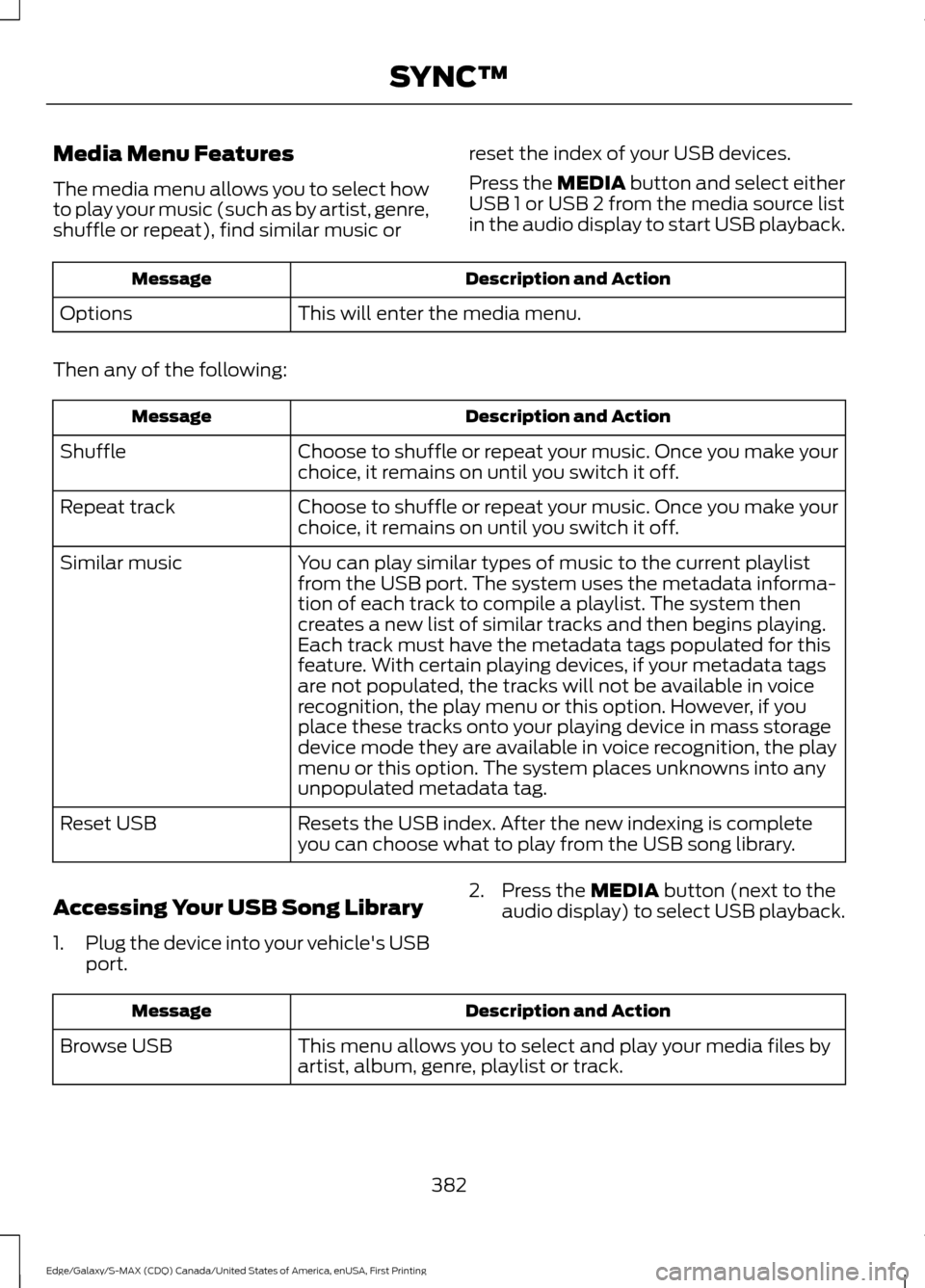
Media Menu Features
The media menu allows you to select how
to play your music (such as by artist, genre,
shuffle or repeat), find similar music or
reset the index of your USB devices.
Press the MEDIA button and select either
USB 1 or USB 2 from the media source list
in the audio display to start USB playback. Description and Action
Message
This will enter the media menu.
Options
Then any of the following: Description and Action
Message
Choose to shuffle or repeat your music. Once you make your
choice, it remains on until you switch it off.
Shuffle
Choose to shuffle or repeat your music. Once you make your
choice, it remains on until you switch it off.
Repeat track
You can play similar types of music to the current playlist
from the USB port. The system uses the metadata informa-
tion of each track to compile a playlist. The system then
creates a new list of similar tracks and then begins playing.
Each track must have the metadata tags populated for this
feature. With certain playing devices, if your metadata tags
Similar music
are not populated, the tracks will not be available in voice
recognition, the play menu or this option. However, if you
place these tracks onto your playing device in mass storage
device mode they are available in voice recognition, the play
menu or this option. The system places unknowns into any
unpopulated metadata tag.
Resets the USB index. After the new indexing is complete
you can choose what to play from the USB song library.
Reset USB
Accessing Your USB Song Library
1. Plug the device into your vehicle's USB
port. 2. Press the
MEDIA button (next to the
audio display) to select USB playback. Description and Action
Message
This menu allows you to select and play your media files by
artist, album, genre, playlist or track.
Browse USB
382
Edge/Galaxy/S-MAX (CDQ) Canada/United States of America, enUSA, First Printing SYNC™
Page 387 of 451
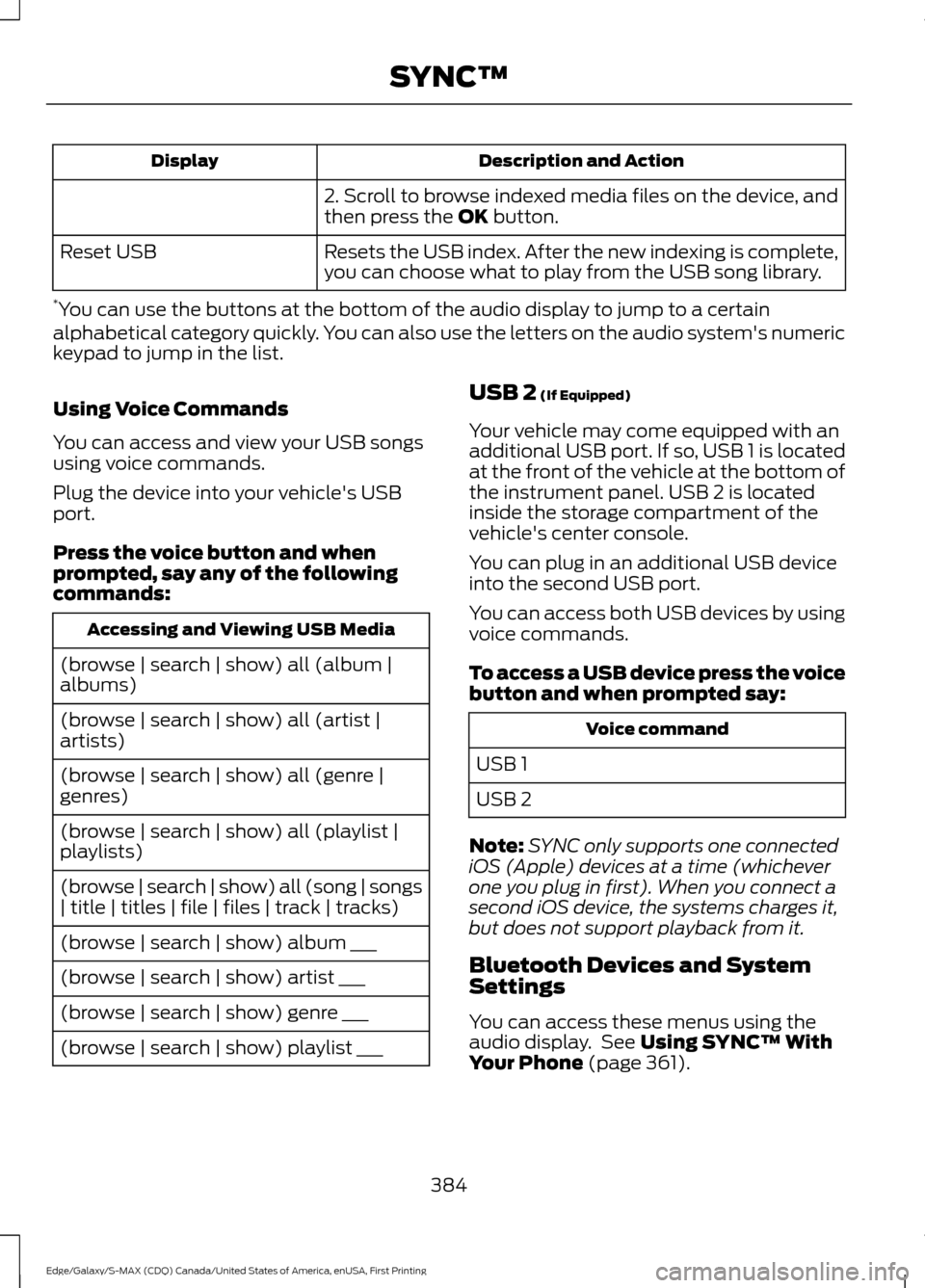
Description and Action
Display
2. Scroll to browse indexed media files on the device, and
then press the OK button.
Resets the USB index. After the new indexing is complete,
you can choose what to play from the USB song library.
Reset USB
* You can use the buttons at the bottom of the audio display to jump to a certain
alphabetical category quickly. You can also use the letters on the audio system's numeric
keypad to jump in the list.
Using Voice Commands
You can access and view your USB songs
using voice commands.
Plug the device into your vehicle's USB
port.
Press the voice button and when
prompted, say any of the following
commands: Accessing and Viewing USB Media
(browse | search | show) all (album |
albums)
(browse | search | show) all (artist |
artists)
(browse | search | show) all (genre |
genres)
(browse | search | show) all (playlist |
playlists)
(browse | search | show) all (song | songs
| title | titles | file | files | track | tracks)
(browse | search | show) album ___
(browse | search | show) artist ___
(browse | search | show) genre ___
(browse | search | show) playlist ___ USB 2
(If Equipped)
Your vehicle may come equipped with an
additional USB port. If so, USB 1 is located
at the front of the vehicle at the bottom of
the instrument panel. USB 2 is located
inside the storage compartment of the
vehicle's center console.
You can plug in an additional USB device
into the second USB port.
You can access both USB devices by using
voice commands.
To access a USB device press the voice
button and when prompted say: Voice command
USB 1
USB 2
Note: SYNC only supports one connected
iOS (Apple) devices at a time (whichever
one you plug in first). When you connect a
second iOS device, the systems charges it,
but does not support playback from it.
Bluetooth Devices and System
Settings
You can access these menus using the
audio display. See
Using SYNC™ With
Your Phone (page 361).
384
Edge/Galaxy/S-MAX (CDQ) Canada/United States of America, enUSA, First Printing SYNC™
Page 388 of 451
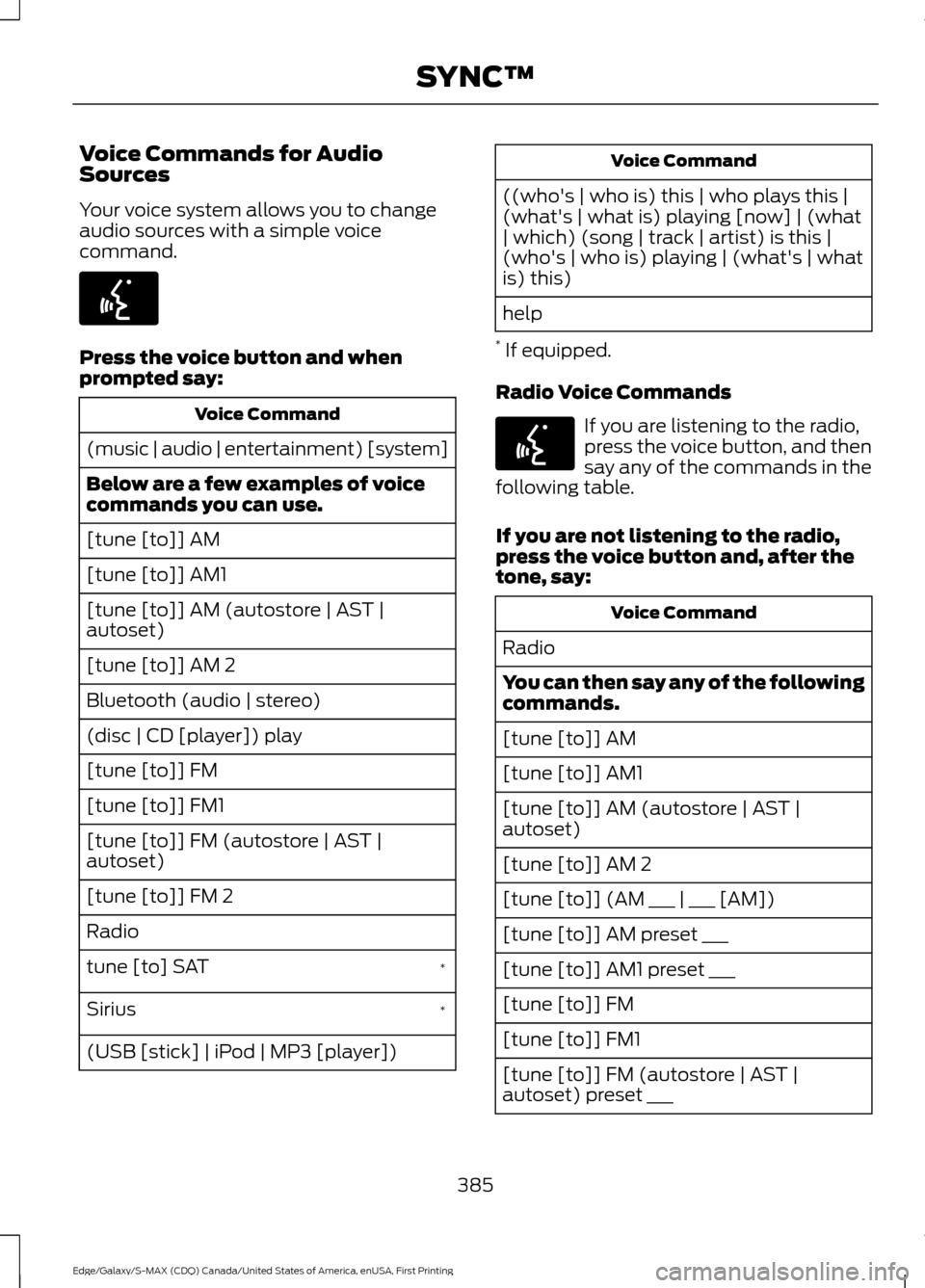
Voice Commands for Audio
Sources
Your voice system allows you to change
audio sources with a simple voice
command.
Press the voice button and when
prompted say:
Voice Command
(music | audio | entertainment) [system]
Below are a few examples of voice
commands you can use.
[tune [to]] AM
[tune [to]] AM1
[tune [to]] AM (autostore | AST |
autoset)
[tune [to]] AM 2
Bluetooth (audio | stereo)
(disc | CD [player]) play
[tune [to]] FM
[tune [to]] FM1
[tune [to]] FM (autostore | AST |
autoset)
[tune [to]] FM 2
Radio *
tune [to] SAT
*
Sirius
(USB [stick] | iPod | MP3 [player]) Voice Command
((who's | who is) this | who plays this |
(what's | what is) playing [now] | (what
| which) (song | track | artist) is this |
(who's | who is) playing | (what's | what
is) this)
help
* If equipped.
Radio Voice Commands If you are listening to the radio,
press the voice button, and then
say any of the commands in the
following table.
If you are not listening to the radio,
press the voice button and, after the
tone, say: Voice Command
Radio
You can then say any of the following
commands.
[tune [to]] AM
[tune [to]] AM1
[tune [to]] AM (autostore | AST |
autoset)
[tune [to]] AM 2
[tune [to]] (AM ___ | ___ [AM])
[tune [to]] AM preset ___
[tune [to]] AM1 preset ___
[tune [to]] FM
[tune [to]] FM1
[tune [to]] FM (autostore | AST |
autoset) preset ___
385
Edge/Galaxy/S-MAX (CDQ) Canada/United States of America, enUSA, First Printing SYNC™E142599 E142599
Page 390 of 451
![FORD EDGE 2016 2.G Service Manual Voice Command
(shuffle | random | mix) (CD [player] |
disc) [on]
(shuffle | random | mix) folder [on]
shuffle off
SYNC™ TROUBLESHOOTING
Your SYNC system is easy to use. However,
should questions ari](/img/11/4849/w960_4849-389.png "FORD EDGE 2016 2.G Service Manual Voice Command
(shuffle | random | mix) (CD [player] |
disc) [on]
(shuffle | random | mix) folder [on]
shuffle off
SYNC™ TROUBLESHOOTING
Your SYNC system is easy to use. However,
should questions ari")
Voice Command
(shuffle | random | mix) (CD [player] |
disc) [on]
(shuffle | random | mix) folder [on]
shuffle off
SYNC™ TROUBLESHOOTING
Your SYNC system is easy to use. However,
should questions arise, see the tables
below. Use the website at any time to check your
phone's compatibility, register your
account and set preferences as well as
access a customer representative via an
online chat (during certain hours). Visit
www.SYNCMyRide.com,
www.SYNCMyRide.ca or
www.syncmaroute.ca for more
information.Phone issues
Possible solution(s)
Possible cause(s)
Issue
Review your phone's manualabout audio adjustments.
The audio control settings
on your phone may be
affecting SYNC perform- ance.
There is excessive back-
ground noise during a phone call.
Try turning off the device,resetting the device,
removing the device's
battery, then trying again.
This may be a possible
phone malfunction.
During a call, I can hear the
other person but theycannot hear me.
Go to the website to reviewyour phone's compatibility.
This is a phone-dependent feature.
SYNC is not able to down- load my phonebook. Try turning off the device,
resetting the device orremoving the device's
battery, then trying again.
Try pushing your phonebook contacts to SYNC by usingthe Add Contacts feature.
This may be a possible
phone malfunction. Use the SYNCmyphone
feature available on the website.
Try pushing your phonebook contacts to SYNC by usingthe Add Contacts feature.
This may be a limitation on
your phone's capability.
The system says Phonebook
Downloaded but the
phonebook in SYNC is
empty or missing contacts.
387
Edge/Galaxy/S-MAX (CDQ) Canada/United States of America, enUSA, First Printing SYNC™
Page 392 of 451
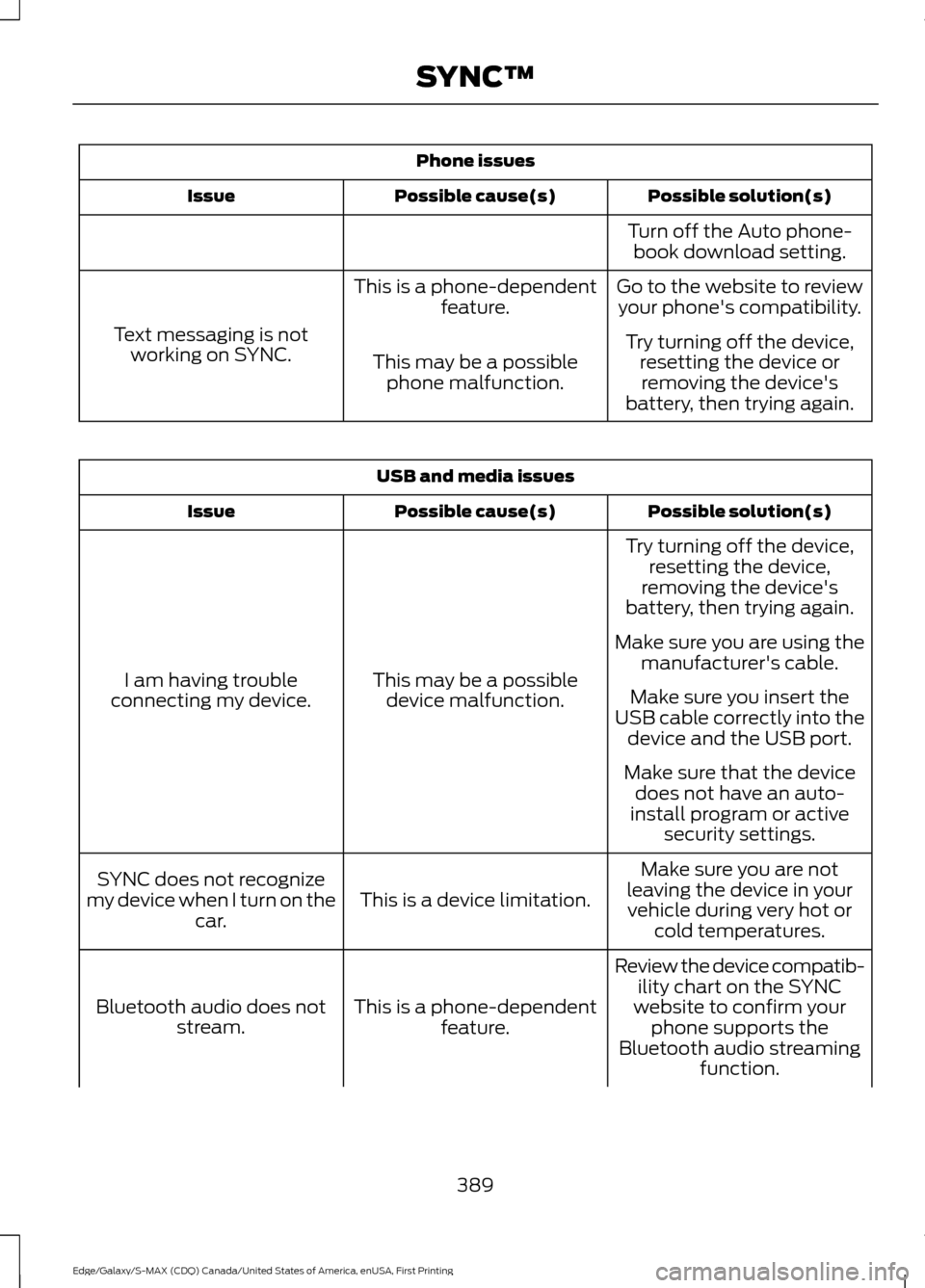
Phone issues
Possible solution(s)
Possible cause(s)
Issue
Turn off the Auto phone-book download setting.
Go to the website to review your phone's compatibility.
This is a phone-dependent
feature.
Text messaging is not working on SYNC. Try turning off the device,
resetting the device orremoving the device's
battery, then trying again.
This may be a possible
phone malfunction. USB and media issues
Possible solution(s)
Possible cause(s)
Issue
Try turning off the device,resetting the device,
removing the device's
battery, then trying again.
This may be a possible device malfunction.
I am having trouble
connecting my device. Make sure you are using the
manufacturer's cable.
Make sure you insert the
USB cable correctly into the device and the USB port.
Make sure that the device does not have an auto-
install program or active security settings.
Make sure you are not
leaving the device in your vehicle during very hot or cold temperatures.
This is a device limitation.
SYNC does not recognize
my device when I turn on the car.
Review the device compatib-ility chart on the SYNC
website to confirm your phone supports the
Bluetooth audio streaming function.
This is a phone-dependent
feature.
Bluetooth audio does not
stream.
389
Edge/Galaxy/S-MAX (CDQ) Canada/United States of America, enUSA, First Printing SYNC™
Page 423 of 451
•
Links to Third Party Sites: The
SOFTWARE may provide you with the
ability to link to third party sites. The
third party sites are not under the
control of FORD MOTOR COMPANY,
its affiliates and/or its designated
agent. Neither FORD MOTOR
COMPANY nor its affiliates nor its
designated agent are responsible for
(i) the contents of any third party sites,
any links contained in third party sites,
or any changes or updates to third
party sites, or (ii) webcasting or any
other form of transmission received
from any third party sites. If the
SOFTWARE provides links to third
party sites, those links are provided to
you only as a convenience, and the
inclusion of any link does not imply an
endorsement of the third party site by
FORD MOTOR COMPANY, its affiliates
and/or its designated agent.
• Obligation to Drive Responsibly:
You recognize your obligation to drive
responsibly and keep attention on the
road. You will read and abide with the
DEVICES operating instructions
particularly as they pertain to safety
and you agree to assume any risk
associated with the use of the
DEVICES.
UPGRADES AND RECOVERY MEDIA:
If the SOFTWARE is provided by FORD
MOTOR COMPANY separate from the
DEVICES on media such as a ROM chip,
CD ROM disk(s) or via web download or
other means, and is labeled "For Upgrade
Purposes Only" or "For Recovery Purposes
Only" you may install one (1) copy of such
SOFTWARE onto the DEVICES as a
replacement copy for the existing
SOFTWARE, and use it in accordance with
this EULA, including any additional EULA
terms accompanying the upgrade
SOFTWARE. INTELLECTUAL PROPERTY RIGHTS:
All title and intellectual property rights in
and to the SOFTWARE (including but not
limited to any images, photographs,
animations, video, audio, music, text and
"applets" incorporated into the
SOFTWARE), the accompanying printed
materials, and any copies of the
SOFTWARE, are owned by FORD MOTOR
COMPANY, or its affiliates or suppliers. The
SOFTWARE is licensed, not sold. You may
not copy the printed materials
accompanying the SOFTWARE. All title
and intellectual property rights in and to
the content which may be accessed
through use of the SOFTWARE is the
property of the respective content owner
and may be protected by applicable
copyright or other intellectual property
laws and treaties. This EULA grants you no
rights to use such content outside its
intended use. All rights not specifically
granted under this EULA are reserved by
FORD MOTOR COMPANY, its affiliates,
and third party software and service
providers and suppliers. Use of any on-line
services which may be accessed through
the SOFTWARE may be governed by the
respective terms of use relating to such
services. If this SOFTWARE contains
documentation that is provided only in
electronic form, you may print one copy of
such electronic documentation.
EXPORT RESTRICTIONS:
You
acknowledge that the SOFTWARE is
subject to U.S. and European Union export
jurisdiction. You agree to comply with all
applicable international and national laws
that apply to the SOFTWARE, including
the U.S. Export Administration Regulations,
as well as end-user, end-use and
destination restrictions issued by U.S. and
other governments.
420
Edge/Galaxy/S-MAX (CDQ) Canada/United States of America, enUSA, First Printing Appendices
Page 429 of 451
(a) observe all traffic laws and otherwise
drive safely;
(b) use your own personal judgment while
driving. If you feel that a route suggested
by the TeleNav Software instructs you to
perform an unsafe or illegal maneuver,
places you in an unsafe situation, or directs
you into an area that you consider to be
unsafe, do not follow such instructions;
(c) do not input destinations, or otherwise
manipulate the TeleNav Software, unless
your vehicle is stationary and parked;
(d) do not use the TeleNav Software for
any illegal, unauthorized, unintended,
unsafe, hazardous, or unlawful purposes,
or in any manner inconsistent with this
Agreement;
(e) arrange all GPS and wireless devices
and cables necessary for use of the
TeleNav Software in a secure manner in
your vehicle so that they will not interfere
with your driving and will not prevent the
operation of any safety device (such as an
airbag).
You agree to indemnify and hold TeleNav
harmless against all claims resulting from
any dangerous or otherwise inappropriate
use of the TeleNav Software in any moving
vehicle, including as a result of your failure
to comply with the directions above.
2. Account Information
You agree: (a) when registering the
TeleNav Software, to provide TeleNav with
true, accurate, current, and complete
information about yourself, and (b) to
inform TeleNav promptly of any changes
to such information, and to keep it true,
accurate, current and complete.
3. Software License
•
Subject to your compliance with the
terms of this Agreement, TeleNav
hereby grants to you a personal,
non-exclusive, non-transferable license
(except as expressly permitted below
in connection with your permanent
transfer of the TeleNav Software
license), without the right to
sublicense, to use the TeleNav
Software (in object code form only) in
order to access and use the TeleNav
Software. This license shall terminate
upon any termination or expiration of
this Agreement. You agree that you will
use the TeleNav Software only for your
personal business or leisure purposes,
and not to provide commercial
navigation services to other parties.
3.1 License Limitations
• (a) reverse engineer, decompile,
disassemble, translate, modify, alter
or otherwise change the TeleNav
Software or any part thereof;
(b)
attempt to derive the source code,
audio library or structure of the
TeleNav Software without the prior
express written consent of TeleNav;
(c)
remove from the TeleNav
Software, or alter, any of TeleNav's or
its suppliers' trademarks, trade names,
logos, patent or copyright notices, or
other notices or markings;
(d)
distribute, sublicense or otherwise
transfer the TeleNav Software to
others, except as part of your
permanent transfer of the TeleNav
Software; or
(e) use the TeleNav
Software in any manner that
i. infringes the intellectual property or
proprietary rights, rights of publicity or
privacy or other rights of any party,
426
Edge/Galaxy/S-MAX (CDQ) Canada/United States of America, enUSA, First Printing Appendices
Page 440 of 451
1
180 Degree Camera.....................................195
Camera Views..................................................... 196
Using the 180 degree camera system........196
A
A/C See: Climate Control.......................................... 123
About This Manual...........................................7
ABS See: Brakes............................................................ 175
ABS driving hints See: Hints on Driving With Anti-Lock
Brakes................................................................. 175
Accessories....................................................395 Exterior Style....................................................... 395
Interior Style........................................................ 395
Lifestyle................................................................. 395
Peace of Mind..................................................... 395
Accessories See: Replacement Parts
Recommendation............................................. 11
ACC See: Using Adaptive Cruise Control............198
Active Park Assist.........................................187 Deactivating the Active Park Assist
Feature ................................................................ 191
Parallel Parking, Perpendicular Parking, Park Out Assist............................................... 187
Troubleshooting the System........................... 191
Adjusting the Headlamps.........................276 Vertical Aim Adjustment................................. 276
Adjusting the Steering Wheel - Vehicles With: Manual Adjustable Steering
Column
............................................................72
Adjusting the Steering Wheel - Vehicles With: Power Adjustable Steering
Column
............................................................72
Easy Entry and Exit Feature.............................. 73
End of Travel Position......................................... 73
Memory Feature.................................................... 73
Airbag Disposal
..............................................46
Air Conditioning See: Climate Control.......................................... 123
Air Filter See: Changing the Engine Air Filter.............282 Alarm
See: Anti-Theft Alarm........................................ 70
All-Wheel Drive
.............................................170
Ambient Lighting...........................................85
Anti-Theft Alarm............................................70 Arming the Alarm................................................. 70
Disarming the Alarm........................................... 70
Appendices.....................................................418
Audible Warnings and Indicators.............97 Headlamps On Warning Chime...................... 97
Key in Ignition Warning Chime......................... 97
Keyless Warning Alert......................................... 97
Parking Brake On Warning Chime.................. 97
Audio Control - Vehicles With: Voice Control.............................................................74
Seek, Next or Previous........................................ 74
Audio Control - Vehicles Without: Voice Control
.............................................................73
MEDIA....................................................................... 73
Seek, Next or Previous........................................ 73
Audio System................................................343 General Information......................................... 343
Audio Unit - Vehicles With: AM/FM/CD/ SYNC.............................................................344
Audio Unit - Vehicles With: Premium AM/FM/CD..................................................347
Audio Unit - Vehicles With: Sony AM/ FM/CD..........................................................348
Menu Structure.................................................. 350
Autolamps.......................................................80 Windshield Wiper Activated
Headlamps........................................................80
Automatic Climate Control - Vehicles With: Dual Automatic Temperature
Control (DATC)/Premium AM/FM/
CD....................................................................125
Automatic Climate Control - Vehicles With: Dual Automatic Temperature
Control (DATC)/Sony Audio
System...........................................................126
Automatic High Beam Control..................82 Activating the System........................................ 82
Manually Overriding the System.................... 83
437
Edge/Galaxy/S-MAX (CDQ) Canada/United States of America, enUSA, First Printing Index
Page 449 of 451
USB Port.........................................................356
Using Adaptive Cruise Control................198
Automatic Cancellation................................... 201
Blocked Sensor................................................... 202
Canceling the Set Speed............................... 200
Changing the Set Speed.................................. 201
Detection Issues................................................. 201
Following a Vehicle............................................ 199
Hilly Condition Usage........................................ 201
Overriding the System.................................... 200
Resuming the Set Speed................................. 201
Setting the Adaptive Cruise Speed.............199
Setting the Gap Distance............................... 200
Switching Adaptive Cruise Control Off....................................................................... 201
Switching Adaptive Cruise Control On........................................................................\
198
Switching to Normal Cruise Control...........203
System Not Available...................................... 202
Using All-Wheel Drive.................................170 Driving In Special Conditions With
All-Wheel Drive (AWD)............................... 170
Using Cruise Control....................................197
Switching Cruise Control Off......................... 198
Switching Cruise Control On........................... 197
Using MyKey With Remote Start Systems
..........................................................56
Using Snow Chains......................................315
Using Stability Control................................182
Using Summer Tires
....................................315
Using SYNC™ With Your Media Player.............................................................378
Accessing Your USB Song Library...............382
Bluetooth Devices and System Settings............................................................ 384
Connecting Your Digital Media Player to the USB Port........................................................... 378
Media Menu Features...................................... 382
Media Voice Commands................................. 379
USB 2..................................................................... 384
Voice Commands for Audio Sources.........385 Using SYNC™ With Your Phone.............361
Accessing Features through the Phone
Menu................................................................. 366
Accessing Your Phone Settings................... 369
Bluetooth Devices............................................. 370
Making Calls........................................................ 364
Pairing a Phone for the First Time................361
Pairing Subsequent Phones.......................... 362
Phone Options during an Active Call.........365
Phone Voice Commands................................ 363
Receiving Calls................................................... 365
System Settings.................................................. 371
Text Messaging................................................... 367
Using Traction Control...............................180 Switching the System Off............................... 180
System Indicator Lights and Messages......................................................... 180
Using a Switch.................................................... 180
Using the Information Display Controls............................................................ 180
Using Voice Recognition...........................359 Initiating a Voice Session................................ 359
System Interaction and Feedback.............360
Utilizing the Mediation/Arbitration Program (Canada Only)
........................246
V
Vehicle Care
...................................................283
General Information......................................... 283
Vehicle Certification Label........................331
Vehicle Identification Number................330
Vehicle Storage
............................................288
Battery................................................................... 289
Body....................................................................... 288
Brakes.................................................................... 289
Cooling system................................................... 289
Engine.................................................................... 288
Fuel system......................................................... 289
General.................................................................. 288
Miscellaneous..................................................... 289
Removing Vehicle From Storage.................289
Tires........................................................................\
289
Ventilation See: Climate Control.......................................... 123
VIN See: Vehicle Identification Number............330
Voice Control
....................................................74
446
Edge/Galaxy/S-MAX (CDQ) Canada/United States of America, enUSA, First Printing Index