phone FORD EDGE 2016 2.G Service Manual
[x] Cancel search | Manufacturer: FORD, Model Year: 2016, Model line: EDGE, Model: FORD EDGE 2016 2.GPages: 451, PDF Size: 6.18 MB
Page 396 of 451
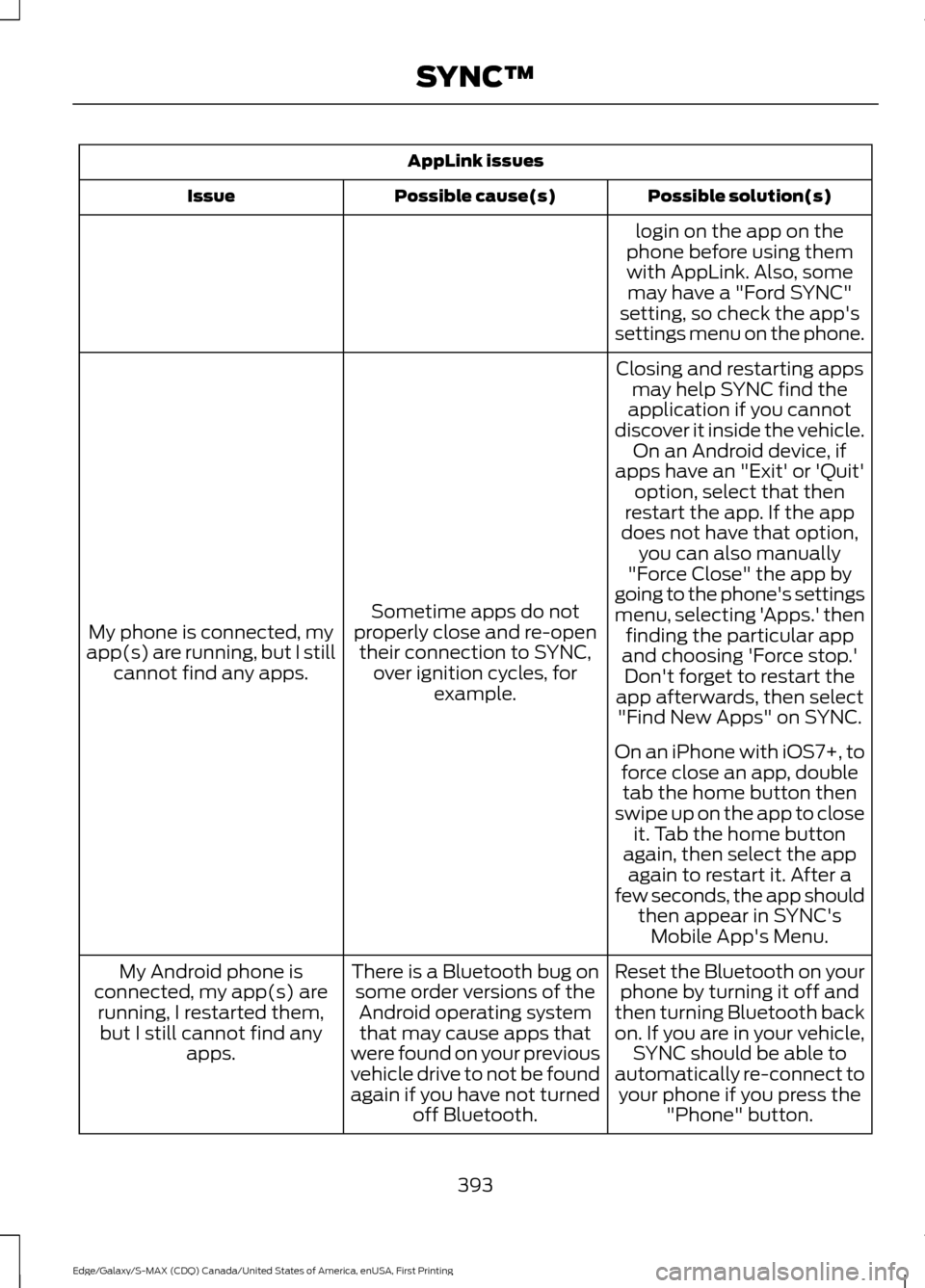
AppLink issues
Possible solution(s)
Possible cause(s)
Issue
login on the app on the
phone before using them with AppLink. Also, some may have a "Ford SYNC"
setting, so check the app's
settings menu on the phone.
Closing and restarting apps may help SYNC find the
application if you cannot
discover it inside the vehicle. On an Android device, if
apps have an "Exit' or 'Quit'
Sometime apps do not
properly close and re-open their connection to SYNC, over ignition cycles, for example.
My phone is connected, my
app(s) are running, but I still cannot find any apps. option, select that then
restart the app. If the app
does not have that option, you can also manually
"Force Close" the app by
going to the phone's settings
menu, selecting 'Apps.' then finding the particular app
and choosing 'Force stop.' Don't forget to restart the
app afterwards, then select "Find New Apps" on SYNC.
On an iPhone with iOS7+, to force close an app, doubletab the home button then
swipe up on the app to close it. Tab the home button
again, then select the app again to restart it. After a
few seconds, the app should then appear in SYNC'sMobile App's Menu.
Reset the Bluetooth on your phone by turning it off and
then turning Bluetooth back
on. If you are in your vehicle, SYNC should be able to
automatically re-connect to your phone if you press the "Phone" button.
There is a Bluetooth bug on
some order versions of theAndroid operating systemthat may cause apps that
were found on your previous
vehicle drive to not be found
again if you have not turned off Bluetooth.
My Android phone is
connected, my app(s) are running, I restarted them,but I still cannot find any apps.
393
Edge/Galaxy/S-MAX (CDQ) Canada/United States of America, enUSA, First Printing SYNC™
Page 397 of 451
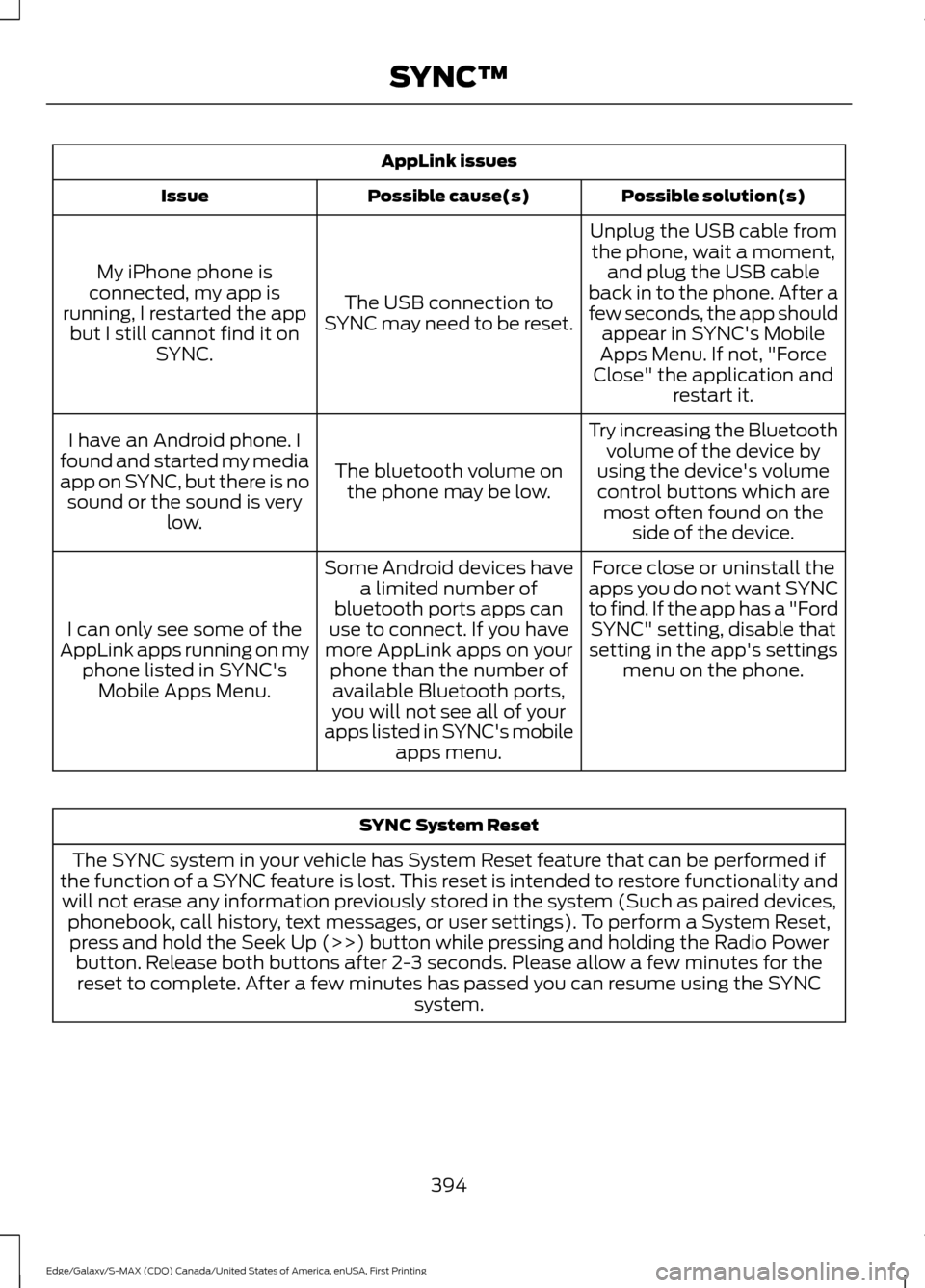
AppLink issues
Possible solution(s)
Possible cause(s)
Issue
Unplug the USB cable fromthe phone, wait a moment, and plug the USB cable
back in to the phone. After a
few seconds, the app should appear in SYNC's Mobile
Apps Menu. If not, "Force
Close" the application and restart it.
The USB connection to
SYNC may need to be reset.
My iPhone phone is
connected, my app is
running, I restarted the app but I still cannot find it on SYNC.
Try increasing the Bluetoothvolume of the device by
using the device's volume control buttons which are most often found on the side of the device.
The bluetooth volume on
the phone may be low.
I have an Android phone. I
found and started my media
app on SYNC, but there is no sound or the sound is very low.
Force close or uninstall the
apps you do not want SYNC
to find. If the app has a "Ford SYNC" setting, disable that
setting in the app's settings menu on the phone.
Some Android devices have
a limited number of
bluetooth ports apps can
use to connect. If you have
more AppLink apps on your phone than the number ofavailable Bluetooth ports,
you will not see all of your
apps listed in SYNC's mobile apps menu.
I can only see some of the
AppLink apps running on my phone listed in SYNC'sMobile Apps Menu. SYNC System Reset
The SYNC system in your vehicle has System Reset feature that can be performed if
the function of a SYNC feature is lost. This reset is intended to restore functionality and will not erase any information previously stored in the system (Such as paired devices, phonebook, call history, text messages, or user settings). To perform a System Reset,press and hold the Seek Up (>>) button while pressing and holding the Radio Power button. Release both buttons after 2-3 seconds. Please allow a few minutes for thereset to complete. After a few minutes has passed you can resume using the SYNC system.
394
Edge/Galaxy/S-MAX (CDQ) Canada/United States of America, enUSA, First Printing SYNC™
Page 399 of 451
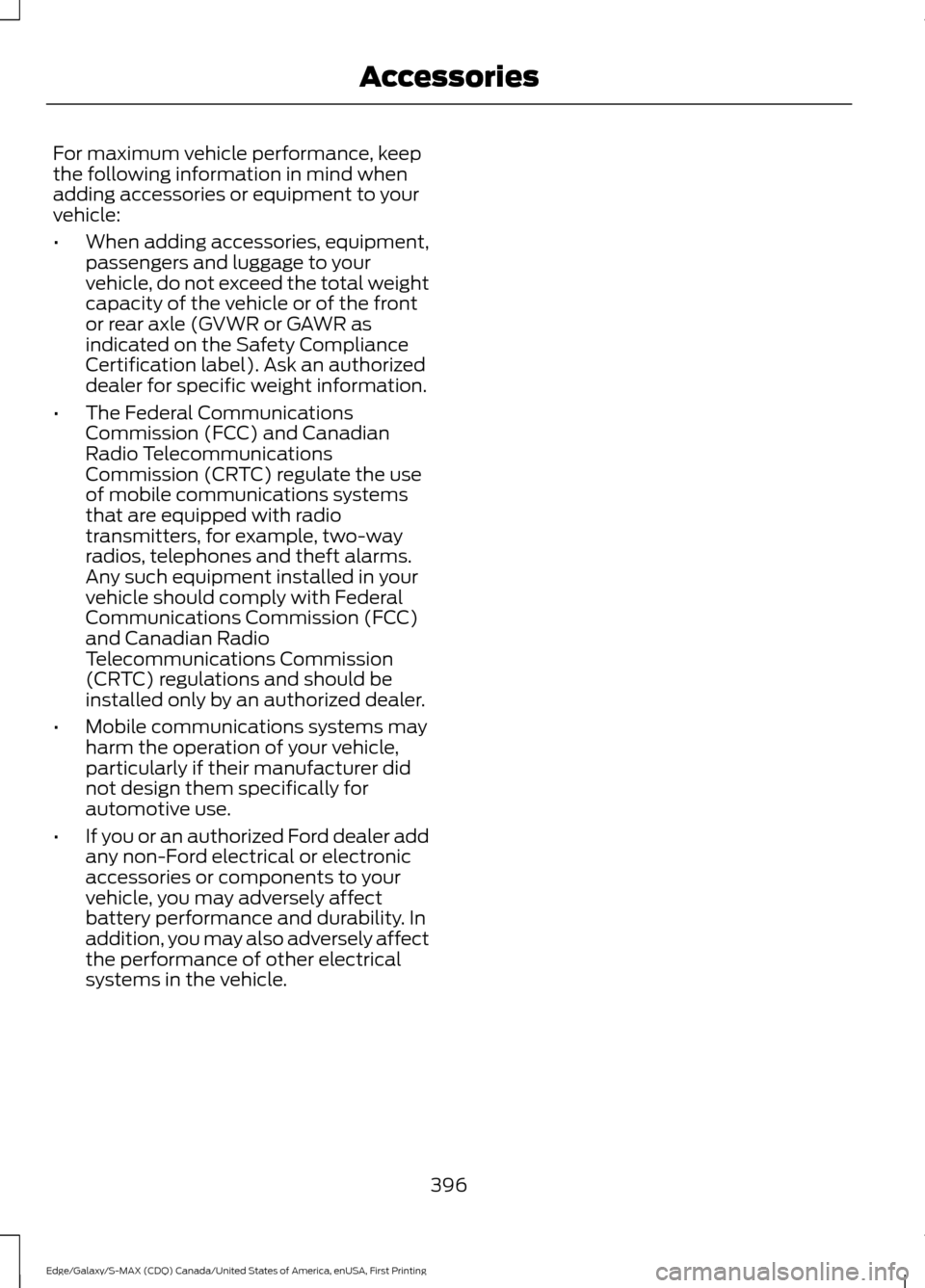
For maximum vehicle performance, keep
the following information in mind when
adding accessories or equipment to your
vehicle:
•
When adding accessories, equipment,
passengers and luggage to your
vehicle, do not exceed the total weight
capacity of the vehicle or of the front
or rear axle (GVWR or GAWR as
indicated on the Safety Compliance
Certification label). Ask an authorized
dealer for specific weight information.
• The Federal Communications
Commission (FCC) and Canadian
Radio Telecommunications
Commission (CRTC) regulate the use
of mobile communications systems
that are equipped with radio
transmitters, for example, two-way
radios, telephones and theft alarms.
Any such equipment installed in your
vehicle should comply with Federal
Communications Commission (FCC)
and Canadian Radio
Telecommunications Commission
(CRTC) regulations and should be
installed only by an authorized dealer.
• Mobile communications systems may
harm the operation of your vehicle,
particularly if their manufacturer did
not design them specifically for
automotive use.
• If you or an authorized Ford dealer add
any non-Ford electrical or electronic
accessories or components to your
vehicle, you may adversely affect
battery performance and durability. In
addition, you may also adversely affect
the performance of other electrical
systems in the vehicle.
396
Edge/Galaxy/S-MAX (CDQ) Canada/United States of America, enUSA, First Printing Accessories
Page 433 of 451
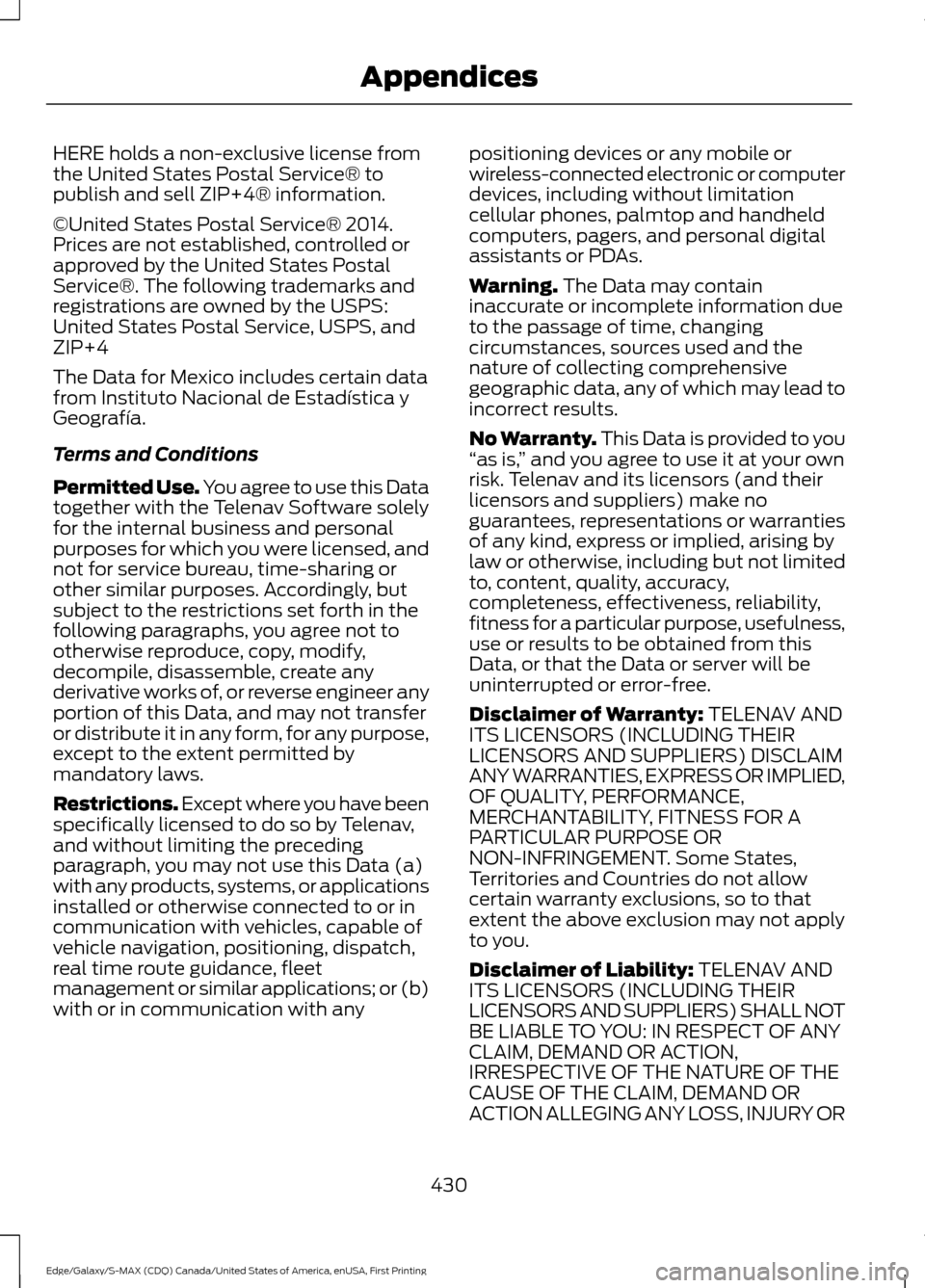
HERE holds a non-exclusive license from
the United States Postal Service® to
publish and sell ZIP+4® information.
©United States Postal Service® 2014.
Prices are not established, controlled or
approved by the United States Postal
Service®. The following trademarks and
registrations are owned by the USPS:
United States Postal Service, USPS, and
ZIP+4
The Data for Mexico includes certain data
from Instituto Nacional de Estadística y
Geografía.
Terms and Conditions
Permitted Use. You agree to use this Data
together with the Telenav Software solely
for the internal business and personal
purposes for which you were licensed, and
not for service bureau, time-sharing or
other similar purposes. Accordingly, but
subject to the restrictions set forth in the
following paragraphs, you agree not to
otherwise reproduce, copy, modify,
decompile, disassemble, create any
derivative works of, or reverse engineer any
portion of this Data, and may not transfer
or distribute it in any form, for any purpose,
except to the extent permitted by
mandatory laws.
Restrictions. Except where you have been
specifically licensed to do so by Telenav,
and without limiting the preceding
paragraph, you may not use this Data (a)
with any products, systems, or applications
installed or otherwise connected to or in
communication with vehicles, capable of
vehicle navigation, positioning, dispatch,
real time route guidance, fleet
management or similar applications; or (b)
with or in communication with any
positioning devices or any mobile or
wireless-connected electronic or computer
devices, including without limitation
cellular phones, palmtop and handheld
computers, pagers, and personal digital
assistants or PDAs.
Warning. The Data may contain
inaccurate or incomplete information due
to the passage of time, changing
circumstances, sources used and the
nature of collecting comprehensive
geographic data, any of which may lead to
incorrect results.
No Warranty.
This Data is provided to you
“ as is, ” and you agree to use it at your own
risk. Telenav and its licensors (and their
licensors and suppliers) make no
guarantees, representations or warranties
of any kind, express or implied, arising by
law or otherwise, including but not limited
to, content, quality, accuracy,
completeness, effectiveness, reliability,
fitness for a particular purpose, usefulness,
use or results to be obtained from this
Data, or that the Data or server will be
uninterrupted or error-free.
Disclaimer of Warranty:
TELENAV AND
ITS LICENSORS (INCLUDING THEIR
LICENSORS AND SUPPLIERS) DISCLAIM
ANY WARRANTIES, EXPRESS OR IMPLIED,
OF QUALITY, PERFORMANCE,
MERCHANTABILITY, FITNESS FOR A
PARTICULAR PURPOSE OR
NON-INFRINGEMENT. Some States,
Territories and Countries do not allow
certain warranty exclusions, so to that
extent the above exclusion may not apply
to you.
Disclaimer of Liability:
TELENAV AND
ITS LICENSORS (INCLUDING THEIR
LICENSORS AND SUPPLIERS) SHALL NOT
BE LIABLE TO YOU: IN RESPECT OF ANY
CLAIM, DEMAND OR ACTION,
IRRESPECTIVE OF THE NATURE OF THE
CAUSE OF THE CLAIM, DEMAND OR
ACTION ALLEGING ANY LOSS, INJURY OR
430
Edge/Galaxy/S-MAX (CDQ) Canada/United States of America, enUSA, First Printing Appendices
Page 449 of 451
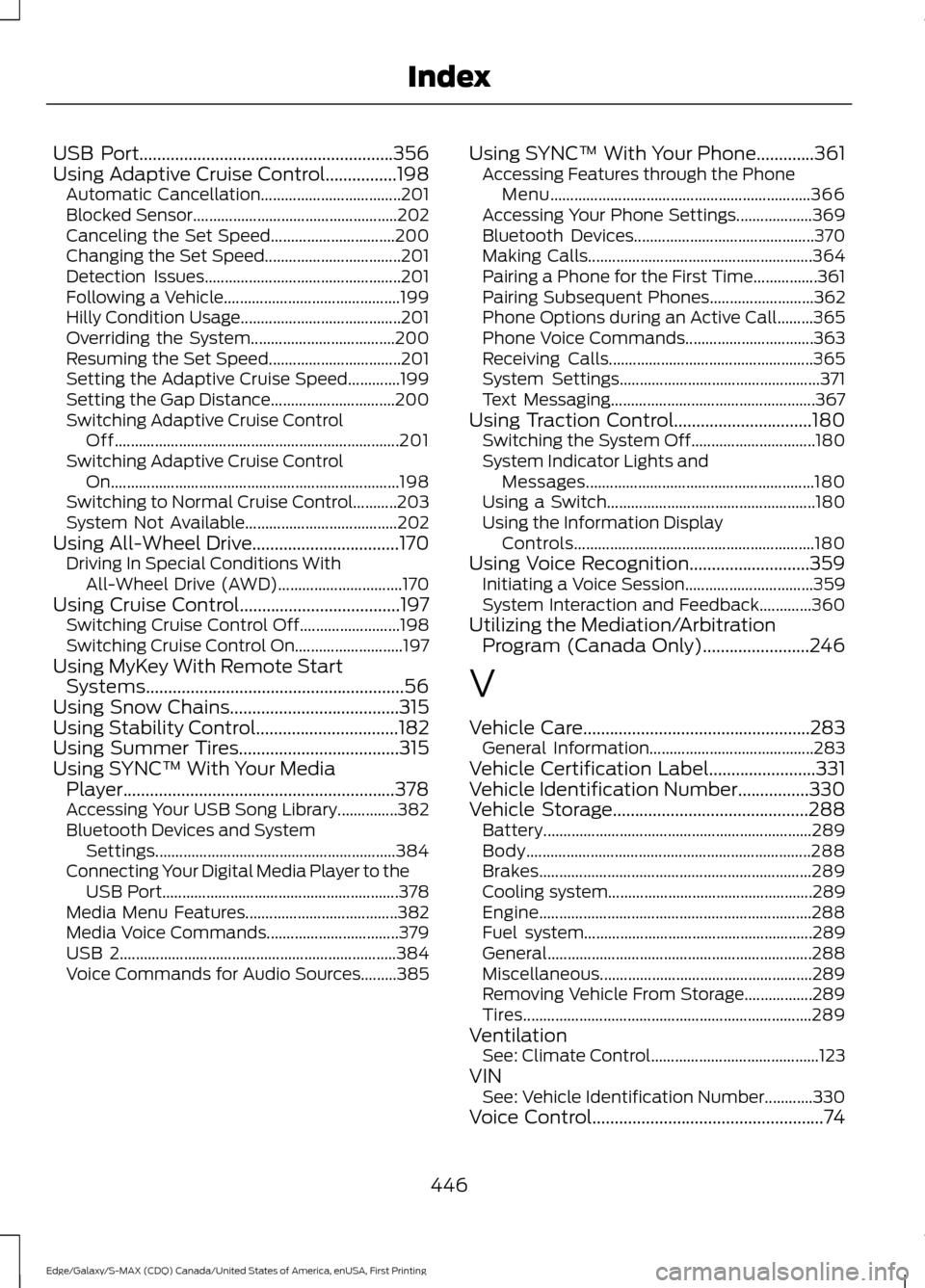
USB Port.........................................................356
Using Adaptive Cruise Control................198
Automatic Cancellation................................... 201
Blocked Sensor................................................... 202
Canceling the Set Speed............................... 200
Changing the Set Speed.................................. 201
Detection Issues................................................. 201
Following a Vehicle............................................ 199
Hilly Condition Usage........................................ 201
Overriding the System.................................... 200
Resuming the Set Speed................................. 201
Setting the Adaptive Cruise Speed.............199
Setting the Gap Distance............................... 200
Switching Adaptive Cruise Control Off....................................................................... 201
Switching Adaptive Cruise Control On........................................................................\
198
Switching to Normal Cruise Control...........203
System Not Available...................................... 202
Using All-Wheel Drive.................................170 Driving In Special Conditions With
All-Wheel Drive (AWD)............................... 170
Using Cruise Control....................................197
Switching Cruise Control Off......................... 198
Switching Cruise Control On........................... 197
Using MyKey With Remote Start Systems
..........................................................56
Using Snow Chains......................................315
Using Stability Control................................182
Using Summer Tires
....................................315
Using SYNC™ With Your Media Player.............................................................378
Accessing Your USB Song Library...............382
Bluetooth Devices and System Settings............................................................ 384
Connecting Your Digital Media Player to the USB Port........................................................... 378
Media Menu Features...................................... 382
Media Voice Commands................................. 379
USB 2..................................................................... 384
Voice Commands for Audio Sources.........385 Using SYNC™ With Your Phone.............361
Accessing Features through the Phone
Menu................................................................. 366
Accessing Your Phone Settings................... 369
Bluetooth Devices............................................. 370
Making Calls........................................................ 364
Pairing a Phone for the First Time................361
Pairing Subsequent Phones.......................... 362
Phone Options during an Active Call.........365
Phone Voice Commands................................ 363
Receiving Calls................................................... 365
System Settings.................................................. 371
Text Messaging................................................... 367
Using Traction Control...............................180 Switching the System Off............................... 180
System Indicator Lights and Messages......................................................... 180
Using a Switch.................................................... 180
Using the Information Display Controls............................................................ 180
Using Voice Recognition...........................359 Initiating a Voice Session................................ 359
System Interaction and Feedback.............360
Utilizing the Mediation/Arbitration Program (Canada Only)
........................246
V
Vehicle Care
...................................................283
General Information......................................... 283
Vehicle Certification Label........................331
Vehicle Identification Number................330
Vehicle Storage
............................................288
Battery................................................................... 289
Body....................................................................... 288
Brakes.................................................................... 289
Cooling system................................................... 289
Engine.................................................................... 288
Fuel system......................................................... 289
General.................................................................. 288
Miscellaneous..................................................... 289
Removing Vehicle From Storage.................289
Tires........................................................................\
289
Ventilation See: Climate Control.......................................... 123
VIN See: Vehicle Identification Number............330
Voice Control
....................................................74
446
Edge/Galaxy/S-MAX (CDQ) Canada/United States of America, enUSA, First Printing Index