steering wheel FORD EDGE 2017 2.G Repair Manual
[x] Cancel search | Manufacturer: FORD, Model Year: 2017, Model line: EDGE, Model: FORD EDGE 2017 2.GPages: 544, PDF Size: 25.27 MB
Page 415 of 544
Information
Option
Missed calls
Outgoing calls
Incoming calls
All calls
Quick
dial
If you are on a call, the call information is displayed on the information display.
If you are receiving a call, you can accept it by selecting OK on the right-hand
steering wheel controls.
1 Depending on your vehicle options, all of these choices may not display.
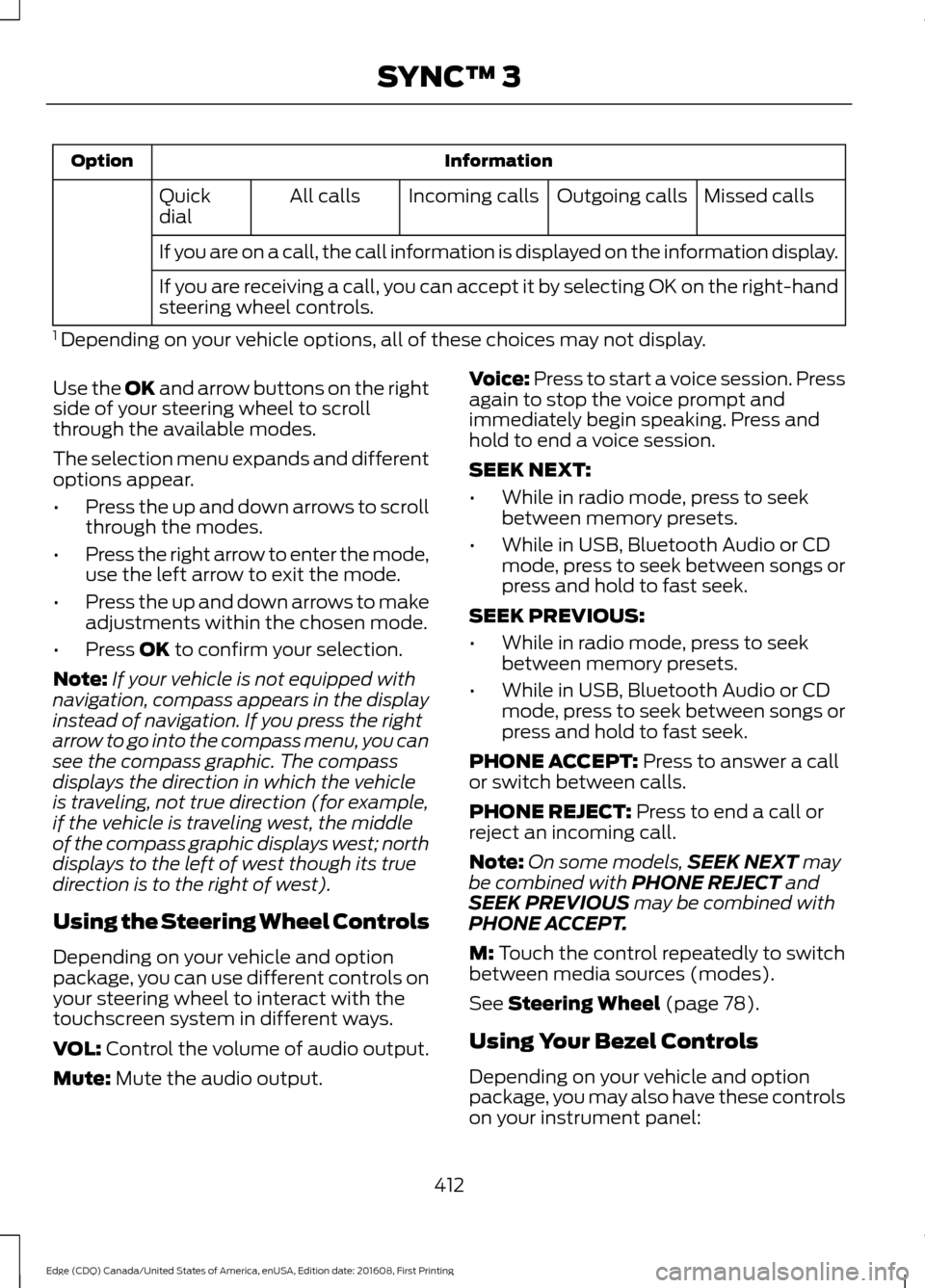
Use the OK and arrow buttons on the right
side of your steering wheel to scroll
through the available modes.
The selection menu expands and different
options appear.
• Press the up and down arrows to scroll
through the modes.
• Press the right arrow to enter the mode,
use the left arrow to exit the mode.
• Press the up and down arrows to make
adjustments within the chosen mode.
• Press
OK to confirm your selection.
Note: If your vehicle is not equipped with
navigation, compass appears in the display
instead of navigation. If you press the right
arrow to go into the compass menu, you can
see the compass graphic. The compass
displays the direction in which the vehicle
is traveling, not true direction (for example,
if the vehicle is traveling west, the middle
of the compass graphic displays west; north
displays to the left of west though its true
direction is to the right of west).
Using the Steering Wheel Controls
Depending on your vehicle and option
package, you can use different controls on
your steering wheel to interact with the
touchscreen system in different ways.
VOL:
Control the volume of audio output.
Mute:
Mute the audio output. Voice:
Press to start a voice session. Press
again to stop the voice prompt and
immediately begin speaking. Press and
hold to end a voice session.
SEEK NEXT:
• While in radio mode, press to seek
between memory presets.
• While in USB, Bluetooth Audio or CD
mode, press to seek between songs or
press and hold to fast seek.
SEEK PREVIOUS:
• While in radio mode, press to seek
between memory presets.
• While in USB, Bluetooth Audio or CD
mode, press to seek between songs or
press and hold to fast seek.
PHONE ACCEPT:
Press to answer a call
or switch between calls.
PHONE REJECT:
Press to end a call or
reject an incoming call.
Note: On some models, SEEK NEXT
may
be combined with PHONE REJECT and
SEEK PREVIOUS may be combined with
PHONE ACCEPT.
M:
Touch the control repeatedly to switch
between media sources (modes).
See
Steering Wheel (page 78).
Using Your Bezel Controls
Depending on your vehicle and option
package, you may also have these controls
on your instrument panel:
412
Edge (CDQ) Canada/United States of America, enUSA, Edition date: 201608, First Printing SYNC™ 3
Page 417 of 544
![FORD EDGE 2017 2.G Repair Manual If a crash deploys an airbag (excluding
knee airbags and rear inflatable safety
belts [if equipped]) or activates the fuel
pump shut-off, your SYNC-equipped
vehicle may be able to contact emergency
se](/img/11/4851/w960_4851-416.png "FORD EDGE 2017 2.G Repair Manual If a crash deploys an airbag (excluding
knee airbags and rear inflatable safety
belts [if equipped]) or activates the fuel
pump shut-off, your SYNC-equipped
vehicle may be able to contact emergency
se")
If a crash deploys an airbag (excluding
knee airbags and rear inflatable safety
belts [if equipped]) or activates the fuel
pump shut-off, your SYNC-equipped
vehicle may be able to contact emergency
services by dialing 911 through a paired and
connected Bluetooth-enabled phone. You
can learn more about the 911 Assist
feature, by visiting:
Website
www.owner.ford.com
www.syncmyride.ca
www.syncmaroute.ca
For important information about airbag
deployment and the fuel pump shut-off
please see the Supplementary Restrains
and Roadside Emergencies sections of
your owner manual.
To switch 911 Assist on and off please view
the settings information. See Settings
(page 457).
To make sure that 911 Assist works
correctly:
• SYNC must be powered and working
properly at the time of the incident and
throughout feature activation and use.
• The 911 Assist feature must be set on
before the incident.
• You must pair and connect a
Bluetooth-enabled and compatible
cell phone to SYNC.
• A connected Bluetooth-enabled phone
must have the ability to make and
maintain an outgoing call at the time
of the incident.
• A connected Bluetooth-enabled phone
must have adequate network coverage,
battery power and signal strength.
• The vehicle must have battery power
and be located in the U.S., Canada or
in a territory in which 911 is the
emergency number. In the Event of a Crash
Not all crashes will deploy an airbag or
activate the fuel pump shut-off (the
triggers for 911 Assist). If a connected cell
phone sustains damage or loses its
connection to SYNC during a crash, SYNC
will search for and try to connect to a
previously paired cell phone; SYNC will
then attempt to call the emergency
services.
Before making the call:
•
SYNC provides a short window of time
(about 10 seconds) to cancel the call.
If you fail to cancel the call, SYNC
attempts to dial 911.
• SYNC says the following, or a similar
message: "SYNC will attempt to call
911, to cancel the call, press Cancel on
your screen or press and hold the
phone button on your steering wheel."
If you do not cancel the call, and SYNC
makes a successful call, a pre-recorded
message plays for the 911 operator, and
then the occupant(s) in your vehicle is able
to talk with the operator. Be prepared to
provide your name, phone number and
location immediately, because not all 911
systems are capable of receiving this
information electronically.
911 Assist May Not Work If
• Your cellular phone or 911 Assist
hardware sustains damage in a crash.
• The vehicle's battery or the SYNC
system has no power.
• The phone(s) thrown from your vehicle
are the ones paired and connected to
the system.
414
Edge (CDQ) Canada/United States of America, enUSA, Edition date: 201608, First Printing SYNC™ 3
Page 423 of 544
Home screen display
Tile
Item
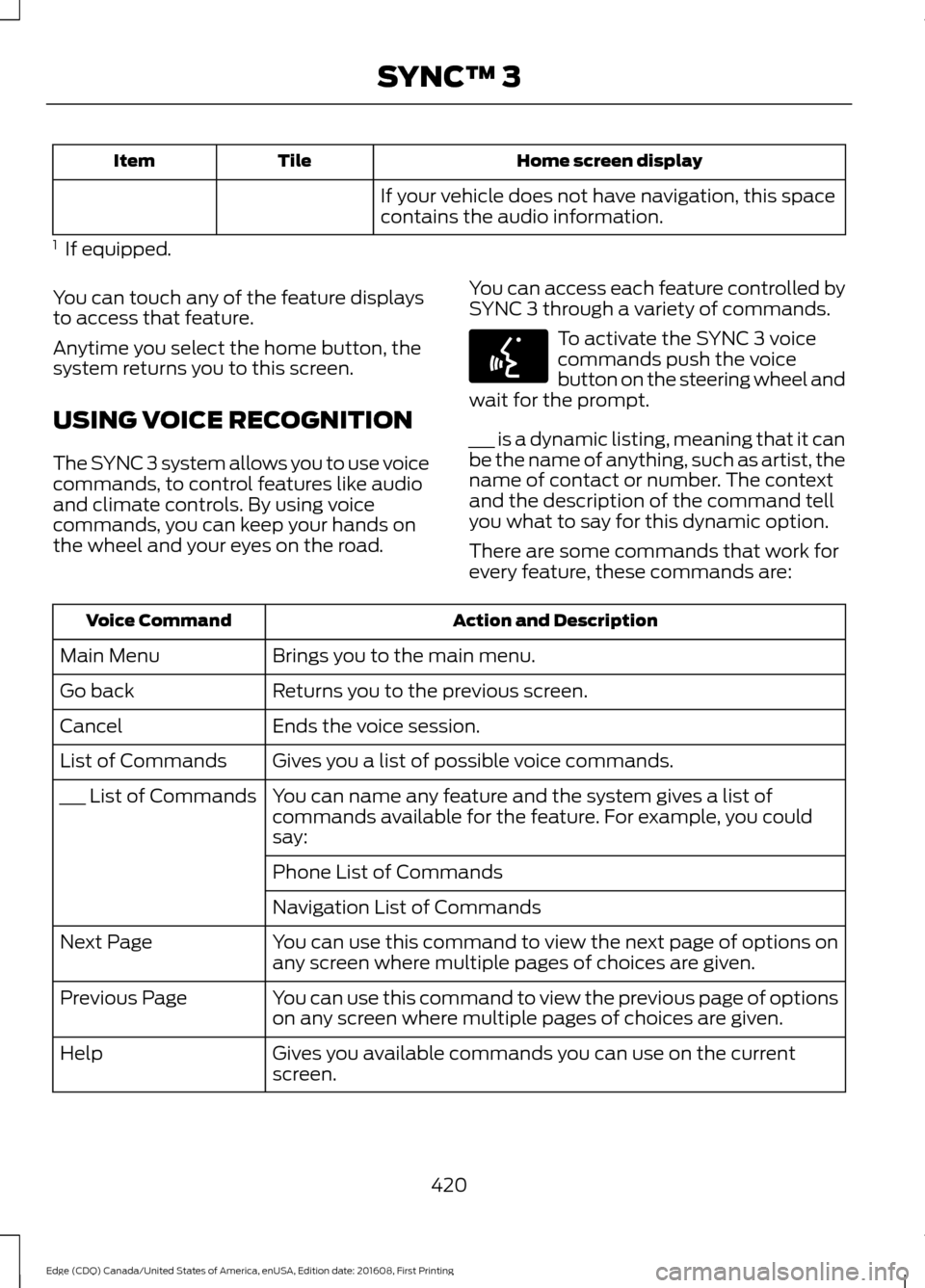
If your vehicle does not have navigation, this space
contains the audio information.
1 If equipped.
You can touch any of the feature displays
to access that feature.
Anytime you select the home button, the
system returns you to this screen.
USING VOICE RECOGNITION
The SYNC 3 system allows you to use voice
commands, to control features like audio
and climate controls. By using voice
commands, you can keep your hands on
the wheel and your eyes on the road. You can access each feature controlled by
SYNC 3 through a variety of commands. To activate the SYNC 3 voice
commands push the voice
button on the steering wheel and
wait for the prompt.
___ is a dynamic listing, meaning that it can
be the name of anything, such as artist, the
name of contact or number. The context
and the description of the command tell
you what to say for this dynamic option.
There are some commands that work for
every feature, these commands are: Action and Description
Voice Command
Brings you to the main menu.
Main Menu
Returns you to the previous screen.
Go back
Ends the voice session.
Cancel
Gives you a list of possible voice commands.
List of Commands
You can name any feature and the system gives a list of
commands available for the feature. For example, you could
say:
___ List of Commands
Phone List of Commands
Navigation List of Commands
You can use this command to view the next page of options on
any screen where multiple pages of choices are given.
Next Page
You can use this command to view the previous page of options
on any screen where multiple pages of choices are given.
Previous Page
Gives you available commands you can use on the current
screen.
Help
420
Edge (CDQ) Canada/United States of America, enUSA, Edition date: 201608, First Printing SYNC™ 3E142599
Page 441 of 544
Description
Item
Callout
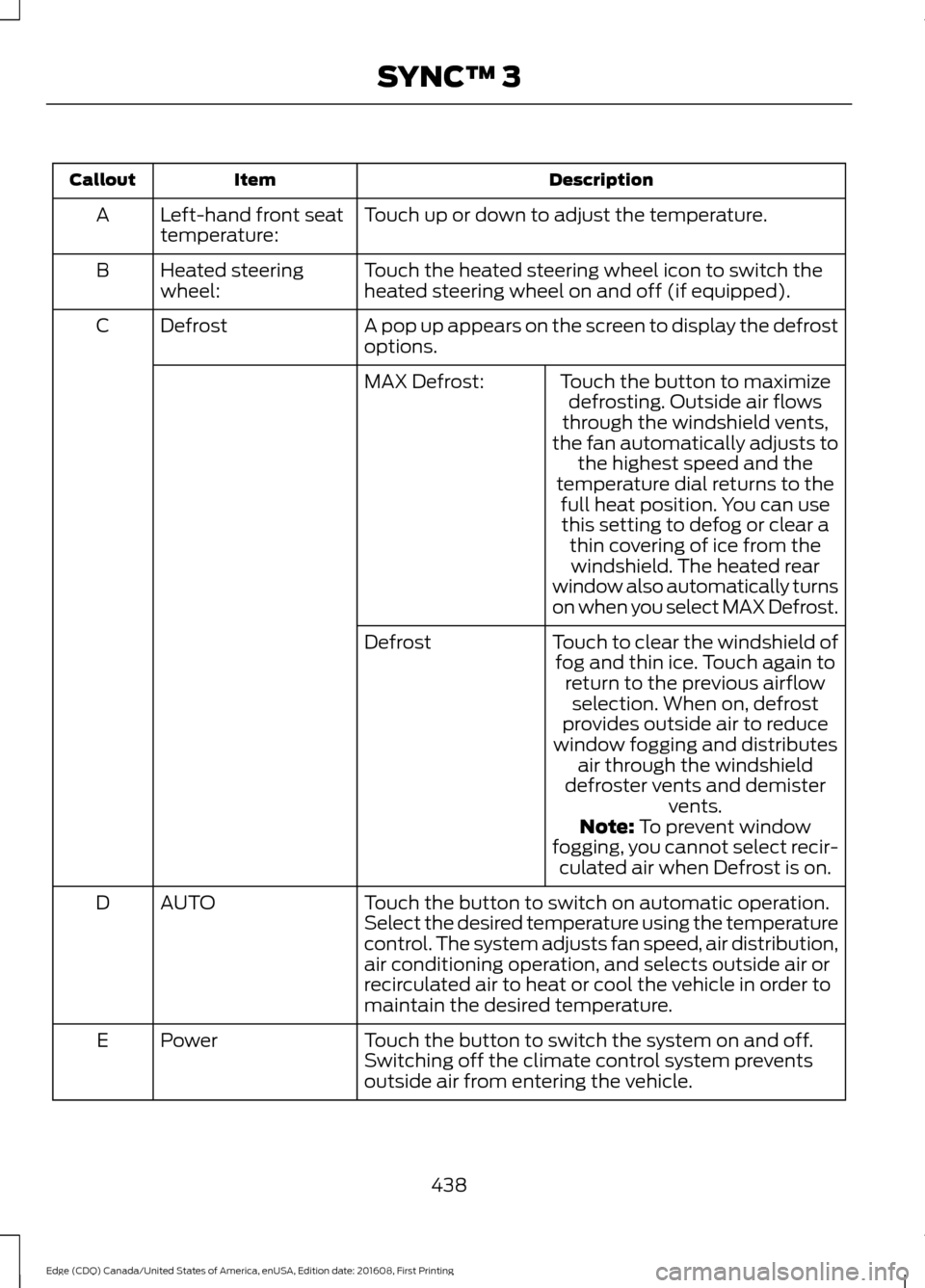
Touch up or down to adjust the temperature.
Left-hand front seat
temperature:
A
Touch the heated steering wheel icon to switch the
heated steering wheel on and off (if equipped).
Heated steering
wheel:
B
A pop up appears on the screen to display the defrost
options.
Defrost
C
Touch the button to maximizedefrosting. Outside air flows
through the windshield vents,
the fan automatically adjusts to the highest speed and the
temperature dial returns to the
MAX Defrost:
full heat position. You can usethis setting to defog or clear a thin covering of ice from thewindshield. The heated rear
window also automatically turns
on when you select MAX Defrost.
Touch to clear the windshield of fog and thin ice. Touch again to return to the previous airflowselection. When on, defrost
provides outside air to reduce
window fogging and distributes air through the windshield
defroster vents and demister vents.
Defrost
Note: To prevent window
fogging, you cannot select recir- culated air when Defrost is on.
Touch the button to switch on automatic operation.
Select the desired temperature using the temperature
control. The system adjusts fan speed, air distribution,
air conditioning operation, and selects outside air or
recirculated air to heat or cool the vehicle in order to
maintain the desired temperature.
AUTO
D
Touch the button to switch the system on and off.
Switching off the climate control system prevents
outside air from entering the vehicle.
Power
E
438
Edge (CDQ) Canada/United States of America, enUSA, Edition date: 201608, First Printing SYNC™ 3
Page 446 of 544
Action and Description
Menu Item
Item
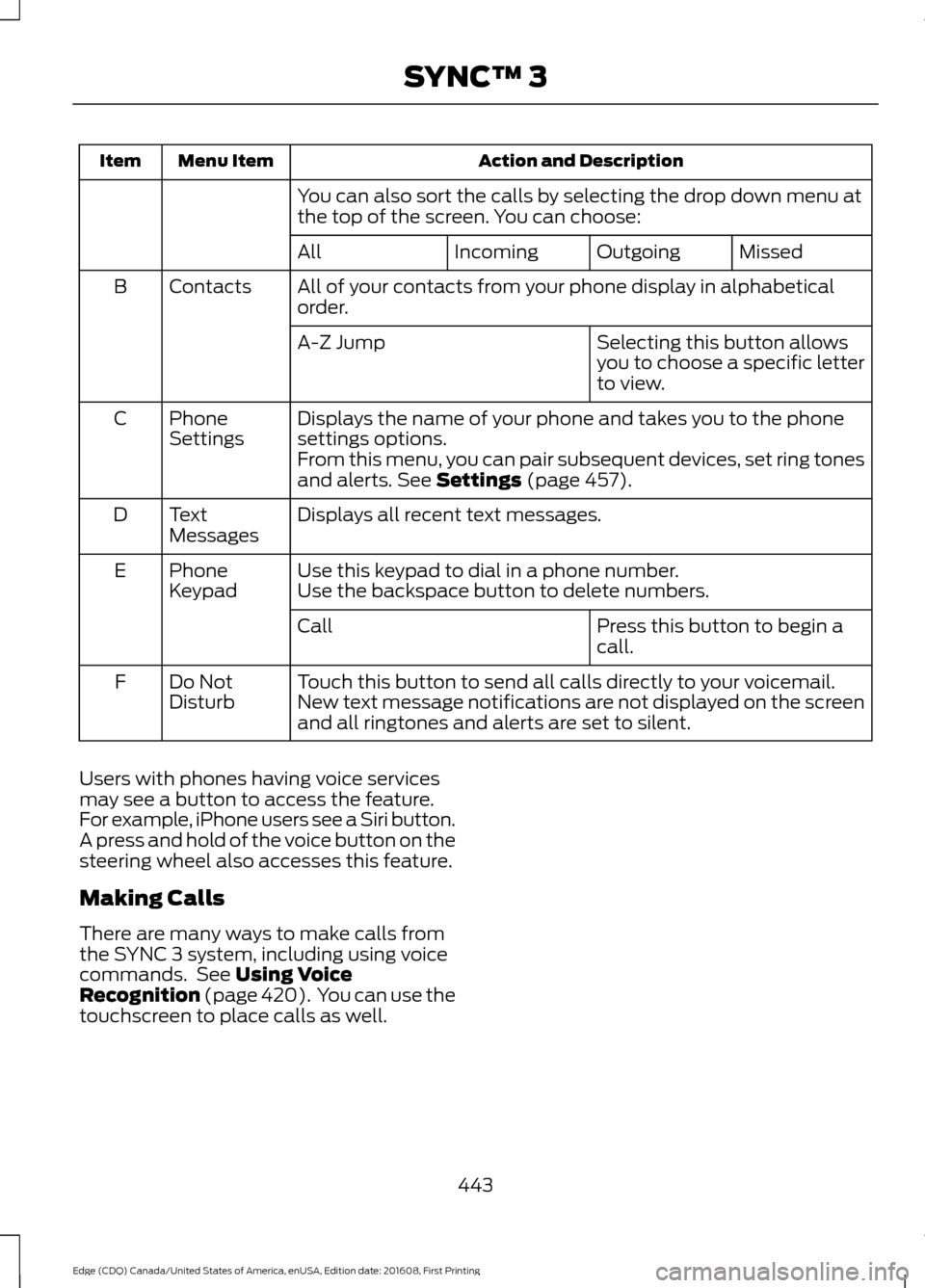
You can also sort the calls by selecting the drop down menu at
the top of the screen. You can choose: Missed
Outgoing
Incoming
All
All of your contacts from your phone display in alphabetical
order.
Contacts
B
Selecting this button allows
you to choose a specific letter
to view.
A-Z Jump
Displays the name of your phone and takes you to the phone
settings options.
Phone
Settings
C
From this menu, you can pair subsequent devices, set ring tones
and alerts. See Settings (page 457).
Displays all recent text messages.
Text
Messages
D
Use this keypad to dial in a phone number.
Phone
Keypad
E
Use the backspace button to delete numbers.
Press this button to begin a
call.
Call
Touch this button to send all calls directly to your voicemail.
New text message notifications are not displayed on the screen
and all ringtones and alerts are set to silent.
Do Not
Disturb
F
Users with phones having voice services
may see a button to access the feature.
For example, iPhone users see a Siri button.
A press and hold of the voice button on the
steering wheel also accesses this feature.
Making Calls
There are many ways to make calls from
the SYNC 3 system, including using voice
commands. See
Using Voice
Recognition (page 420). You can use the
touchscreen to place calls as well.
443
Edge (CDQ) Canada/United States of America, enUSA, Edition date: 201608, First Printing SYNC™ 3
Page 447 of 544
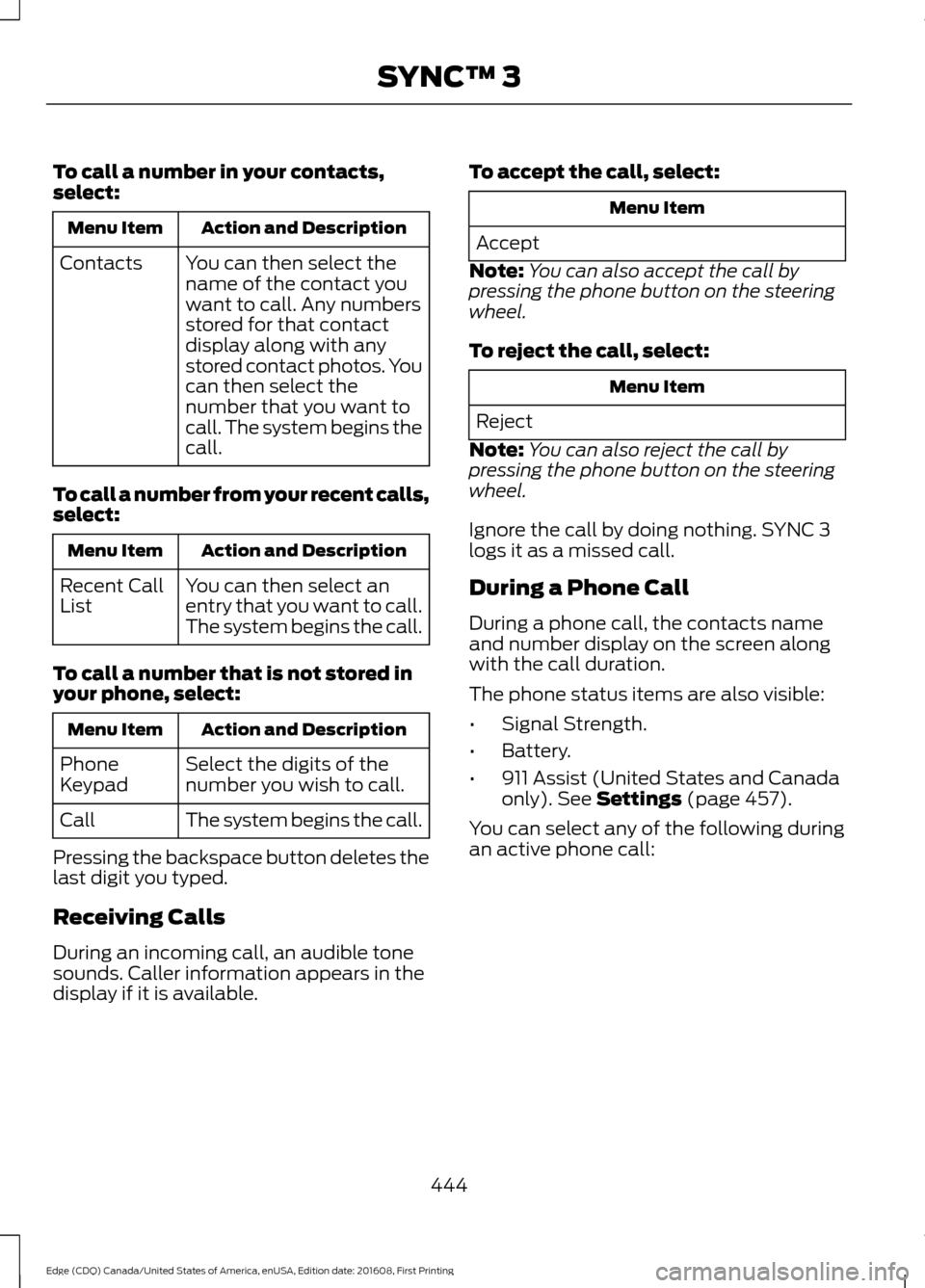
To call a number in your contacts,
select:
Action and Description
Menu Item
You can then select the
name of the contact you
want to call. Any numbers
stored for that contact
display along with any
stored contact photos. You
can then select the
number that you want to
call. The system begins the
call.
Contacts
To call a number from your recent calls,
select: Action and Description
Menu Item
You can then select an
entry that you want to call.
The system begins the call.
Recent Call
List
To call a number that is not stored in
your phone, select: Action and Description
Menu Item
Select the digits of the
number you wish to call.
Phone
Keypad
The system begins the call.
Call
Pressing the backspace button deletes the
last digit you typed.
Receiving Calls
During an incoming call, an audible tone
sounds. Caller information appears in the
display if it is available. To accept the call, select: Menu Item
Accept
Note: You can also accept the call by
pressing the phone button on the steering
wheel.
To reject the call, select: Menu Item
Reject
Note: You can also reject the call by
pressing the phone button on the steering
wheel.
Ignore the call by doing nothing. SYNC 3
logs it as a missed call.
During a Phone Call
During a phone call, the contacts name
and number display on the screen along
with the call duration.
The phone status items are also visible:
• Signal Strength.
• Battery.
• 911 Assist (United States and Canada
only). See Settings (page 457).
You can select any of the following during
an active phone call:
444
Edge (CDQ) Canada/United States of America, enUSA, Edition date: 201608, First Printing SYNC™ 3
Page 448 of 544
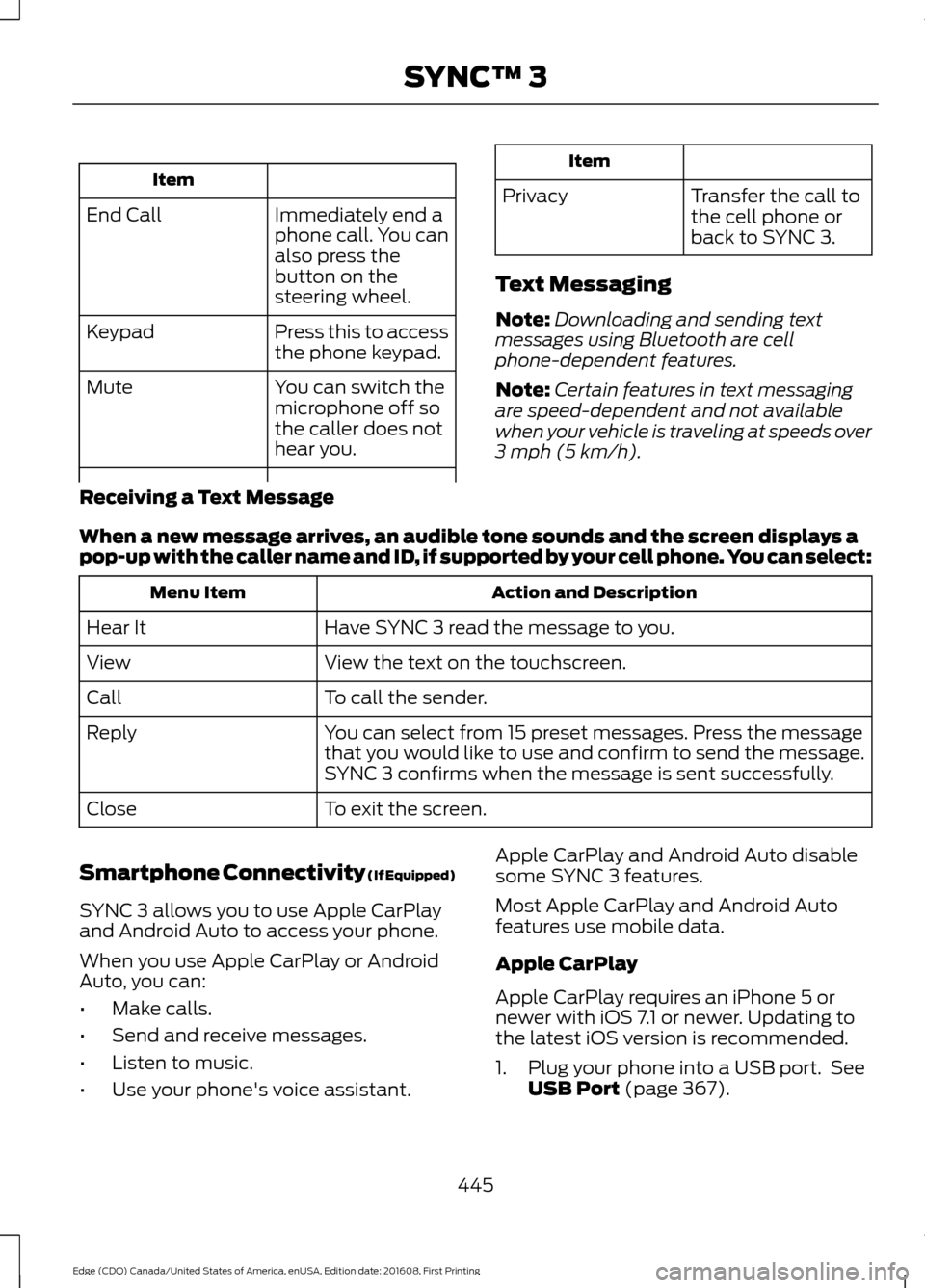
Item
Immediately end a
phone call. You can
also press the
button on the
steering wheel.
End Call
Press this to access
the phone keypad.
Keypad
You can switch the
microphone off so
the caller does not
hear you.
Mute Item
Privacy Transfer the call to
the cell phone or
back to SYNC 3.
Text Messaging
Note: Downloading and sending text
messages using Bluetooth are cell
phone-dependent features.
Note: Certain features in text messaging
are speed-dependent and not available
when your vehicle is traveling at speeds over
3 mph (5 km/h).
Receiving a Text Message
When a new message arrives, an audible tone sounds and the screen displays a
pop-up with the caller name and ID, if supported by your cell phone. You can select: Action and Description
Menu Item
Have SYNC 3 read the message to you.
Hear It
View the text on the touchscreen.
View
To call the sender.
Call
You can select from 15 preset messages. Press the message
that you would like to use and confirm to send the message.
SYNC 3 confirms when the message is sent successfully.
Reply
To exit the screen.
Close
Smartphone Connectivity (If Equipped)
SYNC 3 allows you to use Apple CarPlay
and Android Auto to access your phone.
When you use Apple CarPlay or Android
Auto, you can:
• Make calls.
• Send and receive messages.
• Listen to music.
• Use your phone's voice assistant. Apple CarPlay and Android Auto disable
some SYNC 3 features.
Most Apple CarPlay and Android Auto
features use mobile data.
Apple CarPlay
Apple CarPlay requires an iPhone 5 or
newer with iOS 7.1 or newer. Updating to
the latest iOS version is recommended.
1. Plug your phone into a USB port. See
USB Port
(page 367).
445
Edge (CDQ) Canada/United States of America, enUSA, Edition date: 201608, First Printing SYNC™ 3
Page 457 of 544
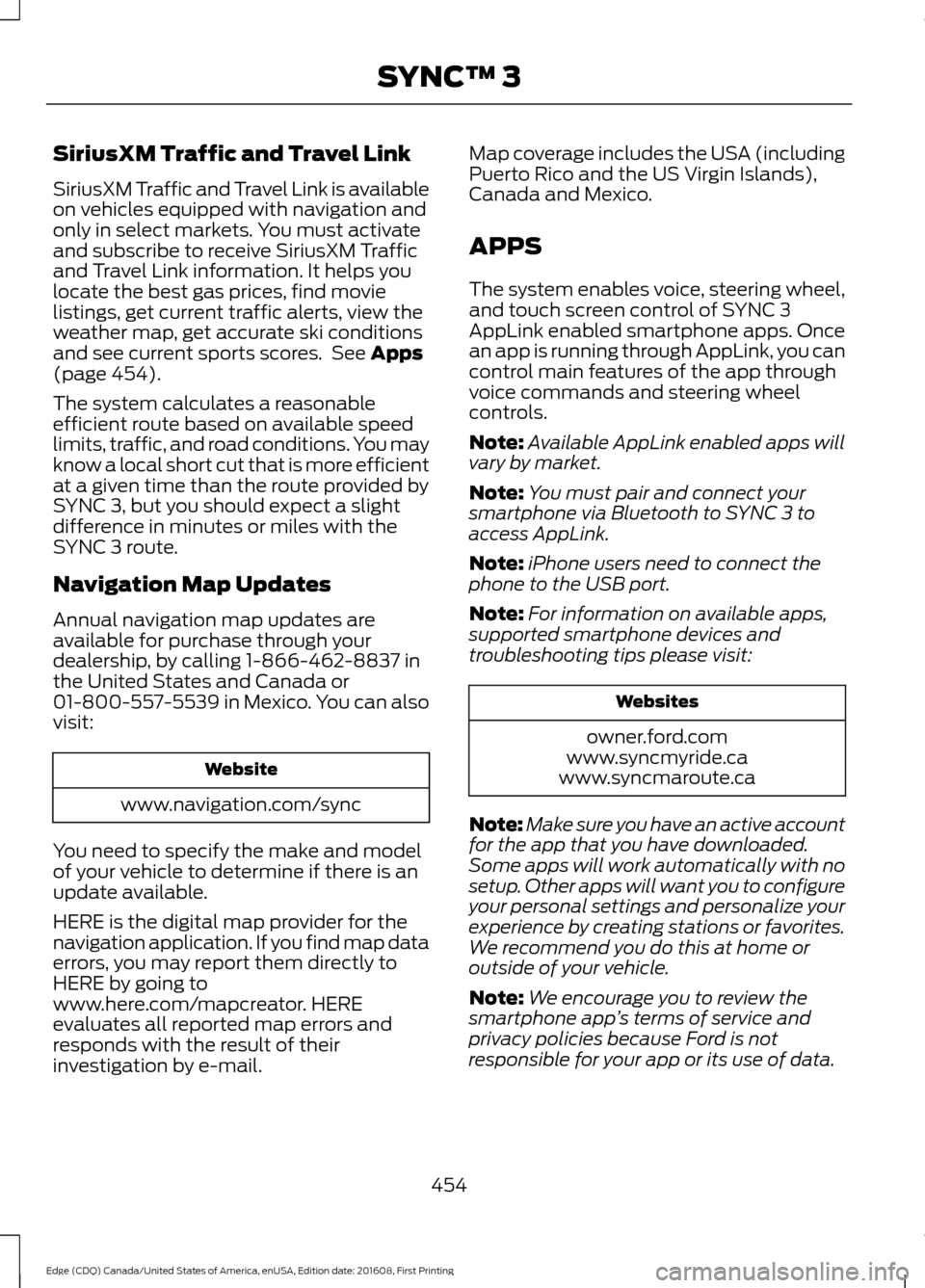
SiriusXM Traffic and Travel Link
SiriusXM Traffic and Travel Link is available
on vehicles equipped with navigation and
only in select markets. You must activate
and subscribe to receive SiriusXM Traffic
and Travel Link information. It helps you
locate the best gas prices, find movie
listings, get current traffic alerts, view the
weather map, get accurate ski conditions
and see current sports scores. See Apps
(page 454).
The system calculates a reasonable
efficient route based on available speed
limits, traffic, and road conditions. You may
know a local short cut that is more efficient
at a given time than the route provided by
SYNC 3, but you should expect a slight
difference in minutes or miles with the
SYNC 3 route.
Navigation Map Updates
Annual navigation map updates are
available for purchase through your
dealership, by calling 1-866-462-8837 in
the United States and Canada or
01-800-557-5539 in Mexico. You can also
visit: Website
www.navigation.com/sync
You need to specify the make and model
of your vehicle to determine if there is an
update available.
HERE is the digital map provider for the
navigation application. If you find map data
errors, you may report them directly to
HERE by going to
www.here.com/mapcreator. HERE
evaluates all reported map errors and
responds with the result of their
investigation by e-mail. Map coverage includes the USA (including
Puerto Rico and the US Virgin Islands),
Canada and Mexico.
APPS
The system enables voice, steering wheel,
and touch screen control of SYNC 3
AppLink enabled smartphone apps. Once
an app is running through AppLink, you can
control main features of the app through
voice commands and steering wheel
controls.
Note:
Available AppLink enabled apps will
vary by market.
Note: You must pair and connect your
smartphone via Bluetooth to SYNC 3 to
access AppLink.
Note: iPhone users need to connect the
phone to the USB port.
Note: For information on available apps,
supported smartphone devices and
troubleshooting tips please visit: Websites
owner.ford.com
www.syncmyride.ca
www.syncmaroute.ca
Note: Make sure you have an active account
for the app that you have downloaded.
Some apps will work automatically with no
setup. Other apps will want you to configure
your personal settings and personalize your
experience by creating stations or favorites.
We recommend you do this at home or
outside of your vehicle.
Note: We encourage you to review the
smartphone app ’s terms of service and
privacy policies because Ford is not
responsible for your app or its use of data.
454
Edge (CDQ) Canada/United States of America, enUSA, Edition date: 201608, First Printing SYNC™ 3
Page 534 of 544
1
180 Degree Camera.....................................201
Camera Views...................................................... 201
Using the 180 degree camera system........201
A
A/C See: Climate Control......................................... 128
About This Manual...........................................7
ABS See: Brakes........................................................... 180
ABS driving hints See: Hints on Driving With Anti-Lock
Brakes................................................................ 180
Accessories
....................................................482
Exterior Style....................................................... 482
Interior Style........................................................ 482
Lifestyle................................................................. 482
Peace of Mind..................................................... 482
Accessories See: Replacement Parts
Recommendation............................................ 12
ACC See: Using Adaptive Cruise Control............203
Active Park Assist.........................................192 Deactivating the Active Park Assist
Feature.............................................................. 196
Parallel Parking, Perpendicular Parking, Parallel Park Out Assist............................... 192
Troubleshooting the System......................... 196
Adjusting the Headlamps.........................283 Vertical Aim Adjustment................................. 283
Adjusting the Steering Wheel - Vehicles With: Manual Adjustable Steering
Column............................................................78
Adjusting the Steering Wheel - Vehicles With: Power Adjustable Steering
Column............................................................78
Easy Entry and Exit Feature.............................. 79
End of Travel Position......................................... 79
Memory Feature.................................................... 79
Airbag Disposal..............................................50
Air Conditioning See: Climate Control......................................... 128
Air Filter See: Changing the Engine Air Filter............289 Alarm
See: Anti-Theft Alarm........................................ 76
All-Wheel Drive
..............................................175
Ambient Lighting.............................................91
Anti-Theft Alarm............................................76
Arming the Alarm................................................. 76
Disarming the Alarm........................................... 76
Appendices....................................................505
Apps.................................................................454 ........................................................................\
.......... 454
SiriusXM Traffic and Travel Link..................456
At a Glance........................................................16
Audible Warnings and Indicators...........103 Headlamps On Warning Chime....................103
Key in Ignition Warning Chime.......................103
Keyless Warning Alert....................................... 103
Parking Brake On Warning Chime................103
Audio Control - Vehicles With: Voice Control.............................................................79
Seek, Next or Previous........................................ 79
Audio Control - Vehicles Without: Voice Control.............................................................79
MEDIA...................................................................... 80
Seek, Next or Previous....................................... 80
Audio System................................................353 General Information......................................... 353
Audio Unit - Vehicles With: AM/FM/CD/ SYNC.............................................................358
Audio Unit - Vehicles With: Premium AM/FM/CD.................................................360
Audio Unit - Vehicles With: Sony AM/ FM/CD...........................................................354
Menu Structure................................................... 355
Autolamps
........................................................86
Windshield Wiper Activated
Headlamps........................................................ 86
Automatic Climate Control - Vehicles With: Dual Automatic Temperature
Control (DATC)/Premium AM/FM/
CD....................................................................129
Automatic Climate Control - Vehicles With: Sony Audio System
........................131
Automatic High Beam Control.................88 Activating the System........................................ 88
Manually Overriding the System.................... 89
Automatic Transmission
.............................171
Automatic Transmission Adaptive
Learning............................................................. 173
531
Edge (CDQ) Canada/United States of America, enUSA, Edition date: 201608, First Printing Index
Page 536 of 544
Cleaning Products......................................290
Materials............................................................... 290
Cleaning the Engine....................................292
Cleaning the Exterior.................................290 Exterior Chrome Parts....................................... 291
Exterior Plastic Parts......................................... 291
Stripes or Graphics............................................. 291
Underbody............................................................ 291
Under Hood.......................................................... 291
Cleaning the Instrument Panel and Instrument Cluster Lens.........................293
Cleaning the Interior...................................293
Cleaning the Wheels..................................294
Cleaning the Windows and Wiper Blades...........................................................292
Clearing All MyKeys......................................60
Climate.............................................................437
Climate Control.............................................128
Climate Controlled Seats..........................144
Cooled Seats........................................................ 144
Cold Weather Precautions.......................238
Collision Warning System..........................221 PRINCIPLE OF OPERATION............................ 221
Coolant Check See: Engine Coolant Check............................ 273
Crash Sensors and Airbag Indicator.......49
Creating a MyKey...........................................59 Programming/Changing Configurable
Settings............................................................... 59
Cross Traffic Alert.........................................216 False Alerts........................................................... 219
Switching the System Off and On...............219
System Errors....................................................... 219
System Lights, Messages and Audible Alerts.................................................................. 218
System Limitations............................................ 219
Using the System................................................ 216
Cruise Control
.................................................80
Principle of Operation...................................... 202
Type 1........................................................................\
80
Type 2........................................................................\
81
Cruise control See: Using Cruise Control............................... 202
Customer Assistance
..................................247 D
Data Recording
..................................................9
Event Data Recording.......................................... 10
Service Data Recording........................................ 9
Daytime Running Lamps
.............................87
Type 1 - Conventional
(Non-Configurable)........................................ 87
Type 2 - Configurable.......................................... 87
Digital Radio
..................................................362
HD Radio Reception and Station
Troubleshooting............................................ 363
Direction Indicators
.......................................89
Doors and Locks.............................................64
Drive Control
..................................................223
Adaptive Steering.............................................. 223
Driver Alert
.....................................................209
PRINCIPLE OF OPERATION.......................... 209
USING DRIVER ALERT.................................... 209
Driver and Passenger Airbags....................43 Children and Airbags........................................... 43
Proper Driver and Front Passenger Seating Adjustment........................................................ 43
Driver and Passenger Knee Airbags.........47
Driving Aids
....................................................209
Driving Hints..................................................238
Driving Through Water...............................238
DRL See: Daytime Running Lamps......................... 87
E
Economical Driving.....................................238
Electric Parking Brake
..................................181
Applying the Electric Parking brake..............181
Battery With No Charge................................... 183
Parking On a Hill (Vehicles With a Manual Transmission) ................................................. 181
Releasing the Electric Parking Brake...........182
Emission Control System..........................168 On-Board Diagnostics (OBD-II)...................169
Readiness for Inspection and Maintenance
(I/M) Testing................................................... 169
End User License Agreement
.................505
VEHICLE SOFTWARE END USER LICENSE
AGREEMENT (EULA) ................................ 505
Engine Block Heater....................................158 Using the Engine Block Heater...................... 158
533
Edge (CDQ) Canada/United States of America, enUSA, Edition date: 201608, First Printing Index