warning FORD ESCAPE 2013 3.G Owners Manual
[x] Cancel search | Manufacturer: FORD, Model Year: 2013, Model line: ESCAPE, Model: FORD ESCAPE 2013 3.GPages: 423, PDF Size: 4.59 MB
Page 295 of 423
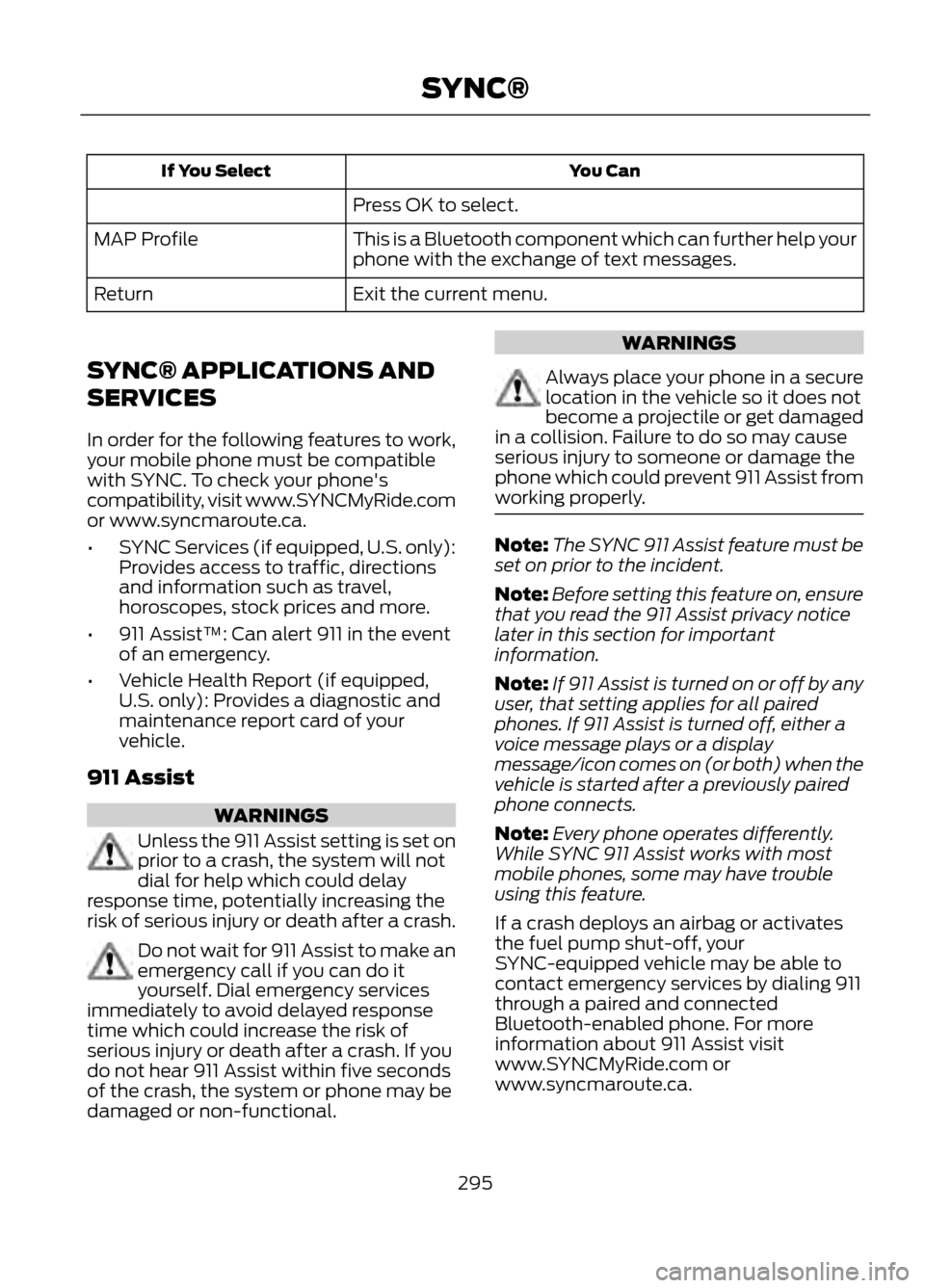
You Can
If You Select
Press OK to select.
This is a Bluetooth component which can further help your
phone with the exchange of text messages.
MAP Profile
Exit the current menu.
Return
SYNC® APPLICATIONS AND
SERVICES
In order for the following features to work,
your mobile phone must be compatible
with SYNC. To check your phone's
compatibility, visit www.SYNCMyRide.com
or www.syncmaroute.ca.
• SYNC Services (if equipped, U.S. only):
Provides access to traffic, directions
and information such as travel,
horoscopes, stock prices and more.
• 911 Assist™: Can alert 911 in the event
of an emergency.
• Vehicle Health Report (if equipped,
U.S. only): Provides a diagnostic and
maintenance report card of your
vehicle.
911 Assist
WARNINGS
Unless the 911 Assist setting is set on
prior to a crash, the system will not
dial for help which could delay
response time, potentially increasing the
risk of serious injury or death after a crash.
Do not wait for 911 Assist to make an
emergency call if you can do it
yourself. Dial emergency services
immediately to avoid delayed response
time which could increase the risk of
serious injury or death after a crash. If you
do not hear 911 Assist within five seconds
of the crash, the system or phone may be
damaged or non-functional.
WARNINGS
Always place your phone in a secure
location in the vehicle so it does not
become a projectile or get damaged
in a collision. Failure to do so may cause
serious injury to someone or damage the
phone which could prevent 911 Assist from
working properly.
Note: The SYNC 911 Assist feature must be
set on prior to the incident.
Note: Before setting this feature on, ensure
that you read the 911 Assist privacy notice
later in this section for important
information.
Note: If 911 Assist is turned on or off by any
user, that setting applies for all paired
phones. If 911 Assist is turned off, either a
voice message plays or a display
message/icon comes on (or both) when the
vehicle is started after a previously paired
phone connects.
Note: Every phone operates differently.
While SYNC 911 Assist works with most
mobile phones, some may have trouble
using this feature.
If a crash deploys an airbag or activates
the fuel pump shut-off, your
SYNC-equipped vehicle may be able to
contact emergency services by dialing 911
through a paired and connected
Bluetooth-enabled phone. For more
information about 911 Assist visit
www.SYNCMyRide.com or
www.syncmaroute.ca.
295
SYNC®
Page 297 of 423
911 Assist May Not Work If
•Your mobile phone or 911 Assist
hardware was damaged in a crash.
• The vehicle's battery or the SYNC
system has no power.
• The phone(s) paired and connected to
the system was thrown from the
vehicle.
911 Assist Privacy Notice
Once 911 Assist is set on, it may disclose to
emergency services that the vehicle has
been in a crash involving the deployment
of an airbag or activation of the fuel pump
shut-off. Certain versions or updates to 911
Assist may also be capable of
electronically or verbally disclosing to 911
operators the vehicle location or other
details about the vehicle or crash to assist
911 operators to provide the most
appropriate emergency services. If you do
not want to disclose this information, do
not turn the feature on.
Vehicle Health Report
WARNING
Always follow scheduled
maintenance instructions, regularly
inspect your vehicle, and seek repair
for any damage or problem you suspect.
Vehicle Health Report supplements, but
cannot replace normal maintenance and
vehicle inspection. Vehicle Health Report
only monitors certain systems that are
electronically monitored by the vehicle and
will not monitor or report the status of any
other system, (i.e., brake lining wear).
Failure to perform scheduled maintenance
and regularly inspect your vehicle may
result in vehicle damage and serious injury.
Note: Your Vehicle Health Report feature
requires activation prior to use. Visit
www.SYNCMyRide.com to register. There
is no fee or subscription associated with
Vehicle Health Report, but you must register
to use this feature.
Note: This feature may not function
properly if you have enabled caller ID
blocking on your mobile phone. Before
running a report, review Vehicle Health
Report privacy notice.
Note: In order to allow a break-in period for
your vehicle, you may not be able to create
a Vehicle Health Report until your vehicle
odometer has reached 200 miles.
Register for Vehicle Health Report and set
your report preferences at
www.SYNCMyRide.com. After registering
you can request a Vehicle Health Report
(inside your vehicle). Return to your
account at www.SYNCMyRide.com to view
your report. You can also choose for SYNC
to automatically remind you to run reports
at specific mileage intervals. Mobile phone
airtime usage may apply when reporting.
The system allows you to check your
vehicle's overall health in the form of
diagnostic report card. The vehicle health
report contains valuable information such
as:
• Vehicle diagnostic information
• Scheduled maintenance
• Open Recalls and Field Service Actions
• Unserviced items from vehicle
inspections by your authorized dealer
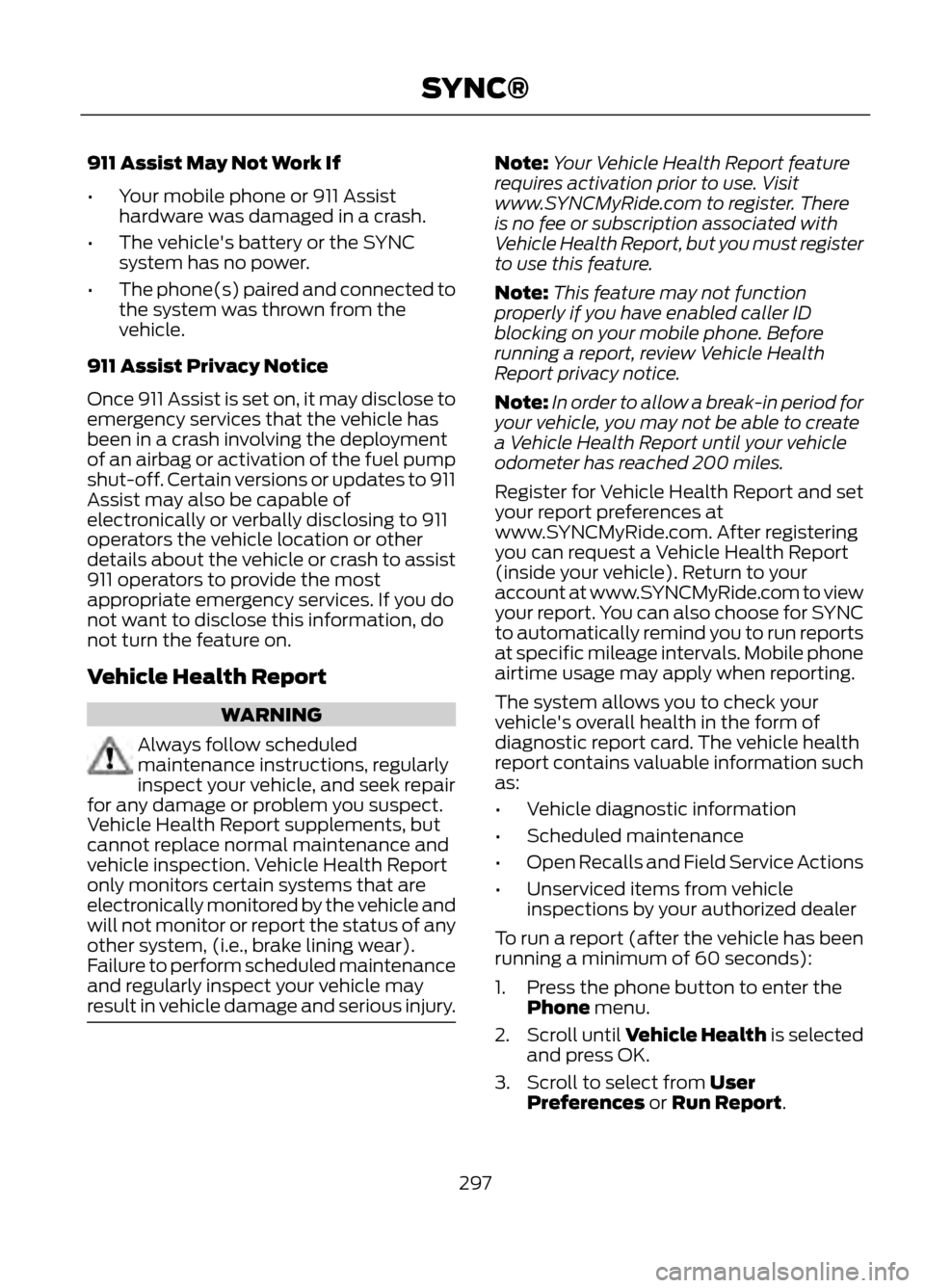
To run a report (after the vehicle has been
running a minimum of 60 seconds):
1. Press the phone button to enter the Phone menu.
2. Scroll until Vehicle Health is selected
and press OK.
3. Scroll to select from User Preferences or Run Report.
297
SYNC®
Page 315 of 423
GENERAL INFORMATION
WARNING
Driving while distracted can result in
loss of vehicle control, accident and
injury. Ford strongly recommends
that drivers use extreme caution when
using any device or feature that may take
their focus off the road. Your primary
responsibility is the safe operation of the
vehicle. We recommend against the use
of any handheld device while driving,
encourage the use of voice-operated
systems when possible and that you
become aware of applicable state and
local laws that may affect use of electronic
devices while driving.
Note: Some features are not available while
the vehicle is moving.
Note: You can also directly access the
Home screen and Information screen by
pressing the Home ("house" icon) and
Information ("i" icon) buttons on your
steering wheel controls.
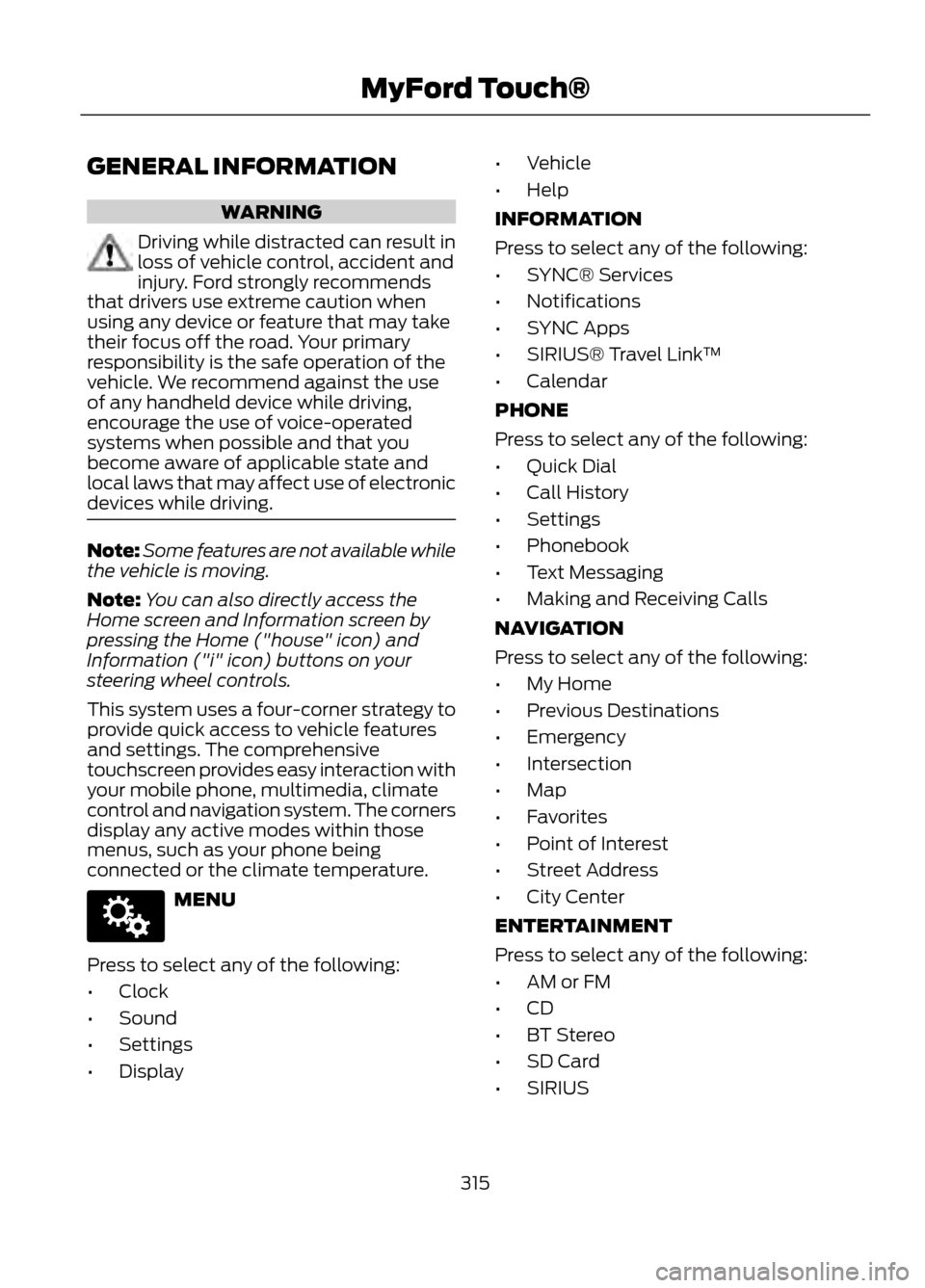
This system uses a four-corner strategy to
provide quick access to vehicle features
and settings. The comprehensive
touchscreen provides easy interaction with
your mobile phone, multimedia, climate
control and navigation system. The corners
display any active modes within those
menus, such as your phone being
connected or the climate temperature.
MENU
Press to select any of the following:
• Clock
• Sound
• Settings
• Display •
Vehicle
• Help
INFORMATION
Press to select any of the following:
• SYNC® Services
• Notifications
• SYNC Apps
• SIRIUS® Travel Link ™
• Calendar
PHONE
Press to select any of the following:
• Quick Dial
• Call History
• Settings
• Phonebook
• Text Messaging
• Making and Receiving Calls
NAVIGATION
Press to select any of the following:
• My Home
• Previous Destinations
• Emergency
• Intersection
• Map
• Favorites
• Point of Interest
• Street Address
• City Center
ENTERTAINMENT
Press to select any of the following:
• AM or FM
• CD
• BT Stereo
• SD Card
• SIRIUS
315
MyFord Touch®
E142607
Page 317 of 423
Times are subject to change due to
holidays.
Safety Information
WARNING
Driving while distracted can result in
loss of vehicle control, accident and
injury. Ford strongly recommends
that drivers use extreme caution when
using any device or feature that may take
their focus off the road. Your primary
responsibility is the safe operation of the
vehicle. We recommend against the use
of any handheld device while driving,
encourage the use of voice-operated
systems when possible and that you
become aware of applicable state and
local laws that may affect use of electronic
devices while driving.
When using SYNC:
• Do not operate playing devices if the
power cords or cables are broken, split
or damaged. Carefully place cords and
cables where they cannot be stepped
on or interfere with the operation of
pedals, seats, compartments or safe
driving abilities.
• Do not leave playing devices in the
vehicle during extreme conditions as it
could cause them damage. Refer to
your device's user guide for further
information. •
Do not attempt to service or repair the
system. See your authorized dealer.
• For your safety, some SYNC functions
are speed-dependent and cannot be
performed when the vehicle is traveling
at speeds greater than 3 mph (5 km/h).
Make sure that you review your device's
user guide before using it with SYNC.
Speed-Restricted Features
Some features of this system may be too
difficult to use while the vehicle is in
motion so they're restricted from being
modified unless the vehicle is not moving.
Some examples of these are listed below:
• Screens that are too crowded with
information, such as Point of Interest
(POI) reviews and ratings, SIRIUS
Travel Link sports scores, movie times,
ski conditions, etc.
• Any action that requires using a
keyboard, such as entering a navigation
destination or editing information
• All lists are limited so the user can view
fewer entries (e.g. phone contacts,
recent phone call entries)
Listed below are more specific features
that can only be modified while the vehicle
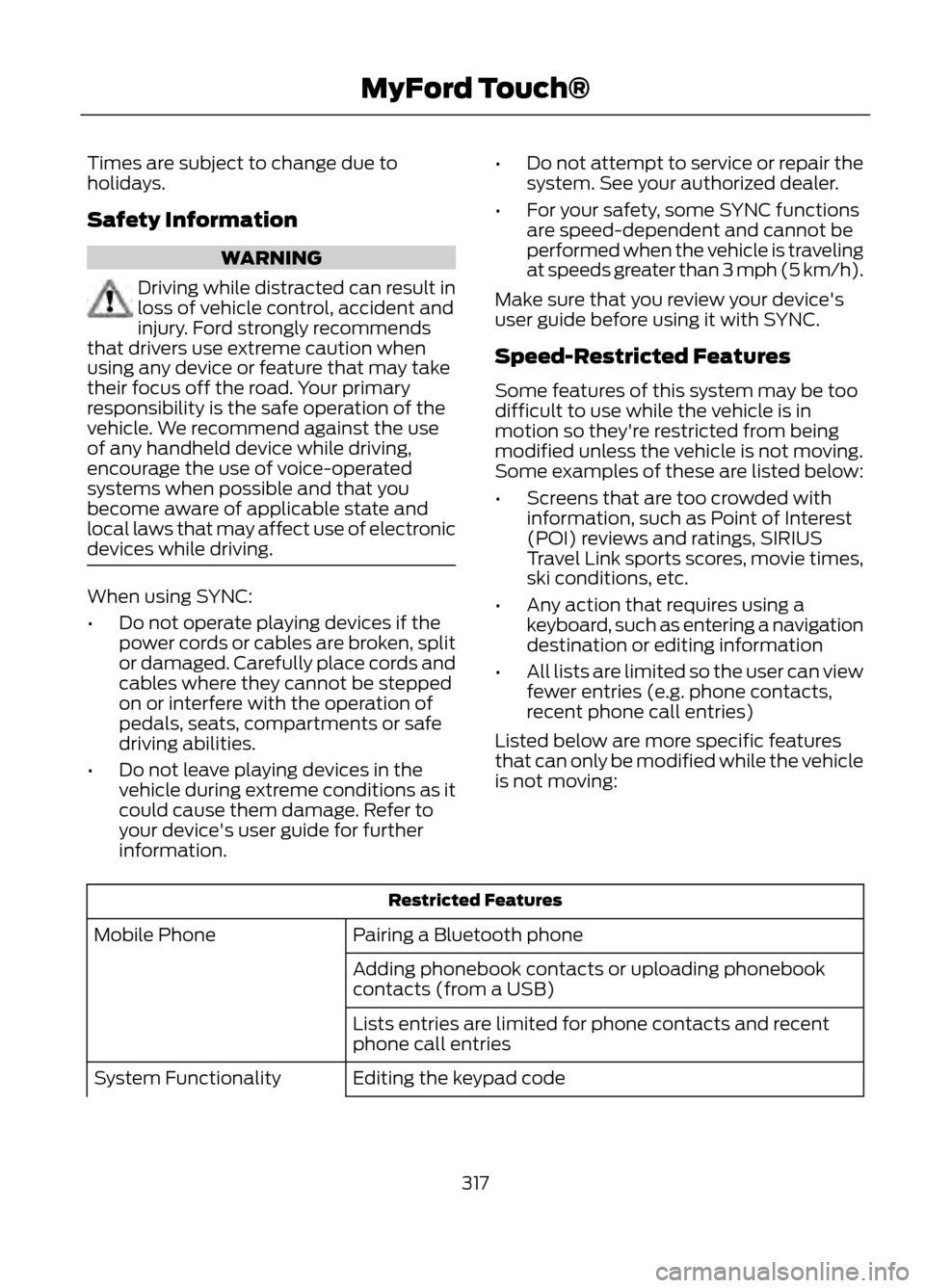
is not moving:
Restricted Features
Pairing a Bluetooth phone
Mobile Phone
Adding phonebook contacts or uploading phonebook
contacts (from a USB)
Lists entries are limited for phone contacts and recent
phone call entries
Editing the keypad code
System Functionality
317
MyFord Touch®
Page 352 of 423
Note:Do not connect the audio input jack
to a line level output. The AIJ only works
correctly with devices that have a
headphone output with a volume control.
Note: Do not set the portable music
player's volume level higher than is
necessary to match the volume of the CD
or FM radio as this causes distortion and
reduces sound quality.
Note: If the music sounds distorted at lower
listening levels, turn the portable music
player volume down. If the problems
persists, replace or recharge the batteries
in the portable music player.
Note: The portable music player must be
controlled in the same manner when it is
used with headphones as the AIJ does not
provide control (play, pause, etc.) over the
attached portable music player.
PHONE
Hand's-free calling is one of the main
features of SYNC. Once your phone is
paired, you can access many options using
the touchscreen or voice commands. While
the system supports a variety of features,
many are dependent on your mobile
phone's functionality.
At a minimum, most mobile phones with
Bluetooth wireless technology support the
following functions:
• Answering an incoming call
• Ending a call
• Using privacy mode
• Dialing a number
• Redial
• Call waiting notification
• Caller ID Other features such as text messaging
using Bluetooth and automatic phonebook
download are phone-dependent features.
To check your phone's compatibility, refer
to your phone's user manual and visit
www.SYNCMyRide.com or
www.syncmaroute.ca.
Pairing Your Phone for the First
Time
WARNING
Driving while distracted can result in
loss of vehicle control, accident and
injury. Ford strongly recommends
that drivers use extreme caution when
using any device that may take their focus
off the road. Your primary responsibility is
the safe operation of the vehicle. We
recommend against the use of any
handheld device while driving, encourage
the use of voice-operated systems when
possible and that you become aware of
applicable state and local laws that may
affect use of electronic devices while
driving.
The first thing you must do to use SYNC's
phone features is to pair your
Bluetooth-enabled mobile phone with
SYNC. This allows you to use your phone
in a hands-free manner.
Note: Make sure the vehicle ignition and
radio are turned on and that the
transmission is in position P.
1. Touch Add Phone in the upper left corner of the touchscreen.
2. When prompted, select Add.
3. Select Add Device.
4. Make sure that Bluetooth is set to On and that your mobile phone is in the
proper mode. Refer to your phone's
user guide if necessary.
352
MyFord Touch®
Page 362 of 423
SIRIUS Travel Link (If Equipped)
WARNING
Driving while distracted can result in
loss of vehicle control, accident and
injury. Ford strongly recommends
that drivers use extreme caution when
using any device or feature that may take
their focus off the road. Your primary
responsibility is the safe operation of the
vehicle. We recommend against the use
of any handheld device while driving,
encourage the use of voice-operated
systems when possible and that you
become aware of applicable state and
local laws that may affect use of electronic
devices while driving.
Note: In order to use SIRIUS Travel Link,
your vehicle must be equipped with
navigation and your navigation SD card
must be in the SD card slot. Note:
A paid subscription is required to
access and use these features. Go to
www.siriusxm.com/travellink for more
information.
Note: Visit www.siriusxm.com/traffic# and
click on Coverage map and details for a
complete listing of all traffic areas covered
by SIRIUS Travel Link.
Note: Neither SIRIUS nor Ford is responsible
for any errors or inaccuracies in the SIRIUS
Travel Link services or its use in vehicles.
SIRIUS Travel Link (if activated) can help
you locate the best gas prices, find movie
listings, get current traffic alerts, access
the current weather map, get accurate ski
conditions and scores to current sports
games.
Press the Information button, select Sirius
Travel Link, then choose from any of the
following services:
You Can
When You Select
Identify traffic incidents on your route, nearby your vehicle's
current location or near any of your favorite places (if
programmed).
Traffic On Route
Traffic Nearby
View fuel prices at stations close to your vehicle's location
or on an active navigation route.
Fuel Prices
View the nearby weather, current weather, or the 5-day
forecast for the chosen area. Select Map to see the
weather map which can show storms, radar information,
charts and winds. Select Area to select from a listing of
weather locations.
Weather
View scores and schedules from a variety of sports. You
can also save up to 10 favorite teams for easier access.
The score automatically refreshes when a game is in
progress.
Sports Info.
View nearby movie theaters and their show times (if
available).
Movie Listings
View ski conditions for a specific area.
Ski Conditions
362
MyFord Touch®
Page 365 of 423
911 Assist® (If Equipped)
WARNINGS
Unless the 911 Assist setting is set on
prior to a crash, the system will not
dial for help which could delay
response time, potentially increasing the
risk of serious injury or death after a crash.
Do not wait for 911 Assist to make an
emergency call if you can do it
yourself. Dial emergency services
immediately to avoid delayed response
time which could increase the risk of
serious injury or death after a crash. If you
do not hear 911 Assist within five seconds
of the crash, the system or phone may be
damaged or non-functional.
Always place your phone in a secure
location in the vehicle so it does not
become a projectile or get damaged
in a collision. Failure to do so may cause
serious injury to someone or damage the
phone which could prevent 911 Assist from
working properly.
Note: The SYNC 911 Assist feature must be
set on prior to the incident.
Note: Before setting this feature on, ensure
that you read the 911 Assist privacy notice
later in this section for important
information.
Note: If 911 Assist is turned on or off by any
user, that setting applies for all paired
phones. If 911 Assist is turned off, either a
voice message plays or a display
message/icon comes on (or both) when the
vehicle is started after a previously paired
phone connects.
Note: Every phone operates differently.
While SYNC 911 Assist works with most
mobile phones, some may have trouble
using this feature. If a crash deploys an airbag or activates
the fuel pump shut-off, your
SYNC-equipped vehicle may be able to
contact emergency services by dialing 911
through a paired and connected
Bluetooth-enabled phone. For more
information about 911 Assist, visit
www.SYNCMyRide.com or
www.syncmaroute.ca.
See Supplementary Restraints System
(page 35). Important information
regarding airbag deployment is in this
chapter.
See Roadside Emergencies (page 197).
Important information regarding the fuel
pump shut-off is in this chapter.
Setting 911 Assist On
Press the Information button, Apps, 911
Assist, then On.
You can also access 911 Assist by:
•
Pressing the Menu icon, Settings,
Phone, then 911 Assist
• Pressing the Menu icon, Help, 911 Assist
To make sure that 911 Assist works
properly:
• SYNC must be powered and working
properly at the time of the incident and
throughout feature activation and use.
• The 911 Assist feature must be set on
prior to the incident.
• A Bluetooth-enabled and compatible
phone has to be paired and connected
to SYNC.
• A connected Bluetooth-enabled phone
must have the ability to make and
maintain an outgoing call at the time
of the incident.
365
MyFord Touch®
Page 366 of 423
•A connected Bluetooth-enabled phone
must have adequate network coverage,
battery power and signal strength.
• The vehicle must have battery power
and be located in the U.S., Canada or
in a territory in which 911 is the
emergency number.
In the Event of a Crash
Not all crashes deploy an airbag or activate
the fuel pump shut-off (which would
activate 911 Assist); however, if 911 Assist
is triggered, SYNC tries to contact
emergency services. If a connected phone
is damaged or loses connection to SYNC,
SYNC searches for, and tries to connect
to, any available previously paired phone
and tries to make the call to 911.
Before making the call:
• SYNC provides a short window of time
(about 10 seconds) to cancel the call.
Failure to cancel the call results in
SYNC attempting to dial 911.
• SYNC says the following, or a similar
message: "SYNC will attempt to call
911, to cancel the call, press Cancel on
your screen or press and hold the
phone button on your steering wheel."
If the call is not cancelled and a successful
call is made, a pre-recorded message is
played for the 911 operator, then the
occupant(s) in the vehicle is able to talk
with the operator. Be prepared to provide
your name, phone number and location
immediately, because not all 911 systems
are capable of receiving this information
electronically. 911 Assist May Not Work If
•
Your mobile phone or 911 Assist
hardware was damaged in a crash.
• The vehicle's battery or the SYNC
system has no power.
• The phone(s) paired and connected to
the system was thrown from the
vehicle.
911 Assist Privacy Notice
Once 911 Assist is set on, it may disclose to
emergency services that the vehicle has
been in a crash involving the deployment
of an airbag or activation of the fuel pump
shut-off. Certain versions or updates to 911
Assist may also be capable of
electronically or verbally disclosing to 911
operators the vehicle location or other
details about the vehicle or crash to assist
911 operators to provide the most
appropriate emergency services. If you do
not want to disclose this information, do
not turn the feature on.
Vehicle Health Report (If Equipped)
WARNING
Always follow scheduled
maintenance instructions, regularly
inspect your vehicle, and seek repair
for any damage or problem you suspect.
Vehicle Health Report supplements, but
cannot replace, normal maintenance and
vehicle inspection. Vehicle Health Report
only monitors certain systems that are
electronically monitored by the vehicle and
will not monitor or report the status of any
other system, (i.e., brake lining wear).
Failure to perform scheduled maintenance
and regularly inspect your vehicle may
result in vehicle damage and serious injury.
Note: This feature is only available in the
United States.
366
MyFord Touch®
Page 385 of 423
WARNING
Operating certain parts of this
system while driving can distract
your attention away from the road,
and possibly cause an accident or other
serious consequences. Do not change
system settings or enter data non-verbally
(using your hands) while driving. Stop the
vehicle in a safe and legal manner before
attempting these operations. This is
important since while setting up or
changing some functions you might be
required to distract your attention away
from the road and remove your hands from
the wheel.
General Operation
Voice Command Control: Functions
within the Windows Automotive-based
system may be accomplished using only
voice commands. Using voice commands
while driving allows you to operate the
system without removing your hands from
the wheel.
Prolonged Views of Screen: Do not
access any function requiring a prolonged
view of the screen while you are driving.
Pull over in a safe and legal manner before
attempting to access a function of the
system requiring prolonged attention. Even
occasional short scans to the screen may
be hazardous if your attention has been
diverted away from your driving task at a
critical time.
Volume Setting: Do not raise the volume
excessively. Keep the volume at a level
where you can still hear outside traffic and
emergency signals while driving. Driving
while unable to hear these sounds could
cause an accident. Use of Speech Recognition Functions:
Speech recognition software is inherently
a statistical process which is subject to
errors. It is your responsibility to monitor
any speech recognition functions included
in the system and address any errors.
Navigation Features: Any navigation
features included in the system are
intended to provide turn by turn
instructions to get you to a desired
destination. Please make certain all
persons using this system carefully read
and follow instructions and safety
information fully.
Distraction Hazard: Any navigation
features may require manual (non-verbal)
setup. Attempting to perform such set-up
or insert data while driving can seriously
distract your attention and could cause an
accident or other serious consequences.
Stop the vehicle in a safe and legal manner
before attempting these operations.
Let Your Judgment Prevail: Any
navigation features are provided only as
an aid. Make your driving decisions based
on your observations of local conditions
and existing traffic regulations. Any such
feature is not a substitute for your personal
judgment. Any route suggestions made by
this system should never replace any local
traffic regulations or your personal
judgment or knowledge of safe driving
practices.
Route Safety: Do not follow the route
suggestions if doing so would result in an
unsafe or illegal maneuver, if you would be
placed in an unsafe situation, or if you
would be directed into an area that you
consider unsafe. The driver is ultimately
responsible for the safe operation of the
vehicle and therefore, must evaluate
whether it is safe to follow the suggested
directions.
385
Appendices
Page 391 of 423
NT holds a nonexclusive license from the
United States Postal Service ® to publish
and sell ZIP+4 ® information.
© United States Postal Service ® 2009.
Prices are not established, controlled or
approved by the United States Postal
Service ® The following trademarks and
registrations are owned by the USPS:
United States Postal Service, USPS, and
ZIP+4.
The Data for Mexico includes certain Data
from Instituto Nacional de Estadística y
Geografía.
TERMS AND CONDITIONS
License Limitations on Use: You agree
that your license to use this Data is limited
to and conditioned on use for solely
personal, noncommercial purposes, and
not for service bureau, timesharing or other
similar purposes. Except as otherwise set
forth herein, you agree not to otherwise
reproduce, copy, modify, decompile,
disassemble or reverse engineer any
portion of this Data, and may not transfer
or distribute it in any form, for any purpose,
except to the extent permitted by
mandatory laws.
License Limitations on Transfer: Your
limited license does not allow transfer or
resale of the Data, except on the condition
that you may transfer the Data and all
accompanying materials on a permanent
basis if: (a) you retain no copies of the
Data; (b) the recipient agrees to the terms
of this End User License Agreement; and
(c) you transfer the Data in the exact same
form as you purchased it by physically
transferring the original media (e.g., the
CD-ROM or DVD you purchased), all
original packaging, all Manuals and other
documentation. Specifically, Multi-disc
sets may only be transferred or sold as a
complete set as provided to you and not
as a subset thereof.Additional License Limitations: Except
where you have been specifically licensed
to do so by NT in a separate written
agreement, and without limiting the
preceding paragraph, your license is
conditioned on use of the Data as
prescribed in this agreement, and you may
not (a) use this Data with any products,
systems, or applications installed or
otherwise connected to or in
communication with vehicles capable of
vehicle navigation, positioning, dispatch,
real time route guidance, fleet
management or similar applications; or (b)
with, or in communication with, including
without limitation, cellular phones,
palmtop and handheld computers, pagers,
and personal digital assistants or PDAs.
WARNING
This Data may contain inaccurate or
incomplete information due to the
passage of time, changing
circumstances, sources used and the
nature of collecting comprehensive
geographic Data, any of which may lead
to incorrect results.
No Warranty: This Data is provided to you
"as is" , and you agree to use it at your own
risk. NT and its licensors (and their
licensors and suppliers) make no
guarantees, representations or warranties
of any kind, express or implied, arising by
law or otherwise, including but not limited
to, content, quality, accuracy,
completeness, effectiveness, reliability,
fitness for a particular purpose, usefulness,
use or results to be obtained from this
Data, or that the Data or server will be
uninterrupted or error free.
391
Appendices