AUX FORD ESCAPE 2013 3.G User Guide
[x] Cancel search | Manufacturer: FORD, Model Year: 2013, Model line: ESCAPE, Model: FORD ESCAPE 2013 3.GPages: 423, PDF Size: 4.59 MB
Page 271 of 423
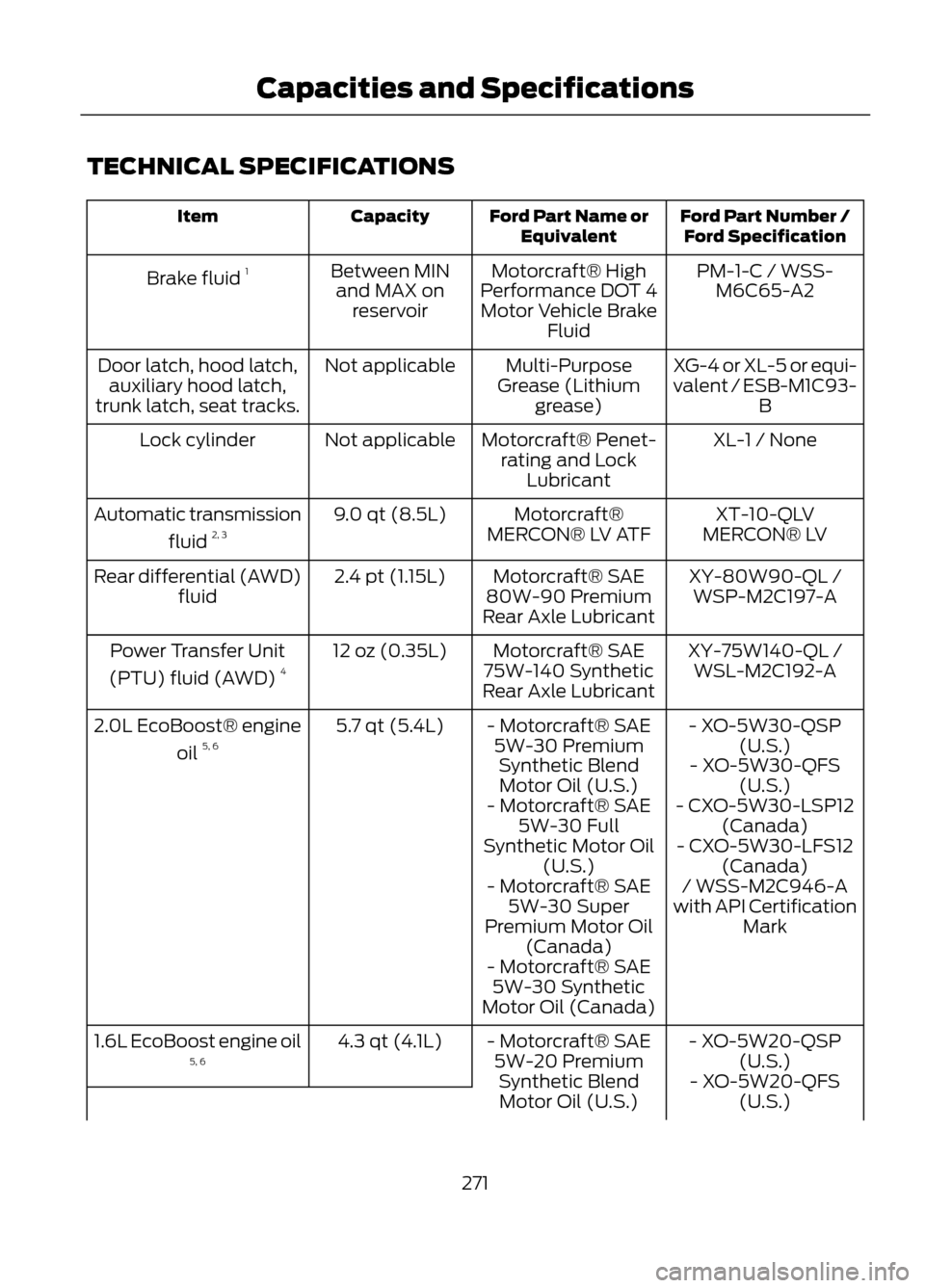
TECHNICAL SPECIFICATIONS
Ford Part Number /Ford Specification
Ford Part Name or
Equivalent
Capacity
Item
PM-1-C / WSS-M6C65-A2
Motorcraft® High
Performance DOT 4 Motor Vehicle Brake Fluid
Between MIN
and MAX on reservoir
Brake fluid
1
XG-4 or XL-5 or equi-
valent / ESB-M1C93-B
Multi-Purpose
Grease (Lithium grease)
Not applicable
Door latch, hood latch,
auxiliary hood latch,
trunk latch, seat tracks.
XL-1 / None
Motorcraft® Penet-
rating and Lock Lubricant
Not applicable
Lock cylinder
XT-10-QLV
MERCON® LV
Motorcraft®
MERCON® LV ATF
9.0 qt (8.5L)
Automatic transmission
fluid 2, 3
XY-80W90-QL /WSP-M2C197-A
Motorcraft® SAE
80W-90 Premium
Rear Axle Lubricant
2.4 pt (1.15L)
Rear differential (AWD)
fluid
XY-75W140-QL /WSL-M2C192-A
Motorcraft® SAE
75W-140 Synthetic
Rear Axle Lubricant
12 oz (0.35L)
Power Transfer Unit
(PTU) fluid (AWD) 4
- XO-5W30-QSP(U.S.)
- Motorcraft® SAE
5W-30 PremiumSynthetic BlendMotor Oil (U.S.)
5.7 qt (5.4L)
2.0L EcoBoost® engine
oil 5, 6
- XO-5W30-QFS(U.S.)
- Motorcraft® SAE 5W-30 Full
Synthetic Motor Oil (U.S.) - CXO-5W30-LSP12
(Canada)
- CXO-5W30-LFS12 (Canada)
- Motorcraft® SAE 5W-30 Super
Premium Motor Oil (Canada) / WSS-M2C946-A
with API Certification Mark
- Motorcraft® SAE 5W-30 Synthetic
Motor Oil (Canada)
- XO-5W20-QSP(U.S.)
- Motorcraft® SAE
5W-20 PremiumSynthetic BlendMotor Oil (U.S.)
4.3 qt (4.1L)
1.6L EcoBoost engine oil
5, 6
- XO-5W20-QFS(U.S.)
271
Capacities and Specifications
Page 281 of 423
System data cannot be accessed without
special equipment and access to the
vehicle's SYNC module. Ford Motor
Company and Ford of Canada will not
access the system data for any purpose
other than as described absent consent, a
court order, or where required by law
enforcement, other government
authorities, or other third parties acting
with lawful authority. Other parties may
seek to access the information
independently of Ford Motor Company and
Ford of Canada. For further privacy
information, see the sections on 911 Assist
(if equipped), Vehicle Health Report (if
equipped), and Traffic, Directions and
Information (if equipped).
USING VOICE RECOGNITION
This system helps you control many
features using voice commands. This
allows you to keep your hands on the
wheel and focus on what is in front of you.Helpful Hints
Make sure the interior of the vehicle is as
quiet as possible. Wind noise from open
windows and road vibrations may prevent
the system from correctly recognizing
spoken commands.
After pressing the voice icon, wait until
after the tone sounds and "Listening"
appears before saying a command. Any
command spoken prior to this does not
register with the system.
Speak naturally, without long pauses
between words.
At any time you can interrupt the system
while it is speaking by pressing the voice
icon.
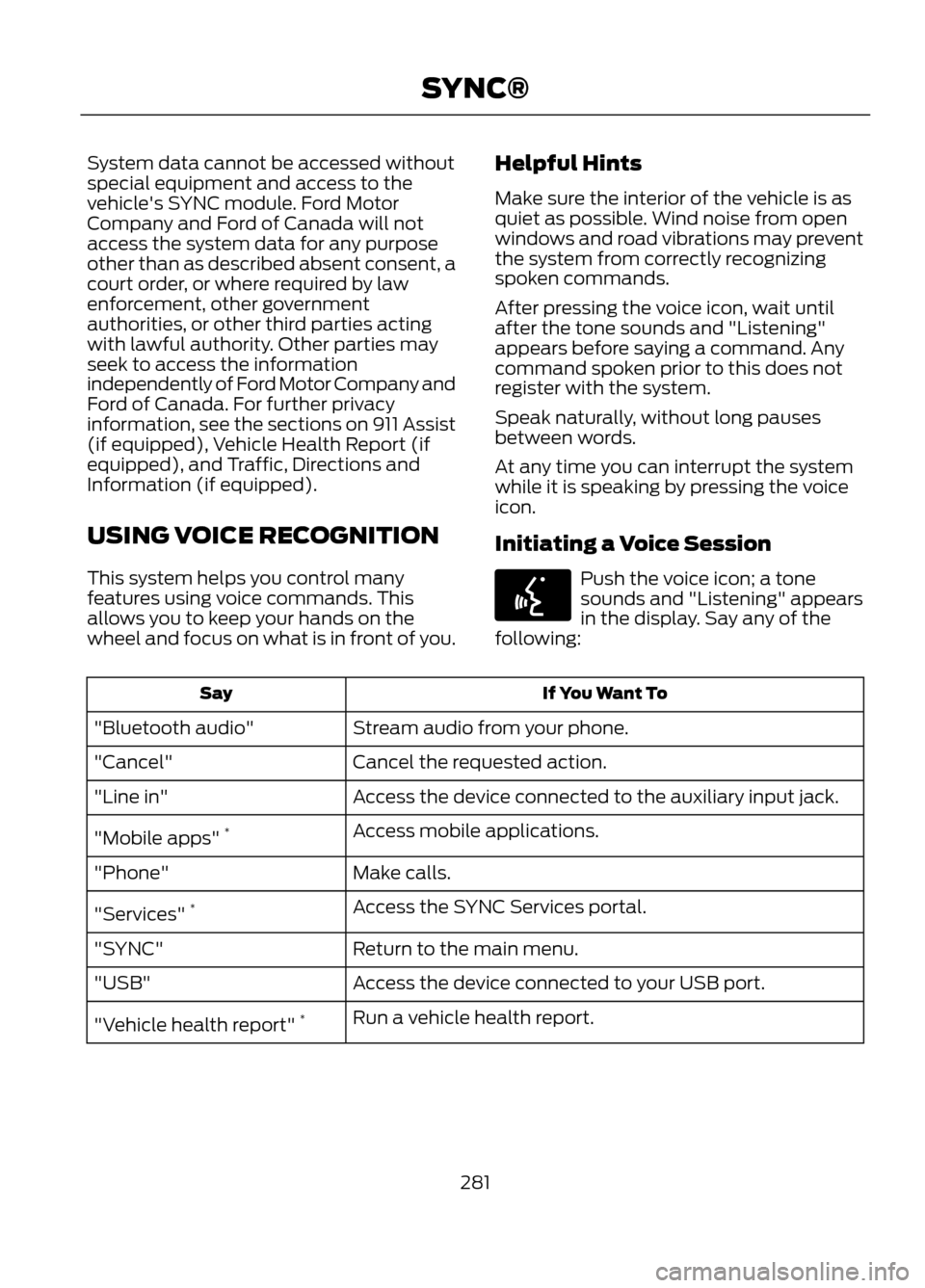
Initiating a Voice Session
Push the voice icon; a tone
sounds and "Listening" appears
in the display. Say any of the
following:
If You Want To
Say
Stream audio from your phone.
"Bluetooth audio"
Cancel the requested action.
"Cancel"
Access the device connected to the auxiliary input jack.
"Line in"
Access mobile applications.
"Mobile apps" *
Make calls.
"Phone"
Access the SYNC Services portal.
"Services" *
Return to the main menu.
"SYNC"
Access the device connected to your USB port.
"USB"
Run a vehicle health report.
"Vehicle health report" *
281
SYNC®
E142599
Page 301 of 423
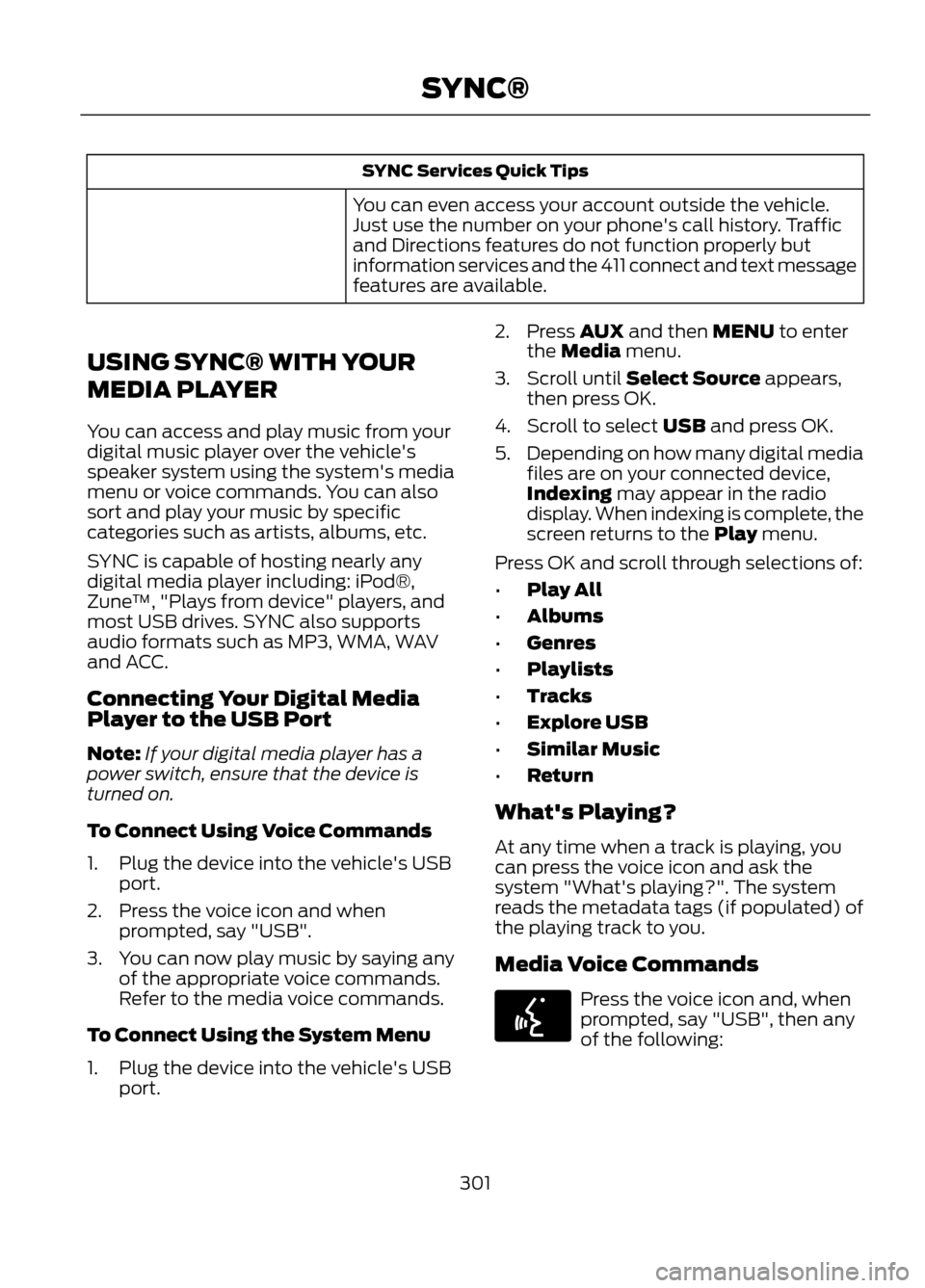
SYNC Services Quick Tips
You can even access your account outside the vehicle.
Just use the number on your phone's call history. Traffic
and Directions features do not function properly but
information services and the 411 connect and text message
features are available.
USING SYNC® WITH YOUR
MEDIA PLAYER
You can access and play music from your
digital music player over the vehicle's
speaker system using the system's media
menu or voice commands. You can also
sort and play your music by specific
categories such as artists, albums, etc.
SYNC is capable of hosting nearly any
digital media player including: iPod®,
Zune ™, "Plays from device" players, and
most USB drives. SYNC also supports
audio formats such as MP3, WMA, WAV
and ACC.
Connecting Your Digital Media
Player to the USB Port
Note: If your digital media player has a
power switch, ensure that the device is
turned on.
To Connect Using Voice Commands
1. Plug the device into the vehicle's USB port.
2. Press the voice icon and when prompted, say "USB".
3. You can now play music by saying any of the appropriate voice commands.
Refer to the media voice commands.
To Connect Using the System Menu
1. Plug the device into the vehicle's USB port. 2. Press AUX and then MENU to enter
the Media menu.
3. Scroll until Select Source appears, then press OK.
4. Scroll to select USB and press OK.
5. Depending on how many digital media
files are on your connected device,
Indexing may appear in the radio
display. When indexing is complete, the
screen returns to the Play menu.
Press OK and scroll through selections of:
• Play All
• Albums
• Genres
• Playlists
• Tracks
• Explore USB
• Similar Music
• Return
What's Playing?
At any time when a track is playing, you
can press the voice icon and ask the
system "What's playing?". The system
reads the metadata tags (if populated) of
the playing track to you.
Media Voice Commands
Press the voice icon and, when
prompted, say "USB", then any
of the following:
301
SYNC®
E142599
Page 303 of 423
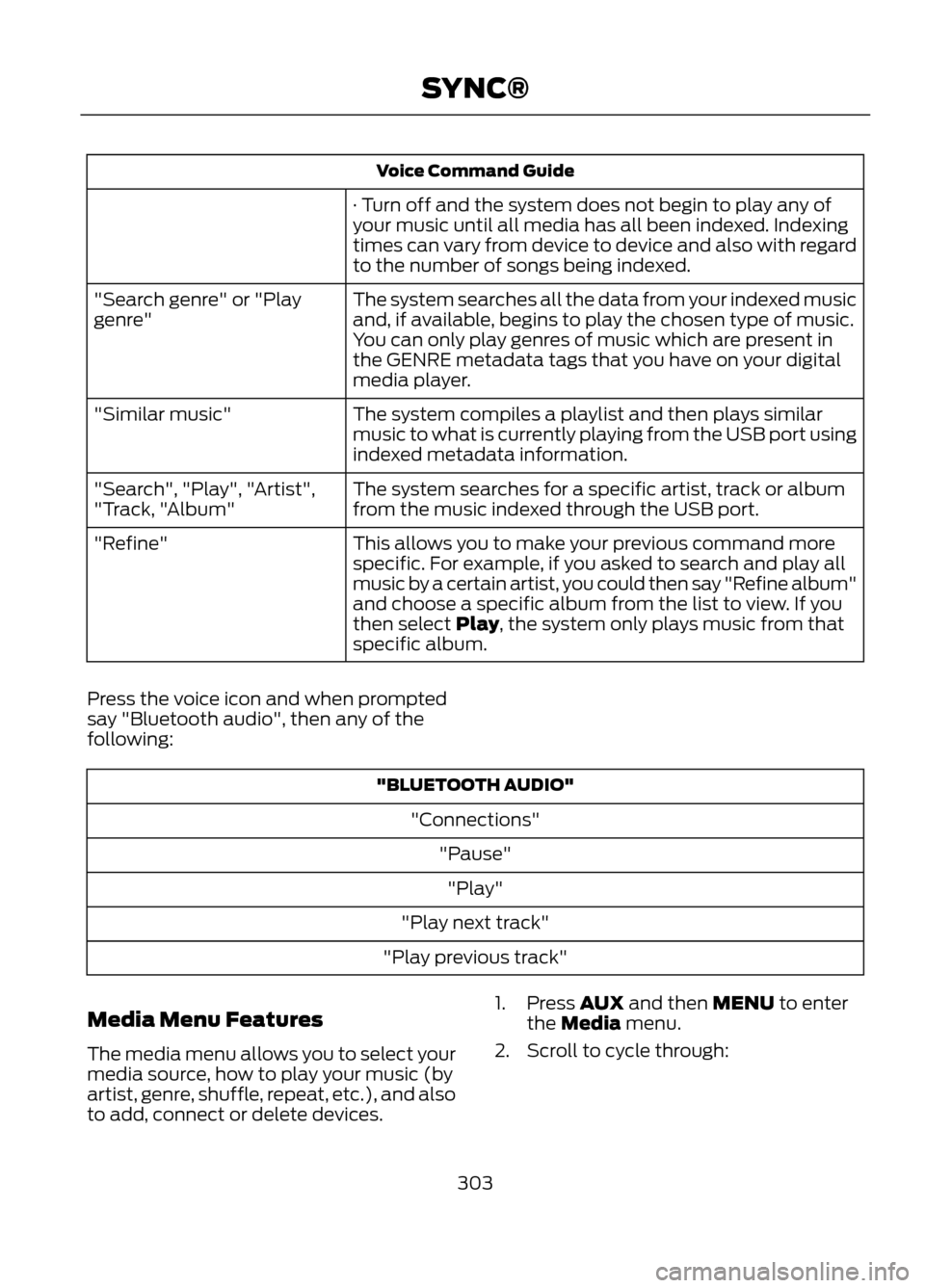
Voice Command Guide
· Turn off and the system does not begin to play any of
your music until all media has all been indexed. Indexing
times can vary from device to device and also with regard
to the number of songs being indexed.
The system searches all the data from your indexed music
and, if available, begins to play the chosen type of music.
You can only play genres of music which are present in
the GENRE metadata tags that you have on your digital
media player.
"Search genre" or "Play
genre"
The system compiles a playlist and then plays similar
music to what is currently playing from the USB port using
indexed metadata information.
"Similar music"
The system searches for a specific artist, track or album
from the music indexed through the USB port.
"Search", "Play", "Artist",
"Track, "Album"
This allows you to make your previous command more
specific. For example, if you asked to search and play all
music by a certain artist, you could then say "Refine album"
and choose a specific album from the list to view. If you
then select Play, the system only plays music from that
specific album.
"Refine"
Press the voice icon and when prompted
say "Bluetooth audio", then any of the
following:
"BLUETOOTH AUDIO" "Connections""Pause""Play"
"Play next track"
"Play previous track"
Media Menu Features
The media menu allows you to select your
media source, how to play your music (by
artist, genre, shuffle, repeat, etc.), and also
to add, connect or delete devices. 1. Press AUX and then MENU to enter
the Media menu.
2. Scroll to cycle through:
303
SYNC®
Page 304 of 423
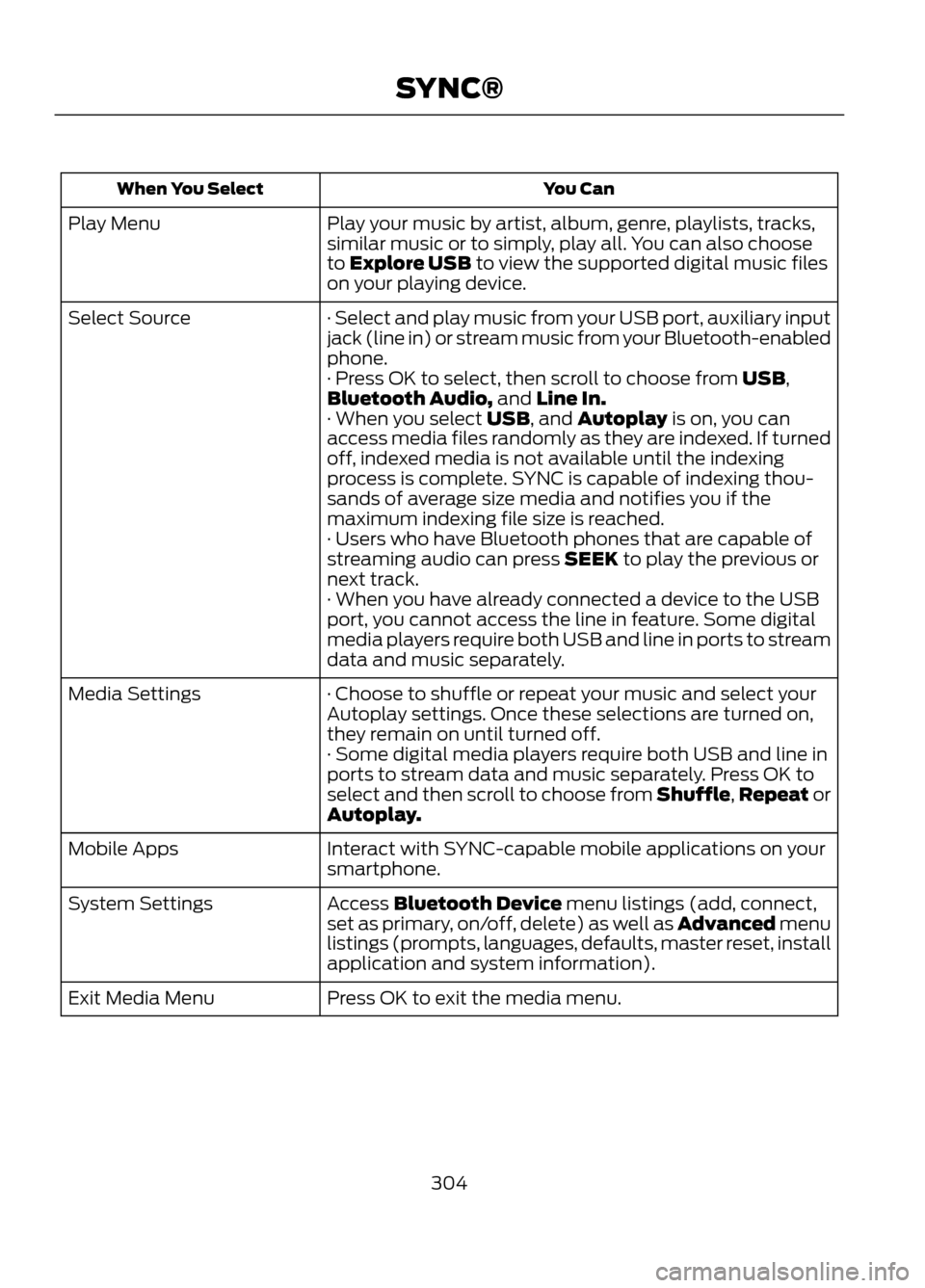
You Can
When You Select
Play your music by artist, album, genre, playlists, tracks,
similar music or to simply, play all. You can also choose
to Explore USB to view the supported digital music files
on your playing device.
Play Menu
· Select and play music from your USB port, auxiliary input
jack (line in) or stream music from your Bluetooth-enabled
phone.
Select Source
· Press OK to select, then scroll to choose from USB,
Bluetooth Audio, and Line In.
· When you select USB, and Autoplay is on, you can
access media files randomly as they are indexed. If turned
off, indexed media is not available until the indexing
process is complete. SYNC is capable of indexing thou-
sands of average size media and notifies you if the
maximum indexing file size is reached.
· Users who have Bluetooth phones that are capable of
streaming audio can press SEEK to play the previous or
next track.
· When you have already connected a device to the USB
port, you cannot access the line in feature. Some digital
media players require both USB and line in ports to stream
data and music separately.
· Choose to shuffle or repeat your music and select your
Autoplay settings. Once these selections are turned on,
they remain on until turned off.
Media Settings
· Some digital media players require both USB and line in
ports to stream data and music separately. Press OK to
select and then scroll to choose from Shuffle, Repeat or
Autoplay.
Interact with SYNC-capable mobile applications on your
smartphone.
Mobile Apps
Access Bluetooth Device menu listings (add, connect,
set as primary, on/off, delete) as well as Advanced menu
listings (prompts, languages, defaults, master reset, install
application and system information).
System Settings
Press OK to exit the media menu.
Exit Media Menu
304
SYNC®
Page 305 of 423
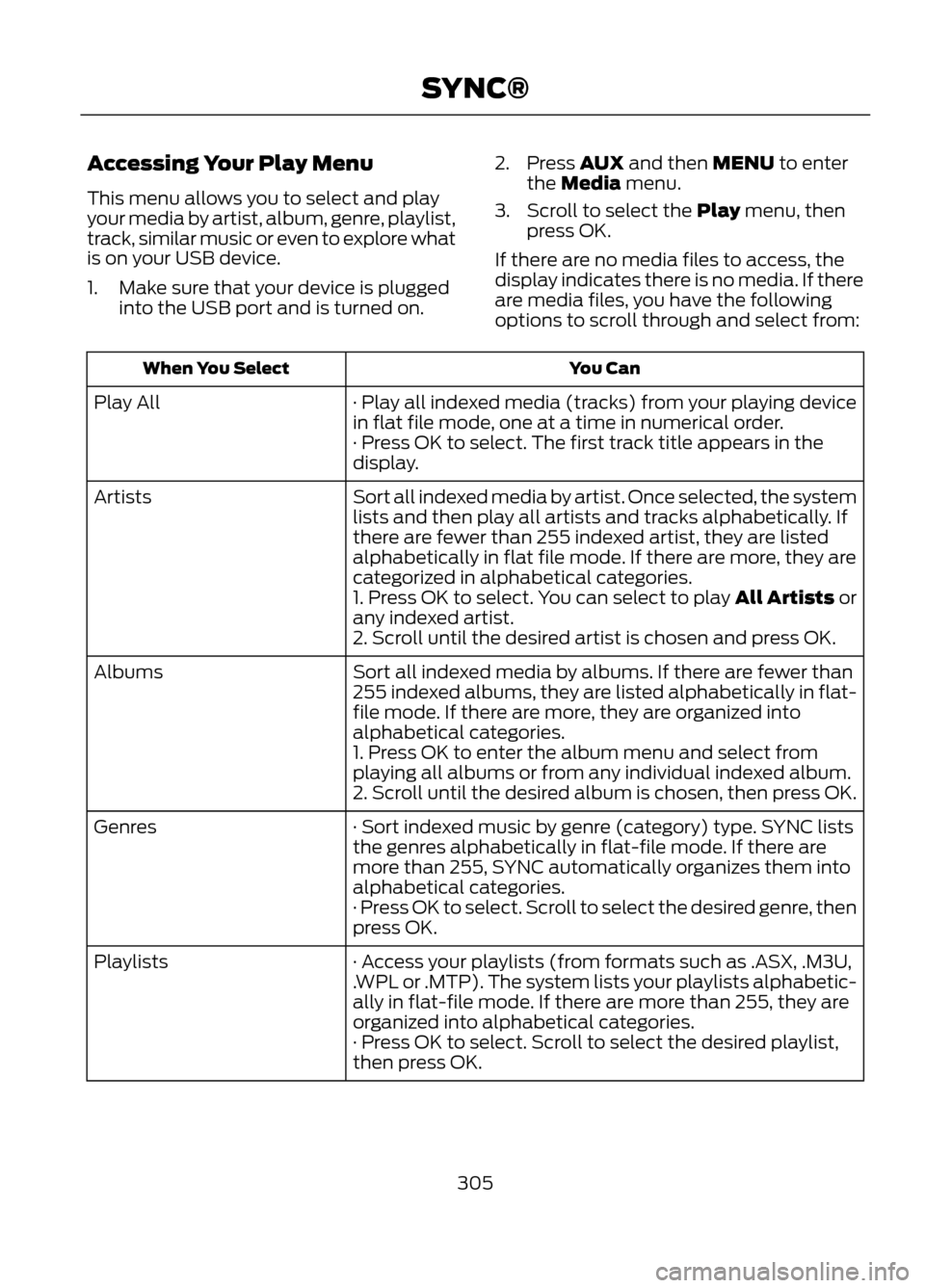
Accessing Your Play Menu
This menu allows you to select and play
your media by artist, album, genre, playlist,
track, similar music or even to explore what
is on your USB device.
1. Make sure that your device is pluggedinto the USB port and is turned on. 2. Press AUX and then MENU to enter
the Media menu.
3. Scroll to select the Play menu, then press OK.
If there are no media files to access, the
display indicates there is no media. If there
are media files, you have the following
options to scroll through and select from:
You Can
When You Select
· Play all indexed media (tracks) from your playing device
in flat file mode, one at a time in numerical order.
Play All
· Press OK to select. The first track title appears in the
display.
Sort all indexed media by artist. Once selected, the system
lists and then play all artists and tracks alphabetically. If
there are fewer than 255 indexed artist, they are listed
alphabetically in flat file mode. If there are more, they are
categorized in alphabetical categories.
Artists
1. Press OK to select. You can select to play All Artists or
any indexed artist.
2. Scroll until the desired artist is chosen and press OK.
Sort all indexed media by albums. If there are fewer than
255 indexed albums, they are listed alphabetically in flat-
file mode. If there are more, they are organized into
alphabetical categories.
Albums
1. Press OK to enter the album menu and select from
playing all albums or from any individual indexed album.
2. Scroll until the desired album is chosen, then press OK.
· Sort indexed music by genre (category) type. SYNC lists
the genres alphabetically in flat-file mode. If there are
more than 255, SYNC automatically organizes them into
alphabetical categories.
Genres
· Press OK to select. Scroll to select the desired genre, then
press OK.
· Access your playlists (from formats such as .ASX, .M3U,
.WPL or .MTP). The system lists your playlists alphabetic-
ally in flat-file mode. If there are more than 255, they are
organized into alphabetical categories.
Playlists
· Press OK to select. Scroll to select the desired playlist,
then press OK.
305
SYNC®
Page 306 of 423
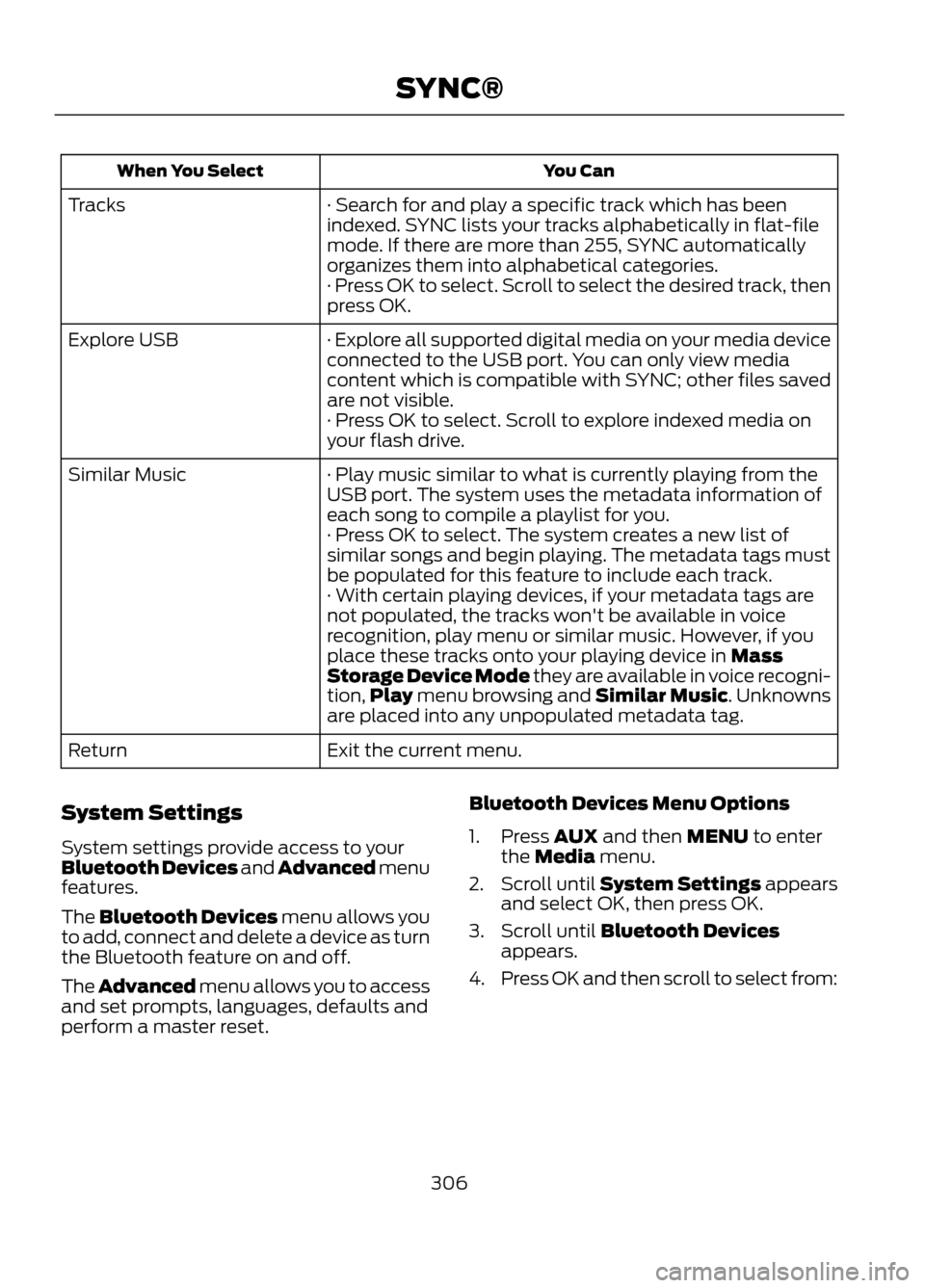
You Can
When You Select
· Search for and play a specific track which has been
indexed. SYNC lists your tracks alphabetically in flat-file
mode. If there are more than 255, SYNC automatically
organizes them into alphabetical categories.
Tracks
· Press OK to select. Scroll to select the desired track, then
press OK.
· Explore all supported digital media on your media device
connected to the USB port. You can only view media
content which is compatible with SYNC; other files saved
are not visible.
Explore USB
· Press OK to select. Scroll to explore indexed media on
your flash drive.
· Play music similar to what is currently playing from the
USB port. The system uses the metadata information of
each song to compile a playlist for you.
Similar Music
· Press OK to select. The system creates a new list of
similar songs and begin playing. The metadata tags must
be populated for this feature to include each track.
· With certain playing devices, if your metadata tags are
not populated, the tracks won't be available in voice
recognition, play menu or similar music. However, if you
place these tracks onto your playing device in Mass
Storage Device Mode they are available in voice recogni-
tion,Play menu browsing and Similar Music. Unknowns
are placed into any unpopulated metadata tag.
Exit the current menu.
Return
System Settings
System settings provide access to your
Bluetooth Devices and Advanced menu
features.
The Bluetooth Devices menu allows you
to add, connect and delete a device as turn
the Bluetooth feature on and off.
The Advanced menu allows you to access
and set prompts, languages, defaults and
perform a master reset. Bluetooth Devices Menu Options
1. Press AUX and then MENU to enter
the Media menu.
2. Scroll until System Settings appears
and select OK, then press OK.
3. Scroll until Bluetooth Devices appears.
4. Press OK and then scroll to select from:
306
SYNC®
Page 307 of 423
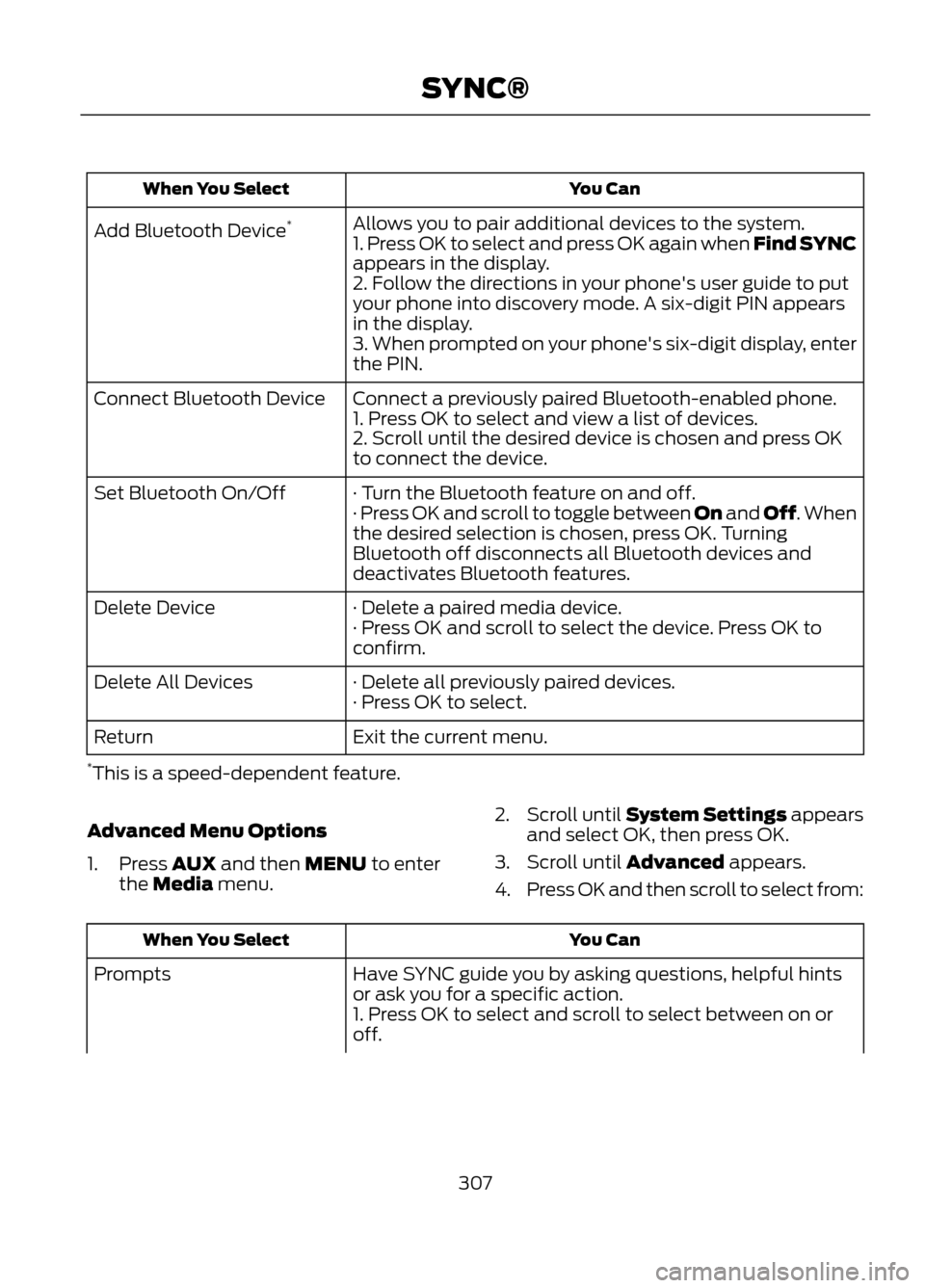
You Can
When You Select
Allows you to pair additional devices to the system.
Add Bluetooth Device *
1. Press OK to select and press OK again when Find SYNC
appears in the display.
2. Follow the directions in your phone's user guide to put
your phone into discovery mode. A six-digit PIN appears
in the display.
3. When prompted on your phone's six-digit display, enter
the PIN.
Connect a previously paired Bluetooth-enabled phone.
Connect Bluetooth Device
1. Press OK to select and view a list of devices.
2. Scroll until the desired device is chosen and press OK
to connect the device.
· Turn the Bluetooth feature on and off.
Set Bluetooth On/Off
· Press OK and scroll to toggle between On and Off. When
the desired selection is chosen, press OK. Turning
Bluetooth off disconnects all Bluetooth devices and
deactivates Bluetooth features.
· Delete a paired media device.
Delete Device
· Press OK and scroll to select the device. Press OK to
confirm.
· Delete all previously paired devices.
Delete All Devices
· Press OK to select.
Exit the current menu.
Return
* This is a speed-dependent feature.
Advanced Menu Options
1. Press AUX and then MENU to enter the Media menu. 2.
Scroll until System Settings appears
and select OK, then press OK.
3. Scroll until Advanced appears.
4. Press OK and then scroll to select from:
You Can
When You Select
Have SYNC guide you by asking questions, helpful hints
or ask you for a specific action.
Prompts
1. Press OK to select and scroll to select between on or
off.
307
SYNC®
Page 321 of 423
Helpful Hints
•Make sure the interior of the vehicle is
as quiet as possible. Wind noise from
open windows and road vibrations may
prevent the system from correctly
recognizing spoken commands. •
After pressing the voice icon, wait until
after the tone sounds and "Listening"
appears before saying a command. Any
command spoken before this does not
register with the system.
• Speak naturally, without long pauses
between words.
• At any time you can interrupt the
system while it is speaking by pressing
the voice icon.
Basic commands
If You Want To
Say
Make calls.
"Phone"
Access the device connected to your USB port.
"USB"
Stream audio from your phone.
"Bluetooth audio"
Access the device connected to the auxiliary input jack.
"Line in"
Cancel the requested action.
"Cancel"
Return to the main menu.
"SYNC"
Adjust the level of voice interaction and feedback.
"Voice settings"
Run a vehicle health report.*
"Vehicle health report"
Access the SYNC Services portal. *
"Services"
Access mobile applications.*
"Mobile apps"
Hear a list of voice commands available in the current
mode.
"Help"
* If equipped, U.S. only
These commands can be said at any time during a voice session
"Main menu"
"List of commands" "What can I say?" "Next page"
321
MyFord Touch®
Page 351 of 423
A/V Inputs
Note:For safety reasons, connecting or
adjusting the settings on your portable
music player should not be attempted while
the vehicle is moving. Also, the portable
music player should be stored in a secure
location, such as the center console or the
glove box, when the vehicle is in motion. The
audio extension cable must be long enough
to allow the portable music player to be
safely stored while the vehicle is in motion.
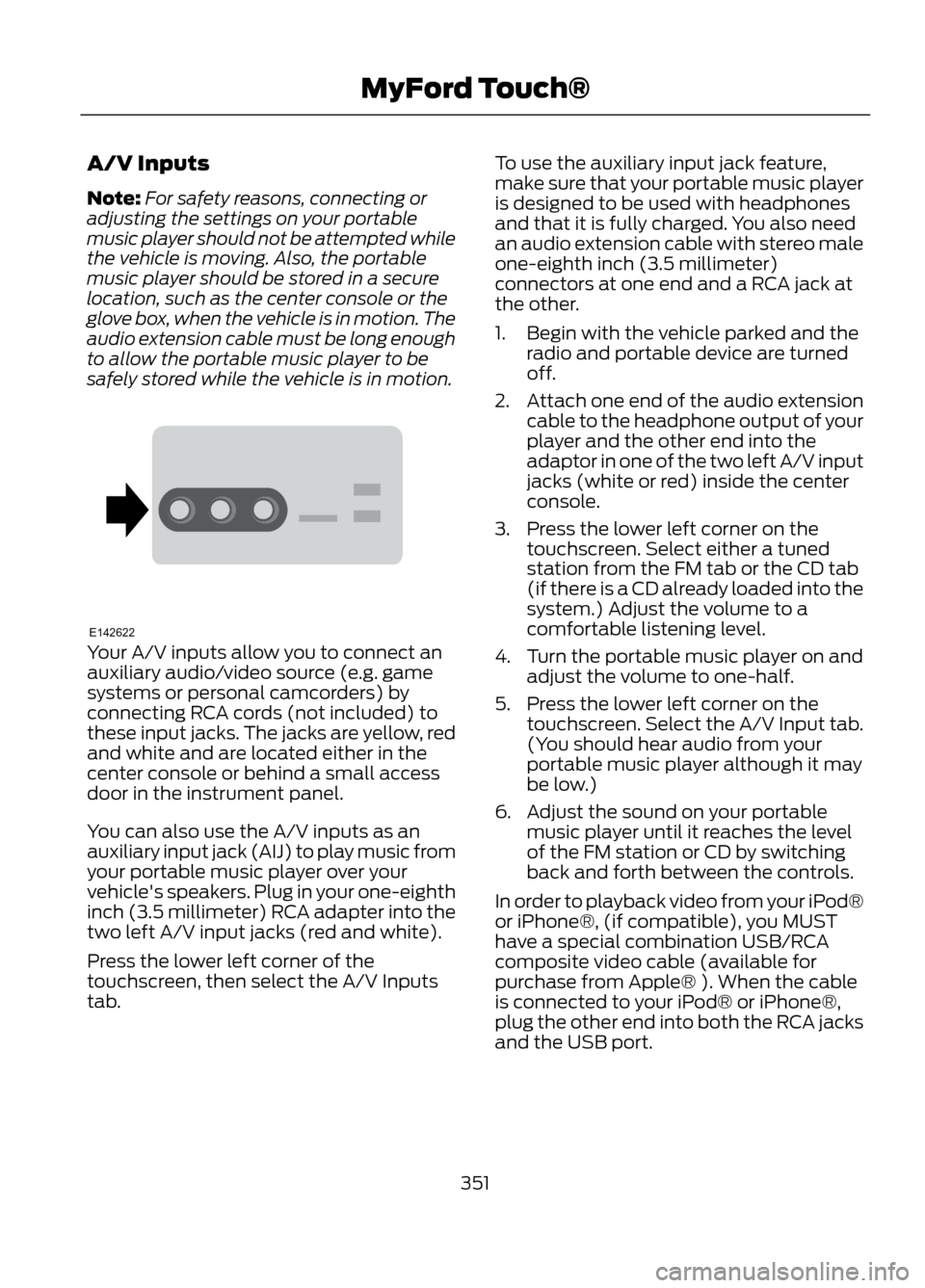
Your A/V inputs allow you to connect an
auxiliary audio/video source (e.g. game
systems or personal camcorders) by
connecting RCA cords (not included) to
these input jacks. The jacks are yellow, red
and white and are located either in the
center console or behind a small access
door in the instrument panel.
You can also use the A/V inputs as an
auxiliary input jack (AIJ) to play music from
your portable music player over your
vehicle's speakers. Plug in your one-eighth
inch (3.5 millimeter) RCA adapter into the
two left A/V input jacks (red and white).
Press the lower left corner of the
touchscreen, then select the A/V Inputs
tab. To use the auxiliary input jack feature,
make sure that your portable music player
is designed to be used with headphones
and that it is fully charged. You also need
an audio extension cable with stereo male
one-eighth inch (3.5 millimeter)
connectors at one end and a RCA jack at
the other.
1. Begin with the vehicle parked and the
radio and portable device are turned
off.
2. Attach one end of the audio extension
cable to the headphone output of your
player and the other end into the
adaptor in one of the two left A/V input
jacks (white or red) inside the center
console.
3. Press the lower left corner on the touchscreen. Select either a tuned
station from the FM tab or the CD tab
(if there is a CD already loaded into the
system.) Adjust the volume to a
comfortable listening level.
4. Turn the portable music player on and adjust the volume to one-half.
5. Press the lower left corner on the touchscreen. Select the A/V Input tab.
(You should hear audio from your
portable music player although it may
be low.)
6. Adjust the sound on your portable music player until it reaches the level
of the FM station or CD by switching
back and forth between the controls.
In order to playback video from your iPod®
or iPhone®, (if compatible), you MUST
have a special combination USB/RCA
composite video cable (available for
purchase from Apple® ). When the cable
is connected to your iPod® or iPhone®,
plug the other end into both the RCA jacks
and the USB port.
351
MyFord Touch®
E142622