USB port FORD ESCAPE 2013 3.G User Guide
[x] Cancel search | Manufacturer: FORD, Model Year: 2013, Model line: ESCAPE, Model: FORD ESCAPE 2013 3.GPages: 423, PDF Size: 4.59 MB
Page 308 of 423
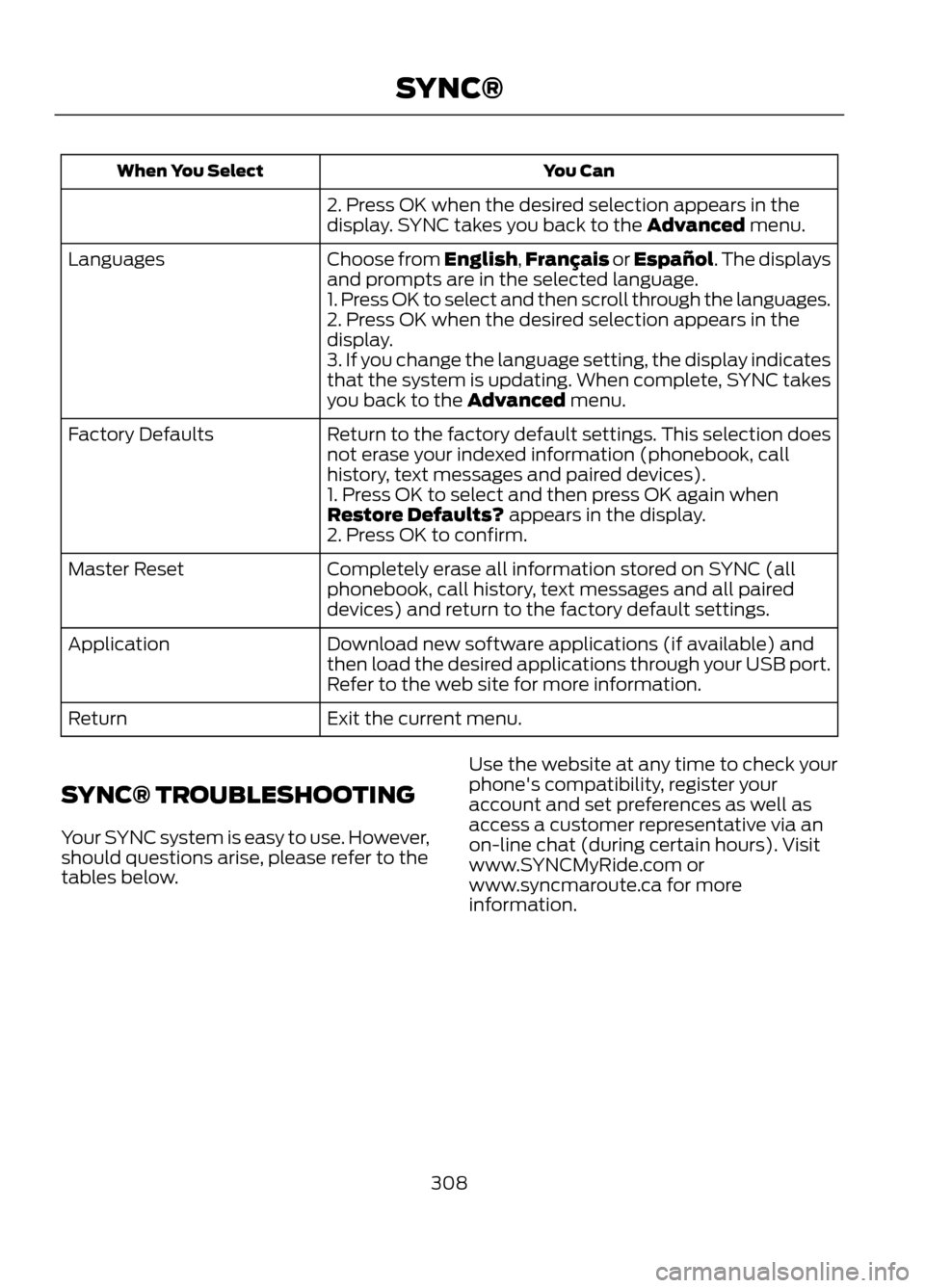
You Can
When You Select
2. Press OK when the desired selection appears in the
display. SYNC takes you back to the Advanced menu.
Choose from English,Français or Español. The displays
and prompts are in the selected language.
Languages
1. Press OK to select and then scroll through the languages.
2. Press OK when the desired selection appears in the
display.
3. If you change the language setting, the display indicates
that the system is updating. When complete, SYNC takes
you back to the Advanced menu.
Return to the factory default settings. This selection does
not erase your indexed information (phonebook, call
history, text messages and paired devices).
Factory Defaults
1. Press OK to select and then press OK again when
Restore Defaults? appears in the display.
2. Press OK to confirm.
Completely erase all information stored on SYNC (all
phonebook, call history, text messages and all paired
devices) and return to the factory default settings.
Master Reset
Download new software applications (if available) and
then load the desired applications through your USB port.
Refer to the web site for more information.
Application
Exit the current menu.
Return
SYNC® TROUBLESHOOTING
Your SYNC system is easy to use. However,
should questions arise, please refer to the
tables below. Use the website at any time to check your
phone's compatibility, register your
account and set preferences as well as
access a customer representative via an
on-line chat (during certain hours). Visit
www.SYNCMyRide.com or
www.syncmaroute.ca for more
information.
308
SYNC®
Page 310 of 423
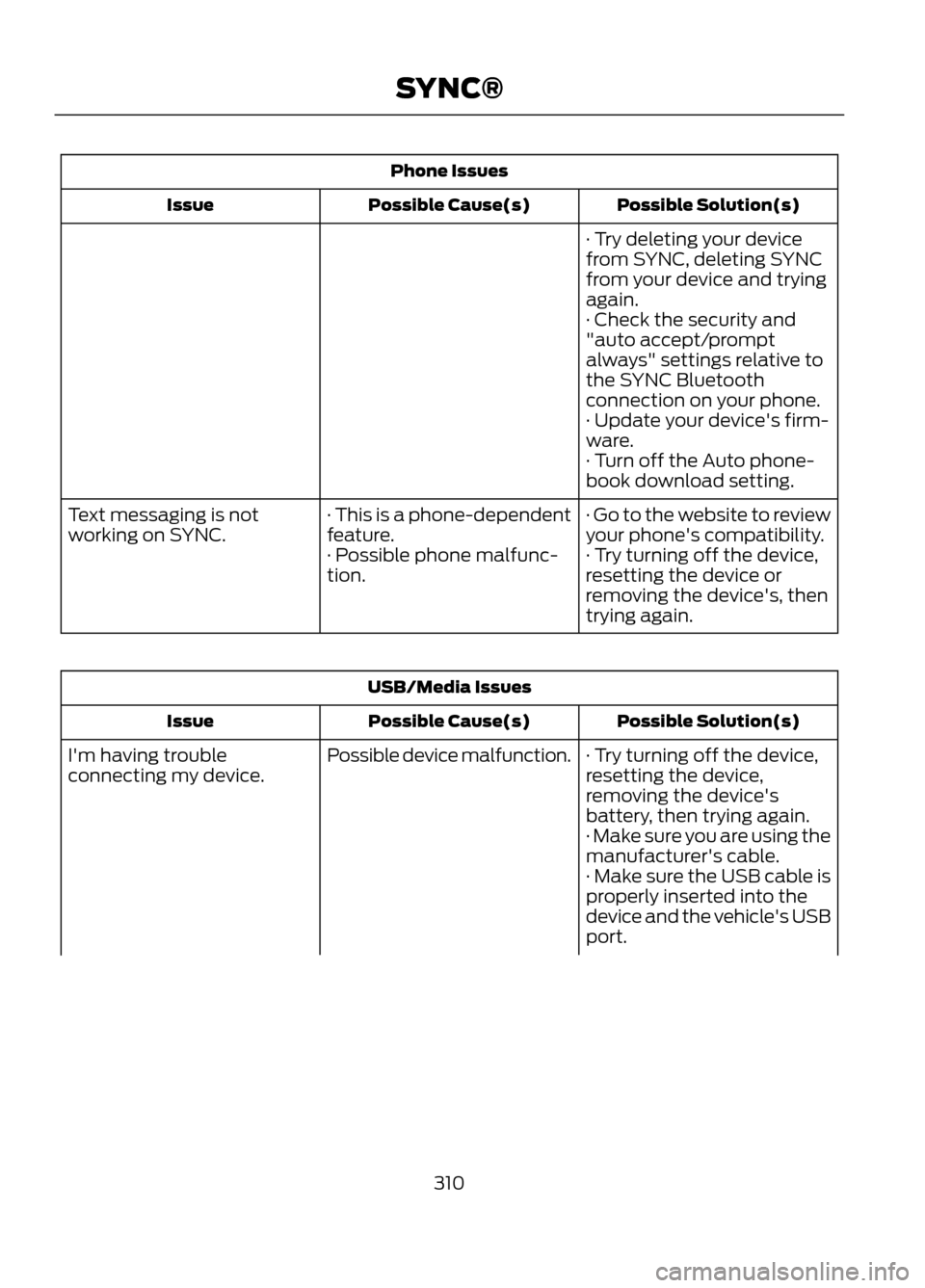
Phone IssuesPossible Solution(s)
Possible Cause(s)
Issue
· Try deleting your device
from SYNC, deleting SYNC
from your device and trying
again.
· Check the security and
"auto accept/prompt
always" settings relative to
the SYNC Bluetooth
connection on your phone.
· Update your device's firm-
ware.
· Turn off the Auto phone-
book download setting.
· Go to the website to review
your phone's compatibility.
· This is a phone-dependent
feature.
Text messaging is not
working on SYNC.
· Try turning off the device,
resetting the device or
removing the device's, then
trying again.
· Possible phone malfunc-
tion.
USB/Media Issues
Possible Solution(s)
Possible Cause(s)
Issue
· Try turning off the device,
resetting the device,
removing the device's
battery, then trying again.
Possible device malfunction.
I'm having trouble
connecting my device.
· Make sure you are using the
manufacturer's cable.
· Make sure the USB cable is
properly inserted into the
device and the vehicle's USB
port.
310
SYNC®
Page 311 of 423
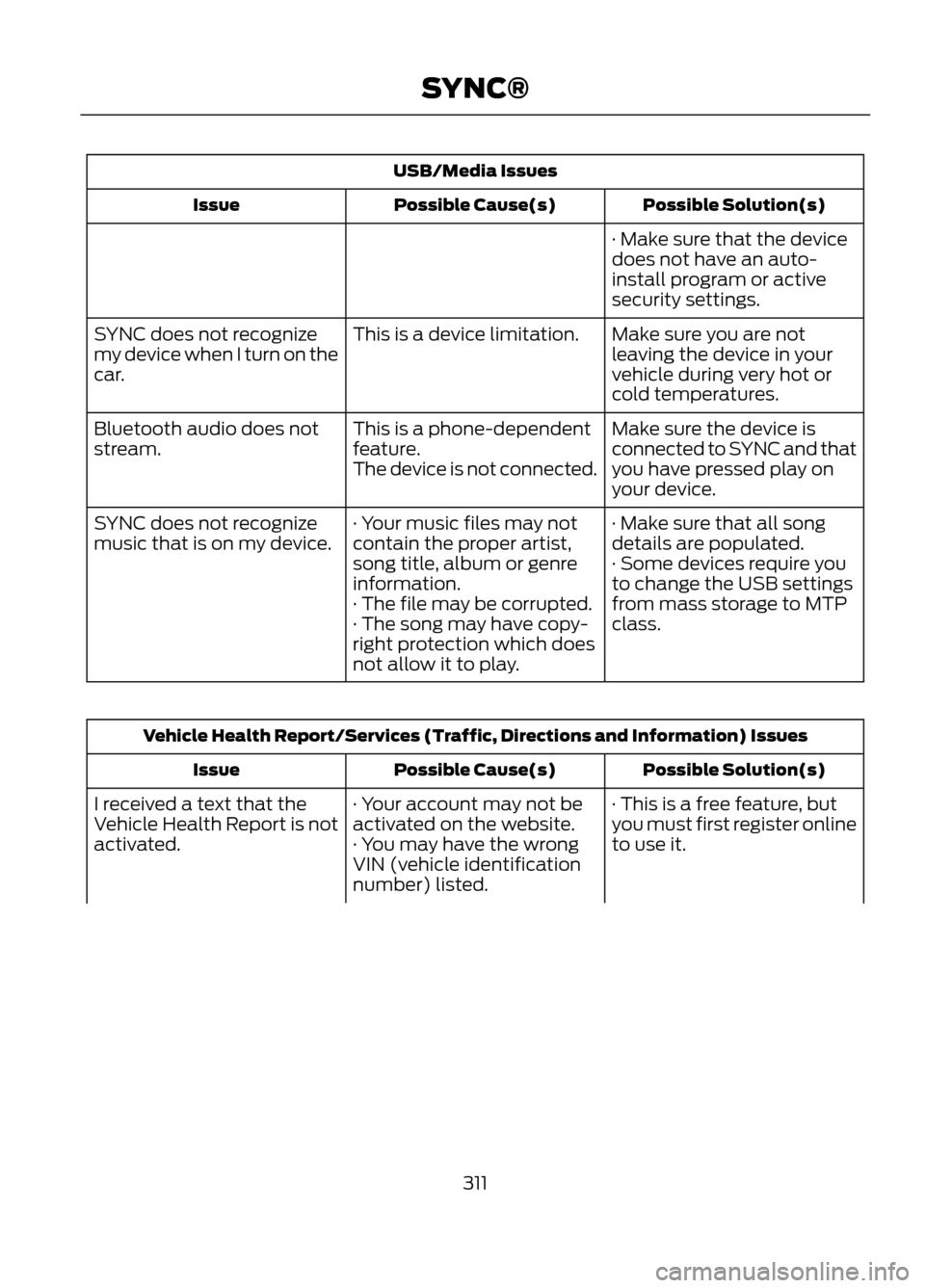
USB/Media IssuesPossible Solution(s)
Possible Cause(s)
Issue
· Make sure that the device
does not have an auto-
install program or active
security settings.
Make sure you are not
leaving the device in your
vehicle during very hot or
cold temperatures.
This is a device limitation.
SYNC does not recognize
my device when I turn on the
car.
Make sure the device is
connected to SYNC and that
you have pressed play on
your device.
This is a phone-dependent
feature.
The device is not connected.
Bluetooth audio does not
stream.
· Make sure that all song
details are populated.
· Your music files may not
contain the proper artist,
song title, album or genre
information.
SYNC does not recognize
music that is on my device.
· Some devices require you
to change the USB settings
from mass storage to MTP
class.
· The file may be corrupted.
· The song may have copy-
right protection which does
not allow it to play.
Vehicle Health Report/Services (Traffic, Directions and Information) Issues
Possible Solution(s)
Possible Cause(s)
Issue
· This is a free feature, but
you must first register online
to use it.
· Your account may not be
activated on the website.
· You may have the wrong
VIN (vehicle identification
number) listed.
I received a text that the
Vehicle Health Report is not
activated.
311
SYNC®
Page 316 of 423
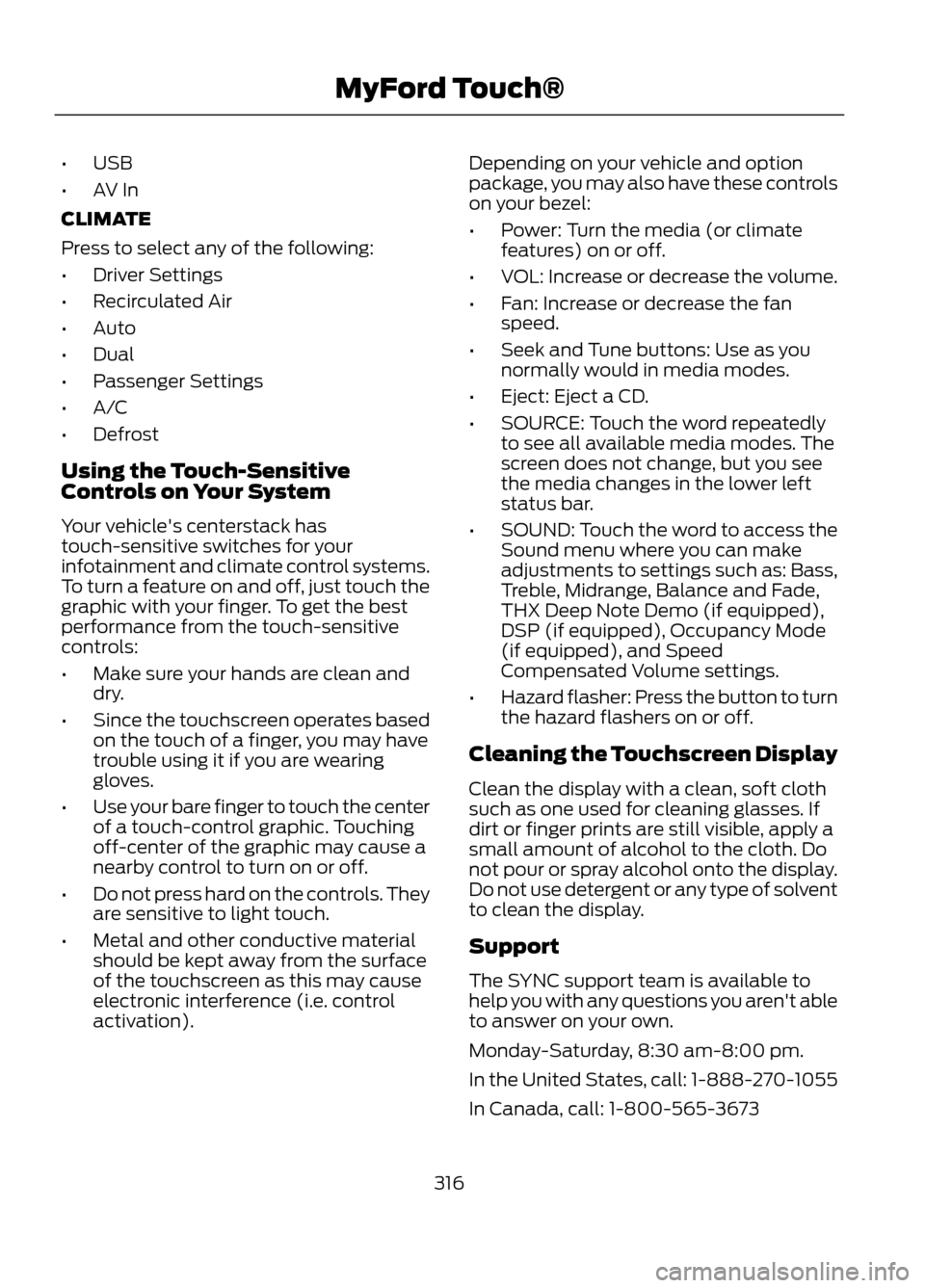
•USB
• AV In
CLIMATE
Press to select any of the following:
• Driver Settings
• Recirculated Air
• Auto
• Dual
• Passenger Settings
• A/C
• Defrost
Using the Touch-Sensitive
Controls on Your System
Your vehicle's centerstack has
touch-sensitive switches for your
infotainment and climate control systems.
To turn a feature on and off, just touch the
graphic with your finger. To get the best
performance from the touch-sensitive
controls:
• Make sure your hands are clean and
dry.
• Since the touchscreen operates based
on the touch of a finger, you may have
trouble using it if you are wearing
gloves.
• Use your bare finger to touch the center
of a touch-control graphic. Touching
off-center of the graphic may cause a
nearby control to turn on or off.
• Do not press hard on the controls. They
are sensitive to light touch.
• Metal and other conductive material
should be kept away from the surface
of the touchscreen as this may cause
electronic interference (i.e. control
activation). Depending on your vehicle and option
package, you may also have these controls
on your bezel:
•
Power: Turn the media (or climate
features) on or off.
• VOL: Increase or decrease the volume.
• Fan: Increase or decrease the fan
speed.
• Seek and Tune buttons: Use as you
normally would in media modes.
• Eject: Eject a CD.
• SOURCE: Touch the word repeatedly
to see all available media modes. The
screen does not change, but you see
the media changes in the lower left
status bar.
• SOUND: Touch the word to access the
Sound menu where you can make
adjustments to settings such as: Bass,
Treble, Midrange, Balance and Fade,
THX Deep Note Demo (if equipped),
DSP (if equipped), Occupancy Mode
(if equipped), and Speed
Compensated Volume settings.
• Hazard flasher: Press the button to turn
the hazard flashers on or off.
Cleaning the Touchscreen Display
Clean the display with a clean, soft cloth
such as one used for cleaning glasses. If
dirt or finger prints are still visible, apply a
small amount of alcohol to the cloth. Do
not pour or spray alcohol onto the display.
Do not use detergent or any type of solvent
to clean the display.
Support
The SYNC support team is available to
help you with any questions you aren't able
to answer on your own.
Monday-Saturday, 8:30 am-8:00 pm.
In the United States, call: 1-888-270-1055
In Canada, call: 1-800-565-3673
316
MyFord Touch®
Page 317 of 423
Times are subject to change due to
holidays.
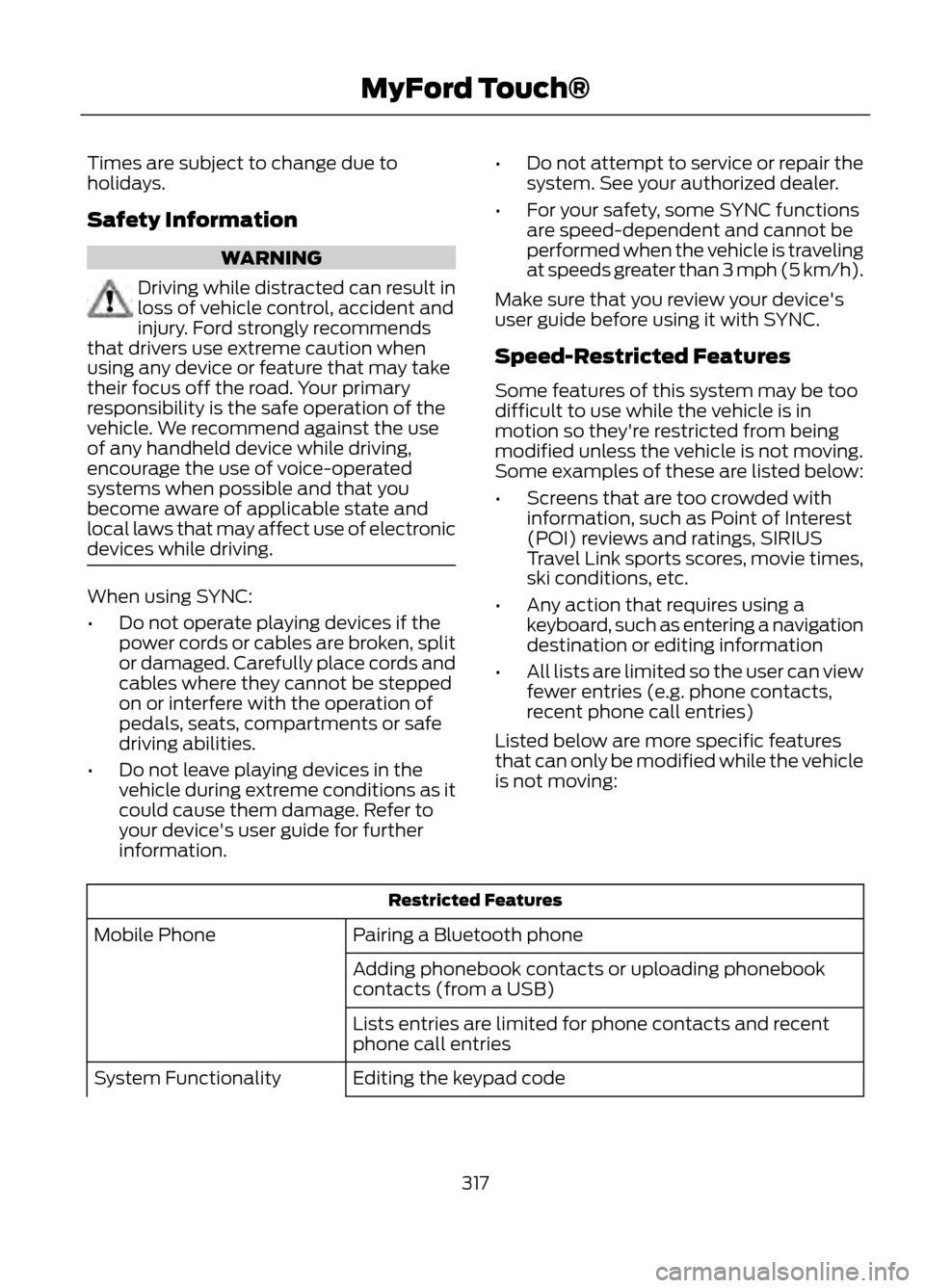
Safety Information
WARNING
Driving while distracted can result in
loss of vehicle control, accident and
injury. Ford strongly recommends
that drivers use extreme caution when
using any device or feature that may take
their focus off the road. Your primary
responsibility is the safe operation of the
vehicle. We recommend against the use
of any handheld device while driving,
encourage the use of voice-operated
systems when possible and that you
become aware of applicable state and
local laws that may affect use of electronic
devices while driving.
When using SYNC:
• Do not operate playing devices if the
power cords or cables are broken, split
or damaged. Carefully place cords and
cables where they cannot be stepped
on or interfere with the operation of
pedals, seats, compartments or safe
driving abilities.
• Do not leave playing devices in the
vehicle during extreme conditions as it
could cause them damage. Refer to
your device's user guide for further
information. •
Do not attempt to service or repair the
system. See your authorized dealer.
• For your safety, some SYNC functions
are speed-dependent and cannot be
performed when the vehicle is traveling
at speeds greater than 3 mph (5 km/h).
Make sure that you review your device's
user guide before using it with SYNC.
Speed-Restricted Features
Some features of this system may be too
difficult to use while the vehicle is in
motion so they're restricted from being
modified unless the vehicle is not moving.
Some examples of these are listed below:
• Screens that are too crowded with
information, such as Point of Interest
(POI) reviews and ratings, SIRIUS
Travel Link sports scores, movie times,
ski conditions, etc.
• Any action that requires using a
keyboard, such as entering a navigation
destination or editing information
• All lists are limited so the user can view
fewer entries (e.g. phone contacts,
recent phone call entries)
Listed below are more specific features
that can only be modified while the vehicle
is not moving:
Restricted Features
Pairing a Bluetooth phone
Mobile Phone
Adding phonebook contacts or uploading phonebook
contacts (from a USB)
Lists entries are limited for phone contacts and recent
phone call entries
Editing the keypad code
System Functionality
317
MyFord Touch®
Page 321 of 423
Helpful Hints
•Make sure the interior of the vehicle is
as quiet as possible. Wind noise from
open windows and road vibrations may
prevent the system from correctly
recognizing spoken commands. •
After pressing the voice icon, wait until
after the tone sounds and "Listening"
appears before saying a command. Any
command spoken before this does not
register with the system.
• Speak naturally, without long pauses
between words.
• At any time you can interrupt the
system while it is speaking by pressing
the voice icon.
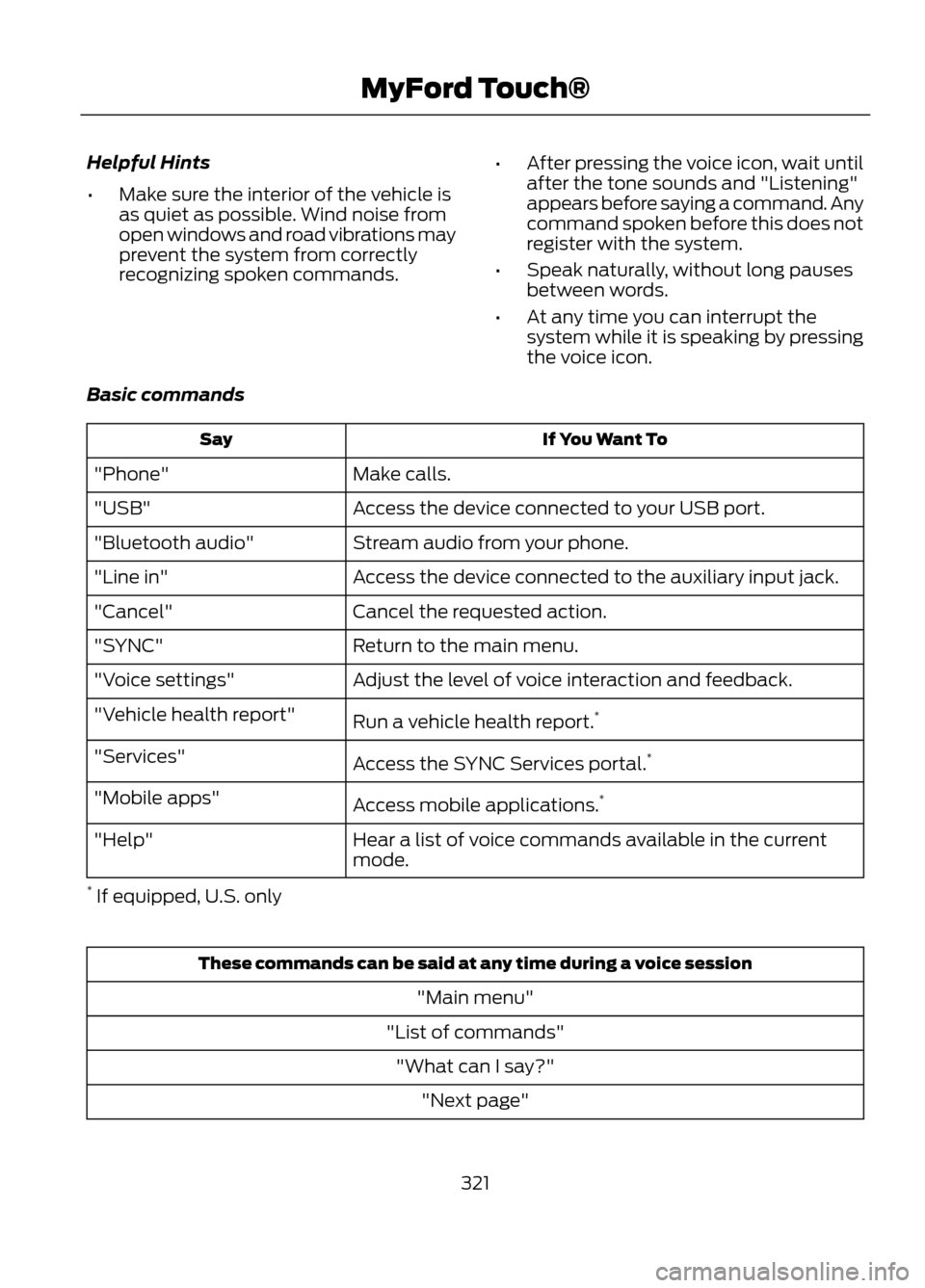
Basic commands
If You Want To
Say
Make calls.
"Phone"
Access the device connected to your USB port.
"USB"
Stream audio from your phone.
"Bluetooth audio"
Access the device connected to the auxiliary input jack.
"Line in"
Cancel the requested action.
"Cancel"
Return to the main menu.
"SYNC"
Adjust the level of voice interaction and feedback.
"Voice settings"
Run a vehicle health report.*
"Vehicle health report"
Access the SYNC Services portal. *
"Services"
Access mobile applications.*
"Mobile apps"
Hear a list of voice commands available in the current
mode.
"Help"
* If equipped, U.S. only
These commands can be said at any time during a voice session
"Main menu"
"List of commands" "What can I say?" "Next page"
321
MyFord Touch®
Page 328 of 423
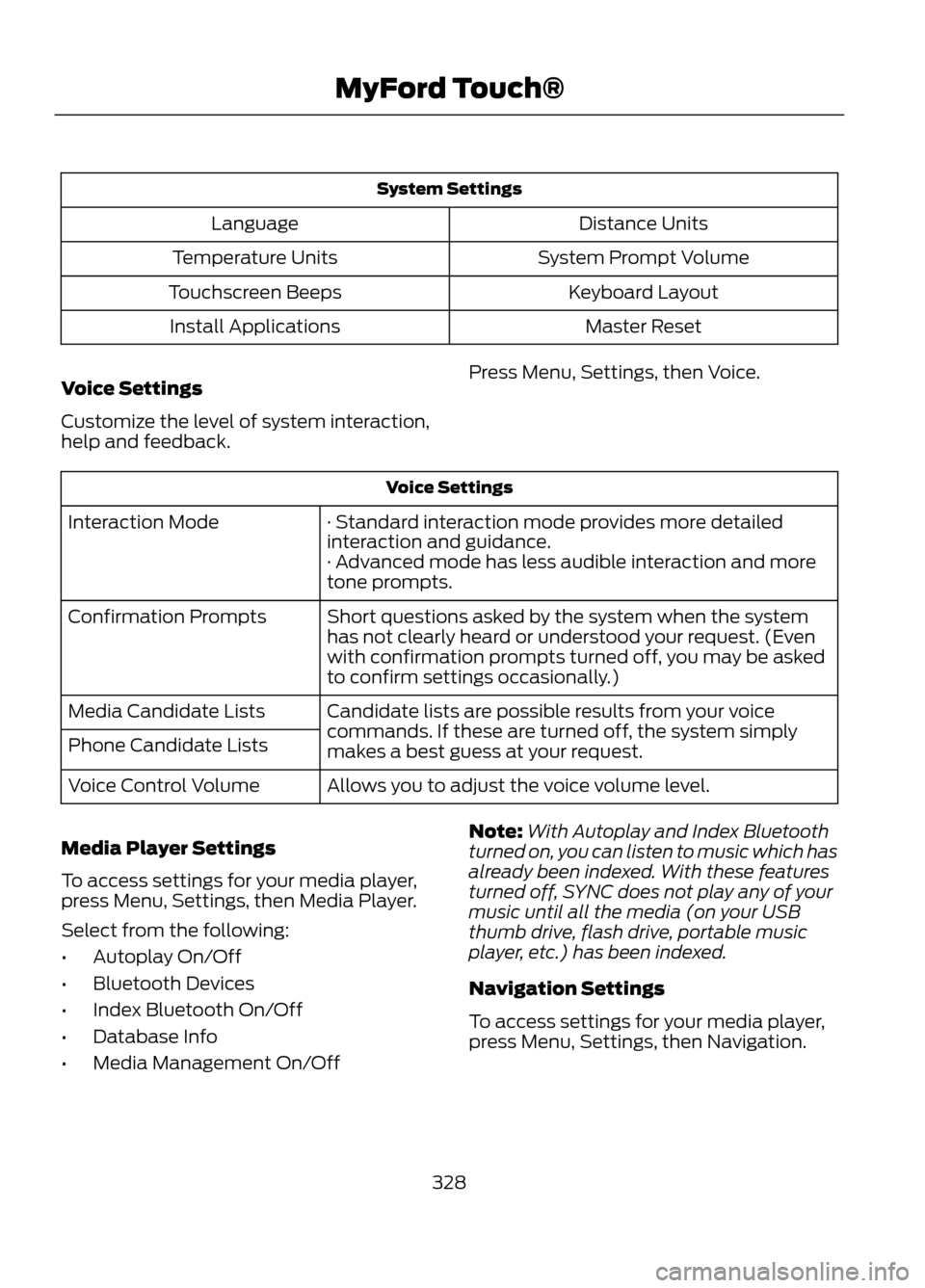
System SettingsDistance Units
Language
System Prompt Volume
Temperature Units
Keyboard Layout
Touchscreen Beeps
Master Reset
Install Applications
Voice Settings
Customize the level of system interaction,
help and feedback. Press Menu, Settings, then Voice.
Voice Settings
· Standard interaction mode provides more detailed
interaction and guidance.
Interaction Mode
· Advanced mode has less audible interaction and more
tone prompts.
Short questions asked by the system when the system
has not clearly heard or understood your request. (Even
with confirmation prompts turned off, you may be asked
to confirm settings occasionally.)
Confirmation Prompts
Candidate lists are possible results from your voice
commands. If these are turned off, the system simply
makes a best guess at your request.
Media Candidate Lists
Phone Candidate Lists
Allows you to adjust the voice volume level.
Voice Control Volume
Media Player Settings
To access settings for your media player,
press Menu, Settings, then Media Player.
Select from the following:
• Autoplay On/Off
• Bluetooth Devices
• Index Bluetooth On/Off
• Database Info
• Media Management On/Off Note:
With Autoplay and Index Bluetooth
turned on, you can listen to music which has
already been indexed. With these features
turned off, SYNC does not play any of your
music until all the media (on your USB
thumb drive, flash drive, portable music
player, etc.) has been indexed.
Navigation Settings
To access settings for your media player,
press Menu, Settings, then Navigation.
328
MyFord Touch®
Page 329 of 423
Select from the following:
•Map Preferences
• Route Preferences
• Navigation Preferences
• Traffic Preferences
• Avoid Areas Phone Settings
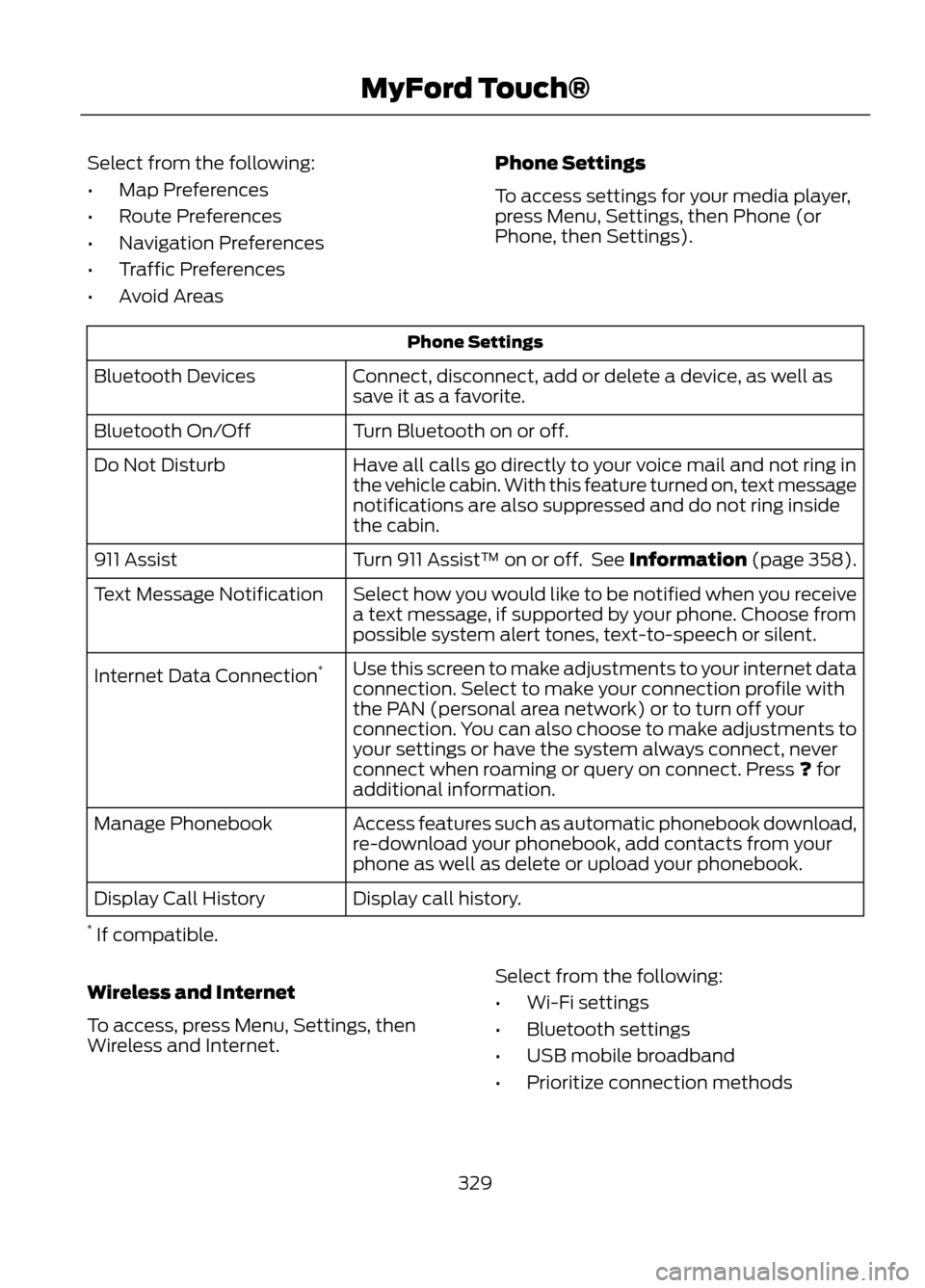
To access settings for your media player,
press Menu, Settings, then Phone (or
Phone, then Settings).
Phone Settings
Connect, disconnect, add or delete a device, as well as
save it as a favorite.
Bluetooth Devices
Turn Bluetooth on or off.
Bluetooth On/Off
Have all calls go directly to your voice mail and not ring in
the vehicle cabin. With this feature turned on, text message
notifications are also suppressed and do not ring inside
the cabin.
Do Not Disturb
Turn 911 Assist™ on or off. See Information (page 358).
911 Assist
Select how you would like to be notified when you receive
a text message, if supported by your phone. Choose from
possible system alert tones, text-to-speech or silent.
Text Message Notification
Use this screen to make adjustments to your internet data
connection. Select to make your connection profile with
the PAN (personal area network) or to turn off your
connection. You can also choose to make adjustments to
your settings or have the system always connect, never
connect when roaming or query on connect. Press ? for
additional information.
Internet Data Connection
*
Access features such as automatic phonebook download,
re-download your phonebook, add contacts from your
phone as well as delete or upload your phonebook.
Manage Phonebook
Display call history.
Display Call History
* If compatible.
Wireless and Internet
To access, press Menu, Settings, then
Wireless and Internet. Select from the following:
•
Wi-Fi settings
• Bluetooth settings
• USB mobile broadband
• Prioritize connection methods
329
MyFord Touch®
Page 330 of 423
Wi-Fi
Your system has a Wi-Fi feature which
creates a wireless network within your
vehicle, thereby allowing other devices (i.e.
personal computers or phones) in your
vehicle to speak to each other, share files,
play games, etc.Using this feature, everyone in your vehicle
can also gain access the internet if:
•
You have a USB mobile broadband
connection inside the vehicle
• Your phone supports PAN (personal
area networking)
• You are parked outside of a wireless
hotspot
To access, press Menu, Settings, Wireless
and Internet, then Wi-Fi settings. Select
from the following options:
You Can
If You Select
Turn the Wi-Fi feature on or off in your vehicle. Make sure
that On is selected for connectivity purposes.
Wi-Fi Network (Client)
Mode On/Off
Use a previously stored wireless network. You can
categorize by alphabetical listing, Priority and Signal
Strength. You can also choose to search for a network,
connect to a network, disconnect from a network, receive
more information, prioritize a network or delete a network.
Choose a Wireless Network
View a list of wireless networks.
Search for Wireless
Networks
Make SYNC an access point for a phone or a computer by
turning this feature on. This forms the local area network
within the vehicle for things such as game playing, file
transfer, internet browsing, etc.
Gateway Access Point Mode
(On/Off)
View who has connected to your Wi-Fi connection recently.
Gateway Access Point
Device List
Press the ? button (if available) for
additional information.
The
Wi-Fi
CERTIFIED Logo is a certification mark of
the Wi-Fi Alliance. USB Mobile Broadband
Note:
You must activate your mobile
broadband device on your PC prior to
connecting it to the system.
Note: USB mobile broadband settings may
not be displayed if the device is already
activated.
330
MyFord Touch®
E142626
Page 333 of 423
"BROWSE""USB" 2
"Help"
1 If equipped with SIRIUS® satellite radio.
2 For more commands in SD card or USB mode, see the "SD Card and USB Port" section
of this chapter.
AM/FM Radio
Press the lower left corner of the
touchscreen and then select the
AM or FM tab. To change between AM and FM presets,
just touch the AM or FM tab.
You Can
When You Select
Save a station by pressing and holding one of the memory
preset areas. There is a brief mute while the station is being
saved, then sound returns when it's done.
Preset
Enter the desired station number when prompted. Press
Enter.
Direct Tune
Allows you to receive radio broadcasts digitally (where
available), providing free, crystal clear sound.
HD Radio
Go to the next strong AM or FM radio station.
Scan
Adjust more audio system settings:
Options
· Sound Settings adjusts Bass, Treble, Midrange, Balance
and Fade, THX Deep Note Demo (if equipped), DSP (if
equipped), Occupancy Mode (if equipped), and Speed
Compensated Volume settings.
· Set PTY for Seek/Scan allows you to select a category
of music you would like to search for and then choose to
either seek or scan for the stations.
· RDS Text Display allows you to always view the
information broadcast by FM stations by selecting On.
· Auto Presets (AST) allows you to have the system
automatically store the six strongest stations in your
current location.
333
MyFord Touch®
E142611