buttons FORD ESCAPE 2013 3.G Owner's Manual
[x] Cancel search | Manufacturer: FORD, Model Year: 2013, Model line: ESCAPE, Model: FORD ESCAPE 2013 3.GPages: 423, PDF Size: 4.59 MB
Page 286 of 423
Note:To exit dial mode, press and hold the
phone button or press Menu to go to the
Phone menu.
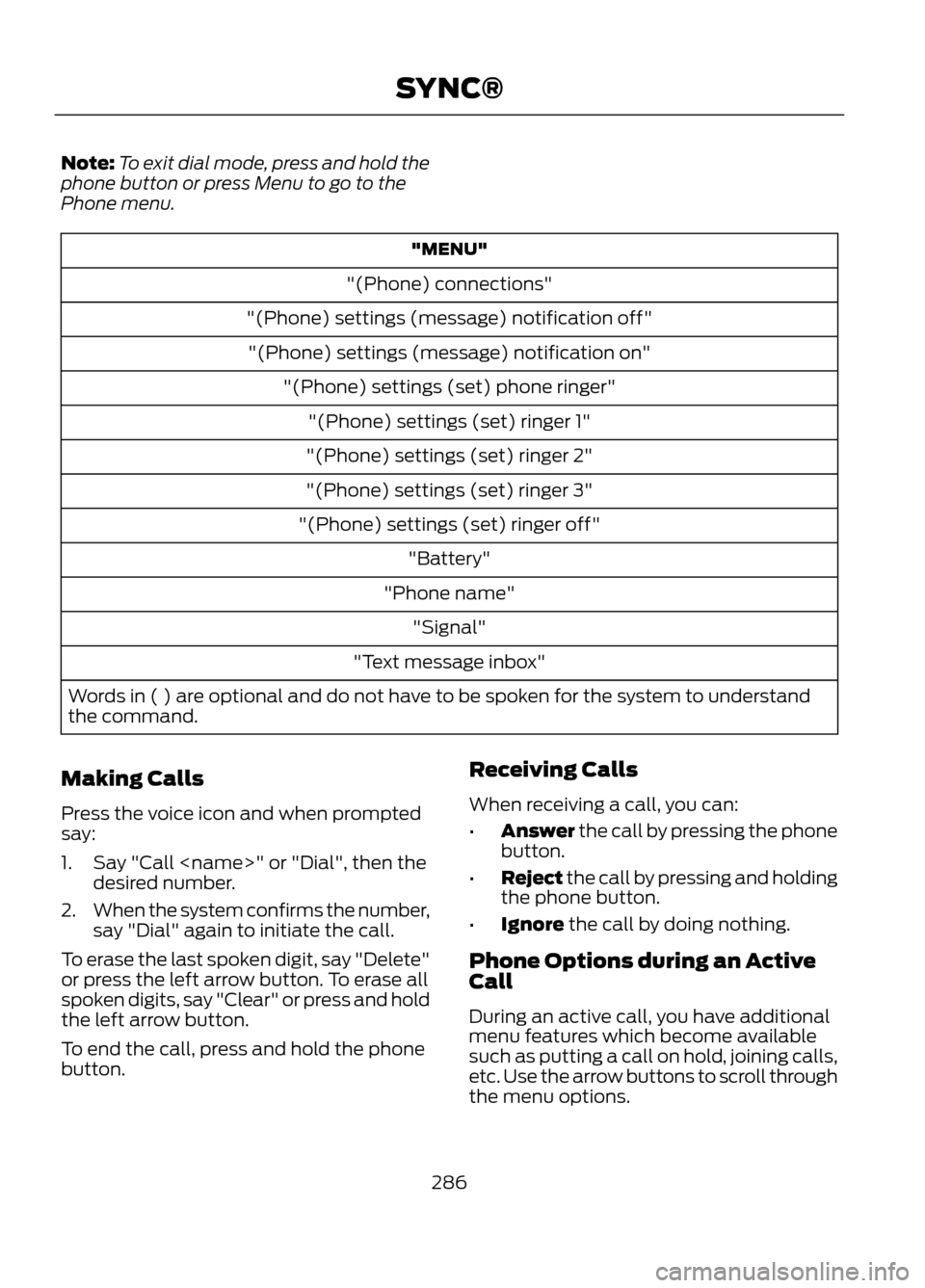
"MENU"
"(Phone) connections"
"(Phone) settings (message) notification off" "(Phone) settings (message) notification on" "(Phone) settings (set) phone ringer""(Phone) settings (set) ringer 1"
"(Phone) settings (set) ringer 2"
"(Phone) settings (set) ringer 3"
"(Phone) settings (set) ringer off" "Battery"
"Phone name" "Signal"
"Text message inbox"
Words in ( ) are optional and do not have to be spoken for the system to understand
the command.
Making Calls
Press the voice icon and when prompted
say:
1. Say "Call
2. When the system confirms the number,
say "Dial" again to initiate the call.
To erase the last spoken digit, say "Delete"
or press the left arrow button. To erase all
spoken digits, say "Clear" or press and hold
the left arrow button.
To end the call, press and hold the phone
button. Receiving Calls
When receiving a call, you can:
•
Answer the call by pressing the phone
button.
• Reject the call by pressing and holding
the phone button.
• Ignore the call by doing nothing.
Phone Options during an Active
Call
During an active call, you have additional
menu features which become available
such as putting a call on hold, joining calls,
etc. Use the arrow buttons to scroll through
the menu options.
286
SYNC®
Page 292 of 423
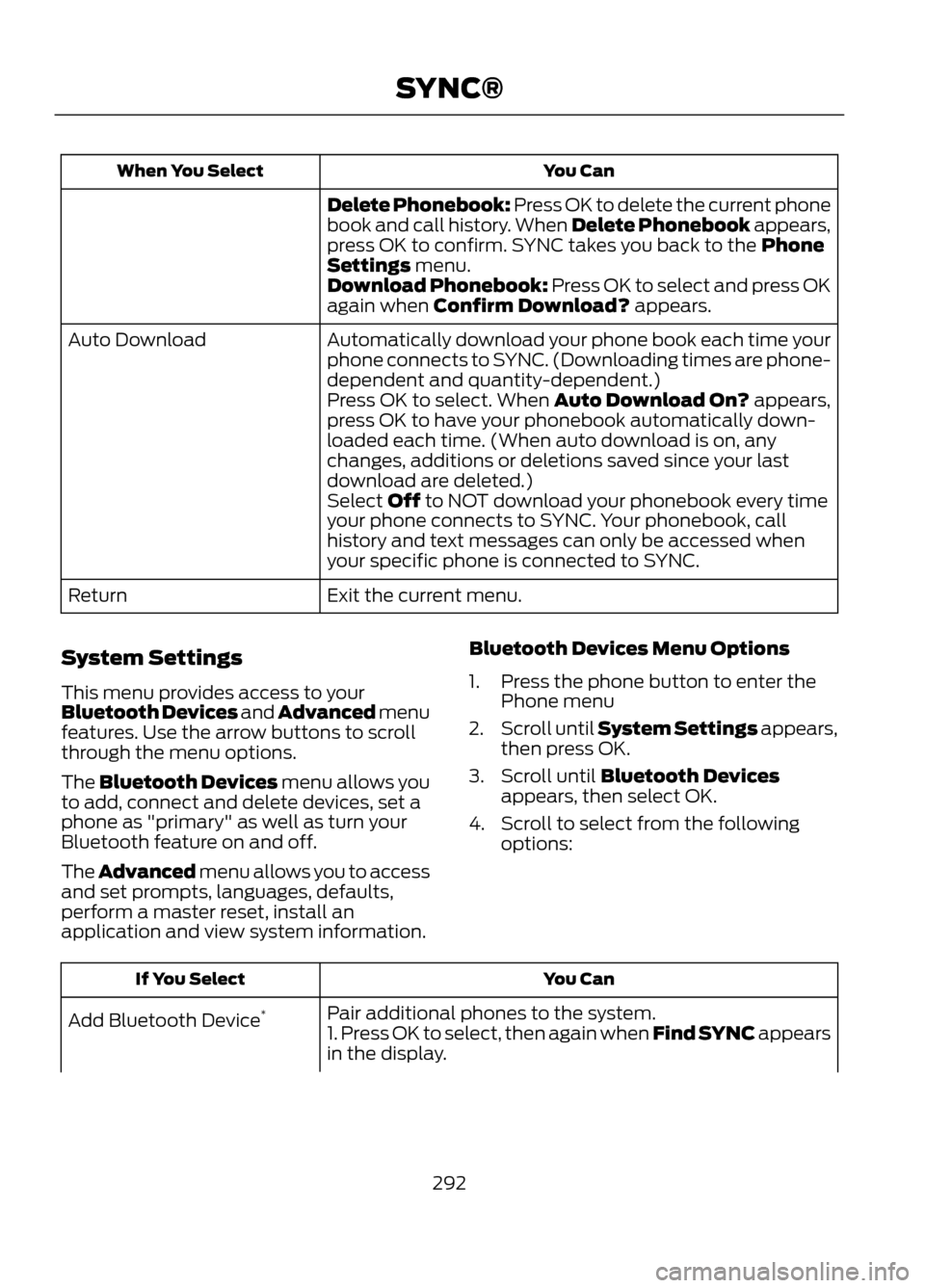
You Can
When You Select
Delete Phonebook: Press OK to delete the current phone
book and call history. When Delete Phonebook appears,
press OK to confirm. SYNC takes you back to the Phone
Settings menu.
Download Phonebook: Press OK to select and press OK
again when Confirm Download? appears.
Automatically download your phone book each time your
phone connects to SYNC. (Downloading times are phone-
dependent and quantity-dependent.)
Auto Download
Press OK to select. When Auto Download On? appears,
press OK to have your phonebook automatically down-
loaded each time. (When auto download is on, any
changes, additions or deletions saved since your last
download are deleted.)
Select Off to NOT download your phonebook every time
your phone connects to SYNC. Your phonebook, call
history and text messages can only be accessed when
your specific phone is connected to SYNC.
Exit the current menu.
Return
System Settings
This menu provides access to your
Bluetooth Devices and Advanced menu
features. Use the arrow buttons to scroll
through the menu options.
The Bluetooth Devices menu allows you
to add, connect and delete devices, set a
phone as "primary" as well as turn your
Bluetooth feature on and off.
The Advanced menu allows you to access
and set prompts, languages, defaults,
perform a master reset, install an
application and view system information. Bluetooth Devices Menu Options
1. Press the phone button to enter the
Phone menu
2. Scroll until System Settings appears,
then press OK.
3. Scroll until Bluetooth Devices appears, then select OK.
4. Scroll to select from the following options:
You Can
If You Select
Pair additional phones to the system.
Add Bluetooth Device *
1. Press OK to select, then again when Find SYNC appears
in the display.
292
SYNC®
Page 315 of 423
GENERAL INFORMATION
WARNING
Driving while distracted can result in
loss of vehicle control, accident and
injury. Ford strongly recommends
that drivers use extreme caution when
using any device or feature that may take
their focus off the road. Your primary
responsibility is the safe operation of the
vehicle. We recommend against the use
of any handheld device while driving,
encourage the use of voice-operated
systems when possible and that you
become aware of applicable state and
local laws that may affect use of electronic
devices while driving.
Note: Some features are not available while
the vehicle is moving.
Note: You can also directly access the
Home screen and Information screen by
pressing the Home ("house" icon) and
Information ("i" icon) buttons on your
steering wheel controls.
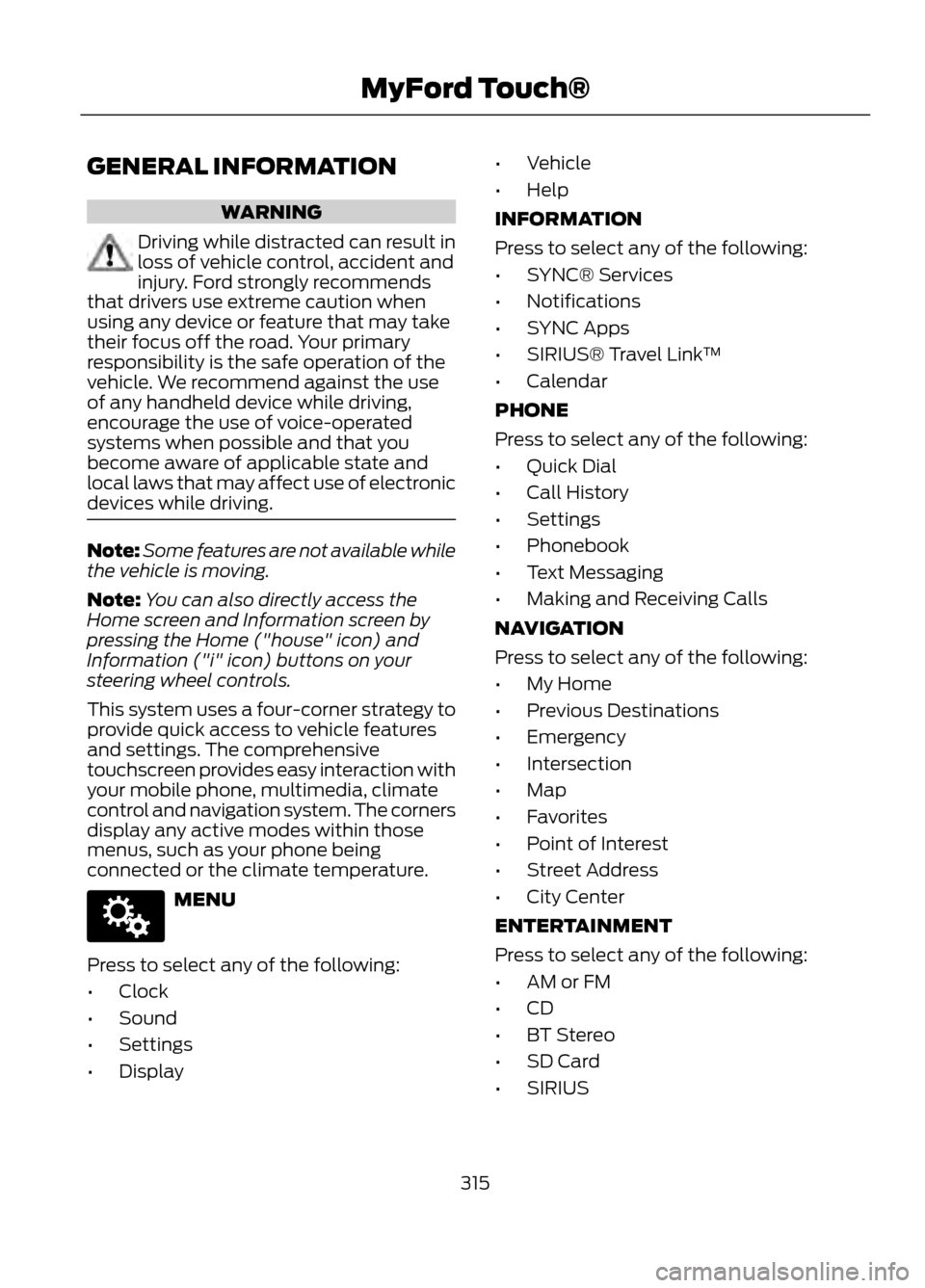
This system uses a four-corner strategy to
provide quick access to vehicle features
and settings. The comprehensive
touchscreen provides easy interaction with
your mobile phone, multimedia, climate
control and navigation system. The corners
display any active modes within those
menus, such as your phone being
connected or the climate temperature.
MENU
Press to select any of the following:
• Clock
• Sound
• Settings
• Display •
Vehicle
• Help
INFORMATION
Press to select any of the following:
• SYNC® Services
• Notifications
• SYNC Apps
• SIRIUS® Travel Link ™
• Calendar
PHONE
Press to select any of the following:
• Quick Dial
• Call History
• Settings
• Phonebook
• Text Messaging
• Making and Receiving Calls
NAVIGATION
Press to select any of the following:
• My Home
• Previous Destinations
• Emergency
• Intersection
• Map
• Favorites
• Point of Interest
• Street Address
• City Center
ENTERTAINMENT
Press to select any of the following:
• AM or FM
• CD
• BT Stereo
• SD Card
• SIRIUS
315
MyFord Touch®
E142607
Page 316 of 423
•USB
• AV In
CLIMATE
Press to select any of the following:
• Driver Settings
• Recirculated Air
• Auto
• Dual
• Passenger Settings
• A/C
• Defrost
Using the Touch-Sensitive
Controls on Your System
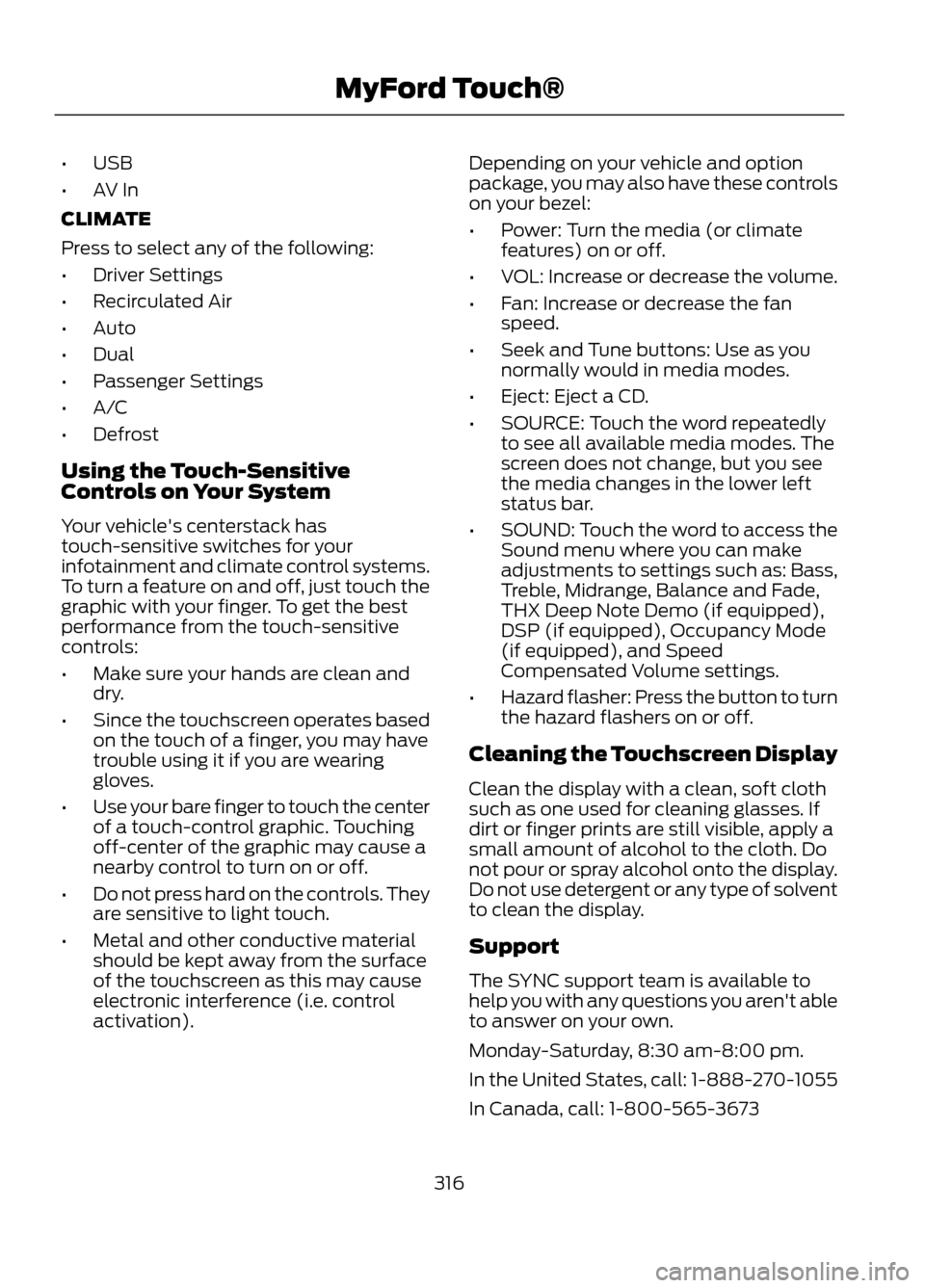
Your vehicle's centerstack has
touch-sensitive switches for your
infotainment and climate control systems.
To turn a feature on and off, just touch the
graphic with your finger. To get the best
performance from the touch-sensitive
controls:
• Make sure your hands are clean and
dry.
• Since the touchscreen operates based
on the touch of a finger, you may have
trouble using it if you are wearing
gloves.
• Use your bare finger to touch the center
of a touch-control graphic. Touching
off-center of the graphic may cause a
nearby control to turn on or off.
• Do not press hard on the controls. They
are sensitive to light touch.
• Metal and other conductive material
should be kept away from the surface
of the touchscreen as this may cause
electronic interference (i.e. control
activation). Depending on your vehicle and option
package, you may also have these controls
on your bezel:
•
Power: Turn the media (or climate
features) on or off.
• VOL: Increase or decrease the volume.
• Fan: Increase or decrease the fan
speed.
• Seek and Tune buttons: Use as you
normally would in media modes.
• Eject: Eject a CD.
• SOURCE: Touch the word repeatedly
to see all available media modes. The
screen does not change, but you see
the media changes in the lower left
status bar.
• SOUND: Touch the word to access the
Sound menu where you can make
adjustments to settings such as: Bass,
Treble, Midrange, Balance and Fade,
THX Deep Note Demo (if equipped),
DSP (if equipped), Occupancy Mode
(if equipped), and Speed
Compensated Volume settings.
• Hazard flasher: Press the button to turn
the hazard flashers on or off.
Cleaning the Touchscreen Display
Clean the display with a clean, soft cloth
such as one used for cleaning glasses. If
dirt or finger prints are still visible, apply a
small amount of alcohol to the cloth. Do
not pour or spray alcohol onto the display.
Do not use detergent or any type of solvent
to clean the display.
Support
The SYNC support team is available to
help you with any questions you aren't able
to answer on your own.
Monday-Saturday, 8:30 am-8:00 pm.
In the United States, call: 1-888-270-1055
In Canada, call: 1-800-565-3673
316
MyFord Touch®
Page 324 of 423
On-screen buttons are outlined in blue to
indicate the selections that are part of the
dual mode feature. For example, if while
you are in a voice session rather than
saying the command "Enter street name"
to change the field, you can press Street
and the voice session does not end.
Instead, the voice system changes to the
Street field and asks you to say the street
name. The buttons not outlined in blue
cannot be used as voice commands; if they
are touched during a voice session, the
voice session is canceled.For example, you can choose from the
following on the Navigation home screen:
•
My Home
• Favorites
• Previous Destinations
• Point of Interest (POI)
• Emergency
• Street Address
• Intersection
• Cancel Route
Some of the voice commands that are
available while viewing this screen are:
Destination
"Destination my home"
"Destination street address" "Destination favorites"
"Destination previous destinations" "Destination POI"
"Destination intersection" "Destination emergency"
If you choose Street Address from the
navigation screen, you can choose from
the following:
• Number
• City •
Street Name
• State/Prov
Some of the voice commands that are
available while viewing this screen are:
Street Address
"Enter house number"
"Change house number" "Enter street name"
"Change street name" "Enter city"
324
MyFord Touch®
Page 331 of 423
Instead of using Wi-Fi, your system can
also use a USB mobile broadband
connection to access the internet. This
screen allows you to set up what is your
typical area for your USB mobile
broadband connection.
You can select the following:
•Country
• Carrier
• Phone Number
• User Name
• Password
Prioritize Connection Methods
This screen allows you to choose your
connection methods and change them as
needed. You can select to Change Order
and have the system either always attempt
to connecting using a USB mobile
broadband or using Wi-Fi. Bluetooth Settings
This screen shows you what device is
currently paired with the system as well as
giving you your typical Bluetooth options
to connect, disconnect, set as favorite,
delete and add device.
Bluetooth is a registered trademark of the
Bluetooth SIG.
Help
Your touchscreen system has a help
feature which you can access at any time.
To access, press Menu, then Help. Select
from the following options:
You Can
If You Select
View the vehicle's current location, if your vehicle is
equipped with navigation. If your vehicle is not equipped
with navigation, nothing is displayed.
Where Am I?
Access the 911 Assist settings, vehicle restart instructions
and emergency quick dial contacts.
911 Assist
· In Case of Emergency (ICE) Quick Dial: This feature
allows you to save up to two numbers as ICE contacts for
quick access in the event of an emergency. Select Edit to
access your phonebook and then select the desired
contacts. The numbers then appear as options on this
screen for the ICE 1 and ICE 2 buttons. The ICE contacts
you select are presented to you at the completion of the
911 Assist call process for quick access.
View possible voice commands.
Voice Command List
From this screen, you can also access
System information, Software Licenses
and Driving Restrictions. To access Help using the voice commands,
press the voice button, then, after the tone,
say "Help". The system provides voice
commands that can be used in the current
mode.
331
MyFord Touch®
Page 339 of 423
"TUNE""HD <#>"*
"<87.9-107.9>"
"Preset <#>"
"FM"
"Help"
"FM <87.9-107.9>"
"FM <87.9-107.9> HD <#>"
* If available
SIRIUS® Satellite Radio (If
Activated)
Press the lower left corner of the
touchscreen, then select the
SIRIUS tab.
You Can
When You Select
Save a station by pressing and holding one of the memory
preset areas. There is a brief mute while the station is being
saved, then sound returns when it's done.
A memory preset area (on
the right side of the screen)
Enter the desired satellite channel number using the on-
screen keypad.
Direct Tune
Press repeatedly to change SIRIUS modes (SIRIUS 1, 2 or
3).
SIRIUS
Save the current song, artist, or team as a favorite. The
system alerts you when it plays again on any SIRIUS
channel.
ALERT
View a list of all available stations. Scroll and select the
desired station.
Browse
You can also lock or skip unwanted channels or view the
song/artist on other stations.
Hear a brief sampling of channels.
Scan
Replay audio on the current channel. You can replay
approximately 45 minutes of audio as long as you have
remained tuned to the current station. If you change
stations, the previous audio is erased.
Replay
· Press and release the seek buttons to hear the previous
or next song.
339
MyFord Touch®
E142611
Page 340 of 423
You Can
When You Select
· Press and hold the seek buttons to advance to reverse
or fast forward in the current track.
· Press play or pause to play or pause the audio.
· Press Replay again to return to live audio if you had been
using the replay feature to replay audio.
Adjust more audio system settings:
Options
· Sound Settings adjusts Bass, Treble, Midrange, Balance
and Fade, THX Deep Note Demo (if equipped), DSP (if
equipped), Occupancy Mode (if equipped), and Speed
Compensated Volume settings.
· Set Category for Seek/Scan allows you to select a
category of music you would like to search for and then
choose to either seek or scan for the stations.
· Parental Lockout allows you to lock and unlock chan-
nels, change or reset your PIN or unlock all channels. To
use this feature you need your initial PIN which is 1234.
· Artist/Title Alerts*
allows you to select Artists and
Titles that you would like the system to alert you to when
they are playing on other channels. Press Edit Alerts to
delete or turn off alerts. You can also set all alerts to on
or off. When an alert appears on the screen, you can
choose to Tune to the channel, to Cancel the alert or to
Disable Alerts. If you are listening to a sporting event,
you can save your favorite teams so that the system can
alert you when they are playing on a satellite radio channel.
This is required when communicating with SIRIUS about
your account.
Electronic Serial Number
(ESN)
* SIRIUS does not support the Alert feature on all channels. Ford Motor Company shall
not be responsible for Alert feature variation.
SIRIUS Satellite Radio Information
Note: SIRIUS reserves the unrestricted right
to change, rearrange, add or delete
programming including canceling, moving
or adding particular channels, and its prices,
at any time, with or without notice to you.
Ford Motor Company shall not be
responsible for any such programming
changes.
340
MyFord Touch®
Page 376 of 423
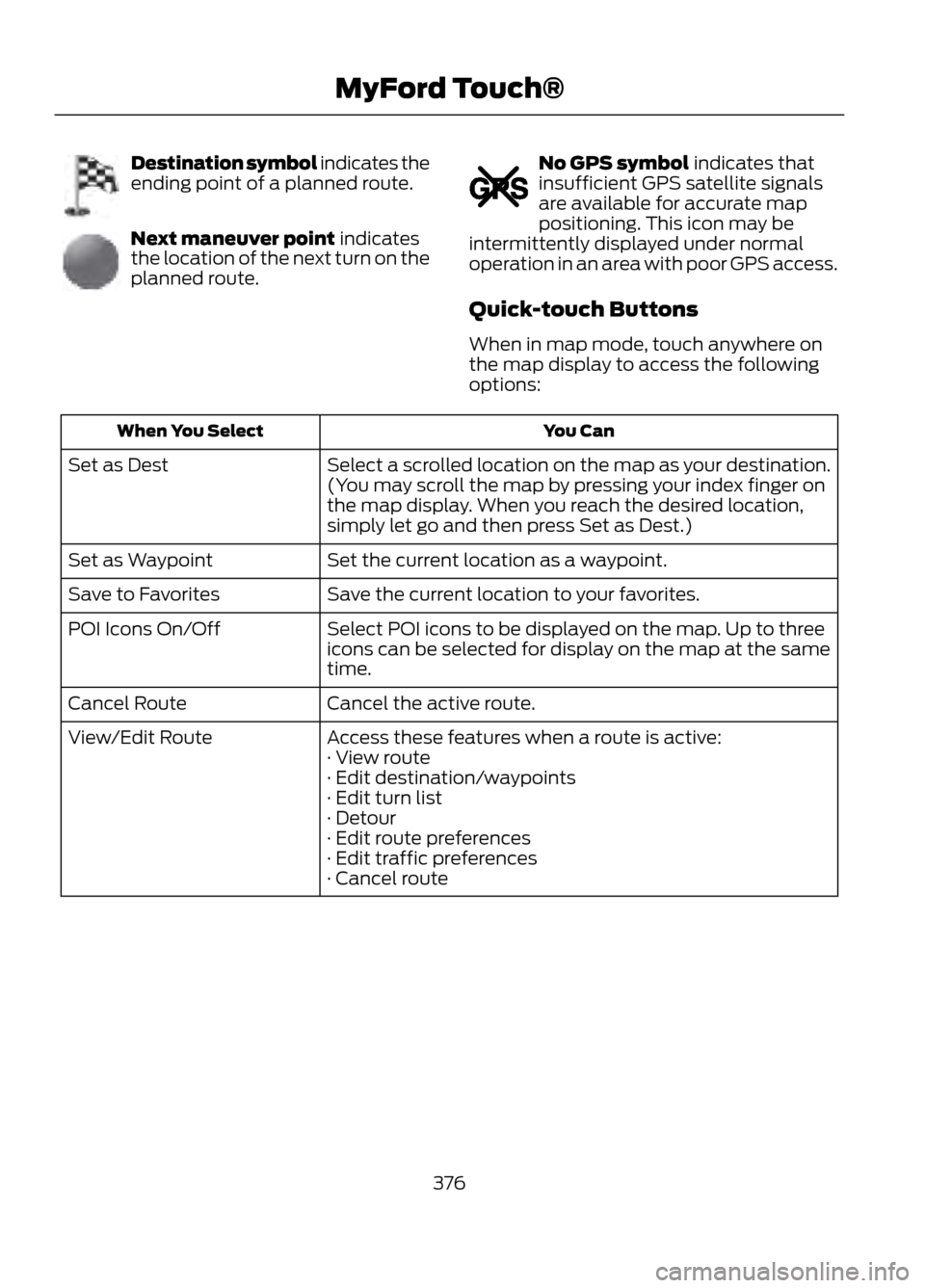
Destination symbol indicates the
ending point of a planned route.
Next maneuver point indicates
the location of the next turn on the
planned route.
No GPS symbol indicates that
insufficient GPS satellite signals
are available for accurate map
positioning. This icon may be
intermittently displayed under normal
operation in an area with poor GPS access.
Quick-touch Buttons
When in map mode, touch anywhere on
the map display to access the following
options:
You Can
When You Select
Select a scrolled location on the map as your destination.
(You may scroll the map by pressing your index finger on
the map display. When you reach the desired location,
simply let go and then press Set as Dest.)
Set as Dest
Set the current location as a waypoint.
Set as Waypoint
Save the current location to your favorites.
Save to Favorites
Select POI icons to be displayed on the map. Up to three
icons can be selected for display on the map at the same
time.
POI Icons On/Off
Cancel the active route.
Cancel Route
Access these features when a route is active:
View/Edit Route
· View route
· Edit destination/waypoints
· Edit turn list
· Detour
· Edit route preferences
· Edit traffic preferences
· Cancel route
376
MyFord Touch®
E142653
E142654
E142655
Page 418 of 423
Manual Seats.................................................123Adjusting the Height of the Driver's
Seat..................................................................... 123
Moving the Seat Backward and Forward.............................................................. 123
Recline Adjustment........................................... 124
Media Hub........................................................110
Memory Function..........................................125 Recalling a Stored Seat Position..................126
Saving a Passive Setting.................................. 126
Saving a Pre-Set Position................................ 126
Menu.................................................................326 Active Park Assist............................................... 327
Changing Your Door Keypad Code..............327
Display Settings................................................. 326
Rear View Camera............................................. 327
Settings.................................................................. 327
Setting the Clock............................................... 326
Sound..................................................................... 327
Valet Mode............................................................ 327
Message Center See: Information Displays................................. 84
Mirrors See: Heated Windows and Mirrors...............119
See: Windows and Mirrors................................ 74
Mobile Communications Equipment.......12
Moonroof............................................................77 Bounce-Back......................................................... 78
Opening and Closing the Moonroof...............77
Opening and Closing the Sunscreen.............77
Venting the Moonroof......................................... 78
Motorcraft Parts...........................................267
MyFord Touch®.............................................315 General Information.......................................... 315
MyKey®..............................................................49 Principle of Operation........................................ 49
MyKey Troubleshooting................................51 N
Navigation........................................................371
cityseekr................................................................. 373
Map Mode............................................................. 374
Navigation Map Updates................................. 377
Navigation Voice Commands........................ 377
Point of Interest (POI) Categories...............372
Quick-touch Buttons........................................ 376
Setting a Destination......................................... 371
Setting Your Navigation Preferences..........373
O
Oil Check See: Engine Oil Check........................................ 221
Opening and Closing the Hood................217
Ordering Additional Owner's Literature.....................................................205
Obtaining a French Owner ’s Manual.........205
Overhead Console........................................134
P
Parking Aid.......................................................161 Front Sensing System....................................... 162
Rear Sensing System......................................... 161
Parking Aids.....................................................161
Parking brake See: Parking Brake.............................................. 157
Parking Brake..................................................157
Passive Anti-Theft System.........................62 SecuriLock®........................................................... 62
PATS See: Passive Anti-Theft System..................... 62
Perchlorate........................................................10
Personal Safety System ™..........................34
How Does the Personal Safety System
Work?.................................................................. 34
Phone...............................................................352 Making Calls........................................................ 353
Pairing Subsequent Phones.......................... 353
Pairing Your Phone for the First Time........352
Phone Menu Options....................................... 353
Phone Settings................................................... 356
Receiving Calls.................................................... 353
Text Messaging................................................... 354
418
Index