change time FORD ESCAPE 2013 3.G Owner's Manual
[x] Cancel search | Manufacturer: FORD, Model Year: 2013, Model line: ESCAPE, Model: FORD ESCAPE 2013 3.GPages: 423, PDF Size: 4.59 MB
Page 247 of 423
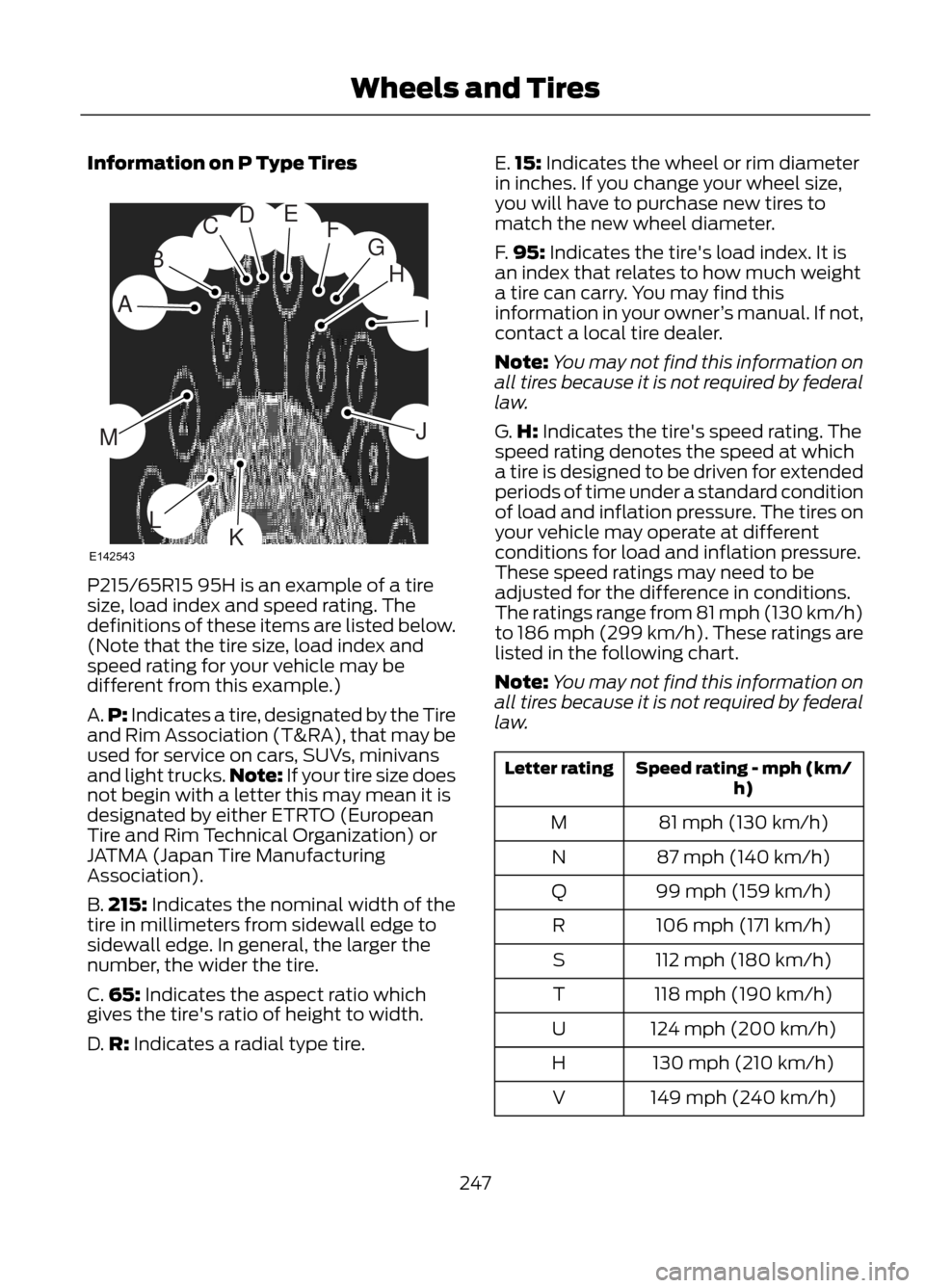
Information on P Type Tires
P215/65R15 95H is an example of a tire
size, load index and speed rating. The
definitions of these items are listed below.
(Note that the tire size, load index and
speed rating for your vehicle may be
different from this example.)
A.P: Indicates a tire, designated by the Tire
and Rim Association (T&RA), that may be
used for service on cars, SUVs, minivans
and light trucks. Note: If your tire size does
not begin with a letter this may mean it is
designated by either ETRTO (European
Tire and Rim Technical Organization) or
JATMA (Japan Tire Manufacturing
Association).
B. 215: Indicates the nominal width of the
tire in millimeters from sidewall edge to
sidewall edge. In general, the larger the
number, the wider the tire.
C. 65: Indicates the aspect ratio which
gives the tire's ratio of height to width.
D. R: Indicates a radial type tire. E.
15: Indicates the wheel or rim diameter
in inches. If you change your wheel size,
you will have to purchase new tires to
match the new wheel diameter.
F. 95: Indicates the tire's load index. It is
an index that relates to how much weight
a tire can carry. You may find this
information in your owner ’s manual. If not,
contact a local tire dealer.
Note: You may not find this information on
all tires because it is not required by federal
law.
G. H: Indicates the tire's speed rating. The
speed rating denotes the speed at which
a tire is designed to be driven for extended
periods of time under a standard condition
of load and inflation pressure. The tires on
your vehicle may operate at different
conditions for load and inflation pressure.
These speed ratings may need to be
adjusted for the difference in conditions.
The ratings range from 81 mph (130 km/h)
to 186 mph (299 km/h). These ratings are
listed in the following chart.
Note: You may not find this information on
all tires because it is not required by federal
law.
Speed rating - mph (km/ h)
Letter rating
81 mph (130 km/h)
M
87 mph (140 km/h)
N
99 mph (159 km/h)
Q
106 mph (171 km/h)
R
112 mph (180 km/h)
S
118 mph (190 km/h)
T
124 mph (200 km/h)
U
130 mph (210 km/h)
H
149 mph (240 km/h)
V
247
Wheels and Tires
H
I
J
KL
M
A
B
CDEFG
E142543
Page 279 of 423
GENERAL INFORMATION
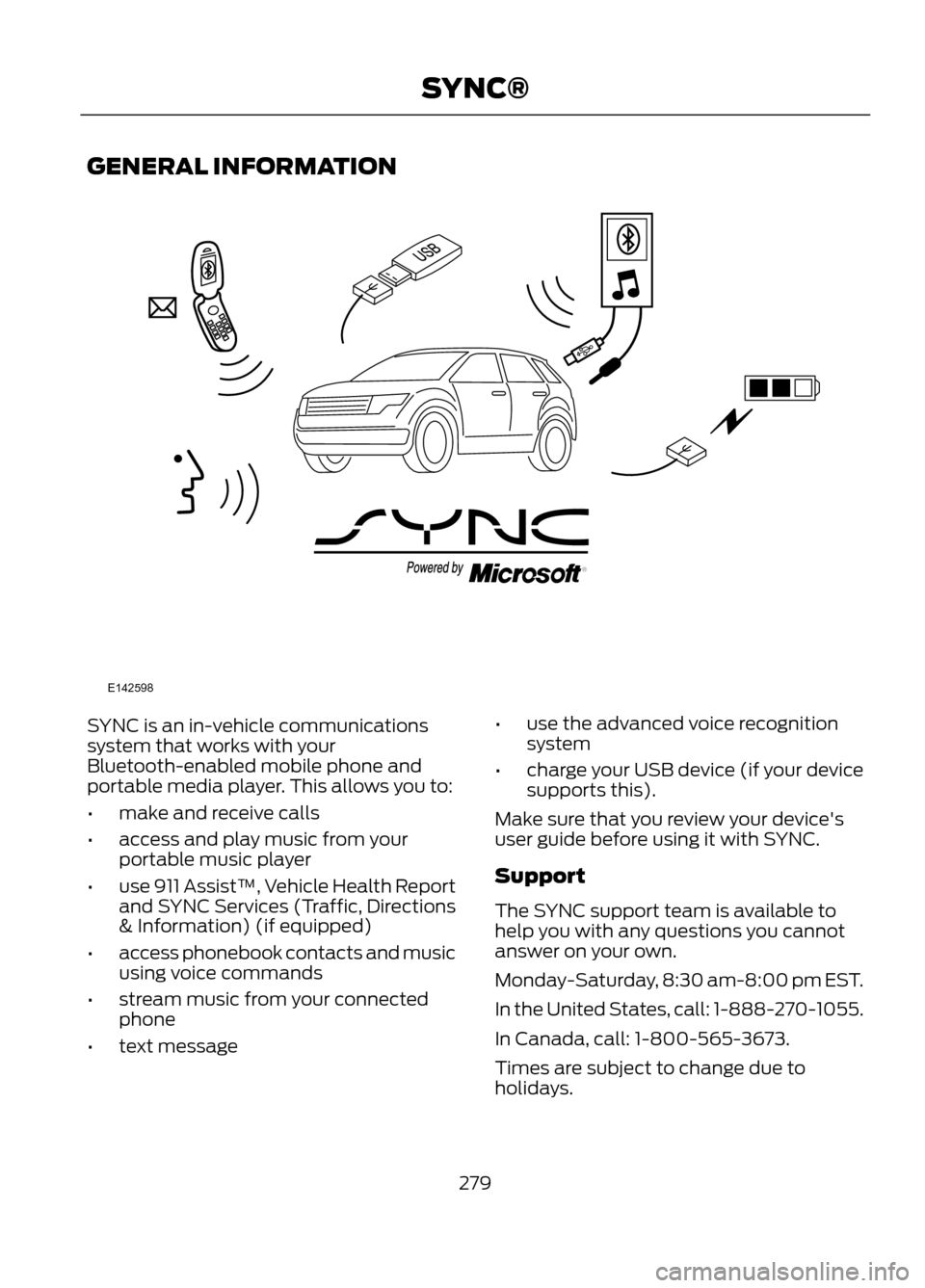
SYNC is an in-vehicle communications
system that works with your
Bluetooth-enabled mobile phone and
portable media player. This allows you to:
•make and receive calls
• access and play music from your
portable music player
• use 911 Assist™, Vehicle Health Report
and SYNC Services (Traffic, Directions
& Information) (if equipped)
• access phonebook contacts and music
using voice commands
• stream music from your connected
phone
• text message •
use the advanced voice recognition
system
• charge your USB device (if your device
supports this).
Make sure that you review your device's
user guide before using it with SYNC.
Support
The SYNC support team is available to
help you with any questions you cannot
answer on your own.
Monday-Saturday, 8:30 am-8:00 pm EST.
In the United States, call: 1-888-270-1055.
In Canada, call: 1-800-565-3673.
Times are subject to change due to
holidays.
279
SYNC®
E142598
Page 282 of 423
If You Want To
Say
Adjust the level of voice interaction and feedback.
"Voice settings"
Hear a list of voice commands available in the current
mode.
"Help"
* If equipped, U.S. only
System Interaction and Feedback
The system provides feedback through
audible tones, prompts, questions and
spoken confirmations depending on the
situation and the chosen level of
interaction (voice settings). You can
customize the voice recognition system to
provide more or less instruction and
feedback. The default setting is to a higher level of
interaction in order to help you learn to use
the system. You can change these settings
at any time.
Adjusting the Interaction Level
Push the voice icon. Say "Voice
settings" when prompted, then
any of the following:
The System
When You Say
Provides less audible interaction and moretone prompts.
"Interaction mode advanced"
Provides more detailed interaction andguidance.
"Interaction mode standard"
The system defaults to the standard interaction mode.
Confirmation prompts are short questions
the system asks when it is not sure of your
request or when there are multiple possible
responses to your request. For example,
the system may ask "Phone, is that
correct?".
The System
When You Say
Makes a best guess from the command;you may still occasionally be asked to confirm settings.
"Confirmation prompts off"
Clarifies your voice command with a shortquestion.
"Confirmation prompts on"
282
SYNC®
E142599
Page 288 of 423
Accessing Features through the
Phone Menu
The phone menu allows you to redial a
number, access your call history and phone
book and send text messages as well as
access phone and system settings. You
can also access advanced features such
as 911 Assist™, Vehicle Health Report and
SYNC Services.1. Press the phone button to enter the
Phone menu.
2. Scroll to cycle through:
You Can
When You Select
Redial the last number called (if available). Press OK to
select, then press OK again to confirm.
Phone Redial
Allows you to access any previously dialed, received or
missed calls while your phone has been connected to the
system.
Call History
1
1. Press OK to select.
2. Scroll to select from Call History Incoming, Call
History Outgoing or Call History Missed. Press OK
make your selection.
3. Press OK or the phone button to call the desired selec-
tion.
The system attempts to automatically re-download your
phone book and call history each time your phone
connects to SYNC (if the auto download feature is on and
your Bluetooth-enabled mobile phone supports this
feature).
Allows you to access your downloaded phonebook.
Phonebook 1,2
1. Press OK to confirm and enter. If your phonebook has
fewer than 255 listings, they appear alphabetically in flat
file mode. If there are more, they are organized into
alphabetical categories.
2. Scroll until the desired contact appears, then press OK.
3. Press OK or the phone button.
Enables you to send, download and delete text messages.
Text Message 1
Allows you to view your phone's status, set ring tones,
select your message notification, change phone book
entries and automatically download your mobile phone
among other features.
Phone Settings
1
Access the SYNC Services portal where you can request
various types of information, traffic reports and directions.
SYNC Services
3
288
SYNC®
Page 292 of 423
You Can
When You Select
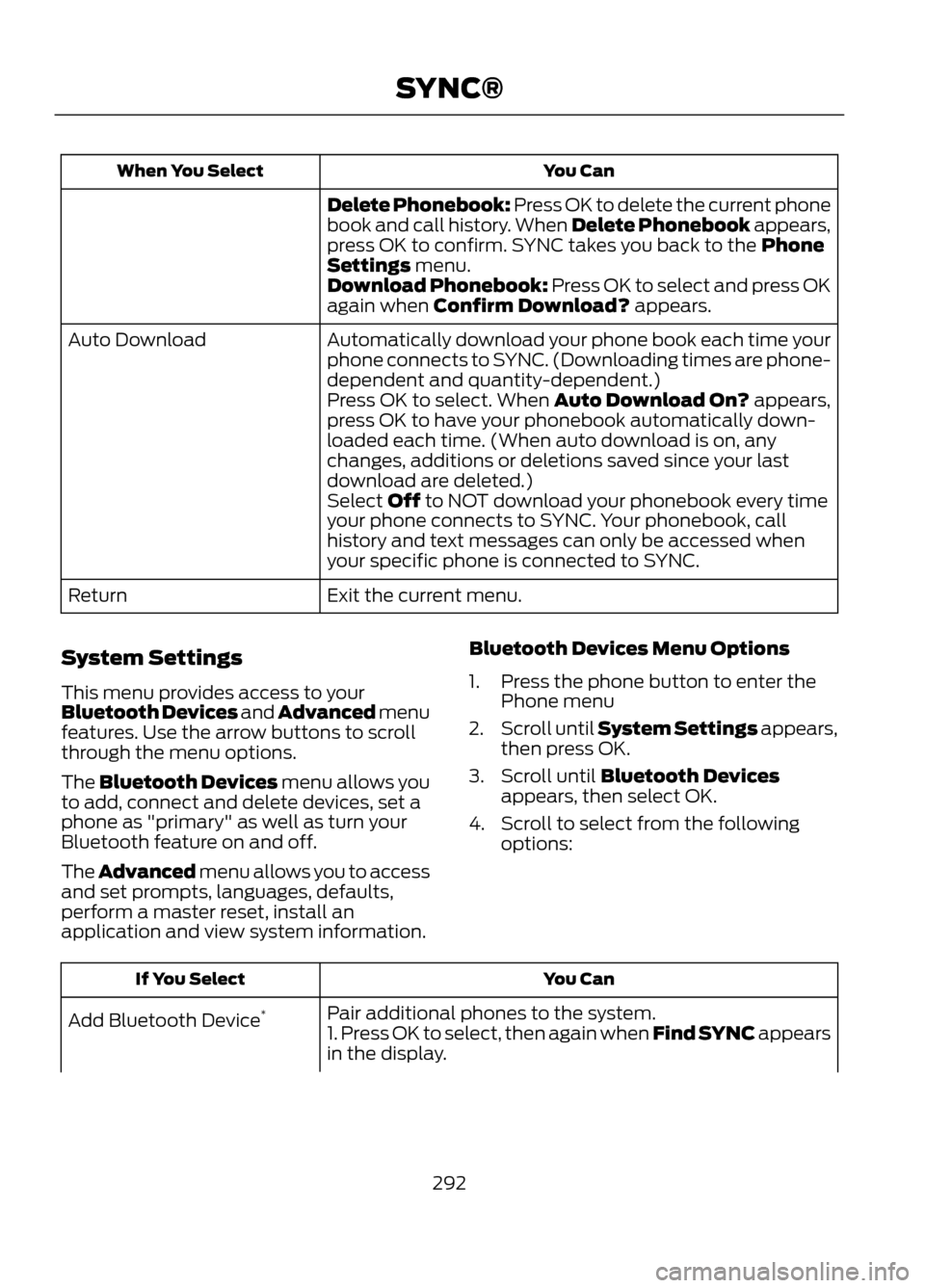
Delete Phonebook: Press OK to delete the current phone
book and call history. When Delete Phonebook appears,
press OK to confirm. SYNC takes you back to the Phone
Settings menu.
Download Phonebook: Press OK to select and press OK
again when Confirm Download? appears.
Automatically download your phone book each time your
phone connects to SYNC. (Downloading times are phone-
dependent and quantity-dependent.)
Auto Download
Press OK to select. When Auto Download On? appears,
press OK to have your phonebook automatically down-
loaded each time. (When auto download is on, any
changes, additions or deletions saved since your last
download are deleted.)
Select Off to NOT download your phonebook every time
your phone connects to SYNC. Your phonebook, call
history and text messages can only be accessed when
your specific phone is connected to SYNC.
Exit the current menu.
Return
System Settings
This menu provides access to your
Bluetooth Devices and Advanced menu
features. Use the arrow buttons to scroll
through the menu options.
The Bluetooth Devices menu allows you
to add, connect and delete devices, set a
phone as "primary" as well as turn your
Bluetooth feature on and off.
The Advanced menu allows you to access
and set prompts, languages, defaults,
perform a master reset, install an
application and view system information. Bluetooth Devices Menu Options
1. Press the phone button to enter the
Phone menu
2. Scroll until System Settings appears,
then press OK.
3. Scroll until Bluetooth Devices appears, then select OK.
4. Scroll to select from the following options:
You Can
If You Select
Pair additional phones to the system.
Add Bluetooth Device *
1. Press OK to select, then again when Find SYNC appears
in the display.
292
SYNC®
Page 295 of 423
You Can
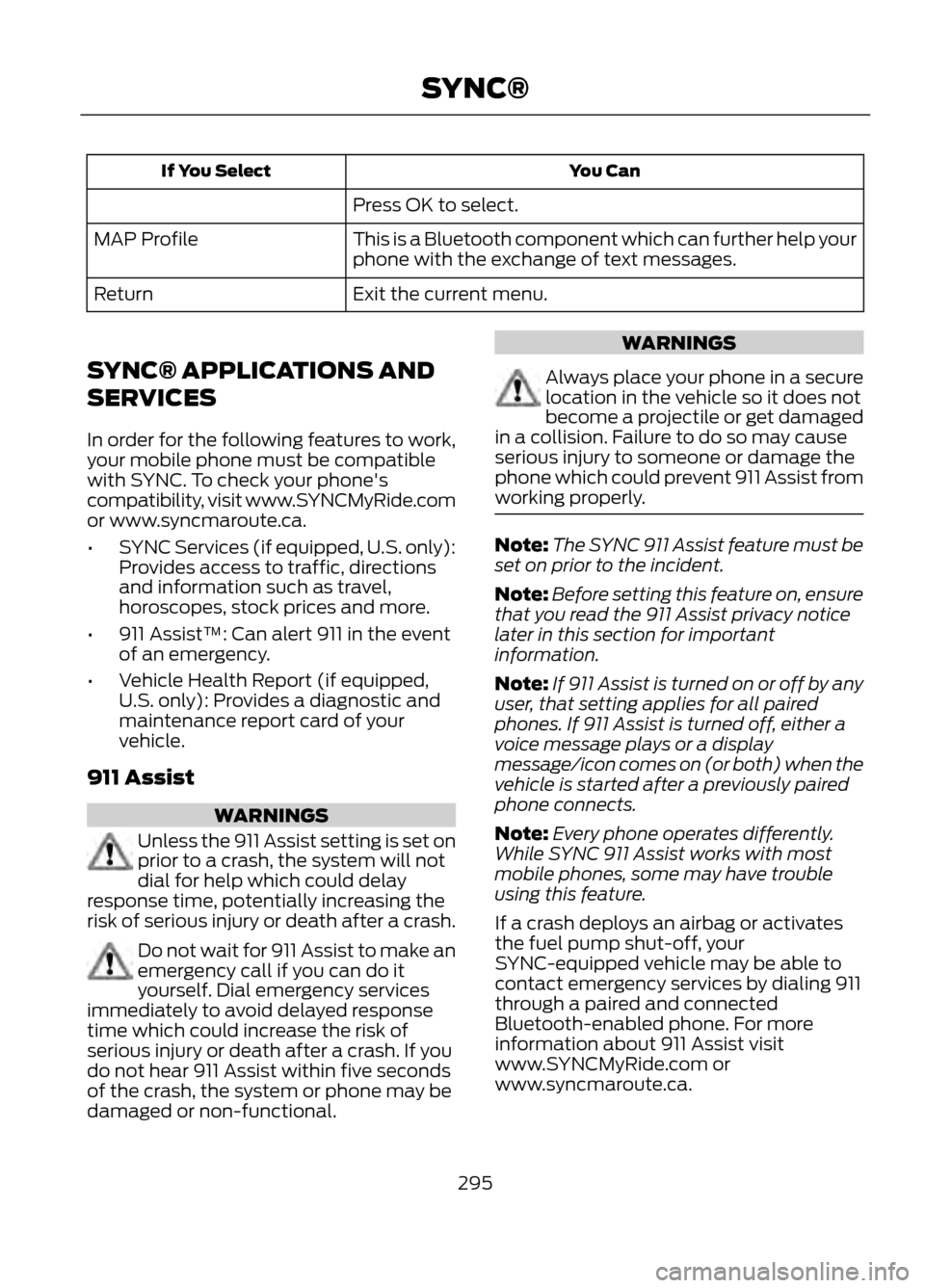
If You Select
Press OK to select.
This is a Bluetooth component which can further help your
phone with the exchange of text messages.
MAP Profile
Exit the current menu.
Return
SYNC® APPLICATIONS AND
SERVICES
In order for the following features to work,
your mobile phone must be compatible
with SYNC. To check your phone's
compatibility, visit www.SYNCMyRide.com
or www.syncmaroute.ca.
• SYNC Services (if equipped, U.S. only):
Provides access to traffic, directions
and information such as travel,
horoscopes, stock prices and more.
• 911 Assist™: Can alert 911 in the event
of an emergency.
• Vehicle Health Report (if equipped,
U.S. only): Provides a diagnostic and
maintenance report card of your
vehicle.
911 Assist
WARNINGS
Unless the 911 Assist setting is set on
prior to a crash, the system will not
dial for help which could delay
response time, potentially increasing the
risk of serious injury or death after a crash.
Do not wait for 911 Assist to make an
emergency call if you can do it
yourself. Dial emergency services
immediately to avoid delayed response
time which could increase the risk of
serious injury or death after a crash. If you
do not hear 911 Assist within five seconds
of the crash, the system or phone may be
damaged or non-functional.
WARNINGS
Always place your phone in a secure
location in the vehicle so it does not
become a projectile or get damaged
in a collision. Failure to do so may cause
serious injury to someone or damage the
phone which could prevent 911 Assist from
working properly.
Note: The SYNC 911 Assist feature must be
set on prior to the incident.
Note: Before setting this feature on, ensure
that you read the 911 Assist privacy notice
later in this section for important
information.
Note: If 911 Assist is turned on or off by any
user, that setting applies for all paired
phones. If 911 Assist is turned off, either a
voice message plays or a display
message/icon comes on (or both) when the
vehicle is started after a previously paired
phone connects.
Note: Every phone operates differently.
While SYNC 911 Assist works with most
mobile phones, some may have trouble
using this feature.
If a crash deploys an airbag or activates
the fuel pump shut-off, your
SYNC-equipped vehicle may be able to
contact emergency services by dialing 911
through a paired and connected
Bluetooth-enabled phone. For more
information about 911 Assist visit
www.SYNCMyRide.com or
www.syncmaroute.ca.
295
SYNC®
Page 308 of 423
You Can
When You Select
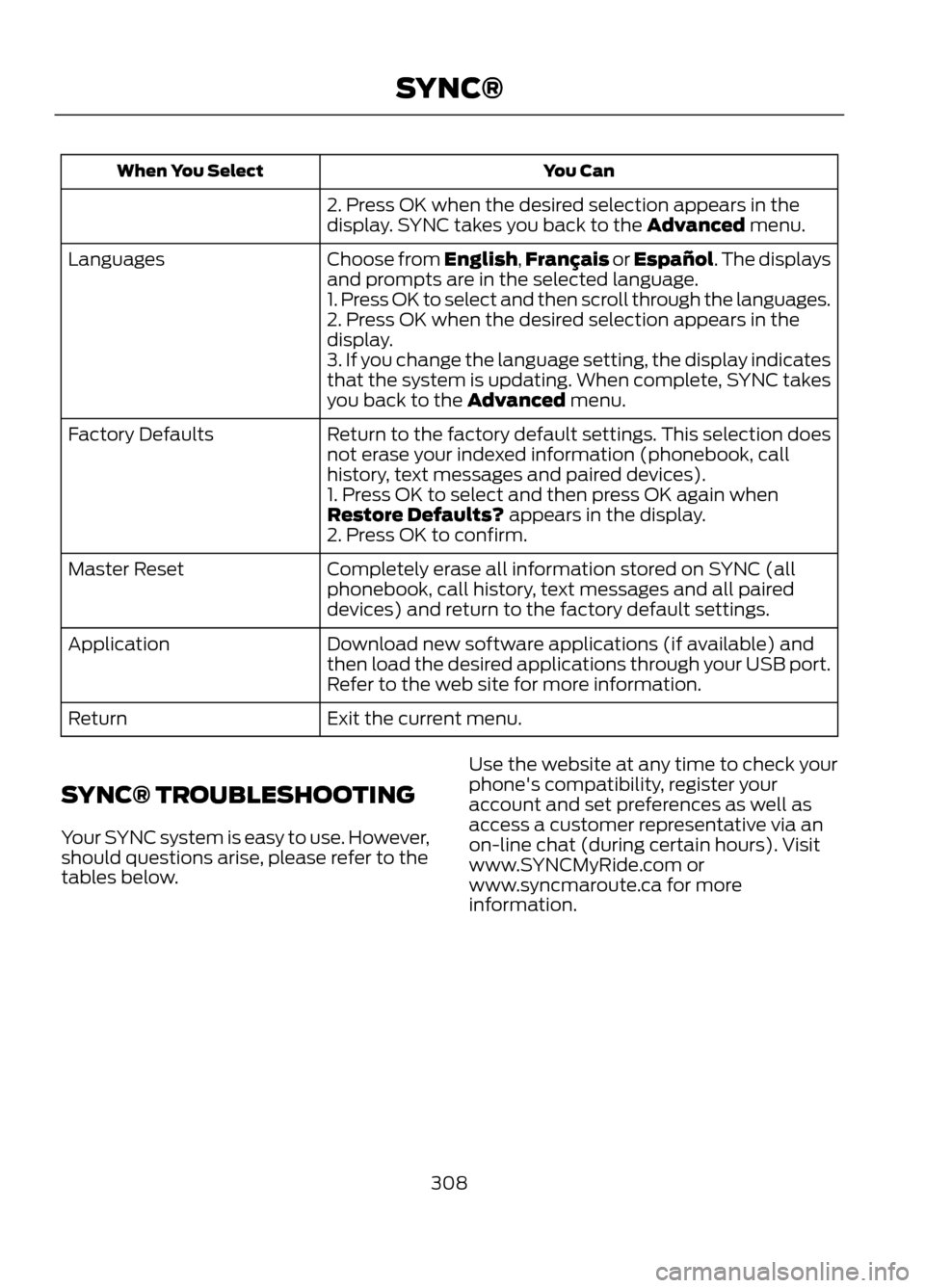
2. Press OK when the desired selection appears in the
display. SYNC takes you back to the Advanced menu.
Choose from English,Français or Español. The displays
and prompts are in the selected language.
Languages
1. Press OK to select and then scroll through the languages.
2. Press OK when the desired selection appears in the
display.
3. If you change the language setting, the display indicates
that the system is updating. When complete, SYNC takes
you back to the Advanced menu.
Return to the factory default settings. This selection does
not erase your indexed information (phonebook, call
history, text messages and paired devices).
Factory Defaults
1. Press OK to select and then press OK again when
Restore Defaults? appears in the display.
2. Press OK to confirm.
Completely erase all information stored on SYNC (all
phonebook, call history, text messages and all paired
devices) and return to the factory default settings.
Master Reset
Download new software applications (if available) and
then load the desired applications through your USB port.
Refer to the web site for more information.
Application
Exit the current menu.
Return
SYNC® TROUBLESHOOTING
Your SYNC system is easy to use. However,
should questions arise, please refer to the
tables below. Use the website at any time to check your
phone's compatibility, register your
account and set preferences as well as
access a customer representative via an
on-line chat (during certain hours). Visit
www.SYNCMyRide.com or
www.syncmaroute.ca for more
information.
308
SYNC®
Page 317 of 423
Times are subject to change due to
holidays.
Safety Information
WARNING
Driving while distracted can result in
loss of vehicle control, accident and
injury. Ford strongly recommends
that drivers use extreme caution when
using any device or feature that may take
their focus off the road. Your primary
responsibility is the safe operation of the
vehicle. We recommend against the use
of any handheld device while driving,
encourage the use of voice-operated
systems when possible and that you
become aware of applicable state and
local laws that may affect use of electronic
devices while driving.
When using SYNC:
• Do not operate playing devices if the
power cords or cables are broken, split
or damaged. Carefully place cords and
cables where they cannot be stepped
on or interfere with the operation of
pedals, seats, compartments or safe
driving abilities.
• Do not leave playing devices in the
vehicle during extreme conditions as it
could cause them damage. Refer to
your device's user guide for further
information. •
Do not attempt to service or repair the
system. See your authorized dealer.
• For your safety, some SYNC functions
are speed-dependent and cannot be
performed when the vehicle is traveling
at speeds greater than 3 mph (5 km/h).
Make sure that you review your device's
user guide before using it with SYNC.
Speed-Restricted Features
Some features of this system may be too
difficult to use while the vehicle is in
motion so they're restricted from being
modified unless the vehicle is not moving.
Some examples of these are listed below:
• Screens that are too crowded with
information, such as Point of Interest
(POI) reviews and ratings, SIRIUS
Travel Link sports scores, movie times,
ski conditions, etc.
• Any action that requires using a
keyboard, such as entering a navigation
destination or editing information
• All lists are limited so the user can view
fewer entries (e.g. phone contacts,
recent phone call entries)
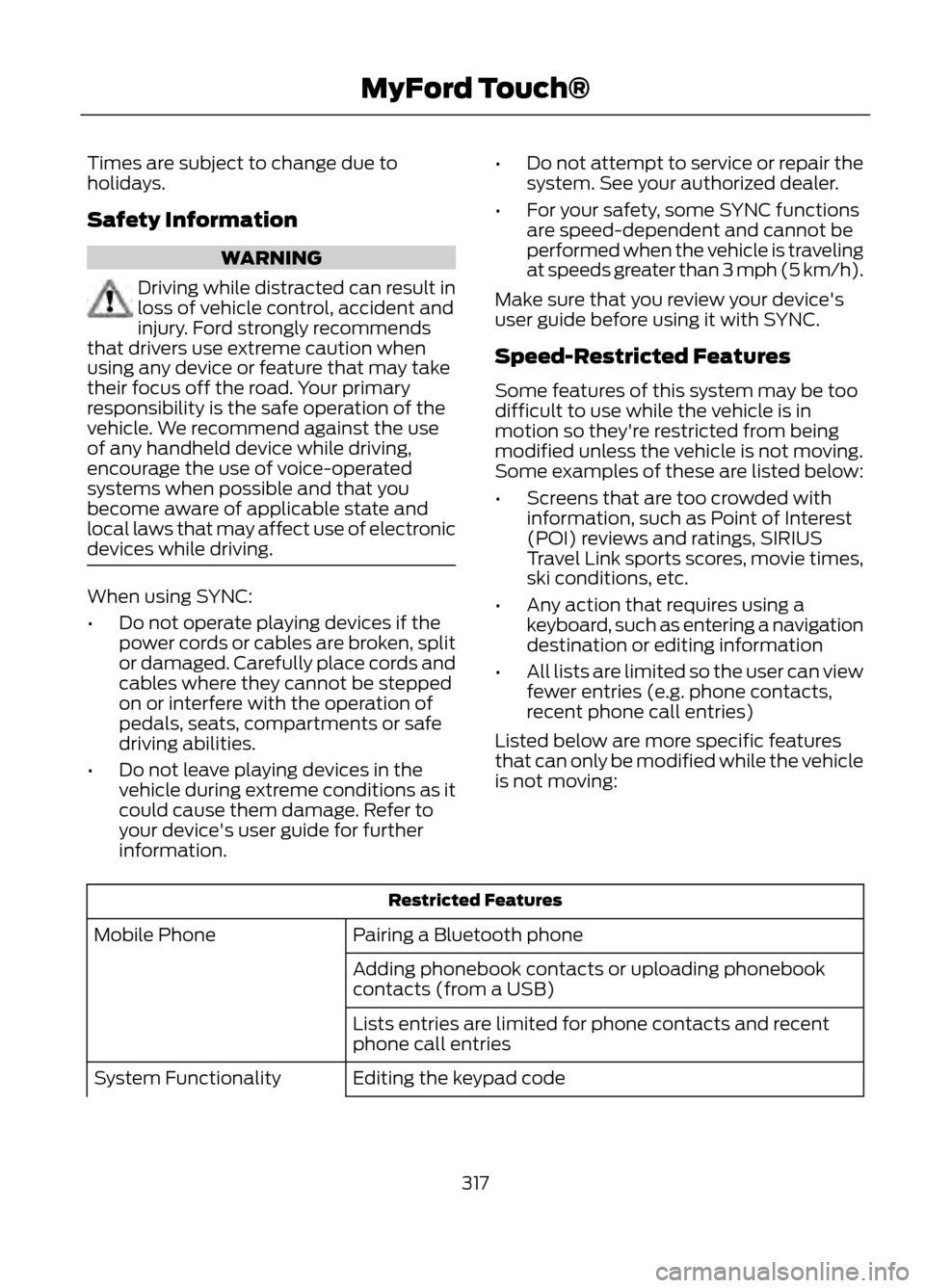
Listed below are more specific features
that can only be modified while the vehicle
is not moving:
Restricted Features
Pairing a Bluetooth phone
Mobile Phone
Adding phonebook contacts or uploading phonebook
contacts (from a USB)
Lists entries are limited for phone contacts and recent
phone call entries
Editing the keypad code
System Functionality
317
MyFord Touch®
Page 326 of 423
Intersection"Enter city"
"Change city" "Enter state"
"Change state"
The dual mode feature is also available
when the voice system displays a list of
items to pick from during a voice session,
where you would be able to touch the line
item or say "Line 2". If a command is not
understood or there are multiple options,
the system returns a list for you to choose
from.
MENU
Under the menu setting, you can set your
clock, access and make adjustments to
the display, sound and vehicle settings as
well as access settings for specific modes
or the help feature.
Setting the Clock
Note: The date is set by your vehicle's GPS;
you cannot manually set the date.
Note: If the battery has been disconnected,
the vehicle needs to acquire a GPS signal
to update the clock. Once your vehicle
acquires the signal, it may take a few
minutes for the update to display the correct
time.
1. Press Menu, then Clock.
2. Press + and - to adjust the time.
From this screen, you can also make other
adjustments such as 12-hour or 24-hour
mode, activate GPS time synchronization
and have the system automatically update
new time zones.
Once you update any settings they are
automatically saved. Display Settings
To access and make adjustments to the
touchscreen display using the touchscreen,
press Menu, then Display. Select any of the
following:
•
Brightness
• Auto Dim On/Off
• Mode: Auto, Day or Night
• Edit Wallpaper
To access and make
adjustments to the touchscreen
display using voice commands,
press the voice button on your steering
wheel controls and, when prompted, say
"Display Settings".
Uploading Photos for Your Home
Screen Wallpaper
Note: You cannot load photos directly from
your camera. You must access the photos
from either your USB mass storage device
or from an SD card.
Your system allows you to upload and view
up to 32 photos. To upload photos, press
Menu, Display, then Edit Wallpaper. Follow
the system prompts to upload your
photographs.
Photo Display Limitations
Note: Photographs with extremely large
dimensions (i.e. 2048 x 1536) may not be
compatible and appear as a blank (black)
image on the display.
326
MyFord Touch®
E142599
Page 331 of 423
Instead of using Wi-Fi, your system can
also use a USB mobile broadband
connection to access the internet. This
screen allows you to set up what is your
typical area for your USB mobile
broadband connection.
You can select the following:
•Country
• Carrier
• Phone Number
• User Name
• Password
Prioritize Connection Methods
This screen allows you to choose your
connection methods and change them as
needed. You can select to Change Order
and have the system either always attempt
to connecting using a USB mobile
broadband or using Wi-Fi. Bluetooth Settings
This screen shows you what device is
currently paired with the system as well as
giving you your typical Bluetooth options
to connect, disconnect, set as favorite,
delete and add device.
Bluetooth is a registered trademark of the
Bluetooth SIG.
Help
Your touchscreen system has a help
feature which you can access at any time.
To access, press Menu, then Help. Select
from the following options:
You Can
If You Select
View the vehicle's current location, if your vehicle is
equipped with navigation. If your vehicle is not equipped
with navigation, nothing is displayed.
Where Am I?
Access the 911 Assist settings, vehicle restart instructions
and emergency quick dial contacts.
911 Assist
· In Case of Emergency (ICE) Quick Dial: This feature
allows you to save up to two numbers as ICE contacts for
quick access in the event of an emergency. Select Edit to
access your phonebook and then select the desired
contacts. The numbers then appear as options on this
screen for the ICE 1 and ICE 2 buttons. The ICE contacts
you select are presented to you at the completion of the
911 Assist call process for quick access.
View possible voice commands.
Voice Command List
From this screen, you can also access
System information, Software Licenses
and Driving Restrictions. To access Help using the voice commands,
press the voice button, then, after the tone,
say "Help". The system provides voice
commands that can be used in the current
mode.
331
MyFord Touch®