warning FORD ESCAPE 2013 3.G Workshop Manual
[x] Cancel search | Manufacturer: FORD, Model Year: 2013, Model line: ESCAPE, Model: FORD ESCAPE 2013 3.GPages: 423, PDF Size: 4.59 MB
Page 96 of 423
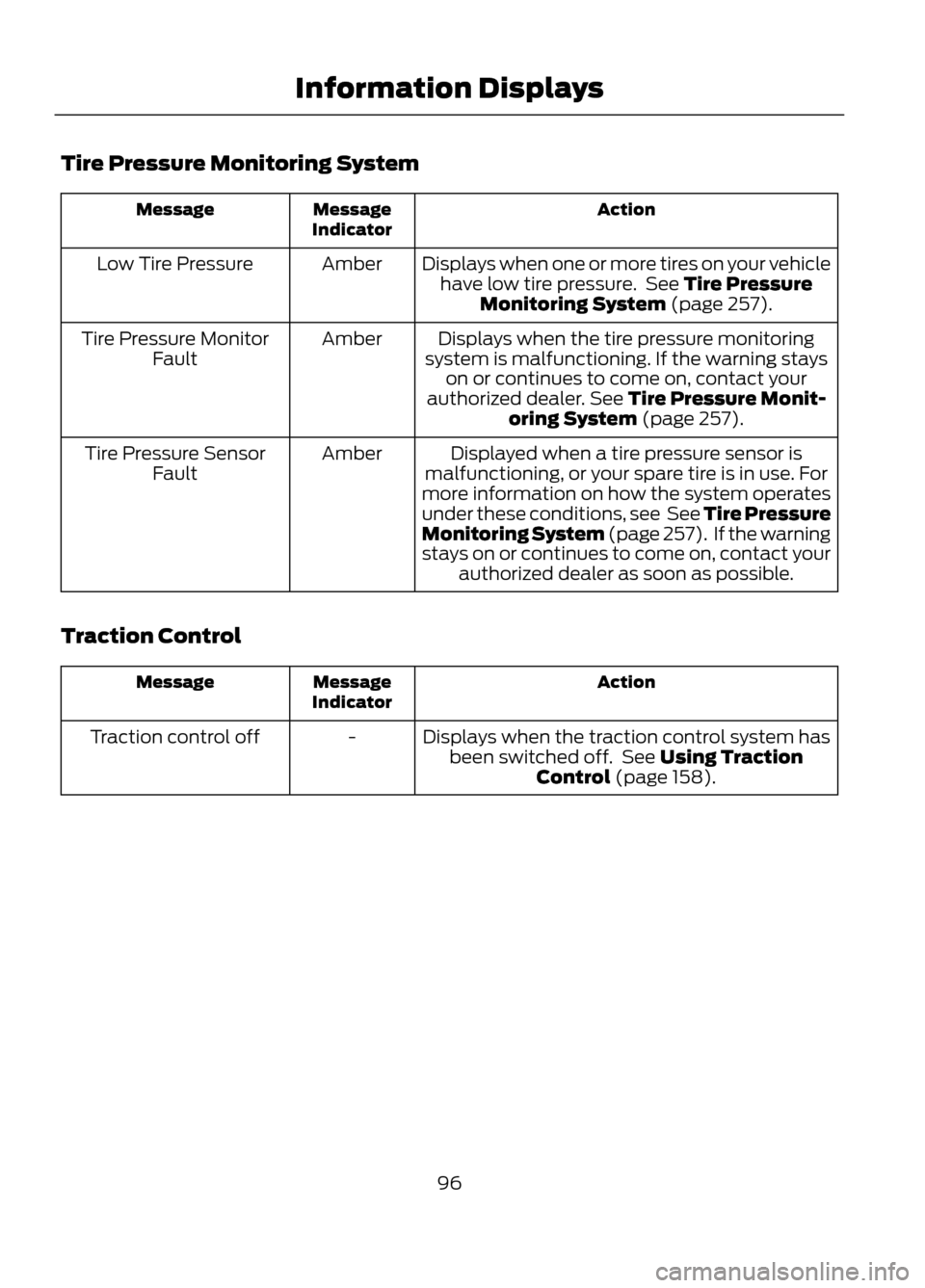
Tire Pressure Monitoring System
Action
Message
Indicator
Message
Displays when one or more tires on your vehiclehave low tire pressure. See Tire Pressure Monitoring System (page 257).
Amber
Low Tire Pressure
Displays when the tire pressure monitoring
system is malfunctioning. If the warning stays on or continues to come on, contact your
authorized dealer. See Tire Pressure Monit- oring System (page 257).
Amber
Tire Pressure Monitor
Fault
Displayed when a tire pressure sensor is
malfunctioning, or your spare tire is in use. For
more information on how the system operates
under these conditions, see See Tire Pressure
Monitoring System (page 257). If the warning
stays on or continues to come on, contact your authorized dealer as soon as possible.
Amber
Tire Pressure Sensor
Fault
Traction Control
Action
Message
Indicator
Message
Displays when the traction control system hasbeen switched off. See Using Traction Control (page 158).
-
Traction control off
96
Information Displays
Page 98 of 423
•MP3 folder mode represents a folder
structure consisting of one level of
folders. The CD player numbers all MP3
tracks on the disc (noted by the .mp3
file extension) and all folders
containing MP3 files, from F001
(folder) T001 (track) to F253 T255.
• Creating discs with only one level of
folders helps with navigation through
the disc files.
If you are burning your own MP3 discs, it is
important to understand how the system
reads the structures you create. While
various files may be present, (files with
extensions other than mp3), only files with
the .mp3 extension are played; other files
are ignored by the system. This enables
you to use the same MP3 disc for a variety
of tasks on your work computer, home
computer and your in-vehicle system. In track mode, the system displays and
plays the structure as if it were only one
level deep (all .mp3 files are played,
regardless of being in a specific folder). In
folder mode, the system only plays the
.mp3 files in the current folder.
AUDIO UNIT - VEHICLES WITH:
AM/FM/CD
WARNING
Driving while distracted can result in
loss of vehicle control, accident and
injury. Ford strongly recommends
that you use extreme caution when using
any device or feature that may take your
focus off the road. Your primary
responsibility is the safe operation of the
vehicle. We recommend against the use
of any handheld device while driving,
encourage the use of voice-operated
systems when possible and that you
become aware of applicable state and
local laws that may affect use of electronic
devices while driving.
98
Audio System
Page 100 of 423
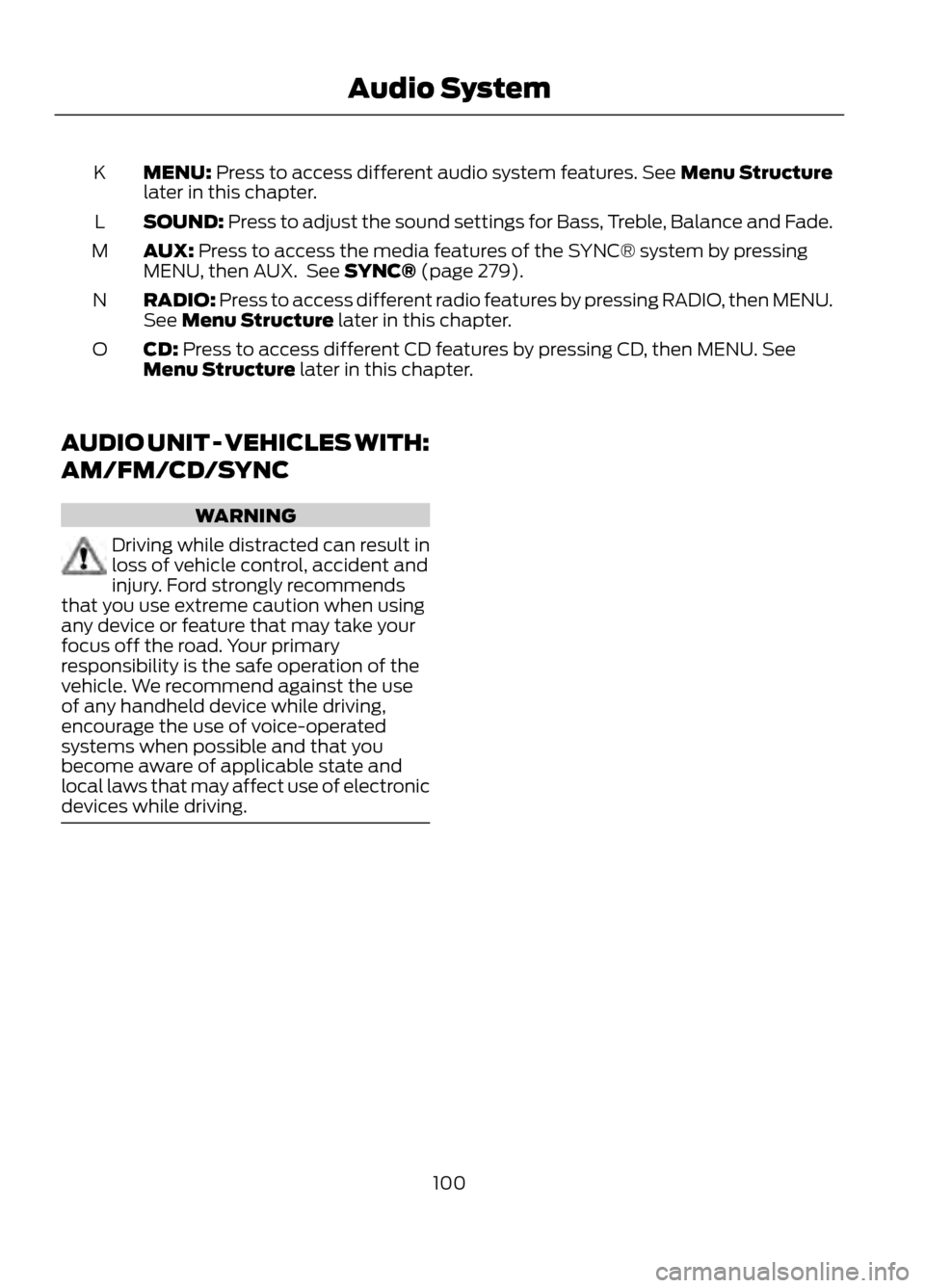
MENU: Press to access different audio system features. See Menu Structure
later in this chapter.
K
SOUND: Press to adjust the sound settings for Bass, Treble, Balance and Fade.
L
AUX: Press to access the media features of the SYNC® system by pressing
MENU, then AUX. See SYNC® (page 279).
M
RADIO: Press to access different radio features by pressing RADIO, then MENU.
See Menu Structure later in this chapter.
N
CD: Press to access different CD features by pressing CD, then MENU. See
Menu Structure later in this chapter.
O
AUDIO UNIT - VEHICLES WITH:
AM/FM/CD/SYNC
WARNING
Driving while distracted can result in
loss of vehicle control, accident and
injury. Ford strongly recommends
that you use extreme caution when using
any device or feature that may take your
focus off the road. Your primary
responsibility is the safe operation of the
vehicle. We recommend against the use
of any handheld device while driving,
encourage the use of voice-operated
systems when possible and that you
become aware of applicable state and
local laws that may affect use of electronic
devices while driving.
100
Audio System
Page 102 of 423
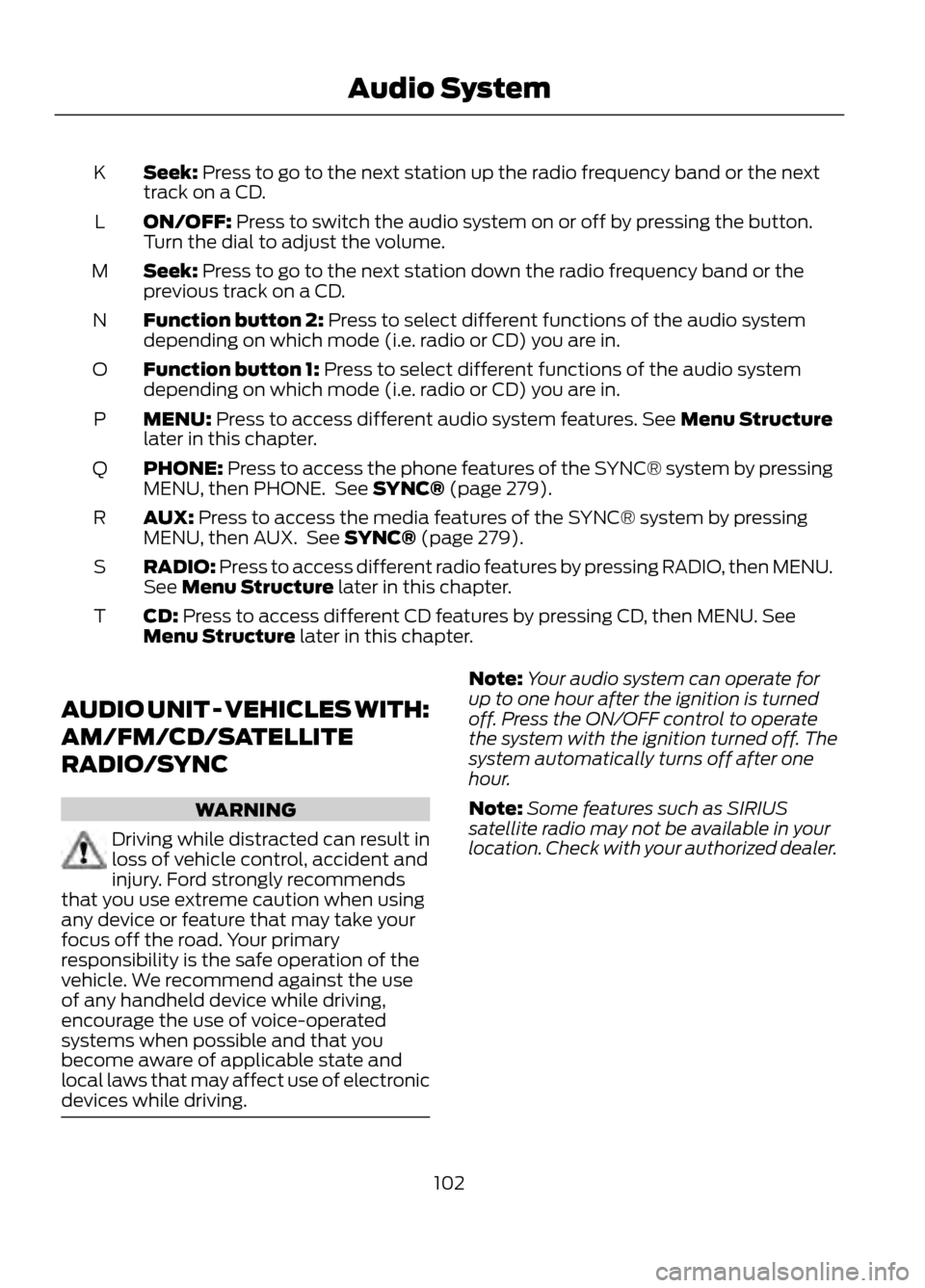
Seek: Press to go to the next station up the radio frequency band or the next
track on a CD.
K
ON/OFF: Press to switch the audio system on or off by pressing the button.
Turn the dial to adjust the volume.
L
Seek: Press to go to the next station down the radio frequency band or the
previous track on a CD.
M
Function button 2: Press to select different functions of the audio system
depending on which mode (i.e. radio or CD) you are in.
N
Function button 1: Press to select different functions of the audio system
depending on which mode (i.e. radio or CD) you are in.
O
MENU: Press to access different audio system features. See Menu Structure
later in this chapter.
P
PHONE: Press to access the phone features of the SYNC® system by pressing
MENU, then PHONE. See SYNC® (page 279).
Q
AUX: Press to access the media features of the SYNC® system by pressing
MENU, then AUX. See SYNC® (page 279).
R
RADIO: Press to access different radio features by pressing RADIO, then MENU.
See Menu Structure later in this chapter.
S
CD: Press to access different CD features by pressing CD, then MENU. See
Menu Structure later in this chapter.
T
AUDIO UNIT - VEHICLES WITH:
AM/FM/CD/SATELLITE
RADIO/SYNC
WARNING
Driving while distracted can result in
loss of vehicle control, accident and
injury. Ford strongly recommends
that you use extreme caution when using
any device or feature that may take your
focus off the road. Your primary
responsibility is the safe operation of the
vehicle. We recommend against the use
of any handheld device while driving,
encourage the use of voice-operated
systems when possible and that you
become aware of applicable state and
local laws that may affect use of electronic
devices while driving.
Note: Your audio system can operate for
up to one hour after the ignition is turned
off. Press the ON/OFF control to operate
the system with the ignition turned off. The
system automatically turns off after one
hour.
Note: Some features such as SIRIUS
satellite radio may not be available in your
location. Check with your authorized dealer.
102
Audio System
Page 105 of 423
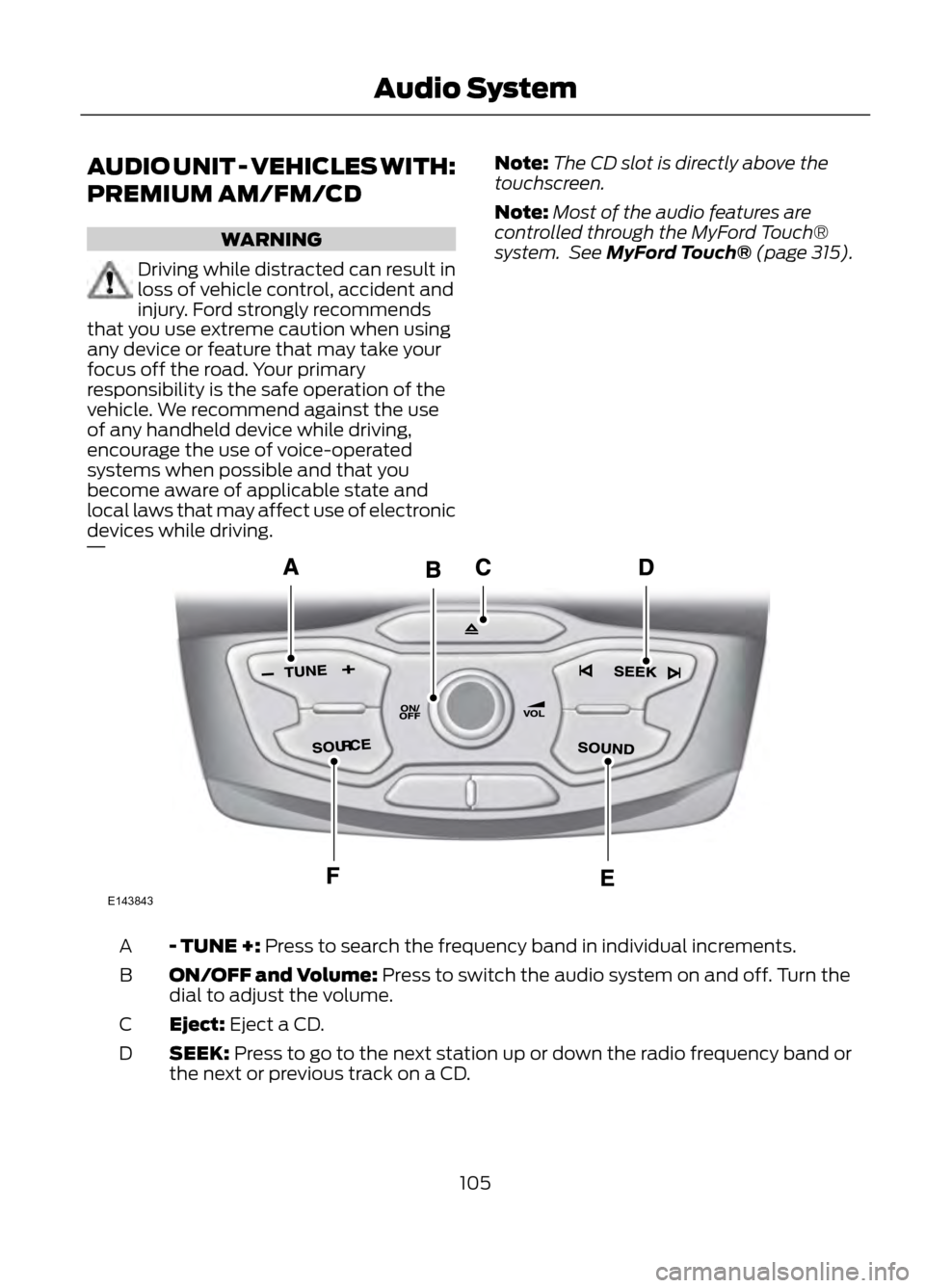
AUDIO UNIT - VEHICLES WITH:
PREMIUM AM/FM/CD
WARNING
Driving while distracted can result in
loss of vehicle control, accident and
injury. Ford strongly recommends
that you use extreme caution when using
any device or feature that may take your
focus off the road. Your primary
responsibility is the safe operation of the
vehicle. We recommend against the use
of any handheld device while driving,
encourage the use of voice-operated
systems when possible and that you
become aware of applicable state and
local laws that may affect use of electronic
devices while driving.
Note: The CD slot is directly above the
touchscreen.
Note: Most of the audio features are
controlled through the MyFord Touch®
system. See MyFord Touch® (page 315).
- TUNE +: Press to search the frequency band in individual increments.
A
ON/OFF and Volume: Press to switch the audio system on and off. Turn the
dial to adjust the volume.
B
Eject: Eject a CD.
C
SEEK: Press to go to the next station up or down the radio frequency band or
the next or previous track on a CD.
D
105
Audio System
E143843
Page 106 of 423
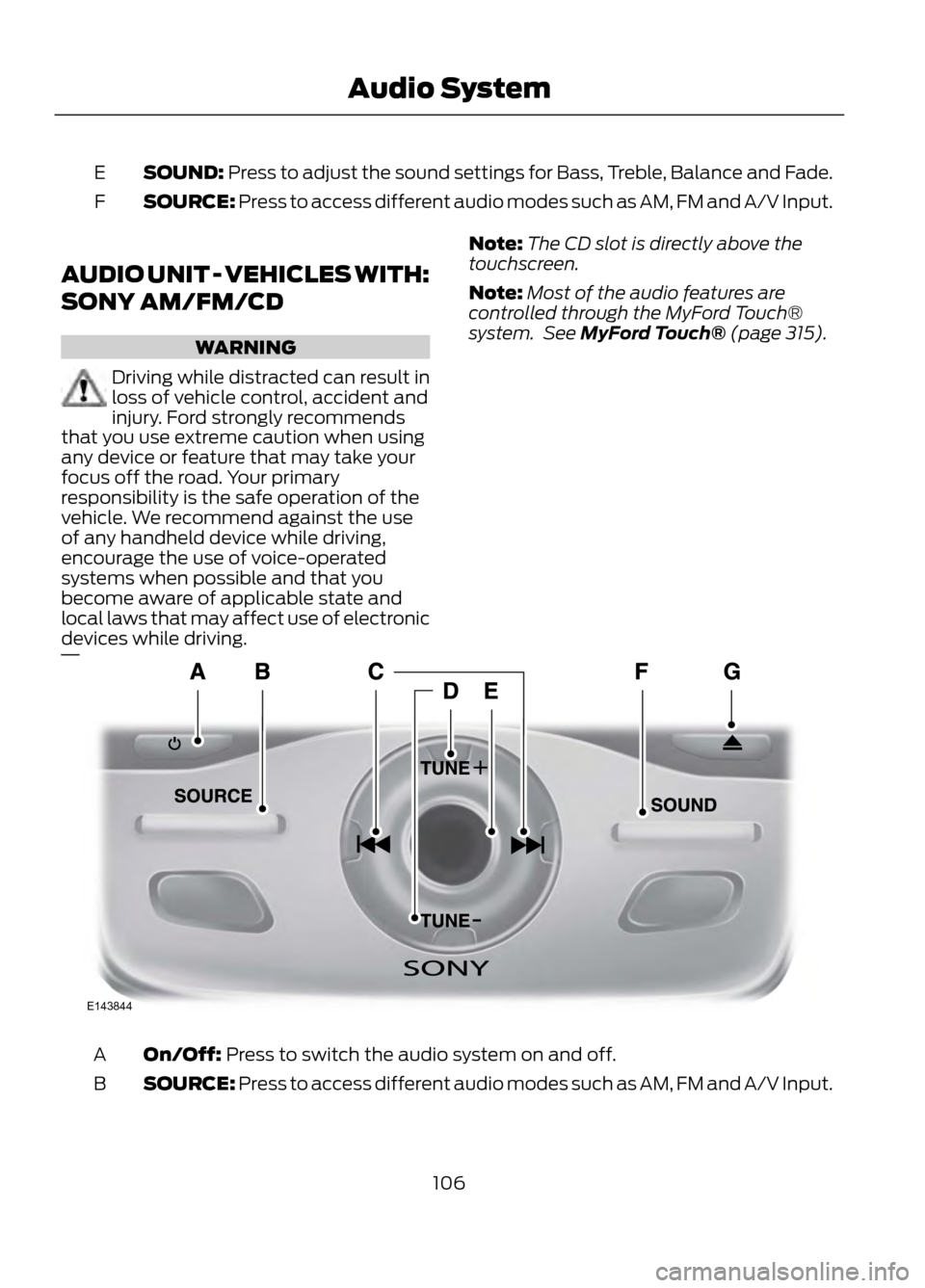
SOUND: Press to adjust the sound settings for Bass, Treble, Balance and Fade.
E
SOURCE: Press to access different audio modes such as AM, FM and A/V Input.
F
AUDIO UNIT - VEHICLES WITH:
SONY AM/FM/CD
WARNING
Driving while distracted can result in
loss of vehicle control, accident and
injury. Ford strongly recommends
that you use extreme caution when using
any device or feature that may take your
focus off the road. Your primary
responsibility is the safe operation of the
vehicle. We recommend against the use
of any handheld device while driving,
encourage the use of voice-operated
systems when possible and that you
become aware of applicable state and
local laws that may affect use of electronic
devices while driving.
Note: The CD slot is directly above the
touchscreen.
Note: Most of the audio features are
controlled through the MyFord Touch®
system. See MyFord Touch® (page 315).
On/Off: Press to switch the audio system on and off.
A
SOURCE: Press to access different audio modes such as AM, FM and A/V Input.
B
106
Audio System
E143844
Page 109 of 423
Display Settings
Select to change display brightness.
Dimming
Select to display the language in English, French or
Spanish.
Language
Select to display the outside temperature in Fahrenheit
or Celsius.
Temp setting
Clock Settings
Select to set the time.
Set time
Select to set the calendar date.
Set date
Select to view clock time in a 12-hour mode or 24-hour
mode.
12/24 hour
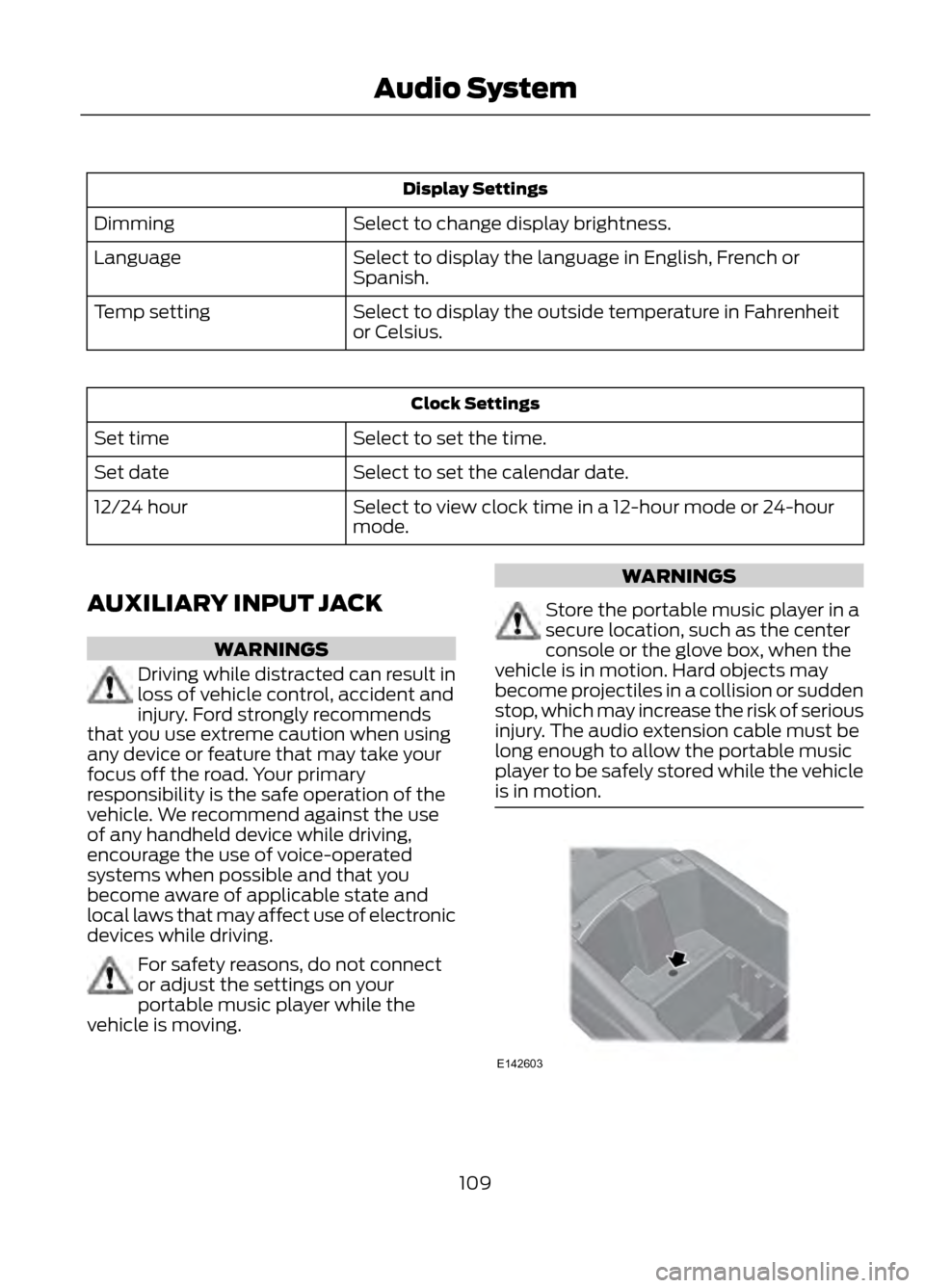
AUXILIARY INPUT JACK
WARNINGS
Driving while distracted can result in
loss of vehicle control, accident and
injury. Ford strongly recommends
that you use extreme caution when using
any device or feature that may take your
focus off the road. Your primary
responsibility is the safe operation of the
vehicle. We recommend against the use
of any handheld device while driving,
encourage the use of voice-operated
systems when possible and that you
become aware of applicable state and
local laws that may affect use of electronic
devices while driving.
For safety reasons, do not connect
or adjust the settings on your
portable music player while the
vehicle is moving.
WARNINGS
Store the portable music player in a
secure location, such as the center
console or the glove box, when the
vehicle is in motion. Hard objects may
become projectiles in a collision or sudden
stop, which may increase the risk of serious
injury. The audio extension cable must be
long enough to allow the portable music
player to be safely stored while the vehicle
is in motion.
109
Audio System
E142603
Page 121 of 423
SITTING IN THE CORRECT
POSITION
WARNINGS
Sitting improperly, out of position or
with the seatback reclined too far
can take weight off the seat cushion
and affect the decision of the passenger
sensing system, resulting in serious injury
or death in the event of a collision. Always
sit upright against your seatback, with your
feet on the floor.
Do not recline the seatback as this
can cause the occupant to slide
under the safety belt, resulting in
serious injury in the event of a collision.
Do not place objects higher than the
seatback to reduce the risk of serious
injury in the event of a collision or
during heavy braking.
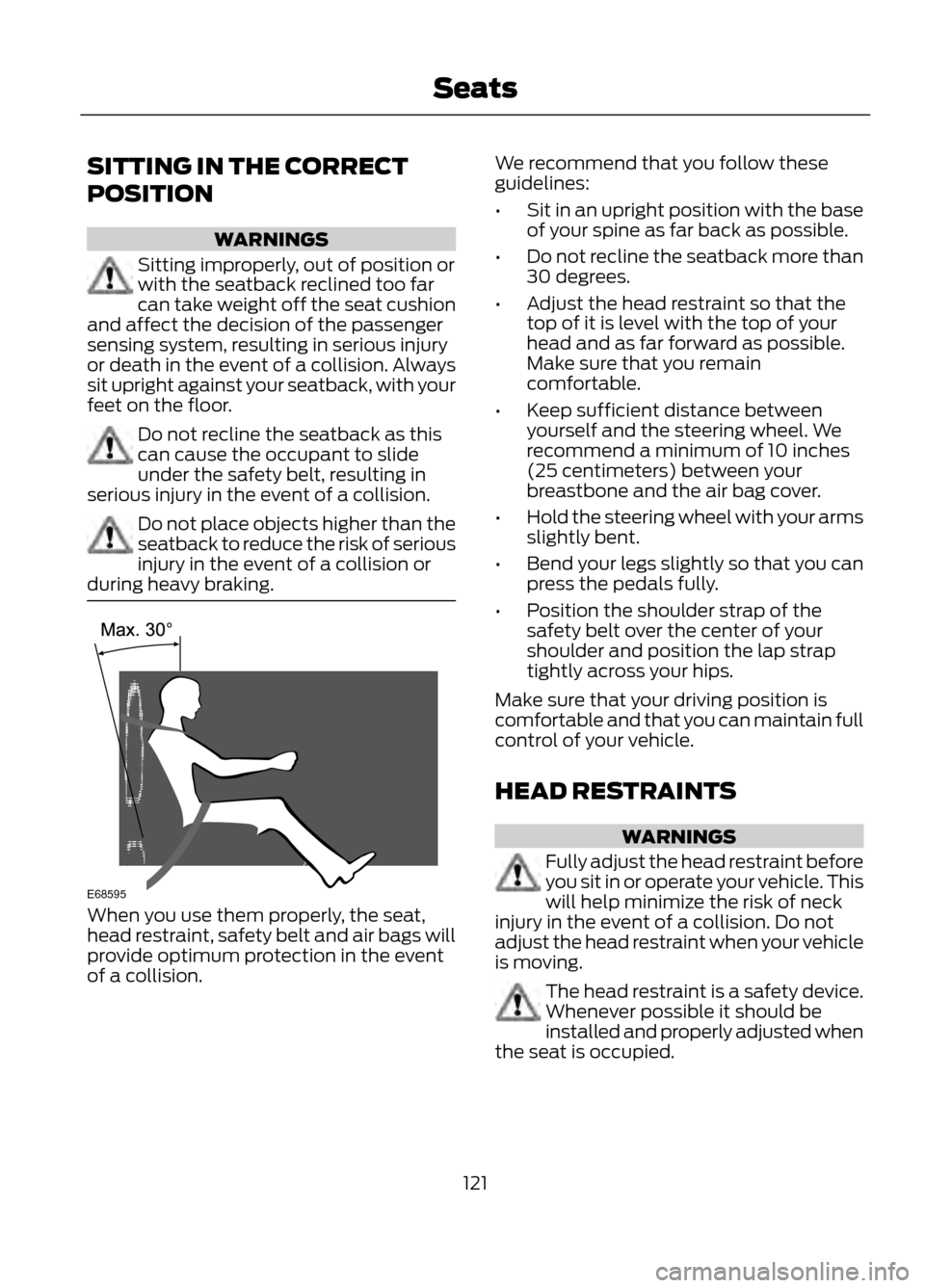
When you use them properly, the seat,
head restraint, safety belt and air bags will
provide optimum protection in the event
of a collision. We recommend that you follow these
guidelines:
•
Sit in an upright position with the base
of your spine as far back as possible.
• Do not recline the seatback more than
30 degrees.
• Adjust the head restraint so that the
top of it is level with the top of your
head and as far forward as possible.
Make sure that you remain
comfortable.
• Keep sufficient distance between
yourself and the steering wheel. We
recommend a minimum of 10 inches
(25 centimeters) between your
breastbone and the air bag cover.
• Hold the steering wheel with your arms
slightly bent.
• Bend your legs slightly so that you can
press the pedals fully.
• Position the shoulder strap of the
safety belt over the center of your
shoulder and position the lap strap
tightly across your hips.
Make sure that your driving position is
comfortable and that you can maintain full
control of your vehicle.
HEAD RESTRAINTS
WARNINGS
Fully adjust the head restraint before
you sit in or operate your vehicle. This
will help minimize the risk of neck
injury in the event of a collision. Do not
adjust the head restraint when your vehicle
is moving.
The head restraint is a safety device.
Whenever possible it should be
installed and properly adjusted when
the seat is occupied.
121
Seats
E68595
Page 122 of 423
WARNINGS
Install the head restraint properly to
help minimize the risk of neck injury
in the event of a collision.
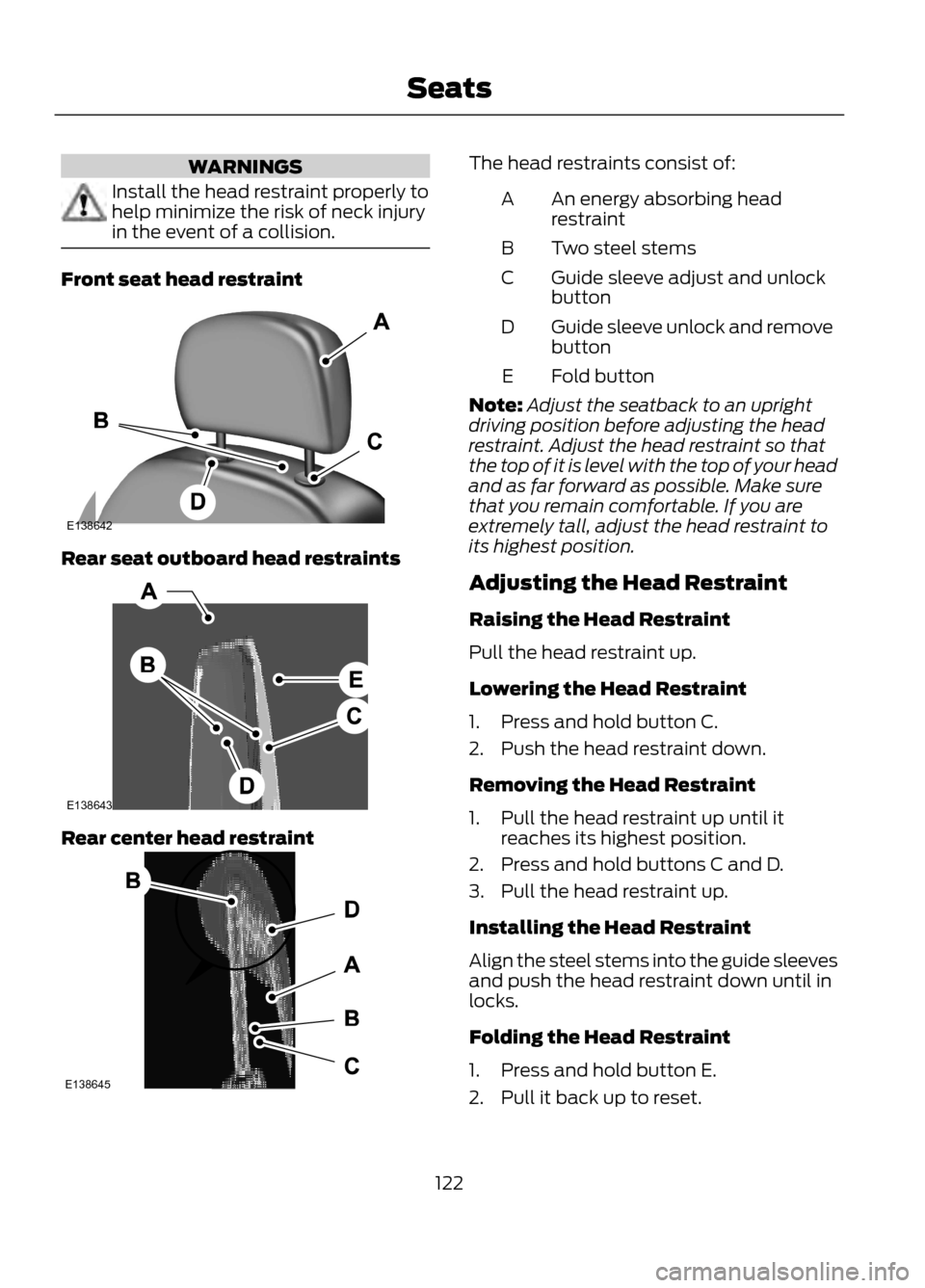
Front seat head restraint
Rear seat outboard head restraints
Rear center head restraint
The head restraints consist of:An energy absorbing head
restraint
A
Two steel stems
B
Guide sleeve adjust and unlock
button
C
Guide sleeve unlock and remove
button
D
Fold button
E
Note: Adjust the seatback to an upright
driving position before adjusting the head
restraint. Adjust the head restraint so that
the top of it is level with the top of your head
and as far forward as possible. Make sure
that you remain comfortable. If you are
extremely tall, adjust the head restraint to
its highest position.
Adjusting the Head Restraint
Raising the Head Restraint
Pull the head restraint up.
Lowering the Head Restraint
1. Press and hold button C.
2. Push the head restraint down.
Removing the Head Restraint
1. Pull the head restraint up until it reaches its highest position.
2. Press and hold buttons C and D.
3. Pull the head restraint up.
Installing the Head Restraint
Align the steel stems into the guide sleeves
and push the head restraint down until in
locks.
Folding the Head Restraint
1. Press and hold button E.
2. Pull it back up to reset.
122
Seats
E138642
E138643
E138645
Page 123 of 423

Tilting Head Restraints (If Equipped)
The front head restraints may have a tilting
feature for extra comfort. To tilt the head
restraint, do the following:
1. Adjust the seatback to an uprightdriving or riding position.
2. Pivot the head restraint forward toward
your head to the desired position.
After the head restraint reaches the
forward-most tilt position, pivoting it
forward again will then release it to the
rearward, un-tilted position.
MANUAL SEATS
WARNING
Do not adjust the driver's seat or
seatback when your vehicle is
moving.
Moving the Seat Backward and
Forward
WARNING
Rock the seat backward and forward
after releasing the lever to make sure
that it is fully engaged.
Adjusting the Height of the
Driver's Seat
123
Seats
E144727
E130249
E70730