set phone FORD ESCAPE 2014 3.G Owner's Manual
[x] Cancel search | Manufacturer: FORD, Model Year: 2014, Model line: ESCAPE, Model: FORD ESCAPE 2014 3.GPages: 428, PDF Size: 16.6 MB
Page 305 of 428
![FORD ESCAPE 2014 3.G Owners Manual If a crash deploys an airbag (excluding
knee airbags and rear inflatable safety
belts [if equipped]) or activates the fuel
pump shut-off, your SYNC-equipped
vehicle may be able to contact emergency
se](/img/11/4872/w960_4872-304.png "FORD ESCAPE 2014 3.G Owners Manual If a crash deploys an airbag (excluding
knee airbags and rear inflatable safety
belts [if equipped]) or activates the fuel
pump shut-off, your SYNC-equipped
vehicle may be able to contact emergency
se")
If a crash deploys an airbag (excluding
knee airbags and rear inflatable safety
belts [if equipped]) or activates the fuel
pump shut-off, your SYNC-equipped
vehicle may be able to contact emergency
services by dialing 911 through a paired and
connected Bluetooth-enabled phone. You
can learn more about the 911 Assist
feature, visit www.SYNCMyRide.com,
www.SYNCMyRide.ca or
www.syncmaroute.ca.
See Supplementary Restraints System
(page 35). Important information about
airbag deployment is in this chapter.
See Roadside Emergencies (page 186).
Important information about the fuel pump
shut-off is in this chapter.
Setting 911 Assist On
1. Press the phone button to enter the
phone menu.
2. Scroll to select 911 Assist.
3. Press OK to confirm and enter the 911
Assist menu.
4. Scroll to select between On and Off.
5. Press OK when the desired option
appears in the radio display.Set On or
Set Off appears in the display as
confirmation.
Off selections include:
• Off with reminder: Provides a display
and voice reminder at phone
connection at vehicle start.
• Off without reminder: Provides a
display reminder only without a voice
reminder at phone connection.
To make sure that 911 Assist works
properly:
• SYNC must be powered and working
properly at the time of the incident and
throughout feature activation and use.
• The 911 Assist feature must be set on
before the incident.• You must pair and connect a
Bluetooth-enabled and compatible
cell phone to SYNC.
• A connected Bluetooth-enabled phone
must have the ability to make and
maintain an outgoing call at the time
of the incident.
• A connected Bluetooth-enabled phone
must have adequate network coverage,
battery power and signal strength.
• The vehicle must have battery power
and be located in the U.S., Canada or
in a territory in which 911 is the
emergency number.
In the Event of a Crash
Not all crashes will deploy an airbag or
activate the fuel pump shut-off (the
triggers for 911 Assist). If a connected cell
phone sustains damage or loses its
connection to SYNC during a crash, SYNC
will search for and try to connect to a
previously paired cell phone; SYNC will
then attempt to call the emergency
services.
Before making the call:
• SYNC provides a short window of time
(about 10 seconds) to cancel the call.
If you fail to cancel the call, SYNC
attempts to dial 911.
• SYNC says the following, or a similar
message: "SYNC will attempt to call
911, to cancel the call, press Cancel on
your screen or press and hold the
phone button on your steering wheel."
If you do not cancel the call, and SYNC
makes a successful call, a pre-recorded
message plays for the 911 operator, and
then the occupant(s) in your vehicle is able
to talk with the operator. Be prepared to
provide your name, phone number and
location immediately, because not all 911
systems are capable of receiving this
information electronically.
302
SYNC™
Page 306 of 428
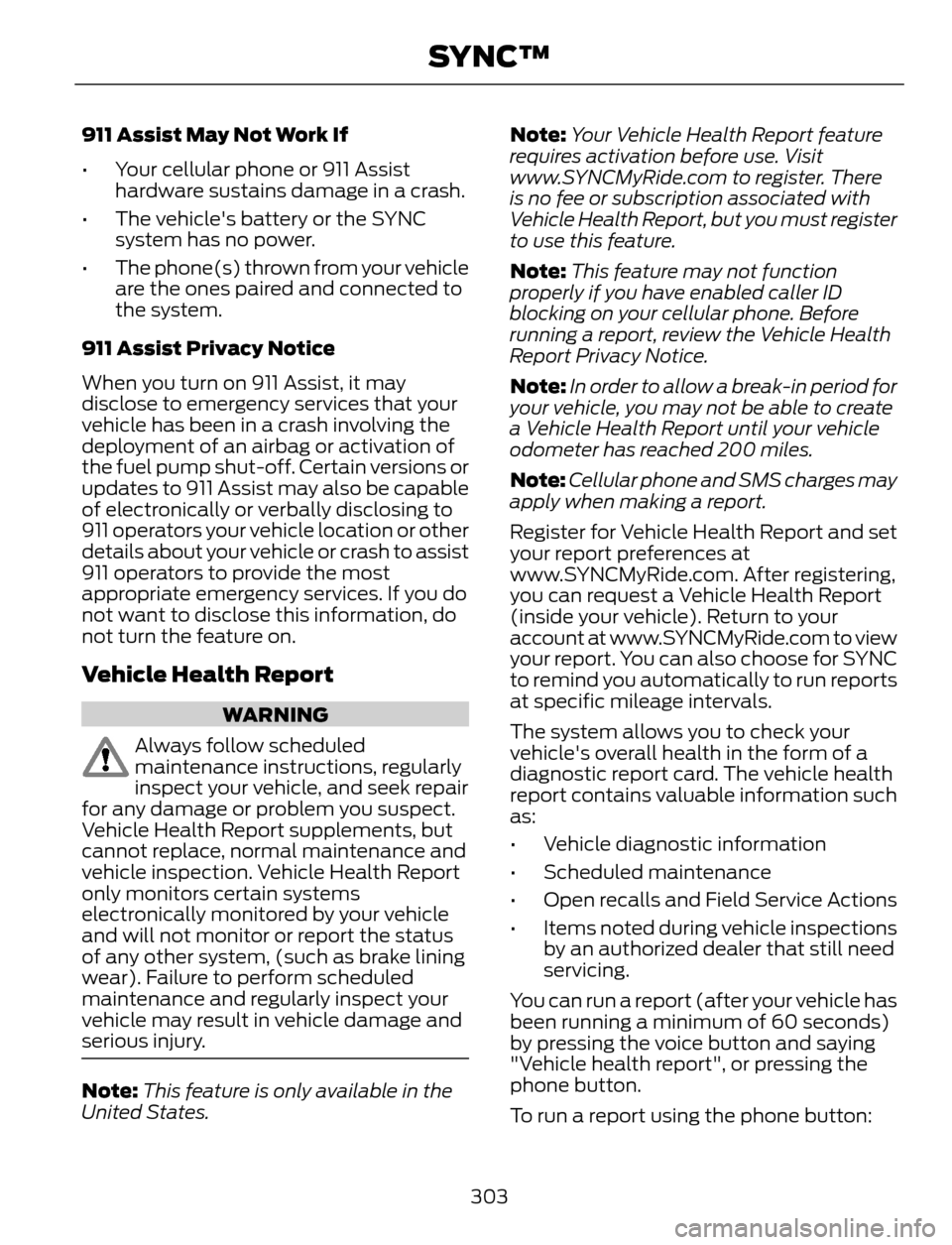
911 Assist May Not Work If
• Your cellular phone or 911 Assist
hardware sustains damage in a crash.
• The vehicle's battery or the SYNC
system has no power.
• The phone(s) thrown from your vehicle
are the ones paired and connected to
the system.
911 Assist Privacy Notice
When you turn on 911 Assist, it may
disclose to emergency services that your
vehicle has been in a crash involving the
deployment of an airbag or activation of
the fuel pump shut-off. Certain versions or
updates to 911 Assist may also be capable
of electronically or verbally disclosing to
911 operators your vehicle location or other
details about your vehicle or crash to assist
911 operators to provide the most
appropriate emergency services. If you do
not want to disclose this information, do
not turn the feature on.
Vehicle Health Report
WARNING
Always follow scheduled
maintenance instructions, regularly
inspect your vehicle, and seek repair
for any damage or problem you suspect.
Vehicle Health Report supplements, but
cannot replace, normal maintenance and
vehicle inspection. Vehicle Health Report
only monitors certain systems
electronically monitored by your vehicle
and will not monitor or report the status
of any other system, (such as brake lining
wear). Failure to perform scheduled
maintenance and regularly inspect your
vehicle may result in vehicle damage and
serious injury.
Note:This feature is only available in the
United States.Note:Your Vehicle Health Report feature
requires activation before use. Visit
www.SYNCMyRide.com to register. There
is no fee or subscription associated with
Vehicle Health Report, but you must register
to use this feature.
Note:This feature may not function
properly if you have enabled caller ID
blocking on your cellular phone. Before
running a report, review the Vehicle Health
Report Privacy Notice.
Note:In order to allow a break-in period for
your vehicle, you may not be able to create
a Vehicle Health Report until your vehicle
odometer has reached 200 miles.
Note:Cellular phone and SMS charges may
apply when making a report.
Register for Vehicle Health Report and set
your report preferences at
www.SYNCMyRide.com. After registering,
you can request a Vehicle Health Report
(inside your vehicle). Return to your
account at www.SYNCMyRide.com to view
your report. You can also choose for SYNC
to remind you automatically to run reports
at specific mileage intervals.
The system allows you to check your
vehicle's overall health in the form of a
diagnostic report card. The vehicle health
report contains valuable information such
as:
• Vehicle diagnostic information
• Scheduled maintenance
• Open recalls and Field Service Actions
• Items noted during vehicle inspections
by an authorized dealer that still need
servicing.
You can run a report (after your vehicle has
been running a minimum of 60 seconds)
by pressing the voice button and saying
"Vehicle health report", or pressing the
phone button.
To run a report using the phone button:
303
SYNC™
Page 307 of 428
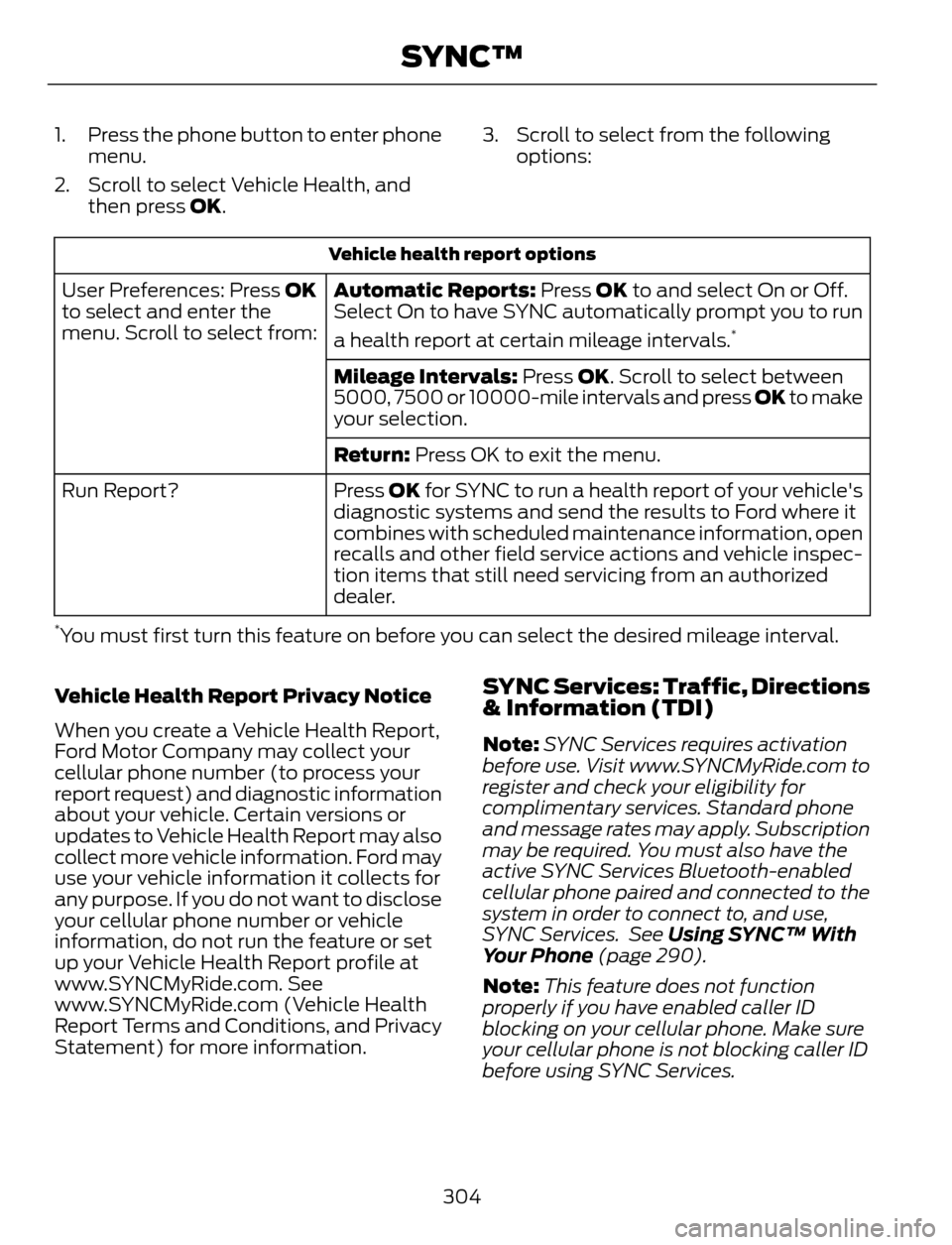
1. Press the phone button to enter phone
menu.
2. Scroll to select Vehicle Health, and
then press OK.3. Scroll to select from the following
options:
Vehicle health report options
Automatic Reports: Press OK to and select On or Off.
Select On to have SYNC automatically prompt you to run
a health report at certain mileage intervals.
*
User Preferences: Press OK
to select and enter the
menu. Scroll to select from:
Mileage Intervals: Press OK. Scroll to select between
5000, 7500 or 10000-mile intervals and press OK to make
your selection.
Return: Press OK to exit the menu.
Press OK for SYNC to run a health report of your vehicle's
diagnostic systems and send the results to Ford where it
combines with scheduled maintenance information, open
recalls and other field service actions and vehicle inspec-
tion items that still need servicing from an authorized
dealer. Run Report?
*You must first turn this feature on before you can select the desired mileage interval.
Vehicle Health Report Privacy Notice
When you create a Vehicle Health Report,
Ford Motor Company may collect your
cellular phone number (to process your
report request) and diagnostic information
about your vehicle. Certain versions or
updates to Vehicle Health Report may also
collect more vehicle information. Ford may
use your vehicle information it collects for
any purpose. If you do not want to disclose
your cellular phone number or vehicle
information, do not run the feature or set
up your Vehicle Health Report profile at
www.SYNCMyRide.com. See
www.SYNCMyRide.com (Vehicle Health
Report Terms and Conditions, and Privacy
Statement) for more information.
SYNC Services: Traffic, Directions
& Information (TDI)
Note:SYNC Services requires activation
before use. Visit www.SYNCMyRide.com to
register and check your eligibility for
complimentary services. Standard phone
and message rates may apply. Subscription
may be required. You must also have the
active SYNC Services Bluetooth-enabled
cellular phone paired and connected to the
system in order to connect to, and use,
SYNC Services. See Using SYNC™ With
Your Phone (page 290).
Note:This feature does not function
properly if you have enabled caller ID
blocking on your cellular phone. Make sure
your cellular phone is not blocking caller ID
before using SYNC Services.
304
SYNC™
Page 313 of 428
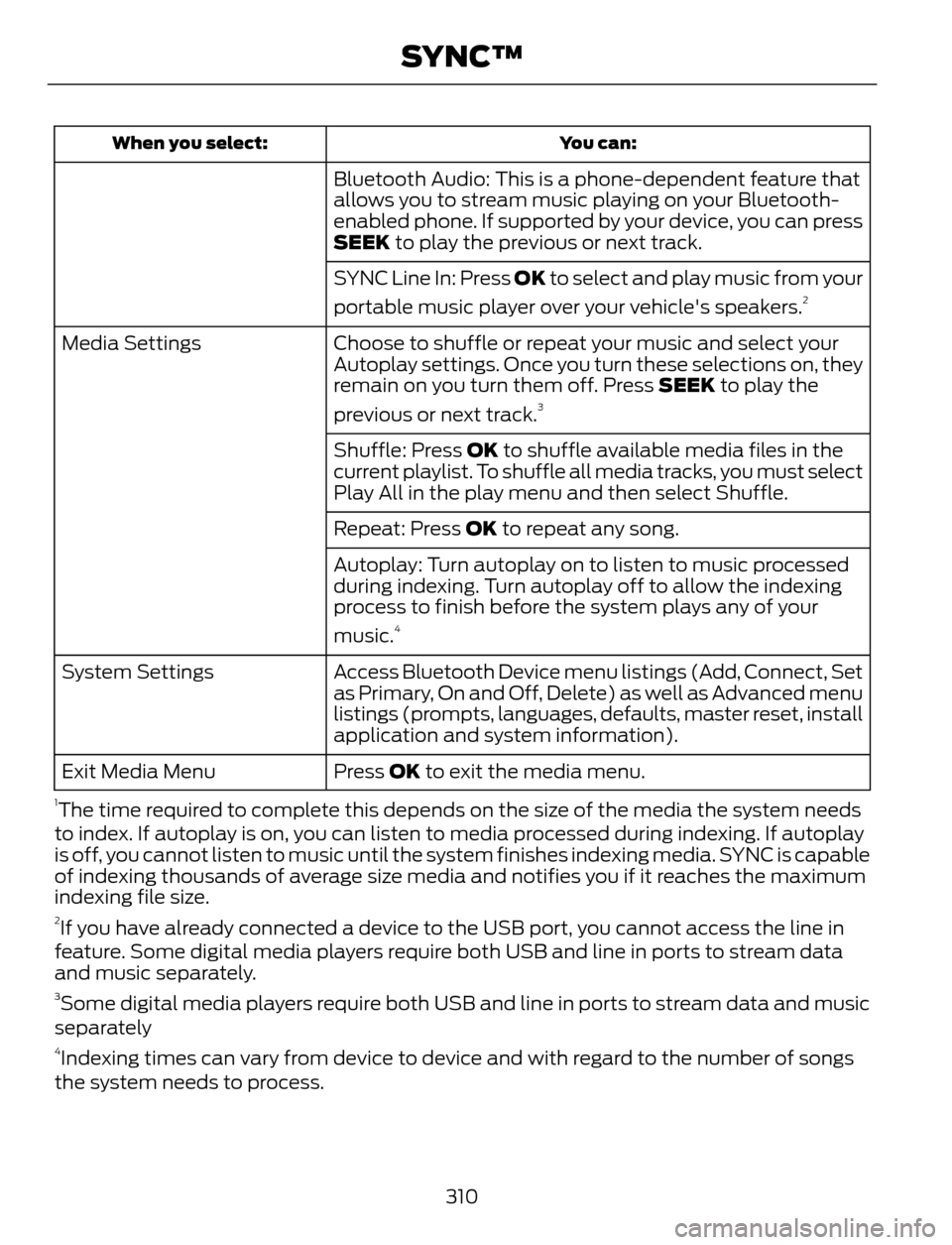
You can: When you select:
Bluetooth Audio: This is a phone-dependent feature that
allows you to stream music playing on your Bluetooth-
enabled phone. If supported by your device, you can press
SEEK to play the previous or next track.
SYNC Line In: Press OK to select and play music from your
portable music player over your vehicle's speakers.
2
Choose to shuffle or repeat your music and select your
Autoplay settings. Once you turn these selections on, they
remain on you turn them off. Press SEEK to play the
previous or next track.
3
Media Settings
Shuffle: Press OK to shuffle available media files in the
current playlist. To shuffle all media tracks, you must select
Play All in the play menu and then select Shuffle.
Repeat: Press OK to repeat any song.
Autoplay: Turn autoplay on to listen to music processed
during indexing. Turn autoplay off to allow the indexing
process to finish before the system plays any of your
music.
4
Access Bluetooth Device menu listings (Add, Connect, Set
as Primary, On and Off, Delete) as well as Advanced menu
listings (prompts, languages, defaults, master reset, install
application and system information). System Settings
Press OK to exit the media menu. Exit Media Menu
1The time required to complete this depends on the size of the media the system needs
to index. If autoplay is on, you can listen to media processed during indexing. If autoplay
is off, you cannot listen to music until the system finishes indexing media. SYNC is capable
of indexing thousands of average size media and notifies you if it reaches the maximum
indexing file size.
2If you have already connected a device to the USB port, you cannot access the line in
feature. Some digital media players require both USB and line in ports to stream data
and music separately.
3Some digital media players require both USB and line in ports to stream data and music
separately
4Indexing times can vary from device to device and with regard to the number of songs
the system needs to process.
310
SYNC™
Page 315 of 428
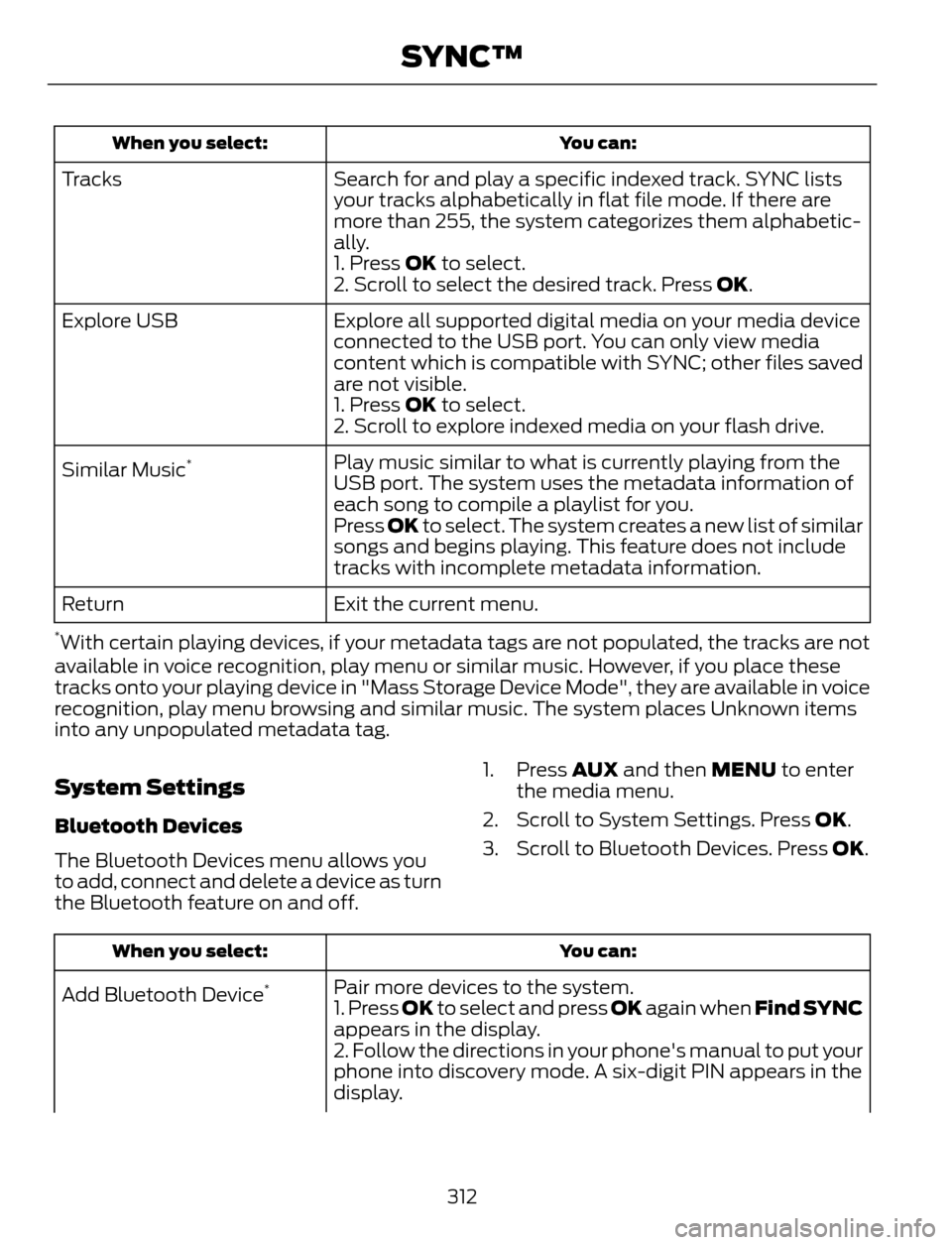
You can: When you select:
Search for and play a specific indexed track. SYNC lists
your tracks alphabetically in flat file mode. If there are
more than 255, the system categorizes them alphabetic-
ally. Tr a c k s
1. Press OK to select.
2. Scroll to select the desired track. Press OK.
Explore all supported digital media on your media device
connected to the USB port. You can only view media
content which is compatible with SYNC; other files saved
are not visible. Explore USB
1. Press OK to select.
2. Scroll to explore indexed media on your flash drive.
Play music similar to what is currently playing from the
USB port. The system uses the metadata information of
each song to compile a playlist for you. Similar Music
*
Press OK to select. The system creates a new list of similar
songs and begins playing. This feature does not include
tracks with incomplete metadata information.
Exit the current menu. Return
*With certain playing devices, if your metadata tags are not populated, the tracks are not
available in voice recognition, play menu or similar music. However, if you place these
tracks onto your playing device in "Mass Storage Device Mode", they are available in voice
recognition, play menu browsing and similar music. The system places Unknown items
into any unpopulated metadata tag.
System Settings
Bluetooth Devices
The Bluetooth Devices menu allows you
to add, connect and delete a device as turn
the Bluetooth feature on and off.1. Press AUX and then MENU to enter
the media menu.
2. Scroll to System Settings. Press OK.
3. Scroll to Bluetooth Devices. Press OK.
You can: When you select:
Pair more devices to the system.
Add Bluetooth Device*1. Press OK to select and press OK again when Find SYNC
appears in the display.
2. Follow the directions in your phone's manual to put your
phone into discovery mode. A six-digit PIN appears in the
display.
312
SYNC™
Page 316 of 428
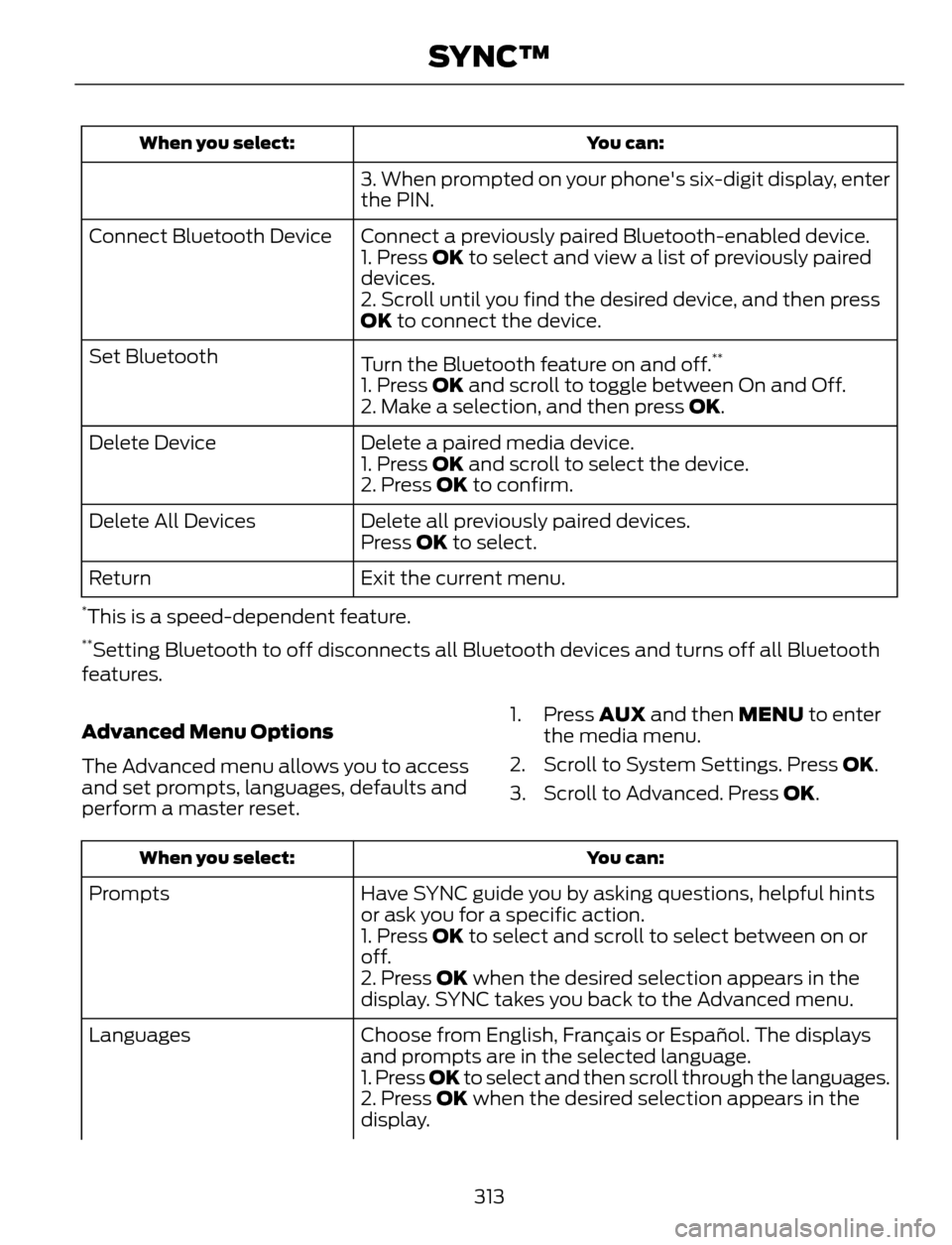
You can: When you select:
3. When prompted on your phone's six-digit display, enter
the PIN.
Connect a previously paired Bluetooth-enabled device. Connect Bluetooth Device
1. Press OK to select and view a list of previously paired
devices.
2. Scroll until you find the desired device, and then press
OK to connect the device.
Turn the Bluetooth feature on and off.
**Set Bluetooth
1. Press OK and scroll to toggle between On and Off.
2. Make a selection, and then press OK.
Delete a paired media device. Delete Device
1. Press OK and scroll to select the device.
2. Press OK to confirm.
Delete all previously paired devices. Delete All Devices
Press OK to select.
Exit the current menu. Return
*This is a speed-dependent feature.**Setting Bluetooth to off disconnects all Bluetooth devices and turns off all Bluetooth
features.
Advanced Menu Options
The Advanced menu allows you to access
and set prompts, languages, defaults and
perform a master reset.1. Press AUX and then MENU to enter
the media menu.
2. Scroll to System Settings. Press OK.
3. Scroll to Advanced. Press OK.
You can: When you select:
Have SYNC guide you by asking questions, helpful hints
or ask you for a specific action. Prompts
1. Press OK to select and scroll to select between on or
off.
2. Press OK when the desired selection appears in the
display. SYNC takes you back to the Advanced menu.
Choose from English, Français or Español. The displays
and prompts are in the selected language. Languages
1. Press OK to select and then scroll through the languages.
2. Press OK when the desired selection appears in the
display.
313
SYNC™
Page 317 of 428
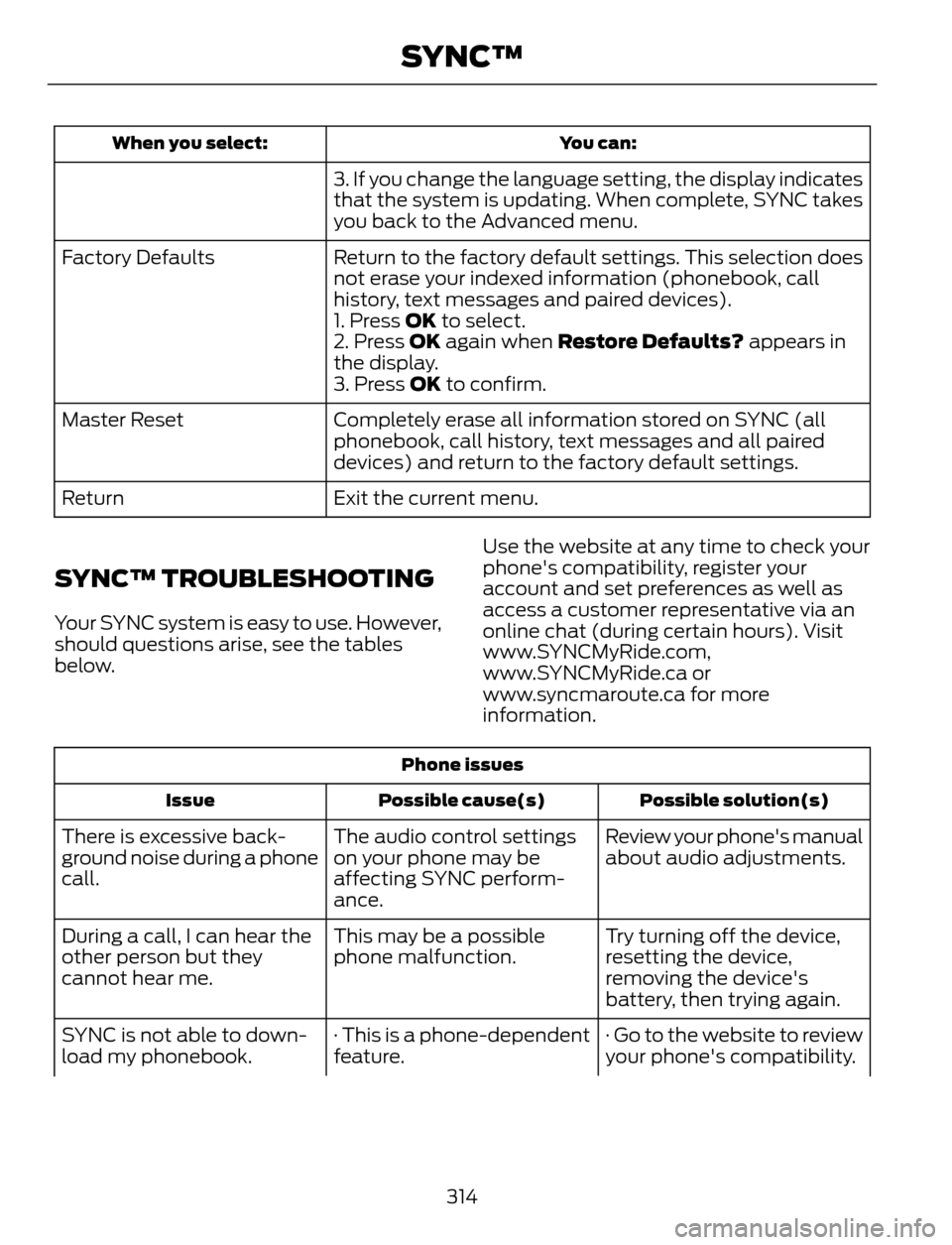
You can: When you select:
3. If you change the language setting, the display indicates
that the system is updating. When complete, SYNC takes
you back to the Advanced menu.
Return to the factory default settings. This selection does
not erase your indexed information (phonebook, call
history, text messages and paired devices). Factory Defaults
1. Press OK to select.
2. Press OK again when Restore Defaults? appears in
the display.
3. Press OK to confirm.
Completely erase all information stored on SYNC (all
phonebook, call history, text messages and all paired
devices) and return to the factory default settings. Master Reset
Exit the current menu. Return
SYNC™ TROUBLESHOOTING
Your SYNC system is easy to use. However,
should questions arise, see the tables
below.Use the website at any time to check your
phone's compatibility, register your
account and set preferences as well as
access a customer representative via an
online chat (during certain hours). Visit
www.SYNCMyRide.com,
www.SYNCMyRide.ca or
www.syncmaroute.ca for more
information.
Phone issues
Possible solution(s) Possible cause(s) Issue
Review your phone's manual
about audio adjustments. The audio control settings
on your phone may be
affecting SYNC perform-
ance. There is excessive back-
ground noise during a phone
call.
Try turning off the device,
resetting the device,
removing the device's
battery, then trying again. This may be a possible
phone malfunction. During a call, I can hear the
other person but they
cannot hear me.
· Go to the website to review
your phone's compatibility. · This is a phone-dependent
feature. SYNC is not able to down-
load my phonebook.
314
SYNC™
Page 318 of 428
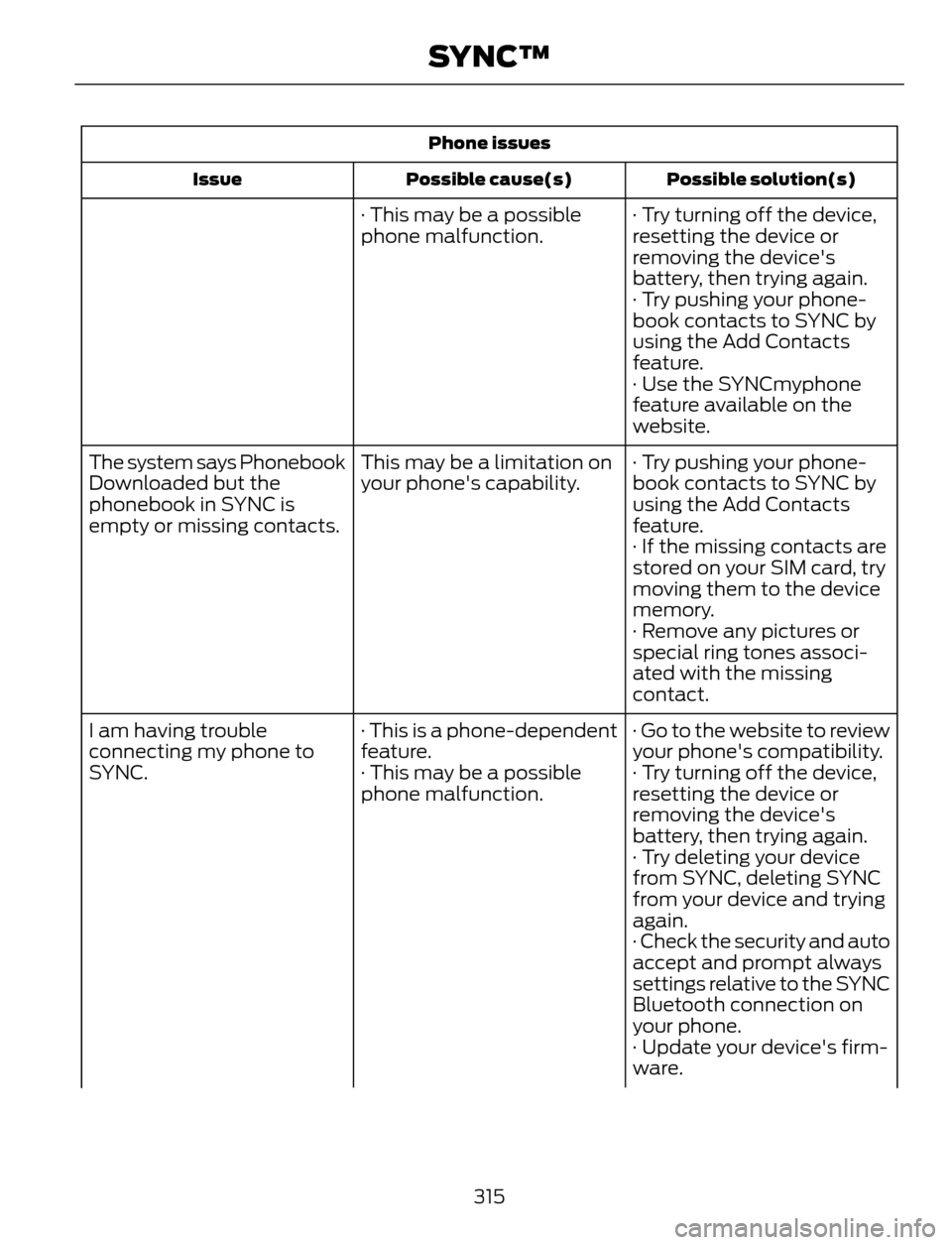
Phone issues
Possible solution(s) Possible cause(s) Issue
· Try turning off the device,
resetting the device or
removing the device's
battery, then trying again. · This may be a possible
phone malfunction.
· Try pushing your phone-
book contacts to SYNC by
using the Add Contacts
feature.
· Use the SYNCmyphone
feature available on the
website.
· Try pushing your phone-
book contacts to SYNC by
using the Add Contacts
feature. This may be a limitation on
your phone's capability. The system says Phonebook
Downloaded but the
phonebook in SYNC is
empty or missing contacts.
· If the missing contacts are
stored on your SIM card, try
moving them to the device
memory.
· Remove any pictures or
special ring tones associ-
ated with the missing
contact.
· Go to the website to review
your phone's compatibility. · This is a phone-dependent
feature. I am having trouble
connecting my phone to
SYNC. · Try turning off the device,
resetting the device or
removing the device's
battery, then trying again. · This may be a possible
phone malfunction.
· Try deleting your device
from SYNC, deleting SYNC
from your device and trying
again.
· Check the security and auto
accept and prompt always
settings relative to the SYNC
Bluetooth connection on
your phone.
· Update your device's firm-
ware.
315
SYNC™
Page 319 of 428
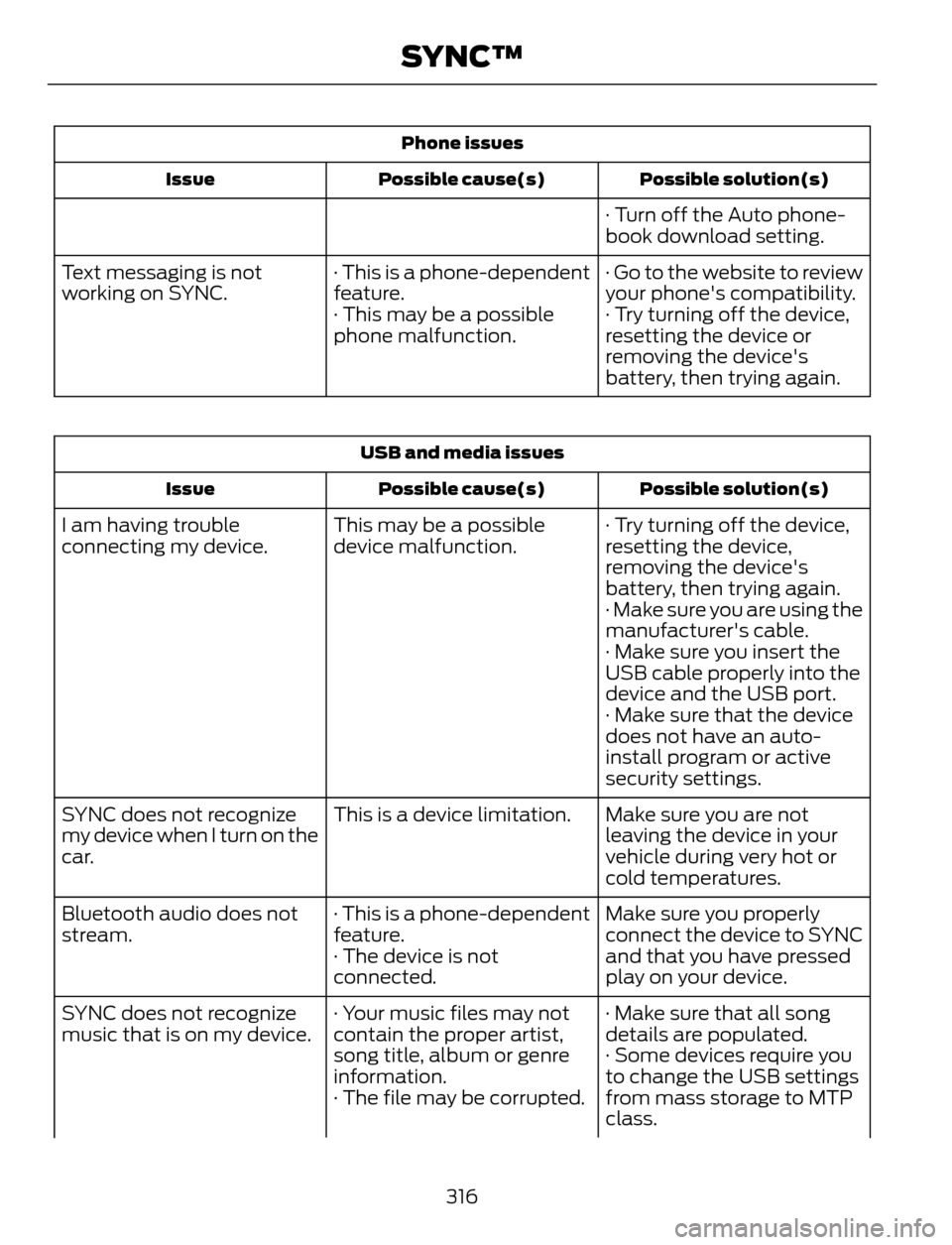
Phone issues
Possible solution(s) Possible cause(s) Issue
· Turn off the Auto phone-
book download setting.
· Go to the website to review
your phone's compatibility. · This is a phone-dependent
feature. Text messaging is not
working on SYNC.
· Try turning off the device,
resetting the device or
removing the device's
battery, then trying again. · This may be a possible
phone malfunction.
USB and media issues
Possible solution(s) Possible cause(s) Issue
· Try turning off the device,
resetting the device,
removing the device's
battery, then trying again. This may be a possible
device malfunction. I am having trouble
connecting my device.
· Make sure you are using the
manufacturer's cable.
· Make sure you insert the
USB cable properly into the
device and the USB port.
· Make sure that the device
does not have an auto-
install program or active
security settings.
Make sure you are not
leaving the device in your
vehicle during very hot or
cold temperatures. This is a device limitation. SYNC does not recognize
my device when I turn on the
car.
Make sure you properly
connect the device to SYNC
and that you have pressed
play on your device. · This is a phone-dependent
feature.
· The device is not
connected. Bluetooth audio does not
stream.
· Make sure that all song
details are populated. · Your music files may not
contain the proper artist,
song title, album or genre
information. SYNC does not recognize
music that is on my device.
· Some devices require you
to change the USB settings
from mass storage to MTP
class. · The file may be corrupted.
316
SYNC™
Page 323 of 428
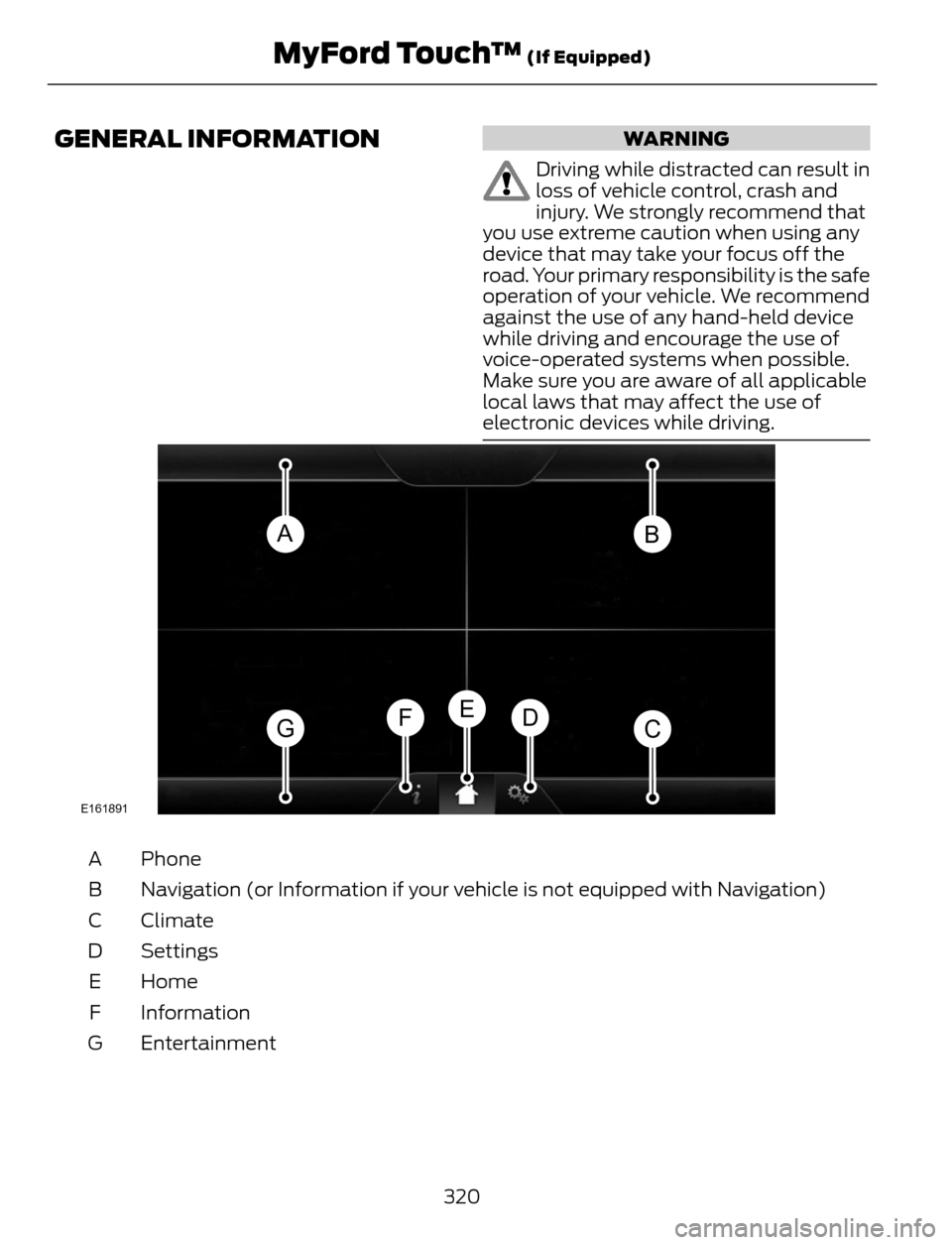
GENERAL INFORMATIONWARNING
Driving while distracted can result in
loss of vehicle control, crash and
injury. We strongly recommend that
you use extreme caution when using any
device that may take your focus off the
road. Your primary responsibility is the safe
operation of your vehicle. We recommend
against the use of any hand-held device
while driving and encourage the use of
voice-operated systems when possible.
Make sure you are aware of all applicable
local laws that may affect the use of
electronic devices while driving.
AB
GCDFE
E161891
Phone A
Navigation (or Information if your vehicle is not equipped with Navigation) B
Climate C
Settings D
Home E
Information F
Entertainment G
320
MyFord Touch™ (If Equipped)