syn phone FORD ESCAPE 2014 3.G Owner's Guide
[x] Cancel search | Manufacturer: FORD, Model Year: 2014, Model line: ESCAPE, Model: FORD ESCAPE 2014 3.GPages: 428, PDF Size: 16.6 MB
Page 317 of 428
You can: When you select:
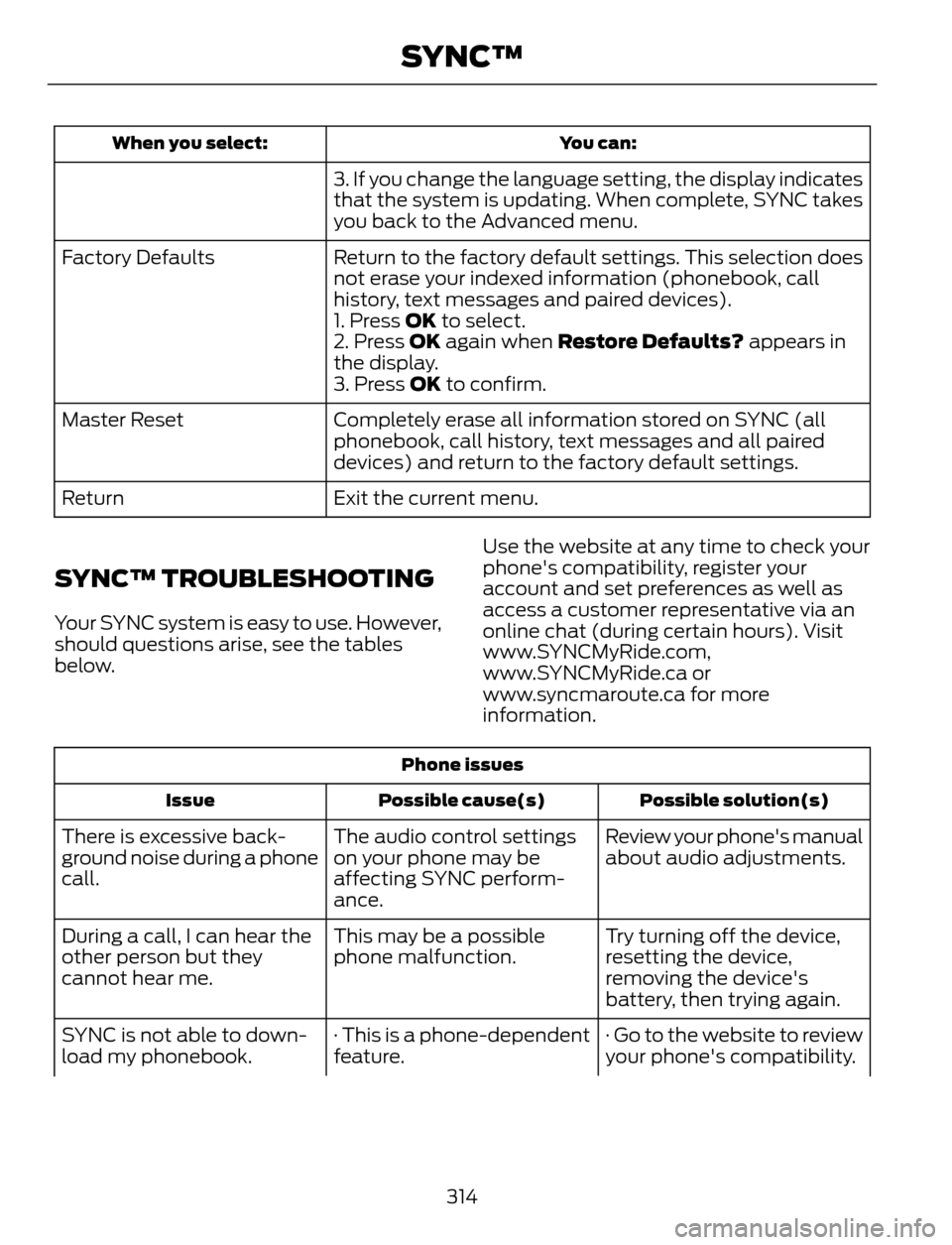
3. If you change the language setting, the display indicates
that the system is updating. When complete, SYNC takes
you back to the Advanced menu.
Return to the factory default settings. This selection does
not erase your indexed information (phonebook, call
history, text messages and paired devices). Factory Defaults
1. Press OK to select.
2. Press OK again when Restore Defaults? appears in
the display.
3. Press OK to confirm.
Completely erase all information stored on SYNC (all
phonebook, call history, text messages and all paired
devices) and return to the factory default settings. Master Reset
Exit the current menu. Return
SYNC™ TROUBLESHOOTING
Your SYNC system is easy to use. However,
should questions arise, see the tables
below.Use the website at any time to check your
phone's compatibility, register your
account and set preferences as well as
access a customer representative via an
online chat (during certain hours). Visit
www.SYNCMyRide.com,
www.SYNCMyRide.ca or
www.syncmaroute.ca for more
information.
Phone issues
Possible solution(s) Possible cause(s) Issue
Review your phone's manual
about audio adjustments. The audio control settings
on your phone may be
affecting SYNC perform-
ance. There is excessive back-
ground noise during a phone
call.
Try turning off the device,
resetting the device,
removing the device's
battery, then trying again. This may be a possible
phone malfunction. During a call, I can hear the
other person but they
cannot hear me.
· Go to the website to review
your phone's compatibility. · This is a phone-dependent
feature. SYNC is not able to down-
load my phonebook.
314
SYNC™
Page 318 of 428
Phone issues
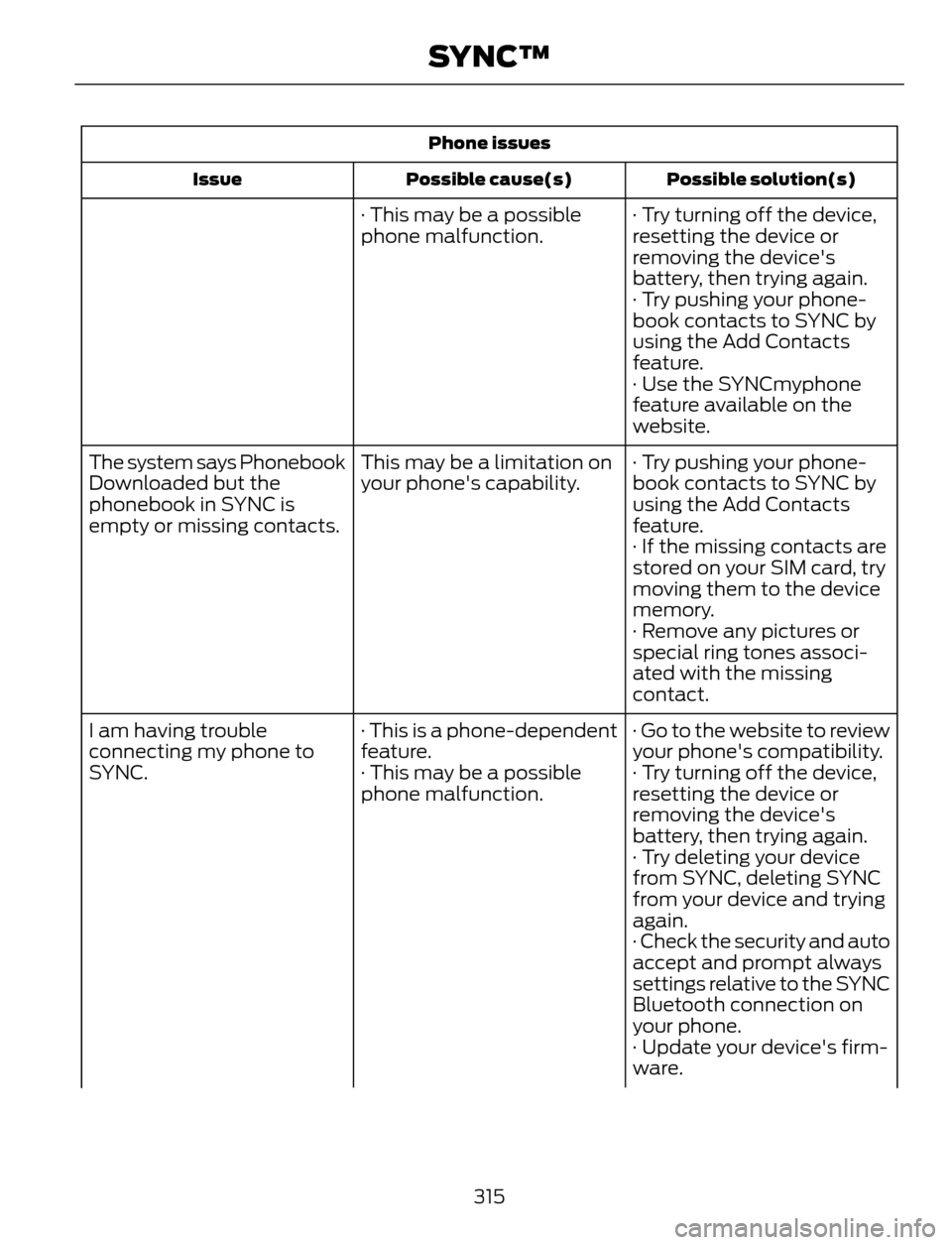
Possible solution(s) Possible cause(s) Issue
· Try turning off the device,
resetting the device or
removing the device's
battery, then trying again. · This may be a possible
phone malfunction.
· Try pushing your phone-
book contacts to SYNC by
using the Add Contacts
feature.
· Use the SYNCmyphone
feature available on the
website.
· Try pushing your phone-
book contacts to SYNC by
using the Add Contacts
feature. This may be a limitation on
your phone's capability. The system says Phonebook
Downloaded but the
phonebook in SYNC is
empty or missing contacts.
· If the missing contacts are
stored on your SIM card, try
moving them to the device
memory.
· Remove any pictures or
special ring tones associ-
ated with the missing
contact.
· Go to the website to review
your phone's compatibility. · This is a phone-dependent
feature. I am having trouble
connecting my phone to
SYNC. · Try turning off the device,
resetting the device or
removing the device's
battery, then trying again. · This may be a possible
phone malfunction.
· Try deleting your device
from SYNC, deleting SYNC
from your device and trying
again.
· Check the security and auto
accept and prompt always
settings relative to the SYNC
Bluetooth connection on
your phone.
· Update your device's firm-
ware.
315
SYNC™
Page 319 of 428
Phone issues
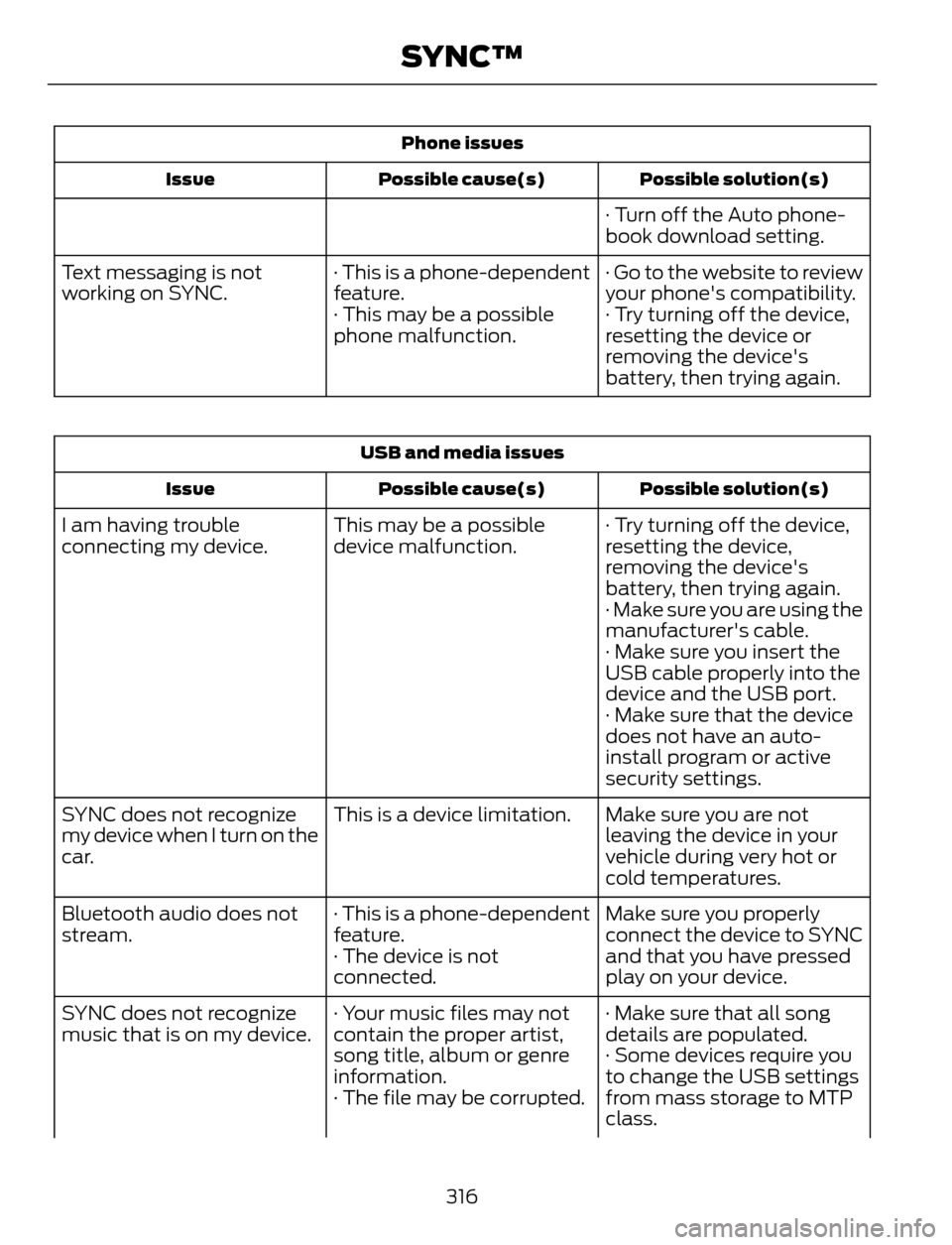
Possible solution(s) Possible cause(s) Issue
· Turn off the Auto phone-
book download setting.
· Go to the website to review
your phone's compatibility. · This is a phone-dependent
feature. Text messaging is not
working on SYNC.
· Try turning off the device,
resetting the device or
removing the device's
battery, then trying again. · This may be a possible
phone malfunction.
USB and media issues
Possible solution(s) Possible cause(s) Issue
· Try turning off the device,
resetting the device,
removing the device's
battery, then trying again. This may be a possible
device malfunction. I am having trouble
connecting my device.
· Make sure you are using the
manufacturer's cable.
· Make sure you insert the
USB cable properly into the
device and the USB port.
· Make sure that the device
does not have an auto-
install program or active
security settings.
Make sure you are not
leaving the device in your
vehicle during very hot or
cold temperatures. This is a device limitation. SYNC does not recognize
my device when I turn on the
car.
Make sure you properly
connect the device to SYNC
and that you have pressed
play on your device. · This is a phone-dependent
feature.
· The device is not
connected. Bluetooth audio does not
stream.
· Make sure that all song
details are populated. · Your music files may not
contain the proper artist,
song title, album or genre
information. SYNC does not recognize
music that is on my device.
· Some devices require you
to change the USB settings
from mass storage to MTP
class. · The file may be corrupted.
316
SYNC™
Page 320 of 428
USB and media issues
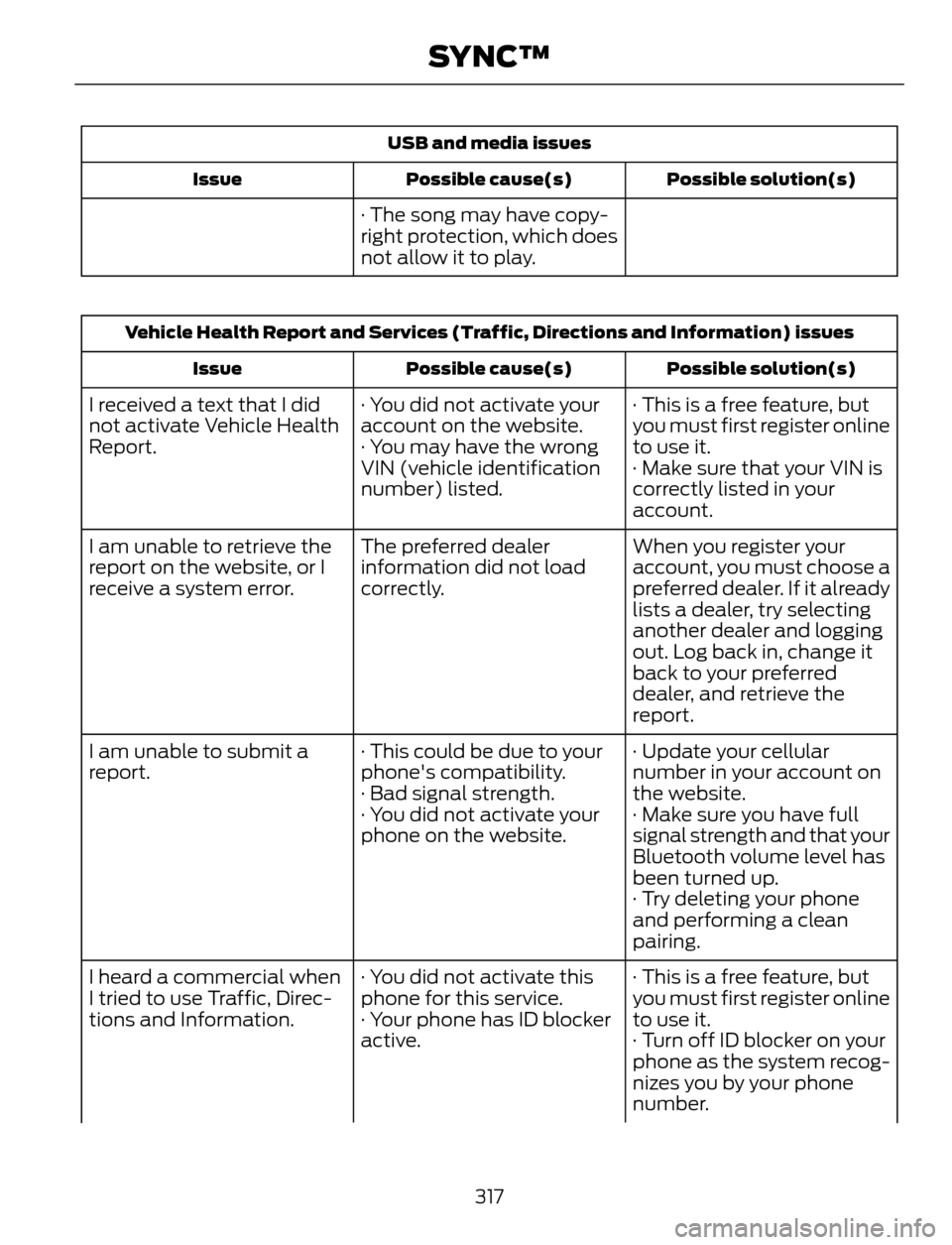
Possible solution(s) Possible cause(s) Issue
· The song may have copy-
right protection, which does
not allow it to play.
Vehicle Health Report and Services (Traffic, Directions and Information) issues
Possible solution(s) Possible cause(s) Issue
· This is a free feature, but
you must first register online
to use it. · You did not activate your
account on the website.
· You may have the wrong
VIN (vehicle identification
number) listed. I received a text that I did
not activate Vehicle Health
Report.
· Make sure that your VIN is
correctly listed in your
account.
When you register your
account, you must choose a
preferred dealer. If it already
lists a dealer, try selecting
another dealer and logging
out. Log back in, change it
back to your preferred
dealer, and retrieve the
report. The preferred dealer
information did not load
correctly. I am unable to retrieve the
report on the website, or I
receive a system error.
· Update your cellular
number in your account on
the website. · This could be due to your
phone's compatibility.
· Bad signal strength. I am unable to submit a
report.
· Make sure you have full
signal strength and that your
Bluetooth volume level has
been turned up. · You did not activate your
phone on the website.
· Try deleting your phone
and performing a clean
pairing.
· This is a free feature, but
you must first register online
to use it. · You did not activate this
phone for this service.
· Your phone has ID blocker
active. I heard a commercial when
I tried to use Traffic, Direc-
tions and Information.
· Turn off ID blocker on your
phone as the system recog-
nizes you by your phone
number.
317
SYNC™
Page 321 of 428
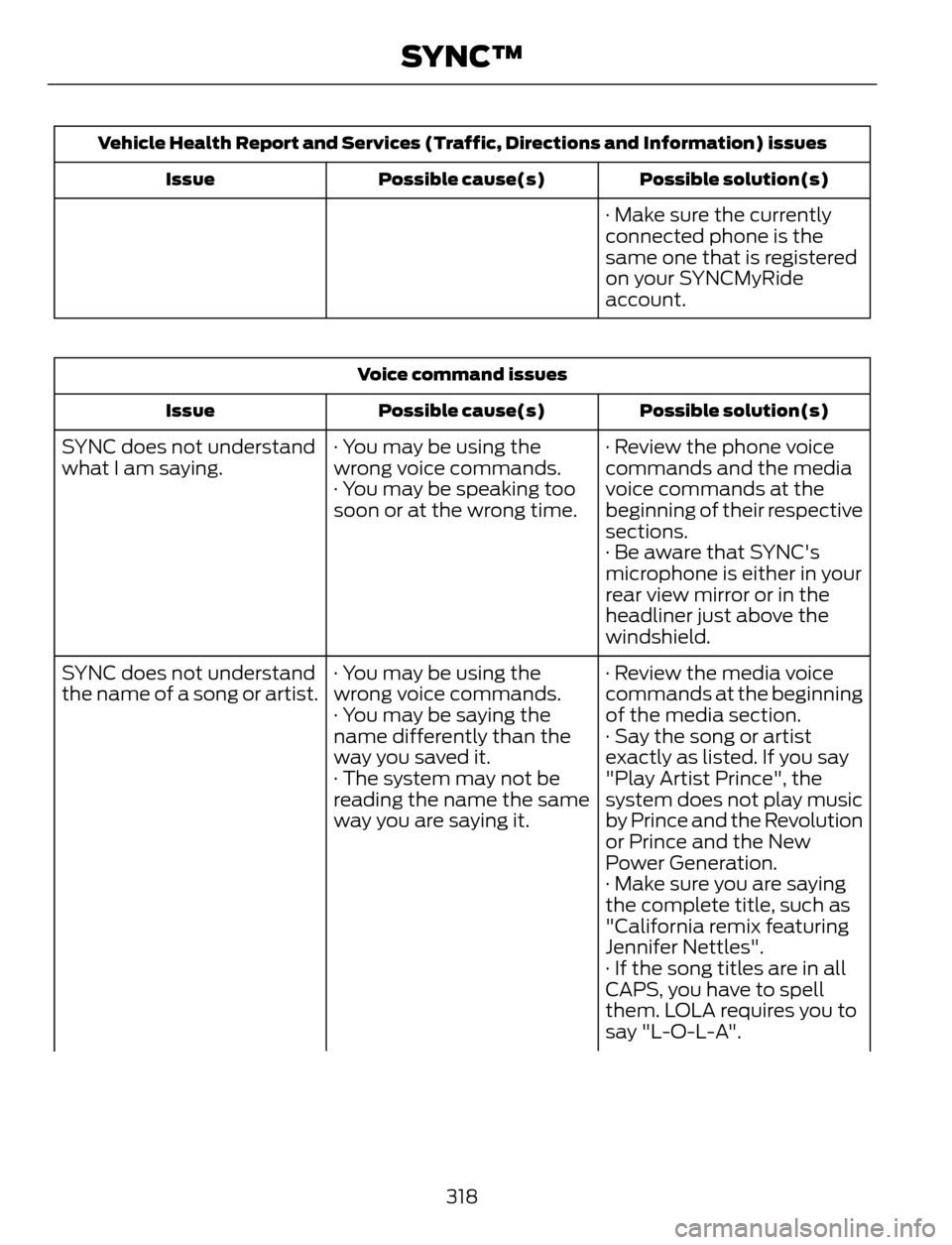
Vehicle Health Report and Services (Traffic, Directions and Information) issues
Possible solution(s) Possible cause(s) Issue
· Make sure the currently
connected phone is the
same one that is registered
on your SYNCMyRide
account.
Voice command issues
Possible solution(s) Possible cause(s) Issue
· Review the phone voice
commands and the media
voice commands at the
beginning of their respective
sections. · You may be using the
wrong voice commands.
· You may be speaking too
soon or at the wrong time. SYNC does not understand
what I am saying.
· Be aware that SYNC's
microphone is either in your
rear view mirror or in the
headliner just above the
windshield.
· Review the media voice
commands at the beginning
of the media section. · You may be using the
wrong voice commands.
· You may be saying the
name differently than the
way you saved it. SYNC does not understand
the name of a song or artist.
· Say the song or artist
exactly as listed. If you say
"Play Artist Prince", the
system does not play music
by Prince and the Revolution
or Prince and the New
Power Generation. · The system may not be
reading the name the same
way you are saying it.
· Make sure you are saying
the complete title, such as
"California remix featuring
Jennifer Nettles".
· If the song titles are in all
CAPS, you have to spell
them. LOLA requires you to
say "L-O-L-A".
318
SYNC™
Page 322 of 428
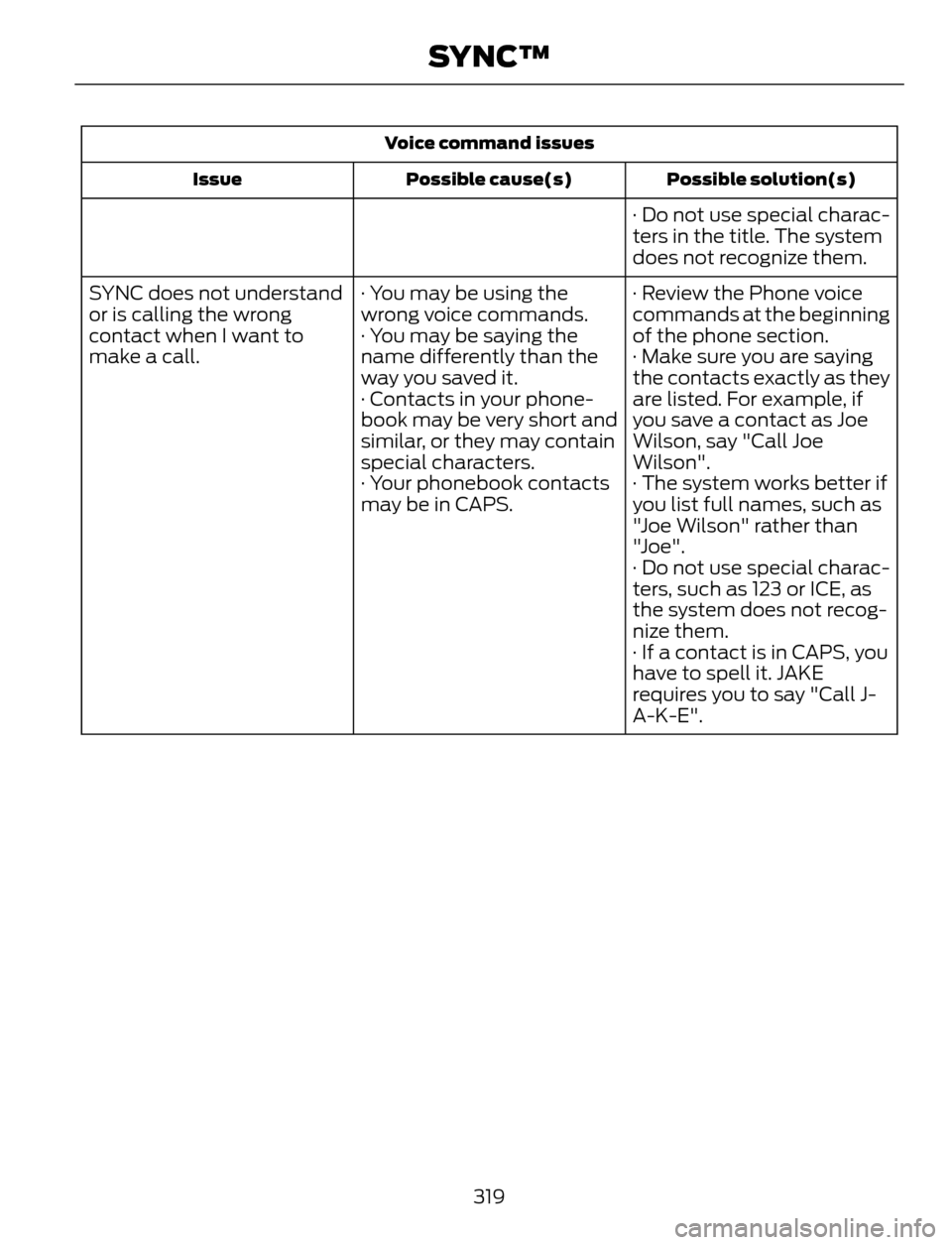
Voice command issues
Possible solution(s) Possible cause(s) Issue
· Do not use special charac-
ters in the title. The system
does not recognize them.
· Review the Phone voice
commands at the beginning
of the phone section. · You may be using the
wrong voice commands.
· You may be saying the
name differently than the
way you saved it. SYNC does not understand
or is calling the wrong
contact when I want to
make a call. · Make sure you are saying
the contacts exactly as they
are listed. For example, if
you save a contact as Joe
Wilson, say "Call Joe
Wilson". · Contacts in your phone-
book may be very short and
similar, or they may contain
special characters.
· The system works better if
you list full names, such as
"Joe Wilson" rather than
"Joe". · Your phonebook contacts
may be in CAPS.
· Do not use special charac-
ters, such as 123 or ICE, as
the system does not recog-
nize them.
· If a contact is in CAPS, you
have to spell it. JAKE
requires you to say "Call J-
A-K-E".
319
SYNC™
Page 326 of 428
Safety Information
WARNING
Driving while distracted can result in
loss of vehicle control, crash and
injury. We strongly recommend that
you use extreme caution when using any
device that may take your focus off the
road. Your primary responsibility is the safe
operation of your vehicle. We recommend
against the use of any hand-held device
while driving and encourage the use of
voice-operated systems when possible.
Make sure you are aware of all applicable
local laws that may affect the use of
electronic devices while driving.
• Do not attempt to service or repair the
system. See an authorized dealer.
• Do not operate playing devices if the
power cords or cables are broken, split
or damaged. Place cords and cables
out of the way, so they do not interfere
with the operation of pedals, seats,
compartments or safe driving abilities.• Do not leave playing devices in your
vehicle during extreme conditions as it
could cause them damage. See your
device's user guide for further
information.
• For your safety, some SYNC functions
are speed-dependent. Their use is
limited to when your vehicle is traveling
at speeds under 3 mph (5 km/h).
Make sure that you review your device's
manual before using it with SYNC.
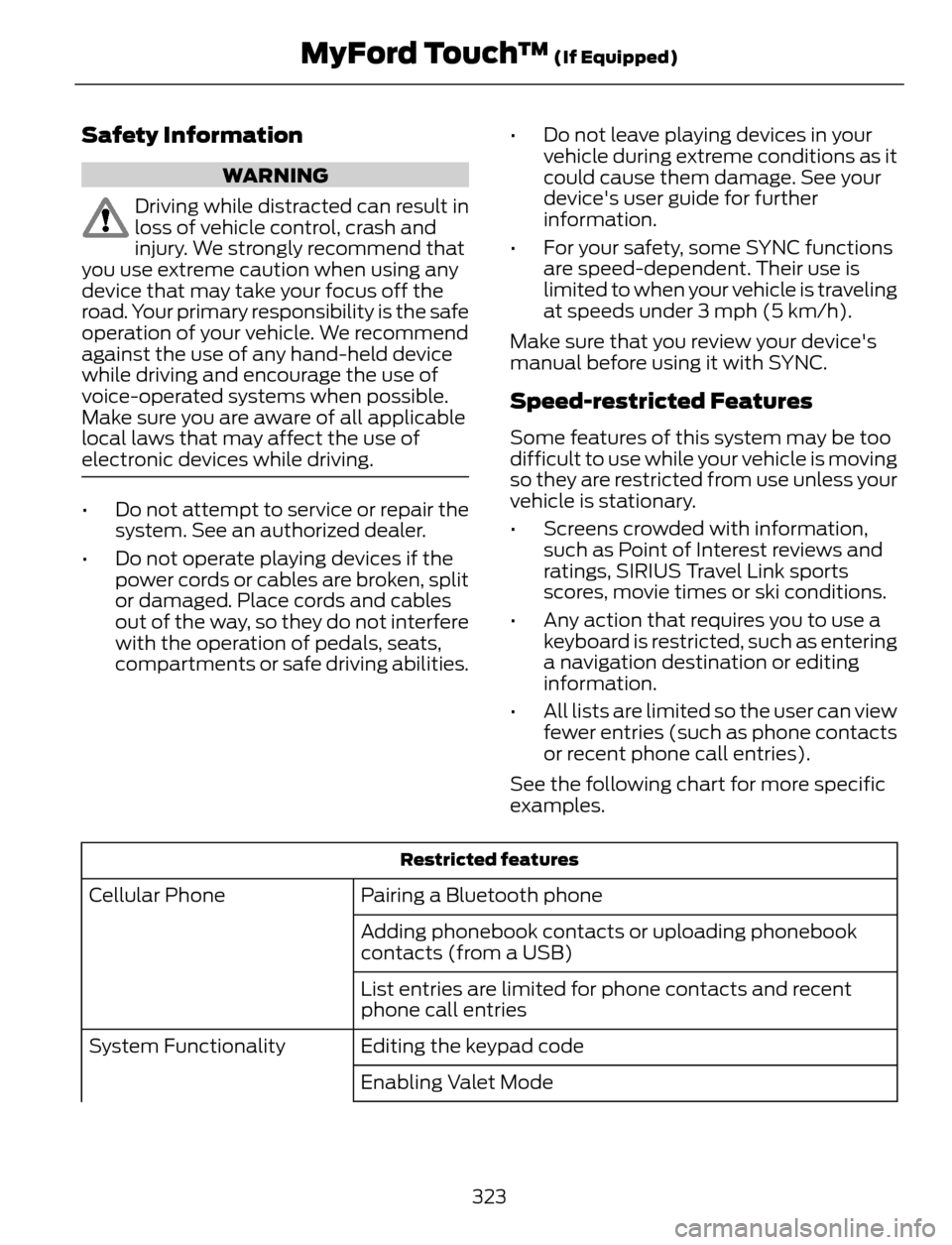
Speed-restricted Features
Some features of this system may be too
difficult to use while your vehicle is moving
so they are restricted from use unless your
vehicle is stationary.
• Screens crowded with information,
such as Point of Interest reviews and
ratings, SIRIUS Travel Link sports
scores, movie times or ski conditions.
• Any action that requires you to use a
keyboard is restricted, such as entering
a navigation destination or editing
information.
• All lists are limited so the user can view
fewer entries (such as phone contacts
or recent phone call entries).
See the following chart for more specific
examples.
Restricted features
Pairing a Bluetooth phone Cellular Phone
Adding phonebook contacts or uploading phonebook
contacts (from a USB)
List entries are limited for phone contacts and recent
phone call entries
Editing the keypad code System Functionality
Enabling Valet Mode
323
MyFord Touch™ (If Equipped)
Page 327 of 428
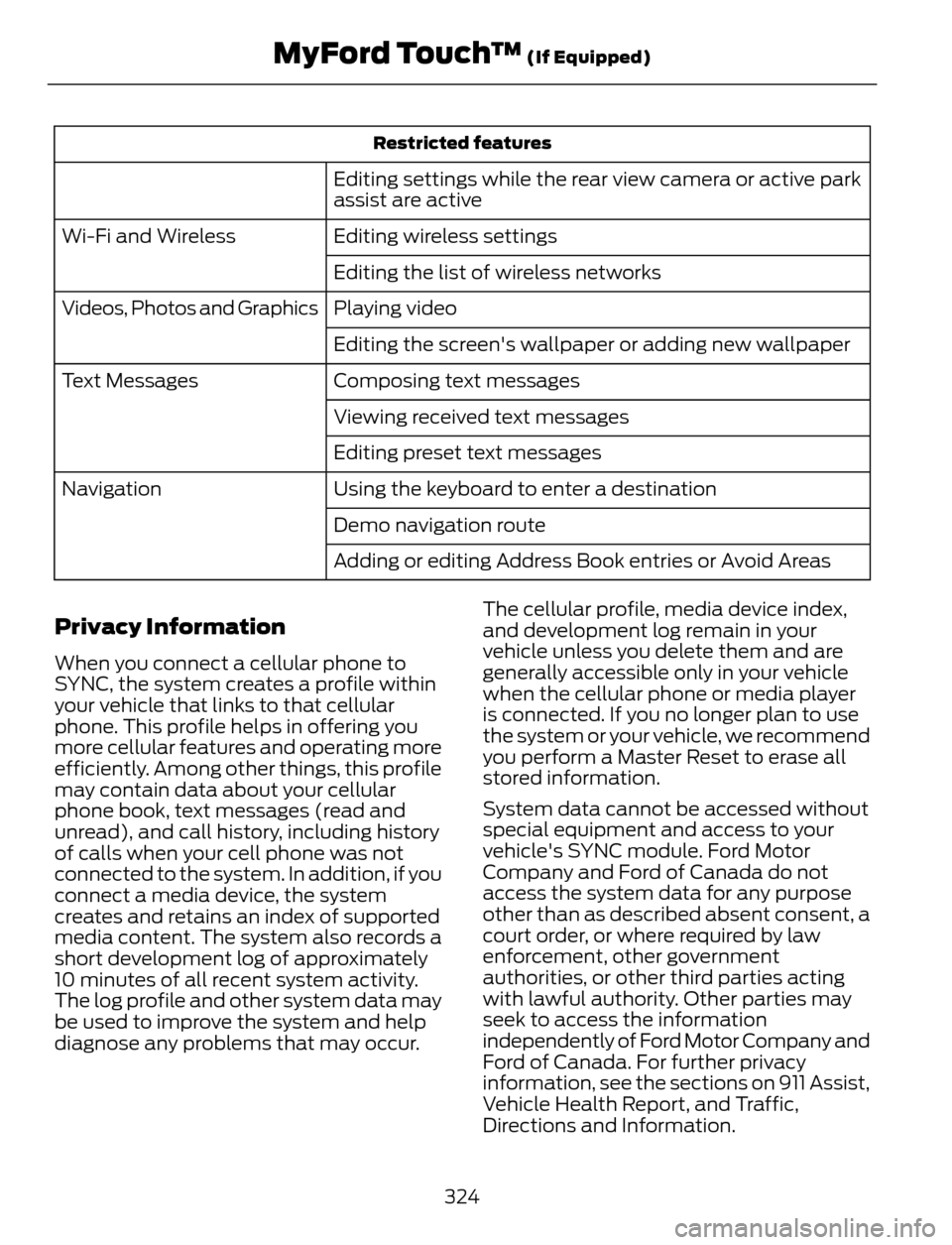
Restricted features
Editing settings while the rear view camera or active park
assist are active
Editing wireless settings Wi-Fi and Wireless
Editing the list of wireless networks
Playing video Videos, Photos and Graphics
Editing the screen's wallpaper or adding new wallpaper
Composing text messages Text Messages
Viewing received text messages
Editing preset text messages
Using the keyboard to enter a destination Navigation
Demo navigation route
Adding or editing Address Book entries or Avoid Areas
Privacy Information
When you connect a cellular phone to
SYNC, the system creates a profile within
your vehicle that links to that cellular
phone. This profile helps in offering you
more cellular features and operating more
efficiently. Among other things, this profile
may contain data about your cellular
phone book, text messages (read and
unread), and call history, including history
of calls when your cell phone was not
connected to the system. In addition, if you
connect a media device, the system
creates and retains an index of supported
media content. The system also records a
short development log of approximately
10 minutes of all recent system activity.
The log profile and other system data may
be used to improve the system and help
diagnose any problems that may occur.The cellular profile, media device index,
and development log remain in your
vehicle unless you delete them and are
generally accessible only in your vehicle
when the cellular phone or media player
is connected. If you no longer plan to use
the system or your vehicle, we recommend
you perform a Master Reset to erase all
stored information.
System data cannot be accessed without
special equipment and access to your
vehicle's SYNC module. Ford Motor
Company and Ford of Canada do not
access the system data for any purpose
other than as described absent consent, a
court order, or where required by law
enforcement, other government
authorities, or other third parties acting
with lawful authority. Other parties may
seek to access the information
independently of Ford Motor Company and
Ford of Canada. For further privacy
information, see the sections on 911 Assist,
Vehicle Health Report, and Traffic,
Directions and Information.
324
MyFord Touch™ (If Equipped)
Page 337 of 428
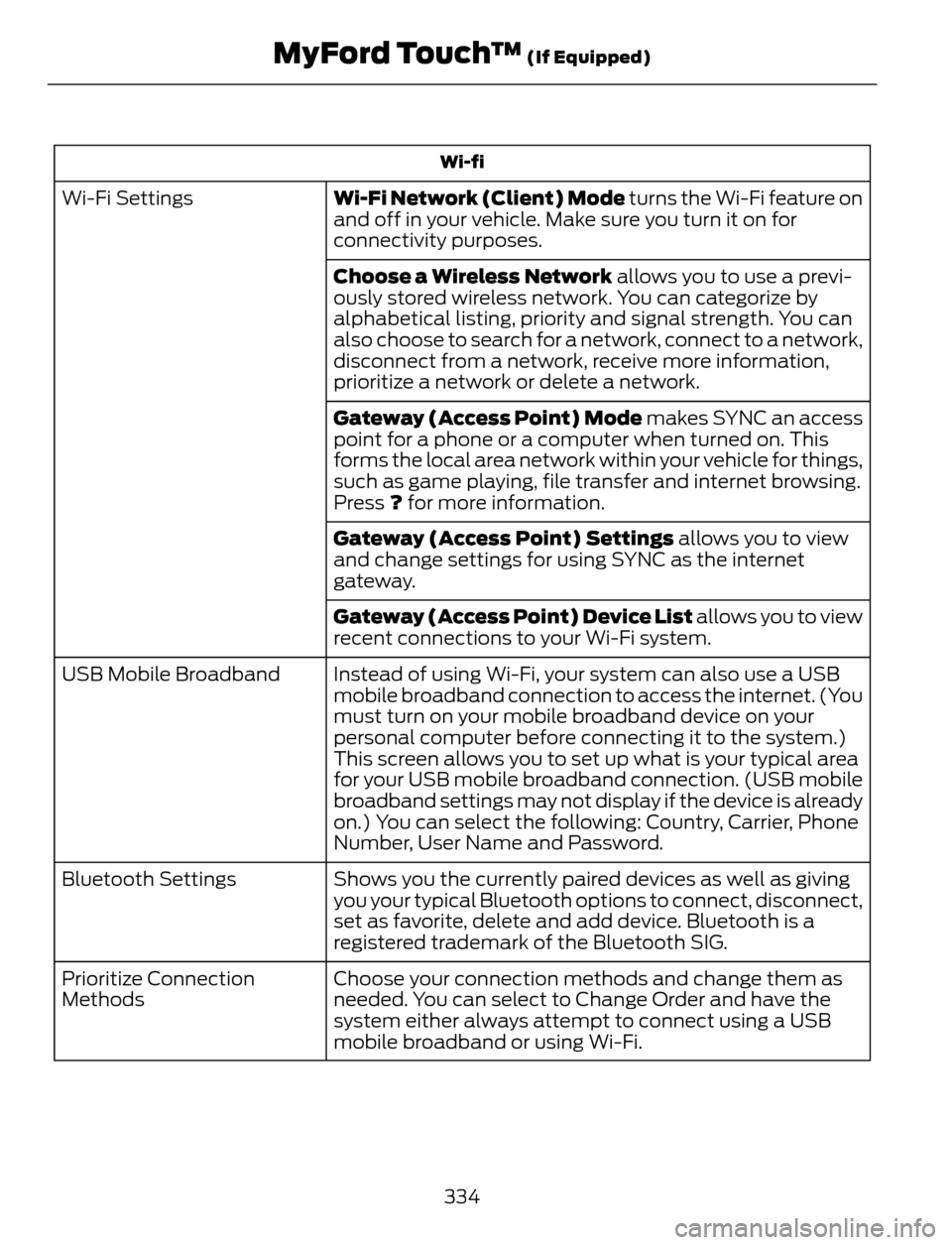
Wi-fi
Wi-Fi Network (Client) Mode turns the Wi-Fi feature on
and off in your vehicle. Make sure you turn it on for
connectivity purposes. Wi-Fi Settings
Choose a Wireless Network allows you to use a previ-
ously stored wireless network. You can categorize by
alphabetical listing, priority and signal strength. You can
also choose to search for a network, connect to a network,
disconnect from a network, receive more information,
prioritize a network or delete a network.
Gateway (Access Point) Mode makes SYNC an access
point for a phone or a computer when turned on. This
forms the local area network within your vehicle for things,
such as game playing, file transfer and internet browsing.
Press ? for more information.
Gateway (Access Point) Settings allows you to view
and change settings for using SYNC as the internet
gateway.
Gateway (Access Point) Device List allows you to view
recent connections to your Wi-Fi system.
Instead of using Wi-Fi, your system can also use a USB
mobile broadband connection to access the internet. (You
must turn on your mobile broadband device on your
personal computer before connecting it to the system.)
This screen allows you to set up what is your typical area
for your USB mobile broadband connection. (USB mobile
broadband settings may not display if the device is already
on.) You can select the following: Country, Carrier, Phone
Number, User Name and Password. USB Mobile Broadband
Shows you the currently paired devices as well as giving
you your typical Bluetooth options to connect, disconnect,
set as favorite, delete and add device. Bluetooth is a
registered trademark of the Bluetooth SIG. Bluetooth Settings
Choose your connection methods and change them as
needed. You can select to Change Order and have the
system either always attempt to connect using a USB
mobile broadband or using Wi-Fi. Prioritize Connection
Methods
334
MyFord Touch™ (If Equipped)
Page 354 of 428
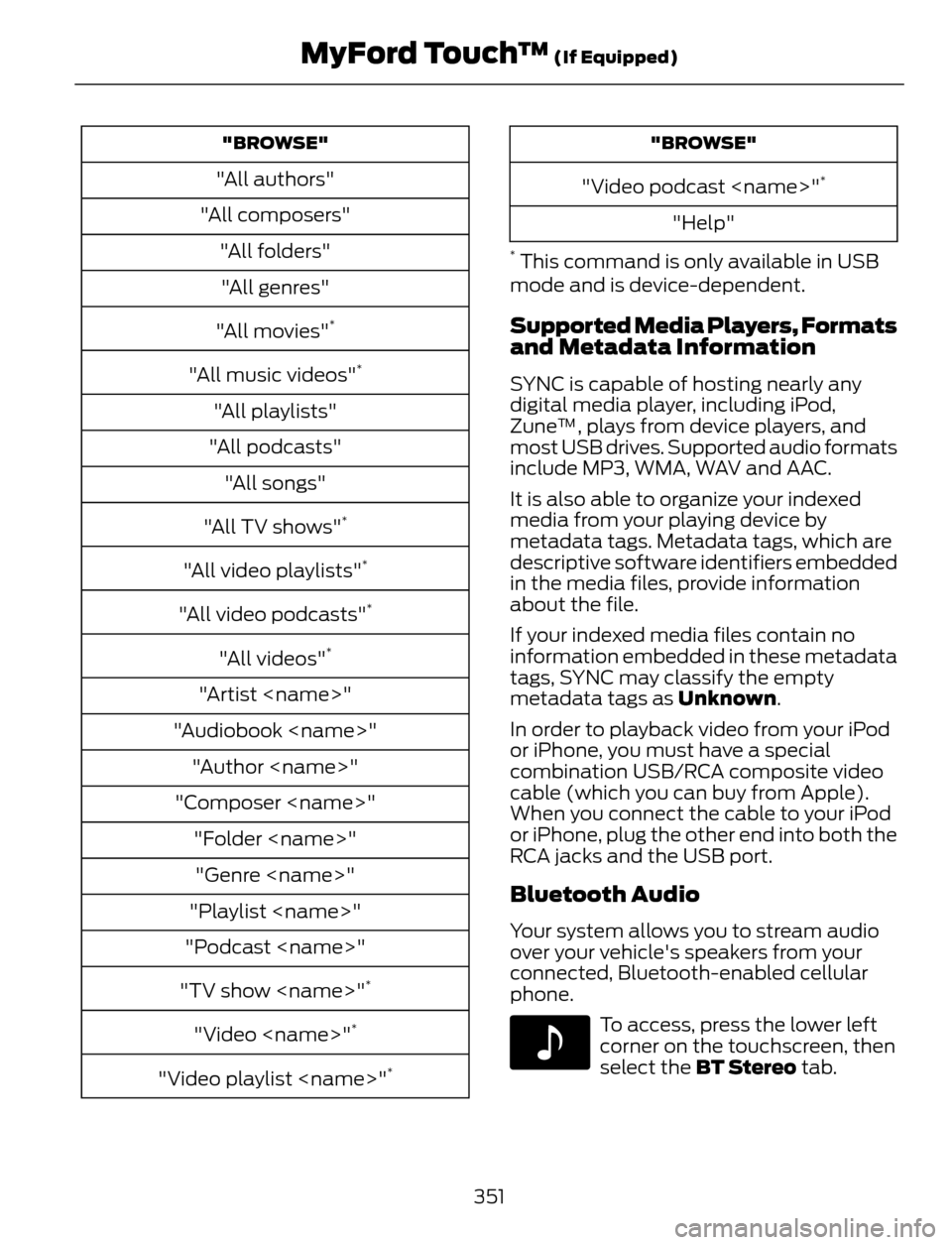
"BROWSE"
"All authors"
"All composers"
"All folders"
"All genres"
"All movies"
*
"All music videos"*
"All playlists"
"All podcasts"
"All songs"
"All TV shows"
*
"All video playlists"*
"All video podcasts"*
"All videos"*
"Artist
"Audiobook
"Author
"Composer
"Folder
"Genre
"Playlist
"Podcast
"TV show
*
"Video
"Video playlist
"BROWSE"
"Video podcast
"Help"
* This command is only available in USB
mode and is device-dependent.
Supported Media Players, Formats
and Metadata Information
SYNC is capable of hosting nearly any
digital media player, including iPod,
Zune™, plays from device players, and
most USB drives. Supported audio formats
include MP3, WMA, WAV and AAC.
It is also able to organize your indexed
media from your playing device by
metadata tags. Metadata tags, which are
descriptive software identifiers embedded
in the media files, provide information
about the file.
If your indexed media files contain no
information embedded in these metadata
tags, SYNC may classify the empty
metadata tags as Unknown.
In order to playback video from your iPod
or iPhone, you must have a special
combination USB/RCA composite video
cable (which you can buy from Apple).
When you connect the cable to your iPod
or iPhone, plug the other end into both the
RCA jacks and the USB port.
Bluetooth Audio
Your system allows you to stream audio
over your vehicle's speakers from your
connected, Bluetooth-enabled cellular
phone.
E142611
To access, press the lower left
corner on the touchscreen, then
select the BT Stereo tab.
351
MyFord Touch™ (If Equipped)