steering FORD ESCAPE 2014 3.G Workshop Manual
[x] Cancel search | Manufacturer: FORD, Model Year: 2014, Model line: ESCAPE, Model: FORD ESCAPE 2014 3.GPages: 428, PDF Size: 16.6 MB
Page 355 of 428
Bluetooth Audio Voice Commands
E142599
If you are listening to a Bluetooth
audio device, press the voice
button on the steering wheel
control. When prompted, say "Next song",
"Pause", "Play" or "Previous song".
If you are not listening to a Bluetooth audio
device, press the voice button and, after
the tone, say "Next song", "Pause", "Play"
or "Previous song".
A/V Inputs
WARNINGS
Driving while distracted can result in
loss of vehicle control, crash and
injury. We strongly recommend that
you use extreme caution when using any
device that may take your focus off the
road. Your primary responsibility is the safe
operation of your vehicle. We recommend
against the use of any handheld device
while driving and encourage the use of
voice-operated systems when possible.
Make sure you are aware of all applicable
local laws that may affect the use of
electronic devices while driving.
For safety reasons, do not connect
or adjust the settings on your
portable music player while your
vehicle is moving.
Store the portable music player in a
secure location, such as the center
console or the glove box, when your
vehicle is moving. Hard objects may
become projectiles in a crash or sudden
stop, which may increase the risk of serious
injury. The audio extension cable must be
long enough to allow the portable music
player to be safely stored while your
vehicle is moving.
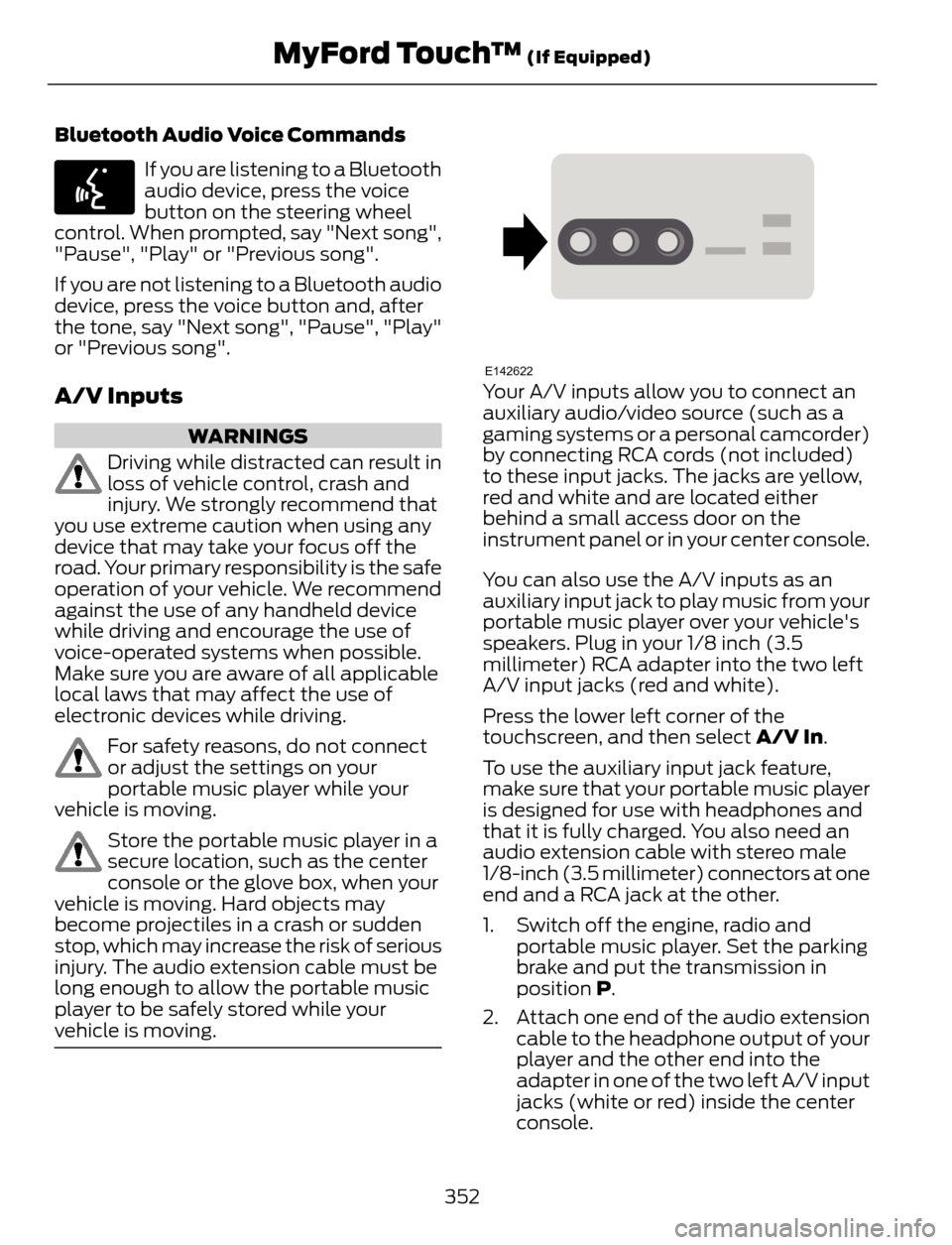
E142622Your A/V inputs allow you to connect an
auxiliary audio/video source (such as a
gaming systems or a personal camcorder)
by connecting RCA cords (not included)
to these input jacks. The jacks are yellow,
red and white and are located either
behind a small access door on the
instrument panel or in your center console.
You can also use the A/V inputs as an
auxiliary input jack to play music from your
portable music player over your vehicle's
speakers. Plug in your 1/8 inch (3.5
millimeter) RCA adapter into the two left
A/V input jacks (red and white).
Press the lower left corner of the
touchscreen, and then select A/V In.
To use the auxiliary input jack feature,
make sure that your portable music player
is designed for use with headphones and
that it is fully charged. You also need an
audio extension cable with stereo male
1/8-inch (3.5 millimeter) connectors at one
end and a RCA jack at the other.
1. Switch off the engine, radio and
portable music player. Set the parking
brake and put the transmission in
position P.
2. Attach one end of the audio extension
cable to the headphone output of your
player and the other end into the
adapter in one of the two left A/V input
jacks (white or red) inside the center
console.
352
MyFord Touch™ (If Equipped)
Page 358 of 428
Note:Select SYNC, and a six-digit PIN
appears on your device.
3. If prompted to enter a PIN on your
device, it does not support Secure
Simple Pairing. To pair, enter the PIN
displayed on the touchscreen. Skip the
next step.
4. When prompted on your phone’s
display, confirm that the PIN provided
by SYNC matches the PIN displayed
on your cellular phone.
5. The display indicates when the pairing
is successful.
SYNC may prompt you with more phone
options. For more information on your
phone's capability, see your phone's
manual and visit the website.
Pairing Subsequent Phones
Note:Put the transmission in position P.
Turn on your vehicle ignition and the radio.
1. Press the Phone corner of the
touchscreen > Settings > BT Devices
> Add Device.
2. Make sure that Bluetooth is set to On
and that your cellular phone is in the
proper mode. See your phone’s manual
if necessary.
Note:Select SYNC, and a six-digit PIN
appears on your device.
3. If prompted to enter a PIN on your
device, it does not support Secure
Simple Pairing. To pair, enter the PIN
displayed on the touchscreen. Skip the
next step.
4. When prompted on your phone’s
display, confirm that the PIN provided
by SYNC matches the PIN displayed
on your cellular phone.
5. The display indicates when the pairing
is successful.SYNC may prompt you with more phone
options. For more information on your
phone's capability, see your phone's
manual and visit the website.
Making Calls
E142599
Press the voice button on your
steering wheel controls. When
prompted, say, "Call
or say "Dial", then the desired number.
E142632
To end the call or exit phone
mode, press this phone button.
Receiving Calls
During an incoming call, an audible tone
sounds. Call information appears in the
display if it is available.
Accept the call by pressing
Accept on the touchscreen or
by pressing this phone button on
your steering wheel controls.
E142632
Reject the call by pressing
Reject on the touchscreen or by
pressing this phone button on
your steering wheel controls.
Ignore the call by doing nothing. SYNC logs
it as a missed call.
Phone Menu Options
Press the top left corner on your
touchscreen to select from the following
options:
Phone
Touch this button to access the on-screen
numerical pad to enter a number and place
a call. During an active call, you can also
choose to:
• Mute the call
• Put the call on hold
• Turn on the privacy feature
355
MyFord Touch™ (If Equipped)
Page 361 of 428
Text Message Notification
Select a text message notification, if
supported by your phone. Choose from
possible system alert tones,
text-to-speech or silent.
Internet Data Connection
If your phone is compatible, use this screen
to adjust your internet data connection.
Select to make your connection profile
with the personal area network or to turn
off your connection. You can also choose
to adjust your settings or have the system
always connect, never connect when
roaming or query on connect. Press ? for
more information.
Manage Phonebook
Touch this button to access features such
as automatic phonebook download,
re-download your phonebook, add
contacts from your phone as well as delete
or upload your phonebook.
Roaming Warning
Touch this button to have the system alert
you when your phone is in roaming mode.
Phone Voice Commands
E142599
Press the voice button on the
steering wheel controls. When
prompted, say any of the
following commands:
"PHONE"
"Call"
"Call
"Call
"Call
"Call
"PHONE"
"Call
"Call voicemail"
"Dial"
"Do not disturb off"
"Do not disturb on"
"Forward text messages"
"Go to hands free"
*
"Hold call off"*
"Hold on"*
"Join calls"*
"Listen to text message <#>"
"Listen to text messages"
"Messages"
**
"Mute call"*
"Pair phone"
"Privacy on"
*
"Read text message"
"Reply to text messages"
"Turn ringer off"
"Turn ringer on"
358
MyFord Touch™ (If Equipped)
Page 365 of 428
Disconnecting from SYNC Services
1. Press and hold the hang-up phonebutton on the steering wheel.
2. Say "Good-bye" from the SYNC
Services main menu.
SYNC Services quick tips
You can personalize your Services feature to provide
quicker access to your most used or favorite information.
You can save address points, such as work or home. You
can also save favorite information like sports teams, such
as Detroit Lions, or a news category. You can learn more
about personalization by logging onto
www.SYNCMyRide.com. Personalizing
Press the voice button at any time (while connected to
SYNC Services) to interrupt a voice prompt or an audio
clip (such as a sports report) and say your voice command. Push to interrupt
Your subscription is associated with your Bluetooth-
enabled cellular phone number, not your VIN (Vehicle
Identification Number). You can pair and connect your
phone to any vehicle equipped with SYNC Services and
continue enjoying your personalized services. Portable
SYNC Services Voice Commands
E142599
When a route has been
downloaded (non-navigation
systems), press the voice button
on the steering wheel controls. When
prompted, say any of the following
commands:
"SERVICES"
"Cancel route"
"Navigation voice off"
"Navigation voice on"
"Next turn"
"Route status"
"Route summary"
"SERVICES"
"Services"
"Update route"
"Help"
SIRIUS Travel Link (If Equipped)
WARNING
Driving while distracted can result in
loss of vehicle control, crash and
injury. We strongly recommend that
you use extreme caution when using any
device that may take your focus off the
road. Your primary responsibility is the safe
operation of your vehicle. We recommend
against the use of any handheld device
while driving and encourage the use of
voice-operated systems when possible.
Make sure you are aware of all applicable
local laws that may affect the use of
electronic devices while driving.
362
MyFord Touch™ (If Equipped)
Page 366 of 428
Note:In order to use SIRIUS Travel Link,
your vehicle must be equipped with
navigation and your navigation SD card
must be in the SD card slot.
Note:A paid subscription is required to
access and use these features. Go to
www.siriusxm.com/travellink for more
information.
Note:Visit www.siriusxm.com/traffic# and
click on Coverage map and details for a
complete listing of all traffic areas covered
by SIRIUS Travel Link.
Note:Neither SIRIUS nor Ford is responsible
for any errors or inaccuracies in the SIRIUS
Travel Link services or its use in vehicles.
When you subscribe to SIRIUS Travel Link,
it can help you locate the best gas prices,
find movie listings, get current traffic alerts,
view the current weather map, get
accurate ski conditions and see scores to
current sports games.
E142608
If your vehicle is equipped with
Navigation, touch the i
(Information) button to access
these features. If your vehicle is not
equipped with Navigation, touch the corner
of the touchscreen with the green tab.
Traffic On Route and Traffic Nearby
Touch these buttons to identify traffic
incidents on your route, nearby your
vehicle’s current location or near any of
your favorite places, if programmed.
Fuel Prices
Touch this button to view fuel prices at
stations close to your vehicle’s location or
on an active navigation route.
Movie Listings
Touch this button to view nearby movie
theaters and their show times, if available.Weather
Touch this button to view the nearby
weather, current weather, or the five day
forecast for the chosen area. Select Map
to see the weather map, which can show
storms, radar information, charts and
winds. Select Area to select from a listing
of weather locations.
Sports Info
Touch this button to view scores and
schedules from a variety of sports. You can
also save up to 10 favorite teams for easier
access. The score automatically refreshes
when a game is in progress.
Ski Conditions
Touch this button to view ski conditions
for a specific area.
SIRIUS Travel Link Voice Commands
E142599
Press the voice button on the
steering wheel controls. When
prompted, say any of the
following commands:
"SIRIUS TRAVEL LINK"
"5-day weather forecast"
"Fuel prices"
"Movie listings"
"Sports headlines"
*
"Sports schedules"*
"Sports scores"*
"Traffic"
"Weather"
363
MyFord Touch™ (If Equipped)
Page 369 of 428
![FORD ESCAPE 2014 3.G Workshop Manual If a crash deploys an airbag (excludes knee
airbags and rear inflatable safety belts [if
equipped]) or activates the fuel pump
shut-off, your SYNC-equipped vehicle may
be able to contact emergency ser](/img/11/4872/w960_4872-368.png "FORD ESCAPE 2014 3.G Workshop Manual If a crash deploys an airbag (excludes knee
airbags and rear inflatable safety belts [if
equipped]) or activates the fuel pump
shut-off, your SYNC-equipped vehicle may
be able to contact emergency ser")
If a crash deploys an airbag (excludes knee
airbags and rear inflatable safety belts [if
equipped]) or activates the fuel pump
shut-off, your SYNC-equipped vehicle may
be able to contact emergency services by
dialing 911 through a paired and connected
Bluetooth-enabled phone. You can learn
more about the 911 Assist feature, visit
www.SYNCMyRide.com,
www.SYNCMyRide.ca or
www.syncmaroute.ca.
See Supplementary Restraints System
(page 35). Important information
regarding airbag deployment is in this
chapter.
See Roadside Emergencies (page 186).
Important information regarding the fuel
pump shut-off is in this chapter.
Setting 911 Assist On
E142608
If your vehicle is equipped with
Navigation, touch the i
(Information) button to access
these features. If your vehicle is not
equipped with Navigation, touch the corner
of the touchscreen with the green tab.
Touch Apps > 911 Assist, then select On.
E142607
You can also access 911 Assist
by:
• Pressing the Settings icon > Settings
> Phone > 911 Assist, or
• Pressing the Settings icon > Help > 911
Assist.
To make sure that 911 Assist works
properly:
• SYNC must be powered and working
properly at the time of the incident and
throughout feature activation and use.
• The 911 Assist feature must be set on
prior to the incident.• You must pair and connect a
Bluetooth-enabled and compatible
phone to SYNC.
• A connected Bluetooth-enabled phone
must have the ability to make and
maintain an outgoing call at the time
of the incident.
• A connected Bluetooth-enabled phone
must have adequate network coverage,
battery power and signal strength.
• The vehicle must have battery power
and be located in the United States,
Canada or in a territory in which 911 is
the emergency number.
In the Event of a Crash
Not all crashes deploy an airbag or activate
the fuel pump shut-off (which would
trigger 911 Assist); however, SYNC tries to
contact emergency services if 911 Assist
triggers. If a connected phone sustains
damage or loses connection to SYNC,
SYNC searches for, and tries to connect
to, any available previously paired phone
and tries to make the call to 911.
Before making the call:
• SYNC provides a short window of time
(about 10 seconds) to cancel the call.
If you fail to cancel the call, SYNC
attempts to dial 911.
• SYNC says the following, or a similar
message: "SYNC will attempt to call
911, to cancel the call, press Cancel on
your screen or press and hold the
phone button on your steering wheel."
If you do not cancel the call, and SYNC
makes a successful call, a pre-recorded
message plays for the 911 operator, and
then the occupant(s) in your vehicle is able
to talk with the operator. Be prepared to
provide your name, phone number and
location immediately, because not all 911
systems are capable of receiving this
information electronically.
366
MyFord Touch™ (If Equipped)
Page 371 of 428
E142599
To run a report by voice
command, press the voice
button on the steering wheel
and, when prompted, say "Vehicle health
report".
Vehicle Health Report Privacy Notice
When you create a Vehicle Health Report,
Ford Motor Company may collect your
cellular phone number (to process your
report request) and diagnostic information
about your vehicle. Certain versions or
updates to Vehicle Health Report may also
collect more vehicle information. Ford may
use your vehicle information it collects for
any purpose. If you do not want to discloseyour cellular phone number or vehicle
information, do not run the feature or set
up your Vehicle Health Report profile at
www.SYNCMyRide.com. See
www.SYNCMyRide.com (Vehicle Health
Report Terms and Conditions, and Privacy
Statement) for more information.
CLIMATE
E142612
Press the lower right corner on
the touchscreen to access your
climate control features.
Depending on your vehicle line and option
package, your climate screen may look
different from the screen shown here.
E146988
Power: Touch to switch the system off and on. Outside air cannot enter your
vehicle when you switch off the system. A
Passenger settings: Touch + or – to adjust the temperature. B
Fan speed: Touch + or - to adjust fan speed. C
DUAL: Touch to switch on the passenger temperature control. D
368
MyFord Touch™ (If Equipped)
Page 372 of 428
Recirculated air: Touch to turn the recirculated air on or off which may reduce
the amount of time needed to cool down the interior and help reduce odors
from reaching the interior. Recirculated air also engages automatically when
MAX A/C or MAX defrost is selected and may be engaged manually in any
airflow mode except defrost. It may also turn off in all airflow modes except
MAX A/C and MAX defrost to reduce fog potential. E
MAX A/C: Touch to cool your vehicle with recirculated air. Touch again for
normal A/C operation. MAX A/C distributes air through instrument panel vents
and may help reduce odors from entering your vehicle. MAX A/C is more
economical and efficient than normal A/C mode. F
A/C: Touch to turn the air conditioning on or off. Use A/C with recirculated air
to improve cooling performance and efficiency. A/C engages automatically in
MAX A/C, defrost and footwell/defrost. G
AUTO: Touch to engage automatic operation, then set the temperature using
the temperature control. The system automatically controls fan speed, airflow
distribution, A/C on or off and the use of fresh or recirculated air. H
Manual airflow distribution controls:Footwell and Defrost: Distributes
air through the windshield defroster vents, demister vents, floor vents and rear
seat floor vents, and provides outside air to reduce window fogging.Panel:
Distributes air through the instrument panel vents.Panel and Floor: Distributes
air through the instrument panel vents, demister vents, floor vents and rear seat
floor vents.Floor: Distributes air through the demister vents, floor vents and I
rear seat floor vents.Defrost: Touch to clear the windshield of fog and thin ice.
Touch again to return to the previous airflow selection. When on, defrost provides
outside air to reduce window fogging and distributes air through the windshield
defroster vents and demister vents.MAX Defrost: Distributes outside air
through the windshield air vents and automatically switches the air conditioning
on. The fan is set to the highest speed and the temperature to HI. When the air
distribution is set in this position, you are unable to select recirculated air or
manually adjust the fan speed and temperature control.
Driver settings: Touch + or – adjust the temperature. J
Climate Control Voice Commands
E142599
Press the voice button on the
steering wheel controls. When
prompted, say any of the
following commands:
369
MyFord Touch™ (If Equipped)
Page 380 of 428
E142655
No GPS symbol indicates that
insufficient GPS satellite signals
are available for accurate map
positioning. This icon may display
under normal operation in an area with
poor GPS access.
Quick-touch Buttons
When in map mode, touch anywhere on
the map display to access the following
options:
Set as Dest
Touch this button to select a scrolled
location on the map as your destination.
You may scroll the map by pressing your
index finger on the map display. When you
reach the desired location, simply let go
and then touch Set as Dest.
Set as Waypoint
Touch this button to set the current
location as a waypoint.
Save to Favorites
Touch this button to save the current
location to your favorites.
POI Icons
Touch this button to select icons to display
on the map. You can select up to three
icons to display on the map at the same
time. Turn these ON or OFF.
Cancel Route
Touch this button to cancel the active
route.
View/Edit Route
Access these features when a route is
active:
• View Route
• Edit Destination/Waypoints• Edit Turn List
• Detour
• Edit Route Preferences
• Edit Traffic Preferences
• Cancel Route.
Nokia is the digital map provider for the
navigation application. If you find map data
errors, you may report them directly to
Nokia by going to
http://mapreporter.navteq.com. Nokia
evaluates all reported map errors and
responds with the result of their
investigation by e-mail.
Navigation Map Updates
Annual navigation map updates are
available for purchase through your
dealership, by calling 1-800-NAVMAPS (in
Mexico, call 01-800-557-5539) or going
to www.navigation.com/ford. You need to
specify the make and model of your vehicle
to determine if there is an update available.
Navigation Voice Commands
E142599
When in navigation mode, press
the voice button on the steering
wheel controls. After the tone,
say any of the following commands:
Navigation system voice commands
"Cancel next waypoint" 1
"Cancel route"1
"Destination"2
"Destination
"Destination
"Destination favorites"
"Destination home"
377
MyFord Touch™ (If Equipped)
Page 406 of 428
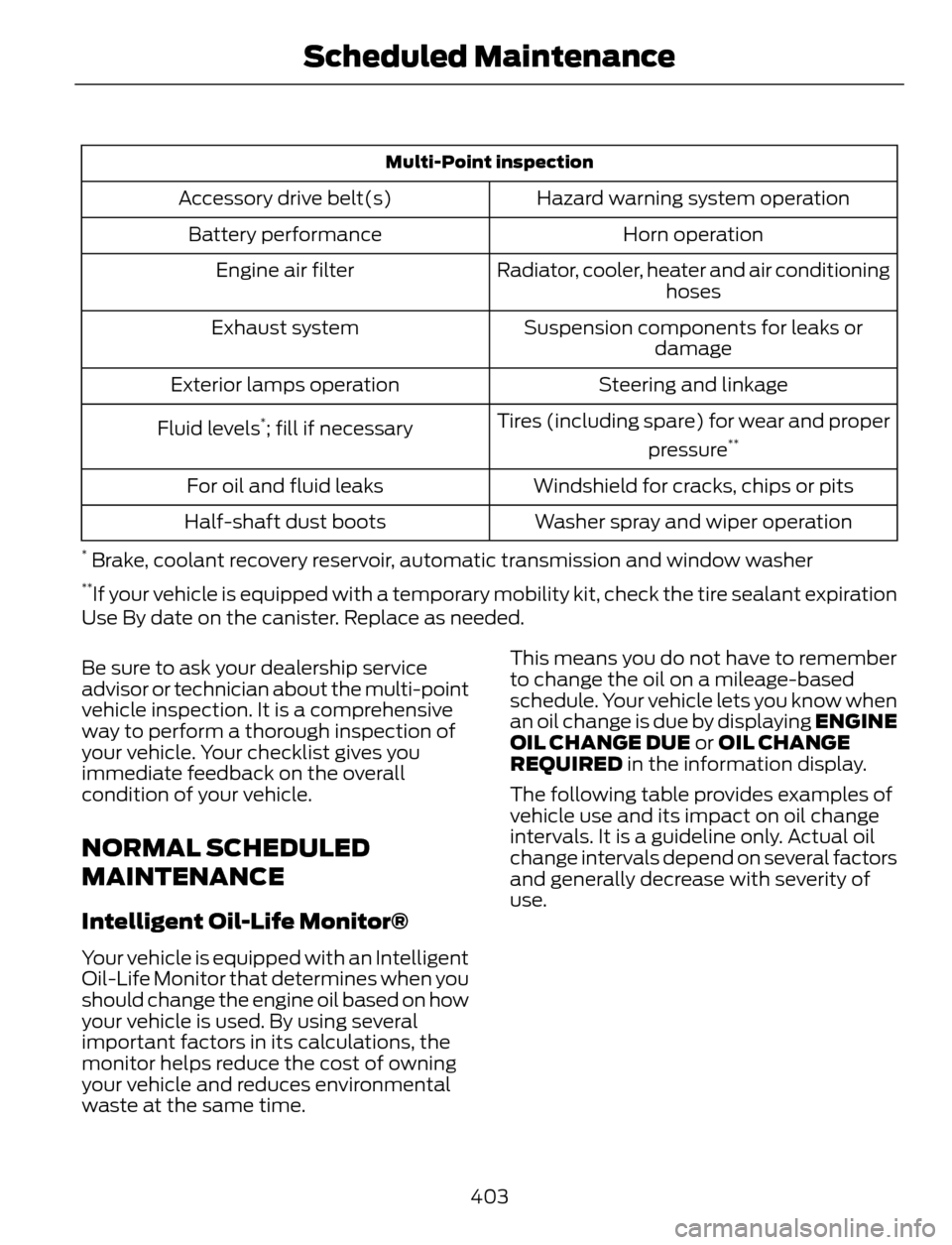
Multi-Point inspection
Hazard warning system operation Accessory drive belt(s)
Horn operation Battery performance
Radiator, cooler, heater and air conditioning
hoses Engine air filter
Suspension components for leaks or
damage Exhaust system
Steering and linkage Exterior lamps operation
Tires (including spare) for wear and proper
pressure
**Fluid levels*; fill if necessary
Windshield for cracks, chips or pits For oil and fluid leaks
Washer spray and wiper operation Half-shaft dust boots
* Brake, coolant recovery reservoir, automatic transmission and window washer**If your vehicle is equipped with a temporary mobility kit, check the tire sealant expiration
Use By date on the canister. Replace as needed.
Be sure to ask your dealership service
advisor or technician about the multi-point
vehicle inspection. It is a comprehensive
way to perform a thorough inspection of
your vehicle. Your checklist gives you
immediate feedback on the overall
condition of your vehicle.
NORMAL SCHEDULED
MAINTENANCE
Intelligent Oil-Life Monitor®
Your vehicle is equipped with an Intelligent
Oil-Life Monitor that determines when you
should change the engine oil based on how
your vehicle is used. By using several
important factors in its calculations, the
monitor helps reduce the cost of owning
your vehicle and reduces environmental
waste at the same time.This means you do not have to remember
to change the oil on a mileage-based
schedule. Your vehicle lets you know when
an oil change is due by displaying ENGINE
OIL CHANGE DUE or OIL CHANGE
REQUIRED in the information display.
The following table provides examples of
vehicle use and its impact on oil change
intervals. It is a guideline only. Actual oil
change intervals depend on several factors
and generally decrease with severity of
use.
403
Scheduled Maintenance