USB port FORD ESCAPE 2016 3.G User Guide
[x] Cancel search | Manufacturer: FORD, Model Year: 2016, Model line: ESCAPE, Model: FORD ESCAPE 2016 3.GPages: 393, PDF Size: 5.85 MB
Page 332 of 393
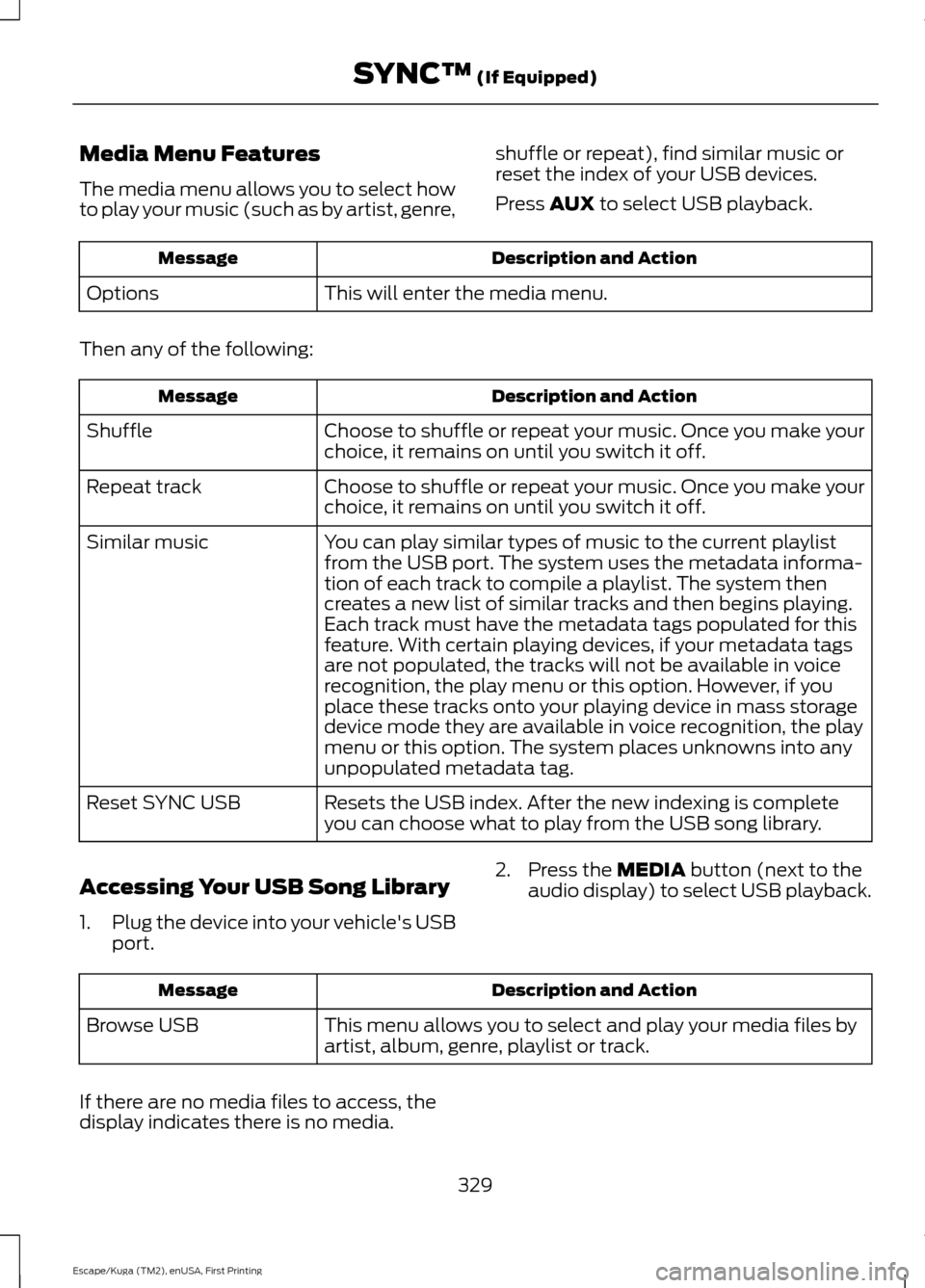
Media Menu Features
The media menu allows you to select how
to play your music (such as by artist, genre,
shuffle or repeat), find similar music or
reset the index of your USB devices.
Press AUX to select USB playback. Description and Action
Message
This will enter the media menu.
Options
Then any of the following: Description and Action
Message
Choose to shuffle or repeat your music. Once you make your
choice, it remains on until you switch it off.
Shuffle
Choose to shuffle or repeat your music. Once you make your
choice, it remains on until you switch it off.
Repeat track
You can play similar types of music to the current playlist
from the USB port. The system uses the metadata informa-
tion of each track to compile a playlist. The system then
creates a new list of similar tracks and then begins playing.
Each track must have the metadata tags populated for this
feature. With certain playing devices, if your metadata tags
Similar music
are not populated, the tracks will not be available in voice
recognition, the play menu or this option. However, if you
place these tracks onto your playing device in mass storage
device mode they are available in voice recognition, the play
menu or this option. The system places unknowns into any
unpopulated metadata tag.
Resets the USB index. After the new indexing is complete
you can choose what to play from the USB song library.
Reset SYNC USB
Accessing Your USB Song Library
1. Plug the device into your vehicle's USB
port. 2. Press the
MEDIA button (next to the
audio display) to select USB playback. Description and Action
Message
This menu allows you to select and play your media files by
artist, album, genre, playlist or track.
Browse USB
If there are no media files to access, the
display indicates there is no media. 329
Escape/Kuga (TM2), enUSA, First Printing SYNC™
(If Equipped)
Page 333 of 393
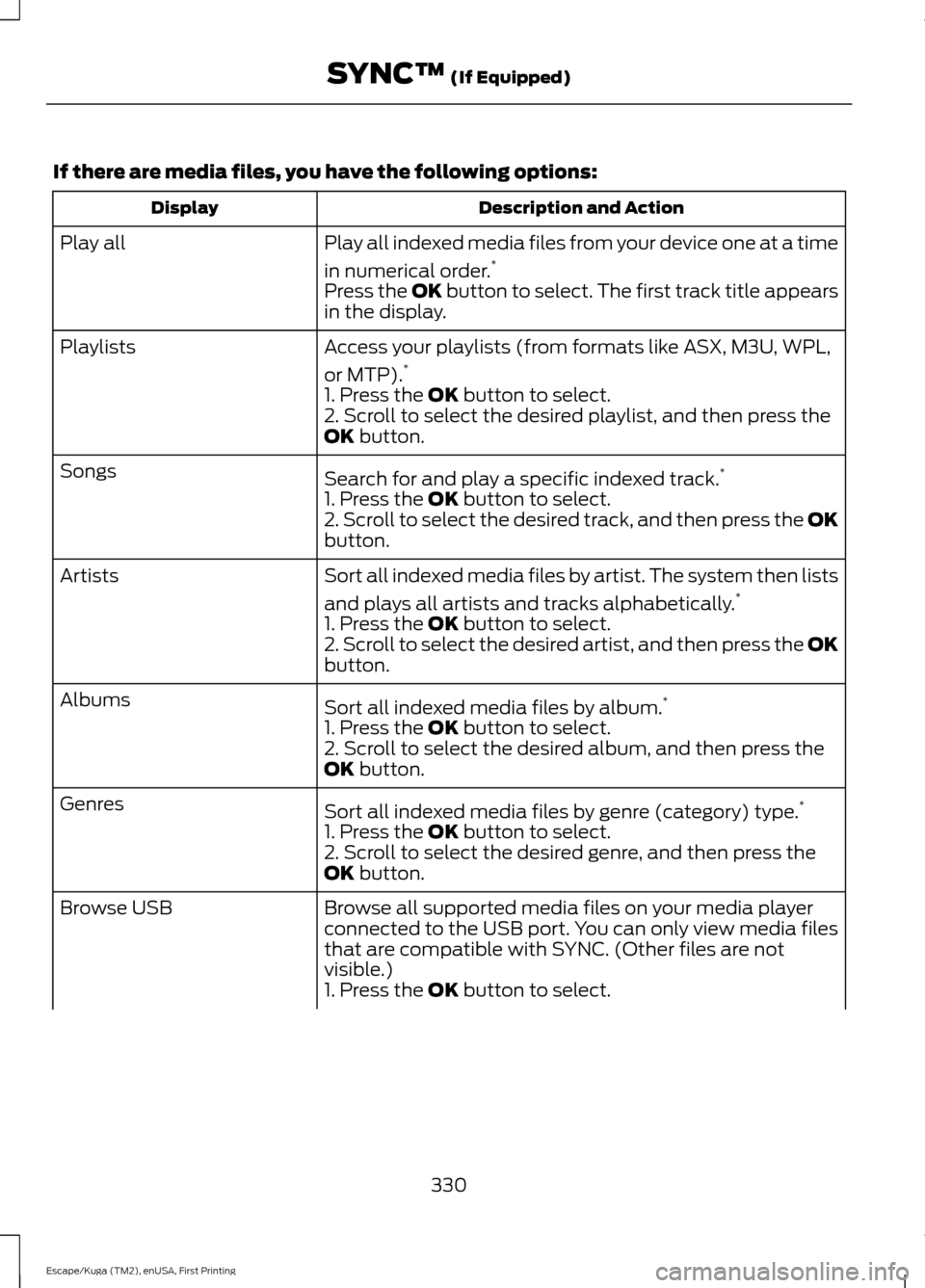
If there are media files, you have the following options:
Description and Action
Display
Play all indexed media files from your device one at a time
in numerical order.*
Play all
Press the OK button to select. The first track title appears
in the display.
Access your playlists (from formats like ASX, M3U, WPL,
or MTP).*
Playlists
1. Press the OK button to select.
2. Scroll to select the desired playlist, and then press the
OK
button.
Search for and play a specific indexed track. *
Songs
1. Press the
OK button to select.
2. Scroll to select the desired track, and then press the OK
button.
Sort all indexed media files by artist. The system then lists
and plays all artists and tracks alphabetically. *
Artists
1. Press the
OK button to select.
2. Scroll to select the desired artist, and then press the OK
button.
Sort all indexed media files by album. *
Albums
1. Press the
OK button to select.
2. Scroll to select the desired album, and then press the
OK
button.
Sort all indexed media files by genre (category) type. *
Genres
1. Press the
OK button to select.
2. Scroll to select the desired genre, and then press the
OK
button.
Browse all supported media files on your media player
connected to the USB port. You can only view media files
that are compatible with SYNC. (Other files are not
visible.)
Browse USB
1. Press the
OK button to select.
330
Escape/Kuga (TM2), enUSA, First Printing SYNC™
(If Equipped)
Page 334 of 393
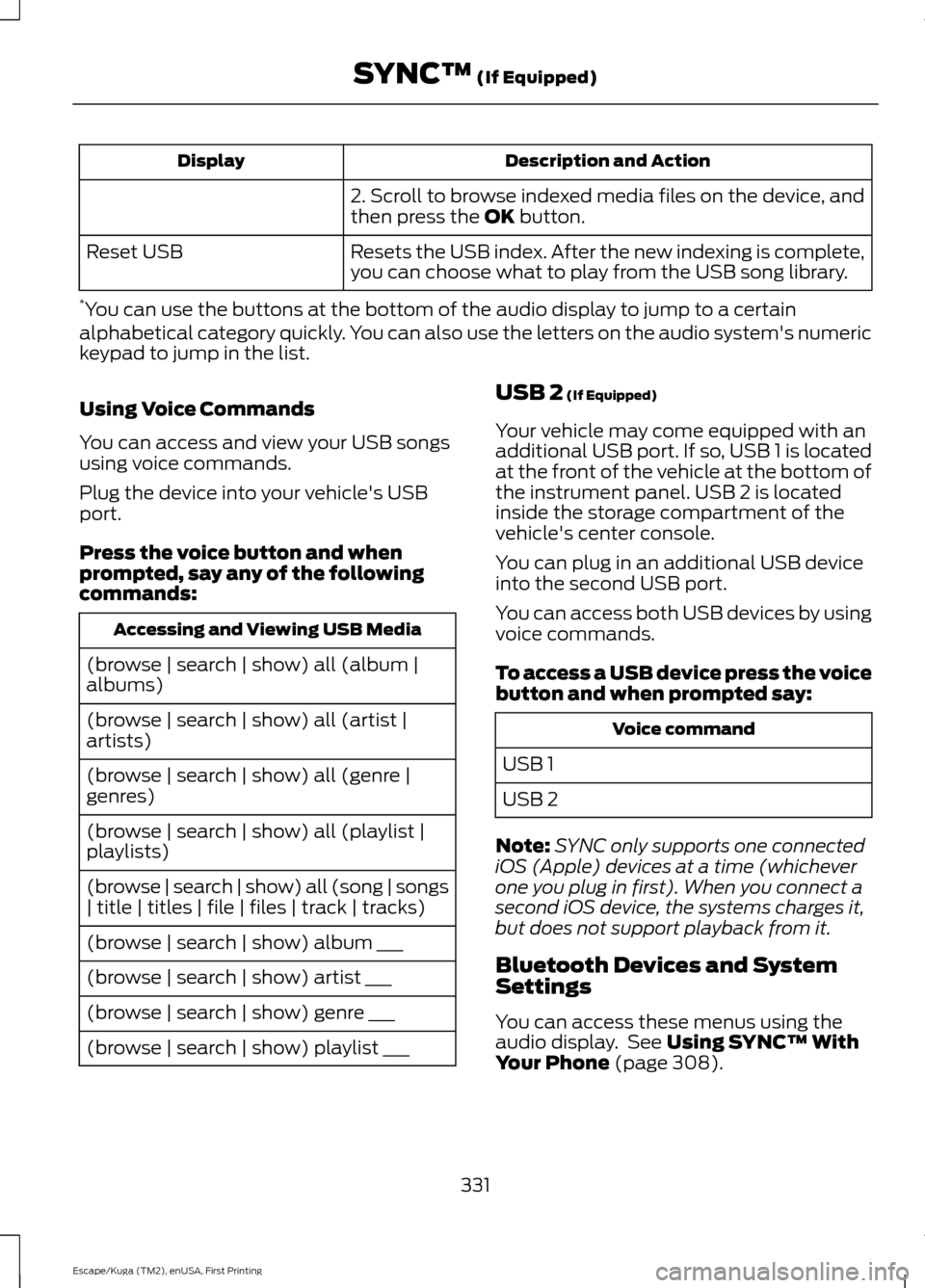
Description and Action
Display
2. Scroll to browse indexed media files on the device, and
then press the OK button.
Resets the USB index. After the new indexing is complete,
you can choose what to play from the USB song library.
Reset USB
* You can use the buttons at the bottom of the audio display to jump to a certain
alphabetical category quickly. You can also use the letters on the audio system's numeric
keypad to jump in the list.
Using Voice Commands
You can access and view your USB songs
using voice commands.
Plug the device into your vehicle's USB
port.
Press the voice button and when
prompted, say any of the following
commands: Accessing and Viewing USB Media
(browse | search | show) all (album |
albums)
(browse | search | show) all (artist |
artists)
(browse | search | show) all (genre |
genres)
(browse | search | show) all (playlist |
playlists)
(browse | search | show) all (song | songs
| title | titles | file | files | track | tracks)
(browse | search | show) album ___
(browse | search | show) artist ___
(browse | search | show) genre ___
(browse | search | show) playlist ___ USB 2
(If Equipped)
Your vehicle may come equipped with an
additional USB port. If so, USB 1 is located
at the front of the vehicle at the bottom of
the instrument panel. USB 2 is located
inside the storage compartment of the
vehicle's center console.
You can plug in an additional USB device
into the second USB port.
You can access both USB devices by using
voice commands.
To access a USB device press the voice
button and when prompted say: Voice command
USB 1
USB 2
Note: SYNC only supports one connected
iOS (Apple) devices at a time (whichever
one you plug in first). When you connect a
second iOS device, the systems charges it,
but does not support playback from it.
Bluetooth Devices and System
Settings
You can access these menus using the
audio display. See
Using SYNC™ With
Your Phone (page 308).
331
Escape/Kuga (TM2), enUSA, First Printing SYNC™
(If Equipped)
Page 339 of 393
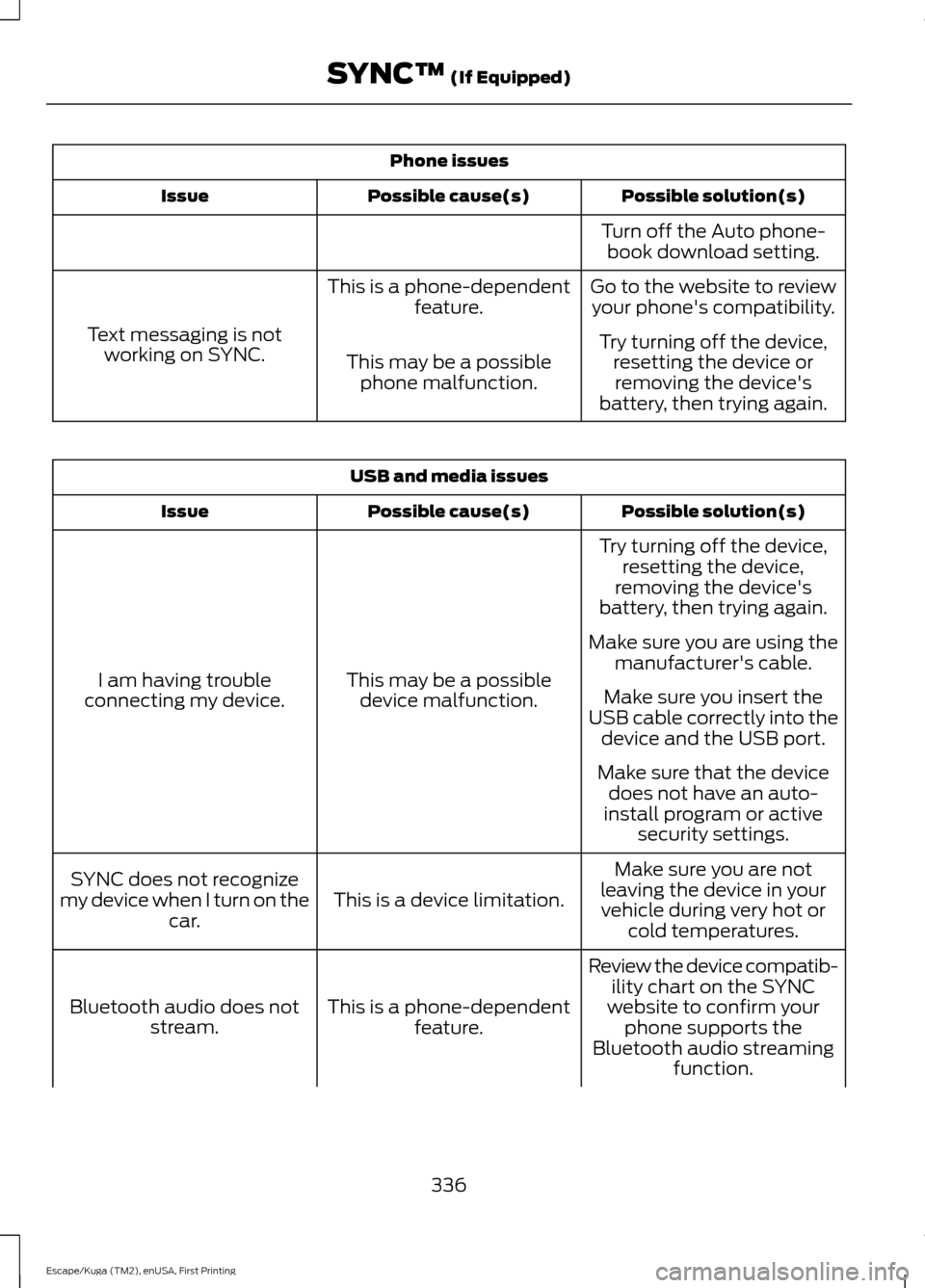
Phone issues
Possible solution(s)
Possible cause(s)
Issue
Turn off the Auto phone-book download setting.
Go to the website to review your phone's compatibility.
This is a phone-dependent
feature.
Text messaging is not working on SYNC. Try turning off the device,
resetting the device orremoving the device's
battery, then trying again.
This may be a possible
phone malfunction. USB and media issues
Possible solution(s)
Possible cause(s)
Issue
Try turning off the device,resetting the device,
removing the device's
battery, then trying again.
This may be a possible device malfunction.
I am having trouble
connecting my device. Make sure you are using the
manufacturer's cable.
Make sure you insert the
USB cable correctly into the device and the USB port.
Make sure that the device does not have an auto-
install program or active security settings.
Make sure you are not
leaving the device in your vehicle during very hot or cold temperatures.
This is a device limitation.
SYNC does not recognize
my device when I turn on the car.
Review the device compatib-ility chart on the SYNC
website to confirm your phone supports the
Bluetooth audio streaming function.
This is a phone-dependent
feature.
Bluetooth audio does not
stream.
336
Escape/Kuga (TM2), enUSA, First Printing SYNC™ (If Equipped)
Page 342 of 393
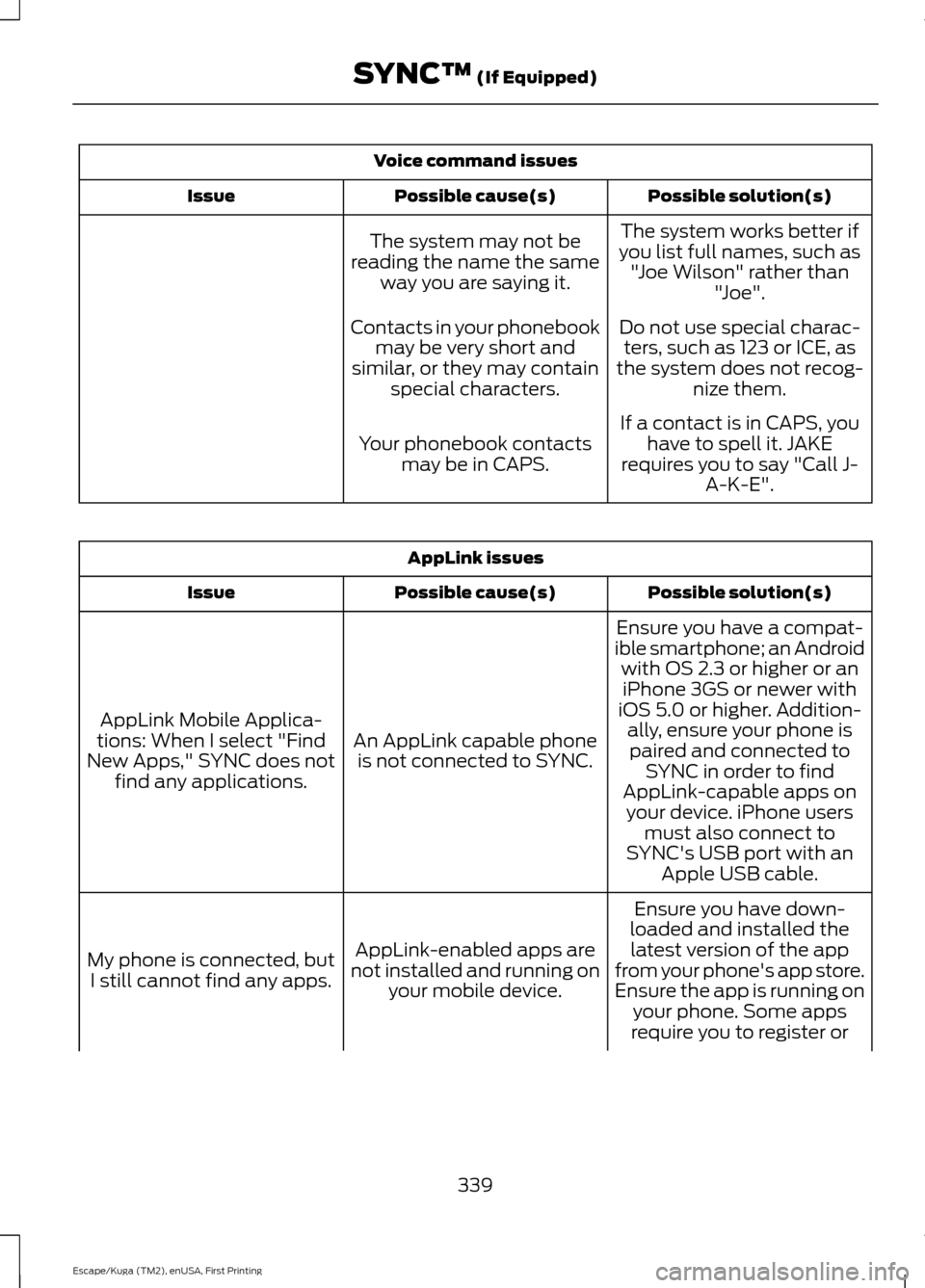
Voice command issues
Possible solution(s)
Possible cause(s)
Issue
The system works better if
you list full names, such as "Joe Wilson" rather than "Joe".
The system may not be
reading the name the same way you are saying it.
Do not use special charac-ters, such as 123 or ICE, as
the system does not recog- nize them.
Contacts in your phonebook
may be very short and
similar, or they may contain special characters.
If a contact is in CAPS, youhave to spell it. JAKE
requires you to say "Call J- A-K-E".
Your phonebook contacts
may be in CAPS. AppLink issues
Possible solution(s)
Possible cause(s)
Issue
Ensure you have a compat-
ible smartphone; an Android with OS 2.3 or higher or aniPhone 3GS or newer with
iOS 5.0 or higher. Addition- ally, ensure your phone is
An AppLink capable phone
is not connected to SYNC.
AppLink Mobile Applica-
tions: When I select "Find
New Apps," SYNC does not find any applications. paired and connected to
SYNC in order to find
AppLink-capable apps on your device. iPhone users must also connect to
SYNC's USB port with an Apple USB cable.
Ensure you have down-
loaded and installed the latest version of the app
from your phone's app store.
Ensure the app is running on your phone. Some apps
AppLink-enabled apps are
not installed and running on your mobile device.
My phone is connected, but
I still cannot find any apps.
require you to register or
339
Escape/Kuga (TM2), enUSA, First Printing SYNC™ (If Equipped)
Page 344 of 393
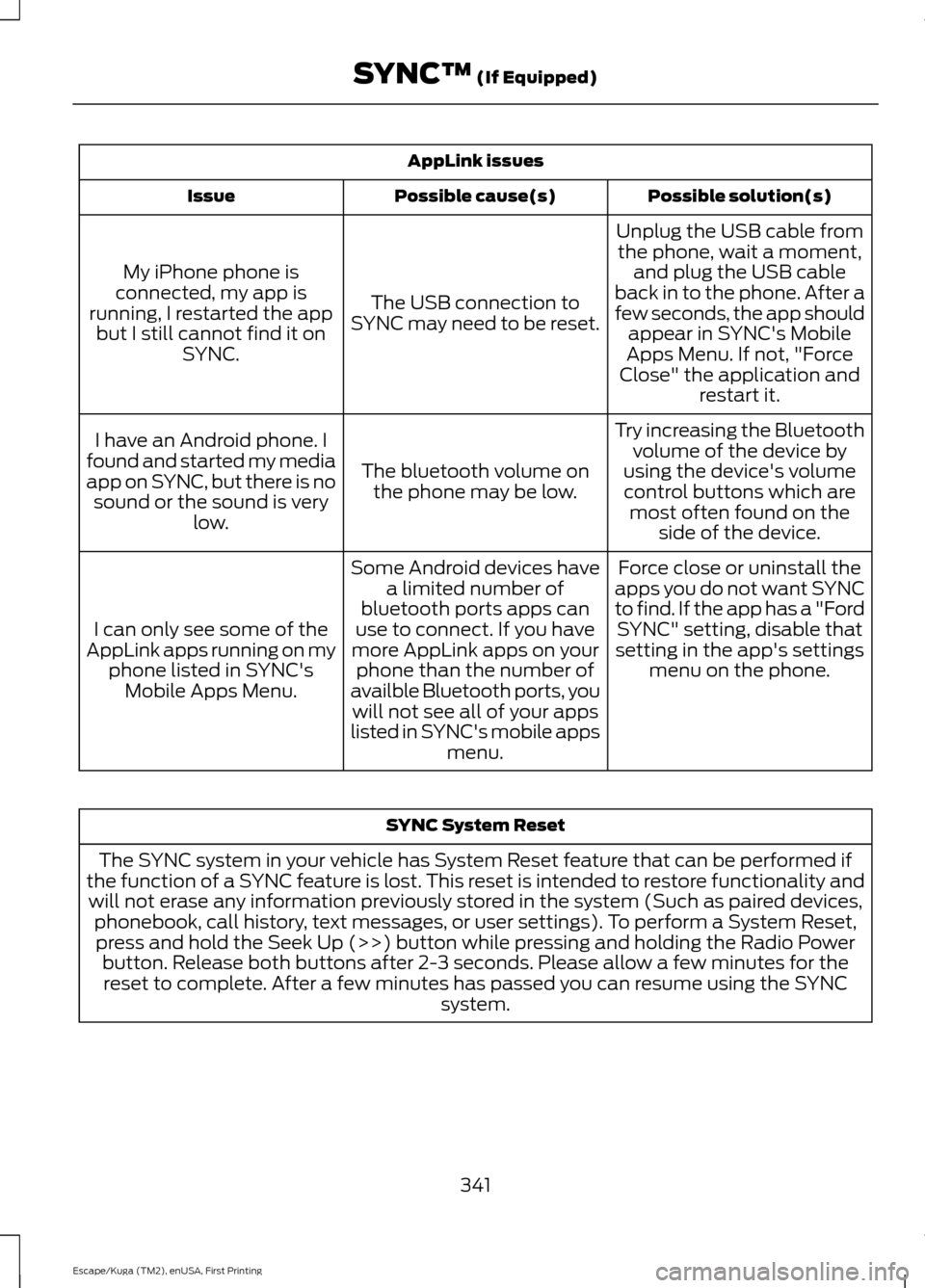
AppLink issues
Possible solution(s)
Possible cause(s)
Issue
Unplug the USB cable fromthe phone, wait a moment, and plug the USB cable
back in to the phone. After a
few seconds, the app should appear in SYNC's Mobile
Apps Menu. If not, "Force
Close" the application and restart it.
The USB connection to
SYNC may need to be reset.
My iPhone phone is
connected, my app is
running, I restarted the app but I still cannot find it on SYNC.
Try increasing the Bluetoothvolume of the device by
using the device's volume control buttons which are most often found on the side of the device.
The bluetooth volume on
the phone may be low.
I have an Android phone. I
found and started my media
app on SYNC, but there is no sound or the sound is very low.
Force close or uninstall the
apps you do not want SYNC
to find. If the app has a "Ford SYNC" setting, disable that
setting in the app's settings menu on the phone.
Some Android devices have
a limited number of
bluetooth ports apps can
use to connect. If you have
more AppLink apps on your phone than the number of
availble Bluetooth ports, you will not see all of your apps
listed in SYNC's mobile apps menu.
I can only see some of the
AppLink apps running on my phone listed in SYNC'sMobile Apps Menu. SYNC System Reset
The SYNC system in your vehicle has System Reset feature that can be performed if
the function of a SYNC feature is lost. This reset is intended to restore functionality and will not erase any information previously stored in the system (Such as paired devices, phonebook, call history, text messages, or user settings). To perform a System Reset,press and hold the Seek Up (>>) button while pressing and holding the Radio Power button. Release both buttons after 2-3 seconds. Please allow a few minutes for thereset to complete. After a few minutes has passed you can resume using the SYNC system.
341
Escape/Kuga (TM2), enUSA, First Printing SYNC™ (If Equipped)
Page 392 of 393
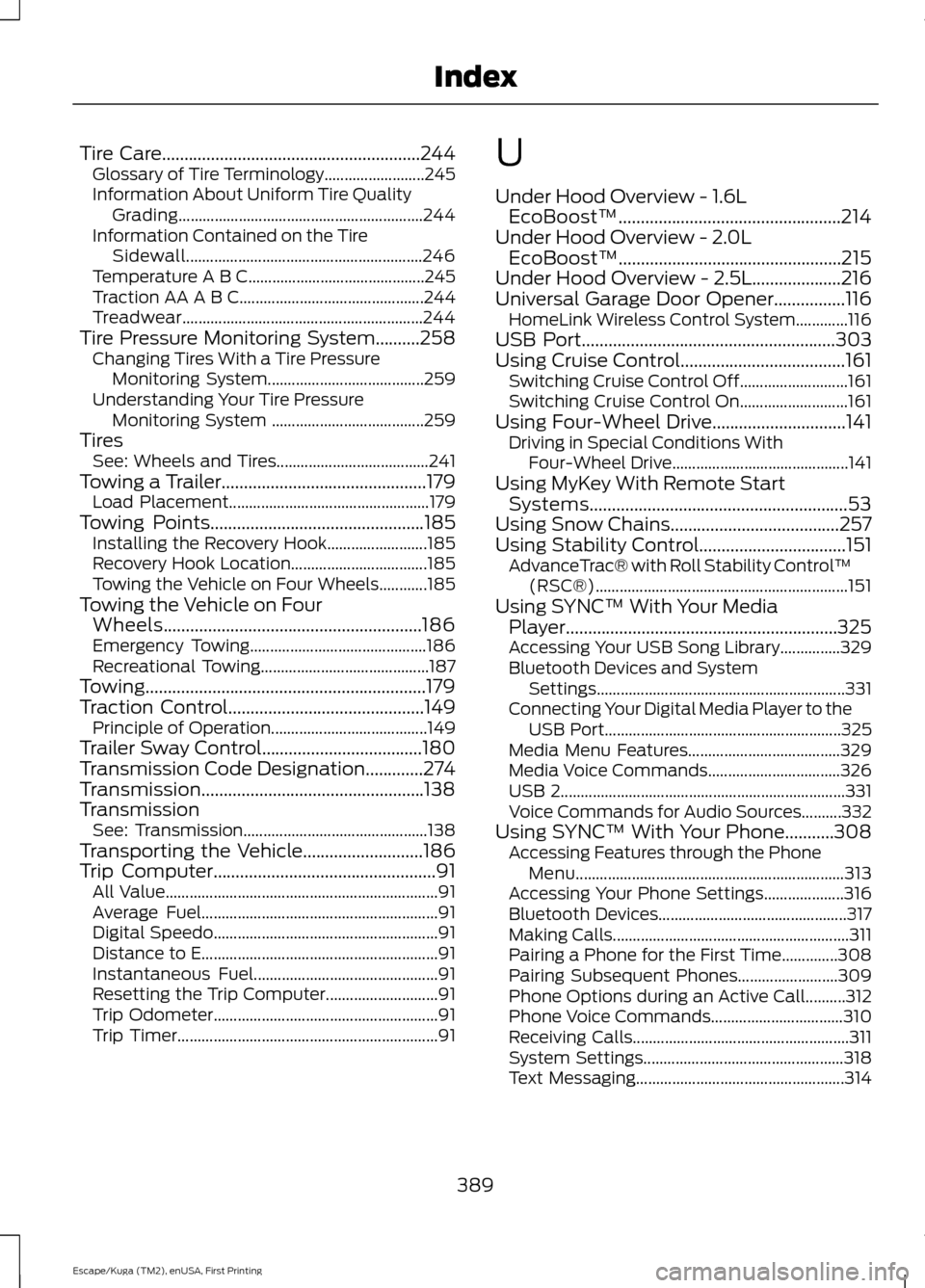
Tire Care..........................................................244
Glossary of Tire Terminology......................... 245
Information About Uniform Tire Quality Grading............................................................. 244
Information Contained on the Tire Sidewall........................................................... 246
Temperature A B C............................................ 245
Traction AA A B C.............................................. 244
Treadwear............................................................ 244
Tire Pressure Monitoring System..........258 Changing Tires With a Tire Pressure
Monitoring System....................................... 259
Understanding Your Tire Pressure Monitoring System ...................................... 259
Tires See: Wheels and Tires...................................... 241
Towing a Trailer
..............................................179
Load Placement.................................................. 179
Towing Points
................................................185
Installing the Recovery Hook......................... 185
Recovery Hook Location.................................. 185
Towing the Vehicle on Four Wheels............185
Towing the Vehicle on Four Wheels..........................................................186
Emergency Towing............................................ 186
Recreational Towing.......................................... 187
Towing...............................................................179
Traction Control
............................................149
Principle of Operation....................................... 149
Trailer Sway Control....................................180
Transmission Code Designation
.............274
Transmission..................................................138
Transmission See: Transmission.............................................. 138
Transporting the Vehicle...........................186
Trip Computer
..................................................91
All Value.................................................................... 91
Average Fuel........................................................... 91
Digital Speedo........................................................ 91
Distance to E........................................................... 91
Instantaneous Fuel.............................................. 91
Resetting the Trip Computer............................ 91
Trip Odometer........................................................ 91
Trip Timer................................................................. 91U
Under Hood Overview - 1.6L
EcoBoost™..................................................214
Under Hood Overview - 2.0L EcoBoost™..................................................215
Under Hood Overview - 2.5L....................216
Universal Garage Door Opener................116 HomeLink Wireless Control System.............116
USB Port
.........................................................303
Using Cruise Control.....................................161 Switching Cruise Control Off........................... 161
Switching Cruise Control On........................... 161
Using Four-Wheel Drive
..............................141
Driving in Special Conditions With
Four-Wheel Drive............................................ 141
Using MyKey With Remote Start Systems..........................................................53
Using Snow Chains......................................257
Using Stability Control.................................151 AdvanceTrac® with Roll Stability Control ™
(RSC®)............................................................... 151
Using SYNC™ With Your Media Player.............................................................325
Accessing Your USB Song Library...............329
Bluetooth Devices and System Settings.............................................................. 331
Connecting Your Digital Media Player to the USB Port........................................................... 325
Media Menu Features...................................... 329
Media Voice Commands................................. 326
USB 2....................................................................... 331
Voice Commands for Audio Sources..........332
Using SYNC™ With Your Phone...........308 Accessing Features through the Phone
Menu................................................................... 313
Accessing Your Phone Settings.................... 316
Bluetooth Devices............................................... 317
Making Calls........................................................... 311
Pairing a Phone for the First Time..............308
Pairing Subsequent Phones......................... 309
Phone Options during an Active Call..........312
Phone Voice Commands................................. 310
Receiving Calls...................................................... 311
System Settings.................................................. 318
Text Messaging.................................................... 314
389
Escape/Kuga (TM2), enUSA, First Printing Index