screen FORD ESCAPE 2016 3.G User Guide
[x] Cancel search | Manufacturer: FORD, Model Year: 2016, Model line: ESCAPE, Model: FORD ESCAPE 2016 3.GPages: 393, PDF Size: 5.85 MB
Page 291 of 393
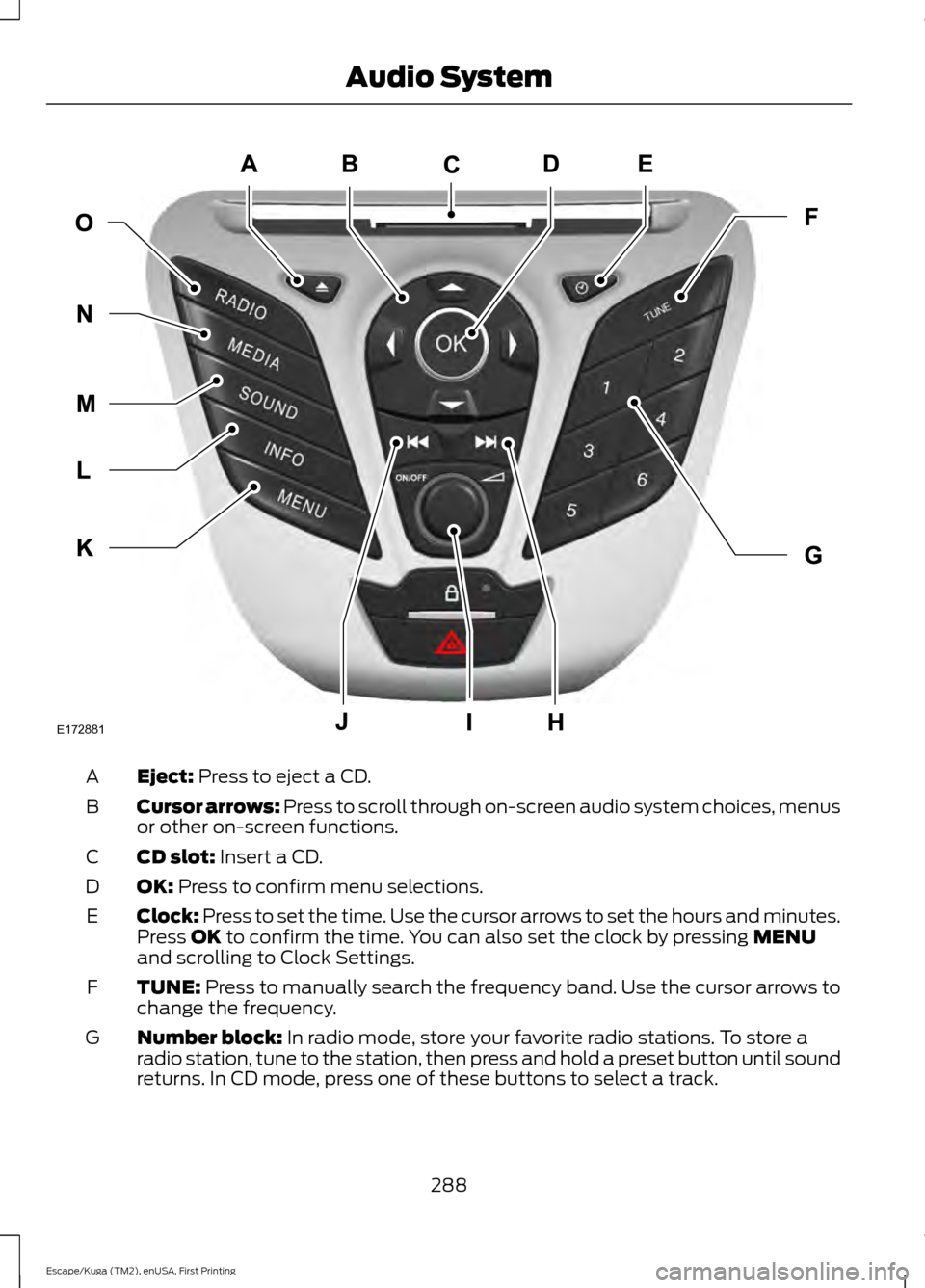
Eject: Press to eject a CD.
A
Cursor arrows:
Press to scroll through on-screen audio system choices, menus
or other on-screen functions.
B
CD slot:
Insert a CD.
C
OK:
Press to confirm menu selections.
D
Clock: Press to set the time. Use the cursor arrows to set the hours and minutes.
Press
OK to confirm the time. You can also set the clock by pressing MENU
and scrolling to Clock Settings.
E
TUNE:
Press to manually search the frequency band. Use the cursor arrows to
change the frequency.
F
Number block:
In radio mode, store your favorite radio stations. To store a
radio station, tune to the station, then press and hold a preset button until sound
returns. In CD mode, press one of these buttons to select a track.
G
288
Escape/Kuga (TM2), enUSA, First Printing Audio SystemE172881
Page 293 of 393
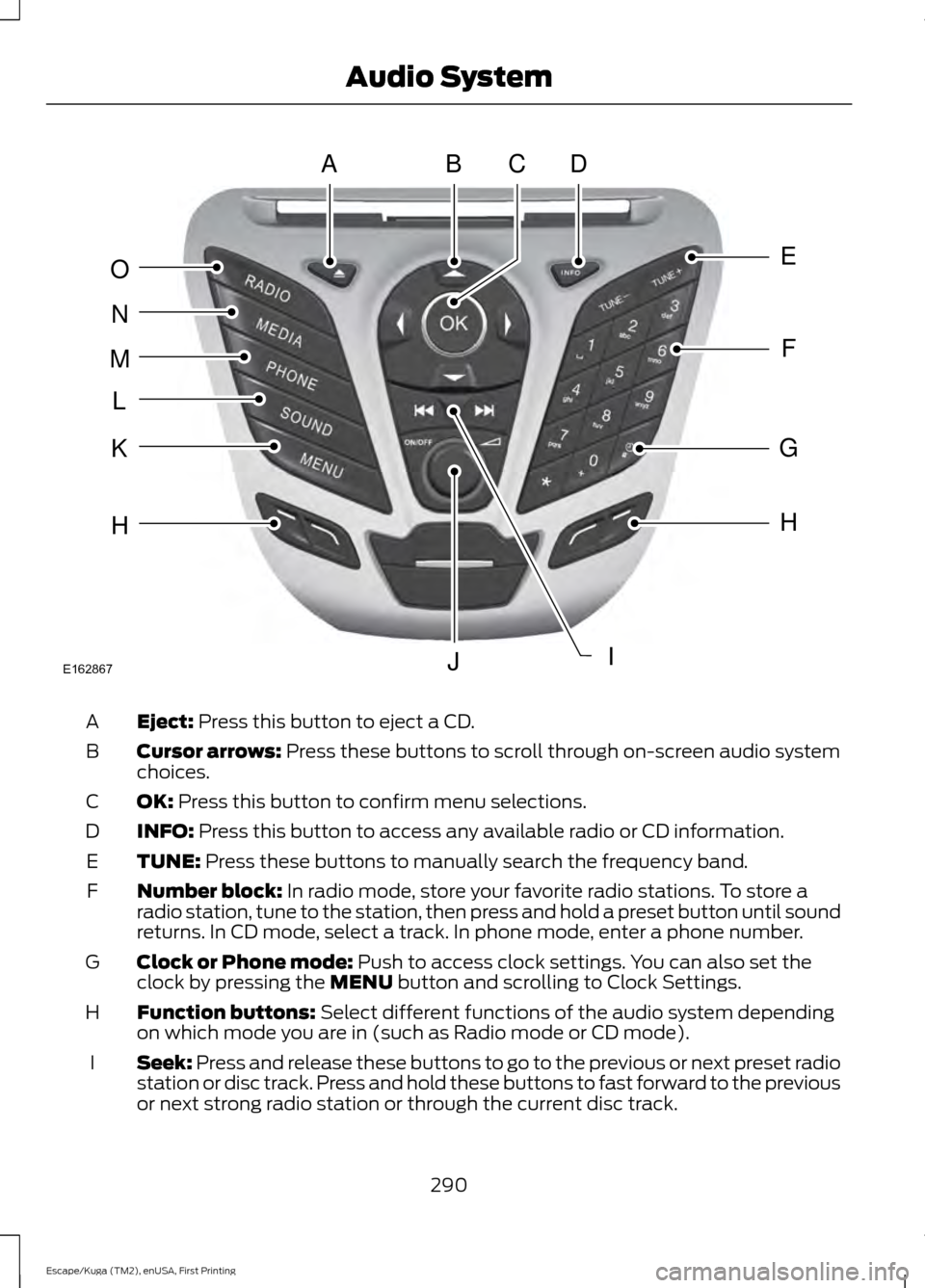
Eject: Press this button to eject a CD.
A
Cursor arrows:
Press these buttons to scroll through on-screen audio system
choices.
B
OK:
Press this button to confirm menu selections.
C
INFO:
Press this button to access any available radio or CD information.
D
TUNE:
Press these buttons to manually search the frequency band.
E
Number block:
In radio mode, store your favorite radio stations. To store a
radio station, tune to the station, then press and hold a preset button until sound
returns. In CD mode, select a track. In phone mode, enter a phone number.
F
Clock or Phone mode:
Push to access clock settings. You can also set the
clock by pressing the MENU button and scrolling to Clock Settings.
G
Function buttons:
Select different functions of the audio system depending
on which mode you are in (such as Radio mode or CD mode).
H
Seek:
Press and release these buttons to go to the previous or next preset radio
station or disc track. Press and hold these buttons to fast forward to the previous
or next strong radio station or through the current disc track.
I
290
Escape/Kuga (TM2), enUSA, First Printing Audio SystemABDC
E
F
G
H
IJ
H
K
L
M
N
O
E162867
Page 295 of 393
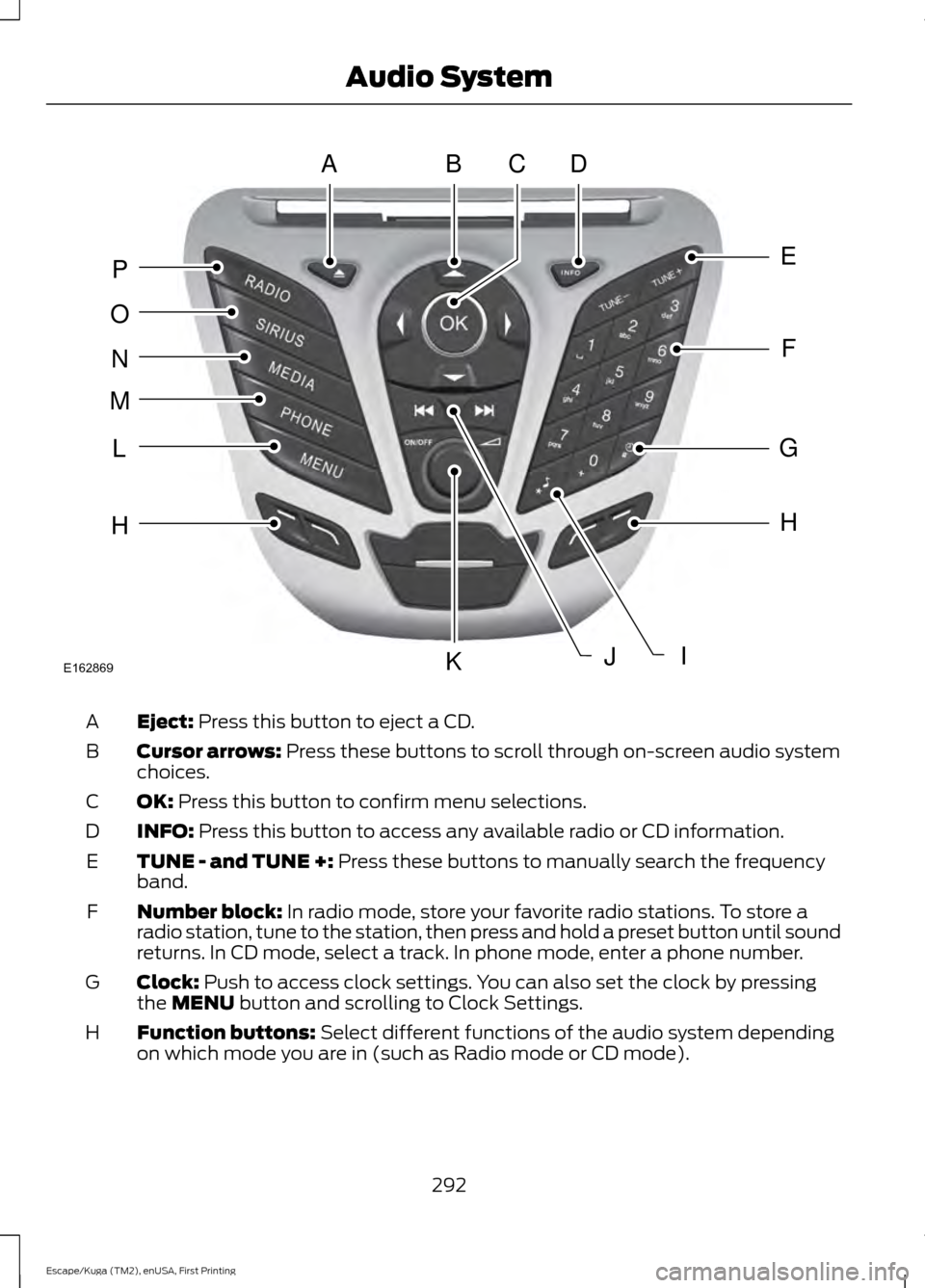
Eject: Press this button to eject a CD.
A
Cursor arrows:
Press these buttons to scroll through on-screen audio system
choices.
B
OK:
Press this button to confirm menu selections.
C
INFO:
Press this button to access any available radio or CD information.
D
TUNE - and TUNE +:
Press these buttons to manually search the frequency
band.
E
Number block:
In radio mode, store your favorite radio stations. To store a
radio station, tune to the station, then press and hold a preset button until sound
returns. In CD mode, select a track. In phone mode, enter a phone number.
F
Clock:
Push to access clock settings. You can also set the clock by pressing
the MENU button and scrolling to Clock Settings.
G
Function buttons:
Select different functions of the audio system depending
on which mode you are in (such as Radio mode or CD mode).
H
292
Escape/Kuga (TM2), enUSA, First Printing Audio SystemABDC
E
F
G
H
JK
H
L
M
N
O
P
IE162869
Page 296 of 393
Sound: Press this button to access settings for Treble, Middle, Bass, Fade and
Balance. Use the up and down arrow buttons to select the various settings.
When you make your selection, press the left and right arrow buttons to change
the settings. Press
OK to set or press MENU to exit. Sound settings can be set
for each audio source independently.
I
Seek:
Press and release these buttons to go to the previous or next preset radio
station or disc track. Press and hold these buttons to fast forward to the previous
or next strong radio station, memory preset or through the current disc track.
J
ON/OFF:
Press this button to switch the system off and on. Turn to adjust the
volume.
K
MENU:
Press this button to access different audio system features. See Menu
Structure later in this section.
L
PHONE:
Press this button to access the phone features of the SYNC system.
See SYNC™ (page 304).
M
MEDIA:
Press this button to switch between listening to a CD and the
SYNC-Media menu. To change the SYNC-Media device (such as switching from
a device plugged into the USB port to a Bluetooth audio device), press
MENU
and scroll to Select Source.
N
SIRIUS:
Press this button to listen to SIRIUS satellite radio.
O
RADIO:
Press this button to listen to the radio or change radio frequencies.
Press the function buttons below the radio screen to select different radio
functions.
P
AUDIO UNIT - VEHICLES WITH:
PREMIUM AM/FM/CD WARNING
Driving while distracted can result in
loss of vehicle control, crash and
injury. We strongly recommend that
you use extreme caution when using any
device that may take your focus off the
road. Your primary responsibility is the safe
operation of your vehicle. We recommend
against the use of any hand-held device
while driving and encourage the use of
voice-operated systems when possible.
Make sure you are aware of all applicable
local laws that may affect the use of
electronic devices while driving. Note:
The CD slot is directly above the
touchscreen.
Note: The touchscreen system controls
most of the audio features. See SYNC
Supplement.
293
Escape/Kuga (TM2), enUSA, First Printing Audio System
Page 298 of 393
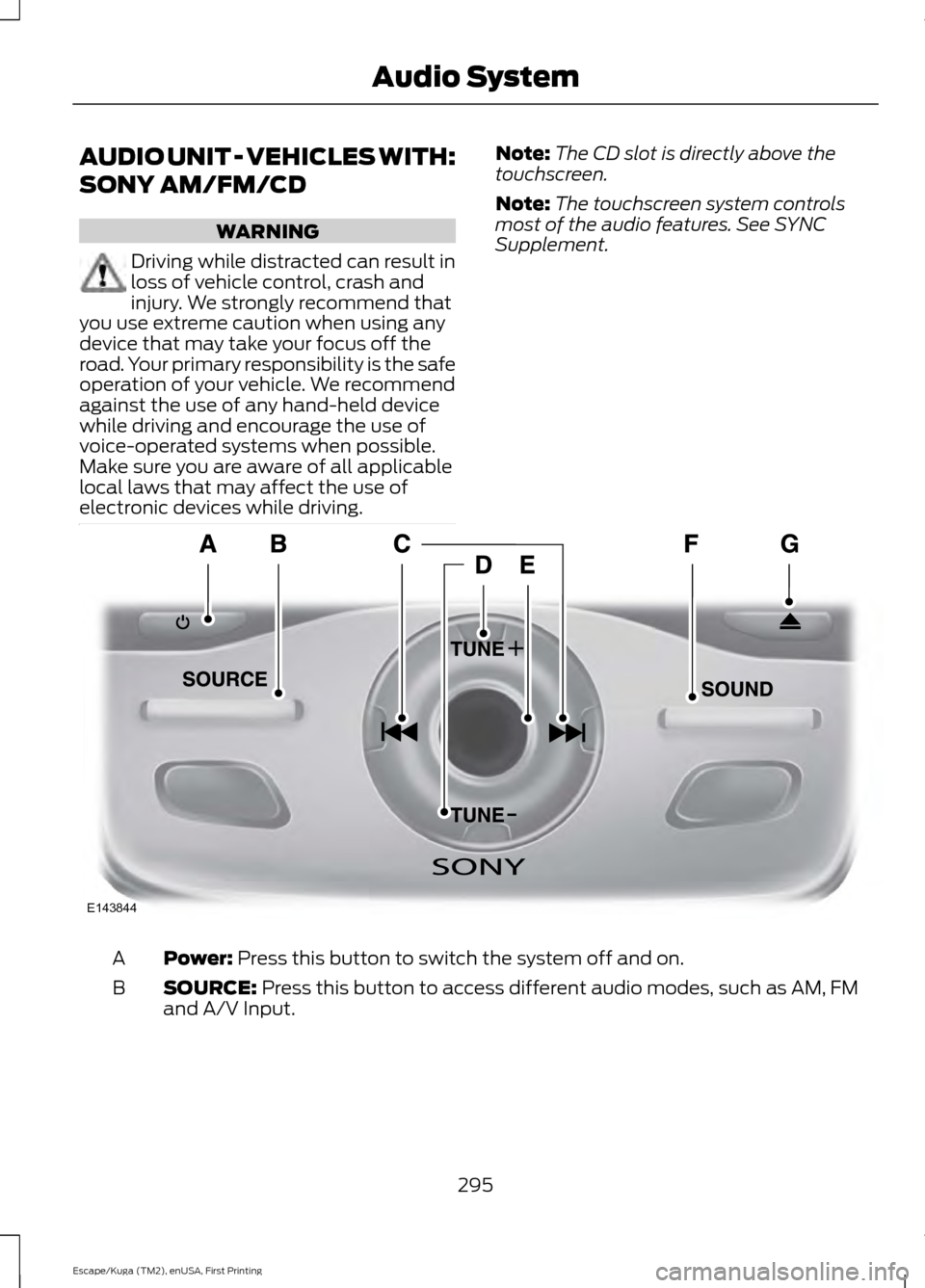
AUDIO UNIT - VEHICLES WITH:
SONY AM/FM/CD
WARNING
Driving while distracted can result in
loss of vehicle control, crash and
injury. We strongly recommend that
you use extreme caution when using any
device that may take your focus off the
road. Your primary responsibility is the safe
operation of your vehicle. We recommend
against the use of any hand-held device
while driving and encourage the use of
voice-operated systems when possible.
Make sure you are aware of all applicable
local laws that may affect the use of
electronic devices while driving. Note:
The CD slot is directly above the
touchscreen.
Note: The touchscreen system controls
most of the audio features. See SYNC
Supplement. Power: Press this button to switch the system off and on.
A
SOURCE:
Press this button to access different audio modes, such as AM, FM
and A/V Input.
B
295
Escape/Kuga (TM2), enUSA, First Printing Audio SystemE143844
Page 301 of 393
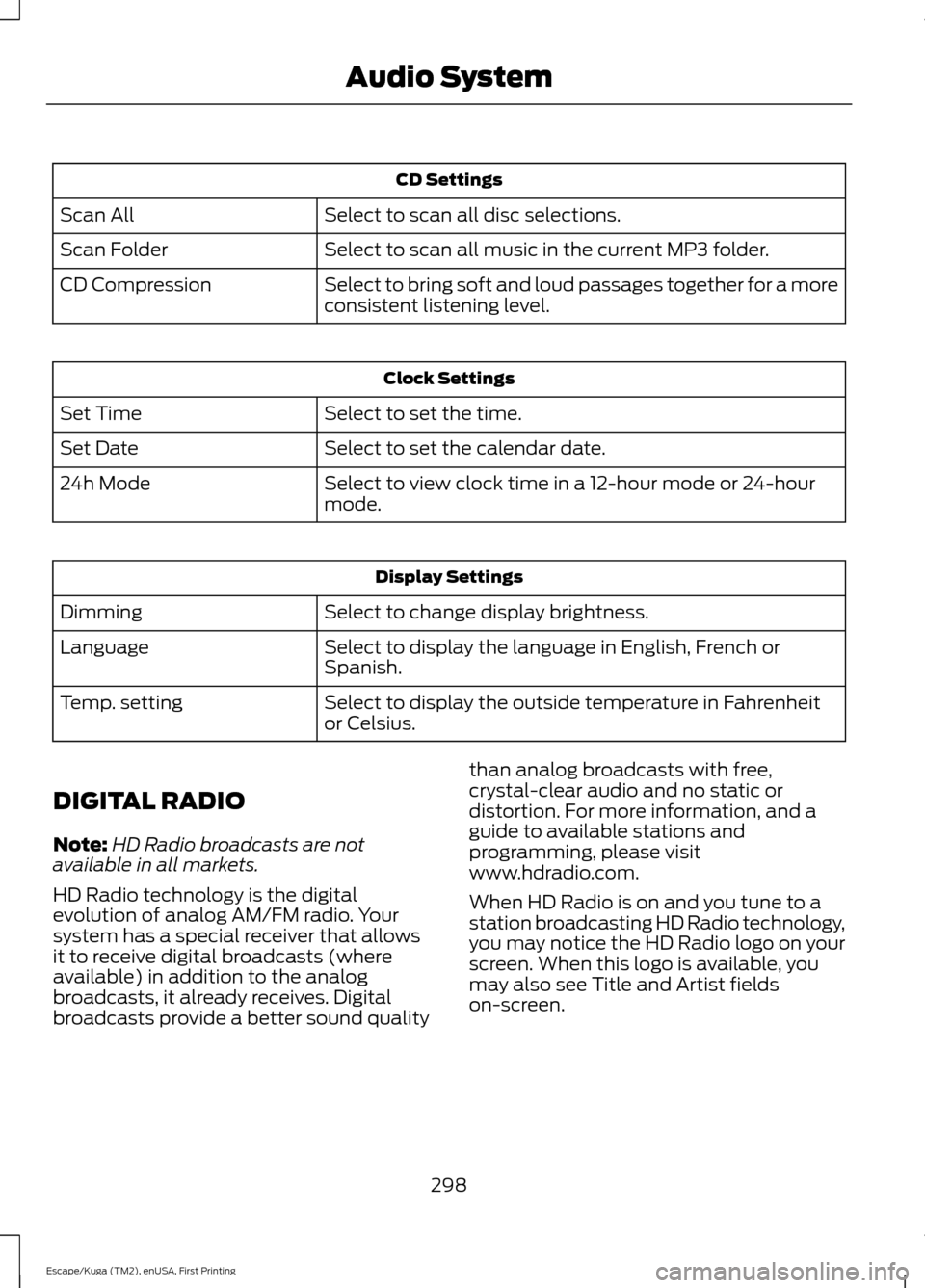
CD Settings
Select to scan all disc selections.
Scan All
Select to scan all music in the current MP3 folder.
Scan Folder
Select to bring soft and loud passages together for a more
consistent listening level.
CD Compression Clock Settings
Select to set the time.
Set Time
Select to set the calendar date.
Set Date
Select to view clock time in a 12-hour mode or 24-hour
mode.
24h Mode Display Settings
Select to change display brightness.
Dimming
Select to display the language in English, French or
Spanish.
Language
Select to display the outside temperature in Fahrenheit
or Celsius.
Temp. setting
DIGITAL RADIO
Note: HD Radio broadcasts are not
available in all markets.
HD Radio technology is the digital
evolution of analog AM/FM radio. Your
system has a special receiver that allows
it to receive digital broadcasts (where
available) in addition to the analog
broadcasts, it already receives. Digital
broadcasts provide a better sound quality than analog broadcasts with free,
crystal-clear audio and no static or
distortion. For more information, and a
guide to available stations and
programming, please visit
www.hdradio.com.
When HD Radio is on and you tune to a
station broadcasting HD Radio technology,
you may notice the HD Radio logo on your
screen. When this logo is available, you
may also see Title and Artist fields
on-screen.
298
Escape/Kuga (TM2), enUSA, First Printing Audio System
Page 312 of 393
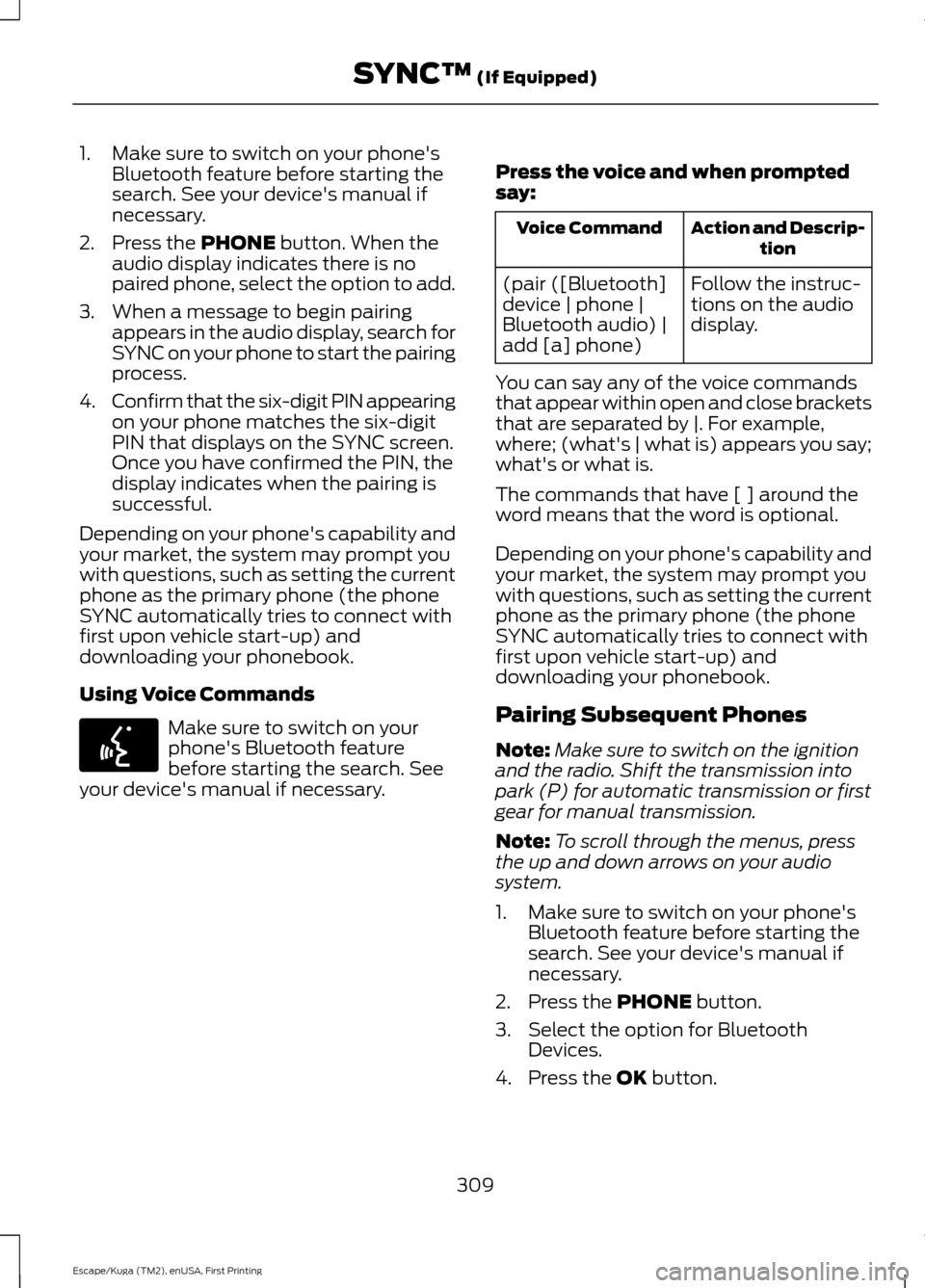
1. Make sure to switch on your phone's
Bluetooth feature before starting the
search. See your device's manual if
necessary.
2. Press the PHONE button. When the
audio display indicates there is no
paired phone, select the option to add.
3. When a message to begin pairing appears in the audio display, search for
SYNC on your phone to start the pairing
process.
4. Confirm that the six-digit PIN appearing
on your phone matches the six-digit
PIN that displays on the SYNC screen.
Once you have confirmed the PIN, the
display indicates when the pairing is
successful.
Depending on your phone's capability and
your market, the system may prompt you
with questions, such as setting the current
phone as the primary phone (the phone
SYNC automatically tries to connect with
first upon vehicle start-up) and
downloading your phonebook.
Using Voice Commands Make sure to switch on your
phone's Bluetooth feature
before starting the search. See
your device's manual if necessary. Press the voice and when prompted
say: Action and Descrip-
tion
Voice Command
Follow the instruc-
tions on the audio
display.
(pair ([Bluetooth]
device | phone |
Bluetooth audio) |
add [a] phone)
You can say any of the voice commands
that appear within open and close brackets
that are separated by |. For example,
where; (what's | what is) appears you say;
what's or what is.
The commands that have [ ] around the
word means that the word is optional.
Depending on your phone's capability and
your market, the system may prompt you
with questions, such as setting the current
phone as the primary phone (the phone
SYNC automatically tries to connect with
first upon vehicle start-up) and
downloading your phonebook.
Pairing Subsequent Phones
Note: Make sure to switch on the ignition
and the radio. Shift the transmission into
park (P) for automatic transmission or first
gear for manual transmission.
Note: To scroll through the menus, press
the up and down arrows on your audio
system.
1. Make sure to switch on your phone's Bluetooth feature before starting the
search. See your device's manual if
necessary.
2. Press the
PHONE button.
3. Select the option for Bluetooth Devices.
4. Press the
OK button.
309
Escape/Kuga (TM2), enUSA, First Printing SYNC™
(If Equipped)E142599
Page 313 of 393
5. Select the option to add. This starts
the pairing process.
6. When a message to begin pairing appears in the audio display, search for
SYNC on your device.
7. Confirm that the six-digit PIN appearing
on your phone matches the six-digit
PIN that displays on the SYNC screen.
Once you have confirmed the PIN, the
display indicates when the pairing is
successful..
Depending on your phone's capability and
your market, the system may prompt you
with questions, such as setting the current
phone as the primary phone (the phone
SYNC automatically tries to connect with
first upon vehicle start-up) and
downloading your phonebook.
Phone Voice Commands Press the voice button. When
prompted, say any of the
following:
Voice Command
(phone | Blackberry | iPhone | Mobile)
Then say any of the following:
call (___)
call ___ at home
call ___ ([at] work | [(in | at) [the]] office)
call ___ on (cell | mobile)
call ___ on other 1
dial [[a] number]
2
([go to] privacy | transfer to phone
| privacy on)
2
(hold call [on] | (put | place) call on
hold) Voice Command
2
join (call | calls)
2
mute [call] [on]
2
(mute [call] off | Unmute [call])
(turn ringer on | silent mode off)
(turn ringer off | silent mode [on])
3
[text] (messages | message)
Help
___ is a dynamic listing that should be the
name of a contact in your phonebook. For
example you could say "Call Mom".
1 See Dial table below.
2 These commands are only valid while in
a phone call.
3 See the text message table below.
Dial Commands
Press the voice button and when prompted
say any of the following commands: Voice Commands
411 (four-one-one), 911 (nine-one-one) 700 (seven hundred)800 (eight hundred) 900 (nine hundred)
Clear (deletes all entered digits)
Delete (deletes last set of digits entered) Number <0-9>
310
Escape/Kuga (TM2), enUSA, First Printing SYNC™
(If Equipped)E142599
Page 314 of 393
![FORD ESCAPE 2016 3.G User Guide Voice Commands
Plus
Pound (#) Star (*)
Note: To exit dial mode, press and hold the
phone button or press any button on the
audio system.
To access text messages say: Voice Command
[text] (messages | m](/img/11/4876/w960_4876-313.png "FORD ESCAPE 2016 3.G User Guide Voice Commands
Plus
Pound (#) Star (*)
Note: To exit dial mode, press and hold the
phone button or press any button on the
audio system.
To access text messages say: Voice Command
[text] (messages | m")
Voice Commands
Plus
Pound (#) Star (*)
Note: To exit dial mode, press and hold the
phone button or press any button on the
audio system.
To access text messages say: Voice Command
[text] (messages | message)
Then say any of the following:
(listen to | read) ([text] message)
forward (text | [text] message)
reply to (text | [text] message)
call [sender]
Phonebook Hints
To hear how the SYNC system speaks a
name browse phonebook, select a contact
and press: Menu Item
Hear it
Making Calls Press the voice button. When
prompted, say:
Voice Command
call
(someone |
[[a] name]) SYNC prompts you to say
the numbers that you wish
to dial. After you say the
numbers, the system
confirms it. You can then
say:
dial [[a]
number]
When the system has stated the
number, you say any of the following: Voice Command
This initiates the call.
(dial | send)
This erases the spoken
digits.
(delete |
correct)
To end the call, press the end call button
on the steering wheel or select the end call
option in the audio display.
Receiving Calls
Accepting calls
When receiving a call, you can answer the
call by pressing the accept call button on
the steering wheel or use the screen.
311
Escape/Kuga (TM2), enUSA, First Printing SYNC™ (If Equipped)E142599
Page 315 of 393
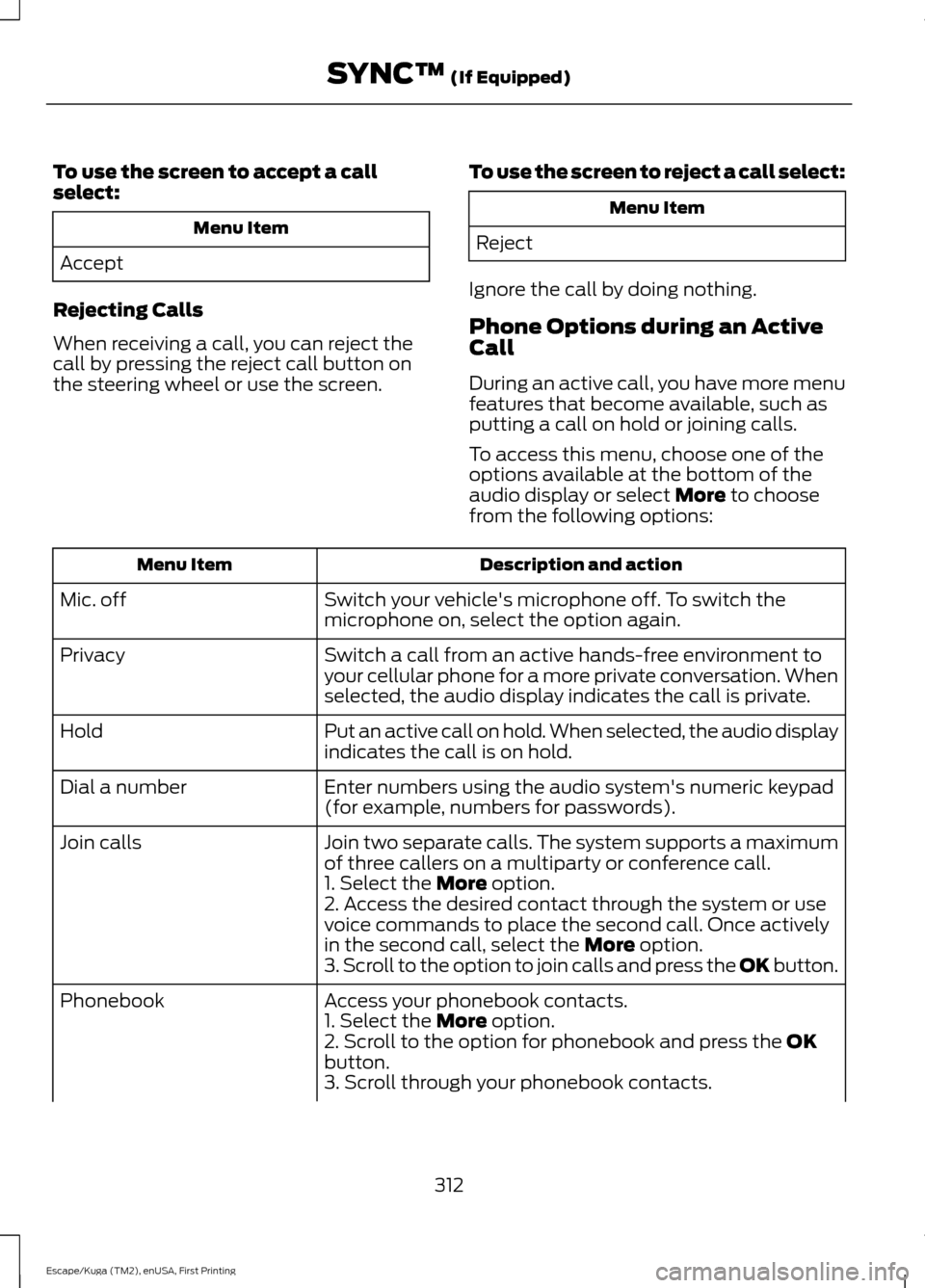
To use the screen to accept a call
select:
Menu Item
Accept
Rejecting Calls
When receiving a call, you can reject the
call by pressing the reject call button on
the steering wheel or use the screen. To use the screen to reject a call select: Menu Item
Reject
Ignore the call by doing nothing.
Phone Options during an Active
Call
During an active call, you have more menu
features that become available, such as
putting a call on hold or joining calls.
To access this menu, choose one of the
options available at the bottom of the
audio display or select More to choose
from the following options: Description and action
Menu Item
Switch your vehicle's microphone off. To switch the
microphone on, select the option again.
Mic. off
Switch a call from an active hands-free environment to
your cellular phone for a more private conversation. When
selected, the audio display indicates the call is private.
Privacy
Put an active call on hold. When selected, the audio display
indicates the call is on hold.
Hold
Enter numbers using the audio system's numeric keypad
(for example, numbers for passwords).
Dial a number
Join two separate calls. The system supports a maximum
of three callers on a multiparty or conference call.
Join calls
1. Select the
More option.
2. Access the desired contact through the system or use
voice commands to place the second call. Once actively
in the second call, select the
More option.
3. Scroll to the option to join calls and press the OK button.
Access your phonebook contacts.
Phonebook
1. Select the
More option.
2. Scroll to the option for phonebook and press the OK
button.
3. Scroll through your phonebook contacts.
312
Escape/Kuga (TM2), enUSA, First Printing SYNC™
(If Equipped)