screen FORD ESCAPE 2016 3.G Owner's Manual
[x] Cancel search | Manufacturer: FORD, Model Year: 2016, Model line: ESCAPE, Model: FORD ESCAPE 2016 3.GPages: 393, PDF Size: 5.85 MB
Page 316 of 393
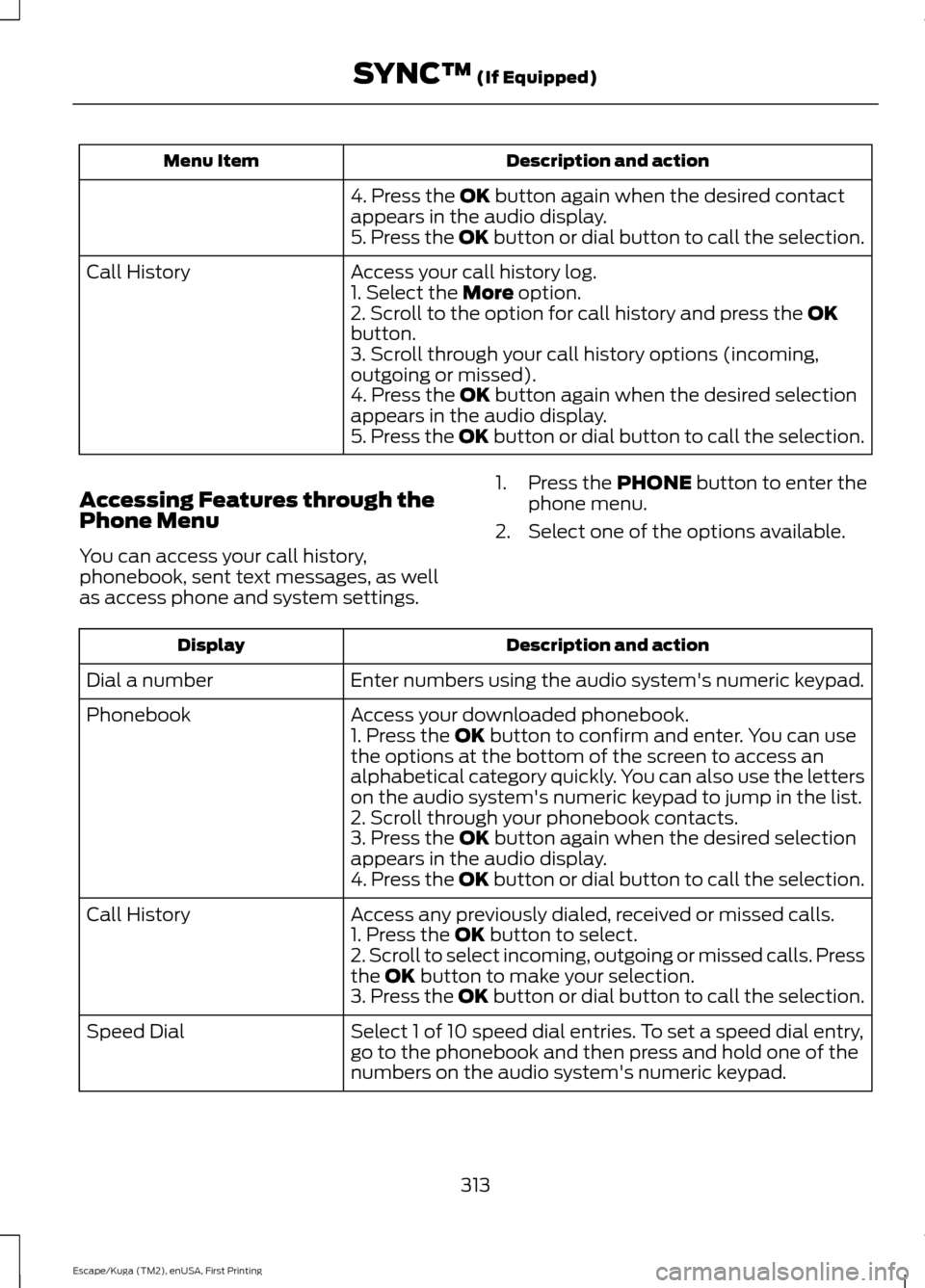
Description and action
Menu Item
4. Press the OK button again when the desired contact
appears in the audio display.
5. Press the OK button or dial button to call the selection.
Access your call history log.
Call History
1. Select the
More option.
2. Scroll to the option for call history and press the OK
button.
3. Scroll through your call history options (incoming,
outgoing or missed).
4. Press the
OK button again when the desired selection
appears in the audio display.
5. Press the OK button or dial button to call the selection.
Accessing Features through the
Phone Menu
You can access your call history,
phonebook, sent text messages, as well
as access phone and system settings. 1. Press the
PHONE button to enter the
phone menu.
2. Select one of the options available. Description and action
Display
Enter numbers using the audio system's numeric keypad.
Dial a number
Access your downloaded phonebook.
Phonebook
1. Press the
OK button to confirm and enter. You can use
the options at the bottom of the screen to access an
alphabetical category quickly. You can also use the letters
on the audio system's numeric keypad to jump in the list.
2. Scroll through your phonebook contacts.
3. Press the
OK button again when the desired selection
appears in the audio display.
4. Press the OK button or dial button to call the selection.
Access any previously dialed, received or missed calls.
Call History
1. Press the
OK button to select.
2. Scroll to select incoming, outgoing or missed calls. Press
the
OK button to make your selection.
3. Press the OK button or dial button to call the selection.
Select 1 of 10 speed dial entries. To set a speed dial entry,
go to the phonebook and then press and hold one of the
numbers on the audio system's numeric keypad.
Speed Dial
313
Escape/Kuga (TM2), enUSA, First Printing SYNC™
(If Equipped)
Page 317 of 393
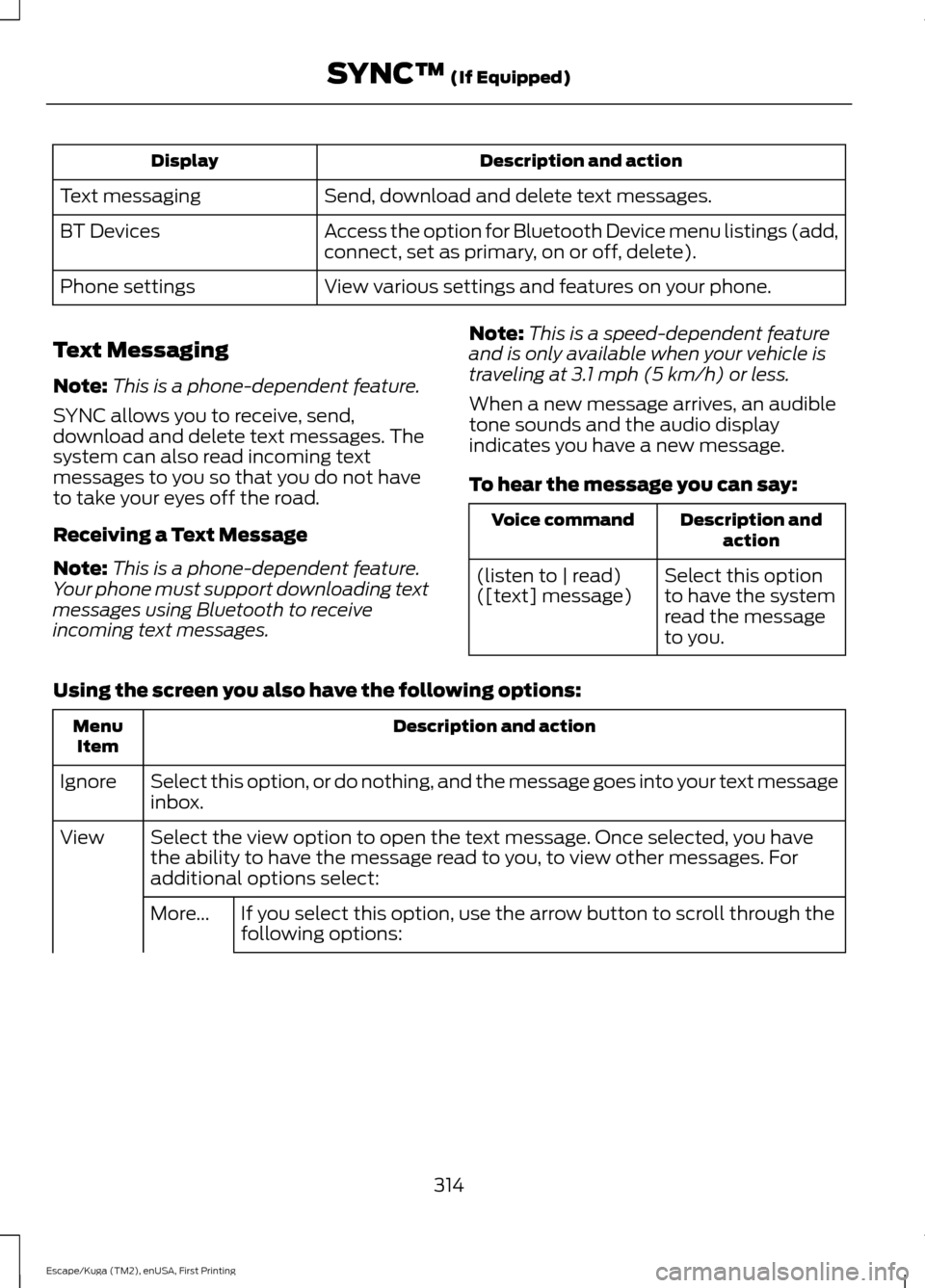
Description and action
Display
Send, download and delete text messages.
Text messaging
Access the option for Bluetooth Device menu listings (add,
connect, set as primary, on or off, delete).
BT Devices
View various settings and features on your phone.
Phone settings
Text Messaging
Note: This is a phone-dependent feature.
SYNC allows you to receive, send,
download and delete text messages. The
system can also read incoming text
messages to you so that you do not have
to take your eyes off the road.
Receiving a Text Message
Note: This is a phone-dependent feature.
Your phone must support downloading text
messages using Bluetooth to receive
incoming text messages. Note:
This is a speed-dependent feature
and is only available when your vehicle is
traveling at 3.1 mph (5 km/h) or less.
When a new message arrives, an audible
tone sounds and the audio display
indicates you have a new message.
To hear the message you can say: Description and
action
Voice command
Select this option
to have the system
read the message
to you.
(listen to | read)
([text] message)
Using the screen you also have the following options: Description and action
Menu
Item
Select this option, or do nothing, and the message goes into your text message
inbox.
Ignore
Select the view option to open the text message. Once selected, you have
the ability to have the message read to you, to view other messages. For
additional options select:
View
If you select this option, use the arrow button to scroll through the
following options:
More...
314
Escape/Kuga (TM2), enUSA, First Printing SYNC™
(If Equipped)
Page 324 of 393
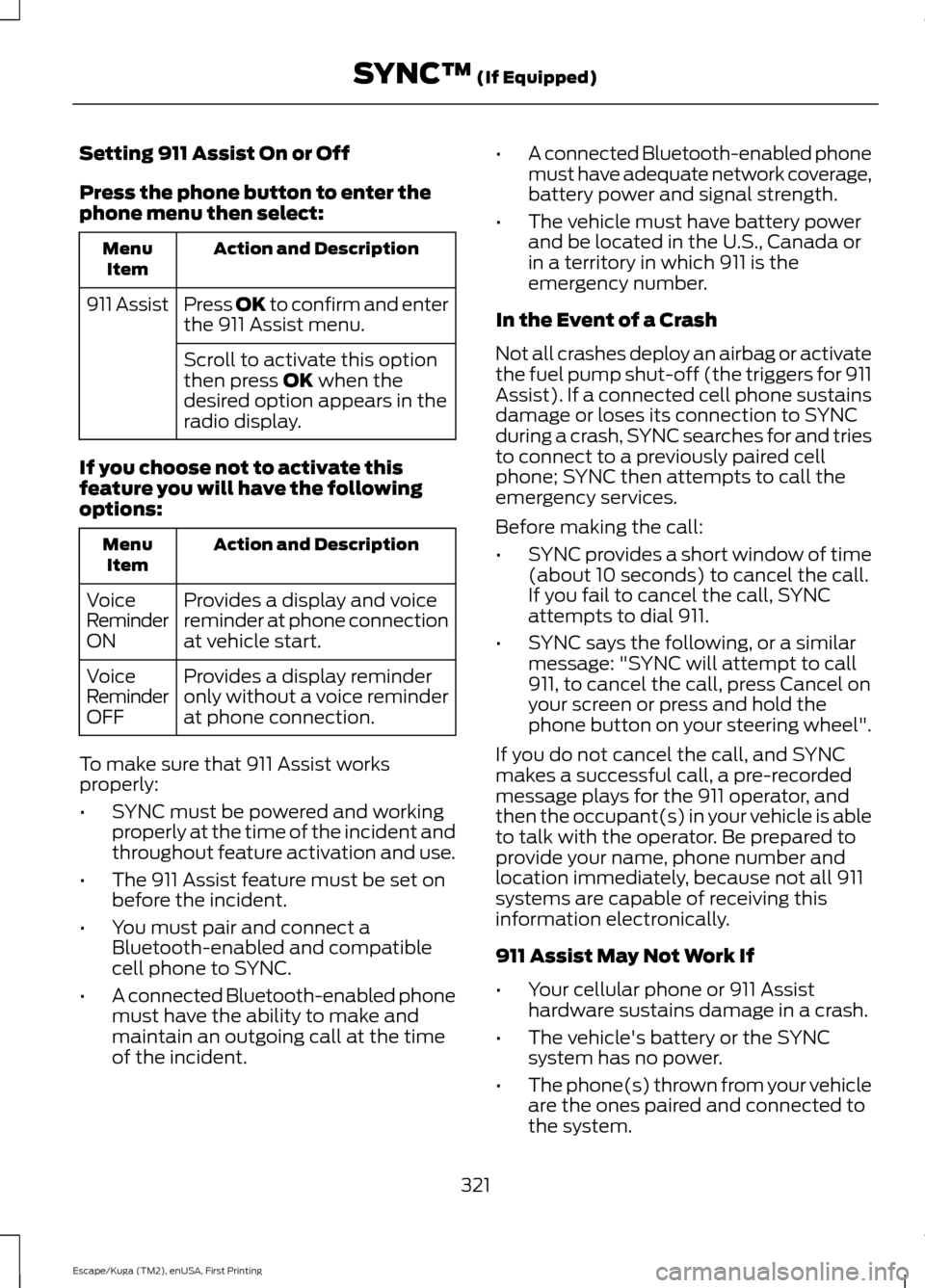
Setting 911 Assist On or Off
Press the phone button to enter the
phone menu then select:
Action and Description
Menu
Item
Press OK to confirm and enter
the 911 Assist menu.
911 Assist
Scroll to activate this option
then press OK when the
desired option appears in the
radio display.
If you choose not to activate this
feature you will have the following
options: Action and Description
Menu
Item
Provides a display and voice
reminder at phone connection
at vehicle start.
Voice
Reminder
ON
Provides a display reminder
only without a voice reminder
at phone connection.
Voice
Reminder
OFF
To make sure that 911 Assist works
properly:
• SYNC must be powered and working
properly at the time of the incident and
throughout feature activation and use.
• The 911 Assist feature must be set on
before the incident.
• You must pair and connect a
Bluetooth-enabled and compatible
cell phone to SYNC.
• A connected Bluetooth-enabled phone
must have the ability to make and
maintain an outgoing call at the time
of the incident. •
A connected Bluetooth-enabled phone
must have adequate network coverage,
battery power and signal strength.
• The vehicle must have battery power
and be located in the U.S., Canada or
in a territory in which 911 is the
emergency number.
In the Event of a Crash
Not all crashes deploy an airbag or activate
the fuel pump shut-off (the triggers for 911
Assist). If a connected cell phone sustains
damage or loses its connection to SYNC
during a crash, SYNC searches for and tries
to connect to a previously paired cell
phone; SYNC then attempts to call the
emergency services.
Before making the call:
• SYNC provides a short window of time
(about 10 seconds) to cancel the call.
If you fail to cancel the call, SYNC
attempts to dial 911.
• SYNC says the following, or a similar
message: "SYNC will attempt to call
911, to cancel the call, press Cancel on
your screen or press and hold the
phone button on your steering wheel".
If you do not cancel the call, and SYNC
makes a successful call, a pre-recorded
message plays for the 911 operator, and
then the occupant(s) in your vehicle is able
to talk with the operator. Be prepared to
provide your name, phone number and
location immediately, because not all 911
systems are capable of receiving this
information electronically.
911 Assist May Not Work If
• Your cellular phone or 911 Assist
hardware sustains damage in a crash.
• The vehicle's battery or the SYNC
system has no power.
• The phone(s) thrown from your vehicle
are the ones paired and connected to
the system.
321
Escape/Kuga (TM2), enUSA, First Printing SYNC™
(If Equipped)
Page 325 of 393
911 Assist Privacy Notice
When you switch on 911 Assist, it may
disclose to emergency services that your
vehicle has been in a crash involving the
deployment of an airbag or activation of
the fuel pump shut-off. Certain versions or
updates to 911 Assist may also be capable
of electronically or verbally disclosing to
911 operators your vehicle location or other
details about your vehicle or crash to assist
911 operators to provide the most
appropriate emergency services. If you do
not want to disclose this information, do
not switch the feature on.
SYNC Mobile Apps
The system enables voice and steering
wheel control of SYNC AppLink enabled
smartphone apps. When an app is running
through AppLink, you can control main
features of the app through voice
commands and steering wheel controls.
Note:
You must pair and connect your
smartphone to SYNC to access AppLink.
Note: iPhone users need to connect the
phone to the USB port.
Note: Android users need to connect the
phone to SYNC using Bluetooth.
Note: For information on available apps,
supported smartphone devices and
troubleshooting tips please visit the Ford
website.
Availability of SYNC AppLink enabled Apps
will vary by region. Note:
Make sure you have an active account
for the app that you have downloaded.
Some apps work automatically with no
setup. Other apps want you to configure
your personal settings and personalize your
experience by creating stations or favorites.
We recommend you do this at home or
outside of your vehicle.
Note: AppLink is not available if your
vehicle is equipped with the MyFordTouch
system.
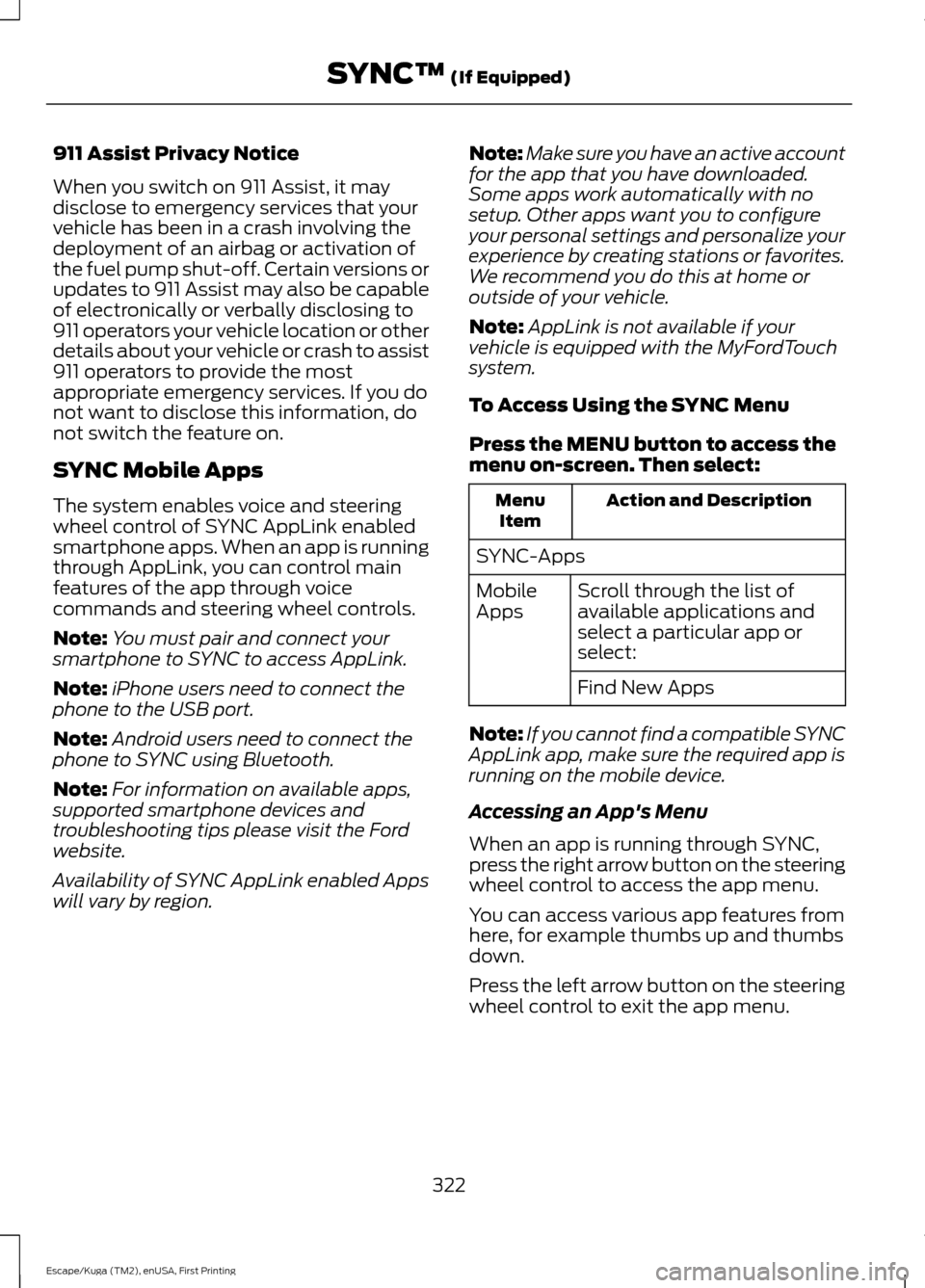
To Access Using the SYNC Menu
Press the MENU button to access the
menu on-screen. Then select: Action and Description
Menu
Item
SYNC-Apps Scroll through the list of
available applications and
select a particular app or
select:
Mobile
Apps
Find New Apps
Note: If you cannot find a compatible SYNC
AppLink app, make sure the required app is
running on the mobile device.
Accessing an App's Menu
When an app is running through SYNC,
press the right arrow button on the steering
wheel control to access the app menu.
You can access various app features from
here, for example thumbs up and thumbs
down.
Press the left arrow button on the steering
wheel control to exit the app menu.
322
Escape/Kuga (TM2), enUSA, First Printing SYNC™
(If Equipped)
Page 329 of 393
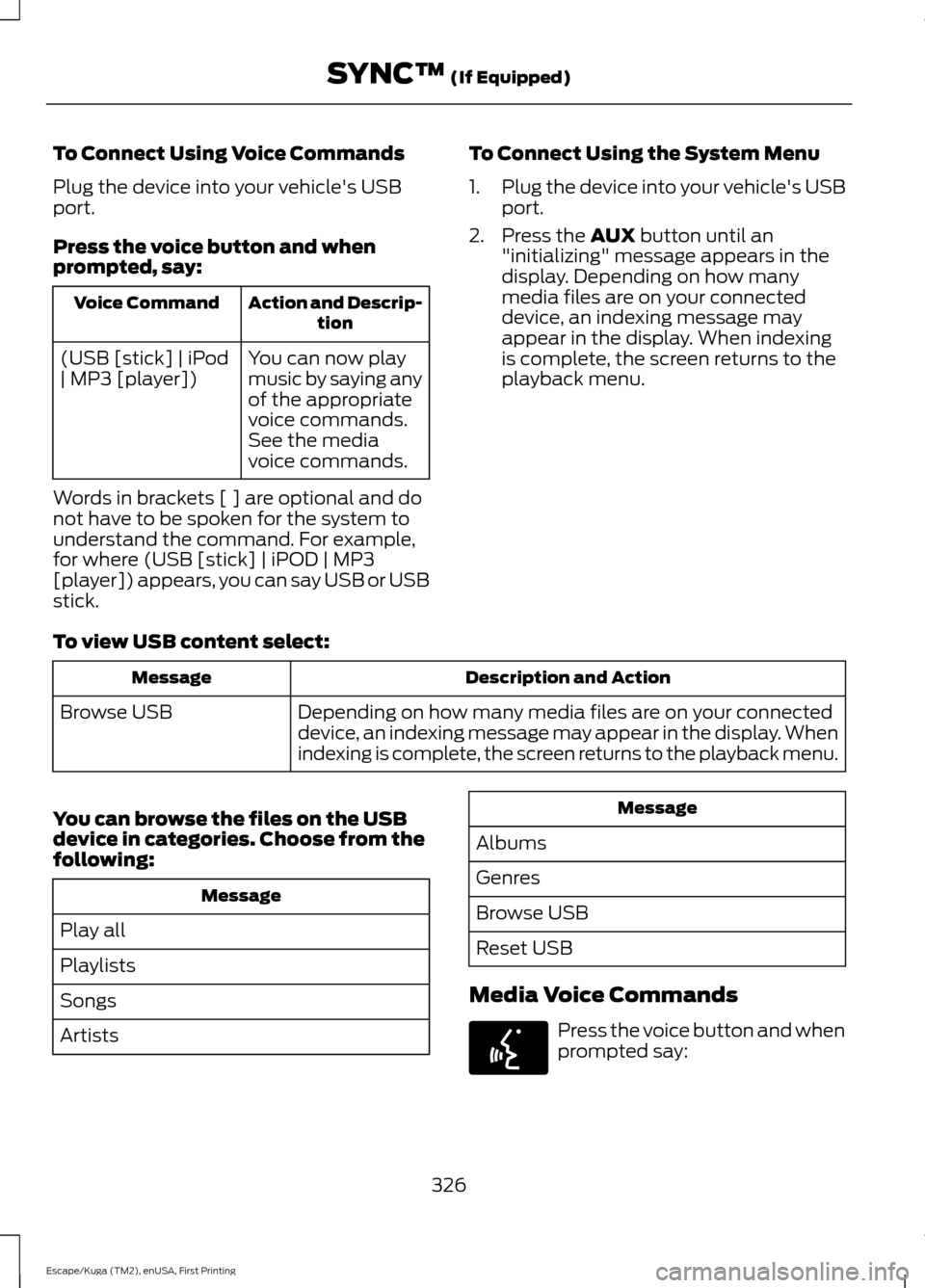
To Connect Using Voice Commands
Plug the device into your vehicle's USB
port.
Press the voice button and when
prompted, say:
Action and Descrip-
tion
Voice Command
You can now play
music by saying any
of the appropriate
voice commands.
See the media
voice commands.
(USB [stick] | iPod
| MP3 [player])
Words in brackets [ ] are optional and do
not have to be spoken for the system to
understand the command. For example,
for where (USB [stick] | iPOD | MP3
[player]) appears, you can say USB or USB
stick. To Connect Using the System Menu
1.
Plug the device into your vehicle's USB
port.
2. Press the AUX button until an
"initializing" message appears in the
display. Depending on how many
media files are on your connected
device, an indexing message may
appear in the display. When indexing
is complete, the screen returns to the
playback menu.
To view USB content select: Description and Action
Message
Depending on how many media files are on your connected
device, an indexing message may appear in the display. When
indexing is complete, the screen returns to the playback menu.
Browse USB
You can browse the files on the USB
device in categories. Choose from the
following: Message
Play all
Playlists
Songs
Artists Message
Albums
Genres
Browse USB
Reset USB
Media Voice Commands Press the voice button and when
prompted say:
326
Escape/Kuga (TM2), enUSA, First Printing SYNC™
(If Equipped)E142599
Page 371 of 393
TRADEMARKS: This EULA does not grant
you any rights in connection with any
trademarks or service marks of FORD
MOTOR COMPANY, its affiliates, and third
party software and service providers.
PRODUCT SUPPORT: Please refer to
FORD MOTOR COMPANY instructions
provided in the documentation for the
DEVICES product support, such as the
vehicle owner guide.
Should you have any questions concerning
this EULA, or if you desire to contact FORD
MOTOR COMPANY for any other reason,
please refer to the address provided in the
documentation for the DEVICES.
No Liability for Certain Damages:
EXCEPT AS PROHIBITED BY LAW, FORD
MOTOR COMPANY, ANY THIRD PARTY
SOFTWARE OR SERVICES SUPPLIERS,
AND THEIR AFFILIATES SHALL HAVE NO
LIABILITY FOR ANY INDIRECT, SPECIAL,
CONSEQUENTIAL OR INCIDENTAL
DAMAGES ARISING FROM OR IN
CONNECTION WITH THE USE OR
PERFORMANCE OF THE SOFTWARE. THIS
LIMITATION SHALL APPLY EVEN IF ANY
REMEDY FAILS OF ITS ESSENTIAL
PURPOSE. THERE ARE NO WARRANTIES
OTHER THAN THOSE THAT MAY BE
EXPRESSLY PROVIDED FOR YOUR NEW
VEHICLE.
SYNC® Automotive Important Safety
Information Read and follow
instructions:
• Before using your SYNC® system, read
and follow all instructions and safety
information provided in this end user
manual ("Owner Guide".) Not
following precautions found in the
Owner Guide can lead to an accident
or other serious injuries. General Operation
•
Voice Command Control
: Certain
functions within the SYNC® system
may be accomplished using voice
commands. Using voice commands
while driving helps you to operate the
system without removing your hands
from the wheel or eyes from the road.
• Prolonged Views of Screen:
Do not
access any function requiring a
prolonged view of the screen while you
are driving. Pull over in a safe and legal
manner before attempting to access a
function of the system requiring
prolonged attention.
• Volume Setting:
Do not raise the
volume excessively. Keep the volume
at a level where you can still hear
outside traffic and emergency signals
while driving. Driving while unable to
hear these sounds could cause an
accident.
• Navigation Features:
Any navigation
features included in the system are
intended to provide turn by turn
instructions to get you to a desired
destination. Please make certain all
persons using this system carefully
read and follow instructions and safety
information fully.
• Distraction Hazard:
Any navigation
features may require manual
(non-verbal) setup. Attempting to
perform such set-up or insert data
while driving can distract your attention
and could cause an accident or other
serious injury. Stop the vehicle in a safe
and legal manner before attempting
these operations.
• Let Your Judgment Prevail:
Any
navigation features are provided only
as an aid. Make your driving decisions
based on your observations of local
conditions and existing traffic
regulations. Any such feature is not a
368
Escape/Kuga (TM2), enUSA, First Printing Appendices
Page 389 of 393
K
Keyless Entry....................................................63
SECURICODE™ KEYLESS ENTRY
KEYPAD.............................................................. 63
Keyless Starting.............................................124 Ignition Modes..................................................... 125
Keys and Remote Controls.........................44 Principle of Operation........................................ 44
L
Lighting Control
...............................................74
Headlamp Flasher................................................ 74
High Beams............................................................. 74
Lighting...............................................................74
Load Carriers See: Roof Racks and Load Carriers...............171
Load Carrying
.................................................170
Load Limit........................................................172 Special Loading Instructions for Owners of
Pick-up Trucks and Utility-type
Vehicles.............................................................. 178
Vehicle Loading - with and without a Trailer.................................................................. 172
Locking and Unlocking.................................55 Activating Intelligent Access .......................... 56
Autolock................................................................... 57
Battery Saver......................................................... 58
Illuminated Entry.................................................. 58
Illuminated Exit..................................................... 58
Mechanical Key..................................................... 56
Opening a Rear Door from Inside.................. 56
Power Door Locks................................................ 55
Remote Control.................................................... 55
Smart Unlocks For Integrated Keyhead Transmitter......................................................... 57
Smart Unlocks For Intelligent Access Keys ........................................................................\
........ 57
Locks...................................................................55
Luggage Covers.............................................170
Lug Nuts See: Changing a Road Wheel....................... 262
M
Maintenance...................................................212 General Information........................................... 212Manual Climate Control
.............................101
Manual Liftgate..............................................59
Closing the Liftgate............................................. 59
Opening the Liftgate........................................... 59
Manual Seats
..................................................110
Adjusting the Height of the Driver Seat........111
Moving the Seat Backward and
Forward.............................................................. 110
Recline Adjustment............................................. 111
Media Hub
......................................................303
Memory Function...........................................113 Saving a PreSet Position................................... 113
Message Center See: Information Displays................................ 88
Mirrors See: Heated Windows and Mirrors..............106
See: Windows and Mirrors................................ 78
Mobile Communications Equipment.......13
Moonroof............................................................81 Bounce-Back......................................................... 82
Opening and Closing the Moonroof..............82
Opening and Closing the Sunscreen............82
Venting the Moonroof........................................ 82
Motorcraft Parts - 1.6L EcoBoost™.................................................270
Motorcraft Parts - 2.0L EcoBoost™ ...................................................
271
Motorcraft Parts - 2.5L...............................272
MyKey Troubleshooting
...............................53
MyKey ™.............................................................49
Principle of Operation........................................ 49
N
Normal Scheduled Maintenance..........349 Intelligent Oil-Life Monitor™........................ 349
Normal Maintenance Intervals.................... 350
O
Oil Check See: Engine Oil Check........................................ 217
Opening and Closing the Hood...............212 Closing the Hood ................................................. 213
Opening the Hood.............................................. 212
Ordering Additional Owner's Literature.....................................................200
Obtaining a French Owner ’s Manual.........200
386
Escape/Kuga (TM2), enUSA, First Printing Index