light switch FORD ESCAPE 2017 3.G Owner's Guide
[x] Cancel search | Manufacturer: FORD, Model Year: 2017, Model line: ESCAPE, Model: FORD ESCAPE 2017 3.GPages: 486, PDF Size: 6.34 MB
Page 184 of 486
The status bar will travel from left to right
as the calculated alertness level
decreases. As the rest icon is approached
the color turns from green to yellow to red.
The yellow position indicates the first
warning is active and the red position
indicates the second warning is active.
Note:
If you have recently received a
warning; you should consider resting, even
if the current assessment is within the
typical range.
Note: If the camera sensor cannot track the
road lane markings or if your vehicle speed
drops below approximately 40 mph
(64 km/h), the alertness level will change
to grey for a short time and the information
display will inform you that the system is
unavailable.
Resetting the System
You can reset the system by either:
• Switching the ignition off and on.
• Stopping the vehicle and then opening
and closing the driver ’s door.
LANE KEEPING SYSTEM
(If
Equipped) WARNING
The system is designed to aid the
driver. It is not intended to replace
the driver
’s attention and judgment.
The driver is still responsible to drive with
due care and attention. Note:
The system works above 40 mph (64
km/h).
Note: The system works as long as the
camera can detect one lane marking.
Note: The system may not function if the
camera is blocked or there is damage to the
windshield. Note:
When Aid mode is on and the system
detects no steering activity for a short
period, the system will alert you to put your
hands on the steering wheel. The system
may detect a light grip or touch on the
steering wheel as hands off driving.
The system detects unintentional drifting
toward the outside of the lane and alerts
or aids you to stay in the lane through the
steering system and instrument cluster
display. The system automatically detects
and tracks the road lane markings using a
camera mounted behind the interior rear
view mirror.
Switching the System On and Off
Note: The system on or off setting is stored
until it is manually changed, unless a
MyKey® is detected. If the system detects
a MyKey®, it defaults to on and the mode
is set to alert.
Note: If a MyKey® is detected, pressing the
button will not affect the on or off status of
the system. You can only change the mode
and intensity settings. Press the button located on the
left steering wheel stalk to
switch the system on or off.
System Settings
The system has two optional setting
menus available. To view or adjust them,
select Settings > Driver Assist > Lane
Keeping Sys in the information display
using the OK button on the steering wheel.
The system stores the last known selection
for each of these settings. You do not need
to readjust your settings each time you turn
on the system.
Mode:
This setting allows you to select
which of the system features to enable.
181
Escape/Kuga (TM2), enUSA, First Printing Driving AidsE144813
Page 196 of 486
The system is designed to assist you by
warning you of the risk of a crash with the
vehicle in front of you. The system is
designed to alert you by warning chimes
and a visual warning in the information
display.
The brake support system assists the driver
in reducing the collision speed by charging
the brakes. If the risk of collision further
increases after the warning light
illuminates, the brake support prepares
the brake system for rapid braking. This
may be apparent to the driver. Brake
support may apply if the system
determines that a collision is imminent.
The system may help reduce impact
damage or avoid the crash completely.
Using the Collision Warning System
WARNING
The collision warning system
’s brake
support can only help reduce the
speed at which a collision occurs.
The brake pedal must be pressed just like
any typical braking situation. Distance Alert
If the distance to the lead vehicle
is small, the red warning lamp
will illuminate in the instrument
cluster.
Note: The warning lamp is small and below
the Distance Indication graphic. It does not
flash when Distance Alert is active.
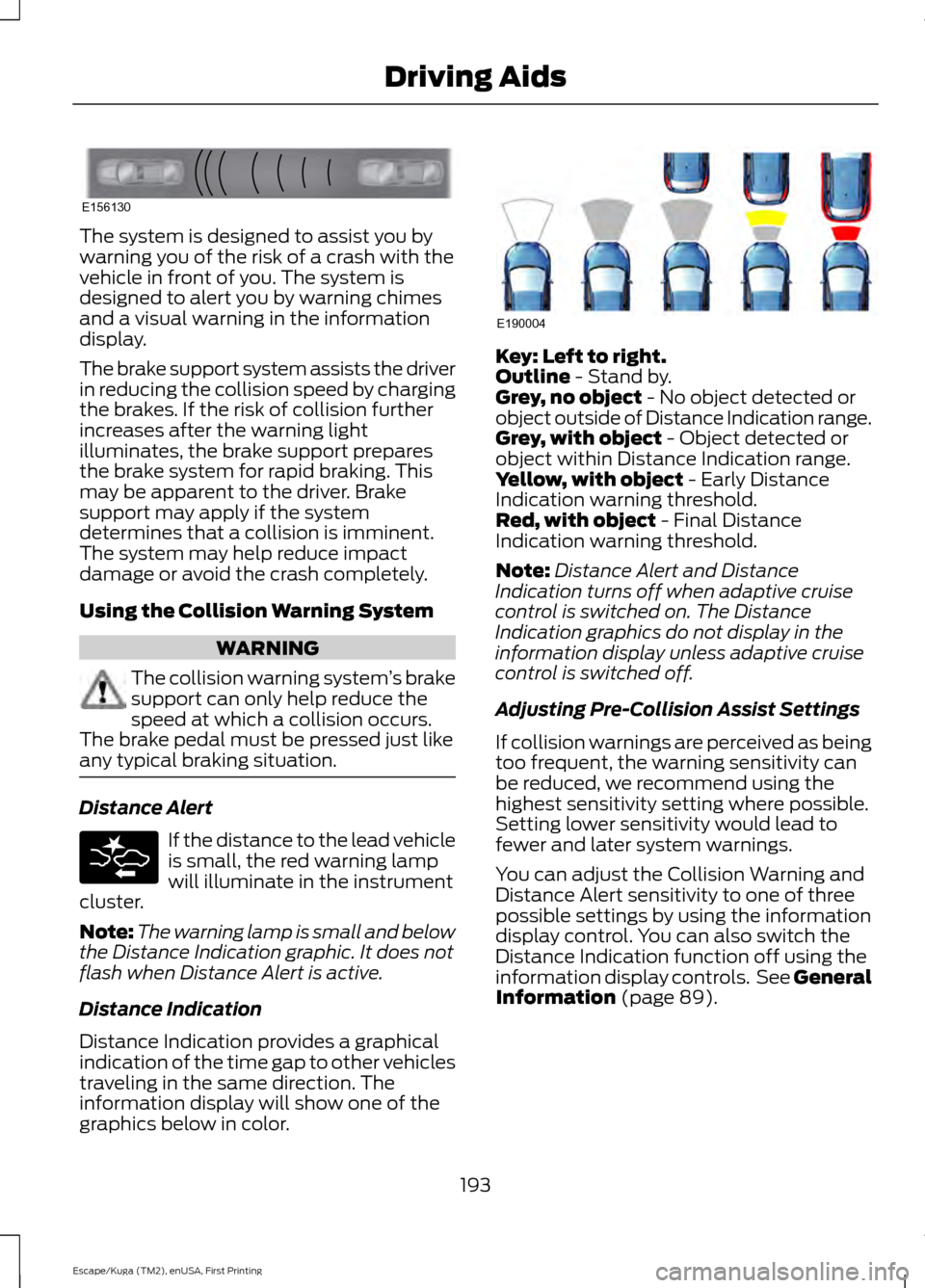
Distance Indication
Distance Indication provides a graphical
indication of the time gap to other vehicles
traveling in the same direction. The
information display will show one of the
graphics below in color. Key: Left to right.
Outline - Stand by.
Grey, no object - No object detected or
object outside of Distance Indication range.
Grey, with object
- Object detected or
object within Distance Indication range.
Yellow, with object
- Early Distance
Indication warning threshold.
Red, with object
- Final Distance
Indication warning threshold.
Note: Distance Alert and Distance
Indication turns off when adaptive cruise
control is switched on. The Distance
Indication graphics do not display in the
information display unless adaptive cruise
control is switched off.
Adjusting Pre-Collision Assist Settings
If collision warnings are perceived as being
too frequent, the warning sensitivity can
be reduced, we recommend using the
highest sensitivity setting where possible.
Setting lower sensitivity would lead to
fewer and later system warnings.
You can adjust the Collision Warning and
Distance Alert sensitivity to one of three
possible settings by using the information
display control. You can also switch the
Distance Indication function off using the
information display controls. See General
Information
(page 89).
193
Escape/Kuga (TM2), enUSA, First Printing Driving AidsE156130 E190004
Page 229 of 486
Protected components
Fuse amp rating
Fuse or relay number
Anti-lock brake system and electronic
stability program pump.
50A**
F7
Electronic stability program valve.
30A**
F8
Cooling fan (600W)
40A**
F9
Cooling fan (390W and 750W).
50A**
Heater blower motor.
40A**
F10
Body control module power feed.
30A**
F11
Voltage quality module.
Powertrain control module relay.
30A**
F12
Starter relay.
30A**
F13
Cooling fan (600W and 750W).
25A**
F14
Front cigar lighter or power outlet.
20A**
F15
Not used.
—
F16
Cooling fan (600W).
40A**
F17
Cooling fan (750W).
50A**
Center power outlet.
20A**
F18
Anti-lock brake system and electronic
stability program 15 feed.
5A*
F19
Horn.
15A*
F20
Stop light switch.
5A*
F21
Battery monitor system.
15A*
F22
Relay coils.
5A*
F23
Light switch module.
5A*
F24
Occupant classification system.
10A*
F25
Oil pump.
25A*
F26
Air conditioner clutch.
15A*
F27
Vehicle power - fuel injector (2.5L engine).
10A*
F28
226
Escape/Kuga (TM2), enUSA, First Printing Fuses
Page 232 of 486
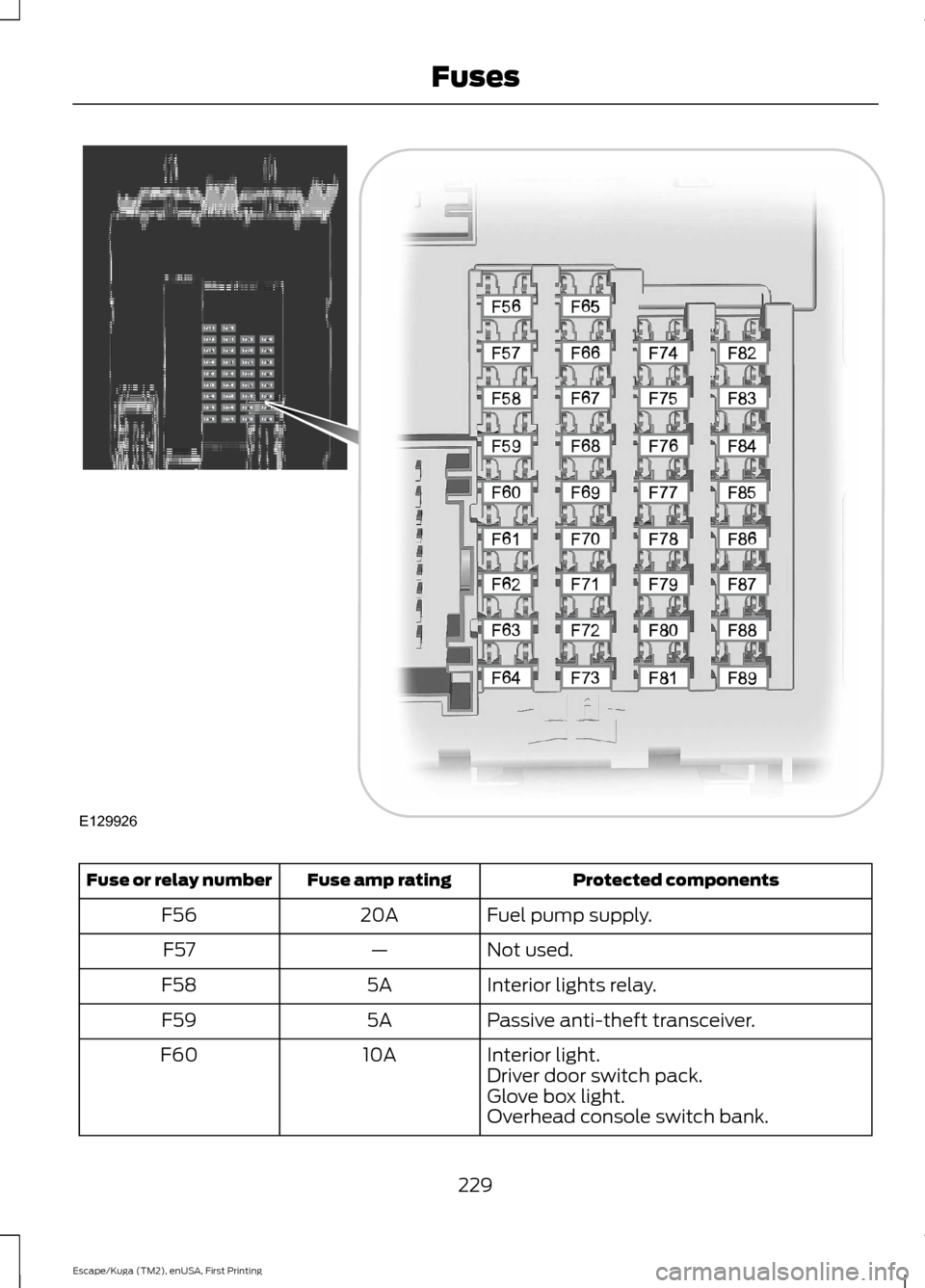
Protected components
Fuse amp rating
Fuse or relay number
Fuel pump supply.
20A
F56
Not used.
—
F57
Interior lights relay.
5A
F58
Passive anti-theft transceiver.
5A
F59
Interior light.
10A
F60
Driver door switch pack.
Glove box light.
Overhead console switch bank.
229
Escape/Kuga (TM2), enUSA, First Printing FusesE129926
Page 233 of 486
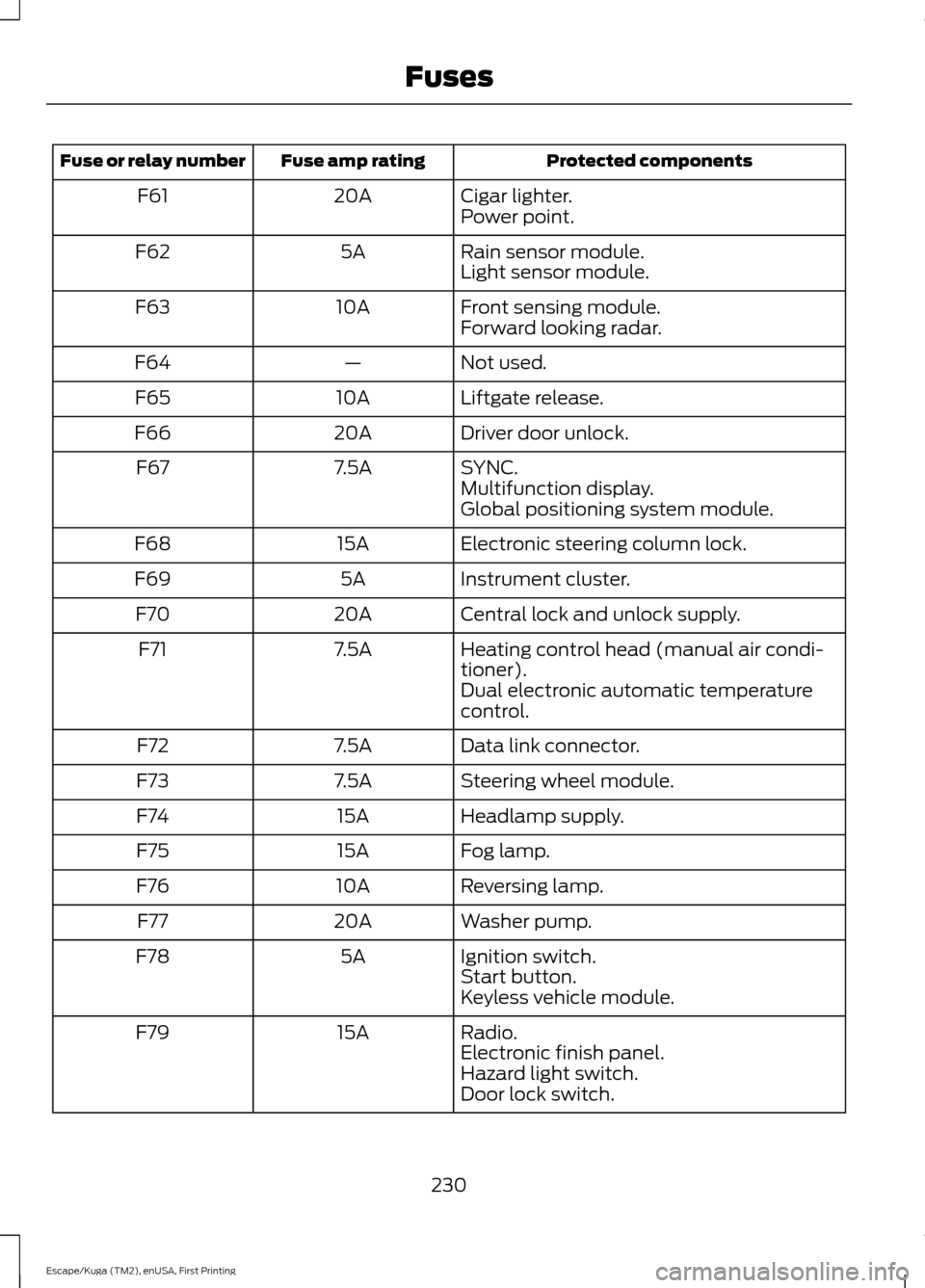
Protected components
Fuse amp rating
Fuse or relay number
Cigar lighter.
20A
F61
Power point.
Rain sensor module.
5A
F62
Light sensor module.
Front sensing module.
10A
F63
Forward looking radar.
Not used.
—
F64
Liftgate release.
10A
F65
Driver door unlock.
20A
F66
SYNC.
7.5A
F67
Multifunction display.
Global positioning system module.
Electronic steering column lock.
15A
F68
Instrument cluster.
5A
F69
Central lock and unlock supply.
20A
F70
Heating control head (manual air condi-
tioner).
7.5A
F71
Dual electronic automatic temperature
control.
Data link connector.
7.5A
F72
Steering wheel module.
7.5A
F73
Headlamp supply.
15A
F74
Fog lamp.
15A
F75
Reversing lamp.
10A
F76
Washer pump.
20A
F77
Ignition switch.
5A
F78
Start button.
Keyless vehicle module.
Radio.
15A
F79
Electronic finish panel.
Hazard light switch.
Door lock switch.
230
Escape/Kuga (TM2), enUSA, First Printing Fuses
Page 239 of 486
GENERAL INFORMATION
Have your vehicle serviced regularly to help
maintain its roadworthiness and resale
value. There is a large network of
authorized dealers that are there to help
you with their professional servicing
expertise. We believe that their specially
trained technicians are best qualified to
service your vehicle properly and expertly.
They are supported by a wide range of
highly specialized tools developed
specifically for servicing your vehicle.
If your vehicle requires professional service,
an authorized dealer can provide the
necessary parts and service. Check your
warranty information to find out which
parts and services are covered.
Use only recommended fuels, lubricants,
fluids and service parts conforming to
specifications. Motorcraft® parts are
designed and built to provide the best
performance in your vehicle.
Precautions
•
Do not work on a hot engine.
• Make sure that nothing gets caught in
moving parts.
• Do not work on a vehicle with the
engine running in an enclosed space,
unless you are sure you have enough
ventilation.
• Keep all open flames and other burning
material (such as cigarettes) away
from the battery and all fuel related
parts.
Working with the Engine Off
1. Set the parking brake and shift to park
(P).
2. Switch off the engine.
3. Block the wheels. Working with the Engine On WARNING
To reduce the risk of vehicle damage
and/or personal burn injuries, do not
start your engine with the air cleaner
removed and do not remove it while the
engine is running. 1.
Set the parking brake and shift to park
(P).
2. Block the wheels.
OPENING AND CLOSING THE
HOOD
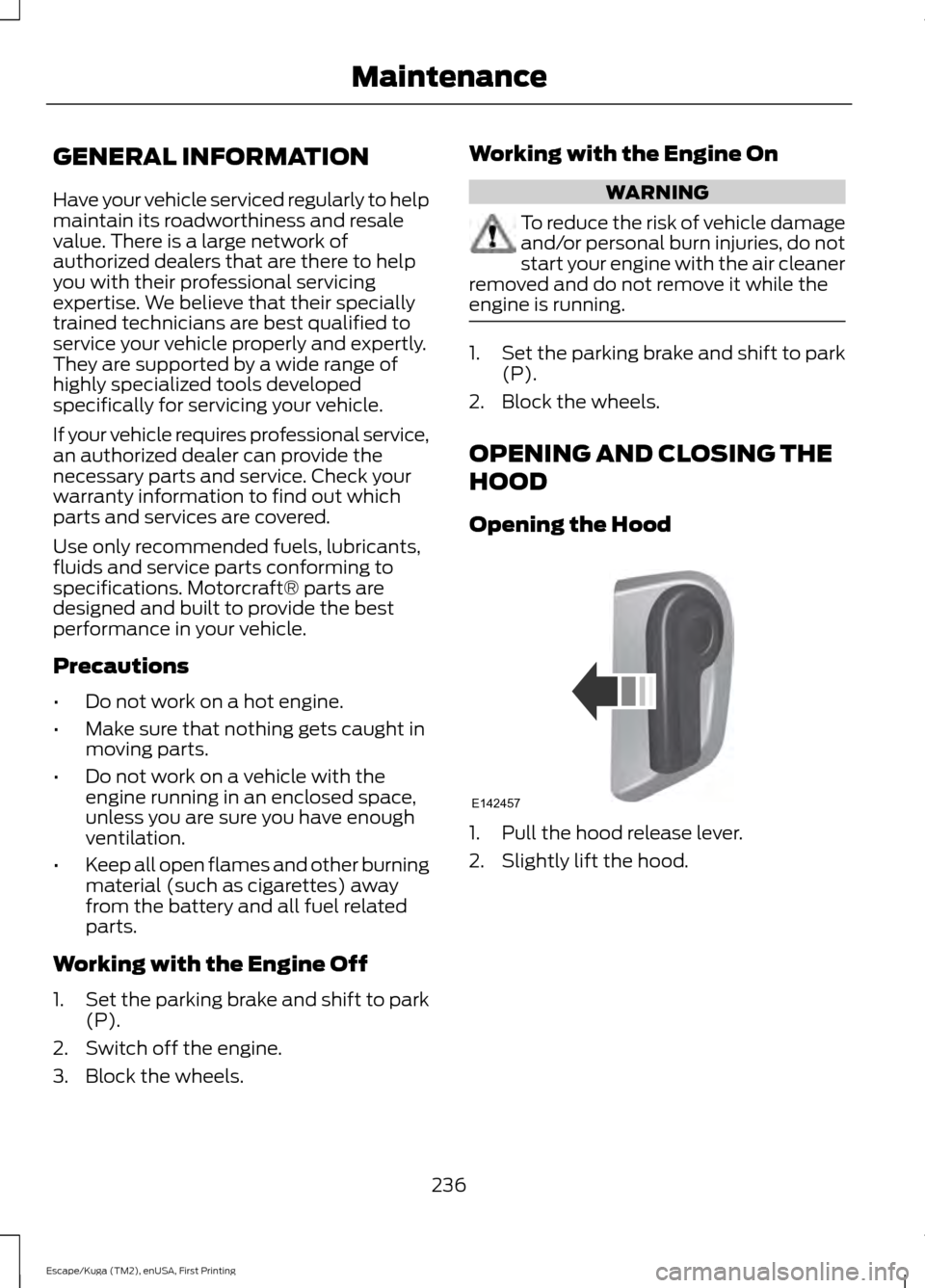
Opening the Hood 1. Pull the hood release lever.
2. Slightly lift the hood.
236
Escape/Kuga (TM2), enUSA, First Printing MaintenanceE142457
Page 253 of 486
A message may appear in the information
displays to alert you that battery
protection actions are active. These
messages are only for notification that an
action is taking place, and not intended to
indicate an electrical problem or that the
battery requires replacement.
After battery replacement, or in some
cases after charging the battery with an
external charger, the battery management
system requires eight hours of vehicle sleep
time to relearn the battery state of charge.
During this time your vehicle must remain
fully locked with the ignition switched off.
Note:
Prior to relearning the battery state
of charge, the battery management system
may temporarily disable some electrical
systems.
Electrical Accessory Installation
To make sure the battery management
system works correctly, do not connect an
electrical device ground connection
directly to the battery negative post. This
can cause inaccurate measurements of
the battery condition and potential
incorrect system operation.
Note: If you add electrical accessories or
components to the vehicle, it may adversely
affect battery performance and durability.
This may also affect the performance of
other electrical systems in the vehicle.
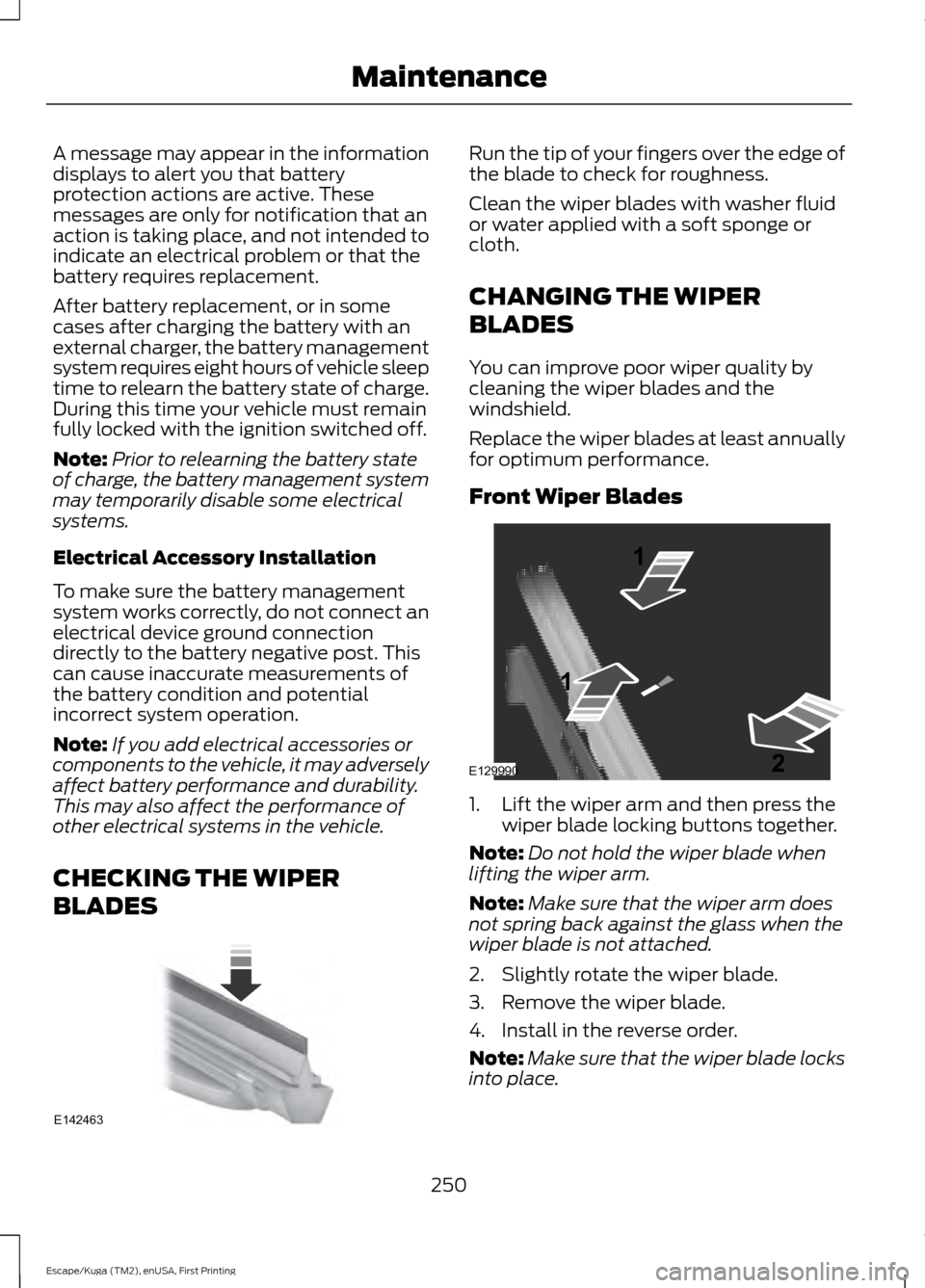
CHECKING THE WIPER
BLADES Run the tip of your fingers over the edge of
the blade to check for roughness.
Clean the wiper blades with washer fluid
or water applied with a soft sponge or
cloth.
CHANGING THE WIPER
BLADES
You can improve poor wiper quality by
cleaning the wiper blades and the
windshield.
Replace the wiper blades at least annually
for optimum performance.
Front Wiper Blades
1. Lift the wiper arm and then press the
wiper blade locking buttons together.
Note: Do not hold the wiper blade when
lifting the wiper arm.
Note: Make sure that the wiper arm does
not spring back against the glass when the
wiper blade is not attached.
2. Slightly rotate the wiper blade.
3. Remove the wiper blade.
4. Install in the reverse order.
Note: Make sure that the wiper blade locks
into place.
250
Escape/Kuga (TM2), enUSA, First Printing MaintenanceE142463 E129990
1
1 2
Page 325 of 486
than analog broadcasts with free,
crystal-clear audio and no static or
distortion. For more information, and a
guide to available stations and
programming, please visit
www.hdradio.com.
When HD Radio is on and you tune to a
station broadcasting HD Radio technology,
you may notice the HD Radio logo on your
screen. When this logo is available, you
may also see Title and Artist fields
on-screen.
The multicast indicator appears in FM
mode (only) if the current station is
broadcasting multiple digital broadcasts.
The highlighted numbers signify available
digital channels where new or different
content is available. HD1 signifies the main
programming status and is available in
analog and digital broadcasts. Other
multicast stations (HD2 through HD7) are
only available digitally.
When HD Radio broadcasts are active, you
can access the following functions:
•
Scan allows you to hear a brief
sampling of all available stations. This
feature still works when HD Radio
reception is on, although it does not
scan for HD2-HD7 channels. You may
see the HD logo appear if the station
has a digital broadcast.
• Memory presets
allow you to save an
active channel as a memory preset.
Touch and hold a memory preset slot
until the sound returns. There is a brief
mute while the radio saves the station.
Sound returns when finished. When
switching to an HD2 or HD3 memory
preset, the sound mutes before the
digital audio plays, because the system
has to reacquire the digital signal.
Note: As with any saved radio station, you
cannot access the saved station if your
vehicle is outside the station ’s reception
area.
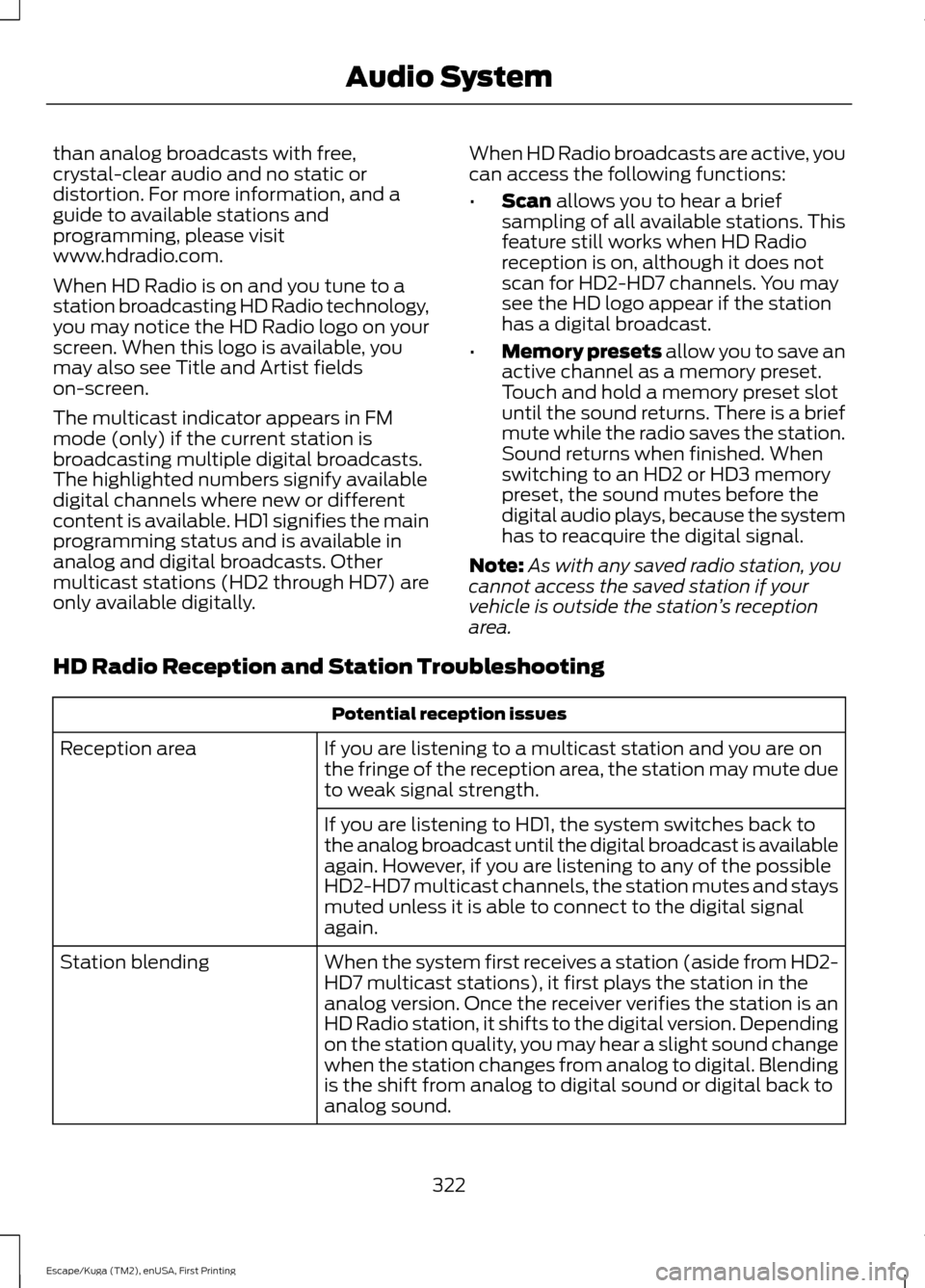
HD Radio Reception and Station Troubleshooting Potential reception issues
If you are listening to a multicast station and you are on
the fringe of the reception area, the station may mute due
to weak signal strength.
Reception area
If you are listening to HD1, the system switches back to
the analog broadcast until the digital broadcast is available
again. However, if you are listening to any of the possible
HD2-HD7 multicast channels, the station mutes and stays
muted unless it is able to connect to the digital signal
again.
When the system first receives a station (aside from HD2-
HD7 multicast stations), it first plays the station in the
analog version. Once the receiver verifies the station is an
HD Radio station, it shifts to the digital version. Depending
on the station quality, you may hear a slight sound change
when the station changes from analog to digital. Blending
is the shift from analog to digital sound or digital back to
analog sound.
Station blending
322
Escape/Kuga (TM2), enUSA, First Printing Audio System
Page 391 of 486
HD Radio technology is the digital
evolution of analog AM/FM radio. Your
system has a special receiver that allows
it to receive digital broadcasts (where
available) in addition to the analog
broadcasts, it already receives. Digital
broadcasts provide a better sound quality
than analog broadcasts with free,
crystal-clear audio and no static or
distortion. For more information, and a
guide to available stations and
programming, please visit:
Website
www.hdradio.com
When HD Radio is on and you tune to a
station broadcasting HD Radio technology,
you may notice the following indicators on
your screen: The HD logo is grey when acquiring a digital
station, and then changes to orange when
digital audio is playing. When this logo is
available, you may also see Title and Artist
fields on-screen.
The multicast indicator appears in FM
mode (only) if the current station is
broadcasting multiple digital broadcasts.
The highlighted numbers signify available
digital channels where new or different
content is available. HD1 signifies the main
programming status and is available in
analog and digital broadcasts. Other
multicast stations (HD2 through HD7) are
only available digitally.
Note:
There is also an additional feature
for stations that have more than 1 HD
multicast (For example, HD1 or HD2). The
HD logo and Radio text appears as a button.
Pressing this button allows you to cycle
through all of the HD stations on that
specific frequency. For example, if you are
on 101.1 and it has HD1, HD2, HD3, pressing
the button repeatedly causes the radio to
cycle through the HD stations in a cyclic
increasing order.
When HD Radio broadcasts are active, you can access the following functions: Action and description
Message
Allows you to save an active channel as a memory preset.
Touch and hold a memory preset slot until the sound returns.
There is a brief mute while the radio saves the station. Sound
returns when the channel saves. When switching to an HD2
or HD3 memory preset, the sound mutes before the digital
audio plays, because the system has to reacquire the digital
signal.
Presets
Note: As with any station you save, you cannot access the saved station if your vehicle is
outside the station ’s reception area.
388
Escape/Kuga (TM2), enUSA, First Printing SYNC™ 3 (If Equipped)E142616
Page 421 of 486
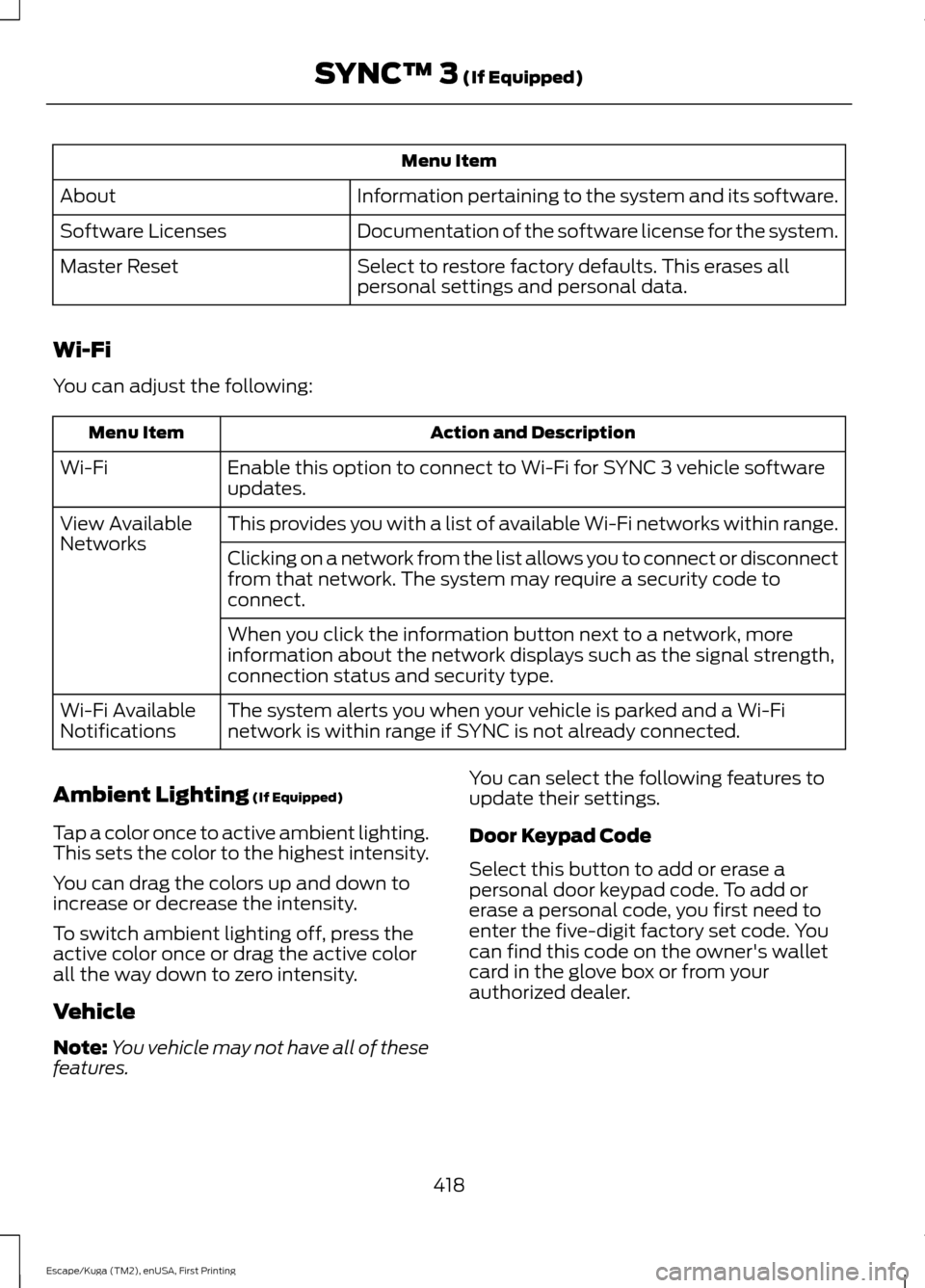
Menu Item
Information pertaining to the system and its software.
About
Documentation of the software license for the system.
Software Licenses
Select to restore factory defaults. This erases all
personal settings and personal data.
Master Reset
Wi-Fi
You can adjust the following: Action and Description
Menu Item
Enable this option to connect to Wi-Fi for SYNC 3 vehicle software
updates.
Wi-Fi
This provides you with a list of available Wi-Fi networks within range.
View Available
Networks
Clicking on a network from the list allows you to connect or disconnect
from that network. The system may require a security code to
connect.
When you click the information button next to a network, more
information about the network displays such as the signal strength,
connection status and security type.
The system alerts you when your vehicle is parked and a Wi-Fi
network is within range if SYNC is not already connected.
Wi-Fi Available
Notifications
Ambient Lighting (If Equipped)
Tap a color once to active ambient lighting.
This sets the color to the highest intensity.
You can drag the colors up and down to
increase or decrease the intensity.
To switch ambient lighting off, press the
active color once or drag the active color
all the way down to zero intensity.
Vehicle
Note: You vehicle may not have all of these
features. You can select the following features to
update their settings.
Door Keypad Code
Select this button to add or erase a
personal door keypad code. To add or
erase a personal code, you first need to
enter the five-digit factory set code. You
can find this code on the owner's wallet
card in the glove box or from your
authorized dealer.
418
Escape/Kuga (TM2), enUSA, First Printing SYNC™ 3
(If Equipped)