navigation system FORD ESCAPE 2017 3.G Owners Manual
[x] Cancel search | Manufacturer: FORD, Model Year: 2017, Model line: ESCAPE, Model: FORD ESCAPE 2017 3.GPages: 486, PDF Size: 6.34 MB
Page 8 of 486
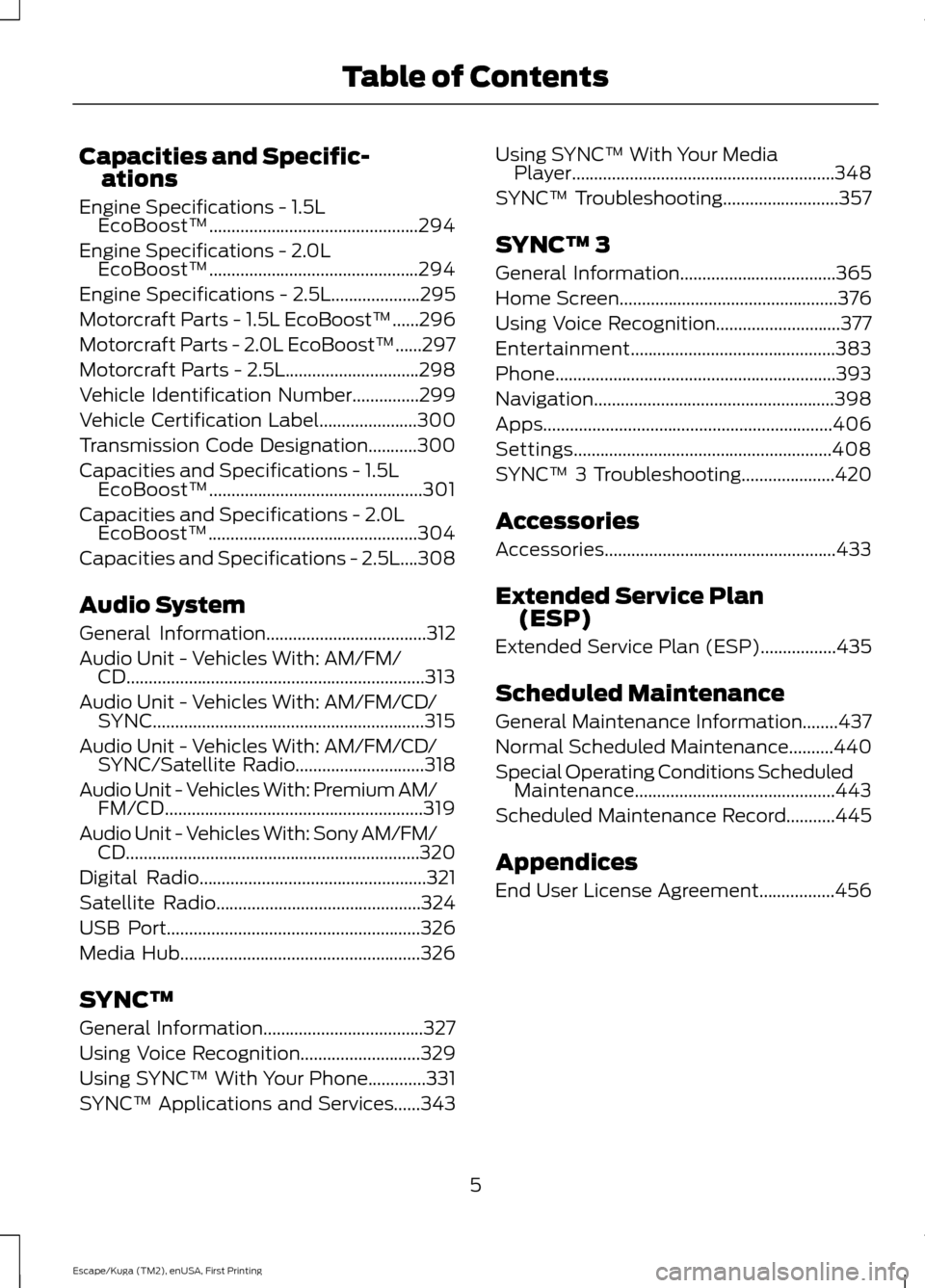
Capacities and Specific-
ations
Engine Specifications - 1.5L EcoBoost™...............................................294
Engine Specifications - 2.0L EcoBoost™...............................................294
Engine Specifications - 2.5L....................295
Motorcraft Parts - 1.5L EcoBoost™......296
Motorcraft Parts - 2.0L EcoBoost™......297
Motorcraft Parts - 2.5L..............................298
Vehicle Identification Number...............299
Vehicle Certification Label
......................300
Transmission Code Designation...........300
Capacities and Specifications - 1.5L EcoBoost™................................................301
Capacities and Specifications - 2.0L EcoBoost™...............................................304
Capacities and Specifications - 2.5L....308
Audio System
General Information
....................................312
Audio Unit - Vehicles With: AM/FM/ CD
...................................................................313
Audio Unit - Vehicles With: AM/FM/CD/ SYNC.............................................................315
Audio Unit - Vehicles With: AM/FM/CD/ SYNC/Satellite Radio.............................318
Audio Unit - Vehicles With: Premium AM/ FM/CD..........................................................319
Audio Unit - Vehicles With: Sony AM/FM/ CD..................................................................320
Digital Radio
...................................................321
Satellite Radio..............................................324
USB Port
.........................................................326
Media Hub......................................................326
SYNC™
General Information....................................327
Using Voice Recognition...........................329
Using SYNC™ With Your Phone.............331
SYNC™ Applications and Services......343 Using SYNC™ With Your Media
Player...........................................................348
SYNC™ Troubleshooting
..........................357
SYNC™ 3
General Information
...................................365
Home Screen.................................................376
Using Voice Recognition............................377
Entertainment..............................................383
Phone...............................................................393
Navigation
......................................................398
Apps.................................................................406
Settings..........................................................408
SYNC™ 3 Troubleshooting.....................420
Accessories
Accessories....................................................433
Extended Service Plan (ESP)
Extended Service Plan (ESP).................435
Scheduled Maintenance
General Maintenance Information
........437
Normal Scheduled Maintenance..........440
Special Operating Conditions Scheduled Maintenance.............................................443
Scheduled Maintenance Record...........445
Appendices
End User License Agreement
.................456
5
Escape/Kuga (TM2), enUSA, First Printing Table of Contents
Page 52 of 486
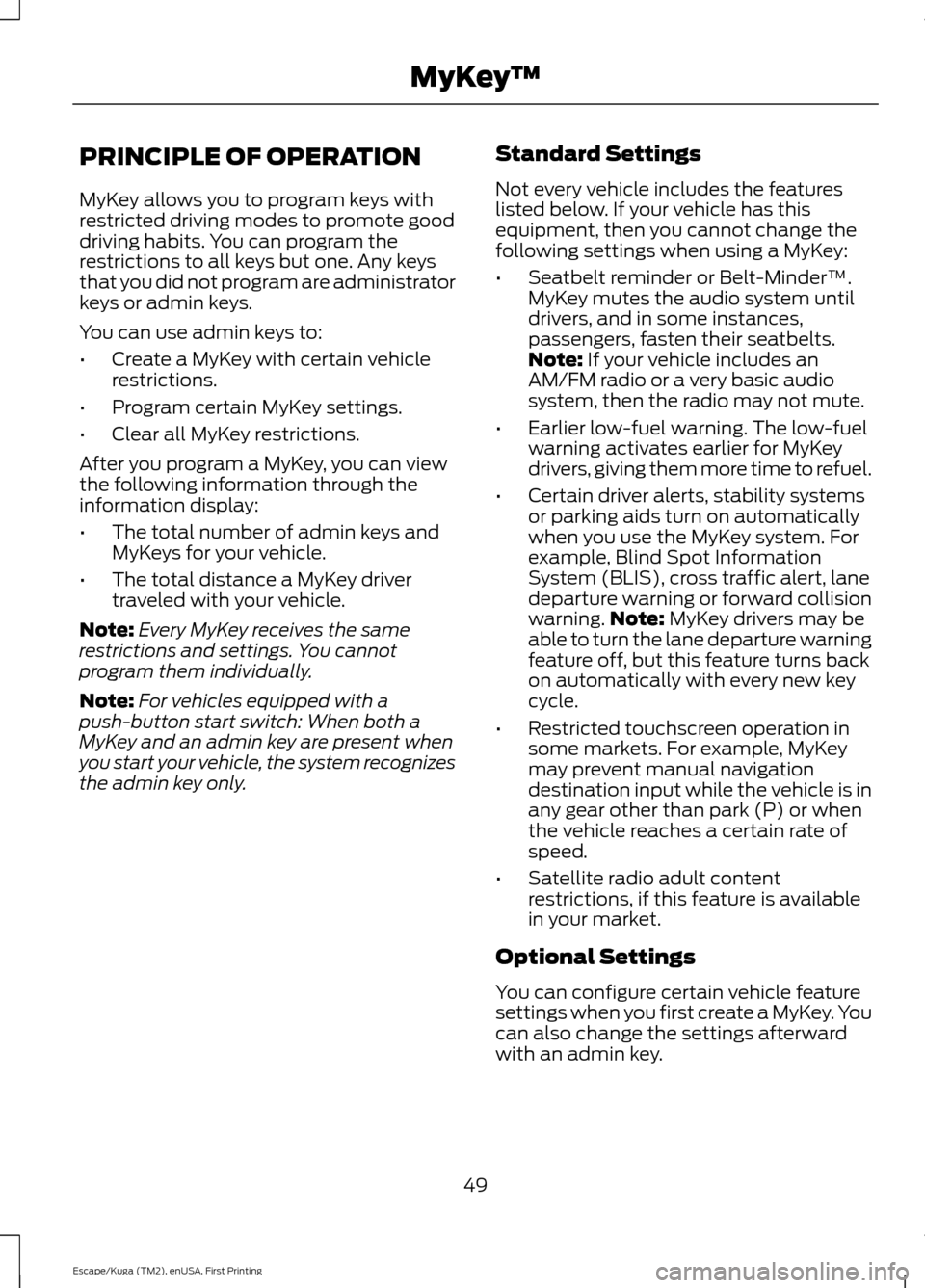
PRINCIPLE OF OPERATION
MyKey allows you to program keys with
restricted driving modes to promote good
driving habits. You can program the
restrictions to all keys but one. Any keys
that you did not program are administrator
keys or admin keys.
You can use admin keys to:
•
Create a MyKey with certain vehicle
restrictions.
• Program certain MyKey settings.
• Clear all MyKey restrictions.
After you program a MyKey, you can view
the following information through the
information display:
• The total number of admin keys and
MyKeys for your vehicle.
• The total distance a MyKey driver
traveled with your vehicle.
Note: Every MyKey receives the same
restrictions and settings. You cannot
program them individually.
Note: For vehicles equipped with a
push-button start switch: When both a
MyKey and an admin key are present when
you start your vehicle, the system recognizes
the admin key only. Standard Settings
Not every vehicle includes the features
listed below. If your vehicle has this
equipment, then you cannot change the
following settings when using a MyKey:
•
Seatbelt reminder or Belt-Minder™.
MyKey mutes the audio system until
drivers, and in some instances,
passengers, fasten their seatbelts.
Note: If your vehicle includes an
AM/FM radio or a very basic audio
system, then the radio may not mute.
• Earlier low-fuel warning. The low-fuel
warning activates earlier for MyKey
drivers, giving them more time to refuel.
• Certain driver alerts, stability systems
or parking aids turn on automatically
when you use the MyKey system. For
example, Blind Spot Information
System (BLIS), cross traffic alert, lane
departure warning or forward collision
warning. Note:
MyKey drivers may be
able to turn the lane departure warning
feature off, but this feature turns back
on automatically with every new key
cycle.
• Restricted touchscreen operation in
some markets. For example, MyKey
may prevent manual navigation
destination input while the vehicle is in
any gear other than park (P) or when
the vehicle reaches a certain rate of
speed.
• Satellite radio adult content
restrictions, if this feature is available
in your market.
Optional Settings
You can configure certain vehicle feature
settings when you first create a MyKey. You
can also change the settings afterward
with an admin key.
49
Escape/Kuga (TM2), enUSA, First Printing MyKey
™
Page 93 of 486
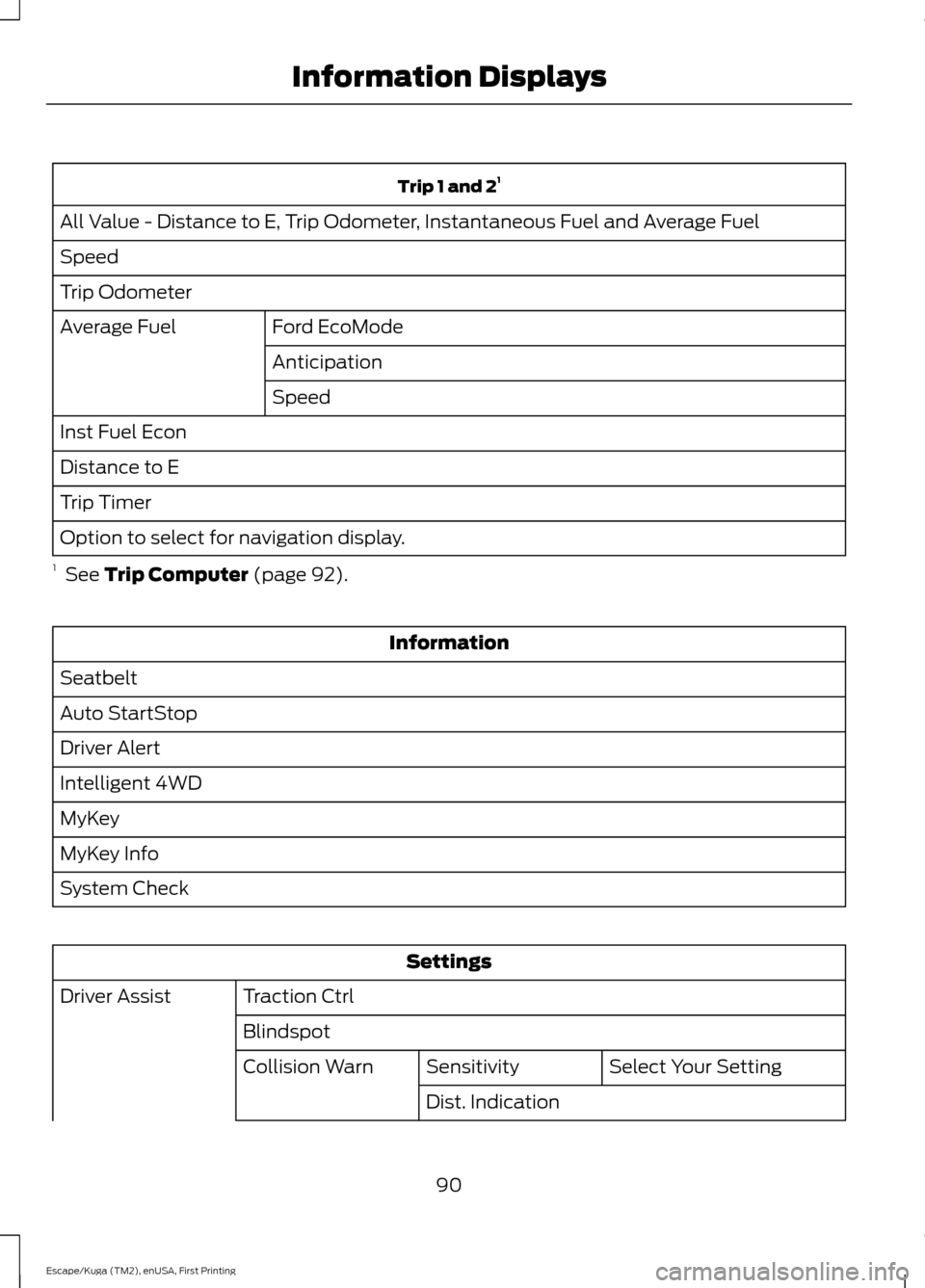
Trip 1 and 2
1
All Value - Distance to E, Trip Odometer, Instantaneous Fuel and Average Fuel
Speed
Trip Odometer Ford EcoMode
Average Fuel
Anticipation
Speed
Inst Fuel Econ
Distance to E
Trip Timer
Option to select for navigation display.
1 See Trip Computer (page 92). Information
Seatbelt
Auto StartStop
Driver Alert
Intelligent 4WD
MyKey
MyKey Info
System Check Settings
Traction Ctrl
Driver Assist
Blindspot Select Your Setting
Sensitivity
Collision Warn
Dist. Indication
90
Escape/Kuga (TM2), enUSA, First Printing Information Displays
Page 95 of 486
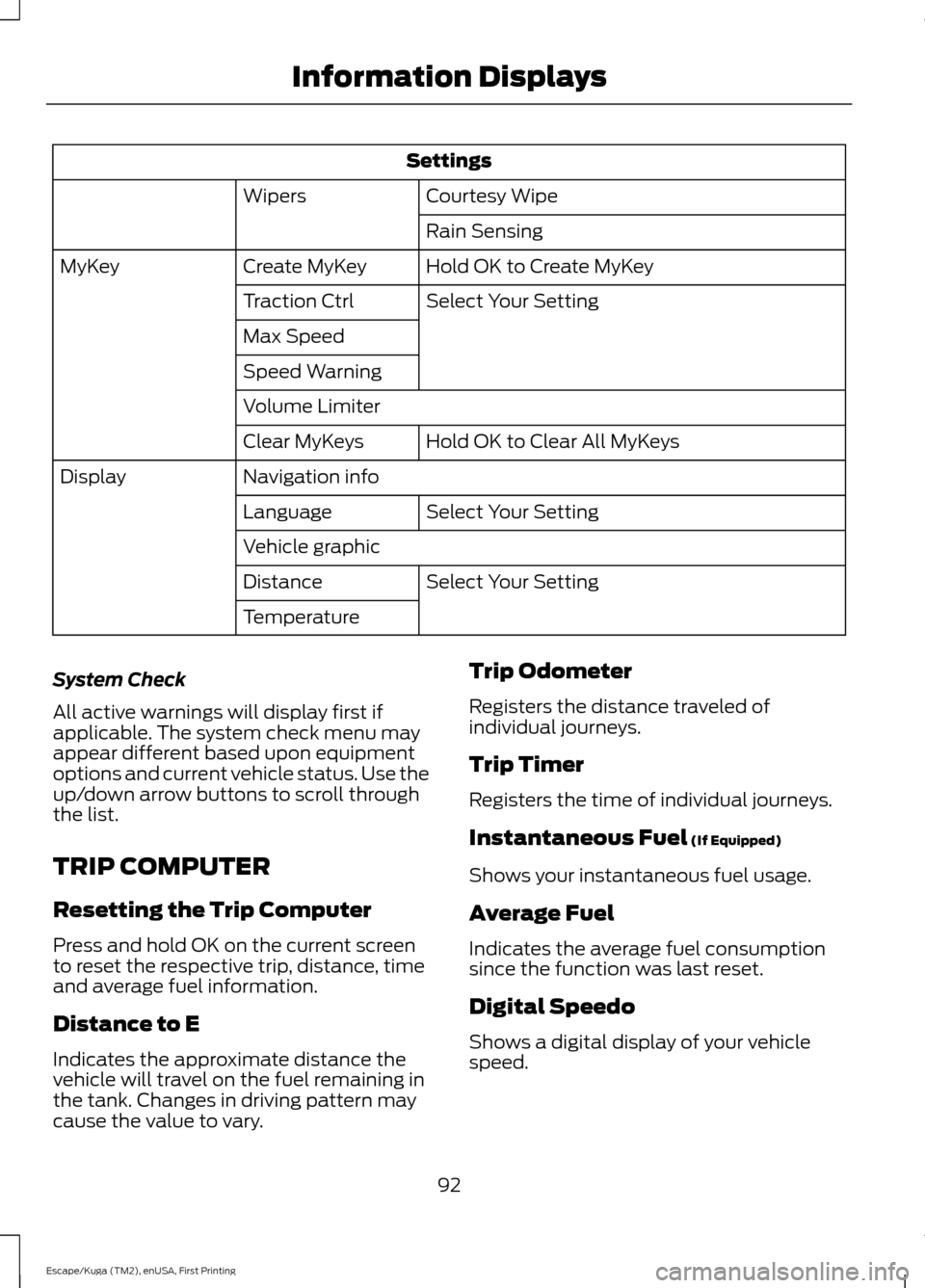
Settings
Courtesy Wipe
Wipers
Rain Sensing
Hold OK to Create MyKey
Create MyKey
MyKey
Select Your Setting
Traction Ctrl
Max Speed
Speed Warning
Volume Limiter
Hold OK to Clear All MyKeys
Clear MyKeys
Navigation info
Display
Select Your Setting
Language
Vehicle graphic
Select Your Setting
Distance
Temperature
System Check
All active warnings will display first if
applicable. The system check menu may
appear different based upon equipment
options and current vehicle status. Use the
up/down arrow buttons to scroll through
the list.
TRIP COMPUTER
Resetting the Trip Computer
Press and hold OK on the current screen
to reset the respective trip, distance, time
and average fuel information.
Distance to E
Indicates the approximate distance the
vehicle will travel on the fuel remaining in
the tank. Changes in driving pattern may
cause the value to vary. Trip Odometer
Registers the distance traveled of
individual journeys.
Trip Timer
Registers the time of individual journeys.
Instantaneous Fuel (If Equipped)
Shows your instantaneous fuel usage.
Average Fuel
Indicates the average fuel consumption
since the function was last reset.
Digital Speedo
Shows a digital display of your vehicle
speed.
92
Escape/Kuga (TM2), enUSA, First Printing Information Displays
Page 252 of 486
Note:
If you add electrical accessories or
components to the vehicle, it may adversely
affect the low voltage battery performance
and durability. This may also affect the
performance of other electrical systems in
the vehicle.
For longer, trouble-free operation, keep the
top of the battery clean and dry.
If you see any corrosion on the battery or
terminals, remove the cables from the
terminals and clean with a wire brush. You
can neutralize the acid with a solution of
baking soda and water.
Because your vehicle ’s engine is
electronically controlled by a computer,
some control conditions are maintained
by power from the battery. When the
battery is disconnected or a new battery
is installed, the engine must relearn its idle
and fuel trim strategy for optimum
driveability and performance. Flexible fuel
vehicles (FFV) must also relearn the
ethanol content of the fuel for optimum
driveability and performance.
To restore the settings, do the following:
1. Apply the parking brake.
2. Shift into park (P) or neutral (N).
3. Switch off all accessories.
4. Press the brake pedal and start your vehicle.
5. Run the engine until it reaches normal operating temperature. While the
engine is warming up, complete the
following: Reset the clock. See Audio
System (page 312). Reset the power
windows bounce-back feature. See
Windows and Mirrors
(page 78).
Reset the radio station presets. See
Audio System
(page 312).
6. Allow the engine to idle for at least one
minute. 7.
Drive the vehicle at least 10 mi (16 km)
to completely relearn the idle trim and
fuel trim strategy.
Note: If you do not allow the engine to
relearn the idle and fuel trim strategy, the
idle quality of your vehicle may be adversely
affected until the engine computer
eventually relearns the idle trim and fuel
trim strategy.
Note: For flexible fuel vehicles, if you are
operating on E85, you may experience poor
starts or an inability to start the engine and
driveability problems until the fuel trim and
ethanol content have been relearned.
Make sure that you dispose of old batteries
in an environmentally friendly way. Seek
advice from your local authority about
recycling old batteries.
If storing your vehicle for more than 30
days without recharging the battery, we
recommend that you disconnect the
battery cables to maintain battery charge
for quick starting.
Battery Management System
(If
Equipped)
The battery management system monitors
battery conditions and takes actions to
extend battery life. If excessive battery
drain is detected, the system temporarily
disables some electrical systems to
protect the battery.
Systems included are:
• Heated rear window.
• Heated seats.
• Climate control.
• Heated steering wheel.
• Audio unit.
• Navigation system.
249
Escape/Kuga (TM2), enUSA, First Printing Maintenance
Page 316 of 486
•
MP3 and WMA folder mode represents
a folder structure consisting of one
level of folders. The CD player numbers
all MP3 and WMA tracks on the disc
(noted by the MP3 or WMA file
extension) and all folders containing
MP3 and WMA files, from F001 (folder)
T001 (track) to F253 T255.
• Creating discs with only one level of
folders helps with navigation through
the disc files.
If you are burning your own MP3 and WMA
discs, it is important to understand how
the system reads the structures you create.
While various files may be present (files
with extensions other than MP3 and
WMA), only files with the MP3 and WMA
extension are played; other files are
ignored by the system. This enables you to
use the same MP3 and WMA disc for a
variety of tasks on your work computer,
home computer and your in-vehicle
system.
In track mode, the system displays and
plays the structure as if it were only one
level deep (all MP3 and WMA files play,
regardless of being in a specific folder). In
folder mode, the system only plays the
MP3 and WMA files in the current folder. AUDIO UNIT - VEHICLES WITH:
AM/FM/CD WARNING
Driving while distracted can result in
loss of vehicle control, crash and
injury. We strongly recommend that
you use extreme caution when using any
device that may take your focus off the
road. Your primary responsibility is the safe
operation of your vehicle. We recommend
against the use of any hand-held device
while driving and encourage the use of
voice-operated systems when possible.
Make sure you are aware of all applicable
local laws that may affect the use of
electronic devices while driving. Note:
Depending on your vehicle option
package, your system may look different
from what you see here.
313
Escape/Kuga (TM2), enUSA, First Printing Audio System
Page 368 of 486
GENERAL INFORMATION
WARNING
Driving while distracted can result in
loss of vehicle control, crash and
injury. We strongly recommend that
you use extreme caution when using any
device that may take your focus off the
road. Your primary responsibility is the safe
operation of your vehicle. We recommend
against the use of any hand-held device
while driving and encourage the use of
voice-operated systems when possible.
Make sure you are aware of all applicable
local laws that may affect the use of
electronic devices while driving. Getting to Know Your System
The SYNC 3 system allows you to interact
with a variety of features using the
touchscreen and voice commands. By
integrating with your Bluetooth-enabled
phone, the touchscreen provides easy
interaction with audio, multimedia, climate
control, navigation, and your phone's SYNC
3 compatible apps.
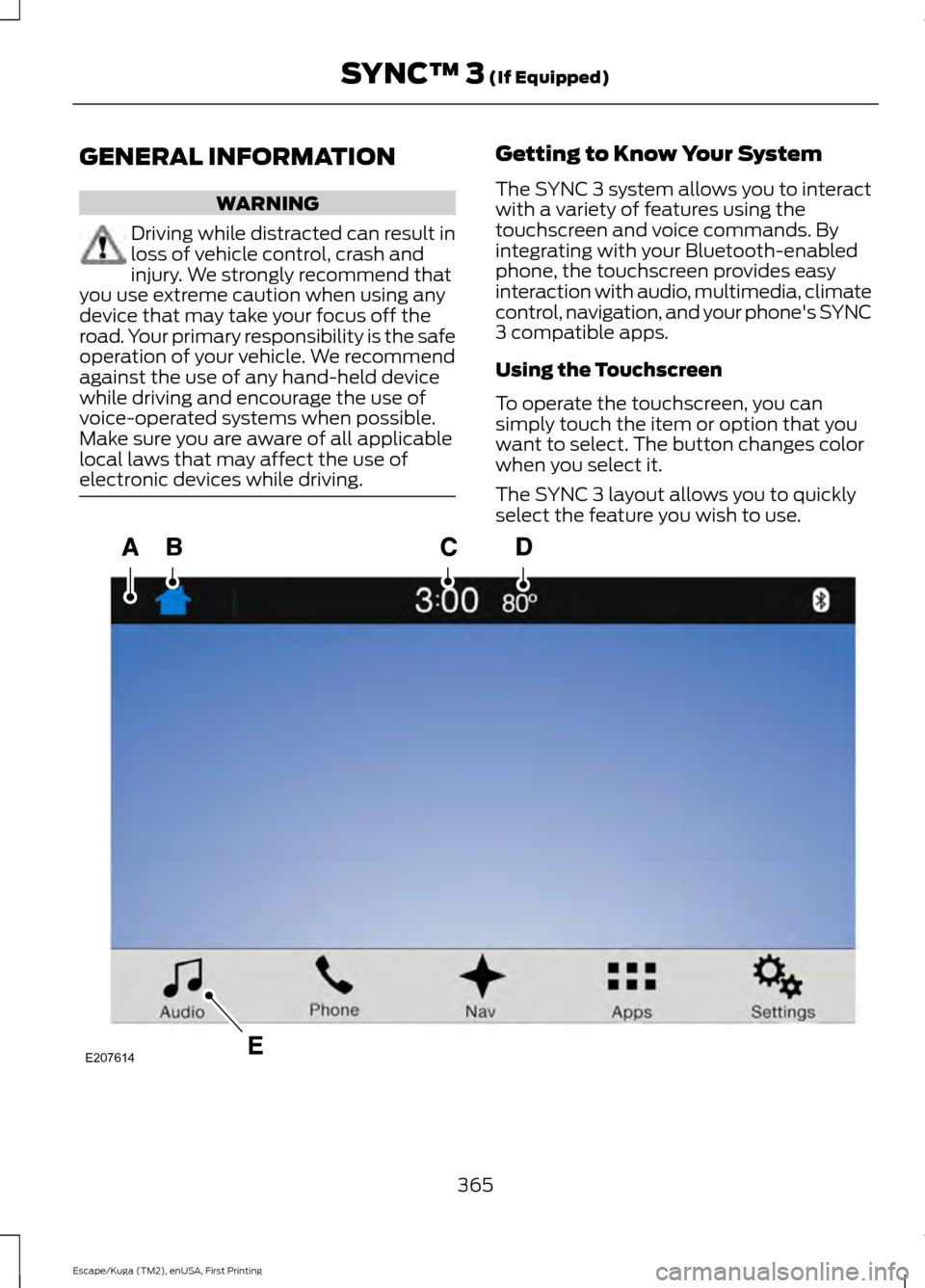
Using the Touchscreen
To operate the touchscreen, you can
simply touch the item or option that you
want to select. The button changes color
when you select it.
The SYNC 3 layout allows you to quickly
select the feature you wish to use.
365
Escape/Kuga (TM2), enUSA, First Printing SYNC™ 3 (If Equipped)E207614
Page 369 of 486
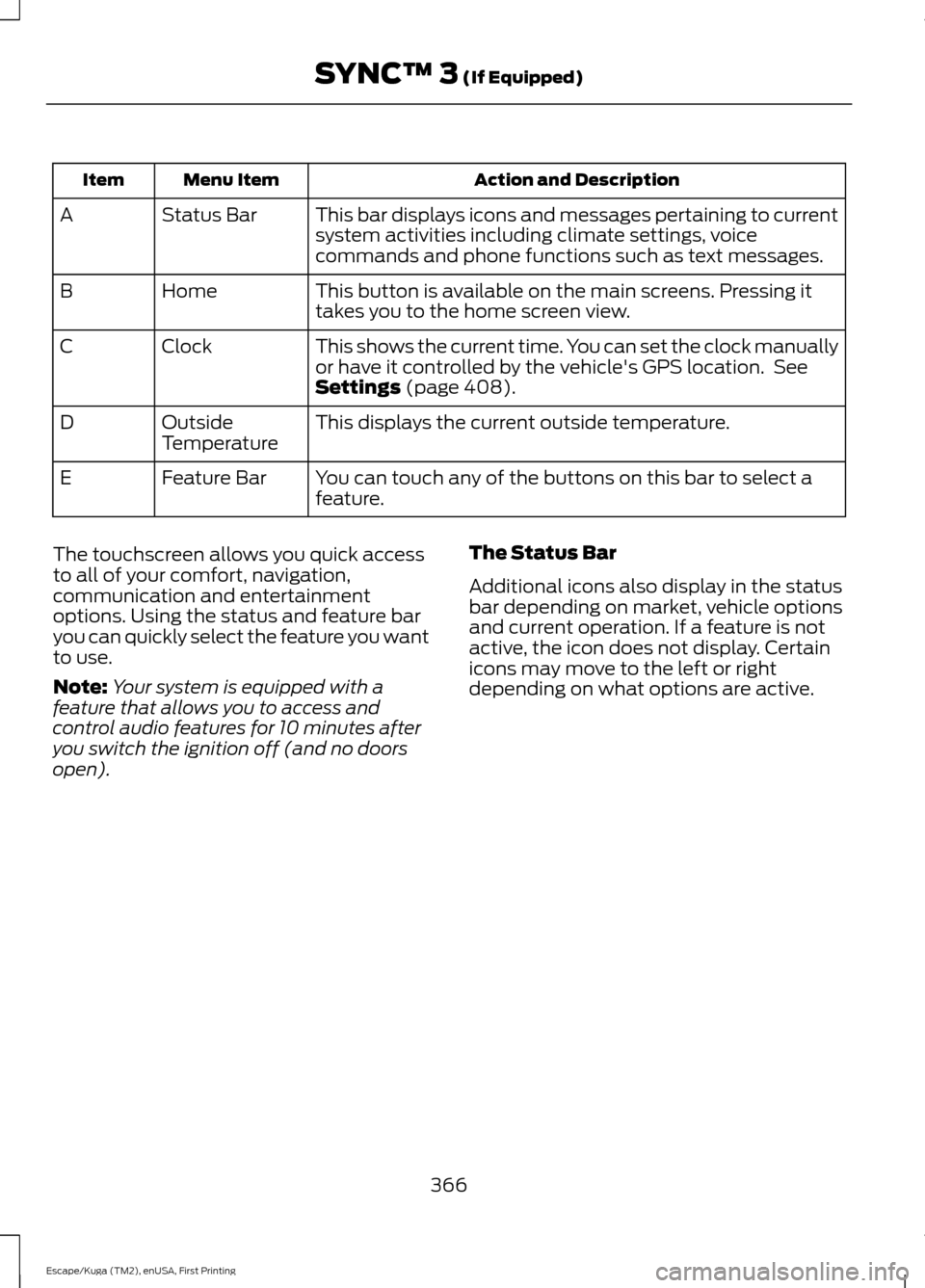
Action and Description
Menu Item
Item
This bar displays icons and messages pertaining to current
system activities including climate settings, voice
commands and phone functions such as text messages.
Status Bar
A
This button is available on the main screens. Pressing it
takes you to the home screen view.
Home
B
This shows the current time. You can set the clock manually
or have it controlled by the vehicle's GPS location. See
Settings (page 408).
Clock
C
This displays the current outside temperature.
Outside
Temperature
D
You can touch any of the buttons on this bar to select a
feature.
Feature Bar
E
The touchscreen allows you quick access
to all of your comfort, navigation,
communication and entertainment
options. Using the status and feature bar
you can quickly select the feature you want
to use.
Note: Your system is equipped with a
feature that allows you to access and
control audio features for 10 minutes after
you switch the ignition off (and no doors
open). The Status Bar
Additional icons also display in the status
bar depending on market, vehicle options
and current operation. If a feature is not
active, the icon does not display. Certain
icons may move to the left or right
depending on what options are active.
366
Escape/Kuga (TM2), enUSA, First Printing SYNC™ 3
(If Equipped)
Page 371 of 486
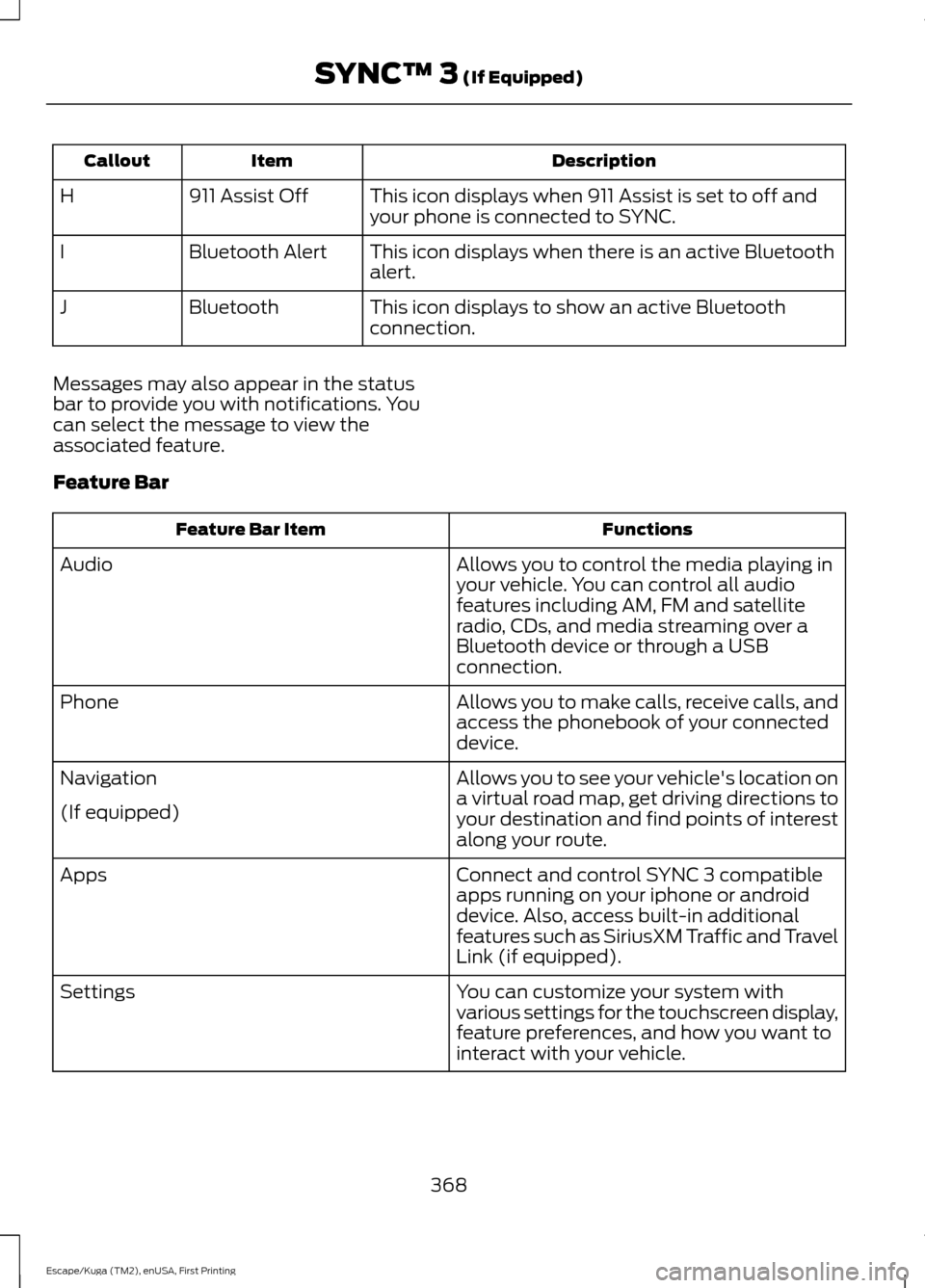
Description
Item
Callout
This icon displays when 911 Assist is set to off and
your phone is connected to SYNC.
911 Assist Off
H
This icon displays when there is an active Bluetooth
alert.
Bluetooth Alert
I
This icon displays to show an active Bluetooth
connection.
Bluetooth
J
Messages may also appear in the status
bar to provide you with notifications. You
can select the message to view the
associated feature.
Feature Bar Functions
Feature Bar Item
Allows you to control the media playing in
your vehicle. You can control all audio
features including AM, FM and satellite
radio, CDs, and media streaming over a
Bluetooth device or through a USB
connection.
Audio
Allows you to make calls, receive calls, and
access the phonebook of your connected
device.
Phone
Allows you to see your vehicle's location on
a virtual road map, get driving directions to
your destination and find points of interest
along your route.
Navigation
(If equipped)
Connect and control SYNC 3 compatible
apps running on your iphone or android
device. Also, access built-in additional
features such as SiriusXM Traffic and Travel
Link (if equipped).
Apps
You can customize your system with
various settings for the touchscreen display,
feature preferences, and how you want to
interact with your vehicle.
Settings
368
Escape/Kuga (TM2), enUSA, First Printing SYNC™ 3 (If Equipped)
Page 375 of 486
•
Do not attempt to service or repair the
system. Have an authorized dealer
check your vehicle.
• Do not operate playing devices if the
power cords or cables are broken, split
or damaged. Place cords and cables
out of the way, so they do not interfere
with the operation of pedals, seats,
compartments or safe driving abilities.
• Do not leave playing devices in your
vehicle during extreme conditions as it
could cause them damage. See your
device's user guide for further
information.
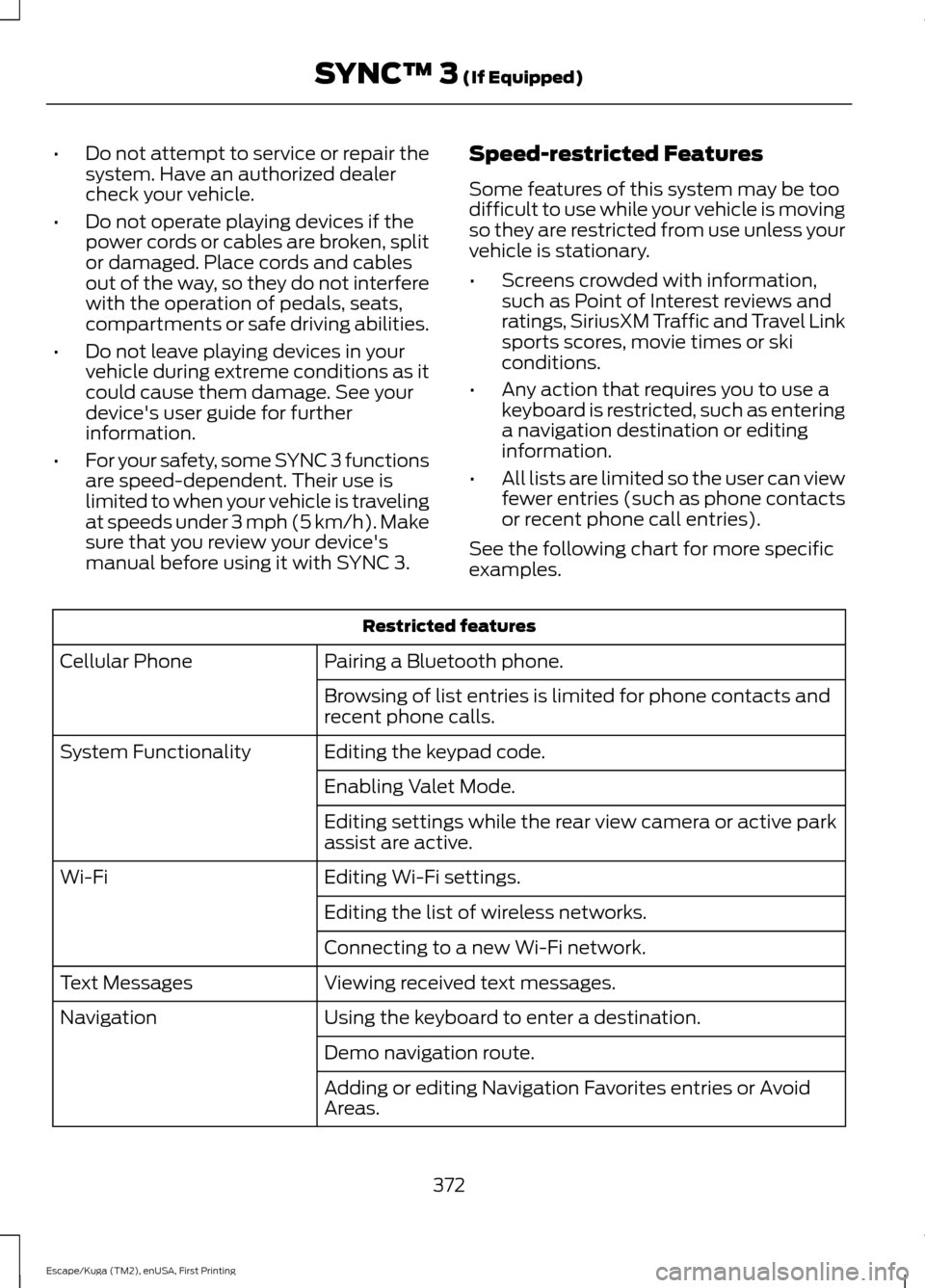
• For your safety, some SYNC 3 functions
are speed-dependent. Their use is
limited to when your vehicle is traveling
at speeds under 3 mph (5 km/h). Make
sure that you review your device's
manual before using it with SYNC 3. Speed-restricted Features
Some features of this system may be too
difficult to use while your vehicle is moving
so they are restricted from use unless your
vehicle is stationary.
•
Screens crowded with information,
such as Point of Interest reviews and
ratings, SiriusXM Traffic and Travel Link
sports scores, movie times or ski
conditions.
• Any action that requires you to use a
keyboard is restricted, such as entering
a navigation destination or editing
information.
• All lists are limited so the user can view
fewer entries (such as phone contacts
or recent phone call entries).
See the following chart for more specific
examples. Restricted features
Pairing a Bluetooth phone.
Cellular Phone
Browsing of list entries is limited for phone contacts and
recent phone calls.
Editing the keypad code.
System Functionality
Enabling Valet Mode.
Editing settings while the rear view camera or active park
assist are active.
Editing Wi-Fi settings.
Wi-Fi
Editing the list of wireless networks.
Connecting to a new Wi-Fi network.
Viewing received text messages.
Text Messages
Using the keyboard to enter a destination.
Navigation
Demo navigation route.
Adding or editing Navigation Favorites entries or Avoid
Areas.
372
Escape/Kuga (TM2), enUSA, First Printing SYNC™ 3 (If Equipped)