starting FORD ESCAPE 2018 Owner's Guide
[x] Cancel search | Manufacturer: FORD, Model Year: 2018, Model line: ESCAPE, Model: FORD ESCAPE 2018Pages: 517, PDF Size: 6.62 MB
Page 343 of 517
System data cannot be accessed without
special equipment and access to the
vehicle's SYNC module. Ford Motor
Company and Ford of Canada will not
access the system data for any purpose
other than as described absent consent, a
court order, or where required by law
enforcement, other government
authorities, or other third parties acting
with lawful authority. Other parties may
seek to access the information
independently of Ford Motor Company and
Ford of Canada. For further privacy
information, see the section on 911 Assist.
See SYNC™ Applications and Services
(page 354). USING VOICE RECOGNITION
This system helps you control many
features using voice commands. This
allows you to keep your hands on the
wheel and focus on what is around you.
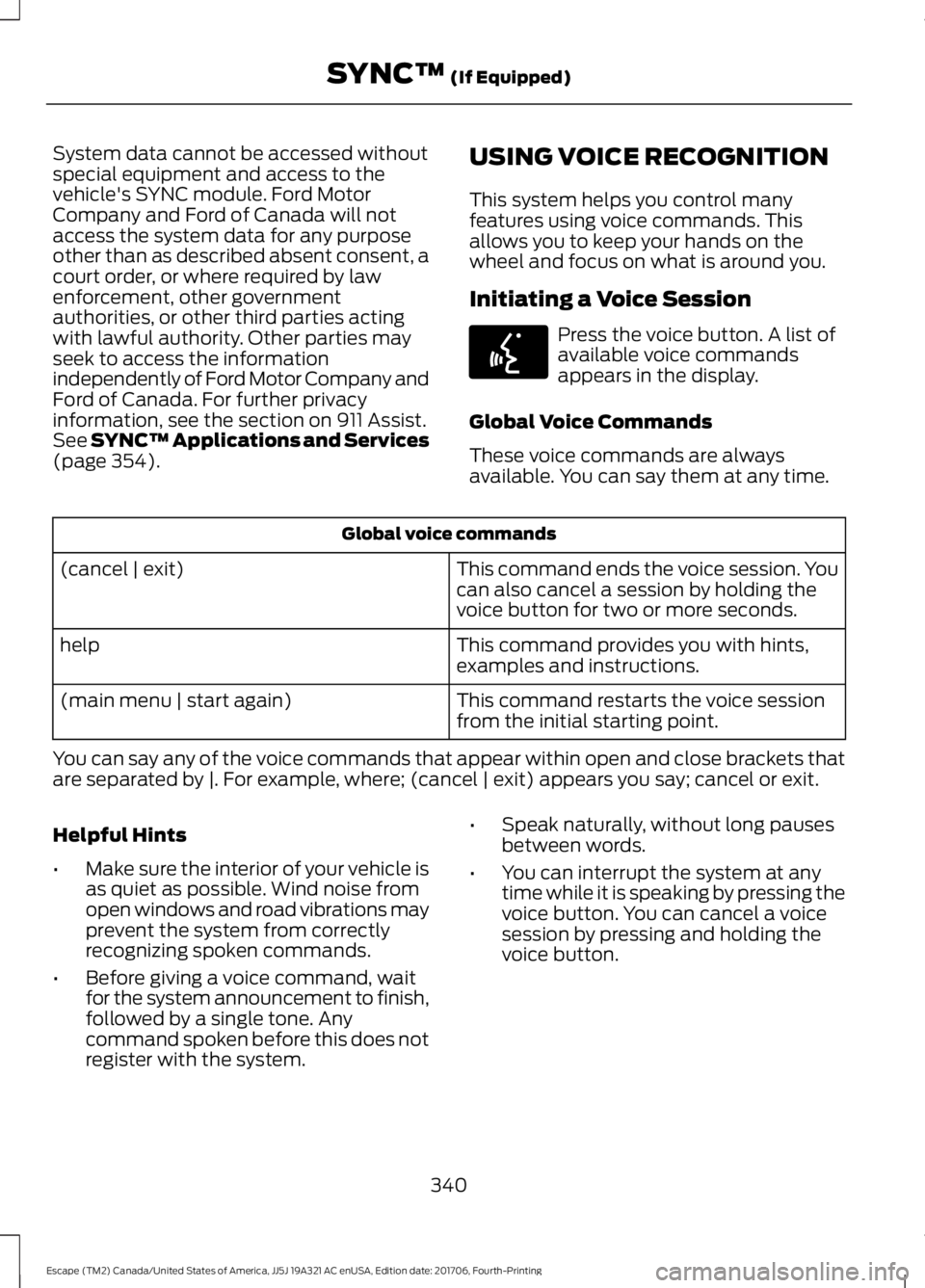
Initiating a Voice Session Press the voice button. A list of
available voice commands
appears in the display.
Global Voice Commands
These voice commands are always
available. You can say them at any time. Global voice commands
This command ends the voice session. You
can also cancel a session by holding the
voice button for two or more seconds.
(cancel | exit)
This command provides you with hints,
examples and instructions.
help
This command restarts the voice session
from the initial starting point.
(main menu | start again)
You can say any of the voice commands that appear within open and close brackets that
are separated by |. For example, where; (cancel | exit) appears you say; cancel or exit.
Helpful Hints
• Make sure the interior of your vehicle is
as quiet as possible. Wind noise from
open windows and road vibrations may
prevent the system from correctly
recognizing spoken commands.
• Before giving a voice command, wait
for the system announcement to finish,
followed by a single tone. Any
command spoken before this does not
register with the system. •
Speak naturally, without long pauses
between words.
• You can interrupt the system at any
time while it is speaking by pressing the
voice button. You can cancel a voice
session by pressing and holding the
voice button.
340
Escape (TM2) Canada/United States of America, JJ5J 19A321 AC enUSA, Edition date: 201706, Fourth-Printing SYNC™
(If Equipped)E142599
Page 346 of 517
Other features, such as text messaging
using Bluetooth and automatic phonebook
download, are phone-dependent features.
To check your phone's compatibility, see
your phone's manual and visit
www.SYNCMyRide.com,
www.SYNCMyRide.ca or
www.syncmaroute.ca.
Pairing a Phone for the First Time
Wirelessly pairing your phone with SYNC
allows you to make and receive hands-free
calls.
Note:
SYNC can support downloading up
to approximately 4000 entries per
Bluetooth-enabled cellular phone.
Note: Make sure to switch on the ignition
and the radio. Shift the transmission into
park (P) for automatic transmission or first
gear for manual transmission.
Using the Audio System
Note: To scroll through the menus, press
the up and down arrows on your audio
system.
1. Make sure to switch on your phone's Bluetooth feature before starting the
search. See your device's manual if
necessary.
2. Press the PHONE button. When the
audio display indicates there is no
paired phone, select the option to add.
3. When a message to begin pairing appears in the audio display, search for
SYNC on your phone to start the pairing
process. 4. When prompted on your cell phone
’s
display, confirm that the PIN provided
by SYNC matches the PIN displayed
on your cell phone. Your phone is now
paired and the display indicates that
the pairing was successful. If you are
prompted to enter a PIN on your device,
enter the PIN displayed on the screen.
The display indicates when the pairing
is successful.
Depending on your phone's capability and
your market, the system may prompt you
with questions, such as setting the current
phone as the primary phone (the phone
SYNC automatically tries to connect with
first upon vehicle start-up) and
downloading your phonebook.
Using Voice Commands Make sure to switch on your
phone's Bluetooth feature
before starting the search. See
your device's manual if necessary.
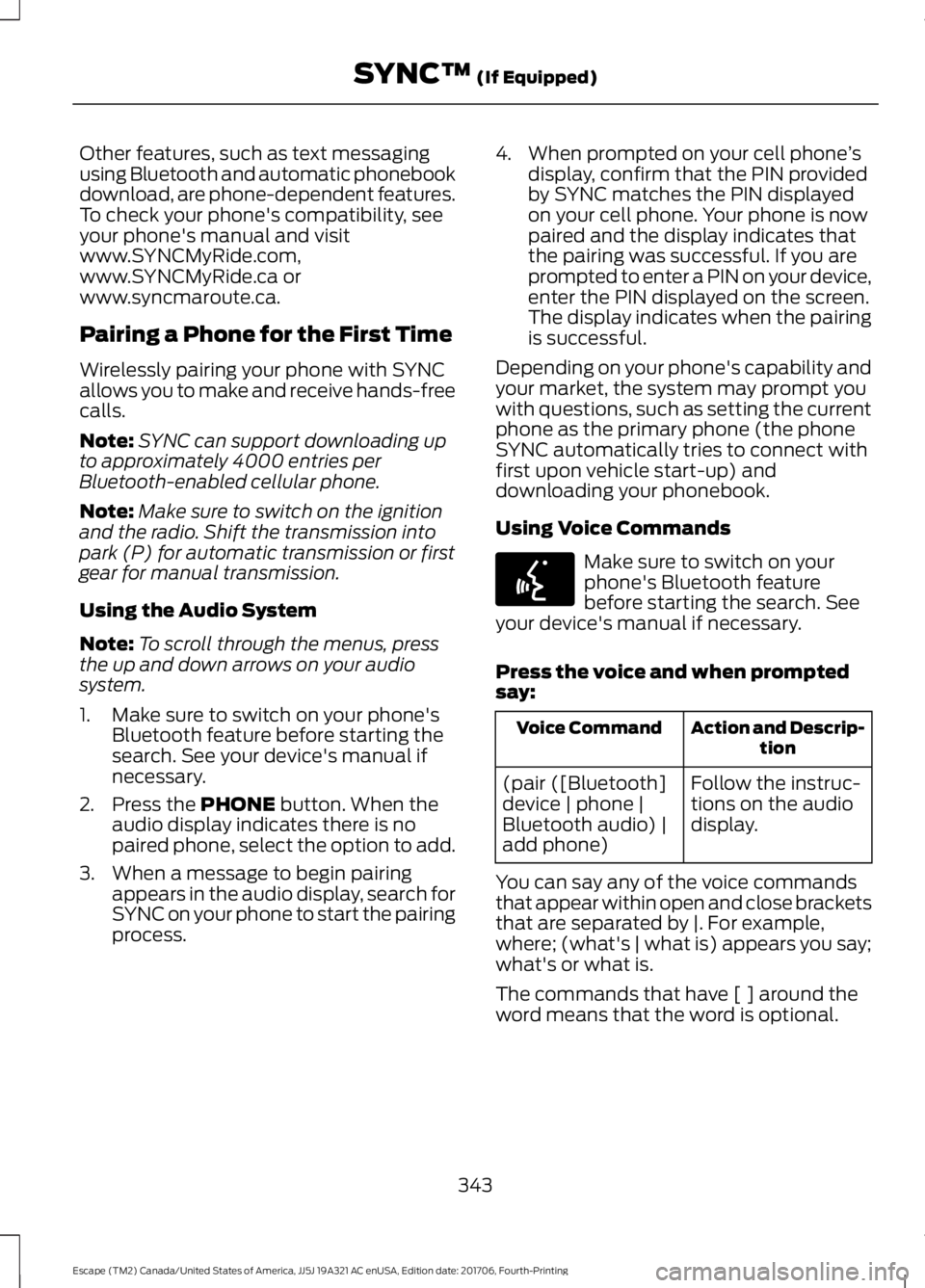
Press the voice and when prompted
say: Action and Descrip-
tion
Voice Command
Follow the instruc-
tions on the audio
display.
(pair ([Bluetooth]
device | phone |
Bluetooth audio) |
add phone)
You can say any of the voice commands
that appear within open and close brackets
that are separated by |. For example,
where; (what's | what is) appears you say;
what's or what is.
The commands that have [ ] around the
word means that the word is optional.
343
Escape (TM2) Canada/United States of America, JJ5J 19A321 AC enUSA, Edition date: 201706, Fourth-Printing SYNC™
(If Equipped)E142599
Page 347 of 517
Depending on your phone's capability and
your market, the system may prompt you
with questions, such as setting the current
phone as the primary phone (the phone
SYNC automatically tries to connect with
first upon vehicle start-up) and
downloading your phonebook.
Pairing Subsequent Phones
Note:
Make sure to switch on the ignition
and the radio. Shift the transmission into
park (P) for automatic transmission or first
gear for manual transmission.
Note: To scroll through the menus, press
the up and down arrows on your audio
system.
1. Make sure to switch on your phone's Bluetooth feature before starting the
search. See your device's manual if
necessary.
2. Press the PHONE button.
3. Select the option for Bluetooth Devices.
4. Press the
OK button.
5. Select the option to add. This starts the pairing process.
6. When a message to begin pairing appears in the audio display, search for
SYNC on your device.
7. When prompted on your cell phone ’s
display, confirm that the PIN provided
by SYNC matches the PIN displayed
on your cell phone. Your phone is now
paired and the display indicates that
the pairing was successful. If you are
prompted to enter a PIN on your device,
enter the PIN displayed on the screen.
The display indicates when the pairing
is successful. SYNC may prompt you with more cell
phone options. Your cell phone may also
prompt you to give SYNC permission to
access information. For more information
on your cell phone
’s capability, see your
cell phone ’s manual and visit the website.
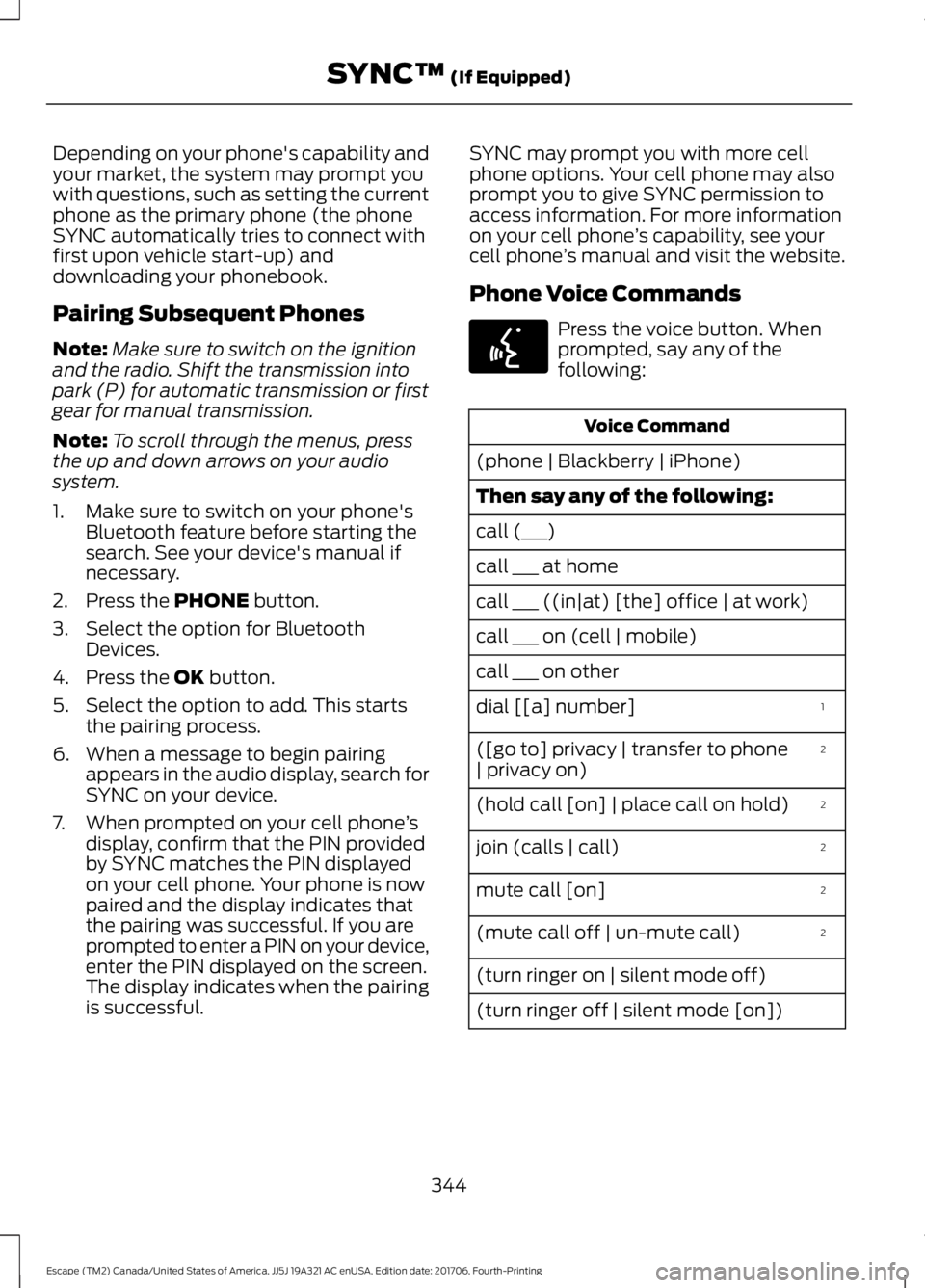
Phone Voice Commands Press the voice button. When
prompted, say any of the
following:
Voice Command
(phone | Blackberry | iPhone)
Then say any of the following:
call (___)
call ___ at home
call ___ ((in|at) [the] office | at work)
call ___ on (cell | mobile)
call ___ on other 1
dial [[a] number]
2
([go to] privacy | transfer to phone
| privacy on)
2
(hold call [on] | place call on hold)
2
join (calls | call)
2
mute call [on]
2
(mute call off | un-mute call)
(turn ringer on | silent mode off)
(turn ringer off | silent mode [on])
344
Escape (TM2) Canada/United States of America, JJ5J 19A321 AC enUSA, Edition date: 201706, Fourth-Printing SYNC™
(If Equipped)E142599
Page 377 of 517
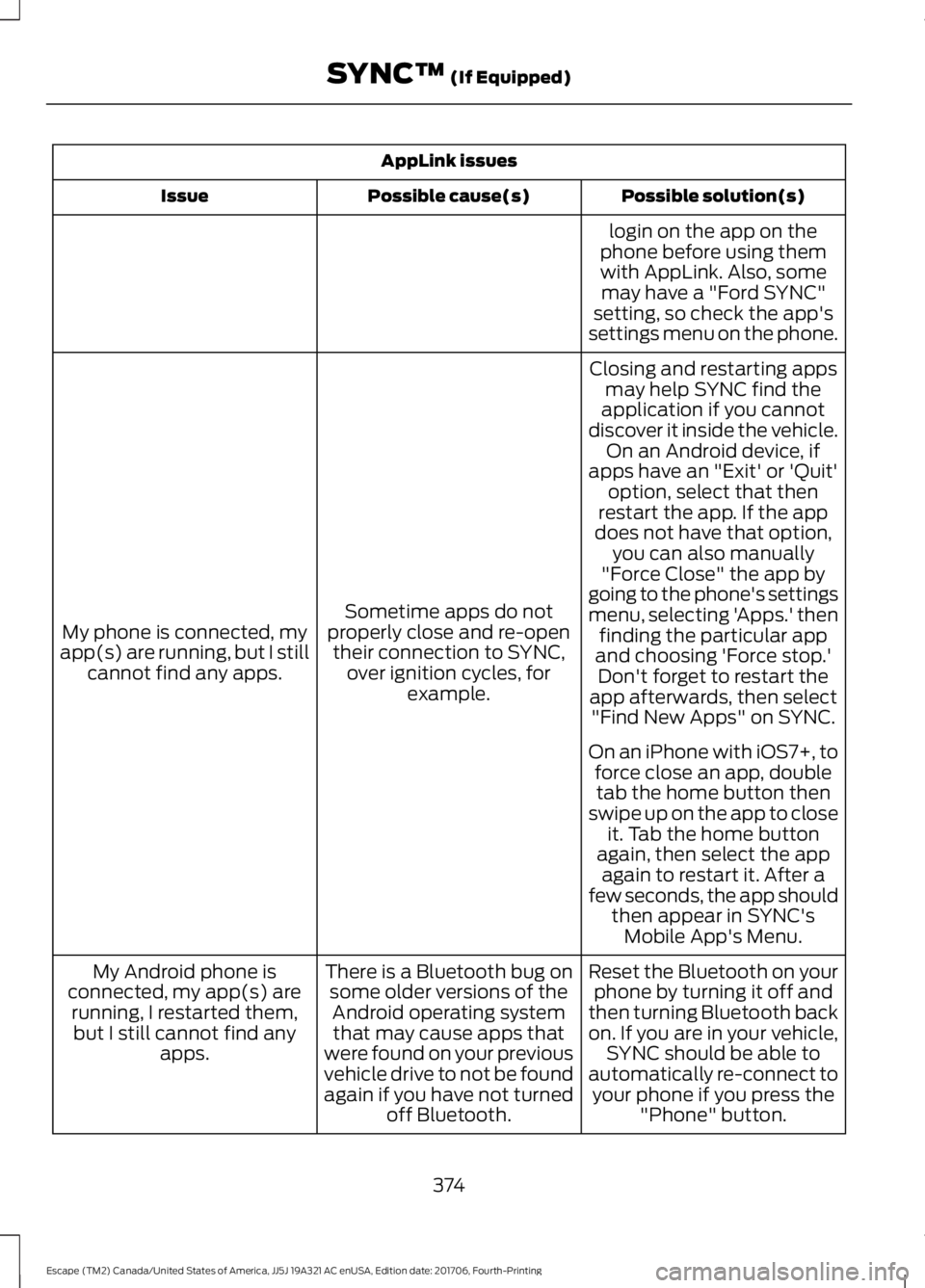
AppLink issues
Possible solution(s)
Possible cause(s)
Issue
login on the app on the
phone before using them with AppLink. Also, some may have a "Ford SYNC"
setting, so check the app's
settings menu on the phone.
Closing and restarting apps may help SYNC find the
application if you cannot
discover it inside the vehicle. On an Android device, if
apps have an "Exit' or 'Quit'
Sometime apps do not
properly close and re-open their connection to SYNC, over ignition cycles, for example.
My phone is connected, my
app(s) are running, but I still cannot find any apps. option, select that then
restart the app. If the app
does not have that option, you can also manually
"Force Close" the app by
going to the phone's settings
menu, selecting 'Apps.' then finding the particular app
and choosing 'Force stop.' Don't forget to restart the
app afterwards, then select "Find New Apps" on SYNC.
On an iPhone with iOS7+, to force close an app, doubletab the home button then
swipe up on the app to close it. Tab the home button
again, then select the app again to restart it. After a
few seconds, the app should then appear in SYNC'sMobile App's Menu.
Reset the Bluetooth on your phone by turning it off and
then turning Bluetooth back
on. If you are in your vehicle, SYNC should be able to
automatically re-connect to your phone if you press the "Phone" button.
There is a Bluetooth bug on
some older versions of theAndroid operating systemthat may cause apps that
were found on your previous
vehicle drive to not be found
again if you have not turned off Bluetooth.
My Android phone is
connected, my app(s) are running, I restarted them,but I still cannot find any apps.
374
Escape (TM2) Canada/United States of America, JJ5J 19A321 AC enUSA, Edition date: 201706, Fourth-Printing SYNC™ (If Equipped)
Page 447 of 517
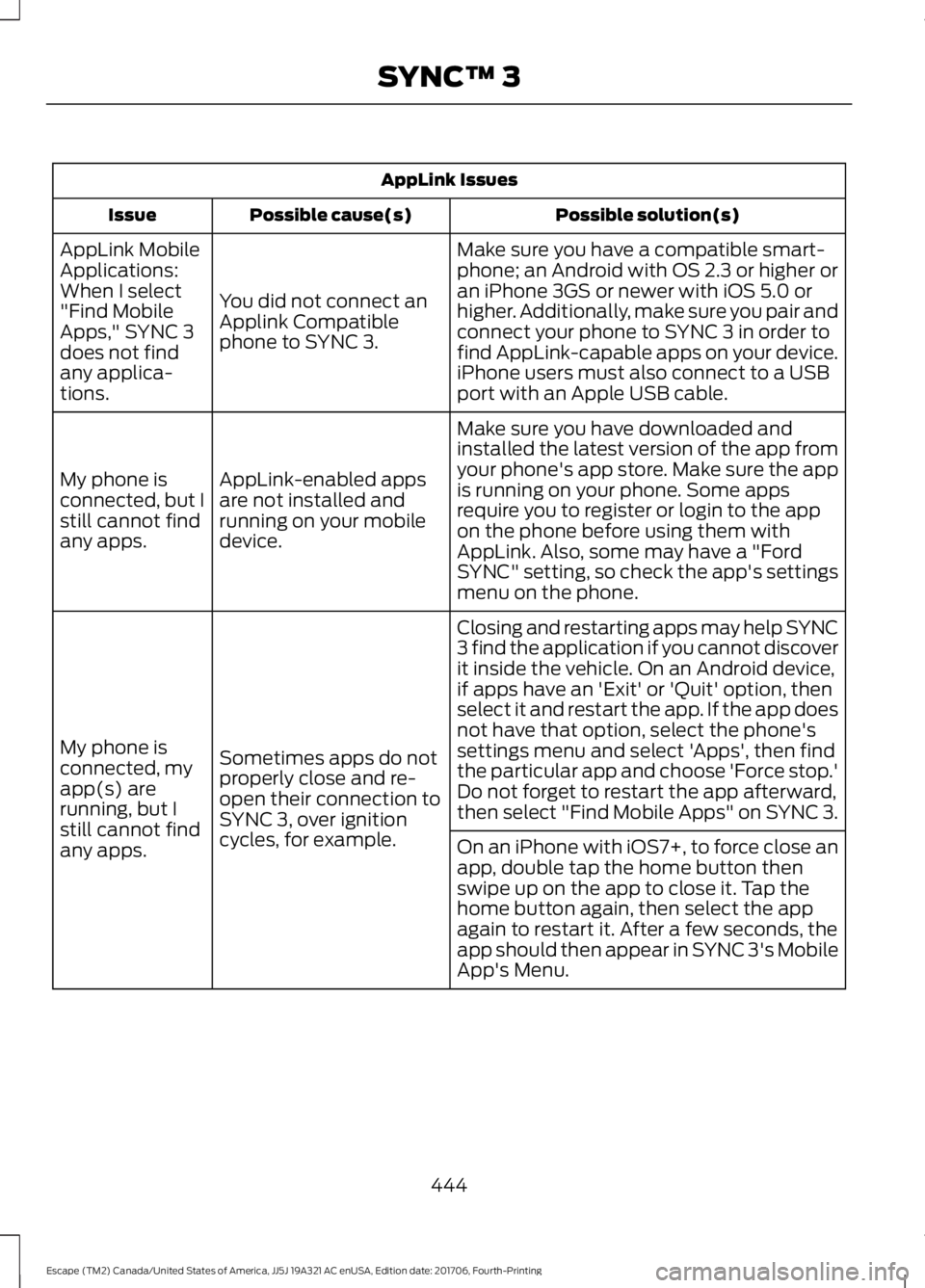
AppLink Issues
Possible solution(s)
Possible cause(s)
Issue
Make sure you have a compatible smart-
phone; an Android with OS 2.3 or higher or
an iPhone 3GS or newer with iOS 5.0 or
higher. Additionally, make sure you pair and
connect your phone to SYNC 3 in order to
find AppLink-capable apps on your device.
iPhone users must also connect to a USB
port with an Apple USB cable.
You did not connect an
Applink Compatible
phone to SYNC 3.
AppLink Mobile
Applications:
When I select
"Find Mobile
Apps," SYNC 3
does not find
any applica-
tions.
Make sure you have downloaded and
installed the latest version of the app from
your phone's app store. Make sure the app
is running on your phone. Some apps
require you to register or login to the app
on the phone before using them with
AppLink. Also, some may have a "Ford
SYNC" setting, so check the app's settings
menu on the phone.
AppLink-enabled apps
are not installed and
running on your mobile
device.
My phone is
connected, but I
still cannot find
any apps.
Closing and restarting apps may help SYNC
3 find the application if you cannot discover
it inside the vehicle. On an Android device,
if apps have an 'Exit' or 'Quit' option, then
select it and restart the app. If the app does
not have that option, select the phone's
settings menu and select 'Apps', then find
the particular app and choose 'Force stop.'
Do not forget to restart the app afterward,
then select "Find Mobile Apps" on SYNC 3.
Sometimes apps do not
properly close and re-
open their connection to
SYNC 3, over ignition
cycles, for example.
My phone is
connected, my
app(s) are
running, but I
still cannot find
any apps.
On an iPhone with iOS7+, to force close an
app, double tap the home button then
swipe up on the app to close it. Tap the
home button again, then select the app
again to restart it. After a few seconds, the
app should then appear in SYNC 3's Mobile
App's Menu.
444
Escape (TM2) Canada/United States of America, JJ5J 19A321 AC enUSA, Edition date: 201706, Fourth-Printing SYNC™ 3
Page 511 of 517
Message Indicator...............................................
96
MyKey......................................................................103
Park Aid.................................................................. 104
Park Brake............................................................. 104
Power Steering.................................................... 105
Remote Start....................................................... 105
Starting System ................................................. 105
Tire Pressure Monitoring System.................106
Traction Control.................................................. 106
Trailer...................................................................... 106
Transmission........................................................ 107
Installing Child Restraints............................19 Child Restraints...................................................... 19
Using Lap and Shoulder Belts......................... 20
Using Lower Anchors and Tethers for CHildren (LATCH)............................................ 22
Using Tether Straps............................................. 24
Instrument Cluster........................................88
Instrument Lighting Dimmer......................78
Instrument Panel Overview........................16 Instrument Panel Overview.............................. 16
Interior Lamps
..................................................81
Front Interior Lamps............................................ 81
Rear Interior Lamps.............................................. 81
Interior Mirror...................................................85 Automatic Dimming Mirror............................... 85
Manual Dimming Mirror..................................... 85
Introduction.........................................................7
J
Jump Starting the Vehicle..........................221 To Connect the Booster Cables.................... 222
To Start the Engine............................................ 222
K
Keyless Entry....................................................62 SECURICODE™ KEYLESS ENTRY
KEYPAD............................................................... 62
Keyless Starting
..............................................131
Ignition Modes...................................................... 132
Keys and Remote Controls
........................48
L
Lane Keeping System.................................190 Switching the System On and Off................191 Liftgate...............................................................65
Lighting Control
...............................................77
Flashing the Headlamp High Beam..............78
Headlamp High Beam......................................... 77
Lighting...............................................................77 General Information............................................. 77
Load Carriers See: Roof Racks and Load Carriers............203
Load Carrying
................................................202
Load Limit......................................................204 Special Loading Instructions for Owners of
Pick-up Trucks and Utility-type
Vehicles............................................................ 208
Vehicle Loading - with and without a Trailer................................................................ 204
Locking and Unlocking.................................59 Activating Intelligent Access........................... 60
Autolock................................................................... 61
Battery Saver......................................................... 62
Illuminated Entry.................................................. 62
Illuminated Exit..................................................... 62
Locking and Unlocking the Doors with the Key Blade........................................................... 59
Opening a Rear Door from the Inside..........60
Power Door Locks................................................ 59
Remote Control.................................................... 59
Smart Unlocks for Integrated Keyhead Transmitter......................................................... 61
Smart Unlocks for Intelligent Access Keys....................................................................... 61
Luggage Covers............................................202
Lug Nuts See: Changing a Road Wheel....................... 295
M
Maintenance..................................................243 General Information......................................... 243
Manual Climate Control
............................108
Manual Liftgate..............................................65
Closing the Liftgate............................................. 65
Opening the Liftgate........................................... 65
Manual Seats
..................................................118
Adjusting the Seat Backrest............................ 119
Adjusting the Seat Height................................ 119
Moving the Seat Backward and Forward.............................................................. 118
508
Escape (TM2) Canada/United States of America, JJ5J 19A321 AC enUSA, Edition date: 201706, Fourth-Printing Index
Page 514 of 517
Clock.......................................................................
425
Display................................................................... 436
General.................................................................. 433
Media Player........................................................ 424
Mobile Apps.......................................................... 431
Navigation............................................................ 429
Phone..................................................................... 425
Radio...................................................................... 428
Sound..................................................................... 423
Valet Mode........................................................... 437
Vehicle................................................................... 435
Voice Control....................................................... 436
Wi-Fi & Hotspot................................................. 433
Side Airbags
.....................................................43
Side Sensing System...................................170 Obstacle Distance Indicator............................ 171
Sitting in the Correct Position...................116
Snow Chains See: Using Snow Chains.................................. 291
Spare Wheel See: Changing a Road Wheel....................... 295
Special Notices................................................12 New Vehicle Limited Warranty......................... 12
Notice to Owners of Pickup Trucks and Utility Type Vehicles........................................ 13
On Board Diagnostics Data Link Connector............................................................ 13
Special Instructions.............................................. 12
Using Your Vehicle as an Ambulance............13
Using Your Vehicle With a Snowplow............13
Special Operating Conditions Scheduled Maintenance...............................................461
Exceptions............................................................ 462
Speed Control See: Cruise Control............................................ 182
Stability Control............................................166 Principle of Operation...................................... 166
Starter Switch See: Ignition Switch............................................ 131
Starting a Gasoline Engine
........................132
Automatic Engine Shutdown......................... 133
Failure to Start..................................................... 133
Guarding Against Exhaust Fumes................134
Important Ventilating Information...............135
Stopping the Engine When Your Vehicle is Moving................................................................134
Stopping the Engine When Your Vehicle is Stationary......................................................... 134Vehicles with an Ignition Key..........................
132
Vehicles with Keyless Start............................. 132
Starting and Stopping the Engine...........131 General Information........................................... 131
Steering............................................................199 Electric Power Steering.................................... 199
Steering Wheel.................................................71
Storage Compartments.............................130
Sunroof See: Moonroof...................................................... 86
Sun Visors.........................................................86 Illuminated Vanity Mirror................................... 86
Supplementary Restraints System
.........39
Principle of Operation........................................ 39
Symbols Glossary
.............................................7
SYNC™ 3........................................................376
General Information.......................................... 376
SYNC™ 3 Troubleshooting......................437
SYNC™ Applications and Services........................................................354
911 Assist............................................................... 354
SYNC Mobile Apps............................................ 356
SYNC™...........................................................338 General Information......................................... 338
SYNC™ Troubleshooting
.........................368
T
Technical Specifications See: Capacities and Specifications.............301
The Better Business Bureau (BBB) Auto Line Program (U.S. Only).......................227
Tire Care..........................................................278 Glossary of Tire Terminology......................... 279
Information About Uniform Tire Quality Grading .............................................................. 278
Information Contained on the Tire Sidewall........................................................... 280
Temperature A B C............................................ 279
Traction AA A B C............................................... 278
Treadwear............................................................. 278
Tire Pressure Monitoring System............291 Changing Tires With a Tire Pressure
Monitoring System....................................... 293
Understanding Your Tire Pressure Monitoring System ...................................... 293
Tires See: Wheels and Tires...................................... 276
511
Escape (TM2) Canada/United States of America, JJ5J 19A321 AC enUSA, Edition date: 201706, Fourth-Printing Index