clock FORD ESCAPE 2021 User Guide
[x] Cancel search | Manufacturer: FORD, Model Year: 2021, Model line: ESCAPE, Model: FORD ESCAPE 2021Pages: 589, PDF Size: 9.2 MB
Page 382 of 589
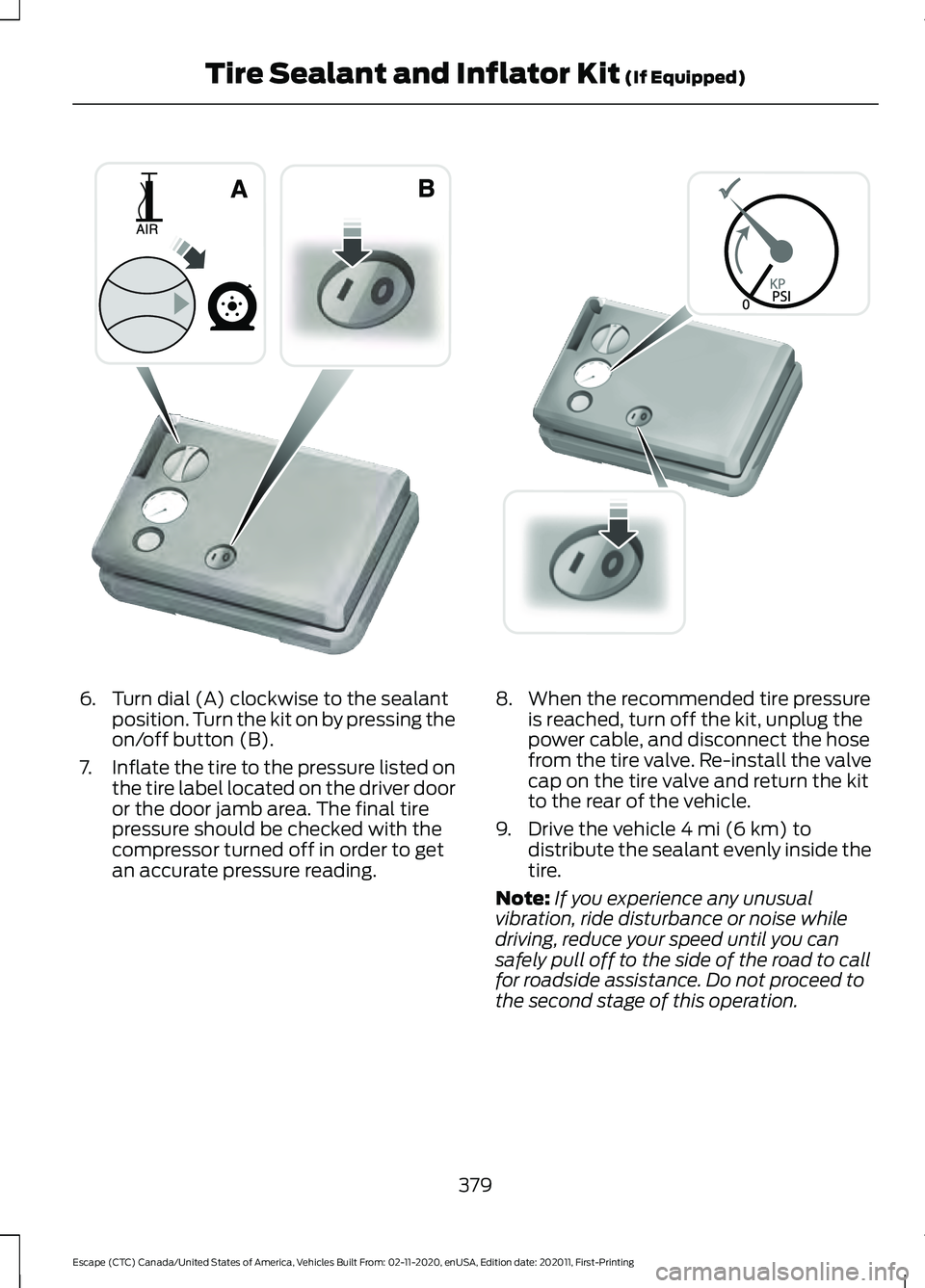
6. Turn dial (A) clockwise to the sealant
position. Turn the kit on by pressing the
on/off button (B).
7. Inflate the tire to the pressure listed on
the tire label located on the driver door
or the door jamb area. The final tire
pressure should be checked with the
compressor turned off in order to get
an accurate pressure reading. 8. When the recommended tire pressure
is reached, turn off the kit, unplug the
power cable, and disconnect the hose
from the tire valve. Re-install the valve
cap on the tire valve and return the kit
to the rear of the vehicle.
9. Drive the vehicle 4 mi (6 km) to
distribute the sealant evenly inside the
tire.
Note: If you experience any unusual
vibration, ride disturbance or noise while
driving, reduce your speed until you can
safely pull off to the side of the road to call
for roadside assistance. Do not proceed to
the second stage of this operation.
379
Escape (CTC) Canada/United States of America, Vehicles Built From: 02-11-2020, enUSA, Edition date: 202011, First-Printing Tire Sealant and Inflator Kit
(If Equipped)E175981 E175982
Page 383 of 589
Second Stage: Checking the tire
pressure with the inflator kit
WARNING: If the tire does not
inflate to the recommended tire pressure
within 15 minutes, stop and call roadside
assistance. WARNING:
The power plug may
get hot after use and should be handled
carefully when unplugging.
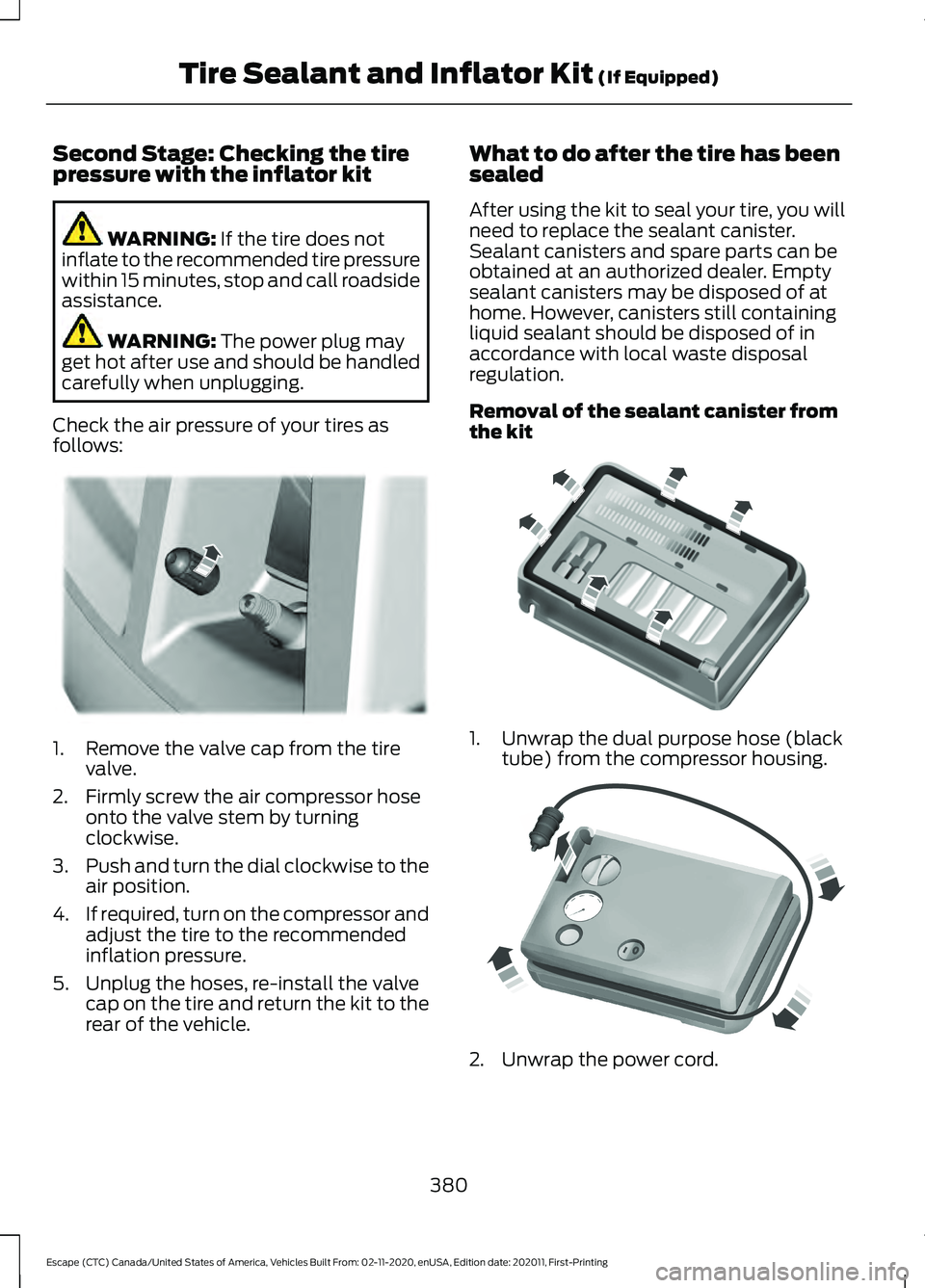
Check the air pressure of your tires as
follows: 1. Remove the valve cap from the tire
valve.
2. Firmly screw the air compressor hose onto the valve stem by turning
clockwise.
3. Push and turn the dial clockwise to the
air position.
4. If required, turn on the compressor and
adjust the tire to the recommended
inflation pressure.
5. Unplug the hoses, re-install the valve cap on the tire and return the kit to the
rear of the vehicle. What to do after the tire has been
sealed
After using the kit to seal your tire, you will
need to replace the sealant canister.
Sealant canisters and spare parts can be
obtained at an authorized dealer. Empty
sealant canisters may be disposed of at
home. However, canisters still containing
liquid sealant should be disposed of in
accordance with local waste disposal
regulation.
Removal of the sealant canister from
the kit
1. Unwrap the dual purpose hose (black
tube) from the compressor housing. 2. Unwrap the power cord.
380
Escape (CTC) Canada/United States of America, Vehicles Built From: 02-11-2020, enUSA, Edition date: 202011, First-Printing Tire Sealant and Inflator Kit
(If Equipped)E175983 E175984 E175985
Page 390 of 589
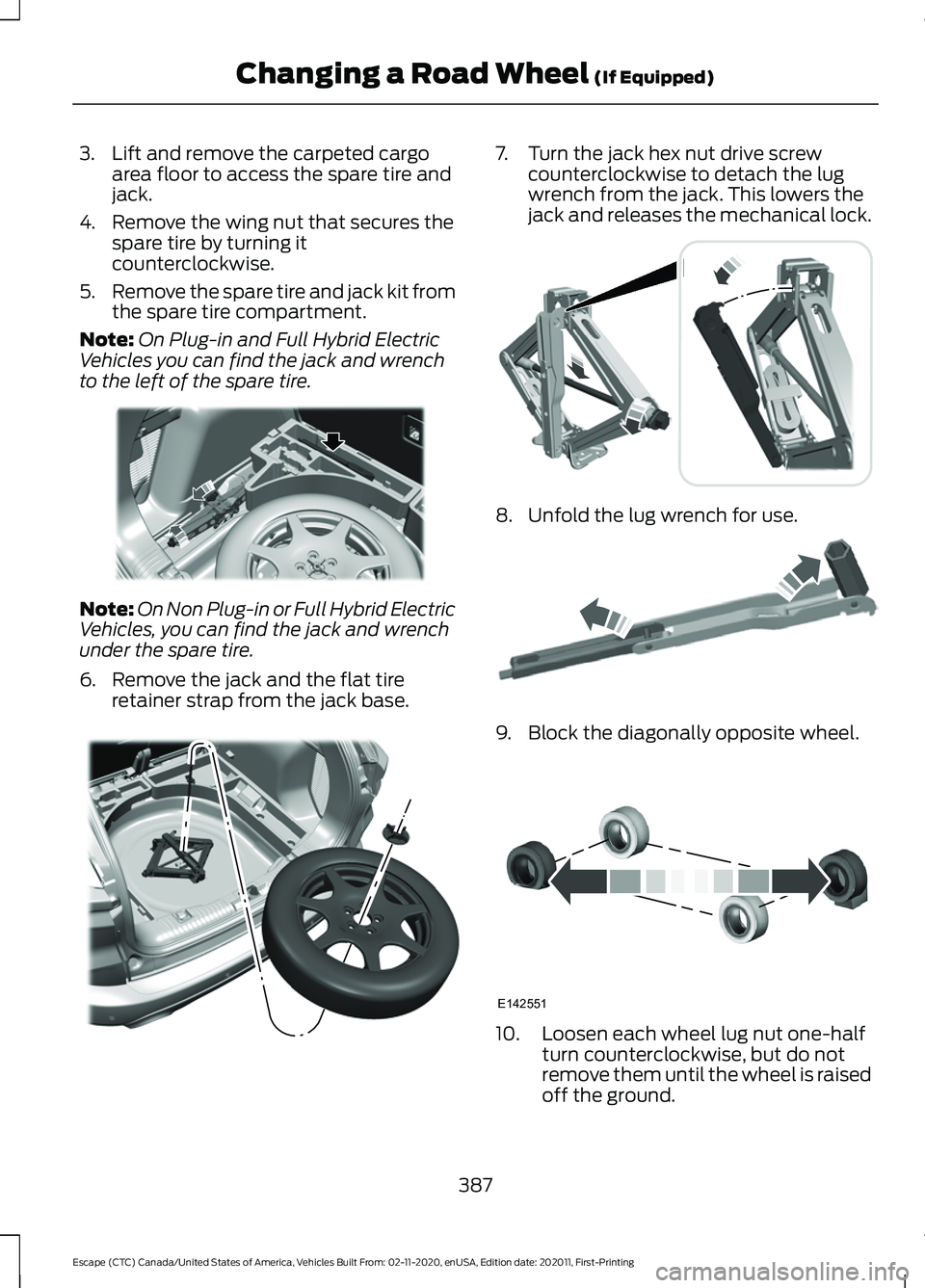
3. Lift and remove the carpeted cargo
area floor to access the spare tire and
jack.
4. Remove the wing nut that secures the spare tire by turning it
counterclockwise.
5. Remove the spare tire and jack kit from
the spare tire compartment.
Note: On Plug-in and Full Hybrid Electric
Vehicles you can find the jack and wrench
to the left of the spare tire. Note:
On Non Plug-in or Full Hybrid Electric
Vehicles, you can find the jack and wrench
under the spare tire.
6. Remove the jack and the flat tire retainer strap from the jack base. 7. Turn the jack hex nut drive screw
counterclockwise to detach the lug
wrench from the jack. This lowers the
jack and releases the mechanical lock. 8. Unfold the lug wrench for use.
9. Block the diagonally opposite wheel.
10. Loosen each wheel lug nut one-half
turn counterclockwise, but do not
remove them until the wheel is raised
off the ground.
387
Escape (CTC) Canada/United States of America, Vehicles Built From: 02-11-2020, enUSA, Edition date: 202011, First-Printing Changing a Road Wheel (If Equipped)E294118 E305308 E294117 E181744 E142551
Page 391 of 589
Note:
Jack at the specified locations to
avoid damage to the vehicle.
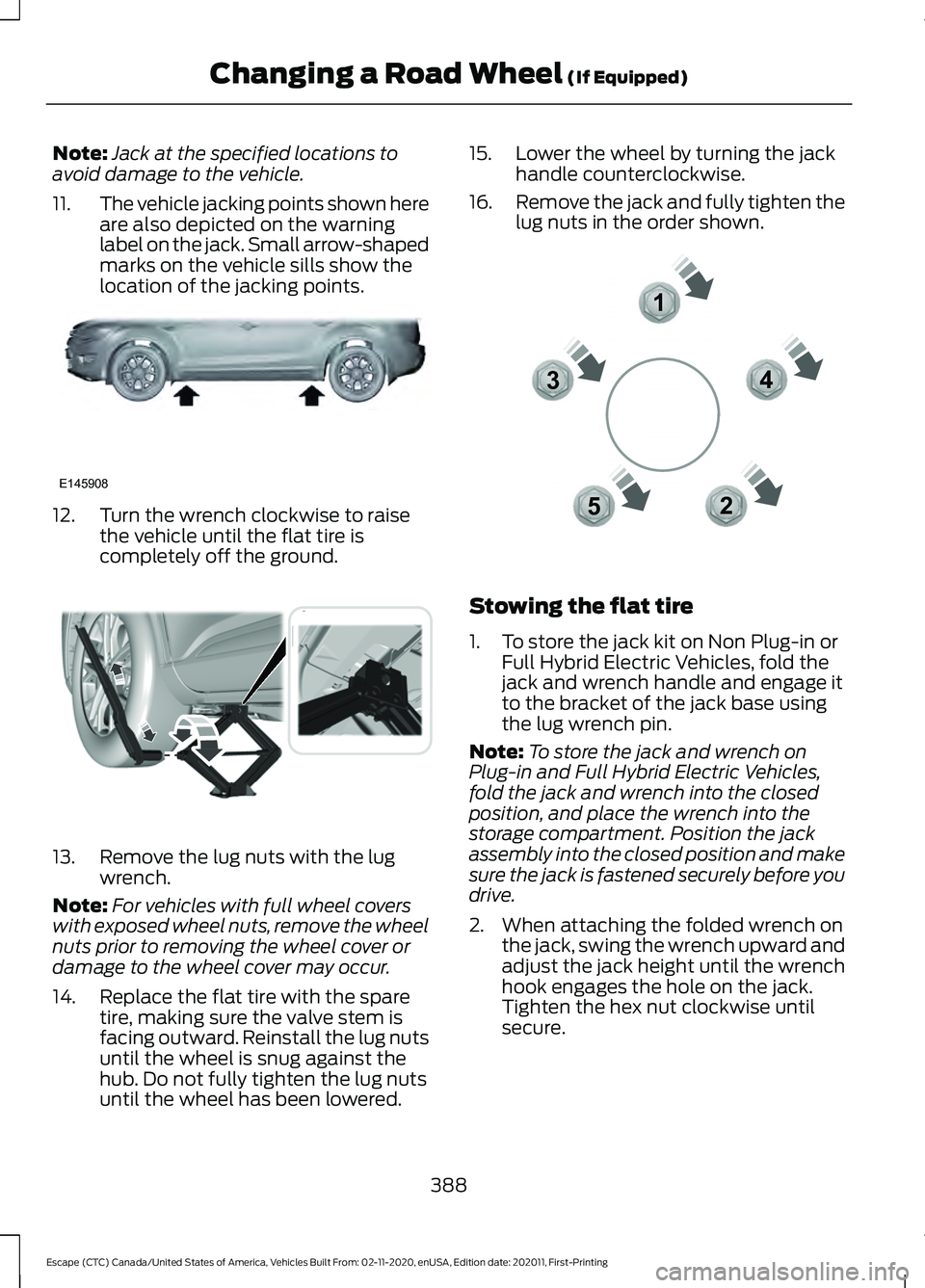
11. The vehicle jacking points shown here
are also depicted on the warning
label on the jack. Small arrow-shaped
marks on the vehicle sills show the
location of the jacking points.12. Turn the wrench clockwise to raise
the vehicle until the flat tire is
completely off the ground.13. Remove the lug nuts with the lug
wrench.
Note: For vehicles with full wheel covers
with exposed wheel nuts, remove the wheel
nuts prior to removing the wheel cover or
damage to the wheel cover may occur.
14. Replace the flat tire with the spare tire, making sure the valve stem is
facing outward. Reinstall the lug nuts
until the wheel is snug against the
hub. Do not fully tighten the lug nuts
until the wheel has been lowered. 15. Lower the wheel by turning the jack
handle counterclockwise.
16. Remove the jack and fully tighten the
lug nuts in the order shown. Stowing the flat tire
1. To store the jack kit on Non Plug-in or
Full Hybrid Electric Vehicles, fold the
jack and wrench handle and engage it
to the bracket of the jack base using
the lug wrench pin.
Note: To store the jack and wrench on
Plug-in and Full Hybrid Electric Vehicles,
fold the jack and wrench into the closed
position, and place the wrench into the
storage compartment. Position the jack
assembly into the closed position and make
sure the jack is fastened securely before you
drive.
2. When attaching the folded wrench on the jack, swing the wrench upward and
adjust the jack height until the wrench
hook engages the hole on the jack.
Tighten the hex nut clockwise until
secure.
388
Escape (CTC) Canada/United States of America, Vehicles Built From: 02-11-2020, enUSA, Edition date: 202011, First-Printing Changing a Road Wheel (If Equipped)E145908 E338668 12
3
4
5E306781
Page 418 of 589
Note:
The audio mutes briefly while the
system saves the preset and returns once it
is stored.
Note: You can save presets from multiple
sources to the memory preset bar.
MUTING THE AUDIO Press the button on the steering
wheel to mute the audio.
Press to mute the signal. Press
again to restore the signal.
ADJUSTING THE SOUND
SETTINGS
Balance and Fade (If Equipped)
1. Access the vehicle drawer on the touchscreen.
2. Press
SETTINGS.
3. Press
Sound.
4. Press
Balance / Fade.
5. Press the arrows to adjust the settings.
Tone Settings
1. Access the vehicle drawer on the touchscreen.
2. Press
SETTINGS.
3. Press
Sound.
4. Press
Tone Settings.
5. Use the slider bar to adjust the settings.
Speed Compensated Volume
1. Access the vehicle drawer on the touchscreen.
2. Press
SETTINGS.
3. Press
Sound.
4. Press
Speed Compensated Volume. 5. Press a setting.
Occupancy Mode
(If Equipped)
1. Access the vehicle drawer on the touchscreen.
2. Press
SETTINGS.
3. Press
Sound.
4. Press
Occupancy Mode.
5. Press a setting.
Sound Mode
(If Equipped)
1. Access the vehicle drawer on the touchscreen.
2. Press
SETTINGS.
3. Press
Sound.
4. Press
Sound Mode.
5. Press a setting.
SETTING THE CLOCK AND
DATE
1. Access the vehicle drawer on the touchscreen.
2. Press
SETTINGS.
3. Press
Clock.
4. Set the time.
Note: The
AM and PM options are not
available if 24-hour mode is on.
5. Press the arrows to adjust the settings.
Switching Automatic Time
Updates On and Off
1. Access the vehicle drawer on the touchscreen.
2. Press
SETTINGS.
3. Press
Clock.
4. Switch
Automatic time zone update
on or off.
415
Escape (CTC) Canada/United States of America, Vehicles Built From: 02-11-2020, enUSA, Edition date: 202011, First-Printing Audio System
Page 439 of 589
GENERAL INFORMATION
WARNING: Driving while distracted
can result in loss of vehicle control, crash
and injury. We strongly recommend that
you use extreme caution when using any
device that may take your focus off the
road. Your primary responsibility is the
safe operation of your vehicle. We
recommend against the use of any
hand-held device while driving and
encourage the use of voice-operated
systems when possible. Make sure you
are aware of all applicable local laws
that may affect the use of electronic
devices while driving.
About SYNC
The system allows you to interact with the
entertainment, information and
communication systems on your vehicle
using voice commands and a touchscreen.
The system provides easy interaction with
audio, phone, navigation, mobile apps and
settings.
Note: You can switch the system on and
use it for up to an hour without switching
the ignition on.
Note: You can use the system after you
switch the ignition off for up to 10 minutes
or until you open a door.
Note: For your safety, some features are
speed-dependent. Their use is limited to
when your vehicle speed is less than 3 mph
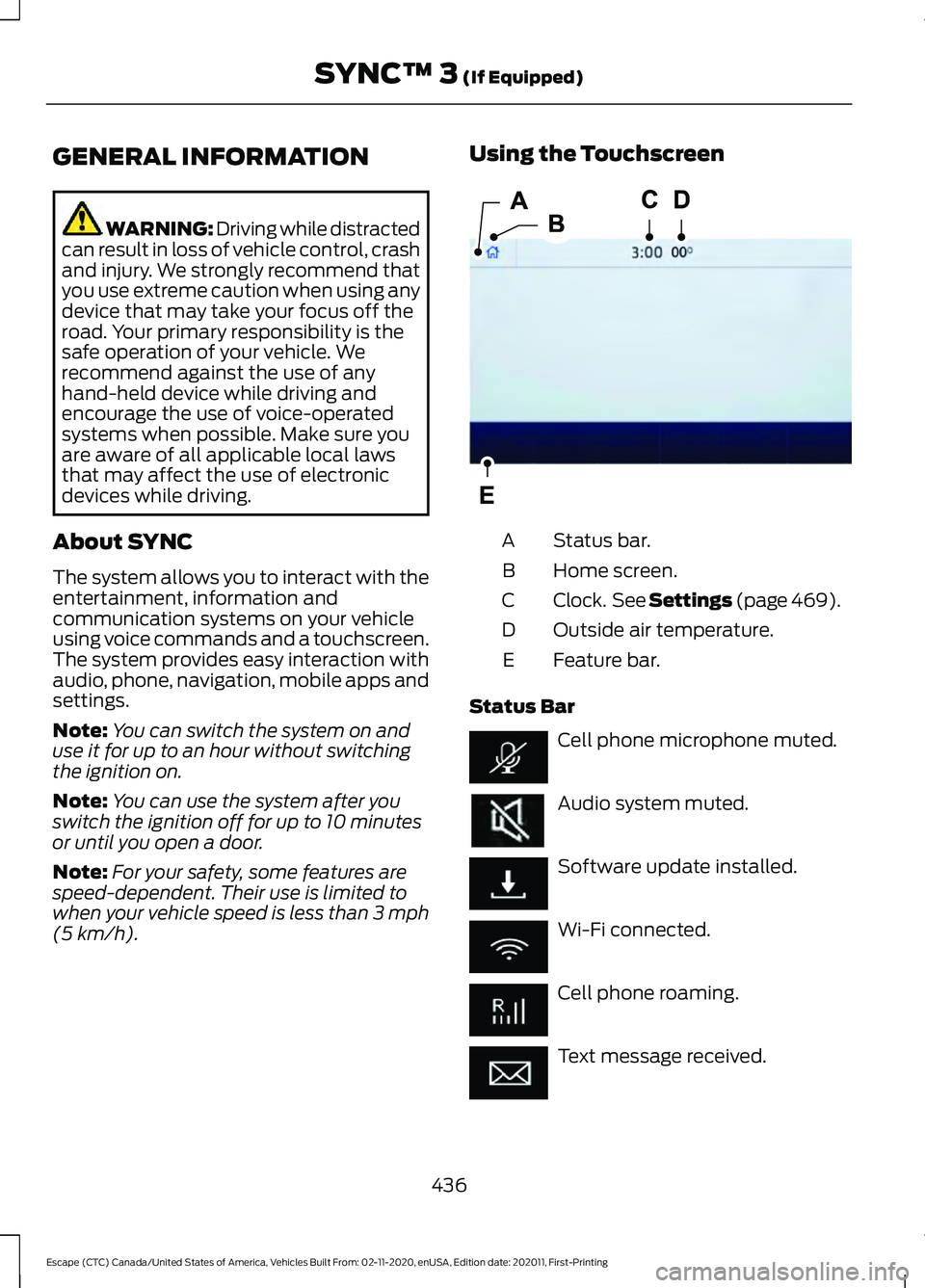
(5 km/h). Using the Touchscreen
Status bar.
A
Home screen.
B
Clock. See Settings (page 469).
C
Outside air temperature.
D
Feature bar.
E
Status Bar Cell phone microphone muted.
Audio system muted.
Software update installed.
Wi-Fi connected.
Cell phone roaming.
Text message received.
436
Escape (CTC) Canada/United States of America, Vehicles Built From: 02-11-2020, enUSA, Edition date: 202011, First-Printing SYNC™ 3
(If Equipped)E293823
Page 469 of 589
Departure Times On and Off Switch
This switch is visible when you have at
least one departure time set. Use this
switch to turn all departure times on and
off. Switching departure times off does not
delete your settings.
Next Departure Times and Cabin
Temperature
Displays the next departure time and
associated cabin temperature setting.
Charge Time Settings
Follow these steps to set a preferred
charge time for a charging location.
1. Select Charge Preferences on the
Charge Settings screen.
2. Select Charge Time Setup on the Edit Charge Preferences screen.
3. Select Add New Location on the Charge Times screen. You can also edit
settings for previously saved locations
from this screen.
4. Select an address from the Recent Charge Locations screen.
5. On the Confirm Location for Charge Times screen, you can edit the location
name and set a max charge level as
desired. Once you have your desired
location name and max charge level,
select Continue to Schedule.
Note: Charging will stop when your vehicle
reaches the max charge level.
6. Select WEEKDAY or WEEKEND on the
Preferred Charge Times screen.
7. On the Select preferred WEEKDAY or WEEKEND Charge Times screen, use
the circular 24 hour clock to select your
charging time windows. You can select
up to two time windows by pressing
and dragging across the hour buttons. When you have selected your preferred
times then press Next to return to the
Preferred Charge Times screen. Repeat
for WEEKEND or WEEKDAY as desired.
Once you are done setting preferred
charge times, press Save.
Note: Selecting all or none of the 24 hours
results in any time of day given equal priority
for charging.
8. Your saved location now shows on the
Charge Times screen. Select Done to
return to the main charge settings
screen. Whenever your vehicle is at a
saved charging location the charge
settings screen displays the location
name, and the charging times are
based on your Charge Time settings for
that location plus the next Departure
Time.
Note: Reaching your max charge level by
your next Departure Time is always the
priority. When Charge Times are set,
charging outside your preferred charging
time windows could be necessary in order
to finish by your next Departure Time.
Departure Time Settings
1. Select Charge Preferences on the Charge Settings screen.
2. Select Departure Time Setup on the Edit Charge Preferences screen.
3. Two time settings show for each day of the week on the Departure Times
schedule screen. Select any one.
4. On the Departure Time settings screen,
set your desired departure time, cabin
temperature and days of the week to
repeat. Press Save.
5. Your settings are now shown on the Departure Times schedule screen.
Press Back two times to return to the
main charge settings screen. The next
departure time and cabin temperature
setting display.
466
Escape (CTC) Canada/United States of America, Vehicles Built From: 02-11-2020, enUSA, Edition date: 202011, First-Printing SYNC™ 3 (If Equipped)
Page 472 of 589
Action and Description
Menu Item
Touch this button to view the nearby weather, current weather,
or the five-day forecast for the chosen area.
Weather
Select to see the weather map,
which can show storms, radar
information, charts and winds.
Map
Select to choose from a listing of
weather locations.
Area
Touch this button to view scores and schedules from a variety
of sports. You can also save up to 10 favorite teams for easier
access. The score automatically refreshes when a game is in
progress.
Sports Info
Touch this button to view ski conditions for a specific area.
Ski Conditions
SETTINGS Press the button to enter the
settings menu.
Once you select a tile, press the
button next to a menu item to
view an explanation of the
feature or setting.
Sound
Select this tile to adjust the sound settings.
Clock
Select this tile to adjust the clock settings.
Bluetooth
Select this tile to switch Bluetooth on and
off and adjust the settings.
Phone
Select this tile to connect, disconnect, and
manage the connected device settings. Audio
Select this tile to adjust the audio settings.
Driver Assist (If Equipped)
Select this tile to adjust Driver Assist
features like Parking Aids, Lane Keeping
System, Pedestrian Detection, and
Auto-Start-Stop.
Vehicle
Select this tile to adjust vehicle settings
like windows, alarm, lighting, and MyKey
settings.
FordPass
Select this tile to adjust the FordPass
settings
General
Select this tile to adjust settings like
language, measurement units, or to reset
the system.
911 Assist
(If Equipped)
Select this tile to switch 911 Assist on and
off.
469
Escape (CTC) Canada/United States of America, Vehicles Built From: 02-11-2020, enUSA, Edition date: 202011, First-Printing SYNC™ 3
(If Equipped)E280315 E268570
Page 584 of 589
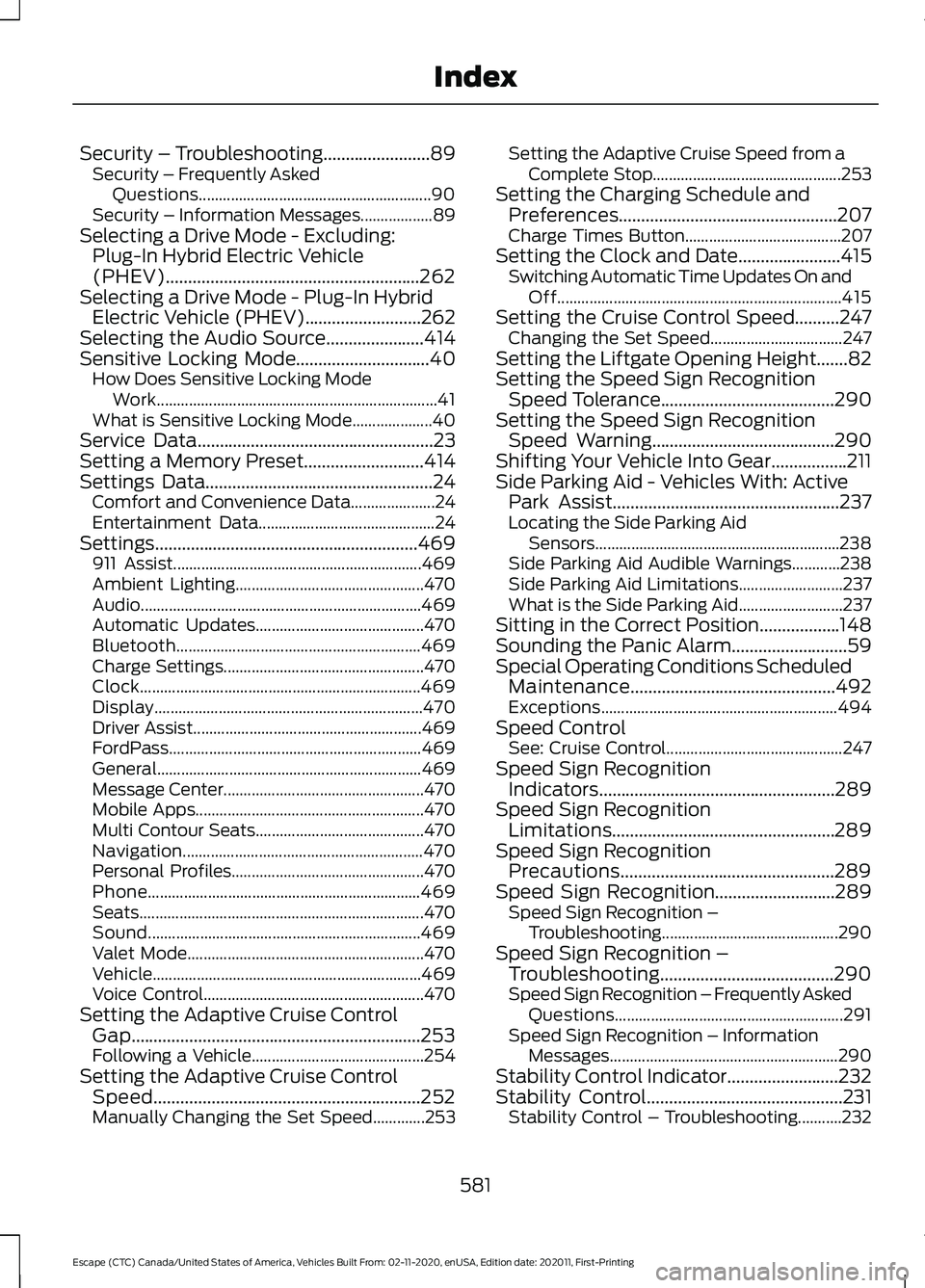
Security – Troubleshooting........................89
Security – Frequently Asked
Questions.......................................................... 90
Security – Information Messages.................. 89
Selecting a Drive Mode - Excluding: Plug-In Hybrid Electric Vehicle
(PHEV).........................................................262
Selecting a Drive Mode - Plug-In Hybrid Electric Vehicle (PHEV)..........................262
Selecting the Audio Source......................414
Sensitive Locking Mode
..............................40
How Does Sensitive Locking Mode
Work...................................................................... 41
What is Sensitive Locking Mode.................... 40
Service Data
.....................................................23
Setting a Memory Preset...........................414
Settings Data...................................................24 Comfort and Convenience Data..................... 24
Entertainment Data............................................ 24
Settings...........................................................469 911 Assist.............................................................. 469
Ambient Lighting............................................... 470
Audio...................................................................... 469
Automatic Updates.......................................... 470
Bluetooth............................................................. 469
Charge Settings.................................................. 470
Clock...................................................................... 469
Display................................................................... 470
Driver Assist......................................................... 469
FordPass............................................................... 469
General.................................................................. 469
Message Center.................................................. 470
Mobile Apps......................................................... 470
Multi Contour Seats.......................................... 470
Navigation............................................................ 470
Personal Profiles................................................ 470
Phone
.................................................................... 469
Seats....................................................................... 470
Sound.................................................................... 469
Valet Mode........................................................... 470
Vehicle................................................................... 469
Voice Control....................................................... 470
Setting the Adaptive Cruise Control Gap.................................................................253
Following a Vehicle........................................... 254
Setting the Adaptive Cruise Control Speed............................................................252
Manually Changing the Set Speed.............253 Setting the Adaptive Cruise Speed from a
Complete Stop............................................... 253
Setting the Charging Schedule and Preferences.................................................207
Charge Times Button....................................... 207
Setting the Clock and Date.......................415 Switching Automatic Time Updates On and
Off....................................................................... 415
Setting the Cruise Control Speed..........247 Changing the Set Speed................................. 247
Setting the Liftgate Opening Height.......82
Setting the Speed Sign Recognition Speed Tolerance.......................................290
Setting the Speed Sign Recognition Speed Warning.........................................290
Shifting Your Vehicle Into Gear.................211
Side Parking Aid - Vehicles With: Active Park Assist...................................................237
Locating the Side Parking Aid Sensors............................................................. 238
Side Parking Aid Audible Warnings............238
Side Parking Aid Limitations.......................... 237
What is the Side Parking Aid.......................... 237
Sitting in the Correct Position..................148
Sounding the Panic Alarm..........................59
Special Operating Conditions Scheduled Maintenance..............................................492
Exceptions........................................................... 494
Speed Control See: Cruise Control............................................ 247
Speed Sign Recognition Indicators.....................................................289
Speed Sign Recognition Limitations..................................................289
Speed Sign Recognition Precautions................................................289
Speed Sign Recognition...........................289
Speed Sign Recognition –
Troubleshooting............................................ 290
Speed Sign Recognition – Troubleshooting.......................................290
Speed Sign Recognition – Frequently Asked Questions......................................................... 291
Speed Sign Recognition – Information Messages......................................................... 290
Stability Control Indicator.........................232
Stability Control
............................................231
Stability Control – Troubleshooting...........232
581
Escape (CTC) Canada/United States of America, Vehicles Built From: 02-11-2020, enUSA, Edition date: 202011, First-Printing Index