navigation system FORD ESCAPE 2021 User Guide
[x] Cancel search | Manufacturer: FORD, Model Year: 2021, Model line: ESCAPE, Model: FORD ESCAPE 2021Pages: 589, PDF Size: 9.2 MB
Page 463 of 589
Description
Menu Item
Adjust navigation settings. See Settings (page 469).
Navigation Settings
View information about your current location.
Where Am I?
Cancel route guidance.
Cancel Route
View the entire current route on the map.
View Route
View an alternative route compared to your current one.
Detour
Change the order or remove waypoints.
Edit Waypoints
The system determines the order of waypoints for you.
Optimize Order
Go to the next screen and start the new route.
Go
Adjusting the Guidance Prompt
Volume
Turn the volume control when a guidance
prompt plays to adjust the volume.
Note: If you have inadvertently adjusted
the volume to zero, press the turn indicator
button to play the last voice prompt and
then adjust the volume to the desired level.
Muting Guidance Prompts Select the mute option on the
screen to mute guidance
prompts.
Note: The system mutes the next and all
future guidance prompts.
Adding Waypoints
You can add a waypoint to a navigation
route as a destination along your route.
You can add up to five waypoints.
1. Select the search option on the map.
2. Set a destination.
3. Select
Add Waypoint.
4. Select
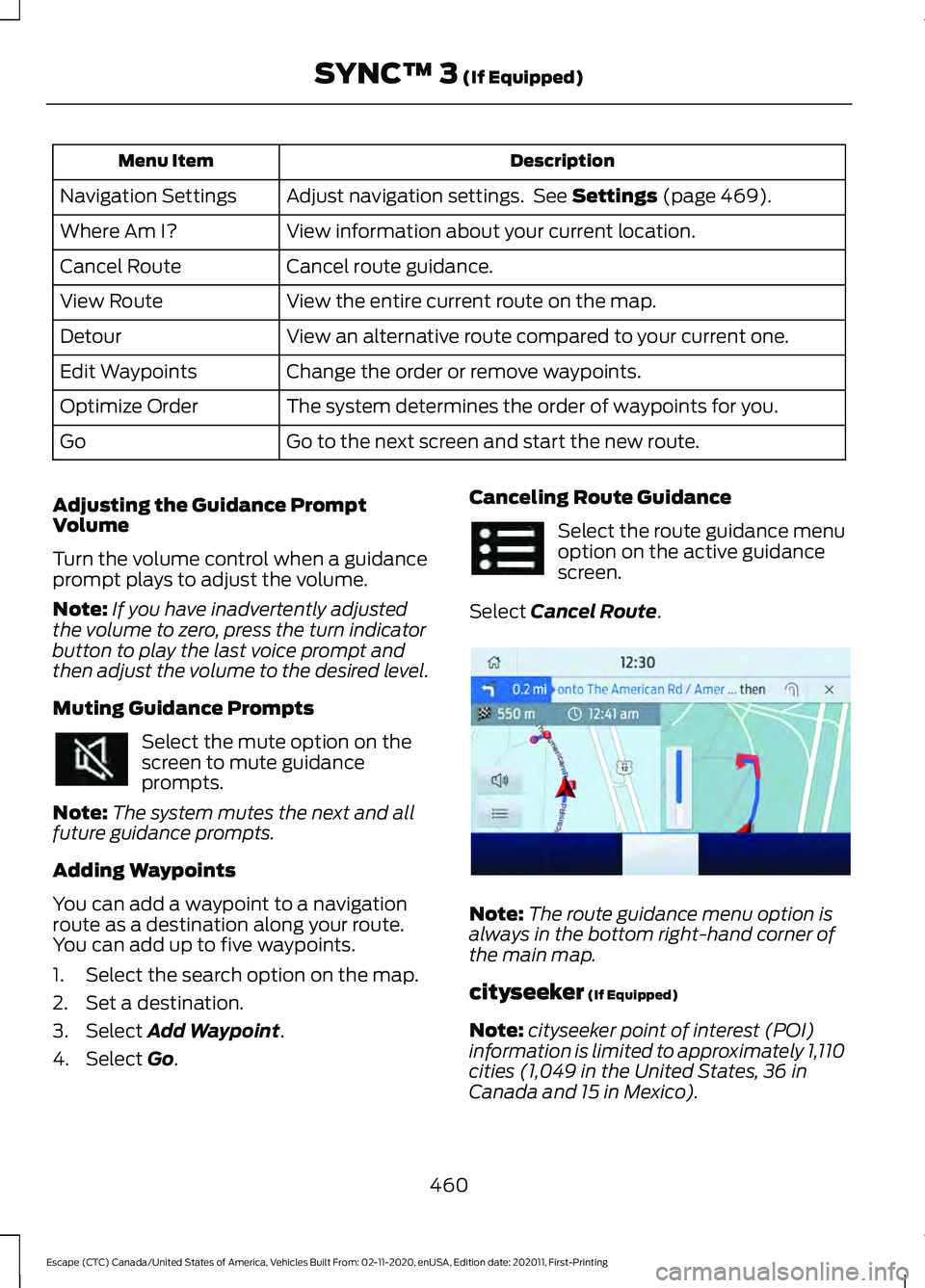
Go. Canceling Route Guidance Select the route guidance menu
option on the active guidance
screen.
Select
Cancel Route. Note:
The route guidance menu option is
always in the bottom right-hand corner of
the main map.
cityseeker
(If Equipped)
Note: cityseeker point of interest (POI)
information is limited to approximately 1,110
cities (1,049 in the United States, 36 in
Canada and 15 in Mexico).
460
Escape (CTC) Canada/United States of America, Vehicles Built From: 02-11-2020, enUSA, Edition date: 202011, First-Printing SYNC™ 3
(If Equipped) E294817
Page 464 of 589
cityseeker, when available, is a service that
provides more information about certain
points of interest such as restaurants,
hotels and attractions.
When you have selected a point of interest,
the location and information appear, such
as address, phone number and a star
rating.
Press More Information to see a photo,
a review, a list of services and facilities, the
average room or meal price and the web
address. This screen displays the point of
interest icons.
For restaurants, cityseeker can provide
information such as star rating, average
cost, review, handicap access, hours of
operation, and website address.
For hotels, cityseeker can provide
information such as star rating, price
category, review, check-in and checkout
times, hotel service icons and website
address. Hotel service icons include:
• Restaurant
• Business center
• Handicap facilities
• Laundry
• Refrigerator
• 24 hour room service
• Fitness center
• Internet access
• Pool
• Wi-Fi Attractions include nearby landmarks,
amusement parks, historic buildings and
more. cityseeker can provide information
such as star rating, reviews, hour of
operation and admission price.
SiriusXM Traffic and Travel Link (If
Equipped)
SiriusXM Traffic and Travel Link is available
on vehicles equipped with navigation and
only in select markets. You must activate
and subscribe to receive SiriusXM Traffic
and Travel Link information. It helps you
locate the best gas prices, find movie
listings, get current traffic alerts, view the
weather map, get accurate ski conditions
and see current sports scores.
The system calculates a reasonable
efficient route based on available speed
limits, traffic, and road conditions. You may
know a local short cut that is more efficient
at a given time than the route provided by
SYNC 3, but you should expect a slight
difference in minutes or miles with the
SYNC 3 route.
Michelin Travel Guide
(If Equipped)
The Michelin travel guide is a service which
provides additional information about
certain places of interest, for example
restaurants, hotels and tourist sites. Points
of interest that have Michelin travel guide
information display a button to show you
more information. Push the button to see
the additional information. If you have
paired your phone with the system, you
can press the phone button to directly
establish a call with the selected point of
interest.
461
Escape (CTC) Canada/United States of America, Vehicles Built From: 02-11-2020, enUSA, Edition date: 202011, First-Printing SYNC™ 3
(If Equipped)E225487
Page 465 of 589
Navigation Map Accuracy and
Updates
HERE is the digital map provider for the
navigation application. If you find map data
errors, you may report them directly to
HERE by going to www.here.com. HERE
evaluates all reported map errors and
responds with the result of their
investigation by e-mail.
The navigation system map data may
contain inaccurate or incomplete
information due to the passage of time,
changing circumstances, sources used and
the nature of collecting comprehensive
geographic data, any of which may lead to
incorrect results. Inaccurate speed limit
information, turn restrictions and other
road attributes may affect the determined
route and associated guidance
Annual navigation map updates are
available for purchase through your
dealership. Depending on your purchase
agreement, you might be eligible for free
Map update. You can choose to download
the Map data update onto a USB, order a
USB, or use Wi-Fi to deliver automatic
updates. To update your Map data over
Wi-Fi, your vehicle must be connected to
a Wi-Fi access point. Map Data files are
large, so it is highly recommended to
perform the update when free Wi-Fi is
available otherwise high data rates may
apply. For USB updates, free map update
eligibility, and other details, contact
dealers at 1-866-462-8837 in the United
States and Canada or 01-800-557-5539
in Mexico or visit our local website for more
information.
ELECTRIC VEHICLE
INFORMATION (IF EQUIPPED)
Power Flow The Power Flow information for
your plug-in hybrid vehicle is
available through the Home
screen or under Apps.
Vehicle Operational States
Power will flow to or from the front and
rear wheels depending on operational
state and drive conditions.
• Idling: The vehicle is running and in Park
(P). The engine and, or the high voltage
battery are on.
• Electric Driving: The vehicle is running
and in Drive (D) or Neutral (N). The
high voltage battery provides power to
the wheels.
• Hybrid Driving: The vehicle is running
and in Drive (D) or Neutral (N). The
engine and the high voltage battery
provide power to the wheels.
• Engine Driving: The vehicle is running
and in Drive (D) or Neutral (N). The
engine provides power to the wheels.
• Regenerative Braking: The vehicle is
running in Drive gear and is slowing
down. Power captured by the
regenerative braking system is sent
back to the high voltage battery.
• Charging: The vehicle is plugged in and
the high voltage battery is being
charged.
Engine On Due To
The following conditions help to explain
why the engine is on, and what you can do
to allow all electric operation.
462
Escape (CTC) Canada/United States of America, Vehicles Built From: 02-11-2020, enUSA, Edition date: 202011, First-Printing SYNC™ 3
(If Equipped)E304437
Page 470 of 589
Note:
Cabin conditioning can perform
differently depending on if you plug in with
the included convenience cord or a higher
power charging station. The power available
for conditioning is limited to the charging
station power available.
Note: Your vehicle may not always reach
the set cabin temperature due to charging
and ambient temperature conditions. This
is normal operation.
APPS
The system allows you interact with select
mobile apps while keeping your eyes on
the road. Voice commands, your steering
wheel buttons, or a quick tap on your
touchscreen give you advanced control of
compatible mobile apps. You can also
stream your favorite music or podcasts,
share your time of arrival with friends, and
keep connected safely.
When you start an app through the system
for the first time, you could be asked to
grant certain permissions. You can review
and change the permissions that you have
granted at any time when your vehicle is
not moving. We recommend that you
check your data plan before using your
apps through the system. Using them
could result in additional charges. We also
recommend that you check the app
provider's terms and conditions and
privacy policy before using their app. Make
sure that you have an active account for
apps that you want to use through the
system. Some apps will work with no
setup. Others require you to configure
some personal settings before you can use
them.
Note: For more information about available
apps, visit catalog.ford.com. Using Apps on an iOS Device Select the apps option on the
feature bar.
1. If your device is connected via USB, switch Apple CarPlay off. See Phone
(page 455).
2. Connect your device to a USB port or pair and connect using Bluetooth.
3. If prompted to enable CarPlay, select Disable
.
4. Start the apps on your device that you want to use through SYNC.
Note: If you close the apps on your device,
you will not be able to use them through the
system.
5. Select the app that you want to use on
the touchscreen.
Note: Connect your device to a USB port if
you want to use a navigation app. When
using a navigation app, keep your device
unlocked and the app open.
Using Apps on an Android Device Select the apps option on the
feature bar.
1. If your device is connected via USB, switch Android Auto off. See
Phone
(page 455).
2. Pair your device. See Phone (page 455).
3. Start the apps on your device that you want to use through SYNC.
Note: If you close the apps on your device,
you will not be able to use them through the
system.
4. Select
Find Mobile Apps.
Note: The system searches and connects
to compatible apps that are running on your
device.
5. Select the app that you want to use on
the touchscreen.
467
Escape (CTC) Canada/United States of America, Vehicles Built From: 02-11-2020, enUSA, Edition date: 202011, First-Printing SYNC™ 3
(If Equipped)
Page 471 of 589
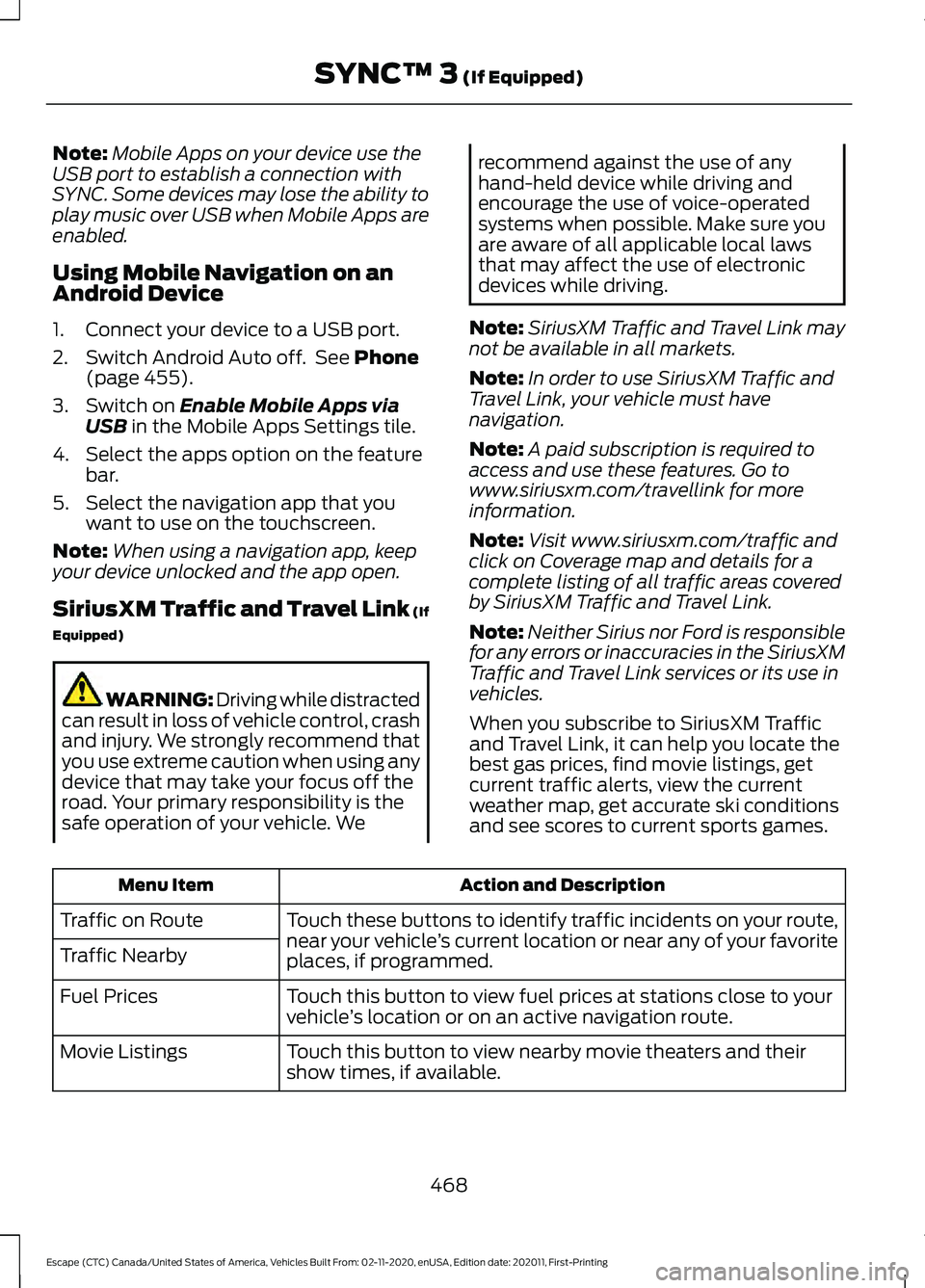
Note:
Mobile Apps on your device use the
USB port to establish a connection with
SYNC. Some devices may lose the ability to
play music over USB when Mobile Apps are
enabled.
Using Mobile Navigation on an
Android Device
1. Connect your device to a USB port.
2. Switch Android Auto off. See Phone
(page 455).
3. Switch on
Enable Mobile Apps via
USB in the Mobile Apps Settings tile.
4. Select the apps option on the feature bar.
5. Select the navigation app that you want to use on the touchscreen.
Note: When using a navigation app, keep
your device unlocked and the app open.
SiriusXM Traffic and Travel Link (If
Equipped) WARNING: Driving while distracted
can result in loss of vehicle control, crash
and injury. We strongly recommend that
you use extreme caution when using any
device that may take your focus off the
road. Your primary responsibility is the
safe operation of your vehicle. We recommend against the use of any
hand-held device while driving and
encourage the use of voice-operated
systems when possible. Make sure you
are aware of all applicable local laws
that may affect the use of electronic
devices while driving.
Note: SiriusXM Traffic and Travel Link may
not be available in all markets.
Note: In order to use SiriusXM Traffic and
Travel Link, your vehicle must have
navigation.
Note: A paid subscription is required to
access and use these features. Go to
www.siriusxm.com/travellink for more
information.
Note: Visit www.siriusxm.com/traffic and
click on Coverage map and details for a
complete listing of all traffic areas covered
by SiriusXM Traffic and Travel Link.
Note: Neither Sirius nor Ford is responsible
for any errors or inaccuracies in the SiriusXM
Traffic and Travel Link services or its use in
vehicles.
When you subscribe to SiriusXM Traffic
and Travel Link, it can help you locate the
best gas prices, find movie listings, get
current traffic alerts, view the current
weather map, get accurate ski conditions
and see scores to current sports games. Action and Description
Menu Item
Touch these buttons to identify traffic incidents on your route,
near your vehicle’s current location or near any of your favorite
places, if programmed.
Traffic on Route
Traffic Nearby
Touch this button to view fuel prices at stations close to your
vehicle’s location or on an active navigation route.
Fuel Prices
Touch this button to view nearby movie theaters and their
show times, if available.
Movie Listings
468
Escape (CTC) Canada/United States of America, Vehicles Built From: 02-11-2020, enUSA, Edition date: 202011, First-Printing SYNC™ 3
(If Equipped)
Page 480 of 589
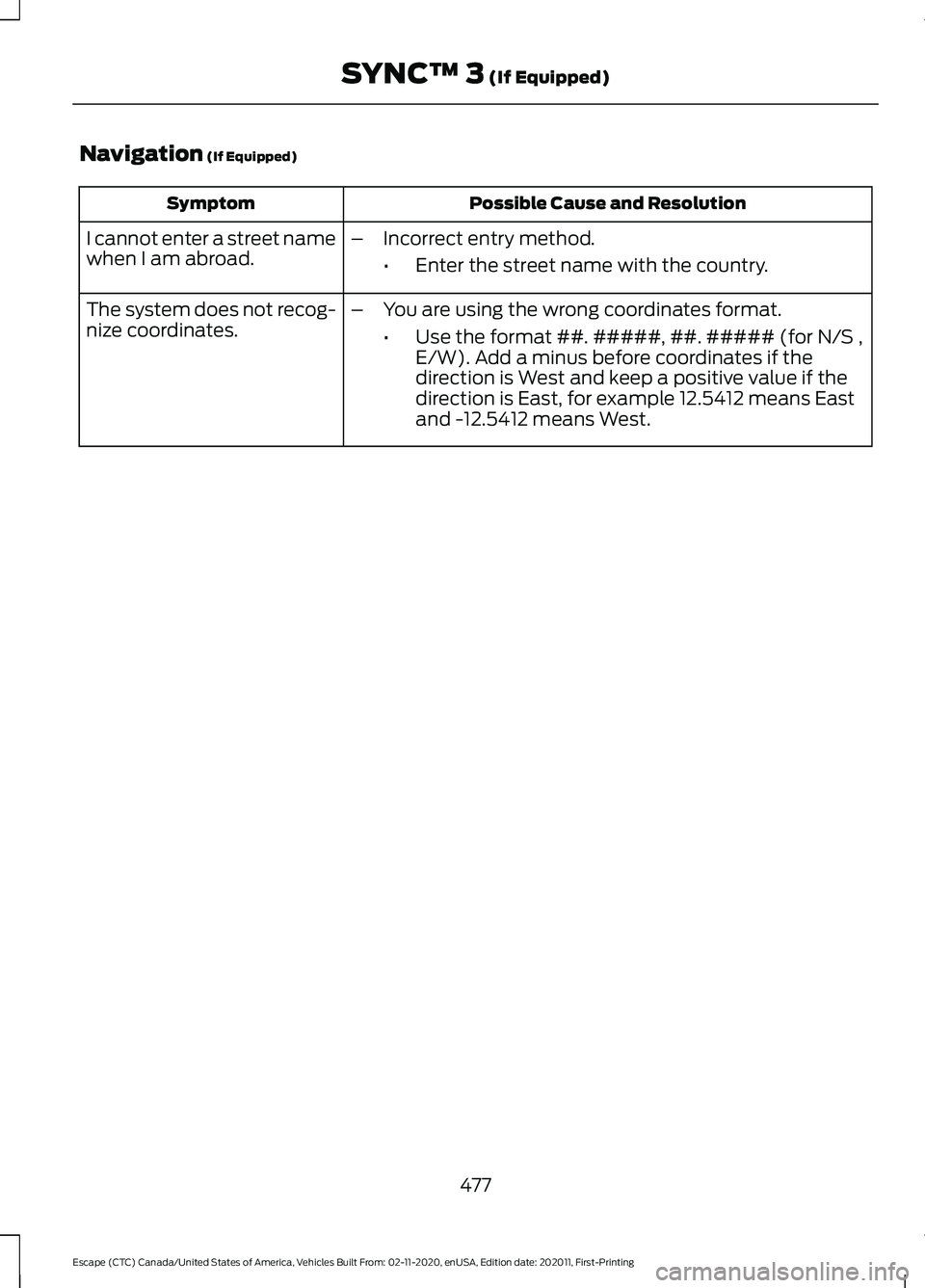
Navigation (If Equipped)
Possible Cause and Resolution
Symptom
I cannot enter a street name
when I am abroad. –
Incorrect entry method.
•Enter the street name with the country.
The system does not recog-
nize coordinates. –
You are using the wrong coordinates format.
•Use the format ##. #####, ##. ##### (for N/S ,
E/W). Add a minus before coordinates if the
direction is West and keep a positive value if the
direction is East, for example 12.5412 means East
and -12.5412 means West.
477
Escape (CTC) Canada/United States of America, Vehicles Built From: 02-11-2020, enUSA, Edition date: 202011, First-Printing SYNC™ 3
(If Equipped)
Page 540 of 589
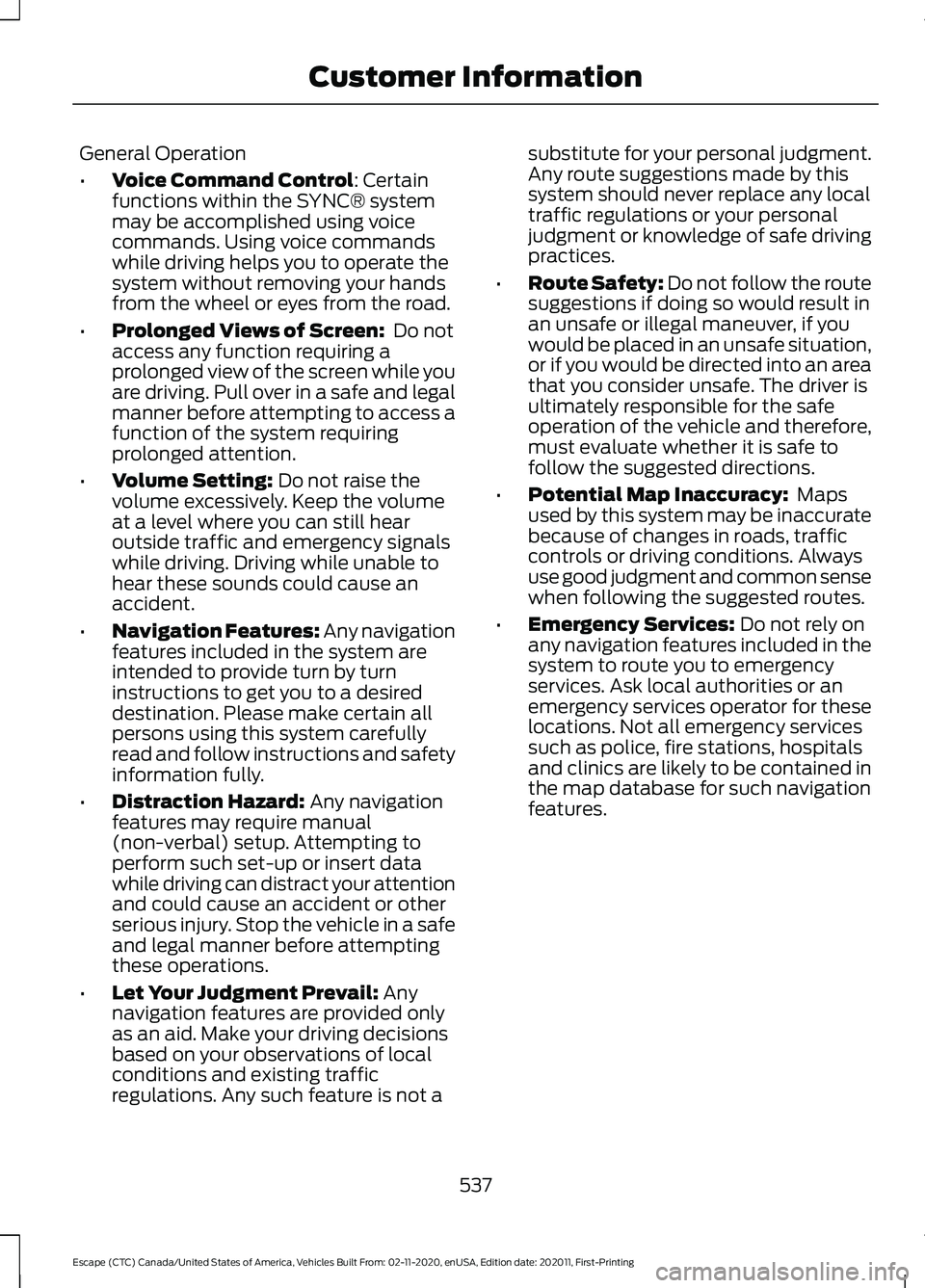
General Operation
•
Voice Command Control: Certain
functions within the SYNC® system
may be accomplished using voice
commands. Using voice commands
while driving helps you to operate the
system without removing your hands
from the wheel or eyes from the road.
• Prolonged Views of Screen:
Do not
access any function requiring a
prolonged view of the screen while you
are driving. Pull over in a safe and legal
manner before attempting to access a
function of the system requiring
prolonged attention.
• Volume Setting:
Do not raise the
volume excessively. Keep the volume
at a level where you can still hear
outside traffic and emergency signals
while driving. Driving while unable to
hear these sounds could cause an
accident.
• Navigation Features:
Any navigation
features included in the system are
intended to provide turn by turn
instructions to get you to a desired
destination. Please make certain all
persons using this system carefully
read and follow instructions and safety
information fully.
• Distraction Hazard:
Any navigation
features may require manual
(non-verbal) setup. Attempting to
perform such set-up or insert data
while driving can distract your attention
and could cause an accident or other
serious injury. Stop the vehicle in a safe
and legal manner before attempting
these operations.
• Let Your Judgment Prevail:
Any
navigation features are provided only
as an aid. Make your driving decisions
based on your observations of local
conditions and existing traffic
regulations. Any such feature is not a substitute for your personal judgment.
Any route suggestions made by this
system should never replace any local
traffic regulations or your personal
judgment or knowledge of safe driving
practices.
• Route Safety: Do not follow the route
suggestions if doing so would result in
an unsafe or illegal maneuver, if you
would be placed in an unsafe situation,
or if you would be directed into an area
that you consider unsafe. The driver is
ultimately responsible for the safe
operation of the vehicle and therefore,
must evaluate whether it is safe to
follow the suggested directions.
• Potential Map Inaccuracy:
Maps
used by this system may be inaccurate
because of changes in roads, traffic
controls or driving conditions. Always
use good judgment and common sense
when following the suggested routes.
• Emergency Services:
Do not rely on
any navigation features included in the
system to route you to emergency
services. Ask local authorities or an
emergency services operator for these
locations. Not all emergency services
such as police, fire stations, hospitals
and clinics are likely to be contained in
the map database for such navigation
features.
537
Escape (CTC) Canada/United States of America, Vehicles Built From: 02-11-2020, enUSA, Edition date: 202011, First-Printing Customer Information
Page 549 of 589
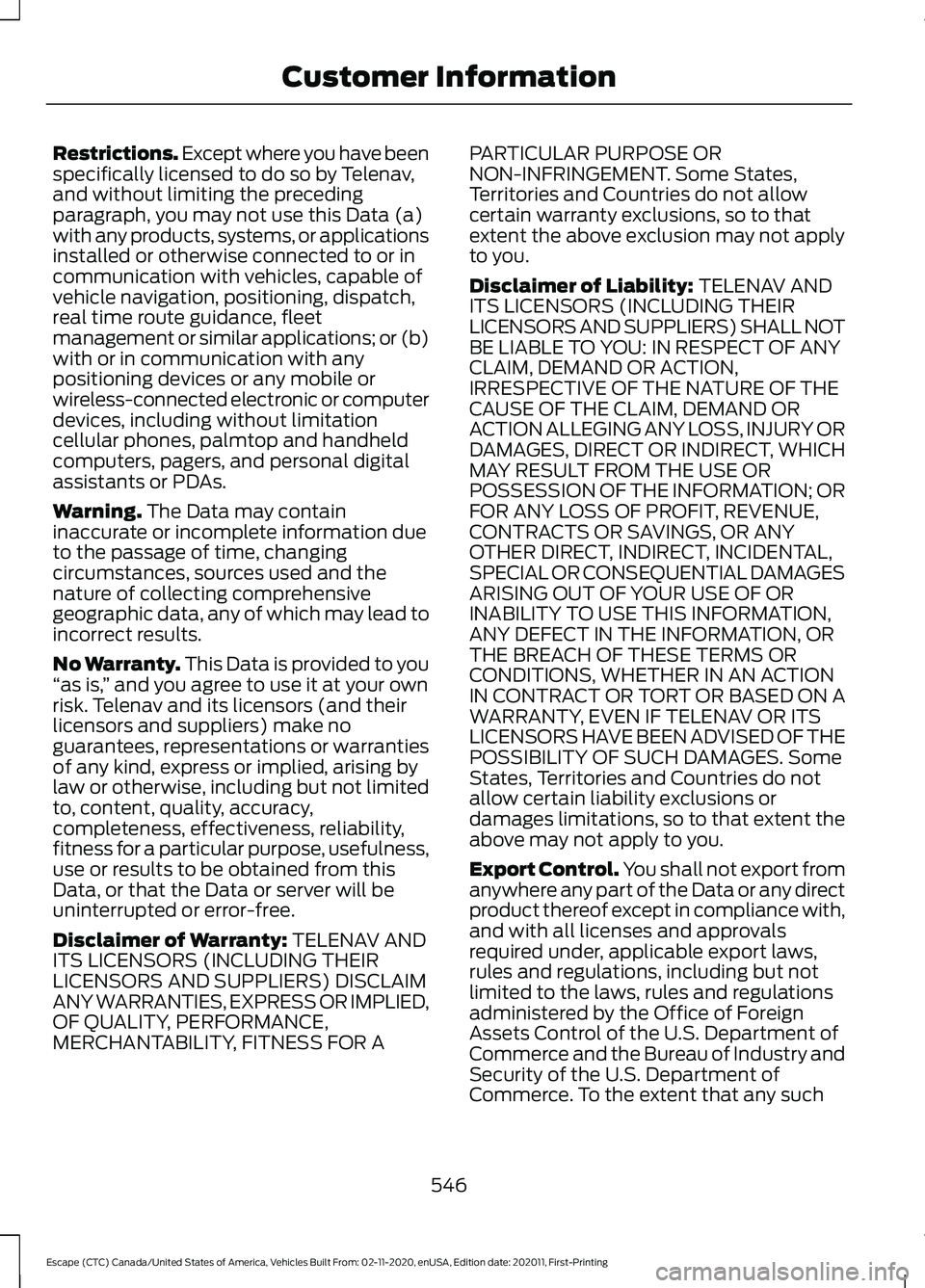
Restrictions. Except where you have been
specifically licensed to do so by Telenav,
and without limiting the preceding
paragraph, you may not use this Data (a)
with any products, systems, or applications
installed or otherwise connected to or in
communication with vehicles, capable of
vehicle navigation, positioning, dispatch,
real time route guidance, fleet
management or similar applications; or (b)
with or in communication with any
positioning devices or any mobile or
wireless-connected electronic or computer
devices, including without limitation
cellular phones, palmtop and handheld
computers, pagers, and personal digital
assistants or PDAs.
Warning. The Data may contain
inaccurate or incomplete information due
to the passage of time, changing
circumstances, sources used and the
nature of collecting comprehensive
geographic data, any of which may lead to
incorrect results.
No Warranty.
This Data is provided to you
“ as is, ” and you agree to use it at your own
risk. Telenav and its licensors (and their
licensors and suppliers) make no
guarantees, representations or warranties
of any kind, express or implied, arising by
law or otherwise, including but not limited
to, content, quality, accuracy,
completeness, effectiveness, reliability,
fitness for a particular purpose, usefulness,
use or results to be obtained from this
Data, or that the Data or server will be
uninterrupted or error-free.
Disclaimer of Warranty:
TELENAV AND
ITS LICENSORS (INCLUDING THEIR
LICENSORS AND SUPPLIERS) DISCLAIM
ANY WARRANTIES, EXPRESS OR IMPLIED,
OF QUALITY, PERFORMANCE,
MERCHANTABILITY, FITNESS FOR A PARTICULAR PURPOSE OR
NON-INFRINGEMENT. Some States,
Territories and Countries do not allow
certain warranty exclusions, so to that
extent the above exclusion may not apply
to you.
Disclaimer of Liability:
TELENAV AND
ITS LICENSORS (INCLUDING THEIR
LICENSORS AND SUPPLIERS) SHALL NOT
BE LIABLE TO YOU: IN RESPECT OF ANY
CLAIM, DEMAND OR ACTION,
IRRESPECTIVE OF THE NATURE OF THE
CAUSE OF THE CLAIM, DEMAND OR
ACTION ALLEGING ANY LOSS, INJURY OR
DAMAGES, DIRECT OR INDIRECT, WHICH
MAY RESULT FROM THE USE OR
POSSESSION OF THE INFORMATION; OR
FOR ANY LOSS OF PROFIT, REVENUE,
CONTRACTS OR SAVINGS, OR ANY
OTHER DIRECT, INDIRECT, INCIDENTAL,
SPECIAL OR CONSEQUENTIAL DAMAGES
ARISING OUT OF YOUR USE OF OR
INABILITY TO USE THIS INFORMATION,
ANY DEFECT IN THE INFORMATION, OR
THE BREACH OF THESE TERMS OR
CONDITIONS, WHETHER IN AN ACTION
IN CONTRACT OR TORT OR BASED ON A
WARRANTY, EVEN IF TELENAV OR ITS
LICENSORS HAVE BEEN ADVISED OF THE
POSSIBILITY OF SUCH DAMAGES. Some
States, Territories and Countries do not
allow certain liability exclusions or
damages limitations, so to that extent the
above may not apply to you.
Export Control.
You shall not export from
anywhere any part of the Data or any direct
product thereof except in compliance with,
and with all licenses and approvals
required under, applicable export laws,
rules and regulations, including but not
limited to the laws, rules and regulations
administered by the Office of Foreign
Assets Control of the U.S. Department of
Commerce and the Bureau of Industry and
Security of the U.S. Department of
Commerce. To the extent that any such
546
Escape (CTC) Canada/United States of America, Vehicles Built From: 02-11-2020, enUSA, Edition date: 202011, First-Printing Customer Information
Page 557 of 589
view it, and (ii) save it, provided that you
do not remove any copyright notices that
appear and do not modify the Data in any
way. You agree not to otherwise reproduce,
copy, modify, decompile, disassemble or
reverse engineer any portion of this Data,
and may not transfer or distribute it in any
form, for any purpose, except to the extent
permitted by mandatory laws.
Restrictions
Except where you have been specifically
licensed to do so by NAV2 , and without
limiting the preceding paragraph, you may
not (a) use this Data with any products,
systems, or applications installed or
otherwise connected to or in
communication with vehicles, capable of
vehicle navigation, positioning, dispatch,
real time route guidance, fleet
management or similar applications; or (b)
with or in communication with any
positioning devices or any mobile or
wireless-connected electronic or computer
devices, including without limitation
cellular phones, palmtop and handheld
computers, pagers, and personal digital
assistants or PDAs. You agree to cease
using this Data if you fail to comply with
these terms and conditions.
Limited Warranty
NAV2 warrants that (a) the Data will
perform substantially in accordance with
the accompanying written materials for a
period of ninety (90) days from the date
of receipt, and (b) any support services
provided by NAV2 shall be substantially as
described in applicable written materials
provided to you by NAV2, and NAV2’
s
support engineers will make commercially
reasonable efforts to solve any problem
issues. Customer Remedies
NAV2 and its suppliers’
entire liability and
your exclusive remedy shall be, at NAV2’ s
sole discretion, either (a) return of the price
paid, if any, or (b) repair or replacement of
the Data that do not meet NAV2’ s Limited
Warranty and that are returned to NAV2
with a copy of your receipt. This Limited
Warranty is void if failure of the Data has
resulted from accident, abuse, or
misapplication. Any replacement Data will
be warranted for the remainder of the
original warranty period or thirty (30) days,
whichever is longer. Neither these remedies
nor any product support services offered
by NAV2 are available without proof of
purchase from an authorized international
source.
No Other Warranty:
EXCEPT FOR THE LMITED WARRANTY
SET FORTH ABOVE AND TO THE EXTENT
PERMITTED BY APPLICABLE LAW, NAV2
AND ITS LICENSORS (INCLUDING THEIR
LICENSORS AND SUPPLIERS) DISCLAIM
ANY WARRANTIES, EXPRESS OR IMPLIED,
OF QUALITY, PERFORMANCE,
MERCHANTABILITY, FITNESS FOR A
PARTICULAR PURPOSE, OWNERSHIP OR
NON-INFRINGEMENT. Certain warranty
exclusions may not be permitted under
applicable law, so to that extent the above
exclusion may not apply to you.
Limited Liability:
TO THE EXTENT PERMITTED BY
APPLICABLE LAW, NAV2 AND ITS
LICENSORS (INCLUDING THEIR
LICENSORS AND SUPPLIERS) SHALL NOT
BE LIABLE TO YOU: IN RESPECT OF ANY
CLAIM, DEMAND OR ACTION,
IRRESPECTIVE OF THE NATURE OF THE
CAUSE OF THE CLAIM, DEMAND OR
ACTION ALLEGING ANY LOSS, INJURY OR
DAMAGES, DIRECT OR INDIRECT, WHICH
MAY RESULT FROM THE USE OR
POSSESSION OF THE INFORMATION; OR
554
Escape (CTC) Canada/United States of America, Vehicles Built From: 02-11-2020, enUSA, Edition date: 202011, First-Printing Customer Information
Page 563 of 589
ELECTROMAGNETIC
COMPATIBILITY
WARNING: Do not place objects
or mount equipment on or near the
airbag cover, on the side of the front or
rear seatbacks, or in areas that may
come into contact with a deploying
airbag. Failure to follow these
instructions may increase the risk of
personal injury in the event of a crash. WARNING: Do not fasten antenna
cables to vehicle wiring, fuel pipes and
brake pipes. WARNING:
Keep antenna and
power cables at least 4 in (10 cm) from
any electronic modules and airbags. Note:
We test and certify your vehicle to
meet electromagnetic compatibility
legislation. It is your responsibility to make
sure that any equipment an authorized
dealer installs on your vehicle complies with
applicable local legislation and other
requirements. Installation of some
aftermarket electronic devices could
degrade the performance of vehicle
functions, which use radio frequency signals
such as broadcast radio receiver, tire
pressure monitoring system, push button
start, Bluetooth connectivity or satellite
navigation.
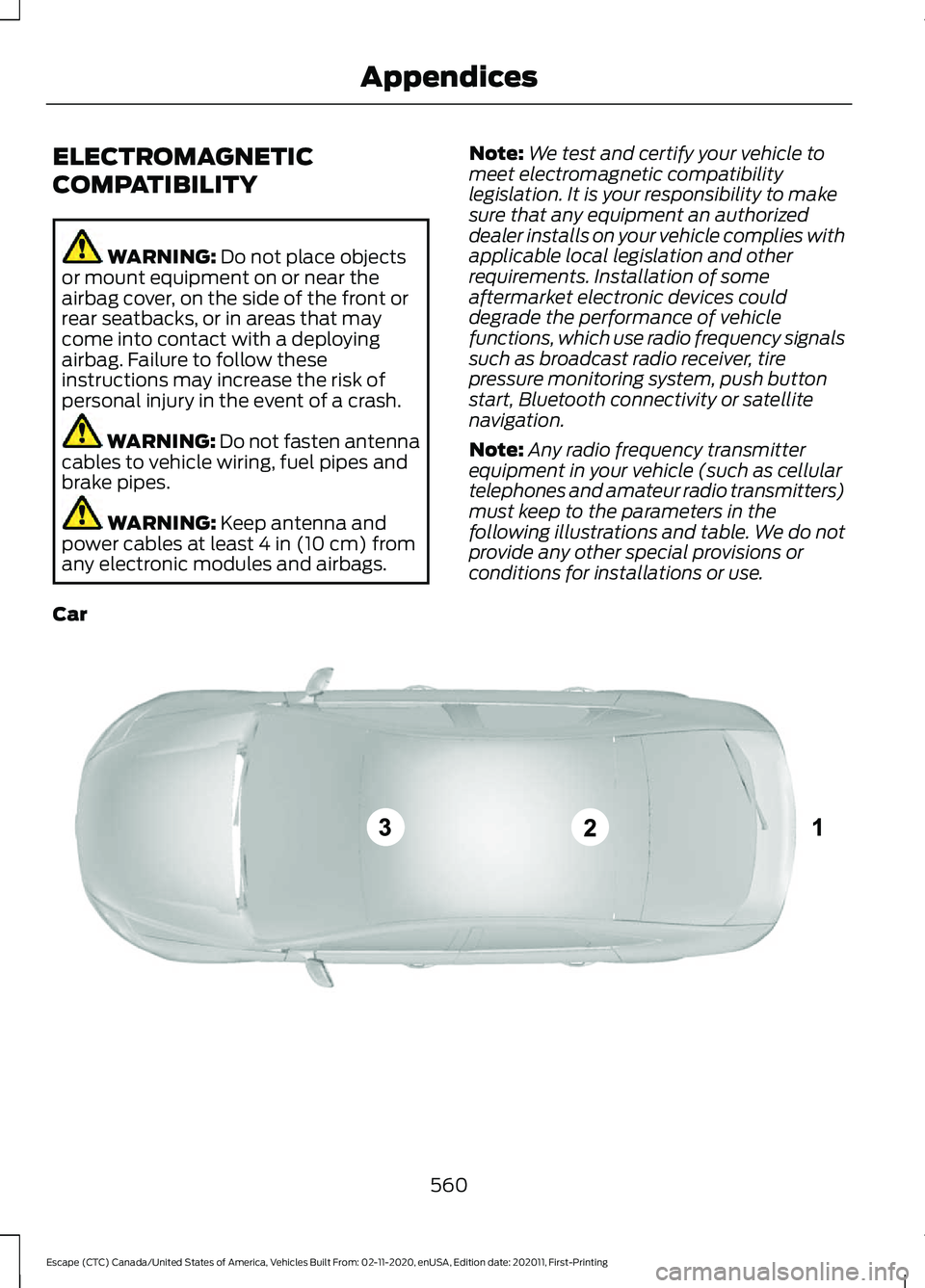
Note: Any radio frequency transmitter
equipment in your vehicle (such as cellular
telephones and amateur radio transmitters)
must keep to the parameters in the
following illustrations and table. We do not
provide any other special provisions or
conditions for installations or use.
Car 560
Escape (CTC) Canada/United States of America, Vehicles Built From: 02-11-2020, enUSA, Edition date: 202011, First-Printing AppendicesE239120