steering FORD ESCAPE 2021 User Guide
[x] Cancel search | Manufacturer: FORD, Model Year: 2021, Model line: ESCAPE, Model: FORD ESCAPE 2021Pages: 589, PDF Size: 9.2 MB
Page 126 of 589
USING THE INSTRUMENT
CLUSTER DISPLAY CONTROLS
WARNING: Driving while distracted
can result in loss of vehicle control, crash
and injury. We strongly recommend that
you use extreme caution when using any
device that may take your focus off the
road. Your primary responsibility is the
safe operation of your vehicle. We
recommend against the use of any
hand-held device while driving and
encourage the use of voice-operated
systems when possible. Make sure you
are aware of all applicable local laws
that may affect the use of electronic
devices while driving.
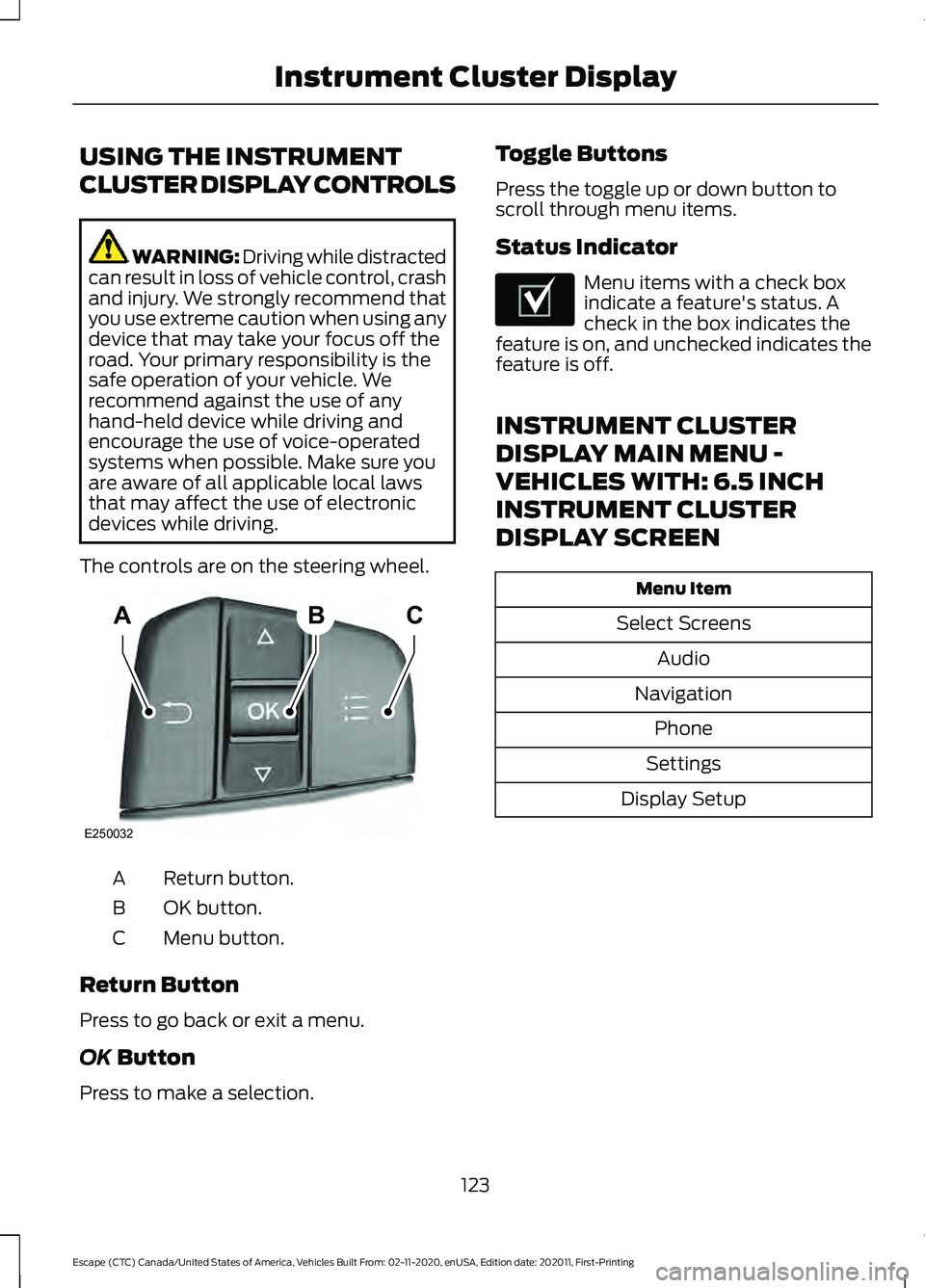
The controls are on the steering wheel. Return button.
A
OK button.
B
Menu button.
C
Return Button
Press to go back or exit a menu.
OK Button
Press to make a selection. Toggle Buttons
Press the toggle up or down button to
scroll through menu items.
Status Indicator Menu items with a check box
indicate a feature's status. A
check in the box indicates the
feature is on, and unchecked indicates the
feature is off.
INSTRUMENT CLUSTER
DISPLAY MAIN MENU -
VEHICLES WITH: 6.5 INCH
INSTRUMENT CLUSTER
DISPLAY SCREEN Menu Item
Select Screens Audio
Navigation Phone
Settings
Display Setup
123
Escape (CTC) Canada/United States of America, Vehicles Built From: 02-11-2020, enUSA, Edition date: 202011, First-Printing Instrument Cluster DisplayABC
E250032 E204495
Page 127 of 589
INSTRUMENT CLUSTER
DISPLAY MAIN MENU -
VEHICLES WITH: 4.2 INCH
INSTRUMENT CLUSTER
DISPLAY SCREEN
Menu Item
Trip 1
MyView
Driver Assist. Navigation Audio
Phone
Settings
INSTRUMENT CLUSTER
DISPLAY MAIN MENU -
VEHICLES WITH: 12.3 INCH
INSTRUMENT CLUSTER
DISPLAY SCREEN
Depending on your vehicle options, some
menu items can appear different or not at
all.
Note: For your safety, some features are
speed-dependent and could be unavailable
when your vehicle is above a certain speed. Menu Item
Select Screens Phone
Navigation Menu Item
Audio
Settings
Display Setup
CUSTOMIZING THE
INSTRUMENT CLUSTER
DISPLAY - VEHICLES WITH: 4.2
INCH INSTRUMENT CLUSTER
DISPLAY SCREEN
1. Using the information display controls on the steering wheel, select MyView.
2. Press the menu button.
3. Select a screen.
4. Press the
OK button.
CUSTOMIZING THE
INSTRUMENT CLUSTER
DISPLAY - VEHICLES WITH: 6.5
INCH INSTRUMENT CLUSTER
DISPLAY SCREEN/12.3 INCH
INSTRUMENT CLUSTER
DISPLAY SCREEN
Adding Screens Using Select
Screens
1. Select
Select Screens.
2. Use the controls on the steering wheel
to highlight a screen to add.
3. Press the
OK button.
Note: The amount of screens you can add
is limited, if the selected screen does not
appear you must deselect screens from the
select screens menu.
124
Escape (CTC) Canada/United States of America, Vehicles Built From: 02-11-2020, enUSA, Edition date: 202011, First-Printing Instrument Cluster Display
Page 129 of 589
Changing the Measure Unit -
Vehicles With: 6.5 Inch Instrument
Cluster Display Screen/12.3 Inch
Instrument Cluster Display Screen
You can change the measurement unit
using the touchscreen.
1. Press General.
2. Press
Measurement Units.
3. Select a measurement unit.
Changing the Temperature Unit -
Vehicles With: 4.2 Inch Instrument
Cluster Display Screen
You can change the temperature unit using
the instrument cluster display.
1. Select
Settings and press the menu
button.
2. Select
Display.
3. Select
Temperature Unit.
4. Select a temperature unit.
Changing the Temperature Unit -
Vehicles With: 6.5 Inch Instrument
Cluster Display Screen/12.3 Inch
Instrument Cluster Display Screen
You can change the temperature unit using
the touchscreen.
1. Press
General.
2. Press
Temperature Units.
3. Select a temperature unit.
Changing the Tire Pressure Unit -
Vehicles With: 4.2 Inch Instrument
Cluster Display Screen
You can change the tire pressure unit using
the instrument cluster display.
1. Select
Settings and press the menu
button. 2. Select
Display.
3. Select
Tire Pressure.
4. Select a tire pressure unit.
Changing the Tire Pressure Unit -
Vehicles With: 6.5 Inch Instrument
Cluster Display Screen/12.3 Inch
Instrument Cluster Display Screen
You can change the tire pressure unit using
the touchscreen.
1. Press
General.
2. Press
Tire Pressure Units.
3. Select a pressure unit.
FUEL ECONOMY DISPLAY -
GASOLINE
An instant fuel economy gauge is provided
along with average fuel economy. Average
fuel economy is continuously averaged
since the last reset.
Note: Press and hold the
OK button on the
controls on the steering wheel to reset your
average fuel economy.
FUEL ECONOMY DISPLAY -
HYBRID ELECTRIC VEHICLE
(HEV)
An instant fuel economy gauge is provided
along with average fuel economy. Average
fuel economy is continuously averaged
since the last reset.
When the gasoline engine is off the instant
fuel economy gauges is replaced with an
electric driving message.
Note: Press and hold the
OK button on the
controls on the steering wheel to reset your
average fuel economy.
126
Escape (CTC) Canada/United States of America, Vehicles Built From: 02-11-2020, enUSA, Edition date: 202011, First-Printing Instrument Cluster Display
Page 130 of 589
FUEL ECONOMY DISPLAY -
PLUG-IN HYBRID ELECTRIC
VEHICLE (PHEV)
An instant fuel economy gauge is provided
along with average fuel economy. Average
fuel economy is continuously averaged
since the last reset.
Both the electric only and hybrid operation
are included in the calculation. More
electric only driving results in a greater
average fuel economy.
When the gasoline engine is off, the instant
fuel economy gauges are replaced with an
electric driving message.
Note:
Press and hold the OK button on the
controls on the steering wheel to reset your
average fuel economy.
EV COACH - HYBRID ELECTRIC
VEHICLE (HEV)/PLUG-IN
HYBRID ELECTRIC VEHICLE
(PHEV)
EV coach can help you get the most out of
your vehicle's electric driving capabilities.
Note: EV coach is a selectable screen. See
Customizing the Instrument Cluster
Display
(page 124).
When you are accelerating or maintaining
speed you see a blue or white solid bar
indicating vehicle power. You may also see
a blue rectangular box which shows the
power level at which the engine turns on. •
When the power level is within the box,
the color of the bar is blue. This means
you are in electric operation and the
engine is off.
• When the power level is outside of the
box, the color of the bar is white. This
means you are in hybrid operation with
a combination of the electric motor
and the engine providing vehicle power.
When you are decelerating with either your
foot off the accelerator pedal or on the
brake pedal, a green or white solid bar
displays indicating the power being used
to slow down your vehicle. You may also
see a green rectangular box which shows
the amount of power that can be
recaptured by the regenerative braking
system and returned to the high voltage
battery.
• When the power level is within the box,
the color of the bar will be all green.
This means that the regenerative
braking system is being used to
efficiently slow your vehicle down and
return the maximum percentage of
energy to the high voltage battery.
• When the power level is outside of the
box, then the bar is white. This means
both the regenerative braking system
and conventional braking system are
being used.
WHAT IS ELECTRIC
EFFICIENCY - PLUG-IN HYBRID
ELECTRIC VEHICLE (PHEV)
This screen shows your average driving
distance per kilowatt-hour of electricity
used on your plug-in hybrid vehicle. The
value is calculated only when your
available electric range is being used and
the gasoline engine is off.
127
Escape (CTC) Canada/United States of America, Vehicles Built From: 02-11-2020, enUSA, Edition date: 202011, First-Printing Instrument Cluster Display
Page 132 of 589
ACCESSING THE TRIP
COMPUTER - VEHICLES WITH:
4.2 INCH INSTRUMENT
CLUSTER DISPLAY SCREEN
1. Use the instrument cluster display
controls to navigate the home screen.
2. Select the trip screen.
3. Press the menu button on the steering
wheel.
4. Select Trip 1 or Trip 2.
ACCESSING THE TRIP
COMPUTER - VEHICLES WITH:
6.5 INCH INSTRUMENT
CLUSTER DISPLAY SCREEN/
12.3 INCH INSTRUMENT
CLUSTER DISPLAY SCREEN
Using Select Screens
1. Use the instrument cluster display controls to navigate the home menu.
2. Select
Select Screens.
3. Use the control on the steering wheel to navigate the menu. See
Customizing the Instrument Cluster
Display
(page 124).
Using the Home Screen
Once the screens have been added, use
the instrument cluster display controls on
the steering wheel to view each trip screen.
RESETTING THE TRIP
COMPUTER
1. Use the instrument cluster display controls to navigate the home screen.
2. Select the trip screen you want to reset. 3.
Press and hold the OK button until the
system reset confirmation appears.
Note: This trip resets every time you start
your vehicle.
RESETTING THE INDIVIDUAL
TRIP VALUES - VEHICLES
WITH: 4.2 INCH INSTRUMENT
CLUSTER DISPLAY SCREEN
1. Use the instrument cluster display controls to navigate the home screen.
2. Select the trip screen.
3. Press the menu button on the steering
wheel.
4. Select
Reset Individual Values.
5. Select a trip value to reset.
6. Press and hold the OK button until the
system reset confirmation appears.
CONFIGURING THE TRIP
COMPUTER - VEHICLES WITH:
4.2 INCH INSTRUMENT
CLUSTER DISPLAY SCREEN
1. Use the instrument cluster display controls to navigate the home screen.
2. Select the trip screen.
3. Press the menu button on the steering
wheel.
4. Select
Configure View.
5. Select values to display.
129
Escape (CTC) Canada/United States of America, Vehicles Built From: 02-11-2020, enUSA, Edition date: 202011, First-Printing Trip Computer
Page 134 of 589
WHAT IS THE HEAD UP
DISPLAY
The system displays information on a
display screen in your field of vision,
allowing you to keep your eyes on the road.
You can select which information the
system displays.
SWITCHING THE HEAD UP
DISPLAY ON AND OFF
Press the button on the steering
wheel or center console.
Note:
The head up display menu appears
in the information display. Action
Menu Item
Press the OK
button.
Head-Up Display
(HUD)
Press the
OK
button.
Note: The system remembers the last
setting when you start the engine.
HEAD UP DISPLAY SETTINGS Action
Menu Item
Press the
OK button.
Adjustment
Position 1. Press the
OK button.
2. Use the up and down toggle buttons to adjust the vertical position of the blue frame.
•Make sure that you can see all of the blue frame.
• Do not physically move the screen. This can cause
damage not covered by the vehicle Warranty.
Brightness 1. Press the
OK button.
2. Use the up and down toggle buttons to adjust the brightness of the display screen.
•The system adjusts the brightness based on how
dark it is. If you set the brightness to a high level,
the system reduces the brightness at night.
Vertical Size 1. Press the
OK button.
2. Use the up and down toggle buttons to adjust the vertical size of the display screen.
•A small vertical size could be more suitable if you
sit in a high position.
131
Escape (CTC) Canada/United States of America, Vehicles Built From: 02-11-2020, enUSA, Edition date: 202011, First-Printing Head Up Display
(If Equipped)E265900
Page 135 of 589
Selecting Which Information the
System Displays
Start the engine and switch the system on.
Note:
Press the head up display button if
you do not see the head up display menu in
the instrument cluster display. Note:
For your safety, some features are
speed-dependent. The system limits their
use to when your vehicle is not moving.
Use the instrument cluster display controls
on the steering wheel to select which
information the system displays. Action
Menu Item
Press the OK button.
Content
Press the
OK button.
Distance Indication
Eco Advice
Incoming Calls
Lane Keeping System
Navigation
Speed Assistance
Speed Sign Recognition
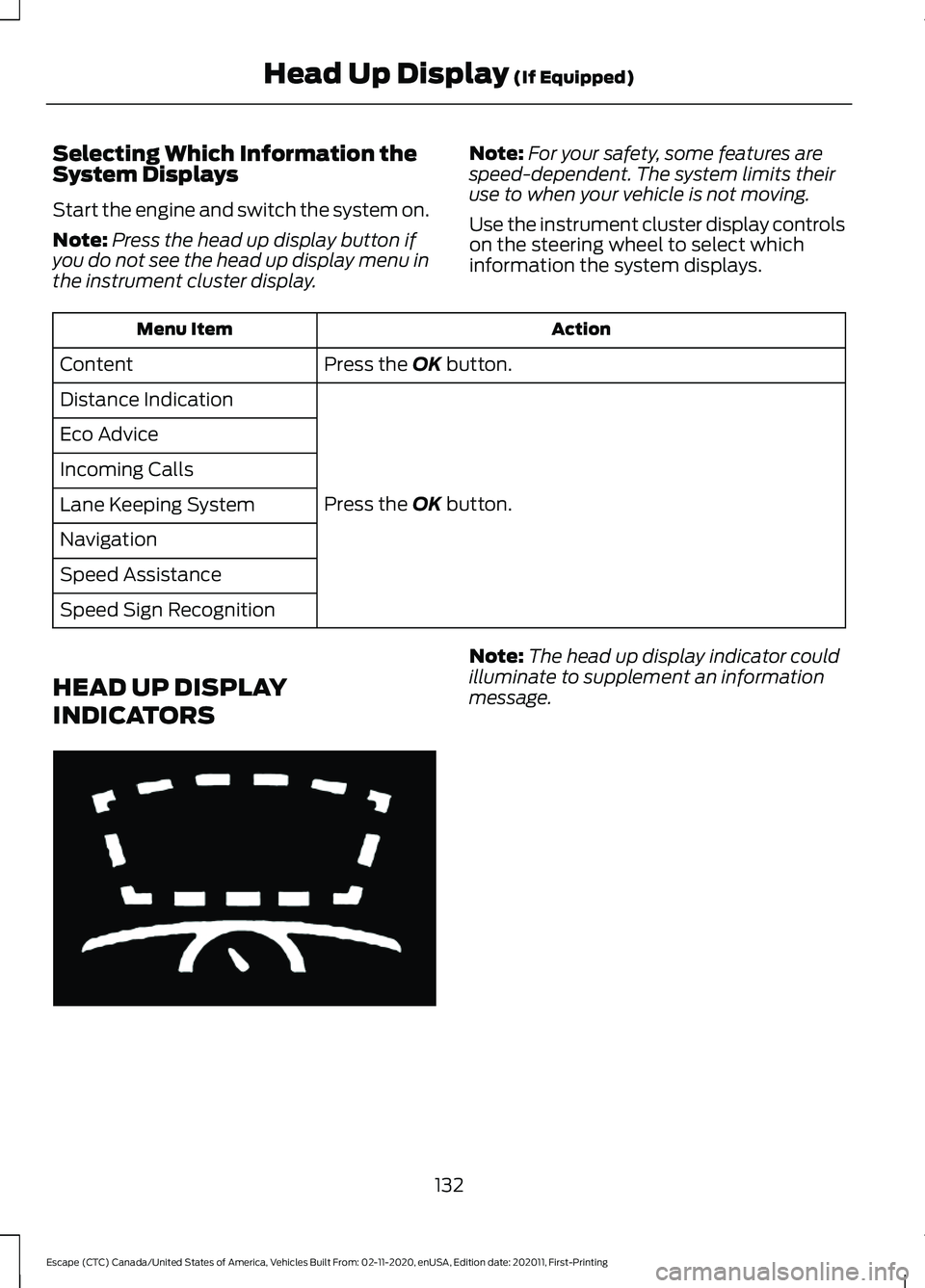
HEAD UP DISPLAY
INDICATORS Note:
The head up display indicator could
illuminate to supplement an information
message.
132
Escape (CTC) Canada/United States of America, Vehicles Built From: 02-11-2020, enUSA, Edition date: 202011, First-Printing Head Up Display
(If Equipped)E265900
Page 136 of 589
HEAD UP DISPLAY – TROUBLESHOOTING
Head Up Display – Information Messages
Action
Message
The system is malfunctioning or somethingis obstructing the display. Make sure that
the head up display is free from obstruction. If the message continues to appear, have
your vehicle checked as soon as possible.
Head Up Display System Fault See Manual
Press the button on the steering wheel or
center console. The head up display menu appears in the instrument cluster display.
Make sure the blue frame is fully visible. Do not manually move the screen. This can
cause damage not covered by your vehicle's warranty.
Head Up Display To Position Use the
Information Display
133
Escape (CTC) Canada/United States of America, Vehicles Built From: 02-11-2020, enUSA, Edition date: 202011, First-Printing Head Up Display (If Equipped)
Page 138 of 589
Press the button on the remote
control.
Within three seconds, press the
button on the remote control.
Within three seconds, press the
button again.
If the duration is set to 15 minutes, the
duration extends by another 15 minutes.
This provides a total of 30 minutes.
Note: Remote start can only be extended
once.
Note: A maximum of two remote starts, or
one remote start with an extension, are
allowed. To reset the restart procedure
switch the vehicle to on, then to off.
REMOTE START REMOTE
CONTROL INDICATORS
Remote Control Feedback
An LED on the remote control provides
status feedback of remote start or stop
commands. Status
LED
Remote startsuccessful.
Solid green.
Remote stopsuccessful.
Solid red.
Request failed or
status not received.
Blinking red.
Status incomplete.
Blinking green.
REMOTE START SETTINGS
Switching Climate Control Auto
Mode On and Off
1. Press Settings on the touchscreen. 2. Press
Remote Start Setup.
3. Press
Climate Control.
4. Select
Vehicle.
5. Switch
Auto on or off.
Note: If you switch the auto mode on, the
system attempts to heat or cool the interior
to
72°F (22°C).
Note: When you switch the ignition on, the
climate control system returns to the last
used settings.
Switching Climate Control Last
Settings On and Off
1. Press
Settings on the touchscreen.
2. Press
Vehicle Settings.
3. Press
Remote Start Setup.
4. Switch
Last settings on or off.
Note: If you switch the last settings on, the
system remembers the last used settings.
Switching the Heated Seat
Settings On and Off
1. Press
Settings on the touchscreen.
2. Press
Vehicle Settings.
3. Press
Remote Start Setup.
4. Press
Seats.
5. Switch
Auto on or off.
Note: If you switch the heated seat settings
on, the heated seats turn on during cold
weather.
Switching the Heated Steering
Wheel Settings On and Off
1. Press
Settings on the touchscreen.
2. Press
Vehicle Settings.
3. Press
Remote Start Setup.
4. Press
Seats and Steering Wheel.
135
Escape (CTC) Canada/United States of America, Vehicles Built From: 02-11-2020, enUSA, Edition date: 202011, First-Printing Remote Start
(If Equipped)E138623 E138625
Page 139 of 589
5. Switch Auto on or off.
Note: If you switch the heated steering
wheel settings on, the heated steering wheel
turns on during cold weather.
Setting the Remote Start Duration
1. Press
Settings on the touchscreen.
2. Press
Vehicle Settings.
3. Press
Remote Start Setup.
4. Press
Duration.
Note: Wait a few seconds before remotely
starting the vehicle after the vehicle stops
running.
136
Escape (CTC) Canada/United States of America, Vehicles Built From: 02-11-2020, enUSA, Edition date: 202011, First-Printing Remote Start
(If Equipped)