Info reset FORD ESCAPE 2022 User Guide
[x] Cancel search | Manufacturer: FORD, Model Year: 2022, Model line: ESCAPE, Model: FORD ESCAPE 2022Pages: 585, PDF Size: 6.15 MB
Page 262 of 585
PLUG-IN HYBRID ELECTRIC
VEHICLE DRIVE MODES
SELECTING A PLUG-IN HYBRID
ELECTRIC VEHICLE DRIVE MODE
E327677E327E327E327E327E327E3273327327277777E32733272767767676776677767677676677677
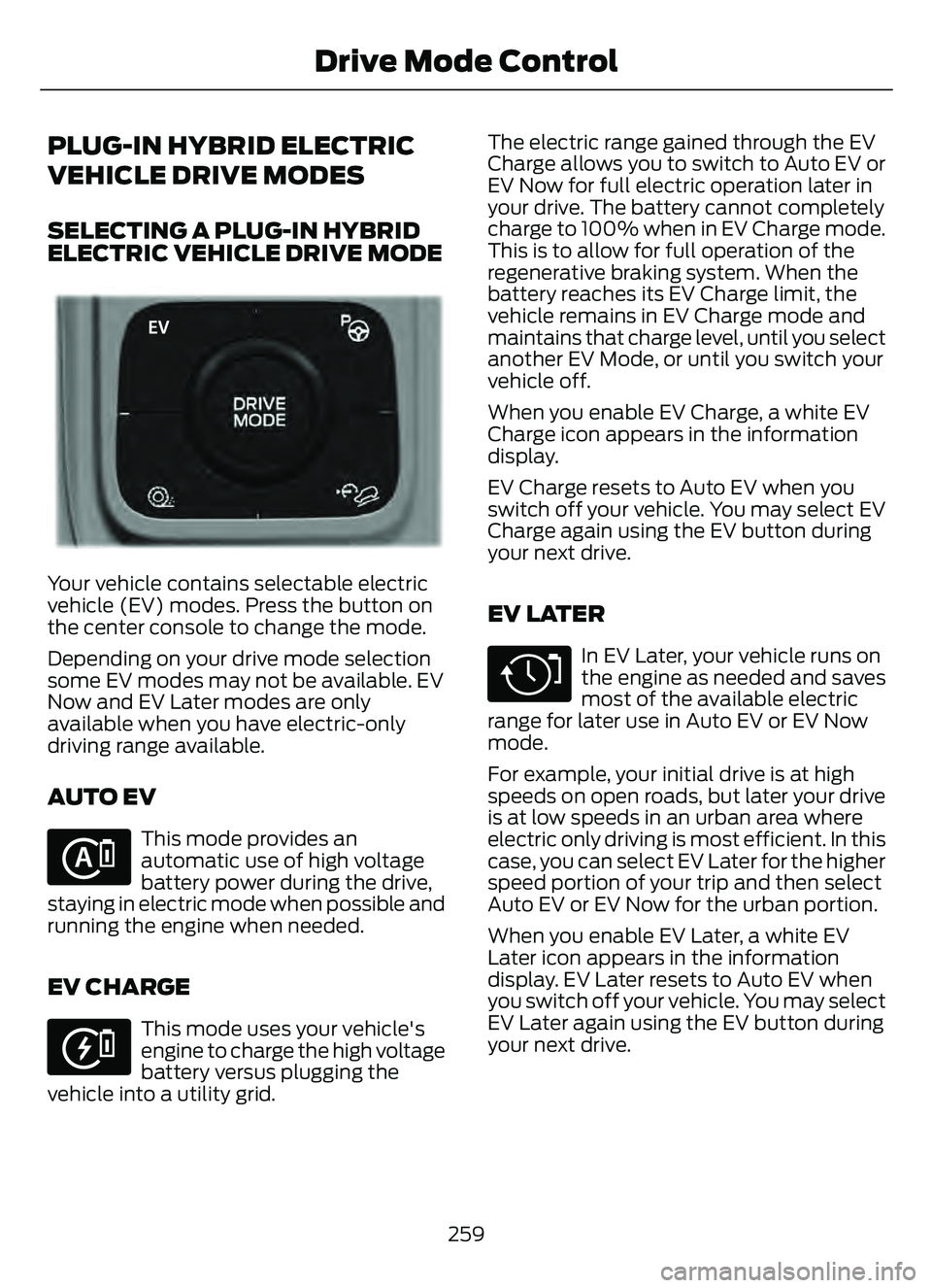
Your vehicle contains selectable electric
vehicle (EV) modes. Press the button on
the center console to change the mode.
Depending on your drive mode selection
some EV modes may not be available. EV
Now and EV Later modes are only
available when you have electric-only
driving range available.
AUTO EV
E287836
This mode provides an
automatic use of high voltage
battery power during the drive,
staying in electric mode when possible and
running the engine when needed.
EV CHARGE
E287822
This mode uses your vehicle's
engine to charge the high voltage
battery versus plugging the
vehicle into a utility grid. The electric range gained through the EV
Charge allows you to switch to Auto EV or
EV Now for full electric operation later in
your drive. The battery cannot completely
charge to 100% when in EV Charge mode.
This is to allow for full operation of the
regenerative braking system. When the
battery reaches its EV Charge limit, the
vehicle remains in EV Charge mode and
maintains that charge level, until you select
another EV Mode, or until you switch your
vehicle off.
When you enable EV Charge, a white EV
Charge icon appears in the information
display.
EV Charge resets to Auto EV when you
switch off your vehicle. You may select EV
Charge again using the EV button during
your next drive.
EV LATER
E287824
In EV Later, your vehicle runs on
the engine as needed and saves
most of the available electric
range for later use in Auto EV or EV Now
mode.
For example, your initial drive is at high
speeds on open roads, but later your drive
is at low speeds in an urban area where
electric only driving is most efficient. In this
case, you can select EV Later for the higher
speed portion of your trip and then select
Auto EV or EV Now for the urban portion.
When you enable EV Later, a white EV
Later icon appears in the information
display. EV Later resets to Auto EV when
you switch off your vehicle. You may select
EV Later again using the EV button during
your next drive.
259
Drive Mode Control
Page 286 of 585
2. Press Driver Assistance.
3. Switch Driver Alert on or off.
Note:The system remains on or off
depending on how it was last set.
Resetting Driver Alert
You can reset the system by either:
• Switching the ignition off and on.
• Stopping the vehicle and then opening and closing the driver door.
DRIVER ALERT INDICATORS
System Warnings
The warning system has two stages:
1. A temporary warning is issued to adviseyou to take a rest. This message only
appears for a short time.
2. If you do not rest and the system continues to detect that your driving
deteriorates, it issues a further warning.
This remains in the instrument cluster
display until you cancel it.
Note: The system does not warn you if the
vehicle speed falls below approximately
40 mph (65 km/h).
DRIVER ALERT – TROUBLESHOOTING
DRIVER ALERT – INFORMATION MESSAGES
Action
Message
Stop and rest as soon as it is safe to do so.
Driver Alert Warning Rest Now
Take a rest soon.
Driver Alert Warning Rest Suggested
283
Driver Alert
Page 337 of 585
3. Add engine oil that meets ourspecifications. See Capacities and
Specifications (page 387).
4. Reinstall the engine oil filler cap. Turn it clockwise until you feel a strong
resistance.
Note: Do not add oil further than the
maximum mark. Oil levels above the
maximum mark may cause engine damage.
Note: Immediately soak up any oil spillage
with an absorbent cloth.
RESETTING THE ENGINE OIL
CHANGE REMINDER
Use the information display controls on
the steering wheel to reset the oil change
reminder.
From the main menu scroll to:
Action and description
Message
Press the right arrow button,
then from this menu scroll
to the following message.
Settings
Press the right arrow button,
then from this menu scroll
to the following message.
Conveni-
ence
Press the right arrow button,
then from this menu scroll
to the following message.
Oil Life
Reset
Press and hold the OK
button until the instrument
cluster displays the
following message.
Hold OK to
Reset
Reset Successful
When the oil change
reminder resets the instru-
ment cluster displays 100%.
Remaining Life
{00}%
Action and description
Message
If the instrument cluster
displays one of the following
messages, repeat the
process.
Not Reset
Reset Cancelled
ENGINE OIL CAPACITY AND
SPECIFICATION
For filling information, please refer to the
Capacities and Specifications section of
your owner's manual. See Engine Oil
Capacity and Specification (page 392).
CHECKING THE COOLANT
When the engine is cold, check the
concentration and level of the coolant at
the intervals listed in the scheduled
maintenance information. See Scheduled
Maintenance (page 482).
Note:Make sure that the coolant level is
between the minimum and maximum marks
on the coolant reservoir.
Note: Coolant expands when it is hot. The
level may extend beyond the MAX mark.
If the coolant level is at or below the
minimum mark, add prediluted coolant
immediately.
Maintain coolant concentration within
48% to 50%, which equates to a freeze
point between -29°F (-34°C) and -35°F
(-37°C). Coolant concentration should be
checked using a refractometer. We do not
recommend the use of hydrometers or
coolant test strips for measuring coolant
concentration.
334
Maintenance
Page 339 of 585
Water alone, without engine coolant, can
cause engine damage from corrosion,
overheating or freezing.
Do not use the following as a coolant
substitute, as they can cause engine
damage from overheating or freezing:
• Alcohol.
• Methanol.
• Brine.
• Any coolant mixed with alcohol ormethanol antifreeze.
Do not add extra inhibitors or additives to
the coolant. These can be harmful and
compromise the corrosion protection of
the coolant.
Severe Climates
If you drive in extremely cold climates, you
may need to increase the coolant
concentration above 50%.
Note: A coolant concentration of 60%
provides improved freeze point protection.
Coolant concentrations above 60%
decrease the overheat protection
characteristics of the coolant and could
cause engine damage.
If you drive in extremely hot climates, you
may need to decrease the coolant
concentration to 40%.
Note: A coolant concentration of 40%
provides improved overheat protection.
Coolant concentrations below 40%
decrease the overheat and corrosion
protection characteristics of the coolant and
could cause engine damage.
Coolant Change
WARNING: Do not dispose of
coolant in the household refuse or the
public sewage system. Use an authorized
waste disposal facility. Change the coolant at specific mileage
intervals. Refer to the scheduled
maintenance information. See Normal
Scheduled Maintenance (page 485).
Note:
Dispose of used coolant in the
appropriate manner.
Follow your community's regulations and
standards for recycling and disposing of
automotive fluids.
Fail-Safe Cooling
Fail-safe cooling allows you to temporarily
drive your vehicle before any incremental
component damage occurs. The fail-safe
distance depends on ambient
temperature, vehicle load and terrain.
How Fail-Safe Cooling Works
If the engine begins to overheat,
the coolant temperature gauge
moves toward the red zone:
A warning lamp illuminates and
a message may appear in the
information display.
If the engine reaches a preset
over-temperature condition, the engine
automatically switches to alternating
cylinder operation. Each disabled cylinder
acts as an air pump and cools the engine.
When this occurs, your vehicle still
operates, however:
• Engine power is limited.
• The air conditioning system turns off.
Continued operation increases the engine
temperature, causing the engine to
completely shut down. Your steering and
braking effort increases in this situation.
When the engine temperature cools, you
can re-start the engine. Have your vehicle
checked as soon as possible to minimize
engine damage.
336
Maintenance
Page 345 of 585
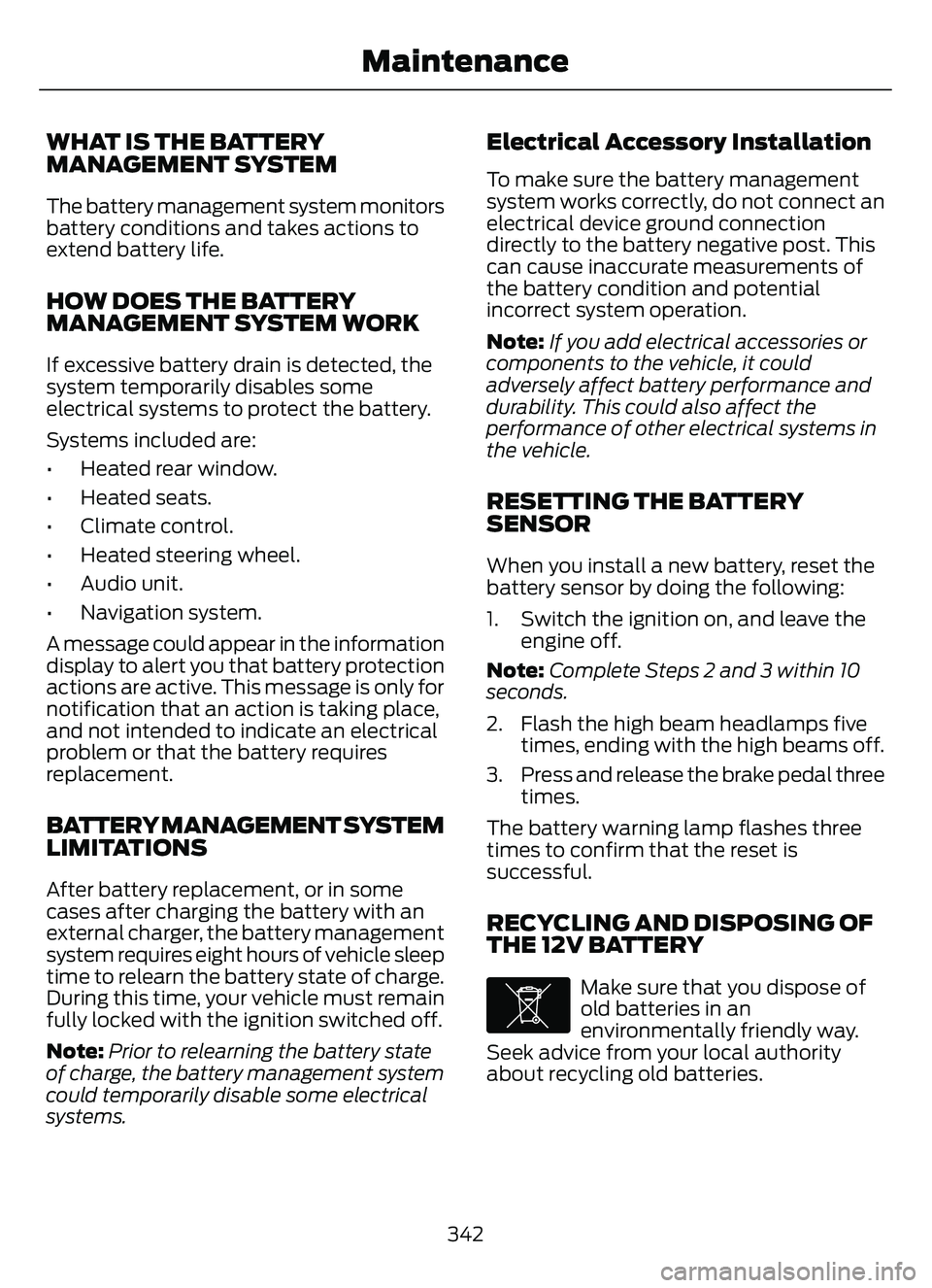
WHAT IS THE BATTERY
MANAGEMENT SYSTEM
The battery management system monitors
battery conditions and takes actions to
extend battery life.
HOW DOES THE BATTERY
MANAGEMENT SYSTEM WORK
If excessive battery drain is detected, the
system temporarily disables some
electrical systems to protect the battery.
Systems included are:
• Heated rear window.
• Heated seats.
• Climate control.
• Heated steering wheel.
• Audio unit.
• Navigation system.
A message could appear in the information
display to alert you that battery protection
actions are active. This message is only for
notification that an action is taking place,
and not intended to indicate an electrical
problem or that the battery requires
replacement.
BATTERY MANAGEMENT SYSTEM
LIMITATIONS
After battery replacement, or in some
cases after charging the battery with an
external charger, the battery management
system requires eight hours of vehicle sleep
time to relearn the battery state of charge.
During this time, your vehicle must remain
fully locked with the ignition switched off.
Note:Prior to relearning the battery state
of charge, the battery management system
could temporarily disable some electrical
systems.
Electrical Accessory Installation
To make sure the battery management
system works correctly, do not connect an
electrical device ground connection
directly to the battery negative post. This
can cause inaccurate measurements of
the battery condition and potential
incorrect system operation.
Note: If you add electrical accessories or
components to the vehicle, it could
adversely affect battery performance and
durability. This could also affect the
performance of other electrical systems in
the vehicle.
RESETTING THE BATTERY
SENSOR
When you install a new battery, reset the
battery sensor by doing the following:
1. Switch the ignition on, and leave the engine off.
Note: Complete Steps 2 and 3 within 10
seconds.
2. Flash the high beam headlamps five times, ending with the high beams off.
3. Press and release the brake pedal three times.
The battery warning lamp flashes three
times to confirm that the reset is
successful.
RECYCLING AND DISPOSING OF
THE 12V BATTERY
E107998
Make sure that you dispose of
old batteries in an
environmentally friendly way.
Seek advice from your local authority
about recycling old batteries.
342
Maintenance
Page 412 of 585

CREATING A VEHICLE WI-FI
HOTSPOT
You can create a Wi-Fi hotspot in your
vehicle and allow devices to connect to it
for access to the Internet.
Press the button to enter the
settings menu.
1. Select Connectivity Features.
2. Select Vehicle Hotspot.
Note: The vehicle hotspot default setting
is on.
3. Select Settings .
4. Make sure that you have Wi-Fi visibility switched on.
Note: The Wi-Fi Visibility default setting is
on.
Finding the Wi-Fi Hotspot Name
and Password
Press the button to enter the
settings menu.
1. Select Connectivity Features.
2. Select Vehicle Hotspot.
3. Select Settings .
Note: The SSID is the hotspot name.
4. Scroll to Hide password .
5. Uncheck the box.
Connecting a Device to the Wi-Fi
Hotspot
1. On your device, switch on Wi-Fi and select the hotspot from the list of
available Wi-Fi networks.
2. When prompted, enter the password.
Purchasing a Data Plan
1. Connect a device to the hotspot. Note:
The vehicle network carrier’s portal
opens on your device.
2. If the portal does not open on your device, open a website and it redirects
to the vehicle network carrier’s portal.
Note: Secure websites do not redirect.
Note: If you have an active plan, the system
does not redirect to the vehicle network
carrier’s portal when you connect a device.
Visit the vehicle network carrier’s website
to purchase more data.
Note: If data usage information is available
in the vehicle hotspot menu, it is
approximate.
Note: If you carry out a master reset, the
system does not remove your vehicle from
your vehicle network carrier’s account. To
remove your vehicle from the account,
contact your vehicle network carrier.
Note: The vehicle network carrier provides
Vehicle Hotspot services, subject to your
vehicle network carrier agreement, coverage
and availability.
CHANGING THE VEHICLE WI-
FI HOTSPOT NAME OR
PASSWORD
Press the button to enter the
settings menu.
1. Select Connectivity Features.
2. Select Vehicle Hotspot.
3. Select Settings .
4. Select SSID: ___.
5. Enter your required SSID.
6. Select Done.
7. S e l e c t Password: ___ .
8. Enter your required password.
9. Select Done.
409
Vehicle Wi-Fi Hotspot
Page 419 of 585
(read and unread), and call history,
including history of calls when your cellular
phone was not connected to the system.
In addition, if you connect a media device,
the system creates and retains an index of
supported media content. The system also
records a short development log of
approximately 10 minutes of all recent
system activity. The log profile and other
system data may be used to improve the
system and help diagnose any problems
that may occur.
The cellular profile, media device index,
and development log will remain in the
vehicle unless you delete them and are
generally accessible only in the vehicle
when you connect the cellular phone or
media player. If you no longer plan to use
the system or the vehicle, we recommend
you perform a Master Reset to erase all
stored information.
No one can access system data without
special equipment and access to the
vehicle's SYNC module. Ford Motor
Company and Ford of Canada will not
access the system data for any purpose
other than as described absent consent, acourt order, or where required by law
enforcement, other government
authorities, or other third parties acting
with lawful authority. Other parties may
seek to access the information
independently of Ford Motor Company and
Ford of Canada. For further privacy
information, see the section on 911 Assist.
See
SYNC™ Applications and Services
(page 419).
USING VOICE RECOGNITION
This system helps you control many
features using voice commands. This
allows you to keep your hands on the
wheel and focus on what is around you.
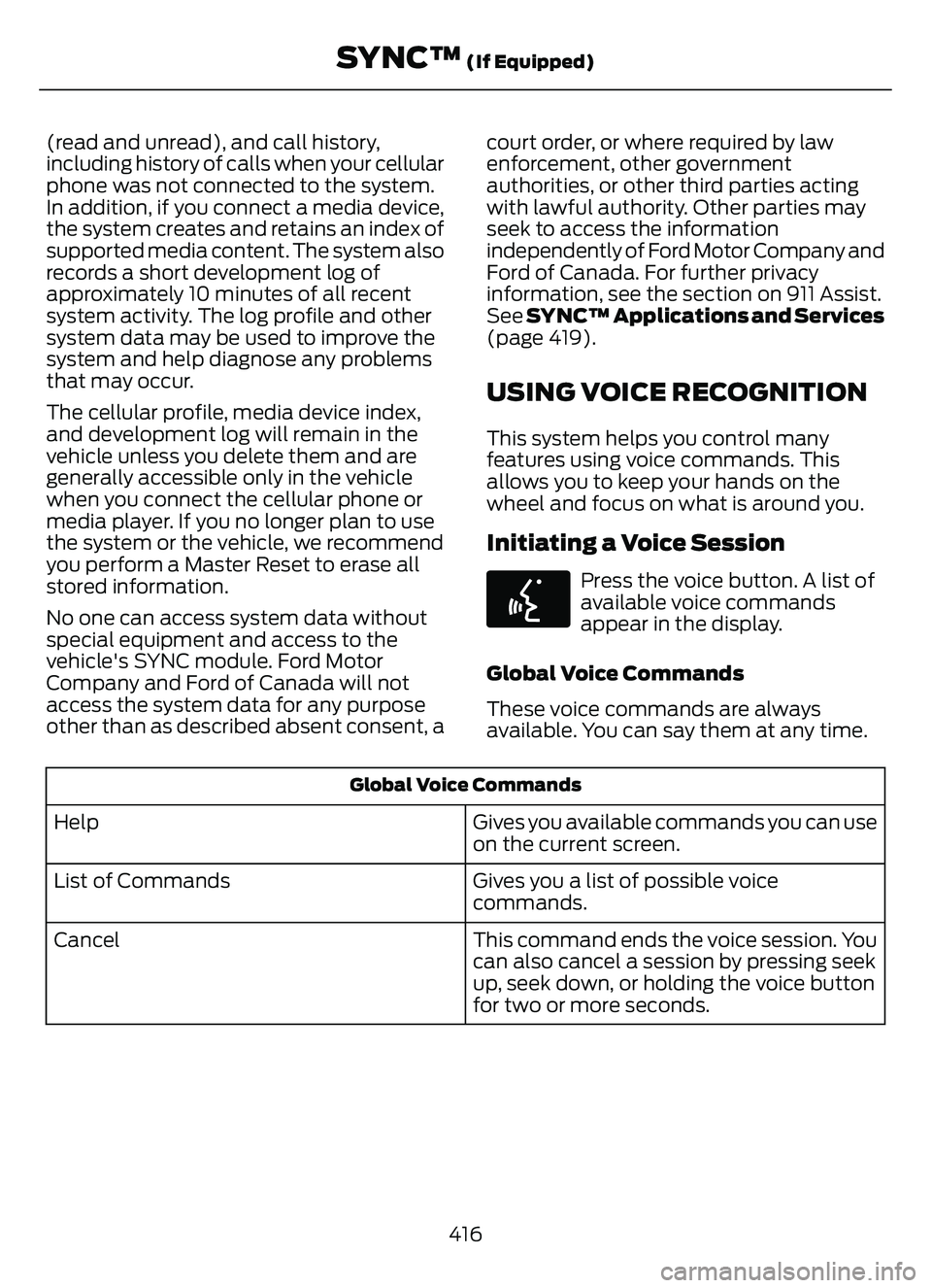
Initiating a Voice Session
E142599
Press the voice button. A list of
available voice commands
appear in the display.
Global Voice Commands
These voice commands are always
available. You can say them at any time.
Global Voice Commands
Gives you available commands you can use
on the current screen.
Help
Gives you a list of possible voice
commands.
List of Commands
This command ends the voice session. You
can also cancel a session by pressing seek
up, seek down, or holding the voice button
for two or more seconds.
Cancel
416
SYNC™ (If Equipped)
Page 433 of 585
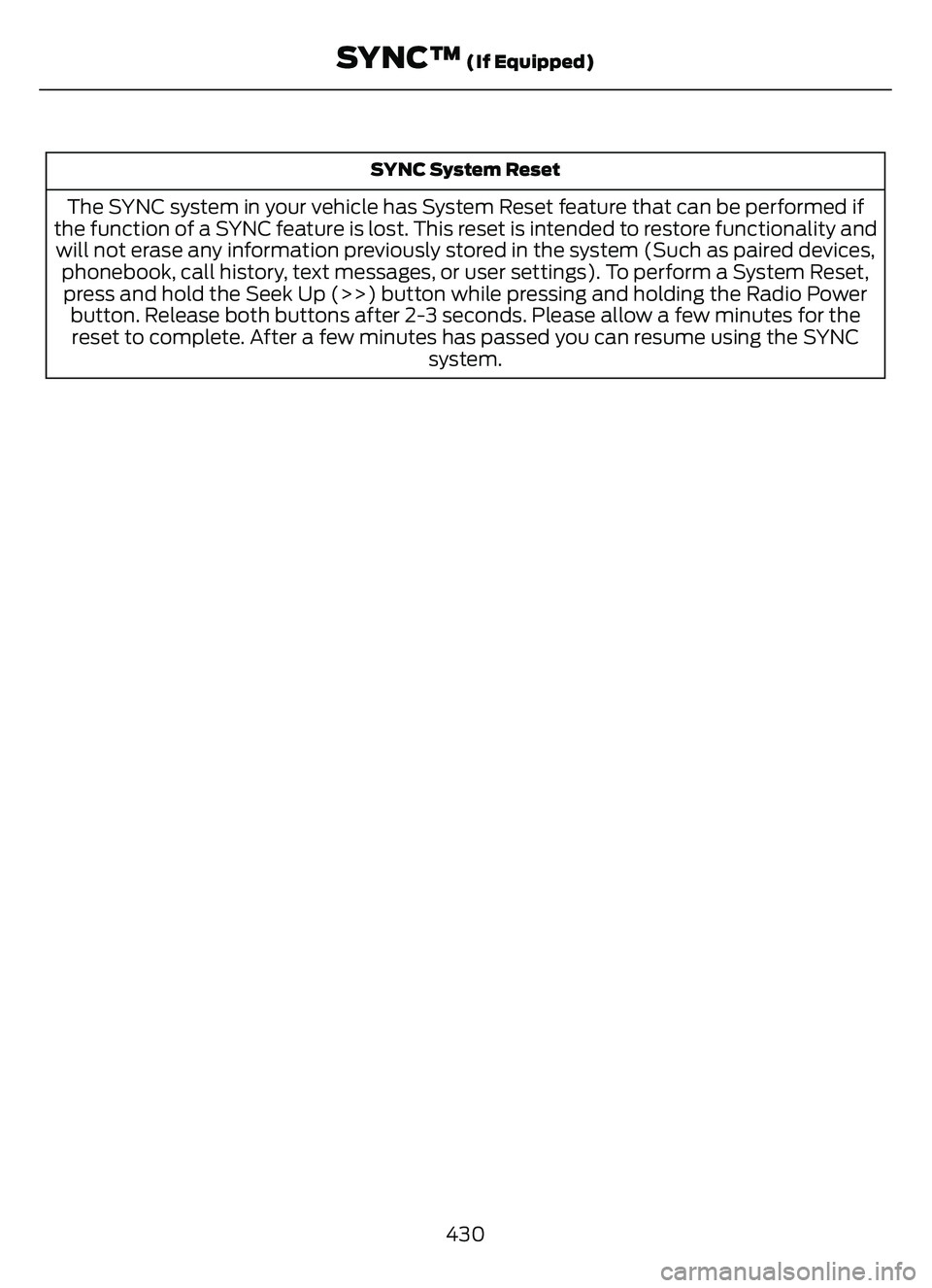
SYNC System Reset
The SYNC system in your vehicle has System Reset feature that can be performed if
the function of a SYNC feature is lost. This reset is intended to restore functionality and will not erase any information previously stored in the system (Such as paired devices, phonebook, call history, text messages, or user settings). To perform a System Reset,press and hold the Seek Up (>>) button while pressing and holding the Radio Power button. Release both buttons after 2-3 seconds. Please allow a few minutes for thereset to complete. After a few minutes has passed you can resume using the SYNC system.
430
SYNC™ (If Equipped)
Page 447 of 585
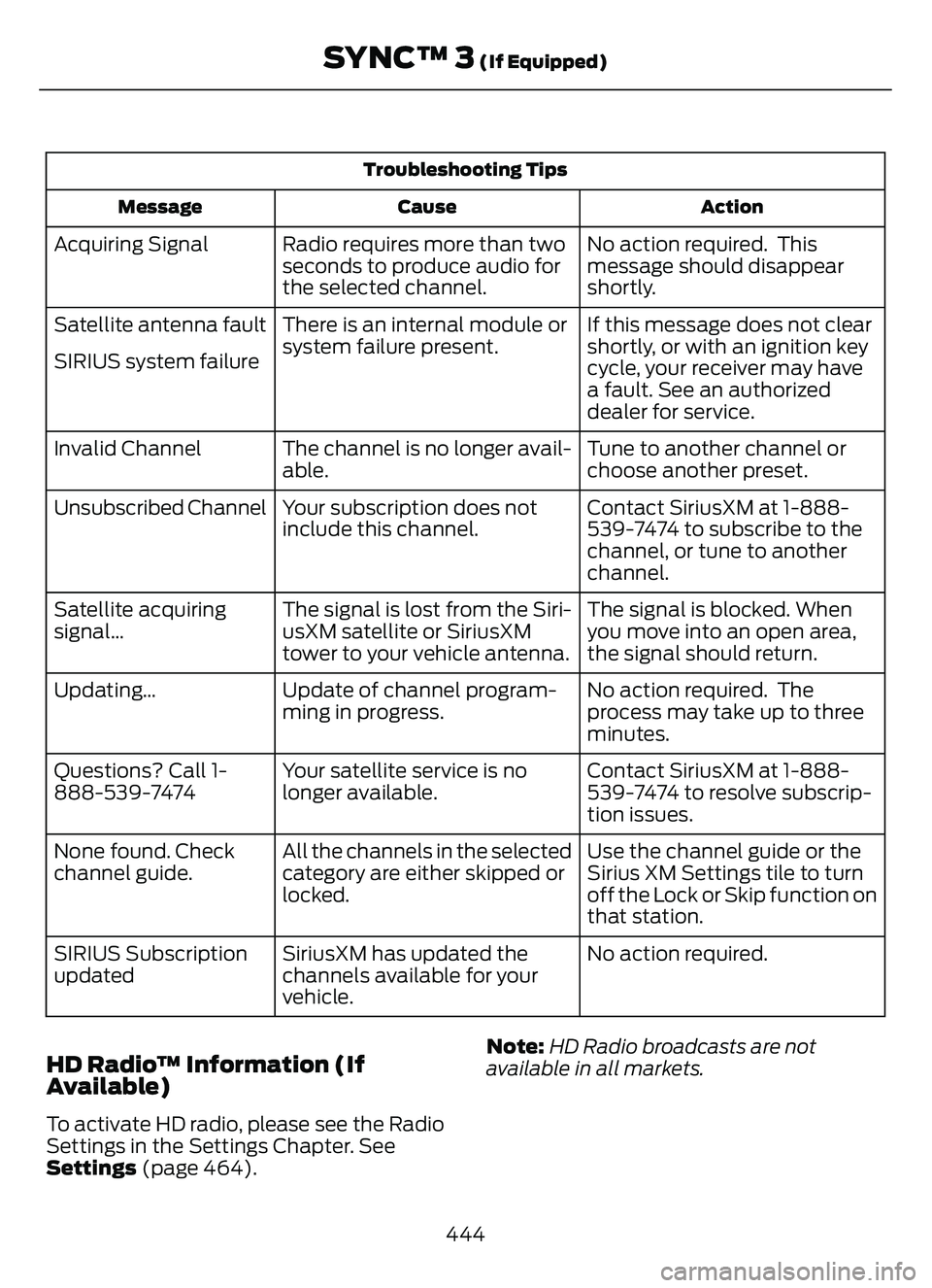
Troubleshooting TipsAction
Cause
Message
No action required. This
message should disappear
shortly.
Radio requires more than two
seconds to produce audio for
the selected channel.
Acquiring Signal
If this message does not clear
shortly, or with an ignition key
cycle, your receiver may have
a fault. See an authorized
dealer for service.
There is an internal module or
system failure present.
Satellite antenna fault
SIRIUS system failure
Tune to another channel or
choose another preset.
The channel is no longer avail-
able.
Invalid Channel
Contact SiriusXM at 1-888-
539-7474 to subscribe to the
channel, or tune to another
channel.
Your subscription does not
include this channel.
Unsubscribed Channel
The signal is blocked. When
you move into an open area,
the signal should return.
The signal is lost from the Siri-
usXM satellite or SiriusXM
tower to your vehicle antenna.
Satellite acquiring
signal…
No action required. The
process may take up to three
minutes.
Update of channel program-
ming in progress.
Updating…
Contact SiriusXM at 1-888-
539-7474 to resolve subscrip-
tion issues.
Your satellite service is no
longer available.
Questions? Call 1-
888-539-7474
Use the channel guide or the
Sirius XM Settings tile to turn
off the Lock or Skip function on
that station.
All the channels in the selected
category are either skipped or
locked.
None found. Check
channel guide.
No action required.
SiriusXM has updated the
channels available for your
vehicle.
SIRIUS Subscription
updated
HD Radio™ Information (If
Available)
To activate HD radio, please see the Radio
Settings in the Settings Chapter. See
Settings (page 464). Note:
HD Radio broadcasts are not
available in all markets.
444
SYNC™ 3 (If Equipped)
Page 448 of 585
HD Radio technology is the digital
evolution of analog AM/FM radio. Your
system has a special receiver that allows
it to receive digital broadcasts (where
available) in addition to the analog
broadcasts, it already receives. Digital
broadcasts provide a better sound quality
than analog broadcasts with free,
crystal-clear audio and no static or
distortion. For more information, and a
guide to available stations and
programming, please visit:
Website
www.hdradio.com
When HD Radio is on and you tune to a
station broadcasting HD Radio technology,
you may notice the following indicators on
your screen:
E142616
The HD logo is grey when acquiring a digital
station, and then changes to orange when
digital audio is playing. When this logo is
available, you may also see Title and Artist
fields on-screen.
The multicast indicator appears in FM
mode (only) if the current station is
broadcasting multiple digital broadcasts.
The highlighted numbers signify available
digital channels where new or different
content is available. HD1 signifies the main
programming status and is available in
analog and digital broadcasts. Other
multicast stations (HD2 through HD7) are
only available digitally.
Note: There is also an additional feature
for stations that have more than 1 HD
multicast (For example, HD1 or HD2). The
HD logo and Radio text appears as a button.
Pressing this button allows you to cycle
through all of the HD stations on that
specific frequency. For example, if you are
on 101.1 and it has HD1, HD2, HD3, pressing
the button repeatedly causes the radio to
cycle through the HD stations in a cyclic
increasing order.
When HD Radio broadcasts are active, you can access the following functions:
Action and Description
Message
Allows you to save an active channel as a memory preset.
Touch and hold a memory preset slot until the sound returns.
There is a brief mute while the radio saves the station. Sound
returns when the channel saves. When switching to an HD2
or HD3 memory preset, the sound mutes before the digital
audio plays, because the system has to reacquire the digital
signal.
Presets
Note: As with any station you save, you cannot access the saved station if your vehicle is
outside the station’s reception area.
445
SYNC™ 3 (If Equipped)