change time FORD ESCAPE 2022 User Guide
[x] Cancel search | Manufacturer: FORD, Model Year: 2022, Model line: ESCAPE, Model: FORD ESCAPE 2022Pages: 585, PDF Size: 6.15 MB
Page 244 of 585
Why does active park assist not offer
a parking space?You recently disconnected or replaced
the battery. After you reconnect the
battery you must drive your vehicle on
a straight road for a short period of
time.
Why does active park assist not
correctly position the vehicle into a
parking space? An irregular curb along the parking
space prevents the system from
correctly aligning your vehicle.
Why does active park assist not
correctly position the vehicle into a
parking space? Vehicles or objects bordering the
space could not be correctly parked.
Why does active park assist not
correctly position the vehicle into a
parking space? Your vehicle stopped too far past the
parking space.
Why does active park assist not
correctly position the vehicle into a
parking space? The tires are not correctly installed or
maintained. For example, using a spare
tire, not inflated correctly, improper
size, or of different sizes.
Why does active park assist not
correctly position the vehicle into a
parking space? A repair or alteration changed the
detection capabilities.
Why does active park assist not
correctly position the vehicle into a
parking space? A parked vehicle has a high
attachment. For example, a salt
sprayer, snowplow or moving truck
bed. Why does active park assist not
correctly position the vehicle into a
parking space?
The parking space length, or position
of parked objects, changes after your
vehicle passes the space.
Why does active park assist not
correctly position the vehicle into a
parking space? The temperature around your vehicle
quickly changes. For example, driving
from a heated garage into a cold
outside temperature, or after leaving
a car wash.
241
Active Park Assist (If Equipped)
Page 254 of 585
WARNING: Do not use the system
if any changes or modifications to the
steering wheel have been made. Any
changes or modifications to the steering
wheel could affect the functionality or
performance of the system. Failure to
follow this instruction could result in the
loss of control of your vehicle, personal
injury or death.
Adaptive cruise control precautions apply
to lane centering unless stated otherwise
or contradicted by a lane centering
precaution. See Adaptive Cruise Control
Precautions (page 244).
LANE CENTERING
REQUIREMENTS
You must keep your hands on the steering
wheel at all times.
The system only activates when all of the
following occur:
• You have adaptive cruise control with stop and go on.
• You have your hands on the steering wheel.
• The system detects both lane markings.
Note: If it does not detect valid lane
markings, the system stays inactive until
valid markings are available.
LANE CENTERING LIMITATIONS
Adaptive cruise control limitations apply
to lane centering unless stated otherwise
or contradicted by a lane centering
limitation. See Adaptive Cruise Control
Limitations (page 245). Lane Centering may not correctly operate
in any of the following conditions:
• The lane is too narrow or wide.
• The system does not detect at least
one lane marking or when lanes merge
or split.
• Limited steering torque input is applied.
• Areas under construction or new infrastructure.
• When modifications to the steering system have been made.
• When using a spare tire.
• In high wind conditions.
Note: The driving assistance torque is
limited and may not be sufficient for all
driving situations such as driving through
tight curves or driving through curves at high
speeds.
Note: In exceptional conditions, the system
may deviate from the center line.
SWITCHING LANE CENTERING ON
AND OFF
You must keep your hands on the steering
wheel at all times.
The controls are on the steering wheel.
E262175
Press the button.
The indicator appears in the information
display. When the system is on, the color
of the indicator changes to indicate the
system status. See Lane Centering
Indicators (page 252).
You can override the system at any time
by steering your vehicle.
Note: The correct requirements must be
met before you can switch the system on.
See Lane Centering Requirements (page
251).
251
Adaptive Cruise Control (If Equipped)
Page 255 of 585
Note:Adaptive cruise control must be
switched on before you can switch lane
centering on.
When the system is active and the
direction indicator is switched on, the
system immediately cancels. The system
remains in standby mode as long as the
direction indicator is engaged. The system
automatically re-activates once the vehicle
is centered in a lane and the direction
indicator is switched off.
LANE CENTERING ALERTS
You must keep your hands on the steering
wheel at all times.
When the system is active and detects no
steering activity for a period of time, the
system alerts you to put your hands on the
steering wheel. If you do not react to the
warnings the system cancels and slows
your vehicle down to idle speeds while
maintaining steering control.
The system also alerts you if your vehicle
crosses lane markings without detected
steering activity.
Note: The system could detect a light grip
or touch on the steering wheel as hands-off
driving.
When the system cancels due to an
external condition, for example, no lane
markings are available and your hands are
not on the steering wheel, the system
immediately alerts you to take control of
the vehicle. If you ignore this alert, the
system slows the vehicle while maintaining
steering control.
LANE CENTERING AUTOMATIC
CANCELLATION
When an external condition cancels the
system, for example, no lane markings
available, a tone sounds and a message
appears in the instrument cluster display.
E308130
If your vehicle starts to slow
down, you must provide steering
input to the wheel and press and
release the button to regain full system
performance.
Automatic cancellation can also occur if:
• The lane becomes too wide or too narrow.
• The system cannot detect valid lane markings.
• Lane markings cross over one another.
Note: The system disables until the next
key cycle if your vehicle slows down due to
driver inactivity twice within a key cycle.
LANE CENTERING INDICATORS
E297977
Illuminates when you switch
lane centering on. The color of
the indicator changes to indicate
the system status.
Gray indicates the system is on but
inactive.
Green indicates the system is active and
applying steering torque assistance input
to keep your vehicle in the center of the
lane.
Amber with an audible tone and then gray
indicates a system automatic cancellation.
252
Adaptive Cruise Control (If Equipped)
Page 265 of 585
• You apply direct steering, acceleratefast or brake hard.
• The vehicle speed is less than 40 mph (64 km/h).
• The anti-lock brake, stability control or traction control system activates.
• The lane is too narrow.
• Something is obscuring the camera or it is unable to detect the lane markings
due to environment, traffic or vehicle
conditions.
The lane keeping system may not correct
lane positioning in any of the following
conditions:
• High winds.
• Uneven road surfaces.
• Heavy or uneven loads.
• Incorrect tire pressure.
SWITCHING THE LANE
KEEPING SYSTEM ON AND
OFF
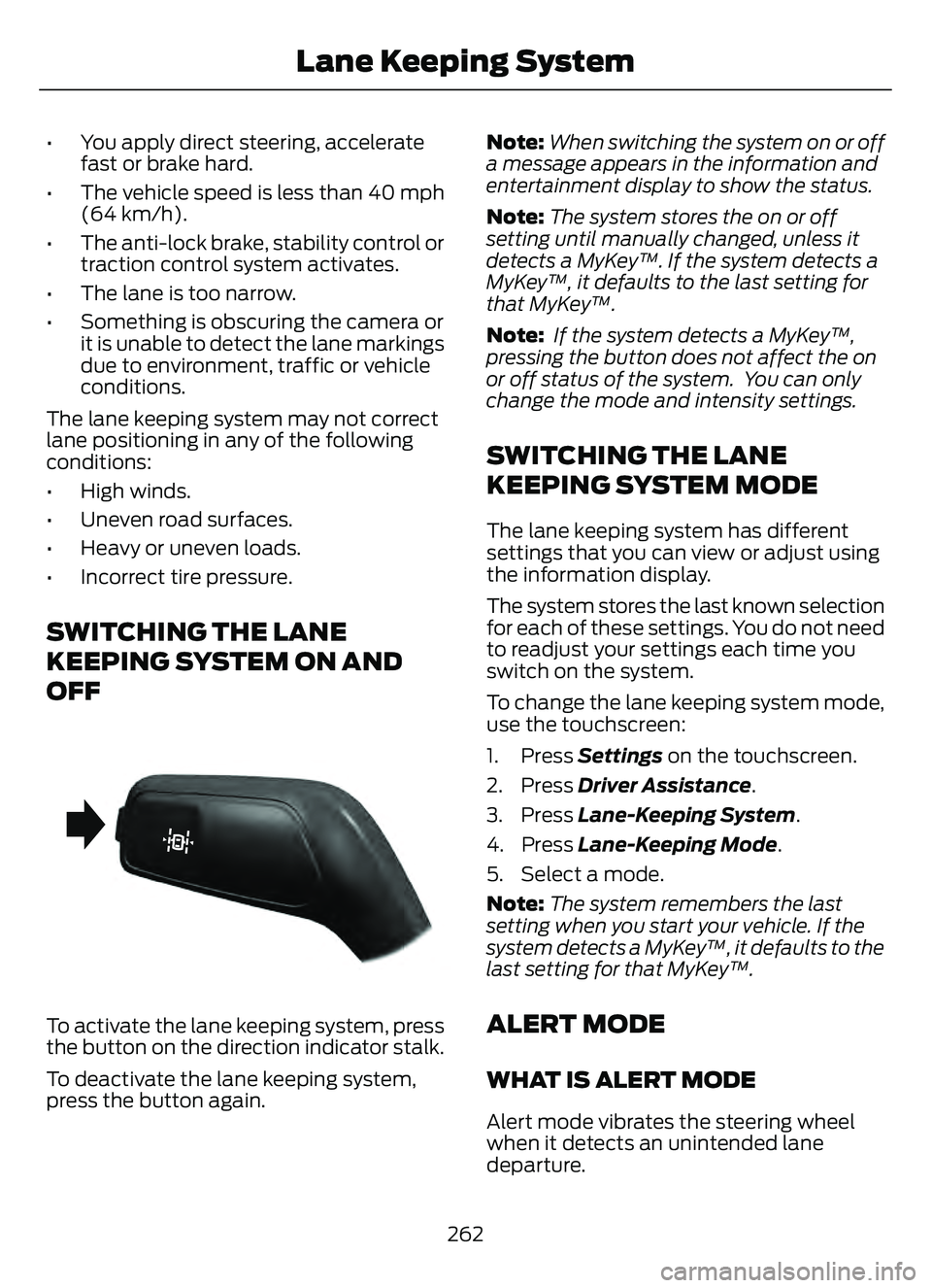
E288067
To activate the lane keeping system, press
the button on the direction indicator stalk.
To deactivate the lane keeping system,
press the button again. Note:
When switching the system on or off
a message appears in the information and
entertainment display to show the status.
Note: The system stores the on or off
setting until manually changed, unless it
detects a MyKey™. If the system detects a
MyKey™, it defaults to the last setting for
that MyKey™.
Note: If the system detects a MyKey™,
pressing the button does not affect the on
or off status of the system. You can only
change the mode and intensity settings.
SWITCHING THE LANE
KEEPING SYSTEM MODE
The lane keeping system has different
settings that you can view or adjust using
the information display.
The system stores the last known selection
for each of these settings. You do not need
to readjust your settings each time you
switch on the system.
To change the lane keeping system mode,
use the touchscreen:
1. Press Settings on the touchscreen.
2. Press Driver Assistance.
3. Press Lane-Keeping System .
4. Press Lane-Keeping Mode .
5. Select a mode.
Note: The system remembers the last
setting when you start your vehicle. If the
system detects a MyKey™, it defaults to the
last setting for that MyKey™.
ALERT MODE
WHAT IS ALERT MODE
Alert mode vibrates the steering wheel
when it detects an unintended lane
departure.
262
Lane Keeping System
Page 269 of 585
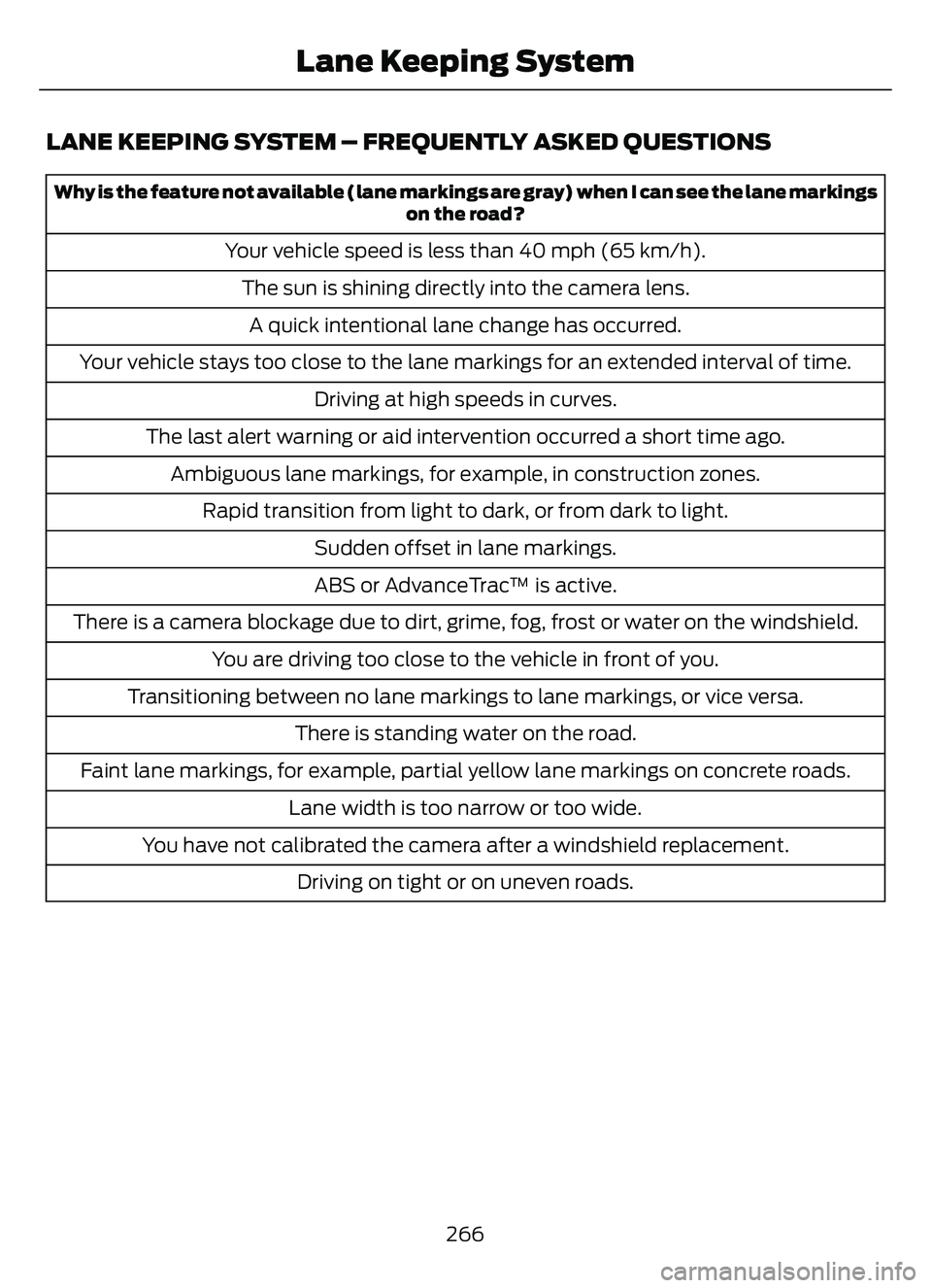
LANE KEEPING SYSTEM – FREQUENTLY ASKED QUESTIONS
Why is the feature not available (lane markings are gray) when I can see the lane markingson the road?
Your vehicle speed is less than 40 mph (65 km/h).
The sun is shining directly into the camera lens.A quick intentional lane change has occurred.
Your vehicle stays too close to the lane markings for an extended interval of time. Driving at high speeds in curves.
The last alert warning or aid intervention occurred a short time ago. Ambiguous lane markings, for example, in construction zones. Rapid transition from light to dark, or from dark to light. Sudden offset in lane markings.
ABS or AdvanceTrac™ is active.
There is a camera blockage due to dirt, grime, fog, frost or water on the windshield. You are driving too close to the vehicle in front of you.
Transitioning between no lane markings to lane markings, or vice versa. There is standing water on the road.
Faint lane markings, for example, partial yellow lane markings on concrete roads. Lane width is too narrow or too wide.
You have not calibrated the camera after a windshield replacement. Driving on tight or on uneven roads.
266
Lane Keeping System
Page 279 of 585
Adjusting the Pre-Collision Assist
Settings
You can adjust the following settings by
using the touchscreen controls in the
pre-collision assist menu:
• Change alert and distance alertsensitivity to one of three possible
settings.
• Switch distance indication and alert on or off.
• If required, switch automatic emergency braking on or off.
• If required, switch evasive steering assist on or off.
Note: Automatic emergency braking and
evasive steering automatically turns on
every time you switch the ignition on.
Note: If you switch automatic emergency
braking off, evasive steering assist switches
off.
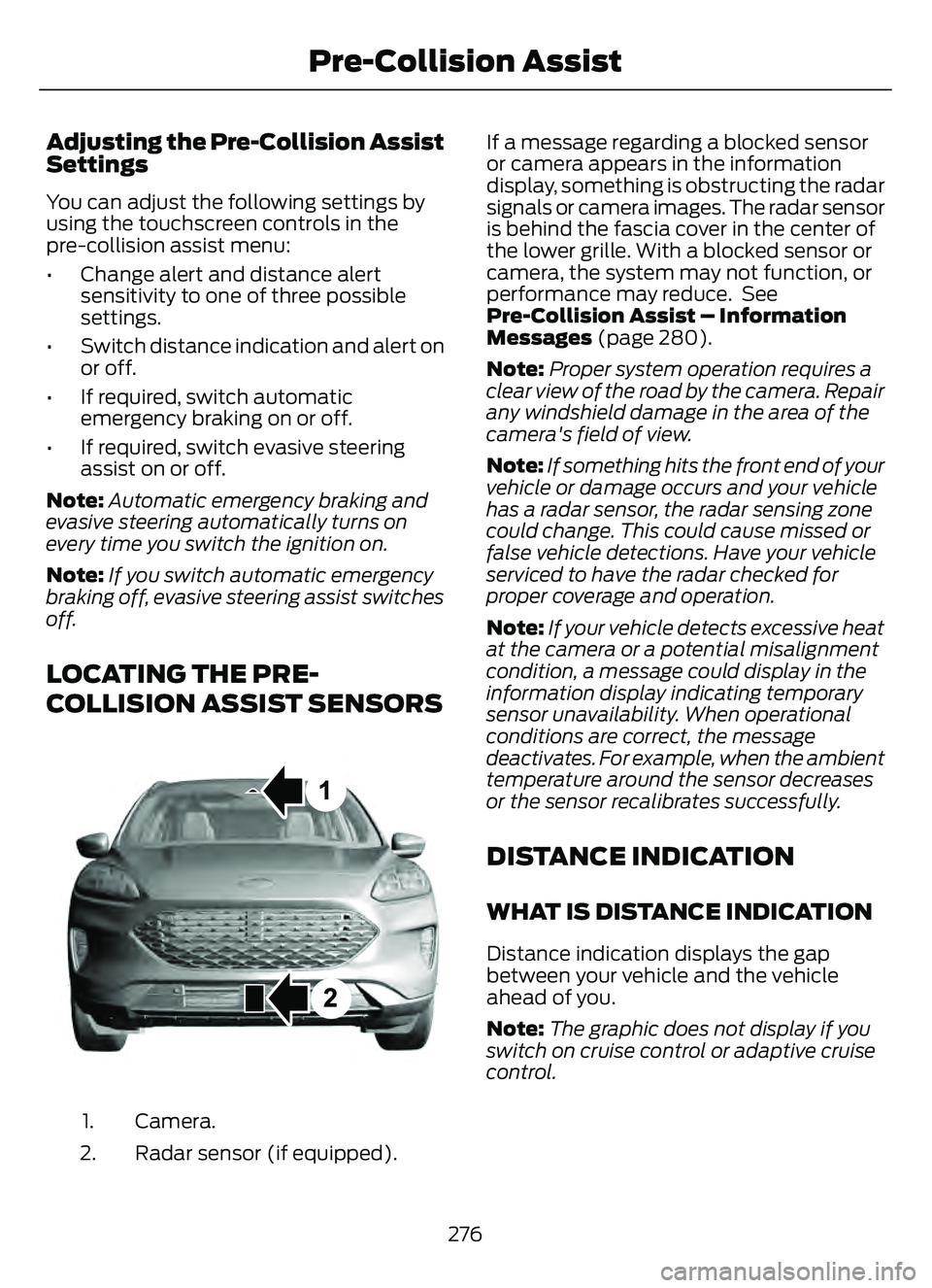
LOCATING THE PRE-
COLLISION ASSIST SENSORS
E307090E307090
Camera.
1.
Radar sensor (if equipped).
2. If a message regarding a blocked sensor
or camera appears in the information
display, something is obstructing the radar
signals or camera images. The radar sensor
is behind the fascia cover in the center of
the lower grille. With a blocked sensor or
camera, the system may not function, or
performance may reduce. See
Pre-Collision Assist – Information
Messages (page 280).
Note:
Proper system operation requires a
clear view of the road by the camera. Repair
any windshield damage in the area of the
camera's field of view.
Note: If something hits the front end of your
vehicle or damage occurs and your vehicle
has a radar sensor, the radar sensing zone
could change. This could cause missed or
false vehicle detections. Have your vehicle
serviced to have the radar checked for
proper coverage and operation.
Note: If your vehicle detects excessive heat
at the camera or a potential misalignment
condition, a message could display in the
information display indicating temporary
sensor unavailability. When operational
conditions are correct, the message
deactivates. For example, when the ambient
temperature around the sensor decreases
or the sensor recalibrates successfully.
DISTANCE INDICATION
WHAT IS DISTANCE INDICATION
Distance indication displays the gap
between your vehicle and the vehicle
ahead of you.
Note: The graphic does not display if you
switch on cruise control or adaptive cruise
control.
276
Pre-Collision Assist
Page 307 of 585
COLD WEATHER
PRECAUTIONS
The functional operation of some
components and systems can be affected
at temperatures below approximately
-13°F (-25°C).
BREAKING-IN
You need to break in new tires for
approximately 300 mi (480 km). During
this time, your vehicle may exhibit some
unusual driving characteristics.
DRIVING ECONOMICALLY
The following helps to improve fuel
consumption:
• Drive smoothly, accelerate gently andanticipate the road ahead to avoid
heavy braking.
• Regularly check your tire pressures and make sure that they are inflated to the
correct pressure.
• Follow the recommended maintenance schedule and carry out the
recommended checks.
• Plan your journey and check the traffic before you set off. It is more efficient
to combine errands into a single trip
whenever possible.
• Avoid idling the engine in cold weather or for extended periods. Start the
engine only when you are ready to set
off.
• Do not carry unnecessary weight in your vehicle as extra weight wastes fuel.
• Do not add unnecessary accessories to the exterior of your vehicle, for
example running boards. If you use a
roof rack, remember to fold it down or
remove it when not in use. • Do not shift into neutral when you are
braking or when your vehicle is slowing
down.
• Shut all windows when driving at high speeds.
• Switch off all electric systems when not in use, for example air conditioning.
Make sure that you unplug any
accessories from the auxiliary power
points when not in use.
DRIVING IN SPECIAL
CONDITIONS
EMERGENCY MANEUVERS
In an unavoidable emergency where you
must make a sudden sharp maneuver, turn
the steering wheel only as rapidly and as
far as required to avoid the emergency.
Apply smooth pressure to the accelerator
pedal or brake pedal as needed. Avoid
abrupt steering, acceleration and braking
changes. Abrupt changes could increase
the risk of vehicle roll over, loss of vehicle
control and personal injury. If possible, use
any available road surfaces to bring your
vehicle under control.
DRIVING THROUGH MUD AND
WATER
Mud
Be cautious of sudden changes in vehicle
speed or direction when you are driving in
mud. Even all-wheel drive and four-wheel
drive vehicles can lose traction in mud. If
your vehicle slides, steer in the direction of
the slide until you regain control of your
vehicle. After driving through mud, clean
off residue stuck to rotating driveshafts
and tires. Excess residue can cause an
imbalance that could damage drive
components.
304
Driving Hints
Page 338 of 585
Adding Coolant
WARNING: Keep your hands and
clothing clear of the cooling fan.
WARNING: Do not remove the
coolant reservoir cap when the engine is
on or the cooling system is hot. Wait 10
minutes for the cooling system to cool
down. Cover the coolant reservoir cap
with a thick cloth to prevent the
possibility of scalding and slowly remove
the cap. Failure to follow this instruction
could result in personal injury.
WARNING: Do not add engine
coolant when the engine is on or the
cooling system is hot. Failure to follow
this instruction could result in personal
injury.
WARNING: Do not add coolant
further than the MAX mark.
WARNING: Do not put coolant in
the windshield washer reservoir. If
sprayed on the windshield, coolant could
make it difficult to see through the
windshield.
WARNING: Do not allow the fluid
to touch your skin or eyes. If this
happens, rinse the affected areas
immediately with plenty of water and
contact your physician.
Note: Do not use stop leak pellets, cooling
system sealants, or non-specified additives
as they can cause damage to the engine
cooling or heating systems. Resulting
component damage may not be covered by
the vehicle Warranty.
Note: Automotive fluids are not
interchangeable. It is very important to use prediluted
coolant approved to the correct
specification in order to avoid plugging the
small passageways in the engine cooling
system. Do not mix different colors or types
of coolant in your vehicle. Mixing of engine
coolants or using an incorrect coolant may
harm the engine or cooling system
components and could void the vehicle
Warranty.
Note:
If prediluted coolant is not available,
use the approved concentrated coolant
diluting it to 50/50 with deionized or
distilled water. Using water that has not
been deionized may contribute to deposit
formation, corrosion and plugging of the
small cooling system passageways.
To top up the coolant level do the
following:
1. Unscrew the cap slowly. Any pressure escapes as you unscrew the cap.
2. Add enough prediluted coolant to reach the correct level.
Note: We do not recommend the use of
recycled coolant.
3. Replace the coolant reservoir cap. Turn the cap clockwise until it contacts the
hard stop.
4. Check the coolant level in the coolant reservoir the next few times you drive
your vehicle. If necessary, repeat step
2.
If you have to add more than 1.1 qt (1 L) of
engine coolant per month, have your
vehicle checked as soon as possible.
Operating an engine with a low level of
coolant can result in engine overheating
and possible engine damage.
In case of emergency, you can add a large
amount of water without engine coolant
in order to reach a vehicle service location.
Service your vehicle as soon as possible.
335
Maintenance
Page 362 of 585
Information on P Type Tires
H
I
J
KL
M
A
B
CDEFG
E142543
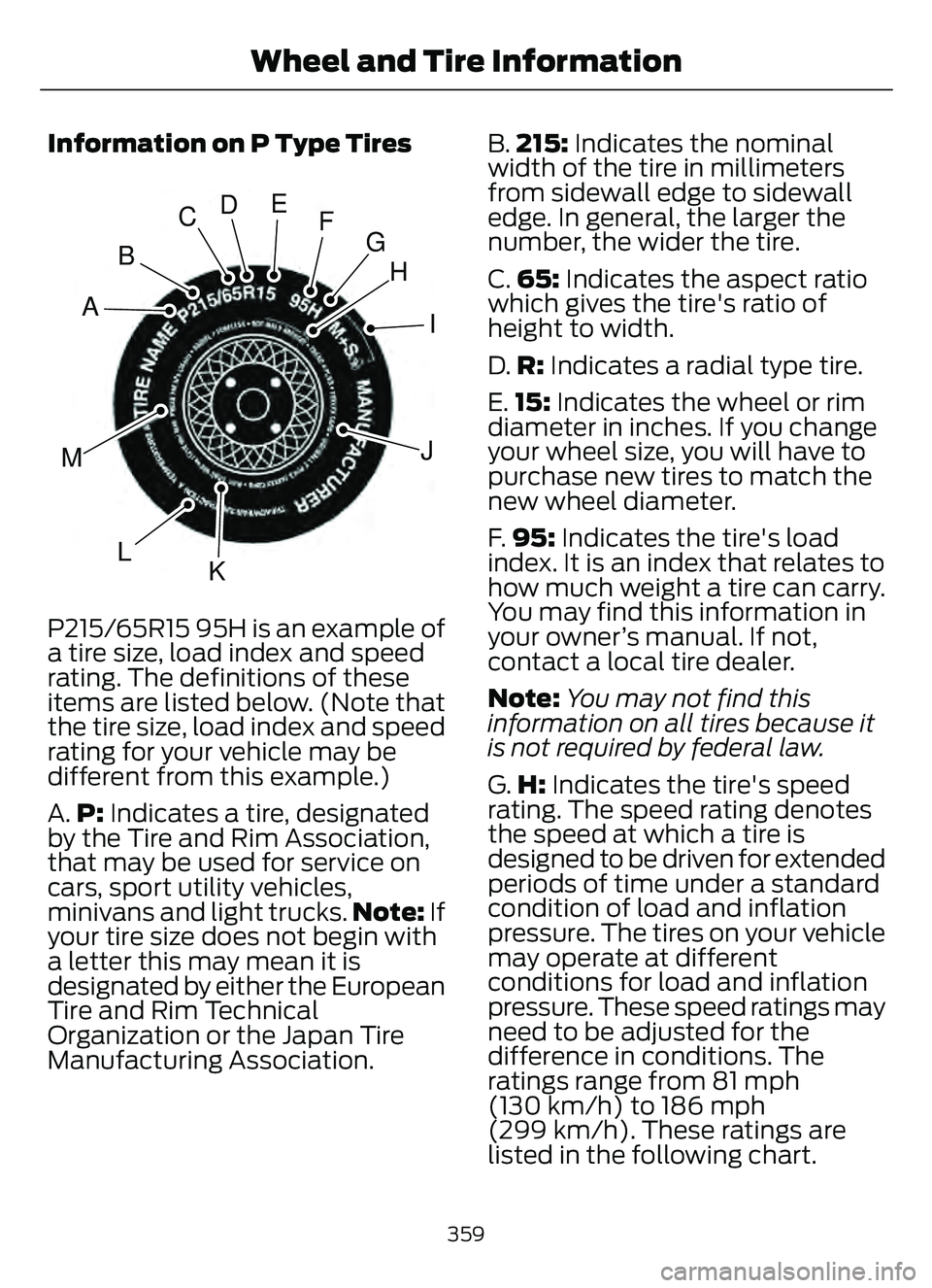
P215/65R15 95H is an example of
a tire size, load index and speed
rating. The definitions of these
items are listed below. (Note that
the tire size, load index and speed
rating for your vehicle may be
different from this example.)
A.P: Indicates a tire, designated
by the Tire and Rim Association,
that may be used for service on
cars, sport utility vehicles,
minivans and light trucks. Note: If
your tire size does not begin with
a letter this may mean it is
designated by either the European
Tire and Rim Technical
Organization or the Japan Tire
Manufacturing Association. B.
215: Indicates the nominal
width of the tire in millimeters
from sidewall edge to sidewall
edge. In general, the larger the
number, the wider the tire.
C. 65: Indicates the aspect ratio
which gives the tire's ratio of
height to width.
D. R: Indicates a radial type tire.
E. 15: Indicates the wheel or rim
diameter in inches. If you change
your wheel size, you will have to
purchase new tires to match the
new wheel diameter.
F. 95: Indicates the tire's load
index. It is an index that relates to
how much weight a tire can carry.
You may find this information in
your owner’s manual. If not,
contact a local tire dealer.
Note: You may not find this
information on all tires because it
is not required by federal law.
G. H: Indicates the tire's speed
rating. The speed rating denotes
the speed at which a tire is
designed to be driven for extended
periods of time under a standard
condition of load and inflation
pressure. The tires on your vehicle
may operate at different
conditions for load and inflation
pressure. These speed ratings may
need to be adjusted for the
difference in conditions. The
ratings range from 81 mph
(130 km/h) to 186 mph
(299 km/h). These ratings are
listed in the following chart.
359
Wheel and Tire Information
Page 415 of 585
AM/FM RADIO
AM/FM RADIO LIMITATIONS
The further you travel from an AM or FM
station, the weaker the signal and the
weaker the reception.
Hills, mountains, tall buildings, bridges,
tunnels, freeway overpasses, parking
garages, dense tree foliage and
thunderstorms can interfere with the
reception.
When you pass a ground-based broadcast
repeating tower, a stronger signal may
overtake a weaker one and result in the
audio system muting.
SELECTING A RADIO STATION
Manually Selecting a Radio
Station
E270235E270235
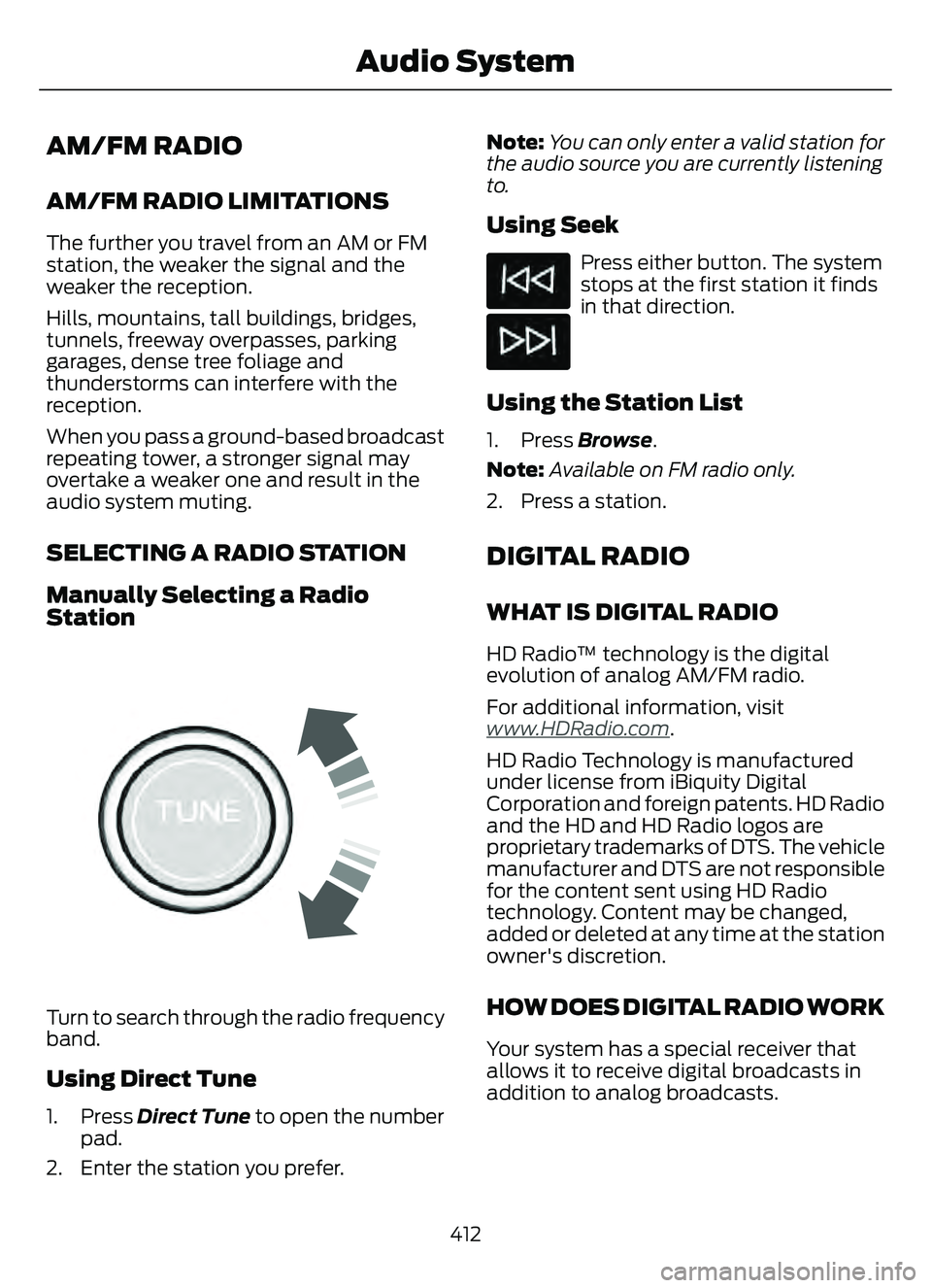
Turn to search through the radio frequency
band.
Using Direct Tune
1. Press Direct Tune to open the number
pad.
2. Enter the station you prefer. Note:
You can only enter a valid station for
the audio source you are currently listening
to.
Using Seek
Press either button. The system
stops at the first station it finds
in that direction.
Using the Station List
1. Press Browse .
Note: Available on FM radio only.
2. Press a station.
DIGITAL RADIO
WHAT IS DIGITAL RADIO
HD Radio™ technology is the digital
evolution of analog AM/FM radio.
For additional information, visit
www
.HDRadio.com.
HD Radio Technology is manufactured
under license from iBiquity Digital
Corporation and foreign patents. HD Radio
and the HD and HD Radio logos are
proprietary trademarks of DTS. The vehicle
manufacturer and DTS are not responsible
for the content sent using HD Radio
technology. Content may be changed,
added or deleted at any time at the station
owner's discretion.
HOW DOES DIGITAL RADIO WORK
Your system has a special receiver that
allows it to receive digital broadcasts in
addition to analog broadcasts.
412
Audio System