phone FORD ESCAPE 2022 User Guide
[x] Cancel search | Manufacturer: FORD, Model Year: 2022, Model line: ESCAPE, Model: FORD ESCAPE 2022Pages: 585, PDF Size: 6.15 MB
Page 127 of 585
INSTRUMENT CLUSTER
DISPLAY MAIN MENU -
VEHICLES WITH: 4.2 INCH
INSTRUMENT CLUSTER
DISPLAY SCREEN
Menu Item
Trip 1
MyView
Driver Assist. Navigation Audio
Phone
Settings
INSTRUMENT CLUSTER
DISPLAY MAIN MENU -
VEHICLES WITH: 12.3 INCH
INSTRUMENT CLUSTER
DISPLAY SCREEN
Depending on your vehicle options, some
menu items can appear different or not at
all.
Note: For your safety, some features are
speed-dependent and could be unavailable
when your vehicle is above a certain speed.
Menu Item
Select Screens
Phone
Navigation
Menu Item
Audio
Settings
Display Setup
CUSTOMIZING THE
INSTRUMENT CLUSTER
DISPLAY - VEHICLES WITH: 4.2
INCH INSTRUMENT CLUSTER
DISPLAY SCREEN
1. Using the information display controls on the steering wheel, select MyView.
2. Press the menu button.
3. Select a screen.
4. Press the OK button.
CUSTOMIZING THE
INSTRUMENT CLUSTER
DISPLAY - VEHICLES WITH: 6.5
INCH INSTRUMENT CLUSTER
DISPLAY SCREEN/12.3 INCH
INSTRUMENT CLUSTER
DISPLAY SCREEN
Adding Screens Using Select
Screens
1. Select Select Screens .
2. Use the controls on the steering wheel to highlight a screen to add.
3. Press the OK button.
Note: The amount of screens you can add
is limited, if the selected screen does not
appear you must deselect screens from the
select screens menu.
124
Instrument Cluster Display
Page 175 of 585
Starting the Engine
Turn the key to position III. Release the
key when the engine starts.
PUSH BUTTON IGNITION
SWITCH
E321258E321258
Switching the Ignition Off
When the ignition is on or in accessory
mode, press the push button ignition
switch once without your foot on the brake
pedal.
Switching the Ignition to
Accessory Mode
When the ignition is off, press the push
button ignition switch once without your
foot on the brake pedal.
All electrical circuits and accessories are
operational and the warning lamps and
indicators illuminate.
Note:Your vehicle has a battery saver
feature that shuts your vehicle off when it
detects a certain amount of battery drain,
or after approximately 30 minutes of
inactivity in accessory mode.
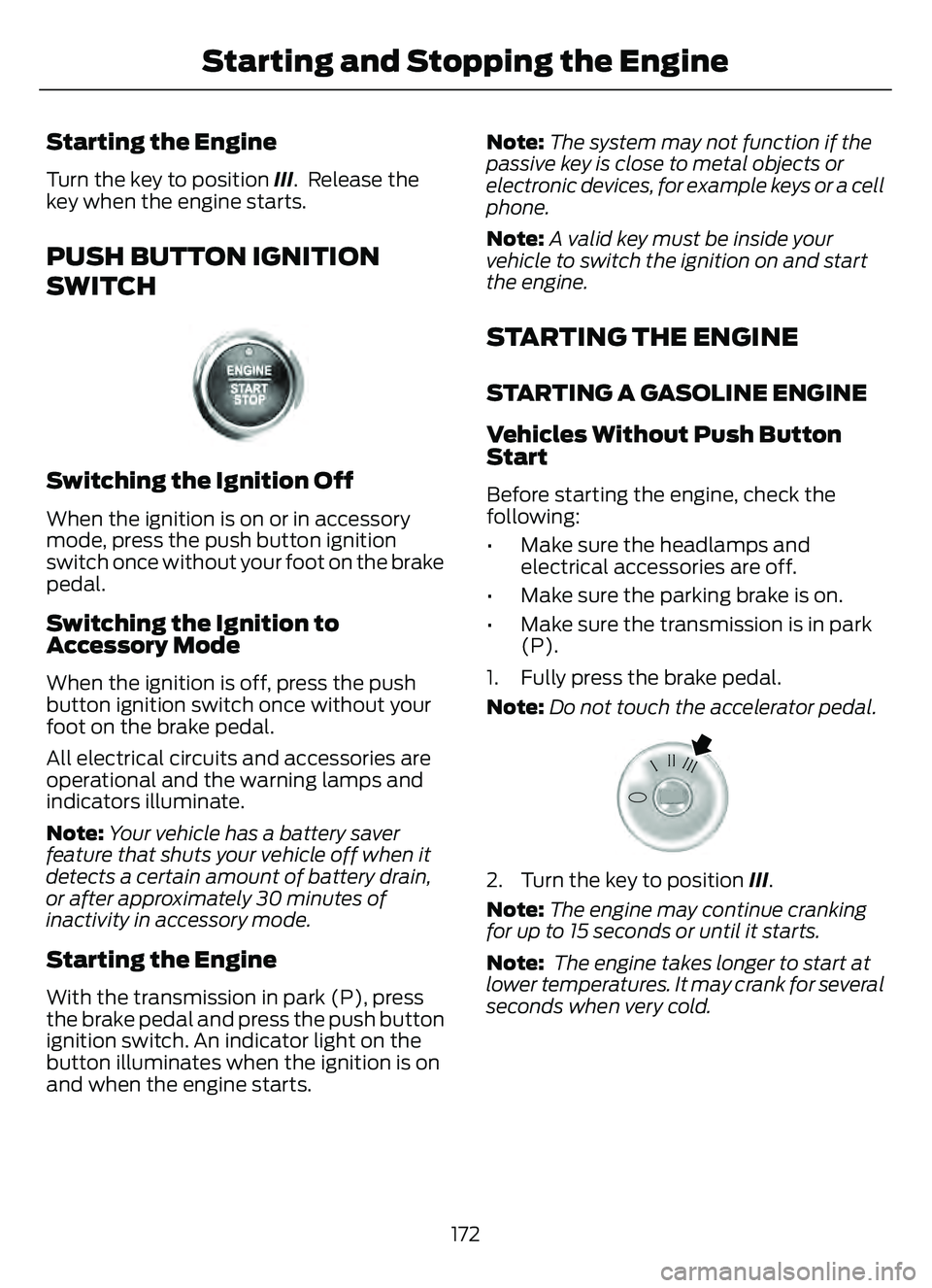
Starting the Engine
With the transmission in park (P), press
the brake pedal and press the push button
ignition switch. An indicator light on the
button illuminates when the ignition is on
and when the engine starts. Note:
The system may not function if the
passive key is close to metal objects or
electronic devices, for example keys or a cell
phone.
Note: A valid key must be inside your
vehicle to switch the ignition on and start
the engine.
STARTING THE ENGINE
STARTING A GASOLINE ENGINE
Vehicles Without Push Button
Start
Before starting the engine, check the
following:
• Make sure the headlamps and electrical accessories are off.
• Make sure the parking brake is on.
• Make sure the transmission is in park (P).
1. Fully press the brake pedal.
Note: Do not touch the accelerator pedal.
E322354E322354
2. Turn the key to position III.
Note: The engine may continue cranking
for up to 15 seconds or until it starts.
Note: The engine takes longer to start at
lower temperatures. It may crank for several
seconds when very cold.
172
Starting and Stopping the Engine
Page 190 of 585
FUEL AND REFUELING
PRECAUTIONS
WARNING: Do not overfill the fuel
tank. The pressure in an overfilled tank
may cause leakage and lead to fuel spray
and fire.
WARNING: The fuel system may
be under pressure. If you hear a hissing
sound near the fuel filler inlet, do not
refuel until the sound stops. Otherwise,
fuel may spray out, which could cause
serious personal injury.
WARNING: Fuels can cause serious
injury or death if misused or mishandled.
WARNING: Fuel may contain
benzene, which is a cancer-causing
agent.
WARNING: When refueling always
shut the engine off and never allow
sparks or open flames near the fuel tank
filler valve. Never smoke or use a cell
phone while refueling. Fuel vapor is
extremely hazardous under certain
conditions. Avoid inhaling excess fumes.
WARNING: Read and follow all the
instructions on the pump island.
Follow these guidelines when refueling:
• Extinguish all smoking materials and any open flames before refueling your
vehicle.
• Switch the engine off before refueling. • Automotive fuels can be harmful or
fatal if swallowed. Fuel is highly toxic
and if swallowed can cause death or
permanent injury. If fuel is swallowed
immediately call a physician, even if no
symptoms are immediately apparent.
The toxic effects of fuel may not be
apparent for hours.
• Avoid inhaling fuel vapors. Inhaling fuel vapor can lead to eye and respiratory
tract irritation. In severe cases,
excessive or prolonged breathing of
fuel vapor can cause serious illness and
permanent injury.
• Avoid getting fuel in your eyes. If you splash fuel in your eyes, immediately
remove contact lenses, if worn, flush
with water for 15 minutes and seek
medical attention. Failure to seek
proper medical attention could lead to
permanent injury.
• Fuels can be harmful if absorbed through the skin. If you splash fuel on
your skin, clothing or both, promptly
remove contaminated clothing and
thoroughly wash your skin with soap
and water. Repeated or prolonged skin
contact causes skin irritation.
• Be particularly careful if you are taking Antabuse or other forms of Disulfiram
for the treatment of alcoholism.
Breathing fuel vapors could cause an
adverse reaction, serious personal
injury or sickness. Immediately call a
physician if you experience any adverse
reactions.
187
Fuel and Refueling
Page 194 of 585

REFUELING
REFUELING SYSTEM OVERVIEW
68E267248
B
C
A
Fuel filler door.
A
Fuel filler inlet.
B
Fuel tank filler pipe.
C
REFUELING YOUR VEHICLE -
EXCLUDING: PLUG-IN HYBRID
ELECTRIC VEHICLE (PHEV)
WARNING: When refueling always
shut the engine off and never allow
sparks or open flames near the fuel tank
filler valve. Never smoke or use a cell
phone while refueling. Fuel vapor is
extremely hazardous under certain
conditions. Avoid inhaling excess fumes.
WARNING: The fuel system may
be under pressure. If you hear a hissing
sound near the fuel filler inlet, do not
refuel until the sound stops. Otherwise,
fuel may spray out, which could cause
serious personal injury.
WARNING: Do not pry open the
fuel tank filler valve. This could damage
the fuel system. Failure to follow this
instruction could result in fire, personal
injury or death.
WARNING: Do not remove the fuel
pump nozzle from its fully inserted
position when refueling.
WARNING: Stop refueling when
the fuel pump nozzle automatically
shuts off for the first time. Failure to
follow this will fill the expansion space
in the fuel tank and could lead to fuel
overflowing.
WARNING: Do not overfill the fuel
tank. The pressure in an overfilled tank
may cause leakage and lead to fuel spray
and fire.
WARNING: Wait at least five
seconds before removing the fuel pump
nozzle to allow any residual fuel to drain
into the fuel tank.
WARNING: Read and follow all the
instructions on the pump island.
1. Fully open the fuel filler door.
2. Select the correct fuel pump nozzle for your vehicle.
191
Fuel and Refueling
Page 195 of 585
39 0E139202E139202
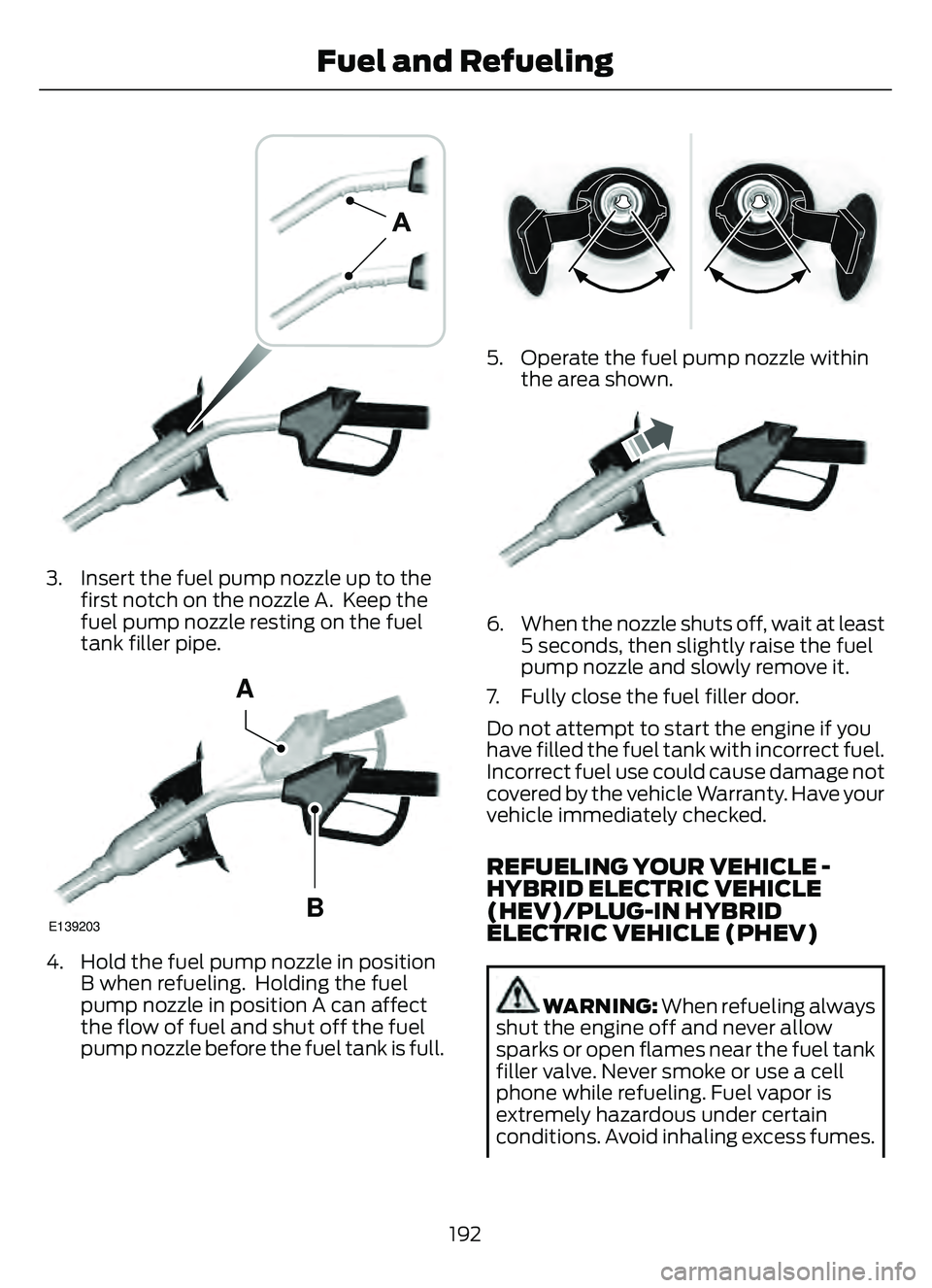
3. Insert the fuel pump nozzle up to thefirst notch on the nozzle A. Keep the
fuel pump nozzle resting on the fuel
tank filler pipe.
E139203
A
B
4. Hold the fuel pump nozzle in positionB when refueling. Holding the fuel
pump nozzle in position A can affect
the flow of fuel and shut off the fuel
pump nozzle before the fuel tank is full.
E337395
5. Operate the fuel pump nozzle withinthe area shown.
E190819081
6. When the nozzle shuts off, wait at least5 seconds, then slightly raise the fuel
pump nozzle and slowly remove it.
7. Fully close the fuel filler door.
Do not attempt to start the engine if you
have filled the fuel tank with incorrect fuel.
Incorrect fuel use could cause damage not
covered by the vehicle Warranty. Have your
vehicle immediately checked.
REFUELING YOUR VEHICLE -
HYBRID ELECTRIC VEHICLE
(HEV)/PLUG-IN HYBRID
ELECTRIC VEHICLE (PHEV)
WARNING: When refueling always
shut the engine off and never allow
sparks or open flames near the fuel tank
filler valve. Never smoke or use a cell
phone while refueling. Fuel vapor is
extremely hazardous under certain
conditions. Avoid inhaling excess fumes.
192
Fuel and Refueling
Page 411 of 585
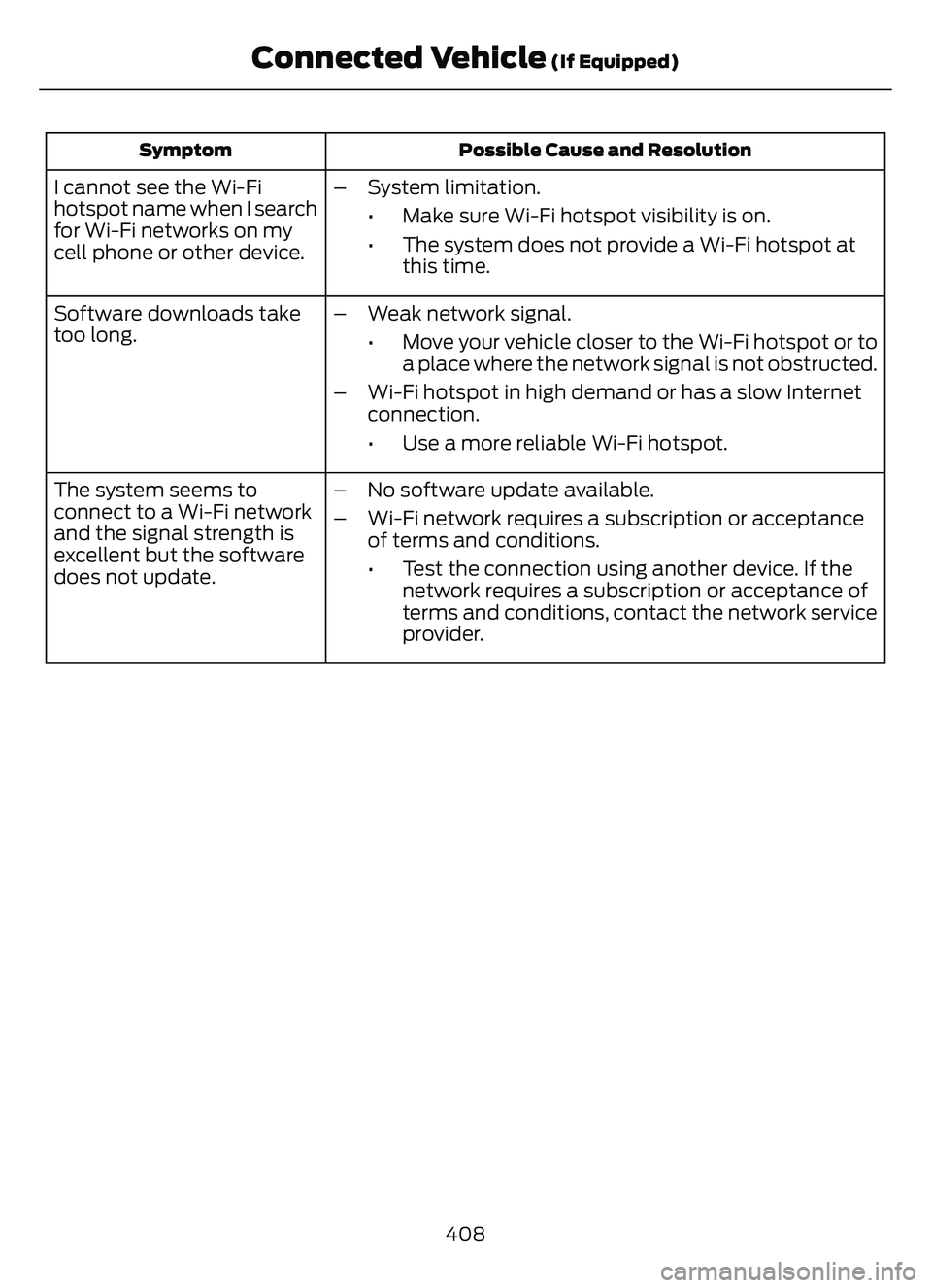
Possible Cause and Resolution
Symptom
I cannot see the Wi-Fi
hotspot name when I search
for Wi-Fi networks on my
cell phone or other device. – System limitation.
• Make sure Wi-Fi hotspot visibility is on.
• The system does not provide a Wi-Fi hotspot atthis time.
– Weak network signal. • Move your vehicle closer to the Wi-Fi hotspot or toa place where the network signal is not obstructed.
– Wi-Fi hotspot in high demand or has a slow Internet connection.
• Use a more reliable Wi-Fi hotspot.
Software downloads take
too long.
– No software update available.
– Wi-Fi network requires a subscription or acceptanceof terms and conditions.
• Test the connection using another device. If thenetwork requires a subscription or acceptance of
terms and conditions, contact the network service
provider.
The system seems to
connect to a Wi-Fi network
and the signal strength is
excellent but the software
does not update.
408
Connected Vehicle (If Equipped)
Page 418 of 585
GENERAL INFORMATION
SYNC is an in-vehicle communications
system that works with your Bluetooth
enabled cellular phone and portable media
player. This allows you to:
• Make and receive calls.
• Access and play music from yourportable music player.
• Use 911 Assist or Emergency Assistance and applications via SYNC AppLink.
*
• Access phonebook contacts and musicusing voice commands.
• Stream music from your connected phone.
• Text message.
• Use the advanced voice recognition system.
• Charge your USB device (if your device supports this).
*These features are not available in all
markets and may require activation.
Available AppLink enabled apps vary by
market.
Make sure that you review your device's
manual before using it with SYNC.
Support
SYNC support is available at your regional
Ford website. See SYNC™
Troubleshooting (page 421).
SYNC Owner Account
Why do I need a SYNC owner account?
• Essential for keeping up with the latest software downloads available for
SYNC.
• Access to customer support for any questions you may have.
Driving Restrictions
For your safety, certain features are
speed-dependent and restricted when your
vehicle is traveling over 3 mph (5 km/h).
Safety Information
WARNING: Driving while distracted
can result in loss of vehicle control, crash
and injury. We strongly recommend that
you use extreme caution when using any
device that may take your focus off the
road. Your primary responsibility is the
safe operation of your vehicle. We
recommend against the use of any
hand-held device while driving and
encourage the use of voice-operated
systems when possible. Make sure you
are aware of all applicable local laws
that may affect the use of electronic
devices while driving.
When using SYNC:
• Do not operate playing devices if the power cords or cables are broken, split
or damaged. Place cords and cables
out of the way, so they do not interfere
with the operation of pedals, seats,
compartments or safe driving abilities.
• Do not leave playing devices in your vehicle during extreme conditions as it
could cause them damage. See your
device's manual for further information.
• Do not attempt to service or repair the system. See an authorized dealer.
Privacy Information
When a cellular phone is connected to
SYNC, the system creates a profile within
your vehicle that is linked to that cellular
phone. This profile is created in order to
offer you more cellular features and to
operate more efficiently. Among other
things, this profile may contain data about
your cellular phone book, text messages
415
SYNC™ (If Equipped)
Page 419 of 585
(read and unread), and call history,
including history of calls when your cellular
phone was not connected to the system.
In addition, if you connect a media device,
the system creates and retains an index of
supported media content. The system also
records a short development log of
approximately 10 minutes of all recent
system activity. The log profile and other
system data may be used to improve the
system and help diagnose any problems
that may occur.
The cellular profile, media device index,
and development log will remain in the
vehicle unless you delete them and are
generally accessible only in the vehicle
when you connect the cellular phone or
media player. If you no longer plan to use
the system or the vehicle, we recommend
you perform a Master Reset to erase all
stored information.
No one can access system data without
special equipment and access to the
vehicle's SYNC module. Ford Motor
Company and Ford of Canada will not
access the system data for any purpose
other than as described absent consent, acourt order, or where required by law
enforcement, other government
authorities, or other third parties acting
with lawful authority. Other parties may
seek to access the information
independently of Ford Motor Company and
Ford of Canada. For further privacy
information, see the section on 911 Assist.
See
SYNC™ Applications and Services
(page 419).
USING VOICE RECOGNITION
This system helps you control many
features using voice commands. This
allows you to keep your hands on the
wheel and focus on what is around you.
Initiating a Voice Session
E142599
Press the voice button. A list of
available voice commands
appear in the display.
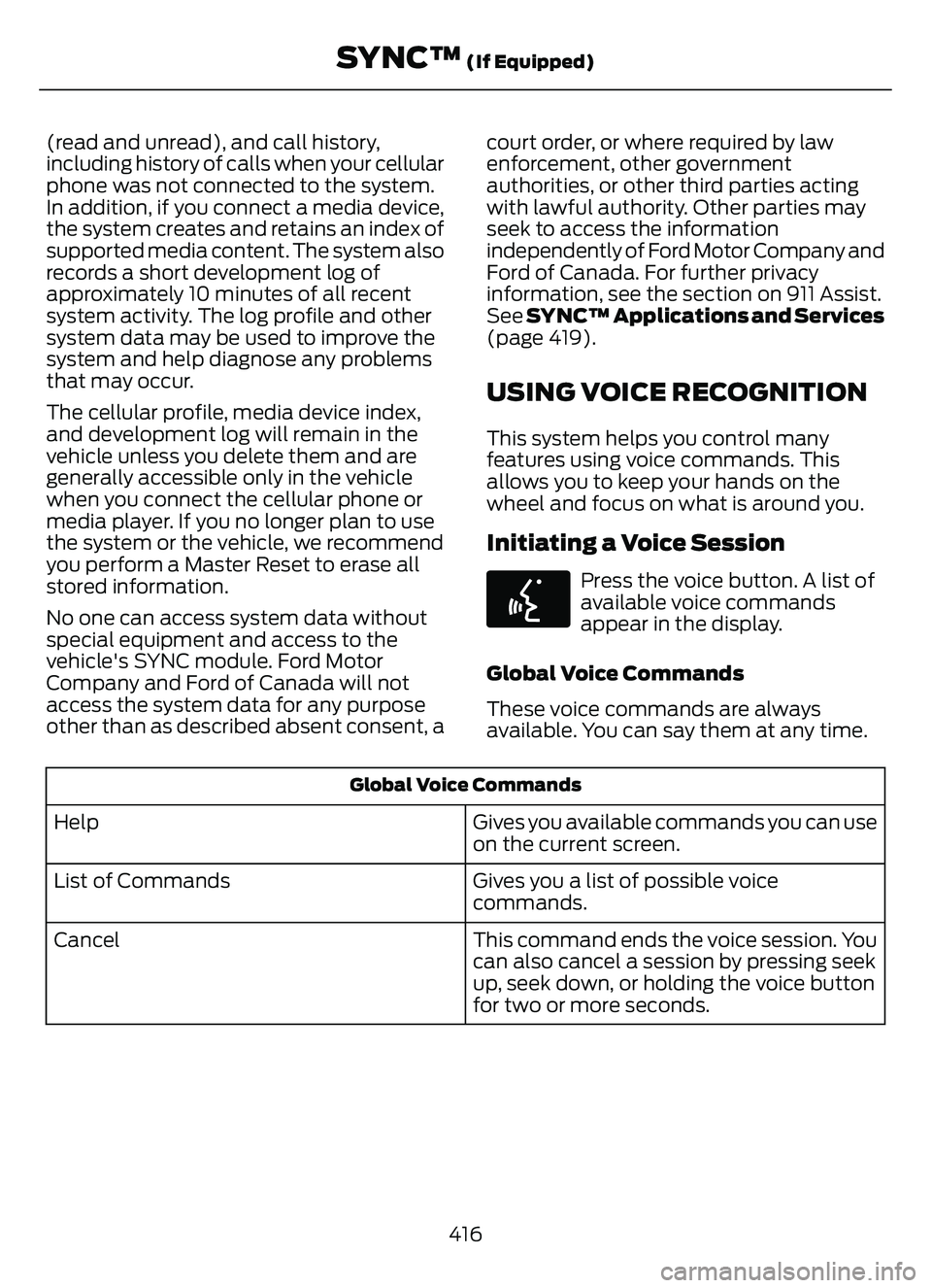
Global Voice Commands
These voice commands are always
available. You can say them at any time.
Global Voice Commands
Gives you available commands you can use
on the current screen.
Help
Gives you a list of possible voice
commands.
List of Commands
This command ends the voice session. You
can also cancel a session by pressing seek
up, seek down, or holding the voice button
for two or more seconds.
Cancel
416
SYNC™ (If Equipped)
Page 420 of 585
Helpful Hints
• Make sure the interior of your vehicle isas quiet as possible. Wind noise from
open windows and road vibrations may
prevent the system from correctly
recognizing spoken commands.
• Before giving a voice command, wait for the system announcement to finish,
followed by a single tone. Any
command spoken before this does not
register with the system.
• Speak naturally, without long pauses between words.
• You can interrupt the system at any time while it is speaking by pressing the
voice button. You can cancel a voice
session by pressing and holding the
voice button.System Interaction and Feedback
The system provides feedback through
audible tones, prompts, questions and
spoken confirmations depending on the
situation and the chosen level of
interaction. You can customize the voice
recognition system to provide more or less
instruction and feedback.
The default setting is to a higher level of
interaction in order to help you learn to use
the system. You can change these settings
at any time.
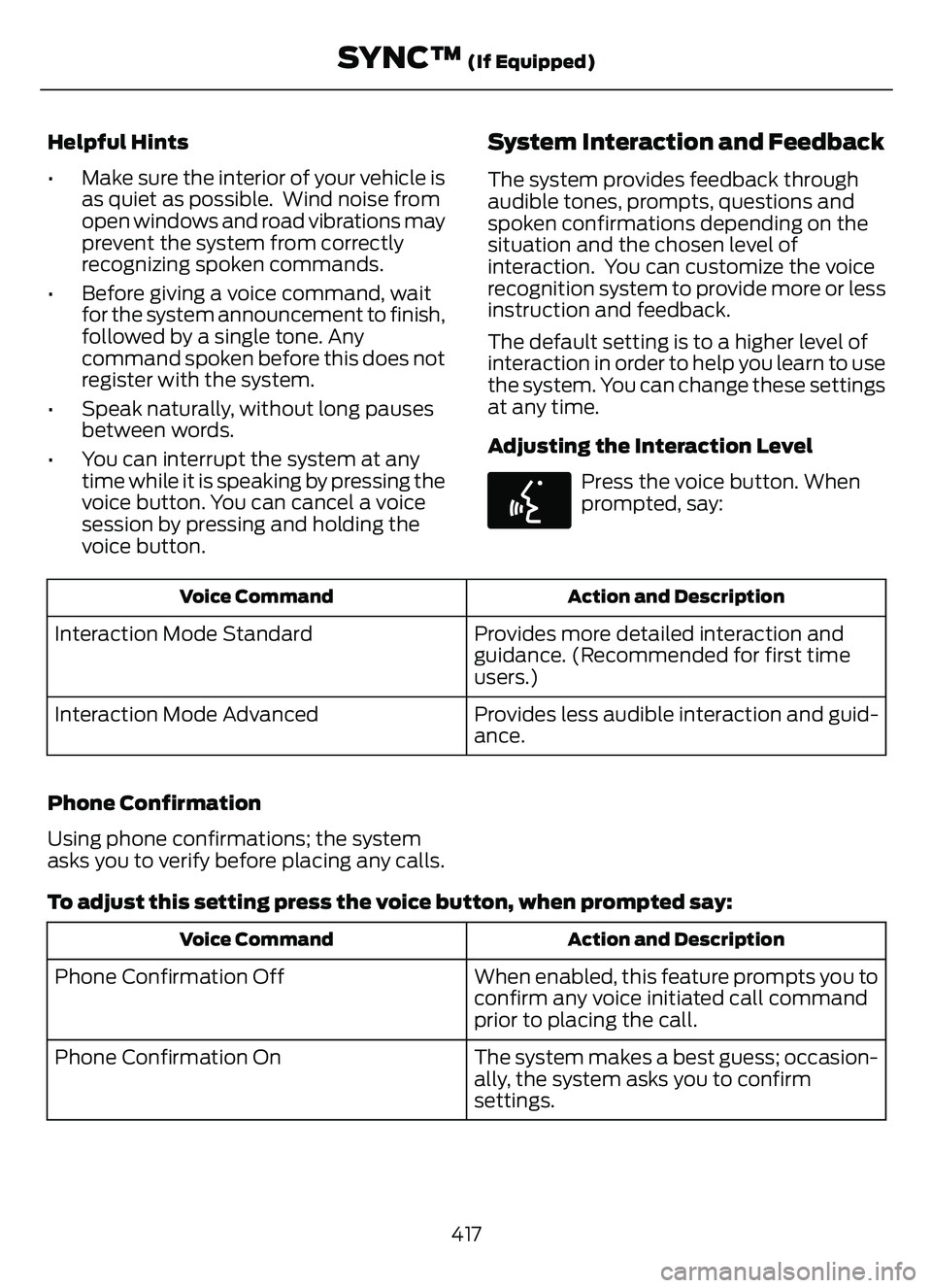
Adjusting the Interaction Level
E142599
Press the voice button. When
prompted, say:
Action and Description
Voice Command
Provides more detailed interaction and
guidance. (Recommended for first time
users.)
Interaction Mode Standard
Provides less audible interaction and guid-
ance.
Interaction Mode Advanced
Phone Confirmation
Using phone confirmations; the system
asks you to verify before placing any calls.
To adjust this setting press the voice button, when prompted say:
Action and Description
Voice Command
When enabled, this feature prompts you to
confirm any voice initiated call command
prior to placing the call.
Phone Confirmation Off
The system makes a best guess; occasion-
ally, the system asks you to confirm
settings.
Phone Confirmation On
417
SYNC™ (If Equipped)
Page 421 of 585
USING SYNC™ WITH YOUR
PHONE
Hands-free calling is one of the main
features of SYNC. While the system
supports a variety of features, many are
dependent on your cellular phone's
functionality. At a minimum, most cellular
phones with Bluetooth wireless technology
support the following functions:
• Answering an incoming call.
• Ending a call.
• Dialing a number.
• Redialing.
• Call waiting notification.
• Caller identification.
Other features, such as text messaging
using Bluetooth® and automatic
phonebook download, are
phone-dependent features.
Pairing a Phone
Wirelessly pairing your phone with SYNC
allows you to make and receive hands-free
calls.
Note:Make sure to switch on the ignition
and the radio. Shift the transmission into
park (P) for automatic transmission or
neutral (N) for manual transmission.
Using the Audio System
Note: To scroll through the menus, press
the up and down arrows on your audio
system.
1. Make sure to switch on your phone's Bluetooth® feature before starting the
search. See your device's manual if
necessary.
2. Press the Settings button.
3. Select Bluetooth from the menu.
4. Press the OK button. 5. Select the option to add. This starts
the pairing process.
6. When a message to begin pairing appears in the center display, search
for SYNC on your device.
Depending on your phone's capability and
your market, the system may prompt you
with questions, such as setting the current
phone as the primary phone and
downloading your phonebook.
Using Voice Commands
E142599
Make sure to switch on your
phone's Bluetooth® feature
before starting the search. See
your device's manual if necessary.
Press the voice button and when
prompted say:
Action and Descrip-
tion
Voice Command
Follow the instruc-
tions on the center
display.
Pair Phone
Phone Voice Commands
E142599
Press the voice button. You can
do things like place a phone call
and access text messages.
When prompted, say a command. See the
following table for examples of
commands.
Voice Command
___ List of Commands
Help
Call ___
Dial ___
Text Messages
418
SYNC™ (If Equipped)