low air FORD ESCAPE 2022 Manual PDF
[x] Cancel search | Manufacturer: FORD, Model Year: 2022, Model line: ESCAPE, Model: FORD ESCAPE 2022Pages: 585, PDF Size: 6.15 MB
Page 382 of 585
When the malfunction indicator is
illuminated, the system may not be able
to detect or signal low tire pressure as
intended. TPMS malfunctions may occur
for a variety of reasons, including the
installation of replacement or alternate
tires or wheels on the vehicle that prevent
the TPMS from functioning properly.
Always check the TPMS malfunction
telltale after replacing one or more tires or
wheels on your vehicle to ensure that the
replacement or alternate tires and wheels
allow the TPMS to continue to function
properly.
WARNING: Changes or
modifications not expressively approved
by the party responsible for compliance
could void the user's authority to operate
the equipment. The term "IC:" before the
radio certification number only signifies
that Industry Canada technical
specifications were met.
This device complies with Part 15 of the
FCC Rules and with License exempt RSS
Standards of Industry Canada. Operation
is subject to the following two conditions:
1. This device may not cause harmful interference, and
2. This device must accept any interference received, including
interference that may cause undesired
operation.
TIRE PRESSURE MONITORING
SYSTEM PRECAUTIONS
WARNING: The tire pressure
monitoring system is not a substitute for
manually checking tire pressures. You
should periodically check tire pressures
using a pressure gauge. Failure to
correctly maintain tire pressures could
increase the risk of tire failure, loss of
control, vehicle rollover and personal
injury.
Note: The use of tire sealants can damage
the tire pressure monitoring system.
TIRE PRESSURE MONITORING
SYSTEM LIMITATIONS
When the outside temperature drops
significantly, the tire pressure could
decrease and activate the low tire pressure
warning lamp.
The warning lamp could also illuminate
when you use a spare wheel, or tire sealant
from the inflator kit.
Note: Regularly checking the vehicle tire
pressures can reduce the possibility for the
warning lamp to illuminate due to outside
air temperature changes.
Note: After you inflate the tires to the
recommended pressure it could take up to
two minutes of driving over 20 mph
(32 km/h) for the warning indicator to turn
off.
379
Tire Pressure Monitoring System
Page 383 of 585
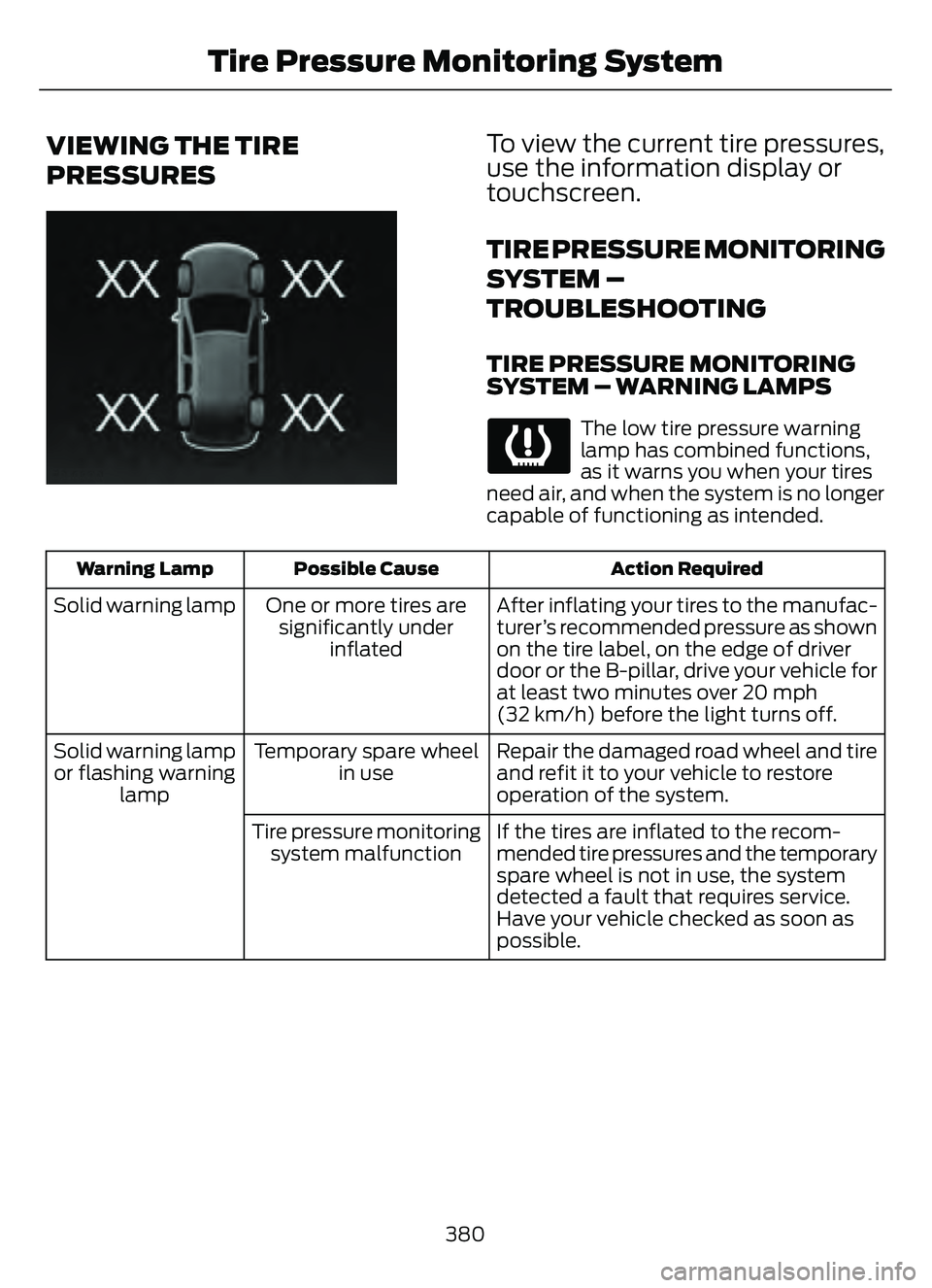
VIEWING THE TIRE
PRESSURES
E250820E250820
To view the current tire pressures,
use the information display or
touchscreen.
TIRE PRESSURE MONITORING
SYSTEM –
TROUBLESHOOTING
TIRE PRESSURE MONITORING
SYSTEM – WARNING LAMPS
The low tire pressure warning
lamp has combined functions,
as it warns you when your tires
need air, and when the system is no longer
capable of functioning as intended.
Action Required
Possible Cause
Warning Lamp
After inflating your tires to the manufac-
turer’s recommended pressure as shown
on the tire label, on the edge of driver
door or the B-pillar, drive your vehicle for
at least two minutes over 20 mph
(32 km/h) before the light turns off.
One or more tires are
significantly under inflated
Solid warning lamp
Repair the damaged road wheel and tire
and refit it to your vehicle to restore
operation of the system.
Temporary spare wheel
in use
Solid warning lamp
or flashing warning lamp
If the tires are inflated to the recom-
mended tire pressures and the temporary
spare wheel is not in use, the system
detected a fault that requires service.
Have your vehicle checked as soon as
possible.
Tire pressure monitoring
system malfunction
380
Tire Pressure Monitoring System
Page 418 of 585
GENERAL INFORMATION
SYNC is an in-vehicle communications
system that works with your Bluetooth
enabled cellular phone and portable media
player. This allows you to:
• Make and receive calls.
• Access and play music from yourportable music player.
• Use 911 Assist or Emergency Assistance and applications via SYNC AppLink.
*
• Access phonebook contacts and musicusing voice commands.
• Stream music from your connected phone.
• Text message.
• Use the advanced voice recognition system.
• Charge your USB device (if your device supports this).
*These features are not available in all
markets and may require activation.
Available AppLink enabled apps vary by
market.
Make sure that you review your device's
manual before using it with SYNC.
Support
SYNC support is available at your regional
Ford website. See SYNC™
Troubleshooting (page 421).
SYNC Owner Account
Why do I need a SYNC owner account?
• Essential for keeping up with the latest software downloads available for
SYNC.
• Access to customer support for any questions you may have.
Driving Restrictions
For your safety, certain features are
speed-dependent and restricted when your
vehicle is traveling over 3 mph (5 km/h).
Safety Information
WARNING: Driving while distracted
can result in loss of vehicle control, crash
and injury. We strongly recommend that
you use extreme caution when using any
device that may take your focus off the
road. Your primary responsibility is the
safe operation of your vehicle. We
recommend against the use of any
hand-held device while driving and
encourage the use of voice-operated
systems when possible. Make sure you
are aware of all applicable local laws
that may affect the use of electronic
devices while driving.
When using SYNC:
• Do not operate playing devices if the power cords or cables are broken, split
or damaged. Place cords and cables
out of the way, so they do not interfere
with the operation of pedals, seats,
compartments or safe driving abilities.
• Do not leave playing devices in your vehicle during extreme conditions as it
could cause them damage. See your
device's manual for further information.
• Do not attempt to service or repair the system. See an authorized dealer.
Privacy Information
When a cellular phone is connected to
SYNC, the system creates a profile within
your vehicle that is linked to that cellular
phone. This profile is created in order to
offer you more cellular features and to
operate more efficiently. Among other
things, this profile may contain data about
your cellular phone book, text messages
415
SYNC™ (If Equipped)
Page 421 of 585
USING SYNC™ WITH YOUR
PHONE
Hands-free calling is one of the main
features of SYNC. While the system
supports a variety of features, many are
dependent on your cellular phone's
functionality. At a minimum, most cellular
phones with Bluetooth wireless technology
support the following functions:
• Answering an incoming call.
• Ending a call.
• Dialing a number.
• Redialing.
• Call waiting notification.
• Caller identification.
Other features, such as text messaging
using Bluetooth® and automatic
phonebook download, are
phone-dependent features.
Pairing a Phone
Wirelessly pairing your phone with SYNC
allows you to make and receive hands-free
calls.
Note:Make sure to switch on the ignition
and the radio. Shift the transmission into
park (P) for automatic transmission or
neutral (N) for manual transmission.
Using the Audio System
Note: To scroll through the menus, press
the up and down arrows on your audio
system.
1. Make sure to switch on your phone's Bluetooth® feature before starting the
search. See your device's manual if
necessary.
2. Press the Settings button.
3. Select Bluetooth from the menu.
4. Press the OK button. 5. Select the option to add. This starts
the pairing process.
6. When a message to begin pairing appears in the center display, search
for SYNC on your device.
Depending on your phone's capability and
your market, the system may prompt you
with questions, such as setting the current
phone as the primary phone and
downloading your phonebook.
Using Voice Commands
E142599
Make sure to switch on your
phone's Bluetooth® feature
before starting the search. See
your device's manual if necessary.
Press the voice button and when
prompted say:
Action and Descrip-
tion
Voice Command
Follow the instruc-
tions on the center
display.
Pair Phone
Phone Voice Commands
E142599
Press the voice button. You can
do things like place a phone call
and access text messages.
When prompted, say a command. See the
following table for examples of
commands.
Voice Command
___ List of Commands
Help
Call ___
Dial ___
Text Messages
418
SYNC™ (If Equipped)
Page 422 of 585
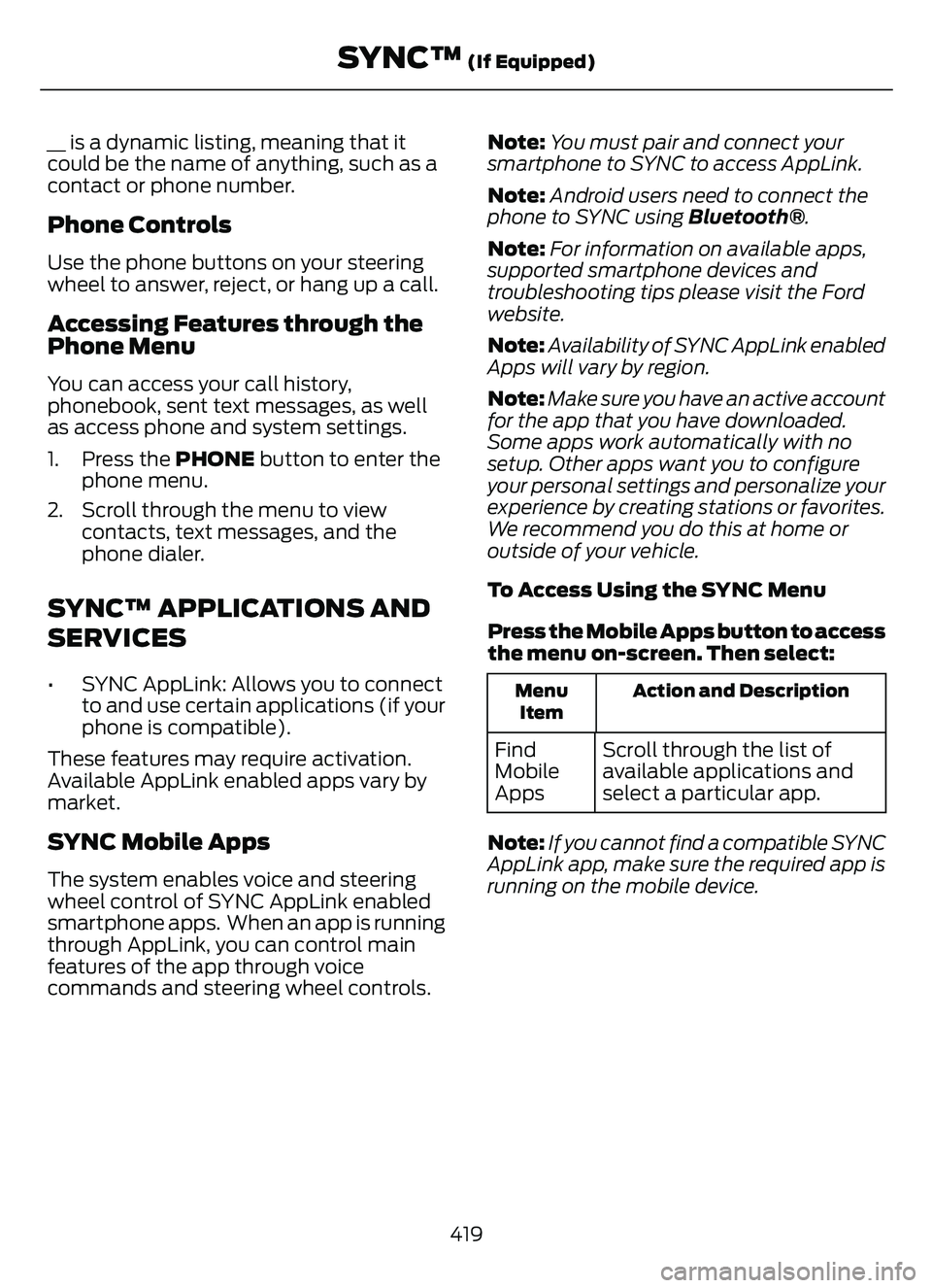
__ is a dynamic listing, meaning that it
could be the name of anything, such as a
contact or phone number.
Phone Controls
Use the phone buttons on your steering
wheel to answer, reject, or hang up a call.
Accessing Features through the
Phone Menu
You can access your call history,
phonebook, sent text messages, as well
as access phone and system settings.
1. Press the PHONE button to enter thephone menu.
2. Scroll through the menu to view contacts, text messages, and the
phone dialer.
SYNC™ APPLICATIONS AND
SERVICES
• SYNC AppLink: Allows you to connectto and use certain applications (if your
phone is compatible).
These features may require activation.
Available AppLink enabled apps vary by
market.
SYNC Mobile Apps
The system enables voice and steering
wheel control of SYNC AppLink enabled
smartphone apps. When an app is running
through AppLink, you can control main
features of the app through voice
commands and steering wheel controls. Note:
You must pair and connect your
smartphone to SYNC to access AppLink.
Note: Android users need to connect the
phone to SYNC using Bluetooth®.
Note: For information on available apps,
supported smartphone devices and
troubleshooting tips please visit the Ford
website.
Note: Availability of SYNC AppLink enabled
Apps will vary by region.
Note: Make sure you have an active account
for the app that you have downloaded.
Some apps work automatically with no
setup. Other apps want you to configure
your personal settings and personalize your
experience by creating stations or favorites.
We recommend you do this at home or
outside of your vehicle.
To Access Using the SYNC Menu
Press the Mobile Apps button to access
the menu on-screen. Then select:
Action and Description
Menu
Item
Scroll through the list of
available applications and
select a particular app.
Find
Mobile
Apps
Note: If you cannot find a compatible SYNC
AppLink app, make sure the required app is
running on the mobile device.
419
SYNC™ (If Equipped)
Page 433 of 585
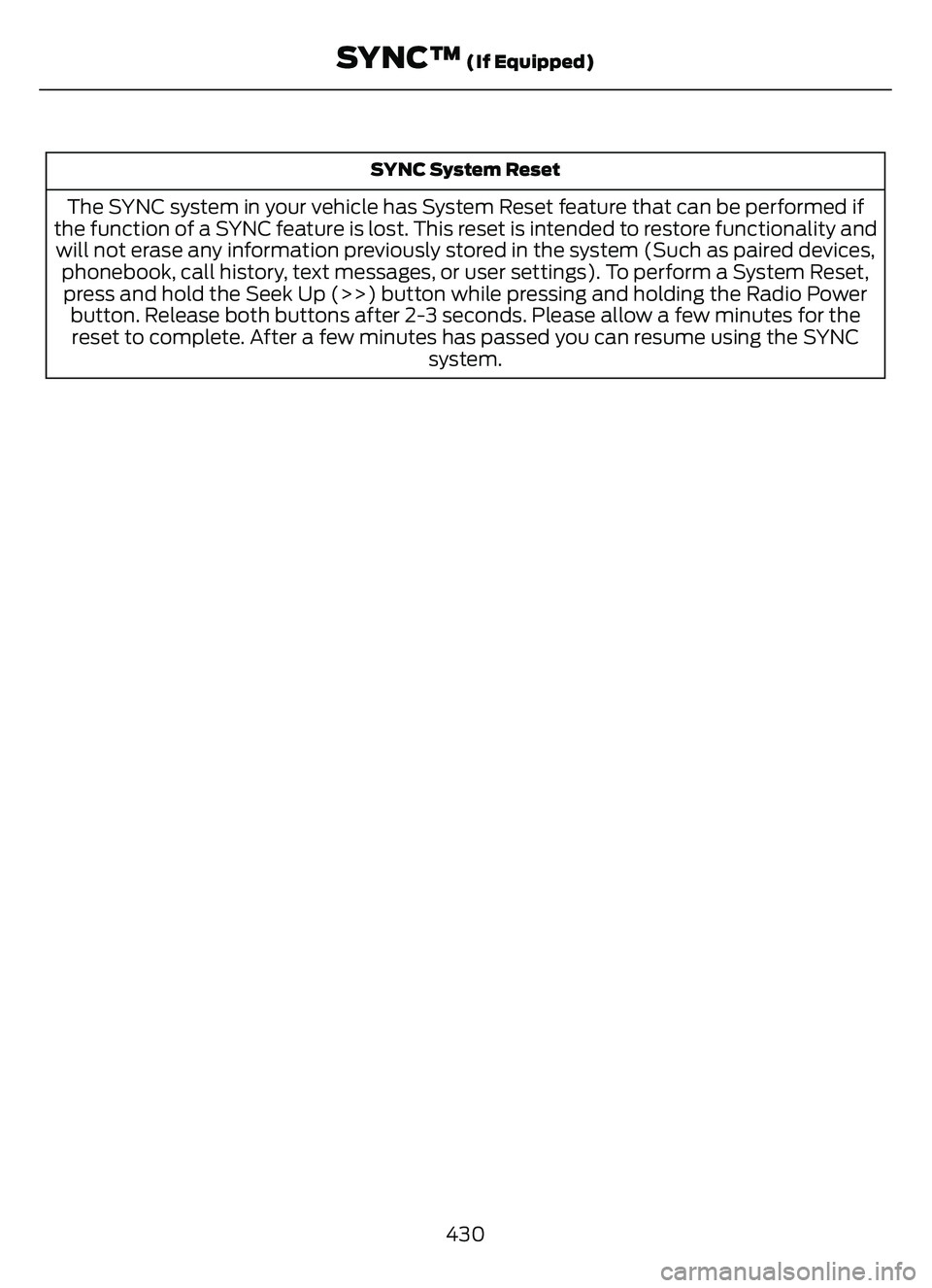
SYNC System Reset
The SYNC system in your vehicle has System Reset feature that can be performed if
the function of a SYNC feature is lost. This reset is intended to restore functionality and will not erase any information previously stored in the system (Such as paired devices, phonebook, call history, text messages, or user settings). To perform a System Reset,press and hold the Seek Up (>>) button while pressing and holding the Radio Power button. Release both buttons after 2-3 seconds. Please allow a few minutes for thereset to complete. After a few minutes has passed you can resume using the SYNC system.
430
SYNC™ (If Equipped)
Page 434 of 585
GENERAL INFORMATION
WARNING: Driving while distracted
can result in loss of vehicle control, crash
and injury. We strongly recommend that
you use extreme caution when using any
device that may take your focus off the
road. Your primary responsibility is the
safe operation of your vehicle. We
recommend against the use of any
hand-held device while driving and
encourage the use of voice-operated
systems when possible. Make sure you
are aware of all applicable local laws
that may affect the use of electronic
devices while driving.
About SYNC
The system allows you to interact with the
entertainment, information and
communication systems on your vehicle
using voice commands and a touchscreen.
The system provides easy interaction with
audio, phone, navigation, mobile apps and
settings.
Note: You can switch the system on and
use it for up to an hour without switching
the ignition on.
Note: You can use the system after you
switch the ignition off for up to 10 minutes
or until you open a door.
Note: For your safety, some features are
speed-dependent. Their use is limited to
when your vehicle speed is less than 3 mph
(5 km/h).
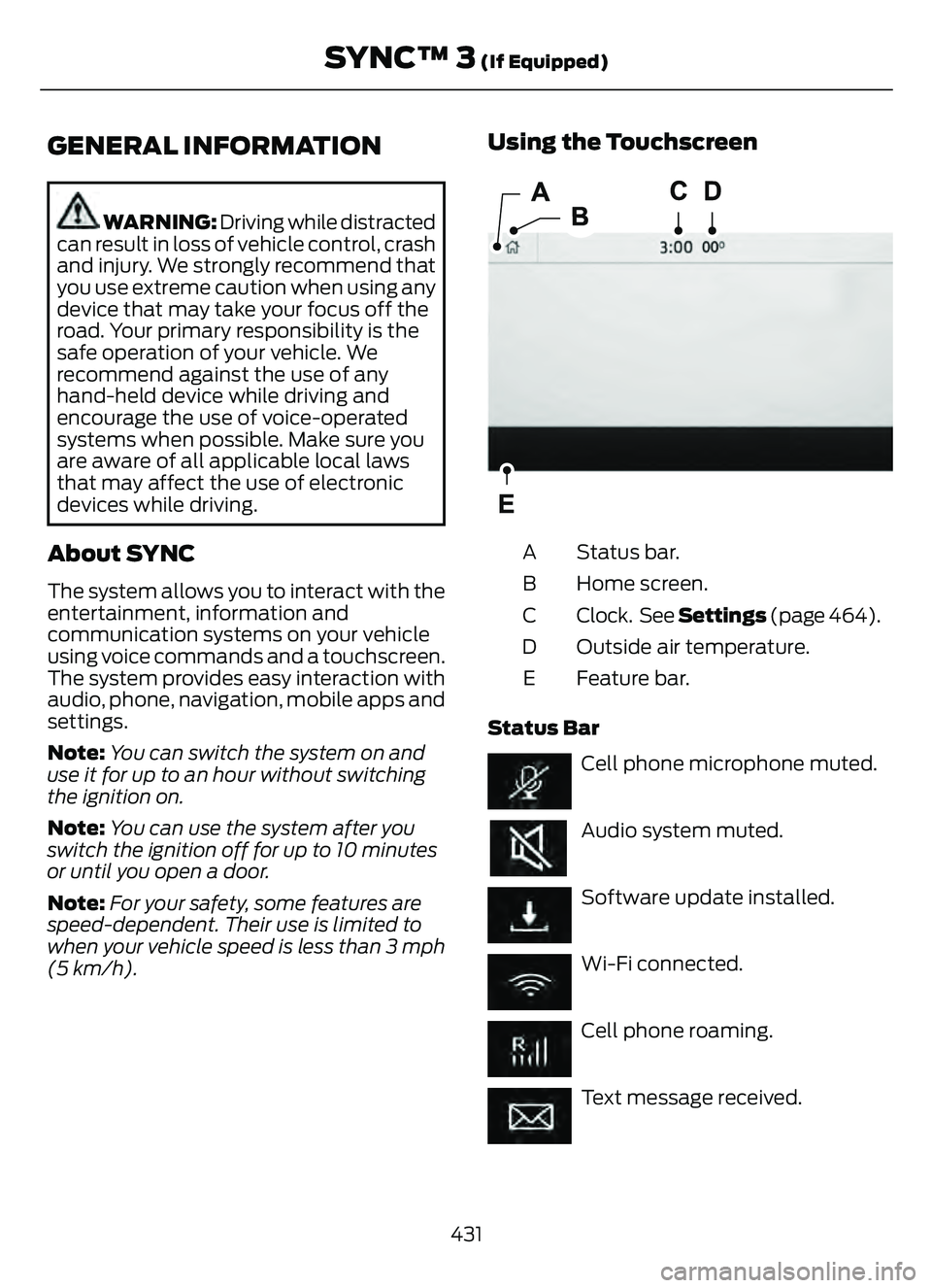
Using the Touchscreen
E293823E293823
Status bar.
A
Home screen.
B
Clock. See Settings (page 464).
C
Outside air temperature.
D
Feature bar.
E
Status Bar
Cell phone microphone muted.
Audio system muted.
Software update installed.
Wi-Fi connected.
Cell phone roaming.
Text message received.
431
SYNC™ 3 (If Equipped)
Page 438 of 585
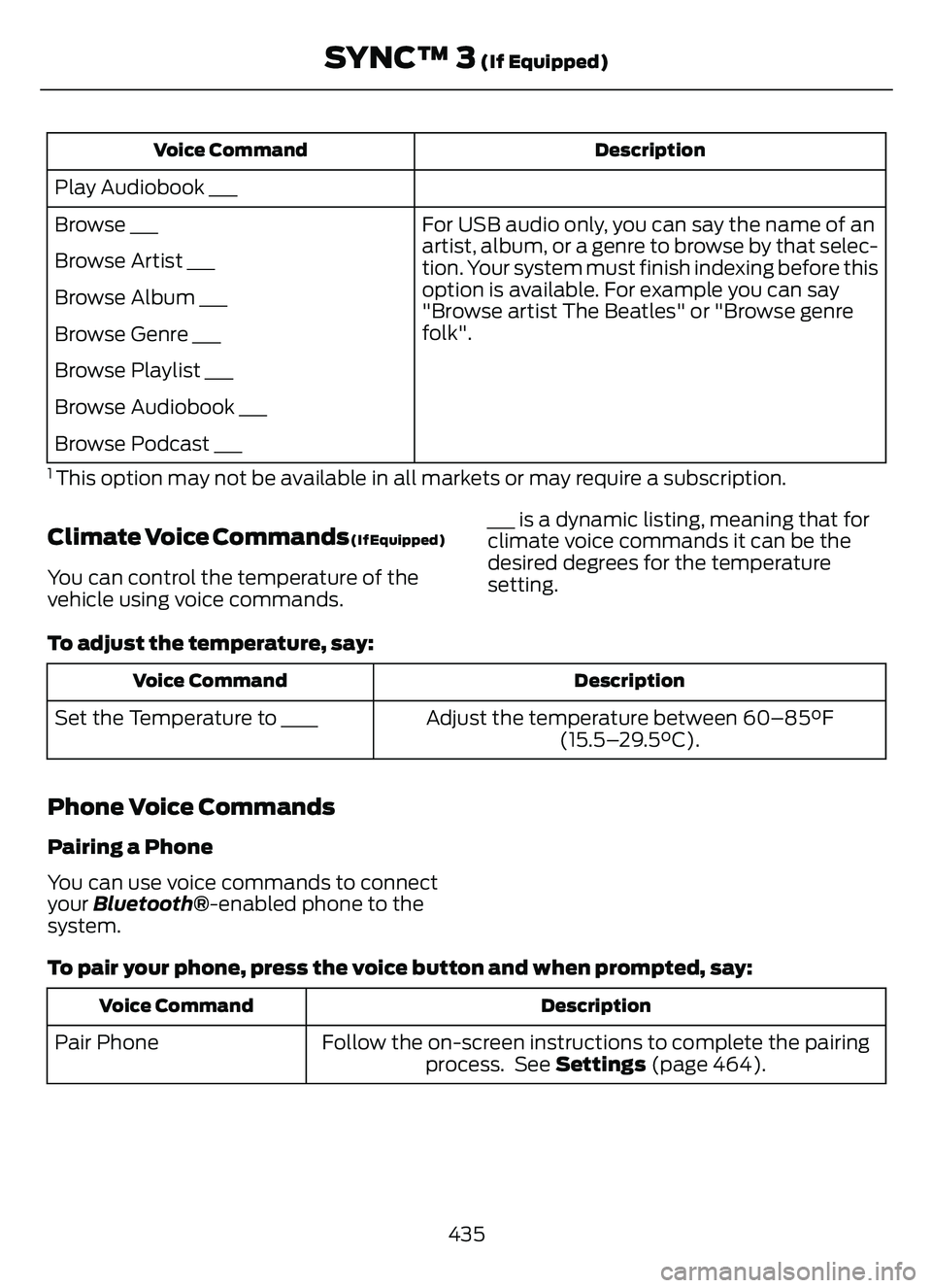
Description
Voice Command
Play Audiobook ___
For USB audio only, you can say the name of an
artist, album, or a genre to browse by that selec-
tion. Your system must finish indexing before this
option is available. For example you can say
"Browse artist The Beatles" or "Browse genre
folk".
Browse ___
Browse Artist ___
Browse Album ___
Browse Genre ___
Browse Playlist ___
Browse Audiobook ___
Browse Podcast ___
1 This option may not be available in all markets or may require a subscription.
Climate Voice Commands (If Equipped)
You can control the temperature of the
vehicle using voice commands.
___ is a dynamic listing, meaning that for
climate voice commands it can be the
desired degrees for the temperature
setting.
To adjust the temperature, say:
Description
Voice Command
Adjust the temperature between 60–85°F
(15.5–29.5°C).
Set the Temperature to ____
Phone Voice Commands
Pairing a Phone
You can use voice commands to connect
your Bluetooth®-enabled phone to the
system.
To pair your phone, press the voice button and when prompted, say:
Description
Voice Command
Follow the on-screen instructions to complete the pairing
process. See Settings (page 464).
Pair Phone
435
SYNC™ 3 (If Equipped)
Page 454 of 585
Phone List
Display the list of paired or connected
devices that you can select.
Note:Up to 12 devices can be stored.
Do Not Disturb
Reject incoming calls and switch ring tones
and alerts off.
Phone Keypad
Directly dial a number.
Text Messaging
Setting Text Message Notification
iOS
1. Go to the settings menu on your cell phone. 2. Select Bluetooth.
3. Select the information icon to the right
of your vehicle.
4. Switch text message notification on.
Android
1. Go to the settings menu on your cell phone.
2. Select Bluetooth.
3. Select the profiles option.
4. Select the phone profile.
5. Switch text message notification on.
Using Text Messaging
Description
Menu Item
Hear the text message.
Hear It
View the text message.
View
Call the sender.
Call
Reply to the text message with a standard text message.
Reply
Apple CarPlay (If Equipped)
1. Connect your device to a USB port.
2. Follow the instructions on the
touchscreen.
Note: Certain features of the system are
not available when you are using Apple
CarPlay.
Switching Apple CarPlay Off
Select the settings option on the
feature bar. 1. Select Apple CarPlay Preferences.
2. Switch Apple CarPlay
off.
Android Auto (If Equipped)
1. Connect your device to a USB port.
2. Follow the instructions on the
touchscreen.
Note: You might need to enable Android
Auto from the settings menu.
Note: Certain features of the system are
not available when you are using Android
Auto.
451
SYNC™ 3 (If Equipped)
Page 465 of 585
Note:Cabin conditioning can perform
differently depending on if you plug in with
the included convenience cord or a higher
power charging station. The power available
for conditioning is limited to the charging
station power available.
Note: Your vehicle may not always reach
the set cabin temperature due to charging
and ambient temperature conditions. This
is normal operation.
APPS
The system allows you interact with select
mobile apps while keeping your eyes on
the road. Voice commands, your steering
wheel buttons, or a quick tap on your
touchscreen give you advanced control of
compatible mobile apps. You can also
stream your favorite music or podcasts,
share your time of arrival with friends, and
keep connected safely.
When you start an app through the system
for the first time, you could be asked to
grant certain permissions. You can review
and change the permissions that you have
granted at any time when your vehicle is
not moving. We recommend that you
check your data plan before using your
apps through the system. Using them
could result in additional charges. We also
recommend that you check the app
provider's terms and conditions and
privacy policy before using their app. Make
sure that you have an active account for
apps that you want to use through the
system. Some apps will work with no
setup. Others require you to configure
some personal settings before you can use
them.
Note: For more information about available
apps, visit catalog.ford.com.
Using Apps on an iOS Device
Select the apps option on the
feature bar.
1. If your device is connected via USB, switch Apple CarPlay off. See Phone
(page 450).
2. Connect your device to a USB port or pair and connect using Bluetooth.
3. If prompted to enable CarPlay, select Disable.
4. Start the apps on your device that you want to use through SYNC.
Note: If you close the apps on your device,
you will not be able to use them through the
system.
5. Select the app that you want to use on the touchscreen.
Note: Connect your device to a USB port if
you want to use a navigation app. When
using a navigation app, keep your device
unlocked and the app open.
Using Apps on an Android Device
Select the apps option on the
feature bar.
1. If your device is connected via USB, switch Android Auto off. See Phone
(page 450).
2. Pair your device. See Phone (page 450).
3. Start the apps on your device that you want to use through SYNC.
Note: If you close the apps on your device,
you will not be able to use them through the
system.
4. Select Find Mobile Apps.
Note: The system searches and connects
to compatible apps that are running on your
device.
5. Select the app that you want to use on the touchscreen.
462
SYNC™ 3 (If Equipped)