audio FORD EXPEDITION 2003 2.G Owner's Manual
[x] Cancel search | Manufacturer: FORD, Model Year: 2003, Model line: EXPEDITION, Model: FORD EXPEDITION 2003 2.GPages: 320, PDF Size: 3.67 MB
Page 50 of 320
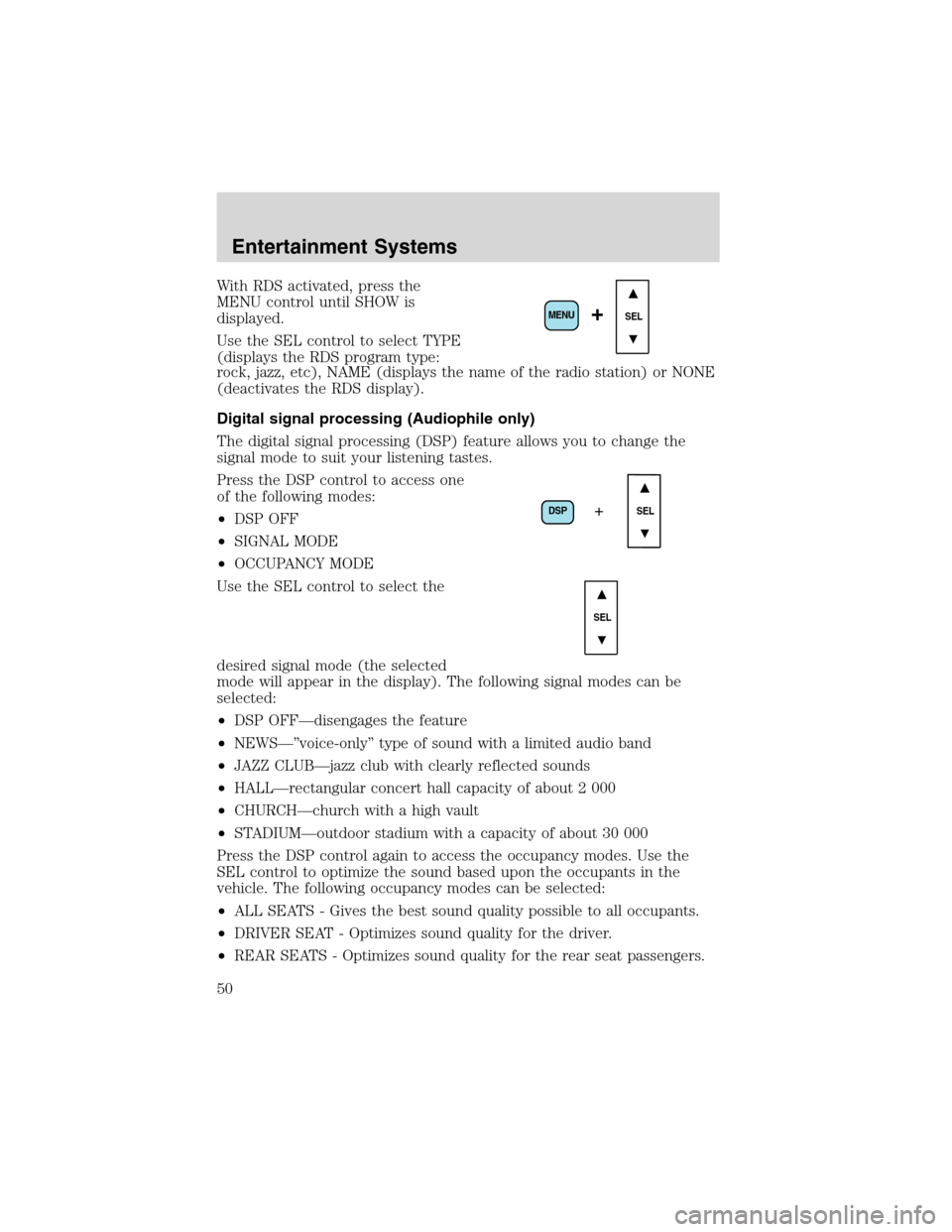
With RDS activated, press the
MENU control until SHOW is
displayed.
Use the SEL control to select TYPE
(displays the RDS program type:
rock, jazz, etc), NAME (displays the name of the radio station) or NONE
(deactivates the RDS display).
Digital signal processing (Audiophile only)
The digital signal processing (DSP) feature allows you to change the
signal mode to suit your listening tastes.
Press the DSP control to access one
of the following modes:
•DSP OFF
•SIGNAL MODE
•OCCUPANCY MODE
Use the SEL control to select the
desired signal mode (the selected
mode will appear in the display). The following signal modes can be
selected:
•DSP OFF—disengages the feature
•NEWS—”voice-only”type of sound with a limited audio band
•JAZZ CLUB—jazz club with clearly reflected sounds
•HALL—rectangular concert hall capacity of about 2 000
•CHURCH—church with a high vault
•STADIUM—outdoor stadium with a capacity of about 30 000
Press the DSP control again to access the occupancy modes. Use the
SEL control to optimize the sound based upon the occupants in the
vehicle. The following occupancy modes can be selected:
•ALL SEATS - Gives the best sound quality possible to all occupants.
•DRIVER SEAT - Optimizes sound quality for the driver.
•REAR SEATS - Optimizes sound quality for the rear seat passengers.
SEL+MENU
DSP
SEL+
SEL
Entertainment Systems
50
Page 51 of 320
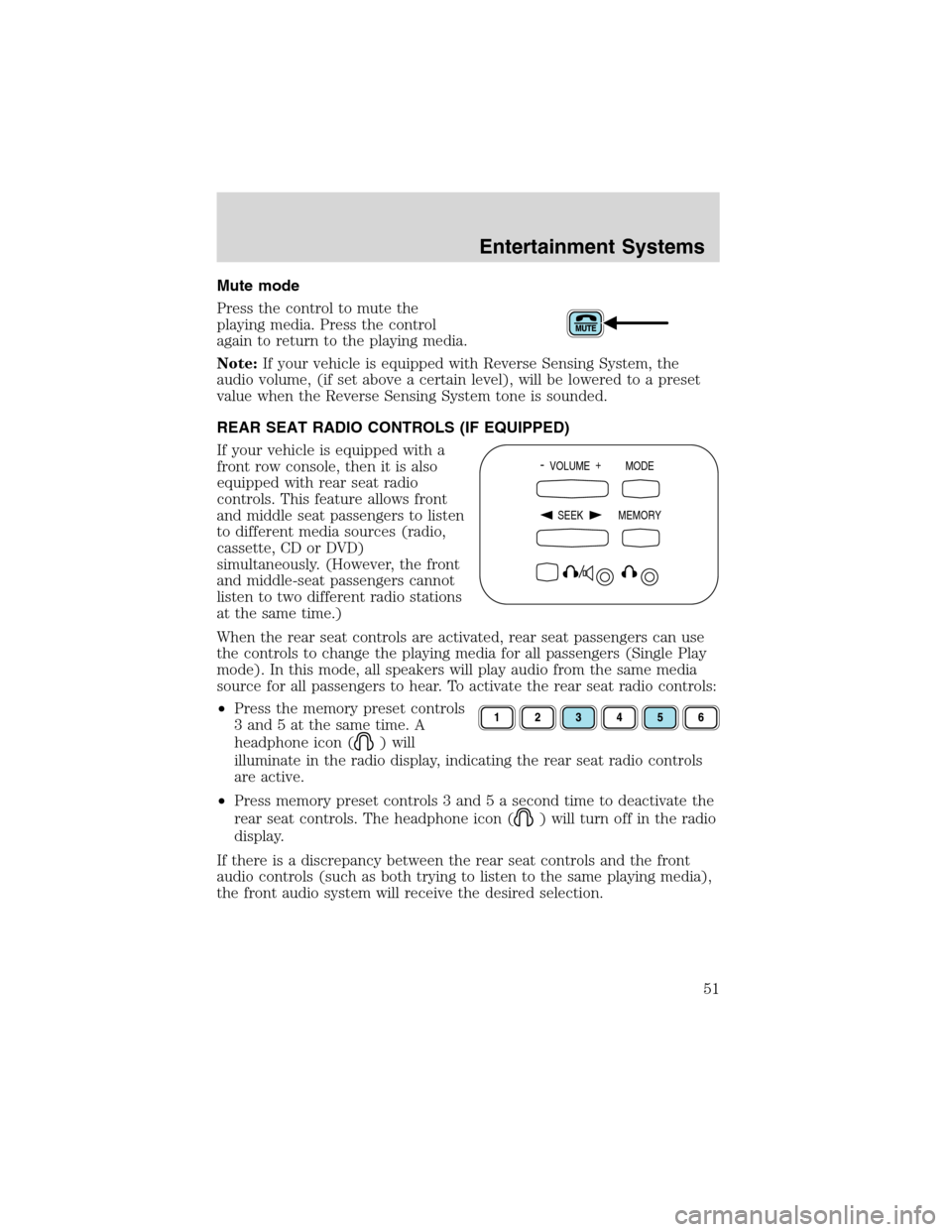
Mute mode
Press the control to mute the
playing media. Press the control
again to return to the playing media.
Note:If your vehicle is equipped with Reverse Sensing System, the
audio volume, (if set above a certain level), will be lowered to a preset
value when the Reverse Sensing System tone is sounded.
REAR SEAT RADIO CONTROLS (IF EQUIPPED)
If your vehicle is equipped with a
front row console, then it is also
equipped with rear seat radio
controls. This feature allows front
and middle seat passengers to listen
to different media sources (radio,
cassette, CD or DVD)
simultaneously. (However, the front
and middle-seat passengers cannot
listen to two different radio stations
at the same time.)
When the rear seat controls are activated, rear seat passengers can use
the controls to change the playing media for all passengers (Single Play
mode). In this mode, all speakers will play audio from the same media
source for all passengers to hear. To activate the rear seat radio controls:
•Press the memory preset controls
3 and 5 at the same time. A
headphone icon (
) will
illuminate in the radio display, indicating the rear seat radio controls
are active.
•Press memory preset controls 3 and 5 a second time to deactivate the
rear seat controls. The headphone icon (
) will turn off in the radio
display.
If there is a discrepancy between the rear seat controls and the front
audio controls (such as both trying to listen to the same playing media),
the front audio system will receive the desired selection.
- VOLUME +
MODE
SEEK MEMORY
Entertainment Systems
51
Page 52 of 320
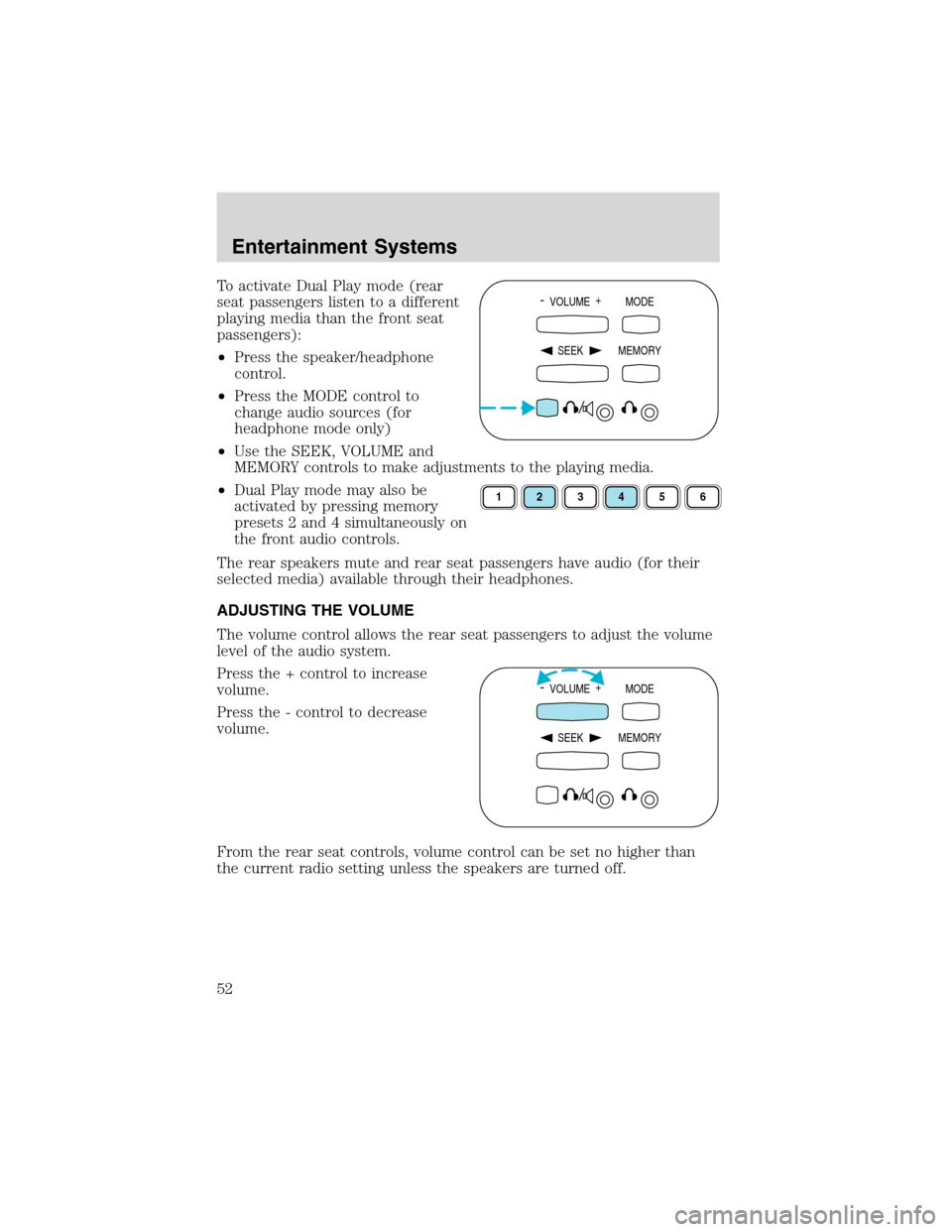
To activate Dual Play mode (rear
seat passengers listen to a different
playing media than the front seat
passengers):
•Press the speaker/headphone
control.
•Press the MODE control to
change audio sources (for
headphone mode only)
•Use the SEEK, VOLUME and
MEMORY controls to make adjustments to the playing media.
•Dual Play mode may also be
activated by pressing memory
presets 2 and 4 simultaneously on
the front audio controls.
The rear speakers mute and rear seat passengers have audio (for their
selected media) available through their headphones.
ADJUSTING THE VOLUME
The volume control allows the rear seat passengers to adjust the volume
level of the audio system.
Press the + control to increase
volume.
Press the - control to decrease
volume.
From the rear seat controls, volume control can be set no higher than
the current radio setting unless the speakers are turned off.- VOLUME +
MODE
SEEK MEMORY
123456
- VOLUME +
MODE
SEEK MEMORY
Entertainment Systems
52
Page 54 of 320
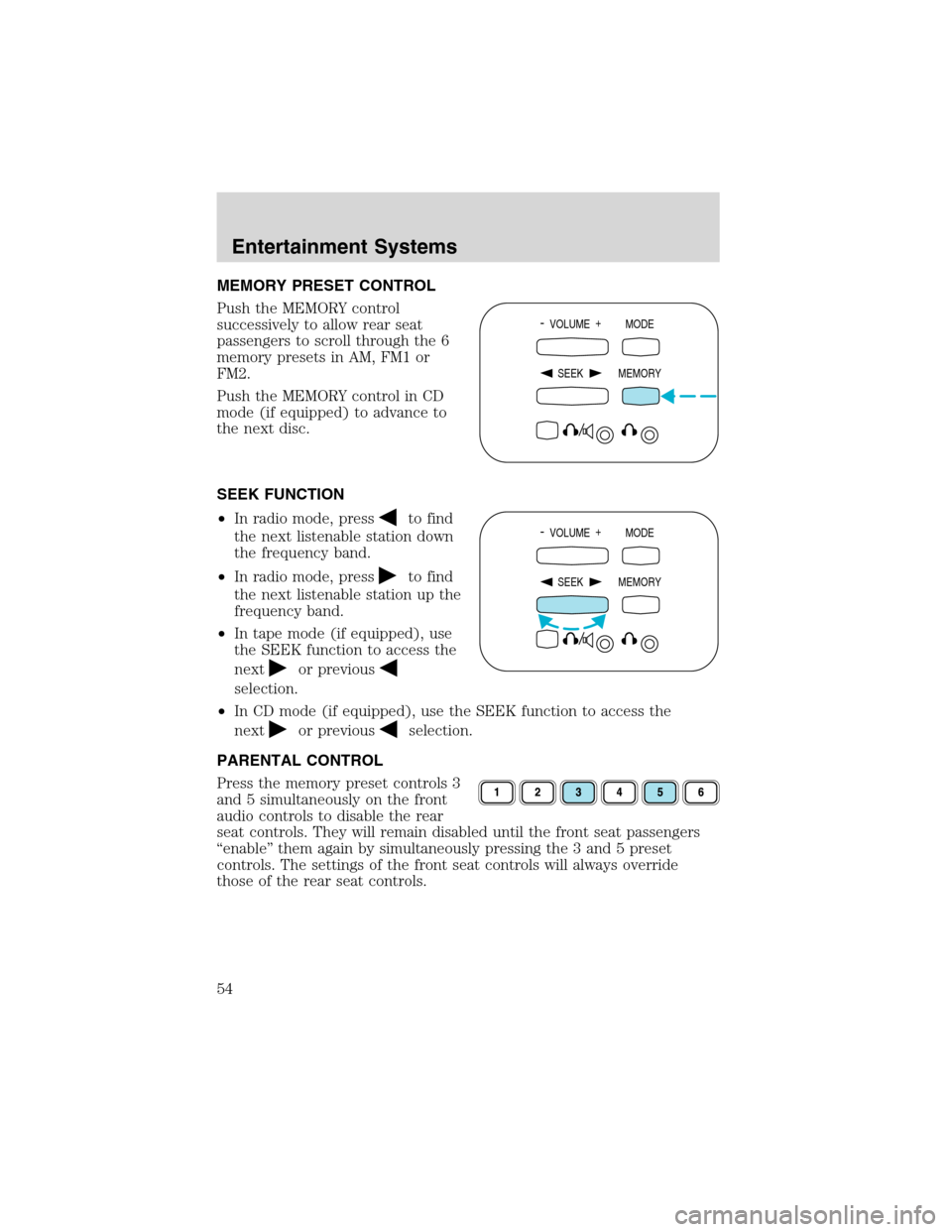
MEMORY PRESET CONTROL
Push the MEMORY control
successively to allow rear seat
passengers to scroll through the 6
memory presets in AM, FM1 or
FM2.
Push the MEMORY control in CD
mode (if equipped) to advance to
the next disc.
SEEK FUNCTION
•In radio mode, press
to find
the next listenable station down
the frequency band.
•In radio mode, press
to find
the next listenable station up the
frequency band.
•In tape mode (if equipped), use
the SEEK function to access the
next
or previous
selection.
•In CD mode (if equipped), use the SEEK function to access the
next
or previousselection.
PARENTAL CONTROL
Press the memory preset controls 3
and 5 simultaneously on the front
audio controls to disable the rear
seat controls. They will remain disabled until the front seat passengers
“enable”them again by simultaneously pressing the 3 and 5 preset
controls. The settings of the front seat controls will always override
those of the rear seat controls.
- VOLUME +
MODE
SEEK MEMORY
- VOLUME +
MODE
SEEK MEMORY
Entertainment Systems
54
Page 55 of 320
TROUBLESHOOTING THE CD PLAYER / CHANGER (IF EQUIPPED)
If sound skips:
•You may be traveling on a rough road, playing badly scratched discs or
the disc may be dirty. Skipping will not scratch the discs or damage
the player.
If your changer/player does not work, it may be that:
•The disc is inserted with the label surface downward.
•A disc is already loaded where you want to insert a disc.
•The disc is dusty or defective.
•A disc with format and dimensions not within industry standards is
inserted.
CLEANING COMPACT DISCS
Inspect all discs for contamination before playing. If necessary, clean
discs only with an approved CD cleaner and wipe from the center out to
the edge. Do not use circular motion.
CD AND CD CHANGER CARE
•Handle discs by their edges only. Never touch the playing surface.
•Do not expose discs to direct sunlight or heat sources for extended
periods of time.
•Do not insert more than one disc into each slot of the CD changer
magazine.
CD units are designed to play commercially pressed 12 cm (4.75
in) audio compact discs only. Due to technical incompatibility,
certain recordable and re-recordable compact discs may not
function correctly when used in Ford CD players. Irregular
shaped CDs, CDs with a scratch protection film attached, and CDs
with homemade paper (adhesive) labels should not be inserted
into the CD player. The label may peel and cause the CD to
become jammed. It is recommended that homemade CDs be
identified with permanent felt tip marker rather than adhesive
labels. Ball point pens may damage CDs. Please contact your
dealer for further information.
Entertainment Systems
55
Page 57 of 320
The audio system automatically switches to single channel reception if it
will improve the reception of a station normally received in stereo.
AUDIO SYSTEM WARRANTIES AND SERVICE
Refer to theWarranty Guidefor audio system warranty information.
If service is necessary, see your dealer or a qualified technician.
REAR SEAT ENTERTAINMENT DVD SYSTEM (IF EQUIPPED)
Your vehicle may be equipped with a Rear Seat Entertainment DVD
System which allows you to watch DVDs, play music CDs and to plug in
and play video game systems. Please review this material to become
familiar with the system features and safety information.
DVD player controls
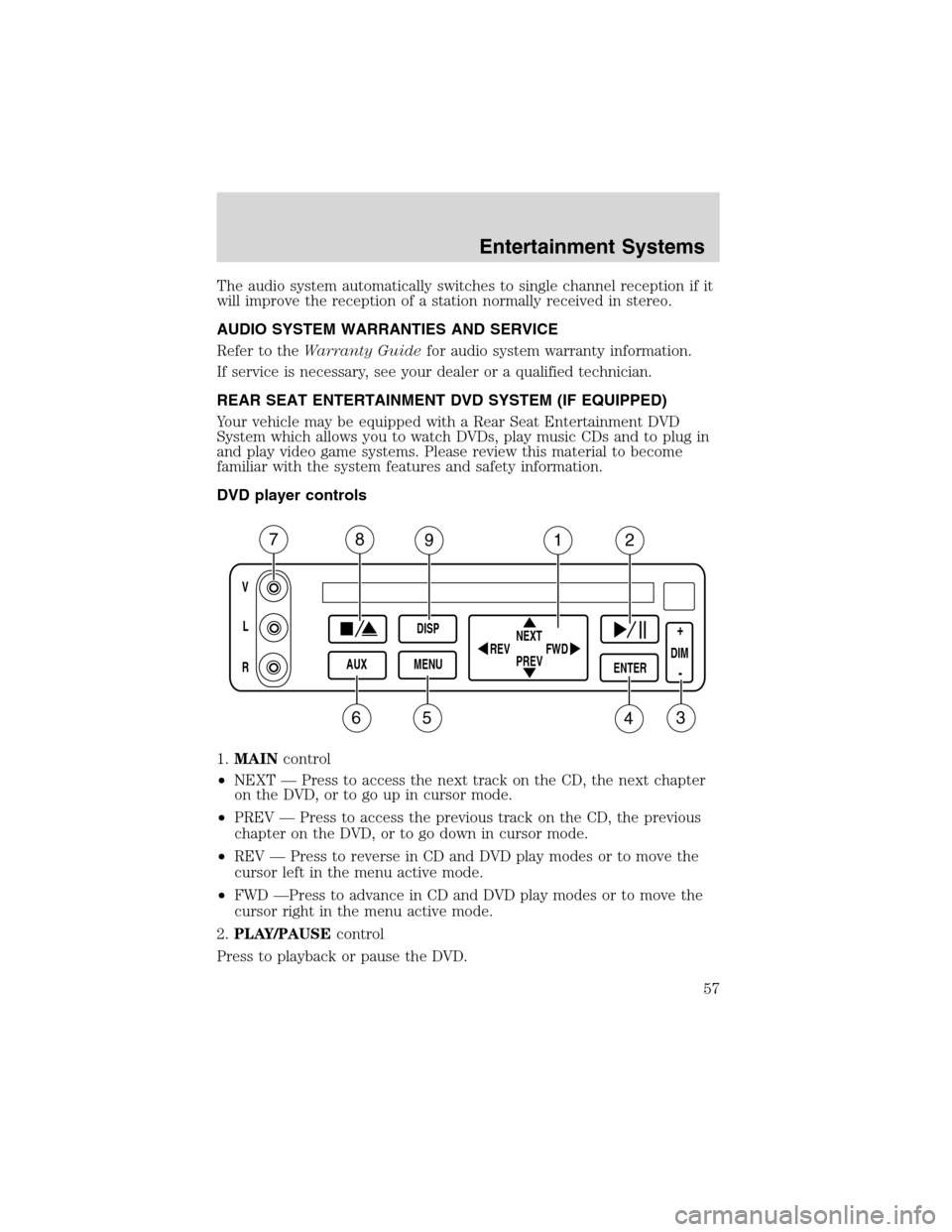
1.MAINcontrol
•NEXT—Press to access the next track on the CD, the next chapter
on the DVD, or to go up in cursor mode.
•PREV—Press to access the previous track on the CD, the previous
chapter on the DVD, or to go down in cursor mode.
•REV—Press to reverse in CD and DVD play modes or to move the
cursor left in the menu active mode.
•FWD—Press to advance in CD and DVD play modes or to move the
cursor right in the menu active mode.
2.PLAY/PAUSEcontrol
Press to playback or pause the DVD.
V
L
R
AUXDISP
MENUNEXT
PREV REV
FWDENTERDIM
+
-
78912
3456
Entertainment Systems
57
Page 59 of 320
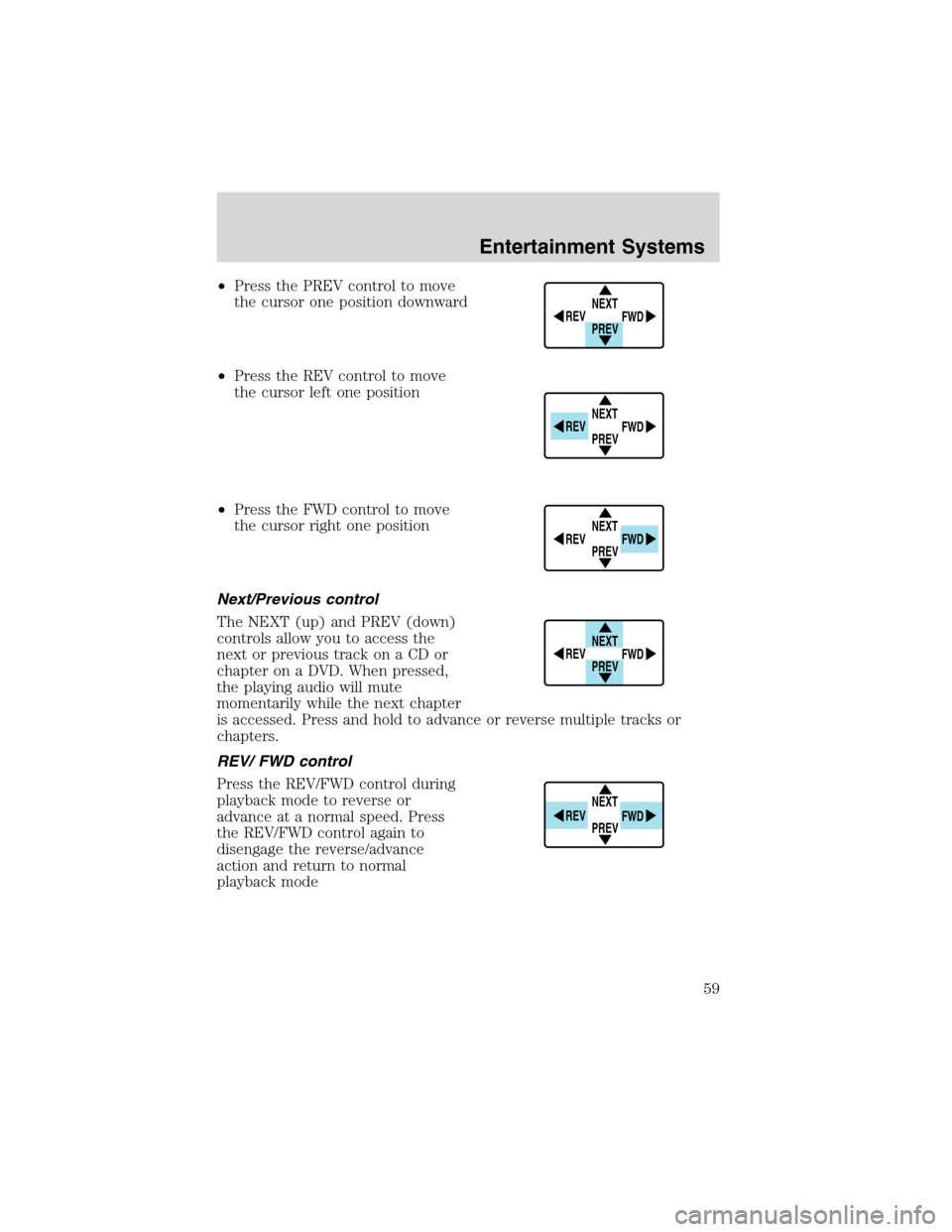
•Press the PREV control to move
the cursor one position downward
•Press the REV control to move
the cursor left one position
•Press the FWD control to move
the cursor right one position
Next/Previous control
The NEXT (up) and PREV (down)
controls allow you to access the
next or previous track on a CD or
chapter on a DVD. When pressed,
the playing audio will mute
momentarily while the next chapter
is accessed. Press and hold to advance or reverse multiple tracks or
chapters.
REV/ FWD control
Press the REV/FWD control during
playback mode to reverse or
advance at a normal speed. Press
the REV/FWD control again to
disengage the reverse/advance
action and return to normal
playback mode
NEXT
PREV REV
FWD
NEXT
PREV REV
FWD
NEXT
PREV REV
FWD
NEXT
PREV REV
FWD
NEXT
PREV REV
FWD
Entertainment Systems
59
Page 62 of 320
In stop mode, press to change to rear seat mode (i.e. AM, FM, CD...)
8.VOLUMEcontrol
Press to increase (+) or decrease (-) volume level.
Battery replacement
Batteries are supplied with the
remote control unit. Since all
batteries have a limited shelf life,
replace them when the unit fails to
control the DVD player. There is a
LED indicator light on the remote
control that will illuminate when any
control is pressed.
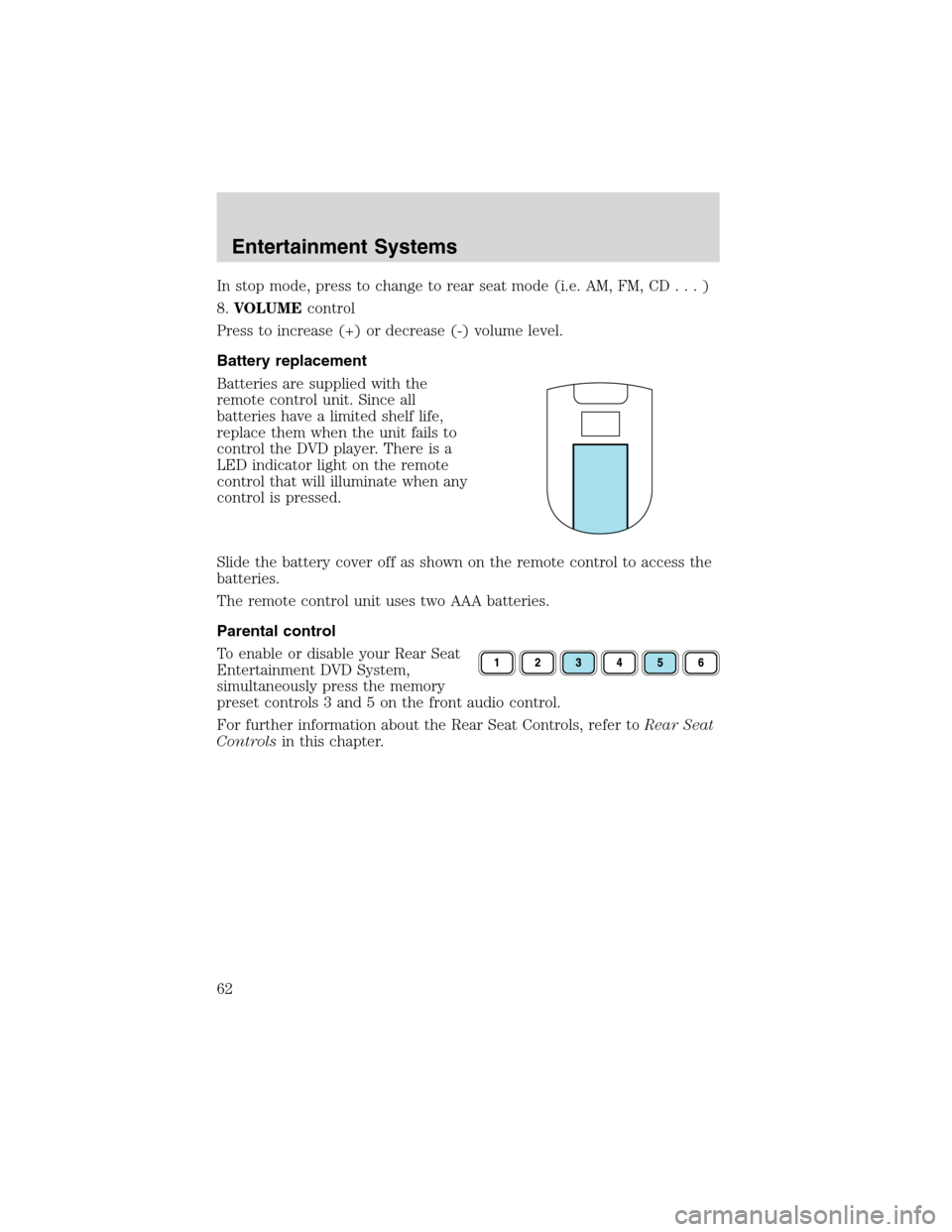
Slide the battery cover off as shown on the remote control to access the
batteries.
The remote control unit uses two AAA batteries.
Parental control
To enable or disable your Rear Seat
Entertainment DVD System,
simultaneously press the memory
preset controls 3 and 5 on the front audio control.
For further information about the Rear Seat Controls, refer toRear Seat
Controlsin this chapter.
Entertainment Systems
62
Page 64 of 320
Rear Seat Entertainment DVD System protection circuits
High temperature sensor circuit
•Excessively high temperatures may cause damage to the DVD player.
•When the temperature of the DVD player becomes too hot, the high
temperature sensor circuit stops machine operation. DVD/CD will
illuminate in the radio display.
General operating tips
•When the engine is not running, use the system sparingly otherwise it
will run the battery down.
•When the ignition is turned to OFF, the Rear Seat Entertainment DVD
System is also turned OFF. When the ignition is turned ON, the
system will begin playback from the last selected media source when
the play control is pressed.
•To disable the DVD player, simultaneously press the 3 and 5 memory
presets on the radio face. To enable the DVD player again, press the 3
and 5 presets simultaneously.
•The DVD player is only capable of reading the bottom side of a disc.
When inserting a single sided disc, the label should be up. For a
multi-sided disc, the desired play side should be down when the disc
is inserted into the player.
•The DVD player is only capable of playback of DVDs and CDs. The
player is not compatible with CDR/RW media.
•DVDs are formatted by regions. This DVD system can only play region
1 DVDs (DVDs manufactured in U.S and Canada).
This unit is designed to play commercially pressed 12 cm (4.75
in) audio compact discs and DVDs only. Due to technical
incompatibility, certain recordable and re-recordable compact
discs may not function correctly when used in Ford DVD/CD
players. Irregular shaped discs, discs with a scratch protection
film attached, and discs with homemade paper (adhesive) labels
should not be inserted into the player. The label may peel and
cause the disc to become jammed. It is recommended that
homemade discs be identified with permanent felt tip marker
rather than adhesive labels. Ball point pens may damage discs.
Please contact your dealer for further information.
Entertainment Systems
64
Page 65 of 320
Inserting a CD/DVD
Inserting a CD/DVD into the DVD player automatically turns the power
ON and playback should begin.
The counter is automatically reset to 0:00:00.
Ensure that the overhead screen is down for viewing.
Removing a CD/DVD
1. Press the STOP/EJECT control to stop playback.
2. Press the STOP/EJECT control again to eject the CD/DVD.
If the CD/DVD is not removed within the allotted time, the system will
pull the CD/DVD back into the system for safety purposes. If the
CD/DVD will not eject from the system, press and hold the EJECT
control for approximately 2 seconds. The disc should eject whether the
vehicle ignition is ON or OFF.
Playing a video game/auxiliary device
1. Connect the video line from your video game device to the YELLOW
auxiliary input jack.
2. Connect the left and right audio lines to the WHITE and RED auxiliary
input jacks respectively.
3. Press the MODE control until DVD/CD AUX (no disc in player) or
DVD/CD play (disc in player) illuminates in the radio display. If a disc is
in the system, playback should begin. To enable the aux inputs, press the
STOP control or press the AUX control on the DVD player.
Entertainment Systems
65