radio FORD EXPEDITION 2003 2.G Owner's Manual
[x] Cancel search | Manufacturer: FORD, Model Year: 2003, Model line: EXPEDITION, Model: FORD EXPEDITION 2003 2.GPages: 320, PDF Size: 3.67 MB
Page 47 of 320
Menu mode
The MENU control allows you to
access many different features
within your audio system. There are
three sets of menus available
depending upon which mode or feature is activated.
While in FM mode, two menus are available.If RDS is turned OFF, you
can access the following:
•SELECT HOURS—Refer toSetting the clock.
•SELECT MINUTES—Refer toSetting the clock.
•RDS OFF—Refer toRadio data system feature.
If RDS is turned ON, you can access the following:
•TRAFFIC ON/OFF-Refer toTraffic announcements.
•FIND type-Refer toProgram type.
•SHOW (NAME, TYPE, NONE)- Refer toRadio data system feature.
•RDS ON—Refer toRadio data system feature.
•SELECT HOURS—Refer toSetting the clock.
•SELECT MINUTES—Refer toSetting the clock.
When in CD mode, you can access: SELECT HOURS, SELECT MINUTES
or COMP ON/OFF.
SELECT HOURS, SELECT MINUTES—Allows you to adjust the hours
and minutes. Refer toSetting the clock.
TRAFFIC ON/OFF—Traffic announcements can be programmed as local
or distant. Refer toTraffic announcements.
RDS ON/OFF—This feature allows your audio system to receive text
information from RDS-equipped FM radio stations. Refer toRadio Data
System feature.
FIND type—Allows you to select your desired FM program type and
search for that selection.
SHOW—Allows you to select from NAME (displays the name of the
radio station), TYPE (displays the RDS program type: rock, jazz, etc.), or
NONE (deactivates the RDS display).
Entertainment Systems
47
Page 48 of 320
Traffic announcements
This feature allows you to hear
traffic announcements. When in this
mode, traffic announcements will
interrupt radio and CD play.
When in FM mode and RDS is
activated, press the MENU until TRAFFIC OFF displays. Press the SEL
control to engage the feature. The display will read TRAFFIC ON.
This feature also allows you to control the volume of traffic
announcements. With the display reading TRAFFIC ON, adjust the
volume using the volume control to the desired level. The volume level
will show at the bottom of the display. Interrupting traffic
announcements will be at the selected volume level.
To disengage the feature, press the MENU control until TRAFFIC ON
displays. Press the SEL control. The display will read TRAFFIC OFF.
RDS traffic seek feature
When in traffic mode, you can use the SEEK feature to seek up or down
the listenable traffic capable frequencies.
With the RDS activated, press MENU until TRAFFIC ON is displayed.
Press and hold the SEEK control until the desired selection is reached.
The feature disengages when the control is released.
RDS traffic scan feature
When in traffic mode, you can use the SCAN feature to scan up the
frequency band for listenable traffic capable frequencies.
With the RDS activated, press the MENU control until TRAFFIC ON is
displayed. Press the SCAN control. SCAN TRAFFIC will display. The
audio system will scan to all traffic capable frequencies. If no valid
stations are found after one pass, the scan function is cancelled and NOT
FOUND displays.
Traffic announcements are not available in most U.S. markets.
Radio data system (RDS) feature
This feature allows your audio
system to receive text information
from RDS-equipped FM radio
stations.
SEL+MENU
SEL
+MENU
Entertainment Systems
48
Page 49 of 320
To activate RDS:
•When in FM mode, press the MENU control until RDS OFF displays.
•Press the SEL control to engage this feature (RDS ON).
RDS features:
Once the RDS feature is on, press the MENU control to scroll through
the following selections:
Traffic announcements
This feature allows you to hear traffic announcements broadcast by
traffic capable RDS stations. For further information on traffic
announcements, refer toTraffic announcementsin this chapter.
Program type
This feature allows you to search for RDS stations selectively by their
program type.
Press the MENU control until FIND
program type is displayed.
Use the SEL control to select the
program type. With the feature on,
use the SEEK or SCAN control to
find the desired program type from the following selections:
•
Classic
•Country
•Info
•Jazz
•Oldies•R&B
•Religious
•Rock
•Soft
•To p 4 0
Show
This feature allows you to select the
type of RDS broadcast information
the radio will regularly show in the
display.
SEL+MENU
SEL
+MENU
Entertainment Systems
49
Page 50 of 320
With RDS activated, press the
MENU control until SHOW is
displayed.
Use the SEL control to select TYPE
(displays the RDS program type:
rock, jazz, etc), NAME (displays the name of the radio station) or NONE
(deactivates the RDS display).
Digital signal processing (Audiophile only)
The digital signal processing (DSP) feature allows you to change the
signal mode to suit your listening tastes.
Press the DSP control to access one
of the following modes:
•DSP OFF
•SIGNAL MODE
•OCCUPANCY MODE
Use the SEL control to select the
desired signal mode (the selected
mode will appear in the display). The following signal modes can be
selected:
•DSP OFF—disengages the feature
•NEWS—”voice-only”type of sound with a limited audio band
•JAZZ CLUB—jazz club with clearly reflected sounds
•HALL—rectangular concert hall capacity of about 2 000
•CHURCH—church with a high vault
•STADIUM—outdoor stadium with a capacity of about 30 000
Press the DSP control again to access the occupancy modes. Use the
SEL control to optimize the sound based upon the occupants in the
vehicle. The following occupancy modes can be selected:
•ALL SEATS - Gives the best sound quality possible to all occupants.
•DRIVER SEAT - Optimizes sound quality for the driver.
•REAR SEATS - Optimizes sound quality for the rear seat passengers.
SEL+MENU
DSP
SEL+
SEL
Entertainment Systems
50
Page 51 of 320
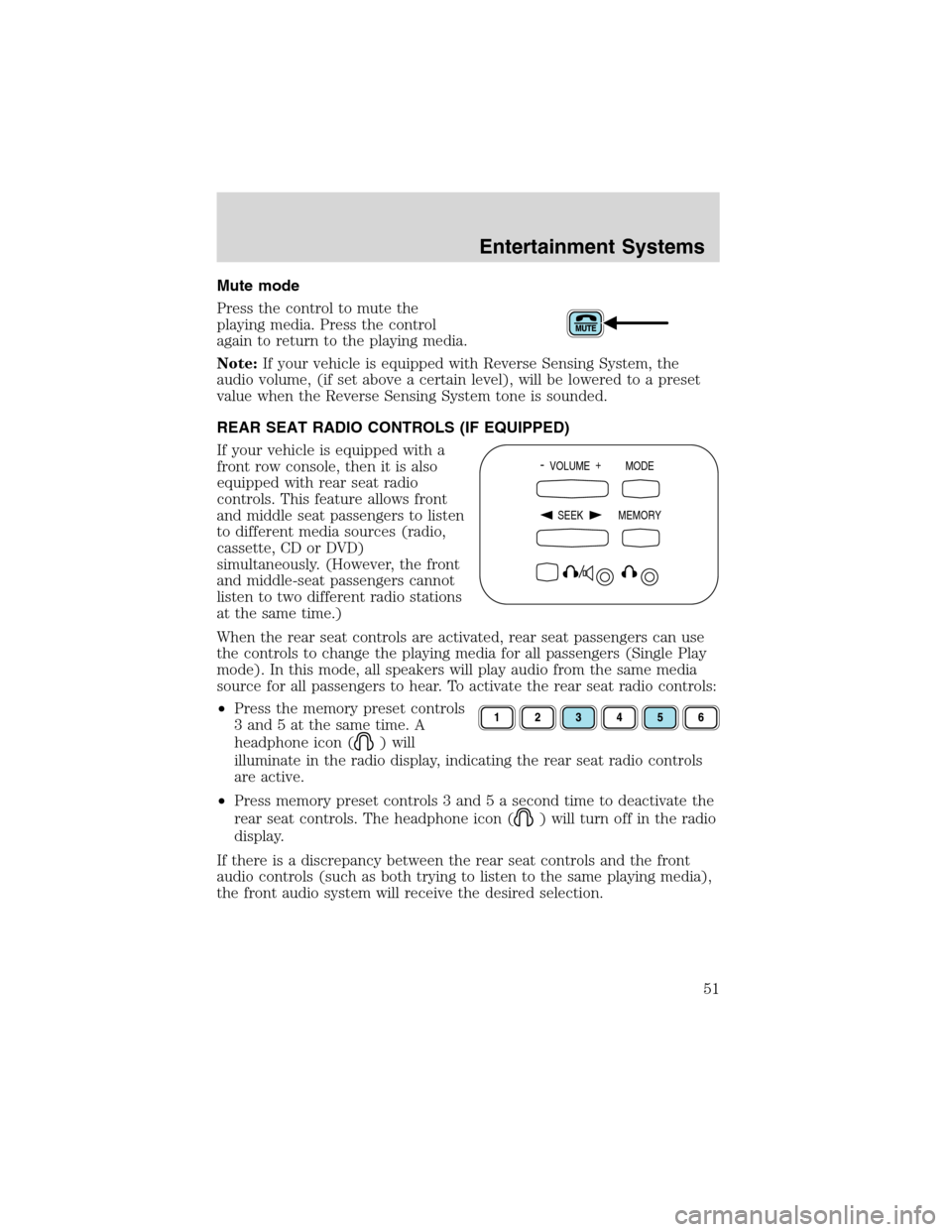
Mute mode
Press the control to mute the
playing media. Press the control
again to return to the playing media.
Note:If your vehicle is equipped with Reverse Sensing System, the
audio volume, (if set above a certain level), will be lowered to a preset
value when the Reverse Sensing System tone is sounded.
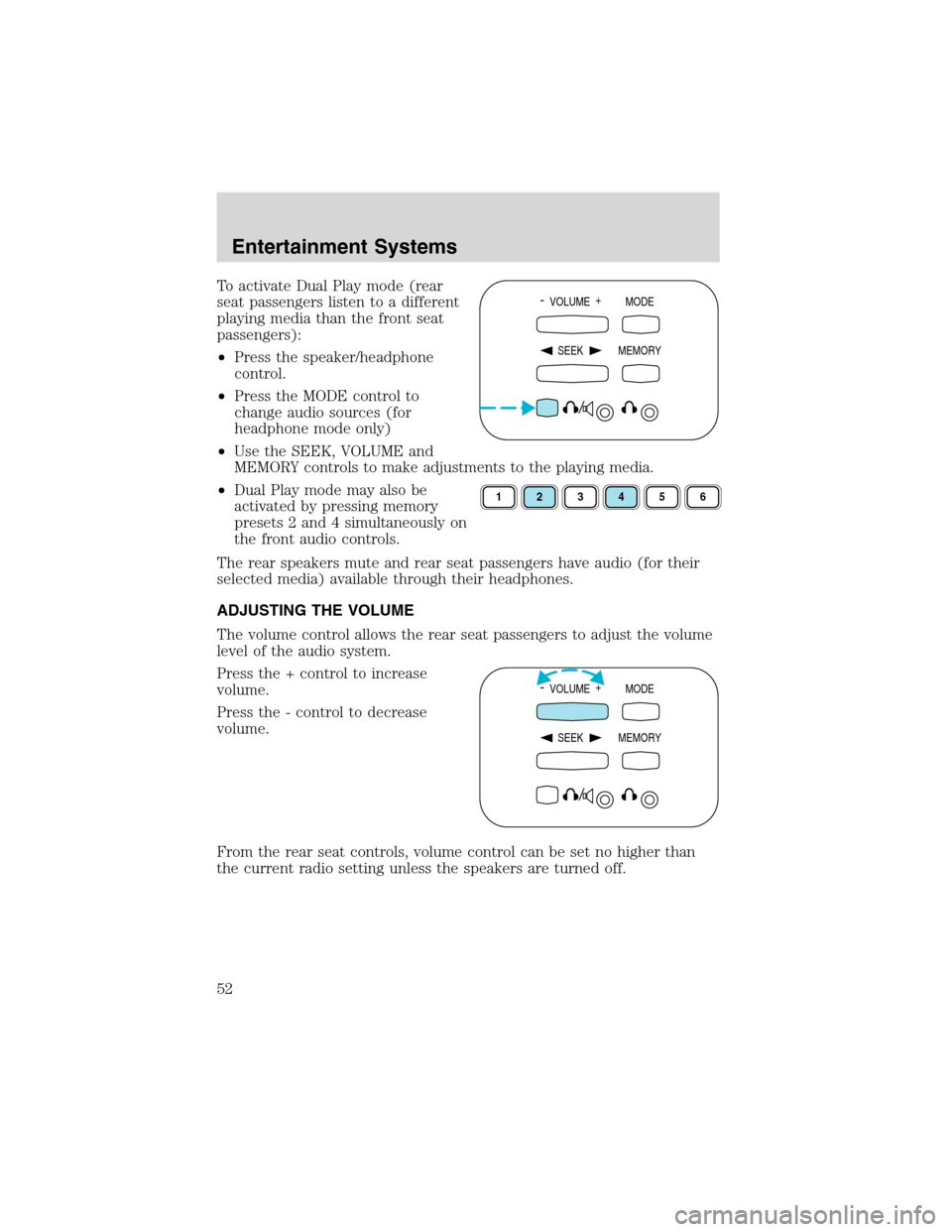
REAR SEAT RADIO CONTROLS (IF EQUIPPED)
If your vehicle is equipped with a
front row console, then it is also
equipped with rear seat radio
controls. This feature allows front
and middle seat passengers to listen
to different media sources (radio,
cassette, CD or DVD)
simultaneously. (However, the front
and middle-seat passengers cannot
listen to two different radio stations
at the same time.)
When the rear seat controls are activated, rear seat passengers can use
the controls to change the playing media for all passengers (Single Play
mode). In this mode, all speakers will play audio from the same media
source for all passengers to hear. To activate the rear seat radio controls:
•Press the memory preset controls
3 and 5 at the same time. A
headphone icon (
) will
illuminate in the radio display, indicating the rear seat radio controls
are active.
•Press memory preset controls 3 and 5 a second time to deactivate the
rear seat controls. The headphone icon (
) will turn off in the radio
display.
If there is a discrepancy between the rear seat controls and the front
audio controls (such as both trying to listen to the same playing media),
the front audio system will receive the desired selection.
- VOLUME +
MODE
SEEK MEMORY
Entertainment Systems
51
Page 52 of 320
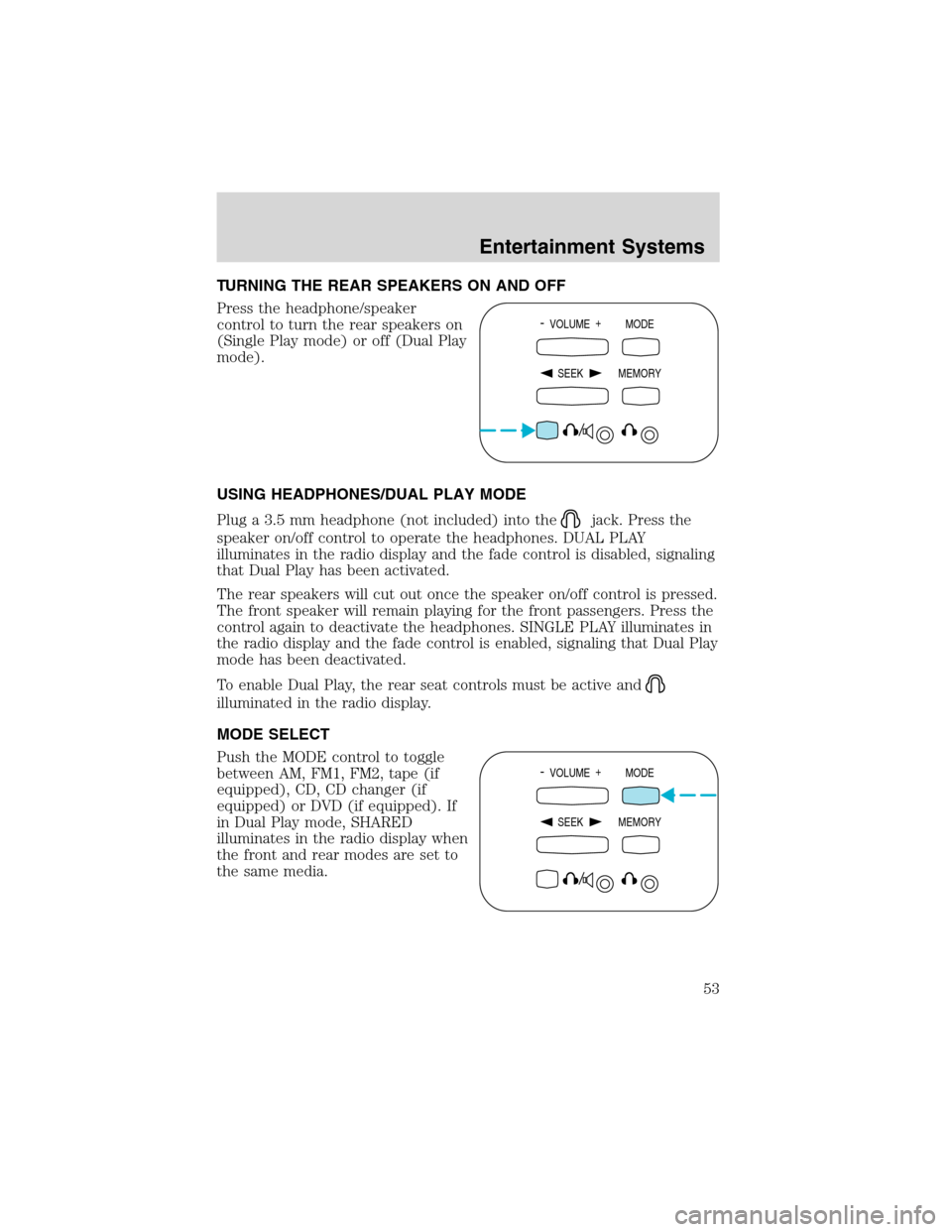
To activate Dual Play mode (rear
seat passengers listen to a different
playing media than the front seat
passengers):
•Press the speaker/headphone
control.
•Press the MODE control to
change audio sources (for
headphone mode only)
•Use the SEEK, VOLUME and
MEMORY controls to make adjustments to the playing media.
•Dual Play mode may also be
activated by pressing memory
presets 2 and 4 simultaneously on
the front audio controls.
The rear speakers mute and rear seat passengers have audio (for their
selected media) available through their headphones.
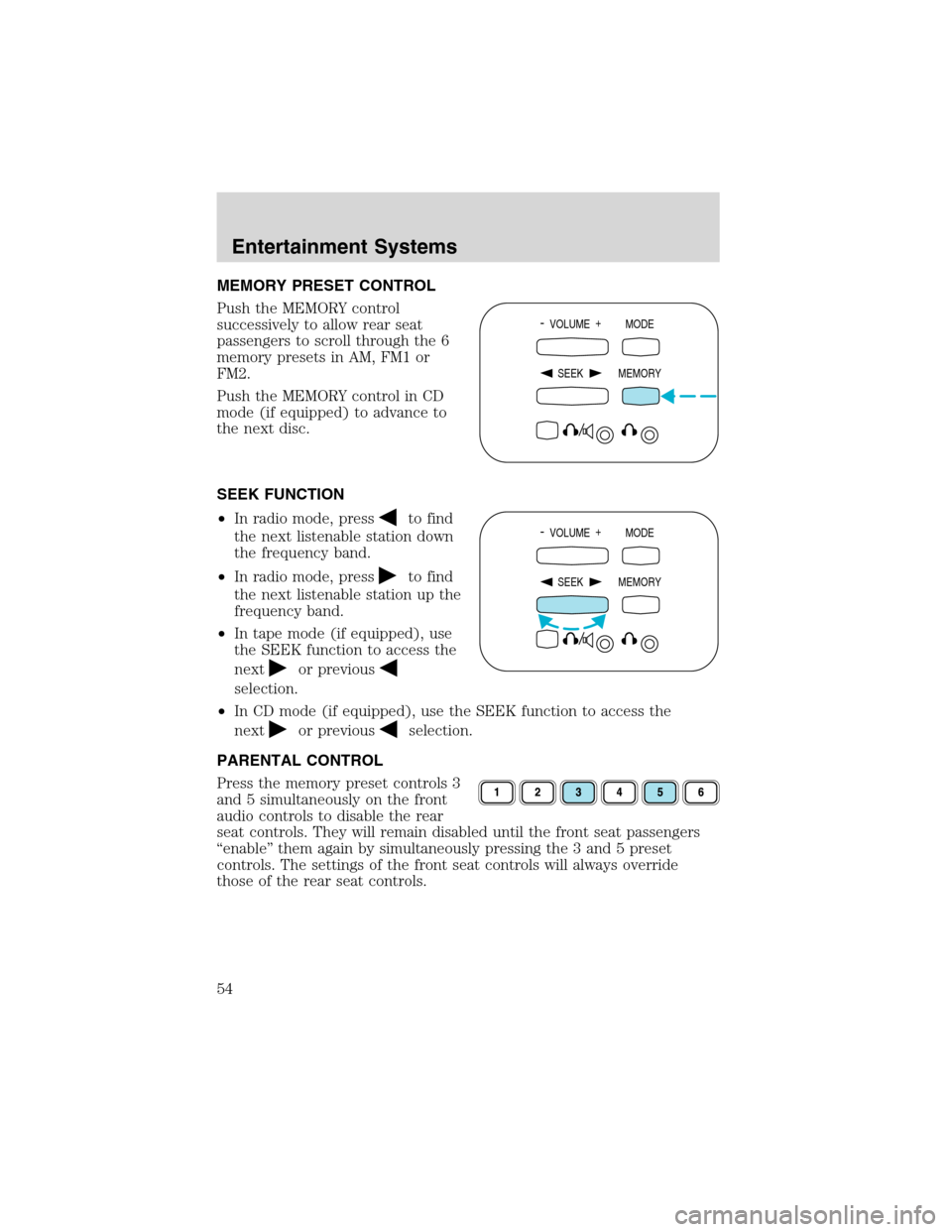
ADJUSTING THE VOLUME
The volume control allows the rear seat passengers to adjust the volume
level of the audio system.
Press the + control to increase
volume.
Press the - control to decrease
volume.
From the rear seat controls, volume control can be set no higher than
the current radio setting unless the speakers are turned off.- VOLUME +
MODE
SEEK MEMORY
123456
- VOLUME +
MODE
SEEK MEMORY
Entertainment Systems
52
Page 53 of 320
TURNING THE REAR SPEAKERS ON AND OFF
Press the headphone/speaker
control to turn the rear speakers on
(Single Play mode) or off (Dual Play
mode).
USING HEADPHONES/DUAL PLAY MODE
Plug a 3.5 mm headphone (not included) into the
jack. Press the
speaker on/off control to operate the headphones. DUAL PLAY
illuminates in the radio display and the fade control is disabled, signaling
that Dual Play has been activated.
The rear speakers will cut out once the speaker on/off control is pressed.
The front speaker will remain playing for the front passengers. Press the
control again to deactivate the headphones. SINGLE PLAY illuminates in
the radio display and the fade control is enabled, signaling that Dual Play
mode has been deactivated.
To enable Dual Play, the rear seat controls must be active and
illuminated in the radio display.
MODE SELECT
Push the MODE control to toggle
between AM, FM1, FM2, tape (if
equipped), CD, CD changer (if
equipped) or DVD (if equipped). If
in Dual Play mode, SHARED
illuminates in the radio display when
the front and rear modes are set to
the same media.
- VOLUME +
MODE
SEEK MEMORY
- VOLUME +
MODE
SEEK MEMORY
Entertainment Systems
53
Page 54 of 320
MEMORY PRESET CONTROL
Push the MEMORY control
successively to allow rear seat
passengers to scroll through the 6
memory presets in AM, FM1 or
FM2.
Push the MEMORY control in CD
mode (if equipped) to advance to
the next disc.
SEEK FUNCTION
•In radio mode, press
to find
the next listenable station down
the frequency band.
•In radio mode, press
to find
the next listenable station up the
frequency band.
•In tape mode (if equipped), use
the SEEK function to access the
next
or previous
selection.
•In CD mode (if equipped), use the SEEK function to access the
next
or previousselection.
PARENTAL CONTROL
Press the memory preset controls 3
and 5 simultaneously on the front
audio controls to disable the rear
seat controls. They will remain disabled until the front seat passengers
“enable”them again by simultaneously pressing the 3 and 5 preset
controls. The settings of the front seat controls will always override
those of the rear seat controls.
- VOLUME +
MODE
SEEK MEMORY
- VOLUME +
MODE
SEEK MEMORY
Entertainment Systems
54
Page 56 of 320
CLEANING CASSETTE PLAYER (IF EQUIPPED)
Clean the tape player head with a cassette cleaning cartridge after 10 to
12 hours of play in order to maintain the best sound and operation.
CASSETTE AND CASSETTE PLAYER CARE
•Use only cassettes that are 90 minutes long or less.
•Do not expose tapes to direct sunlight, high humidity, extreme heat or
extreme cold. Allow tapes that may have been exposed to extreme
temperatures to reach a moderate temperature before playing.
•Tighten very loose tapes by inserting a finger or pencil into the hole
and turning the hub.
•Remove loose labels before inserting tapes.
•Do not leave tapes in the cassette player for a long time when not
being played.
RADIO FREQUENCY INFORMATION
The Federal Communications Commission (FCC) and the Canadian Radio
and Telecommunications Commission(CRTC) establish the frequencies
AM and FM stations may use for their broadcasts. Allowable frequencies
are:
AM 530, 540–1600, 1610 kHz
FM 87.7, 87.9–107.7, 107.9 MHz
Not all frequencies are used in a given area.
RADIO RECEPTION FACTORS
Three factors can affect radio reception:
•Distance/strength.The further an FM signal travels, the weaker it is.
The listenable range of the average FM station is approximately 40 km
(24 miles). This range can be affected by“signal modulation.”Signal
modulation is a process radio stations use to increase their
strength/volume relative to other stations.
•Terrain.Hills, mountains and tall buildings between your vehicle’s
antenna and the radio station signal can cause FM reception problems.
Static can be caused on AM stations by power lines, electric fences,
traffic lights and thunderstorms. Moving away from an interfering
structure (out of its“shadow”) returns your reception to normal.
•Station overload.Weak signals are sometimes captured by stronger
signals when you pass a broadcast tower. A stronger signal may
temporarily overtake a weaker signal and play while the weak station
frequency is displayed.
Entertainment Systems
56
Page 64 of 320
Rear Seat Entertainment DVD System protection circuits
High temperature sensor circuit
•Excessively high temperatures may cause damage to the DVD player.
•When the temperature of the DVD player becomes too hot, the high
temperature sensor circuit stops machine operation. DVD/CD will
illuminate in the radio display.
General operating tips
•When the engine is not running, use the system sparingly otherwise it
will run the battery down.
•When the ignition is turned to OFF, the Rear Seat Entertainment DVD
System is also turned OFF. When the ignition is turned ON, the
system will begin playback from the last selected media source when
the play control is pressed.
•To disable the DVD player, simultaneously press the 3 and 5 memory
presets on the radio face. To enable the DVD player again, press the 3
and 5 presets simultaneously.
•The DVD player is only capable of reading the bottom side of a disc.
When inserting a single sided disc, the label should be up. For a
multi-sided disc, the desired play side should be down when the disc
is inserted into the player.
•The DVD player is only capable of playback of DVDs and CDs. The
player is not compatible with CDR/RW media.
•DVDs are formatted by regions. This DVD system can only play region
1 DVDs (DVDs manufactured in U.S and Canada).
This unit is designed to play commercially pressed 12 cm (4.75
in) audio compact discs and DVDs only. Due to technical
incompatibility, certain recordable and re-recordable compact
discs may not function correctly when used in Ford DVD/CD
players. Irregular shaped discs, discs with a scratch protection
film attached, and discs with homemade paper (adhesive) labels
should not be inserted into the player. The label may peel and
cause the disc to become jammed. It is recommended that
homemade discs be identified with permanent felt tip marker
rather than adhesive labels. Ball point pens may damage discs.
Please contact your dealer for further information.
Entertainment Systems
64