ECO mode FORD EXPEDITION 2016 3.G User Guide
[x] Cancel search | Manufacturer: FORD, Model Year: 2016, Model line: EXPEDITION, Model: FORD EXPEDITION 2016 3.GPages: 421, PDF Size: 6.3 MB
Page 93 of 421
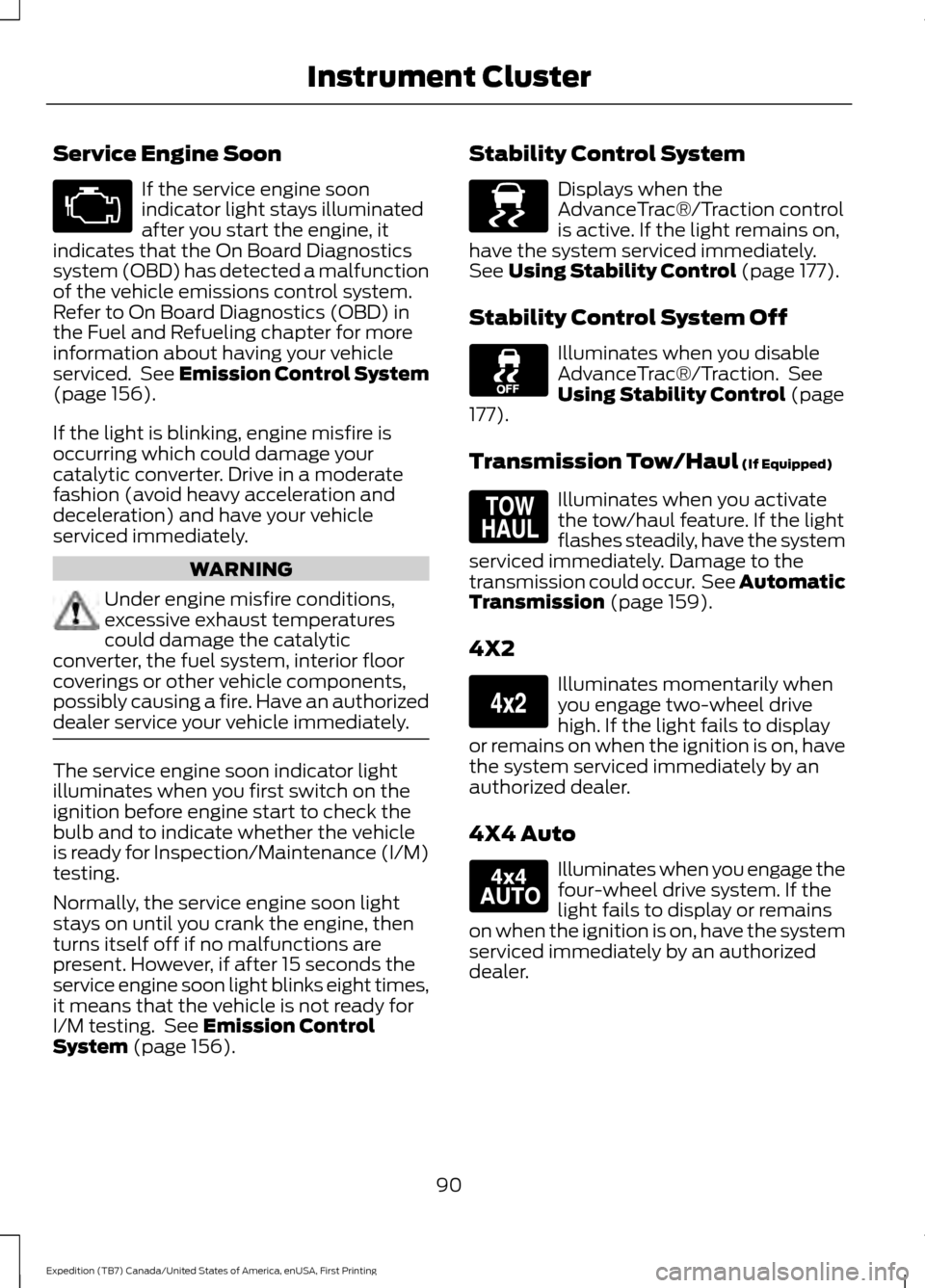
Service Engine Soon
If the service engine soon
indicator light stays illuminated
after you start the engine, it
indicates that the On Board Diagnostics
system (OBD) has detected a malfunction
of the vehicle emissions control system.
Refer to On Board Diagnostics (OBD) in
the Fuel and Refueling chapter for more
information about having your vehicle
serviced. See Emission Control System
(page 156).
If the light is blinking, engine misfire is
occurring which could damage your
catalytic converter. Drive in a moderate
fashion (avoid heavy acceleration and
deceleration) and have your vehicle
serviced immediately. WARNING
Under engine misfire conditions,
excessive exhaust temperatures
could damage the catalytic
converter, the fuel system, interior floor
coverings or other vehicle components,
possibly causing a fire. Have an authorized
dealer service your vehicle immediately. The service engine soon indicator light
illuminates when you first switch on the
ignition before engine start to check the
bulb and to indicate whether the vehicle
is ready for Inspection/Maintenance (I/M)
testing.
Normally, the service engine soon light
stays on until you crank the engine, then
turns itself off if no malfunctions are
present. However, if after 15 seconds the
service engine soon light blinks eight times,
it means that the vehicle is not ready for
I/M testing. See
Emission Control
System (page 156). Stability Control System Displays when the
AdvanceTrac®/Traction control
is active. If the light remains on,
have the system serviced immediately.
See
Using Stability Control (page 177).
Stability Control System Off Illuminates when you disable
AdvanceTrac®/Traction. See
Using Stability Control
(page
177).
Transmission Tow/Haul
(If Equipped) Illuminates when you activate
the tow/haul feature. If the light
flashes steadily, have the system
serviced immediately. Damage to the
transmission could occur. See
Automatic
Transmission (page 159).
4X2 Illuminates momentarily when
you engage two-wheel drive
high. If the light fails to display
or remains on when the ignition is on, have
the system serviced immediately by an
authorized dealer.
4X4 Auto Illuminates when you engage the
four-wheel drive system. If the
light fails to display or remains
on when the ignition is on, have the system
serviced immediately by an authorized
dealer.
90
Expedition (TB7) Canada/United States of America, enUSA, First Printing Instrument Cluster E138639 E161509 E163173 E166922
Page 95 of 421
GENERAL INFORMATION
WARNING
Driving while distracted can result in
loss of vehicle control, crash and
injury. We strongly recommend that
you use extreme caution when using any
device that may take your focus off the
road. Your primary responsibility is the safe
operation of your vehicle. We recommend
against the use of any handheld device
while driving and encourage the use of
voice-operated systems when possible.
Make sure you are aware of all applicable
local laws that may affect the use of
electronic devices while driving. You can control various systems on your
vehicle using the information display
controls on the steering wheel.
Corresponding information shows in the
information display.
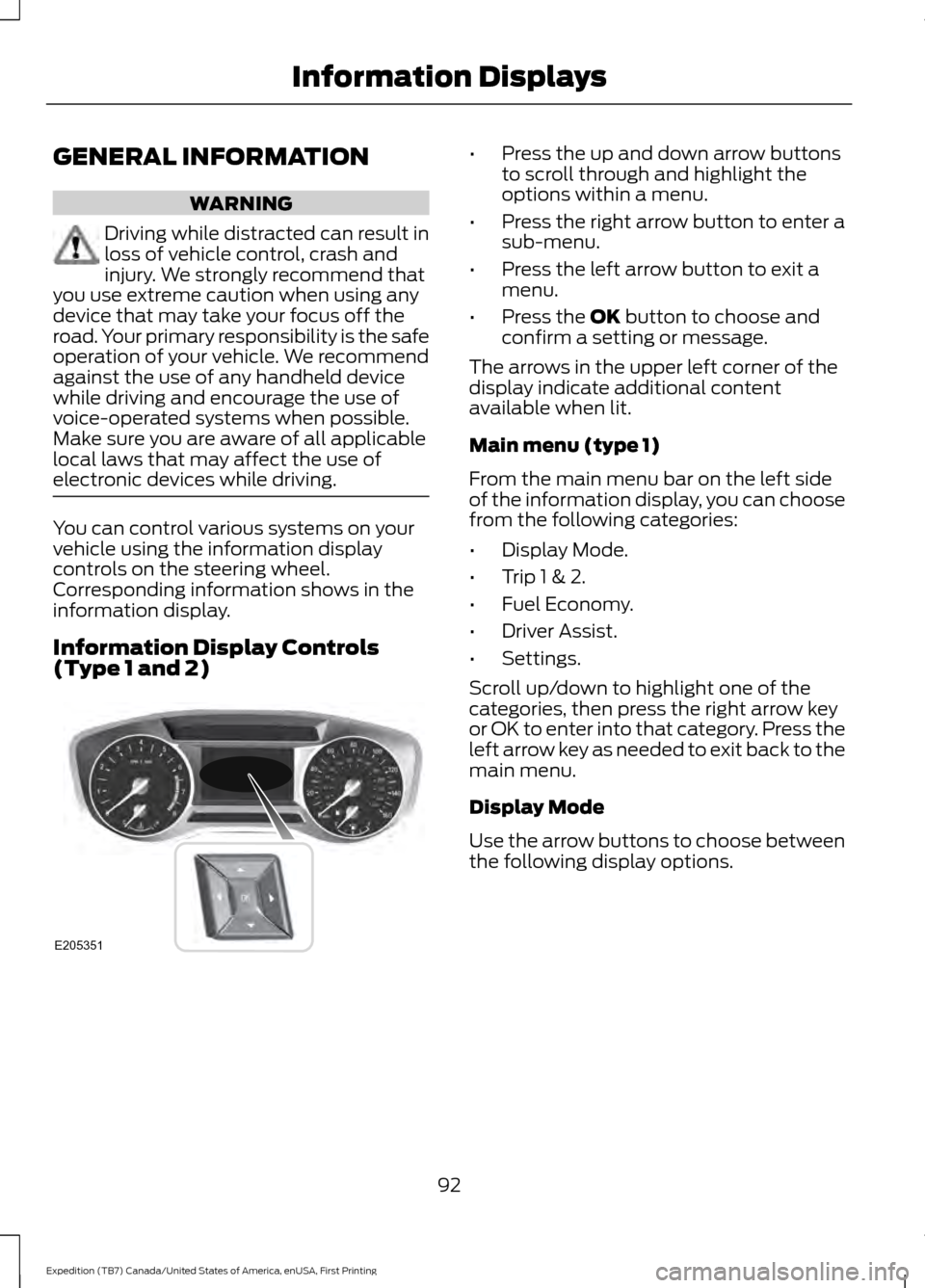
Information Display Controls
(Type 1 and 2) •
Press the up and down arrow buttons
to scroll through and highlight the
options within a menu.
• Press the right arrow button to enter a
sub-menu.
• Press the left arrow button to exit a
menu.
• Press the OK button to choose and
confirm a setting or message.
The arrows in the upper left corner of the
display indicate additional content
available when lit.
Main menu (type 1)
From the main menu bar on the left side
of the information display, you can choose
from the following categories:
• Display Mode.
• Trip 1 & 2.
• Fuel Economy.
• Driver Assist.
• Settings.
Scroll up/down to highlight one of the
categories, then press the right arrow key
or OK to enter into that category. Press the
left arrow key as needed to exit back to the
main menu.
Display Mode
Use the arrow buttons to choose between
the following display options.
92
Expedition (TB7) Canada/United States of America, enUSA, First Printing Information DisplaysE205351
Page 96 of 421
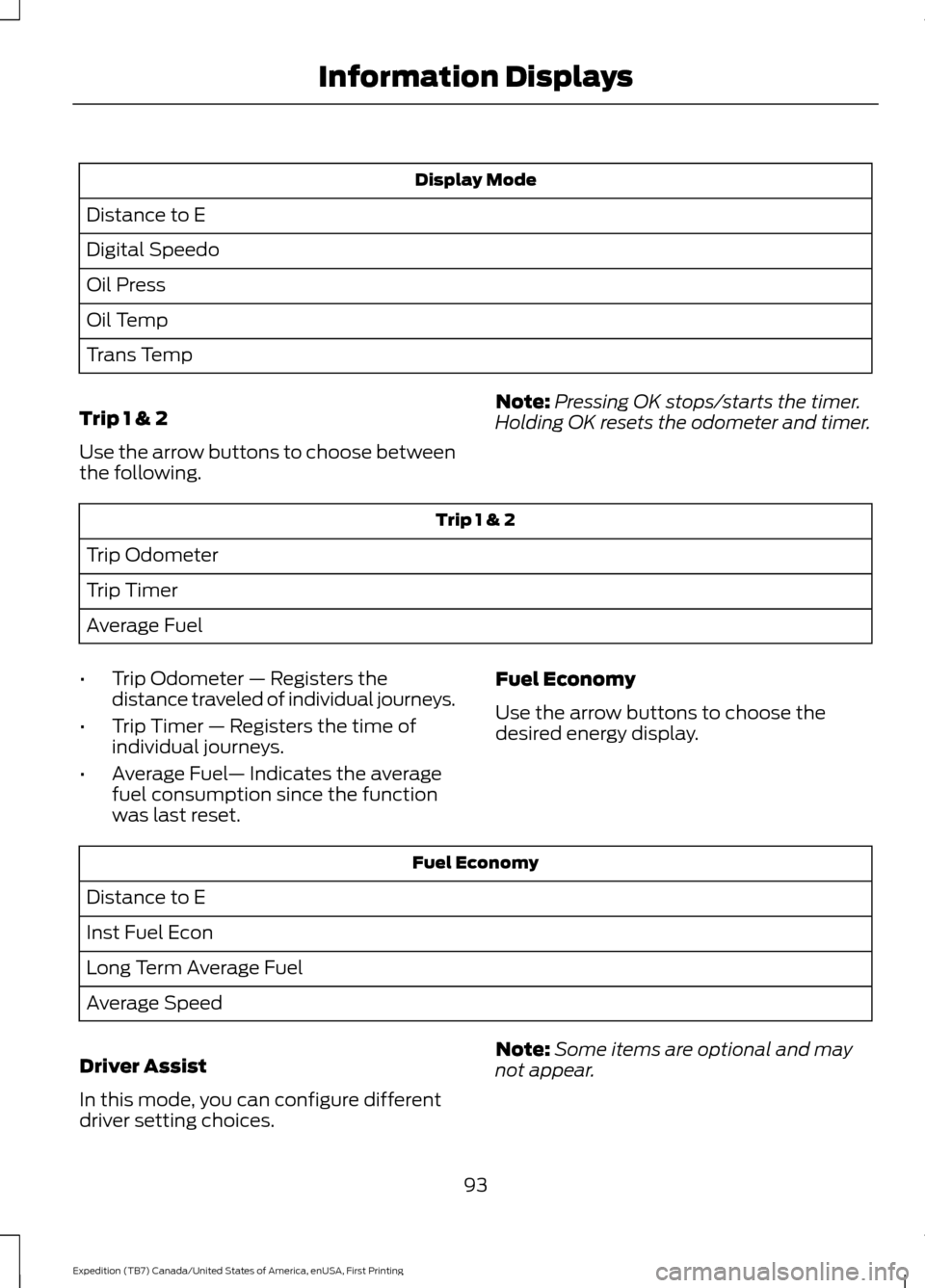
Display Mode
Distance to E
Digital Speedo
Oil Press
Oil Temp
Trans Temp
Trip 1 & 2
Use the arrow buttons to choose between
the following. Note:
Pressing OK stops/starts the timer.
Holding OK resets the odometer and timer. Trip 1 & 2
Trip Odometer
Trip Timer
Average Fuel
• Trip Odometer — Registers the
distance traveled of individual journeys.
• Trip Timer — Registers the time of
individual journeys.
• Average Fuel — Indicates the average
fuel consumption since the function
was last reset. Fuel Economy
Use the arrow buttons to choose the
desired energy display. Fuel Economy
Distance to E
Inst Fuel Econ
Long Term Average Fuel
Average Speed
Driver Assist
In this mode, you can configure different
driver setting choices. Note:
Some items are optional and may
not appear.
93
Expedition (TB7) Canada/United States of America, enUSA, First Printing Information Displays
Page 99 of 421
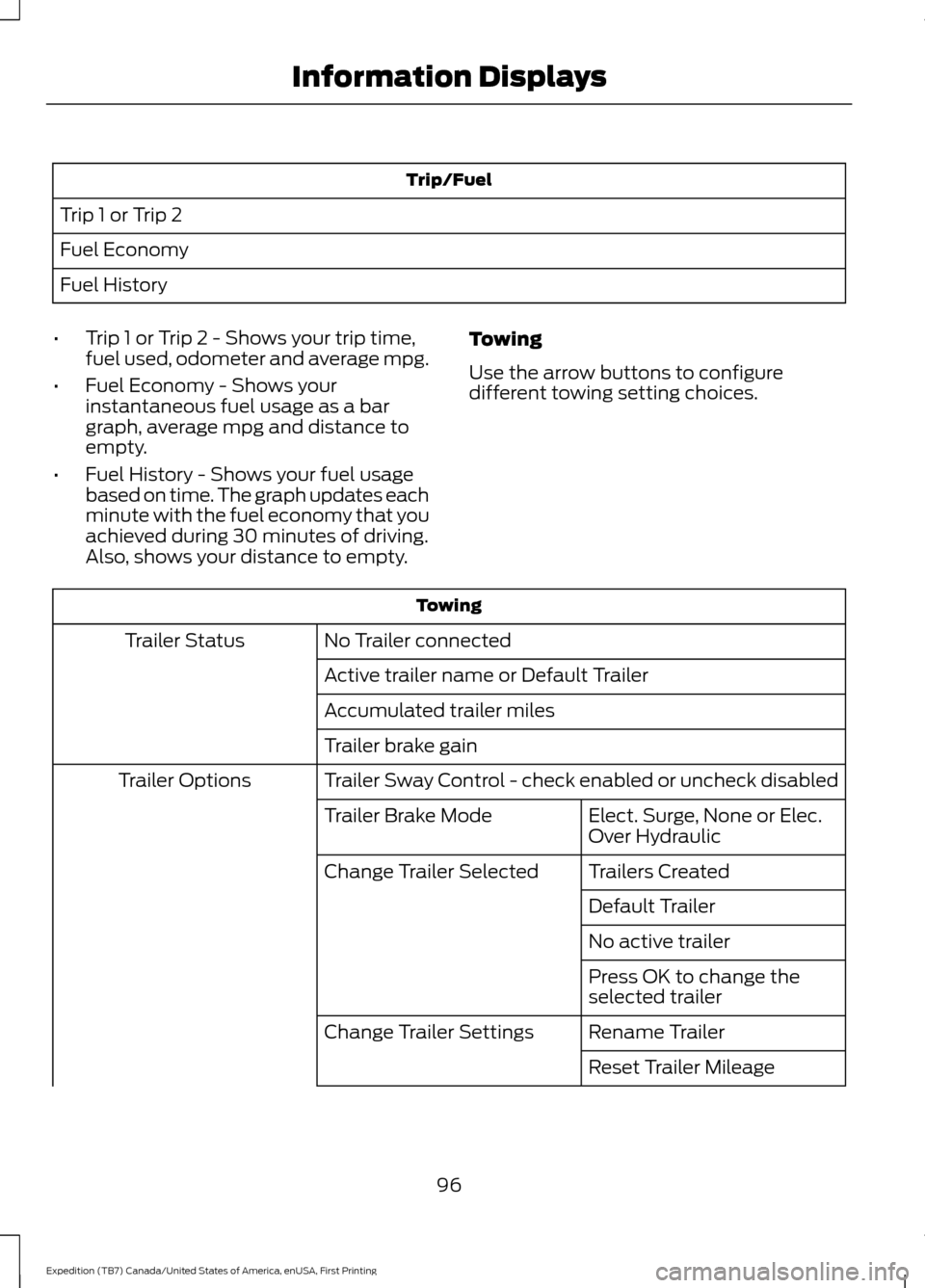
Trip/Fuel
Trip 1 or Trip 2
Fuel Economy
Fuel History
• Trip 1 or Trip 2 - Shows your trip time,
fuel used, odometer and average mpg.
• Fuel Economy - Shows your
instantaneous fuel usage as a bar
graph, average mpg and distance to
empty.
• Fuel History - Shows your fuel usage
based on time. The graph updates each
minute with the fuel economy that you
achieved during 30 minutes of driving.
Also, shows your distance to empty. Towing
Use the arrow buttons to configure
different towing setting choices. Towing
No Trailer connected
Trailer Status
Active trailer name or Default Trailer
Accumulated trailer miles
Trailer brake gain
Trailer Sway Control - check enabled or uncheck disabled
Trailer Options
Elect. Surge, None or Elec.
Over Hydraulic
Trailer Brake Mode
Trailers Created
Change Trailer Selected
Default Trailer
No active trailer
Press OK to change the
selected trailer
Rename Trailer
Change Trailer Settings
Reset Trailer Mileage
96
Expedition (TB7) Canada/United States of America, enUSA, First Printing Information Displays
Page 103 of 421
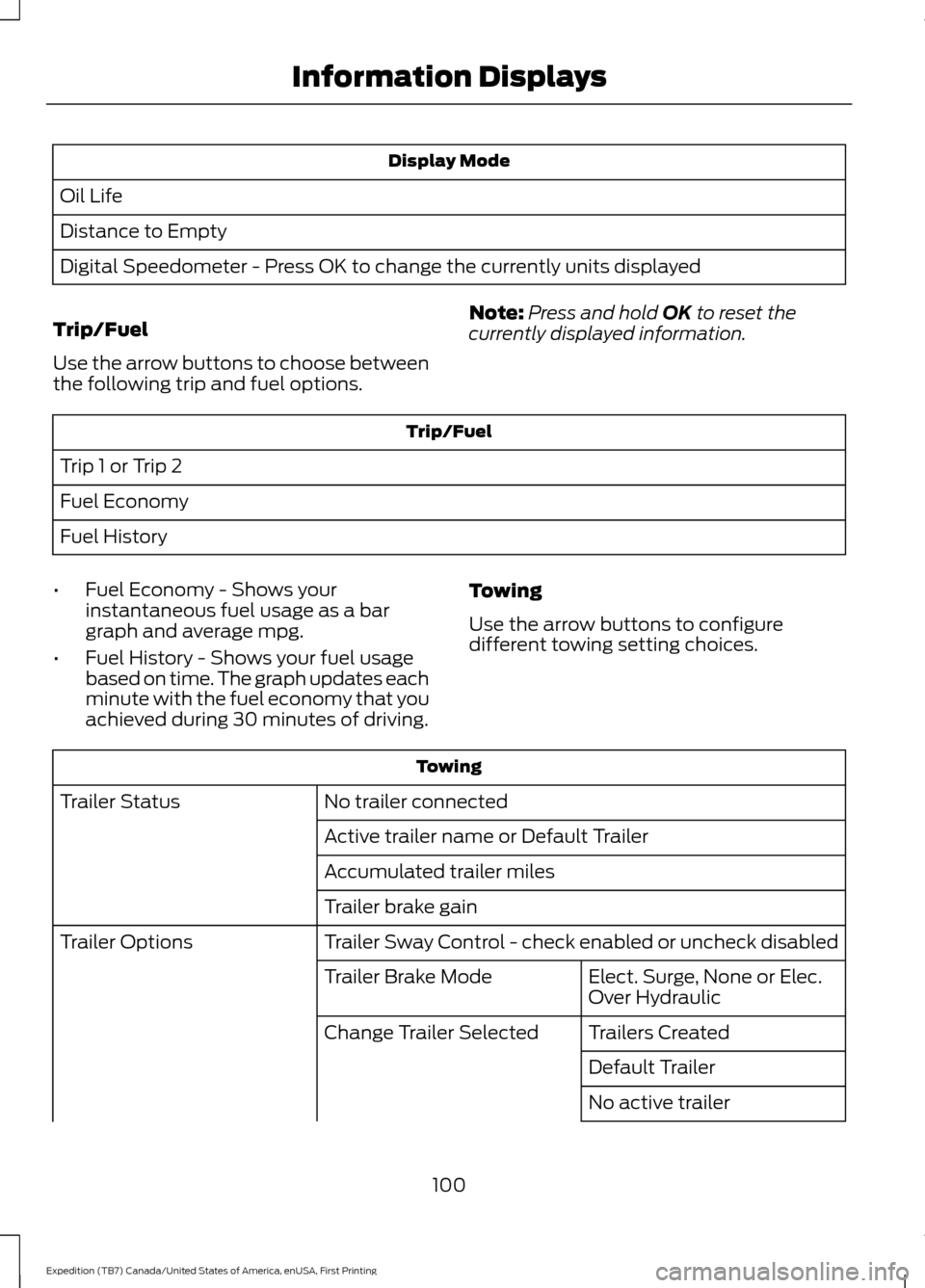
Display Mode
Oil Life
Distance to Empty
Digital Speedometer - Press OK to change the currently units displayed
Trip/Fuel
Use the arrow buttons to choose between
the following trip and fuel options. Note:
Press and hold OK to reset the
currently displayed information. Trip/Fuel
Trip 1 or Trip 2
Fuel Economy
Fuel History
• Fuel Economy - Shows your
instantaneous fuel usage as a bar
graph and average mpg.
• Fuel History - Shows your fuel usage
based on time. The graph updates each
minute with the fuel economy that you
achieved during 30 minutes of driving. Towing
Use the arrow buttons to configure
different towing setting choices. Towing
No trailer connected
Trailer Status
Active trailer name or Default Trailer
Accumulated trailer miles
Trailer brake gain
Trailer Sway Control - check enabled or uncheck disabled
Trailer Options
Elect. Surge, None or Elec.
Over Hydraulic
Trailer Brake Mode
Trailers Created
Change Trailer Selected
Default Trailer
No active trailer
100
Expedition (TB7) Canada/United States of America, enUSA, First Printing Information Displays
Page 111 of 421
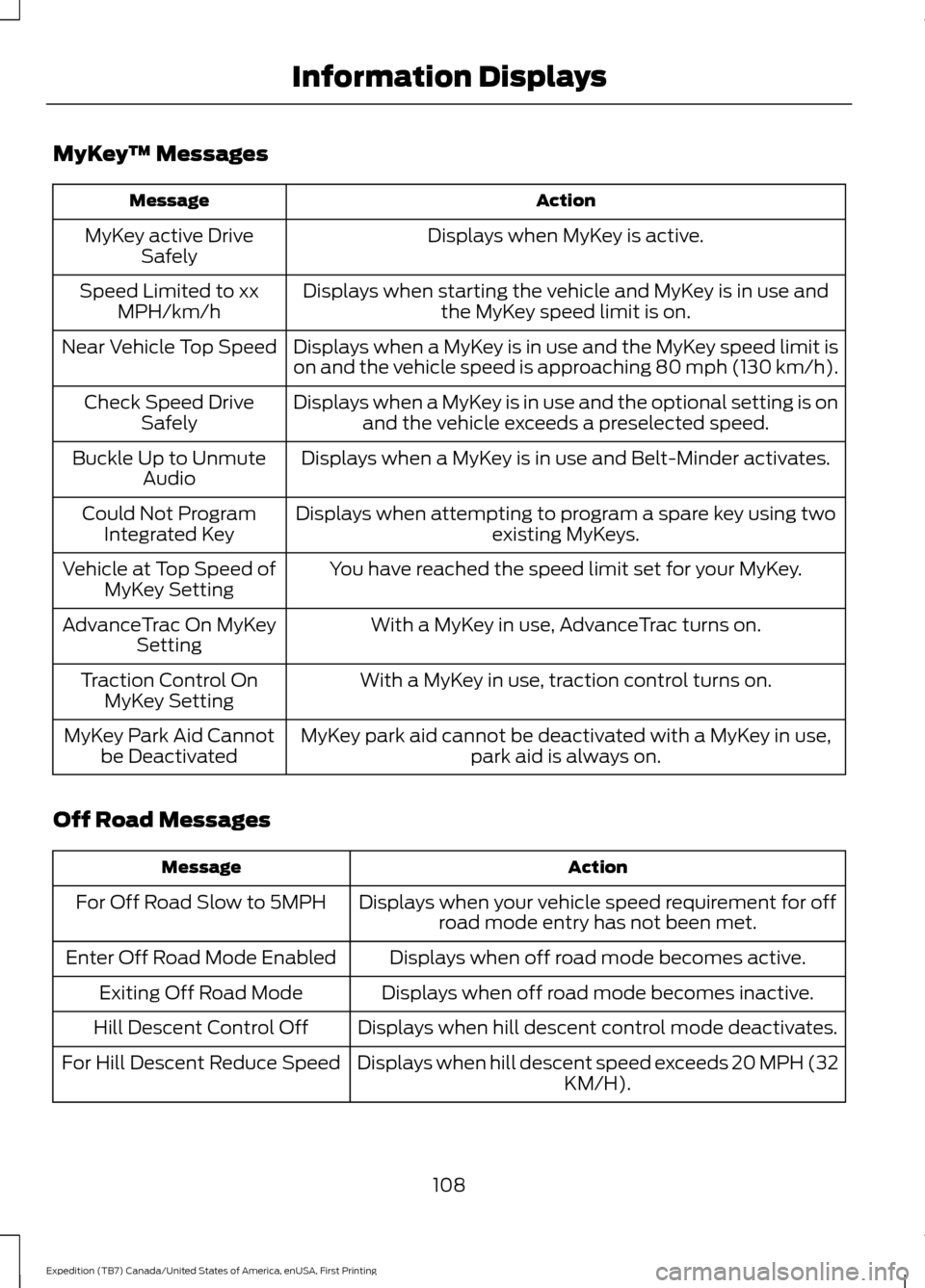
MyKey
™ Messages Action
Message
Displays when MyKey is active.
MyKey active Drive
Safely
Displays when starting the vehicle and MyKey is in use andthe MyKey speed limit is on.
Speed Limited to xx
MPH/km/h
Displays when a MyKey is in use and the MyKey speed limit is
on and the vehicle speed is approaching 80 mph (130 km/h).
Near Vehicle Top Speed
Displays when a MyKey is in use and the optional setting is onand the vehicle exceeds a preselected speed.
Check Speed Drive
Safely
Displays when a MyKey is in use and Belt-Minder activates.
Buckle Up to Unmute
Audio
Displays when attempting to program a spare key using two existing MyKeys.
Could Not Program
Integrated Key
You have reached the speed limit set for your MyKey.
Vehicle at Top Speed of
MyKey Setting
With a MyKey in use, AdvanceTrac turns on.
AdvanceTrac On MyKey
Setting
With a MyKey in use, traction control turns on.
Traction Control On
MyKey Setting
MyKey park aid cannot be deactivated with a MyKey in use,park aid is always on.
MyKey Park Aid Cannot
be Deactivated
Off Road Messages Action
Message
Displays when your vehicle speed requirement for offroad mode entry has not been met.
For Off Road Slow to 5MPH
Displays when off road mode becomes active.
Enter Off Road Mode Enabled
Displays when off road mode becomes inactive.
Exiting Off Road Mode
Displays when hill descent control mode deactivates.
Hill Descent Control Off
Displays when hill descent speed exceeds 20 MPH (32KM/H).
For Hill Descent Reduce Speed
108
Expedition (TB7) Canada/United States of America, enUSA, First Printing Information Displays
Page 120 of 421
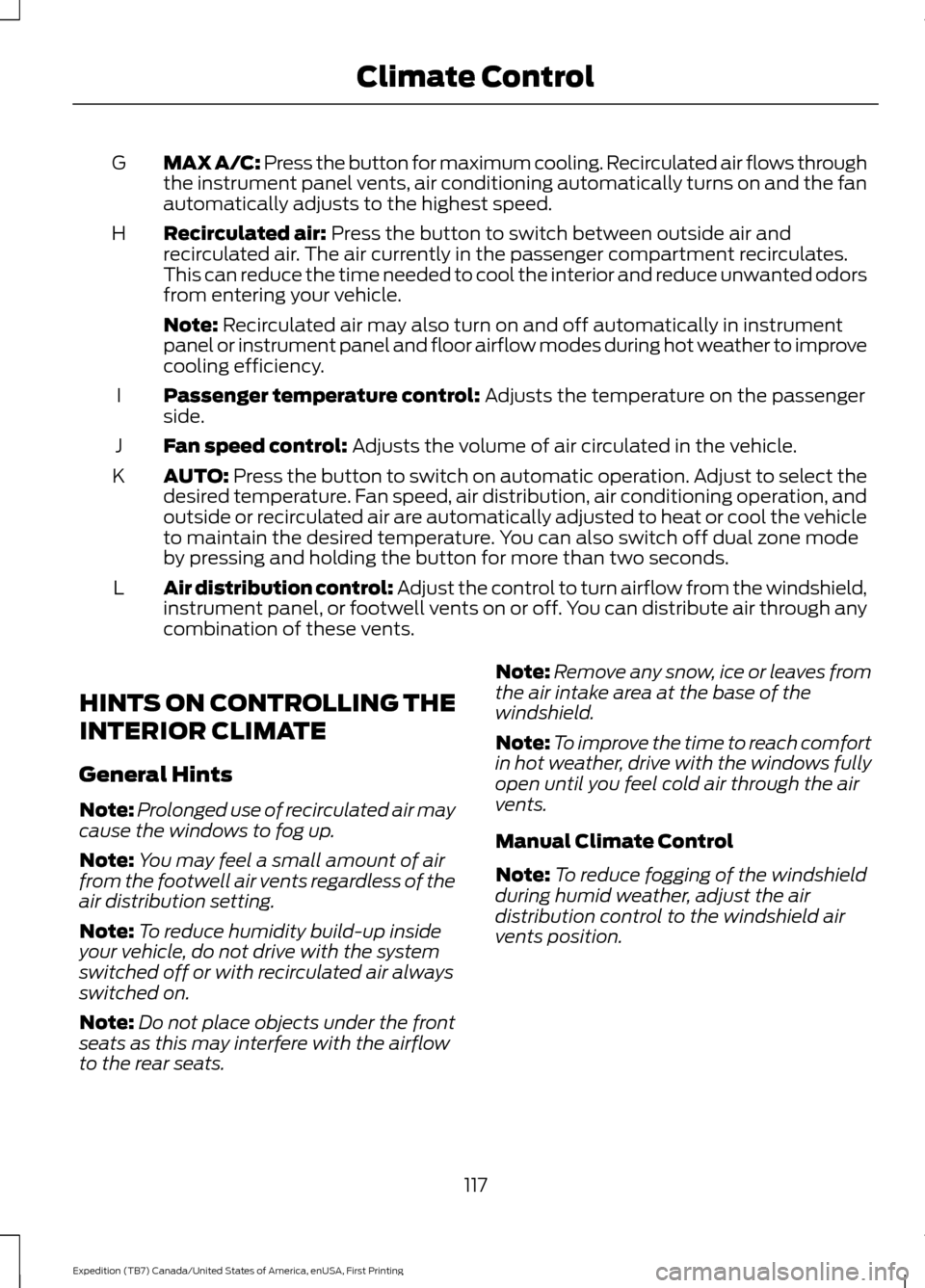
MAX A/C: Press the button for maximum cooling. Recirculated air flows through
the instrument panel vents, air conditioning automatically turns on and the fan
automatically adjusts to the highest speed.
G
Recirculated air: Press the button to switch between outside air and
recirculated air. The air currently in the passenger compartment recirculates.
This can reduce the time needed to cool the interior and reduce unwanted odors
from entering your vehicle.
H
Note:
Recirculated air may also turn on and off automatically in instrument
panel or instrument panel and floor airflow modes during hot weather to improve
cooling efficiency.
Passenger temperature control:
Adjusts the temperature on the passenger
side.
I
Fan speed control:
Adjusts the volume of air circulated in the vehicle.
J
AUTO:
Press the button to switch on automatic operation. Adjust to select the
desired temperature. Fan speed, air distribution, air conditioning operation, and
outside or recirculated air are automatically adjusted to heat or cool the vehicle
to maintain the desired temperature. You can also switch off dual zone mode
by pressing and holding the button for more than two seconds.
K
Air distribution control: Adjust the control to turn airflow from the windshield,
instrument panel, or footwell vents on or off. You can distribute air through any
combination of these vents.
L
HINTS ON CONTROLLING THE
INTERIOR CLIMATE
General Hints
Note: Prolonged use of recirculated air may
cause the windows to fog up.
Note: You may feel a small amount of air
from the footwell air vents regardless of the
air distribution setting.
Note: To reduce humidity build-up inside
your vehicle, do not drive with the system
switched off or with recirculated air always
switched on.
Note: Do not place objects under the front
seats as this may interfere with the airflow
to the rear seats. Note:
Remove any snow, ice or leaves from
the air intake area at the base of the
windshield.
Note: To improve the time to reach comfort
in hot weather, drive with the windows fully
open until you feel cold air through the air
vents.
Manual Climate Control
Note: To reduce fogging of the windshield
during humid weather, adjust the air
distribution control to the windshield air
vents position.
117
Expedition (TB7) Canada/United States of America, enUSA, First Printing Climate Control
Page 131 of 421
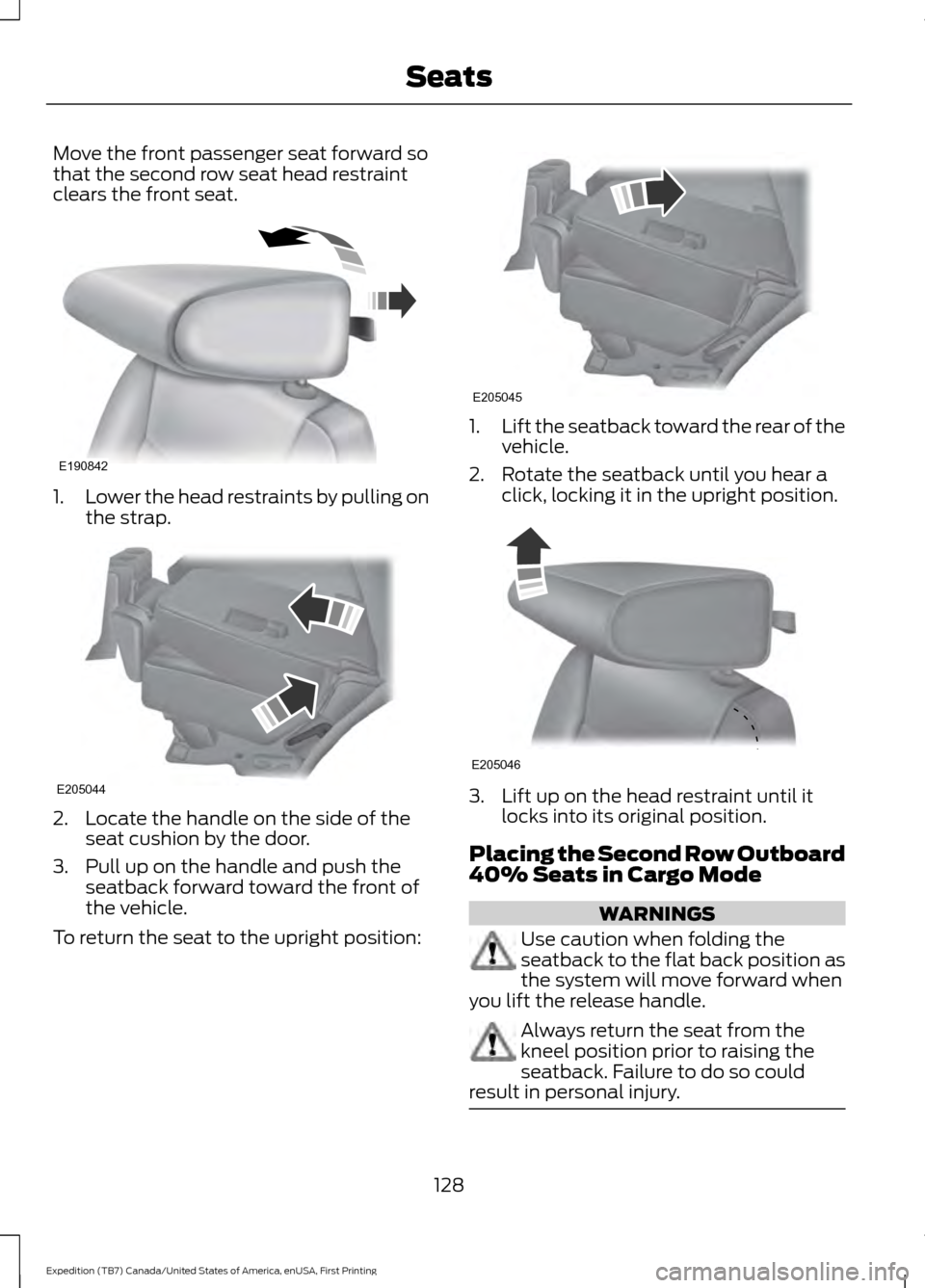
Move the front passenger seat forward so
that the second row seat head restraint
clears the front seat.
1.
Lower the head restraints by pulling on
the strap. 2. Locate the handle on the side of the
seat cushion by the door.
3. Pull up on the handle and push the seatback forward toward the front of
the vehicle.
To return the seat to the upright position: 1.
Lift the seatback toward the rear of the
vehicle.
2. Rotate the seatback until you hear a click, locking it in the upright position. 3. Lift up on the head restraint until it
locks into its original position.
Placing the Second Row Outboard
40% Seats in Cargo Mode WARNINGS
Use caution when folding the
seatback to the flat back position as
the system will move forward when
you lift the release handle. Always return the seat from the
kneel position prior to raising the
seatback. Failure to do so could
result in personal injury. 128
Expedition (TB7) Canada/United States of America, enUSA, First Printing SeatsE190842 E205044 E205045 E205046
Page 132 of 421
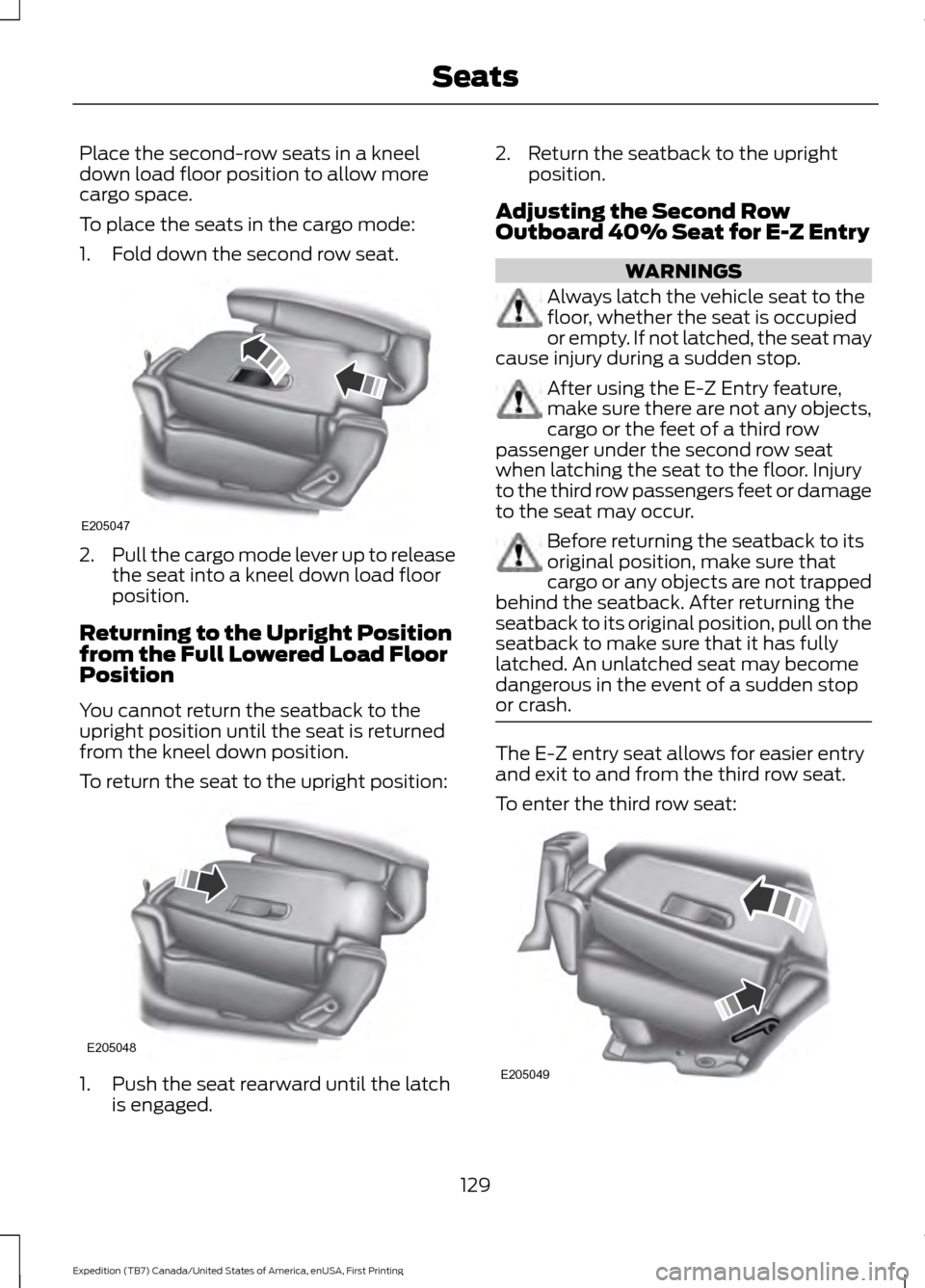
Place the second-row seats in a kneel
down load floor position to allow more
cargo space.
To place the seats in the cargo mode:
1. Fold down the second row seat.
2.
Pull the cargo mode lever up to release
the seat into a kneel down load floor
position.
Returning to the Upright Position
from the Full Lowered Load Floor
Position
You cannot return the seatback to the
upright position until the seat is returned
from the kneel down position.
To return the seat to the upright position: 1. Push the seat rearward until the latch
is engaged. 2. Return the seatback to the upright
position.
Adjusting the Second Row
Outboard 40% Seat for E-Z Entry WARNINGS
Always latch the vehicle seat to the
floor, whether the seat is occupied
or empty. If not latched, the seat may
cause injury during a sudden stop. After using the E-Z Entry feature,
make sure there are not any objects,
cargo or the feet of a third row
passenger under the second row seat
when latching the seat to the floor. Injury
to the third row passengers feet or damage
to the seat may occur. Before returning the seatback to its
original position, make sure that
cargo or any objects are not trapped
behind the seatback. After returning the
seatback to its original position, pull on the
seatback to make sure that it has fully
latched. An unlatched seat may become
dangerous in the event of a sudden stop
or crash. The E-Z entry seat allows for easier entry
and exit to and from the third row seat.
To enter the third row seat:
129
Expedition (TB7) Canada/United States of America, enUSA, First Printing SeatsE205047 E205048 E205049
Page 142 of 421
Gate Operator / Canadian
Programming
Canadian radio-frequency laws require
transmitter signals to
“time-out” (or quit)
after several seconds of transmission –
which may not be long enough for
HomeLink to pick up the signal during
programming. Similar to this Canadian law,
some U.S. gate operators are designed to
“time-out” in the same manner.
Note: If programming a garage door opener
or gate operator, it is advised to unplug the
device during the “cycling” process to
prevent possible overheating.
1. Press and hold the HomeLink button while you press and release, every two
seconds, your hand-held transmitter
until the HomeLink indicator light
changes from a slow to a rapidly
blinking light.
2. Release both the HomeLink and hand-held transmitter buttons.
3. Continue programing HomeLink. See In-Vehicle Programming
.
Erasing the Function Button Codes
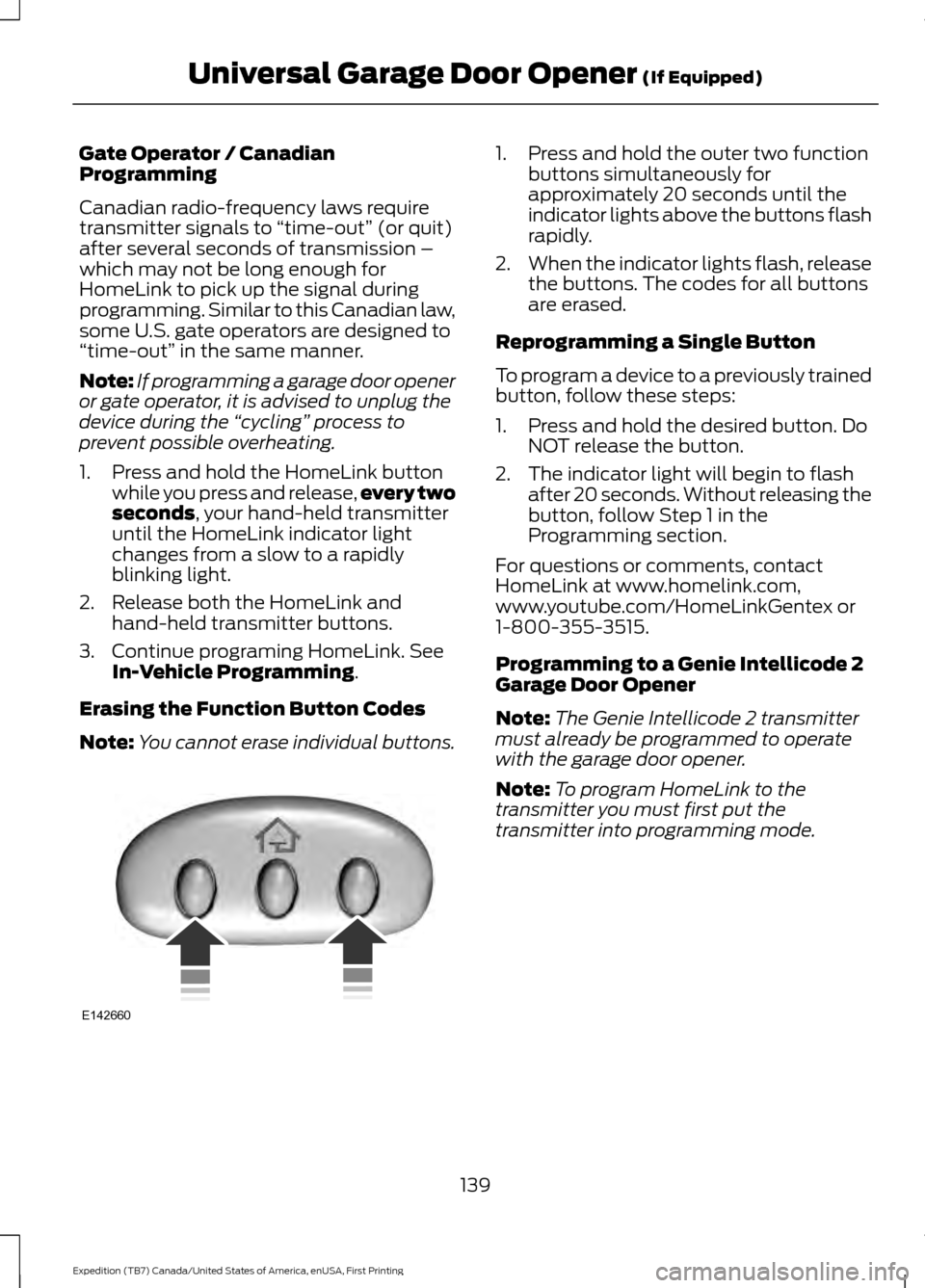
Note: You cannot erase individual buttons. 1. Press and hold the outer two function
buttons simultaneously for
approximately 20 seconds until the
indicator lights above the buttons flash
rapidly.
2. When the indicator lights flash, release
the buttons. The codes for all buttons
are erased.
Reprogramming a Single Button
To program a device to a previously trained
button, follow these steps:
1. Press and hold the desired button. Do NOT release the button.
2. The indicator light will begin to flash after 20 seconds. Without releasing the
button, follow Step 1 in the
Programming section.
For questions or comments, contact
HomeLink at www.homelink.com,
www.youtube.com/HomeLinkGentex or
1-800-355-3515.
Programming to a Genie Intellicode 2
Garage Door Opener
Note: The Genie Intellicode 2 transmitter
must already be programmed to operate
with the garage door opener.
Note: To program HomeLink to the
transmitter you must first put the
transmitter into programming mode.
139
Expedition (TB7) Canada/United States of America, enUSA, First Printing Universal Garage Door Opener
(If Equipped)E142660