bluetooth FORD EXPEDITION 2017 3.G User Guide
[x] Cancel search | Manufacturer: FORD, Model Year: 2017, Model line: EXPEDITION, Model: FORD EXPEDITION 2017 3.GPages: 500, PDF Size: 4.83 MB
Page 343 of 500
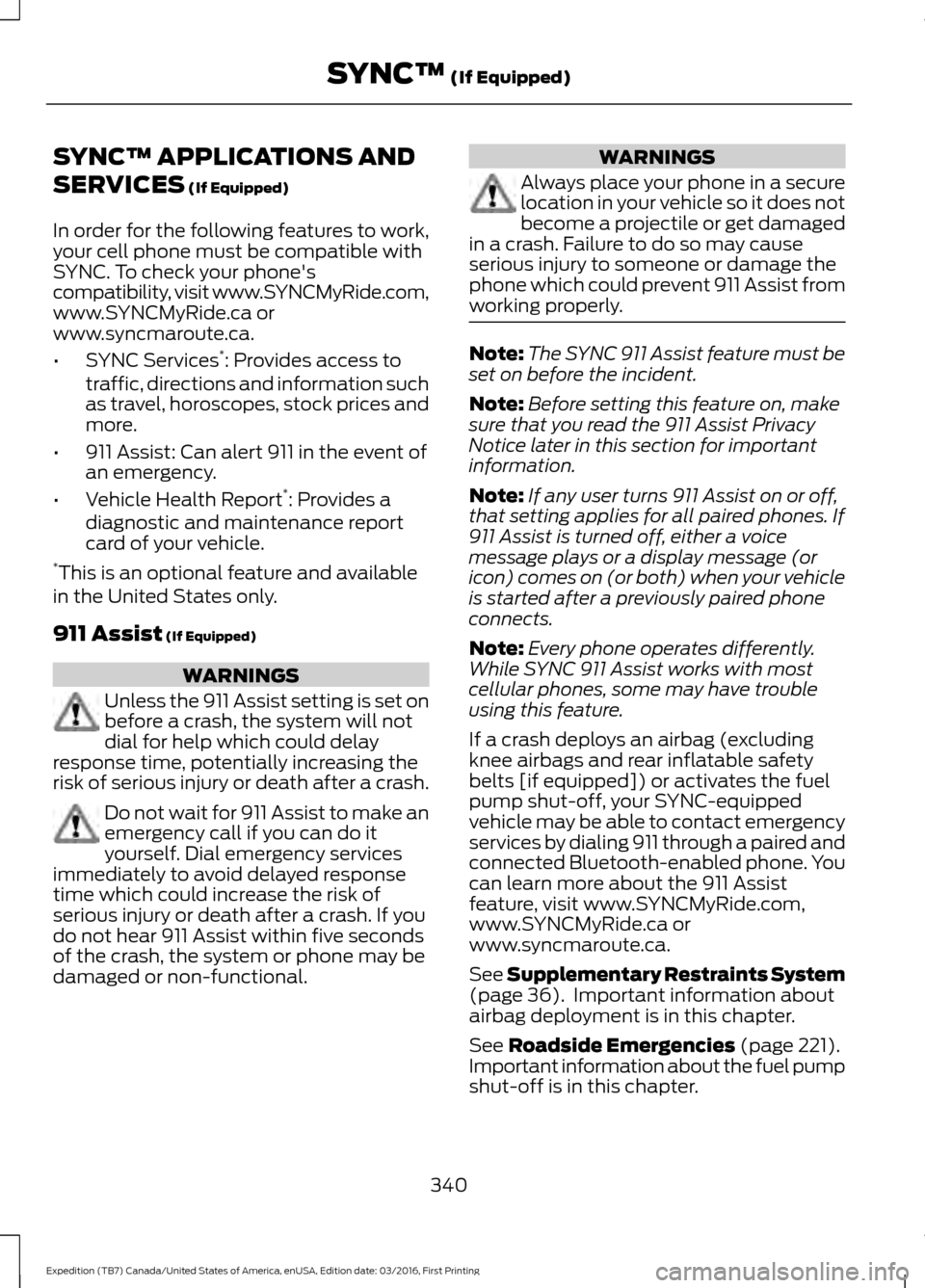
SYNC™ APPLICATIONS AND
SERVICES (If Equipped)
In order for the following features to work,
your cell phone must be compatible with
SYNC. To check your phone's
compatibility, visit www.SYNCMyRide.com,
www.SYNCMyRide.ca or
www.syncmaroute.ca.
• SYNC Services *
: Provides access to
traffic, directions and information such
as travel, horoscopes, stock prices and
more.
• 911 Assist: Can alert 911 in the event of
an emergency.
• Vehicle Health Report *
: Provides a
diagnostic and maintenance report
card of your vehicle.
* This is an optional feature and available
in the United States only.
911 Assist
(If Equipped) WARNINGS
Unless the 911 Assist setting is set on
before a crash, the system will not
dial for help which could delay
response time, potentially increasing the
risk of serious injury or death after a crash. Do not wait for 911 Assist to make an
emergency call if you can do it
yourself. Dial emergency services
immediately to avoid delayed response
time which could increase the risk of
serious injury or death after a crash. If you
do not hear 911 Assist within five seconds
of the crash, the system or phone may be
damaged or non-functional. WARNINGS
Always place your phone in a secure
location in your vehicle so it does not
become a projectile or get damaged
in a crash. Failure to do so may cause
serious injury to someone or damage the
phone which could prevent 911 Assist from
working properly. Note:
The SYNC 911 Assist feature must be
set on before the incident.
Note: Before setting this feature on, make
sure that you read the 911 Assist Privacy
Notice later in this section for important
information.
Note: If any user turns 911 Assist on or off,
that setting applies for all paired phones. If
911 Assist is turned off, either a voice
message plays or a display message (or
icon) comes on (or both) when your vehicle
is started after a previously paired phone
connects.
Note: Every phone operates differently.
While SYNC 911 Assist works with most
cellular phones, some may have trouble
using this feature.
If a crash deploys an airbag (excluding
knee airbags and rear inflatable safety
belts [if equipped]) or activates the fuel
pump shut-off, your SYNC-equipped
vehicle may be able to contact emergency
services by dialing 911 through a paired and
connected Bluetooth-enabled phone. You
can learn more about the 911 Assist
feature, visit www.SYNCMyRide.com,
www.SYNCMyRide.ca or
www.syncmaroute.ca.
See
Supplementary Restraints System
(page 36). Important information about
airbag deployment is in this chapter.
See
Roadside Emergencies (page 221).
Important information about the fuel pump
shut-off is in this chapter.
340
Expedition (TB7) Canada/United States of America, enUSA, Edition date: 03/2016, First Printing SYNC™
(If Equipped)
Page 344 of 500
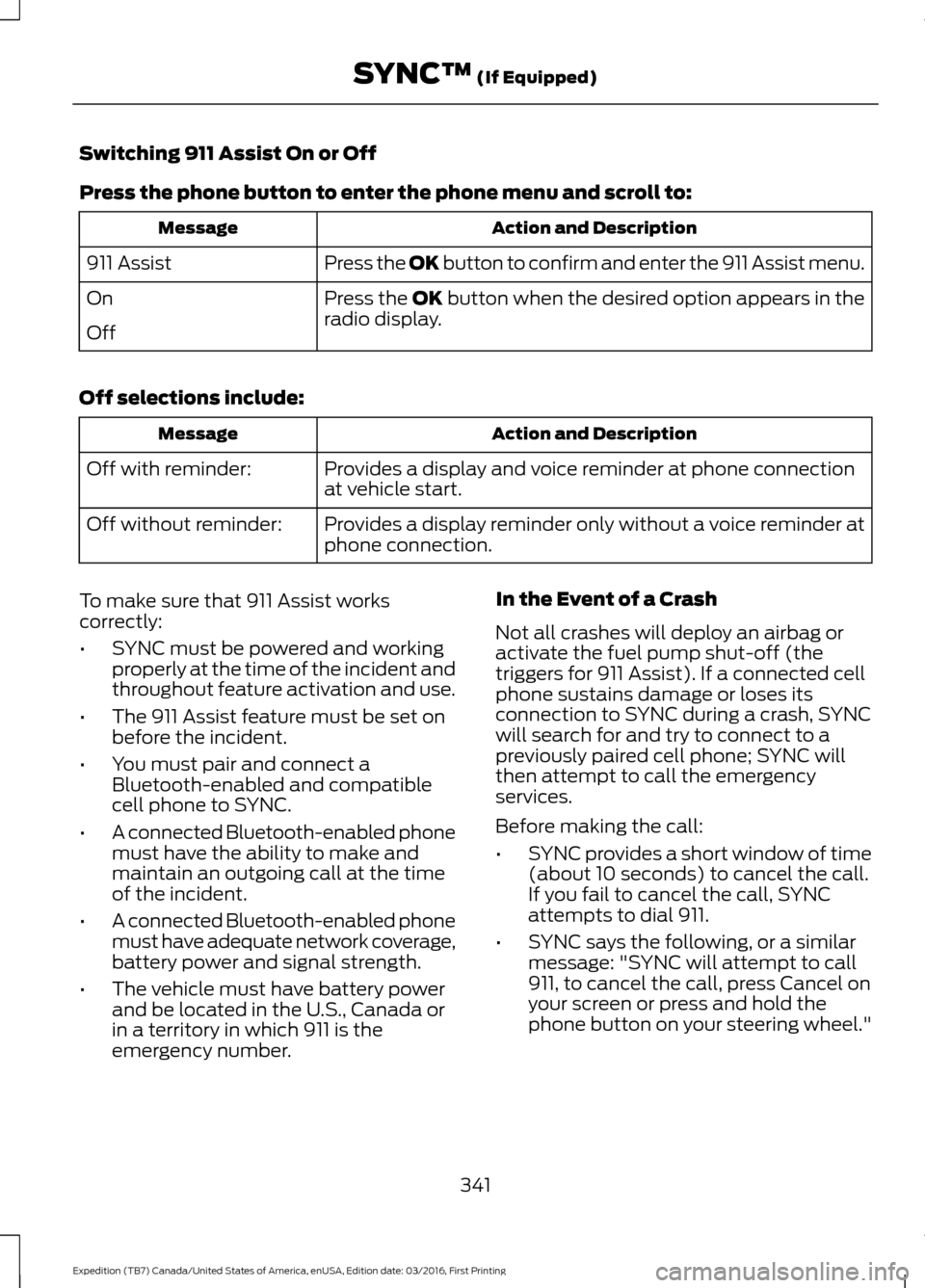
Switching 911 Assist On or Off
Press the phone button to enter the phone menu and scroll to:
Action and Description
Message
Press the OK button to confirm and enter the 911 Assist menu.
911 Assist
Press the OK button when the desired option appears in the
radio display.
On
Off
Off selections include: Action and Description
Message
Provides a display and voice reminder at phone connection
at vehicle start.
Off with reminder:
Provides a display reminder only without a voice reminder at
phone connection.
Off without reminder:
To make sure that 911 Assist works
correctly:
• SYNC must be powered and working
properly at the time of the incident and
throughout feature activation and use.
• The 911 Assist feature must be set on
before the incident.
• You must pair and connect a
Bluetooth-enabled and compatible
cell phone to SYNC.
• A connected Bluetooth-enabled phone
must have the ability to make and
maintain an outgoing call at the time
of the incident.
• A connected Bluetooth-enabled phone
must have adequate network coverage,
battery power and signal strength.
• The vehicle must have battery power
and be located in the U.S., Canada or
in a territory in which 911 is the
emergency number. In the Event of a Crash
Not all crashes will deploy an airbag or
activate the fuel pump shut-off (the
triggers for 911 Assist). If a connected cell
phone sustains damage or loses its
connection to SYNC during a crash, SYNC
will search for and try to connect to a
previously paired cell phone; SYNC will
then attempt to call the emergency
services.
Before making the call:
•
SYNC provides a short window of time
(about 10 seconds) to cancel the call.
If you fail to cancel the call, SYNC
attempts to dial 911.
• SYNC says the following, or a similar
message: "SYNC will attempt to call
911, to cancel the call, press Cancel on
your screen or press and hold the
phone button on your steering wheel."
341
Expedition (TB7) Canada/United States of America, enUSA, Edition date: 03/2016, First Printing SYNC™ (If Equipped)
Page 347 of 500
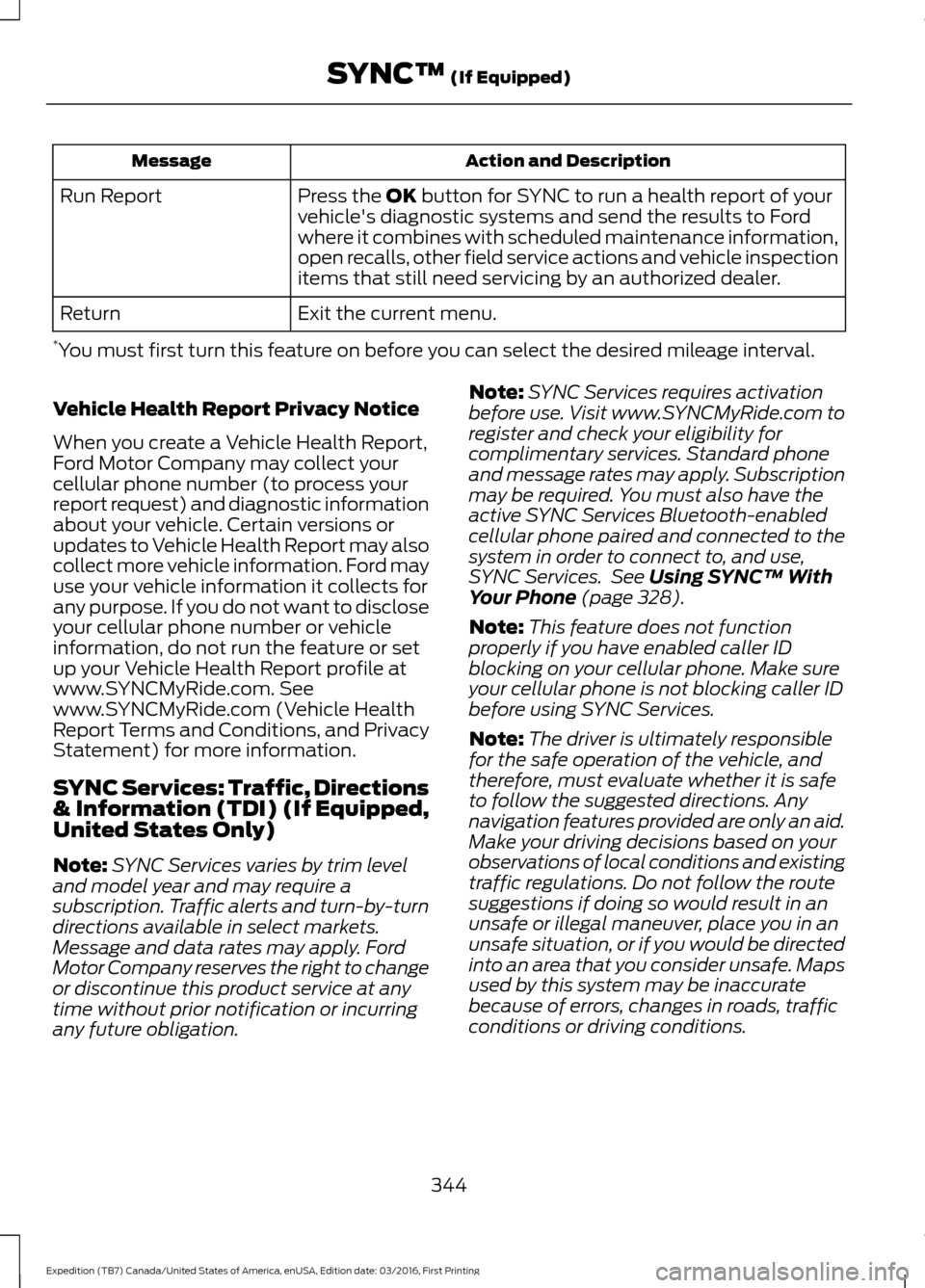
Action and Description
Message
Press the OK button for SYNC to run a health report of your
vehicle's diagnostic systems and send the results to Ford
where it combines with scheduled maintenance information,
open recalls, other field service actions and vehicle inspection
items that still need servicing by an authorized dealer.
Run Report
Exit the current menu.
Return
* You must first turn this feature on before you can select the desired mileage interval.
Vehicle Health Report Privacy Notice
When you create a Vehicle Health Report,
Ford Motor Company may collect your
cellular phone number (to process your
report request) and diagnostic information
about your vehicle. Certain versions or
updates to Vehicle Health Report may also
collect more vehicle information. Ford may
use your vehicle information it collects for
any purpose. If you do not want to disclose
your cellular phone number or vehicle
information, do not run the feature or set
up your Vehicle Health Report profile at
www.SYNCMyRide.com. See
www.SYNCMyRide.com (Vehicle Health
Report Terms and Conditions, and Privacy
Statement) for more information.
SYNC Services: Traffic, Directions
& Information (TDI) (If Equipped,
United States Only)
Note: SYNC Services varies by trim level
and model year and may require a
subscription. Traffic alerts and turn-by-turn
directions available in select markets.
Message and data rates may apply. Ford
Motor Company reserves the right to change
or discontinue this product service at any
time without prior notification or incurring
any future obligation. Note:
SYNC Services requires activation
before use. Visit www.SYNCMyRide.com to
register and check your eligibility for
complimentary services. Standard phone
and message rates may apply. Subscription
may be required. You must also have the
active SYNC Services Bluetooth-enabled
cellular phone paired and connected to the
system in order to connect to, and use,
SYNC Services. See
Using SYNC™ With
Your Phone (page 328).
Note: This feature does not function
properly if you have enabled caller ID
blocking on your cellular phone. Make sure
your cellular phone is not blocking caller ID
before using SYNC Services.
Note: The driver is ultimately responsible
for the safe operation of the vehicle, and
therefore, must evaluate whether it is safe
to follow the suggested directions. Any
navigation features provided are only an aid.
Make your driving decisions based on your
observations of local conditions and existing
traffic regulations. Do not follow the route
suggestions if doing so would result in an
unsafe or illegal maneuver, place you in an
unsafe situation, or if you would be directed
into an area that you consider unsafe. Maps
used by this system may be inaccurate
because of errors, changes in roads, traffic
conditions or driving conditions.
344
Expedition (TB7) Canada/United States of America, enUSA, Edition date: 03/2016, First Printing SYNC™
(If Equipped)
Page 348 of 500
Note:
When you connect, the service uses
GPS technology and advanced vehicle
sensors to collect your vehicle's current
location, travel direction and speed to help
provide you with the directions, traffic
reports, or business searches you request.
Further, to provide the services you request,
for continuous improvement, the service
may collect and record call details and voice
communications. For more information, see
SYNC Services Terms and Conditions at
www.SYNCMyRide.com. If you do not want
Ford or its service providers to collect your
vehicle travel information or other
information identified in the Terms and
Conditions, do not subscribe or use the
service. SYNC Services uses advanced vehicle
sensors, integrated GPS technology and
comprehensive map and traffic data, to
give you personalized traffic reports,
precise turn-by-turn directions, business
search, news, sports, weather and more.
For a complete list of services, or to learn
more, please visit www.SYNCMyRide.com.
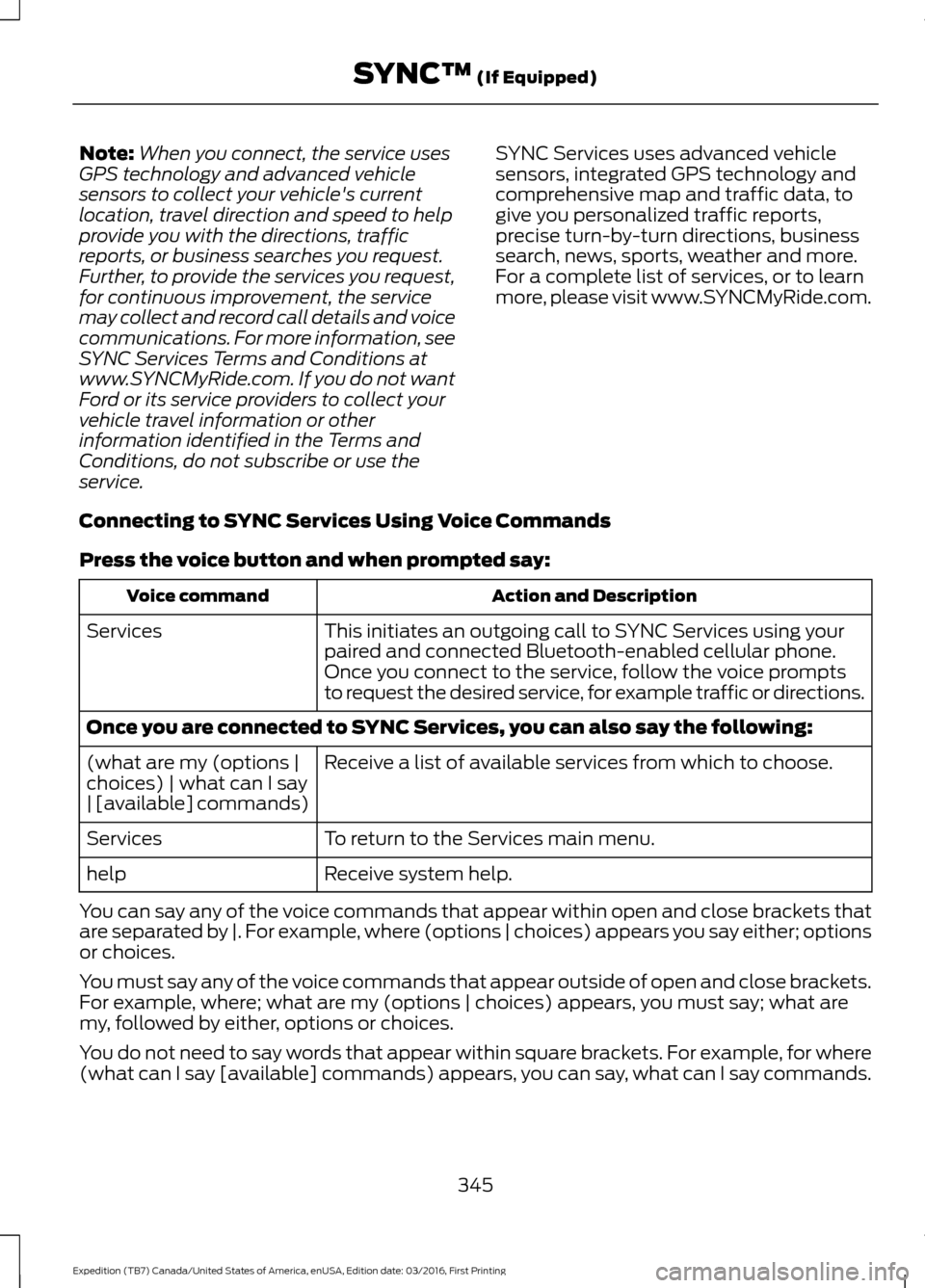
Connecting to SYNC Services Using Voice Commands
Press the voice button and when prompted say: Action and Description
Voice command
This initiates an outgoing call to SYNC Services using your
paired and connected Bluetooth-enabled cellular phone.
Services
Once you connect to the service, follow the voice prompts
to request the desired service, for example traffic or directions.
Once you are connected to SYNC Services, you can also say the following: Receive a list of available services from which to choose.
(what are my (options |
choices) | what can I say
| [available] commands)
To return to the Services main menu.
Services
Receive system help.
help
You can say any of the voice commands that appear within open and close brackets that
are separated by |. For example, where (options | choices) appears you say either; options
or choices.
You must say any of the voice commands that appear outside of open and close brackets.
For example, where; what are my (options | choices) appears, you must say; what are
my, followed by either, options or choices.
You do not need to say words that appear within square brackets. For example, for where
(what can I say [available] commands) appears, you can say, what can I say commands.
345
Expedition (TB7) Canada/United States of America, enUSA, Edition date: 03/2016, First Printing SYNC™ (If Equipped)
Page 350 of 500
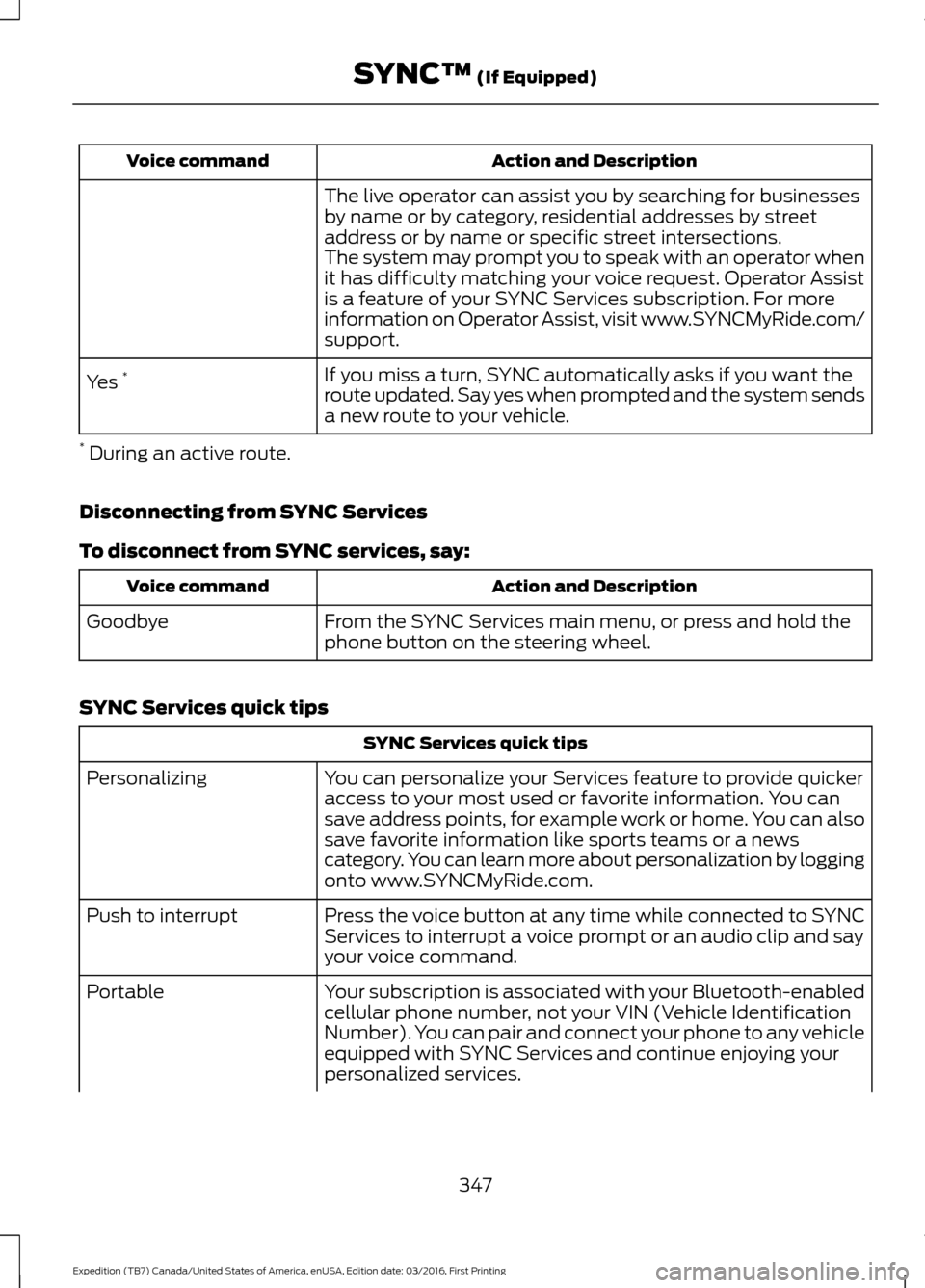
Action and Description
Voice command
The live operator can assist you by searching for businesses
by name or by category, residential addresses by street
address or by name or specific street intersections.
The system may prompt you to speak with an operator when
it has difficulty matching your voice request. Operator Assist
is a feature of your SYNC Services subscription. For more
information on Operator Assist, visit www.SYNCMyRide.com/
support.
If you miss a turn, SYNC automatically asks if you want the
route updated. Say yes when prompted and the system sends
a new route to your vehicle.
Yes
*
* During an active route.
Disconnecting from SYNC Services
To disconnect from SYNC services, say: Action and Description
Voice command
From the SYNC Services main menu, or press and hold the
phone button on the steering wheel.
Goodbye
SYNC Services quick tips SYNC Services quick tips
You can personalize your Services feature to provide quicker
access to your most used or favorite information. You can
save address points, for example work or home. You can also
save favorite information like sports teams or a news
category. You can learn more about personalization by logging
onto www.SYNCMyRide.com.
Personalizing
Press the voice button at any time while connected to SYNC
Services to interrupt a voice prompt or an audio clip and say
your voice command.
Push to interrupt
Your subscription is associated with your Bluetooth-enabled
cellular phone number, not your VIN (Vehicle Identification
Number). You can pair and connect your phone to any vehicle
equipped with SYNC Services and continue enjoying your
personalized services.
Portable
347
Expedition (TB7) Canada/United States of America, enUSA, Edition date: 03/2016, First Printing SYNC™ (If Equipped)
Page 353 of 500
![FORD EXPEDITION 2017 3.G User Guide Description and Action
Command
play [artist] ___
play [genre] ___
play [playlist] ___ Plays the next track on the current media.
next [track | title | song | file | podcast |
chapter | episode]
Plays](/img/11/4942/w960_4942-352.png "FORD EXPEDITION 2017 3.G User Guide Description and Action
Command
play [artist] ___
play [genre] ___
play [playlist] ___ Plays the next track on the current media.
next [track | title | song | file | podcast |
chapter | episode]
Plays")
Description and Action
Command
play [artist] ___
play [genre] ___
play [playlist] ___ Plays the next track on the current media.
next [track | title | song | file | podcast |
chapter | episode]
Plays the previous track on current media.
previous [track | title | song | file |
podcast | chapter | episode]
Creates a playlist with a similar genre to the
one currently playing.
[play] (similar music | more like this)
play [song | track | title | file] ___repeat offRepeats the current track.
repeat (one | track) [on]
Plays the current playlist in a random order.
(Not all devices support this command.)
shuffle [all] [on]
shuffle offAt any time during playback, you can press
the voice button and ask the system what is
playing. The system reads the metadata tags
(if populated) of the current track.
((who's | who is) this | who plays this |
(what's | what is) playing [now] | (what | which) (song | track | artist) is this |
(who's | who is) playing | (what's | what is) this)
___ is a dynamic listing, meaning that it
could be the name of anything, such as a
group, artist or song. For example you
could say "Play artist The Beatles".
Examples of USB Commands
SYNC provides the user with many intuitive
ways to find and play a song using voice.
For example, if we have a song called
"Penny Lane" from the album "Magical
Mystery Tour" we can say the following to
play this song:
• Play song "Penny Lane".
• Play "Penny Lane". If we wanted to play the entire album, we
can say:
•
Play album "Magical Mystery Tour".
• Play "Magical Mystery Tour".
Bluetooth Audio
The system is also capable of playing
music from your cellular phone through
Bluetooth.
To switch the Bluetooth Audio on, press
the MEDIA button and select:
350
Expedition (TB7) Canada/United States of America, enUSA, Edition date: 03/2016, First Printing SYNC™ (If Equipped)
Page 357 of 500
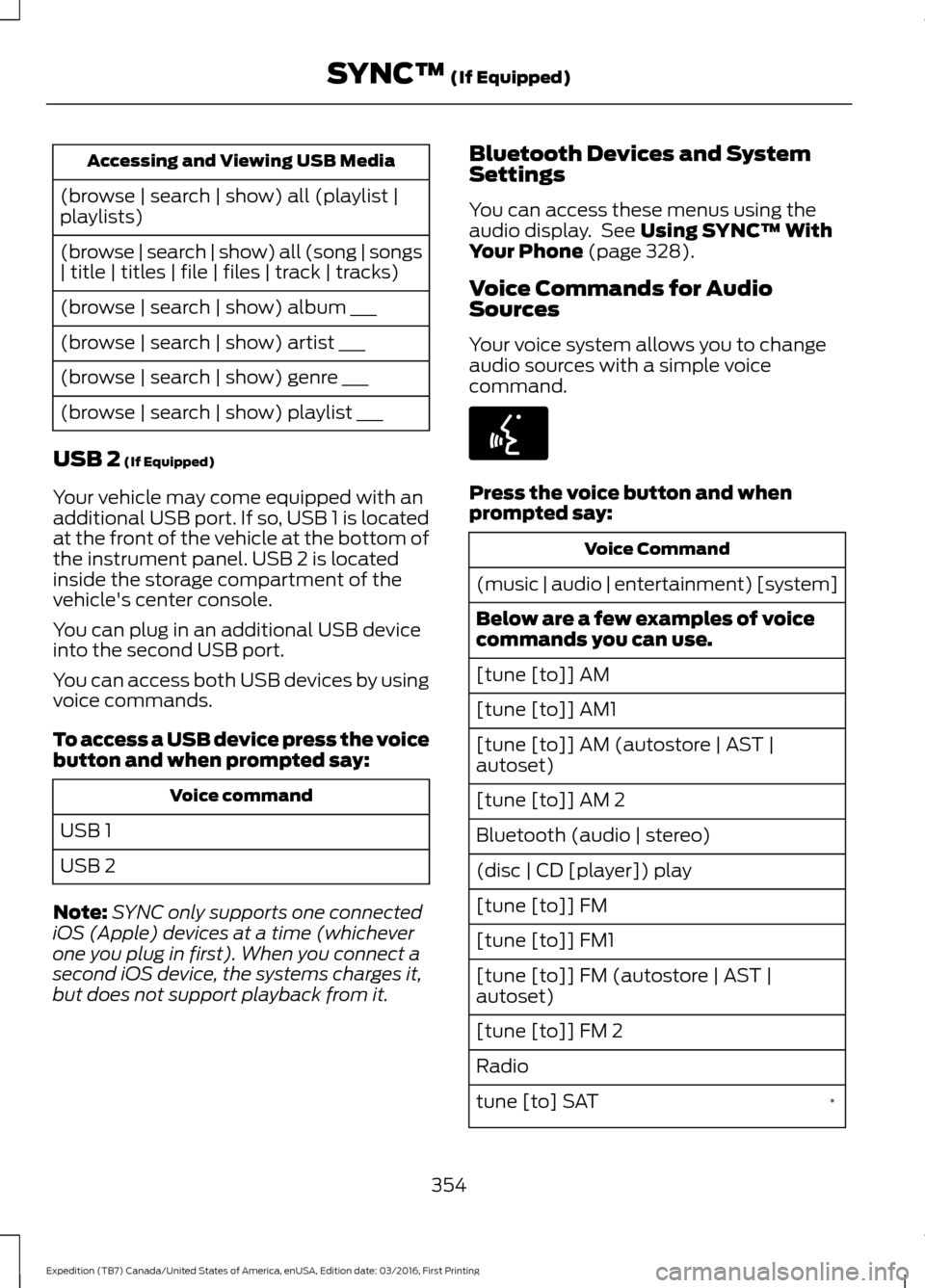
Accessing and Viewing USB Media
(browse | search | show) all (playlist |
playlists)
(browse | search | show) all (song | songs
| title | titles | file | files | track | tracks)
(browse | search | show) album ___
(browse | search | show) artist ___
(browse | search | show) genre ___
(browse | search | show) playlist ___
USB 2 (If Equipped)
Your vehicle may come equipped with an
additional USB port. If so, USB 1 is located
at the front of the vehicle at the bottom of
the instrument panel. USB 2 is located
inside the storage compartment of the
vehicle's center console.
You can plug in an additional USB device
into the second USB port.
You can access both USB devices by using
voice commands.
To access a USB device press the voice
button and when prompted say: Voice command
USB 1
USB 2
Note: SYNC only supports one connected
iOS (Apple) devices at a time (whichever
one you plug in first). When you connect a
second iOS device, the systems charges it,
but does not support playback from it. Bluetooth Devices and System
Settings
You can access these menus using the
audio display. See
Using SYNC™ With
Your Phone (page 328).
Voice Commands for Audio
Sources
Your voice system allows you to change
audio sources with a simple voice
command. Press the voice button and when
prompted say:
Voice Command
(music | audio | entertainment) [system]
Below are a few examples of voice
commands you can use.
[tune [to]] AM
[tune [to]] AM1
[tune [to]] AM (autostore | AST |
autoset)
[tune [to]] AM 2
Bluetooth (audio | stereo)
(disc | CD [player]) play
[tune [to]] FM
[tune [to]] FM1
[tune [to]] FM (autostore | AST |
autoset)
[tune [to]] FM 2
Radio *
tune [to] SAT
354
Expedition (TB7) Canada/United States of America, enUSA, Edition date: 03/2016, First Printing SYNC™
(If Equipped)E142599
Page 361 of 500
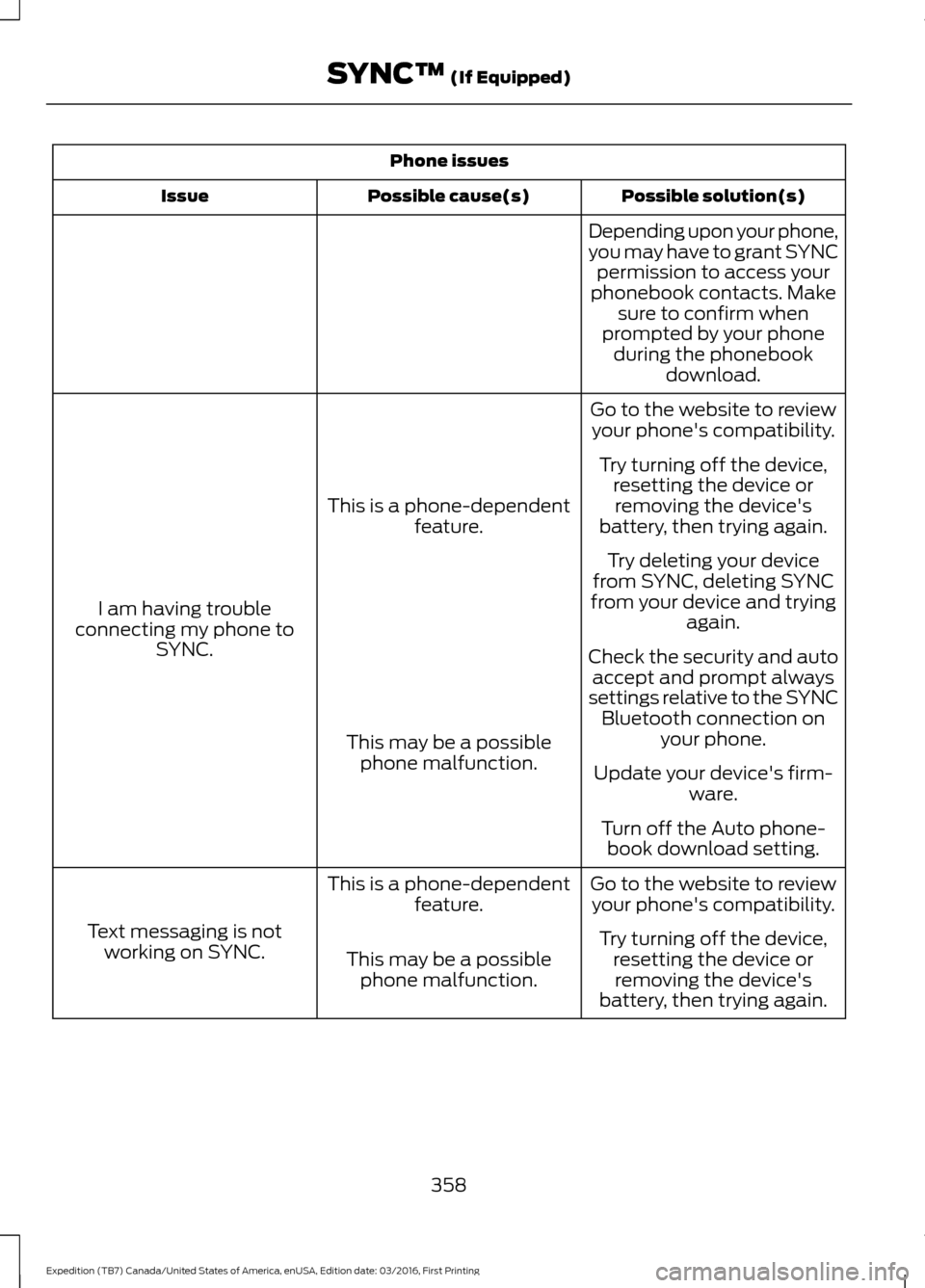
Phone issues
Possible solution(s)
Possible cause(s)
Issue
Depending upon your phone,
you may have to grant SYNCpermission to access your
phonebook contacts. Make sure to confirm when
prompted by your phone during the phonebook download.
Go to the website to review your phone's compatibility.
This is a phone-dependent feature.
I am having trouble
connecting my phone to SYNC. Try turning off the device,
resetting the device orremoving the device's
battery, then trying again.
Try deleting your device
from SYNC, deleting SYNC
from your device and trying again.
Check the security and auto accept and prompt always
settings relative to the SYNC Bluetooth connection on your phone.
This may be a possible
phone malfunction. Update your device's firm-
ware.
Turn off the Auto phone- book download setting.
Go to the website to review your phone's compatibility.
This is a phone-dependent
feature.
Text messaging is not working on SYNC. Try turning off the device,
resetting the device orremoving the device's
battery, then trying again.
This may be a possible
phone malfunction.
358
Expedition (TB7) Canada/United States of America, enUSA, Edition date: 03/2016, First Printing SYNC™ (If Equipped)
Page 362 of 500
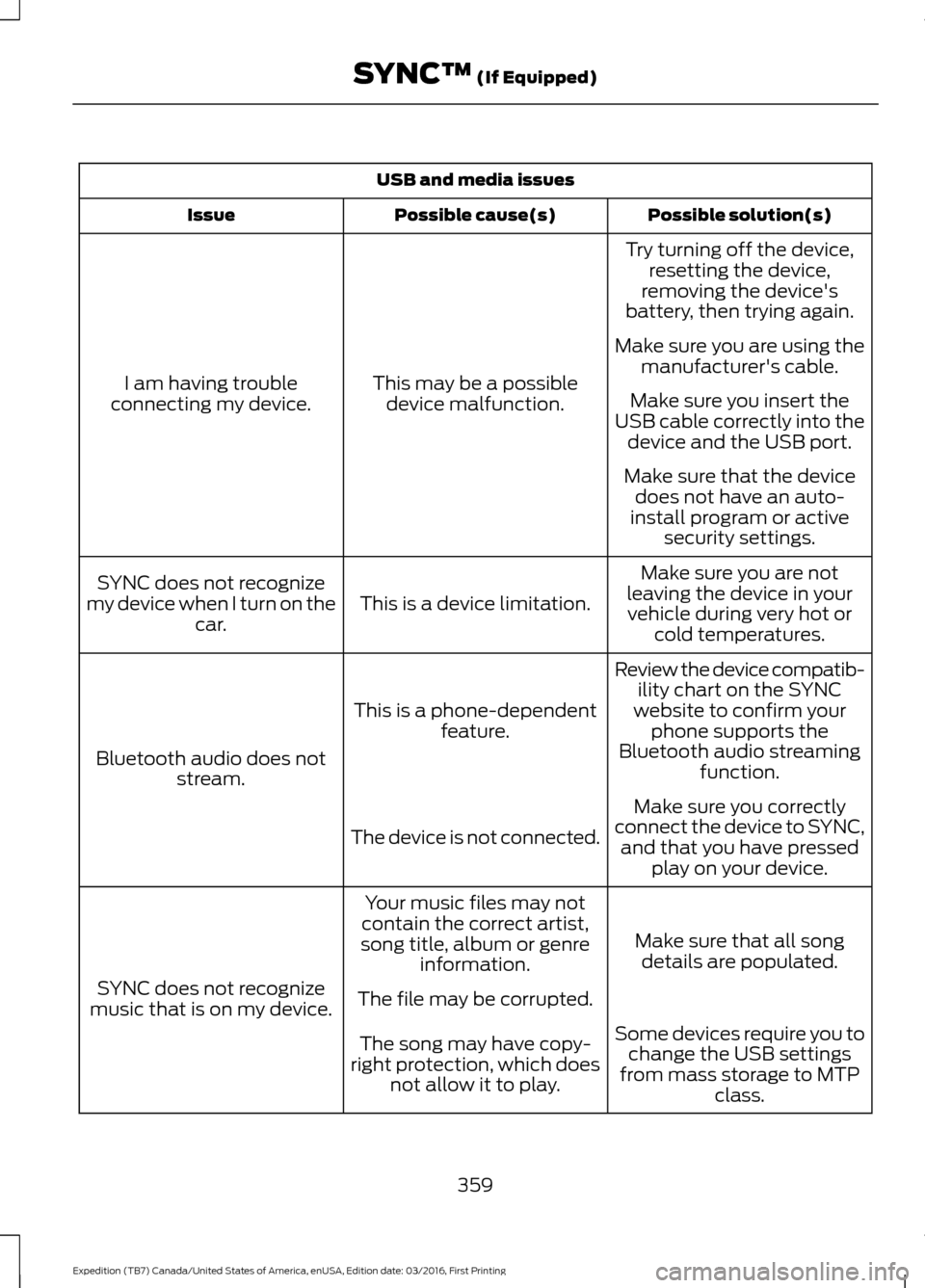
USB and media issues
Possible solution(s)
Possible cause(s)
Issue
Try turning off the device,resetting the device,
removing the device's
battery, then trying again.
This may be a possible device malfunction.
I am having trouble
connecting my device. Make sure you are using the
manufacturer's cable.
Make sure you insert the
USB cable correctly into the device and the USB port.
Make sure that the device does not have an auto-
install program or active security settings.
Make sure you are not
leaving the device in your vehicle during very hot or cold temperatures.
This is a device limitation.
SYNC does not recognize
my device when I turn on the car.
Review the device compatib-ility chart on the SYNC
website to confirm your phone supports the
Bluetooth audio streaming function.
This is a phone-dependent
feature.
Bluetooth audio does not stream.
Make sure you correctly
connect the device to SYNC, and that you have pressed play on your device.
The device is not connected.
Make sure that all songdetails are populated.
Your music files may not
contain the correct artist,
song title, album or genre information.
SYNC does not recognize
music that is on my device. The file may be corrupted.
Some devices require you tochange the USB settings
from mass storage to MTP class.
The song may have copy-
right protection, which does not allow it to play.
359
Expedition (TB7) Canada/United States of America, enUSA, Edition date: 03/2016, First Printing SYNC™ (If Equipped)
Page 366 of 500
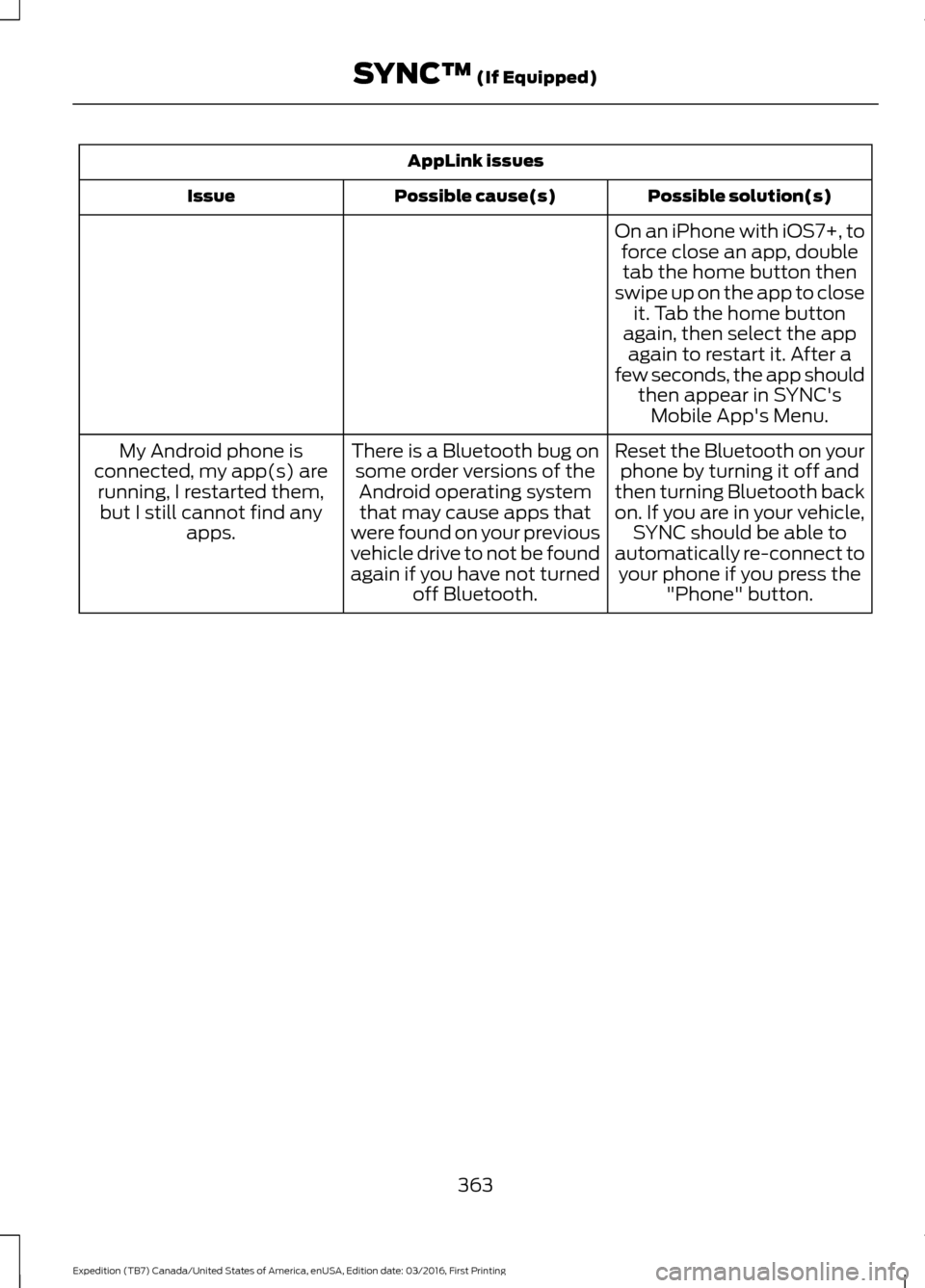
AppLink issues
Possible solution(s)
Possible cause(s)
Issue
On an iPhone with iOS7+, toforce close an app, doubletab the home button then
swipe up on the app to close it. Tab the home button
again, then select the app again to restart it. After a
few seconds, the app should then appear in SYNC'sMobile App's Menu.
Reset the Bluetooth on your phone by turning it off and
then turning Bluetooth back
on. If you are in your vehicle, SYNC should be able to
automatically re-connect to your phone if you press the "Phone" button.
There is a Bluetooth bug on
some order versions of theAndroid operating systemthat may cause apps that
were found on your previous
vehicle drive to not be found
again if you have not turned off Bluetooth.
My Android phone is
connected, my app(s) are running, I restarted them,but I still cannot find any apps.
363
Expedition (TB7) Canada/United States of America, enUSA, Edition date: 03/2016, First Printing SYNC™ (If Equipped)