ESP FORD EXPEDITION 2017 3.G Service Manual
[x] Cancel search | Manufacturer: FORD, Model Year: 2017, Model line: EXPEDITION, Model: FORD EXPEDITION 2017 3.GPages: 500, PDF Size: 4.83 MB
Page 319 of 500
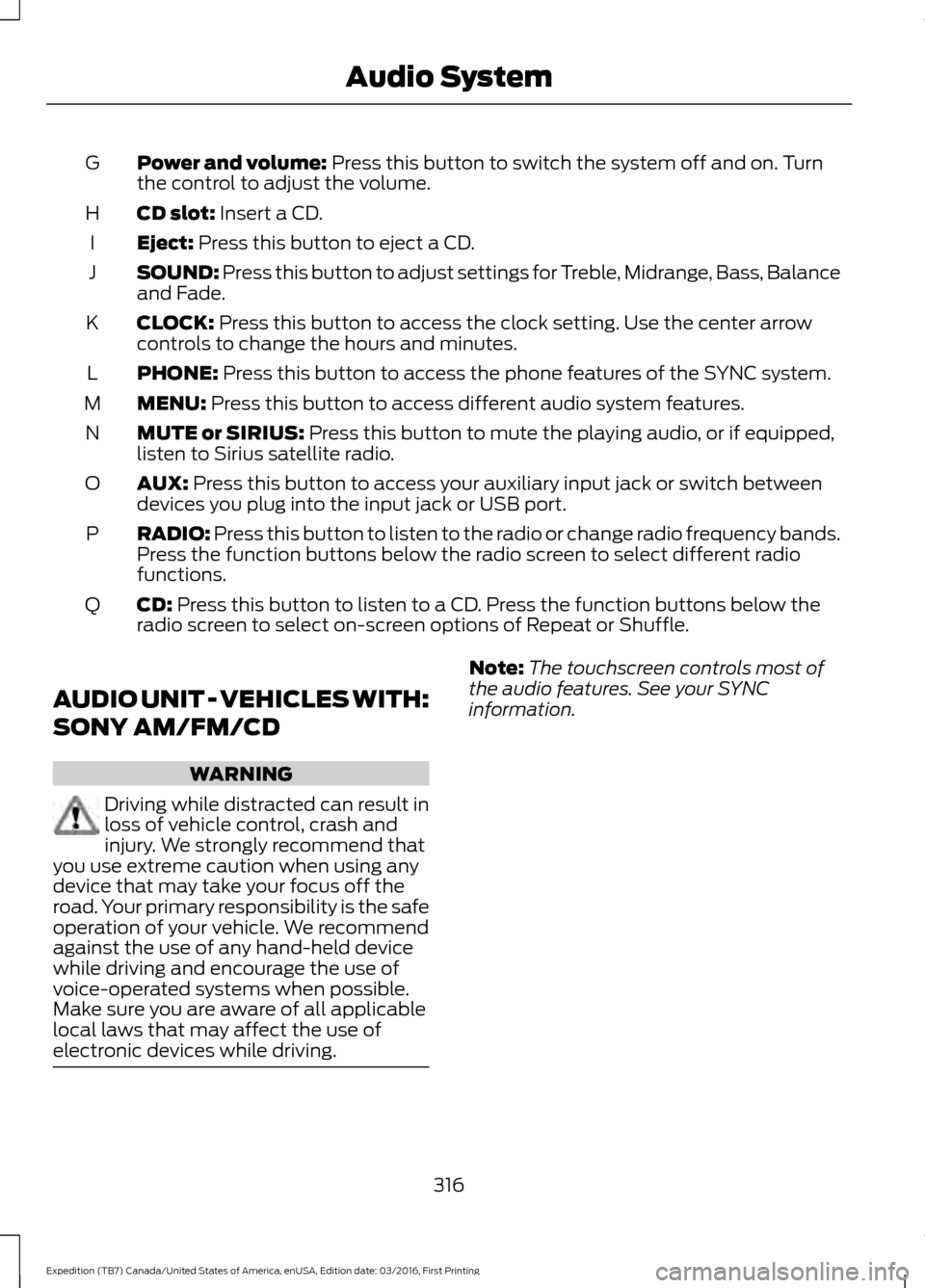
Power and volume: Press this button to switch the system off and on. Turn
the control to adjust the volume.
G
CD slot:
Insert a CD.
H
Eject:
Press this button to eject a CD.
I
SOUND:
Press this button to adjust settings for Treble, Midrange, Bass, Balance
and Fade.
J
CLOCK:
Press this button to access the clock setting. Use the center arrow
controls to change the hours and minutes.
K
PHONE:
Press this button to access the phone features of the SYNC system.
L
MENU:
Press this button to access different audio system features.
M
MUTE or SIRIUS:
Press this button to mute the playing audio, or if equipped,
listen to Sirius satellite radio.
N
AUX:
Press this button to access your auxiliary input jack or switch between
devices you plug into the input jack or USB port.
O
RADIO:
Press this button to listen to the radio or change radio frequency bands.
Press the function buttons below the radio screen to select different radio
functions.
P
CD:
Press this button to listen to a CD. Press the function buttons below the
radio screen to select on-screen options of Repeat or Shuffle.
Q
AUDIO UNIT - VEHICLES WITH:
SONY AM/FM/CD WARNING
Driving while distracted can result in
loss of vehicle control, crash and
injury. We strongly recommend that
you use extreme caution when using any
device that may take your focus off the
road. Your primary responsibility is the safe
operation of your vehicle. We recommend
against the use of any hand-held device
while driving and encourage the use of
voice-operated systems when possible.
Make sure you are aware of all applicable
local laws that may affect the use of
electronic devices while driving. Note:
The touchscreen controls most of
the audio features. See your SYNC
information.
316
Expedition (TB7) Canada/United States of America, enUSA, Edition date: 03/2016, First Printing Audio System
Page 322 of 500
When HD Radio broadcasts are active, you
can access the following functions:
•
Scan allows you to hear a brief
sampling of all available stations. This
feature still works when HD Radio
reception is on, although it does not
scan for HD2-HD7 channels. You may
see the HD logo appear if the station
has a digital broadcast. •
Memory presets
allow you to save an
active channel as a memory preset.
Touch and hold a memory preset slot
until the sound returns. There is a brief
mute while the radio saves the station.
Sound returns when finished. When
switching to an HD2 or HD3 memory
preset, the sound mutes before the
digital audio plays, because the system
has to reacquire the digital signal.
Note: As with any saved radio station, you
cannot access the saved station if your
vehicle is outside the station ’s reception
area.
HD Radio Reception and Station Troubleshooting Potential reception issues
If you are listening to a multicast station and you are on
the fringe of the reception area, the station may mute due
to weak signal strength.
Reception area
If you are listening to HD1, the system switches back to
the analog broadcast until the digital broadcast is available
again. However, if you are listening to any of the possible
HD2-HD7 multicast channels, the station mutes and stays
muted unless it is able to connect to the digital signal
again.
When the system first receives a station (aside from HD2-
HD7 multicast stations), it first plays the station in the
analog version. Once the receiver verifies the station is an
HD Radio station, it shifts to the digital version. Depending
on the station quality, you may hear a slight sound change
when the station changes from analog to digital. Blending
is the shift from analog to digital sound or digital back to
analog sound.
Station blending
In order to provide the best possible
experience, use the contact form to report
any station issues found while listening to
a station broadcasting with HD Radio
technology. Independent entities own and
operate each station. These stations are
responsible for ensuring all audio streams
and data fields are accurate. 319
Expedition (TB7) Canada/United States of America, enUSA, Edition date: 03/2016, First Printing Audio System
Page 323 of 500
Potential station issues
Action
Cause
Issues
No action required. This is a
broadcast issue.
This is poor time alignment
by the radio broadcaster.
Echo, stutter, skip or repeat
in audio.
Increase or decrease in
audio volume.
No action required. The
reception issue may clear up
as you continue to drive.
The radio is shifting between
analog and digital audio.
Sound fading or blending in
and out.
No action required. This is
normal behavior. Wait until
the audio is available.
The digital multicast is not
available until the HD Radio
broadcast is decoded. Once
decoded, the audio is avail-
able.
There is an audio mute
delay when selecting HD2 or
HD3, multicast preset or
Direct Tune.
No action required. The
station is not available in
your current location.
The previously stored
multicast preset or direct
tune is not available in your
current reception area.
Cannot access HD2 or HD3
multicast channel when
recalling a preset or from a
direct tune.
Fill out the station issue
form at website listed
below.*
Data service issue by the
radio broadcaster.
Text information does not
match currently playing
audio.
Fill out the station issue
form at website listed
below.*
Data service issue by the
radio broadcaster.
There is no text information
shown for currently selected
frequency.
No action required. This is
normal behavior.
Pressing
Scan disables
HD2-HD7 channel search.
HD2-HD7 stations not found
when Scan is pressed.
* http://www.ibiquity.com/automotive/report_radio_station_experiences
HD Radio Technology manufactured under
license from iBiquity Digital Corp. U.S. and
foreign patents. HD Radio and the HD and
HD Radio logos are proprietary trademarks
of iBiquity Digital Corp. Ford Motor
Company and iBiquity Digital Corp. are not
responsible for the content sent using HD
Radio technology. Content may be
changed, added or deleted at any time at
the station owner's discretion. SATELLITE RADIO
(If Equipped)
SIRIUS® broadcasts a variety of music,
news, sports, weather, traffic and
entertainment satellite radio channels. For
more information and a complete list of
SIRIUS satellite radio channels, visit
www.siriusxm.com in the United States,
www.siriusxm.ca in Canada, or call SIRIUS
at 1-888-539-7474.
320
Expedition (TB7) Canada/United States of America, enUSA, Edition date: 03/2016, First Printing Audio System
Page 324 of 500
Note:
This receiver includes the eCos
real-time operating system. eCos is
published under the eCos License.
Satellite Radio Reception Factors Potential satellite radio reception issues
For optimal reception performance, keep the antenna
clear of snow and ice build-up and keep luggage and other
material as far away from the antenna as possible.
Antenna obstructions
Hills, mountains, tall buildings, bridges, tunnels, freeway
overpasses, parking garages, dense tree foliage and
thunderstorms can interfere with your reception.
Terrain
When you pass a ground-based broadcast-repeating
tower, a stronger signal may overtake a weaker one and
the audio system may mute.
Station overload
Your display may show ACQUIRING . . . to indicate the
interference and the audio system may mute.
Satellite radio signal interfer-
ence
SIRIUS® Satellite Radio Service
Note: SIRIUS reserves the unrestricted right
to change, rearrange, add or delete
programming including canceling, moving
or adding particular channels, and its prices,
at any time, with or without notice to you.
Ford Motor Company shall not be
responsible for any such programming
changes. SIRIUS satellite radio is a
subscription-based satellite radio service
that broadcasts a variety of music, sports,
news, weather, traffic and entertainment
programming. Your factory-installed
SIRIUS satellite radio system includes
hardware and a limited subscription term,
which begins on the date of sale or lease
of your vehicle. See an authorized dealer
for availability.
For more information on extended
subscription terms (a service fee is
required), the online media player and a
complete list of SIRIUS satellite radio
channels, and other features, please visit
www.siriusxm.com in the United States,
www.siriusxm.ca in Canada, or call SIRIUS
at 1-888-539-7474.
Satellite Radio Electronic Serial
Number (ESN)
You need your ESN to activate, modify or
track your satellite radio account. When in
satellite radio mode, tune to channel 0.
321
Expedition (TB7) Canada/United States of America, enUSA, Edition date: 03/2016, First Printing Audio SystemE208625
Page 326 of 500
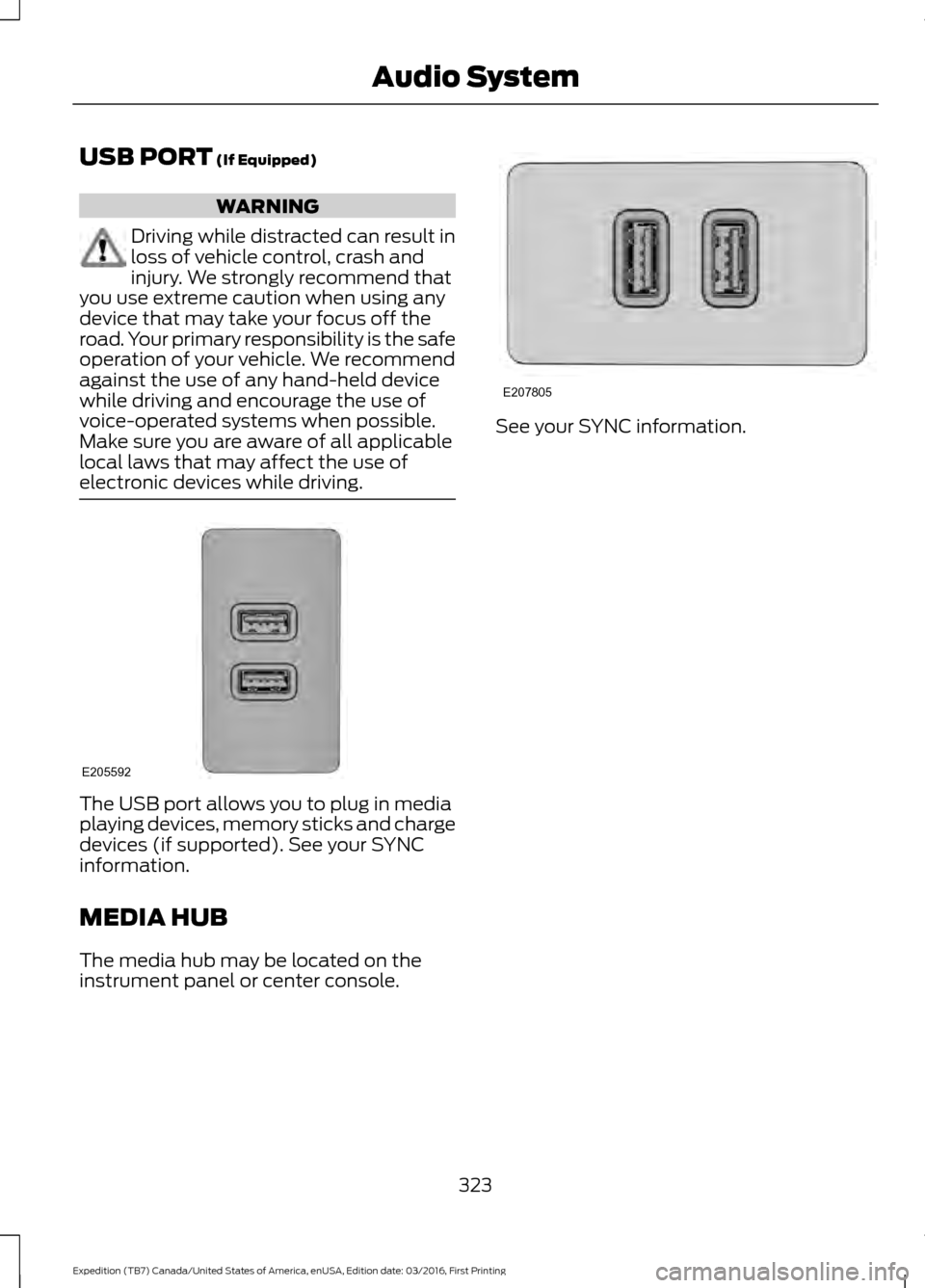
USB PORT (If Equipped)
WARNING
Driving while distracted can result in
loss of vehicle control, crash and
injury. We strongly recommend that
you use extreme caution when using any
device that may take your focus off the
road. Your primary responsibility is the safe
operation of your vehicle. We recommend
against the use of any hand-held device
while driving and encourage the use of
voice-operated systems when possible.
Make sure you are aware of all applicable
local laws that may affect the use of
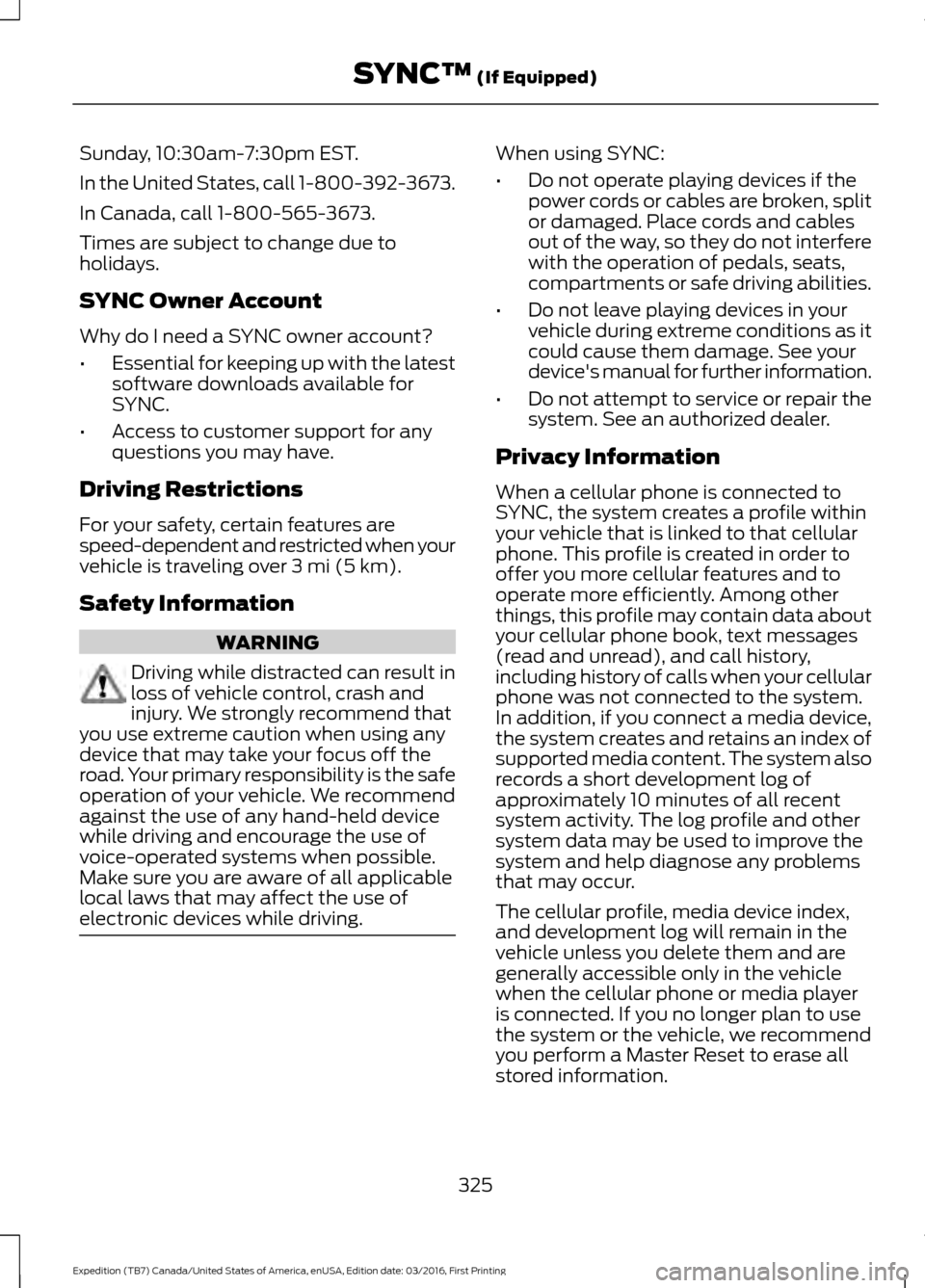
electronic devices while driving. The USB port allows you to plug in media
playing devices, memory sticks and charge
devices (if supported). See your SYNC
information.
MEDIA HUB
The media hub may be located on the
instrument panel or center console. See your SYNC information.
323
Expedition (TB7) Canada/United States of America, enUSA, Edition date: 03/2016, First Printing Audio SystemE205592 E207805
Page 328 of 500
Sunday, 10:30am-7:30pm EST.
In the United States, call 1-800-392-3673.
In Canada, call 1-800-565-3673.
Times are subject to change due to
holidays.
SYNC Owner Account
Why do I need a SYNC owner account?
•
Essential for keeping up with the latest
software downloads available for
SYNC.
• Access to customer support for any
questions you may have.
Driving Restrictions
For your safety, certain features are
speed-dependent and restricted when your
vehicle is traveling over 3 mi (5 km).
Safety Information WARNING
Driving while distracted can result in
loss of vehicle control, crash and
injury. We strongly recommend that
you use extreme caution when using any
device that may take your focus off the
road. Your primary responsibility is the safe
operation of your vehicle. We recommend
against the use of any hand-held device
while driving and encourage the use of
voice-operated systems when possible.
Make sure you are aware of all applicable
local laws that may affect the use of
electronic devices while driving. When using SYNC:
•
Do not operate playing devices if the
power cords or cables are broken, split
or damaged. Place cords and cables
out of the way, so they do not interfere
with the operation of pedals, seats,
compartments or safe driving abilities.
• Do not leave playing devices in your
vehicle during extreme conditions as it
could cause them damage. See your
device's manual for further information.
• Do not attempt to service or repair the
system. See an authorized dealer.
Privacy Information
When a cellular phone is connected to
SYNC, the system creates a profile within
your vehicle that is linked to that cellular
phone. This profile is created in order to
offer you more cellular features and to
operate more efficiently. Among other
things, this profile may contain data about
your cellular phone book, text messages
(read and unread), and call history,
including history of calls when your cellular
phone was not connected to the system.
In addition, if you connect a media device,
the system creates and retains an index of
supported media content. The system also
records a short development log of
approximately 10 minutes of all recent
system activity. The log profile and other
system data may be used to improve the
system and help diagnose any problems
that may occur.
The cellular profile, media device index,
and development log will remain in the
vehicle unless you delete them and are
generally accessible only in the vehicle
when the cellular phone or media player
is connected. If you no longer plan to use
the system or the vehicle, we recommend
you perform a Master Reset to erase all
stored information.
325
Expedition (TB7) Canada/United States of America, enUSA, Edition date: 03/2016, First Printing SYNC™
(If Equipped)
Page 330 of 500
System Interaction and Feedback
The system provides feedback through
audible tones, prompts, questions and
spoken confirmations depending on the
situation and the chosen level of
interaction. You can customize the voice
recognition system to provide more or less
instruction and feedback.
The default setting is to a higher level of
interaction in order to help you learn to use
the system. You can change these settings
at any time.
Adjusting the Interaction Level Press the voice button. When
prompted, say:
Action and Description
Voice Command
voice settings
Then either of the following: Provides more detailed interaction and
guidance. (Recommended for first time
users.)
interaction mode novice
Provides less audible interaction and guid-
ance.
interaction mode advanced
Confirmation Prompts
Confirmation prompts are short questions
the system asks when it is not sure of your
request or when there is more than one
possible response to your request.
To adjust this setting press the voice button, when prompted say: Action and Description
Voice Command
voice settings
Then either of the following: Make a best guess from the command; you
may still occasionally be asked to confirm
settings.
confirmation prompts off
Clarify your voice command with a short
question.
confirmation prompts on
Phone Confirmation
Using phone confirmations the system
asks you to verify before placing any calls. 327
Expedition (TB7) Canada/United States of America, enUSA, Edition date: 03/2016, First Printing SYNC™ (If Equipped)E142599
Page 343 of 500
SYNC™ APPLICATIONS AND
SERVICES (If Equipped)
In order for the following features to work,
your cell phone must be compatible with
SYNC. To check your phone's
compatibility, visit www.SYNCMyRide.com,
www.SYNCMyRide.ca or
www.syncmaroute.ca.
• SYNC Services *
: Provides access to
traffic, directions and information such
as travel, horoscopes, stock prices and
more.
• 911 Assist: Can alert 911 in the event of
an emergency.
• Vehicle Health Report *
: Provides a
diagnostic and maintenance report
card of your vehicle.
* This is an optional feature and available
in the United States only.
911 Assist
(If Equipped) WARNINGS
Unless the 911 Assist setting is set on
before a crash, the system will not
dial for help which could delay
response time, potentially increasing the
risk of serious injury or death after a crash. Do not wait for 911 Assist to make an
emergency call if you can do it
yourself. Dial emergency services
immediately to avoid delayed response
time which could increase the risk of
serious injury or death after a crash. If you
do not hear 911 Assist within five seconds
of the crash, the system or phone may be
damaged or non-functional. WARNINGS
Always place your phone in a secure
location in your vehicle so it does not
become a projectile or get damaged
in a crash. Failure to do so may cause
serious injury to someone or damage the
phone which could prevent 911 Assist from
working properly. Note:
The SYNC 911 Assist feature must be
set on before the incident.
Note: Before setting this feature on, make
sure that you read the 911 Assist Privacy
Notice later in this section for important
information.
Note: If any user turns 911 Assist on or off,
that setting applies for all paired phones. If
911 Assist is turned off, either a voice
message plays or a display message (or
icon) comes on (or both) when your vehicle
is started after a previously paired phone
connects.
Note: Every phone operates differently.
While SYNC 911 Assist works with most
cellular phones, some may have trouble
using this feature.
If a crash deploys an airbag (excluding
knee airbags and rear inflatable safety
belts [if equipped]) or activates the fuel
pump shut-off, your SYNC-equipped
vehicle may be able to contact emergency
services by dialing 911 through a paired and
connected Bluetooth-enabled phone. You
can learn more about the 911 Assist
feature, visit www.SYNCMyRide.com,
www.SYNCMyRide.ca or
www.syncmaroute.ca.
See
Supplementary Restraints System
(page 36). Important information about
airbag deployment is in this chapter.
See
Roadside Emergencies (page 221).
Important information about the fuel pump
shut-off is in this chapter.
340
Expedition (TB7) Canada/United States of America, enUSA, Edition date: 03/2016, First Printing SYNC™
(If Equipped)
Page 347 of 500
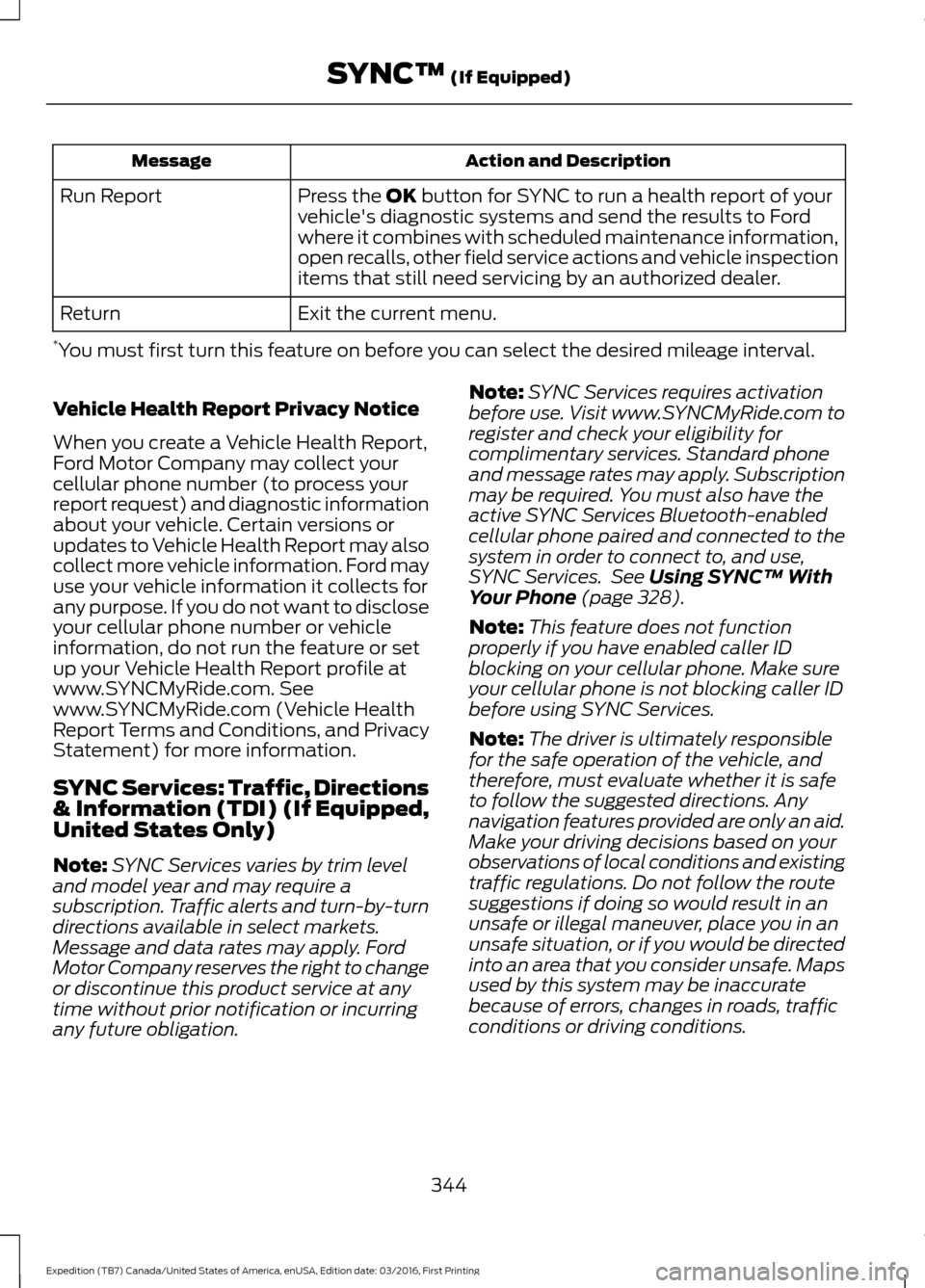
Action and Description
Message
Press the OK button for SYNC to run a health report of your
vehicle's diagnostic systems and send the results to Ford
where it combines with scheduled maintenance information,
open recalls, other field service actions and vehicle inspection
items that still need servicing by an authorized dealer.
Run Report
Exit the current menu.
Return
* You must first turn this feature on before you can select the desired mileage interval.
Vehicle Health Report Privacy Notice
When you create a Vehicle Health Report,
Ford Motor Company may collect your
cellular phone number (to process your
report request) and diagnostic information
about your vehicle. Certain versions or
updates to Vehicle Health Report may also
collect more vehicle information. Ford may
use your vehicle information it collects for
any purpose. If you do not want to disclose
your cellular phone number or vehicle
information, do not run the feature or set
up your Vehicle Health Report profile at
www.SYNCMyRide.com. See
www.SYNCMyRide.com (Vehicle Health
Report Terms and Conditions, and Privacy
Statement) for more information.
SYNC Services: Traffic, Directions
& Information (TDI) (If Equipped,
United States Only)
Note: SYNC Services varies by trim level
and model year and may require a
subscription. Traffic alerts and turn-by-turn
directions available in select markets.
Message and data rates may apply. Ford
Motor Company reserves the right to change
or discontinue this product service at any
time without prior notification or incurring
any future obligation. Note:
SYNC Services requires activation
before use. Visit www.SYNCMyRide.com to
register and check your eligibility for
complimentary services. Standard phone
and message rates may apply. Subscription
may be required. You must also have the
active SYNC Services Bluetooth-enabled
cellular phone paired and connected to the
system in order to connect to, and use,
SYNC Services. See
Using SYNC™ With
Your Phone (page 328).
Note: This feature does not function
properly if you have enabled caller ID
blocking on your cellular phone. Make sure
your cellular phone is not blocking caller ID
before using SYNC Services.
Note: The driver is ultimately responsible
for the safe operation of the vehicle, and
therefore, must evaluate whether it is safe
to follow the suggested directions. Any
navigation features provided are only an aid.
Make your driving decisions based on your
observations of local conditions and existing
traffic regulations. Do not follow the route
suggestions if doing so would result in an
unsafe or illegal maneuver, place you in an
unsafe situation, or if you would be directed
into an area that you consider unsafe. Maps
used by this system may be inaccurate
because of errors, changes in roads, traffic
conditions or driving conditions.
344
Expedition (TB7) Canada/United States of America, enUSA, Edition date: 03/2016, First Printing SYNC™
(If Equipped)
Page 363 of 500
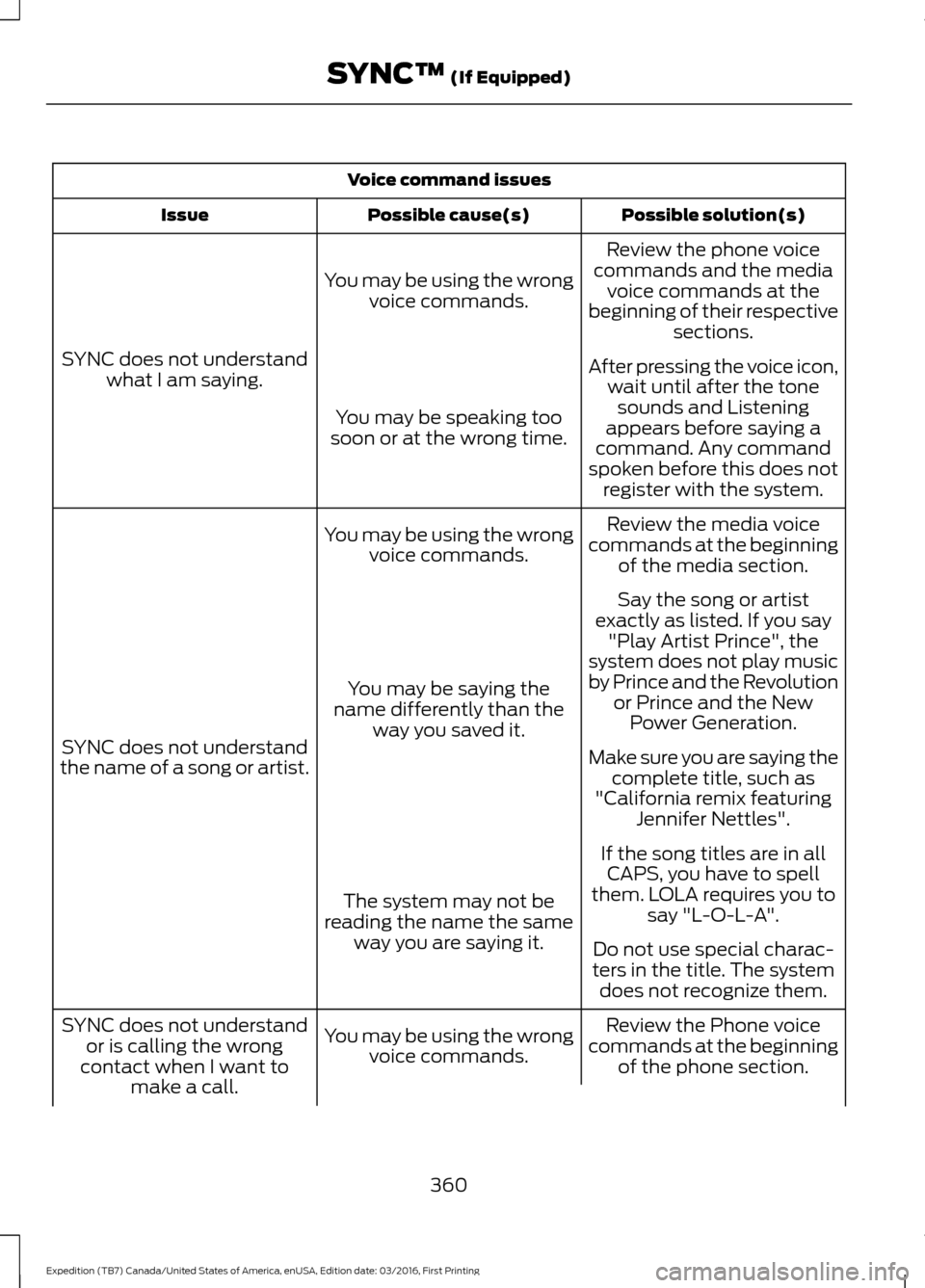
Voice command issues
Possible solution(s)
Possible cause(s)
Issue
Review the phone voice
commands and the media voice commands at the
beginning of their respective sections.
You may be using the wrong
voice commands.
SYNC does not understand what I am saying. After pressing the voice icon,
wait until after the tonesounds and Listening
appears before saying a
command. Any command
spoken before this does not register with the system.
You may be speaking too
soon or at the wrong time.
Review the media voice
commands at the beginning of the media section.
You may be using the wrong
voice commands.
SYNC does not understand
the name of a song or artist. Say the song or artist
exactly as listed. If you say "Play Artist Prince", the
system does not play music
by Prince and the Revolution or Prince and the NewPower Generation.
You may be saying the
name differently than the way you saved it.
Make sure you are saying thecomplete title, such as
"California remix featuring Jennifer Nettles".
If the song titles are in all CAPS, you have to spell
them. LOLA requires you to say "L-O-L-A".
The system may not be
reading the name the same way you are saying it. Do not use special charac-
ters in the title. The system does not recognize them.
Review the Phone voice
commands at the beginning of the phone section.
You may be using the wrong
voice commands.
SYNC does not understand
or is calling the wrong
contact when I want to make a call.
360
Expedition (TB7) Canada/United States of America, enUSA, Edition date: 03/2016, First Printing SYNC™ (If Equipped)