ignition FORD EXPEDITION 2019 Manual Online
[x] Cancel search | Manufacturer: FORD, Model Year: 2019, Model line: EXPEDITION, Model: FORD EXPEDITION 2019Pages: 583, PDF Size: 6.71 MB
Page 348 of 583
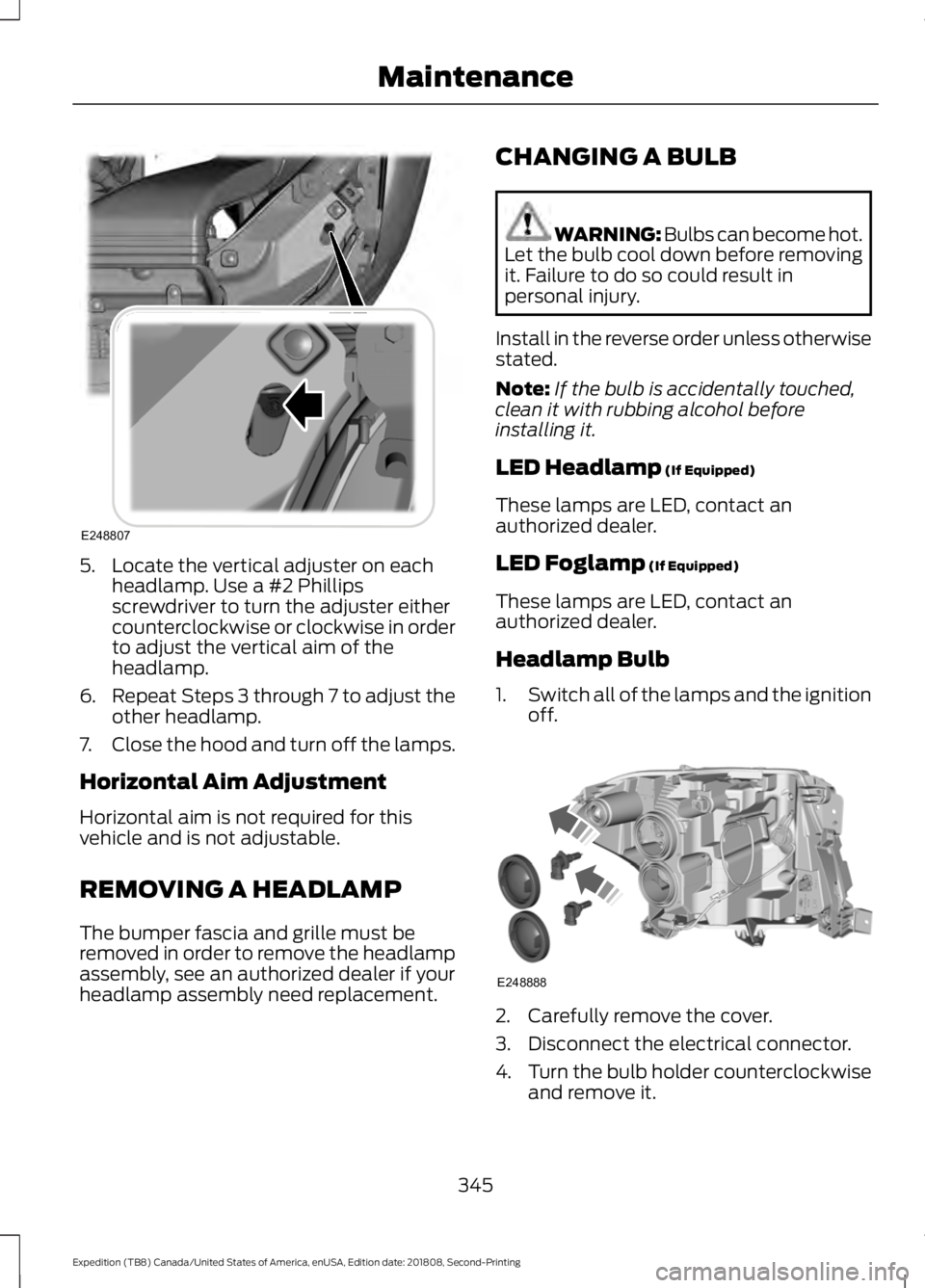
5. Locate the vertical adjuster on each
headlamp. Use a #2 Phillips
screwdriver to turn the adjuster either
counterclockwise or clockwise in order
to adjust the vertical aim of the
headlamp.
6. Repeat Steps 3 through 7 to adjust the
other headlamp.
7. Close the hood and turn off the lamps.
Horizontal Aim Adjustment
Horizontal aim is not required for this
vehicle and is not adjustable.
REMOVING A HEADLAMP
The bumper fascia and grille must be
removed in order to remove the headlamp
assembly, see an authorized dealer if your
headlamp assembly need replacement. CHANGING A BULB WARNING: Bulbs can become hot.
Let the bulb cool down before removing
it. Failure to do so could result in
personal injury.
Install in the reverse order unless otherwise
stated.
Note: If the bulb is accidentally touched,
clean it with rubbing alcohol before
installing it.
LED Headlamp (If Equipped)
These lamps are LED, contact an
authorized dealer.
LED Foglamp
(If Equipped)
These lamps are LED, contact an
authorized dealer.
Headlamp Bulb
1. Switch all of the lamps and the ignition
off. 2. Carefully remove the cover.
3. Disconnect the electrical connector.
4.
Turn the bulb holder counterclockwise
and remove it.
345
Expedition (TB8) Canada/United States of America, enUSA, Edition date: 201808, Second-Printing MaintenanceE248807 E248888
Page 349 of 583
Note:
You cannot separate the bulb from
the bulb holder.
Note: Do not touch the bulb glass.
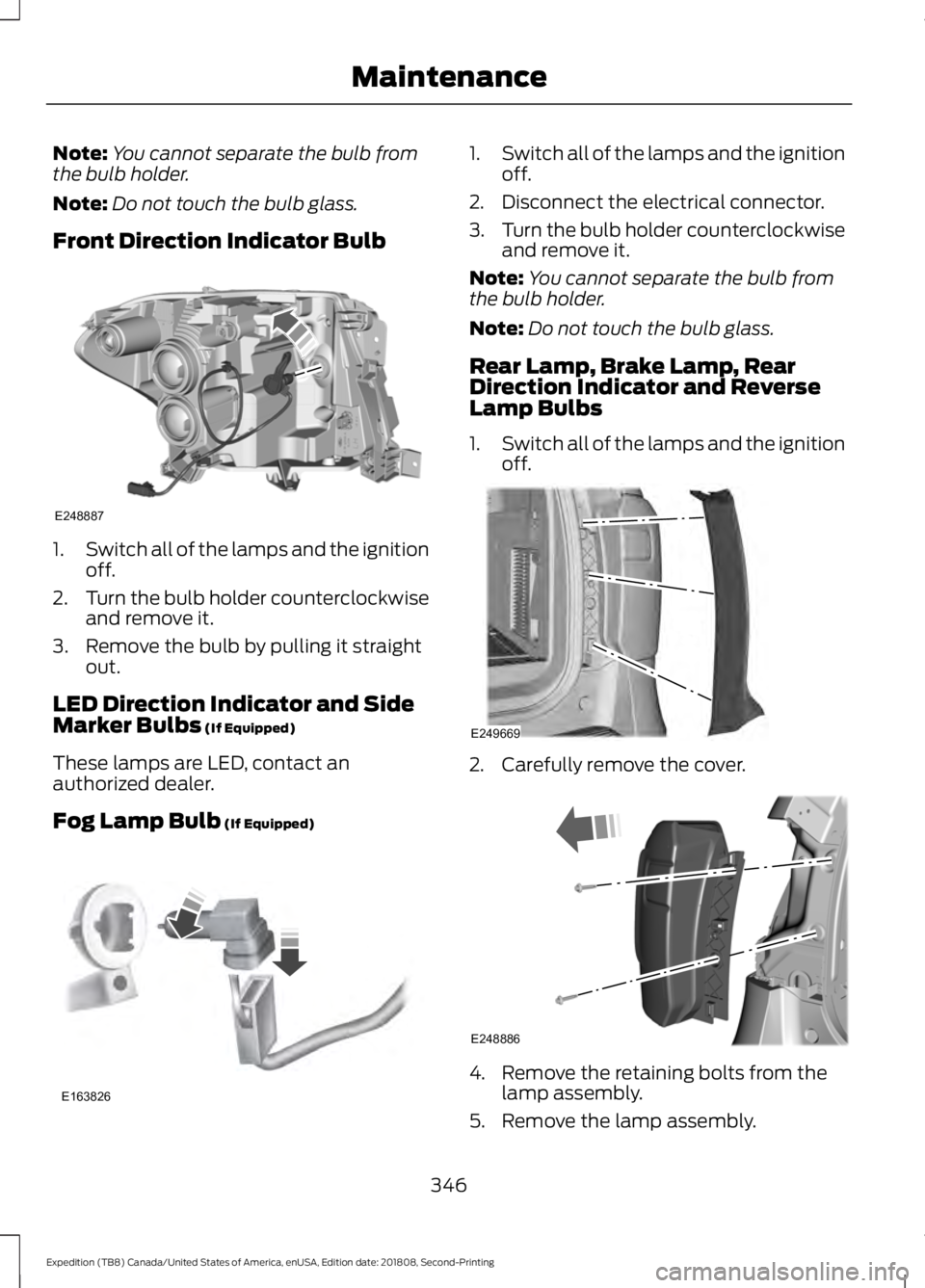
Front Direction Indicator Bulb 1.
Switch all of the lamps and the ignition
off.
2. Turn the bulb holder counterclockwise
and remove it.
3. Remove the bulb by pulling it straight out.
LED Direction Indicator and Side
Marker Bulbs (If Equipped)
These lamps are LED, contact an
authorized dealer.
Fog Lamp Bulb
(If Equipped) 1.
Switch all of the lamps and the ignition
off.
2. Disconnect the electrical connector.
3. Turn the bulb holder counterclockwise
and remove it.
Note: You cannot separate the bulb from
the bulb holder.
Note: Do not touch the bulb glass.
Rear Lamp, Brake Lamp, Rear
Direction Indicator and Reverse
Lamp Bulbs
1. Switch all of the lamps and the ignition
off. 2. Carefully remove the cover.
4. Remove the retaining bolts from the
lamp assembly.
5. Remove the lamp assembly.
346
Expedition (TB8) Canada/United States of America, enUSA, Edition date: 201808, Second-Printing MaintenanceE248887 E163826 E249669 E248886
Page 354 of 583
WAXING
Regular waxing is necessary to protect your
car's paint from the elements. We
recommend that you wash and wax the
painted surface once or twice a year.
When washing and waxing, park your
vehicle in a shaded area out of direct
sunlight. Always wash your vehicle before
applying wax.
•
Use a quality wax that does not contain
abrasives.
• Follow the manufacturer ’s instructions
to apply and remove the wax.
• Apply a small amount of wax in a
back-and-forth motion, not in circles.
• Do not allow wax to come in contact
with any non-body (low-gloss black)
colored trim. The wax will discolor or
stain the parts over time.
•Roof racks.
• Bumpers.
• Grained door handles.
• Side moldings.
• Mirror housings.
• Windshield cowl area.
• Do not apply wax to glass areas.
• After waxing, your car's paint should
feel smooth, and be free of streaks and
smudges.
CLEANING THE ENGINE
Engines are more efficient when they are
clean because grease and dirt buildup keep
the engine warmer than normal. When washing:
•
Take care when using a power washer
to clean the engine. The high-pressure
fluid could penetrate the sealed parts
and cause damage.
• Do not spray a hot engine with cold
water to avoid cracking the engine
block or other engine components.
• Spray Motorcraft Engine Shampoo and
Degreaser on all parts that require
cleaning and pressure rinse clean. In
Canada, use Motorcraft Engine
Shampoo.
Note: If your vehicle has an engine cover
remove the cover before application of
Motorcraft Engine Shampoo and Degreaser.
Immediately rinse away any over spray.
• Never wash or rinse the engine while it
is hot or running; water in the running
engine may cause internal damage.
• Never wash or rinse any ignition coil,
spark plug wire or spark plug well, or
the area in and around these locations.
• Cover the battery, power distribution
box, and air filter assembly to prevent
water damage when cleaning the
engine.
CLEANING THE WINDOWS AND
WIPER BLADES
Car wash chemicals and environmental
fallout can result in windshield and wiper
blade contamination. Dirty windshield and
wipers will result in poor windshield wiper
operation. Keep the windshield and wiper
blades clean to maintain windshield wiper
performance.
351
Expedition (TB8) Canada/United States of America, enUSA, Edition date: 201808, Second-Printing Vehicle Care
Page 382 of 583
•
To reduce the chances of interference
from another vehicle, perform the
system reset procedure at least 3 ft
(1 m) away from another Ford Motor
Company vehicle undergoing the
system reset procedure at the same
time.
• Do not wait more than two minutes
between resetting each tire sensor or
the system can time-out and you have
to repeat the entire procedure on all
four wheels.
• A double horn sounds indicating the
need to repeat the procedure.
Performing the System Reset Procedure
Read the entire procedure before
attempting.
1. Drive the vehicle above
20 mph
(32 km/h) for at least two minutes,
then park in a safe location where you
can easily get to all four tires and have
access to an air pump.
2. Place the ignition in the off position and
keep the key in the ignition.
3. Cycle the ignition to the on position with the engine off.
4. Turn the hazard flashers on then off three times. You must accomplish this
within 10 seconds. If you successfully
enter the reset mode, the horn sounds
once, the system indicator flashes and
a message shows in the information
display. If this does not occur, please
try again starting at step 2. If after
repeated attempts to enter the reset
mode, the horn does not sound, the
system indicator does not flash and no
message shows in the information
display, seek service from your
authorized dealer. 5. Train the tire pressure monitoring
system sensors in the tires using the
following system reset sequence
starting with the left front tire in the
following clockwise order: Left front -
driver side front tire, Right front -
passenger side front tire, Right rear -
passenger side rear tire, Left rear -
driver side rear tire.
6. Remove the valve cap from the valve stem on the left front tire. Decrease the
air pressure until the horn sounds.
Note: The single horn tone confirms that
the sensor identification code has been
learned by the module for this position. If a
double horn is heard, the reset procedure
was unsuccessful, and you must repeat it.
7. Remove the valve cap from the valve stem on the right front tire. Decrease
the air pressure until the horn sounds.
8. Remove the valve cap from the valve stem on the right rear tire. Decrease the
air pressure until the horn sounds.
9. Remove the valve cap from the valve stem on the left rear tire. Decrease the
air pressure until the horn sounds.
Training is complete after the horn
sounds for the last tire trained, driver
side rear tire, the system indicator
stops flashing, and a message shows
in the information display.
10. Turn the ignition off. If two short horn
beeps are heard, the reset procedure
was unsuccessful and you must
repeat it. If after repeating the
procedure and two short beeps are
heard when the ignition is turned to
off, seek assistance from your
authorized dealer.
379
Expedition (TB8) Canada/United States of America, enUSA, Edition date: 201808, Second-Printing Wheels and Tires
Page 385 of 583
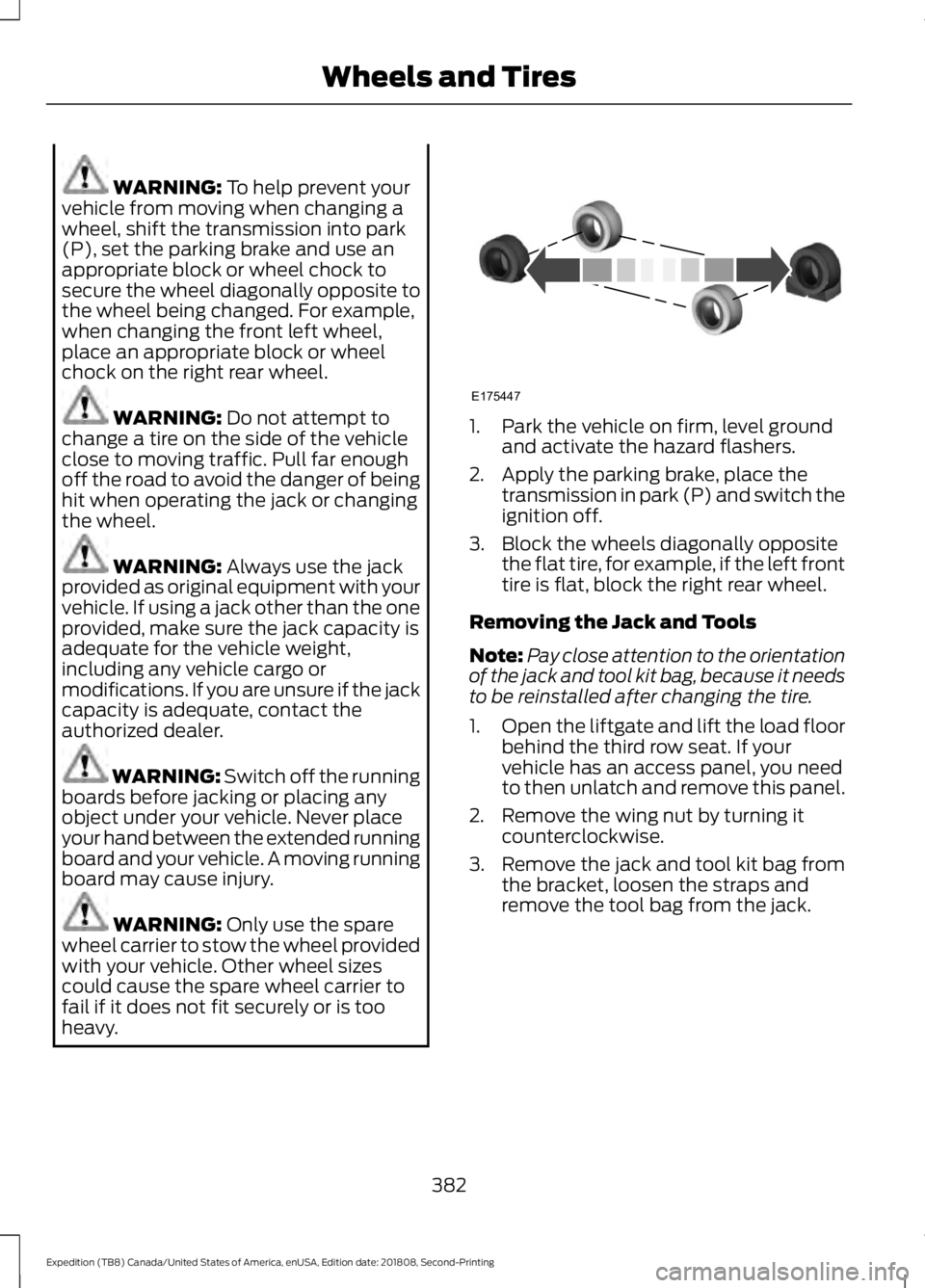
WARNING: To help prevent your
vehicle from moving when changing a
wheel, shift the transmission into park
(P), set the parking brake and use an
appropriate block or wheel chock to
secure the wheel diagonally opposite to
the wheel being changed. For example,
when changing the front left wheel,
place an appropriate block or wheel
chock on the right rear wheel. WARNING:
Do not attempt to
change a tire on the side of the vehicle
close to moving traffic. Pull far enough
off the road to avoid the danger of being
hit when operating the jack or changing
the wheel. WARNING:
Always use the jack
provided as original equipment with your
vehicle. If using a jack other than the one
provided, make sure the jack capacity is
adequate for the vehicle weight,
including any vehicle cargo or
modifications. If you are unsure if the jack
capacity is adequate, contact the
authorized dealer. WARNING:
Switch off the running
boards before jacking or placing any
object under your vehicle. Never place
your hand between the extended running
board and your vehicle. A moving running
board may cause injury. WARNING:
Only use the spare
wheel carrier to stow the wheel provided
with your vehicle. Other wheel sizes
could cause the spare wheel carrier to
fail if it does not fit securely or is too
heavy. 1. Park the vehicle on firm, level ground
and activate the hazard flashers.
2. Apply the parking brake, place the transmission in park (P) and switch the
ignition off.
3. Block the wheels diagonally opposite the flat tire, for example, if the left front
tire is flat, block the right rear wheel.
Removing the Jack and Tools
Note: Pay close attention to the orientation
of the jack and tool kit bag, because it needs
to be reinstalled after changing the tire.
1. Open the liftgate and lift the load floor
behind the third row seat. If your
vehicle has an access panel, you need
to then unlatch and remove this panel.
2. Remove the wing nut by turning it counterclockwise.
3. Remove the jack and tool kit bag from the bracket, loosen the straps and
remove the tool bag from the jack.
382
Expedition (TB8) Canada/United States of America, enUSA, Edition date: 201808, Second-Printing Wheels and TiresE175447
Page 390 of 583
ENGINE SPECIFICATIONS
3.5L EcoBoost
Engine
214
Cubic inches
1-4-2-5-3-6
Firing order
Coil on plug
Ignition system
10.5:1
Compression ratio
0.028 in (0.7 mm) - 0.031 in (0.8 mm)
Spark plug gap
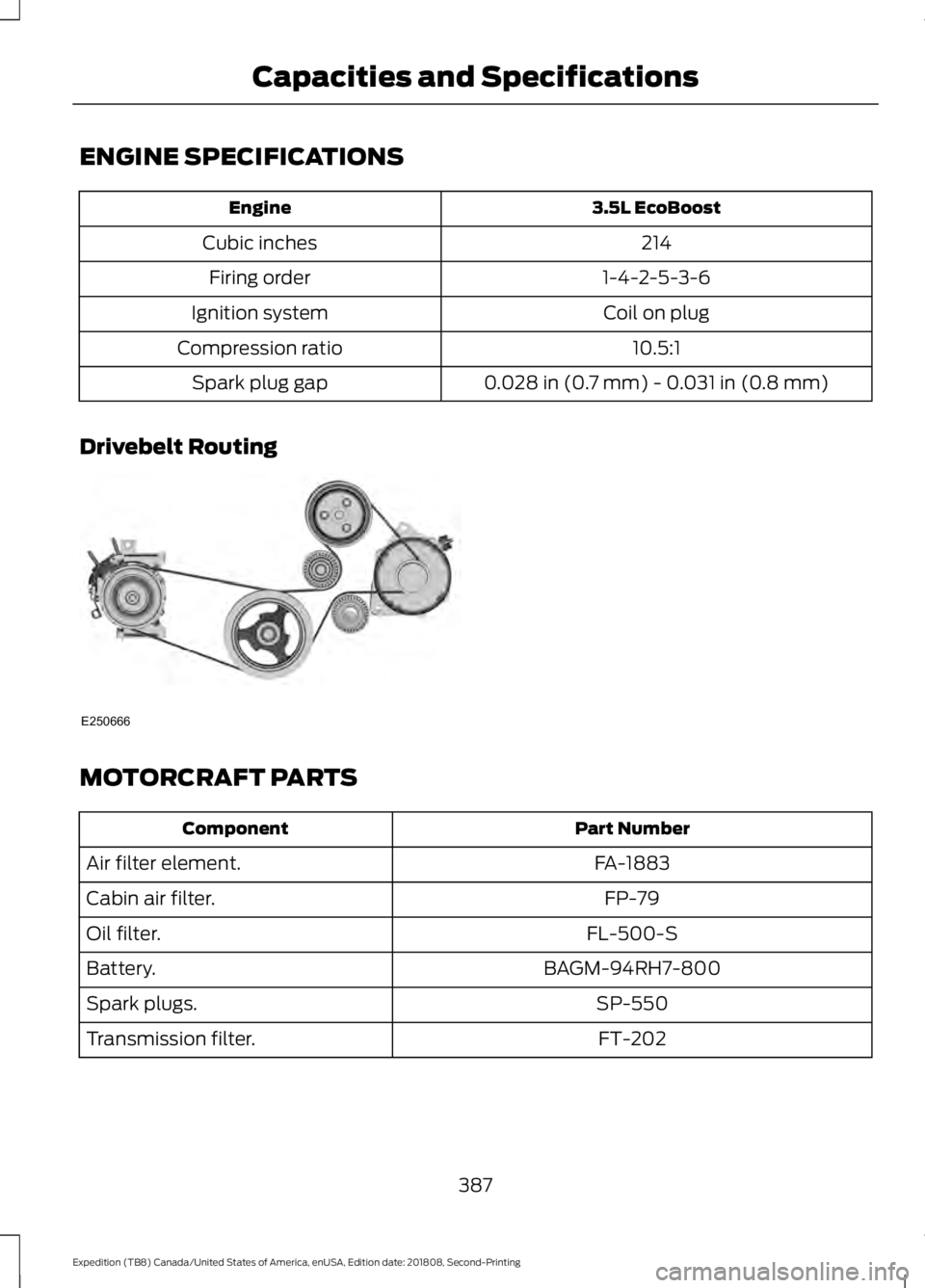
Drivebelt Routing MOTORCRAFT PARTS
Part Number
Component
FA-1883
Air filter element.
FP-79
Cabin air filter.
FL-500-S
Oil filter.
BAGM-94RH7-800
Battery.
SP-550
Spark plugs.
FT-202
Transmission filter.
387
Expedition (TB8) Canada/United States of America, enUSA, Edition date: 201808, Second-Printing Capacities and SpecificationsE250666
Page 415 of 583
To adjust this setting press the voice button, when prompted say:
Action and Description
Voice Command
Voice Settings
Then any of the following: When enabled, this feature will prompt you
to confirm any voice initiated call command
prior to the call being placed.
Phone Confirmation Off
The system will make a best guess; you
may still occasionally be asked to confirm
settings.
Phone Confirmation On
USING SYNC™ WITH YOUR
PHONE
Hands-free calling is one of the main
features of SYNC. While the system
supports a variety of features, many are
dependent on your cellular phone's
functionality. At a minimum, most cellular
phones with Bluetooth wireless technology
support the following functions:
• Answering an incoming call.
• Ending a call.
• Dialing a number.
• Redialing.
• Call waiting notification.
• Caller ID.
Other features, such as text messaging
using Bluetooth and automatic phonebook
download, are phone-dependent features.
Pairing a Phone
Wirelessly pairing your phone with SYNC
allows you to make and receive hands-free
calls. Note:
Make sure to switch on the ignition
and the radio. Shift the transmission into
park (P) for automatic transmission or first
gear for manual transmission.
Using the Audio System
Note: To scroll through the menus, press
the up and down arrows on your audio
system.
1. Make sure to switch on your phone's Bluetooth feature before starting the
search. See your device's manual if
necessary.
2. Press the Settings button.
3. Select Bluetooth from the menu.
4. Press the
OK button.
5. Select the option to add. This starts the pairing process.
6. When a message to begin pairing appears in the audio display, search for
SYNC on your device.
412
Expedition (TB8) Canada/United States of America, enUSA, Edition date: 201808, Second-Printing SYNC™
Page 427 of 583
AppLink issues
Possible solution(s)
Possible cause(s)
Issue
login on the app on the
phone before using them with AppLink. Also, some may have a "Ford SYNC"
setting, so check the app's
settings menu on the phone.
Closing and restarting apps may help SYNC find the
application if you cannot
discover it inside the vehicle. On an Android device, if
apps have an "Exit' or 'Quit'
Sometime apps do not
properly close and re-open their connection to SYNC, over ignition cycles, for example.
My phone is connected, my
app(s) are running, but I still cannot find any apps. option, select that then
restart the app. If the app
does not have that option, you can also manually
"Force Close" the app by
going to the phone's settings
menu, selecting 'Apps.' then finding the particular app
and choosing 'Force stop.' Don't forget to restart the
app afterwards, then select "Find New Apps" on SYNC.
On an iPhone with iOS7+, to force close an app, doubletab the home button then
swipe up on the app to close it. Tab the home button
again, then select the app again to restart it. After a
few seconds, the app should then appear in SYNC'sMobile App's Menu.
Reset the Bluetooth on your phone by turning it off and
then turning Bluetooth back
on. If you are in your vehicle, SYNC should be able to
automatically re-connect to your phone if you press the "Phone" button.
There is a Bluetooth bug on
some older versions of theAndroid operating systemthat may cause apps that
were found on your previous
vehicle drive to not be found
again if you have not turned off Bluetooth.
My Android phone is
connected, my app(s) are running, I restarted them,but I still cannot find any apps.
424
Expedition (TB8) Canada/United States of America, enUSA, Edition date: 201808, Second-Printing SYNC™
Page 430 of 583
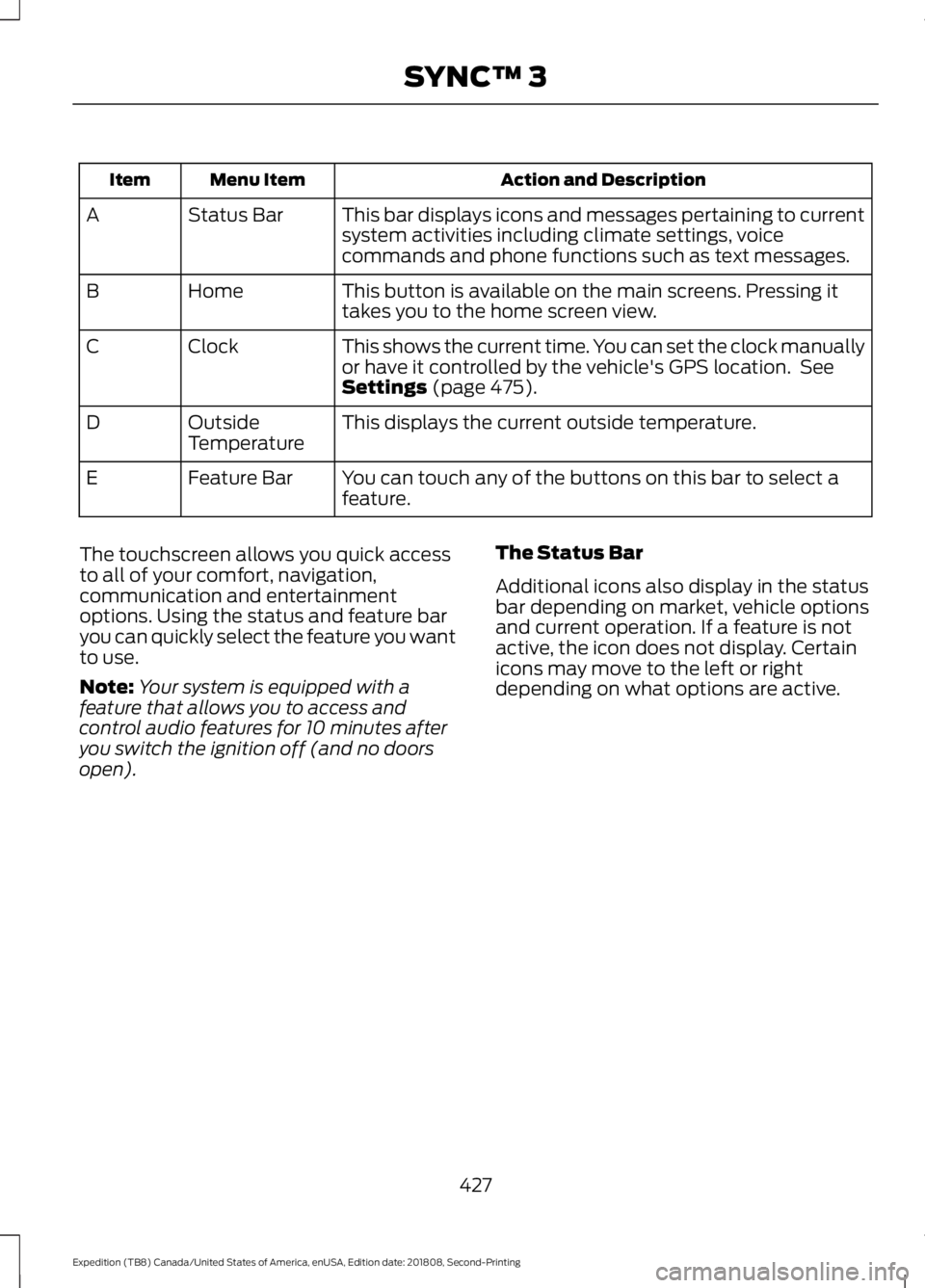
Action and Description
Menu Item
Item
This bar displays icons and messages pertaining to current
system activities including climate settings, voice
commands and phone functions such as text messages.
Status Bar
A
This button is available on the main screens. Pressing it
takes you to the home screen view.
Home
B
This shows the current time. You can set the clock manually
or have it controlled by the vehicle's GPS location. See
Settings (page 475).
Clock
C
This displays the current outside temperature.
Outside
Temperature
D
You can touch any of the buttons on this bar to select a
feature.
Feature Bar
E
The touchscreen allows you quick access
to all of your comfort, navigation,
communication and entertainment
options. Using the status and feature bar
you can quickly select the feature you want
to use.
Note: Your system is equipped with a
feature that allows you to access and
control audio features for 10 minutes after
you switch the ignition off (and no doors
open). The Status Bar
Additional icons also display in the status
bar depending on market, vehicle options
and current operation. If a feature is not
active, the icon does not display. Certain
icons may move to the left or right
depending on what options are active.
427
Expedition (TB8) Canada/United States of America, enUSA, Edition date: 201808, Second-Printing SYNC™ 3
Page 440 of 583
If you would like to switch this feature
on later, select:
Menu Item
Settings
General From this menu, you can
enable automatic updates.
If you have not done so
already, the system
prompts you to set up a
Wi-Fi connection when you
enable this feature.
Automatic
System
Updates
When the system is connected via Wi-Fi
and automatic updates are enabled, your
system checks for software updates
periodically. If a new version is available, it
downloads at that time. Software
downloads can take place for up to 30
minutes after you have switched your
vehicle off. The updates do not interrupt
the normal use of your SYNC 3 system. If
a download does not complete for any
reason, the download continues where it
left off at the next Wi-Fi connected
opportunity. Upon activation of an update,
a banner displays on the touchscreen
indicating the system update. Select the
icon to see more detail. This icon displays
for two ignition cycles.
To switch this feature off: Menu Item
Settings
General In this menu selection, you
can change the selection
for automatic updates to
OFF.
Automatic
System
Updates Customer Assistance
The SYNC support team is available to
help you with any questions you are not
able to answer on your own.
Monday-Saturday, 8:30am-8:00pm EST.
United States: 1-800-392-3673.
Canada: 1-800-565-3673.
Mexico: 01-800-719-8466.
Times are subject to change due to
holidays.
Privacy Information
When you connect a cellular phone to
SYNC 3, the system creates a profile within
your vehicle that links to that cellular
phone. This profile helps in offering you
more cellular features and operating more
efficiently. Among other things, this profile
may contain data about your cellular
phone book, text messages (read and
unread), and call history, including history
of calls when your cell phone was not
connected to the system. In addition, if you
connect a media device, the system
creates and retains an index of supported
media content. The system also records a
short diagnostic log of approximately 10
minutes of all recent system activity. The
log profile and other system data may be
used to improve the system and help
diagnose any problems that may occur.
The cellular profile, media device index,
and diagnostic log remain in your vehicle
unless you delete them and are generally
accessible only in your vehicle when the
cellular phone or media player is
connected.
If you no longer plan to use the system or
your vehicle, we recommend you perform
a Master Reset to erase all stored
information. You can find more information
about the Master Reset in General
Settings. See Settings (page 475). System
437
Expedition (TB8) Canada/United States of America, enUSA, Edition date: 201808, Second-Printing SYNC™ 3