page 80 FORD EXPEDITION 2021 Owners Manual
[x] Cancel search | Manufacturer: FORD, Model Year: 2021, Model line: EXPEDITION, Model: FORD EXPEDITION 2021Pages: 574, PDF Size: 8.33 MB
Page 385 of 574
How Temperature Affects Your Tire
Pressure
The tire pressure monitoring system
monitors tire pressure in each pneumatic
tire. While driving in a normal manner, a
typical passenger tire inflation pressure
could increase about 2
–4 psi (14– 28 kPa)
from a cold start situation. If the vehicle is
stationary overnight with the outside
temperature significantly lower than the
daytime temperature, the tire pressure
could decrease about
3 psi (21 kPa) for a
drop of 30°F (17°C) in ambient
temperature. This lower pressure value
could be detected by the tire pressure
monitoring system as being significantly
lower than the recommended inflation
pressure and activate the system warning
light for low tire pressure. If the low tire
pressure warning light is on, visually check
each tire to verify that no tire is flat. If one
or more tires are flat, repair as necessary.
Check the air pressure in the road tires. If
any tire is under-inflated, carefully drive
the vehicle to the nearest location where
air can be added to the tires. Inflate all the
tires to the recommended inflation
pressure.
CHANGING A ROAD WHEEL WARNING:
If the tire pressure
monitor sensor becomes damaged it
may not function.
Note: You should only use tire sealants in
roadside emergencies as they may cause
damage to the tire pressure monitoring
system sensor.
Note: The tire pressure monitoring system
indicator light illuminates when the spare
tire is in use. To restore the full function of
the monitoring system, all road wheels
equipped with tire pressure monitoring
sensors must be mounted on this vehicle. If you get a flat tire when driving, do not
apply the brake heavily. Instead, gradually
decrease your speed. Hold the steering
wheel firmly and slowly move to a safe
place on the side of the road.
Have a flat serviced by an authorized
dealer in order to prevent damage to the
system sensors.
See Tire Pressure
Monitoring System (page 378). Replace
the spare tire with a road tire as soon as
possible. During repairing or replacing of
the flat tire, have the authorized dealer
inspect the system sensor for damage.
Dissimilar Spare Wheel and Tire
Assembly Information WARNING:
Failure to follow these
guidelines could result in an increased
risk of loss of vehicle control, injury or
death.
If you have a dissimilar spare wheel and
tire, then it is intended for temporary use
only. This means that if you need to use it,
you should replace it as soon as possible
with a road wheel and tire assembly that
is the same size and type as the road tires
and wheels that were originally provided.
If the dissimilar spare tire or wheel is
damaged, it should be replaced rather than
repaired.
A dissimilar spare wheel and tire assembly
is defined as a spare wheel and tire
assembly that is different in brand, size or
appearance from the road tires and
wheels.
Full-size dissimilar spare
382
Expedition (TB8) Canada/United States of America, enUSA, First-Printing Wheels and Tires
Page 389 of 574
WARNING: Check that the vehicle
jack is not damaged or deformed and
the thread is lubricated and clean. WARNING: The jack supplied with
this vehicle is only intended for changing
wheels. Do not use the vehicle jack other
than when you are changing a wheel in
an emergency. WARNING:
The jack should be
used on level firm ground wherever
possible. WARNING:
Never place anything
between the vehicle jack and the ground. WARNING:
Never place anything
between the vehicle jack and your
vehicle. WARNING:
Do not work on your
vehicle when the jack is the only support
as your vehicle could slip off the jack.
Failure to follow this instruction could
result in personal injury or death. WARNING: It is recommended that
the wheels of the vehicle be chocked,
and that no person should remain in a
vehicle that is being jacked. WARNING:
Failure to follow these
guidelines could result in an increased
risk of loss of vehicle control, injury or
death. Note:
The jack does not require
maintenance or additional lubrication over
the service life of your vehicle.
Note: Both the front and rear jacking points
are on the frame rails. The correct locations
on the frame rails are marked with an arrow
punched into the frame rail. Jack at the
specified locations to avoid damaging your
vehicle.
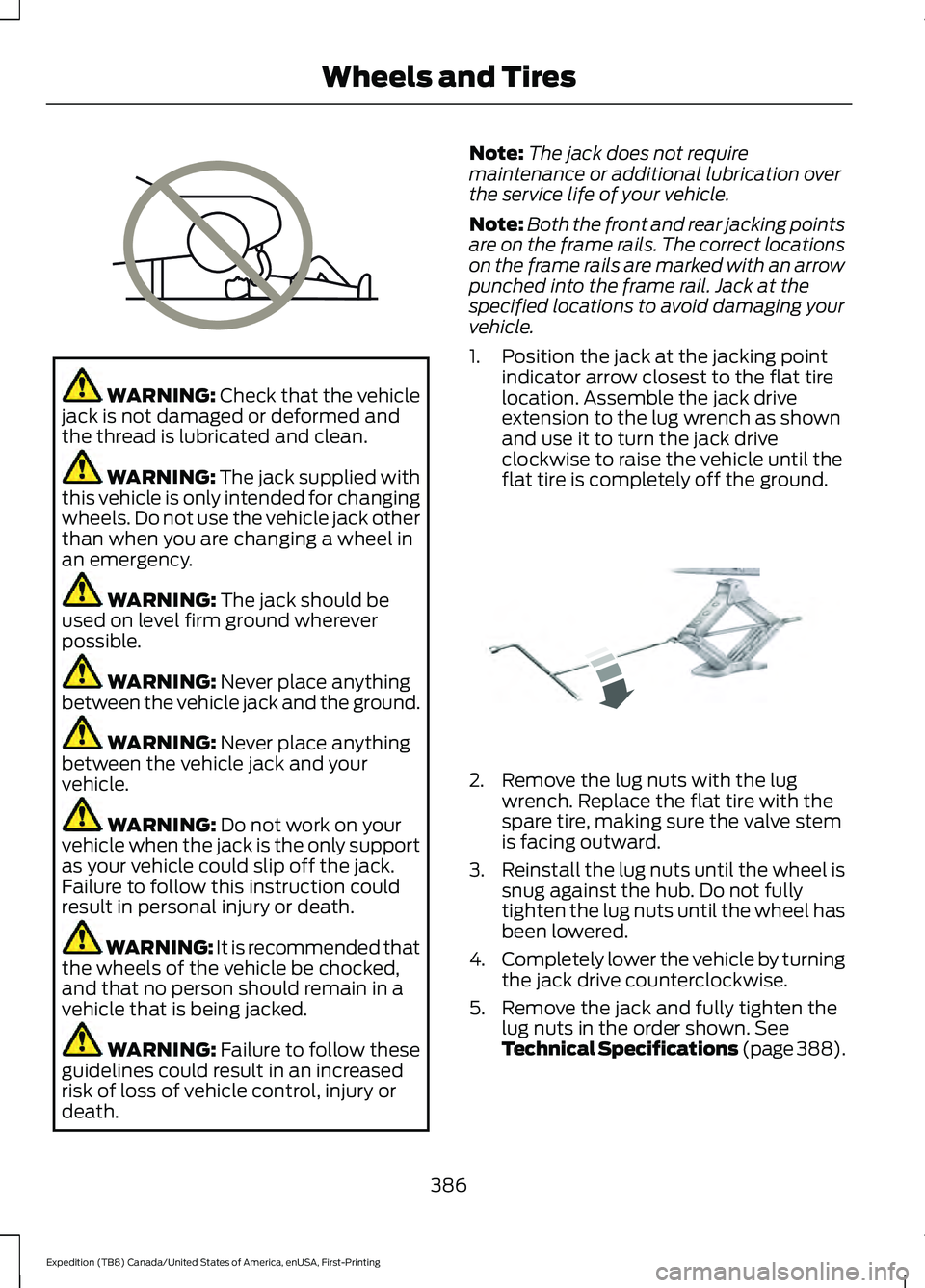
1. Position the jack at the jacking point indicator arrow closest to the flat tire
location. Assemble the jack drive
extension to the lug wrench as shown
and use it to turn the jack drive
clockwise to raise the vehicle until the
flat tire is completely off the ground. 2. Remove the lug nuts with the lug
wrench. Replace the flat tire with the
spare tire, making sure the valve stem
is facing outward.
3. Reinstall the lug nuts until the wheel is
snug against the hub. Do not fully
tighten the lug nuts until the wheel has
been lowered.
4. Completely lower the vehicle by turning
the jack drive counterclockwise.
5. Remove the jack and fully tighten the lug nuts in the order shown. See
Technical Specifications (page 388).
386
Expedition (TB8) Canada/United States of America, enUSA, First-Printing Wheels and TiresE166722 E325278
Page 394 of 574
Part Number
Component
WW-2248
Windshield wiper blade.
WW-1107
Rear window wiper blade.
1 If a Motorcraft oil filter is not available, use an oil filter that meets industry performance
specification SAE/USCAR-36.
2 For spark plug replacement, contact an authorized dealer. Replace the spark plugs at
the appropriate intervals. See Scheduled Maintenance (page 483).
We recommend Motorcraft replacement parts available at your authorized dealer or at
fordparts.com for scheduled maintenance. We engineer the parts for your vehicle to meet
and exceed our specifications. Use of other parts may impact vehicle performance,
emissions and durability. Your warranty may be void for any damage related to use of
other parts.
391
Expedition (TB8) Canada/United States of America, enUSA, First-Printing Capacities and Specifications
Page 419 of 574
SiriusXM satellite radio is a
subscription-based satellite radio service
that broadcasts a variety of music, sports,
news, weather, traffic and entertainment
programming. Your factory-installed
SiriusXM satellite radio system includes
hardware and a limited subscription term,
which begins on the date of sale or lease
of your vehicle. See an authorized dealer
for availability.
For more information on extended
subscription terms (a service fee is
required), the online media player and a
complete list of SiriusXM satellite radio
channels, and other features, please visit
www.siriusxm.com in the United States,
www.siriusxm.ca in Canada, or call
SiriusXM at 1-888-539-7474.
Satellite Radio Electronic Serial
Number (ESN)
You need your ESN to activate, modify or
track your satellite radio account.
Locating Your ESN
With satellite radio as the source, use the
touchscreen to select the following:
1. Select Settings. See Settings (page
465).
2. Select
SiriusXM.
3. Select
SiriusXM information.
Troubleshooting Action
Condition
Message
No action required. This
message should disappear
shortly.
Radio requires more than
two seconds to produce
audio for the selected
channel.
Acquiring\b
If this message does not
clear shortly, or with an igni-
tion key cycle, your receiver
may have a fault. See an
authorized dealer for service.
There is an internal module
or system failure present.
Satellite antenna fault
SIRIUS system failure
Tune to another channel or
choose another preset.
The channel is no longer
available.
Invalid Channel
Contact SiriusXM at 1-888-
539-7474 to subscribe to
the channel, or tune to
another channel.
Your subscription does not
include this channel.
Unsubscribed Channel
The signal is blocked. When
you move into an open area,
the signal should return.
The signal is lost from the
SiriusXM satellite or Siri-
usXM tower to your vehicle
antenna.
No Signal
416
Expedition (TB8) Canada/United States of America, enUSA, First-Printing Audio System
Page 421 of 574
The USB port allows you to plug in media
playing devices, memory sticks and charge
devices.
Note:
We recommend using only USB-IF
certified cables and adapters. Non-certified
cables and adapters may not work.
Locating the USB Ports
The USB ports may be in the following
locations:
• Inside the media bin.
• Inside the center console.
• On the lower instrument panel.
Note: The number and type of USB ports
may vary depending on your vehicle.
Note: Not all USB ports in your vehicle have
data transfer capabilities. See Locating the
Power Outlet (page 178).
418
Expedition (TB8) Canada/United States of America, enUSA, First-Printing Audio System
Page 422 of 574
GENERAL INFORMATION
SYNC is an in-vehicle communications
system that works with your Bluetooth
enabled cellular phone and portable media
player. This allows you to:
•
Make and receive calls.
• Access and play music from your
portable music player.
• Use 911 Assist or Emergency Assistance
and applications via SYNC AppLink. *
• Access phonebook contacts and music
using voice commands.
• Stream music from your connected
phone.
• Text message.
• Use the advanced voice recognition
system.
• Charge your USB device (if your device
supports this).
* These features are not available in all
markets and may require activation.
Available AppLink enabled apps vary by
market.
Make sure that you review your device's
manual before using it with SYNC.
Support
SYNC support is available at your regional
Ford website. See SYNC™
Troubleshooting (page 425).
SYNC Owner Account
Why do I need a SYNC owner account?
• Essential for keeping up with the latest
software downloads available for
SYNC.
• Access to customer support for any
questions you may have. Driving Restrictions
For your safety, certain features are
speed-dependent and restricted when your
vehicle is traveling over
3 mph (5 km/h).
Safety Information WARNING: Driving while distracted
can result in loss of vehicle control, crash
and injury. We strongly recommend that
you use extreme caution when using any
device that may take your focus off the
road. Your primary responsibility is the
safe operation of your vehicle. We
recommend against the use of any
hand-held device while driving and
encourage the use of voice-operated
systems when possible. Make sure you
are aware of all applicable local laws
that may affect the use of electronic
devices while driving.
When using SYNC:
• Do not operate playing devices if the
power cords or cables are broken, split
or damaged. Place cords and cables
out of the way, so they do not interfere
with the operation of pedals, seats,
compartments or safe driving abilities.
• Do not leave playing devices in your
vehicle during extreme conditions as it
could cause them damage. See your
device's manual for further information.
• Do not attempt to service or repair the
system. See an authorized dealer.
Privacy Information
When a cellular phone is connected to
SYNC, the system creates a profile within
your vehicle that is linked to that cellular
phone. This profile is created in order to
offer you more cellular features and to
operate more efficiently. Among other
things, this profile may contain data about
your cellular phone book, text messages
419
Expedition (TB8) Canada/United States of America, enUSA, First-Printing SYNC™
(If Equipped)
Page 423 of 574
(read and unread), and call history,
including history of calls when your cellular
phone was not connected to the system.
In addition, if you connect a media device,
the system creates and retains an index of
supported media content. The system also
records a short development log of
approximately 10 minutes of all recent
system activity. The log profile and other
system data may be used to improve the
system and help diagnose any problems
that may occur.
The cellular profile, media device index,
and development log will remain in the
vehicle unless you delete them and are
generally accessible only in the vehicle
when you connect the cellular phone or
media player. If you no longer plan to use
the system or the vehicle, we recommend
you perform a Master Reset to erase all
stored information.
No one can access system data without
special equipment and access to the
vehicle's SYNC module. Ford Motor
Company and Ford of Canada will not
access the system data for any purpose
other than as described absent consent, a
court order, or where required by law
enforcement, other government
authorities, or other third parties acting
with lawful authority. Other parties may
seek to access the information
independently of Ford Motor Company and
Ford of Canada. For further privacy
information, see the section on 911 Assist.
See SYNC™ Applications and Services
(page 423).
USING VOICE RECOGNITION
This system helps you control many
features using voice commands. This
allows you to keep your hands on the
wheel and focus on what is around you.
Initiating a Voice Session Press the voice button. A list of
available voice commands
appears in the display.
Global Voice Commands
These voice commands are always
available. You can say them at any time. Global voice commands
Gives you available commands you can use
on the current screen.
Help
Gives you a list of possible voice
commands.
List of Commands
This command ends the voice session. You
can also cancel a session by pressing seek
up, seek down, or holding the voice button
for two or more seconds.
Cancel
420
Expedition (TB8) Canada/United States of America, enUSA, First-Printing SYNC™
(If Equipped)E142599
Page 437 of 574
GENERAL INFORMATION
WARNING: Driving while distracted
can result in loss of vehicle control, crash
and injury. We strongly recommend that
you use extreme caution when using any
device that may take your focus off the
road. Your primary responsibility is the
safe operation of your vehicle. We
recommend against the use of any
hand-held device while driving and
encourage the use of voice-operated
systems when possible. Make sure you
are aware of all applicable local laws
that may affect the use of electronic
devices while driving.
About SYNC
The system allows you to interact with the
entertainment, information and
communication systems on your vehicle
using voice commands and a touchscreen.
The system provides easy interaction with
audio, phone, navigation, mobile apps and
settings.
Note: You can switch the system on and
use it for up to an hour without switching
the ignition on.
Note: You can use the system after you
switch the ignition off for up to 10 minutes
or until you open a door.
Note: For your safety, some features are
speed-dependent. Their use is limited to
when your vehicle speed is less than 3 mph
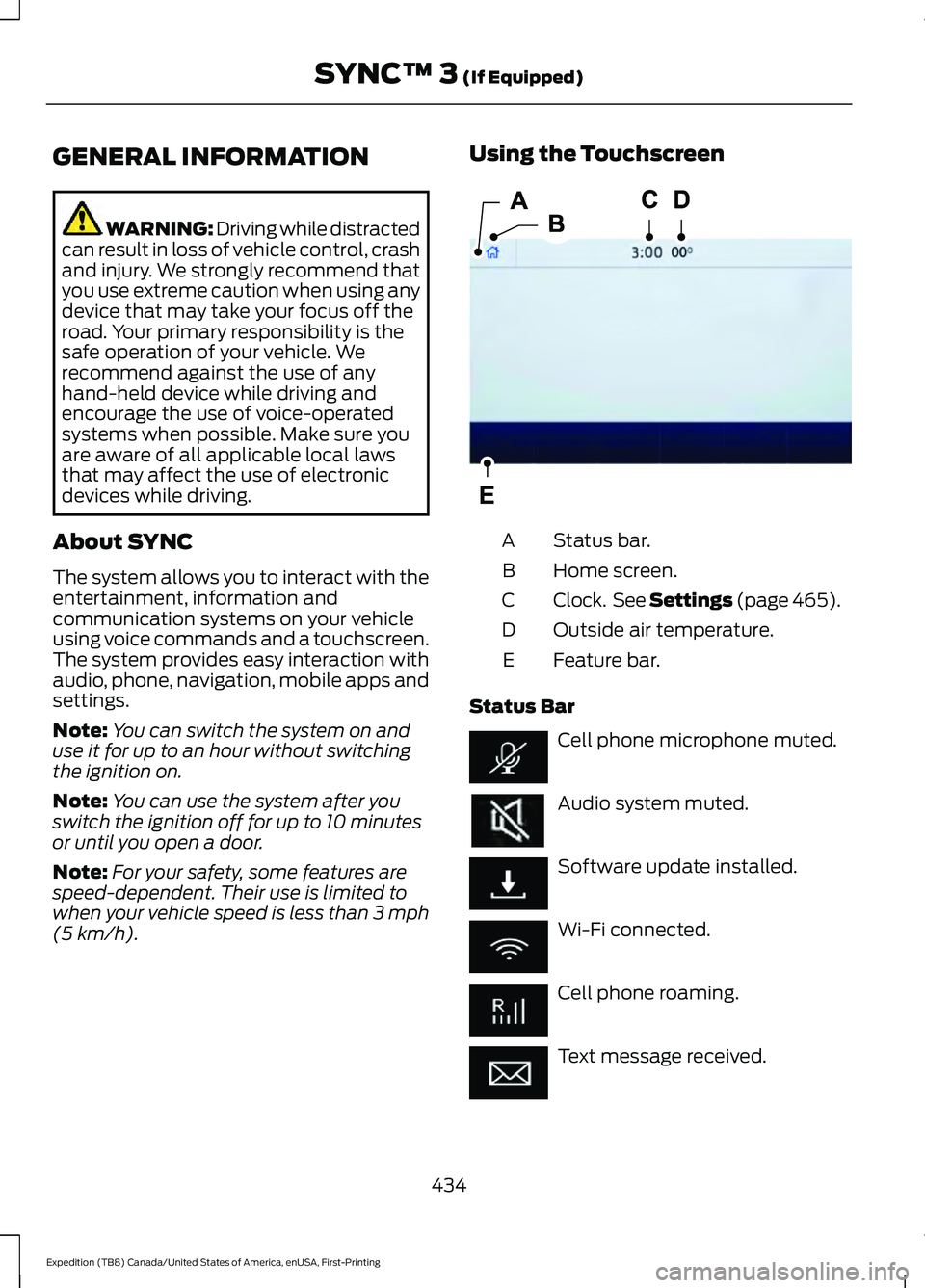
(5 km/h). Using the Touchscreen
Status bar.
A
Home screen.
B
Clock. See Settings (page 465).
C
Outside air temperature.
D
Feature bar.
E
Status Bar Cell phone microphone muted.
Audio system muted.
Software update installed.
Wi-Fi connected.
Cell phone roaming.
Text message received.
434
Expedition (TB8) Canada/United States of America, enUSA, First-Printing SYNC™ 3
(If Equipped)E293823
Page 438 of 574
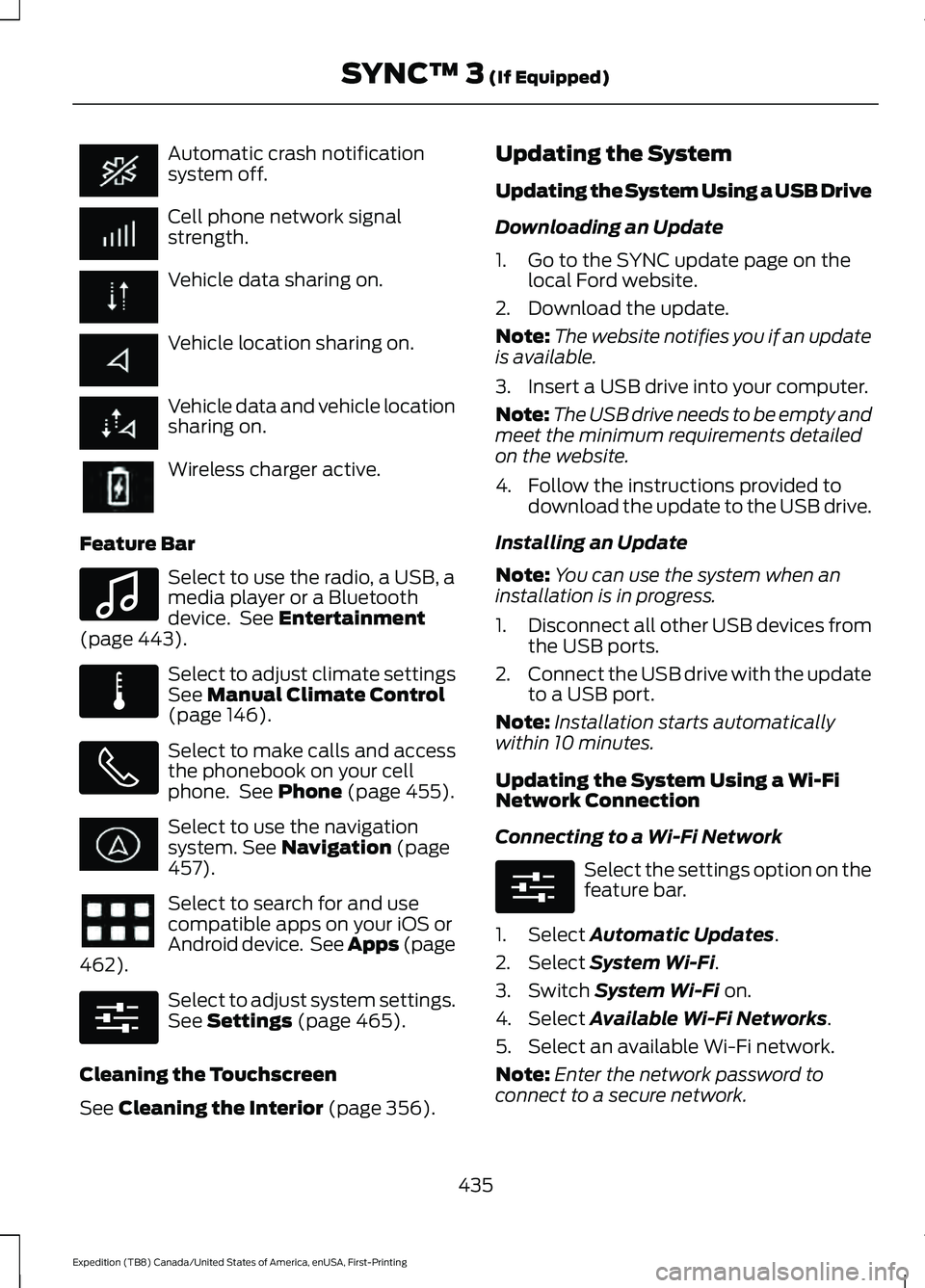
Automatic crash notification
system off.
Cell phone network signal
strength.
Vehicle data sharing on.
Vehicle location sharing on.
Vehicle data and vehicle location
sharing on.
Wireless charger active.
Feature Bar Select to use the radio, a USB, a
media player or a Bluetooth
device. See Entertainment
(page 443). Select to adjust climate settings
See
Manual Climate Control
(page 146). Select to make calls and access
the phonebook on your cell
phone. See
Phone (page 455).
Select to use the navigation
system.
See Navigation (page
457). Select to search for and use
compatible apps on your iOS or
Android device. See Apps (page
462
). Select to adjust system settings.
See
Settings (page 465).
Cleaning the Touchscreen
See
Cleaning the Interior (page 356). Updating the System
Updating the System Using a USB Drive
Downloading an Update
1. Go to the SYNC update page on the
local Ford website.
2. Download the update.
Note: The website notifies you if an update
is available.
3. Insert a USB drive into your computer.
Note: The USB drive needs to be empty and
meet the minimum requirements detailed
on the website.
4. Follow the instructions provided to download the update to the USB drive.
Installing an Update
Note: You can use the system when an
installation is in progress.
1. Disconnect all other USB devices from
the USB ports.
2. Connect the USB drive with the update
to a USB port.
Note: Installation starts automatically
within 10 minutes.
Updating the System Using a Wi-Fi
Network Connection
Connecting to a Wi-Fi Network Select the settings option on the
feature bar.
1. Select
Automatic Updates.
2. Select
System Wi-Fi.
3. Switch
System Wi-Fi on.
4. Select
Available Wi-Fi Networks.
5. Select an available Wi-Fi network.
Note: Enter the network password to
connect to a secure network.
435
Expedition (TB8) Canada/United States of America, enUSA, First-Printing SYNC™ 3
(If Equipped) E100027 E283811 E280315 E280315
Page 440 of 574
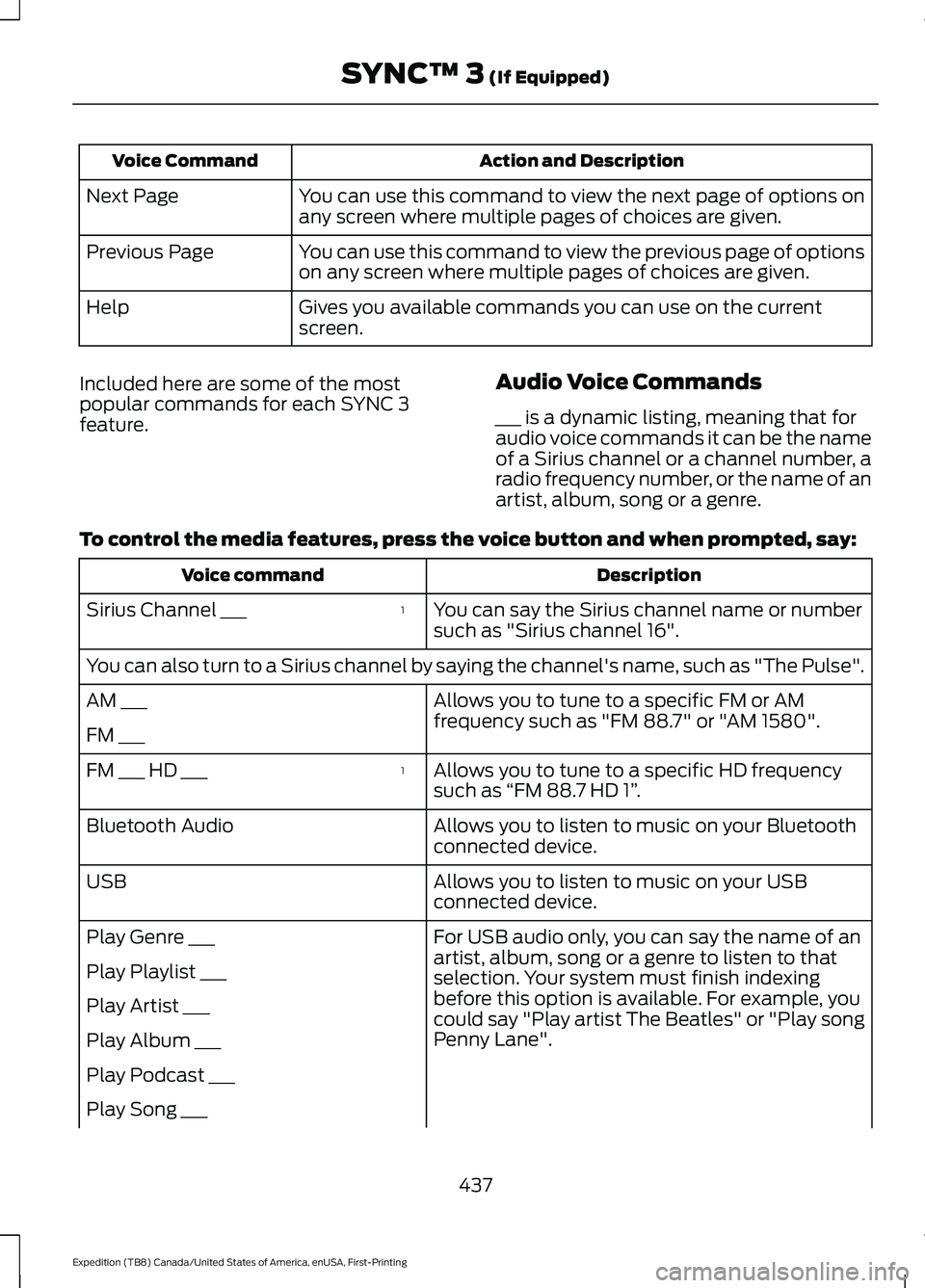
Action and Description
Voice Command
You can use this command to view the next page of options on
any screen where multiple pages of choices are given.
Next Page
You can use this command to view the previous page of options
on any screen where multiple pages of choices are given.
Previous Page
Gives you available commands you can use on the current
screen.
Help
Included here are some of the most
popular commands for each SYNC 3
feature. Audio Voice Commands
___ is a dynamic listing, meaning that for
audio voice commands it can be the name
of a Sirius channel or a channel number, a
radio frequency number, or the name of an
artist, album, song or a genre.
To control the media features, press the voice button and when prompted, say: Description
Voice command
You can say the Sirius channel name or number
such as "Sirius channel 16".
1
Sirius Channel ___
You can also turn to a Sirius channel by saying the channel's name, such as "The Pulse".
Allows you to tune to a specific FM or AM
frequency such as "FM 88.7" or "AM 1580".
AM ___
FM ___
Allows you to tune to a specific HD frequency
such as “FM 88.7 HD 1” .
1
FM ___ HD ___
Allows you to listen to music on your Bluetooth
connected device.
Bluetooth Audio
Allows you to listen to music on your USB
connected device.
USB
For USB audio only, you can say the name of an
artist, album, song or a genre to listen to that
selection. Your system must finish indexing
before this option is available. For example, you
could say "Play artist The Beatles" or "Play song
Penny Lane".
Play Genre ___
Play Playlist ___
Play Artist ___
Play Album ___
Play Podcast ___
Play Song ___
437
Expedition (TB8) Canada/United States of America, enUSA, First-Printing SYNC™ 3 (If Equipped)