page 80 FORD EXPEDITION 2021 Owners Manual
[x] Cancel search | Manufacturer: FORD, Model Year: 2021, Model line: EXPEDITION, Model: FORD EXPEDITION 2021Pages: 574, PDF Size: 8.33 MB
Page 230 of 574
PRINCIPLE OF OPERATION
WARNING: Hill descent control
cannot control descent in all surface
conditions and circumstances, such as
ice or extremely steep grades. Hill
descent control is a driver assist system
and cannot substitute for good judgment
by the driver. Failure to do so may result
in loss of vehicle control, crash or serious
injury.
Hill descent control allows you to set and
maintain vehicle speed when descending
steep grades in various surface conditions.
Hill descent control can maintain vehicle
speeds on downhill grades between
0 mph
(3 km/h) and 20 mph (32 km/h). Above
20 mph (32 km/h), the system remains
armed, but you cannot use the system to
set or maintain the descent speed.
Hill descent control requires a cooling
down interval after a period of sustained
use. The amount of time that the feature
can remain active before cooling varies
with conditions. The system provides a
warning in the message center and a tone
sounds when the system is about to
disengage for cooling. At this time,
manually apply the brakes as needed to
maintain descent speed.
USING HILL DESCENT
CONTROL Press and release the hill
descent button on the
instrument panel. The button
illuminates and a chime sounds when you
switch this feature on. To increase descent speed, press the
accelerator pedal until you reach the
desired speed. To decrease descent
speed, press the brake pedal until you
reach the desired speed.
Whether accelerating or decelerating, once
you reach the desired descent speed,
remove your feet from the pedals and hill
descent control maintains the chosen
vehicle speed.
Note:
You may observe noise from the ABS
pump motor during hill descent control
operation. This is a normal characteristic of
the ABS and should be no reason for
concern.
Hill Descent Modes
• At speeds between
2 mph (3 km/h)
and 20 mph (32 km/h): When you
press this button, the light flashes
indicating this feature is active. Your
vehicle maintains the speed you desire
while in this mode.
• At speeds between
20 mph (32 km/h)
and 40 mph (64 km/h): When you
press this button, the light is solid and
a message appears in the information
display indicating this feature is active.
Your vehicle does not maintain the
speed you desire and you cannot set
your descent speed.
• At speeds above
40 mph (64 km/h):
When you press this button, the system
turns this feature off and no light or
message appears in the information
display. You need to switch this feature
back on to use.
Refer to Information Displays for hill
descent control messages. See
Information Messages
(page 129).
227
Expedition (TB8) Canada/United States of America, enUSA, First-Printing Hill Descent Control
(If Equipped)
Page 231 of 574
PRINCIPLE OF OPERATION
WARNING: To help avoid personal
injury, always use caution when in
reverse (R) and when using the sensing
system. WARNING:
The system may not
detect objects with surfaces that absorb
reflection. Always drive with due care
and attention. Failure to take care may
result in a crash. WARNING: Traffic control systems,
inclement weather, air brakes, external
motors and fans may affect the correct
operation of the sensing system.This
may cause reduced performance or false
alerts. WARNING:
The system may not
detect small or moving objects,
particularly those close to the ground.
Note: Certain add-on devices installed
around the bumper or fascia may create
false beeps. For example, large trailer
hitches, bike or surfboard racks, license plate
brackets, bumper covers or any other device
that may block the normal detection zone
of the system.
Note: Keep the sensors, located on the
bumper or fascia, free from snow, ice and
large accumulations of dirt. If the sensors
are covered, the system ’s accuracy can be
affected. Do not clean the sensors with
sharp objects.
Note: If your vehicle sustains damage to
the bumper or fascia, leaving it misaligned
or bent, the sensing zone may be altered
causing inaccurate measurement of
obstacles or false alarms. See your
authorized technician. Note:
When a trailer is connected to your
vehicle, the rear parking aid may detect the
trailer and therefore provide warnings.
Disable the rear parking aid when a trailer
is connected to prevent these warnings.
Note: The sensing system cannot be turned
off when a MyKey is present. See Principle
of Operation
(page 68).
We recommend that you take some time
to get to know the system and its
limitations by reading this section.
The sensing system warns the driver of
obstacles within a certain range of your
vehicle. The system automatically turns
on each time you switch the ignition on.
When receiving a detection warning, the
radio volume reduces to a predetermined
level. After the warning goes away, the
radio volume returns to the previous level. You can turn the system on or
off by pressing the parking aid
button. If your vehicle does not
have a parking aid button, the system can
be switched off through the information
display menu or from the pop-up message
that appears once you shift the
transmission into reverse (R). See General
Information
(page 119).
If a fault is present in the system, a warning
message appears in the information
display and does not allow you to switch
the system on. See
Information
Messages (page 129).
If a sensor is blocked and cannot function,
the system becomes disabled and a
warning message appears in the
information display. The system returns to
a normal state once the blockage is
cleared.
228
Expedition (TB8) Canada/United States of America, enUSA, First-Printing Parking AidsE139213
Page 244 of 574
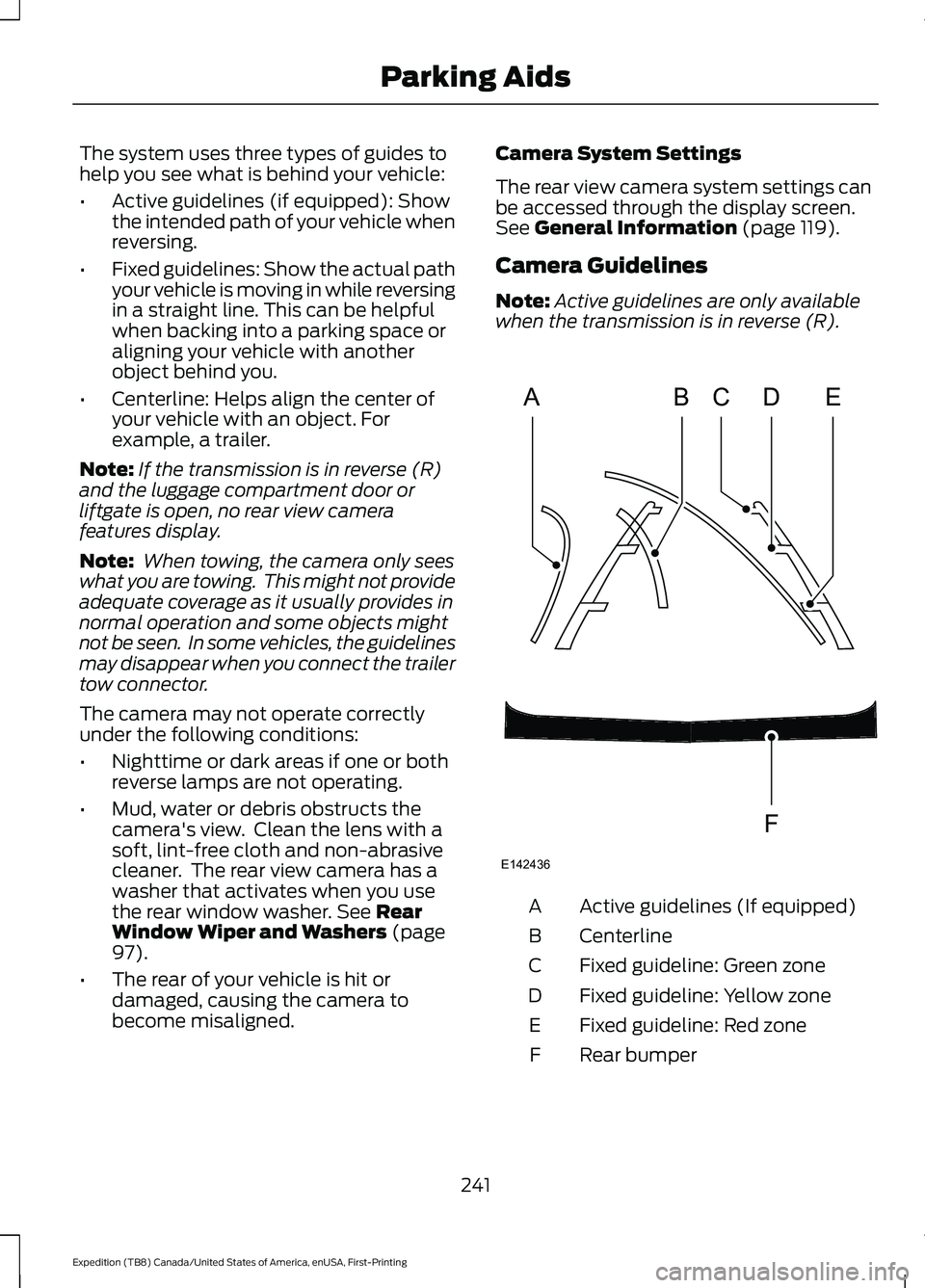
The system uses three types of guides to
help you see what is behind your vehicle:
•
Active guidelines (if equipped): Show
the intended path of your vehicle when
reversing.
• Fixed guidelines: Show the actual path
your vehicle is moving in while reversing
in a straight line. This can be helpful
when backing into a parking space or
aligning your vehicle with another
object behind you.
• Centerline: Helps align the center of
your vehicle with an object. For
example, a trailer.
Note: If the transmission is in reverse (R)
and the luggage compartment door or
liftgate is open, no rear view camera
features display.
Note: When towing, the camera only sees
what you are towing. This might not provide
adequate coverage as it usually provides in
normal operation and some objects might
not be seen. In some vehicles, the guidelines
may disappear when you connect the trailer
tow connector.
The camera may not operate correctly
under the following conditions:
• Nighttime or dark areas if one or both
reverse lamps are not operating.
• Mud, water or debris obstructs the
camera's view. Clean the lens with a
soft, lint-free cloth and non-abrasive
cleaner. The rear view camera has a
washer that activates when you use
the rear window washer. See Rear
Window Wiper and Washers (page
97).
• The rear of your vehicle is hit or
damaged, causing the camera to
become misaligned. Camera System Settings
The rear view camera system settings can
be accessed through the display screen.
See
General Information (page 119).
Camera Guidelines
Note: Active guidelines are only available
when the transmission is in reverse (R). Active guidelines (If equipped)
A
Centerline
B
Fixed guideline: Green zone
C
Fixed guideline: Yellow zone
D
Fixed guideline: Red zone
E
Rear bumper
F
241
Expedition (TB8) Canada/United States of America, enUSA, First-Printing Parking AidsABCD
F
E
E142436
Page 247 of 574
The following camera views can be
accessed when you shift into reverse (R):
•
Rear 360 + Normal: Contains the
normal rear camera view next to a 360
degree camera view. Press the zoom
(+) button to quickly access Rear
Normal View from this screen.
• Rear Normal View: Provides an image
of what is directly behind your vehicle.
• Rear Split View:
Provides an
extended view of what is behind your
vehicle.
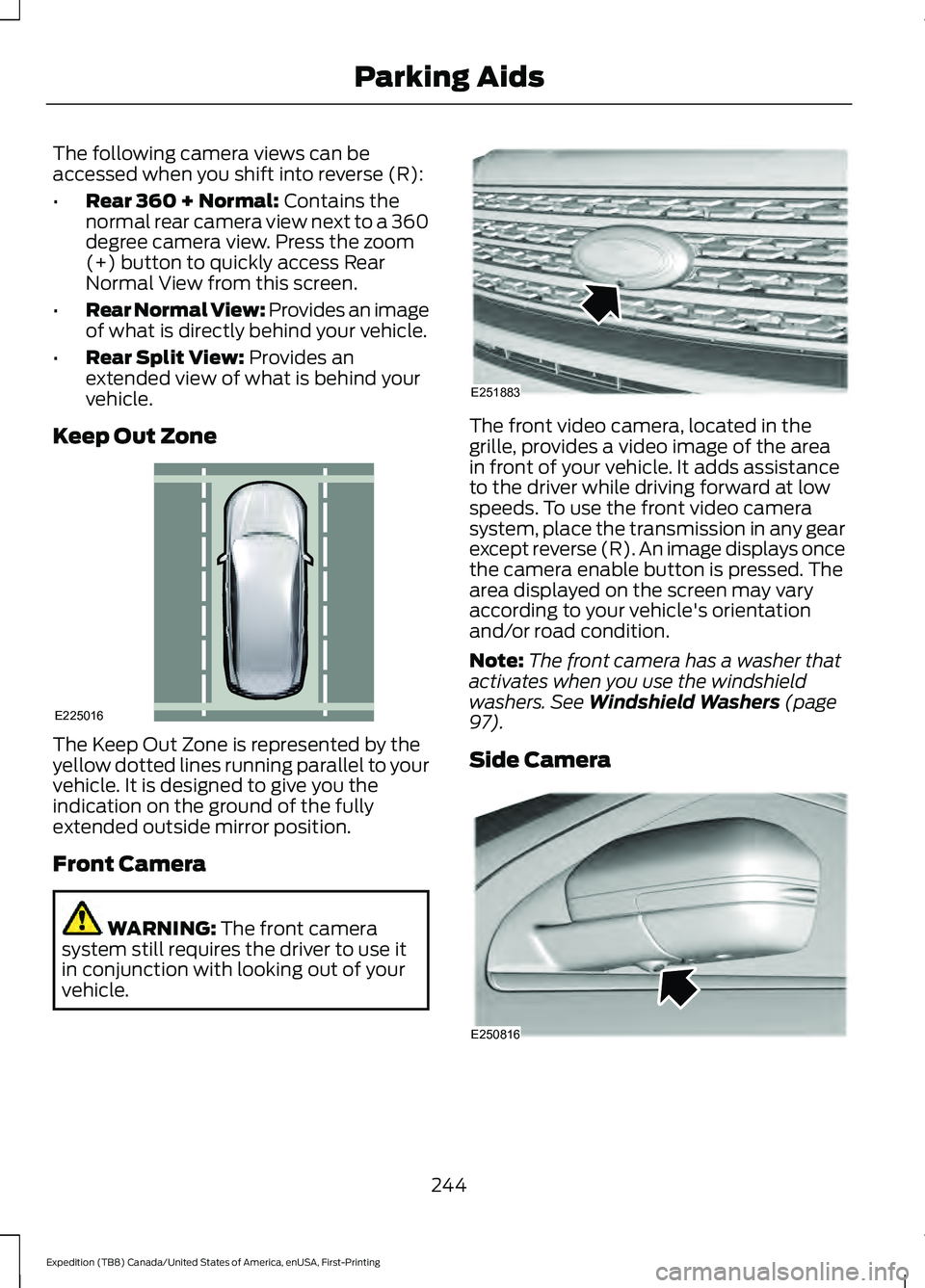
Keep Out Zone The Keep Out Zone is represented by the
yellow dotted lines running parallel to your
vehicle. It is designed to give you the
indication on the ground of the fully
extended outside mirror position.
Front Camera
WARNING:
The front camera
system still requires the driver to use it
in conjunction with looking out of your
vehicle. The front video camera, located in the
grille, provides a video image of the area
in front of your vehicle. It adds assistance
to the driver while driving forward at low
speeds. To use the front video camera
system, place the transmission in any gear
except reverse (R). An image displays once
the camera enable button is pressed. The
area displayed on the screen may vary
according to your vehicle's orientation
and/or road condition.
Note:
The front camera has a washer that
activates when you use the windshield
washers.
See Windshield Washers (page
97).
Side Camera 244
Expedition (TB8) Canada/United States of America, enUSA, First-Printing Parking AidsE225016 E251883 E250816
Page 249 of 574
WHAT IS CRUISE CONTROL
Cruise control lets you maintain a set
speed without keeping your foot on the
accelerator pedal.
Requirements
Use cruise control when the vehicle speed
is greater than 20 mph (30 km/h).
SWITCHING CRUISE CONTROL
ON AND OFF WARNING:
Do not use cruise
control on winding roads, in heavy traffic
or when the road surface is slippery. This
could result in loss of vehicle control,
serious injury or death.
The cruise controls are on the steering
wheel. See
Cruise Control (page 93).
Switching Cruise Control On Press the button.
Switching Cruise Control Off Press the button when the
system is in standby mode.
The system also turns off when you switch
the ignition off.
Note: The set speed erases when you
switch the system off. SETTING THE CRUISE
CONTROL SPEED WARNING:
When you are going
downhill, your vehicle speed could
increase above the set speed. The
system does not apply the brakes.
Drive to the speed you prefer. Press either button to set the
current speed.
Take your foot off the accelerator pedal.
Note: The indicator changes color in the
information display.
Changing the Set Speed Press and release the button to
increase the set speed in small
increments.
Press and hold the button to accelerate.
Release the button when you reach your
preferred speed. Press and release the button to
decrease the set speed in small
increments.
Press and hold the button to decelerate.
Release the button when you reach your
preferred speed.
Note: If you accelerate by pressing the
accelerator pedal, the set speed does not
change. When you release the accelerator
pedal, your vehicle returns to the speed that
you previously set.
246
Expedition (TB8) Canada/United States of America, enUSA, First-Printing Cruise ControlE265296 E265297
Page 251 of 574
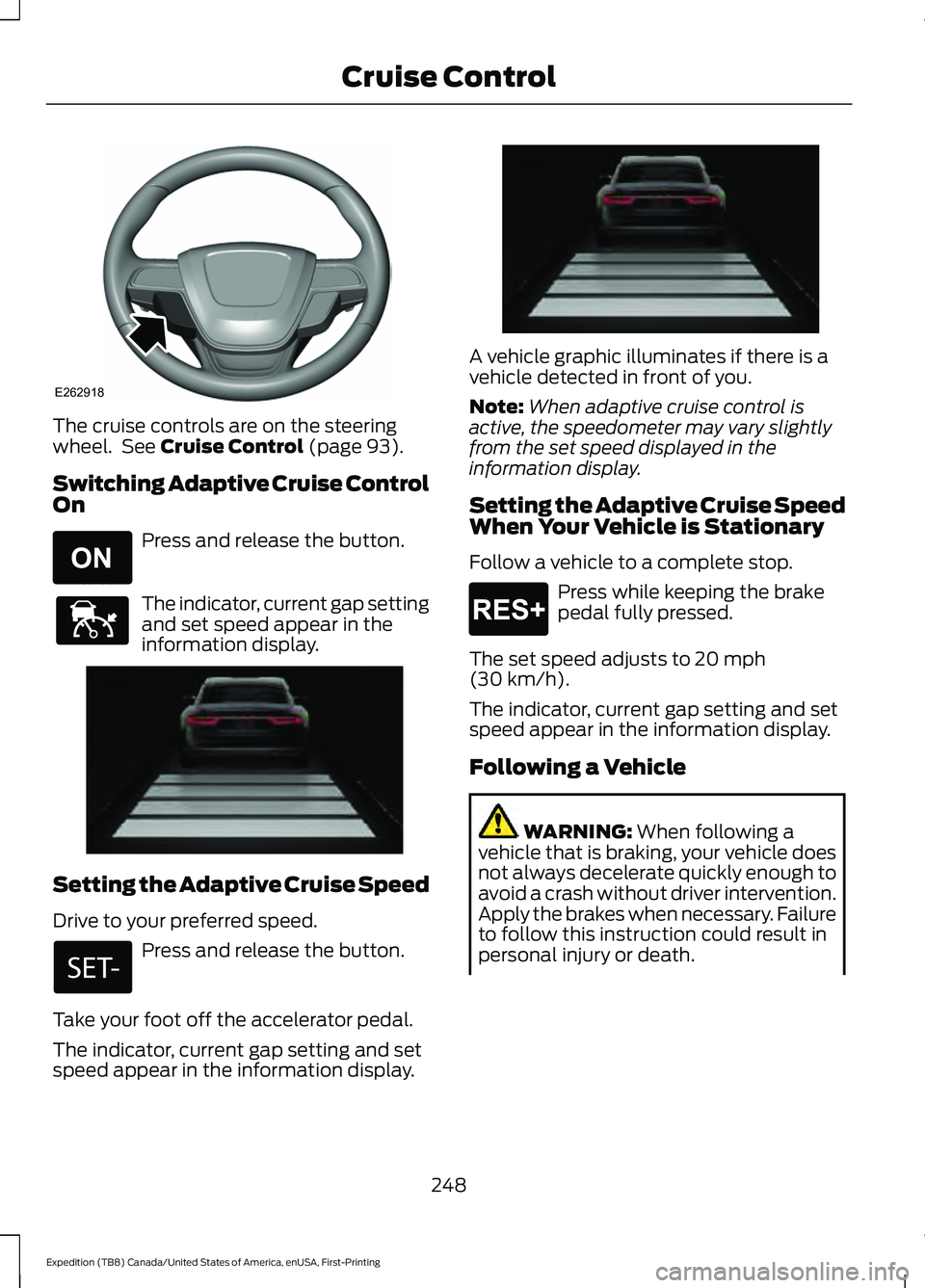
The cruise controls are on the steering
wheel. See Cruise Control (page 93).
Switching Adaptive Cruise Control
On Press and release the button.
The indicator, current gap setting
and set speed appear in the
information display.
Setting the Adaptive Cruise Speed
Drive to your preferred speed.
Press and release the button.
Take your foot off the accelerator pedal.
The indicator, current gap setting and set
speed appear in the information display. A vehicle graphic illuminates if there is a
vehicle detected in front of you.
Note:
When adaptive cruise control is
active, the speedometer may vary slightly
from the set speed displayed in the
information display.
Setting the Adaptive Cruise Speed
When Your Vehicle is Stationary
Follow a vehicle to a complete stop. Press while keeping the brake
pedal fully pressed.
The set speed adjusts to
20 mph
(30 km/h).
The indicator, current gap setting and set
speed appear in the information display.
Following a Vehicle WARNING:
When following a
vehicle that is braking, your vehicle does
not always decelerate quickly enough to
avoid a crash without driver intervention.
Apply the brakes when necessary. Failure
to follow this instruction could result in
personal injury or death.
248
Expedition (TB8) Canada/United States of America, enUSA, First-Printing Cruise ControlE262918 E265296 E144529 E255686 E255686 E265299
Page 257 of 574
DRIVER ALERT
WARNING: The system is designed
to aid the driver. It is not intended to
replace your attention and judgment.
You are still responsible to drive with due
care and attention. WARNING: At all times, you are
responsible for controlling your vehicle,
supervising the system and intervening,
if required. Failure to take care may result
in the loss of control of your vehicle,
serious personal injury or death. WARNING:
The system may not
function if the sensor is blocked. WARNING:
Take regular rest
breaks if you feel tired. Do not wait for
the system to warn you. WARNING:
Certain driving styles
may result in the system warning you
even if you are not feeling tired. WARNING:
In cold and severe
weather conditions the system may not
function. Rain, snow and spray can all
limit sensor performance. WARNING:
The system will not
operate if the sensor cannot track the
road lane markings. WARNING:
If damage occurs in the
immediate area surrounding the sensor,
have your vehicle checked as soon as
possible. WARNING:
The system may not
correctly operate if your vehicle is fitted
with a suspension kit not approved by
us. Note:
Keep the windshield free from
obstructions. For example, bird droppings,
insects and snow or ice.
Note: If the camera is blocked or if the
windshield is damaged, the system may not
function.
Note: If enabled in the menu, the system
activates at speeds above
40 mph
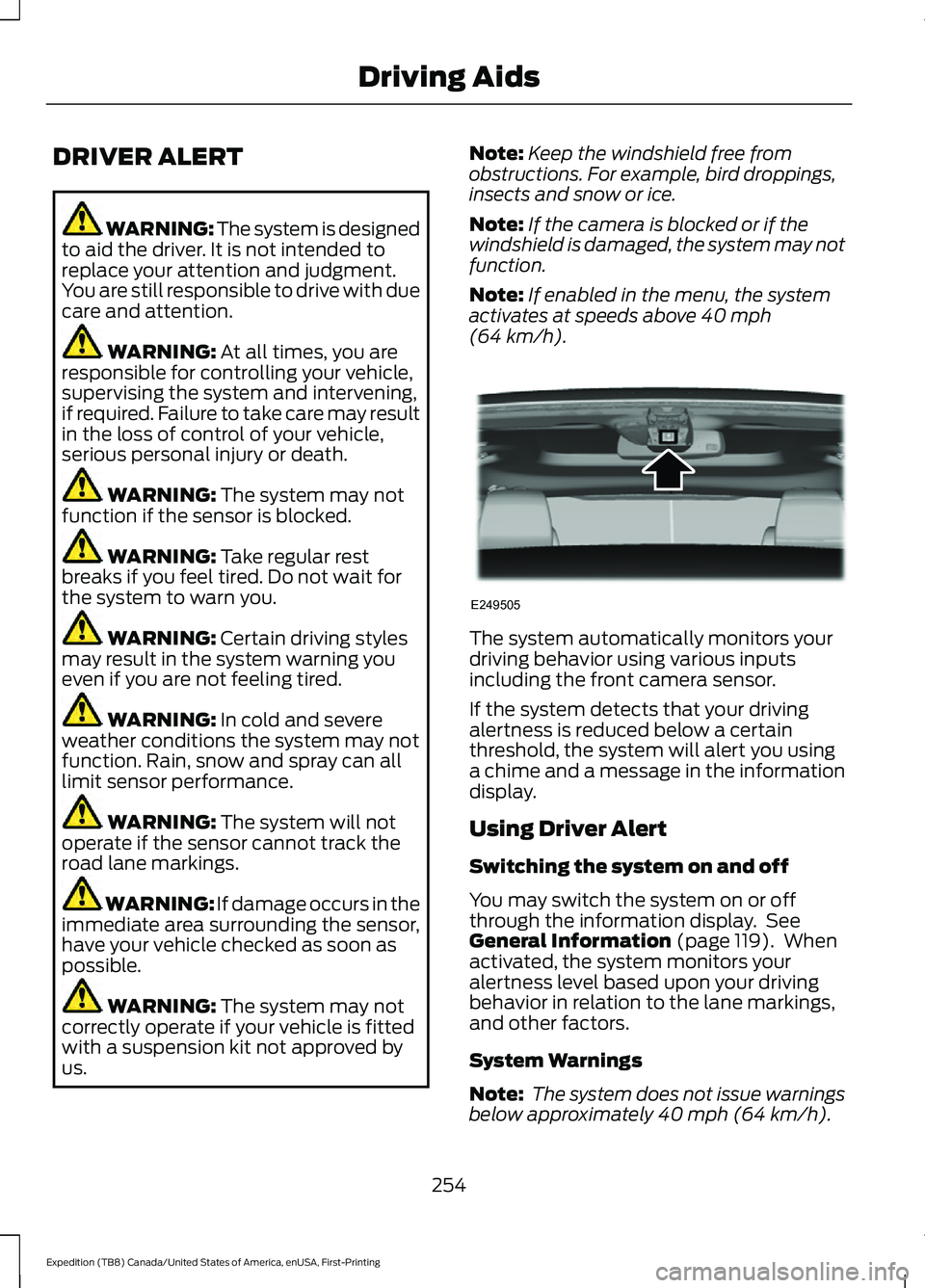
(64 km/h). The system automatically monitors your
driving behavior using various inputs
including the front camera sensor.
If the system detects that your driving
alertness is reduced below a certain
threshold, the system will alert you using
a chime and a message in the information
display.
Using Driver Alert
Switching the system on and off
You may switch the system on or off
through the information display. See
General Information
(page 119). When
activated, the system monitors your
alertness level based upon your driving
behavior in relation to the lane markings,
and other factors.
System Warnings
Note: The system does not issue warnings
below approximately
40 mph (64 km/h).
254
Expedition (TB8) Canada/United States of America, enUSA, First-Printing Driving AidsE249505
Page 259 of 574
When you switch the system on and it
detects an unintentional drift out of your
lane is likely to occur, the system notifies
or assists you to stay in your lane through
the steering system and information
display. In Alert mode, the system provides
a warning by vibrating the steering wheel.
In Aid mode, the system provides steering
assistance by gently counter steering your
vehicle back into the lane.
When the system is functioning in the
combined Alert and Aid mode, the system
first provides steering assistance by gently
counter steering your vehicle back into the
lane, followed by a warning that vibrates
the steering wheel if the vehicle is still out
of the lane markings.
Switching the System On and Off
Note:
The system on or off setting is stored
until it is manually changed, unless a
MyKey ™ is detected. If the system detects
a MyKey ™, it defaults to on and the mode
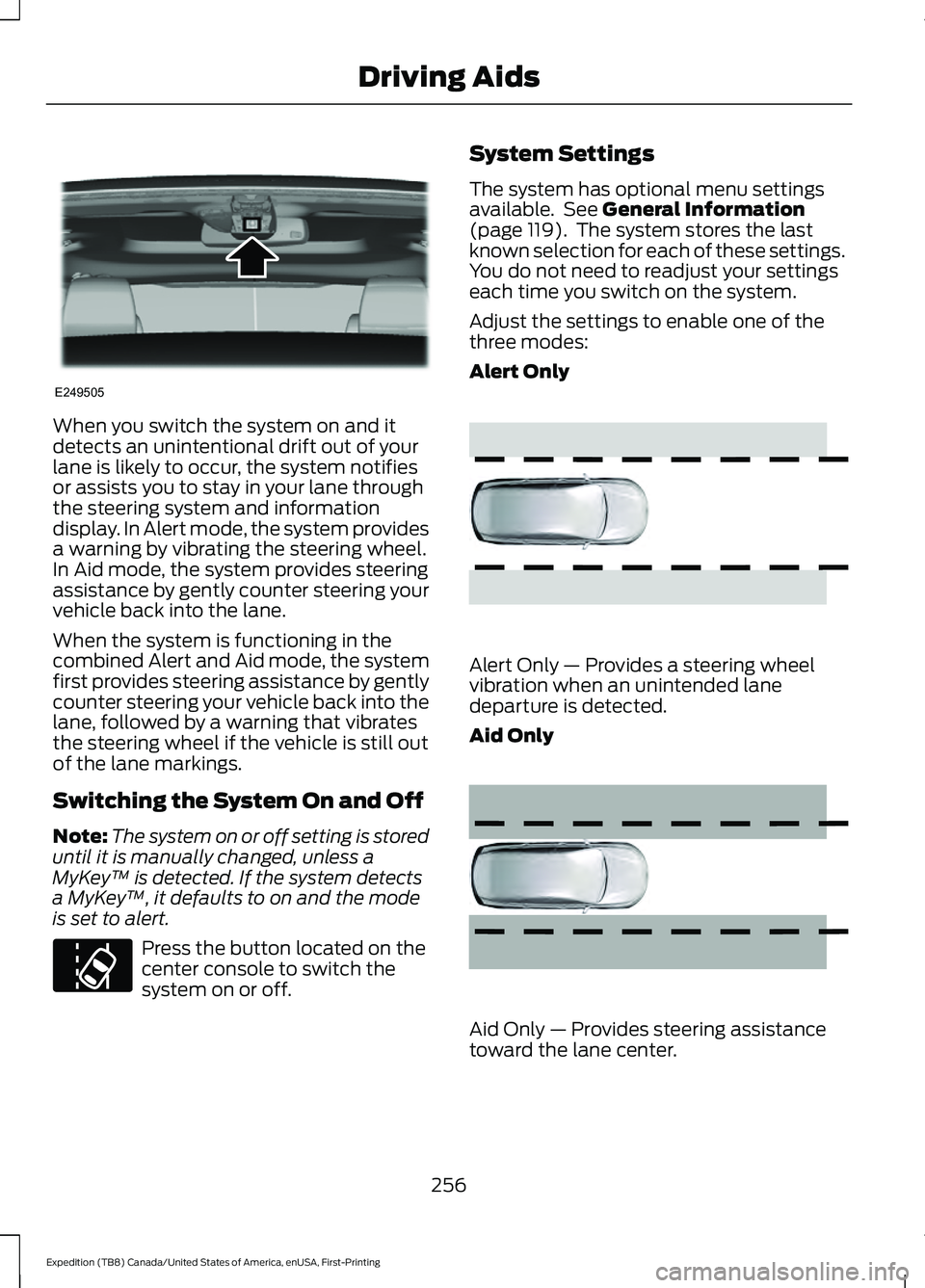
is set to alert. Press the button located on the
center console to switch the
system on or off. System Settings
The system has optional menu settings
available. See General Information
(page 119). The system stores the last
known selection for each of these settings.
You do not need to readjust your settings
each time you switch on the system.
Adjust the settings to enable one of the
three modes:
Alert Only Alert Only — Provides a steering wheel
vibration when an unintended lane
departure is detected.
Aid Only
Aid Only — Provides steering assistance
toward the lane center.
256
Expedition (TB8) Canada/United States of America, enUSA, First-Printing Driving AidsE249505 E173233 E165515 E165516
Page 263 of 574
The system is designed to detect vehicles
that may have entered the blind spot zone.
The detection area is on both sides of your
vehicle, extending rearward from the
exterior mirrors to approximately 13 ft
(4 m) beyond the rear bumper. The
detection area extends to approximately
59 ft (18 m)
beyond the rear bumper when
the vehicle speed is greater than 30 mph
(48 km/h) to alert you of faster
approaching vehicles.
Note: The system does not prevent contact
with other vehicles. It is not designed to
detect parked vehicles, pedestrians, animals
or other infrastructures.
Using the Blind Spot Information
System
The system turns on when all of the
following occur:
• You start your vehicle.
• You shift into drive (D).
• The vehicle speed is greater than
6 mph (10 km/h)
.
Note: The system does not operate in park
(P) or reverse (R).
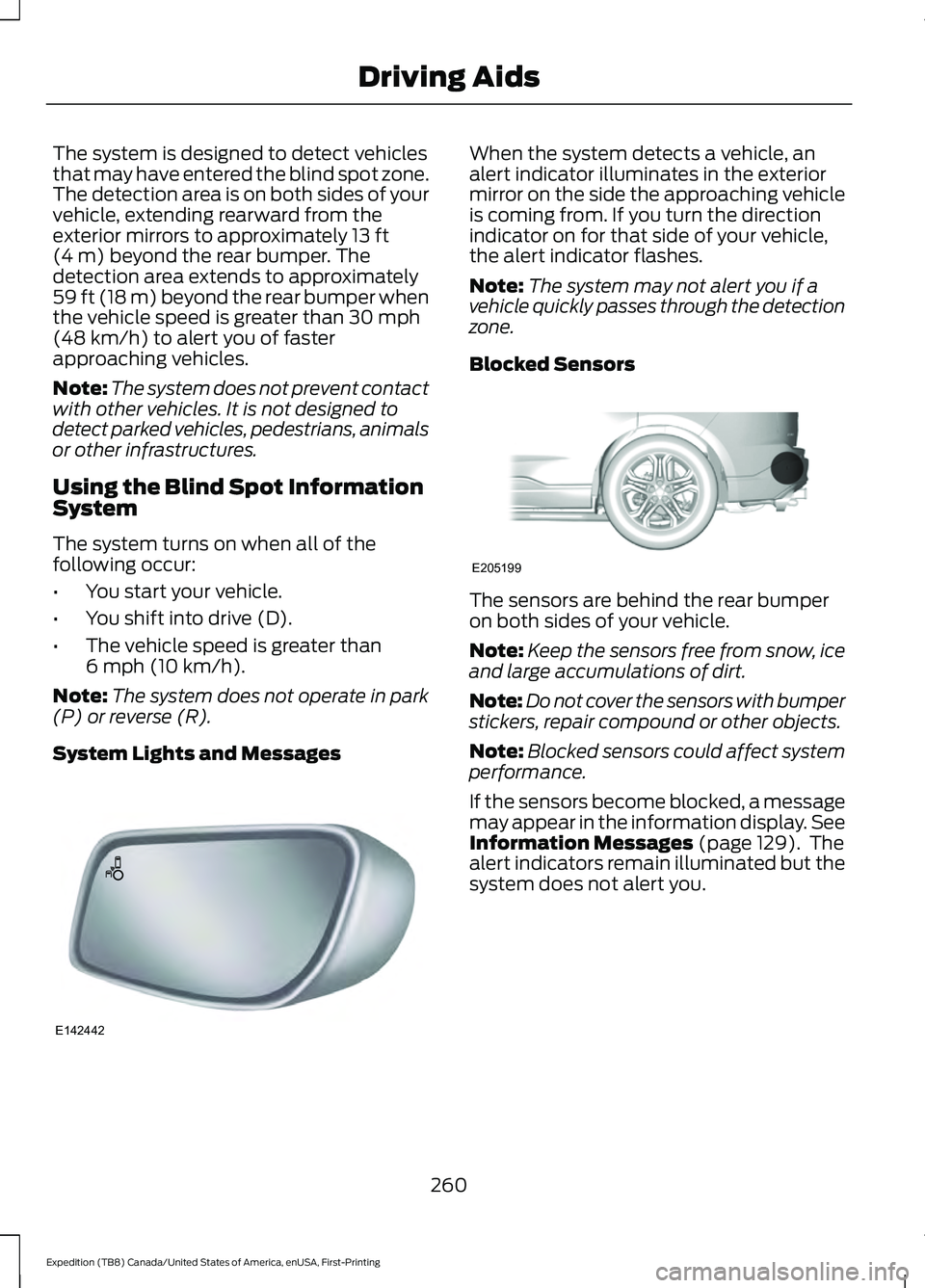
System Lights and Messages When the system detects a vehicle, an
alert indicator illuminates in the exterior
mirror on the side the approaching vehicle
is coming from. If you turn the direction
indicator on for that side of your vehicle,
the alert indicator flashes.
Note:
The system may not alert you if a
vehicle quickly passes through the detection
zone.
Blocked Sensors The sensors are behind the rear bumper
on both sides of your vehicle.
Note:
Keep the sensors free from snow, ice
and large accumulations of dirt.
Note: Do not cover the sensors with bumper
stickers, repair compound or other objects.
Note: Blocked sensors could affect system
performance.
If the sensors become blocked, a message
may appear in the information display. See
Information Messages
(page 129). The
alert indicators remain illuminated but the
system does not alert you.
260
Expedition (TB8) Canada/United States of America, enUSA, First-Printing Driving AidsE142442 E205199
Page 264 of 574
Blind Spot Information System
with Trailer Tow
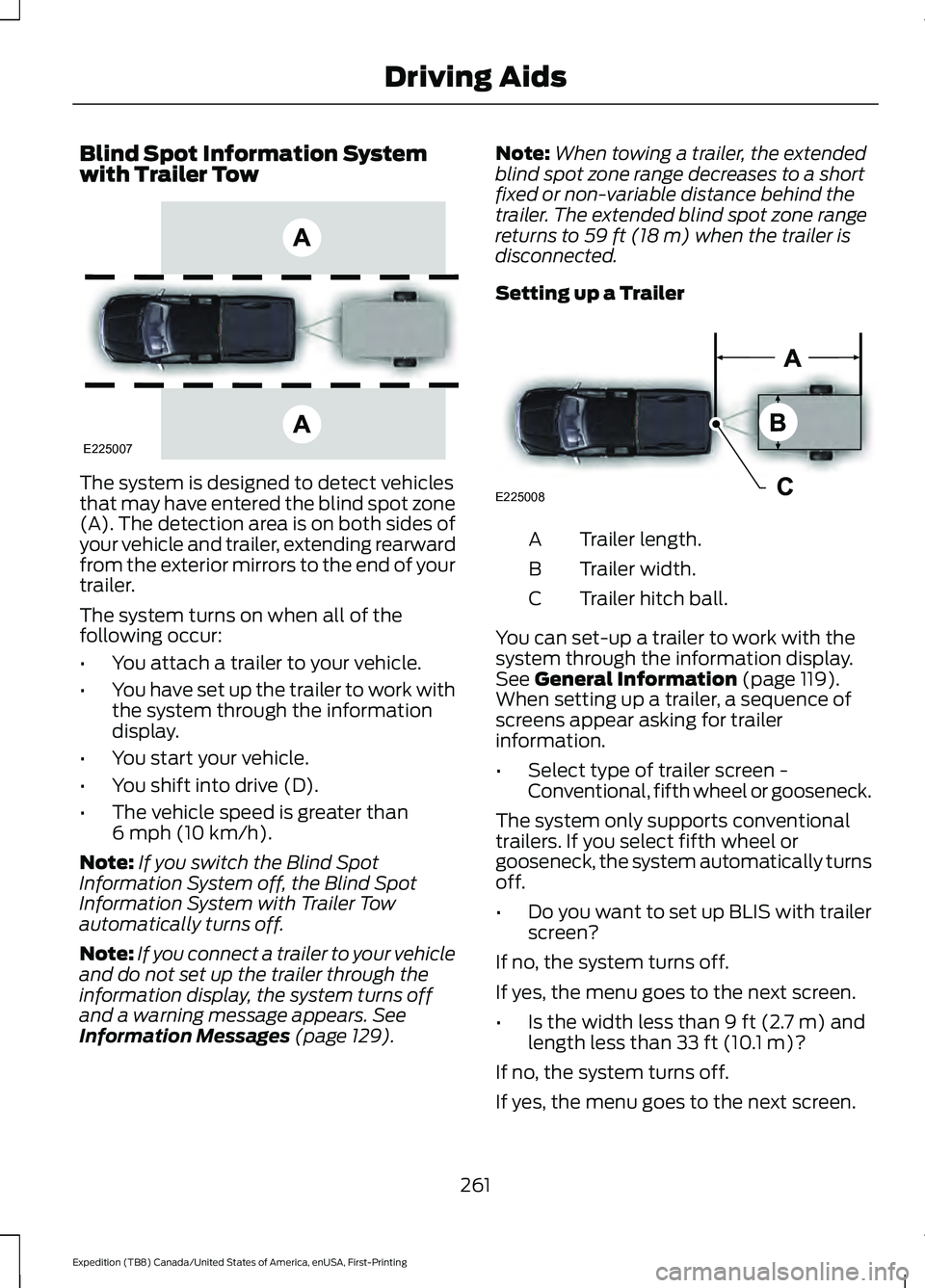
The system is designed to detect vehicles
that may have entered the blind spot zone
(A). The detection area is on both sides of
your vehicle and trailer, extending rearward
from the exterior mirrors to the end of your
trailer.
The system turns on when all of the
following occur:
•
You attach a trailer to your vehicle.
• You have set up the trailer to work with
the system through the information
display.
• You start your vehicle.
• You shift into drive (D).
• The vehicle speed is greater than
6 mph (10 km/h).
Note: If you switch the Blind Spot
Information System off, the Blind Spot
Information System with Trailer Tow
automatically turns off.
Note: If you connect a trailer to your vehicle
and do not set up the trailer through the
information display, the system turns off
and a warning message appears.
See
Information Messages (page 129). Note:
When towing a trailer, the extended
blind spot zone range decreases to a short
fixed or non-variable distance behind the
trailer. The extended blind spot zone range
returns to
59 ft (18 m) when the trailer is
disconnected.
Setting up a Trailer Trailer length.
A
Trailer width.
B
Trailer hitch ball.
C
You can set-up a trailer to work with the
system through the information display.
See
General Information (page 119).
When setting up a trailer, a sequence of
screens appear asking for trailer
information.
• Select type of trailer screen -
Conventional, fifth wheel or gooseneck.
The system only supports conventional
trailers. If you select fifth wheel or
gooseneck, the system automatically turns
off.
• Do you want to set up BLIS with trailer
screen?
If no, the system turns off.
If yes, the menu goes to the next screen.
• Is the width less than
9 ft (2.7 m) and
length less than 33 ft (10.1 m)?
If no, the system turns off.
If yes, the menu goes to the next screen.
261
Expedition (TB8) Canada/United States of America, enUSA, First-Printing Driving AidsE225007 E225008