ECU FORD EXPEDITION 2021 User Guide
[x] Cancel search | Manufacturer: FORD, Model Year: 2021, Model line: EXPEDITION, Model: FORD EXPEDITION 2021Pages: 574, PDF Size: 8.33 MB
Page 43 of 574
•
Crash sensors and monitoring system
with readiness indicator.
The seatbelt pretensioners and rear
inflatable seatbelts are designed to
activate in frontal, near-frontal and side
crashes, and in rollovers. The seatbelt
pretensioners at the front seating positions
are designed to tighten the seatbelts firmly
against the occupant’ s body when
activated. This helps increase the
effectiveness of the seatbelts. In frontal
crashes, the seatbelt pretensioners can be
activated alone or, if the crash is of
sufficient severity, together with the front
airbags.
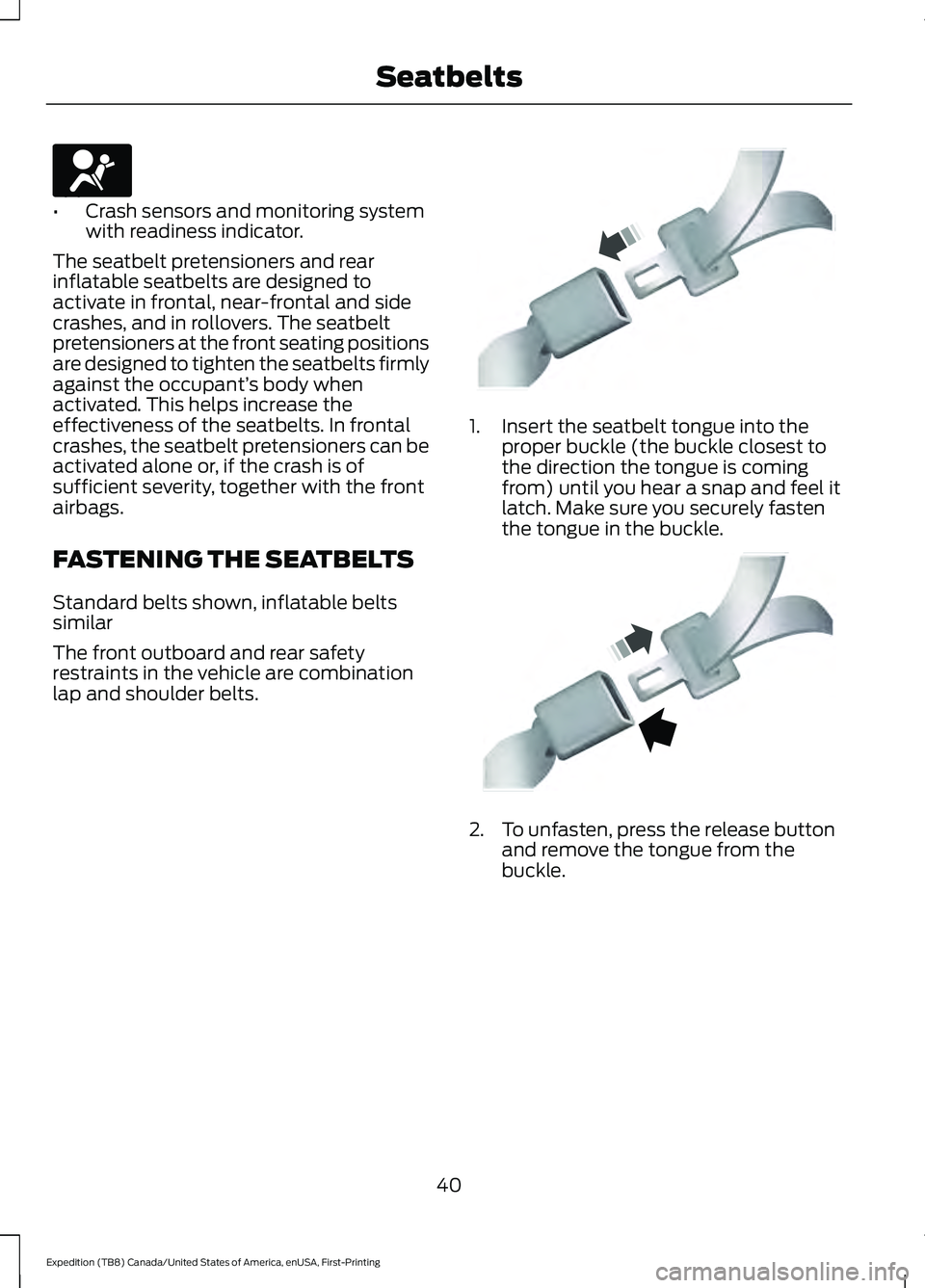
FASTENING THE SEATBELTS
Standard belts shown, inflatable belts
similar
The front outboard and rear safety
restraints in the vehicle are combination
lap and shoulder belts. 1. Insert the seatbelt tongue into the
proper buckle (the buckle closest to
the direction the tongue is coming
from) until you hear a snap and feel it
latch. Make sure you securely fasten
the tongue in the buckle. 2. To unfasten, press the release button
and remove the tongue from the
buckle.
40
Expedition (TB8) Canada/United States of America, enUSA, First-Printing SeatbeltsE67017 E142587 E142588
Page 61 of 574
WHAT IS 911 ASSIST
911 Assist is a SYNC system feature that
can call for help if you are in an accident.
If a crash deploys an airbag, excluding knee
airbags and rear inflatable seatbelts [if
equipped], or activates the fuel pump
shut-off, your SYNC-equipped vehicle may
be able to contact emergency services by
dialing 911 through a paired and connected
Bluetooth enabled phone. You can learn
more about the 911 Assist feature, by
visiting:
Website
www.owner.lincoln.com
www.syncmyride.ca
www.syncmaroute.ca
Not all crashes will deploy an airbag or
activate the fuel pump shut-off, the
triggers for 911 Assist. If a connected cell
phone sustains damage or loses its
connection to SYNC during a crash, SYNC
will search for and try to connect to a
previously paired cell phone. SYNC will
then attempt to call the emergency
services.
Before making the call:
• SYNC provides a short window of time,
about 10 seconds, to cancel the call. If
you fail to cancel the call, SYNC
attempts to dial 911.
• SYNC says the following, or a similar
message: SYNC will attempt to call 911,
to cancel the call, press Cancel on your
screen or press and hold the phone
button on your steering wheel. If you do not cancel the call, and SYNC
makes a successful call, a pre-recorded
message plays for the 911 operator, and
then the occupant(s) in your vehicle is able
to talk with the operator. Be prepared to
immediately provide your name, phone
number and location, because not all 911
systems are capable of receiving this
information electronically.
During an emergency call, the system
transmits vehicle data to the emergency
service. See Data Recording (page 11).
EMERGENCY CALL
REQUIREMENTS WARNING:
Do not wait for 911
Assist to make an emergency call if you
can do it yourself. Dial emergency
services immediately to avoid delayed
response time which could increase the
risk of serious injury or death after a
crash. If you do not hear 911 Assist within
five seconds of the crash, the system or
phone may be damaged or
non-functional. WARNING:
Always place your
phone in a secure location in your vehicle
so it does not become a projectile or get
damaged in a crash. Failure to do so may
cause serious injury to someone or
damage the phone which could prevent
911 Assist from working properly. WARNING:
Unless the 911 Assist
setting is set on before a crash, the
system will not dial for help which could
delay response time, potentially
increasing the risk of serious injury or
death after a crash.
58
Expedition (TB8) Canada/United States of America, enUSA, First-Printing 911 Assist
Page 64 of 574
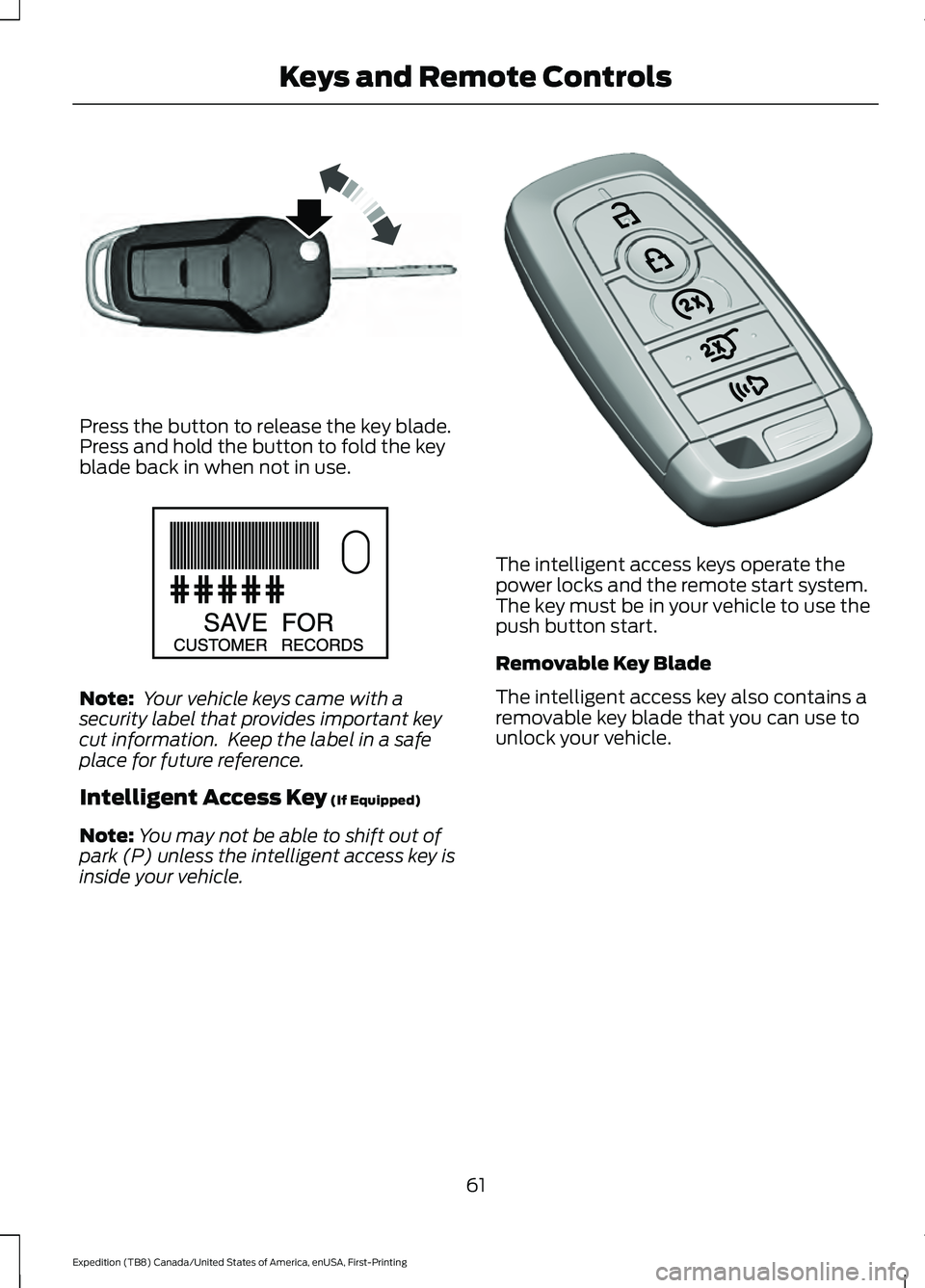
Press the button to release the key blade.
Press and hold the button to fold the key
blade back in when not in use.
Note:
Your vehicle keys came with a
security label that provides important key
cut information. Keep the label in a safe
place for future reference.
Intelligent Access Key (If Equipped)
Note: You may not be able to shift out of
park (P) unless the intelligent access key is
inside your vehicle. The intelligent access keys operate the
power locks and the remote start system.
The key must be in your vehicle to use the
push button start.
Removable Key Blade
The intelligent access key also contains a
removable key blade that you can use to
unlock your vehicle.
61
Expedition (TB8) Canada/United States of America, enUSA, First-Printing Keys and Remote ControlsE191532 E151795 E305198
Page 65 of 574
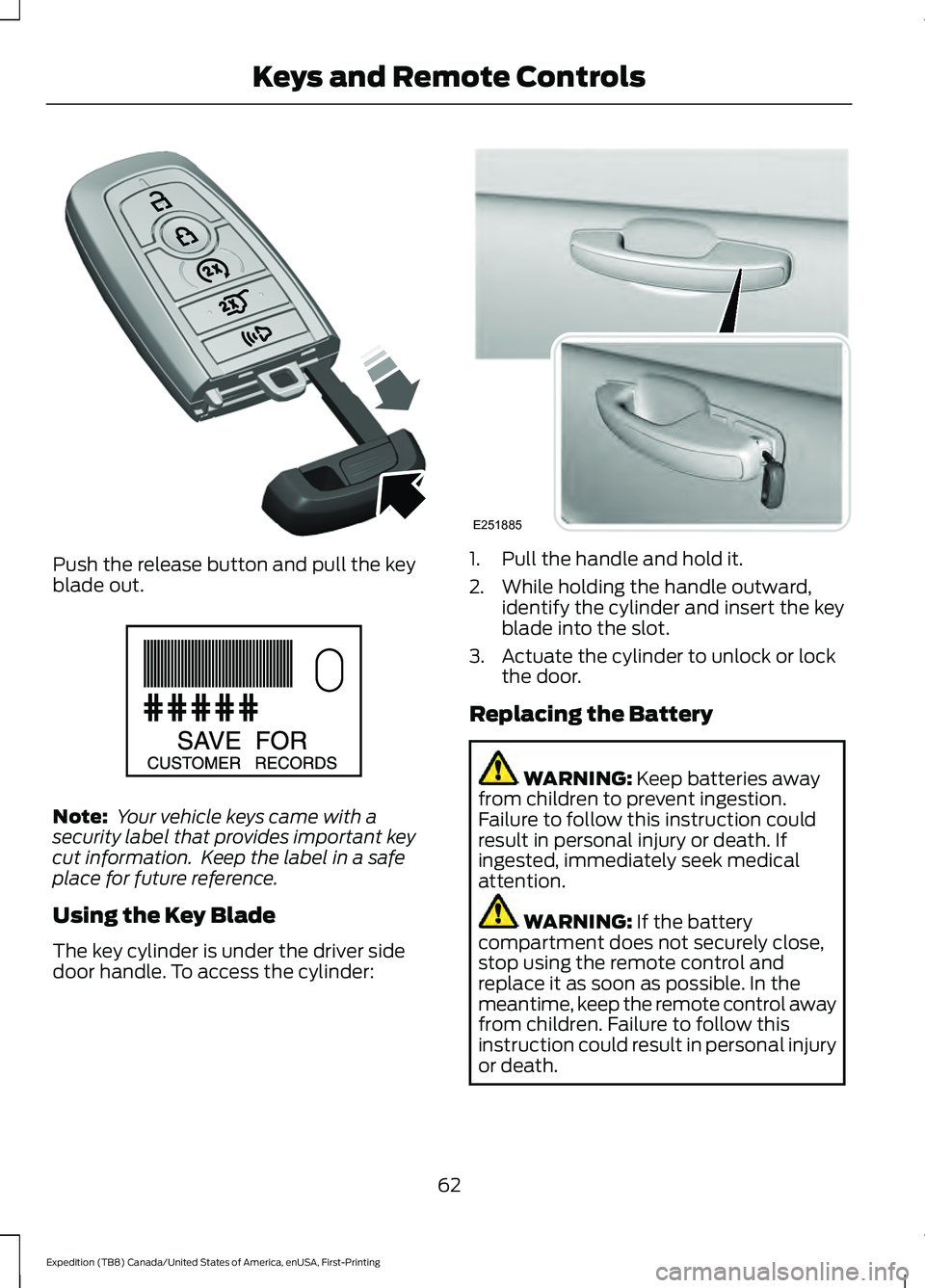
Push the release button and pull the key
blade out.
Note:
Your vehicle keys came with a
security label that provides important key
cut information. Keep the label in a safe
place for future reference.
Using the Key Blade
The key cylinder is under the driver side
door handle. To access the cylinder: 1. Pull the handle and hold it.
2. While holding the handle outward,
identify the cylinder and insert the key
blade into the slot.
3. Actuate the cylinder to unlock or lock the door.
Replacing the Battery WARNING: Keep batteries away
from children to prevent ingestion.
Failure to follow this instruction could
result in personal injury or death. If
ingested, immediately seek medical
attention. WARNING:
If the battery
compartment does not securely close,
stop using the remote control and
replace it as soon as possible. In the
meantime, keep the remote control away
from children. Failure to follow this
instruction could result in personal injury
or death.
62
Expedition (TB8) Canada/United States of America, enUSA, First-Printing Keys and Remote ControlsE305199 E151795 E251885
Page 74 of 574
Number of MyKeys
Indicates the number of MyKeys
programmed to your vehicle. Use this
feature to detect how many MyKeys you
have for your vehicle and determine when
all MyKeys have been deleted.
Number of Admin Keys
Indicates how many admin keys are
programmed to your vehicle. Use this
feature to determine how many admin
keys you have for your vehicle, and detect
if an additional MyKey has been
programmed.
USING MYKEY WITH REMOTE
START SYSTEMS
MyKey is not compatible with non
Ford-approved, aftermarket remote start
systems. If you choose to install a remote
start system, see an authorized dealer for
a Ford-approved remote start system.
MYKEY – TROUBLESHOOTING Potential causes
Condition
· The key or transmitter used to start the
vehicle does not have admin privileges.
I cannot create a MyKey.
· Vehicles with keyless start: Make sure you
place the transmitter into the backup slot.
See Passive Anti-Theft System (page
85).
· The key or transmitter used to start the
vehicle is the only admin key. There always
has to be at least one admin key.
· SecuriLock passive anti-theft system is
disabled or in unlimited mode.
· The key or transmitter used to start the
vehicle does not have admin privileges.
I cannot program the configurable settings.
· There are no MyKeys programmed to the
vehicle.
See Creating a MyKey (page 69).
· The key or transmitter used to start the
vehicle does not have admin privileges.
I cannot clear the MyKeys.
· No MyKeys are created. See
Creating a
MyKey (page 69).
71
Expedition (TB8) Canada/United States of America, enUSA, First-Printing MyKey
™
Page 79 of 574
Autounlock
Autounlock unlocks all the doors when:
•
The ignition is on, all the doors are
closed, and your vehicle has been
moving at a speed greater than 12 mph
(20 km/h).
• Your vehicle comes to a stop and you
switch the ignition off, or to the
accessory position.
• You open the driver door within 10
minutes of switching the ignition off or
to accessory.
Note: The doors do not autounlock if you
electronically lock your vehicle after you
switch the ignition off and before you open
the driver door.
Enabling or Disabling Autounlock
You can enable or disable the autounlock
feature in the information display or an
authorized dealer can do it for you. See
General Information
(page 119).
Illuminated Entry
(If Equipped)
The interior lamps and some exterior
lamps illuminate when you unlock the
doors with the remote control.
The lamps turn off if:
• The ignition is on.
• You press the remote control lock
button.
• 25 seconds have elapsed.
The lamps do not turn off if:
• You turn them on with the lamp
control.
• Any door is open.
Illuminated Exit
The interior lamps and some exterior
lamps illuminate when all doors are closed
and you switch the ignition off. The lamps turn off if all the doors remain
closed and:
•
25 seconds have elapsed.
• You press the push button ignition
switch.
Battery Saver
If you leave the courtesy lamps, interior
lamps or headlamps on, the battery saver
shuts them off 10 minutes after you switch
the ignition off.
Battery Saver for Intelligent Access
Keys
If you leave the ignition switched on, it
shuts off when it detects a certain amount
of battery drain, or after 45 minutes.
KEYLESS ENTRY
SECURICODE™ KEYLESS ENTRY
KEYPAD
The keypad is near the driver window. It
illuminates when touched.
Note: If you enter your entry code too fast
on the keypad, the unlock function may not
work. Enter your entry code again more
slowly.
76
Expedition (TB8) Canada/United States of America, enUSA, First-Printing Doors and Locks
Page 80 of 574
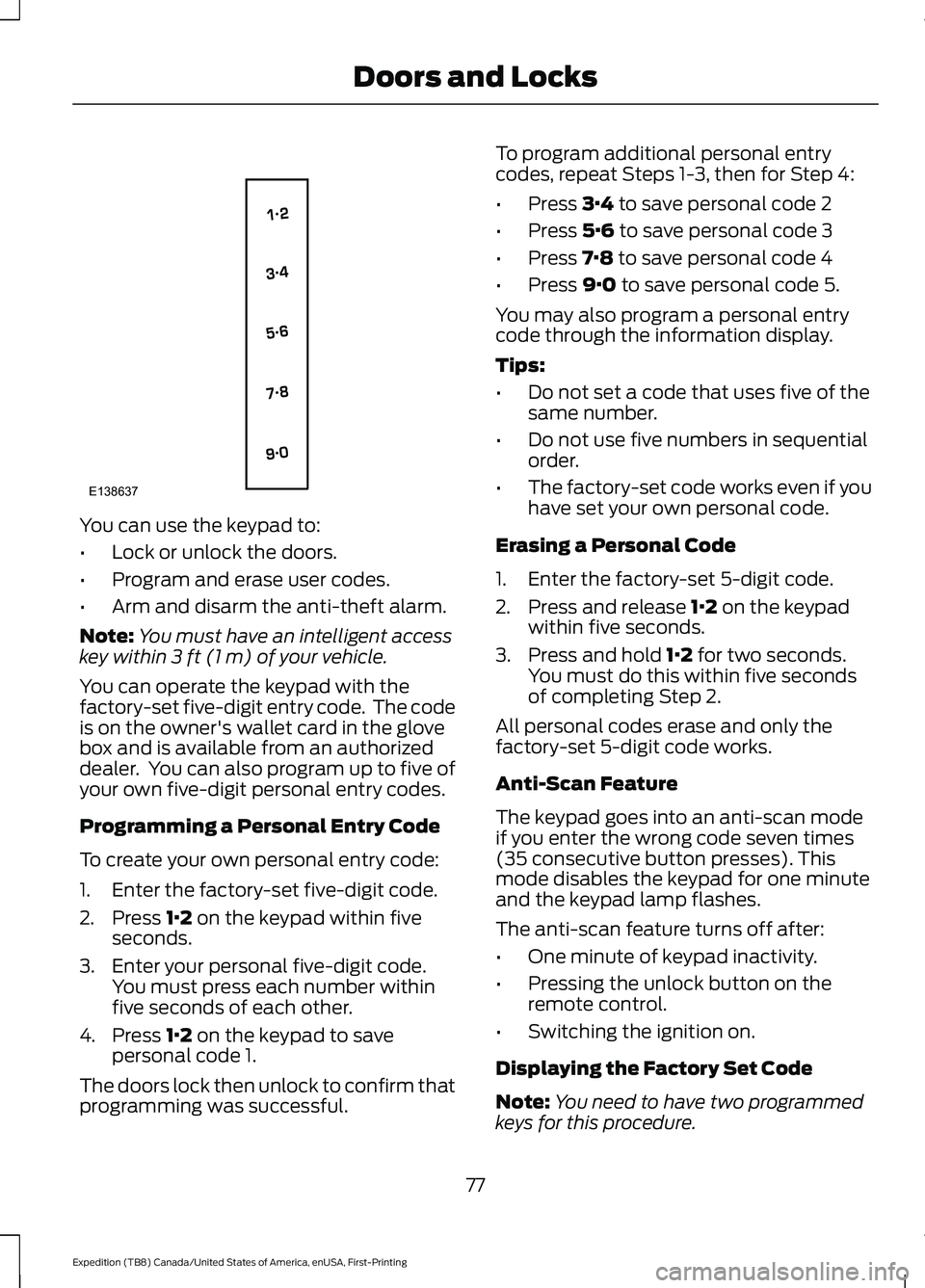
You can use the keypad to:
•
Lock or unlock the doors.
• Program and erase user codes.
• Arm and disarm the anti-theft alarm.
Note: You must have an intelligent access
key within 3 ft (1 m) of your vehicle.
You can operate the keypad with the
factory-set five-digit entry code. The code
is on the owner's wallet card in the glove
box and is available from an authorized
dealer. You can also program up to five of
your own five-digit personal entry codes.
Programming a Personal Entry Code
To create your own personal entry code:
1. Enter the factory-set five-digit code.
2. Press
1·2 on the keypad within five
seconds.
3. Enter your personal five-digit code. You must press each number within
five seconds of each other.
4. Press
1·2 on the keypad to save
personal code 1.
The doors lock then unlock to confirm that
programming was successful. To program additional personal entry
codes, repeat Steps 1-3, then for Step 4:
•
Press
3·4 to save personal code 2
• Press
5·6 to save personal code 3
• Press
7·8 to save personal code 4
• Press
9·0 to save personal code 5.
You may also program a personal entry
code through the information display.
Tips:
• Do not set a code that uses five of the
same number.
• Do not use five numbers in sequential
order.
• The factory-set code works even if you
have set your own personal code.
Erasing a Personal Code
1. Enter the factory-set 5-digit code.
2. Press and release
1·2 on the keypad
within five seconds.
3. Press and hold
1·2 for two seconds.
You must do this within five seconds
of completing Step 2.
All personal codes erase and only the
factory-set 5-digit code works.
Anti-Scan Feature
The keypad goes into an anti-scan mode
if you enter the wrong code seven times
(35 consecutive button presses). This
mode disables the keypad for one minute
and the keypad lamp flashes.
The anti-scan feature turns off after:
• One minute of keypad inactivity.
• Pressing the unlock button on the
remote control.
• Switching the ignition on.
Displaying the Factory Set Code
Note: You need to have two programmed
keys for this procedure.
77
Expedition (TB8) Canada/United States of America, enUSA, First-Printing Doors and LocksE138637
Page 88 of 574
PASSIVE ANTI-THEFT
SYSTEM
Note:
The system is not compatible with
non-Ford aftermarket remote start systems.
Use of these systems may result in vehicle
starting problems and a loss of security
protection.
Note: Metallic objects, electronic devices
or a second coded key on the same key
chain may cause vehicle starting problems
if they are too close to the key when starting
the engine. Prevent these objects from
touching the coded key while starting the
engine. Switch the ignition off, move all
objects on the key chain away from the
coded key and restart the engine if a
problem occurs.
Note: Do not leave a duplicate coded key
in the vehicle. Always take your keys and
lock all doors when leaving the vehicle.
SecuriLock ™
The system is an engine immobilization
system. The intended design is to help
prevent the engine from starting unless a
coded key programmed to your vehicle is
used. Using the wrong key may prevent
the engine from starting. A message may
appear in the information display.
If you are unable to start the engine with a
correctly coded key, a malfunction has
happened and a message may appear in
the information display.
Automatic Arming
The vehicle arms immediately after you
switch the ignition off.
Automatic Disarming
If you switch the ignition on with a coded
key you disarm the vehicle. If you unlock
the doors with the touch handle you disarm
the alarm. Replacement Keys
Note:
Your vehicle comes equipped with
two intelligent access keys.
The intelligent access key functions as a
programmed key that operates the driver
door lock and activates the intelligent
access with push button start system, as
well as a remote control.
If your programmed transmitters are lost
or stolen and you do not have an extra
coded key, you will need to have your
vehicle towed to an authorized dealer. You
need to erase the key codes from your
vehicle and program new coded keys.
Store an extra programmed key away from
the vehicle in a safe place to help prevent
any inconveniences. See your authorized
dealer to purchase additional spare or
replacement keys.
Programming a Spare Integrated
Keyhead Transmitter
Note: You can program a maximum of
eight coded keys to your vehicle. All eight
can be integrated keyhead transmitters.
You can program your own integrated
keyhead transmitter or standard
SecuriLock coded keys to your vehicle.
This procedure programs both the engine
immobilizer keycode and the remote entry
portion of the remote control to your
vehicle
Only use integrated keyhead transmitters
or standard SecuriLock keys.
You must have two previously
programmed coded keys and the new
unprogrammed key readily accessible. See
your authorized dealer to have the spare
key programmed if two previously
programmed coded keys are not available.
Read and understand the entire procedure
before you begin.
85
Expedition (TB8) Canada/United States of America, enUSA, First-Printing Security
Page 89 of 574
1.
Insert the first previously programmed
coded key into the ignition.
2. Switch the ignition from off to on. Keep
the ignition on for at least three
seconds, but no more than 10 seconds.
3. Switch the ignition off and remove the
first coded key from the ignition.
4. After three seconds but within 10 seconds of switching the ignition off,
insert the second previously coded key
into the ignition.
5. Switch the ignition from off to on. Keep
the ignition on for at least three
seconds, but no more than 10 seconds.
6. Switch the ignition off and remove the
second previously programmed coded
key from the ignition.
7. After three seconds but within 10 seconds of switching the ignition off
and removing the previously
programmed coded key, insert the new
unprogrammed key into the ignition.
8. Switch the ignition from off to on. Keep
the ignition on for at least six seconds.
9. Remove the newly programmed coded
key from the ignition.
If the key has been successfully
programmed it will start the engine and
operate the remote entry system (if the
new key is an integrated keyhead
transmitter).
If programming was not successful, wait
10 seconds and repeat Steps 1 through 8.
If you are still unsuccessful, take your
vehicle to your authorized dealer.
Programming a Spare Intelligent
Access Key
Note: You can program a maximum of four
keys to your vehicle. You must have two previously
programmed intelligent access keys inside
your vehicle and the new unprogrammed
intelligent access key readily accessible.
You can purchase replacement keys or
remote controls from an authorized dealer.
Make sure that the ignition is switched off
before beginning this procedure. Make sure
that you close all the doors before
beginning and that they remain closed
throughout the procedure. Carry out all
steps within 30 seconds of starting the
sequence. Stop and wait for at least one
minute before starting again if you carry
out any steps out of sequence.
Read and understand the entire procedure
before you begin.
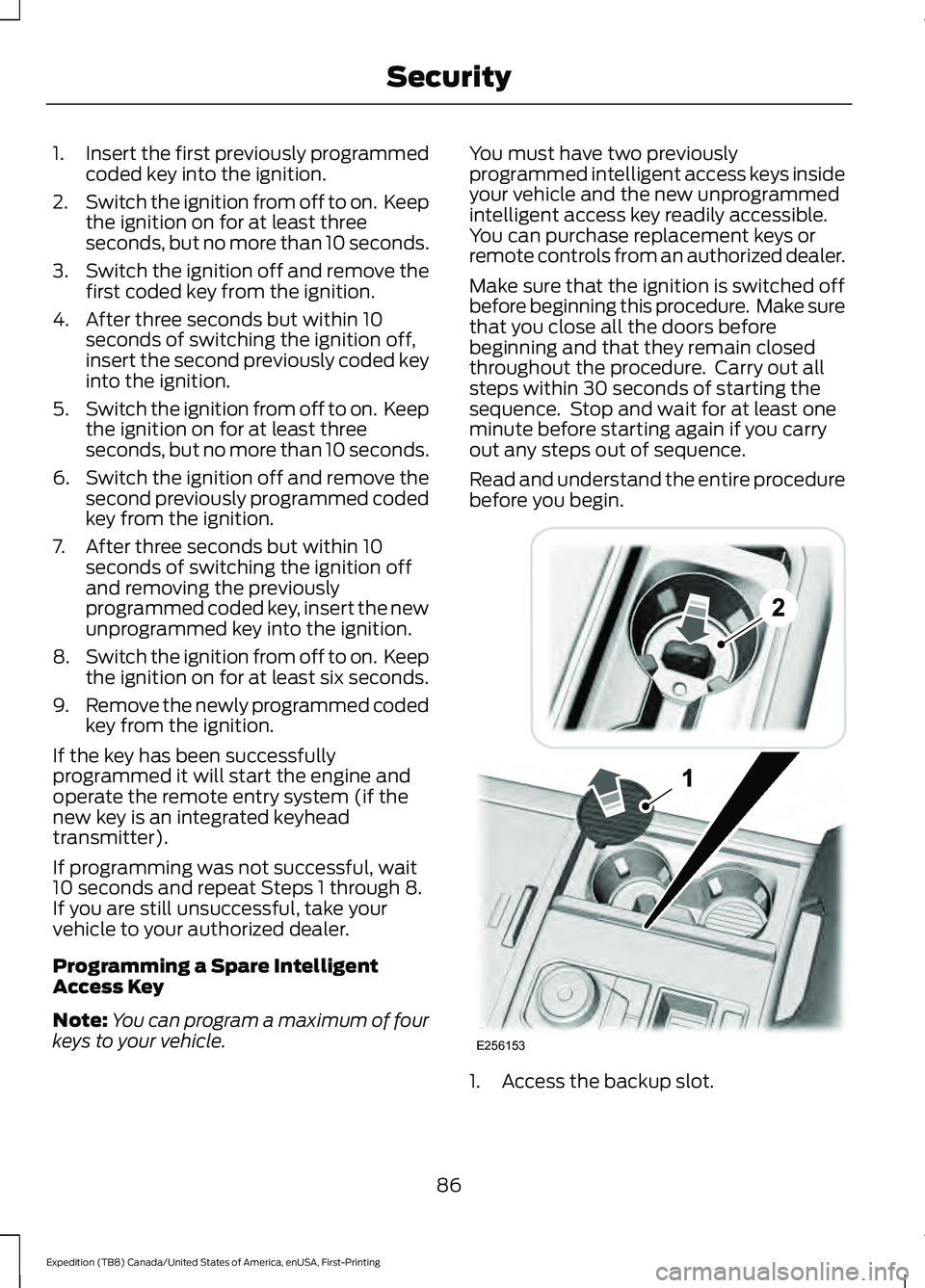
1. Access the backup slot.
86
Expedition (TB8) Canada/United States of America, enUSA, First-Printing SecurityE256153
Page 90 of 574
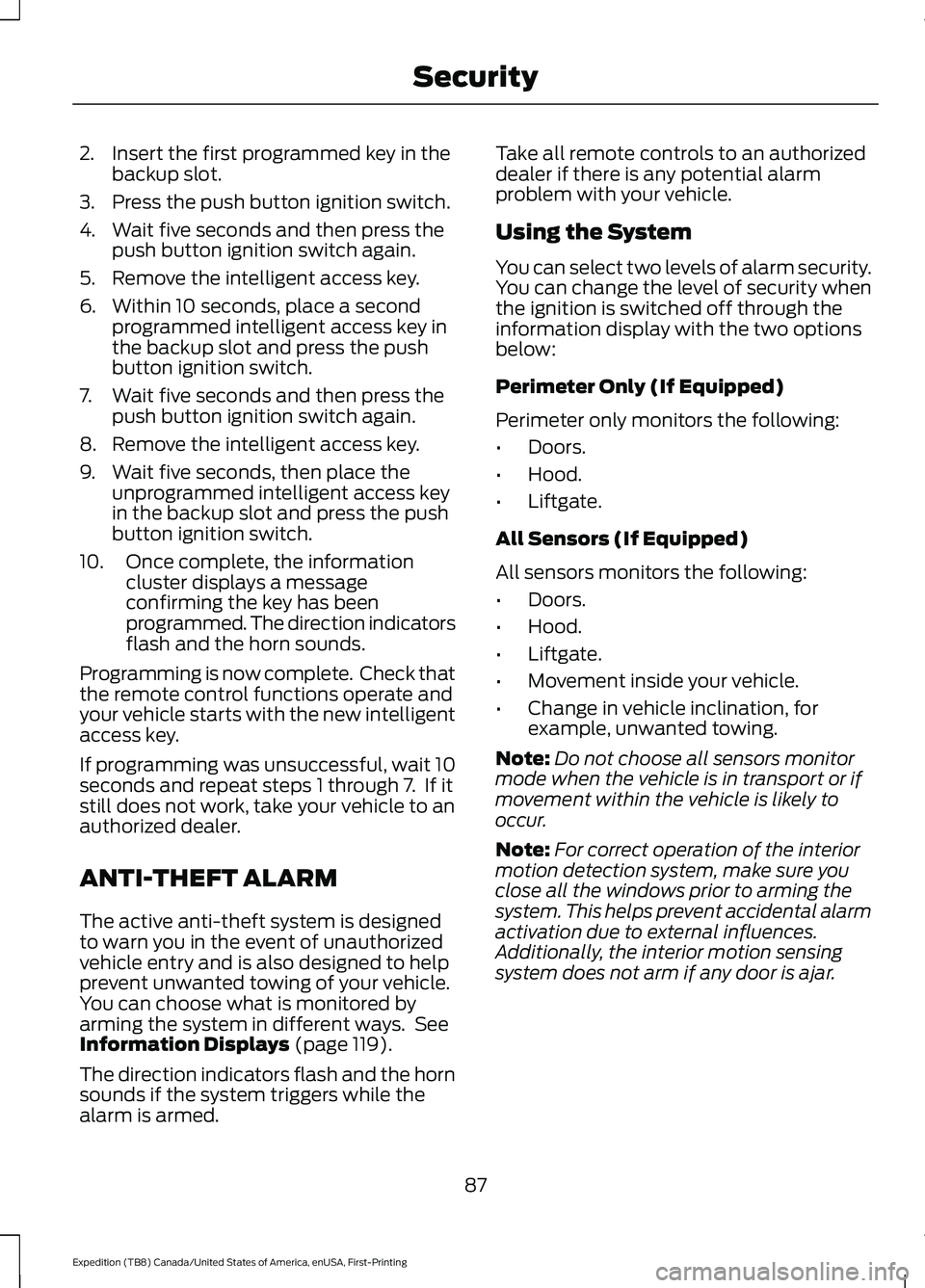
2. Insert the first programmed key in the
backup slot.
3. Press the push button ignition switch.
4. Wait five seconds and then press the push button ignition switch again.
5. Remove the intelligent access key.
6. Within 10 seconds, place a second programmed intelligent access key in
the backup slot and press the push
button ignition switch.
7. Wait five seconds and then press the push button ignition switch again.
8. Remove the intelligent access key.
9. Wait five seconds, then place the unprogrammed intelligent access key
in the backup slot and press the push
button ignition switch.
10. Once complete, the information cluster displays a message
confirming the key has been
programmed. The direction indicators
flash and the horn sounds.
Programming is now complete. Check that
the remote control functions operate and
your vehicle starts with the new intelligent
access key.
If programming was unsuccessful, wait 10
seconds and repeat steps 1 through 7. If it
still does not work, take your vehicle to an
authorized dealer.
ANTI-THEFT ALARM
The active anti-theft system is designed
to warn you in the event of unauthorized
vehicle entry and is also designed to help
prevent unwanted towing of your vehicle.
You can choose what is monitored by
arming the system in different ways. See
Information Displays (page 119).
The direction indicators flash and the horn
sounds if the system triggers while the
alarm is armed. Take all remote controls to an authorized
dealer if there is any potential alarm
problem with your vehicle.
Using the System
You can select two levels of alarm security.
You can change the level of security when
the ignition is switched off through the
information display with the two options
below:
Perimeter Only (If Equipped)
Perimeter only monitors the following:
•
Doors.
• Hood.
• Liftgate.
All Sensors (If Equipped)
All sensors monitors the following:
• Doors.
• Hood.
• Liftgate.
• Movement inside your vehicle.
• Change in vehicle inclination, for
example, unwanted towing.
Note: Do not choose all sensors monitor
mode when the vehicle is in transport or if
movement within the vehicle is likely to
occur.
Note: For correct operation of the interior
motion detection system, make sure you
close all the windows prior to arming the
system. This helps prevent accidental alarm
activation due to external influences.
Additionally, the interior motion sensing
system does not arm if any door is ajar.
87
Expedition (TB8) Canada/United States of America, enUSA, First-Printing Security