phone FORD EXPEDITION 2021 Owner's Manual
[x] Cancel search | Manufacturer: FORD, Model Year: 2021, Model line: EXPEDITION, Model: FORD EXPEDITION 2021Pages: 574, PDF Size: 8.33 MB
Page 423 of 574
(read and unread), and call history,
including history of calls when your cellular
phone was not connected to the system.
In addition, if you connect a media device,
the system creates and retains an index of
supported media content. The system also
records a short development log of
approximately 10 minutes of all recent
system activity. The log profile and other
system data may be used to improve the
system and help diagnose any problems
that may occur.
The cellular profile, media device index,
and development log will remain in the
vehicle unless you delete them and are
generally accessible only in the vehicle
when you connect the cellular phone or
media player. If you no longer plan to use
the system or the vehicle, we recommend
you perform a Master Reset to erase all
stored information.
No one can access system data without
special equipment and access to the
vehicle's SYNC module. Ford Motor
Company and Ford of Canada will not
access the system data for any purpose
other than as described absent consent, a
court order, or where required by law
enforcement, other government
authorities, or other third parties acting
with lawful authority. Other parties may
seek to access the information
independently of Ford Motor Company and
Ford of Canada. For further privacy
information, see the section on 911 Assist.
See SYNC™ Applications and Services
(page 423).
USING VOICE RECOGNITION
This system helps you control many
features using voice commands. This
allows you to keep your hands on the
wheel and focus on what is around you.
Initiating a Voice Session Press the voice button. A list of
available voice commands
appears in the display.
Global Voice Commands
These voice commands are always
available. You can say them at any time. Global voice commands
Gives you available commands you can use
on the current screen.
Help
Gives you a list of possible voice
commands.
List of Commands
This command ends the voice session. You
can also cancel a session by pressing seek
up, seek down, or holding the voice button
for two or more seconds.
Cancel
420
Expedition (TB8) Canada/United States of America, enUSA, First-Printing SYNC™
(If Equipped)E142599
Page 424 of 574
Helpful Hints
•
Make sure the interior of your vehicle is
as quiet as possible. Wind noise from
open windows and road vibrations may
prevent the system from correctly
recognizing spoken commands.
• Before giving a voice command, wait
for the system announcement to finish,
followed by a single tone. Any
command spoken before this does not
register with the system.
• Speak naturally, without long pauses
between words.
• You can interrupt the system at any
time while it is speaking by pressing the
voice button. You can cancel a voice
session by pressing and holding the
voice button. System Interaction and Feedback
The system provides feedback through
audible tones, prompts, questions and
spoken confirmations depending on the
situation and the chosen level of
interaction. You can customize the voice
recognition system to provide more or less
instruction and feedback.
The default setting is to a higher level of
interaction in order to help you learn to use
the system. You can change these settings
at any time.
Adjusting the Interaction Level Press the voice button. When
prompted, say:
Action and Description
Voice Command
Provides more detailed interaction and
guidance. (Recommended for first time
users.)
Interaction Mode Standard
Provides less audible interaction and guid-
ance.
Interaction Mode Advanced
Phone Confirmation
Using phone confirmations the system
asks you to verify before placing any calls.
To adjust this setting press the voice button, when prompted say: Action and Description
Voice Command
When enabled, this feature will prompt you
to confirm any voice initiated call command
prior to the call being placed.
Phone Confirmation Off
The system will make a best guess; you
may still occasionally be asked to confirm
settings.
Phone Confirmation On
421
Expedition (TB8) Canada/United States of America, enUSA, First-Printing SYNC™ (If Equipped)E142599
Page 425 of 574
USING SYNC™ WITH YOUR
PHONE
Hands-free calling is one of the main
features of SYNC. While the system
supports a variety of features, many are
dependent on your cellular phone's
functionality. At a minimum, most cellular
phones with Bluetooth wireless technology
support the following functions:
•
Answering an incoming call.
• Ending a call.
• Dialing a number.
• Redialing.
• Call waiting notification.
• Caller identification.
Other features, such as text messaging
using Bluetooth and automatic phonebook
download, are phone-dependent features.
Pairing a Phone
Wirelessly pairing your phone with SYNC
allows you to make and receive hands-free
calls.
Note: Make sure to switch on the ignition
and the radio. Shift the transmission into
park (P) for automatic transmission or
neutral (N) for manual transmission.
Using the Audio System
Note: To scroll through the menus, press
the up and down arrows on your audio
system.
1. Make sure to switch on your phone's Bluetooth feature before starting the
search. See your device's manual if
necessary.
2. Press the Settings button.
3. Select Bluetooth from the menu.
4. Press the
OK button.
5. Select the option to add. This starts the pairing process. 6. When a message to begin pairing
appears in the audio display, search for
SYNC on your device.
Depending on your phone's capability and
your market, the system may prompt you
with questions, such as setting the current
phone as the primary phone and
downloading your phonebook.
Using Voice Commands Make sure to switch on your
phone's Bluetooth feature
before starting the search. See
your device's manual if necessary.
Press the voice button and when
prompted say: Action and Descrip-
tion
Voice Command
Follow the instruc-
tions on the audio
display.
Pair Phone
Phone Voice Commands Press the voice button. You can
do things like place a phone call
and access text messages.
When prompted, say a command. See the
following table for examples of
commands. Voice Command
___ List of Commands
Help
Call ___
Dial ___
Text Messages
422
Expedition (TB8) Canada/United States of America, enUSA, First-Printing SYNC™
(If Equipped)E142599 E142599
Page 426 of 574
__ is a dynamic listing, meaning that it
could be the name of anything, such as a
contact or phone number.
Phone Controls
Use the phone buttons on your steering
wheel to answer, reject, or hang up a call.
Accessing Features through the
Phone Menu
You can access your call history,
phonebook, sent text messages, as well
as access phone and system settings.
1. Press the PHONE button to enter the
phone menu.
2. Scroll through the menu to view contacts, text messages, and the
phone dialer.
SYNC™ APPLICATIONS AND
SERVICES
• SYNC AppLink: Allows you to connect
to and use certain applications (if your
phone is compatible).
These features may require activation.
Available AppLink enabled apps vary by
market.
SYNC Mobile Apps
The system enables voice and steering
wheel control of SYNC AppLink enabled
smartphone apps. When an app is running
through AppLink, you can control main
features of the app through voice
commands and steering wheel controls. Note:
You must pair and connect your
smartphone to SYNC to access AppLink.
Note: Android users need to connect the
phone to SYNC using Bluetooth.
Note: For information on available apps,
supported smartphone devices and
troubleshooting tips please visit the Ford
website
Note: Availability of SYNC AppLink enabled
Apps will vary by region.
Note: Make sure you have an active account
for the app that you have downloaded.
Some apps work automatically with no
setup. Other apps want you to configure
your personal settings and personalize your
experience by creating stations or favorites.
We recommend you do this at home or
outside of your vehicle.
To Access Using the SYNC Menu
Press the Mobile Apps button to access
the menu on-screen. Then select: Action and Description
Menu
Item
Scroll through the list of
available applications and
select a particular app.
Find
Mobile
Apps
Note: If you cannot find a compatible SYNC
AppLink app, make sure the required app is
running on the mobile device.
423
Expedition (TB8) Canada/United States of America, enUSA, First-Printing SYNC™
(If Equipped)
Page 428 of 574
Note:
You must enable mobile apps for
each connected device the first time you
select a mobile app using the system.
Note: Standard data rates apply. Ford is
not responsible for any additional charges
you may receive from your service provider,
when your vehicle sends or receives data
through the connected device. This includes
any additional charges incurred due to
driving in areas when roaming out of a home
network.
USING SYNC™ WITH YOUR
MEDIA PLAYER
SYNC supports digital media sources
including: iPod, Bluetooth devices, and
most USB drives. SYNC also supports
audio formats, such as MP3, WMA, WAV
and ACC.
Media Sources
The AUX or MEDIA button allows you to
view and select available media sources.
Press the
AUX or MEDIA button to view
your sources. Use the directional arrows
and OK button to select your source. You
can also use the steering wheel audio
controls.
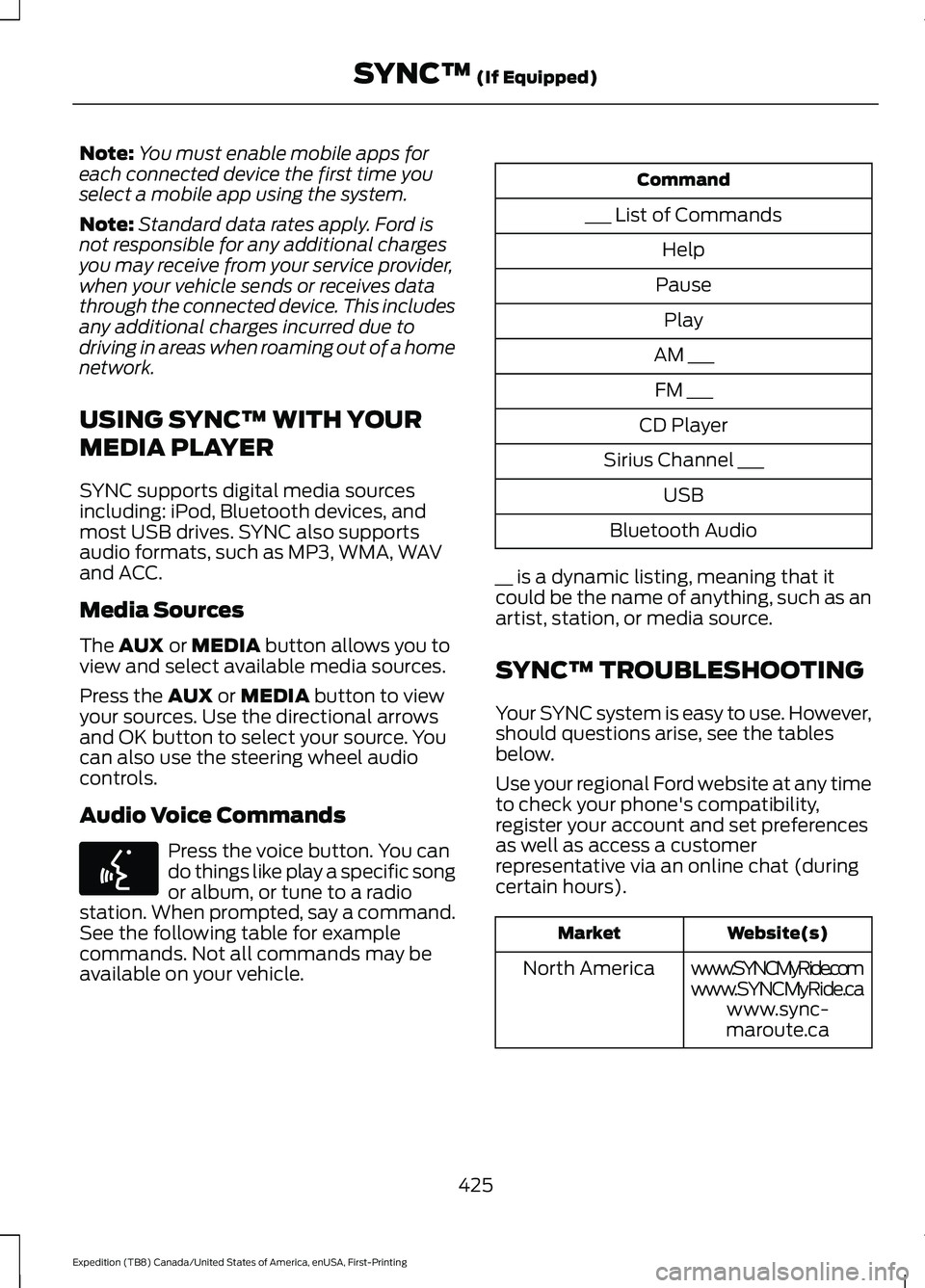
Audio Voice Commands Press the voice button. You can
do things like play a specific song
or album, or tune to a radio
station. When prompted, say a command.
See the following table for example
commands. Not all commands may be
available on your vehicle. Command
___ List of Commands Help
Pause Play
AM ___ FM ___
CD Player
Sirius Channel ___ USB
Bluetooth Audio
__ is a dynamic listing, meaning that it
could be the name of anything, such as an
artist, station, or media source.
SYNC™ TROUBLESHOOTING
Your SYNC system is easy to use. However,
should questions arise, see the tables
below.
Use your regional Ford website at any time
to check your phone's compatibility,
register your account and set preferences
as well as access a customer
representative via an online chat (during
certain hours). Website(s)
Market
www.SYNCMyRide.com
North America
www.SYNCMyRide.cawww.sync-
maroute.ca
425
Expedition (TB8) Canada/United States of America, enUSA, First-Printing SYNC™
(If Equipped)E142599
Page 429 of 574
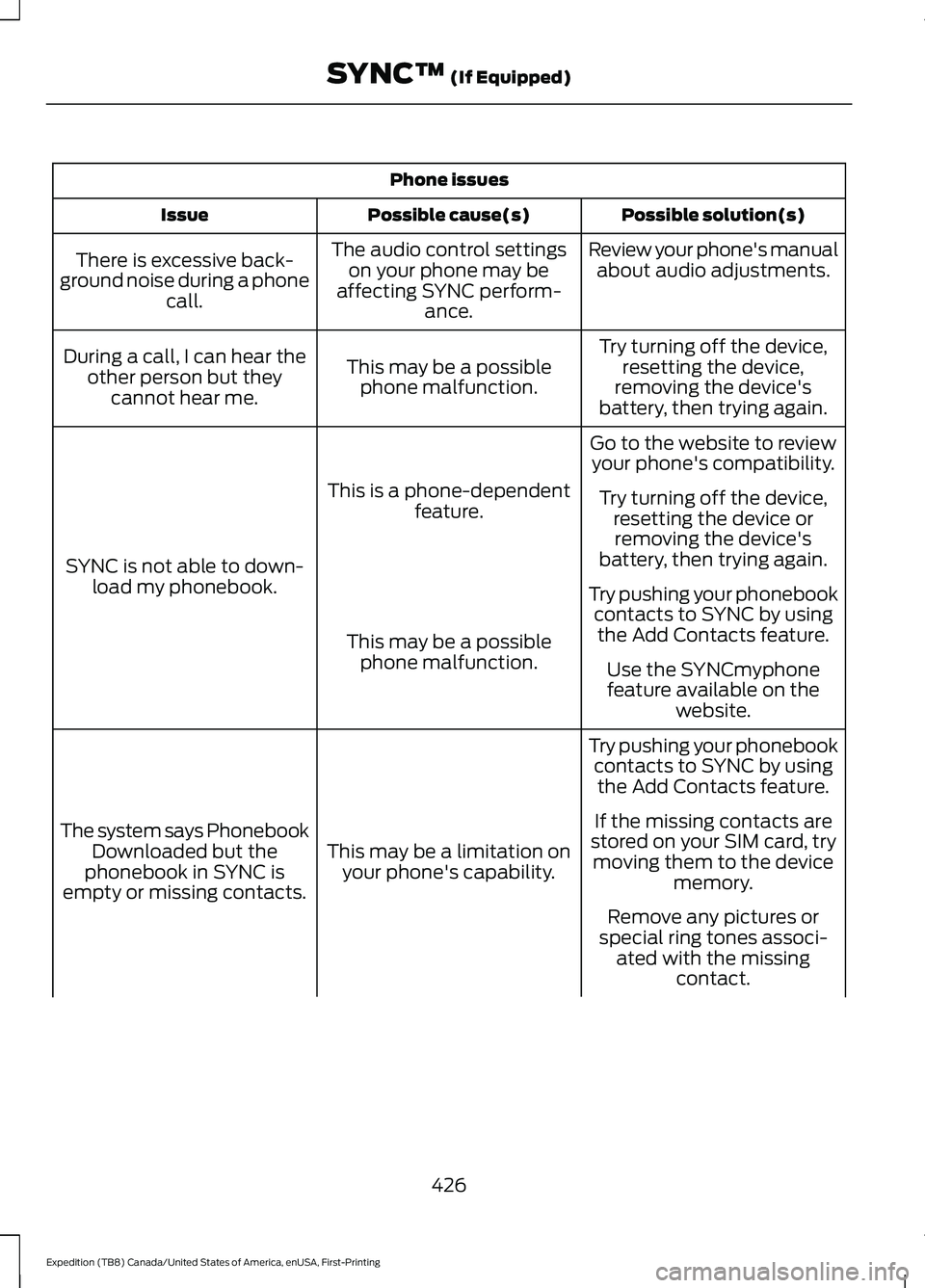
Phone issues
Possible solution(s)
Possible cause(s)
Issue
Review your phone's manualabout audio adjustments.
The audio control settings
on your phone may be
affecting SYNC perform- ance.
There is excessive back-
ground noise during a phone call.
Try turning off the device,resetting the device,
removing the device's
battery, then trying again.
This may be a possible
phone malfunction.
During a call, I can hear the
other person but theycannot hear me.
Go to the website to reviewyour phone's compatibility.
This is a phone-dependent feature.
SYNC is not able to down- load my phonebook. Try turning off the device,
resetting the device orremoving the device's
battery, then trying again.
Try pushing your phonebook contacts to SYNC by usingthe Add Contacts feature.
This may be a possible
phone malfunction. Use the SYNCmyphone
feature available on the website.
Try pushing your phonebook contacts to SYNC by usingthe Add Contacts feature.
This may be a limitation on your phone's capability.
The system says Phonebook
Downloaded but the
phonebook in SYNC is
empty or missing contacts. If the missing contacts are
stored on your SIM card, try moving them to the device memory.
Remove any pictures or
special ring tones associ- ated with the missing contact.
426
Expedition (TB8) Canada/United States of America, enUSA, First-Printing SYNC™ (If Equipped)
Page 430 of 574
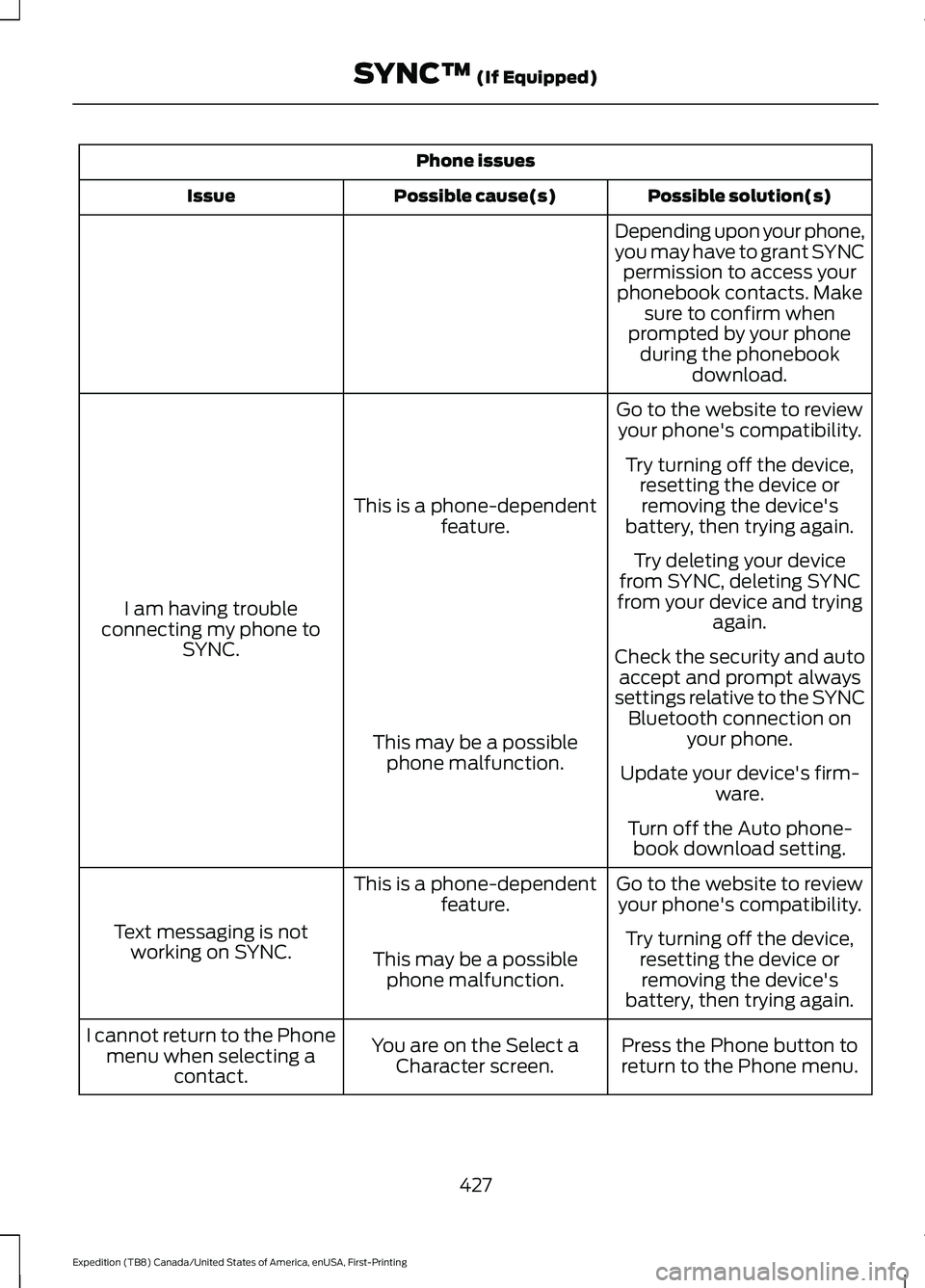
Phone issues
Possible solution(s)
Possible cause(s)
Issue
Depending upon your phone,
you may have to grant SYNCpermission to access your
phonebook contacts. Make sure to confirm when
prompted by your phone during the phonebook download.
Go to the website to review your phone's compatibility.
This is a phone-dependent feature.
I am having trouble
connecting my phone to SYNC. Try turning off the device,
resetting the device orremoving the device's
battery, then trying again.
Try deleting your device
from SYNC, deleting SYNC
from your device and trying again.
Check the security and auto accept and prompt always
settings relative to the SYNC Bluetooth connection on your phone.
This may be a possible
phone malfunction. Update your device's firm-
ware.
Turn off the Auto phone- book download setting.
Go to the website to review your phone's compatibility.
This is a phone-dependent
feature.
Text messaging is not working on SYNC. Try turning off the device,
resetting the device orremoving the device's
battery, then trying again.
This may be a possible
phone malfunction.
Press the Phone button to
return to the Phone menu.
You are on the Select a
Character screen.
I cannot return to the Phone
menu when selecting a contact.
427
Expedition (TB8) Canada/United States of America, enUSA, First-Printing SYNC™ (If Equipped)
Page 431 of 574
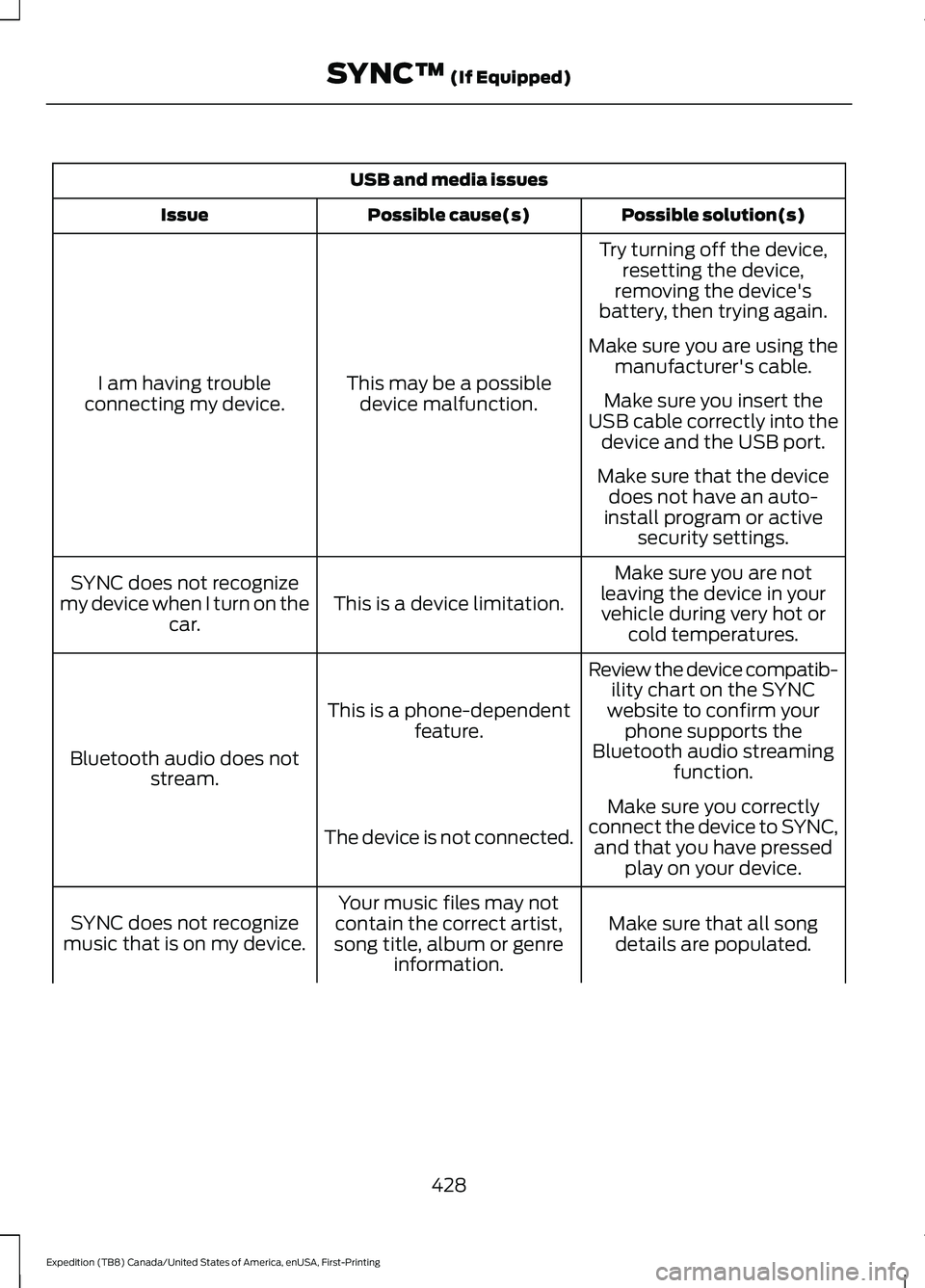
USB and media issues
Possible solution(s)
Possible cause(s)
Issue
Try turning off the device,resetting the device,
removing the device's
battery, then trying again.
This may be a possible device malfunction.
I am having trouble
connecting my device. Make sure you are using the
manufacturer's cable.
Make sure you insert the
USB cable correctly into the device and the USB port.
Make sure that the device does not have an auto-
install program or active security settings.
Make sure you are not
leaving the device in your vehicle during very hot or cold temperatures.
This is a device limitation.
SYNC does not recognize
my device when I turn on the car.
Review the device compatib-ility chart on the SYNC
website to confirm your phone supports the
Bluetooth audio streaming function.
This is a phone-dependent
feature.
Bluetooth audio does not stream.
Make sure you correctly
connect the device to SYNC, and that you have pressed play on your device.
The device is not connected.
Make sure that all songdetails are populated.
Your music files may not
contain the correct artist,
song title, album or genre information.
SYNC does not recognize
music that is on my device.
428
Expedition (TB8) Canada/United States of America, enUSA, First-Printing SYNC™ (If Equipped)
Page 432 of 574
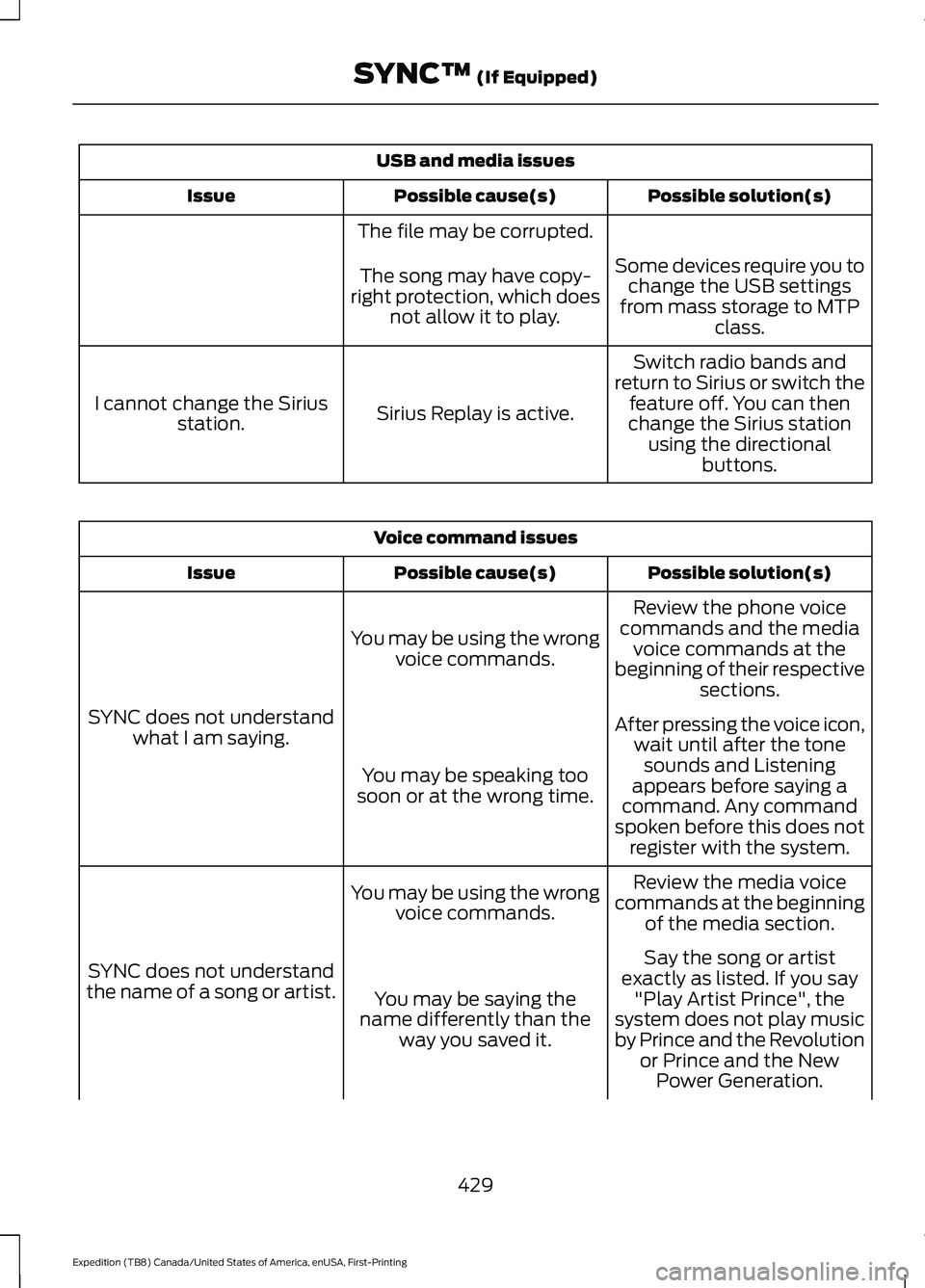
USB and media issues
Possible solution(s)
Possible cause(s)
Issue
The file may be corrupted. Some devices require you tochange the USB settings
from mass storage to MTP class.
The song may have copy-
right protection, which does not allow it to play.
Switch radio bands and
return to Sirius or switch the feature off. You can then
change the Sirius station using the directional buttons.
Sirius Replay is active.
I cannot change the Sirius
station. Voice command issues
Possible solution(s)
Possible cause(s)
Issue
Review the phone voice
commands and the media voice commands at the
beginning of their respective sections.
You may be using the wrong
voice commands.
SYNC does not understand what I am saying. After pressing the voice icon,
wait until after the tonesounds and Listening
appears before saying a
command. Any command
spoken before this does not register with the system.
You may be speaking too
soon or at the wrong time.
Review the media voice
commands at the beginning of the media section.
You may be using the wrong
voice commands.
SYNC does not understand
the name of a song or artist. Say the song or artist
exactly as listed. If you say "Play Artist Prince", the
system does not play music
by Prince and the Revolution or Prince and the NewPower Generation.
You may be saying the
name differently than the way you saved it.
429
Expedition (TB8) Canada/United States of America, enUSA, First-Printing SYNC™ (If Equipped)
Page 433 of 574
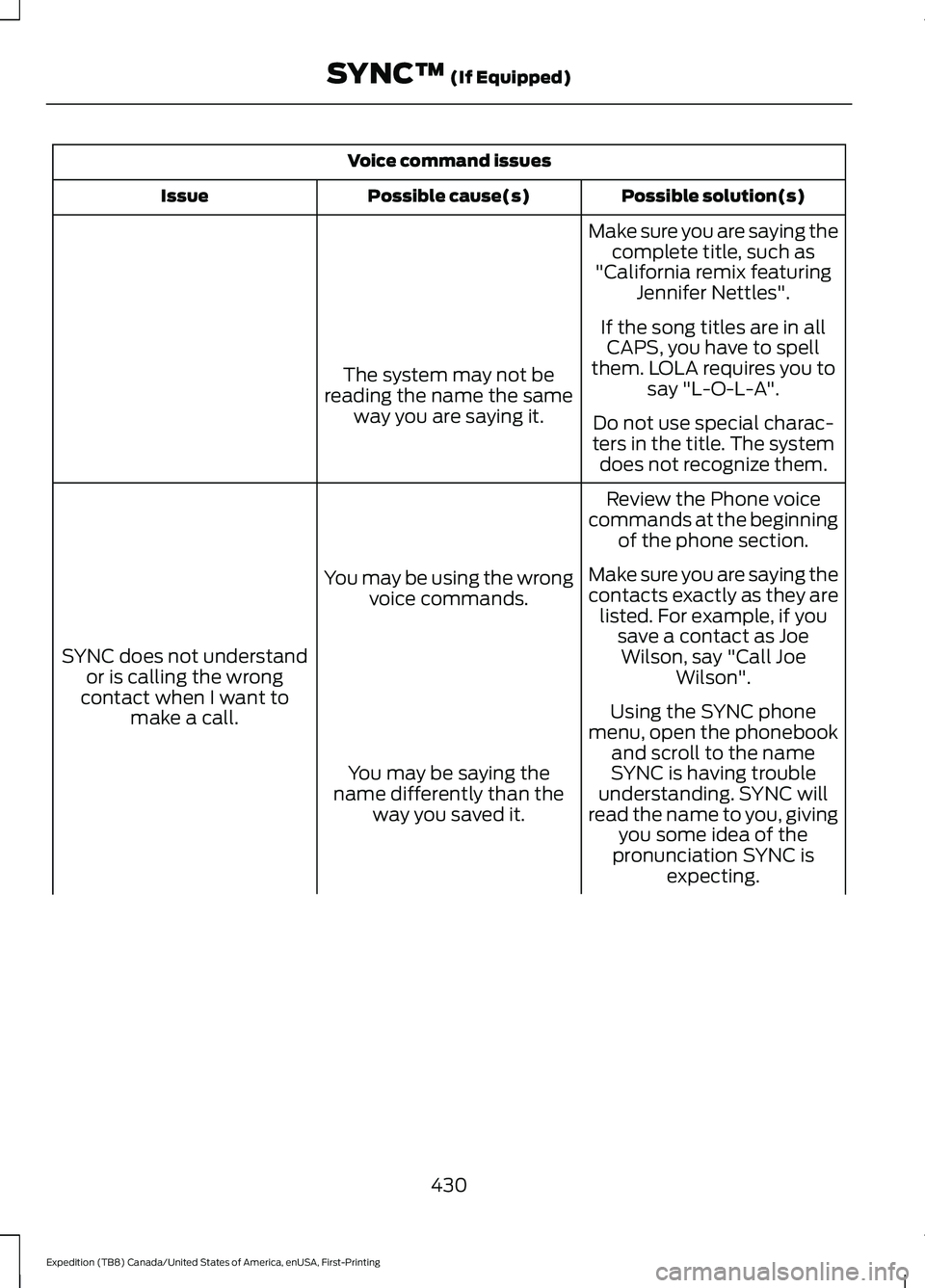
Voice command issues
Possible solution(s)
Possible cause(s)
Issue
Make sure you are saying thecomplete title, such as
"California remix featuring Jennifer Nettles".
If the song titles are in all CAPS, you have to spell
them. LOLA requires you to say "L-O-L-A".
The system may not be
reading the name the same way you are saying it. Do not use special charac-
ters in the title. The system does not recognize them.
Review the Phone voice
commands at the beginning of the phone section.
You may be using the wrong voice commands.
SYNC does not understand or is calling the wrong
contact when I want to make a call. Make sure you are saying the
contacts exactly as they are
listed. For example, if you save a contact as JoeWilson, say "Call Joe Wilson".
Using the SYNC phone
menu, open the phonebook and scroll to the name
SYNC is having trouble
understanding. SYNC will
read the name to you, giving you some idea of the
pronunciation SYNC is expecting.
You may be saying the
name differently than the way you saved it.
430
Expedition (TB8) Canada/United States of America, enUSA, First-Printing SYNC™ (If Equipped)