wheel FORD EXPEDITION 2021 Workshop Manual
[x] Cancel search | Manufacturer: FORD, Model Year: 2021, Model line: EXPEDITION, Model: FORD EXPEDITION 2021Pages: 574, PDF Size: 8.33 MB
Page 240 of 574
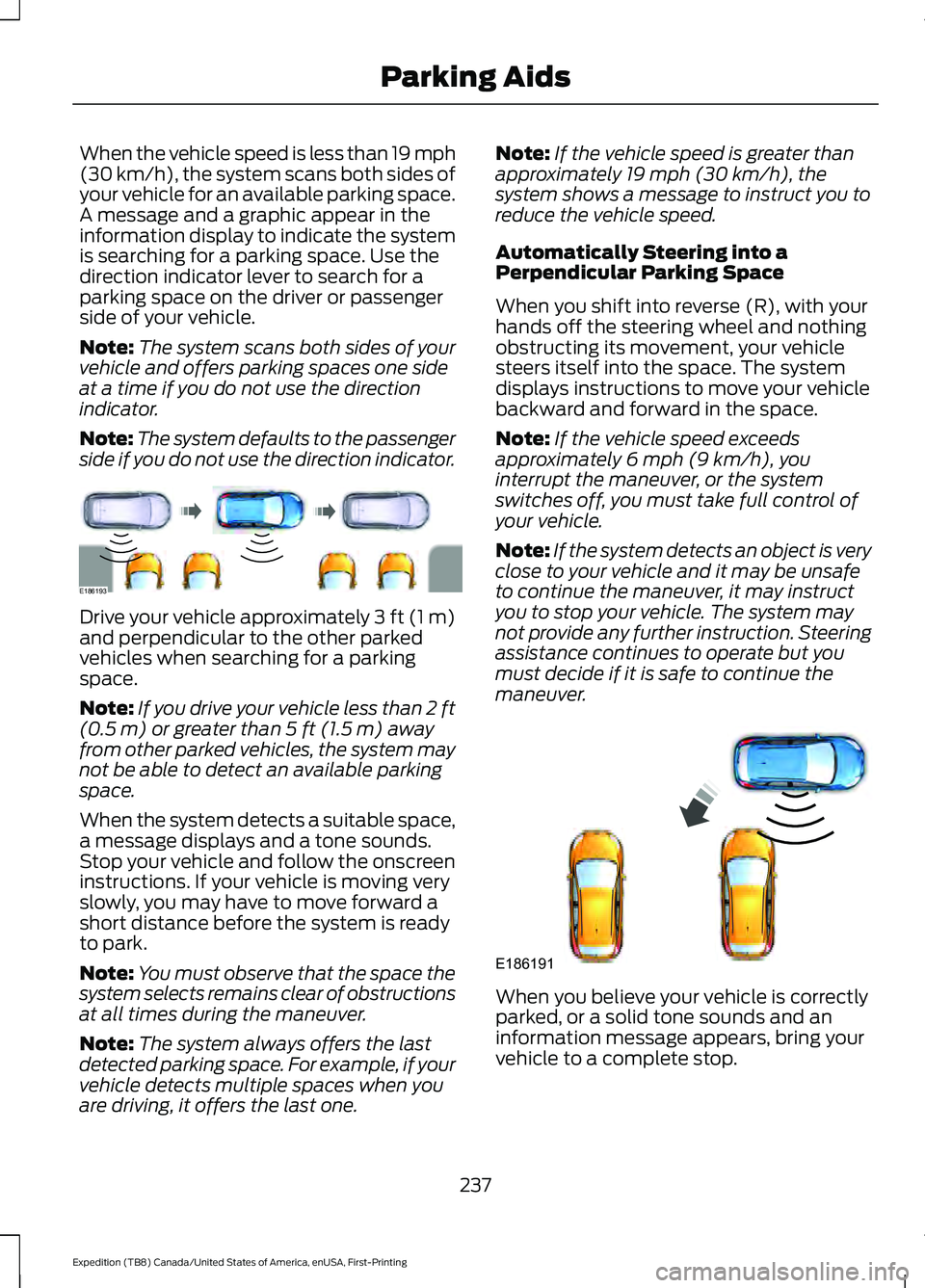
When the vehicle speed is less than 19 mph
(30 km/h), the system scans both sides of
your vehicle for an available parking space.
A message and a graphic appear in the
information display to indicate the system
is searching for a parking space. Use the
direction indicator lever to search for a
parking space on the driver or passenger
side of your vehicle.
Note: The system scans both sides of your
vehicle and offers parking spaces one side
at a time if you do not use the direction
indicator.
Note: The system defaults to the passenger
side if you do not use the direction indicator. Drive your vehicle approximately 3 ft (1 m)
and perpendicular to the other parked
vehicles when searching for a parking
space.
Note:
If you drive your vehicle less than 2 ft
(0.5 m)
or greater than 5 ft (1.5 m) away
from other parked vehicles, the system may
not be able to detect an available parking
space.
When the system detects a suitable space,
a message displays and a tone sounds.
Stop your vehicle and follow the onscreen
instructions. If your vehicle is moving very
slowly, you may have to move forward a
short distance before the system is ready
to park.
Note: You must observe that the space the
system selects remains clear of obstructions
at all times during the maneuver.
Note: The system always offers the last
detected parking space. For example, if your
vehicle detects multiple spaces when you
are driving, it offers the last one. Note:
If the vehicle speed is greater than
approximately
19 mph (30 km/h), the
system shows a message to instruct you to
reduce the vehicle speed.
Automatically Steering into a
Perpendicular Parking Space
When you shift into reverse (R), with your
hands off the steering wheel and nothing
obstructing its movement, your vehicle
steers itself into the space. The system
displays instructions to move your vehicle
backward and forward in the space.
Note: If the vehicle speed exceeds
approximately
6 mph (9 km/h), you
interrupt the maneuver, or the system
switches off, you must take full control of
your vehicle.
Note: If the system detects an object is very
close to your vehicle and it may be unsafe
to continue the maneuver, it may instruct
you to stop your vehicle. The system may
not provide any further instruction. Steering
assistance continues to operate but you
must decide if it is safe to continue the
maneuver. When you believe your vehicle is correctly
parked, or a solid tone sounds and an
information message appears, bring your
vehicle to a complete stop.
237
Expedition (TB8) Canada/United States of America, enUSA, First-Printing Parking AidsE186193 E186191
Page 241 of 574
When the active park assist maneuver is
complete, a tone sounds and a message
appears.
Note:
You are responsible for checking how
your vehicle is parked and making any
necessary corrections before leaving your
vehicle.
Deactivating Active Park Assist
You can manually deactivate the system
by:
• Pressing the Active Park Assist button
during an active maneuver.
• Grabbing the steering wheel during an
active maneuver.
• Driving above 19 mph (30 km/h) for 30
seconds when searching for a parking
space.
• Driving above
31 mph (50 km/h).
• Driving above
6 mph (9 km/h) during
an active maneuver.
• Switching the traction control system
off.
Certain vehicle conditions may also
deactivate the system, for example:
• The traction control system activates
or fails.
• The anti-lock brake system activates
or fails.
If the system malfunctions, a message
appears and a tone sounds. Have your
vehicle checked as soon as possible.
Parallel Park Out Assist
The system steers your vehicle out of a
parallel parking space. You control the
accelerator, gearshift and brakes. The
system visually and audibly guides you out
of a parallel parking space.
Note: This system is not intended to assist
when exiting a perpendicular parking space. Press the button once when your
vehicle is stationary in a parallel
parking space.
Note: If you did not use active park assist
to parallel park your vehicle, pressing the
button once selects parallel park. You must
use the information display to select park
out assist.
The system displays a message instructing
you to switch a direction indicator on. Use
the direction indicator to select which side
of your vehicle you want to exit the parking
space. The system displays instructions to
move your vehicle backward and forward
in the space.
Note: If the system detects an object is very
close to your vehicle and it may be unsafe
to continue the maneuver, it may instruct
you to stop your vehicle. The system may
not provide any further instruction. Steering
assistance continues to operate but you
must decide if it is safe to continue the
maneuver. After the system directs your vehicle to a
position where you can exit the parking
space in a forward movement, a message
appears instructing you to take full control
of your vehicle. Generally, hand-over is
when your vehicle is still inside the parking
space.
Note:
Parallel Park Out Assist may not be
available when the clearance to the front
or the rear of your vehicle is too small.
Note: If the vehicle speed exceeds
approximately
6 mph (9 km/h), you
interrupt the maneuver, or the system
switches off, you must take full control of
your vehicle.
238
Expedition (TB8) Canada/United States of America, enUSA, First-Printing Parking AidsE146186 E188012
Page 245 of 574
Active guidelines are only shown with fixed
guidelines. To use active guidelines, turn
the steering wheel to point the guidelines
toward an intended path. If you change
the steering wheel position while reversing,
your vehicle might deviate from the original
intended path.
The fixed and active guidelines fade in and
out depending on the steering wheel
position. The active guidelines do not
display when the steering wheel position
is straight.
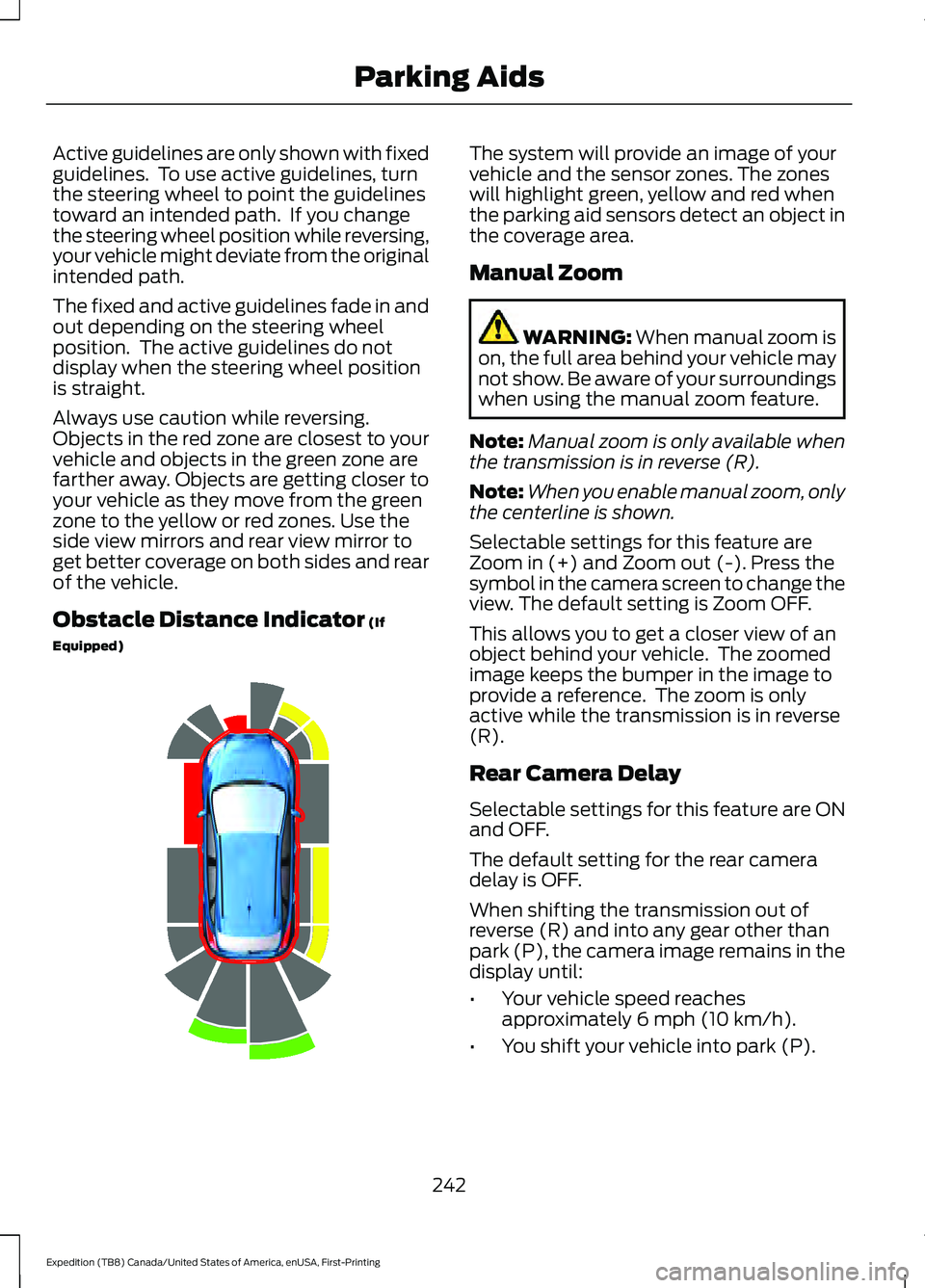
Always use caution while reversing.
Objects in the red zone are closest to your
vehicle and objects in the green zone are
farther away. Objects are getting closer to
your vehicle as they move from the green
zone to the yellow or red zones. Use the
side view mirrors and rear view mirror to
get better coverage on both sides and rear
of the vehicle.
Obstacle Distance Indicator (If
Equipped) The system will provide an image of your
vehicle and the sensor zones. The zones
will highlight green, yellow and red when
the parking aid sensors detect an object in
the coverage area.
Manual Zoom
WARNING:
When manual zoom is
on, the full area behind your vehicle may
not show. Be aware of your surroundings
when using the manual zoom feature.
Note: Manual zoom is only available when
the transmission is in reverse (R).
Note: When you enable manual zoom, only
the centerline is shown.
Selectable settings for this feature are
Zoom in (+) and Zoom out (-). Press the
symbol in the camera screen to change the
view. The default setting is Zoom OFF.
This allows you to get a closer view of an
object behind your vehicle. The zoomed
image keeps the bumper in the image to
provide a reference. The zoom is only
active while the transmission is in reverse
(R).
Rear Camera Delay
Selectable settings for this feature are ON
and OFF.
The default setting for the rear camera
delay is OFF.
When shifting the transmission out of
reverse (R) and into any gear other than
park (P), the camera image remains in the
display until:
• Your vehicle speed reaches
approximately
6 mph (10 km/h).
• You shift your vehicle into park (P).
242
Expedition (TB8) Canada/United States of America, enUSA, First-Printing Parking AidsE190459
Page 249 of 574
WHAT IS CRUISE CONTROL
Cruise control lets you maintain a set
speed without keeping your foot on the
accelerator pedal.
Requirements
Use cruise control when the vehicle speed
is greater than 20 mph (30 km/h).
SWITCHING CRUISE CONTROL
ON AND OFF WARNING:
Do not use cruise
control on winding roads, in heavy traffic
or when the road surface is slippery. This
could result in loss of vehicle control,
serious injury or death.
The cruise controls are on the steering
wheel. See
Cruise Control (page 93).
Switching Cruise Control On Press the button.
Switching Cruise Control Off Press the button when the
system is in standby mode.
The system also turns off when you switch
the ignition off.
Note: The set speed erases when you
switch the system off. SETTING THE CRUISE
CONTROL SPEED WARNING:
When you are going
downhill, your vehicle speed could
increase above the set speed. The
system does not apply the brakes.
Drive to the speed you prefer. Press either button to set the
current speed.
Take your foot off the accelerator pedal.
Note: The indicator changes color in the
information display.
Changing the Set Speed Press and release the button to
increase the set speed in small
increments.
Press and hold the button to accelerate.
Release the button when you reach your
preferred speed. Press and release the button to
decrease the set speed in small
increments.
Press and hold the button to decelerate.
Release the button when you reach your
preferred speed.
Note: If you accelerate by pressing the
accelerator pedal, the set speed does not
change. When you release the accelerator
pedal, your vehicle returns to the speed that
you previously set.
246
Expedition (TB8) Canada/United States of America, enUSA, First-Printing Cruise ControlE265296 E265297
Page 251 of 574
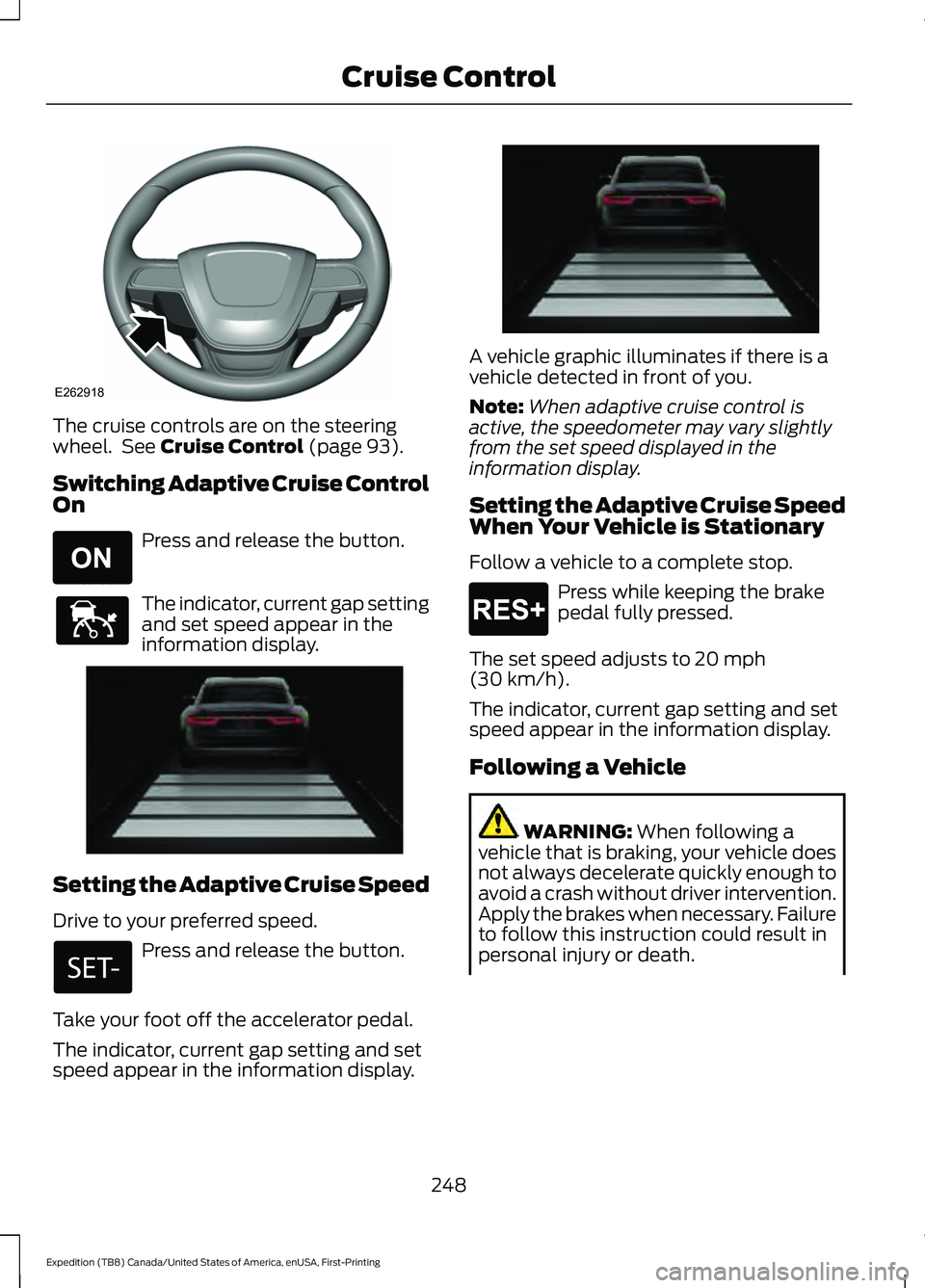
The cruise controls are on the steering
wheel. See Cruise Control (page 93).
Switching Adaptive Cruise Control
On Press and release the button.
The indicator, current gap setting
and set speed appear in the
information display.
Setting the Adaptive Cruise Speed
Drive to your preferred speed.
Press and release the button.
Take your foot off the accelerator pedal.
The indicator, current gap setting and set
speed appear in the information display. A vehicle graphic illuminates if there is a
vehicle detected in front of you.
Note:
When adaptive cruise control is
active, the speedometer may vary slightly
from the set speed displayed in the
information display.
Setting the Adaptive Cruise Speed
When Your Vehicle is Stationary
Follow a vehicle to a complete stop. Press while keeping the brake
pedal fully pressed.
The set speed adjusts to
20 mph
(30 km/h).
The indicator, current gap setting and set
speed appear in the information display.
Following a Vehicle WARNING:
When following a
vehicle that is braking, your vehicle does
not always decelerate quickly enough to
avoid a crash without driver intervention.
Apply the brakes when necessary. Failure
to follow this instruction could result in
personal injury or death.
248
Expedition (TB8) Canada/United States of America, enUSA, First-Printing Cruise ControlE262918 E265296 E144529 E255686 E255686 E265299
Page 258 of 574
The warning system is in two stages. At
first the system issues a temporary warning
that you need to take a rest. This message
will only appear for a short time. If the
system detects further reduction in driving
alertness, another warning may be issued
which will remain in the information display
for a longer time. Press OK on the steering
wheel control to clear the warning. When
active the system will run automatically in
the background and only issue a warning
if required.
Resetting the System
You can reset the system by either:
•
Switching the ignition off and on.
• Stopping your vehicle and then opening
and closing the driver ’s door.
LANE KEEPING SYSTEM WARNING: You are responsible for
controlling your vehicle at all times. The
system is designed to be an aid and does
not relieve you of your responsibility to
drive with due care and attention. Failure
to follow this instruction could result in
the loss of control of your vehicle,
personal injury or death. WARNING: Always drive with due
care and attention when using and
operating the controls and features on
your vehicle. WARNING:
In cold and severe
weather conditions the system may not
function. Rain, snow and spray can all
limit sensor performance. WARNING:
The system will not
operate if the sensor cannot track the
road lane markings. WARNING:
The sensor may
incorrectly track lane markings as other
structures or objects. This can result in
a false or missed warning. WARNING:
The system may not
operate properly if the sensor is blocked.
Keep the windshield free from
obstruction. WARNING:
If damage occurs in the
immediate area surrounding the sensor,
have your vehicle checked as soon as
possible. WARNING:
The system may not
correctly operate if your vehicle is fitted
with a suspension kit not approved by
us.
Note: The system works above
40 mph
(64 km/h).
Note: The system works as long as the
camera can detect one lane marking.
Note: When you select aid or alert and aid
mode and the system detects no steering
activity for a short period, the system alerts
you to put your hands on the steering wheel.
The system may detect a light grip or touch
on the steering wheel as hands off driving.
Note: The system may not function if the
camera is blocked, or if the windshield is
damaged or dirty.
255
Expedition (TB8) Canada/United States of America, enUSA, First-Printing Driving Aids
Page 259 of 574
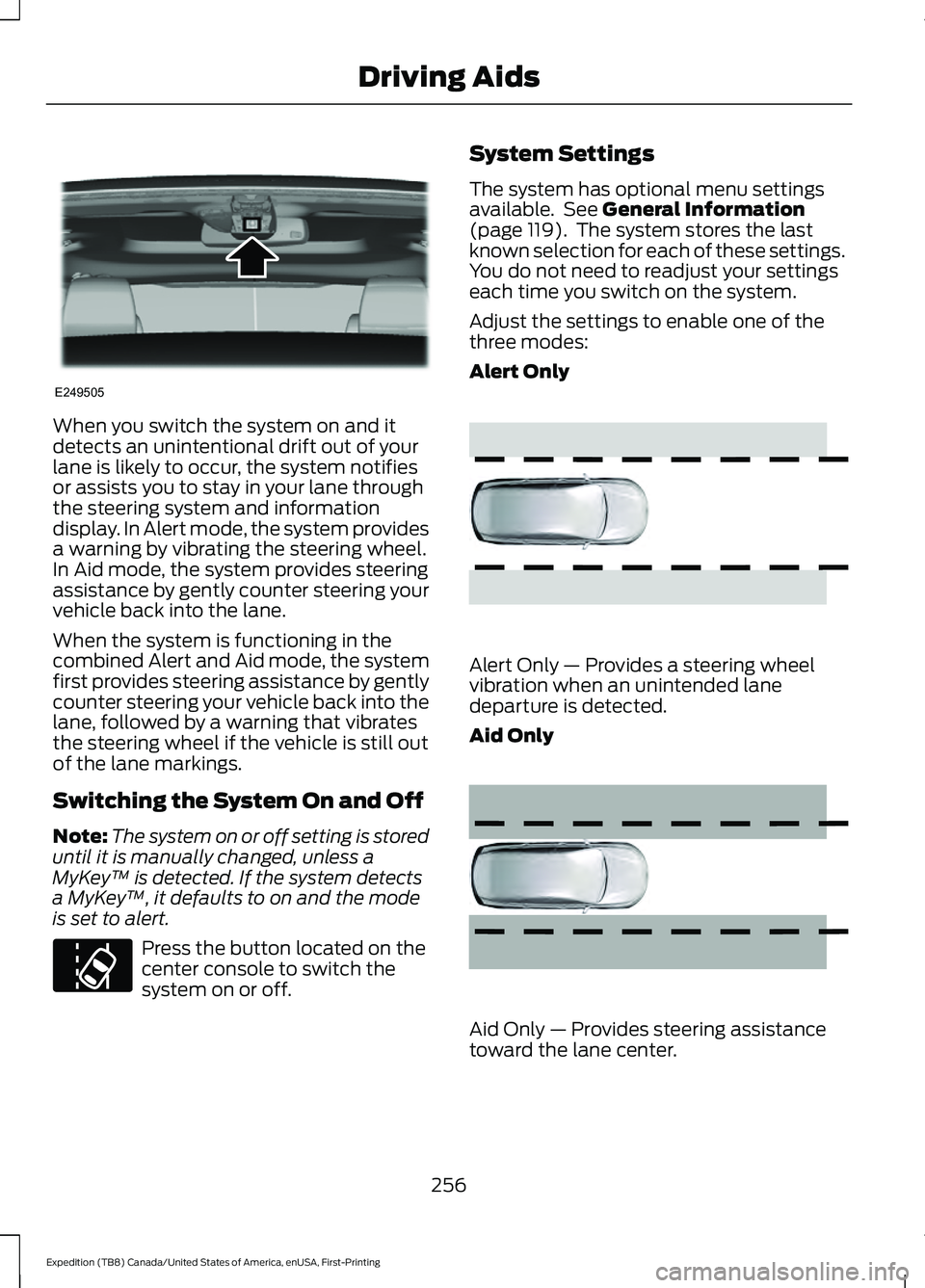
When you switch the system on and it
detects an unintentional drift out of your
lane is likely to occur, the system notifies
or assists you to stay in your lane through
the steering system and information
display. In Alert mode, the system provides
a warning by vibrating the steering wheel.
In Aid mode, the system provides steering
assistance by gently counter steering your
vehicle back into the lane.
When the system is functioning in the
combined Alert and Aid mode, the system
first provides steering assistance by gently
counter steering your vehicle back into the
lane, followed by a warning that vibrates
the steering wheel if the vehicle is still out
of the lane markings.
Switching the System On and Off
Note:
The system on or off setting is stored
until it is manually changed, unless a
MyKey ™ is detected. If the system detects
a MyKey ™, it defaults to on and the mode
is set to alert. Press the button located on the
center console to switch the
system on or off. System Settings
The system has optional menu settings
available. See General Information
(page 119). The system stores the last
known selection for each of these settings.
You do not need to readjust your settings
each time you switch on the system.
Adjust the settings to enable one of the
three modes:
Alert Only Alert Only — Provides a steering wheel
vibration when an unintended lane
departure is detected.
Aid Only
Aid Only — Provides steering assistance
toward the lane center.
256
Expedition (TB8) Canada/United States of America, enUSA, First-Printing Driving AidsE249505 E173233 E165515 E165516
Page 260 of 574
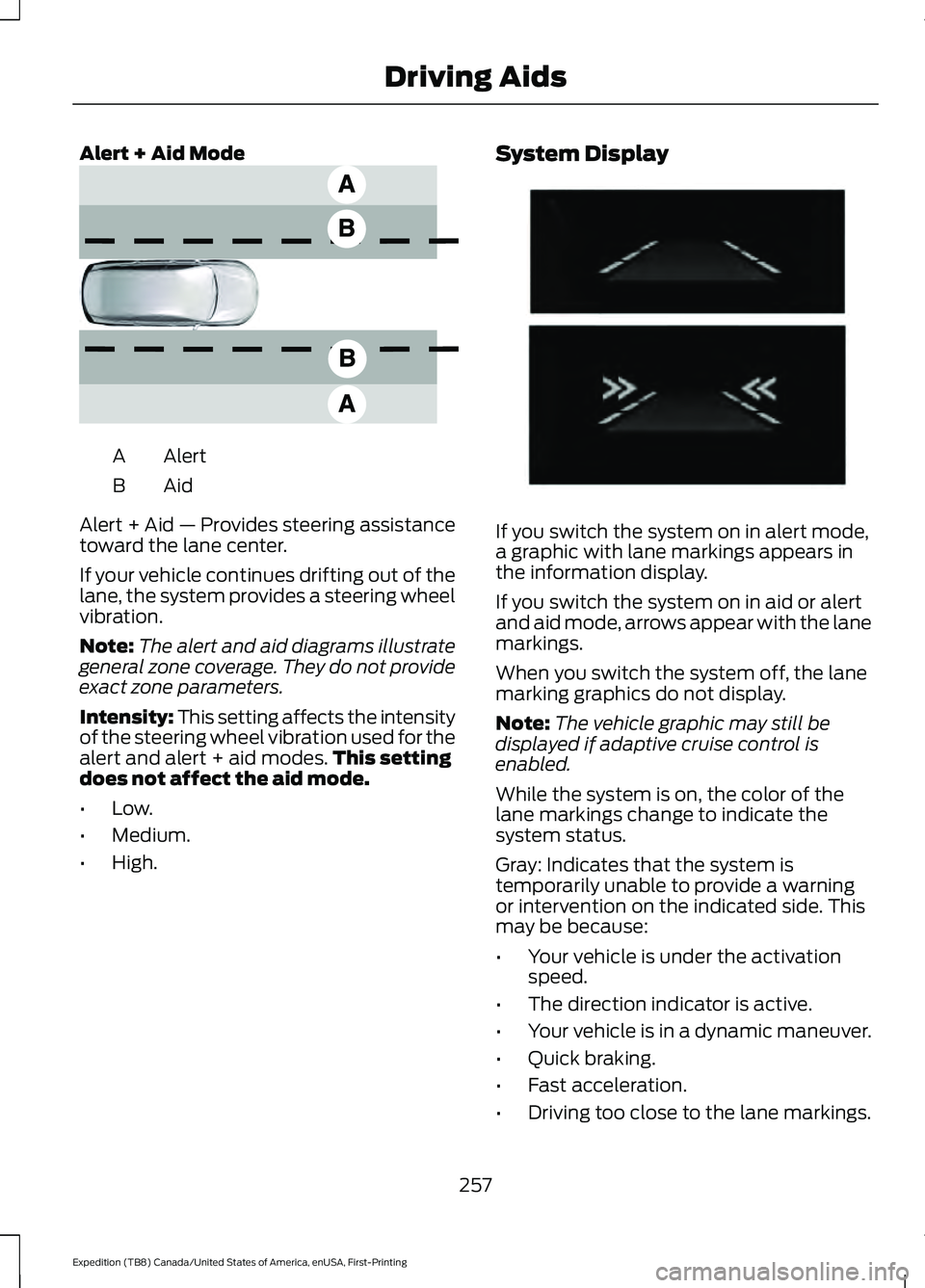
Alert + Aid Mode
Alert
A
AidB
Alert + Aid — Provides steering assistance
toward the lane center.
If your vehicle continues drifting out of the
lane, the system provides a steering wheel
vibration.
Note: The alert and aid diagrams illustrate
general zone coverage. They do not provide
exact zone parameters.
Intensity: This setting affects the intensity
of the steering wheel vibration used for the
alert and alert + aid modes. This setting
does not affect the aid mode.
• Low.
• Medium.
• High. System Display
If you switch the system on in alert mode,
a graphic with lane markings appears in
the information display.
If you switch the system on in aid or alert
and aid mode, arrows appear with the lane
markings.
When you switch the system off, the lane
marking graphics do not display.
Note:
The vehicle graphic may still be
displayed if adaptive cruise control is
enabled.
While the system is on, the color of the
lane markings change to indicate the
system status.
Gray: Indicates that the system is
temporarily unable to provide a warning
or intervention on the indicated side. This
may be because:
• Your vehicle is under the activation
speed.
• The direction indicator is active.
• Your vehicle is in a dynamic maneuver.
• Quick braking.
• Fast acceleration.
• Driving too close to the lane markings.
257
Expedition (TB8) Canada/United States of America, enUSA, First-Printing Driving AidsE165517 E274073
Page 264 of 574
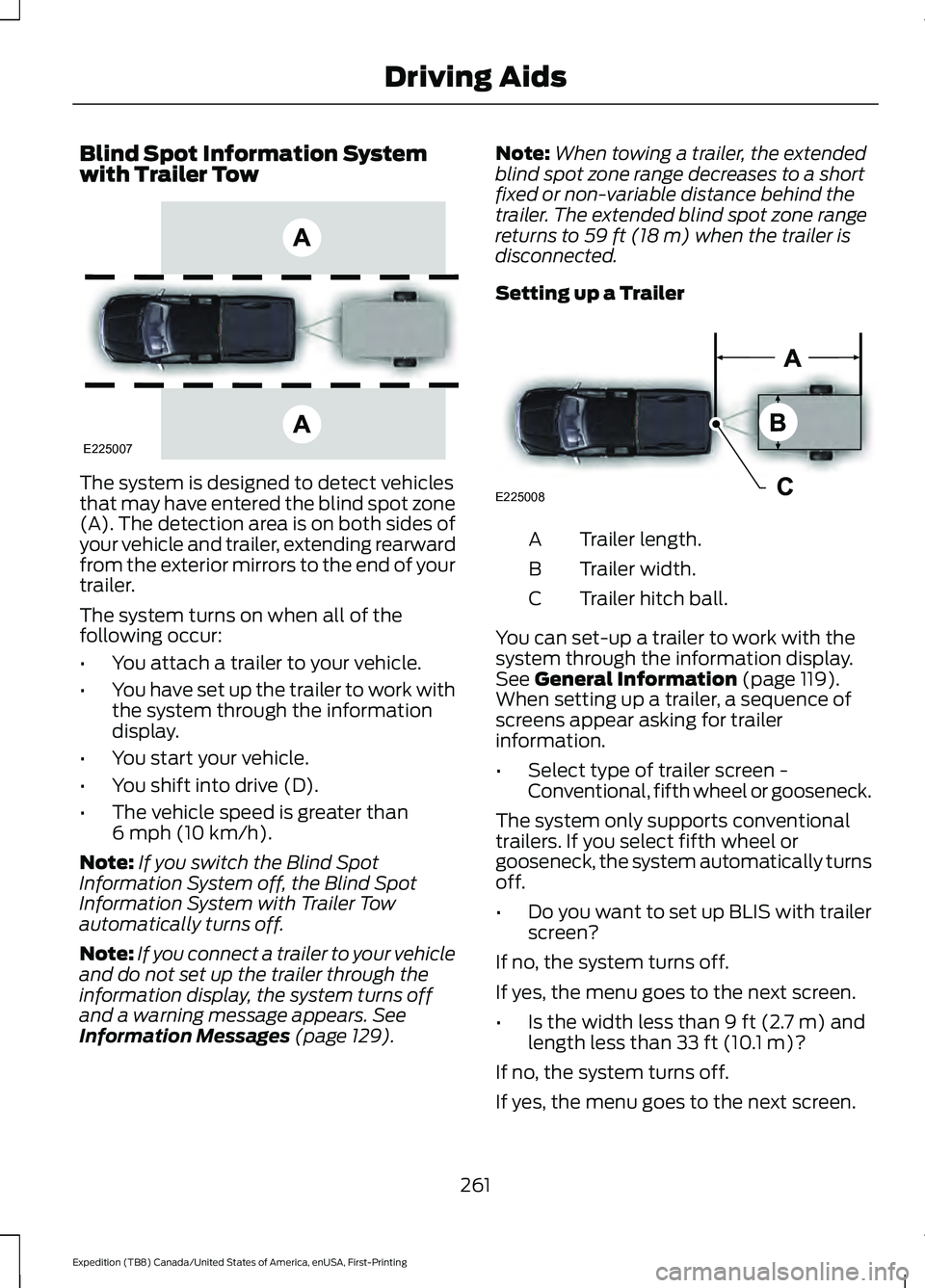
Blind Spot Information System
with Trailer Tow
The system is designed to detect vehicles
that may have entered the blind spot zone
(A). The detection area is on both sides of
your vehicle and trailer, extending rearward
from the exterior mirrors to the end of your
trailer.
The system turns on when all of the
following occur:
•
You attach a trailer to your vehicle.
• You have set up the trailer to work with
the system through the information
display.
• You start your vehicle.
• You shift into drive (D).
• The vehicle speed is greater than
6 mph (10 km/h).
Note: If you switch the Blind Spot
Information System off, the Blind Spot
Information System with Trailer Tow
automatically turns off.
Note: If you connect a trailer to your vehicle
and do not set up the trailer through the
information display, the system turns off
and a warning message appears.
See
Information Messages (page 129). Note:
When towing a trailer, the extended
blind spot zone range decreases to a short
fixed or non-variable distance behind the
trailer. The extended blind spot zone range
returns to
59 ft (18 m) when the trailer is
disconnected.
Setting up a Trailer Trailer length.
A
Trailer width.
B
Trailer hitch ball.
C
You can set-up a trailer to work with the
system through the information display.
See
General Information (page 119).
When setting up a trailer, a sequence of
screens appear asking for trailer
information.
• Select type of trailer screen -
Conventional, fifth wheel or gooseneck.
The system only supports conventional
trailers. If you select fifth wheel or
gooseneck, the system automatically turns
off.
• Do you want to set up BLIS with trailer
screen?
If no, the system turns off.
If yes, the menu goes to the next screen.
• Is the width less than
9 ft (2.7 m) and
length less than 33 ft (10.1 m)?
If no, the system turns off.
If yes, the menu goes to the next screen.
261
Expedition (TB8) Canada/United States of America, enUSA, First-Printing Driving AidsE225007 E225008
Page 278 of 574
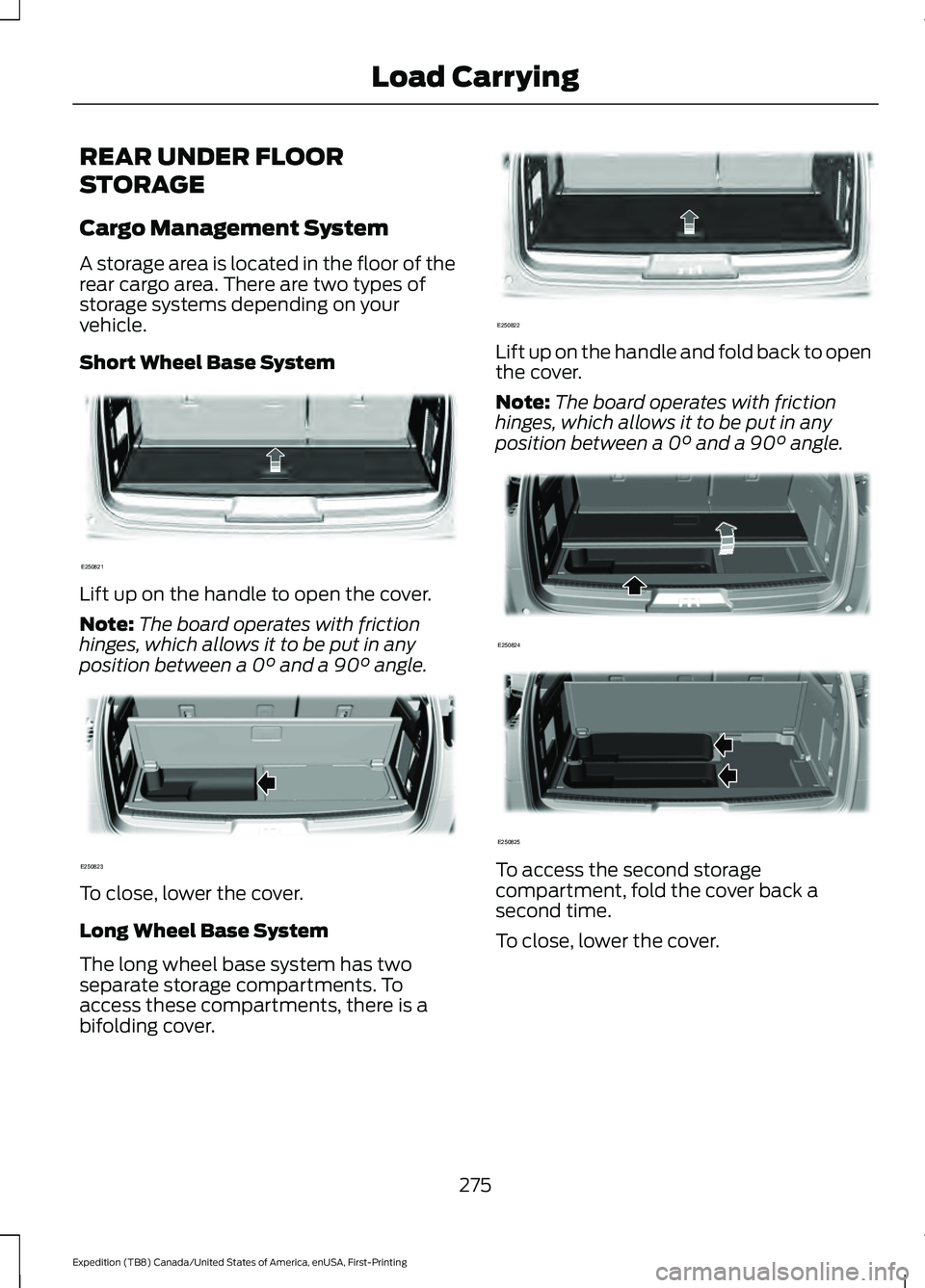
REAR UNDER FLOOR
STORAGE
Cargo Management System
A storage area is located in the floor of the
rear cargo area. There are two types of
storage systems depending on your
vehicle.
Short Wheel Base System
Lift up on the handle to open the cover.
Note:
The board operates with friction
hinges, which allows it to be put in any
position between a 0° and a 90° angle. To close, lower the cover.
Long Wheel Base System
The long wheel base system has two
separate storage compartments. To
access these compartments, there is a
bifolding cover. Lift up on the handle and fold back to open
the cover.
Note:
The board operates with friction
hinges, which allows it to be put in any
position between a
0° and a 90° angle. To access the second storage
compartment, fold the cover back a
second time.
To close, lower the cover.
275
Expedition (TB8) Canada/United States of America, enUSA, First-Printing Load CarryingE250821 E250823 E250822 E250824 E250825