navigation system FORD EXPEDITION 2023 User Guide
[x] Cancel search | Manufacturer: FORD, Model Year: 2023, Model line: EXPEDITION, Model: FORD EXPEDITION 2023Pages: 658, PDF Size: 16.16 MB
Page 528 of 658
APP PRECAUTIONS
WARNING: Driving while distractedcan result in loss of vehicle control, crashand injury. We strongly recommend thatyou use extreme caution when using anydevice that may take your focus off theroad. Your primary responsibility is thesafe operation of your vehicle. Werecommend against the use of anyhand-held device while driving andencourage the use of voice-operatedsystems when possible. Make sure youare aware of all applicable local lawsthat may affect the use of electronicdevices while driving.
APP REQUIREMENTS
When you start an app through the systemfor the first time, you could be asked togrant certain permissions. You can reviewand change the permissions that you havegranted at any time when your vehicle isnot moving. We recommend that youcheck your data plan before using yourapps through the system. Using themcould result in additional charges. We alsorecommend that you check the appprovider's terms and conditions andprivacy policy before using their app. Makesure that you have an active account forapps that you want to use through thesystem. Some apps will work with nosetup. Others require you to configuresome personal settings before you can usethem.
ACCESSING APPS
Press the button to open theapplication drawer.
ENABLING APPS ON AN IOS
DEVICE
Select the apps option in thefeature drawer.
1.If your device is connected via USB,switch Apple CarPlay off.
2.Connect your device to a USB port orpair and connect using Bluetooth.
3.If prompted to enable CarPlay, selectDisable.
4.Start the apps on your device that youwant to use through SYNC.
Note:If you close the apps on your device,you will not be able to use them through thesystem.
5.Select the app that you want to use onthe touchscreen.
Note:Connect your device to a USB port ifyou want to use a navigation app. Whenusing a navigation app, keep your deviceunlocked and the app open.
ENABLING APPS ON AN
ANDROID DEVICE
Select the apps option in thefeature drawer.
1.If your device is connected via USB,switch Android Auto off.
2.Pair your device.
3.Start the apps on your device that youwant to use through SYNC.
Note:If you close the apps on your device,you will not be able to use them through thesystem.
4.Select Find Mobile Apps.
Note:The system searches and connectsto compatible apps that are running on yourdevice.
524
2023 Expedition (TB8) Canada/United States of America, enUSA, Edition date: 202207, DOMApps - Vehicles With: 15 Inch Screen E356583
Page 531 of 658
2.Enter your destination using thekeyboard.
3.Press Search.
4.Select a destination from the list.
5.Press Start to begin navigation.
SETTING A DESTINATION USINGTHE MAP SCREEN
Press and hold on the map to place a pinat that location. Information about thelocation of the pin appears on the screen.
Press the button to beginnavigation to the pin.
SETTING A DESTINATION USINGA PREDICTIVE DESTINATION
Press the predicted destination card onthe screen to navigate to it. These appearwhen the navigation system has learnedyour driving habits.
SETTING A DESTINATION USINGA RECENT DESTINATION
Press the button.
Press a destination from the list.
Note:You can also use the search buttonto view recent destinations.
SETTING A DESTINATION USINGA SAVED DESTINATION
Press the star icon next when viewinglocation details to save the location.
Press the button.
Press a destination from the list.
Note:You can also use the search buttonto view saved destinations.
SETTING A DESTINATION USINGA POINT OF INTEREST
Press a point of interest icon on the map.Information about the location of the pointof interest appears on the screen.
Press the button to beginnavigation to the point ofinterest.
Note:You can also use the search buttonto view points of interest.
WAYPOINTS
ADDING A WAYPOINT
Press the Add Waypoint buttonwhen in an active navigationsession.
1.Enter your waypoint on the keyboard.
2.Press Search.
3.Select a waypoint from the list.
4.Press Add to Trip.
EDITING WAYPOINTS
1.Press the waypoint you would like toedit.
2.Select an option to reorder or deletethe waypoint.
ROUTE GUIDANCE
ADJUSTING THE GUIDANCEPROMPT VOLUME
Turn the volume control when a guidanceprompt plays to adjust the volume.
527
2023 Expedition (TB8) Canada/United States of America, enUSA, Edition date: 202207, DOMNavigation - Vehicles With: 12 Inch Screen (If Equipped)E328844 E358714 E353215 E328844 E328843
Page 604 of 658
General Operation
•Voice Command Control: Certainfunctions within the SYNC® systemmay be accomplished using voicecommands. Using voice commandswhile driving helps you to operate thesystem without removing your handsfrom the wheel or eyes from the road.
•Prolonged Views of Screen: Do notaccess any function requiring aprolonged view of the screen while youare driving. Pull over in a safe and legalmanner before attempting to access afunction of the system requiringprolonged attention.
•Volume Setting: Do not raise thevolume excessively. Keep the volumeat a level where you can still hearoutside traffic and emergency signalswhile driving. Driving while unable tohear these sounds could cause anaccident.
•Navigation Features: Any navigationfeatures included in the system areintended to provide turn by turninstructions to get you to a desireddestination. Please make certain allpersons using this system carefullyread and follow instructions and safetyinformation fully.
•Distraction Hazard: Any navigationfeatures may require manual(non-verbal) setup. Attempting toperform such set-up or insert datawhile driving can distract your attentionand could cause an accident or otherserious injury. Stop the vehicle in a safeand legal manner before attemptingthese operations.
•Let Your Judgment Prevail: Anynavigation features are provided onlyas an aid. Make your driving decisionsbased on your observations of localconditions and existing trafficregulations. Any such feature is not a
substitute for your personal judgment.Any route suggestions made by thissystem should never replace any localtraffic regulations or your personaljudgment or knowledge of safe drivingpractices.
•Route Safety: Do not follow the routesuggestions if doing so would result inan unsafe or illegal maneuver, if youwould be placed in an unsafe situation,or if you would be directed into an areathat you consider unsafe. The driver isultimately responsible for the safeoperation of the vehicle and therefore,must evaluate whether it is safe tofollow the suggested directions.
•Potential Map Inaccuracy: Mapsused by this system may be inaccuratebecause of changes in roads, trafficcontrols or driving conditions. Alwaysuse good judgment and common sensewhen following the suggested routes.
•Emergency Services: Do not rely onany navigation features included in thesystem to route you to emergencyservices. Ask local authorities or anemergency services operator for theselocations. Not all emergency servicessuch as police, fire stations, hospitalsand clinics are likely to be contained inthe map database for such navigationfeatures.
600
2023 Expedition (TB8) Canada/United States of America, enUSA, Edition date: 202207, DOMCustomer Information
Page 613 of 658
Restrictions. Except where you have beenspecifically licensed to do so by Telenav,and without limiting the precedingparagraph, you may not use this Data (a)with any products, systems, or applicationsinstalled or otherwise connected to or incommunication with vehicles, capable ofvehicle navigation, positioning, dispatch,real time route guidance, fleetmanagement or similar applications; or (b)with or in communication with anypositioning devices or any mobile orwireless-connected electronic or computerdevices, including without limitationcellular phones, palmtop and handheldcomputers, pagers, and personal digitalassistants or PDAs.
Warning. The Data may containinaccurate or incomplete information dueto the passage of time, changingcircumstances, sources used and thenature of collecting comprehensivegeographic data, any of which may lead toincorrect results.
No Warranty. This Data is provided to you“as is,” and you agree to use it at your ownrisk. Telenav and its licensors (and theirlicensors and suppliers) make noguarantees, representations or warrantiesof any kind, express or implied, arising bylaw or otherwise, including but not limitedto, content, quality, accuracy,completeness, effectiveness, reliability,fitness for a particular purpose, usefulness,use or results to be obtained from thisData, or that the Data or server will beuninterrupted or error-free.
Disclaimer of Warranty: TELENAV ANDITS LICENSORS (INCLUDING THEIRLICENSORS AND SUPPLIERS) DISCLAIMANY WARRANTIES, EXPRESS OR IMPLIED,OF QUALITY, PERFORMANCE,MERCHANTABILITY, FITNESS FOR A
PARTICULAR PURPOSE ORNON-INFRINGEMENT. Some States,Territories and Countries do not allowcertain warranty exclusions, so to thatextent the above exclusion may not applyto you.
Disclaimer of Liability: TELENAV ANDITS LICENSORS (INCLUDING THEIRLICENSORS AND SUPPLIERS) SHALL NOTBE LIABLE TO YOU: IN RESPECT OF ANYCLAIM, DEMAND OR ACTION,IRRESPECTIVE OF THE NATURE OF THECAUSE OF THE CLAIM, DEMAND ORACTION ALLEGING ANY LOSS, INJURY ORDAMAGES, DIRECT OR INDIRECT, WHICHMAY RESULT FROM THE USE ORPOSSESSION OF THE INFORMATION; ORFOR ANY LOSS OF PROFIT, REVENUE,CONTRACTS OR SAVINGS, OR ANYOTHER DIRECT, INDIRECT, INCIDENTAL,SPECIAL OR CONSEQUENTIAL DAMAGESARISING OUT OF YOUR USE OF ORINABILITY TO USE THIS INFORMATION,ANY DEFECT IN THE INFORMATION, ORTHE BREACH OF THESE TERMS ORCONDITIONS, WHETHER IN AN ACTIONIN CONTRACT OR TORT OR BASED ON AWARRANTY, EVEN IF TELENAV OR ITSLICENSORS HAVE BEEN ADVISED OF THEPOSSIBILITY OF SUCH DAMAGES. SomeStates, Territories and Countries do notallow certain liability exclusions ordamages limitations, so to that extent theabove may not apply to you.
Export Control. You shall not export fromanywhere any part of the Data or any directproduct thereof except in compliance with,and with all licenses and approvalsrequired under, applicable export laws,rules and regulations, including but notlimited to the laws, rules and regulationsadministered by the Office of ForeignAssets Control of the U.S. Department ofCommerce and the Bureau of Industry andSecurity of the U.S. Department ofCommerce. To the extent that any such
609
2023 Expedition (TB8) Canada/United States of America, enUSA, Edition date: 202207, DOMCustomer Information
Page 621 of 658
view it, and (ii) save it, provided that youdo not remove any copyright notices thatappear and do not modify the Data in anyway. You agree not to otherwise reproduce,copy, modify, decompile, disassemble orreverse engineer any portion of this Data,and may not transfer or distribute it in anyform, for any purpose, except to the extentpermitted by mandatory laws.
Restrictions
Except where you have been specificallylicensed to do so by NAV2 , and withoutlimiting the preceding paragraph, you maynot (a) use this Data with any products,systems, or applications installed orotherwise connected to or incommunication with vehicles, capable ofvehicle navigation, positioning, dispatch,real time route guidance, fleetmanagement or similar applications; or (b)with or in communication with anypositioning devices or any mobile orwireless-connected electronic or computerdevices, including without limitationcellular phones, palmtop and handheldcomputers, pagers, and personal digitalassistants or PDAs. You agree to ceaseusing this Data if you fail to comply withthese terms and conditions.
Limited Warranty
NAV2 warrants that (a) the Data willperform substantially in accordance withthe accompanying written materials for aperiod of ninety (90) days from the dateof receipt, and (b) any support servicesprovided by NAV2 shall be substantially asdescribed in applicable written materialsprovided to you by NAV2, and NAV2’ssupport engineers will make commerciallyreasonable efforts to solve any problemissues.
Customer Remedies
NAV2 and its suppliers’ entire liability andyour exclusive remedy shall be, at NAV2’ssole discretion, either (a) return of the pricepaid, if any, or (b) repair or replacement ofthe Data that do not meet NAV2’s LimitedWarranty and that are returned to NAV2with a copy of your receipt. This LimitedWarranty is void if failure of the Data hasresulted from accident, abuse, ormisapplication. Any replacement Data willbe warranted for the remainder of theoriginal warranty period or thirty (30) days,whichever is longer. Neither these remediesnor any product support services offeredby NAV2 are available without proof ofpurchase from an authorized internationalsource.
No Other Warranty:
EXCEPT FOR THE LMITED WARRANTYSET FORTH ABOVE AND TO THE EXTENTPERMITTED BY APPLICABLE LAW, NAV2AND ITS LICENSORS (INCLUDING THEIRLICENSORS AND SUPPLIERS) DISCLAIMANY WARRANTIES, EXPRESS OR IMPLIED,OF QUALITY, PERFORMANCE,MERCHANTABILITY, FITNESS FOR APARTICULAR PURPOSE, OWNERSHIP ORNON-INFRINGEMENT. Certain warrantyexclusions may not be permitted underapplicable law, so to that extent the aboveexclusion may not apply to you.
Limited Liability:
TO THE EXTENT PERMITTED BYAPPLICABLE LAW, NAV2 AND ITSLICENSORS (INCLUDING THEIRLICENSORS AND SUPPLIERS) SHALL NOTBE LIABLE TO YOU: IN RESPECT OF ANYCLAIM, DEMAND OR ACTION,IRRESPECTIVE OF THE NATURE OF THECAUSE OF THE CLAIM, DEMAND ORACTION ALLEGING ANY LOSS, INJURY ORDAMAGES, DIRECT OR INDIRECT, WHICHMAY RESULT FROM THE USE ORPOSSESSION OF THE INFORMATION; OR
617
2023 Expedition (TB8) Canada/United States of America, enUSA, Edition date: 202207, DOMCustomer Information
Page 629 of 658
ELECTROMAGNETIC
COMPATIBILITY
WARNING: Do not place objectsor mount equipment on or near theairbag cover, on the side of the front orrear seatbacks, or in areas that maycome into contact with a deployingairbag. Failure to follow theseinstructions may increase the risk ofpersonal injury in the event of a crash.
WARNING: Do not fasten antennacables to vehicle wiring, fuel pipes andbrake pipes.
WARNING: Keep antenna andpower cables at least 4 in (10 cm) fromany electronic modules and airbags.
Note:We test and certify your vehicle tomeet electromagnetic compatibilitylegislation. It is your responsibility to makesure that any equipment an authorizeddealer installs on your vehicle complies withapplicable local legislation and otherrequirements. Installation of someaftermarket electronic devices coulddegrade the performance of vehiclefunctions, which use radio frequency signalssuch as broadcast radio receiver, tirepressure monitoring system, push buttonstart,Bluetooth® connectivity or satellitenavigation.
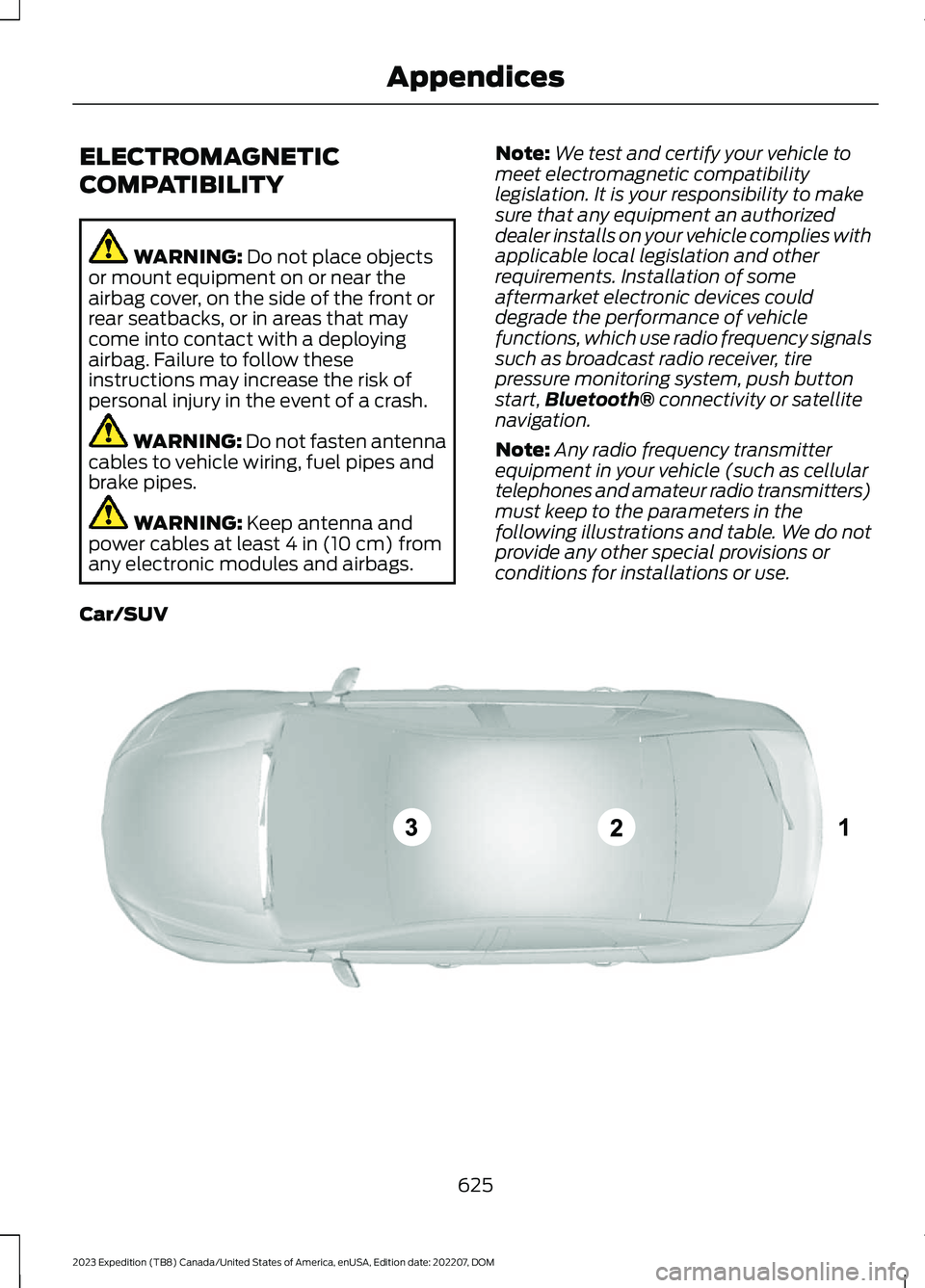
Note:Any radio frequency transmitterequipment in your vehicle (such as cellulartelephones and amateur radio transmitters)must keep to the parameters in thefollowing illustrations and table. We do notprovide any other special provisions orconditions for installations or use.
Car/SUV
625
2023 Expedition (TB8) Canada/United States of America, enUSA, Edition date: 202207, DOMAppendicesE239120
Page 637 of 658
Changing the Vehicle Wi-Fi HotspotName or Password - Vehicles With: 15Inch Screen................................................480Charging a Device.........................................185Charging a Wireless Device......................190Checking MyKey System Status................77Checking the Brake Fluid..........................229Checking the Coolant.................................415Checking the Seatbelts...............................54Checking the Tire Pressures....................448Checking the Wiper Blades.........................111Children and Airbags....................................60Child Restraint Anchor Points...................38Locating the Child Restraint Lower AnchorPoints...................................................................38Locating the Child Restraint Top TetherAnchor Points...................................................39What Are the Child Restraint AnchorPoints...................................................................38Child Restraints...............................................39Child Restraint Position Information............39Child Restraints Recommendation................41Child Safety.......................................................37Child Restraint Anchor Points.........................38Child Restraints.....................................................39Installing Child Restraints..................................41Child Safety Locks..........................................47Child Safety Precautions.............................37Cleaning Products.......................................429Cleaning the Exterior..................................430Cleaning Camera Lenses andSensors..............................................................431Cleaning Chrome, Aluminium or StainlessSteel..................................................................430Cleaning Headlamps and RearLamps...............................................................430Cleaning Stripes or Graphics..........................431Cleaning the Engine Compartment.............431Cleaning the Exterior Precautions..............430Cleaning the Underbody..................................431Cleaning Wheels................................................430Cleaning Windows and WiperBlades...............................................................430Cleaning the Interior....................................431Cleaning Carpets and Floor Mats................433Cleaning Displays and Screens....................432Cleaning Moonroof Tracks.............................433Cleaning Plastic..................................................432
Cleaning Seatbelts............................................433Cleaning Seats and the Headliner...............432Cleaning the Instrument Panel.....................431Clearing All MyKeys........................................77Climate Control.............................................148Auto Mode............................................................150Climate Control Hints..................................151Closing the Liftgate.......................................93Closing the Hands-Free Liftgate....................94Closing the Liftgate From Inside YourVehicle.................................................................93Closing the Liftgate From Outside YourVehicle.................................................................93Closing the Liftgate Using the RemoteControl................................................................94Cold Weather Precautions.......................389Connected Navigation...............................526Connected Vehicle......................................475Connected Vehicle –Troubleshooting............................................476Connecting the Vehicle to a MobileNetwork............................................................475Connected Vehicle Data..............................28Connected Vehicle Limitations...............475Connected Vehicle Requirements.........475Connected Vehicle –Troubleshooting........................................476Connected Vehicle – Frequently AskedQuestions.........................................................476Connecting a Bluetooth® Device..........520Connecting a Trailer....................................355Connecting a Trailer –Troubleshooting.............................................357Hitches...................................................................354Connecting a Trailer Precautions..........354Connecting a Trailer –Troubleshooting........................................357Connecting a Trailer – InformationMessages..........................................................357Connecting the Vehicle to a MobileNetwork........................................................475Connecting FordPass to the Modem..........475Enabling and Disabling the Modem...........475What Is the Modem..........................................475Connecting the Vehicle to a Wi-FiNetwork - Vehicles With: 12 InchScreen...........................................................476
633
2023 Expedition (TB8) Canada/United States of America, enUSA, Edition date: 202207, DOMIndex