buttons FORD EXPEDITION 2023 Owner's Manual
[x] Cancel search | Manufacturer: FORD, Model Year: 2023, Model line: EXPEDITION, Model: FORD EXPEDITION 2023Pages: 658, PDF Size: 16.16 MB
Page 260 of 658
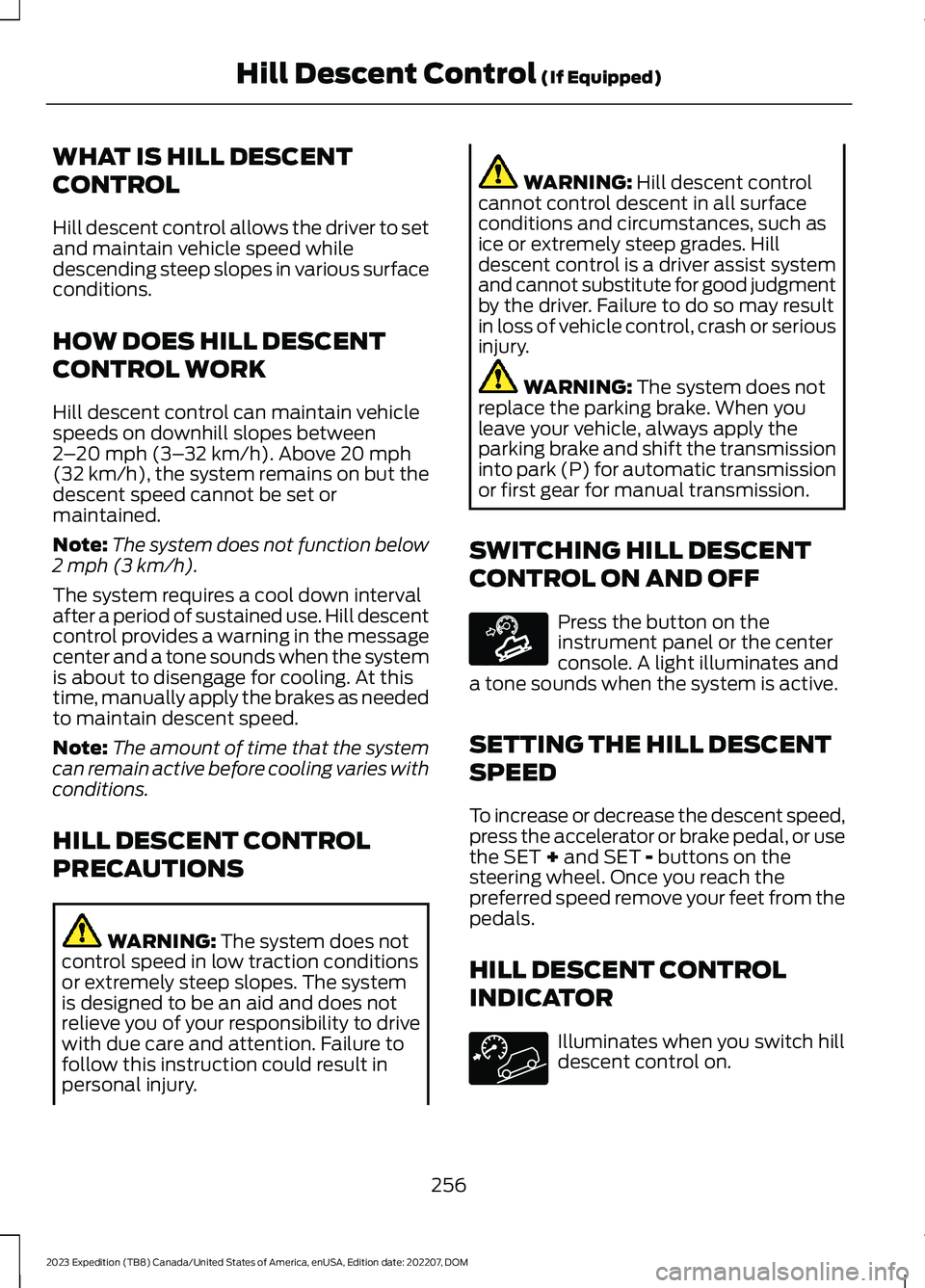
WHAT IS HILL DESCENT
CONTROL
Hill descent control allows the driver to setand maintain vehicle speed whiledescending steep slopes in various surfaceconditions.
HOW DOES HILL DESCENT
CONTROL WORK
Hill descent control can maintain vehiclespeeds on downhill slopes between2–20 mph (3–32 km/h). Above 20 mph(32 km/h), the system remains on but thedescent speed cannot be set ormaintained.
Note:The system does not function below2 mph (3 km/h).
The system requires a cool down intervalafter a period of sustained use. Hill descentcontrol provides a warning in the messagecenter and a tone sounds when the systemis about to disengage for cooling. At thistime, manually apply the brakes as neededto maintain descent speed.
Note:The amount of time that the systemcan remain active before cooling varies withconditions.
HILL DESCENT CONTROL
PRECAUTIONS
WARNING: The system does notcontrol speed in low traction conditionsor extremely steep slopes. The systemis designed to be an aid and does notrelieve you of your responsibility to drivewith due care and attention. Failure tofollow this instruction could result inpersonal injury.
WARNING: Hill descent controlcannot control descent in all surfaceconditions and circumstances, such asice or extremely steep grades. Hilldescent control is a driver assist systemand cannot substitute for good judgmentby the driver. Failure to do so may resultin loss of vehicle control, crash or seriousinjury.
WARNING: The system does notreplace the parking brake. When youleave your vehicle, always apply theparking brake and shift the transmissioninto park (P) for automatic transmissionor first gear for manual transmission.
SWITCHING HILL DESCENT
CONTROL ON AND OFF
Press the button on theinstrument panel or the centerconsole. A light illuminates anda tone sounds when the system is active.
SETTING THE HILL DESCENT
SPEED
To increase or decrease the descent speed,press the accelerator or brake pedal, or usethe SET + and SET - buttons on thesteering wheel. Once you reach thepreferred speed remove your feet from thepedals.
HILL DESCENT CONTROL
INDICATOR
Illuminates when you switch hilldescent control on.
256
2023 Expedition (TB8) Canada/United States of America, enUSA, Edition date: 202207, DOMHill Descent Control (If Equipped)E163171
Page 281 of 658
WHAT IS CRUISE CONTROL
Cruise control lets you maintain a setspeed without keeping your foot on theaccelerator pedal.
Requirements
Use cruise control when the vehicle speedis greater than 15 mph in imperial units and20 km/h in metric units.
SWITCHING CRUISE CONTROL
ON AND OFF
WARNING: Do not use cruisecontrol on winding roads, in heavy trafficor when the road surface is slippery. Thiscould result in loss of vehicle control,serious injury or death.
The cruise controls are on the steeringwheel.
Switching Cruise Control On
Press the button to activate thesystem. When the systemactivates, the set speed is equalto the current vehicle speed or 15 mph (20km/h), whichever is greater. If the speed istoo low, or other conditions are not correctfor cruise control activation, the systementers standby mode.
Switching Cruise Control Off
Press the button when thesystem is active or switch theignition off.
Note:When you switch cruise control off,the set speed clears.
SETTING THE CRUISE
CONTROL SPEED
WARNING: When you are goingdownhill, your vehicle speed couldincrease above the set speed. Thesystem does not apply the brakes.
Drive to the speed you prefer.
Press either the SET+ or SET-buttons to set the current speed.
Take your foot off the accelerator pedal.
Note:The indicator changes color in theinformation display.
Changing the Set Speed
Press the SET+ button toincrease the set speed in smallincrements. Press and hold theSET+ button to accelerate. Release thebutton when you have reached yourpreferred speed.
Press the SET- button todecrease the set speed in smallincrements. Press and hold theSET- button to decelerate. Release thebutton when you have reached yourpreferred speed.
Note: If you accelerate by pressing theaccelerator pedal, the set speed does notchange. When you release the acceleratorpedal, your vehicle returns to the speed thatyou previously set.
277
2023 Expedition (TB8) Canada/United States of America, enUSA, Edition date: 202207, DOMCruise ControlE332905 E332905 E246884 E246885 E246884 E246885
Page 286 of 658
Switching Adaptive Cruise ControlOff
Press the button when thesystem is in standby mode orswitch the ignition off.
Note:When you switch the system off, theset speed clears.
ADAPTIVE CRUISE CONTROL
AUTOMATIC CANCELLATION
The system may cancel if:
•The tires lose traction.
•You apply the parking brake.
The system may cancel and set the parkingbrake if:
•You unbuckle the seatbelt and openthe driver door after adaptive cruisecontrol stops your vehicle.
•Adaptive cruise control holds yourvehicle at a stop continuously for morethan three minutes.
The system may deactivate or preventactivating when requested if:
•The vehicle has a blocked sensor.
•The brake temperature is too high.
•There is a failure in the system or arelated system.
SETTING THE ADAPTIVE
CRUISE CONTROL SPEED -
VEHICLES WITH: 8 INCH
SCREEN
Drive to the speed you prefer.
Press either button to set thecurrent speed.
Take your foot off the accelerator pedal.
The indicator, current gap setting and setspeed appear in the instrument clusterdisplay.
A vehicle image illuminates if there is avehicle detected in front of you.
Note:When adaptive cruise control isactive, the speedometer may vary slightlyfrom the set speed displayed in theinstrument cluster display.
Setting the Adaptive Cruise Speedfrom a Complete Stop
Press the SET+ or SET- buttonswhile keeping the brake pedalfully depressed.
The set speed adjusts to 20 km/h when inmetric units or 15 mph when in imperialunits.
The indicator, current gap setting and setspeed appear in the instrument clusterdisplay.
Note:The system activates from acomplete stop only when it detects a leadvehicle in close proximity.
282
2023 Expedition (TB8) Canada/United States of America, enUSA, Edition date: 202207, DOMAdaptive Cruise Control (If Equipped)E144529 E246884 E246885 E356731 E246884 E246885
Page 287 of 658
Manually Changing the Set Speed
Press the button to increase theset speed in small increments.Press and hold the button toincrease the set speed in large increments.Release the button when the set speed isequal to the desired speed.
Press the button to decrease theset speed in small increments.Press and hold the button todecrease the set speed in large increments.Release the button when the set speed isequal to the desired speed.
You can also press the accelerator or brakepedal until you reach the speed you prefer.Press either button to select the currentspeed as the set speed.
The system may apply the brakes to slowyour vehicle to the new set speed. The setspeed continuously displays in theinformation display when the system isactive.
SETTING THE ADAPTIVE
CRUISE CONTROL SPEED -
VEHICLES WITH: 12 INCH
SCREEN
Drive to the speed you prefer.
Press either button to set thecurrent speed.
Take your foot off the accelerator pedal.
The indicator, current gap setting and setspeed appear in the instrument clusterdisplay.
A vehicle image illuminates if there is avehicle detected in front of you.
Note:When adaptive cruise control isactive, the speedometer may vary slightlyfrom the set speed displayed in theinstrument cluster display.
Setting the Adaptive Cruise Speedfrom a Complete Stop
Press the SET+ or SET- buttonswhile keeping the brake pedalfully depressed.
The set speed adjusts to 20 km/h when inmetric units or 15 mph when in imperialunits.
The indicator, current gap setting and setspeed appear in the instrument clusterdisplay.
Note:The system activates from acomplete stop only when it detects a leadvehicle in close proximity.
283
2023 Expedition (TB8) Canada/United States of America, enUSA, Edition date: 202207, DOMAdaptive Cruise Control (If Equipped)E246884 E246885 E246884 E246885 E356731 E246884 E246885
Page 303 of 658
The driver-facing camera may not operatecorrectly due to any of the following:
•You have a pre-existing eye condition,such as an eye misalignment, or havehad eye surgery.
•You cover your facial features by amask, hat or other items.
•The lighting conditions changesignificantly.
•You are not in the field of view of thecamera.
•You position or tilt yourself to one side.
•You are moving around extensively.
•You are wearing glasses or sunglassesthat are too dark or reflective.
Note:The system has limited steeringassistance and may not be sufficient for alldriving situations.
Note:In exceptional conditions, such asinclement weather or direct sunlight, thesystem could deviate from the center line.
Note:The information provided by thenavigation map data could be inaccurate orout of date.
BLUECRUISE SETTINGS
Enabling BlueCruise
1.Access the vehicle drawer on thetouchscreen.
2.Press SETTINGS.
3.Press Driver Assistance.
4.Press Cruise Control.
5.Press Lane Centering withHands-Free.
Enabling Activation Prompts
1.Access the vehicle drawer on thetouchscreen.
2.Press SETTINGS.
3.Press Driver Assistance.
4.Press Cruise Control.
5.Press Activation Prompts.
SWITCHING BLUECRUISE ON
AND OFF
Switching BlueCruise On
The controls are on the steering wheel.
Using Activation Prompts
When the prompt appears, pressthe button to switch BlueCruiseon.
The indicator appears in the instrumentcluster. When the system is on, the colorof the indicator changes to indicate thesystem status.
Note:You must enable activation promptsin the touchscreen.
Using Steering Wheel Controls
Using the adaptive cruise controland lateral support buttons,make sure both systems areactive. BlueCruise activates.
Switching BlueCruise Off
Press either the lateral supportor adaptive cruise control buttonwhen system is active or instandby mode.
BlueCruise turns off througheach ignition cycle.
299
2023 Expedition (TB8) Canada/United States of America, enUSA, Edition date: 202207, DOMBlueCruise (If Equipped)E144529 E308131 E144529 E308131 E144529
Page 327 of 658
Note:The system only supportsconventional trailers.
2.Do you want to set up blind spot withtrailer screen? If no, the system turnsoff. If yes, the menu goes to the nextscreen.
3.Is the width less than 9 ft (2.7 m) andlength less than 33 ft (10.1 m)? If no,the system turns off. If yes, the menugoes to the next screen.
4.Trailer width measurement. Measurethe width at the front of the trailer. It isnot measured at the widest point ofthe trailer. The maximum width at thefront of the trailer the system cansupport is 8.5 ft (2.6 m).
Note:You do not need to enter an exacttrailer width measurement. You only needto confirm that the width of the trailer is lessthan 9 ft (2.7 m).
5.Trailer length measurement. The trailerlength is the distance between thetrailer hitch ball and the rear of thetrailer. The maximum length that thesystem can support is 33 ft (10.1 m).
6.Enter the length of trailer. The defaultsetting is 18 ft (5.5 m). Toggling up ordown using the menu buttonsincreases or decreases themeasurement by 1 ft (0.3 m). Select alength that is equal to or within 1 ft(0.3 m) of the actual measured length.For example, if the actual measurelength is 23 ft (7 m), toggle the lengthin the menu to 24 ft (7.2 m). Thesystem setup saves when you enter thelength of the trailer.
Note:If the trailer is a bike rack or cargorack with electrical lighting, enter a lengthof around 3 ft (1 m). Cross traffic alertremains on for trailers with a length of 3 ft(1 m) or less.
Note:The system requires propermeasurement and measure entry to functionproperly.
SELECTING A TRAILER
When you connect a trailer to your vehicle,the trailer set up menu appears in thetouchscreen. This menu allows you to setup a new trailer or choose from apreviously set up trailer. A warningmessage appears and the system turns offif you do not choose or add a new trailer.
Note:The warning message may notappear until your vehicle reaches 22 mph(35 km/h).
BLIND SPOT INFORMATION
SYSTEM INDICATORS
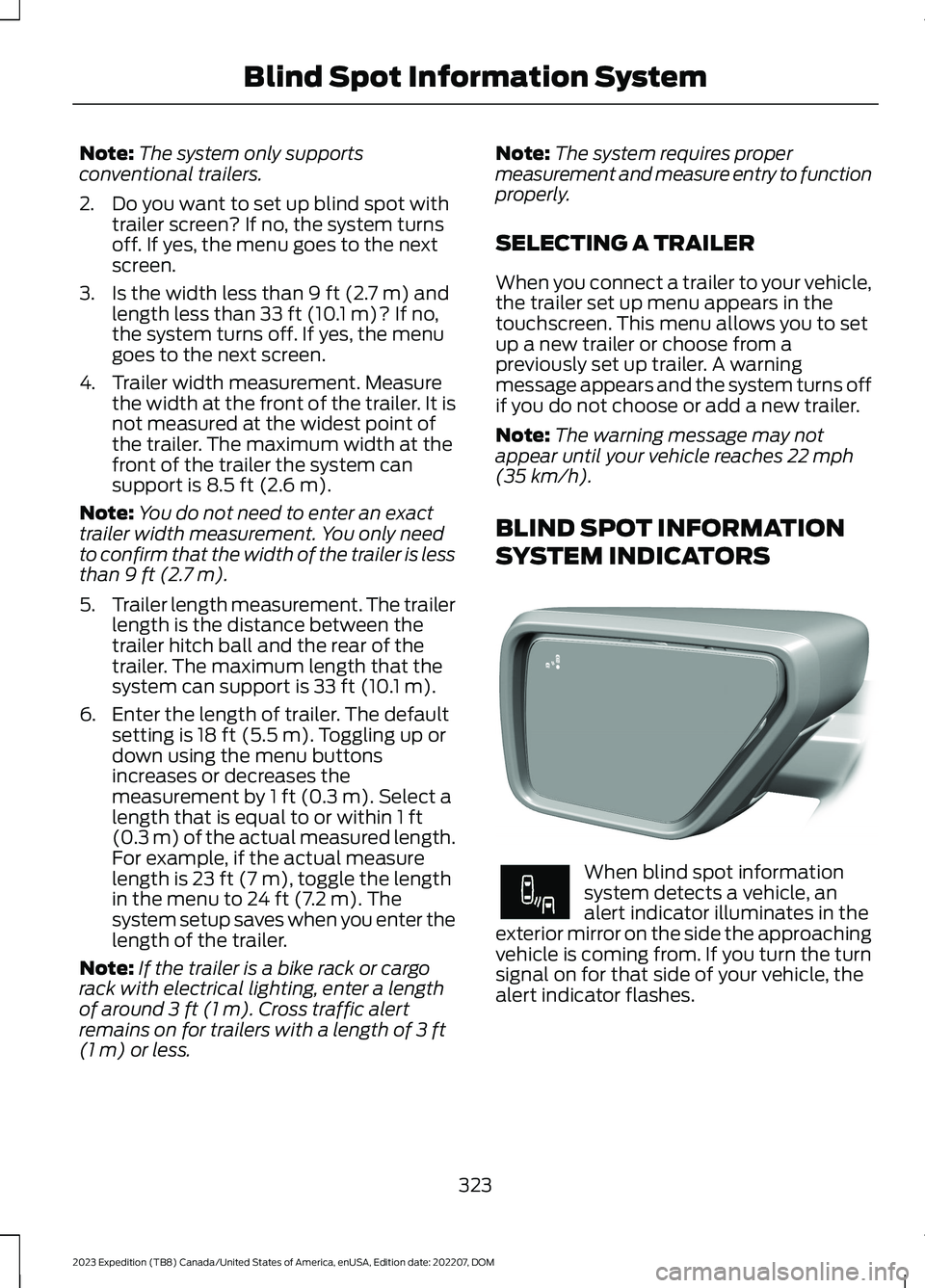
When blind spot informationsystem detects a vehicle, analert indicator illuminates in theexterior mirror on the side the approachingvehicle is coming from. If you turn the turnsignal on for that side of your vehicle, thealert indicator flashes.
323
2023 Expedition (TB8) Canada/United States of America, enUSA, Edition date: 202207, DOMBlind Spot Information SystemE309137 E249861E249861
Page 486 of 658
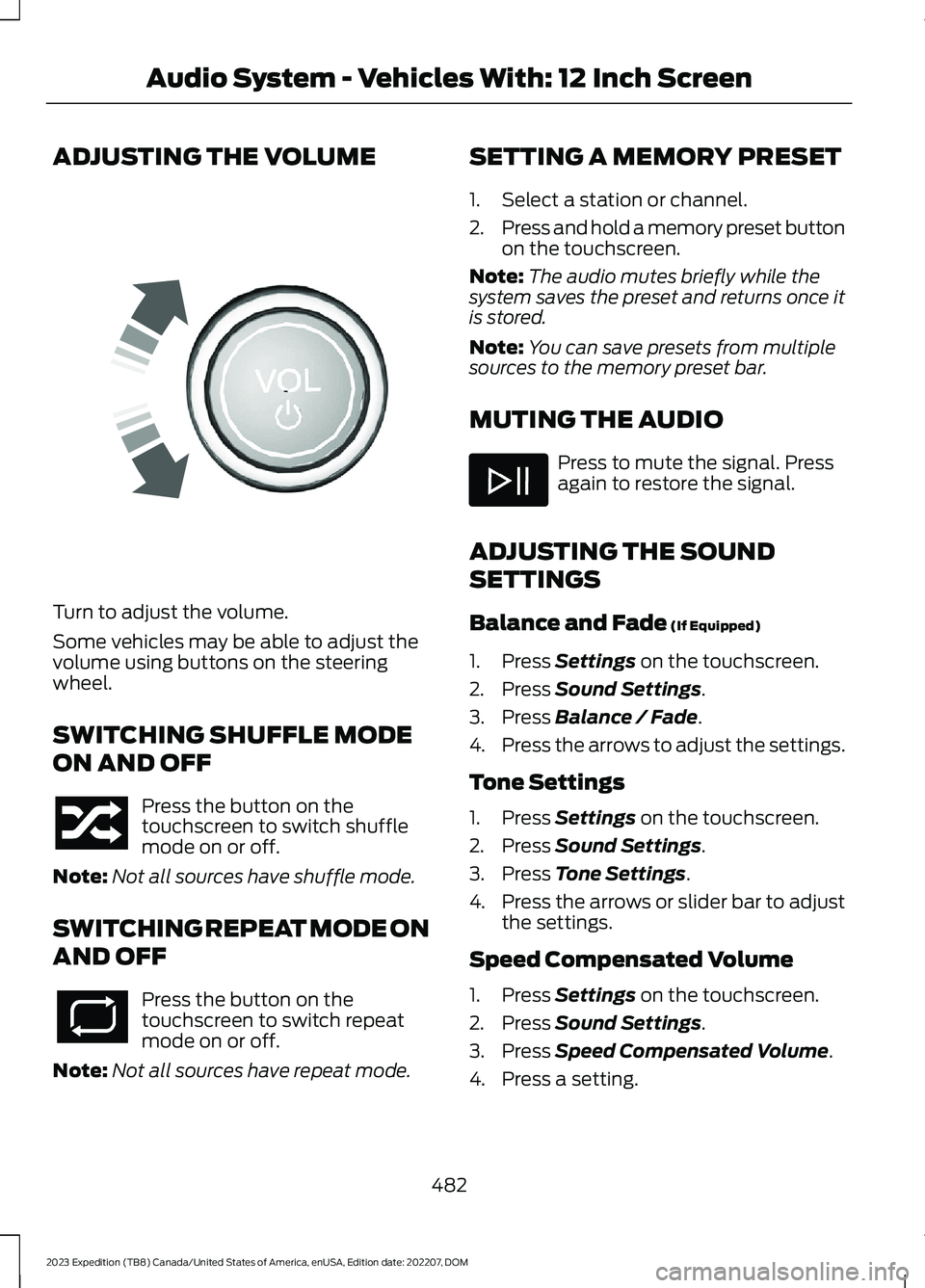
ADJUSTING THE VOLUME
Turn to adjust the volume.
Some vehicles may be able to adjust thevolume using buttons on the steeringwheel.
SWITCHING SHUFFLE MODE
ON AND OFF
Press the button on thetouchscreen to switch shufflemode on or off.
Note:Not all sources have shuffle mode.
SWITCHING REPEAT MODE ON
AND OFF
Press the button on thetouchscreen to switch repeatmode on or off.
Note:Not all sources have repeat mode.
SETTING A MEMORY PRESET
1.Select a station or channel.
2.Press and hold a memory preset buttonon the touchscreen.
Note:The audio mutes briefly while thesystem saves the preset and returns once itis stored.
Note:You can save presets from multiplesources to the memory preset bar.
MUTING THE AUDIO
Press to mute the signal. Pressagain to restore the signal.
ADJUSTING THE SOUND
SETTINGS
Balance and Fade (If Equipped)
1.Press Settings on the touchscreen.
2.Press Sound Settings.
3.Press Balance / Fade.
4.Press the arrows to adjust the settings.
Tone Settings
1.Press Settings on the touchscreen.
2.Press Sound Settings.
3.Press Tone Settings.
4.Press the arrows or slider bar to adjustthe settings.
Speed Compensated Volume
1.Press Settings on the touchscreen.
2.Press Sound Settings.
3.Press Speed Compensated Volume.
4.Press a setting.
482
2023 Expedition (TB8) Canada/United States of America, enUSA, Edition date: 202207, DOMAudio System - Vehicles With: 12 Inch ScreenE248939
Page 497 of 658
Turn to adjust the volume.
Some vehicles may be able to adjust thevolume using buttons on the steeringwheel.
SWITCHING SHUFFLE MODE
ON AND OFF
Press the button on thetouchscreen to switch shufflemode on or off.
Note:Not all sources have shuffle mode.
SWITCHING REPEAT MODE ON
AND OFF
Press the button on thetouchscreen to switch repeatmode on or off.
Note:Not all sources have repeat mode.
SETTING A MEMORY PRESET
1.Select a station or channel.
2.Press and hold a memory preset buttonon the touchscreen.
Note:The audio mutes briefly while thesystem saves the preset and returns once itis stored.
Note:You can save presets from multiplesources to the memory preset bar.
MUTING THE AUDIO
Press the button on the steeringwheel to mute the audio.
Press to mute the signal. Pressagain to restore the signal.
ADJUSTING THE SOUND
SETTINGS
Balance and Fade (If Equipped)
1.Access the vehicle drawer on thetouchscreen.
2.Press SETTINGS.
3.Press Sound.
4.Press Balance / Fade.
5.Press the arrows to adjust the settings.
Tone Settings
1.Access the vehicle drawer on thetouchscreen.
2.Press SETTINGS.
3.Press Sound.
4.Press Tone Settings.
5.Use the slider bar to adjust the settings.
Speed Compensated Volume
1.Access the vehicle drawer on thetouchscreen.
2.Press SETTINGS.
3.Press Sound.
4.Press Speed Compensated Volume.
5.Press a setting.
Occupancy Mode (If Equipped)
1.Access the vehicle drawer on thetouchscreen.
2.Press SETTINGS.
3.Press Sound.
4.Press Occupancy Mode.
5.Press a setting.
Sound Mode (If Equipped)
1.Access the vehicle drawer on thetouchscreen.
493
2023 Expedition (TB8) Canada/United States of America, enUSA, Edition date: 202207, DOMAudio System - Vehicles With: 15 Inch Screen
Page 629 of 658
ELECTROMAGNETIC
COMPATIBILITY
WARNING: Do not place objectsor mount equipment on or near theairbag cover, on the side of the front orrear seatbacks, or in areas that maycome into contact with a deployingairbag. Failure to follow theseinstructions may increase the risk ofpersonal injury in the event of a crash.
WARNING: Do not fasten antennacables to vehicle wiring, fuel pipes andbrake pipes.
WARNING: Keep antenna andpower cables at least 4 in (10 cm) fromany electronic modules and airbags.
Note:We test and certify your vehicle tomeet electromagnetic compatibilitylegislation. It is your responsibility to makesure that any equipment an authorizeddealer installs on your vehicle complies withapplicable local legislation and otherrequirements. Installation of someaftermarket electronic devices coulddegrade the performance of vehiclefunctions, which use radio frequency signalssuch as broadcast radio receiver, tirepressure monitoring system, push buttonstart,Bluetooth® connectivity or satellitenavigation.
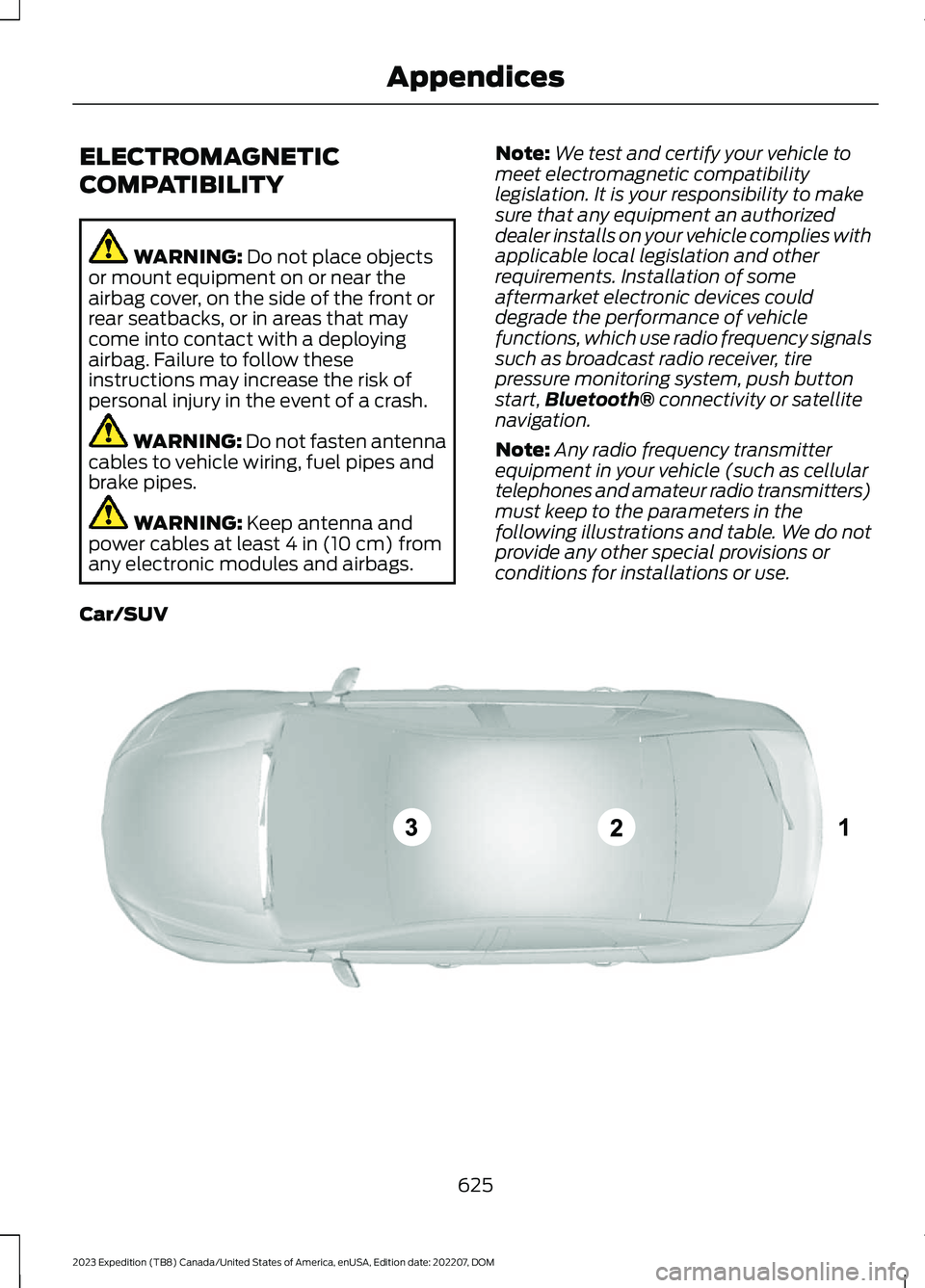
Note:Any radio frequency transmitterequipment in your vehicle (such as cellulartelephones and amateur radio transmitters)must keep to the parameters in thefollowing illustrations and table. We do notprovide any other special provisions orconditions for installations or use.
Car/SUV
625
2023 Expedition (TB8) Canada/United States of America, enUSA, Edition date: 202207, DOMAppendicesE239120
Page 644 of 658
Keyless Entry Keypad –Troubleshooting..........................................89Keyless Entry Keypad – Frequently AskedQuestions...........................................................89Keyless Entry Limitations............................85Keyless Entry Settings..................................85Keyless Entry – Troubleshooting.............86Keyless Entry – Frequently AskedQuestions...........................................................86Keys and Remote Controls.........................67Keys and Remote Controls –Troubleshooting...............................................74Keys and Remote Controls –Troubleshooting...........................................74Keys and Remote Controls – InformationMessages............................................................74
L
Lane Centering.............................................289How Does Lane Centering Work..................289Lane Centering Alerts........................................291Lane Centering AutomaticCancellation....................................................292Lane Centering Indicators...............................292Lane Centering Limitations...........................290Lane Centering Manual Cancellation.........292Lane Centering Precautions..........................289Lane Centering Requirements.....................290Switching Lane Centering On and Off........291Lane Keeping System Indicators -Vehicles With: 12 Inch Screen................314Lane Keeping System Indicators -Vehicles With: 8 Inch Screen.................312Lane Keeping System................................309Aid Mode................................................................312Alert and Aid Mode............................................312Alert Mode..............................................................311Blind Spot Assist.................................................314Blind Spot Assist with TrailerCoverage...........................................................315Lane Keeping System –Troubleshooting..............................................317Lane Keeping System Limitations........309Lane Keeping SystemPrecautions................................................309
Lane Keeping System –Troubleshooting..........................................317Lane Keeping System – Frequently AskedQuestions.........................................................318Lane Keeping System – InformationMessages...........................................................317Launching or Retrieving a Boat orPersonal Watercraft................................360Liftgate................................................................91Closing the Liftgate.............................................93Liftgate – Troubleshooting...............................96Opening the Liftgate............................................91Liftgate Obstacle Detection......................95Liftgate Precautions.......................................91Liftgate – Troubleshooting........................96Liftgate – Frequently AskedQuestions...........................................................97Liftgate – Information Messages...................96Liftgate – Warning Lamps................................96Live Traffic......................................................526Switching Live Traffic On and Off...............526What Is Live Traffic............................................526Load Carrying................................................345Roof Rack.............................................................349Load Carrying Precautions.......................345Loading Your Trailer....................................359Locating the 360 DegreeCameras.......................................................269Locating the Blind Spot InformationSystem Sensors..........................................321Locating the Brake Fluid Reservoir........229Locating the Cross Traffic AlertSensors.........................................................326Locating the Fuel Filler Funnel...............206Locating the Keyless Entry Keypad.........87Locating the Memory FunctionButtons..........................................................179Locating the Power Outlets......................187Locating the Pre-Collision AssistSensors..........................................................331Locating the Rear View Camera............266Locating the Safety ComplianceCertification Labels.................................346Locating the Tire label...............................437Locating the USB Ports..............................185Locating the Wireless AccessoryCharger..........................................................190Locating Your Vehicle...................................68
640
2023 Expedition (TB8) Canada/United States of America, enUSA, Edition date: 202207, DOMIndex