key battery FORD EXPEDITION 2023 Owner's Manual
[x] Cancel search | Manufacturer: FORD, Model Year: 2023, Model line: EXPEDITION, Model: FORD EXPEDITION 2023Pages: 658, PDF Size: 16.16 MB
Page 506 of 658
CENTER DISPLAY
PRECAUTIONS
WARNING: Driving while distractedcan result in loss of vehicle control, crashand injury. We strongly recommend thatyou use extreme caution when using anydevice that may take your focus off theroad. Your primary responsibility is thesafe operation of your vehicle. Werecommend against the use of anyhand-held device while driving andencourage the use of voice-operatedsystems when possible. Make sure youare aware of all applicable local lawsthat may affect the use of electronicdevices while driving.
CENTER DISPLAY
LIMITATIONS
Speed-restricted Features
For your safety, some features are notavailable while the vehicle is in motion ator above 5 mph (8 km/h). Settings thatare not critical while driving your vehicleare shown as restricted on your display.Some of these settings include:
•Software updates.
•Personal profiles setup.
•Valet mode setup.
•Driver assistance settings.
•MyKey setup.
•Door keypad code setup.
These restricted features becomeavailable when your vehicle is no longer inmotion.
STATUS BAR
SYNC4 Features
The bar is on top of the display andindicates the status of your vehicle'sfeatures. It also contains the Vehicle andApplication drawers. See Changing theLanguage (page 143).
Status Area
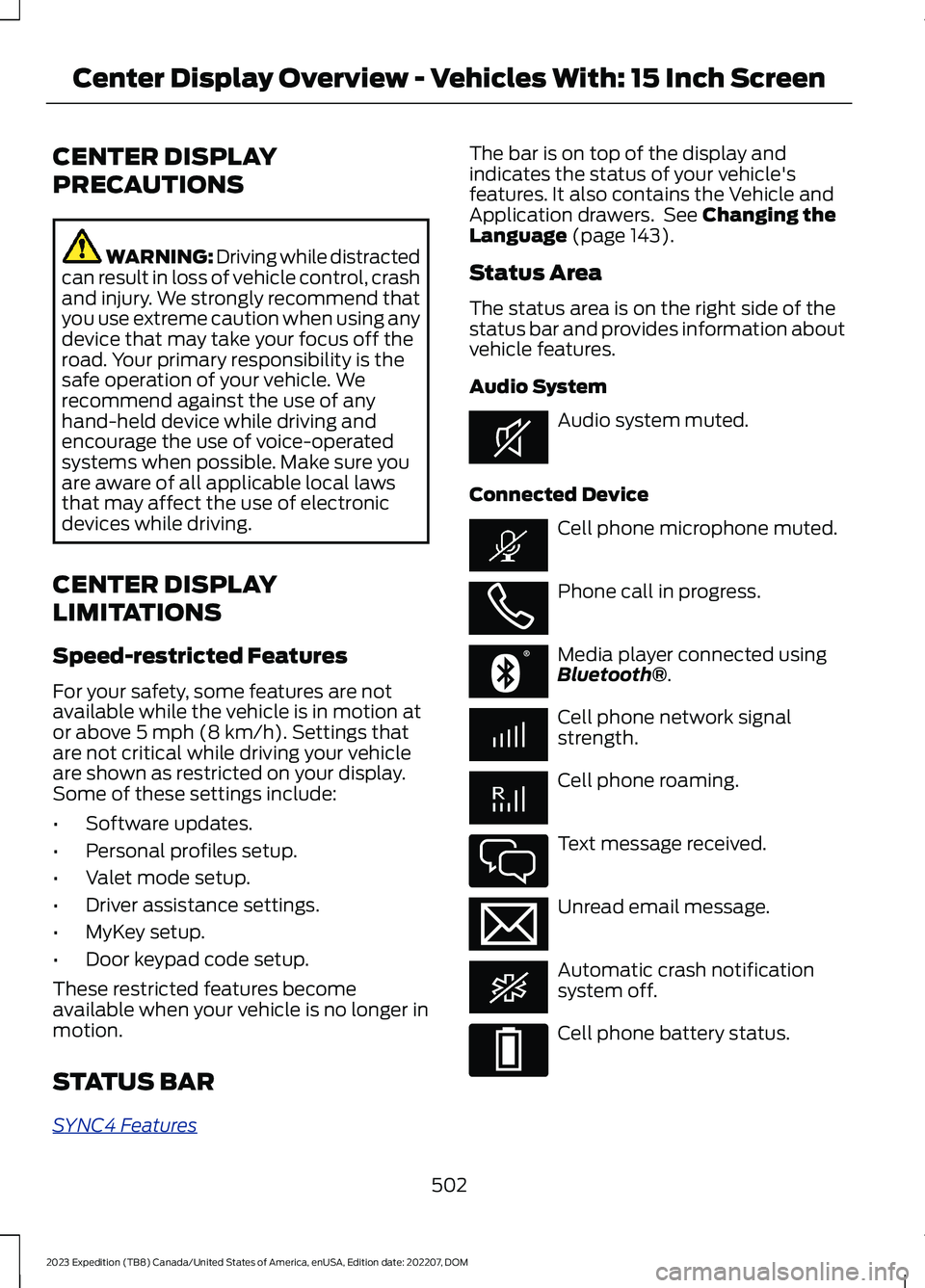
The status area is on the right side of thestatus bar and provides information aboutvehicle features.
Audio System
Audio system muted.
Connected Device
Cell phone microphone muted.
Phone call in progress.
Media player connected usingBluetooth®.
Cell phone network signalstrength.
Cell phone roaming.
Text message received.
Unread email message.
Automatic crash notificationsystem off.
Cell phone battery status.
502
2023 Expedition (TB8) Canada/United States of America, enUSA, Edition date: 202207, DOMCenter Display Overview - Vehicles With: 15 Inch ScreenE353221 E353213 E353208 E335295 E353216 E335293
Page 517 of 658
MAKING AND RECEIVING A
PHONE CALL
Making Calls
To call a number in your contacts,select:
Action and DescriptionMenu Item
You can then select thename of the contact youwant to call. Any numbersstored for that contactdisplay along with anystored contact photos. Youcan then select thenumber that you want tocall. The system begins thecall.
Contacts
To call a number from your recent calls,select:
Action and DescriptionMenu Item
You can then select anentry that you want to call.The system begins the call.
Recent CallList
To call a number from your favorites,select:
Action and DescriptionMenu Item
You can then select anentry that you want to call.The system begins the call.
Favorites
To call a number that is not stored inyour phone, select:
Action and DescriptionMenu Item
Select the digits of thenumber you wish to call.PhoneKeypad
The system begins the call.Call
Pressing the backspace button deletes thelast digit you typed.
Receiving Calls
During an incoming call, an audible tonesounds. Caller information appears in thedisplay if it is available.
To accept the call, select:
Menu Item
Accept
Note:You can also accept the call bypressing the phone button on the steeringwheel.
To reject the call, select:
Menu Item
Reject
Ignore the call by doing nothing. Thesystem logs it as a missed call.
During a Phone Call
During a phone call, the contacts nameand number display on the screen alongwith the call duration.
The phone status items are also visible:
•Signal Strength.
•Battery.
You can select any of the following duringan active phone call:
513
2023 Expedition (TB8) Canada/United States of America, enUSA, Edition date: 202207, DOMPhone - Vehicles With: 12 Inch Screen
Page 521 of 658
MAKING AND RECEIVING A
PHONE CALL
Making Calls
To call a number in your contacts,select:
Action and DescriptionMenu Item
You can then select thename of the contact youwant to call. Any numbersstored for that contactdisplay along with anystored contact photos. Youcan then select thenumber that you want tocall. The system begins thecall.
Contacts
To call a number from your recent calls,select:
Action and DescriptionMenu Item
You can then select anentry that you want to call.The system begins the call.
Recent CallList
To call a number from your favorites,select:
Action and DescriptionMenu Item
You can then select anentry that you want to call.The system begins the call.
Favorites
To call a number that is not stored inyour phone, select:
Action and DescriptionMenu Item
Select the digits of thenumber you wish to call.PhoneKeypad
The system begins the call.Call
Pressing the backspace button deletes thelast digit you typed.
Receiving Calls
During an incoming call, an audible tonesounds. Caller information appears in thedisplay if it is available.
To accept the call, select:
Menu Item
Accept
Note:You can also accept the call bypressing the phone button on the steeringwheel.
To reject the call, select:
Menu Item
Reject
Ignore the call by doing nothing. Thesystem logs it as a missed call.
During a Phone Call
During a phone call, the contacts nameand number display on the screen alongwith the call duration.
The phone status items are also visible:
•Signal Strength.
•Battery.
You can select any of the following duringan active phone call:
517
2023 Expedition (TB8) Canada/United States of America, enUSA, Edition date: 202207, DOMPhone - Vehicles With: 15 Inch Screen
Page 536 of 658
This introduces new features and providesupdates to the vehicle's software systems.Make sure to switch Automatic Updateson, set a recurring update schedule andconnect your vehicle to Wi-Fi. Updatescould take longer when not connected toWi-Fi or could not download at all. SeeConnecting the Vehicle to a Wi-FiNetwork (page 476). See Connecting theVehicle to a Wi-Fi Network (page 476).
Your vehicle may be able to receivedrivable software updates, non-drivablesoftware updates or both. Drivablesoftware updates happen during normalvehicle usage and require limited inputfrom you. You are notified on yourtouchscreen and connected device priorto a non-drivable update.
Most updates complete in less than 30minutes, although some updates couldtake up to a few hours. Check yourtouchscreen or connected device for themost accurate estimated update time.
You are notified of the status of the vehiclesoftware update in the touchscreen andon your connected device. See SoftwareUpdate Indicators (page 534).
Vehicle Software UpdateRequirements
Non-drivable software updates do notinstall if any of the following occur:
•Your vehicle is running.
•Your vehicle is switched on.
•Your vehicle is not parked.
•The 12 V battery charge is too low.
•The hazard indicators are switched on.
•The alarm is sounding.
•The doors are open.
•The parking lamps are switched on.
•You are pressing the brake pedal.
•An emergency call is in process.
•Your vehicle is in limp home mode.
Vehicle Software UpdateLimitations
Once you begin a non-drivable softwareupdate, you cannot:
•Cancel the update.
•Lock, unlock or enter your vehicleunless you have a key blade.
•You can open the doors using themechanical latch if child locks arenot on.
•Drive your vehicle.
•Start your vehicle.
•Use the remote control to lock, unlockor start your vehicle.
•Use the alarm, central locks or doortones.
•Use the electronic door locks.
•Charge your vehicle.
•Charging resumes once the updatecompletes.
SOFTWARE UPDATE
SETTINGS - VEHICLES WITH:
12 INCH SCREEN
To access the Software Updates menu:
1.Press Settings on the touchscreen.
2.Press Software Updates.
You can do the following in the SoftwareUpdates menu:
•Switch Automatic Updates on and off.
•Schedule and install software updates.
•View software update details.
Press the button next to a menuoption for more information.
532
2023 Expedition (TB8) Canada/United States of America, enUSA, Edition date: 202207, DOMVehicle Software UpdatesE366956
Page 636 of 658
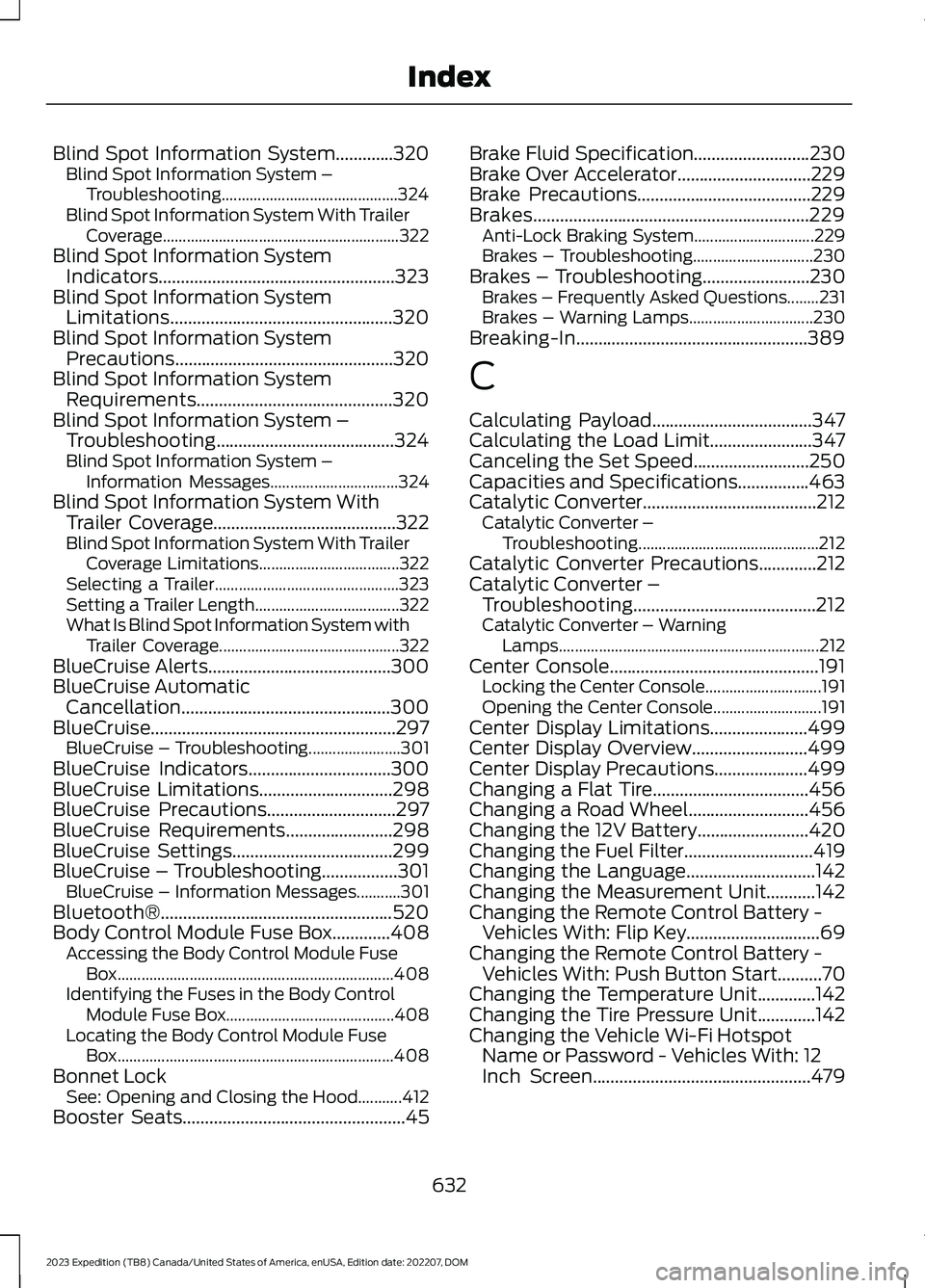
Blind Spot Information System.............320Blind Spot Information System –Troubleshooting............................................324Blind Spot Information System With TrailerCoverage...........................................................322Blind Spot Information SystemIndicators.....................................................323Blind Spot Information SystemLimitations..................................................320Blind Spot Information SystemPrecautions.................................................320Blind Spot Information SystemRequirements............................................320Blind Spot Information System –Troubleshooting........................................324Blind Spot Information System –Information Messages................................324Blind Spot Information System WithTrailer Coverage.........................................322Blind Spot Information System With TrailerCoverage Limitations...................................322Selecting a Trailer..............................................323Setting a Trailer Length....................................322What Is Blind Spot Information System withTrailer Coverage.............................................322BlueCruise Alerts.........................................300BlueCruise AutomaticCancellation...............................................300BlueCruise.......................................................297BlueCruise – Troubleshooting.......................301BlueCruise Indicators................................300BlueCruise Limitations..............................298BlueCruise Precautions.............................297BlueCruise Requirements........................298BlueCruise Settings....................................299BlueCruise – Troubleshooting.................301BlueCruise – Information Messages...........301Bluetooth®....................................................520Body Control Module Fuse Box.............408Accessing the Body Control Module FuseBox.....................................................................408Identifying the Fuses in the Body ControlModule Fuse Box..........................................408Locating the Body Control Module FuseBox.....................................................................408Bonnet LockSee: Opening and Closing the Hood...........412Booster Seats..................................................45
Brake Fluid Specification..........................230Brake Over Accelerator..............................229Brake Precautions.......................................229Brakes..............................................................229Anti-Lock Braking System..............................229Brakes – Troubleshooting..............................230Brakes – Troubleshooting........................230Brakes – Frequently Asked Questions........231Brakes – Warning Lamps...............................230Breaking-In....................................................389
C
Calculating Payload....................................347Calculating the Load Limit.......................347Canceling the Set Speed..........................250Capacities and Specifications................463Catalytic Converter.......................................212Catalytic Converter –Troubleshooting.............................................212Catalytic Converter Precautions.............212Catalytic Converter –Troubleshooting.........................................212Catalytic Converter – WarningLamps.................................................................212Center Console...............................................191Locking the Center Console.............................191Opening the Center Console...........................191Center Display Limitations......................499Center Display Overview..........................499Center Display Precautions.....................499Changing a Flat Tire...................................456Changing a Road Wheel...........................456Changing the 12V Battery.........................420Changing the Fuel Filter.............................419Changing the Language.............................142Changing the Measurement Unit...........142Changing the Remote Control Battery -Vehicles With: Flip Key..............................69Changing the Remote Control Battery -Vehicles With: Push Button Start..........70Changing the Temperature Unit.............142Changing the Tire Pressure Unit.............142Changing the Vehicle Wi-Fi HotspotName or Password - Vehicles With: 12Inch Screen.................................................479
632
2023 Expedition (TB8) Canada/United States of America, enUSA, Edition date: 202207, DOMIndex
Page 648 of 658
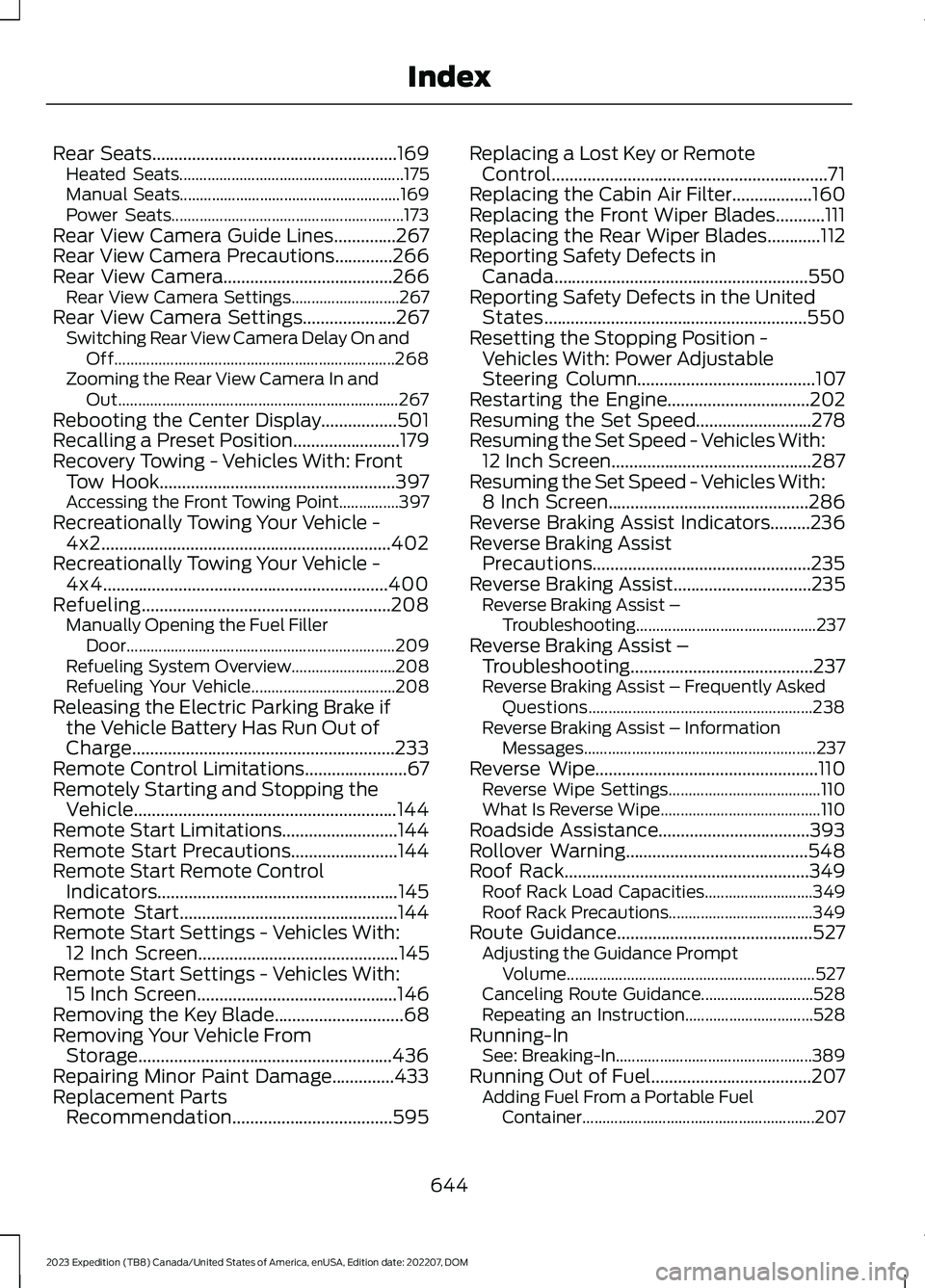
Rear Seats.......................................................169Heated Seats........................................................175Manual Seats.......................................................169Power Seats..........................................................173Rear View Camera Guide Lines..............267Rear View Camera Precautions.............266Rear View Camera......................................266Rear View Camera Settings...........................267Rear View Camera Settings.....................267Switching Rear View Camera Delay On andOff......................................................................268Zooming the Rear View Camera In andOut......................................................................267Rebooting the Center Display.................501Recalling a Preset Position........................179Recovery Towing - Vehicles With: FrontTow Hook.....................................................397Accessing the Front Towing Point...............397Recreationally Towing Your Vehicle -4x2.................................................................402Recreationally Towing Your Vehicle -4x4................................................................400Refueling........................................................208Manually Opening the Fuel FillerDoor...................................................................209Refueling System Overview..........................208Refueling Your Vehicle....................................208Releasing the Electric Parking Brake ifthe Vehicle Battery Has Run Out ofCharge...........................................................233Remote Control Limitations.......................67Remotely Starting and Stopping theVehicle...........................................................144Remote Start Limitations..........................144Remote Start Precautions........................144Remote Start Remote ControlIndicators......................................................145Remote Start.................................................144Remote Start Settings - Vehicles With:12 Inch Screen.............................................145Remote Start Settings - Vehicles With:15 Inch Screen.............................................146Removing the Key Blade.............................68Removing Your Vehicle FromStorage.........................................................436Repairing Minor Paint Damage..............433Replacement PartsRecommendation....................................595
Replacing a Lost Key or RemoteControl..............................................................71Replacing the Cabin Air Filter..................160Replacing the Front Wiper Blades...........111Replacing the Rear Wiper Blades............112Reporting Safety Defects inCanada.........................................................550Reporting Safety Defects in the UnitedStates...........................................................550Resetting the Stopping Position -Vehicles With: Power AdjustableSteering Column........................................107Restarting the Engine................................202Resuming the Set Speed..........................278Resuming the Set Speed - Vehicles With:12 Inch Screen.............................................287Resuming the Set Speed - Vehicles With:8 Inch Screen.............................................286Reverse Braking Assist Indicators.........236Reverse Braking AssistPrecautions.................................................235Reverse Braking Assist...............................235Reverse Braking Assist –Troubleshooting.............................................237Reverse Braking Assist –Troubleshooting.........................................237Reverse Braking Assist – Frequently AskedQuestions........................................................238Reverse Braking Assist – InformationMessages..........................................................237Reverse Wipe..................................................110Reverse Wipe Settings......................................110What Is Reverse Wipe........................................110Roadside Assistance..................................393Rollover Warning.........................................548Roof Rack.......................................................349Roof Rack Load Capacities...........................349Roof Rack Precautions....................................349Route Guidance............................................527Adjusting the Guidance PromptVolume..............................................................527Canceling Route Guidance............................528Repeating an Instruction................................528Running-InSee: Breaking-In.................................................389Running Out of Fuel....................................207Adding Fuel From a Portable FuelContainer..........................................................207
644
2023 Expedition (TB8) Canada/United States of America, enUSA, Edition date: 202207, DOMIndex