reset FORD EXPEDITION 2023 Owner's Guide
[x] Cancel search | Manufacturer: FORD, Model Year: 2023, Model line: EXPEDITION, Model: FORD EXPEDITION 2023Pages: 658, PDF Size: 16.16 MB
Page 454 of 658
Highway Hazards
No matter how carefully you drive,there is always the possibility thatyou could eventually have a flattire on the highway. Drive slowlyto the closest safe area out oftraffic. This could further damagethe flat tire, but your safety ismore important.
If you feel a sudden vibration orride disturbance while driving, oryou suspect your tire or vehiclehas been damaged, immediatelyreduce your speed. Drive withcaution until you can safely pulloff the road. Stop and inspect thetires for damage. If a tire isunder-inflated or damaged,deflate it, remove the wheel andreplace it with your spare tire andwheel. If you cannot detect acause, have the vehicle towed tothe nearest repair facility or tiredealer to have the vehicleinspected.
Tire and Wheel Alignment
A bad jolt from hitting a curb orpothole can cause the front endof your vehicle to becomemisaligned or cause damage toyour tires. If your vehicle seems topull to one side when you aredriving, the wheels could be out ofalignment. Have an authorizeddealer check the wheel alignmentperiodically.
Wheel misalignment in the frontor the rear can cause uneven andrapid treadwear of your tires andshould be corrected by anauthorized dealer.
INSPECTING THE WHEEL
VALVE STEMS
Check the valve stems for holes,cracks, or cuts that could permitair leakage.
TIRE ROTATION
WARNING: If the tire labelshows different tire pressures forthe front and rear tires and thevehicle has a tire pressuremonitoring system, then youneed to update the settings forthe system sensors. Alwaysperform the system resetprocedure after tire rotation. Ifyou do not reset the system, itmay not provide a low tirepressure warning whennecessary.
Rotating your tires at therecommended interval will helpyour tires wear more evenly,providing better tire performanceand longer tire life.
Note:If your tires show any unevenwear have the alignment checkedby an authorized dealer beforerotating tires.
450
2023 Expedition (TB8) Canada/United States of America, enUSA, Edition date: 202207, DOMTire Care
Page 482 of 658
CREATING A VEHICLE WI-FI
HOTSPOT - VEHICLES WITH:
12 INCH SCREEN
You can create a Wi-Fi hotspot in yourvehicle and allow devices to connect to itfor access to the Internet.
Select the settings option on thefeature bar.
1.Press Vehicle Hotspot.
Note:The vehicle hotspot default settingis on.
2.Press Settings.
3.Press Edit.
4.Press Hotspot visibility.
Note:The hotspot visibility default settingis on.
Finding the Wi-Fi Hotspot Nameand Password
Select the settings option on thefeature bar.
1.Press Vehicle Hotspot.
2.Press Settings.
Note:The network name is the hotspotname.
3.Press View Password.
Connecting a Device to the Wi-FiHotspot
1.On your device, switch Wi-Fi on andselect the hotspot from the list ofavailable Wi-Fi networks.
2.When prompted, enter the password.
Purchasing a Data Plan
1.Connect a device to the hotspot.
Note:The vehicle network carrier’s portalopens on your device.
2.If the portal does not open on yourdevice, open a website and it redirectsto the vehicle network carrier’s portal.
Note:Secure websites do not redirect.
3.Follow the instructions on the carrierportal to purchase a plan.
Note:If you have an active plan, the systemdoes not redirect to the vehicle networkcarrier’s portal when you connect a device.Visit the vehicle network carrier’s websiteto purchase more data.
Note:If data usage information is availablein the vehicle hotspot menu, it isapproximate.
Note:If you carry out a master reset, thesystem does not remove your vehicle fromyour vehicle network carrier’s account. Toremove your vehicle from the account,contact your vehicle network carrier.
Note:The vehicle network carrier providesVehicle Hotspot services, subject to yourvehicle network carrier agreement, coverageand availability.
CREATING A VEHICLE WI-FI
HOTSPOT - VEHICLES WITH:
15 INCH SCREEN
You can create a Wi-Fi hotspot in yourvehicle and allow devices to connect to itfor access to the Internet.
Tap the vehicle drawer on the top left ofthe screen.
1.Press Vehicle Hotspot.
Note:The vehicle hotspot default settingis on.
2.Press Settings under the VehicleHotspot menu.
3.Press Edit.
4.Switch the Wi-Fi Visibility option on oroff.
478
2023 Expedition (TB8) Canada/United States of America, enUSA, Edition date: 202207, DOMVehicle Wi-Fi HotspotE280315 E280315
Page 483 of 658
Note:The Wi-Fi visibility default setting ison.
Finding the Wi-Fi Hotspot Nameand Password
Tap the vehicle drawer on the top left ofthe screen.
1.Press Vehicle Hotspot.
2.Press Settings under the VehicleHotspot menu.
Note:The network name is the hotspotname.
3.Switch the Show Password option onor off.
Connecting a Device to the Wi-FiHotspot
1.On your device, switch Wi-Fi on andselect the hotspot from the list ofavailable Wi-Fi networks.
2.When prompted, enter the password.
Purchasing a Data Plan
1.Connect a device to the hotspot.
Note:The vehicle network carrier’s portalopens on your device.
2.If the portal does not open on yourdevice, open a website and it redirectsto the vehicle network carrier’s portal.
Note:Secure websites do not redirect.
3.Follow the instructions on the carrierportal to purchase a plan.
Note:If you have an active plan, the systemdoes not redirect to the vehicle networkcarrier’s portal when you connect a device.Visit the vehicle network carrier’s websiteto purchase more data.
Note:If data usage information is availablein the vehicle hotspot menu, it isapproximate.
Note:If you carry out a master reset, thesystem does not remove your vehicle fromyour vehicle network carrier’s account. Toremove your vehicle from the account,contact your vehicle network carrier.
Note:The vehicle network carrier providesVehicle Hotspot services, subject to yourvehicle network carrier agreement, coverageand availability.
CHANGING THE VEHICLE WI-
FI HOTSPOT NAME OR
PASSWORD - VEHICLES WITH:
12 INCH SCREEN
Select the settings option on thefeature bar.
1.Press Vehicle Hotspot.
2.Press Settings.
3.Press Edit.
4.Press Change Network Name.
5.Enter your required network name.
6.Press Done.
7.Press Change Password.
8.Enter your required password.
9.Press Done.
Changing the Wi-Fi HotspotFrequency
Note:The vehicle hotspot frequency bandis selectable depending upon your devicecapabilities. You will not be able to connectyour device to the vehicle hotspot if it doesnot support the selected frequency band.
Select the settings option on thefeature bar.
1.Press Vehicle Hotspot.
2.Press Settings.
3.Press Edit.
479
2023 Expedition (TB8) Canada/United States of America, enUSA, Edition date: 202207, DOMVehicle Wi-Fi HotspotE280315 E280315
Page 486 of 658
ADJUSTING THE VOLUME
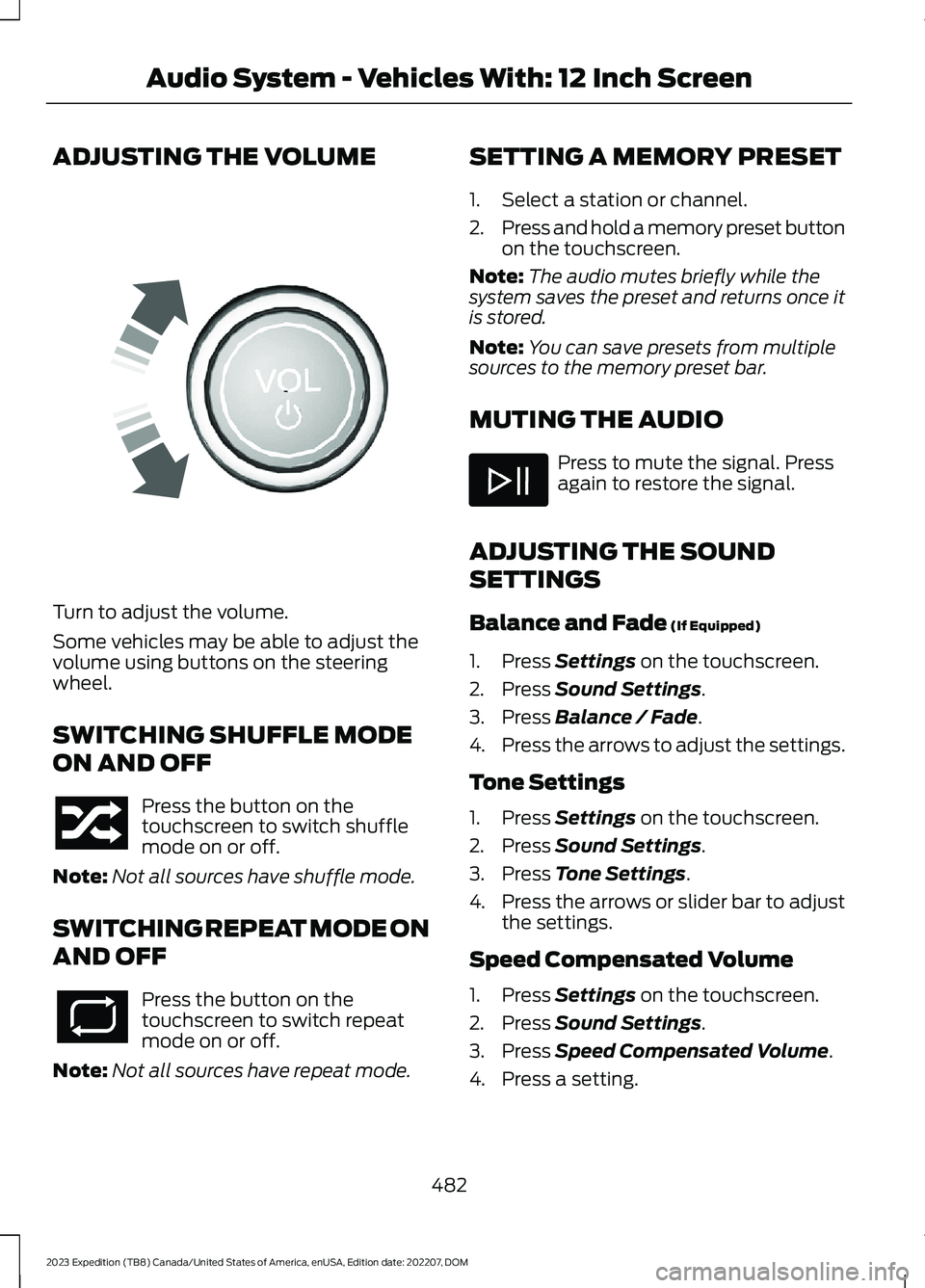
Turn to adjust the volume.
Some vehicles may be able to adjust thevolume using buttons on the steeringwheel.
SWITCHING SHUFFLE MODE
ON AND OFF
Press the button on thetouchscreen to switch shufflemode on or off.
Note:Not all sources have shuffle mode.
SWITCHING REPEAT MODE ON
AND OFF
Press the button on thetouchscreen to switch repeatmode on or off.
Note:Not all sources have repeat mode.
SETTING A MEMORY PRESET
1.Select a station or channel.
2.Press and hold a memory preset buttonon the touchscreen.
Note:The audio mutes briefly while thesystem saves the preset and returns once itis stored.
Note:You can save presets from multiplesources to the memory preset bar.
MUTING THE AUDIO
Press to mute the signal. Pressagain to restore the signal.
ADJUSTING THE SOUND
SETTINGS
Balance and Fade (If Equipped)
1.Press Settings on the touchscreen.
2.Press Sound Settings.
3.Press Balance / Fade.
4.Press the arrows to adjust the settings.
Tone Settings
1.Press Settings on the touchscreen.
2.Press Sound Settings.
3.Press Tone Settings.
4.Press the arrows or slider bar to adjustthe settings.
Speed Compensated Volume
1.Press Settings on the touchscreen.
2.Press Sound Settings.
3.Press Speed Compensated Volume.
4.Press a setting.
482
2023 Expedition (TB8) Canada/United States of America, enUSA, Edition date: 202207, DOMAudio System - Vehicles With: 12 Inch ScreenE248939
Page 490 of 658
Hills, mountains, tall buildings, bridges,tunnels, freeway overpasses, parkinggarages, dense tree foliage andthunderstorms can interfere with yourreception.
When you pass a ground-basedbroadcast-repeating tower, a strongersignal may overtake a weaker one andcould result in the audio system muting.Your display could show an error messageto indicate the interference.
LOCATING THE SATELLITE RADIOIDENTIFICATION NUMBER
1.Select SiriusXM as the audio source.
2.Tune to channel 0.
SELECTING A CHANNEL
Manually Selecting a Channel
Press the button to find theprevious or next available radiochannel.
Linear Tuner
The linear tuner is displayed whenmanually selecting a channel. You canswipe left or right on the linear tunercarousel to navigate through the channellist. Tap on a channel title to listen to it.
Using Direct Tune
1.Press the channel up or down buttonto open the linear tuner screen.
2.Press Direct Tune to open the numberpad.
3.Enter the channel you prefer.
Using Browse
1.Press Browse.
2.Select a channel.
SATELLITE RADIO SETTINGS
Subscription
Your subscription status is displayed. Youcan subscribe or manage your subscriptiondirectly from the touchscreen.
SiriusXM Favorites
While you are listening to SiriusXM, you cansave favorites by:
•Tapping the currently tuned channelor show logo on the SiriusXM audioscreen.
•Tuning to a channel or show you wantto save as a favorite. Navigate to theSiriusXM Favorites screen and pressthe Add Current button. The currentlytuned channel or show is saved as afavorite.
•Saving a radio preset. This saves thecurrently tuned SiriusXM channel orshow as a favorite
Note:Requires a trial or active subscriptionto use.
Listening History
Listening history is a list of recently listenedto SiriusXM content. You can view, manageand reset the listening history using thecontrols on the touchscreen.
Note:Requires a trial or active subscriptionto use.
Help and Support
You can contact SiriusXM Customer Caredirectly from SYNC and view informationrequired to manage your SiriusXM account.
486
2023 Expedition (TB8) Canada/United States of America, enUSA, Edition date: 202207, DOMAudio System - Vehicles With: 12 Inch ScreenE328569 E328570
Page 497 of 658
Turn to adjust the volume.
Some vehicles may be able to adjust thevolume using buttons on the steeringwheel.
SWITCHING SHUFFLE MODE
ON AND OFF
Press the button on thetouchscreen to switch shufflemode on or off.
Note:Not all sources have shuffle mode.
SWITCHING REPEAT MODE ON
AND OFF
Press the button on thetouchscreen to switch repeatmode on or off.
Note:Not all sources have repeat mode.
SETTING A MEMORY PRESET
1.Select a station or channel.
2.Press and hold a memory preset buttonon the touchscreen.
Note:The audio mutes briefly while thesystem saves the preset and returns once itis stored.
Note:You can save presets from multiplesources to the memory preset bar.
MUTING THE AUDIO
Press the button on the steeringwheel to mute the audio.
Press to mute the signal. Pressagain to restore the signal.
ADJUSTING THE SOUND
SETTINGS
Balance and Fade (If Equipped)
1.Access the vehicle drawer on thetouchscreen.
2.Press SETTINGS.
3.Press Sound.
4.Press Balance / Fade.
5.Press the arrows to adjust the settings.
Tone Settings
1.Access the vehicle drawer on thetouchscreen.
2.Press SETTINGS.
3.Press Sound.
4.Press Tone Settings.
5.Use the slider bar to adjust the settings.
Speed Compensated Volume
1.Access the vehicle drawer on thetouchscreen.
2.Press SETTINGS.
3.Press Sound.
4.Press Speed Compensated Volume.
5.Press a setting.
Occupancy Mode (If Equipped)
1.Access the vehicle drawer on thetouchscreen.
2.Press SETTINGS.
3.Press Sound.
4.Press Occupancy Mode.
5.Press a setting.
Sound Mode (If Equipped)
1.Access the vehicle drawer on thetouchscreen.
493
2023 Expedition (TB8) Canada/United States of America, enUSA, Edition date: 202207, DOMAudio System - Vehicles With: 15 Inch Screen
Page 501 of 658
Hills, mountains, tall buildings, bridges,tunnels, freeway overpasses, parkinggarages, dense tree foliage andthunderstorms can interfere with yourreception.
When you pass a ground-basedbroadcast-repeating tower, a strongersignal may overtake a weaker one andcould result in the audio system muting.Your display could show an error messageto indicate the interference.
LOCATING THE SATELLITE RADIOIDENTIFICATION NUMBER
1.Select SiriusXM as the audio source.
2.Tune to channel 0.
SELECTING A CHANNEL
Manually Selecting a Channel
Press the button to find theprevious or next available radiochannel.
Linear Tuner
The linear tuner is displayed whenmanually selecting a channel. You canswipe left or right on the linear tunercarousel to navigate through the channellist. Tap on a channel title to listen to it.
Using Direct Tune
1.Press the channel up or down buttonto open the linear tuner screen.
2.Press Direct Tune to open the numberpad.
3.Enter the channel you prefer.
Using Browse
1.Press Browse.
2.Select a channel.
SATELLITE RADIO SETTINGS
Subscription
Your subscription status is displayed. Youcan subscribe or manage your subscriptiondirectly from the touchscreen.
SiriusXM Favorites
While you are listening to SiriusXM, you cansave favorites by:
•Tapping the currently tuned channelor show logo on the SiriusXM audioscreen.
•Tuning to a channel or show you wantto save as a favorite. Navigate to theSiriusXM Favorites screen and pressthe Add Current button. The currentlytuned channel or show is saved as afavorite.
•Saving a radio preset. This saves thecurrently tuned SiriusXM channel orshow as a favorite
Note:Requires a trial or active subscriptionto use.
Listening History
Listening history is a list of recently listenedto SiriusXM content. You can view, manageand reset the listening history using thecontrols on the touchscreen.
Note:Requires a trial or active subscriptionto use.
Help and Support
You can contact SiriusXM Customer Caredirectly from SYNC and view informationrequired to manage your SiriusXM account.
497
2023 Expedition (TB8) Canada/United States of America, enUSA, Edition date: 202207, DOMAudio System - Vehicles With: 15 Inch ScreenE328569 E328570
Page 539 of 658
PERFORMING A SYSTEM
RESET - VEHICLES WITH: 12
INCH SCREEN
Performing a system reset allows you toremove all personal information andrestore settings to their factory defaults.
1.Press Settings on the touchscreen.
2.Press General.
3.Press Reset.
4.Press Master Reset.
5.Follow the prompts on the screen tocomplete the reset.
PERFORMING A SYSTEM
RESET - VEHICLES WITH: 15
INCH SCREEN
Performing a system reset allows you toremove all personal information andrestore settings to their factory defaults.
1.Access the vehicle drawer.
2.Press SETTINGS.
3.Press General.
4.Press Reset.
5.Press Factory Reset.
6.Follow the prompts on the screen tocomplete the reset.
535
2023 Expedition (TB8) Canada/United States of America, enUSA, Edition date: 202207, DOMVehicle System Reset
Page 543 of 658
GENERAL MAINTENANCE
INFORMATION
Why Maintain Your Vehicle?
Carefully following the maintenanceschedule helps protect against major repairexpenses resulting from neglect orinadequate maintenance and may help toincrease the value of your vehicle whenyou sell or trade it. Keep all receipts forcompleted maintenance with your vehicle.
It is important that you have your vehicleserviced at the proper times. Theseintervals serve two purposes: first is tomaintain the reliability of your vehicle andthe second is to keep the cost of owningyour vehicle down.
It is your responsibility to have allscheduled maintenance performed and tomake sure that the materials used meetthe specifications identified in this owner'smanual. See Capacities andSpecifications (page 463).
Failure to perform scheduled maintenanceand regularly inspect your vehicle mayresult in vehicle damage not covered bythe vehicle Warranty.
Why Maintain Your Vehicle at YourDealership?
Our Genuine Replacement Parts
Dealerships stock our parts and ourauthorized branded remanufacturedreplacement parts. These parts meet orexceed our specifications. Parts installedat your dealership carry a nationwide24-month or unlimited mile (kilometer)parts and labor limited warranty.
If you do not use our authorized parts, theymay not meet our specifications and couldaffect emissions compliance.
Protecting Your Investment
Maintenance is an investment that paysdividends in the form of improvedreliability, durability and resale value. Tomaintain the proper performance of yourvehicle and its emission control systems,make sure you have scheduledmaintenance performed at the designatedintervals.
Your vehicle comes with the IntelligentOil-Life Monitor system, a messageappears in the instrument cluster displayat the proper oil change interval. Thisinterval may be up to one year or 10,000 mi(16,000 km), hybrid vehicles could exceed10,000 mi (16,000 km).
When the oil change message appears inthe instrument cluster display, it is time foran oil change. Make sure you perform theoil change within two weeks or 500 mi(800 km) of the message appearing. Makesure to reset the Intelligent Oil-Life Monitorafter each oil change. See Resetting theIntelligent Oil Life Monitor (page 415).
If your instrument cluster display resetsprematurely or becomes inoperative, youshould perform the oil change interval atsix months or 5,000 mi (8,000 km) fromyour last oil change. Never exceed one yearor 10,000 mi (16,000 km) between oilchange intervals.
You can drive your vehicle in such a waythat may lead to higher oil consumptionincluding extended time at high enginespeeds, high loads, engine braking, hardcornering maneuvers, track and off-roadusage. Under these conditions, oilconsumption of approximately 1 quart per500 miles (1 liter per 800 km) is possible.Check the engine oil level at every refuelingand adjust to maintain proper levels toavoid engine damage.
539
2023 Expedition (TB8) Canada/United States of America, enUSA, Edition date: 202207, DOMScheduled Maintenance
Page 547 of 658
When to expect the OIL CHANGE REQUIRED Message
Vehicle Use and ExampleInterval
Extended hot or cold operation
Extreme3,000–5,000 mi(5,000–8,000 km)Maximum load or towingExtreme hot or cold operation
Normal Maintenance Intervals
At Every Oil Change Interval as Indicated by the Information Display 1
Change the engine oil and filter.2
Rotate the tires, inspect tire wear and measure tread depth.
Perform a multi-point inspection - recommended.
Inspect the automatic transmission fluid level - vehicles with dipstick. Consult yourdealer for requirements.
Inspect the brake pads, rotors, hoses and parking brake.
Inspect the engine cooling system strength and hoses.
Inspect the exhaust system and heat shields.
Inspect the front axle and U-joints.
Inspect the half-shaft boots.
Inspect the steering linkage, ball joints, suspension, tire-rod ends, driveshaft and U-joints.
Inspect the wheels and related components for abnormal noise, wear, looseness ordrag.
1 Do not exceed one year or 10,000 mi (16,000 km) between service intervals.2 Reset the oil change reminder after engine oil and filter changes.
543
2023 Expedition (TB8) Canada/United States of America, enUSA, Edition date: 202207, DOMScheduled Maintenance