buttons FORD EXPEDITION EL 2016 Owner's Manual
[x] Cancel search | Manufacturer: FORD, Model Year: 2016, Model line: EXPEDITION EL, Model: FORD EXPEDITION EL 2016Pages: 421, PDF Size: 7.39 MB
Page 164 of 421
In order to prevent the engine from runningat too low an RPM, which may cause it tostall, SelectShift will still automaticallymake some downshifts if it has determinedthat you have not downshifted in time.Although SelectShift will make somedownshifts for you, it will still allow you todownshift at any time as long as theSelectShift determines that damage willnot be caused to the engine fromover-revving.
SelectShift will not automatically upshift,even if the engine is approaching the RPMlimit. It must be shifted manually bypressing the + button.
Note:Engine damage may occur if youmaintain excessive engine revving withoutshifting.
The SelectShift Automatic transmissionfeature has two modes: PRS and M mode.
Progressive Range Selection (PRS)
Progressive Range Selection gives you theability to lockout gears from the automaticshifting range. This may provide you withan improved driving experience (forexample, in slippery conditions or whenexperiencing a steep grade).
With the gearshift lever in drive (D), pressthe – button to active PRS. The availableand selected gears are indicated on theinstrument cluster.
All available gears will display with thecurrent gear indicated. Press the – buttonagain to lock out gears beginning with thehighest gear. Example: press the – buttontwice to lock out 6th and 5th gears. Onlythe available gears will display and thetransmission will automatically shiftbetween the available gears. Press the +button to unlock gears to allow thetransmission to shift to higher gears. Thetransmission will shift automatically withinthe gear range you select.
Manual (M)
Moving the gearshift lever to the manual(M) position will allow you to manuallyselect the gear you desire. Only the currentgear will display. Use the buttons on thegearshift lever to manually select gears.Press the + button to upshift or the –button to downshift. Return thetransmission to a different gearshiftposition to deactivate manual control.
Upshift to the recommended shift speedsaccording to the following chart:
Upshifts when accelerating (recommended for best fuel economy)
Shift from:
15 mph (24 km/h)1 – 2
25 mph (40 km/h)2 – 3
40 mph (64 km/h)3 – 4
45 mph (72 km/h)4 – 5
50 mph (80 km/h)5 – 6
161
Expedition (TB7) Canada/United States of America, enUSA, First Printing
Transmission
Page 214 of 421
Trailer Brakes
WARNING
Do not connect a trailer's hydraulicbrake system directly to yourvehicle's brake system. Your vehiclemay not have enough braking power andyour chances of having a collision greatlyincrease.
Electric brakes and manual, automatic orsurge-type trailer brakes are safe if youinstall them properly and adjust them tothe manufacturer's specifications. Thetrailer brakes must meet local and federalregulations.
The rating for the tow vehicle's brakingsystem operation is at the gross vehicleweight rating, not the gross combinedweight rating.
Separate functioning brake systemsare required for safe control of towedvehicles and trailers weighing morethan 1500 pounds (680 kilograms)when loaded.
Integrated Trailer Brake Controller (IfEquipped)
WARNING
The Ford trailer brake controller hasbeen verified to be compatible withtrailers having electric-actuateddrum brakes (one to four axles) and mostelectric-over-hydraulic brakes. It will notactivate hydraulic surge-style trailerbrakes. It is the responsibility of thecustomer to ensure that the trailer brakesare adjusted appropriately, functioningnormally and all electric connections areproperly made. Failure to do so may resultin loss of vehicle control, crash or seriousinjury.
When used properly, the trailer brakecontroller assists in smooth and effectivetrailer braking by powering the trailer’selectric or electric-over-hydraulic brakeswith a proportional output based on thetowing vehicle’s brake pressure.
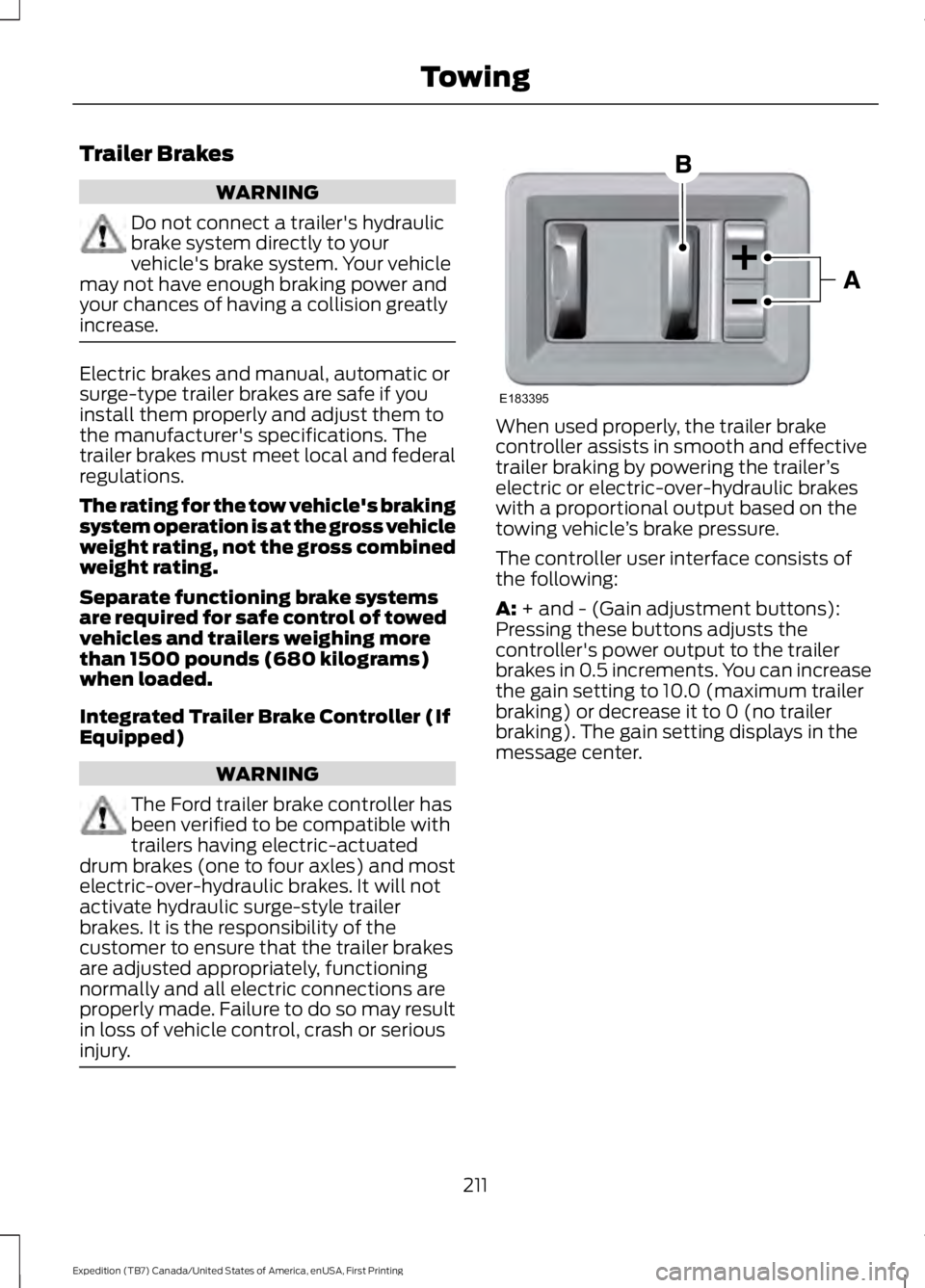
The controller user interface consists ofthe following:
A: + and - (Gain adjustment buttons):Pressing these buttons adjusts thecontroller's power output to the trailerbrakes in 0.5 increments. You can increasethe gain setting to 10.0 (maximum trailerbraking) or decrease it to 0 (no trailerbraking). The gain setting displays in themessage center.
211
Expedition (TB7) Canada/United States of America, enUSA, First Printing
TowingE183395
Page 216 of 421
4. Use the gain adjustment (+ and -)buttons to increase or decrease thegain setting to the desired startingpoint. A gain setting of 6.0 is a goodstarting point for heavier loads.
5. In a traffic-free environment, tow thetrailer on a dry, level surface at a speedof 20-25 mph (30-40 km/h) andsqueeze the manual control levercompletely.
6. If the trailer wheels lock up, indicatedby squealing tires, reduce the gainsetting. If the trailer wheels turn freely,increase the gain setting. Repeat Steps5 and 6 until the gain setting is at apoint just below trailer wheel lock-up.If towing a heavier trailer, trailer wheellock-up may not be attainable evenwith the maximum gain setting of 10.
Explanation of Information DisplayWarning Messages
Note:An authorized dealer can diagnosethe trailer brake controller to determineexactly which trailer fault has occurred.However, your Ford warranty does not coverthis diagnosis if the fault is with the trailer.
A message indicating a trailer brakemodule fault may display in response tofaults sensed by the trailer brake controller,accompanied by a single tone. If thismessage appears, contact an authorizeddealer as soon as possible for diagnosisand repair. The controller may stillfunction, but performance may bedegraded.
A message indicating a trailer wiring faultmay display when there is a short circuiton the electric brake output wire. If thismessage displays, accompanied by asingle tone, with no trailer connected, theproblem is with your vehicle wiringbetween the trailer brake controller andthe 7-pin connector at the bumper. If themessage only displays with a trailerconnected, the problem is with the trailer
wiring. Consult your trailer dealer forassistance. This can be a short to ground(such as a chaffed wire), short to voltage(such as a pulled pin on trailer emergencybreakaway battery) or the trailer brakesmay be drawing too much current.
Points to Remember
Note:Do not attempt removal of the trailerbrake controller without consulting theWorkshop Manual. Damage to the unit mayresult.
•Adjust gain setting before using thetrailer brake controller for the first time.
•Adjust gain setting, using the procedureabove, whenever road, weather andtrailer or vehicle loading conditionschange from when the gain was initiallyset.
•Only use the manual control lever forproper adjustment of the gain duringtrailer setup. Misuse, such asapplication during trailer sway, couldcause instability of trailer or towvehicle.
•Avoid towing in adverse weatherconditions. The trailer brake controllerdoes not provide anti-lock control ofthe trailer wheels. Trailer wheels canlock up on slippery surfaces, resultingin reduced stability of trailer and towvehicle.
•The trailer brake controller is equippedwith a feature that reduces output atvehicle speeds below 11 mph (18 km/h)so trailer and vehicle braking is not jerkyor harsh. This feature is only availablewhen applying the brakes using yourvehicle's brake pedal, not thecontroller.
•The controller interacts with the brakecontrol system and powertrain controlsystem of your vehicle to provide thebest performance on different roadconditions.
213
Expedition (TB7) Canada/United States of America, enUSA, First Printing
Towing
Page 227 of 421
Canadian roadside coverage and benefitsmay differ from the U.S. coverage. If yourequire more information, please refer tothe coverage section of your warrantyguide, call us in Canada at1-800-665-2006, or visit our website atwww.ford.ca.
Sykes Assistance Services Corporationadministers the Roadside Assistanceprogram. You must receive coveredservices in Canada or the continentalUnited States. Coverage extends tovehicles that use public, non-seasonal,annually traveled roadways. RoadsideAssistance coverage does not extend tovehicles involved in cross-country driving,logging, autocross and any other form ofoff-road use. Well maintained roads andsurfaces help ensure safe travel for thesupplier, and allow their representativesto perform service as per the standardoperating procedures.
In Remote Locations
If our supplier cannot take your vehicle byroad to the nearest authorized dealership,transportation by rail or water may benecessary. The program covers a tow tothe dock or rail terminal and also to thedealership at the end of the trip.
For rail or water transportation, however,contact your authorized dealer to confirmif you are eligible for additional coveragebefore you authorize or pay for the service.
Call Ford Roadside Assistance at1-800-665-2006 for additionalinformation.
HAZARD WARNING FLASHERS
Note:If used when the vehicle is notrunning, the battery will lose charge. Theremay be insufficient power to restart yourvehicle.
The hazard warning button islocated on the instrument panel.Use it when your vehicle iscreating a safety hazard for othermotorists.
•Press the button to turn on the hazardwarning function, and the front andrear direction indicators will flash.
•Press the button again to turn themoff.
FUEL SHUTOFF
WARNING
Failure to inspect and, if necessary,repair fuel leaks after a collision mayincrease the risk of fire and seriousinjury. Ford Motor Company recommendsthat the fuel system be inspected by anauthorized dealer after any collision.
In the event of a moderate to severecollision, this vehicle includes a fuel pumpshutoff feature that stops the flow of fuelto the engine. Not every impact will causea shutoff.
Should your vehicle shut off after acollision, you may restart your vehicle. Forvehicles equipped with a key system:
1. Switch off the ignition.
2. Switch on the ignition.
3. Repeat Steps 1 and 2 to re-enable thefuel pump.
For vehicles equipped with a push buttonstart system:
1. Press the START/STOP button toswitch off the ignition.
2. Press the brake pedal and press theSTART/STOP button to switch on theignition.
224
Expedition (TB7) Canada/United States of America, enUSA, First Printing
Roadside Emergencies
Page 317 of 421
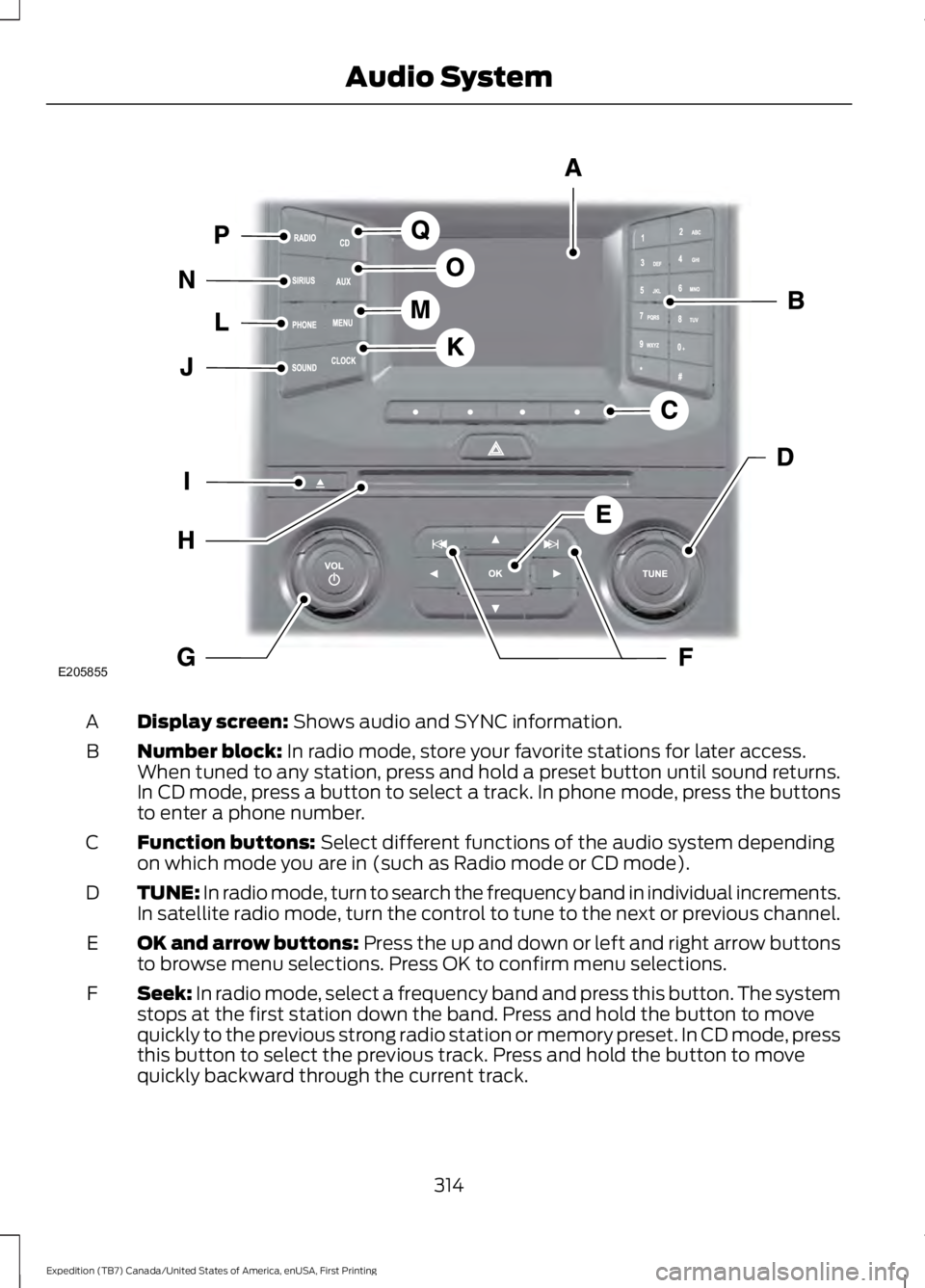
Display screen: Shows audio and SYNC information.A
Number block: In radio mode, store your favorite stations for later access.When tuned to any station, press and hold a preset button until sound returns.In CD mode, press a button to select a track. In phone mode, press the buttonsto enter a phone number.
B
Function buttons: Select different functions of the audio system dependingon which mode you are in (such as Radio mode or CD mode).C
TUNE: In radio mode, turn to search the frequency band in individual increments.In satellite radio mode, turn the control to tune to the next or previous channel.D
OK and arrow buttons: Press the up and down or left and right arrow buttonsto browse menu selections. Press OK to confirm menu selections.E
Seek: In radio mode, select a frequency band and press this button. The systemstops at the first station down the band. Press and hold the button to movequickly to the previous strong radio station or memory preset. In CD mode, pressthis button to select the previous track. Press and hold the button to movequickly backward through the current track.
F
314
Expedition (TB7) Canada/United States of America, enUSA, First Printing
Audio SystemE205855
Page 318 of 421
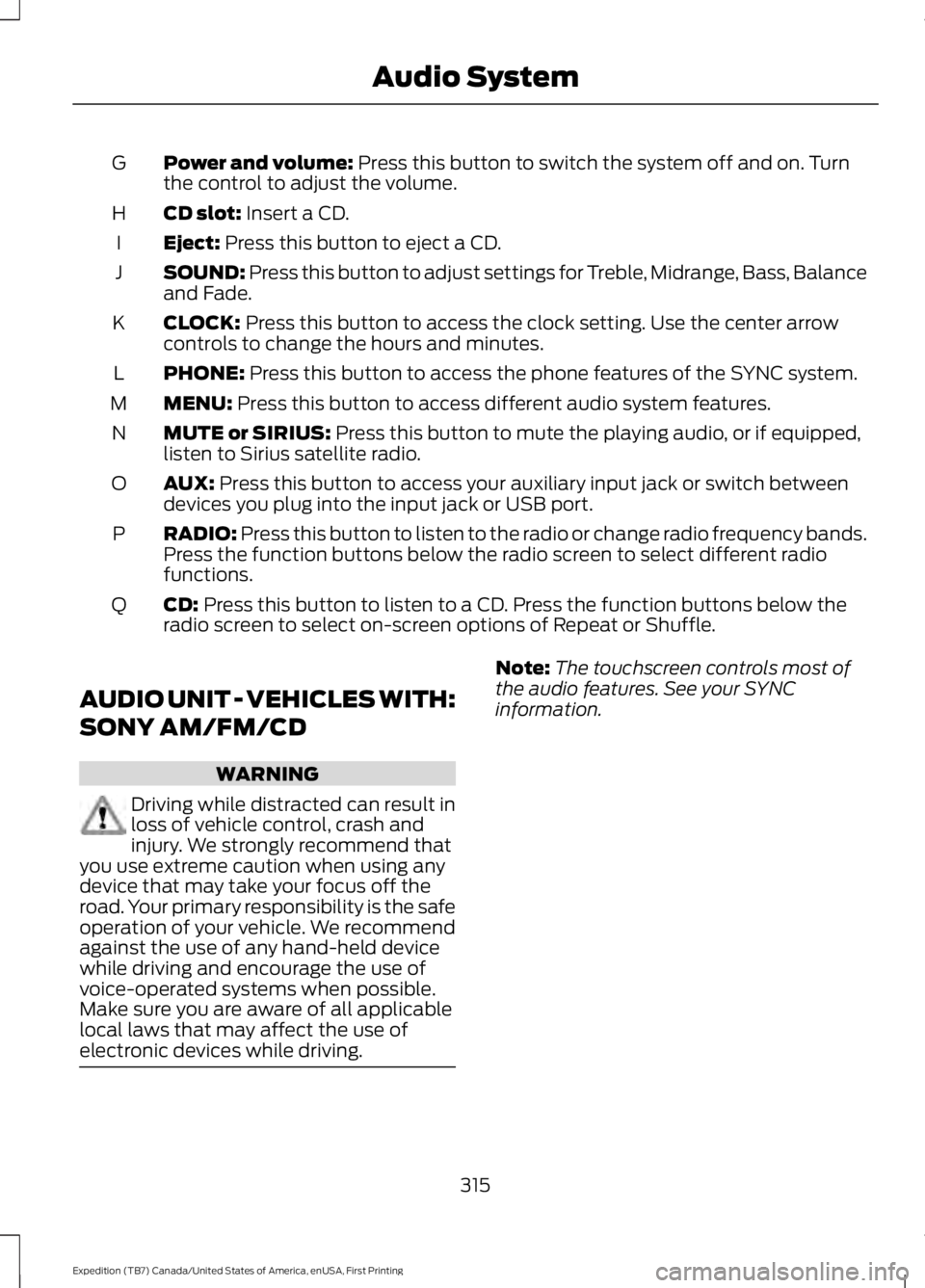
Power and volume: Press this button to switch the system off and on. Turnthe control to adjust the volume.G
CD slot: Insert a CD.H
Eject: Press this button to eject a CD.I
SOUND: Press this button to adjust settings for Treble, Midrange, Bass, Balanceand Fade.J
CLOCK: Press this button to access the clock setting. Use the center arrowcontrols to change the hours and minutes.K
PHONE: Press this button to access the phone features of the SYNC system.L
MENU: Press this button to access different audio system features.M
MUTE or SIRIUS: Press this button to mute the playing audio, or if equipped,listen to Sirius satellite radio.N
AUX: Press this button to access your auxiliary input jack or switch betweendevices you plug into the input jack or USB port.O
RADIO: Press this button to listen to the radio or change radio frequency bands.Press the function buttons below the radio screen to select different radiofunctions.
P
CD: Press this button to listen to a CD. Press the function buttons below theradio screen to select on-screen options of Repeat or Shuffle.Q
AUDIO UNIT - VEHICLES WITH:
SONY AM/FM/CD
WARNING
Driving while distracted can result inloss of vehicle control, crash andinjury. We strongly recommend thatyou use extreme caution when using anydevice that may take your focus off theroad. Your primary responsibility is the safeoperation of your vehicle. We recommendagainst the use of any hand-held devicewhile driving and encourage the use ofvoice-operated systems when possible.Make sure you are aware of all applicablelocal laws that may affect the use ofelectronic devices while driving.
Note:The touchscreen controls most ofthe audio features. See your SYNCinformation.
315
Expedition (TB7) Canada/United States of America, enUSA, First Printing
Audio System
Page 334 of 421
Making a Call
Press the voice button and when prompted say:
Action and DescriptionVoice Command
This command is not available until your cell phone informa-tion is completely downloaded using Bluetooth.Call ___
Use to enter a phone number digit by digit.Dial
When the system confirms the number say one of the following commands:
To confirm the number and initiate the call.Dial
To erase the last spoken digit. You can also press the leftarrow button.delete
To erase all spoken digits. You can also press and hold theleft arrow button.clear
To end a call, press and hold the red phone button.
Receiving Calls
When receiving a call, you can:
•Answer the call by pressing the phonebutton.
•Reject the call by pressing and holdingthe red phone button.
•Ignore the call by doing nothing.
Phone Options during an ActiveCall
During an active call, you have more menufeatures that become available, forexample putting a call on hold or joiningcalls. Use the arrow buttons to scrollthrough the menu options.
Press the MENU button during an active call, then scroll to:
Action and DescriptionMessage
Press the OK button.Active call
Select one of the following:
Press the OK button to mute the call.Mute Call
Press the OK button to switch a call from an active hands-free envir-onment to your cell phone for a more private conversation.Privacy
Press the OK button to put an active call on hold.Hold
Join two separate calls. SYNC supports a maximum of three callerson a multiparty call or conference call.Join calls
331
Expedition (TB7) Canada/United States of America, enUSA, First Printing
SYNC™ (If Equipped)
Page 340 of 421
Action and DescriptionMessage
Press the OK button then select one of the following and press theOK button again to confirm.
Message Notification On
Message Notification Off
Modify the contents of your phone book (such as add, delete, down-load). Press OK to select and scroll between:Modify Phone-book
Press the OK button to add more contacts from yourphonebook. Push the desired contact(s) on your cellphone. See your cell phone's manual on how to pushcontacts.
Add contacts
Press OK to delete the current phone book and callhistory. When Delete Phonebook appears, press OKto confirm. SYNC takes you back to the PhoneSettings menu.
Delete Phone-book
Press OK to select and press OK again when ConfirmDownload? appears.DownloadPhonebook
Automatically download your phone book each time your phoneconnects to SYNC. Press OK to select.Auto-download
When this message appears, press OK to have yourphonebook automatically downloaded each time.Auto On?
Select Off to NOT download your phonebook everytime your phone connects to SYNC. Your phonebook,call history and text messages can only be accessedwhen your specific phone is connected to SYNC. *
When enabled, SYNC speaks the contact name that is displayed onthe screen during phonebook browsing.Speak Names
Exit the current menu.Return
* Downloading times are cell phone-dependent and quantity-dependent. When AutoDownload is on, it automatically deletes any changes, additions or deletions saved sinceyour last download.
System Settings
This menu provides access to yourBluetooth Devices and Advanced menufeatures. Use the arrow buttons to scrollthrough the menu options.
Bluetooth Devices
The Bluetooth Devices menu allows youto add, connect and delete devices, set acell phone as primary as well as turn yourBluetooth feature on and off.
337
Expedition (TB7) Canada/United States of America, enUSA, First Printing
SYNC™ (If Equipped)
Page 370 of 421
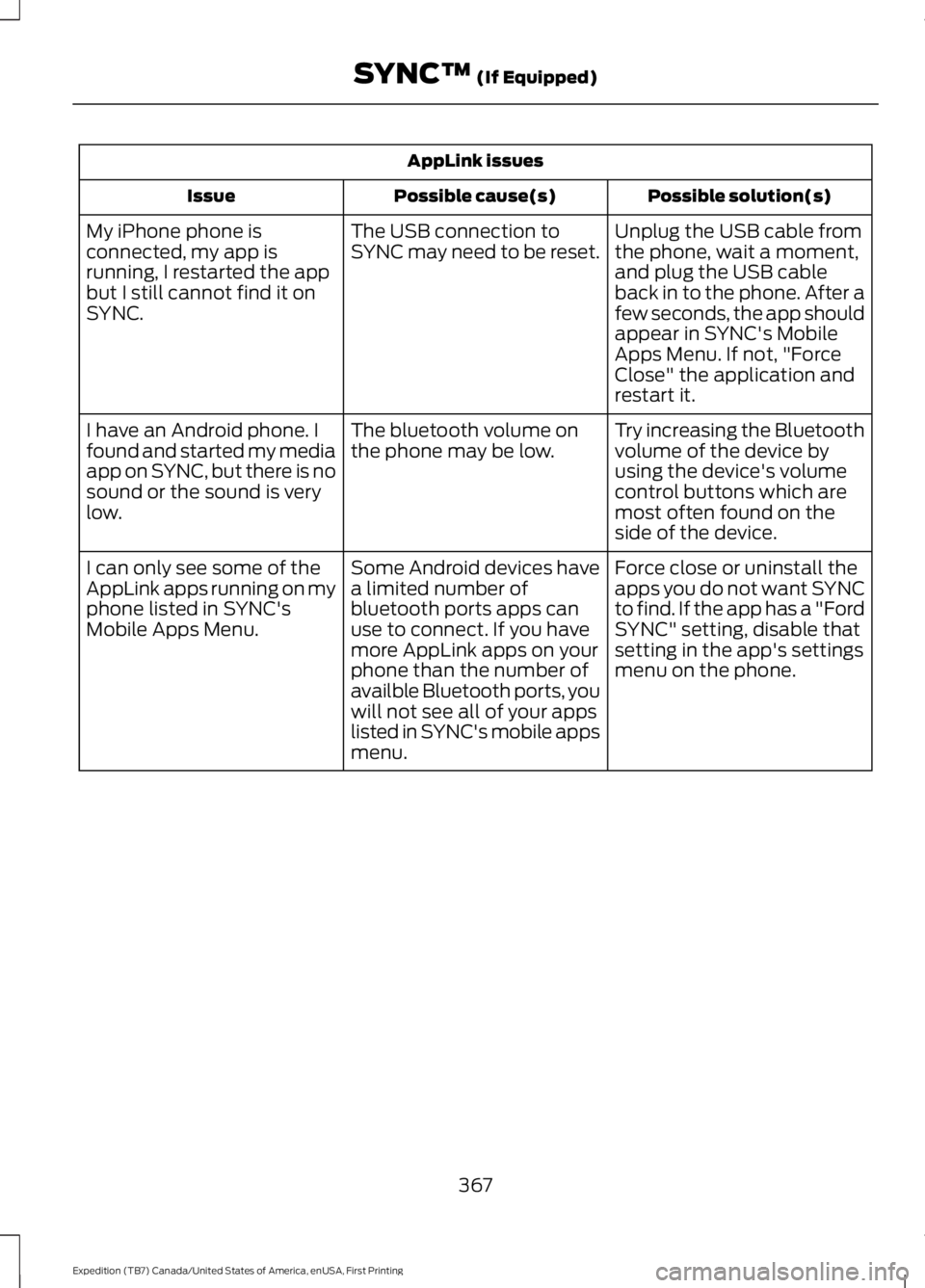
AppLink issues
Possible solution(s)Possible cause(s)Issue
Unplug the USB cable fromthe phone, wait a moment,and plug the USB cableback in to the phone. After afew seconds, the app shouldappear in SYNC's MobileApps Menu. If not, "ForceClose" the application andrestart it.
The USB connection toSYNC may need to be reset.My iPhone phone isconnected, my app isrunning, I restarted the appbut I still cannot find it onSYNC.
Try increasing the Bluetoothvolume of the device byusing the device's volumecontrol buttons which aremost often found on theside of the device.
The bluetooth volume onthe phone may be low.I have an Android phone. Ifound and started my mediaapp on SYNC, but there is nosound or the sound is verylow.
Force close or uninstall theapps you do not want SYNCto find. If the app has a "FordSYNC" setting, disable thatsetting in the app's settingsmenu on the phone.
Some Android devices havea limited number ofbluetooth ports apps canuse to connect. If you havemore AppLink apps on yourphone than the number ofavailble Bluetooth ports, youwill not see all of your appslisted in SYNC's mobile appsmenu.
I can only see some of theAppLink apps running on myphone listed in SYNC'sMobile Apps Menu.
367
Expedition (TB7) Canada/United States of America, enUSA, First Printing
SYNC™ (If Equipped)