light FORD EXPEDITION EL 2017 Owners Manual
[x] Cancel search | Manufacturer: FORD, Model Year: 2017, Model line: EXPEDITION EL, Model: FORD EXPEDITION EL 2017Pages: 500, PDF Size: 6.13 MB
Page 394 of 500
HD Radio technology is the digitalevolution of analog AM/FM radio. Yoursystem has a special receiver that allowsit to receive digital broadcasts (whereavailable) in addition to the analogbroadcasts, it already receives. Digitalbroadcasts provide a better sound qualitythan analog broadcasts with free,crystal-clear audio and no static ordistortion. For more information, and aguide to available stations andprogramming, please visit:
Website
www.hdradio.com
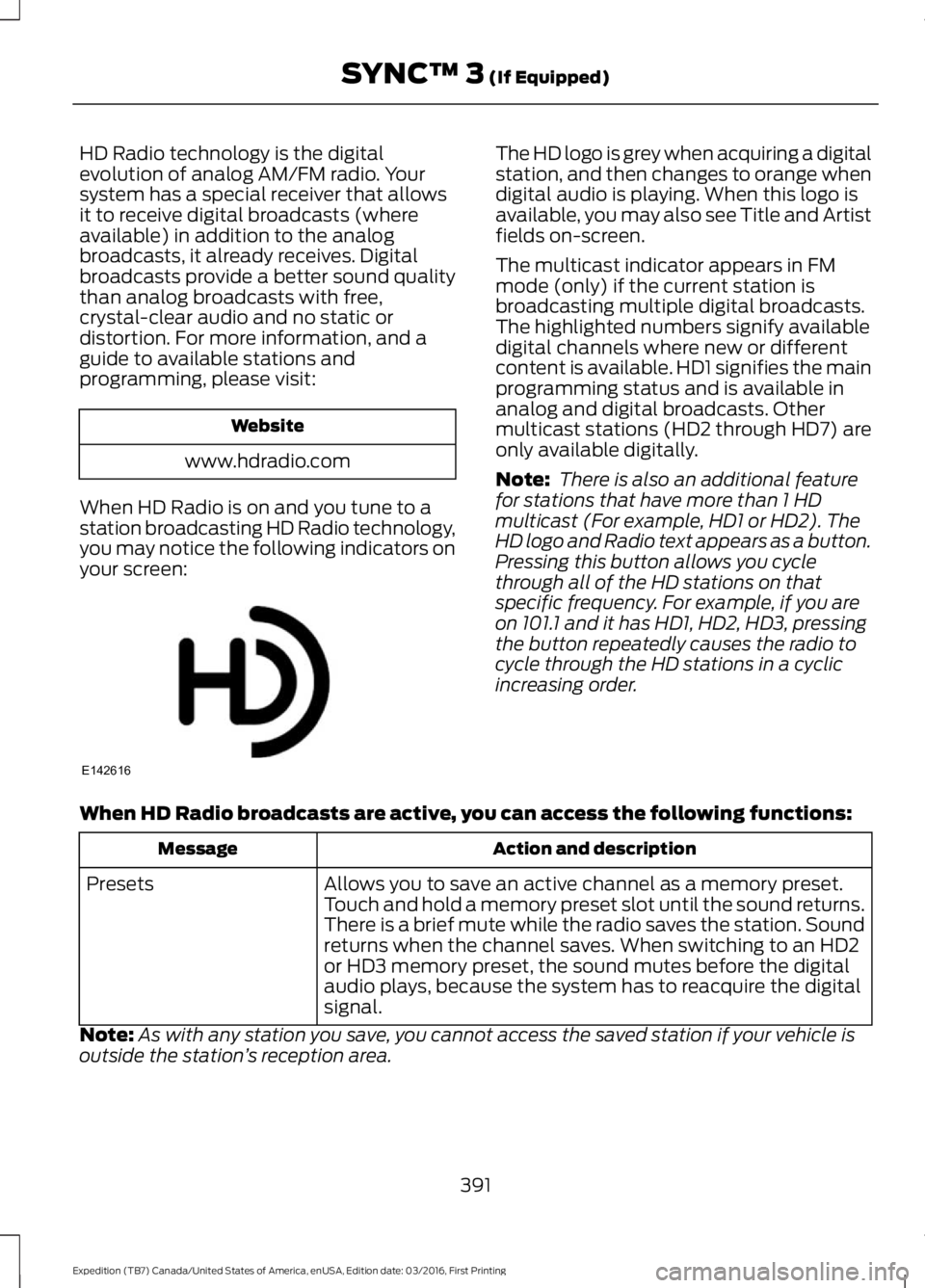
When HD Radio is on and you tune to astation broadcasting HD Radio technology,you may notice the following indicators onyour screen:
The HD logo is grey when acquiring a digitalstation, and then changes to orange whendigital audio is playing. When this logo isavailable, you may also see Title and Artistfields on-screen.
The multicast indicator appears in FMmode (only) if the current station isbroadcasting multiple digital broadcasts.The highlighted numbers signify availabledigital channels where new or differentcontent is available. HD1 signifies the mainprogramming status and is available inanalog and digital broadcasts. Othermulticast stations (HD2 through HD7) areonly available digitally.
Note: There is also an additional featurefor stations that have more than 1 HDmulticast (For example, HD1 or HD2). TheHD logo and Radio text appears as a button.Pressing this button allows you cyclethrough all of the HD stations on thatspecific frequency. For example, if you areon 101.1 and it has HD1, HD2, HD3, pressingthe button repeatedly causes the radio tocycle through the HD stations in a cyclicincreasing order.
When HD Radio broadcasts are active, you can access the following functions:
Action and descriptionMessage
Allows you to save an active channel as a memory preset.Touch and hold a memory preset slot until the sound returns.There is a brief mute while the radio saves the station. Soundreturns when the channel saves. When switching to an HD2or HD3 memory preset, the sound mutes before the digitalaudio plays, because the system has to reacquire the digitalsignal.
Presets
Note:As with any station you save, you cannot access the saved station if your vehicle isoutside the station’s reception area.
391
Expedition (TB7) Canada/United States of America, enUSA, Edition date: 03/2016, First Printing
SYNC™ 3 (If Equipped)E142616
Page 395 of 500
HD Radio Reception and Station Troubleshooting
Potential reception issues
If you are listening to a multicast station and you are on thefringe of the reception area, the station may mute due toweak signal strength.
Reception area
If you are listening to HD1, the system changes back to theanalog broadcast until the digital broadcast is available again.However, if you are listening to any of the possible HD2-HD7multicast channels, the station mutes and stays muted unlessit is able to connect to the digital signal again.
When the system first receives a station (aside from HD2-HD7 multicast stations), it first plays the station in the analogversion. Once the receiver verifies the station is an HD Radiostation, it shifts to the digital version. Depending on the stationquality, you may hear a slight sound change when the stationchanges from analog to digital. Blending is the shift fromanalog to digital sound or digital back to analog sound.
Station blending
In order to provide the best possibleexperience, use the contact form to reportany station issues found while listening toa station broadcasting with HD Radiotechnology. Independent entities own andoperate each station. These stations areresponsible for ensuring all audio streamsand data fields are accurate.
Potential station issues
ActionCauseIssues
No action required. This is abroadcast issue.This is poor time alignment bythe radio broadcaster.Echo, stutter, skip orrepeat in audio.Increase or decrease inaudio volume.
No action required. The recep-tion issue may clear up as youcontinue to drive.
The radio is shifting betweenanalog and digital audio.Sound fading orblending in and out.
No action required. This isnormal behavior. Wait until theaudio is available.
The digital multicast is notavailable until the HD Radiobroadcast is decoded. Oncedecoded, the audio is available.
There is an audio mutedelay when selectingHD2 or HD3, multicastpreset or Direct Tune.
392
Expedition (TB7) Canada/United States of America, enUSA, Edition date: 03/2016, First Printing
SYNC™ 3 (If Equipped)
Page 397 of 500
Bluetooth Stereo or USB
Bluetooth Stereo and USB allow you to
access media that you store on yourBluetooth device or USB device such asmusic, audio books or podcasts.
The following buttons are available for Bluetooth and USB:
FunctionButton
Pressing the repeat button toggles the repeat setting throughthree modes: repeat off (button not highlighted), repeat all(button highlighted) and repeat track (button highlighted witha small number one).
Repeat
Play the tracks in random order.Shuffle
You can use the forward, reverse, pause orplay buttons to control the audio playback.
To get more information about thecurrently playing track, press the cover artor Info button.
For some devices, SYNC 3 is able toprovide 30-second skip buttons when youlisten to audio books or podcasts. Thesebuttons allow you to skip forward orbackward within a track.
While playing audio from a USB device youcan look for certain music by selecting thefollowing:
FunctionButton
If available, displays the list of tracks in theNow Playing playlist.Browse
This option, which is available underbrowse, allows you to play all tracks or tofilter the available media into one of thebelow categories.
New Search
Play All
Playlists
Artists
Albums
Songs
Genres
Podcasts
Audio books
394
Expedition (TB7) Canada/United States of America, enUSA, Edition date: 03/2016, First Printing
SYNC™ 3 (If Equipped)
Page 400 of 500
Note: The heated steering wheel may remain on after remote starting thevehicle, based on your remote start settings. The heated steering wheel mayalso turn on when you start your vehicle, if it was on when you switched yourvehicle off.
Note: For steering wheels with wood trim, the heating feature will not heat thewheel between the 10 and 2 o'clock positions.
Defrost: A pop up appears on the screen to display the defrost options.C
MAX Defrost: Touch the button to maximize defrosting. Air flows through thewindshield vents, the fan automatically adjusts to the highest speed and thedriver and passenger temperatures are set to HI. You can use this setting todefog or clear a thin covering of ice from the windshield. The heated rear windowalso automatically turns on when you select MAX Defrost.
Defrost: Distributes air through the windshield defroster vents and demistervents.
Heated rear window: Turns the heated rear window on and off. See HeatedWindows and Mirrors (page 120).
AUTO: Touch the button to switch on automatic operation. Select the desiredtemperature using the temperature control. The system adjusts fan speed, airdistribution, air conditioning operation, and selects outside air or recirculatedair to heat or cool the vehicle in order to maintain the desired temperature.
D
Power: Touch the button to switch the system on and off. Switching off theclimate control system prevents outside air from entering the vehicle.E
DUAL: This button lights up when the passenger controls are active. To switchthe off and link the passenger temperature to the driver temperature, touch theDUAL button.
F
Note: the passenger side temperature and the DUAL indication automaticallyturn on when you or your passenger adjust the passenger temperature.
Passenger temperature: Touch up or down to adjust the temperature.G
Fan speed: Touch up or down to increase or decrease the volume of air thatcirculates in your vehicle.H
Note: You cannot adjust the fan speed when the system is set to AUTO or MAXA/C.
Rear: A pop up appears on the screen to display the rear control options.I
Touch the power icon to switch the rear climate control functions off and on.
Touch Rear Climate to allow the rear seat passengers to adjust the rear climatesettings. Touch it again to prevent the rear seat passengers from adjusting thesettings. Rear Control automatically turns off when you use the touchscreento adjust the rear climate settings.
Touch + or – to adjust the temperature.
397
Expedition (TB7) Canada/United States of America, enUSA, Edition date: 03/2016, First Printing
SYNC™ 3 (If Equipped)
Page 408 of 500
You can adjust the view in presetincrements. You can also pinch to zoom inor out of the map.
The information bar tells you the namesof streets, cities or landmarks as you hoverover them with the crosshair curser.
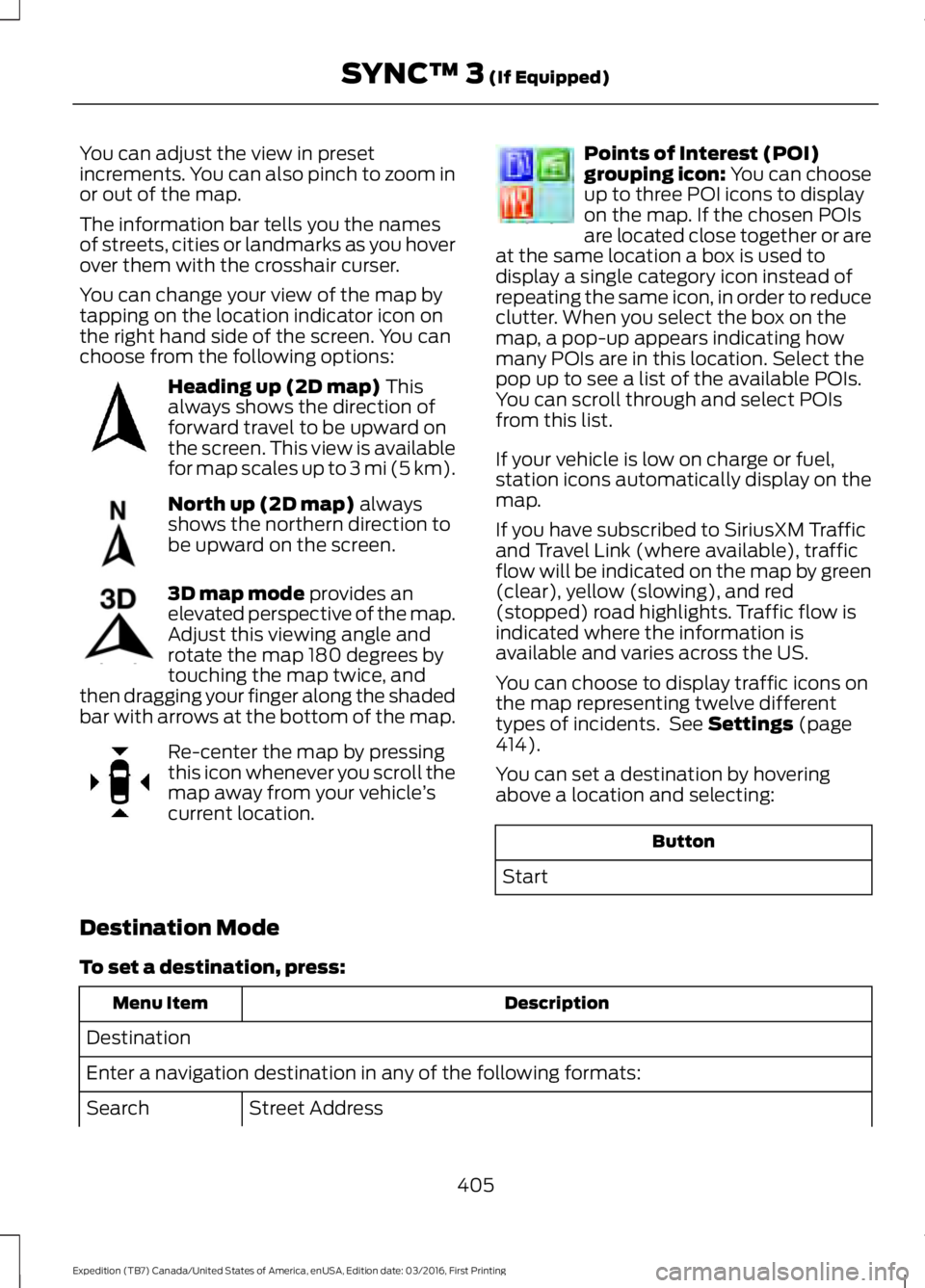
You can change your view of the map bytapping on the location indicator icon onthe right hand side of the screen. You canchoose from the following options:
Heading up (2D map) Thisalways shows the direction offorward travel to be upward onthe screen. This view is availablefor map scales up to 3 mi (5 km).
North up (2D map) alwaysshows the northern direction tobe upward on the screen.
3D map mode provides anelevated perspective of the map.Adjust this viewing angle androtate the map 180 degrees bytouching the map twice, andthen dragging your finger along the shadedbar with arrows at the bottom of the map.
Re-center the map by pressingthis icon whenever you scroll themap away from your vehicle’scurrent location.
Points of Interest (POI)grouping icon: You can chooseup to three POI icons to displayon the map. If the chosen POIsare located close together or areat the same location a box is used todisplay a single category icon instead ofrepeating the same icon, in order to reduceclutter. When you select the box on themap, a pop-up appears indicating howmany POIs are in this location. Select thepop up to see a list of the available POIs.You can scroll through and select POIsfrom this list.
If your vehicle is low on charge or fuel,station icons automatically display on themap.
If you have subscribed to SiriusXM Trafficand Travel Link (where available), trafficflow will be indicated on the map by green(clear), yellow (slowing), and red(stopped) road highlights. Traffic flow isindicated where the information isavailable and varies across the US.
You can choose to display traffic icons onthe map representing twelve differenttypes of incidents. See Settings (page414).
You can set a destination by hoveringabove a location and selecting:
Button
Start
Destination Mode
To set a destination, press:
DescriptionMenu Item
Destination
Enter a navigation destination in any of the following formats:
Street AddressSearch
405
Expedition (TB7) Canada/United States of America, enUSA, Edition date: 03/2016, First Printing
SYNC™ 3 (If Equipped)E207750 E207749 E207748 E207751 E207754
Page 414 of 500
cityseeker (If Equipped)
Note:cityseeker point of interest (POI)information is limited to approximately 1110cities (1049 in the United States, 36 inCanada and 15 in Mexico).
cityseeker, when available, is a service thatprovides more information about certainpoints of interest such as restaurants,hotels and attractions.
When you have selected a point of interest,the location and information appear, suchas address, phone number and a starrating.
Press More Information to see a photo,a review, a list of services and facilities, theaverage room or meal price and the webaddress. This screen displays the point ofinterest icons.
For restaurants, cityseeker can provideinformation such as star rating, averagecost, review, handicap access, hours ofoperation, and website address.
For hotels, cityseeker can provideinformation such as star rating, pricecategory, review, check-in and checkouttimes, hotel service icons and websiteaddress. Hotel service icons include:
•Restaurant
•Business center
•Handicap facilities
•Laundry
•Refrigerator
•24 hour room service
•Fitness center
•Internet access
•Pool
•Wi-Fi
Attractions include nearby landmarks,amusement parks, historic buildings andmore. cityseeker can provide informationsuch as star rating, reviews, hour ofoperation and admission price.
SiriusXM Traffic and Travel Link
SiriusXM Traffic and Travel Link is availableon vehicles equipped with navigation andonly in select markets. You must activateand subscribe to receive SiriusXM Trafficand Travel Link information. It helps youlocate the best gas prices, find movielistings, get current traffic alerts, view theweather map, get accurate ski conditionsand see current sports scores. See Apps(page 412).
The system calculates a reasonableefficient route based on available speedlimits, traffic, and road conditions. You mayknow a local short cut that is more efficientat a given time than the route provided bySYNC 3, but you should expect a slightdifference in minutes or miles with theSYNC 3 route.
Navigation Map Updates
Annual navigation map updates areavailable for purchase through yourdealership, by calling 1-866-462-8837 inthe United States and Canada or01-800-557-5539 in Mexico. You can alsovisit:
Website
www.navigation.com/sync
You need to specify the make and modelof your vehicle to determine if there is anupdate available.
411
Expedition (TB7) Canada/United States of America, enUSA, Edition date: 03/2016, First Printing
SYNC™ 3 (If Equipped)E225487
Page 428 of 500
Ambient Lighting (If Equipped)
Tap a color once to active ambient lighting.This sets the color to the highest intensity.
You can drag the colors up and down toincrease or decrease the intensity.
To switch ambient lighting off, press theactive color once or drag the active colorall the way down to zero intensity.
Vehicle
Note:You vehicle may not have all of thesefeatures.
You can select the following features toupdate their settings.
Door Keypad Code
Select this button to add or erase apersonal door keypad code. To add orerase a personal code, you first need toenter the five-digit factory set code. Youcan find this code on the owner's walletcard in the glove box or from yourauthorized dealer.
Camera Settings
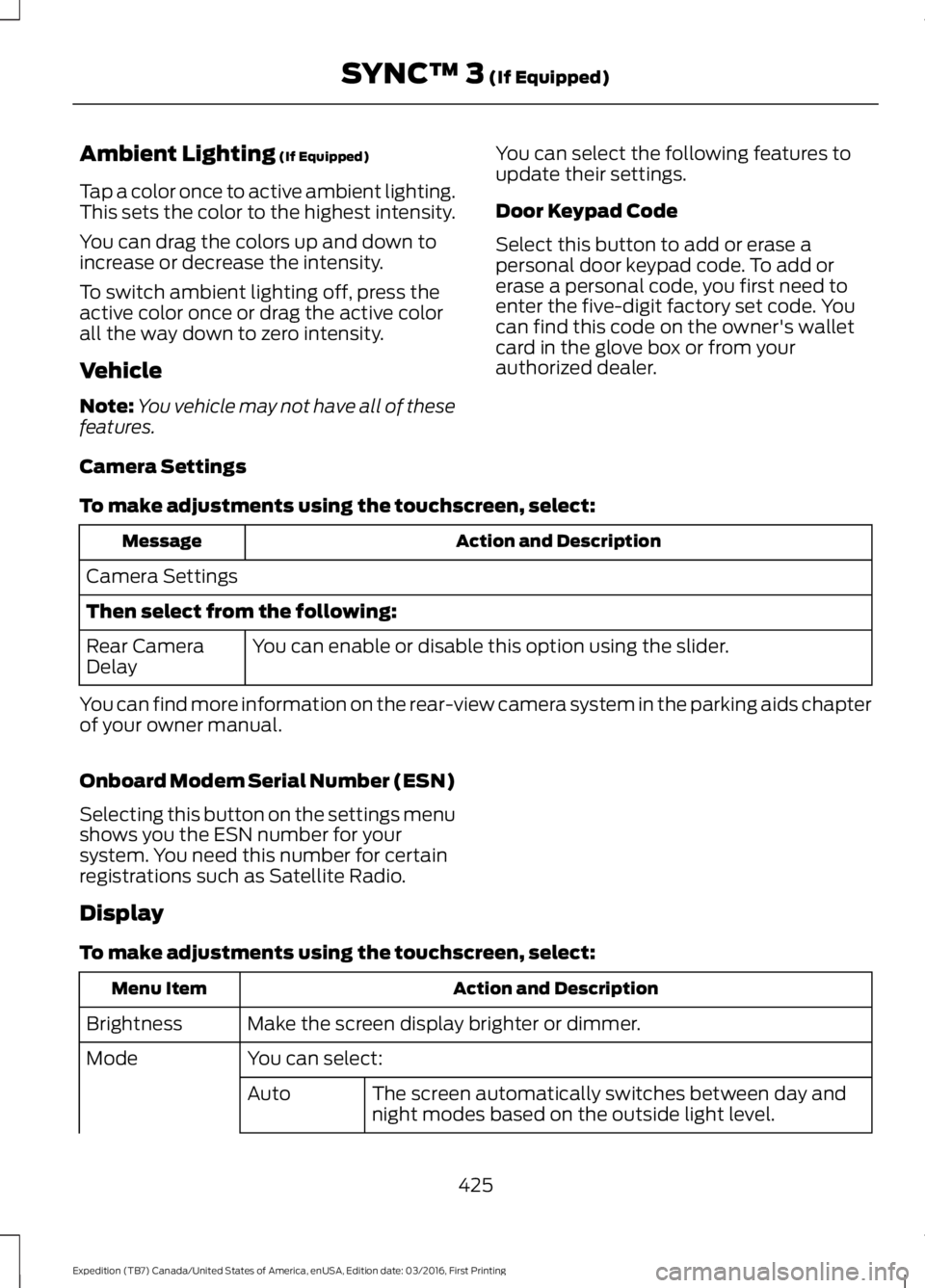
To make adjustments using the touchscreen, select:
Action and DescriptionMessage
Camera Settings
Then select from the following:
You can enable or disable this option using the slider.Rear CameraDelay
You can find more information on the rear-view camera system in the parking aids chapterof your owner manual.
Onboard Modem Serial Number (ESN)
Selecting this button on the settings menushows you the ESN number for yoursystem. You need this number for certainregistrations such as Satellite Radio.
Display
To make adjustments using the touchscreen, select:
Action and DescriptionMenu Item
Make the screen display brighter or dimmer.Brightness
You can select:Mode
The screen automatically switches between day andnight modes based on the outside light level.Auto
425
Expedition (TB7) Canada/United States of America, enUSA, Edition date: 03/2016, First Printing
SYNC™ 3 (If Equipped)
Page 429 of 500
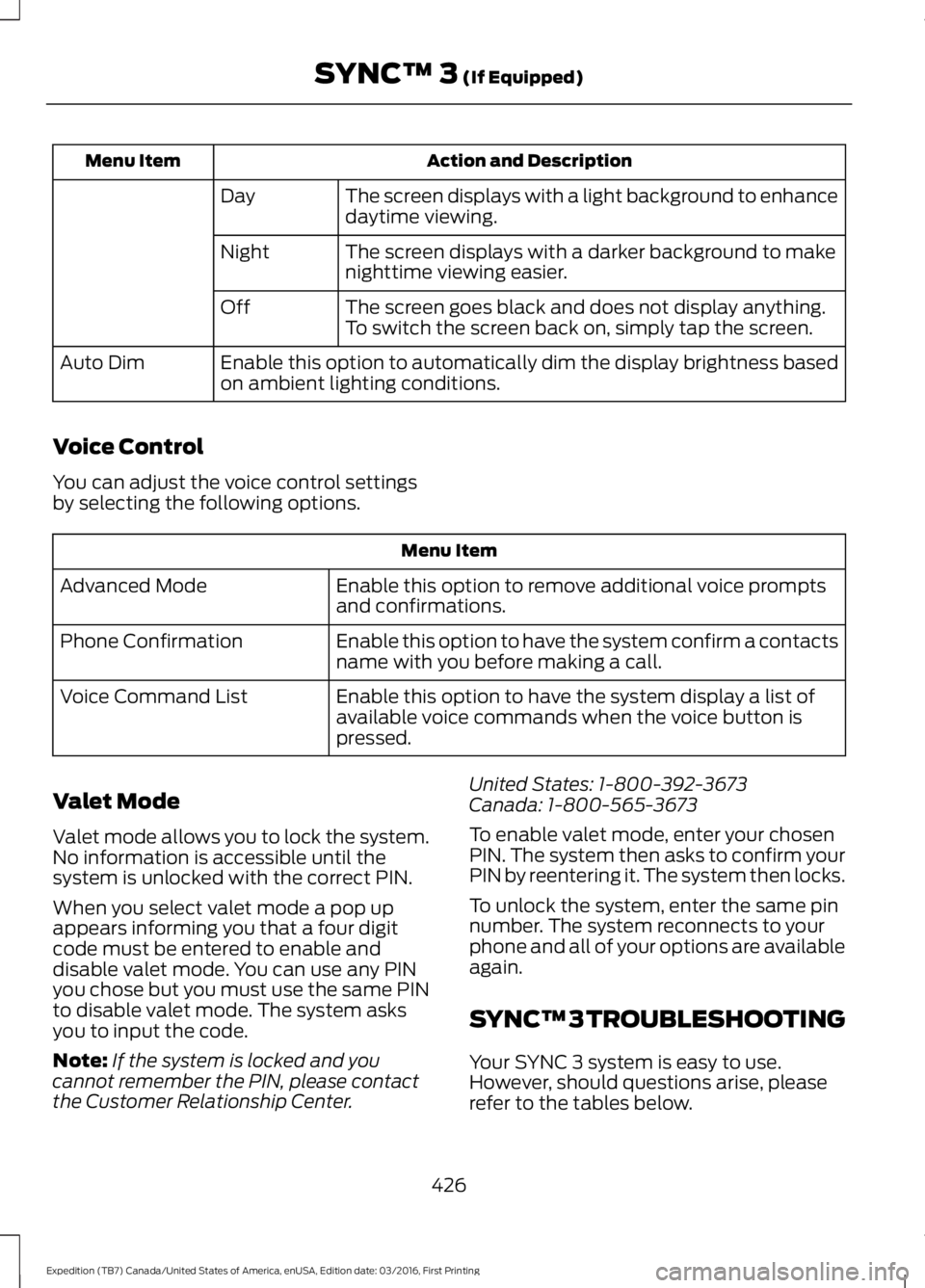
Action and DescriptionMenu Item
The screen displays with a light background to enhancedaytime viewing.Day
The screen displays with a darker background to makenighttime viewing easier.Night
The screen goes black and does not display anything.To switch the screen back on, simply tap the screen.Off
Enable this option to automatically dim the display brightness basedon ambient lighting conditions.Auto Dim
Voice Control
You can adjust the voice control settingsby selecting the following options.
Menu Item
Enable this option to remove additional voice promptsand confirmations.Advanced Mode
Enable this option to have the system confirm a contactsname with you before making a call.Phone Confirmation
Enable this option to have the system display a list ofavailable voice commands when the voice button ispressed.
Voice Command List
Valet Mode
Valet mode allows you to lock the system.No information is accessible until thesystem is unlocked with the correct PIN.
When you select valet mode a pop upappears informing you that a four digitcode must be entered to enable anddisable valet mode. You can use any PINyou chose but you must use the same PINto disable valet mode. The system asksyou to input the code.
Note:If the system is locked and youcannot remember the PIN, please contactthe Customer Relationship Center.
United States: 1-800-392-3673Canada: 1-800-565-3673
To enable valet mode, enter your chosenPIN. The system then asks to confirm yourPIN by reentering it. The system then locks.
To unlock the system, enter the same pinnumber. The system reconnects to yourphone and all of your options are availableagain.
SYNC™ 3 TROUBLESHOOTING
Your SYNC 3 system is easy to use.However, should questions arise, pleaserefer to the tables below.
426
Expedition (TB7) Canada/United States of America, enUSA, Edition date: 03/2016, First Printing
SYNC™ 3 (If Equipped)
Page 430 of 500
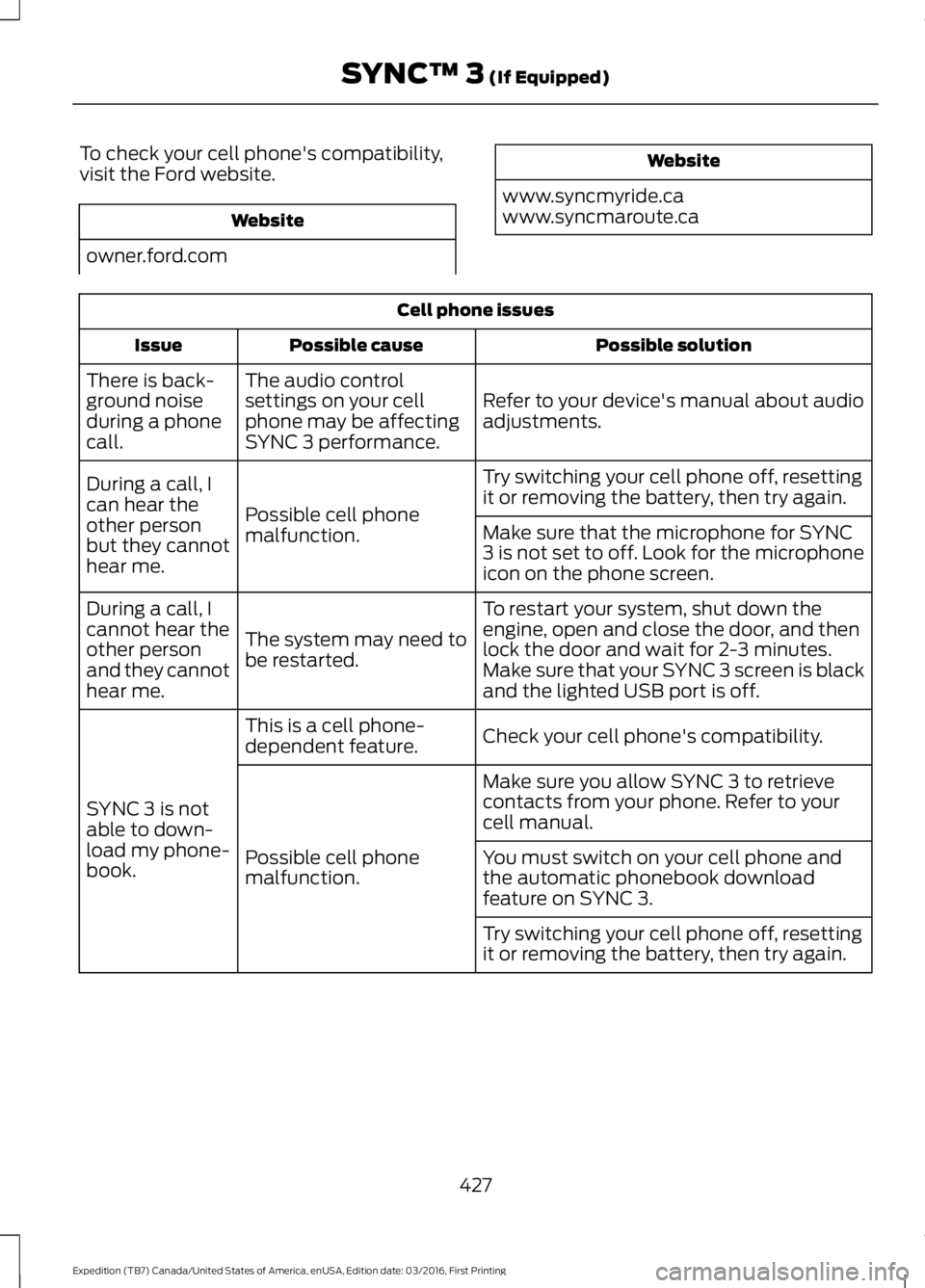
To check your cell phone's compatibility,visit the Ford website.
Website
owner.ford.com
Website
www.syncmyride.cawww.syncmaroute.ca
Cell phone issues
Possible solutionPossible causeIssue
Refer to your device's manual about audioadjustments.
The audio controlsettings on your cellphone may be affectingSYNC 3 performance.
There is back-ground noiseduring a phonecall.
Try switching your cell phone off, resettingit or removing the battery, then try again.Possible cell phonemalfunction.
During a call, Ican hear theother personbut they cannothear me.
Make sure that the microphone for SYNC3 is not set to off. Look for the microphoneicon on the phone screen.
To restart your system, shut down theengine, open and close the door, and thenlock the door and wait for 2-3 minutes.Make sure that your SYNC 3 screen is blackand the lighted USB port is off.
The system may need tobe restarted.
During a call, Icannot hear theother personand they cannothear me.
Check your cell phone's compatibility.This is a cell phone-dependent feature.
SYNC 3 is notable to down-load my phone-book.
Make sure you allow SYNC 3 to retrievecontacts from your phone. Refer to yourcell manual.
Possible cell phonemalfunction.You must switch on your cell phone andthe automatic phonebook downloadfeature on SYNC 3.
Try switching your cell phone off, resettingit or removing the battery, then try again.
427
Expedition (TB7) Canada/United States of America, enUSA, Edition date: 03/2016, First Printing
SYNC™ 3 (If Equipped)
Page 442 of 500
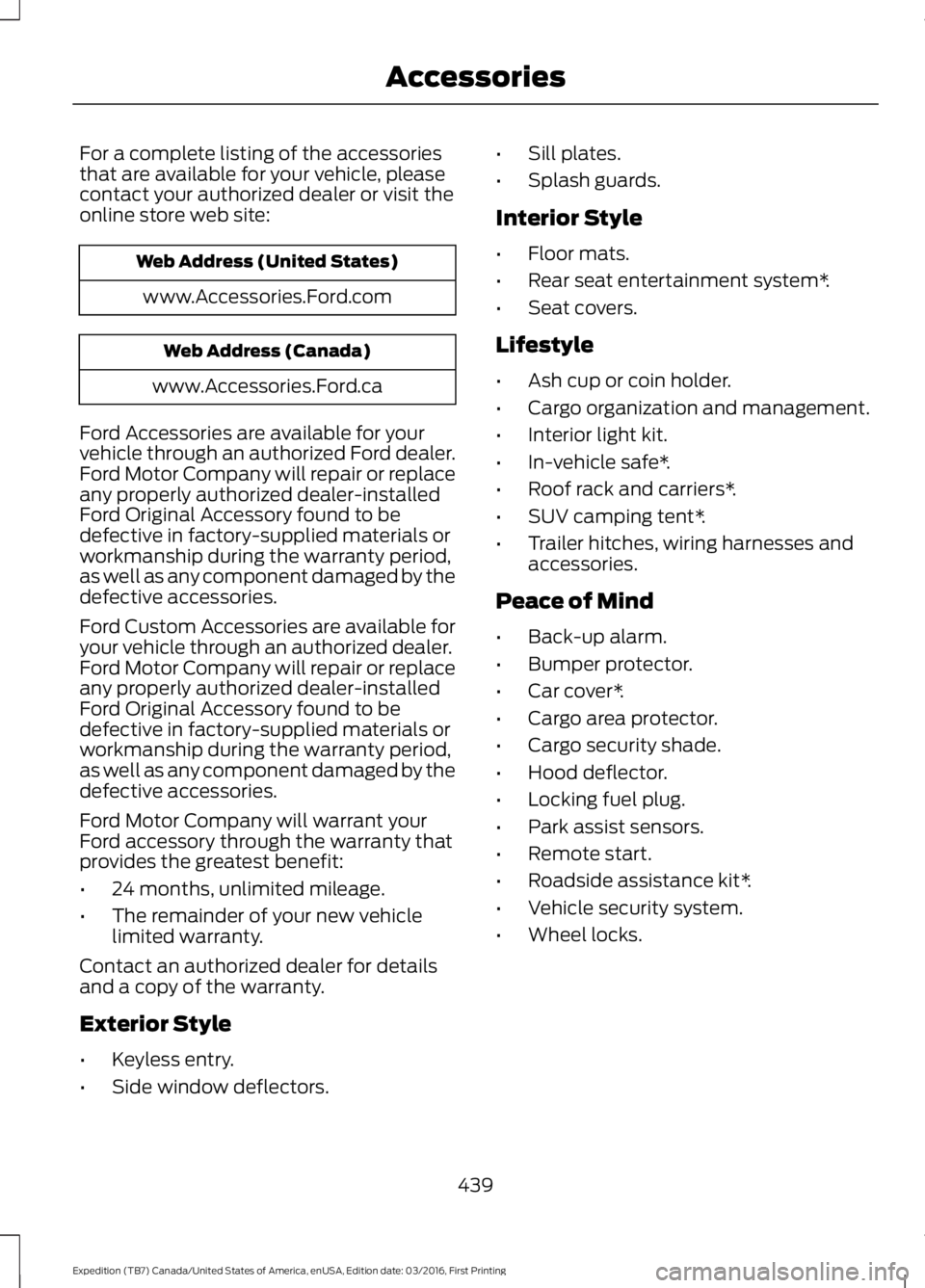
For a complete listing of the accessoriesthat are available for your vehicle, pleasecontact your authorized dealer or visit theonline store web site:
Web Address (United States)
www.Accessories.Ford.com
Web Address (Canada)
www.Accessories.Ford.ca
Ford Accessories are available for yourvehicle through an authorized Ford dealer.Ford Motor Company will repair or replaceany properly authorized dealer-installedFord Original Accessory found to bedefective in factory-supplied materials orworkmanship during the warranty period,as well as any component damaged by thedefective accessories.
Ford Custom Accessories are available foryour vehicle through an authorized dealer.Ford Motor Company will repair or replaceany properly authorized dealer-installedFord Original Accessory found to bedefective in factory-supplied materials orworkmanship during the warranty period,as well as any component damaged by thedefective accessories.
Ford Motor Company will warrant yourFord accessory through the warranty thatprovides the greatest benefit:
•24 months, unlimited mileage.
•The remainder of your new vehiclelimited warranty.
Contact an authorized dealer for detailsand a copy of the warranty.
Exterior Style
•Keyless entry.
•Side window deflectors.
•Sill plates.
•Splash guards.
Interior Style
•Floor mats.
•Rear seat entertainment system*.
•Seat covers.
Lifestyle
•Ash cup or coin holder.
•Cargo organization and management.
•Interior light kit.
•In-vehicle safe*.
•Roof rack and carriers*.
•SUV camping tent*.
•Trailer hitches, wiring harnesses andaccessories.
Peace of Mind
•Back-up alarm.
•Bumper protector.
•Car cover*.
•Cargo area protector.
•Cargo security shade.
•Hood deflector.
•Locking fuel plug.
•Park assist sensors.
•Remote start.
•Roadside assistance kit*.
•Vehicle security system.
•Wheel locks.
439
Expedition (TB7) Canada/United States of America, enUSA, Edition date: 03/2016, First Printing
Accessories