change time FORD EXPEDITION EL 2017 Owner's Manual
[x] Cancel search | Manufacturer: FORD, Model Year: 2017, Model line: EXPEDITION EL, Model: FORD EXPEDITION EL 2017Pages: 500, PDF Size: 6.13 MB
Page 282 of 500
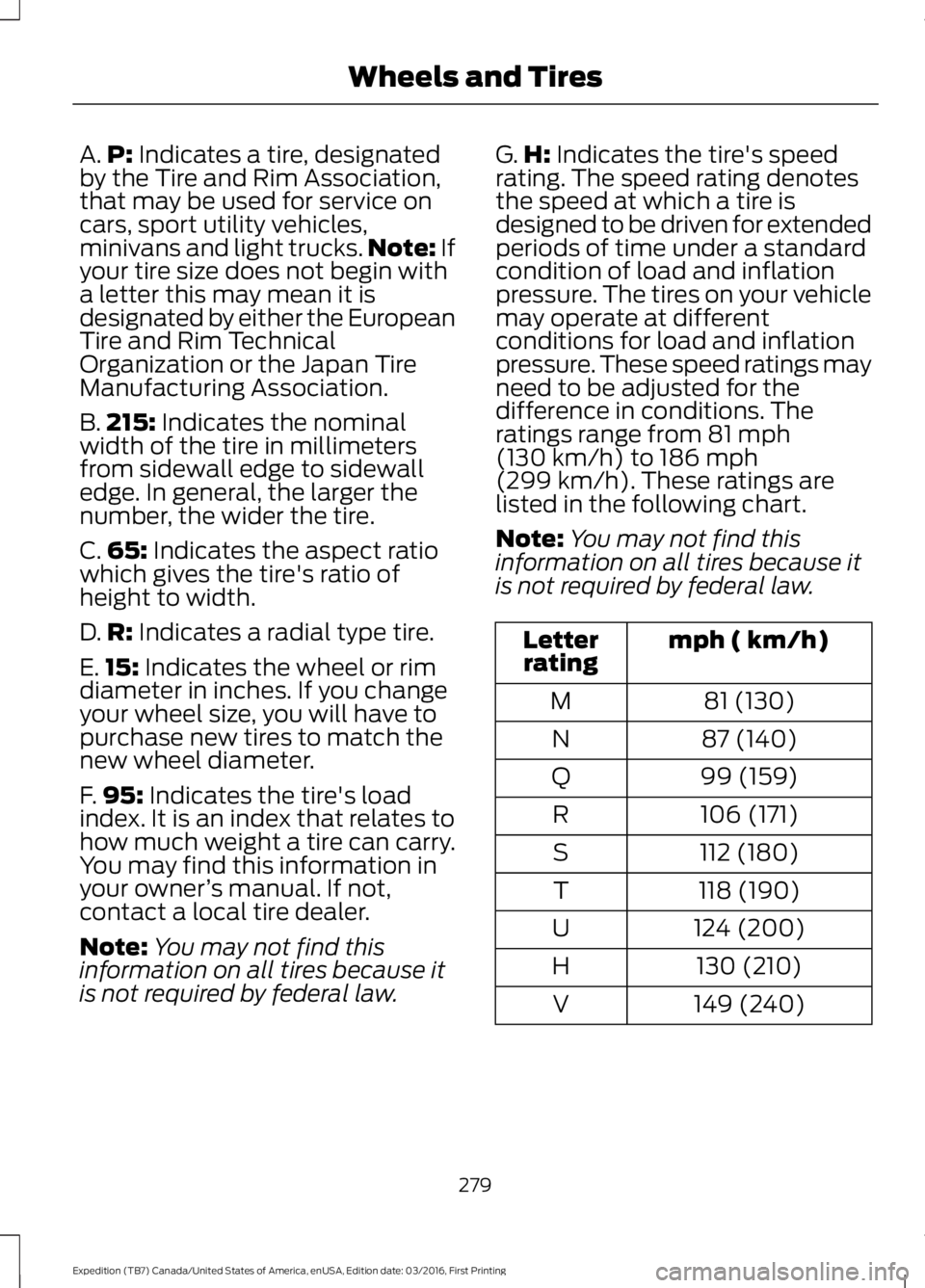
A.P: Indicates a tire, designatedby the Tire and Rim Association,that may be used for service oncars, sport utility vehicles,minivans and light trucks.Note: Ifyour tire size does not begin witha letter this may mean it isdesignated by either the EuropeanTire and Rim TechnicalOrganization or the Japan TireManufacturing Association.
B.215: Indicates the nominalwidth of the tire in millimetersfrom sidewall edge to sidewalledge. In general, the larger thenumber, the wider the tire.
C.65: Indicates the aspect ratiowhich gives the tire's ratio ofheight to width.
D.R: Indicates a radial type tire.
E.15: Indicates the wheel or rimdiameter in inches. If you changeyour wheel size, you will have topurchase new tires to match thenew wheel diameter.
F.95: Indicates the tire's loadindex. It is an index that relates tohow much weight a tire can carry.You may find this information inyour owner’s manual. If not,contact a local tire dealer.
Note:You may not find thisinformation on all tires because itis not required by federal law.
G.H: Indicates the tire's speedrating. The speed rating denotesthe speed at which a tire isdesigned to be driven for extendedperiods of time under a standardcondition of load and inflationpressure. The tires on your vehiclemay operate at differentconditions for load and inflationpressure. These speed ratings mayneed to be adjusted for thedifference in conditions. Theratings range from 81 mph(130 km/h) to 186 mph(299 km/h). These ratings arelisted in the following chart.
Note:You may not find thisinformation on all tires because itis not required by federal law.
mph ( km/h)Letterrating
81 (130)M
87 (140)N
99 (159)Q
106 (171)R
112 (180)S
118 (190)T
124 (200)U
130 (210)H
149 (240)V
279
Expedition (TB7) Canada/United States of America, enUSA, Edition date: 03/2016, First Printing
Wheels and Tires
Page 302 of 500
Tire Change Procedure
WARNINGS
Only use replacement tires andwheels that are the same size, loadindex, speed rating and type (suchas P-metric versus LT-metric or all-seasonversus all-terrain) as those originallyprovided by Ford. The recommended tireand wheel size may be found on either theSafety Compliance Certification Label(affixed to either the door hinge pillar,door-latch post, or the door edge thatmeets the door-latch post, next to thedriver’s seating position) or the Tire Labelwhich is located on the B-Pillar or edge ofthe driver’s door. If this information is notfound on these labels then you shouldcontact your authorized dealer as soon aspossible. Use of any tire or wheel notrecommended by Ford can affect thesafety and performance of your vehicle,which could result in an increased risk ofloss of vehicle control, vehicle rollover,personal injury and death. Additionally theuse of non-recommended tires and wheelscould cause steering, suspension, axle,transfer case or power transfer unit failure.If you have questions regarding tirereplacement, contact your authorizeddealer as soon as possible.
When one of the front wheels is offthe ground, the transmission alonewill not prevent the vehicle frommoving or slipping off the jack.
To help prevent the vehicle frommoving when you change a tire, besure to place the transmission in park(P), set the parking brake and block (inboth directions) the wheel that isdiagonally opposite (other side and end ofthe vehicle) to the tire being changed.
Never get underneath a vehicle thatis supported only by a jack. If thevehicle slips off the jack, you orsomeone else could be seriously injured.
WARNINGS
Do not attempt to change a tire onthe side of the vehicle close tomoving traffic. Pull far enough off theroad to avoid the danger of being hit whenoperating the jack or changing the wheel.
Always use the jack provided asoriginal equipment with your vehicle.If using a jack other than the oneprovided as original equipment with yourvehicle, make sure the jack capacity isadequate for the vehicle weight, includingany vehicle cargo or modifications.
Disable the power running boardsbefore jacking, lifting, or placing anyobject under the vehicle. Never placeyour hand between the power runningboard and the vehicle as extended powerrunning boards will retract when the doorsare closed. Failure to follow theseinstructions may result in personal injury.
Failure to follow these instructionswhen using the spare tire carriercould cause loss of the wheel andtire and lead to personal injury: Only usethe spare tire carrier to stow the tire andwheel combination specified on the TireLabel or Safety Compliance CertificationLabel on the B-Pillar or the edge of thedriver door. Other tire and wheelcombinations could cause the carrier tofail if it does not fit securely or is too heavy.Do not use impact tools or power toolsoperating over 200 RPM, which may causewinch malfunction and prevent a securefit. Override the winch at least three times(there will be an audible click each time)to ensure a tight secure fit of the wheel andtire.
Note:Passengers should not remain in thevehicle when the vehicle is being jacked.
299
Expedition (TB7) Canada/United States of America, enUSA, Edition date: 03/2016, First Printing
Wheels and Tires
Page 323 of 500
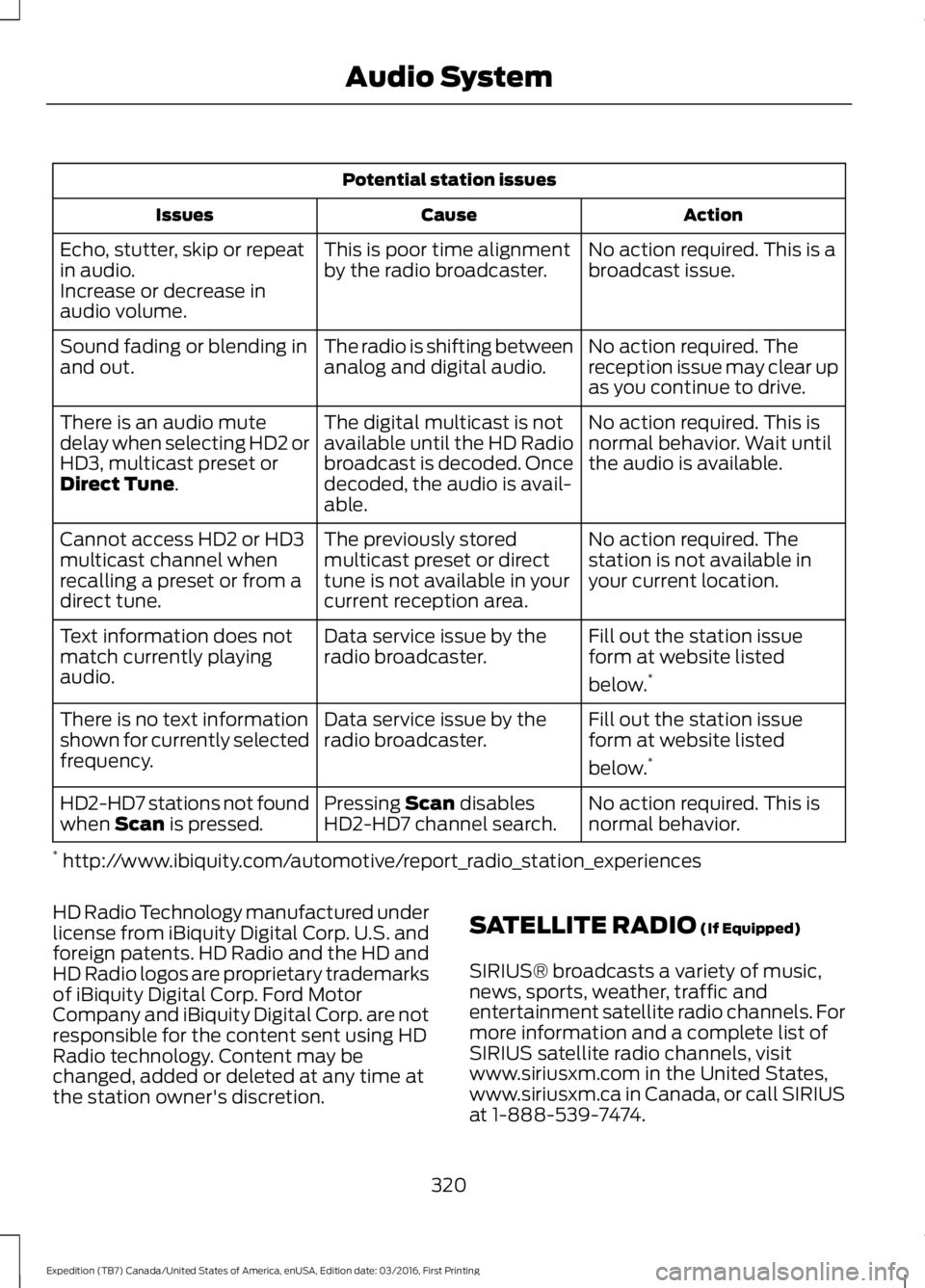
Potential station issues
ActionCauseIssues
No action required. This is abroadcast issue.This is poor time alignmentby the radio broadcaster.Echo, stutter, skip or repeatin audio.Increase or decrease inaudio volume.
No action required. Thereception issue may clear upas you continue to drive.
The radio is shifting betweenanalog and digital audio.Sound fading or blending inand out.
No action required. This isnormal behavior. Wait untilthe audio is available.
The digital multicast is notavailable until the HD Radiobroadcast is decoded. Oncedecoded, the audio is avail-able.
There is an audio mutedelay when selecting HD2 orHD3, multicast preset orDirect Tune.
No action required. Thestation is not available inyour current location.
The previously storedmulticast preset or directtune is not available in yourcurrent reception area.
Cannot access HD2 or HD3multicast channel whenrecalling a preset or from adirect tune.
Fill out the station issueform at website listed
below.*
Data service issue by theradio broadcaster.Text information does notmatch currently playingaudio.
Fill out the station issueform at website listed
below.*
Data service issue by theradio broadcaster.There is no text informationshown for currently selectedfrequency.
No action required. This isnormal behavior.Pressing Scan disablesHD2-HD7 channel search.HD2-HD7 stations not foundwhen Scan is pressed.
* http://www.ibiquity.com/automotive/report_radio_station_experiences
HD Radio Technology manufactured underlicense from iBiquity Digital Corp. U.S. andforeign patents. HD Radio and the HD andHD Radio logos are proprietary trademarksof iBiquity Digital Corp. Ford MotorCompany and iBiquity Digital Corp. are notresponsible for the content sent using HDRadio technology. Content may bechanged, added or deleted at any time atthe station owner's discretion.
SATELLITE RADIO (If Equipped)
SIRIUS® broadcasts a variety of music,news, sports, weather, traffic andentertainment satellite radio channels. Formore information and a complete list ofSIRIUS satellite radio channels, visitwww.siriusxm.com in the United States,www.siriusxm.ca in Canada, or call SIRIUSat 1-888-539-7474.
320
Expedition (TB7) Canada/United States of America, enUSA, Edition date: 03/2016, First Printing
Audio System
Page 324 of 500
Note:This receiver includes the eCosreal-time operating system. eCos ispublished under the eCos License.
Satellite Radio Reception Factors
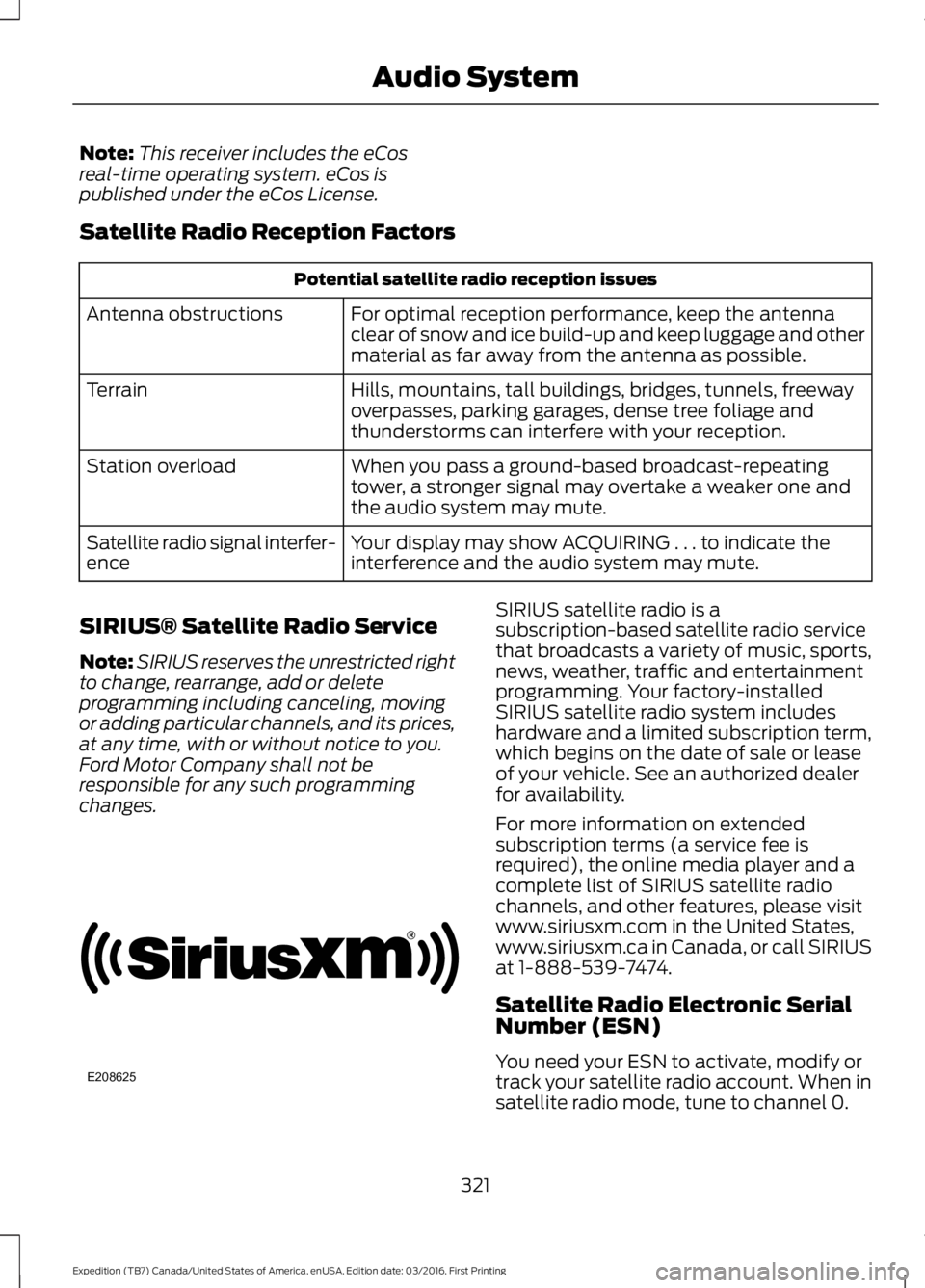
Potential satellite radio reception issues
For optimal reception performance, keep the antennaclear of snow and ice build-up and keep luggage and othermaterial as far away from the antenna as possible.
Antenna obstructions
Hills, mountains, tall buildings, bridges, tunnels, freewayoverpasses, parking garages, dense tree foliage andthunderstorms can interfere with your reception.
Terrain
When you pass a ground-based broadcast-repeatingtower, a stronger signal may overtake a weaker one andthe audio system may mute.
Station overload
Your display may show ACQUIRING . . . to indicate theinterference and the audio system may mute.Satellite radio signal interfer-ence
SIRIUS® Satellite Radio Service
Note:SIRIUS reserves the unrestricted rightto change, rearrange, add or deleteprogramming including canceling, movingor adding particular channels, and its prices,at any time, with or without notice to you.Ford Motor Company shall not beresponsible for any such programmingchanges.
SIRIUS satellite radio is asubscription-based satellite radio servicethat broadcasts a variety of music, sports,news, weather, traffic and entertainmentprogramming. Your factory-installedSIRIUS satellite radio system includeshardware and a limited subscription term,which begins on the date of sale or leaseof your vehicle. See an authorized dealerfor availability.
For more information on extendedsubscription terms (a service fee isrequired), the online media player and acomplete list of SIRIUS satellite radiochannels, and other features, please visitwww.siriusxm.com in the United States,www.siriusxm.ca in Canada, or call SIRIUSat 1-888-539-7474.
Satellite Radio Electronic SerialNumber (ESN)
You need your ESN to activate, modify ortrack your satellite radio account. When insatellite radio mode, tune to channel 0.
321
Expedition (TB7) Canada/United States of America, enUSA, Edition date: 03/2016, First Printing
Audio SystemE208625
Page 328 of 500
Sunday, 10:30am-7:30pm EST.
In the United States, call 1-800-392-3673.
In Canada, call 1-800-565-3673.
Times are subject to change due toholidays.
SYNC Owner Account
Why do I need a SYNC owner account?
•Essential for keeping up with the latestsoftware downloads available forSYNC.
•Access to customer support for anyquestions you may have.
Driving Restrictions
For your safety, certain features arespeed-dependent and restricted when yourvehicle is traveling over 3 mi (5 km).
Safety Information
WARNING
Driving while distracted can result inloss of vehicle control, crash andinjury. We strongly recommend thatyou use extreme caution when using anydevice that may take your focus off theroad. Your primary responsibility is the safeoperation of your vehicle. We recommendagainst the use of any hand-held devicewhile driving and encourage the use ofvoice-operated systems when possible.Make sure you are aware of all applicablelocal laws that may affect the use ofelectronic devices while driving.
When using SYNC:
•Do not operate playing devices if thepower cords or cables are broken, splitor damaged. Place cords and cablesout of the way, so they do not interferewith the operation of pedals, seats,compartments or safe driving abilities.
•Do not leave playing devices in yourvehicle during extreme conditions as itcould cause them damage. See yourdevice's manual for further information.
•Do not attempt to service or repair thesystem. See an authorized dealer.
Privacy Information
When a cellular phone is connected toSYNC, the system creates a profile withinyour vehicle that is linked to that cellularphone. This profile is created in order tooffer you more cellular features and tooperate more efficiently. Among otherthings, this profile may contain data aboutyour cellular phone book, text messages(read and unread), and call history,including history of calls when your cellularphone was not connected to the system.In addition, if you connect a media device,the system creates and retains an index ofsupported media content. The system alsorecords a short development log ofapproximately 10 minutes of all recentsystem activity. The log profile and othersystem data may be used to improve thesystem and help diagnose any problemsthat may occur.
The cellular profile, media device index,and development log will remain in thevehicle unless you delete them and aregenerally accessible only in the vehiclewhen the cellular phone or media playeris connected. If you no longer plan to usethe system or the vehicle, we recommendyou perform a Master Reset to erase allstored information.
325
Expedition (TB7) Canada/United States of America, enUSA, Edition date: 03/2016, First Printing
SYNC™ (If Equipped)
Page 330 of 500
System Interaction and Feedback
The system provides feedback throughaudible tones, prompts, questions andspoken confirmations depending on thesituation and the chosen level ofinteraction. You can customize the voicerecognition system to provide more or lessinstruction and feedback.
The default setting is to a higher level ofinteraction in order to help you learn to usethe system. You can change these settingsat any time.
Adjusting the Interaction Level
Press the voice button. Whenprompted, say:
Action and DescriptionVoice Command
voice settings
Then either of the following:
Provides more detailed interaction andguidance. (Recommended for first timeusers.)
interaction mode novice
Provides less audible interaction and guid-ance.interaction mode advanced
Confirmation Prompts
Confirmation prompts are short questionsthe system asks when it is not sure of yourrequest or when there is more than onepossible response to your request.
To adjust this setting press the voice button, when prompted say:
Action and DescriptionVoice Command
voice settings
Then either of the following:
Make a best guess from the command; youmay still occasionally be asked to confirmsettings.
confirmation prompts off
Clarify your voice command with a shortquestion.confirmation prompts on
Phone Confirmation
Using phone confirmations the systemasks you to verify before placing any calls.
327
Expedition (TB7) Canada/United States of America, enUSA, Edition date: 03/2016, First Printing
SYNC™ (If Equipped)E142599
Page 339 of 500
Sending a Text Message
Note:You can only send a text message toone recipient at a time.
1. Select the send option when thedesired selection highlights in the audiodisplay.
2. Select the confirmation option whenthe contact appears.
3. Press the OK button again to confirmwhen the system asks if you want tosend the message. A pre-definedsignature appears on each textmessage.
Note:You can send text messages eitherby choosing a contact from the phonebookand selecting the text option from the audiodisplay or by replying to a received messagein the inbox.
Accessing Your Phone Settings
These are phone-dependent features. Yourphone settings allow you to access andadjust features such as your ring tone andtext message notification, modify yourphonebook, and set up automaticdownload.
1. Press the PHONE button.
2. Scroll until the phone settings optionappears, and then press the OK button.
Scroll to select from the following options:
Description and actionMenu Item
If this option is checked, the system uses the cellular phoneas the master when there is more than one cellular phonepaired to the system. This option can be changed for allcellular phones (not only the active phone) using theBluetooth Devices menu.
Set as master
See the cellular phone name, provider name, cellularphone number, and signal level. When done, press the leftarrow buttons to return to the phone status menu.
Phone status
Select which ringtone sounds during an incoming call (oneof the system's tones or your cellular phone's). If yourphone supports in-band ringing, your phone's ringtonesounds when you choose the cellular phone ringtoneoption.
Set ringtone
1. Press the OK button to select and scroll to hear eachringtone.2. Press the OK button to select a ringtone.
Have the option of hearing an audible tone to notify youwhen a text message arrives. Press the OK button toswitch the audible tone off or on.
Text msg notify
Modify the contents of your phonebook (such as add,delete or download). Press the OK button to select andscroll between the choices in the phonebook preferencestable below.
Phonebook pref.
336
Expedition (TB7) Canada/United States of America, enUSA, Edition date: 03/2016, First Printing
SYNC™ (If Equipped)
Page 340 of 500
Phonebook preferencesMenu Item
Push the desired contacts on your cellular phone. See yourdevice's manual on how to push contacts. Press the OKbutton to add more contacts from your phonebook.
Add contacts
When a message asking you to delete appears, select theoption to confirm. Press the OK button to delete thecurrent phonebook and call history. The system takes youback to the menu for phone settings.
Delete
Press the OK button to select and download your phone-book to the system.Download now
When automatic download is on, the system deletes anychanges (additions or deletions) saved in the system sinceyour last download.
Auto-download
When automatic download is off, the system does notdownload your phonebook when your cellular phoneconnects to SYNC.
You can only access your phonebook, call history and textmessages when your paired cellular phone connects tothe system. Check or uncheck this option to downloadyour phonebook automatically each time your phoneconnects to the system. Download times are phone-dependent and quantity-dependent.
Enabling this feature allows you to select how yourcontacts are displayed. You can select:Sorting Pref.
Last/First nameFirst/Last name
Bluetooth Devices
The Bluetooth Devices menu allows youto add, connect and delete devices as wellas set a phone as primary.
1. Press the PHONE button.
2.Scroll until Bluetooth Devices appears,and then press the OK button.
Select from the following options:
Description and actionMenu Item
Pair additional phones to the system.Add1. Select the option to add to start the pairing process.
337
Expedition (TB7) Canada/United States of America, enUSA, Edition date: 03/2016, First Printing
SYNC™ (If Equipped)
Page 347 of 500
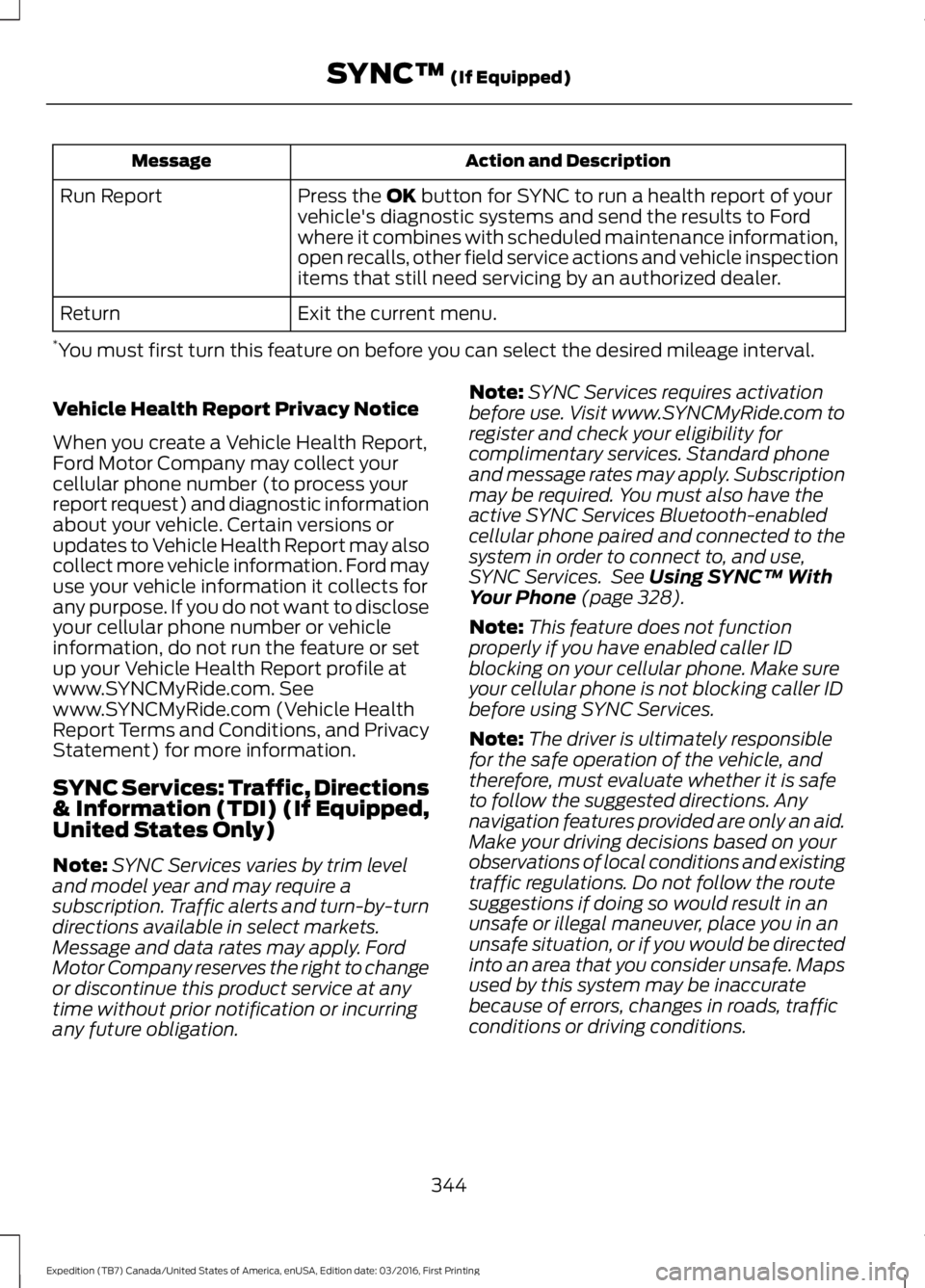
Action and DescriptionMessage
Press the OK button for SYNC to run a health report of yourvehicle's diagnostic systems and send the results to Fordwhere it combines with scheduled maintenance information,open recalls, other field service actions and vehicle inspectionitems that still need servicing by an authorized dealer.
Run Report
Exit the current menu.Return
*You must first turn this feature on before you can select the desired mileage interval.
Vehicle Health Report Privacy Notice
When you create a Vehicle Health Report,Ford Motor Company may collect yourcellular phone number (to process yourreport request) and diagnostic informationabout your vehicle. Certain versions orupdates to Vehicle Health Report may alsocollect more vehicle information. Ford mayuse your vehicle information it collects forany purpose. If you do not want to discloseyour cellular phone number or vehicleinformation, do not run the feature or setup your Vehicle Health Report profile atwww.SYNCMyRide.com. Seewww.SYNCMyRide.com (Vehicle HealthReport Terms and Conditions, and PrivacyStatement) for more information.
SYNC Services: Traffic, Directions& Information (TDI) (If Equipped,United States Only)
Note:SYNC Services varies by trim leveland model year and may require asubscription. Traffic alerts and turn-by-turndirections available in select markets.Message and data rates may apply. FordMotor Company reserves the right to changeor discontinue this product service at anytime without prior notification or incurringany future obligation.
Note:SYNC Services requires activationbefore use. Visit www.SYNCMyRide.com toregister and check your eligibility forcomplimentary services. Standard phoneand message rates may apply. Subscriptionmay be required. You must also have theactive SYNC Services Bluetooth-enabledcellular phone paired and connected to thesystem in order to connect to, and use,SYNC Services. See Using SYNC™ WithYour Phone (page 328).
Note:This feature does not functionproperly if you have enabled caller IDblocking on your cellular phone. Make sureyour cellular phone is not blocking caller IDbefore using SYNC Services.
Note:The driver is ultimately responsiblefor the safe operation of the vehicle, andtherefore, must evaluate whether it is safeto follow the suggested directions. Anynavigation features provided are only an aid.Make your driving decisions based on yourobservations of local conditions and existingtraffic regulations. Do not follow the routesuggestions if doing so would result in anunsafe or illegal maneuver, place you in anunsafe situation, or if you would be directedinto an area that you consider unsafe. Mapsused by this system may be inaccuratebecause of errors, changes in roads, trafficconditions or driving conditions.
344
Expedition (TB7) Canada/United States of America, enUSA, Edition date: 03/2016, First Printing
SYNC™ (If Equipped)
Page 357 of 500
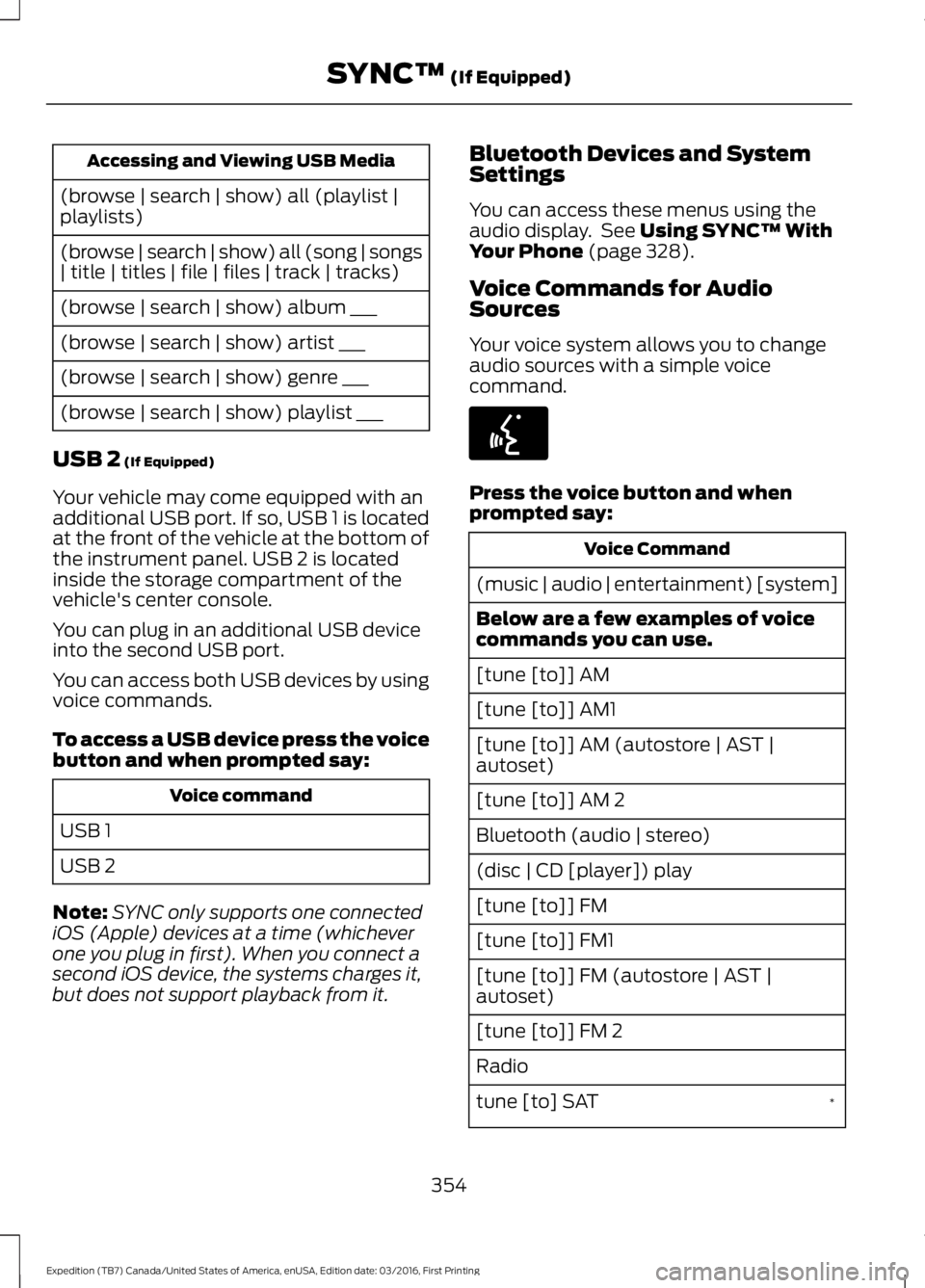
Accessing and Viewing USB Media
(browse | search | show) all (playlist |playlists)
(browse | search | show) all (song | songs| title | titles | file | files | track | tracks)
(browse | search | show) album ___
(browse | search | show) artist ___
(browse | search | show) genre ___
(browse | search | show) playlist ___
USB 2 (If Equipped)
Your vehicle may come equipped with anadditional USB port. If so, USB 1 is locatedat the front of the vehicle at the bottom ofthe instrument panel. USB 2 is locatedinside the storage compartment of thevehicle's center console.
You can plug in an additional USB deviceinto the second USB port.
You can access both USB devices by usingvoice commands.
To access a USB device press the voicebutton and when prompted say:
Voice command
USB 1
USB 2
Note:SYNC only supports one connectediOS (Apple) devices at a time (whicheverone you plug in first). When you connect asecond iOS device, the systems charges it,but does not support playback from it.
Bluetooth Devices and SystemSettings
You can access these menus using theaudio display. See Using SYNC™ WithYour Phone (page 328).
Voice Commands for AudioSources
Your voice system allows you to changeaudio sources with a simple voicecommand.
Press the voice button and whenprompted say:
Voice Command
(music | audio | entertainment) [system]
Below are a few examples of voicecommands you can use.
[tune [to]] AM
[tune [to]] AM1
[tune [to]] AM (autostore | AST |autoset)
[tune [to]] AM 2
Bluetooth (audio | stereo)
(disc | CD [player]) play
[tune [to]] FM
[tune [to]] FM1
[tune [to]] FM (autostore | AST |autoset)
[tune [to]] FM 2
Radio
*tune [to] SAT
354
Expedition (TB7) Canada/United States of America, enUSA, Edition date: 03/2016, First Printing
SYNC™ (If Equipped)E142599