radio FORD EXPEDITION EL 2017 Owner's Manual
[x] Cancel search | Manufacturer: FORD, Model Year: 2017, Model line: EXPEDITION EL, Model: FORD EXPEDITION EL 2017Pages: 500, PDF Size: 6.13 MB
Page 324 of 500
Note:This receiver includes the eCosreal-time operating system. eCos ispublished under the eCos License.
Satellite Radio Reception Factors
Potential satellite radio reception issues
For optimal reception performance, keep the antennaclear of snow and ice build-up and keep luggage and othermaterial as far away from the antenna as possible.
Antenna obstructions
Hills, mountains, tall buildings, bridges, tunnels, freewayoverpasses, parking garages, dense tree foliage andthunderstorms can interfere with your reception.
Terrain
When you pass a ground-based broadcast-repeatingtower, a stronger signal may overtake a weaker one andthe audio system may mute.
Station overload
Your display may show ACQUIRING . . . to indicate theinterference and the audio system may mute.Satellite radio signal interfer-ence
SIRIUS® Satellite Radio Service
Note:SIRIUS reserves the unrestricted rightto change, rearrange, add or deleteprogramming including canceling, movingor adding particular channels, and its prices,at any time, with or without notice to you.Ford Motor Company shall not beresponsible for any such programmingchanges.
SIRIUS satellite radio is asubscription-based satellite radio servicethat broadcasts a variety of music, sports,news, weather, traffic and entertainmentprogramming. Your factory-installedSIRIUS satellite radio system includeshardware and a limited subscription term,which begins on the date of sale or leaseof your vehicle. See an authorized dealerfor availability.
For more information on extendedsubscription terms (a service fee isrequired), the online media player and acomplete list of SIRIUS satellite radiochannels, and other features, please visitwww.siriusxm.com in the United States,www.siriusxm.ca in Canada, or call SIRIUSat 1-888-539-7474.
Satellite Radio Electronic SerialNumber (ESN)
You need your ESN to activate, modify ortrack your satellite radio account. When insatellite radio mode, tune to channel 0.
321
Expedition (TB7) Canada/United States of America, enUSA, Edition date: 03/2016, First Printing
Audio SystemE208625
Page 325 of 500
Troubleshooting
ActionConditionMessage
No action required. Thismessage should disappearshortly.
Radio requires more thantwo seconds to produceaudio for the selectedchannel.
Acquiring…
If this message does notclear shortly, or with an igni-tion key cycle, your receivermay have a fault. See anauthorized dealer for service.
There is an internal moduleor system failure present.Satellite antenna fault
SIRIUS system failure
Tune to another channel orchoose another preset.The channel is no longeravailable.Invalid Channel
Contact SIRIUS at 1-888-539-7474 to subscribe tothe channel, or tune toanother channel.
Your subscription does notinclude this channel.Unsubscribed Channel
The signal is blocked. Whenyou move into an open area,the signal should return.
The signal is lost from theSIRIUS satellite or SIRIUStower to your vehicleantenna.
No Signal
No action required. Theprocess may take up tothree minutes.
Update of channelprogramming in progress.Updating…
Contact SIRIUS at 1-888-539-7474 to resolvesubscription issues.
Your satellite service is nolonger available.Questions? Call
1-888-539-7474
Use the channel guide toturn off the Lock or Skipfunction on that station.
All the channels in theselected category are eitherskipped or locked.
None found
Check Channel Guide
No action required.SIRIUS has updated thechannels available for yourvehicle.
Subscription Updated
322
Expedition (TB7) Canada/United States of America, enUSA, Edition date: 03/2016, First Printing
Audio System
Page 332 of 500
Other features, such as text messagingusing Bluetooth and automatic phonebookdownload, are phone-dependent features.To check your phone's compatibility, seeyour phone's manual and visitwww.SYNCMyRide.com,www.SYNCMyRide.ca orwww.syncmaroute.ca.
Pairing a Phone for the First Time
Wirelessly pairing your phone with SYNCallows you to make and receive hands-freecalls.
Note:SYNC can support downloading upto approximately 4000 entries perBluetooth-enabled cellular phone.
Note:Make sure to switch on the ignitionand the radio. Shift the transmission intopark (P) for automatic transmission or firstgear for manual transmission.
Using the Audio System
Note:To scroll through the menus, pressthe up and down arrows on your audiosystem.
1. Make sure to switch on your phone'sBluetooth feature before starting thesearch. See your device's manual ifnecessary.
2. Press the PHONE button. When theaudio display indicates there is nopaired phone, select the option to add.
3. When a message to begin pairingappears in the audio display, search forSYNC on your phone to start the pairingprocess.
4. When prompted on your cell phone’sdisplay, confirm that the PIN providedby SYNC matches the PIN displayedon your cell phone. Your phone is nowpaired and the display indicates thatthe pairing was successful. If you areprompted to enter a PIN on your device,enter the PIN displayed on the screen.The display indicates when the pairingis successful.
Depending on your phone's capability andyour market, the system may prompt youwith questions, such as setting the currentphone as the primary phone (the phoneSYNC automatically tries to connect withfirst upon vehicle start-up) anddownloading your phonebook.
Using Voice Commands
Make sure to switch on yourphone's Bluetooth featurebefore starting the search. Seeyour device's manual if necessary.
Press the voice and when promptedsay:
Action and Descrip-tionVoice Command
Follow the instruc-tions on the audiodisplay.
(pair ([Bluetooth]device | phone |Bluetooth audio) |add phone)
You can say any of the voice commandsthat appear within open and close bracketsthat are separated by |. For example,where; (what's | what is) appears you say;what's or what is.
The commands that have [ ] around theword means that the word is optional.
329
Expedition (TB7) Canada/United States of America, enUSA, Edition date: 03/2016, First Printing
SYNC™ (If Equipped)E142599
Page 333 of 500
Depending on your phone's capability andyour market, the system may prompt youwith questions, such as setting the currentphone as the primary phone (the phoneSYNC automatically tries to connect withfirst upon vehicle start-up) anddownloading your phonebook.
Pairing Subsequent Phones
Note:Make sure to switch on the ignitionand the radio. Shift the transmission intopark (P) for automatic transmission or firstgear for manual transmission.
Note:To scroll through the menus, pressthe up and down arrows on your audiosystem.
1. Make sure to switch on your phone'sBluetooth feature before starting thesearch. See your device's manual ifnecessary.
2. Press the PHONE button.
3. Select the option for BluetoothDevices.
4. Press the OK button.
5. Select the option to add. This startsthe pairing process.
6. When a message to begin pairingappears in the audio display, search forSYNC on your device.
7. When prompted on your cell phone’sdisplay, confirm that the PIN providedby SYNC matches the PIN displayedon your cell phone. Your phone is nowpaired and the display indicates thatthe pairing was successful. If you areprompted to enter a PIN on your device,enter the PIN displayed on the screen.The display indicates when the pairingis successful.
SYNC may prompt you with more cellphone options. Your cell phone may alsoprompt you to give SYNC permission toaccess information. For more informationon your cell phone’s capability, see yourcell phone’s manual and visit the website.
Phone Voice Commands
Press the voice button. Whenprompted, say any of thefollowing:
Voice Command
(phone | Blackberry | iPhone)
Then say any of the following:
call (___)
call ___ at home
call ___ ((in|at) [the] office | at work)
call ___ on (cell | mobile)
call ___ on other
1dial [[a] number]
2([go to] privacy | transfer to phone| privacy on)
2(hold call [on] | place call on hold)
2join (calls | call)
2mute call [on]
2(mute call off | un-mute call)
(turn ringer on | silent mode off)
(turn ringer off | silent mode [on])
330
Expedition (TB7) Canada/United States of America, enUSA, Edition date: 03/2016, First Printing
SYNC™ (If Equipped)E142599
Page 344 of 500
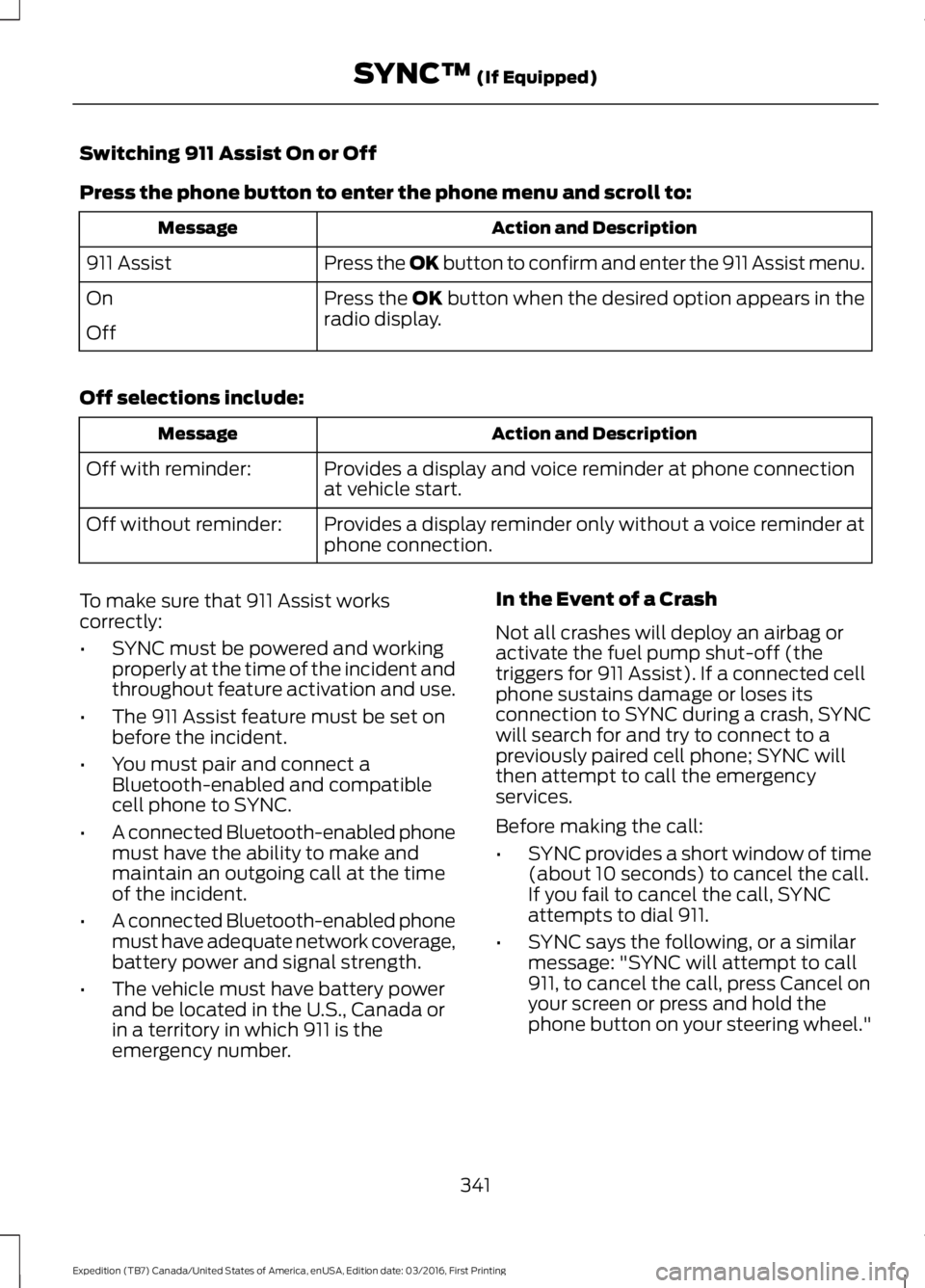
Switching 911 Assist On or Off
Press the phone button to enter the phone menu and scroll to:
Action and DescriptionMessage
Press the OK button to confirm and enter the 911 Assist menu.911 Assist
Press the OK button when the desired option appears in theradio display.On
Off
Off selections include:
Action and DescriptionMessage
Provides a display and voice reminder at phone connectionat vehicle start.Off with reminder:
Provides a display reminder only without a voice reminder atphone connection.Off without reminder:
To make sure that 911 Assist workscorrectly:
•SYNC must be powered and workingproperly at the time of the incident andthroughout feature activation and use.
•The 911 Assist feature must be set onbefore the incident.
•You must pair and connect aBluetooth-enabled and compatiblecell phone to SYNC.
•A connected Bluetooth-enabled phonemust have the ability to make andmaintain an outgoing call at the timeof the incident.
•A connected Bluetooth-enabled phonemust have adequate network coverage,battery power and signal strength.
•The vehicle must have battery powerand be located in the U.S., Canada orin a territory in which 911 is theemergency number.
In the Event of a Crash
Not all crashes will deploy an airbag oractivate the fuel pump shut-off (thetriggers for 911 Assist). If a connected cellphone sustains damage or loses itsconnection to SYNC during a crash, SYNCwill search for and try to connect to apreviously paired cell phone; SYNC willthen attempt to call the emergencyservices.
Before making the call:
•SYNC provides a short window of time(about 10 seconds) to cancel the call.If you fail to cancel the call, SYNCattempts to dial 911.
•SYNC says the following, or a similarmessage: "SYNC will attempt to call911, to cancel the call, press Cancel onyour screen or press and hold thephone button on your steering wheel."
341
Expedition (TB7) Canada/United States of America, enUSA, Edition date: 03/2016, First Printing
SYNC™ (If Equipped)
Page 357 of 500
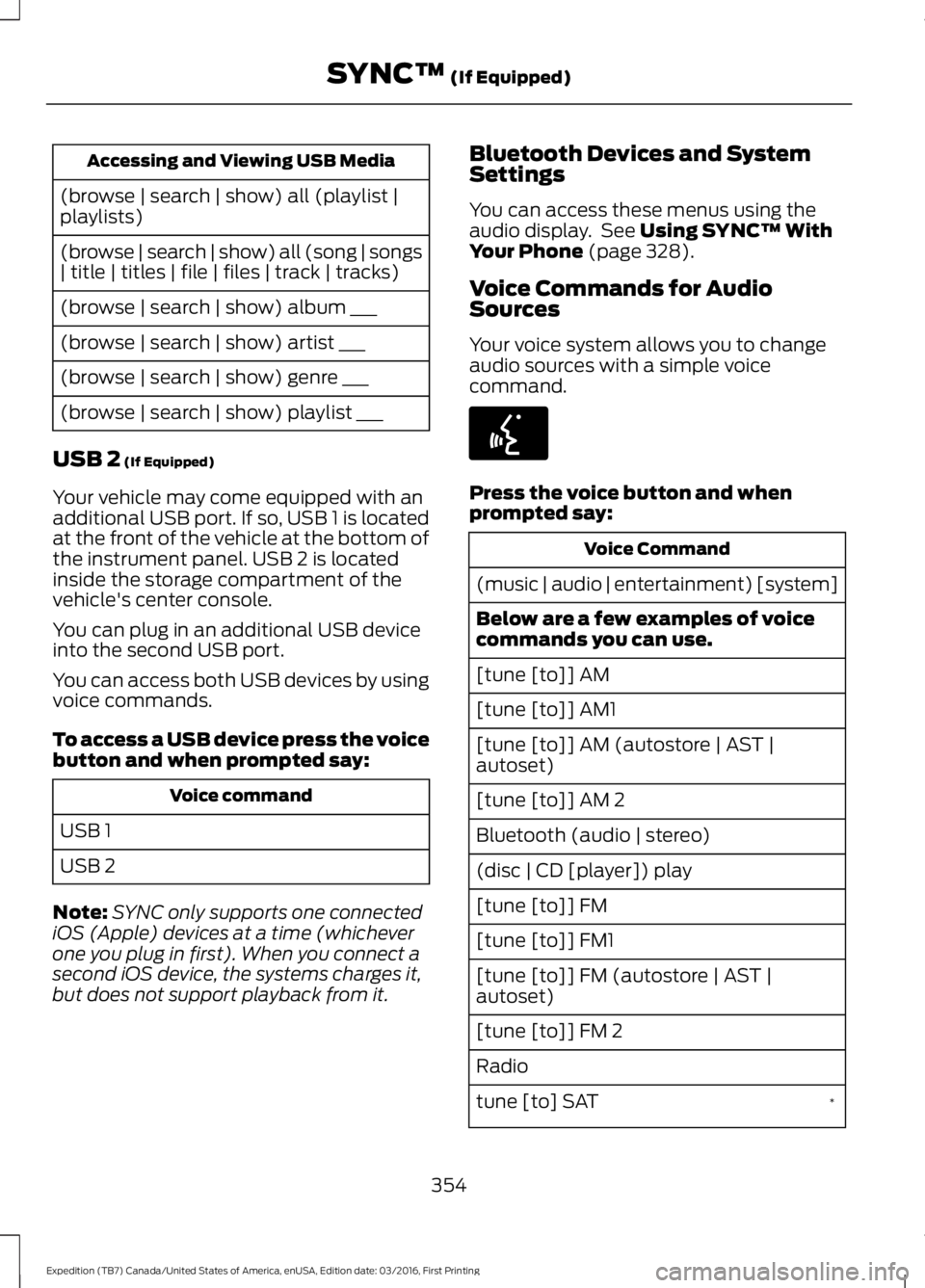
Accessing and Viewing USB Media
(browse | search | show) all (playlist |playlists)
(browse | search | show) all (song | songs| title | titles | file | files | track | tracks)
(browse | search | show) album ___
(browse | search | show) artist ___
(browse | search | show) genre ___
(browse | search | show) playlist ___
USB 2 (If Equipped)
Your vehicle may come equipped with anadditional USB port. If so, USB 1 is locatedat the front of the vehicle at the bottom ofthe instrument panel. USB 2 is locatedinside the storage compartment of thevehicle's center console.
You can plug in an additional USB deviceinto the second USB port.
You can access both USB devices by usingvoice commands.
To access a USB device press the voicebutton and when prompted say:
Voice command
USB 1
USB 2
Note:SYNC only supports one connectediOS (Apple) devices at a time (whicheverone you plug in first). When you connect asecond iOS device, the systems charges it,but does not support playback from it.
Bluetooth Devices and SystemSettings
You can access these menus using theaudio display. See Using SYNC™ WithYour Phone (page 328).
Voice Commands for AudioSources
Your voice system allows you to changeaudio sources with a simple voicecommand.
Press the voice button and whenprompted say:
Voice Command
(music | audio | entertainment) [system]
Below are a few examples of voicecommands you can use.
[tune [to]] AM
[tune [to]] AM1
[tune [to]] AM (autostore | AST |autoset)
[tune [to]] AM 2
Bluetooth (audio | stereo)
(disc | CD [player]) play
[tune [to]] FM
[tune [to]] FM1
[tune [to]] FM (autostore | AST |autoset)
[tune [to]] FM 2
Radio
*tune [to] SAT
354
Expedition (TB7) Canada/United States of America, enUSA, Edition date: 03/2016, First Printing
SYNC™ (If Equipped)E142599
Page 358 of 500
![FORD EXPEDITION EL 2017 Owners Manual Voice Command
*Sirius
(USB [stick] | iPod | MP3 [player])
((who's | who is) this | who plays this |(what's | what is) playing [now] | (what| which) (song | track | artist) is this |(who's](/img/11/58755/w960_58755-357.png "FORD EXPEDITION EL 2017 Owners Manual Voice Command
*Sirius
(USB [stick] | iPod | MP3 [player])
((who's | who is) this | who plays this |(what's | what is) playing [now] | (what| which) (song | track | artist) is this |(who's")
Voice Command
*Sirius
(USB [stick] | iPod | MP3 [player])
((who's | who is) this | who plays this |(what's | what is) playing [now] | (what| which) (song | track | artist) is this |(who's | who is) playing | (what's | whatis) this)
help
* If equipped.
Radio Voice Commands
If you are listening to the radio,press the voice button, and thensay any of the commands in thefollowing table.
If you are not listening to the radio,press the voice button and, after thetone, say:
Voice Command
Radio
You can then say any of the followingcommands.
[tune [to]] AM
[tune [to]] AM1
[tune [to]] AM (autostore | AST |autoset)
[tune [to]] AM 2
[tune [to]] (AM ___ | ___ [AM])
[tune [to]] AM preset ___
[tune [to]] AM1 preset ___
[tune [to]] FM
[tune [to]] FM1
Voice Command
[tune [to]] FM (autostore | AST |autoset) preset ___
[tune [to]] FM 2
[tune [to]] (FM ___ | ___ [FM])
[tune [to]] FM preset ___
*FM ___ HD ___
[tune [to]] FM 2 preset ___
*HD ___
[tune [to]] preset ___
Tune
help
* If equipped.
Sirius Satellite Radio Voice Commands(If equipped)
To listen to Sirius satellite radio,press the voice button and, afterthe tone, say:
Voice Commands
Sirius
When you are listening to Siriussatellite radio, you can press the voicebutton, and say any of the commandsin the following table.
Voice Commands
tune [to] SAT
[tune [to]] SAT 1
[tune [to]] SAT 2
[tune [to]] SAT 3
355
Expedition (TB7) Canada/United States of America, enUSA, Edition date: 03/2016, First Printing
SYNC™ (If Equipped)E142599 E142599
Page 367 of 500
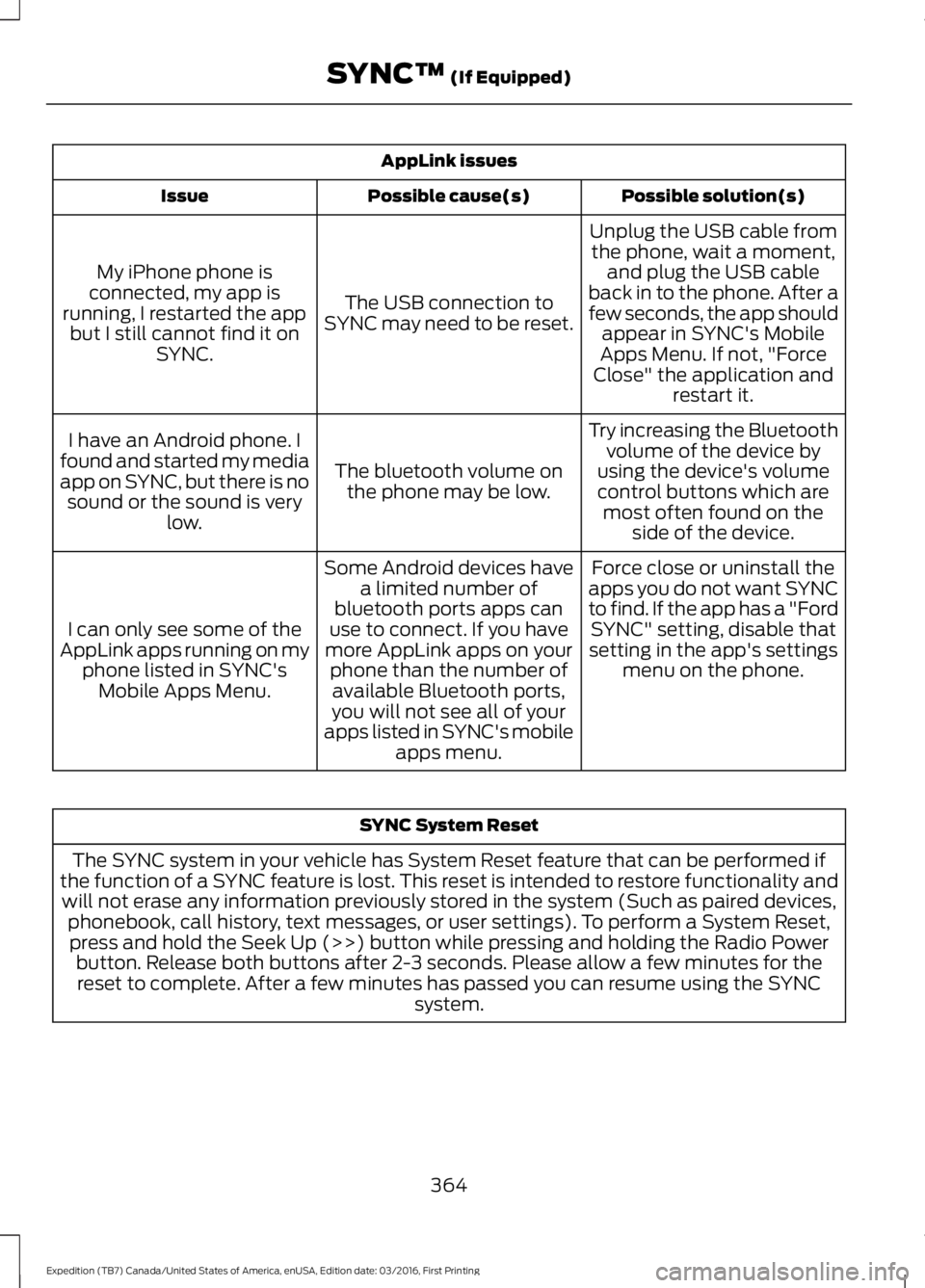
AppLink issues
Possible solution(s)Possible cause(s)Issue
Unplug the USB cable fromthe phone, wait a moment,and plug the USB cableback in to the phone. After afew seconds, the app shouldappear in SYNC's MobileApps Menu. If not, "ForceClose" the application andrestart it.
The USB connection toSYNC may need to be reset.
My iPhone phone isconnected, my app isrunning, I restarted the appbut I still cannot find it onSYNC.
Try increasing the Bluetoothvolume of the device byusing the device's volumecontrol buttons which aremost often found on theside of the device.
The bluetooth volume onthe phone may be low.
I have an Android phone. Ifound and started my mediaapp on SYNC, but there is nosound or the sound is verylow.
Force close or uninstall theapps you do not want SYNCto find. If the app has a "FordSYNC" setting, disable thatsetting in the app's settingsmenu on the phone.
Some Android devices havea limited number ofbluetooth ports apps canuse to connect. If you havemore AppLink apps on yourphone than the number ofavailable Bluetooth ports,you will not see all of yourapps listed in SYNC's mobileapps menu.
I can only see some of theAppLink apps running on myphone listed in SYNC'sMobile Apps Menu.
SYNC System Reset
The SYNC system in your vehicle has System Reset feature that can be performed ifthe function of a SYNC feature is lost. This reset is intended to restore functionality andwill not erase any information previously stored in the system (Such as paired devices,phonebook, call history, text messages, or user settings). To perform a System Reset,press and hold the Seek Up (>>) button while pressing and holding the Radio Powerbutton. Release both buttons after 2-3 seconds. Please allow a few minutes for thereset to complete. After a few minutes has passed you can resume using the SYNCsystem.
364
Expedition (TB7) Canada/United States of America, enUSA, Edition date: 03/2016, First Printing
SYNC™ (If Equipped)
Page 371 of 500
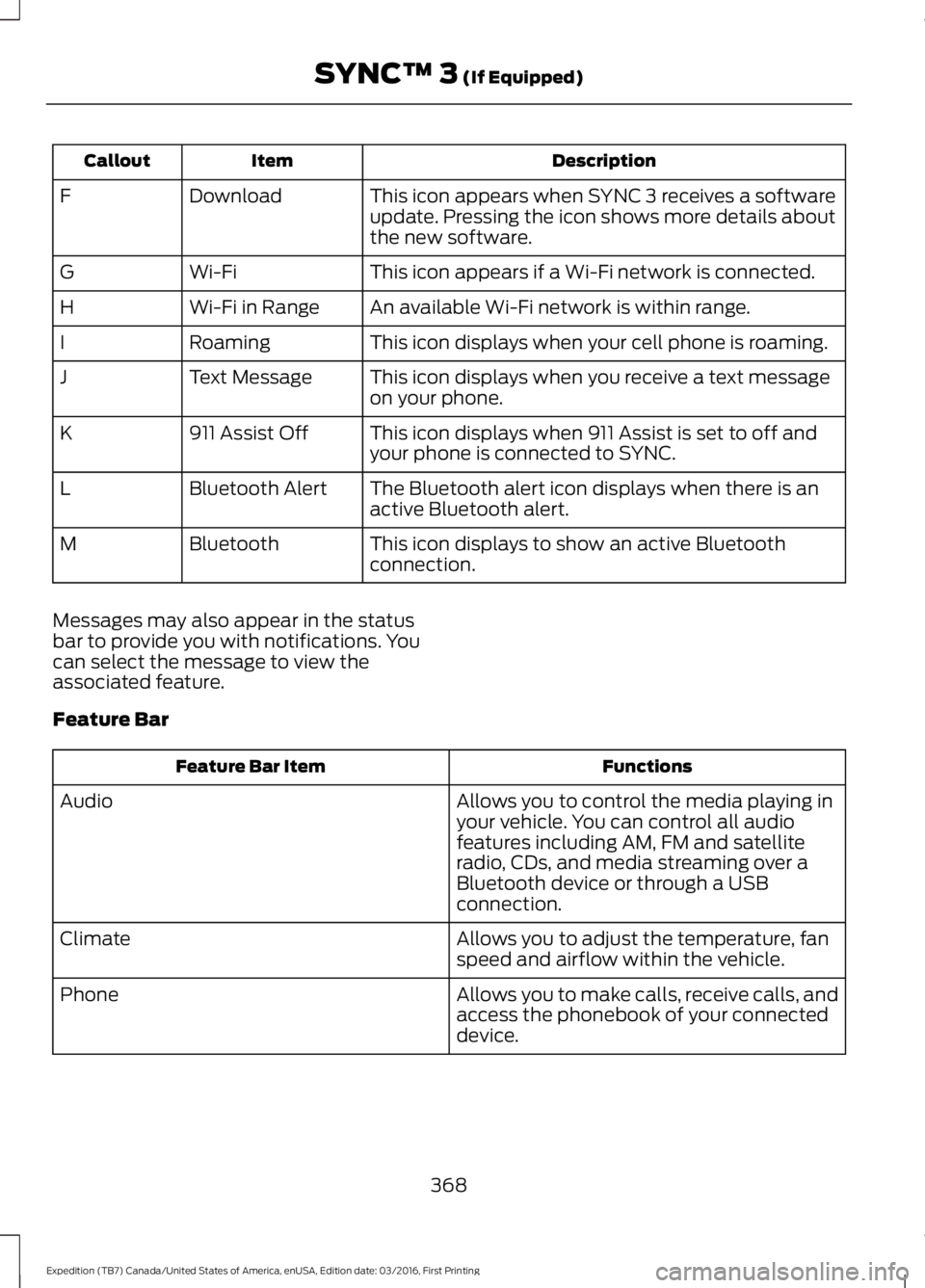
DescriptionItemCallout
This icon appears when SYNC 3 receives a softwareupdate. Pressing the icon shows more details aboutthe new software.
DownloadF
This icon appears if a Wi-Fi network is connected.Wi-FiG
An available Wi-Fi network is within range.Wi-Fi in RangeH
This icon displays when your cell phone is roaming.RoamingI
This icon displays when you receive a text messageon your phone.Text MessageJ
This icon displays when 911 Assist is set to off andyour phone is connected to SYNC.911 Assist OffK
The Bluetooth alert icon displays when there is anactive Bluetooth alert.Bluetooth AlertL
This icon displays to show an active Bluetoothconnection.BluetoothM
Messages may also appear in the statusbar to provide you with notifications. Youcan select the message to view theassociated feature.
Feature Bar
FunctionsFeature Bar Item
Allows you to control the media playing inyour vehicle. You can control all audiofeatures including AM, FM and satelliteradio, CDs, and media streaming over aBluetooth device or through a USBconnection.
Audio
Allows you to adjust the temperature, fanspeed and airflow within the vehicle.Climate
Allows you to make calls, receive calls, andaccess the phonebook of your connecteddevice.
Phone
368
Expedition (TB7) Canada/United States of America, enUSA, Edition date: 03/2016, First Printing
SYNC™ 3 (If Equipped)
Page 374 of 500
InformationOption
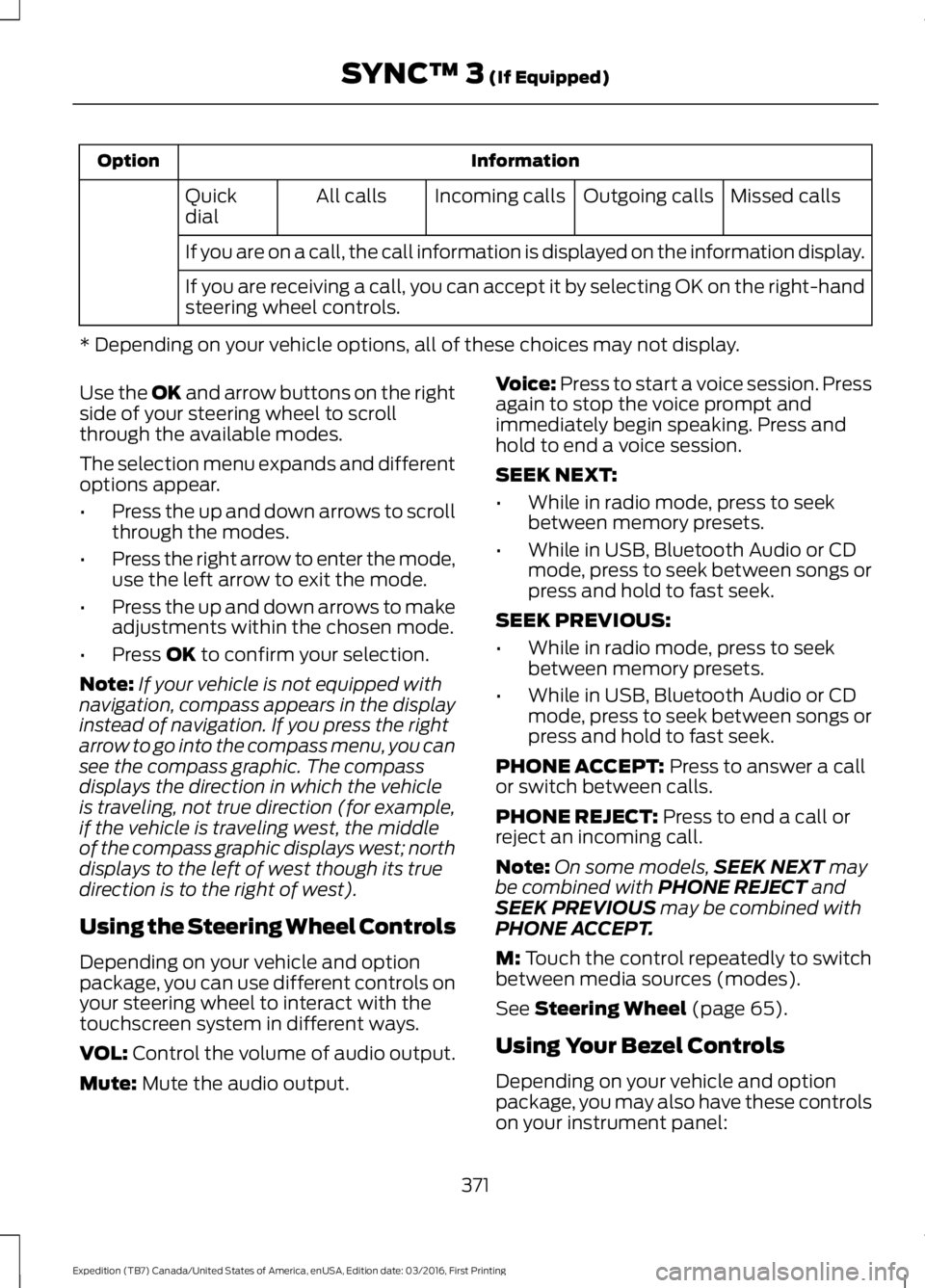
Missed callsOutgoing callsIncoming callsAll callsQuickdial
If you are on a call, the call information is displayed on the information display.
If you are receiving a call, you can accept it by selecting OK on the right-handsteering wheel controls.
* Depending on your vehicle options, all of these choices may not display.
Use the OK and arrow buttons on the rightside of your steering wheel to scrollthrough the available modes.
The selection menu expands and differentoptions appear.
•Press the up and down arrows to scrollthrough the modes.
•Press the right arrow to enter the mode,use the left arrow to exit the mode.
•Press the up and down arrows to makeadjustments within the chosen mode.
•Press OK to confirm your selection.
Note:If your vehicle is not equipped withnavigation, compass appears in the displayinstead of navigation. If you press the rightarrow to go into the compass menu, you cansee the compass graphic. The compassdisplays the direction in which the vehicleis traveling, not true direction (for example,if the vehicle is traveling west, the middleof the compass graphic displays west; northdisplays to the left of west though its truedirection is to the right of west).
Using the Steering Wheel Controls
Depending on your vehicle and optionpackage, you can use different controls onyour steering wheel to interact with thetouchscreen system in different ways.
VOL: Control the volume of audio output.
Mute: Mute the audio output.
Voice: Press to start a voice session. Pressagain to stop the voice prompt andimmediately begin speaking. Press andhold to end a voice session.
SEEK NEXT:
•While in radio mode, press to seekbetween memory presets.
•While in USB, Bluetooth Audio or CDmode, press to seek between songs orpress and hold to fast seek.
SEEK PREVIOUS:
•While in radio mode, press to seekbetween memory presets.
•While in USB, Bluetooth Audio or CDmode, press to seek between songs orpress and hold to fast seek.
PHONE ACCEPT: Press to answer a callor switch between calls.
PHONE REJECT: Press to end a call orreject an incoming call.
Note:On some models,SEEK NEXT maybe combined with PHONE REJECT andSEEK PREVIOUS may be combined withPHONE ACCEPT.
M: Touch the control repeatedly to switchbetween media sources (modes).
See Steering Wheel (page 65).
Using Your Bezel Controls
Depending on your vehicle and optionpackage, you may also have these controlson your instrument panel:
371
Expedition (TB7) Canada/United States of America, enUSA, Edition date: 03/2016, First Printing
SYNC™ 3 (If Equipped)