tow FORD EXPEDITION EL 2017 Manual Online
[x] Cancel search | Manufacturer: FORD, Model Year: 2017, Model line: EXPEDITION EL, Model: FORD EXPEDITION EL 2017Pages: 500, PDF Size: 6.13 MB
Page 316 of 500
GENERAL INFORMATION
Radio Frequencies and ReceptionFactors
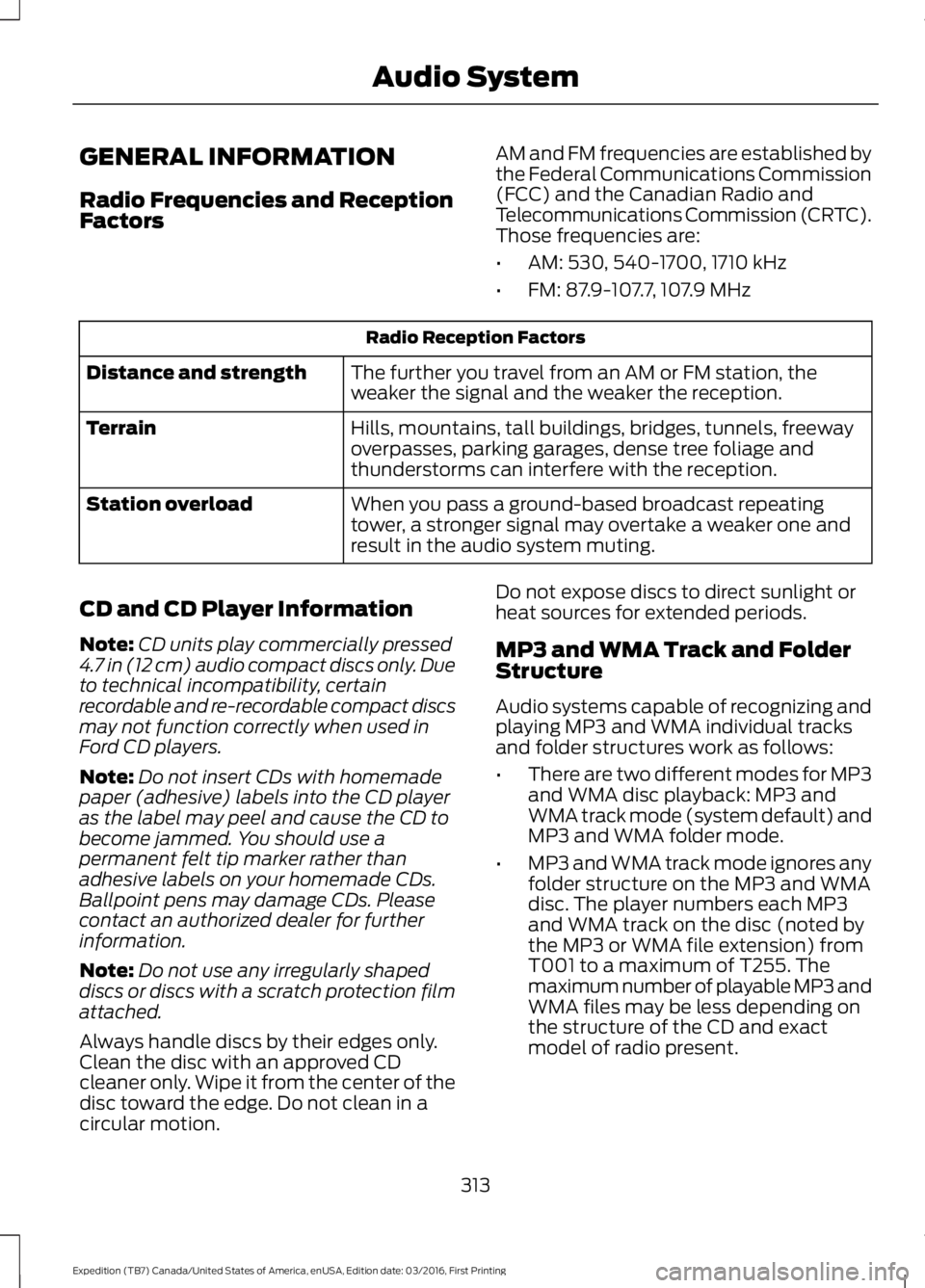
AM and FM frequencies are established bythe Federal Communications Commission(FCC) and the Canadian Radio andTelecommunications Commission (CRTC).Those frequencies are:
•AM: 530, 540-1700, 1710 kHz
•FM: 87.9-107.7, 107.9 MHz
Radio Reception Factors
The further you travel from an AM or FM station, theweaker the signal and the weaker the reception.Distance and strength
Hills, mountains, tall buildings, bridges, tunnels, freewayoverpasses, parking garages, dense tree foliage andthunderstorms can interfere with the reception.
Terrain
When you pass a ground-based broadcast repeatingtower, a stronger signal may overtake a weaker one andresult in the audio system muting.
Station overload
CD and CD Player Information
Note:CD units play commercially pressed4.7 in (12 cm) audio compact discs only. Dueto technical incompatibility, certainrecordable and re-recordable compact discsmay not function correctly when used inFord CD players.
Note:Do not insert CDs with homemadepaper (adhesive) labels into the CD playeras the label may peel and cause the CD tobecome jammed. You should use apermanent felt tip marker rather thanadhesive labels on your homemade CDs.Ballpoint pens may damage CDs. Pleasecontact an authorized dealer for furtherinformation.
Note:Do not use any irregularly shapeddiscs or discs with a scratch protection filmattached.
Always handle discs by their edges only.Clean the disc with an approved CDcleaner only. Wipe it from the center of thedisc toward the edge. Do not clean in acircular motion.
Do not expose discs to direct sunlight orheat sources for extended periods.
MP3 and WMA Track and FolderStructure
Audio systems capable of recognizing andplaying MP3 and WMA individual tracksand folder structures work as follows:
•There are two different modes for MP3and WMA disc playback: MP3 andWMA track mode (system default) andMP3 and WMA folder mode.
•MP3 and WMA track mode ignores anyfolder structure on the MP3 and WMAdisc. The player numbers each MP3and WMA track on the disc (noted bythe MP3 or WMA file extension) fromT001 to a maximum of T255. Themaximum number of playable MP3 andWMA files may be less depending onthe structure of the CD and exactmodel of radio present.
313
Expedition (TB7) Canada/United States of America, enUSA, Edition date: 03/2016, First Printing
Audio System
Page 324 of 500
Note:This receiver includes the eCosreal-time operating system. eCos ispublished under the eCos License.
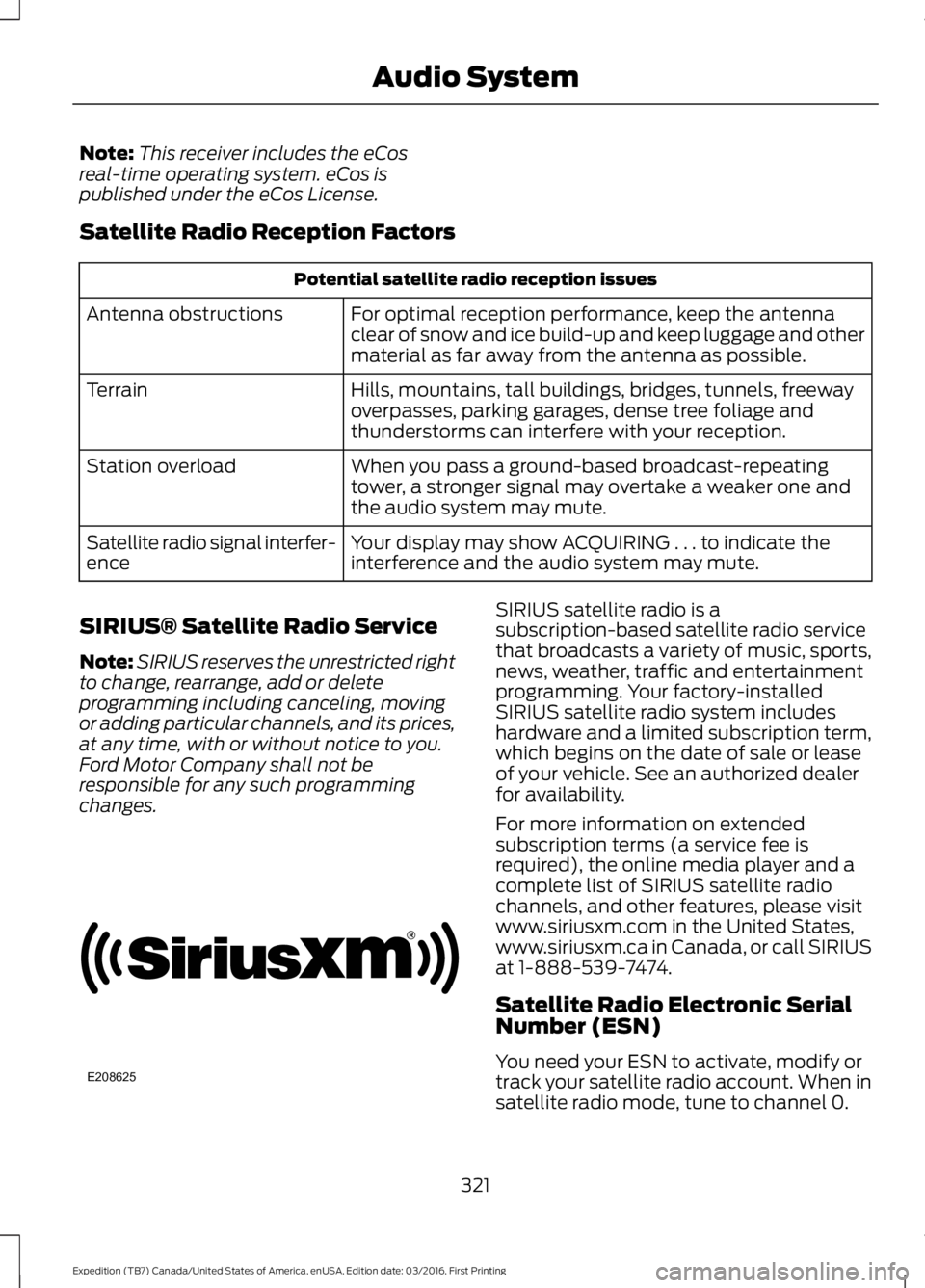
Satellite Radio Reception Factors
Potential satellite radio reception issues
For optimal reception performance, keep the antennaclear of snow and ice build-up and keep luggage and othermaterial as far away from the antenna as possible.
Antenna obstructions
Hills, mountains, tall buildings, bridges, tunnels, freewayoverpasses, parking garages, dense tree foliage andthunderstorms can interfere with your reception.
Terrain
When you pass a ground-based broadcast-repeatingtower, a stronger signal may overtake a weaker one andthe audio system may mute.
Station overload
Your display may show ACQUIRING . . . to indicate theinterference and the audio system may mute.Satellite radio signal interfer-ence
SIRIUS® Satellite Radio Service
Note:SIRIUS reserves the unrestricted rightto change, rearrange, add or deleteprogramming including canceling, movingor adding particular channels, and its prices,at any time, with or without notice to you.Ford Motor Company shall not beresponsible for any such programmingchanges.
SIRIUS satellite radio is asubscription-based satellite radio servicethat broadcasts a variety of music, sports,news, weather, traffic and entertainmentprogramming. Your factory-installedSIRIUS satellite radio system includeshardware and a limited subscription term,which begins on the date of sale or leaseof your vehicle. See an authorized dealerfor availability.
For more information on extendedsubscription terms (a service fee isrequired), the online media player and acomplete list of SIRIUS satellite radiochannels, and other features, please visitwww.siriusxm.com in the United States,www.siriusxm.ca in Canada, or call SIRIUSat 1-888-539-7474.
Satellite Radio Electronic SerialNumber (ESN)
You need your ESN to activate, modify ortrack your satellite radio account. When insatellite radio mode, tune to channel 0.
321
Expedition (TB7) Canada/United States of America, enUSA, Edition date: 03/2016, First Printing
Audio SystemE208625
Page 325 of 500
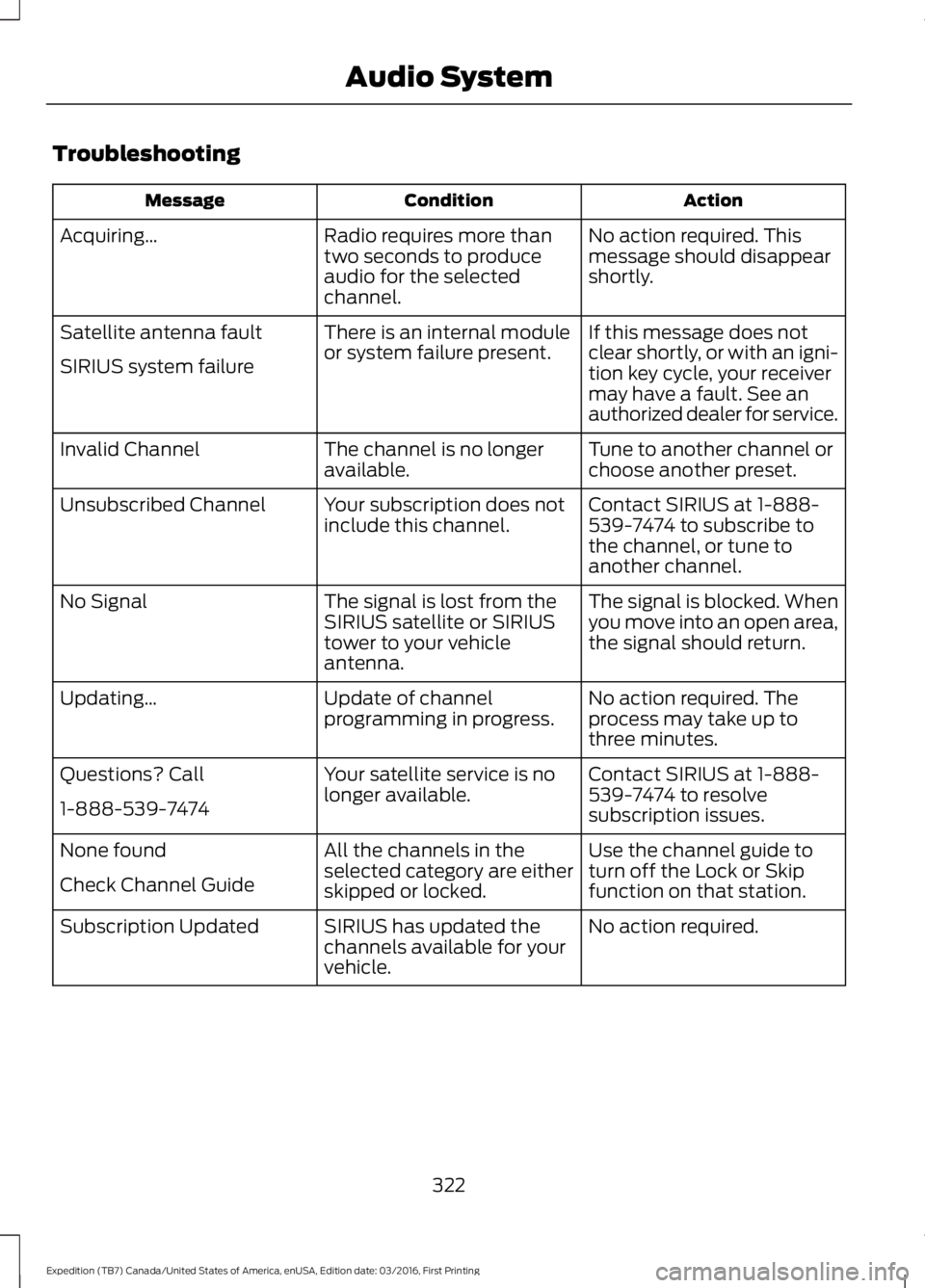
Troubleshooting
ActionConditionMessage
No action required. Thismessage should disappearshortly.
Radio requires more thantwo seconds to produceaudio for the selectedchannel.
Acquiring…
If this message does notclear shortly, or with an igni-tion key cycle, your receivermay have a fault. See anauthorized dealer for service.
There is an internal moduleor system failure present.Satellite antenna fault
SIRIUS system failure
Tune to another channel orchoose another preset.The channel is no longeravailable.Invalid Channel
Contact SIRIUS at 1-888-539-7474 to subscribe tothe channel, or tune toanother channel.
Your subscription does notinclude this channel.Unsubscribed Channel
The signal is blocked. Whenyou move into an open area,the signal should return.
The signal is lost from theSIRIUS satellite or SIRIUStower to your vehicleantenna.
No Signal
No action required. Theprocess may take up tothree minutes.
Update of channelprogramming in progress.Updating…
Contact SIRIUS at 1-888-539-7474 to resolvesubscription issues.
Your satellite service is nolonger available.Questions? Call
1-888-539-7474
Use the channel guide toturn off the Lock or Skipfunction on that station.
All the channels in theselected category are eitherskipped or locked.
None found
Check Channel Guide
No action required.SIRIUS has updated thechannels available for yourvehicle.
Subscription Updated
322
Expedition (TB7) Canada/United States of America, enUSA, Edition date: 03/2016, First Printing
Audio System
Page 349 of 500
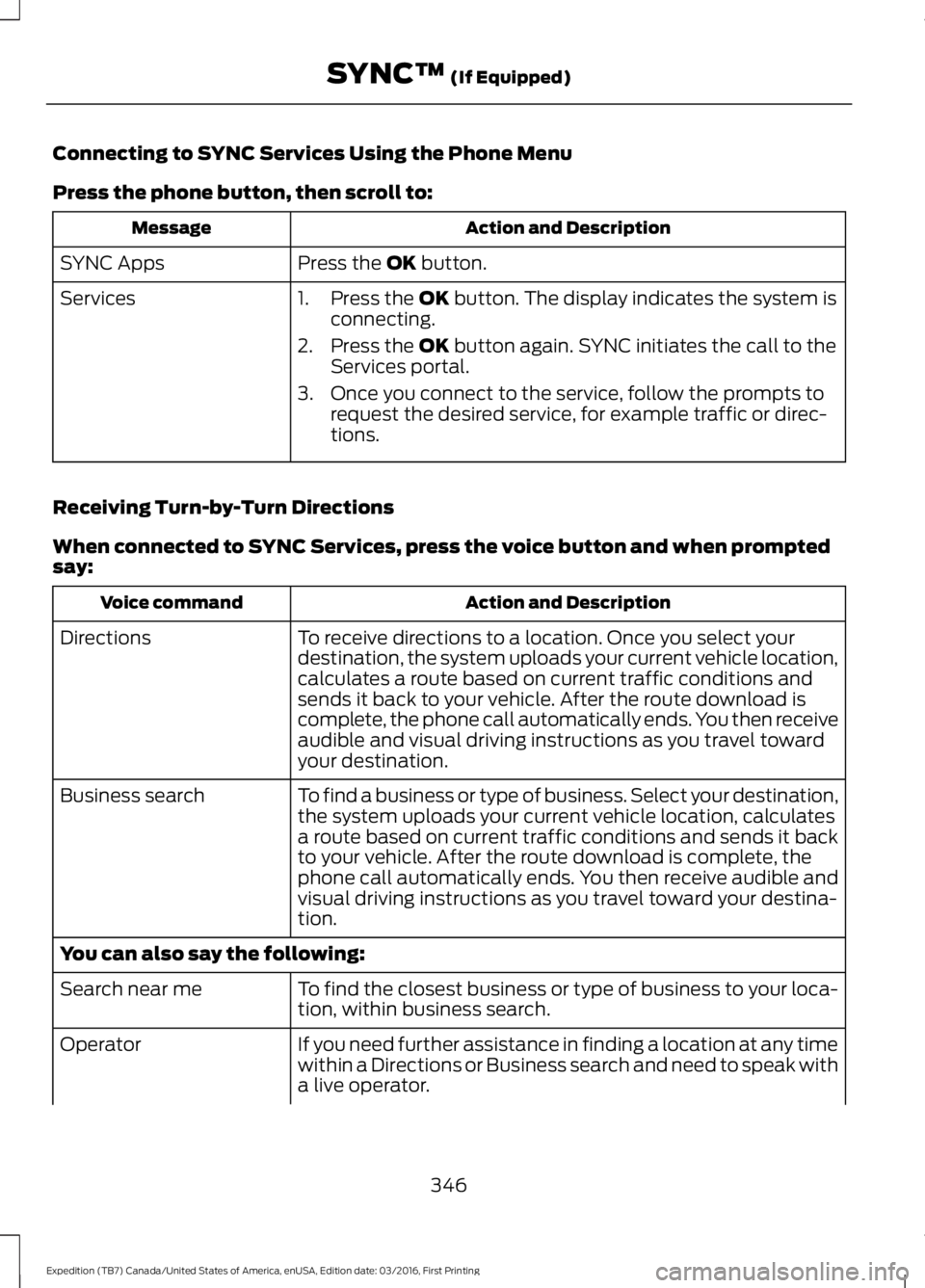
Connecting to SYNC Services Using the Phone Menu
Press the phone button, then scroll to:
Action and DescriptionMessage
Press the OK button.SYNC Apps
Services1. Press the OK button. The display indicates the system isconnecting.
2. Press the OK button again. SYNC initiates the call to theServices portal.
3. Once you connect to the service, follow the prompts torequest the desired service, for example traffic or direc-tions.
Receiving Turn-by-Turn Directions
When connected to SYNC Services, press the voice button and when promptedsay:
Action and DescriptionVoice command
To receive directions to a location. Once you select yourdestination, the system uploads your current vehicle location,calculates a route based on current traffic conditions andsends it back to your vehicle. After the route download iscomplete, the phone call automatically ends. You then receiveaudible and visual driving instructions as you travel towardyour destination.
Directions
To find a business or type of business. Select your destination,the system uploads your current vehicle location, calculatesa route based on current traffic conditions and sends it backto your vehicle. After the route download is complete, thephone call automatically ends. You then receive audible andvisual driving instructions as you travel toward your destina-tion.
Business search
You can also say the following:
To find the closest business or type of business to your loca-tion, within business search.Search near me
If you need further assistance in finding a location at any timewithin a Directions or Business search and need to speak witha live operator.
Operator
346
Expedition (TB7) Canada/United States of America, enUSA, Edition date: 03/2016, First Printing
SYNC™ (If Equipped)
Page 392 of 500
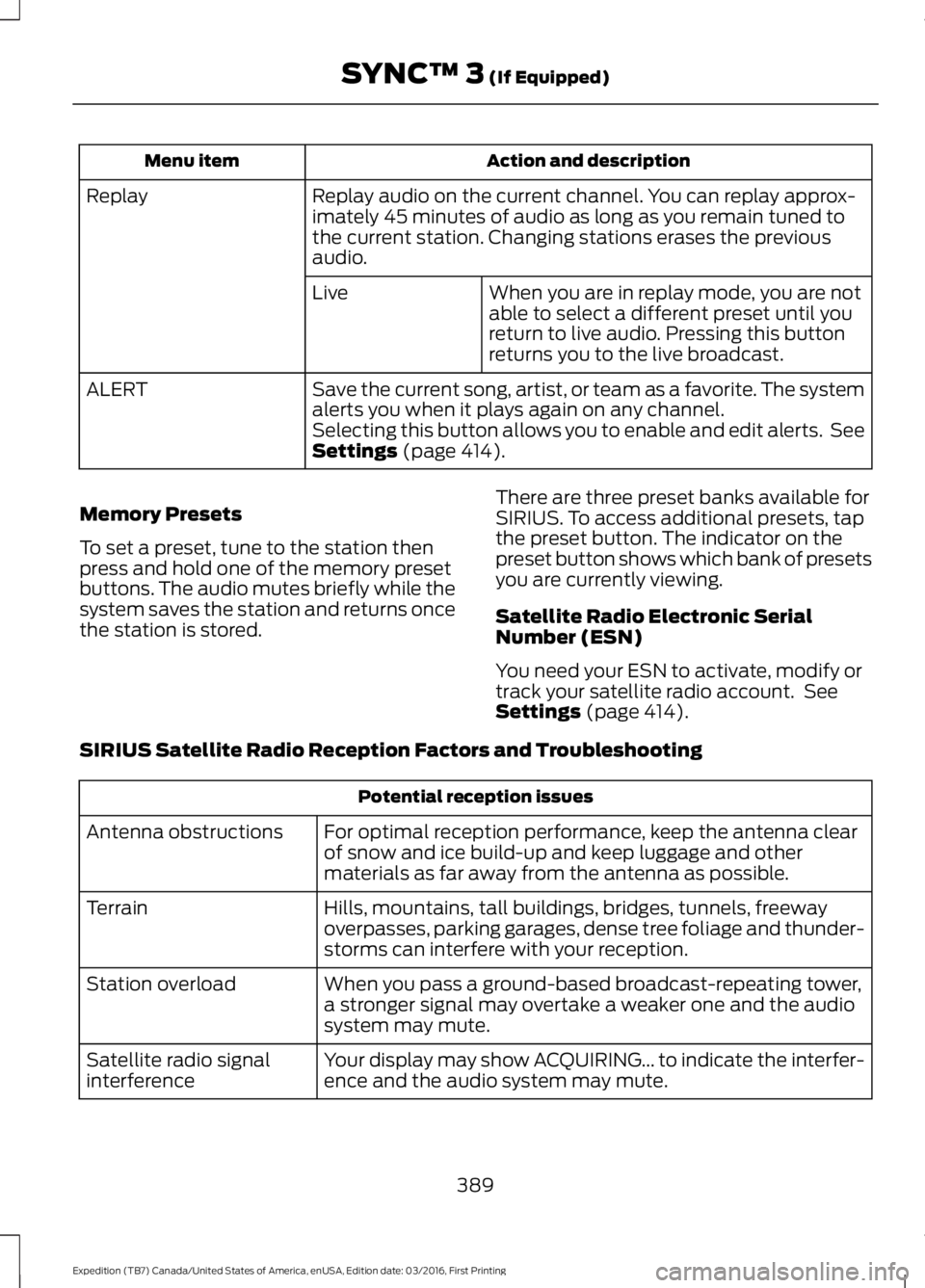
Action and descriptionMenu item
Replay audio on the current channel. You can replay approx-imately 45 minutes of audio as long as you remain tuned tothe current station. Changing stations erases the previousaudio.
Replay
When you are in replay mode, you are notable to select a different preset until youreturn to live audio. Pressing this buttonreturns you to the live broadcast.
Live
Save the current song, artist, or team as a favorite. The systemalerts you when it plays again on any channel.ALERT
Selecting this button allows you to enable and edit alerts. SeeSettings (page 414).
Memory Presets
To set a preset, tune to the station thenpress and hold one of the memory presetbuttons. The audio mutes briefly while thesystem saves the station and returns oncethe station is stored.
There are three preset banks available forSIRIUS. To access additional presets, tapthe preset button. The indicator on thepreset button shows which bank of presetsyou are currently viewing.
Satellite Radio Electronic SerialNumber (ESN)
You need your ESN to activate, modify ortrack your satellite radio account. SeeSettings (page 414).
SIRIUS Satellite Radio Reception Factors and Troubleshooting
Potential reception issues
For optimal reception performance, keep the antenna clearof snow and ice build-up and keep luggage and othermaterials as far away from the antenna as possible.
Antenna obstructions
Hills, mountains, tall buildings, bridges, tunnels, freewayoverpasses, parking garages, dense tree foliage and thunder-storms can interfere with your reception.
Terrain
When you pass a ground-based broadcast-repeating tower,a stronger signal may overtake a weaker one and the audiosystem may mute.
Station overload
Your display may show ACQUIRING... to indicate the interfer-ence and the audio system may mute.Satellite radio signalinterference
389
Expedition (TB7) Canada/United States of America, enUSA, Edition date: 03/2016, First Printing
SYNC™ 3 (If Equipped)
Page 393 of 500
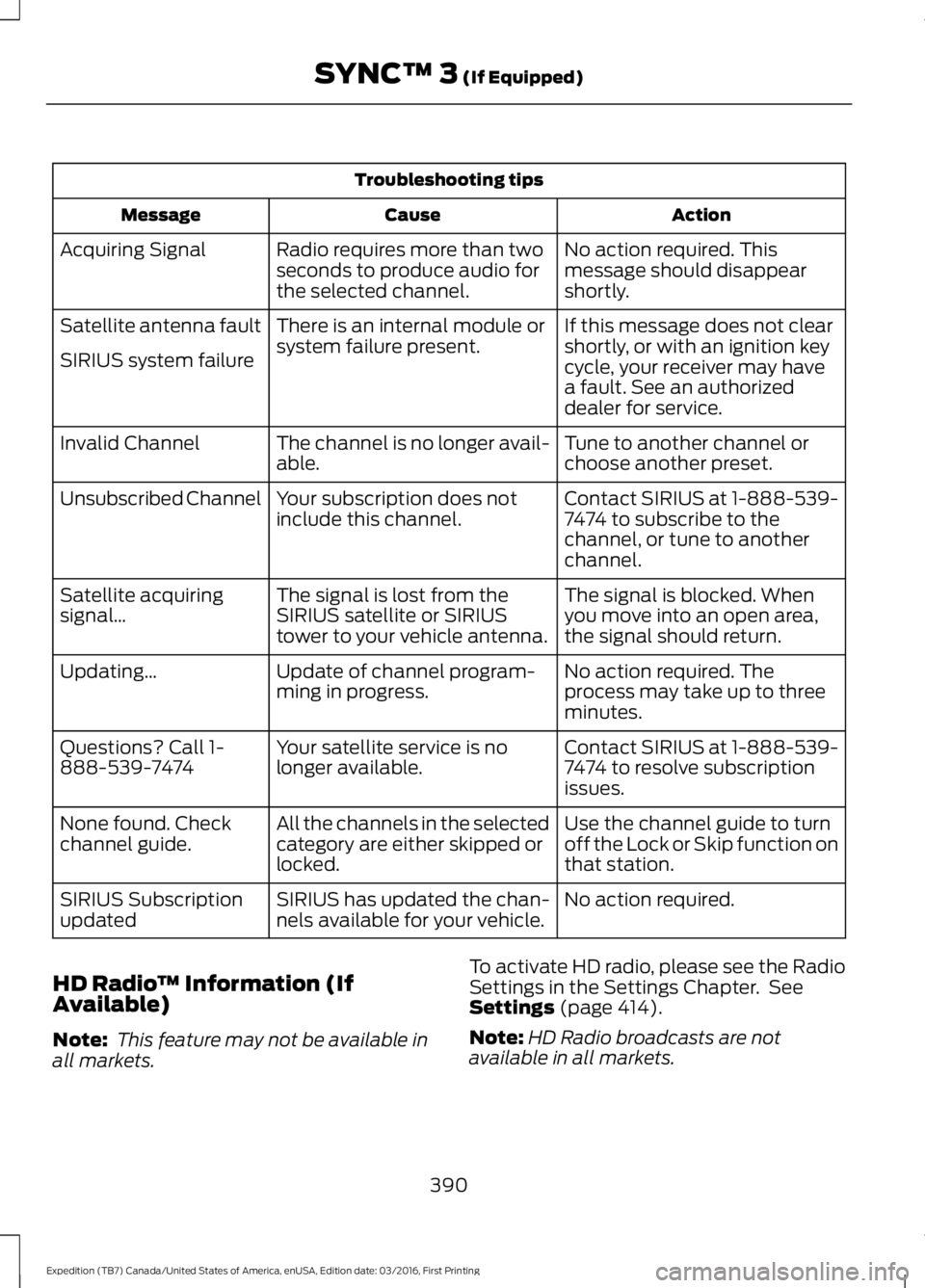
Troubleshooting tips
ActionCauseMessage
No action required. Thismessage should disappearshortly.
Radio requires more than twoseconds to produce audio forthe selected channel.
Acquiring Signal
If this message does not clearshortly, or with an ignition keycycle, your receiver may havea fault. See an authorizeddealer for service.
There is an internal module orsystem failure present.Satellite antenna fault
SIRIUS system failure
Tune to another channel orchoose another preset.The channel is no longer avail-able.Invalid Channel
Contact SIRIUS at 1-888-539-7474 to subscribe to thechannel, or tune to anotherchannel.
Your subscription does notinclude this channel.Unsubscribed Channel
The signal is blocked. Whenyou move into an open area,the signal should return.
The signal is lost from theSIRIUS satellite or SIRIUStower to your vehicle antenna.
Satellite acquiringsignal…
No action required. Theprocess may take up to threeminutes.
Update of channel program-ming in progress.Updating…
Contact SIRIUS at 1-888-539-7474 to resolve subscriptionissues.
Your satellite service is nolonger available.Questions? Call 1-888-539-7474
Use the channel guide to turnoff the Lock or Skip function onthat station.
All the channels in the selectedcategory are either skipped orlocked.
None found. Checkchannel guide.
No action required.SIRIUS has updated the chan-nels available for your vehicle.SIRIUS Subscriptionupdated
HD Radio™ Information (IfAvailable)
Note: This feature may not be available inall markets.
To activate HD radio, please see the RadioSettings in the Settings Chapter. SeeSettings (page 414).
Note:HD Radio broadcasts are notavailable in all markets.
390
Expedition (TB7) Canada/United States of America, enUSA, Edition date: 03/2016, First Printing
SYNC™ 3 (If Equipped)
Page 395 of 500
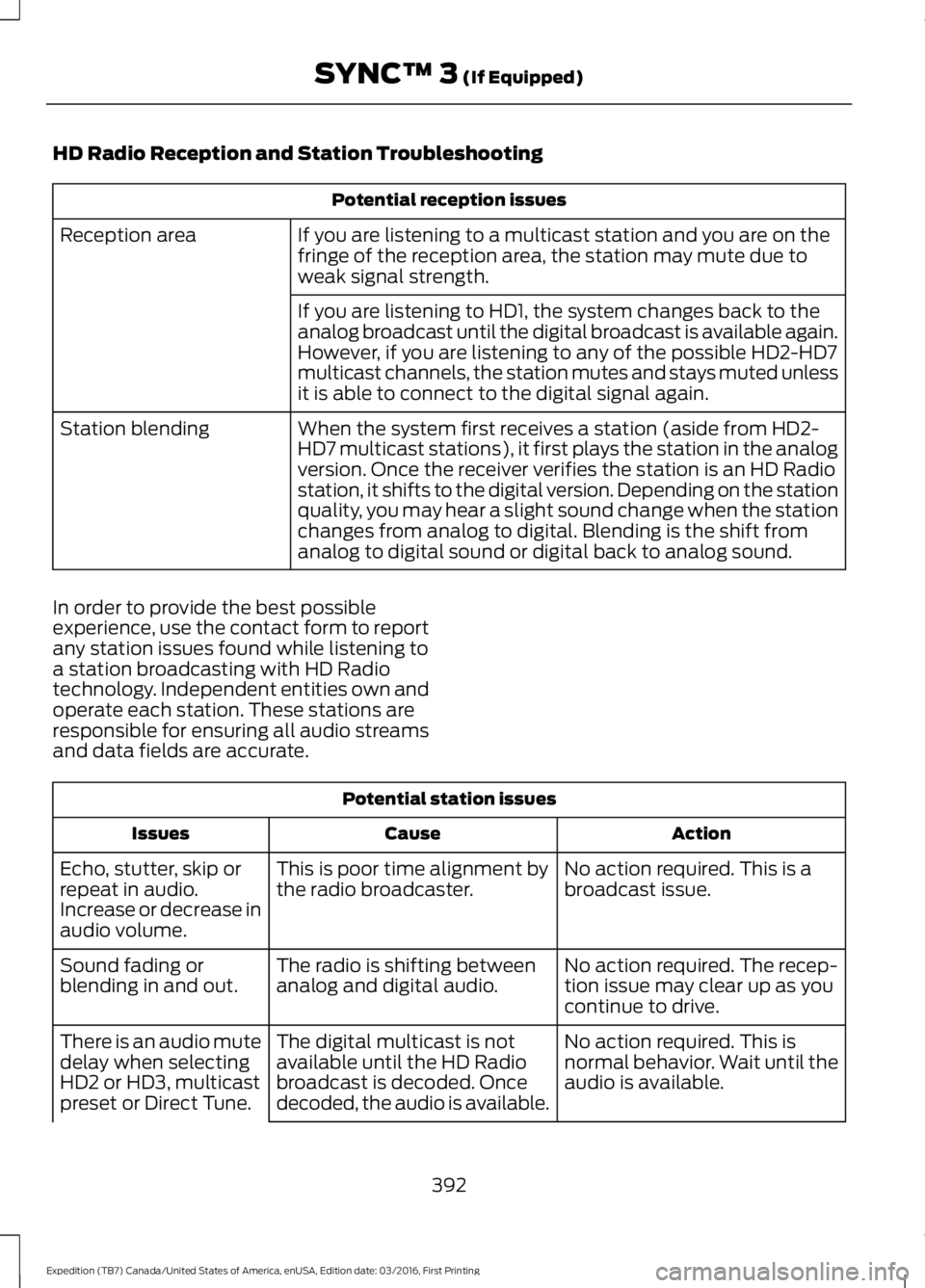
HD Radio Reception and Station Troubleshooting
Potential reception issues
If you are listening to a multicast station and you are on thefringe of the reception area, the station may mute due toweak signal strength.
Reception area
If you are listening to HD1, the system changes back to theanalog broadcast until the digital broadcast is available again.However, if you are listening to any of the possible HD2-HD7multicast channels, the station mutes and stays muted unlessit is able to connect to the digital signal again.
When the system first receives a station (aside from HD2-HD7 multicast stations), it first plays the station in the analogversion. Once the receiver verifies the station is an HD Radiostation, it shifts to the digital version. Depending on the stationquality, you may hear a slight sound change when the stationchanges from analog to digital. Blending is the shift fromanalog to digital sound or digital back to analog sound.
Station blending
In order to provide the best possibleexperience, use the contact form to reportany station issues found while listening toa station broadcasting with HD Radiotechnology. Independent entities own andoperate each station. These stations areresponsible for ensuring all audio streamsand data fields are accurate.
Potential station issues
ActionCauseIssues
No action required. This is abroadcast issue.This is poor time alignment bythe radio broadcaster.Echo, stutter, skip orrepeat in audio.Increase or decrease inaudio volume.
No action required. The recep-tion issue may clear up as youcontinue to drive.
The radio is shifting betweenanalog and digital audio.Sound fading orblending in and out.
No action required. This isnormal behavior. Wait until theaudio is available.
The digital multicast is notavailable until the HD Radiobroadcast is decoded. Oncedecoded, the audio is available.
There is an audio mutedelay when selectingHD2 or HD3, multicastpreset or Direct Tune.
392
Expedition (TB7) Canada/United States of America, enUSA, Edition date: 03/2016, First Printing
SYNC™ 3 (If Equipped)
Page 415 of 500
HERE is the digital map provider for thenavigation application. If you find map dataerrors, you may report them directly toHERE by going towww.here.com/mapcreator. HEREevaluates all reported map errors andresponds with the result of theirinvestigation by e-mail.
Map coverage includes the USA (includingPuerto Rico and the US Virgin Islands),Canada and Mexico.
APPS
The system enables voice, steering wheel,and touch screen control of SYNC 3AppLink enabled smartphone apps. Oncean app is running through AppLink, you cancontrol main features of the app throughvoice commands and steering wheelcontrols.
Note:Available AppLink enabled apps willvary by market.
Note:You must pair and connect yoursmartphone via Bluetooth to SYNC 3 toaccess AppLink.
Note:iPhone users need to connect thephone to the USB port.
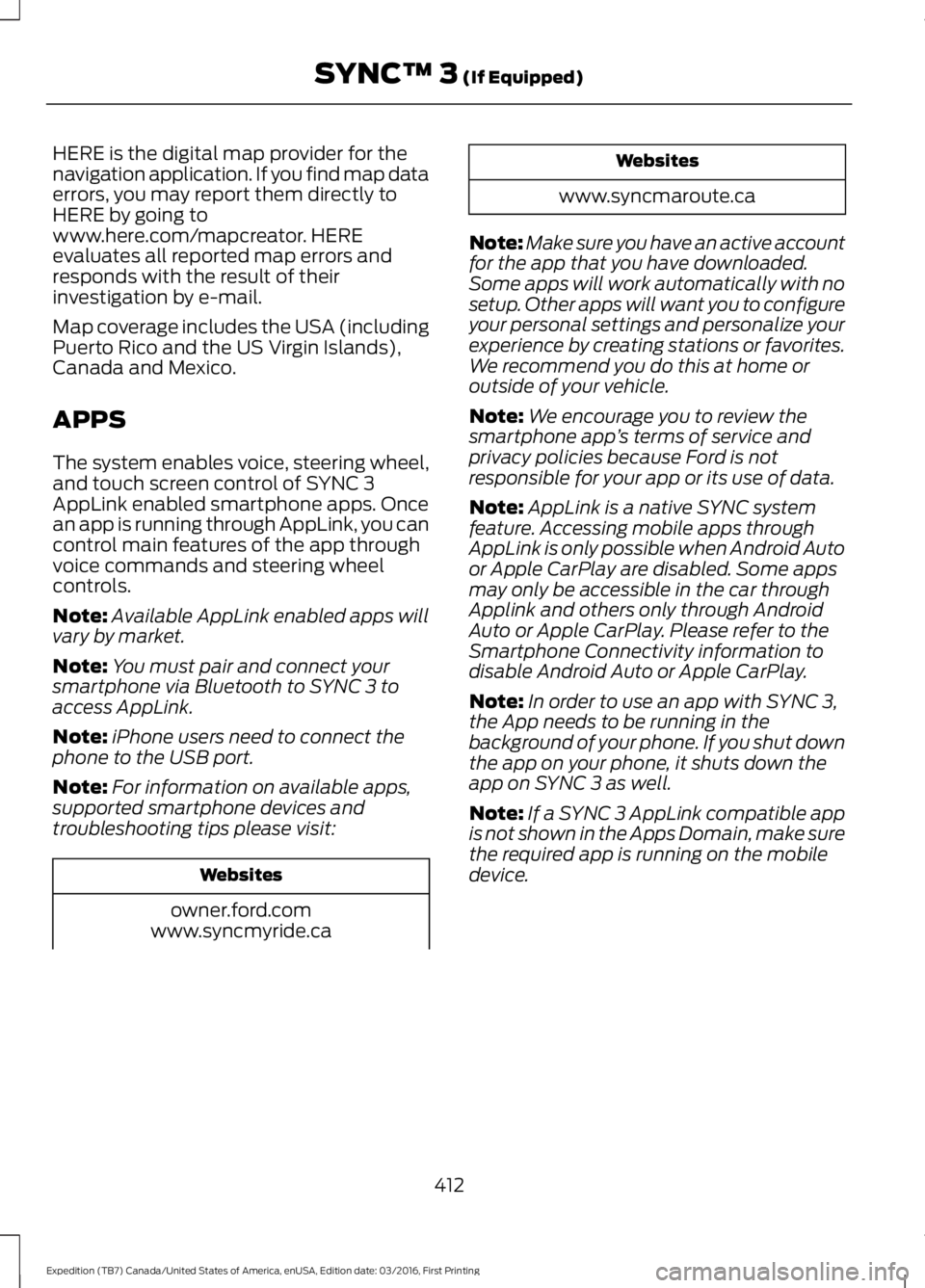
Note:For information on available apps,supported smartphone devices andtroubleshooting tips please visit:
Websites
owner.ford.comwww.syncmyride.ca
Websites
www.syncmaroute.ca
Note:Make sure you have an active accountfor the app that you have downloaded.Some apps will work automatically with nosetup. Other apps will want you to configureyour personal settings and personalize yourexperience by creating stations or favorites.We recommend you do this at home oroutside of your vehicle.
Note:We encourage you to review thesmartphone app’s terms of service andprivacy policies because Ford is notresponsible for your app or its use of data.
Note:AppLink is a native SYNC systemfeature. Accessing mobile apps throughAppLink is only possible when Android Autoor Apple CarPlay are disabled. Some appsmay only be accessible in the car throughApplink and others only through AndroidAuto or Apple CarPlay. Please refer to theSmartphone Connectivity information todisable Android Auto or Apple CarPlay.
Note:In order to use an app with SYNC 3,the App needs to be running in thebackground of your phone. If you shut downthe app on your phone, it shuts down theapp on SYNC 3 as well.
Note:If a SYNC 3 AppLink compatible appis not shown in the Apps Domain, make surethe required app is running on the mobiledevice.
412
Expedition (TB7) Canada/United States of America, enUSA, Edition date: 03/2016, First Printing
SYNC™ 3 (If Equipped)
Page 417 of 500
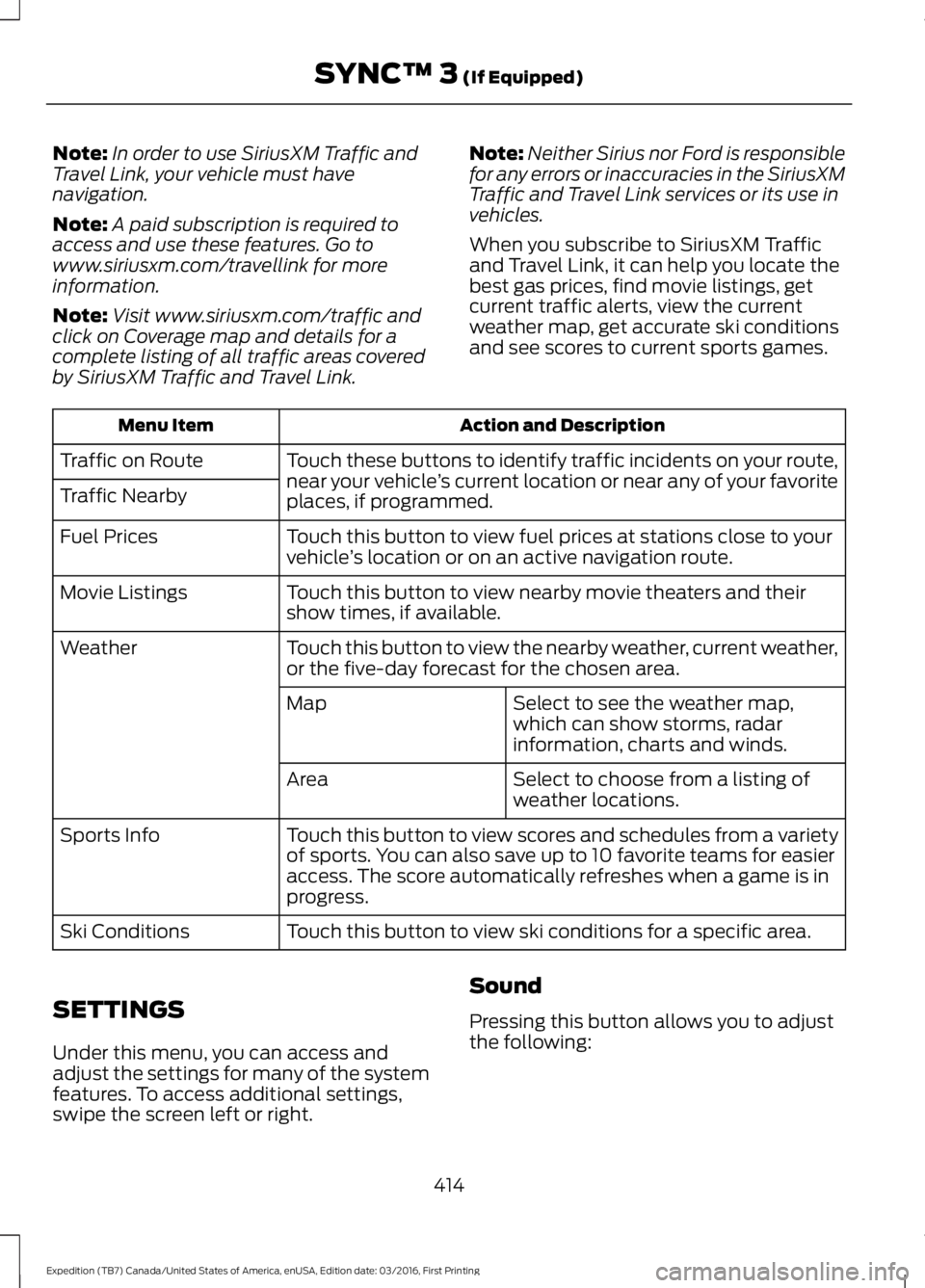
Note:In order to use SiriusXM Traffic andTravel Link, your vehicle must havenavigation.
Note:A paid subscription is required toaccess and use these features. Go towww.siriusxm.com/travellink for moreinformation.
Note:Visit www.siriusxm.com/traffic andclick on Coverage map and details for acomplete listing of all traffic areas coveredby SiriusXM Traffic and Travel Link.
Note:Neither Sirius nor Ford is responsiblefor any errors or inaccuracies in the SiriusXMTraffic and Travel Link services or its use invehicles.
When you subscribe to SiriusXM Trafficand Travel Link, it can help you locate thebest gas prices, find movie listings, getcurrent traffic alerts, view the currentweather map, get accurate ski conditionsand see scores to current sports games.
Action and DescriptionMenu Item
Touch these buttons to identify traffic incidents on your route,near your vehicle’s current location or near any of your favoriteplaces, if programmed.
Traffic on Route
Traffic Nearby
Touch this button to view fuel prices at stations close to yourvehicle’s location or on an active navigation route.Fuel Prices
Touch this button to view nearby movie theaters and theirshow times, if available.Movie Listings
Touch this button to view the nearby weather, current weather,or the five-day forecast for the chosen area.Weather
Select to see the weather map,which can show storms, radarinformation, charts and winds.
Map
Select to choose from a listing ofweather locations.Area
Touch this button to view scores and schedules from a varietyof sports. You can also save up to 10 favorite teams for easieraccess. The score automatically refreshes when a game is inprogress.
Sports Info
Touch this button to view ski conditions for a specific area.Ski Conditions
SETTINGS
Under this menu, you can access andadjust the settings for many of the systemfeatures. To access additional settings,swipe the screen left or right.
Sound
Pressing this button allows you to adjustthe following:
414
Expedition (TB7) Canada/United States of America, enUSA, Edition date: 03/2016, First Printing
SYNC™ 3 (If Equipped)
Page 444 of 500
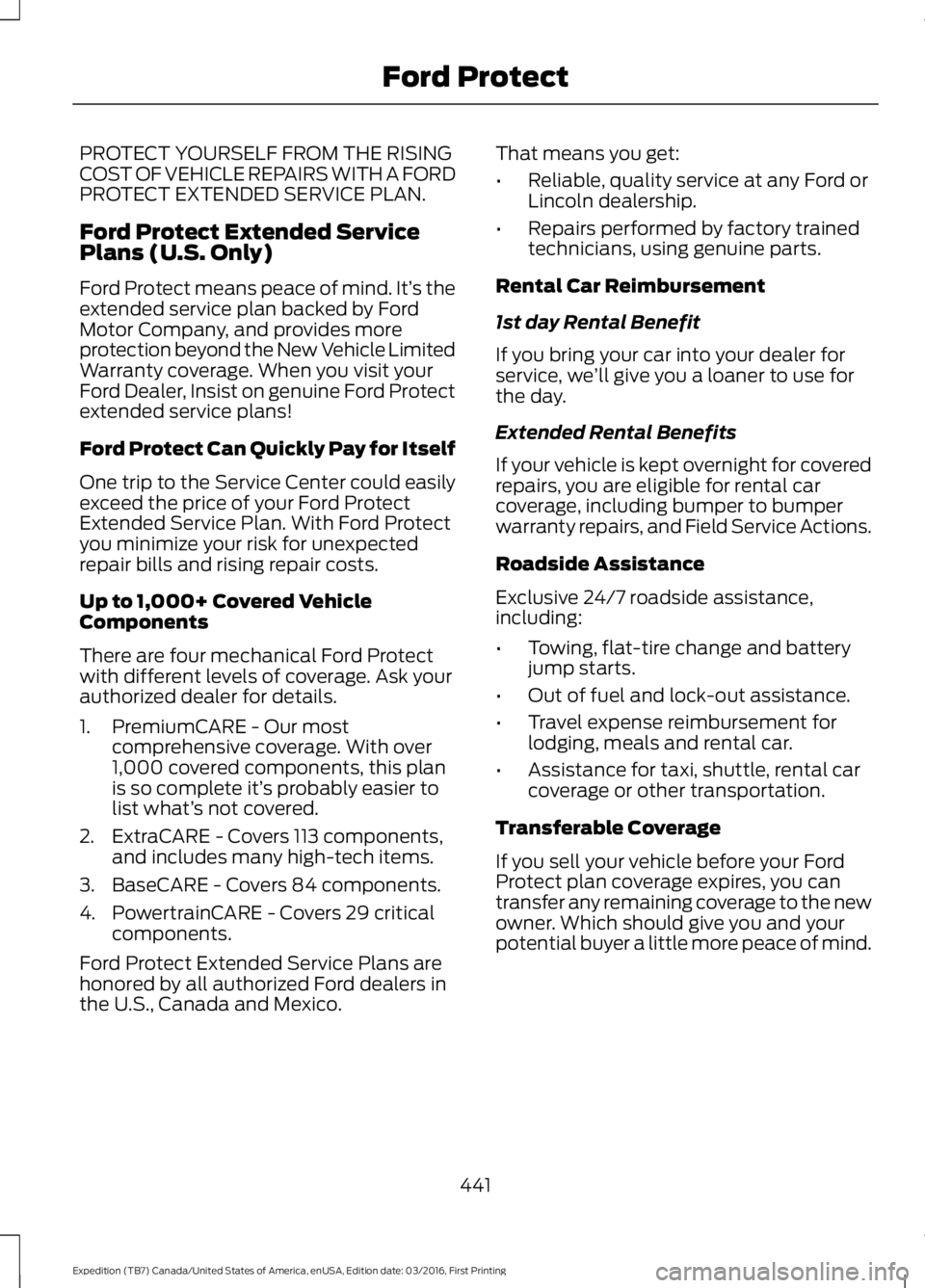
PROTECT YOURSELF FROM THE RISINGCOST OF VEHICLE REPAIRS WITH A FORDPROTECT EXTENDED SERVICE PLAN.
Ford Protect Extended ServicePlans (U.S. Only)
Ford Protect means peace of mind. It’s theextended service plan backed by FordMotor Company, and provides moreprotection beyond the New Vehicle LimitedWarranty coverage. When you visit yourFord Dealer, Insist on genuine Ford Protectextended service plans!
Ford Protect Can Quickly Pay for Itself
One trip to the Service Center could easilyexceed the price of your Ford ProtectExtended Service Plan. With Ford Protectyou minimize your risk for unexpectedrepair bills and rising repair costs.
Up to 1,000+ Covered VehicleComponents
There are four mechanical Ford Protectwith different levels of coverage. Ask yourauthorized dealer for details.
1. PremiumCARE - Our mostcomprehensive coverage. With over1,000 covered components, this planis so complete it’s probably easier tolist what’s not covered.
2. ExtraCARE - Covers 113 components,and includes many high-tech items.
3. BaseCARE - Covers 84 components.
4. PowertrainCARE - Covers 29 criticalcomponents.
Ford Protect Extended Service Plans arehonored by all authorized Ford dealers inthe U.S., Canada and Mexico.
That means you get:
•Reliable, quality service at any Ford orLincoln dealership.
•Repairs performed by factory trainedtechnicians, using genuine parts.
Rental Car Reimbursement
1st day Rental Benefit
If you bring your car into your dealer forservice, we’ll give you a loaner to use forthe day.
Extended Rental Benefits
If your vehicle is kept overnight for coveredrepairs, you are eligible for rental carcoverage, including bumper to bumperwarranty repairs, and Field Service Actions.
Roadside Assistance
Exclusive 24/7 roadside assistance,including:
•Towing, flat-tire change and batteryjump starts.
•Out of fuel and lock-out assistance.
•Travel expense reimbursement forlodging, meals and rental car.
•Assistance for taxi, shuttle, rental carcoverage or other transportation.
Transferable Coverage
If you sell your vehicle before your FordProtect plan coverage expires, you cantransfer any remaining coverage to the newowner. Which should give you and yourpotential buyer a little more peace of mind.
441
Expedition (TB7) Canada/United States of America, enUSA, Edition date: 03/2016, First Printing
Ford Protect