display FORD EXPLORER 2007 4.G Owner's Manual
[x] Cancel search | Manufacturer: FORD, Model Year: 2007, Model line: EXPLORER, Model: FORD EXPLORER 2007 4.GPages: 344, PDF Size: 3.12 MB
Page 38 of 344
Auxiliary input jack
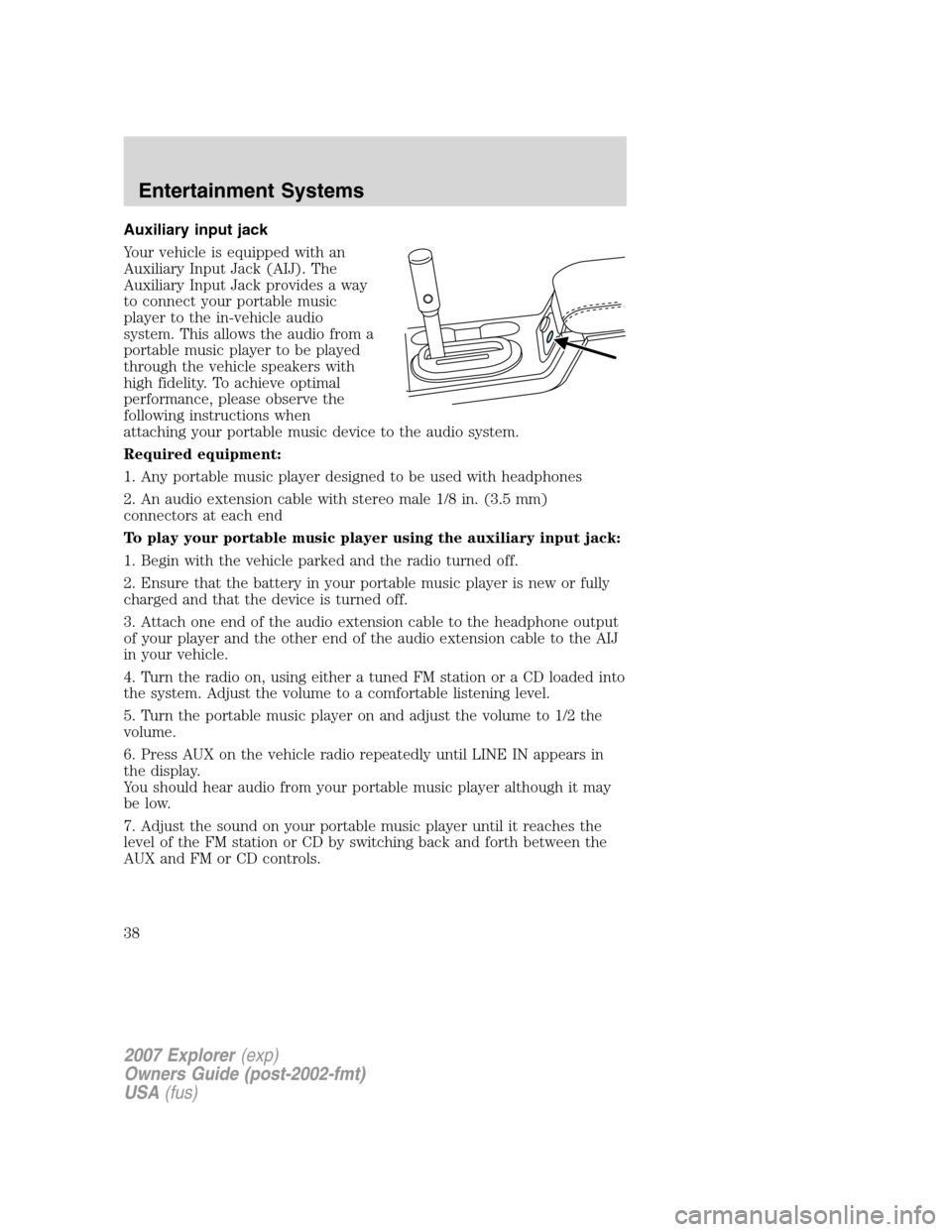
Your vehicle is equipped with an
Auxiliary Input Jack (AIJ). The
Auxiliary Input Jack provides a way
to connect your portable music
player to the in-vehicle audio
system. This allows the audio from a
portable music player to be played
through the vehicle speakers with
high fidelity. To achieve optimal
performance, please observe the
following instructions when
attaching your portable music device to the audio system.
Required equipment:
1. Any portable music player designed to be used with headphones
2. An audio extension cable with stereo male 1/8 in. (3.5 mm)
connectors at each end
To play your portable music player using the auxiliary input jack:
1. Begin with the vehicle parked and the radio turned off.
2. Ensure that the battery in your portable music player is new or fully
charged and that the device is turned off.
3. Attach one end of the audio extension cable to the headphone output
of your player and the other end of the audio extension cable to the AIJ
in your vehicle.
4. Turn the radio on, using either a tuned FM station or a CD loaded into
the system. Adjust the volume to a comfortable listening level.
5. Turn the portable music player on and adjust the volume to 1/2 the
volume.
6. Press AUX on the vehicle radio repeatedly until LINE IN appears in
the display.
You should hear audio from your portable music player although it may
be low.
7. Adjust the sound on your portable music player until it reaches the
level of the FM station or CD by switching back and forth between the
AUX and FM or CD controls.
2007 Explorer(exp)
Owners Guide (post-2002-fmt)
USA(fus)
Entertainment Systems
38
Page 39 of 344
Troubleshooting:
1. Do not connect the audio input jack to a line level output. Line level
outputs are intended for connection to a home stereo and are not
compatible with the AIJ. The AIJ will only work correctly with devices
that have a headphone output with a volume control.
2. Do not set the portable music player’s volume level higher than is
necessary to match the volume of the CD or FM radio in your audio
system as this will cause distortion and will reduce sound quality. Many
portable music players have different output levels, so not all players
should be set at the same levels. Some players will sound best at full
volume and others will need to be set at a lower volume.
3. If the music sounds distorted at lower listening levels, turn the
portable music player volume down. If the problems persists, replace or
recharge the batteries in the portable music player.
4. The portable music player must be controlled in the same manner
when it is used with headphones as the AIJ does not provide control
(play, pause, etc.) over the attached portable music player.
5. For safety reasons, connecting or adjusting the settings on your
portable music player should not be attempted while the vehicle is
moving. Also, the portable music player should be stored in a secure
location, such as the center console or the glove box, when the vehicle is
in motion. The audio extension cable must be long enough to allow the
portable music player to be safely stored while the vehicle is in motion.
GENERAL AUDIO INFORMATION
Radio frequencies:
AM and FM frequencies are established by the Federal Communications
Commission (FCC) and the Canadian Radio and Telecommunications
Commission (CRTC). Those frequencies are:
AM: 530, 540–1700, 1710 kHz
FM: 87.7, 87.9–107.7, 107.9 MHz
Radio reception factors:
There are three factors that can affect radio reception:
•Distance/strength: The further you travel from an FM station, the
weaker the signal and the weaker the reception.
•Terrain: Hills, mountains, tall buildings, power lines, electric fences,
traffic lights and thunderstorms can interfere with your reception.
•Station overload: When you pass a broadcast tower, a stronger signal
may overtake a weaker one and play while the weak station frequency
is displayed.
2007 Explorer(exp)
Owners Guide (post-2002-fmt)
USA(fus)
Entertainment Systems
39
Page 41 of 344
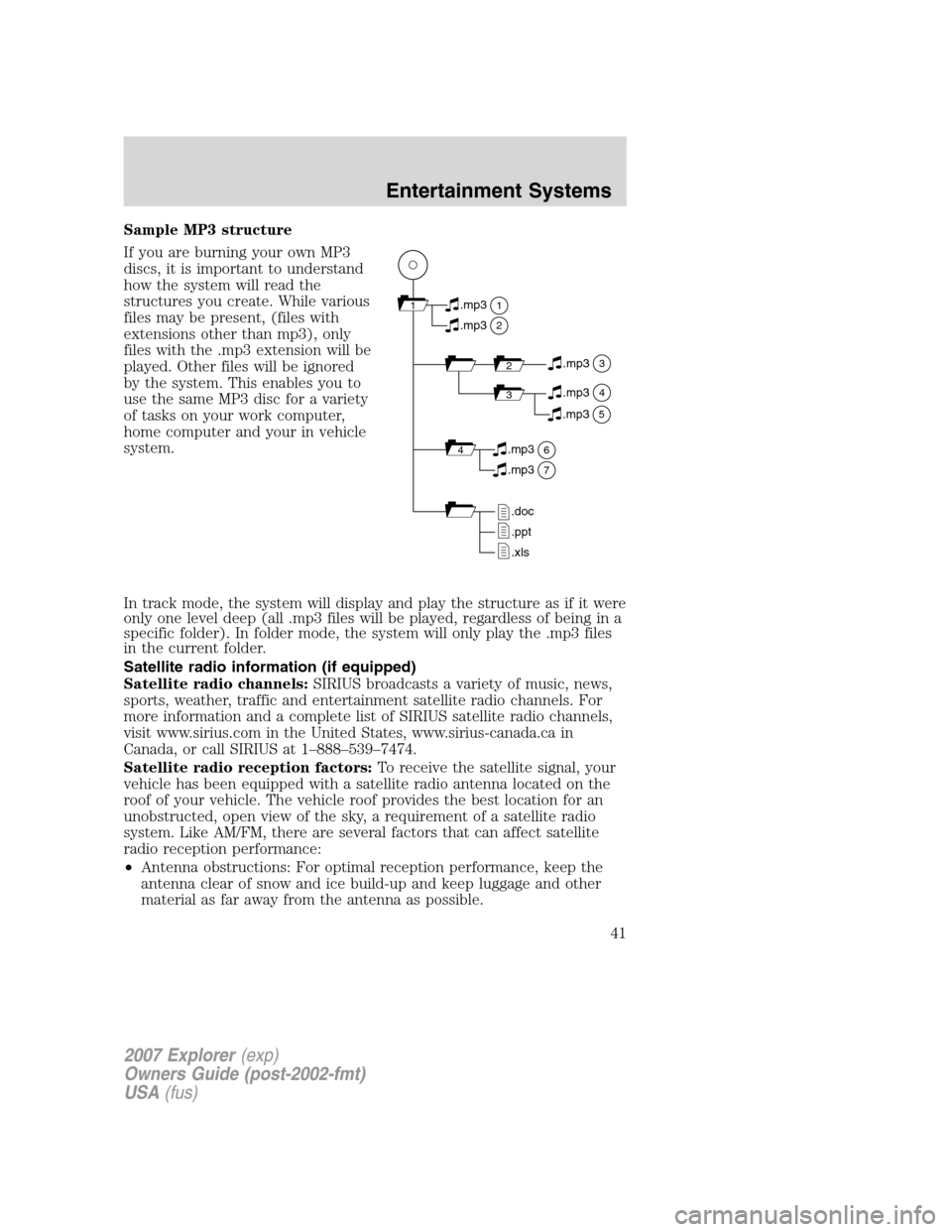
Sample MP3 structure
If you are burning your own MP3
discs, it is important to understand
how the system will read the
structures you create. While various
files may be present, (files with
extensions other than mp3), only
files with the .mp3 extension will be
played. Other files will be ignored
by the system. This enables you to
use the same MP3 disc for a variety
of tasks on your work computer,
home computer and your in vehicle
system.
In track mode, the system will display and play the structure as if it were
only one level deep (all .mp3 files will be played, regardless of being in a
specific folder). In folder mode, the system will only play the .mp3 files
in the current folder.
Satellite radio information (if equipped)
Satellite radio channels:SIRIUS broadcasts a variety of music, news,
sports, weather, traffic and entertainment satellite radio channels. For
more information and a complete list of SIRIUS satellite radio channels,
visit www.sirius.com in the United States, www.sirius-canada.ca in
Canada, or call SIRIUS at 1–888–539–7474.
Satellite radio reception factors:To receive the satellite signal, your
vehicle has been equipped with a satellite radio antenna located on the
roof of your vehicle. The vehicle roof provides the best location for an
unobstructed, open view of the sky, a requirement of a satellite radio
system. Like AM/FM, there are several factors that can affect satellite
radio reception performance:
•Antenna obstructions: For optimal reception performance, keep the
antenna clear of snow and ice build-up and keep luggage and other
material as far away from the antenna as possible.
11
2
.mp3
2.mp3
3.mp3
34.mp3
64.mp3
7.mp3
.doc
.ppt
.xls
5.mp3
2007 Explorer(exp)
Owners Guide (post-2002-fmt)
USA(fus)
Entertainment Systems
41
Page 42 of 344
•Terrain: Hills, mountains, tall buildings, bridges, tunnels, freeway
overpasses, parking garages, dense tree foliage and thunderstorms can
interfere with your reception.
•Station overload: When you pass a ground based broadcast repeating
tower, a stronger signal may overtake a weaker one and result in an
audio mute.
Unlike AM/FM audible static, you will hear an audio mute when there is
a satellite radio signal interference. Your radio display may display NO
SIGNAL to indicate the interference.
SIRIUS satellite radio service:SIRIUS Satellite Radio is a subscription
based satellite radio service that broadcasts music, sports, news and
entertainment programming. A service fee is required in order to receive
SIRIUS service. Vehicles that are equipped with a factory installed
SIRIUS Satellite Radio system include:
•Hardware and limited subscription term, which begins on the date of
sale or lease of the vehicle.
•Online media player providing access to all 65 SIRIUS music channels
over the internet (U.S. customers only).
For information on extended subscription terms, contact SIRIUS at
1–888–539–7474.
Note:SIRIUS reserves the unrestricted right to change, rearrange, add
or delete programming including canceling, moving or adding particular
channels, and its prices, at any time, with or without notice to you. Ford
Motor Company shall not be responsible for any such programming
changes.
Satellite Radio Electronic Serial Number (ESN):This 12–digit
Satellite Serial Number is needed to activate, modify or track your
satellite radio account. You will need this number when communicating
with SIRIUS. While in Satellite Radio mode, you can view this number on
the radio display by pressing AUX and Preset 1 control simultaneously.
2007 Explorer(exp)
Owners Guide (post-2002-fmt)
USA(fus)
Entertainment Systems
42
Page 43 of 344
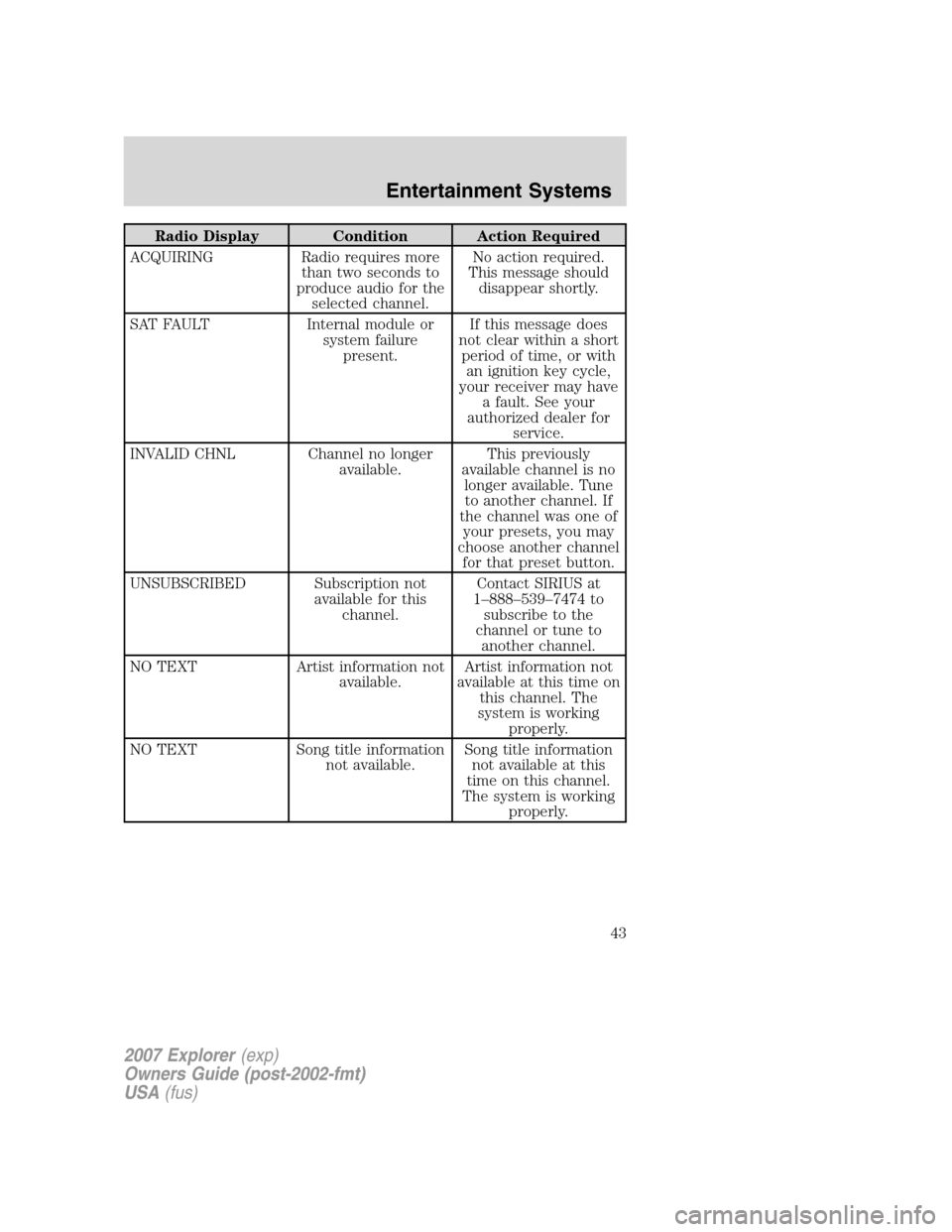
Radio Display Condition Action Required
ACQUIRING Radio requires more
than two seconds to
produce audio for the
selected channel.No action required.
This message should
disappear shortly.
SAT FAULT Internal module or
system failure
present.If this message does
not clear within a short
period of time, or with
an ignition key cycle,
your receiver may have
a fault. See your
authorized dealer for
service.
INVALID CHNL Channel no longer
available.This previously
available channel is no
longer available. Tune
to another channel. If
the channel was one of
your presets, you may
choose another channel
for that preset button.
UNSUBSCRIBED Subscription not
available for this
channel.Contact SIRIUS at
1–888–539–7474 to
subscribe to the
channel or tune to
another channel.
NO TEXT Artist information not
available.Artist information not
available at this time on
this channel. The
system is working
properly.
NO TEXT Song title information
not available.Song title information
not available at this
time on this channel.
The system is working
properly.
2007 Explorer(exp)
Owners Guide (post-2002-fmt)
USA(fus)
Entertainment Systems
43
Page 44 of 344
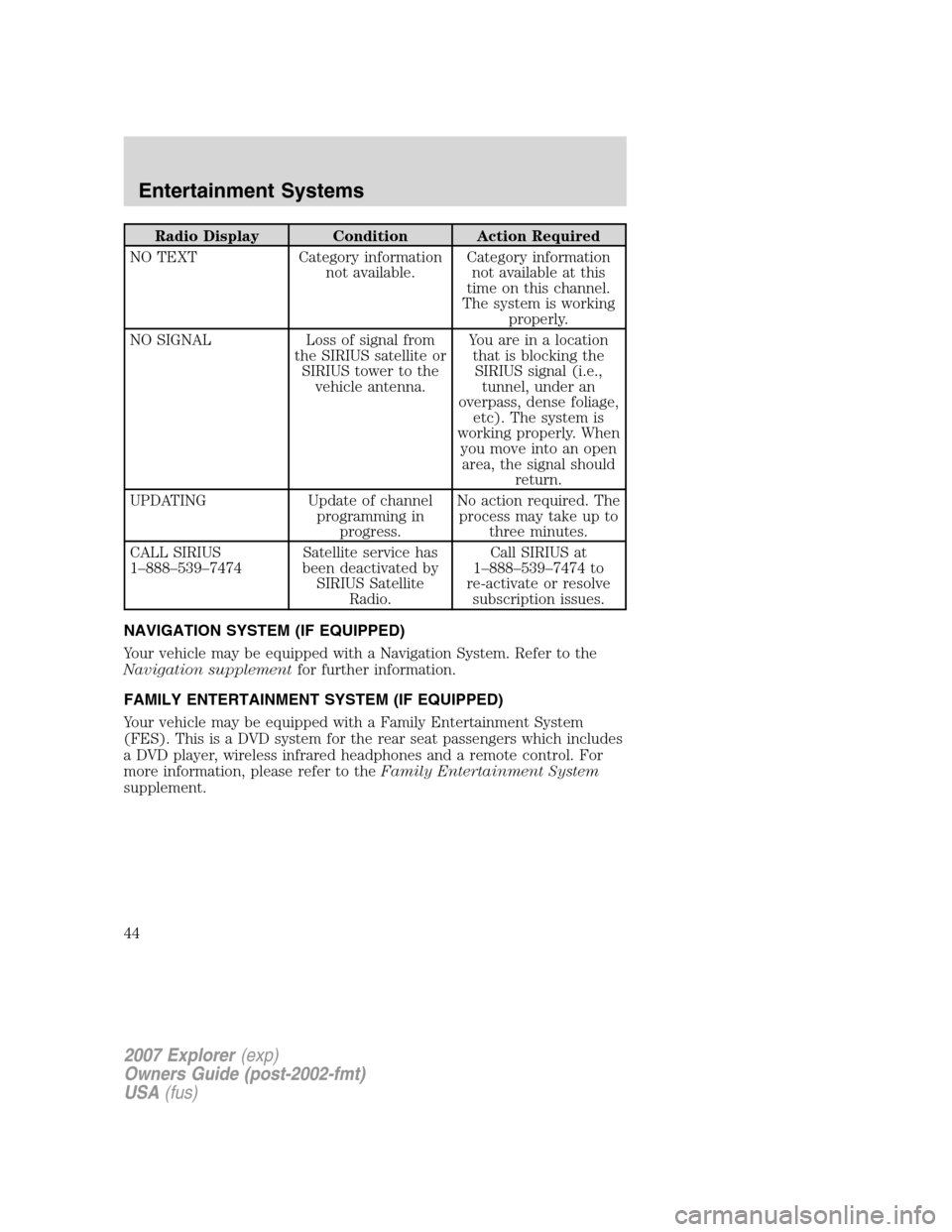
Radio Display Condition Action Required
NO TEXT Category information
not available.Category information
not available at this
time on this channel.
The system is working
properly.
NO SIGNAL Loss of signal from
the SIRIUS satellite or
SIRIUS tower to the
vehicle antenna.You are in a location
that is blocking the
SIRIUS signal (i.e.,
tunnel, under an
overpass, dense foliage,
etc). The system is
working properly. When
you move into an open
area, the signal should
return.
UPDATING Update of channel
programming in
progress.No action required. The
process may take up to
three minutes.
CALL SIRIUS
1–888–539–7474Satellite service has
been deactivated by
SIRIUS Satellite
Radio.Call SIRIUS at
1–888–539–7474 to
re-activate or resolve
subscription issues.
NAVIGATION SYSTEM (IF EQUIPPED)
Your vehicle may be equipped with a Navigation System. Refer to the
Navigation supplementfor further information.
FAMILY ENTERTAINMENT SYSTEM (IF EQUIPPED)
Your vehicle may be equipped with a Family Entertainment System
(FES). This is a DVD system for the rear seat passengers which includes
a DVD player, wireless infrared headphones and a remote control. For
more information, please refer to theFamily Entertainment System
supplement.
2007 Explorer(exp)
Owners Guide (post-2002-fmt)
USA(fus)
Entertainment Systems
44
Page 47 of 344
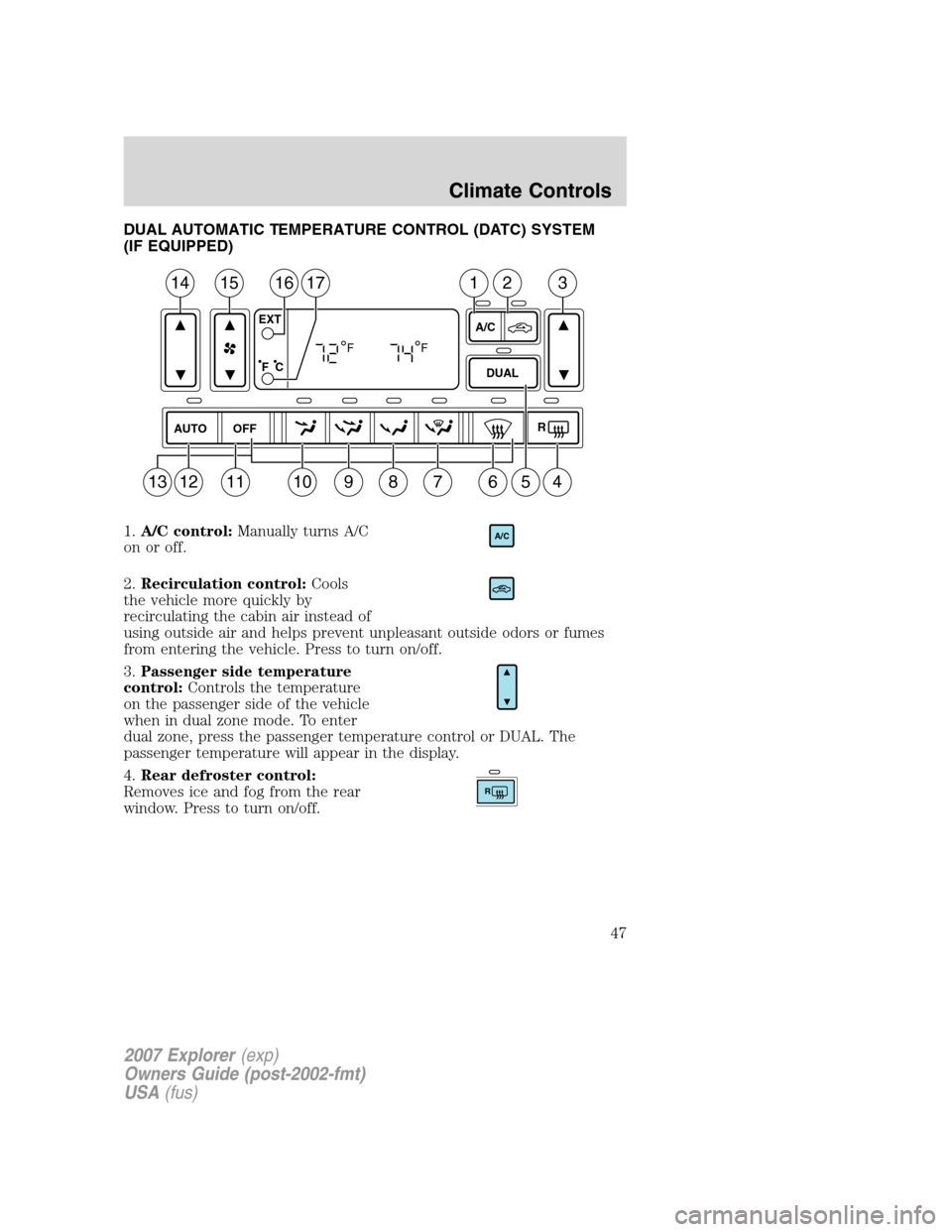
DUAL AUTOMATIC TEMPERATURE CONTROL (DATC) SYSTEM
(IF EQUIPPED)
1.A/C control:Manually turns A/C
on or off.
2.Recirculation control:Cools
the vehicle more quickly by
recirculating the cabin air instead of
using outside air and helps prevent unpleasant outside odors or fumes
from entering the vehicle. Press to turn on/off.
3.Passenger side temperature
control:Controls the temperature
on the passenger side of the vehicle
when in dual zone mode. To enter
dual zone, press the passenger temperature control or DUAL. The
passenger temperature will appear in the display.
4.Rear defroster control:
Removes ice and fog from the rear
window. Press to turn on/off.
AUTO
OFFR
DUAL A/C EXT
F C
FF
14151617231
10987613541211
A/C
R
2007 Explorer(exp)
Owners Guide (post-2002-fmt)
USA(fus)
Climate Controls
47
Page 48 of 344
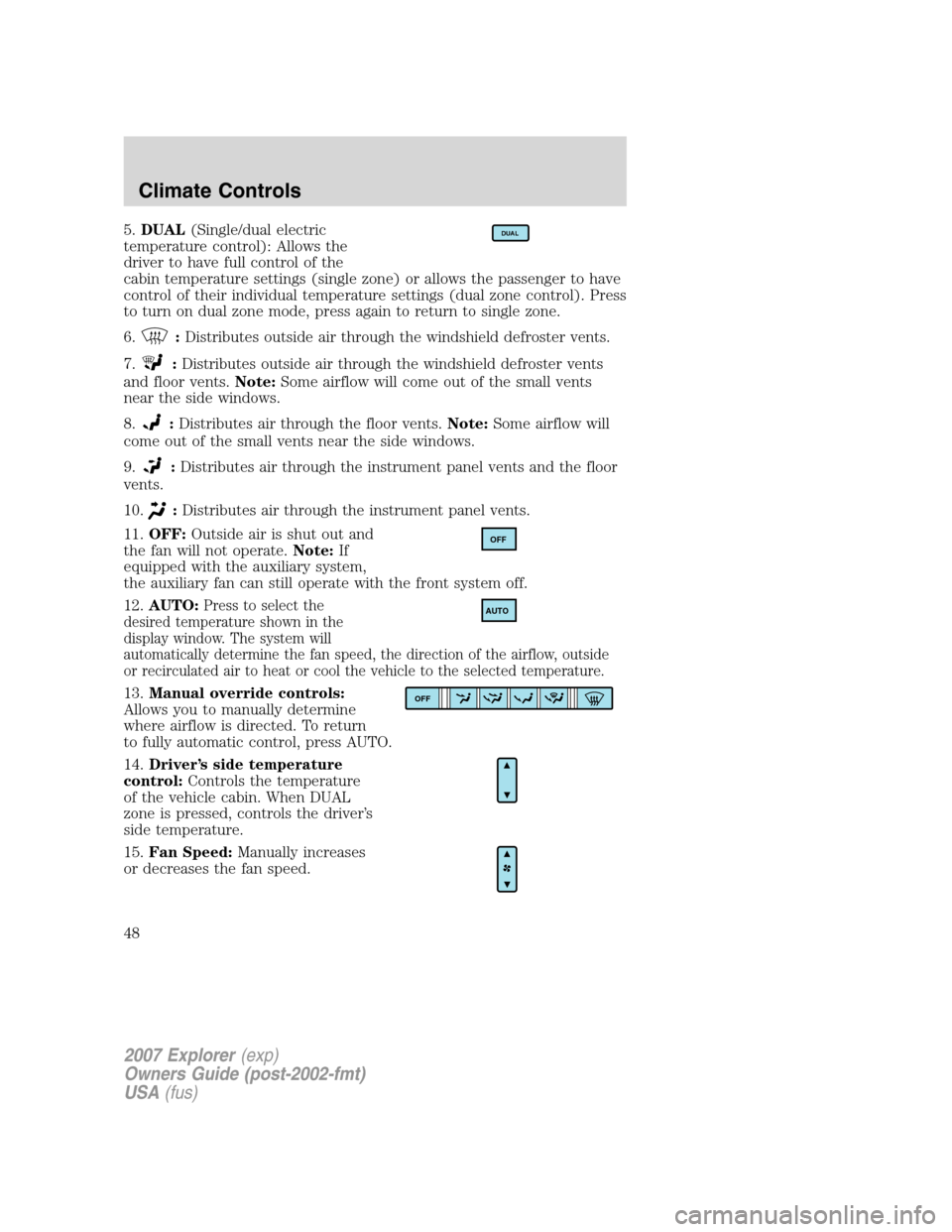
5.DUAL(Single/dual electric
temperature control): Allows the
driver to have full control of the
cabin temperature settings (single zone) or allows the passenger to have
control of their individual temperature settings (dual zone control). Press
to turn on dual zone mode, press again to return to single zone.
6.
:Distributes outside air through the windshield defroster vents.
7.
:Distributes outside air through the windshield defroster vents
and floor vents.Note:Some airflow will come out of the small vents
near the side windows.
8.
:Distributes air through the floor vents.Note:Some airflow will
come out of the small vents near the side windows.
9.
:Distributes air through the instrument panel vents and the floor
vents.
10.
:Distributes air through the instrument panel vents.
11.OFF:Outside air is shut out and
the fan will not operate.Note:If
equipped with the auxiliary system,
the auxiliary fan can still operate with the front system off.
12.AUTO:
Press to select the
desired temperature shown in the
display window. The system will
automatically determine the fan speed, the direction of the airflow, outside
or recirculated air to heat or cool the vehicle to the selected temperature.
13.Manual override controls:
Allows you to manually determine
where airflow is directed. To return
to fully automatic control, press AUTO.
14.Driver’s side temperature
control:Controls the temperature
of the vehicle cabin. When DUAL
zone is pressed, controls the driver’s
side temperature.
15.Fan Speed:Manually increases
or decreases the fan speed.
DUAL
OFF
AUTO
OFF
2007 Explorer(exp)
Owners Guide (post-2002-fmt)
USA(fus)
Climate Controls
48
Page 49 of 344
16.EXT:Displays the outside air
temperature. It will remain
displayed until the EXT control is
pressed again. The external temperature will be most accurate when the
vehicle has been moving for a period of time.
17.Temperature conversion:
Press to toggle between Fahrenheit
and Celsius temperature on the
DATC display only. The set point temperatures in Celsius will be
displayed in half-degree increments.
Operating tips
•To reduce fog build up on the windshield during humid weather, place
the air flow selector in the
position.
•To reduce humidity build up inside the vehicle, do not drive with the
air flow selector in OFF or with recirculated air engaged.
•Do not put objects under the front seats that will interfere with the
airflow to the rear seats.
•Remove any snow, ice or leaves from the air intake area at the base of
the windshield.
•To improve the A/C cool down, drive with the windows slightly open
for 2–3 minutes after start up or until the vehicle has been “aired out.”
For maximum cooling performance:
•Select and A/C and recirculated air. Use recirculated air with A/C to
provide a cooler airflow.
•Move the temperature control to the coolest setting.
To allow side window defogging and demisting while warming up the
vehicle cabin:
1. Select
.
2. Select A/C.
3. Set the temperature control to maintain comfort.
4. Set the fan speed to the highest setting.
5. Direct the outer instrument panel vents towards the side windows. To
increase airflow to the outer instrument panel vents, close the vents
located in the middle of the instrument panel.
EXT
F C
2007 Explorer(exp)
Owners Guide (post-2002-fmt)
USA(fus)
Climate Controls
49
Page 81 of 344
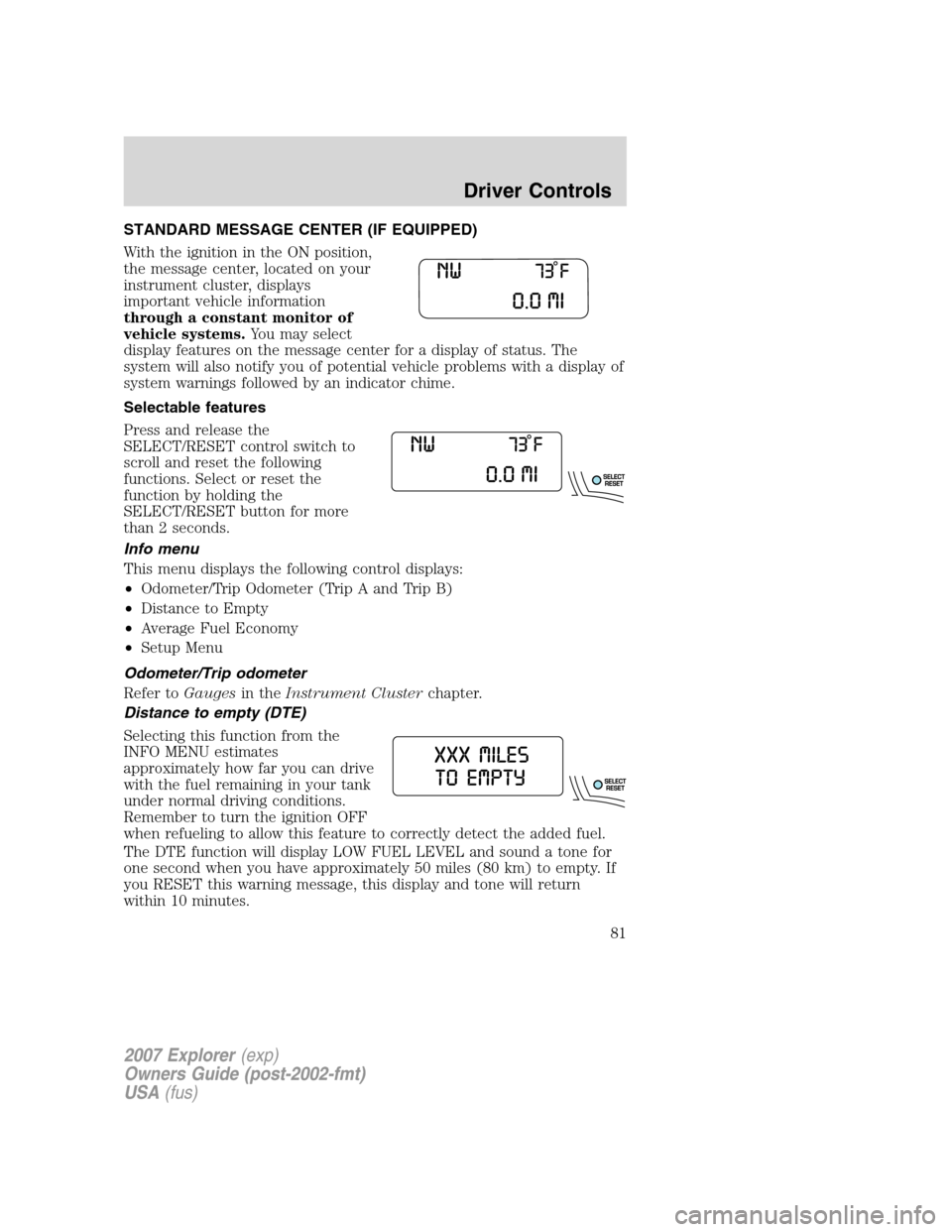
STANDARD MESSAGE CENTER (IF EQUIPPED)
With the ignition in the ON position,
the message center, located on your
instrument cluster, displays
important vehicle information
through a constant monitor of
vehicle systems.You may select
display features on the message center for a display of status. The
system will also notify you of potential vehicle problems with a display of
system warnings followed by an indicator chime.
Selectable features
Press and release the
SELECT/RESET control switch to
scroll and reset the following
functions. Select or reset the
function by holding the
SELECT/RESET button for more
than 2 seconds.
Info menu
This menu displays the following control displays:
•Odometer/Trip Odometer (Trip A and Trip B)
•Distance to Empty
•Average Fuel Economy
•Setup Menu
Odometer/Trip odometer
Refer toGaugesin theInstrument Clusterchapter.
Distance to empty (DTE)
Selecting this function from the
INFO MENU estimates
approximately how far you can drive
with the fuel remaining in your tank
under normal driving conditions.
Remember to turn the ignition OFF
when refueling to allow this feature to correctly detect the added fuel.
The DTE function will display LOW FUEL LEVEL and sound a tone for
one second when you have approximately 50 miles (80 km) to empty. If
you RESET this warning message, this display and tone will return
within 10 minutes.
2007 Explorer(exp)
Owners Guide (post-2002-fmt)
USA(fus)
Driver Controls
81