ESP FORD EXPLORER 2014 5.G Repair Manual
[x] Cancel search | Manufacturer: FORD, Model Year: 2014, Model line: EXPLORER, Model: FORD EXPLORER 2014 5.GPages: 586, PDF Size: 9.07 MB
Page 438 of 586
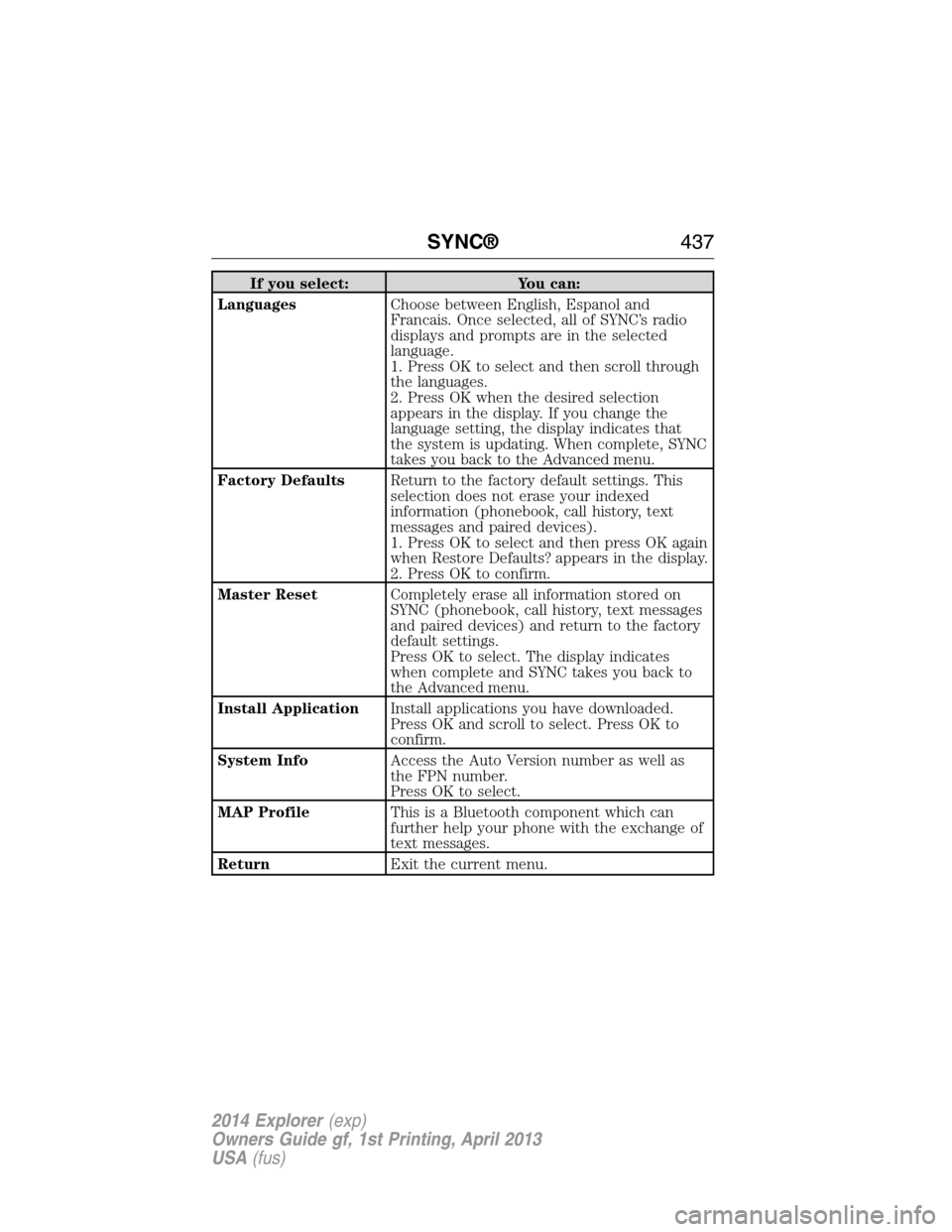
If you select: You can:
LanguagesChoose between English, Espanol and
Francais. Once selected, all of SYNC’s radio
displays and prompts are in the selected
language.
1. Press OK to select and then scroll through
the languages.
2. Press OK when the desired selection
appears in the display. If you change the
language setting, the display indicates that
the system is updating. When complete, SYNC
takes you back to the Advanced menu.
Factory DefaultsReturn to the factory default settings. This
selection does not erase your indexed
information (phonebook, call history, text
messages and paired devices).
1. Press OK to select and then press OK again
when Restore Defaults? appears in the display.
2. Press OK to confirm.
Master ResetCompletely erase all information stored on
SYNC (phonebook, call history, text messages
and paired devices) and return to the factory
default settings.
Press OK to select. The display indicates
when complete and SYNC takes you back to
the Advanced menu.
Install ApplicationInstall applications you have downloaded.
Press OK and scroll to select. Press OK to
confirm.
System InfoAccess the Auto Version number as well as
the FPN number.
Press OK to select.
MAP ProfileThis is a Bluetooth component which can
further help your phone with the exchange of
text messages.
ReturnExit the current menu.
SYNC®437
2014 Explorer(exp)
Owners Guide gf, 1st Printing, April 2013
USA(fus)
Page 439 of 586
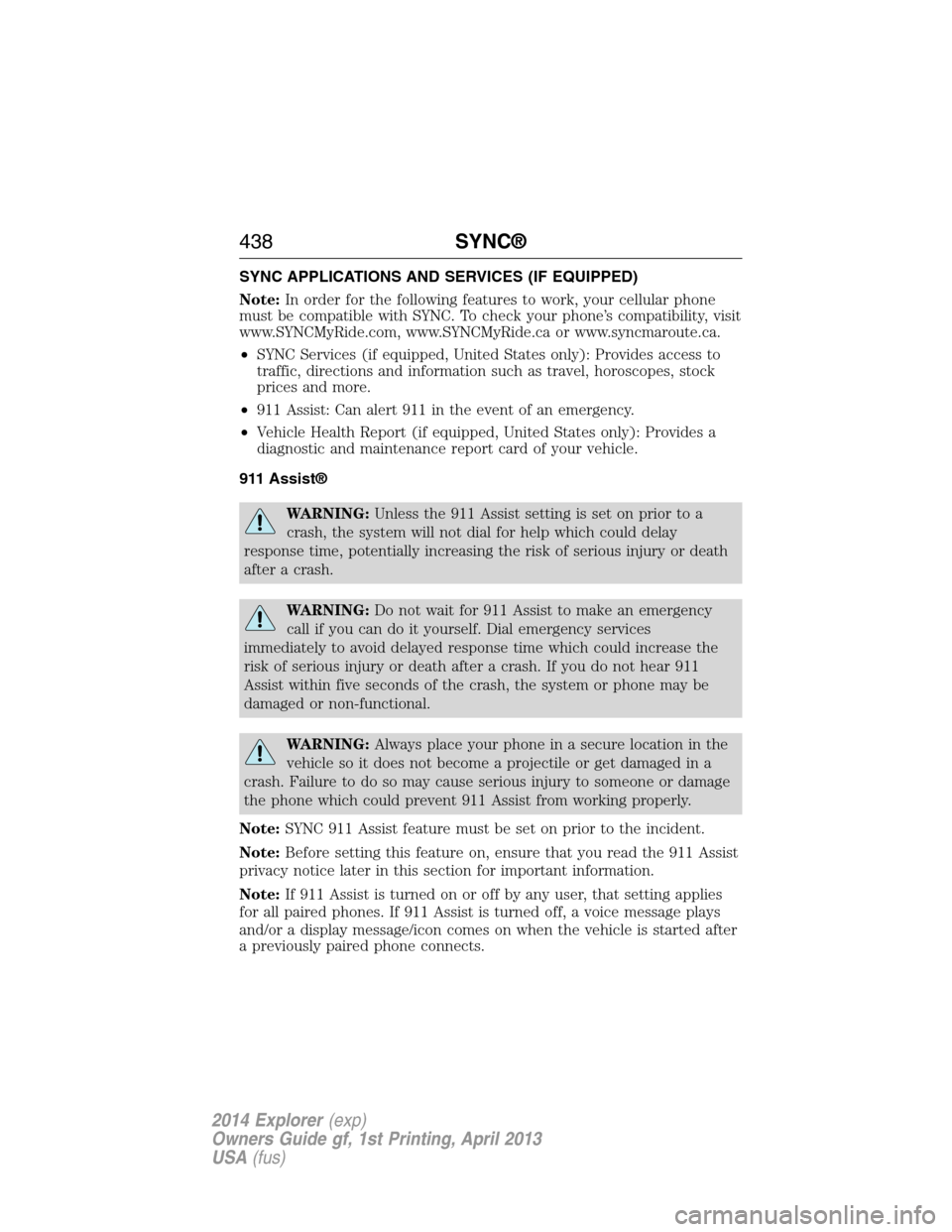
SYNC APPLICATIONS AND SERVICES (IF EQUIPPED)
Note:In order for the following features to work, your cellular phone
must be compatible with SYNC. To check your phone’s compatibility, visit
www.SYNCMyRide.com, www.SYNCMyRide.ca or www.syncmaroute.ca.
•SYNC Services (if equipped, United States only): Provides access to
traffic, directions and information such as travel, horoscopes, stock
prices and more.
•911 Assist: Can alert 911 in the event of an emergency.
•Vehicle Health Report (if equipped, United States only): Provides a
diagnostic and maintenance report card of your vehicle.
911 Assist®
WARNING:Unless the 911 Assist setting is set on prior to a
crash, the system will not dial for help which could delay
response time, potentially increasing the risk of serious injury or death
after a crash.
WARNING:Do not wait for 911 Assist to make an emergency
call if you can do it yourself. Dial emergency services
immediately to avoid delayed response time which could increase the
risk of serious injury or death after a crash. If you do not hear 911
Assist within five seconds of the crash, the system or phone may be
damaged or non-functional.
WARNING:Always place your phone in a secure location in the
vehicle so it does not become a projectile or get damaged in a
crash. Failure to do so may cause serious injury to someone or damage
the phone which could prevent 911 Assist from working properly.
Note:SYNC 911 Assist feature must be set on prior to the incident.
Note:Before setting this feature on, ensure that you read the 911 Assist
privacy notice later in this section for important information.
Note:If 911 Assist is turned on or off by any user, that setting applies
for all paired phones. If 911 Assist is turned off, a voice message plays
and/or a display message/icon comes on when the vehicle is started after
a previously paired phone connects.
438SYNC®
2014 Explorer(exp)
Owners Guide gf, 1st Printing, April 2013
USA(fus)
Page 444 of 586
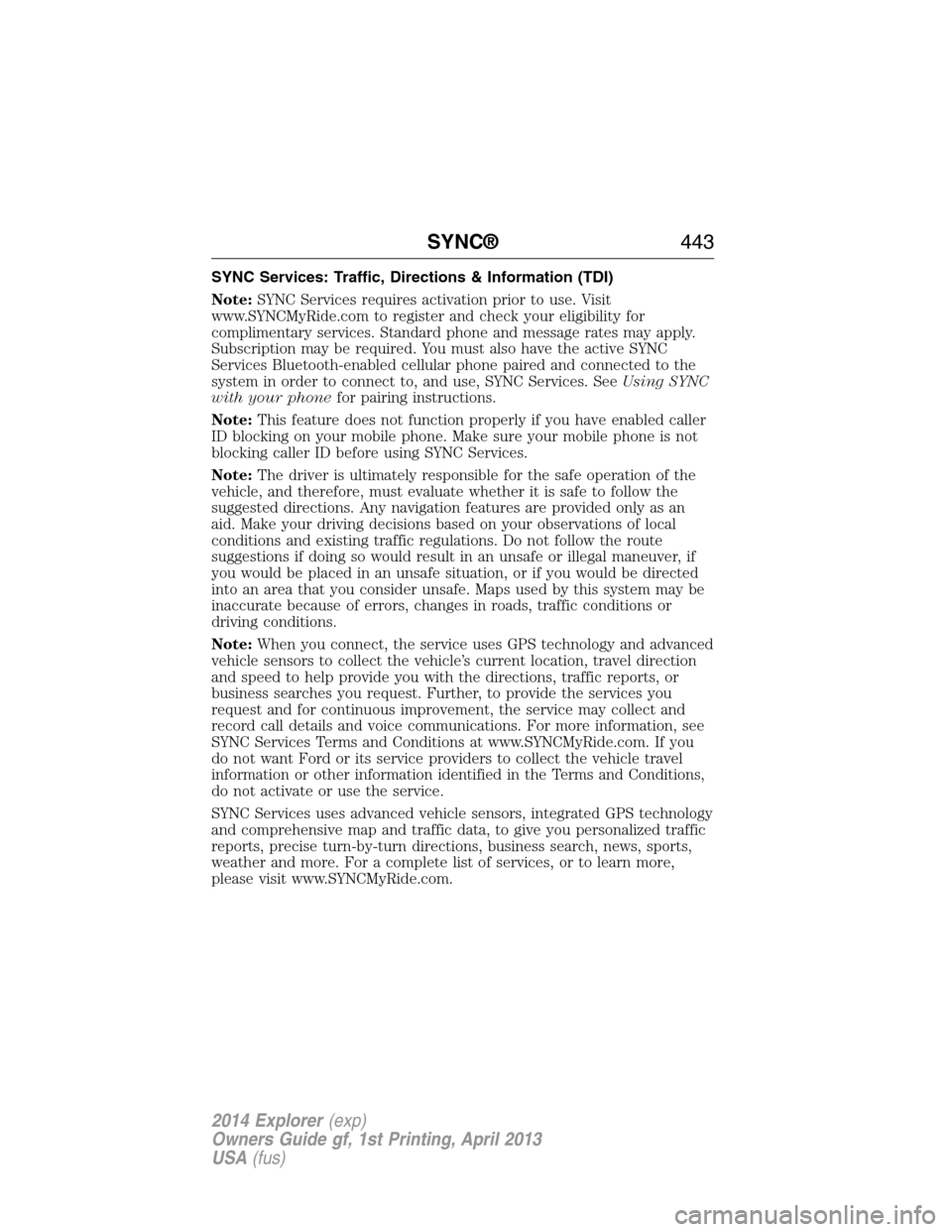
SYNC Services: Traffic, Directions & Information (TDI)
Note:SYNC Services requires activation prior to use. Visit
www.SYNCMyRide.com to register and check your eligibility for
complimentary services. Standard phone and message rates may apply.
Subscription may be required. You must also have the active SYNC
Services Bluetooth-enabled cellular phone paired and connected to the
system in order to connect to, and use, SYNC Services. SeeUsing SYNC
with your phonefor pairing instructions.
Note:This feature does not function properly if you have enabled caller
ID blocking on your mobile phone. Make sure your mobile phone is not
blocking caller ID before using SYNC Services.
Note:The driver is ultimately responsible for the safe operation of the
vehicle, and therefore, must evaluate whether it is safe to follow the
suggested directions. Any navigation features are provided only as an
aid. Make your driving decisions based on your observations of local
conditions and existing traffic regulations. Do not follow the route
suggestions if doing so would result in an unsafe or illegal maneuver, if
you would be placed in an unsafe situation, or if you would be directed
into an area that you consider unsafe. Maps used by this system may be
inaccurate because of errors, changes in roads, traffic conditions or
driving conditions.
Note:When you connect, the service uses GPS technology and advanced
vehicle sensors to collect the vehicle’s current location, travel direction
and speed to help provide you with the directions, traffic reports, or
business searches you request. Further, to provide the services you
request and for continuous improvement, the service may collect and
record call details and voice communications. For more information, see
SYNC Services Terms and Conditions at www.SYNCMyRide.com. If you
do not want Ford or its service providers to collect the vehicle travel
information or other information identified in the Terms and Conditions,
do not activate or use the service.
SYNC Services uses advanced vehicle sensors, integrated GPS technology
and comprehensive map and traffic data, to give you personalized traffic
reports, precise turn-by-turn directions, business search, news, sports,
weather and more. For a complete list of services, or to learn more,
please visit www.SYNCMyRide.com.
SYNC®443
2014 Explorer(exp)
Owners Guide gf, 1st Printing, April 2013
USA(fus)
Page 457 of 586
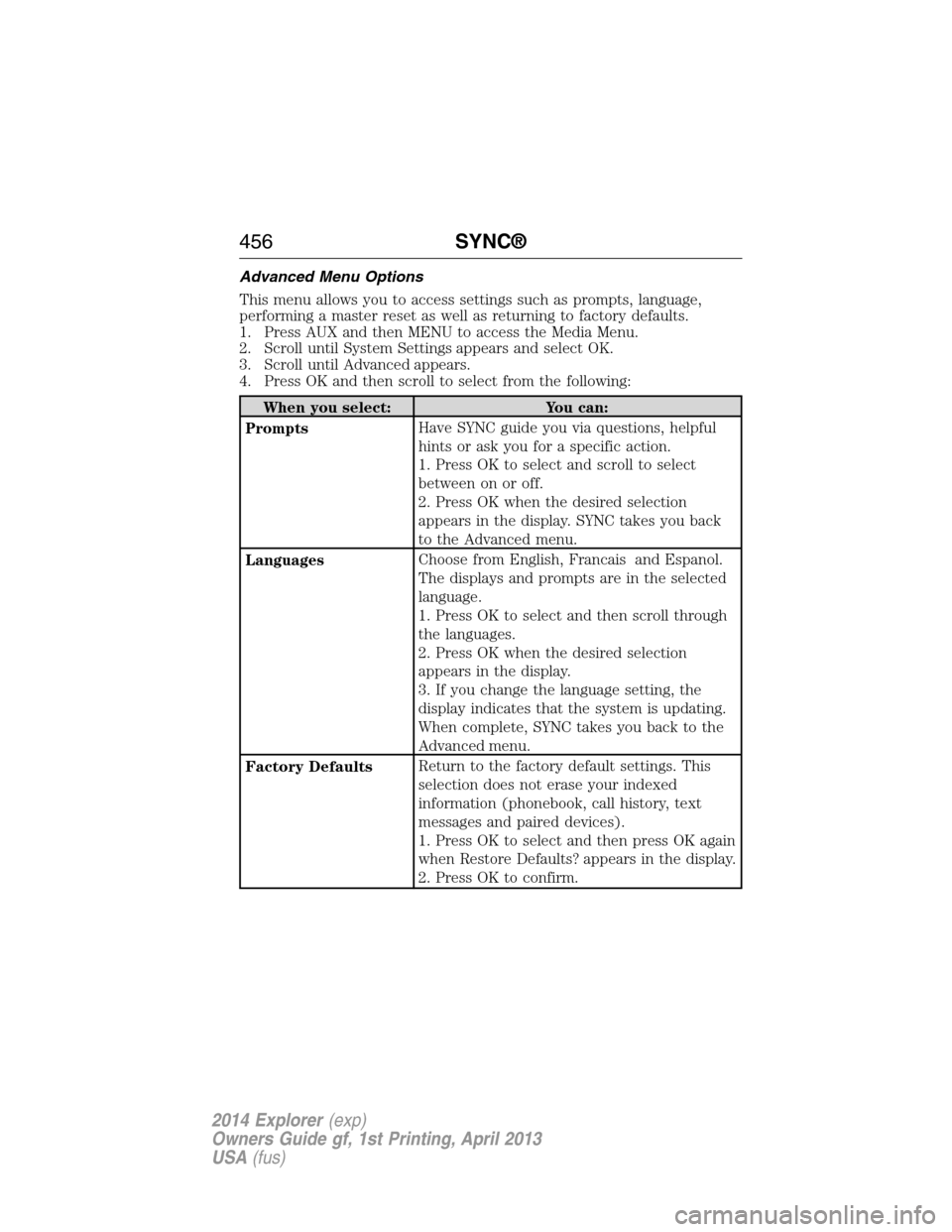
Advanced Menu Options
This menu allows you to access settings such as prompts, language,
performing a master reset as well as returning to factory defaults.
1. Press AUX and then MENU to access the Media Menu.
2. Scroll until System Settings appears and select OK.
3. Scroll until Advanced appears.
4. Press OK and then scroll to select from the following:
When you select: You can:
PromptsHave SYNC guide you via questions, helpful
hints or ask you for a specific action.
1. Press OK to select and scroll to select
between on or off.
2. Press OK when the desired selection
appears in the display. SYNC takes you back
to the Advanced menu.
LanguagesChoose from English, Francais and Espanol.
The displays and prompts are in the selected
language.
1. Press OK to select and then scroll through
the languages.
2. Press OK when the desired selection
appears in the display.
3. If you change the language setting, the
display indicates that the system is updating.
When complete, SYNC takes you back to the
Advanced menu.
Factory DefaultsReturn to the factory default settings. This
selection does not erase your indexed
information (phonebook, call history, text
messages and paired devices).
1. Press OK to select and then press OK again
when Restore Defaults? appears in the display.
2. Press OK to confirm.
456SYNC®
2014 Explorer(exp)
Owners Guide gf, 1st Printing, April 2013
USA(fus)
Page 463 of 586
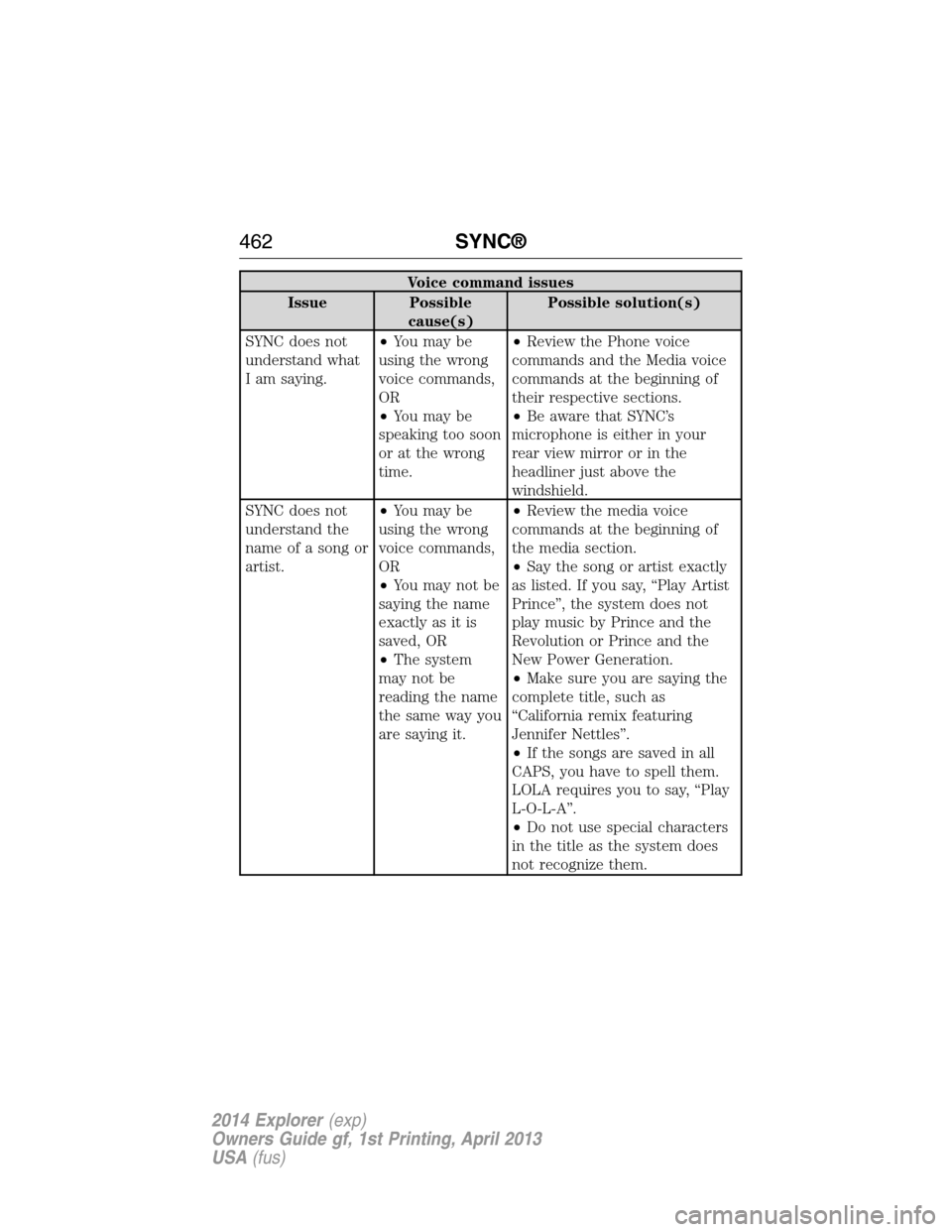
Voice command issues
Issue Possible
cause(s)Possible solution(s)
SYNC does not
understand what
I am saying.•You may be
using the wrong
voice commands,
OR
•You may be
speaking too soon
or at the wrong
time.•Review the Phone voice
commands and the Media voice
commands at the beginning of
their respective sections.
•Be aware that SYNC’s
microphone is either in your
rear view mirror or in the
headliner just above the
windshield.
SYNC does not
understand the
name of a song or
artist.•You may be
using the wrong
voice commands,
OR
•You may not be
saying the name
exactly as it is
saved, OR
•The system
may not be
reading the name
the same way you
are saying it.•Review the media voice
commands at the beginning of
the media section.
•Say the song or artist exactly
as listed. If you say, “Play Artist
Prince”, the system does not
play music by Prince and the
Revolution or Prince and the
New Power Generation.
•Make sure you are saying the
complete title, such as
“California remix featuring
Jennifer Nettles”.
•If the songs are saved in all
CAPS, you have to spell them.
LOLA requires you to say, “Play
L-O-L-A”.
•Do not use special characters
in the title as the system does
not recognize them.
462SYNC®
2014 Explorer(exp)
Owners Guide gf, 1st Printing, April 2013
USA(fus)
Page 466 of 586
INTRODUCTION
WARNING:Driving while distracted can result in loss of vehicle
control, crash and injury. We strongly recommend that you use
extreme caution when using any device that may take your focus off
the road. Your primary responsibility is the safe operation of your
vehicle. We recommend against the use of any hand-held device while
driving and encourage the use of voice-operated systems when possible.
Make sure you are aware of all applicable local laws that may affect the
use of electronic devices while driving.
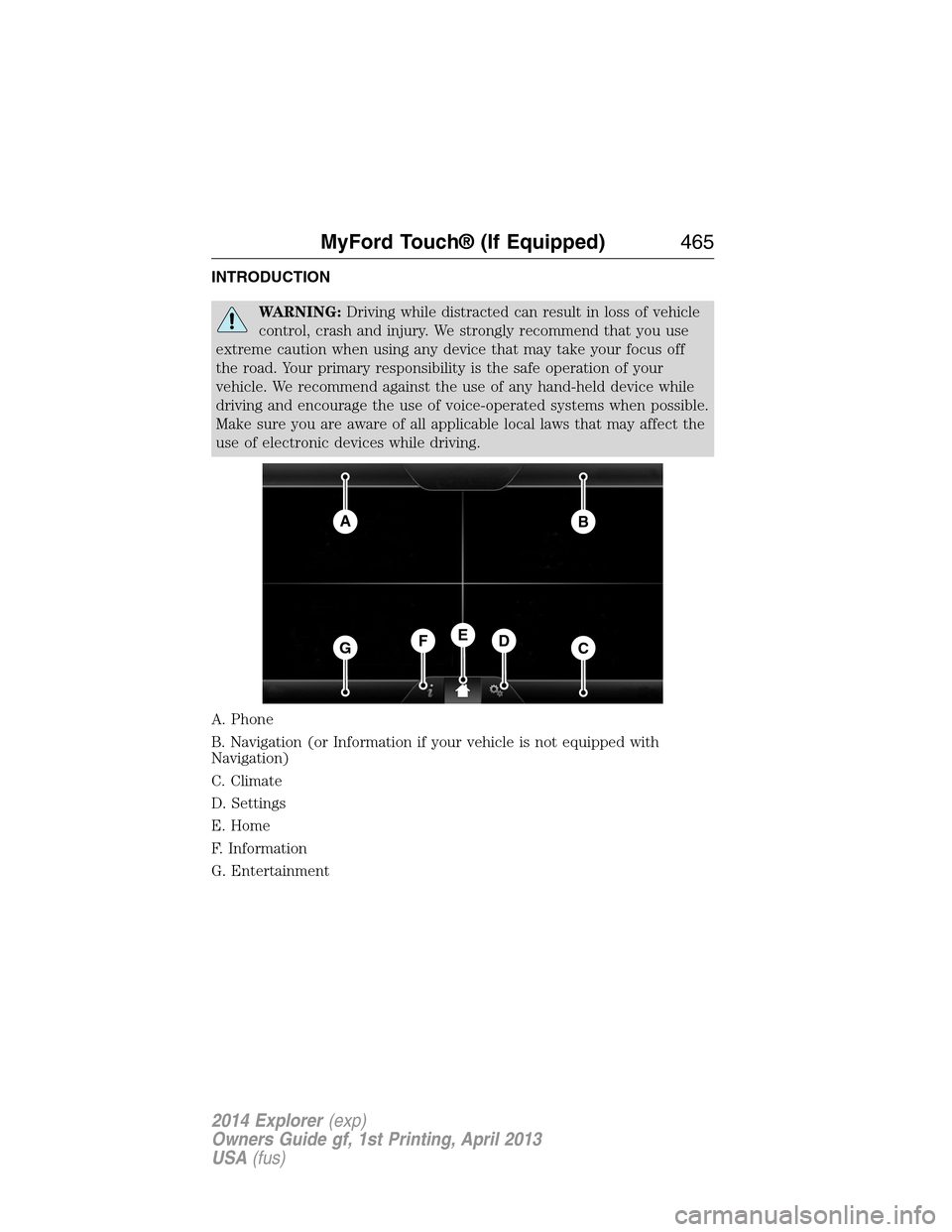
A. Phone
B. Navigation (or Information if your vehicle is not equipped with
Navigation)
C. Climate
D. Settings
E. Home
F. Information
G. Entertainment
AB
GCDFE
MyFord Touch® (If Equipped)465
2014 Explorer(exp)
Owners Guide gf, 1st Printing, April 2013
USA(fus)
Page 470 of 586
Safety Information
WARNING:Driving while distracted can result in loss of vehicle
control, crash and injury. We strongly recommend that you use
extreme caution when using any device that may take your focus off
the road. Your primary responsibility is the safe operation of your
vehicle. We recommend against the use of any handheld device while
driving and encourage the use of voice-operated systems when possible.
Make sure you are aware of all applicable local laws that may affect the
use of electronic devices while driving.
When using SYNC:
•Do not operate playing devices if the power cords or cables are
broken, split or damaged. Place cords and cables out of the way, so
they do not interfere with the operation of pedals, seats,
compartments or safe driving abilities.
•Do not leave playing devices in your vehicle during extreme conditions
as it could cause them damage. See your device’s manual for further
information.
•Do not attempt to service or repair the system. See your authorized
dealer.
For your safety, some SYNC functions are speed-dependent. Their use is
limited to when your vehicle is traveling at speeds under 3 mph
(5 km/h).
Make sure that you review your device’s manual before using it with
SYNC.
Speed-restricted Features
Some features of this system may be too difficult to use while your
vehicle is moving so they are restricted from use unless your vehicle is
stationary.
•Screens that are too crowded with information, such as Point of
Interest reviews and ratings, Sirius Travel Link sports scores, movie
times and ski conditions.
•Any action that requires you to use a keyboard is restricted, such as
entering a navigation destination or editing information.
•All lists are limited so the user can view fewer entries (such as phone
contacts or recent phone call entries).
MyFord Touch® (If Equipped)469
2014 Explorer(exp)
Owners Guide gf, 1st Printing, April 2013
USA(fus)
Page 473 of 586
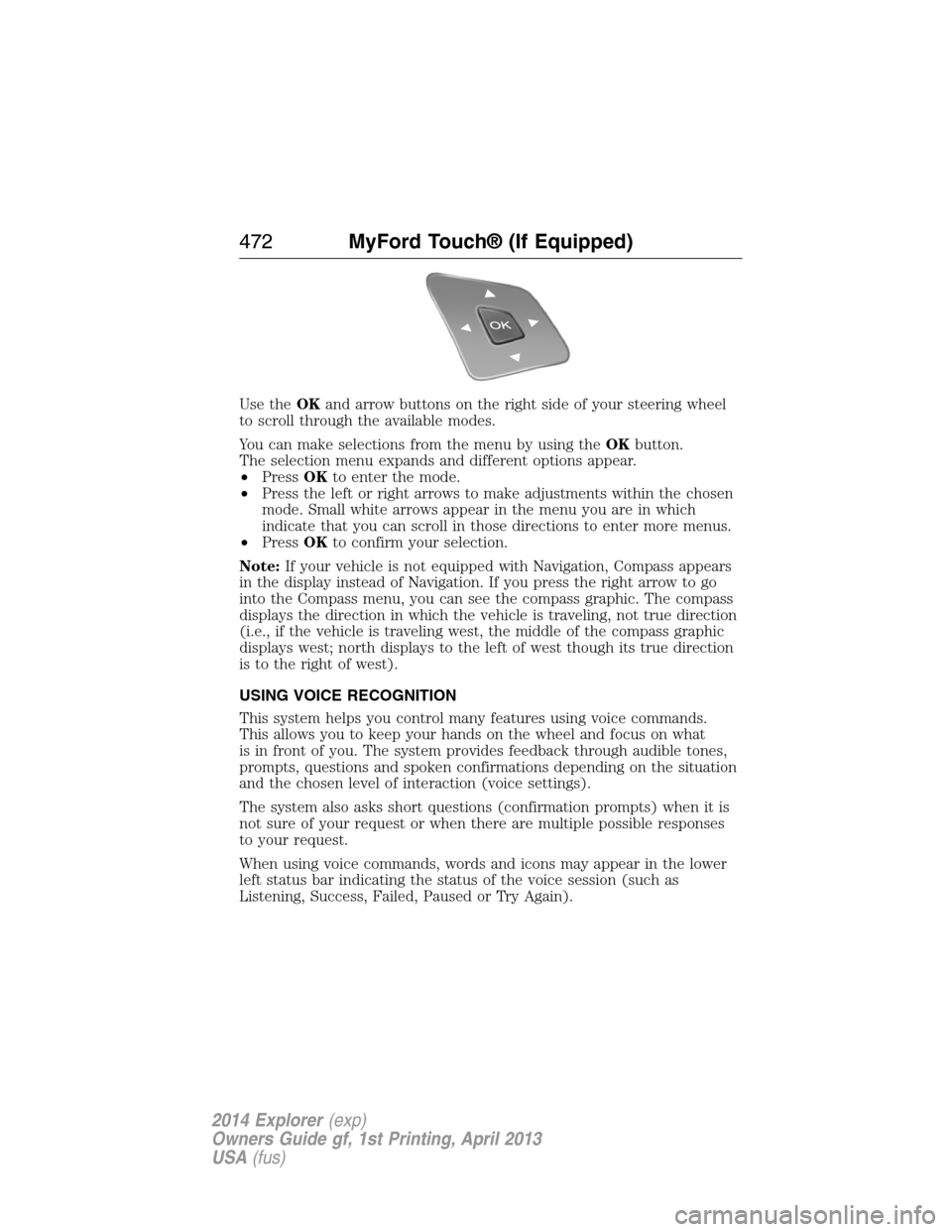
Use theOKand arrow buttons on the right side of your steering wheel
to scroll through the available modes.
You can make selections from the menu by using theOKbutton.
The selection menu expands and different options appear.
•PressOKto enter the mode.
•Press the left or right arrows to make adjustments within the chosen
mode. Small white arrows appear in the menu you are in which
indicate that you can scroll in those directions to enter more menus.
•PressOKto confirm your selection.
Note:If your vehicle is not equipped with Navigation, Compass appears
in the display instead of Navigation. If you press the right arrow to go
into the Compass menu, you can see the compass graphic. The compass
displays the direction in which the vehicle is traveling, not true direction
(i.e., if the vehicle is traveling west, the middle of the compass graphic
displays west; north displays to the left of west though its true direction
is to the right of west).
USING VOICE RECOGNITION
This system helps you control many features using voice commands.
This allows you to keep your hands on the wheel and focus on what
is in front of you. The system provides feedback through audible tones,
prompts, questions and spoken confirmations depending on the situation
and the chosen level of interaction (voice settings).
The system also asks short questions (confirmation prompts) when it is
not sure of your request or when there are multiple possible responses
to your request.
When using voice commands, words and icons may appear in the lower
left status bar indicating the status of the voice session (such as
Listening, Success, Failed, Paused or Try Again).
472MyFord Touch® (If Equipped)
2014 Explorer(exp)
Owners Guide gf, 1st Printing, April 2013
USA(fus)
Page 482 of 586
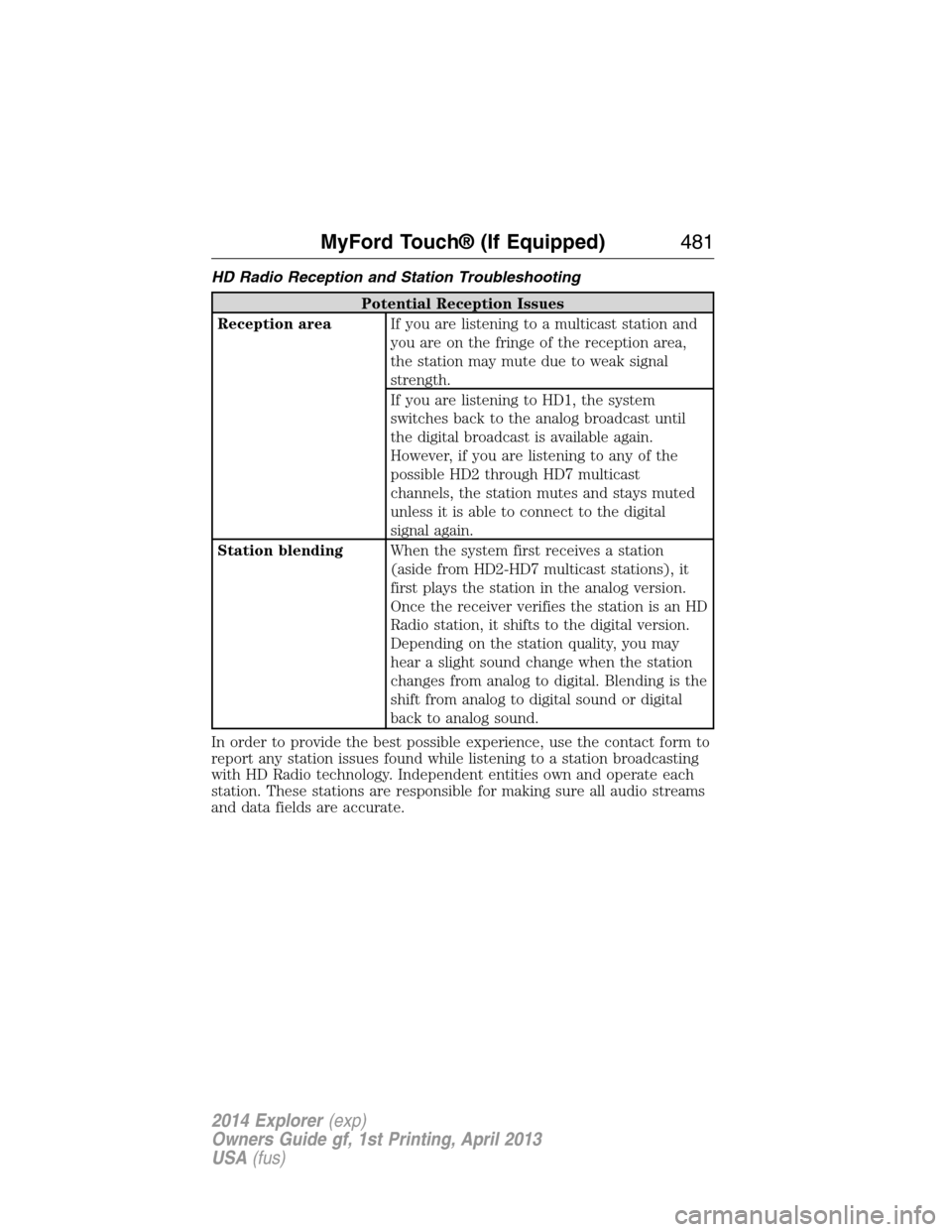
HD Radio Reception and Station Troubleshooting
Potential Reception Issues
Reception areaIf you are listening to a multicast station and
you are on the fringe of the reception area,
the station may mute due to weak signal
strength.
If you are listening to HD1, the system
switches back to the analog broadcast until
the digital broadcast is available again.
However, if you are listening to any of the
possible HD2 through HD7 multicast
channels, the station mutes and stays muted
unless it is able to connect to the digital
signal again.
Station blendingWhen the system first receives a station
(aside from HD2-HD7 multicast stations), it
first plays the station in the analog version.
Once the receiver verifies the station is an HD
Radio station, it shifts to the digital version.
Depending on the station quality, you may
hear a slight sound change when the station
changes from analog to digital. Blending is the
shift from analog to digital sound or digital
back to analog sound.
In order to provide the best possible experience, use the contact form to
report any station issues found while listening to a station broadcasting
with HD Radio technology. Independent entities own and operate each
station. These stations are responsible for making sure all audio streams
and data fields are accurate.
MyFord Touch® (If Equipped)481
2014 Explorer(exp)
Owners Guide gf, 1st Printing, April 2013
USA(fus)
Page 483 of 586
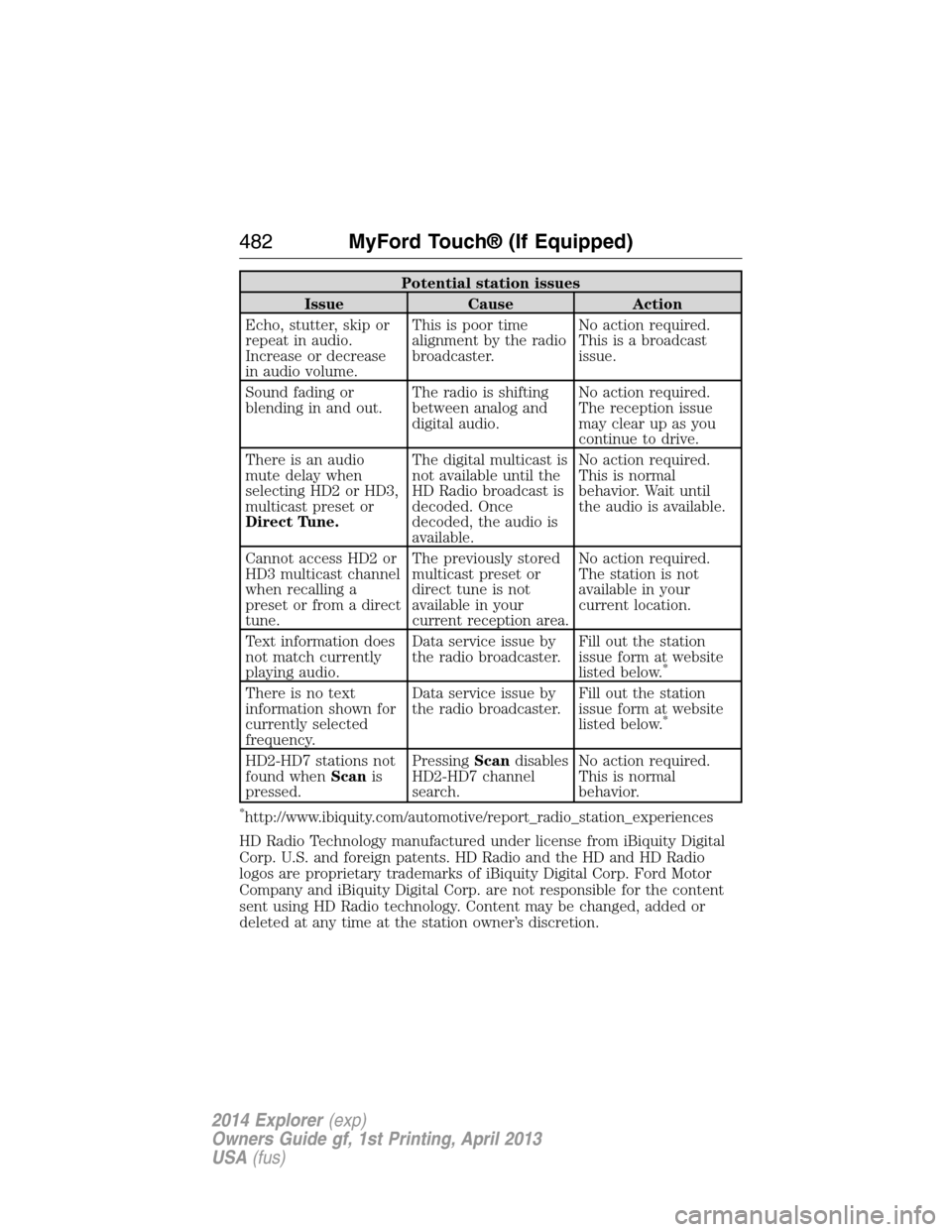
Potential station issues
Issue Cause Action
Echo, stutter, skip or
repeat in audio.
Increase or decrease
in audio volume.This is poor time
alignment by the radio
broadcaster.No action required.
This is a broadcast
issue.
Sound fading or
blending in and out.The radio is shifting
between analog and
digital audio.No action required.
The reception issue
may clear up as you
continue to drive.
There is an audio
mute delay when
selecting HD2 or HD3,
multicast preset or
Direct Tune.The digital multicast is
not available until the
HD Radio broadcast is
decoded. Once
decoded, the audio is
available.No action required.
This is normal
behavior. Wait until
the audio is available.
Cannot access HD2 or
HD3 multicast channel
when recalling a
preset or from a direct
tune.The previously stored
multicast preset or
direct tune is not
available in your
current reception area.No action required.
The station is not
available in your
current location.
Text information does
not match currently
playing audio.Data service issue by
the radio broadcaster.Fill out the station
issue form at website
listed below.
*
There is no text
information shown for
currently selected
frequency.Data service issue by
the radio broadcaster.Fill out the station
issue form at website
listed below.
*
HD2-HD7 stations not
found whenScanis
pressed.PressingScandisables
HD2-HD7 channel
search.No action required.
This is normal
behavior.
*http://www.ibiquity.com/automotive/report_radio_station_experiences
HD Radio Technology manufactured under license from iBiquity Digital
Corp. U.S. and foreign patents. HD Radio and the HD and HD Radio
logos are proprietary trademarks of iBiquity Digital Corp. Ford Motor
Company and iBiquity Digital Corp. are not responsible for the content
sent using HD Radio technology. Content may be changed, added or
deleted at any time at the station owner’s discretion.
482MyFord Touch® (If Equipped)
2014 Explorer(exp)
Owners Guide gf, 1st Printing, April 2013
USA(fus)