tow FORD EXPLORER 2014 5.G Manual Online
[x] Cancel search | Manufacturer: FORD, Model Year: 2014, Model line: EXPLORER, Model: FORD EXPLORER 2014 5.GPages: 586, PDF Size: 9.07 MB
Page 416 of 586
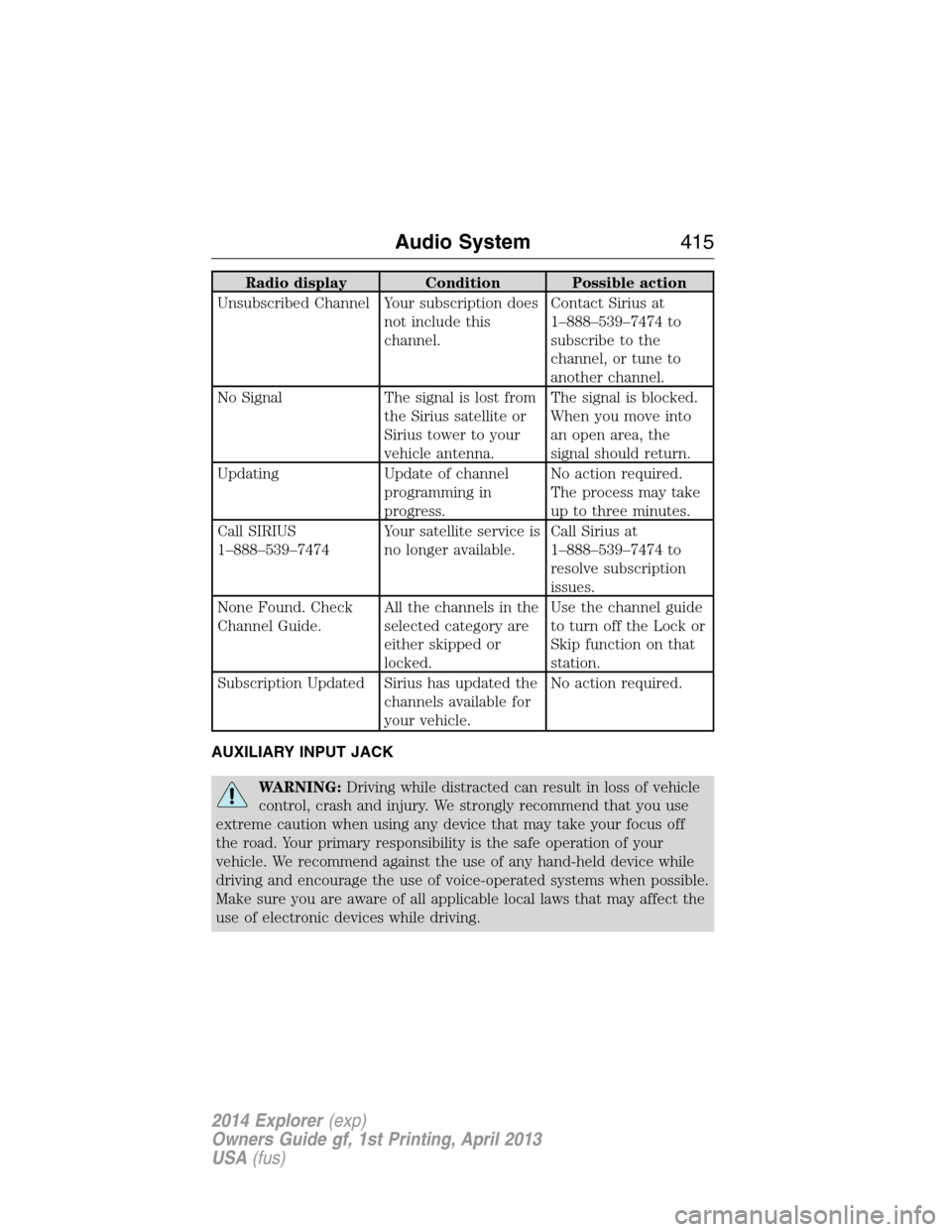
Radio display Condition Possible action
Unsubscribed Channel Your subscription does
not include this
channel.Contact Sirius at
1–888–539–7474 to
subscribe to the
channel, or tune to
another channel.
No Signal The signal is lost from
the Sirius satellite or
Sirius tower to your
vehicle antenna.The signal is blocked.
When you move into
an open area, the
signal should return.
Updating Update of channel
programming in
progress.No action required.
The process may take
up to three minutes.
Call SIRIUS
1–888–539–7474Your satellite service is
no longer available.Call Sirius at
1–888–539–7474 to
resolve subscription
issues.
None Found. Check
Channel Guide.All the channels in the
selected category are
either skipped or
locked.Use the channel guide
to turn off the Lock or
Skip function on that
station.
Subscription Updated Sirius has updated the
channels available for
your vehicle.No action required.
AUXILIARY INPUT JACK
WARNING:Driving while distracted can result in loss of vehicle
control, crash and injury. We strongly recommend that you use
extreme caution when using any device that may take your focus off
the road. Your primary responsibility is the safe operation of your
vehicle. We recommend against the use of any hand-held device while
driving and encourage the use of voice-operated systems when possible.
Make sure you are aware of all applicable local laws that may affect the
use of electronic devices while driving.
Audio System415
2014 Explorer(exp)
Owners Guide gf, 1st Printing, April 2013
USA(fus)
Page 445 of 586
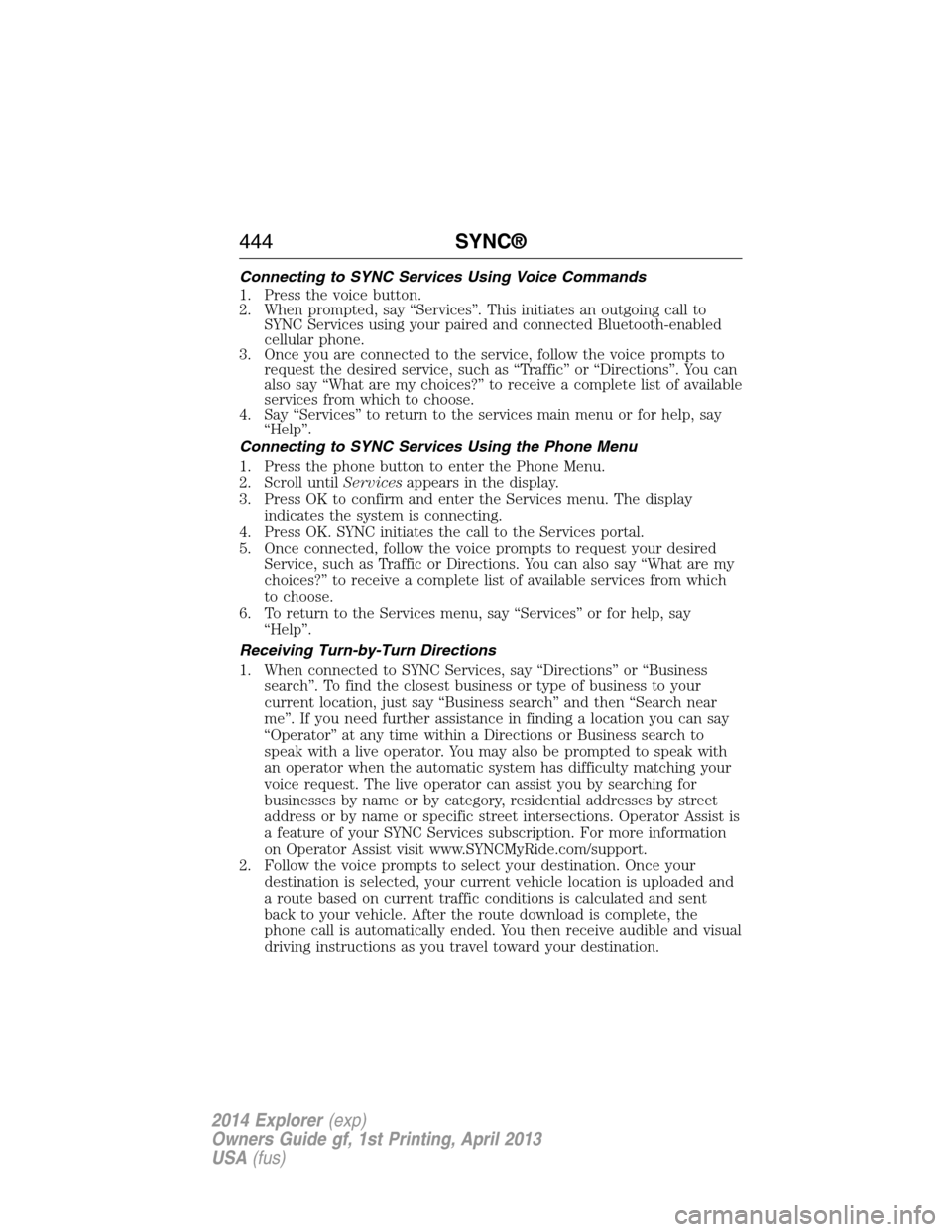
Connecting to SYNC Services Using Voice Commands
1. Press the voice button.
2. When prompted, say “Services”. This initiates an outgoing call to
SYNC Services using your paired and connected Bluetooth-enabled
cellular phone.
3. Once you are connected to the service, follow the voice prompts to
request the desired service, such as “Traffic” or “Directions”. You can
also say “What are my choices?” to receive a complete list of available
services from which to choose.
4. Say “Services” to return to the services main menu or for help, say
“Help”.
Connecting to SYNC Services Using the Phone Menu
1. Press the phone button to enter the Phone Menu.
2. Scroll untilServicesappears in the display.
3. Press OK to confirm and enter the Services menu. The display
indicates the system is connecting.
4. Press OK. SYNC initiates the call to the Services portal.
5. Once connected, follow the voice prompts to request your desired
Service, such as Traffic or Directions. You can also say “What are my
choices?” to receive a complete list of available services from which
to choose.
6. To return to the Services menu, say “Services” or for help, say
“Help”.
Receiving Turn-by-Turn Directions
1. When connected to SYNC Services, say “Directions” or “Business
search”. To find the closest business or type of business to your
current location, just say “Business search” and then “Search near
me”. If you need further assistance in finding a location you can say
“Operator” at any time within a Directions or Business search to
speak with a live operator. You may also be prompted to speak with
an operator when the automatic system has difficulty matching your
voice request. The live operator can assist you by searching for
businesses by name or by category, residential addresses by street
address or by name or specific street intersections. Operator Assist is
a feature of your SYNC Services subscription. For more information
on Operator Assist visit www.SYNCMyRide.com/support.
2. Follow the voice prompts to select your destination. Once your
destination is selected, your current vehicle location is uploaded and
a route based on current traffic conditions is calculated and sent
back to your vehicle. After the route download is complete, the
phone call is automatically ended. You then receive audible and visual
driving instructions as you travel toward your destination.
444SYNC®
2014 Explorer(exp)
Owners Guide gf, 1st Printing, April 2013
USA(fus)
Page 488 of 586
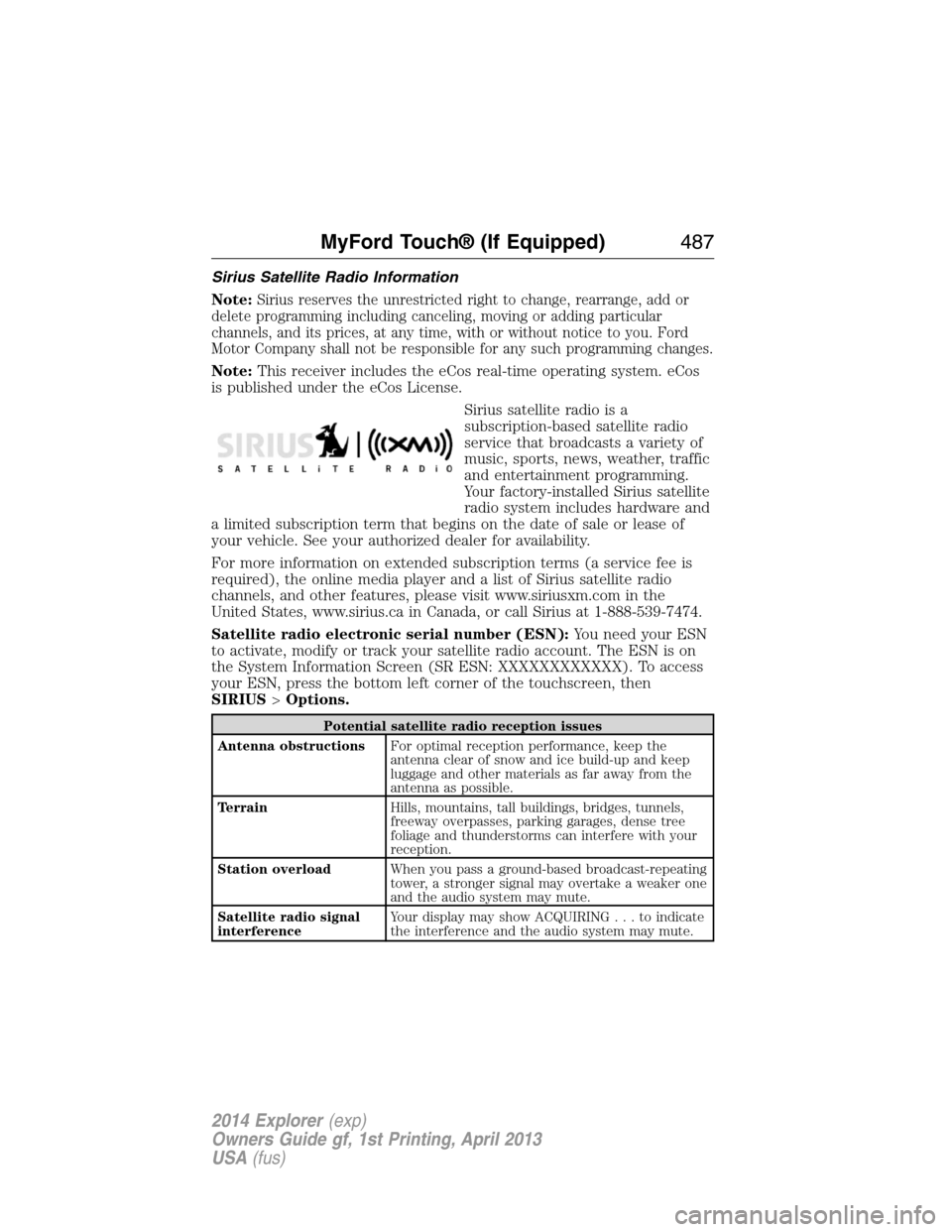
Sirius Satellite Radio Information
Note:
Sirius reserves the unrestricted right to change, rearrange, add or
delete programming including canceling, moving or adding particular
channels, and its prices, at any time, with or without notice to you. Ford
Motor Company shall not be responsible for any such programming changes.
Note:This receiver includes the eCos real-time operating system. eCos
is published under the eCos License.
Sirius satellite radio is a
subscription-based satellite radio
service that broadcasts a variety of
music, sports, news, weather, traffic
and entertainment programming.
Your factory-installed Sirius satellite
radio system includes hardware and
a limited subscription term that begins on the date of sale or lease of
your vehicle. See your authorized dealer for availability.
For more information on extended subscription terms (a service fee is
required), the online media player and a list of Sirius satellite radio
channels, and other features, please visit www.siriusxm.com in the
United States, www.sirius.ca in Canada, or call Sirius at 1-888-539-7474.
Satellite radio electronic serial number (ESN):You need your ESN
to activate, modify or track your satellite radio account. The ESN is on
the System Information Screen (SR ESN: XXXXXXXXXXXX). To access
your ESN, press the bottom left corner of the touchscreen, then
SIRIUS>Options.
Potential satellite radio reception issues
Antenna obstructionsFor optimal reception performance, keep the
antenna clear of snow and ice build-up and keep
luggage and other materials as far away from the
antenna as possible.
TerrainHills, mountains, tall buildings, bridges, tunnels,
freeway overpasses, parking garages, dense tree
foliage and thunderstorms can interfere with your
reception.
Station overloadWhen you pass a ground-based broadcast-repeating
tower, a stronger signal may overtake a weaker one
and the audio system may mute.
Satellite radio signal
interferenceYour display may show ACQUIRING...toindicate
the interference and the audio system may mute.
MyFord Touch® (If Equipped)487
2014 Explorer(exp)
Owners Guide gf, 1st Printing, April 2013
USA(fus)
Page 489 of 586
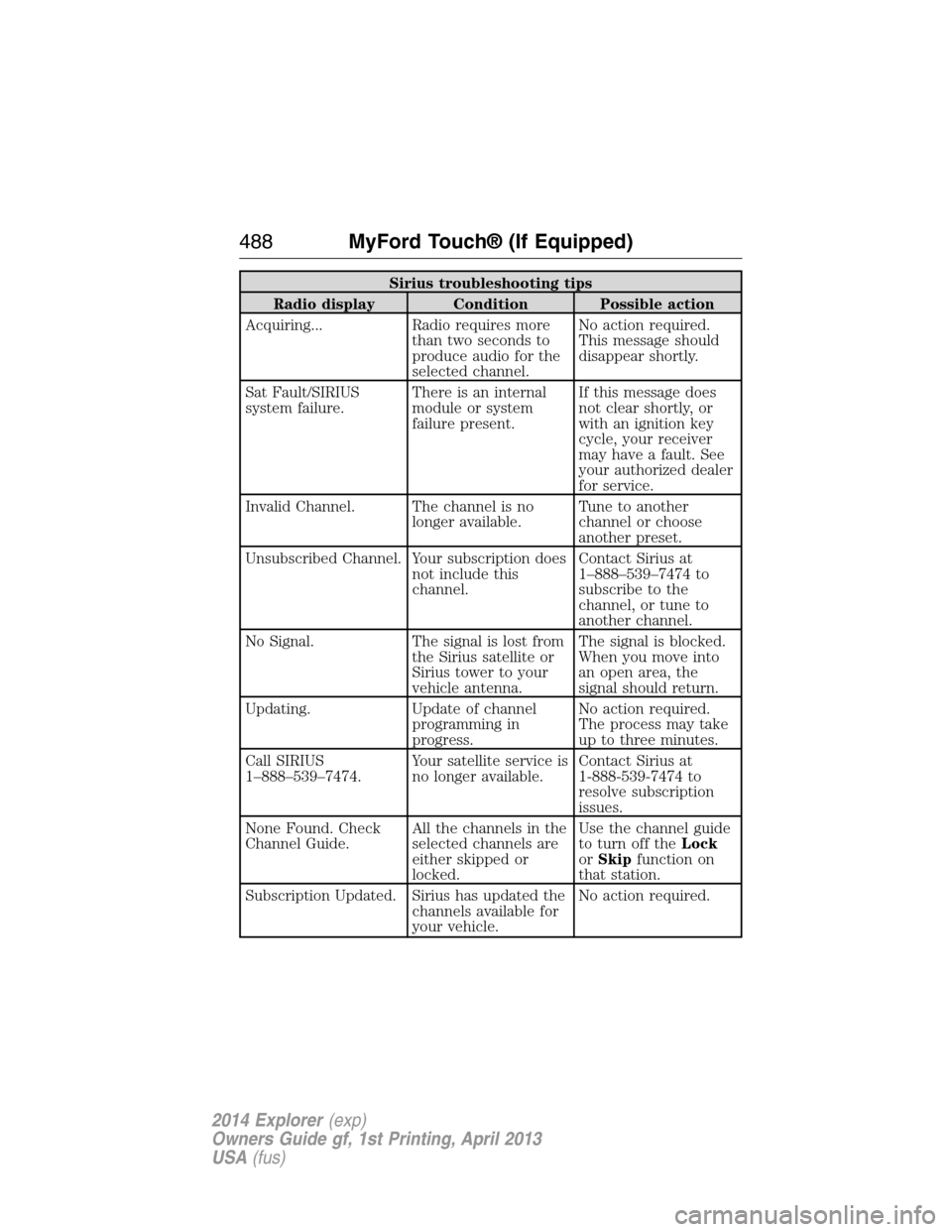
Sirius troubleshooting tips
Radio display Condition Possible action
Acquiring... Radio requires more
than two seconds to
produce audio for the
selected channel.No action required.
This message should
disappear shortly.
Sat Fault/SIRIUS
system failure.There is an internal
module or system
failure present.If this message does
not clear shortly, or
with an ignition key
cycle, your receiver
may have a fault. See
your authorized dealer
for service.
Invalid Channel. The channel is no
longer available.Tune to another
channel or choose
another preset.
Unsubscribed Channel. Your subscription does
not include this
channel.Contact Sirius at
1–888–539–7474 to
subscribe to the
channel, or tune to
another channel.
No Signal. The signal is lost from
the Sirius satellite or
Sirius tower to your
vehicle antenna.The signal is blocked.
When you move into
an open area, the
signal should return.
Updating. Update of channel
programming in
progress.No action required.
The process may take
up to three minutes.
Call SIRIUS
1–888–539–7474.Your satellite service is
no longer available.Contact Sirius at
1-888-539-7474 to
resolve subscription
issues.
None Found. Check
Channel Guide.All the channels in the
selected channels are
either skipped or
locked.Use the channel guide
to turn off theLock
orSkipfunction on
that station.
Subscription Updated. Sirius has updated the
channels available for
your vehicle.No action required.
488MyFord Touch® (If Equipped)
2014 Explorer(exp)
Owners Guide gf, 1st Printing, April 2013
USA(fus)
Page 537 of 586
Avoid Areas
Avoid Areasallows you to choose areas which you want the system to
avoid when calculating a route for you.
PressAddto program an entry. Once you make a selection, the system
tries to avoid the area(s) if possible for all routes. To delete a selection,
choose the listing on the screen. When the screen changes toAvoid
Areas Edit,you can pressDeleteat the bottom right of the screen.
Map Mode
Press the green bar in the upper right area of the touchscreen to view
map mode. Map mode shows advanced viewing comprised of both 2D
city maps as well as 3D landmarks (when available).
2D city mapsshow detailed outlines of buildings, visible land use and
land elements and detailed railway infrastructure for the most essential
cities around the globe. These maps also contain features, such as town
blocks, building footprints, and railways.
3D landmarksappear as clear, visible objects that are typically
recognizable and have a certain tourist value. The 3D landmarks appear
in 3D map mode only. Coverage varies, and improves with updated map
releases.
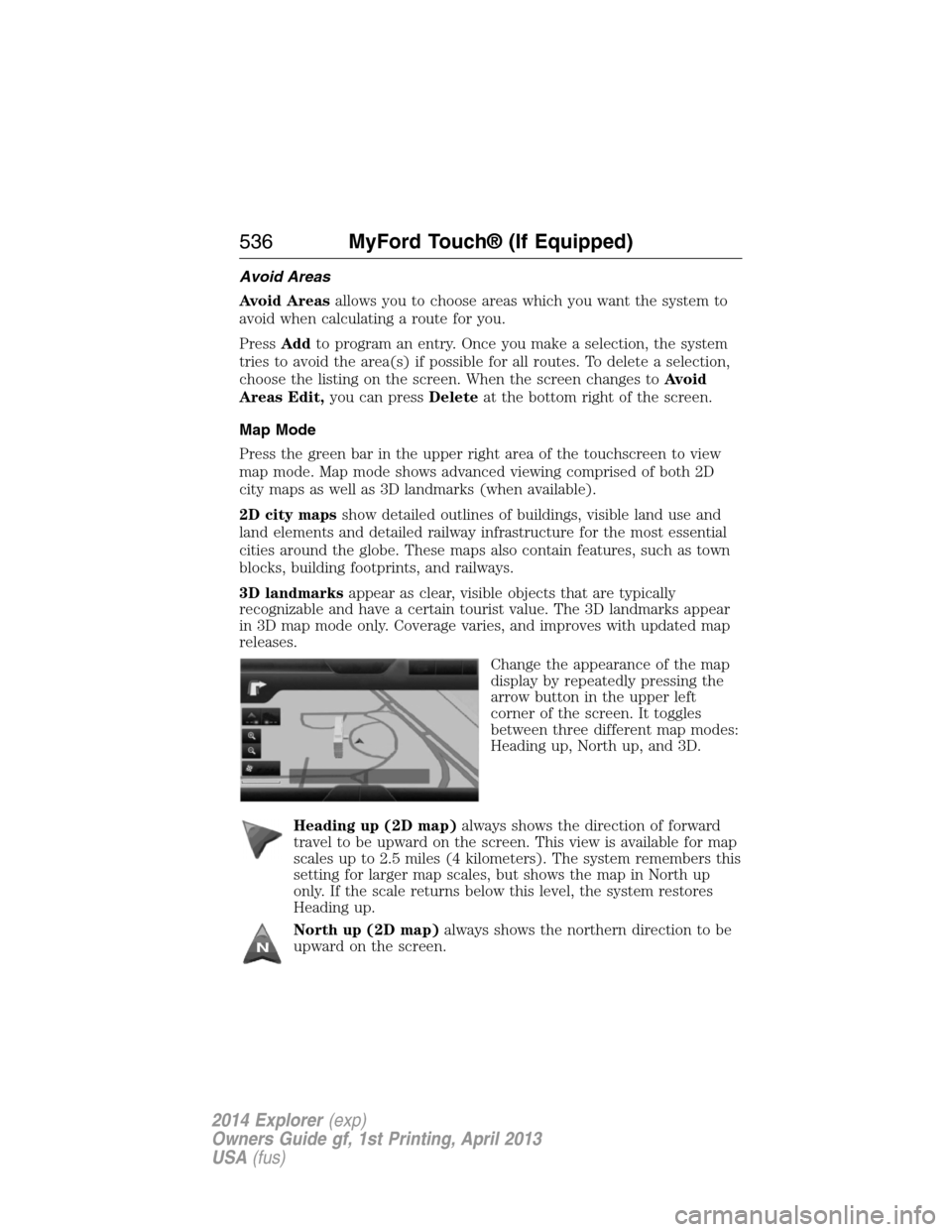
Change the appearance of the map
display by repeatedly pressing the
arrow button in the upper left
corner of the screen. It toggles
between three different map modes:
Heading up, North up, and 3D.
Heading up (2D map)always shows the direction of forward
travel to be upward on the screen. This view is available for map
scales up to 2.5 miles (4 kilometers). The system remembers this
setting for larger map scales, but shows the map in North up
only. If the scale returns below this level, the system restores
Heading up.
North up (2D map)always shows the northern direction to be
upward on the screen.
536MyFord Touch® (If Equipped)
2014 Explorer(exp)
Owners Guide gf, 1st Printing, April 2013
USA(fus)
Page 542 of 586

“DESTINATION”
“
“
“Favorites”
“Home”
“Intersection”
“Nearest
“Nearest POI”
“Play nametags”
“POI category”
“Previous destination”
“Street address”
“Help”
“NAVIGATION”
“Destination”*
“Zoom city”
“Zoom country”
“Zoom in minimum”
“Zoom out maximum”
“Zoom province”
“Zoom state”
“Zoom street”
“Zoom to
“Help”
*If you have said, “Destination”, you may say any of the commands in the
Destination chart.
One-shot Destination Street Address
When you say either “Navigation destination street address” or
“Destination street address”, the system asks you to say the full address.
The system displays an example on-screen. You can then speak the
address naturally, such as “One two three four Main Street, Anytown”.
MyFord Touch® (If Equipped)541
2014 Explorer(exp)
Owners Guide gf, 1st Printing, April 2013
USA(fus)
Page 567 of 586
NORMAL SCHEDULED MAINTENANCE AND LOG
Intelligent Oil-Life Monitor®
Your vehicle is equipped with an Intelligent Oil-Life Monitor® that
determines when the engine oil needs to be changed based on how your
vehicle is used. By using several important factors in its calculations, the
monitor helps reduce the cost of owning your vehicle and reduce
environmental waste at the same time. This means you won’t have to
remember to change the oil on a mileage-based schedule; the vehicle lets
you know when an oil change is due by displaying ENGINE OIL
CHANGE DUE or OIL CHANGE REQUIRED in the information display.
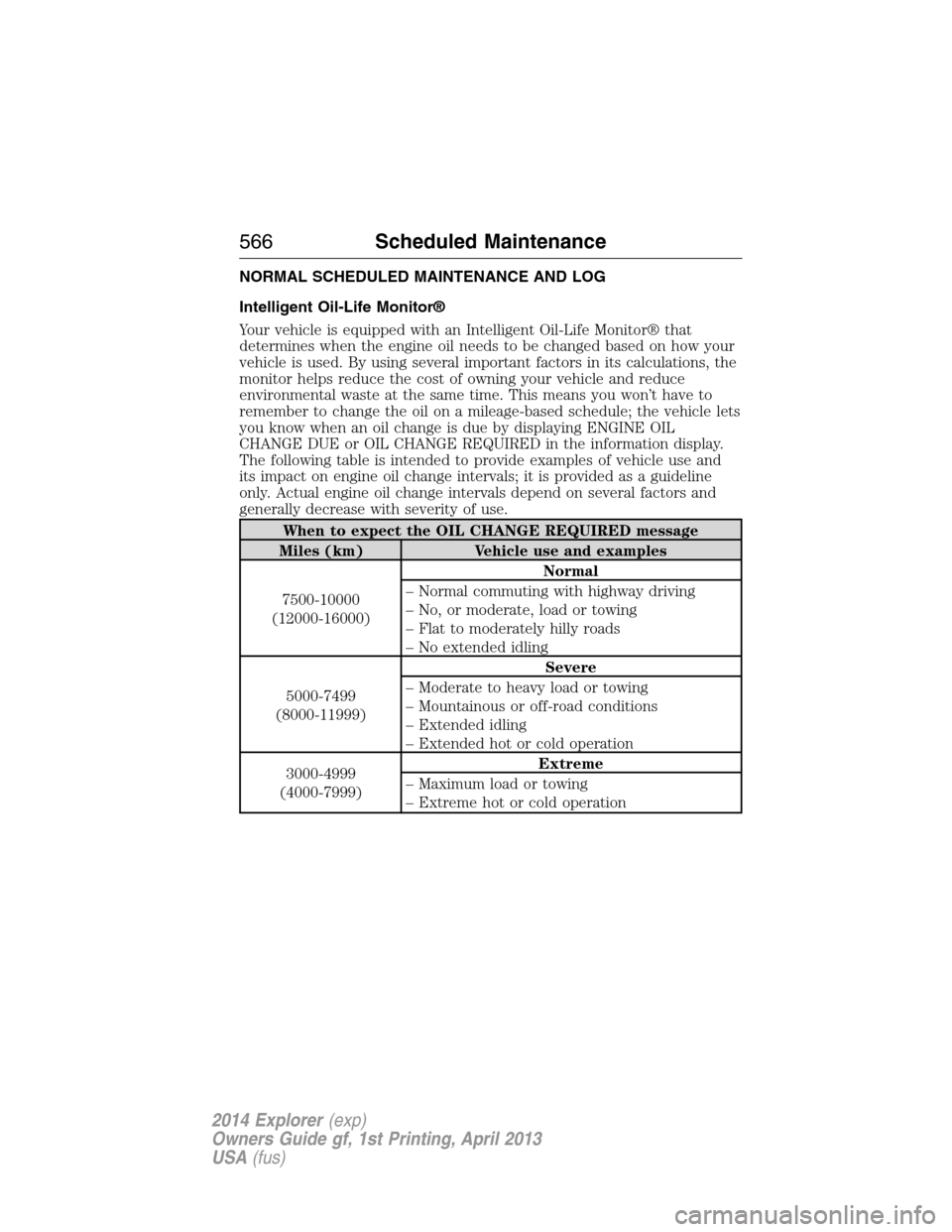
The following table is intended to provide examples of vehicle use and
its impact on engine oil change intervals; it is provided as a guideline
only. Actual engine oil change intervals depend on several factors and
generally decrease with severity of use.
When to expect the OIL CHANGE REQUIRED message
Miles (km) Vehicle use and examples
7500-10000
(12000-16000)Normal
– Normal commuting with highway driving
– No, or moderate, load or towing
– Flat to moderately hilly roads
– No extended idling
5000-7499
(8000-11999)Severe
– Moderate to heavy load or towing
– Mountainous or off-road conditions
– Extended idling
– Extended hot or cold operation
3000-4999
(4000-7999)Extreme
– Maximum load or towing
– Extreme hot or cold operation
566Scheduled Maintenance
2014 Explorer(exp)
Owners Guide gf, 1st Printing, April 2013
USA(fus)
Page 573 of 586
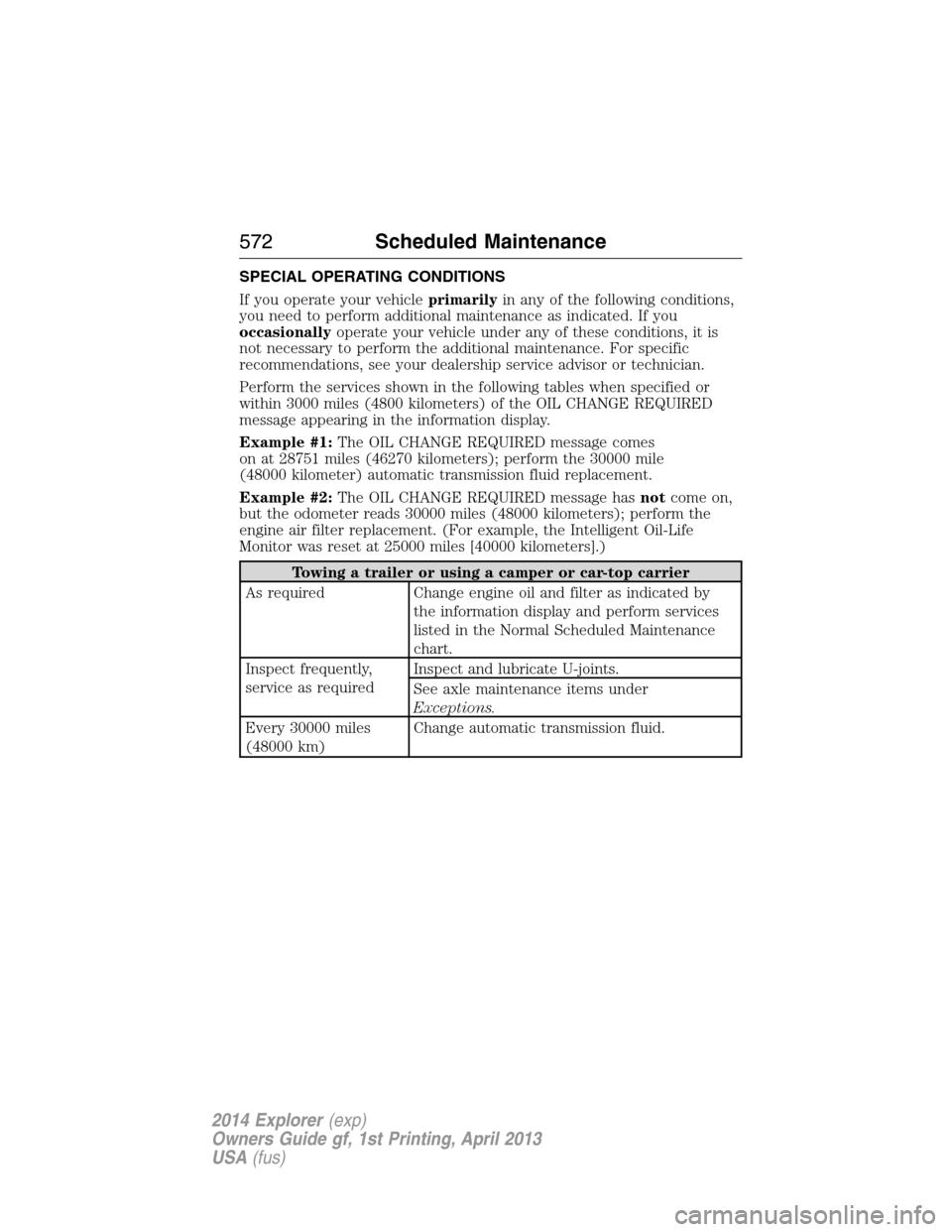
SPECIAL OPERATING CONDITIONS
If you operate your vehicleprimarilyin any of the following conditions,
you need to perform additional maintenance as indicated. If you
occasionallyoperate your vehicle under any of these conditions, it is
not necessary to perform the additional maintenance. For specific
recommendations, see your dealership service advisor or technician.
Perform the services shown in the following tables when specified or
within 3000 miles (4800 kilometers) of the OIL CHANGE REQUIRED
message appearing in the information display.
Example #1:The OIL CHANGE REQUIRED message comes
on at 28751 miles (46270 kilometers); perform the 30000 mile
(48000 kilometer) automatic transmission fluid replacement.
Example #2:The OIL CHANGE REQUIRED message hasnotcome on,
but the odometer reads 30000 miles (48000 kilometers); perform the
engine air filter replacement. (For example, the Intelligent Oil-Life
Monitor was reset at 25000 miles [40000 kilometers].)
Towing a trailer or using a camper or car-top carrier
As required Change engine oil and filter as indicated by
the information display and perform services
listed in the Normal Scheduled Maintenance
chart.
Inspect frequently,
service as requiredInspect and lubricate U-joints.
See axle maintenance items under
Exceptions.
Every 30000 miles
(48000 km)Change automatic transmission fluid.
572Scheduled Maintenance
2014 Explorer(exp)
Owners Guide gf, 1st Printing, April 2013
USA(fus)
Page 577 of 586
EXCEPTIONS
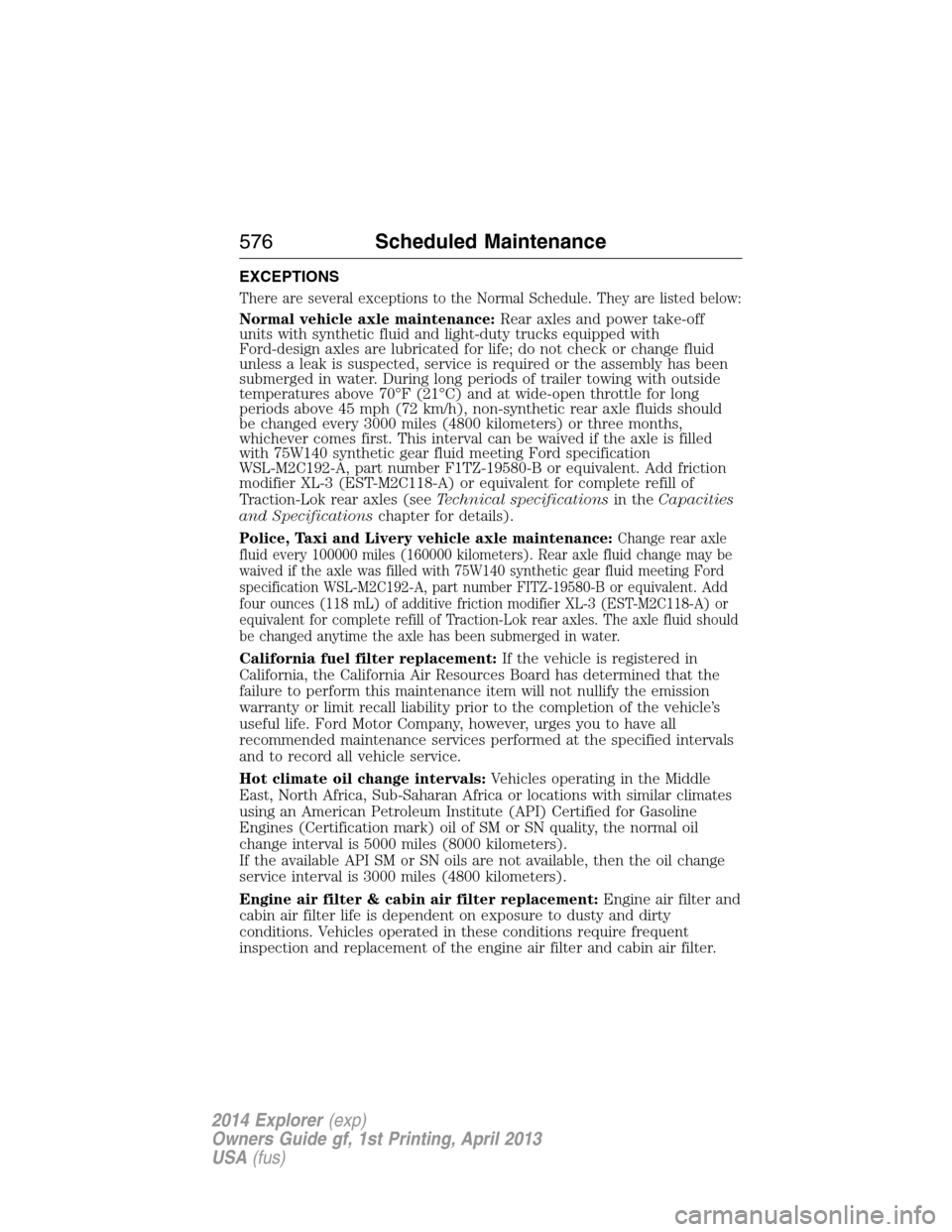
There are several exceptions to the Normal Schedule. They are listed below:
Normal vehicle axle maintenance:Rear axles and power take-off
units with synthetic fluid and light-duty trucks equipped with
Ford-design axles are lubricated for life; do not check or change fluid
unless a leak is suspected, service is required or the assembly has been
submerged in water. During long periods of trailer towing with outside
temperatures above 70°F (21°C) and at wide-open throttle for long
periods above 45 mph (72 km/h), non-synthetic rear axle fluids should
be changed every 3000 miles (4800 kilometers) or three months,
whichever comes first. This interval can be waived if the axle is filled
with 75W140 synthetic gear fluid meeting Ford specification
WSL-M2C192-A, part number F1TZ-19580-B or equivalent. Add friction
modifier XL-3 (EST-M2C118-A) or equivalent for complete refill of
Traction-Lok rear axles (seeTechnical specificationsin theCapacities
and Specificationschapter for details).
Police, Taxi and Livery vehicle axle maintenance:
Change rear axle
fluid every 100000 miles (160000 kilometers). Rear axle fluid change may be
waived if the axle was filled with 75W140 synthetic gear fluid meeting Ford
specification WSL-M2C192-A, part number FITZ-19580-B or equivalent. Add
four ounces (118 mL) of additive friction modifier XL-3 (EST-M2C118-A) or
equivalent for complete refill of Traction-Lok rear axles. The axle fluid should
be changed anytime the axle has been submerged in water.
California fuel filter replacement:If the vehicle is registered in
California, the California Air Resources Board has determined that the
failure to perform this maintenance item will not nullify the emission
warranty or limit recall liability prior to the completion of the vehicle’s
useful life. Ford Motor Company, however, urges you to have all
recommended maintenance services performed at the specified intervals
and to record all vehicle service.
Hot climate oil change intervals:Vehicles operating in the Middle
East, North Africa, Sub-Saharan Africa or locations with similar climates
using an American Petroleum Institute (API) Certified for Gasoline
Engines (Certification mark) oil of SM or SN quality, the normal oil
change interval is 5000 miles (8000 kilometers).
If the available API SM or SN oils are not available, then the oil change
service interval is 3000 miles (4800 kilometers).
Engine air filter & cabin air filter replacement:Engine air filter and
cabin air filter life is dependent on exposure to dusty and dirty
conditions. Vehicles operated in these conditions require frequent
inspection and replacement of the engine air filter and cabin air filter.
576Scheduled Maintenance
2014 Explorer(exp)
Owners Guide gf, 1st Printing, April 2013
USA(fus)
Page 585 of 586
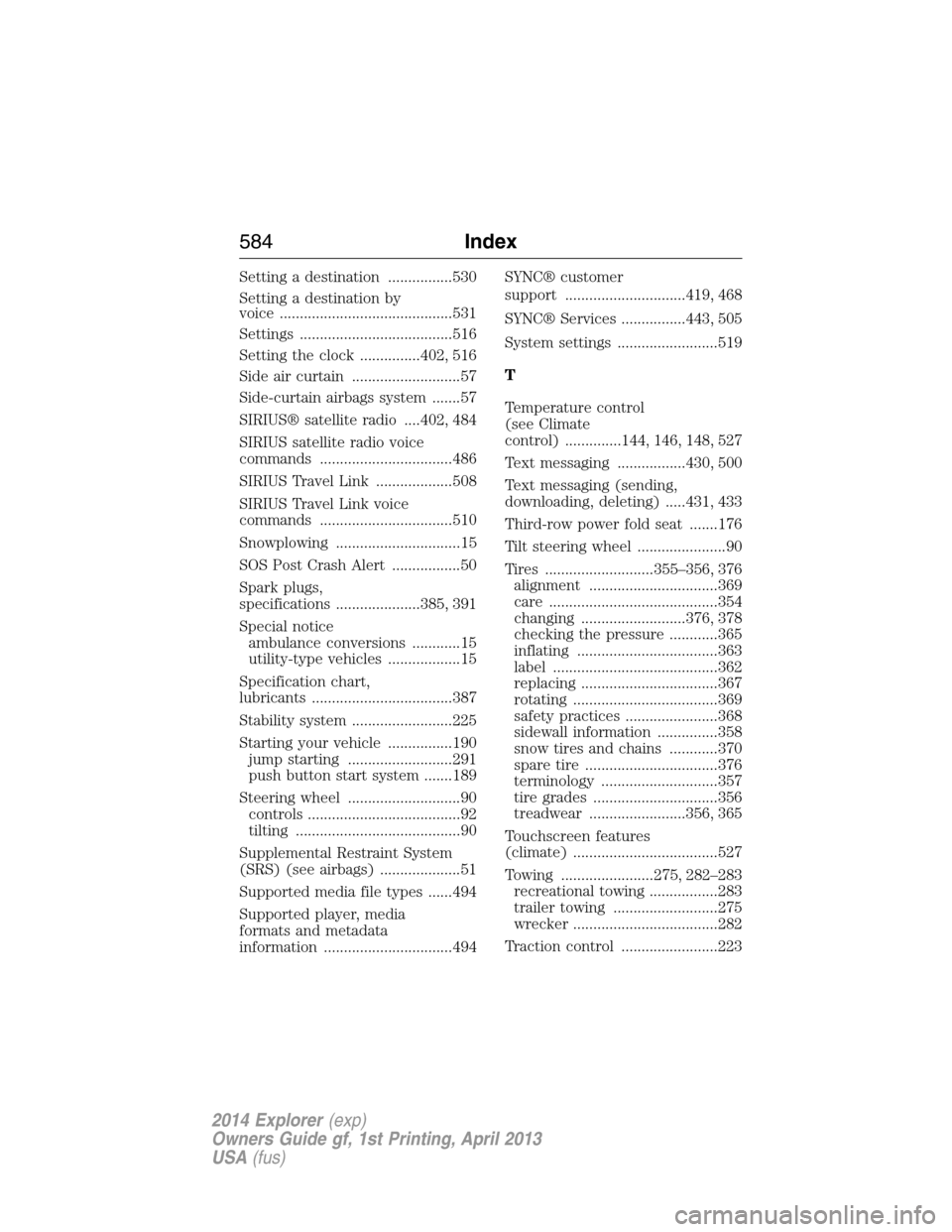
Setting a destination ................530
Setting a destination by
voice ...........................................531
Settings ......................................516
Setting the clock ...............402, 516
Side air curtain ...........................57
Side-curtain airbags system .......57
SIRIUS® satellite radio ....402, 484
SIRIUS satellite radio voice
commands .................................486
SIRIUS Travel Link ...................508
SIRIUS Travel Link voice
commands .................................510
Snowplowing ...............................15
SOS Post Crash Alert .................50
Spark plugs,
specifications .....................385, 391
Special notice
ambulance conversions ............15
utility-type vehicles ..................15
Specification chart,
lubricants ...................................387
Stability system .........................225
Starting your vehicle ................190
jump starting ..........................291
push button start system .......189
Steering wheel ............................90
controls ......................................92
tilting .........................................90
Supplemental Restraint System
(SRS) (see airbags) ....................51
Supported media file types ......494
Supported player, media
formats and metadata
information ................................494SYNC® customer
support ..............................419, 468
SYNC® Services ................443, 505
System settings .........................519
T
Temperature control
(see Climate
control) ..............144, 146, 148, 527
Text messaging .................430, 500
Text messaging (sending,
downloading, deleting) .....431, 433
Third-row power fold seat .......176
Tilt steering wheel ......................90
Tires ...........................355–356, 376
alignment ................................369
care ..........................................354
changing ..........................376, 378
checking the pressure ............365
inflating ...................................363
label .........................................362
replacing ..................................367
rotating ....................................369
safety practices .......................368
sidewall information ...............358
snow tires and chains ............370
spare tire .................................376
terminology .............................357
tire grades ...............................356
treadwear ........................356, 365
Touchscreen features
(climate) ....................................527
Towing .......................275, 282–283
recreational towing .................283
trailer towing ..........................275
wrecker ....................................282
Traction control ........................223
584Index
2014 Explorer(exp)
Owners Guide gf, 1st Printing, April 2013
USA(fus)