change wheel FORD EXPLORER 2015 5.G Owner's Manual
[x] Cancel search | Manufacturer: FORD, Model Year: 2015, Model line: EXPLORER, Model: FORD EXPLORER 2015 5.GPages: 596, PDF Size: 6.32 MB
Page 480 of 596
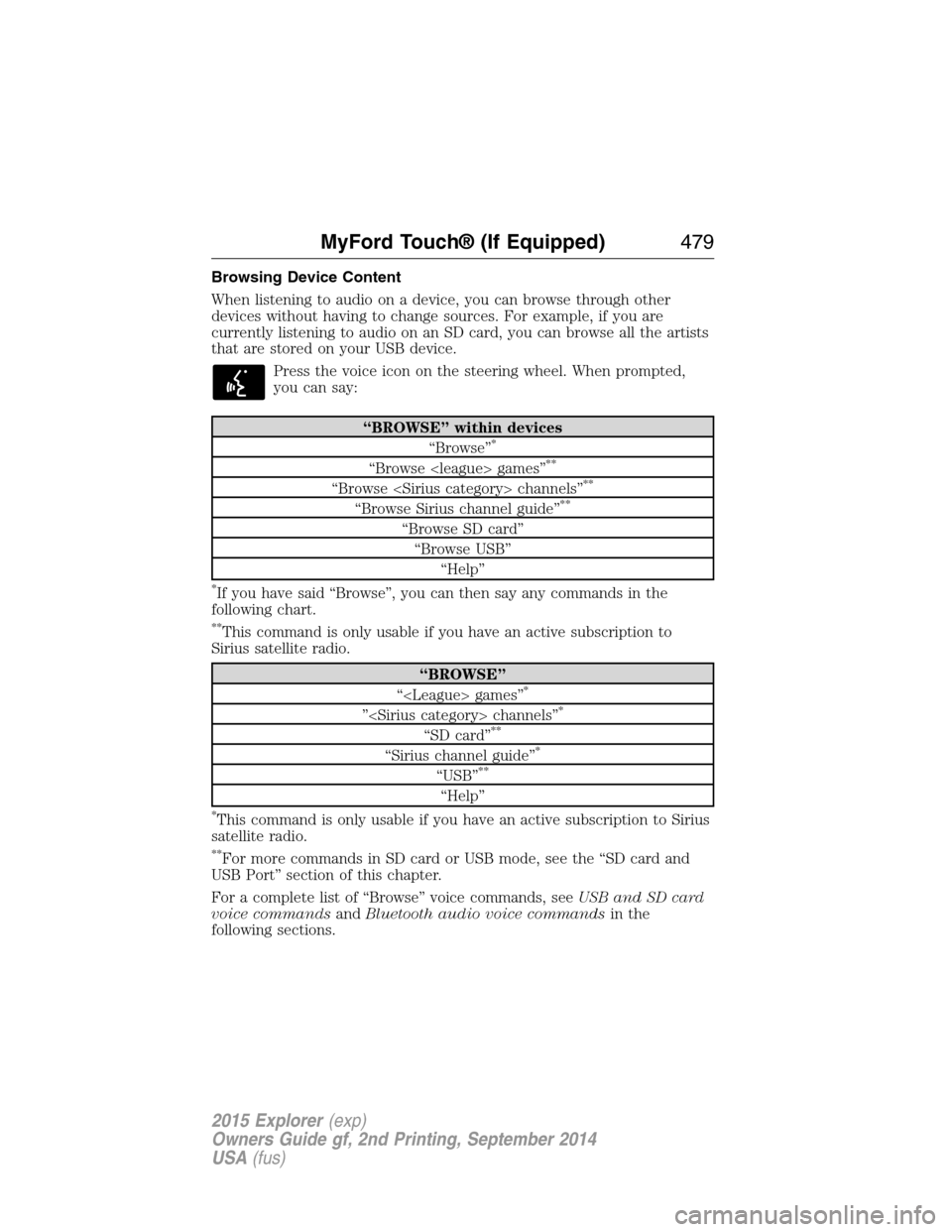
Browsing Device Content
When listening to audio on a device, you can browse through other
devices without having to change sources. For example, if you are
currently listening to audio on an SD card, you can browse all the artists
that are stored on your USB device.
Press the voice icon on the steering wheel. When prompted,
you can say:
“BROWSE” within devices
“Browse”*
“Browse
“Browse
“Browse Sirius channel guide”**
“Browse SD card”
“Browse USB”
“Help”
*If you have said “Browse”, you can then say any commands in the
following chart.
**This command is only usable if you have an active subscription to
Sirius satellite radio.
“BROWSE”
“
”
“SD card”**
“Sirius channel guide”*
“USB”**
“Help”
*This command is only usable if you have an active subscription to Sirius
satellite radio.
**For more commands in SD card or USB mode, see the “SD card and
USB Port” section of this chapter.
For a complete list of “Browse” voice commands, seeUSB and SD card
voice commandsandBluetooth audio voice commandsin the
following sections.
MyFord Touch® (If Equipped)479
2015 Explorer(exp)
Owners Guide gf, 2nd Printing, September 2014
USA(fus)
Page 481 of 596
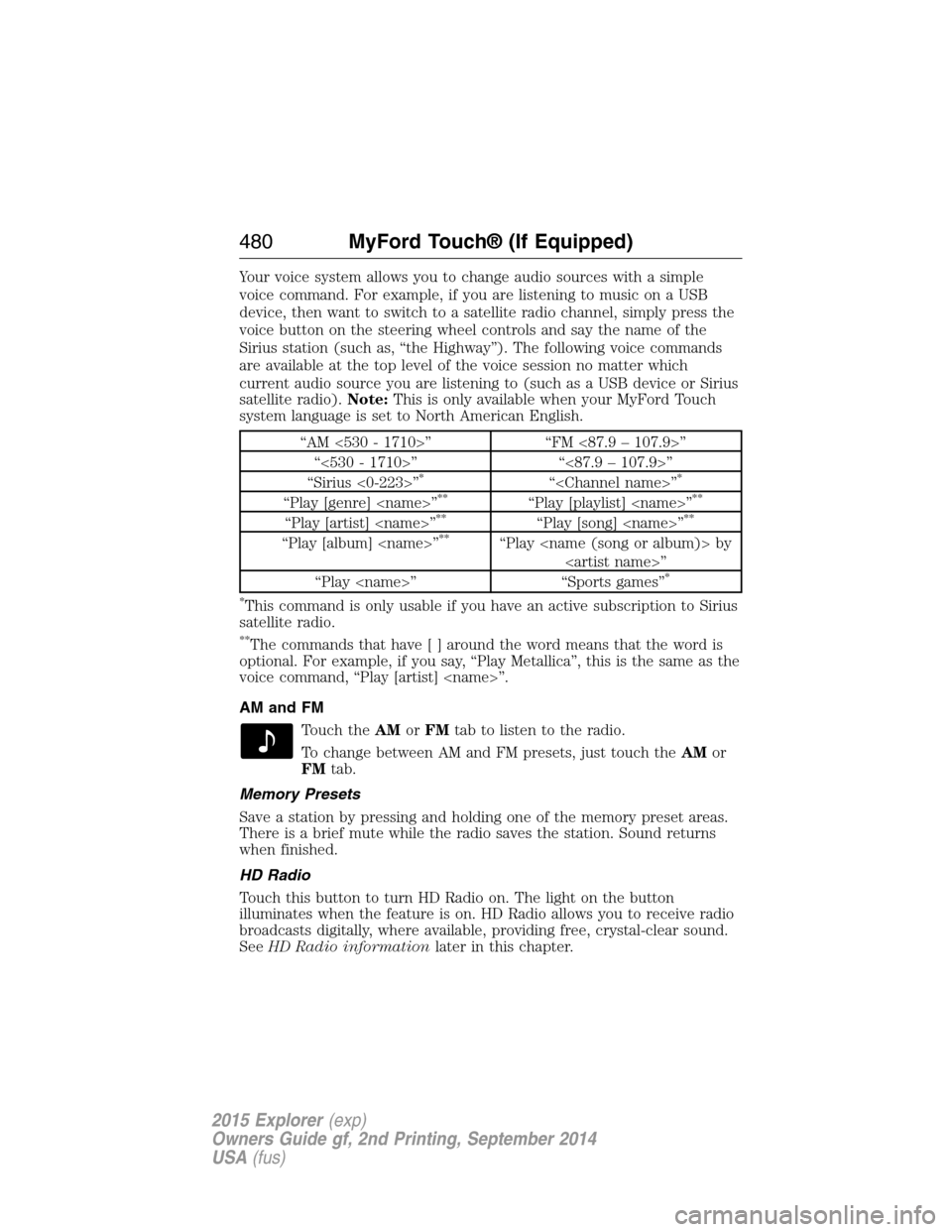
Your voice system allows you to change audio sources with a simple
voice command. For example, if you are listening to music on a USB
device, then want to switch to a satellite radio channel, simply press the
voice button on the steering wheel controls and say the name of the
Sirius station (such as, “the Highway”). The following voice commands
are available at the top level of the voice session no matter which
current audio source you are listening to (such as a USB device or Sirius
satellite radio).Note:This is only available when your MyFord Touch
system language is set to North American English.
“AM <530 - 1710>” “FM <87.9 – 107.9>”
“<530 - 1710>” “<87.9 – 107.9>”
“Sirius <0-223>”
*“
“Play [genre]
“Play [artist]
“Play [album]
“Play
*
*
This command is only usable if you have an active subscription to Sirius
satellite radio.
**The commands that have [ ] around the word means that the word is
optional. For example, if you say, “Play Metallica”, this is the same as the
voice command, “Play [artist]
AM and FM
Touch theAMorFMtab to listen to the radio.
To change between AM and FM presets, just touch theAMor
FMtab.
Memory Presets
Save a station by pressing and holding one of the memory preset areas.
There is a brief mute while the radio saves the station. Sound returns
when finished.
HD Radio
Touch this button to turn HD Radio on. The light on the button
illuminates when the feature is on. HD Radio allows you to receive radio
broadcasts digitally, where available, providing free, crystal-clear sound.
SeeHD Radio informationlater in this chapter.
480MyFord Touch® (If Equipped)
2015 Explorer(exp)
Owners Guide gf, 2nd Printing, September 2014
USA(fus)
Page 508 of 596
Note:This feature does not function properly if you have enabled caller
ID blocking on your mobile phone. Make sure your mobile phone is not
blocking caller ID before using SYNC Services.
Note:
The driver is ultimately responsible for the safe operation of the
vehicle, and therefore, must evaluate whether it is safe to follow the
suggested directions. Any navigation features are provided only as an aid.
Make your driving decisions based on your observations of local conditions
and existing traffic regulations. Do not follow the route suggestions if doing
so would result in an unsafe or illegal maneuver, if you would be placed in
an unsafe situation, or if you would be directed into an area that you
consider unsafe. Maps used by this system may be inaccurate because of
errors, changes in roads, traffic conditions or driving conditions.
Note:When you connect, the service uses GPS technology and advanced
vehicle sensors to collect your vehicle’s current location, travel direction
and speed to help provide you with the directions, traffic reports, or
business searches you request. Further, to provide the services you
request, for continuous improvement, the service may collect and record
call details and voice communications. For more information, see SYNC
Services Terms and Conditions at www.SYNCMyRide.com. If you do not
want Ford or its service providers to collect your vehicle travel
information or other information identified in the Terms and Conditions,
do not subscribe or use the service.
SYNC Services uses advanced vehicle sensors, integrated GPS technology
and comprehensive map and traffic data, to give you personalized traffic
reports, precise turn-by-turn directions, business search, news, sports,
weather and more. For a complete list of services, or to learn more,
please visit www.SYNCMyRide.com.
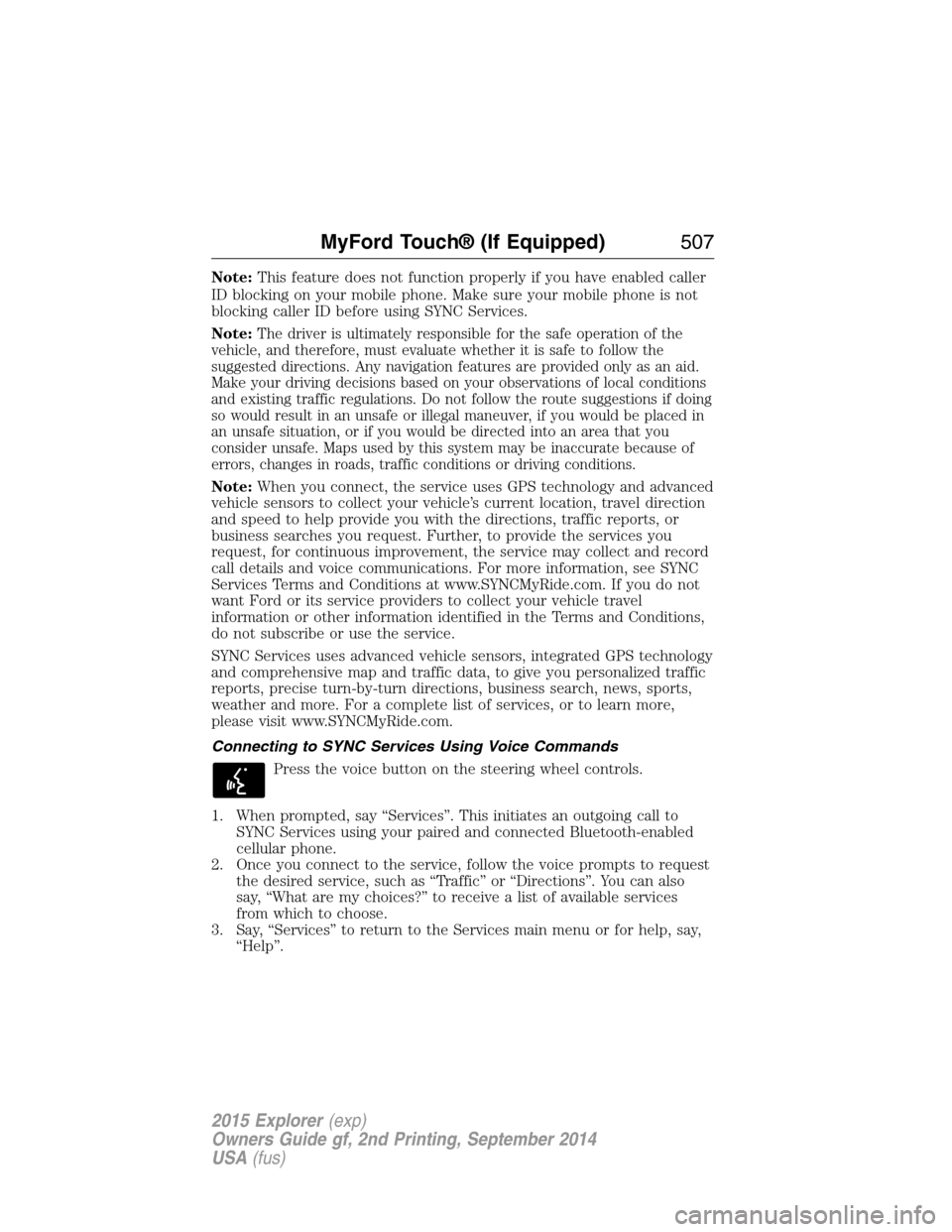
Connecting to SYNC Services Using Voice Commands
Press the voice button on the steering wheel controls.
1. When prompted, say “Services”. This initiates an outgoing call to
SYNC Services using your paired and connected Bluetooth-enabled
cellular phone.
2. Once you connect to the service, follow the voice prompts to request
the desired service, such as “Traffic” or “Directions”. You can also
say, “What are my choices?” to receive a list of available services
from which to choose.
3. Say, “Services” to return to the Services main menu or for help, say,
“Help”.
MyFord Touch® (If Equipped)507
2015 Explorer(exp)
Owners Guide gf, 2nd Printing, September 2014
USA(fus)
Page 520 of 596
You can also turn the outside air temperature display on and off. It
appears at the top center of the touchscreen, next to the time and date.
The system automatically saves any updates you make to the settings.
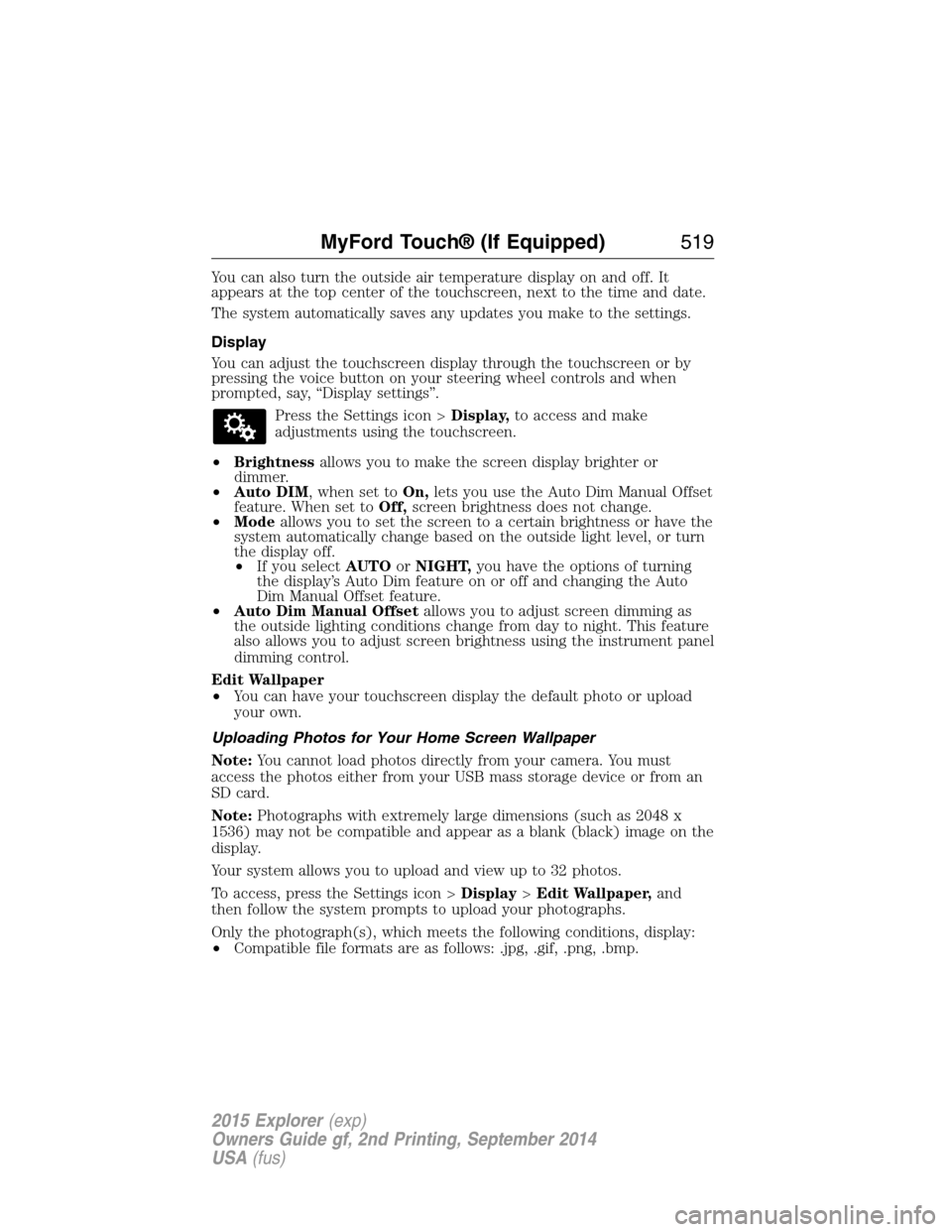
Display
You can adjust the touchscreen display through the touchscreen or by
pressing the voice button on your steering wheel controls and when
prompted, say, “Display settings”.
Press the Settings icon >Display,to access and make
adjustments using the touchscreen.
•Brightnessallows you to make the screen display brighter or
dimmer.
•Auto DIM, when set toOn,lets you use the Auto Dim Manual Offset
feature. When set toOff,screen brightness does not change.
•Modeallows you to set the screen to a certain brightness or have the
system automatically change based on the outside light level, or turn
the display off.
•If you selectAUTOorNIGHT,you have the options of turning
the display’s Auto Dim feature on or off and changing the Auto
Dim Manual Offset feature.
•Auto Dim Manual Offsetallows you to adjust screen dimming as
the outside lighting conditions change from day to night. This feature
also allows you to adjust screen brightness using the instrument panel
dimming control.
Edit Wallpaper
•You can have your touchscreen display the default photo or upload
your own.
Uploading Photos for Your Home Screen Wallpaper
Note:You cannot load photos directly from your camera. You must
access the photos either from your USB mass storage device or from an
SD card.
Note:Photographs with extremely large dimensions (such as 2048 x
1536) may not be compatible and appear as a blank (black) image on the
display.
Your system allows you to upload and view up to 32 photos.
To access, press the Settings icon >Display>Edit Wallpaper,and
then follow the system prompts to upload your photographs.
Only the photograph(s), which meets the following conditions, display:
•Compatible file formats are as follows: .jpg, .gif, .png, .bmp.
MyFord Touch® (If Equipped)519
2015 Explorer(exp)
Owners Guide gf, 2nd Printing, September 2014
USA(fus)
Page 560 of 596
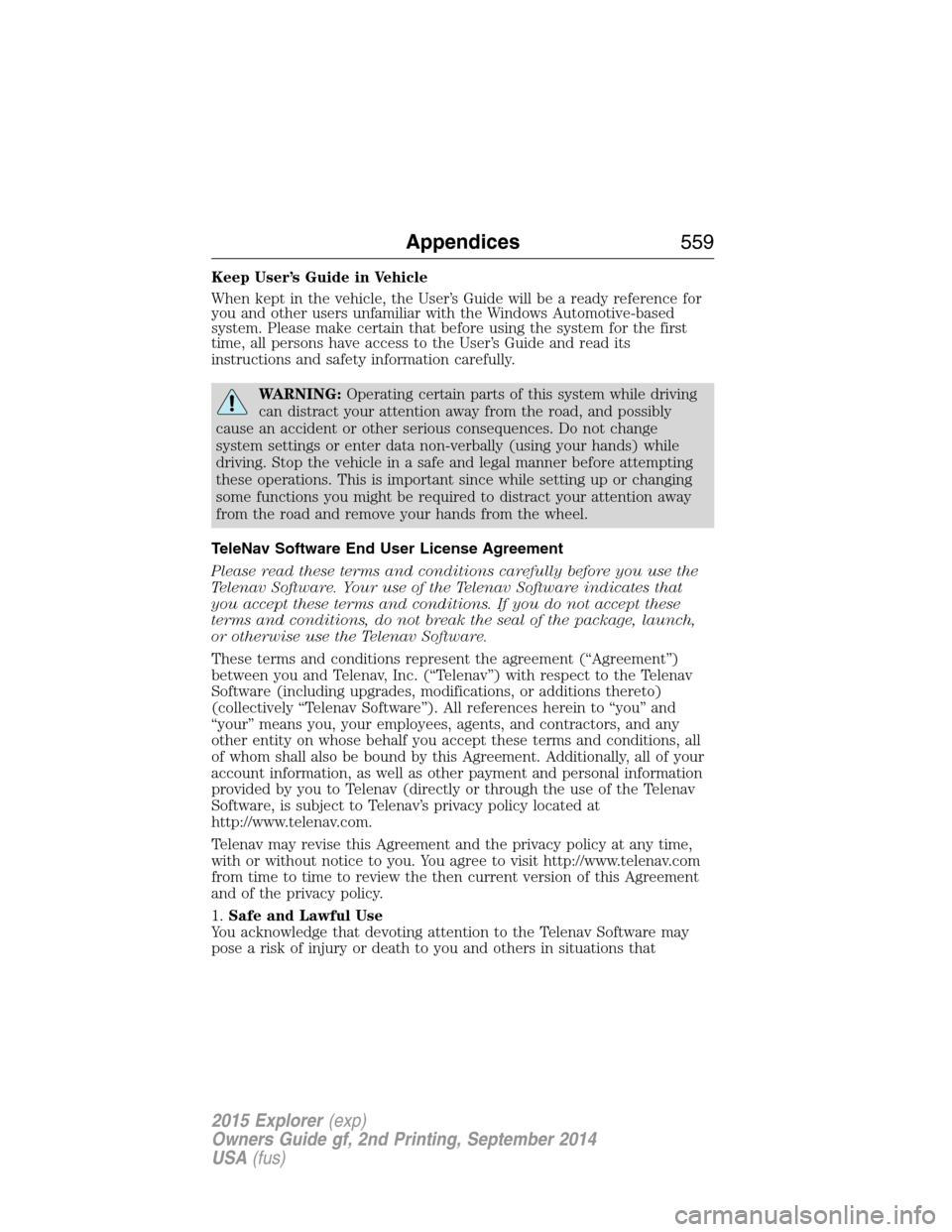
Keep User’s Guide in Vehicle
When kept in the vehicle, the User’s Guide will be a ready reference for
you and other users unfamiliar with the Windows Automotive-based
system. Please make certain that before using the system for the first
time, all persons have access to the User’s Guide and read its
instructions and safety information carefully.
WARNING:Operating certain parts of this system while driving
can distract your attention away from the road, and possibly
cause an accident or other serious consequences. Do not change
system settings or enter data non-verbally (using your hands) while
driving. Stop the vehicle in a safe and legal manner before attempting
these operations. This is important since while setting up or changing
some functions you might be required to distract your attention away
from the road and remove your hands from the wheel.
TeleNav Software End User License Agreement
Please read these terms and conditions carefully before you use the
Telenav Software. Your use of the Telenav Software indicates that
you accept these terms and conditions. If you do not accept these
terms and conditions, do not break the seal of the package, launch,
or otherwise use the Telenav Software.
These terms and conditions represent the agreement (“Agreement”)
between you and Telenav, Inc. (“Telenav”) with respect to the Telenav
Software (including upgrades, modifications, or additions thereto)
(collectively “Telenav Software”). All references herein to “you” and
“your” means you, your employees, agents, and contractors, and any
other entity on whose behalf you accept these terms and conditions, all
of whom shall also be bound by this Agreement. Additionally, all of your
account information, as well as other payment and personal information
provided by you to Telenav (directly or through the use of the Telenav
Software, is subject to Telenav’s privacy policy located at
http://www.telenav.com.
Telenav may revise this Agreement and the privacy policy at any time,
with or without notice to you. You agree to visit http://www.telenav.com
from time to time to review the then current version of this Agreement
and of the privacy policy.
1.Safe and Lawful Use
You acknowledge that devoting attention to the Telenav Software may
pose a risk of injury or death to you and others in situations that
Appendices559
2015 Explorer(exp)
Owners Guide gf, 2nd Printing, September 2014
USA(fus)
Page 578 of 596
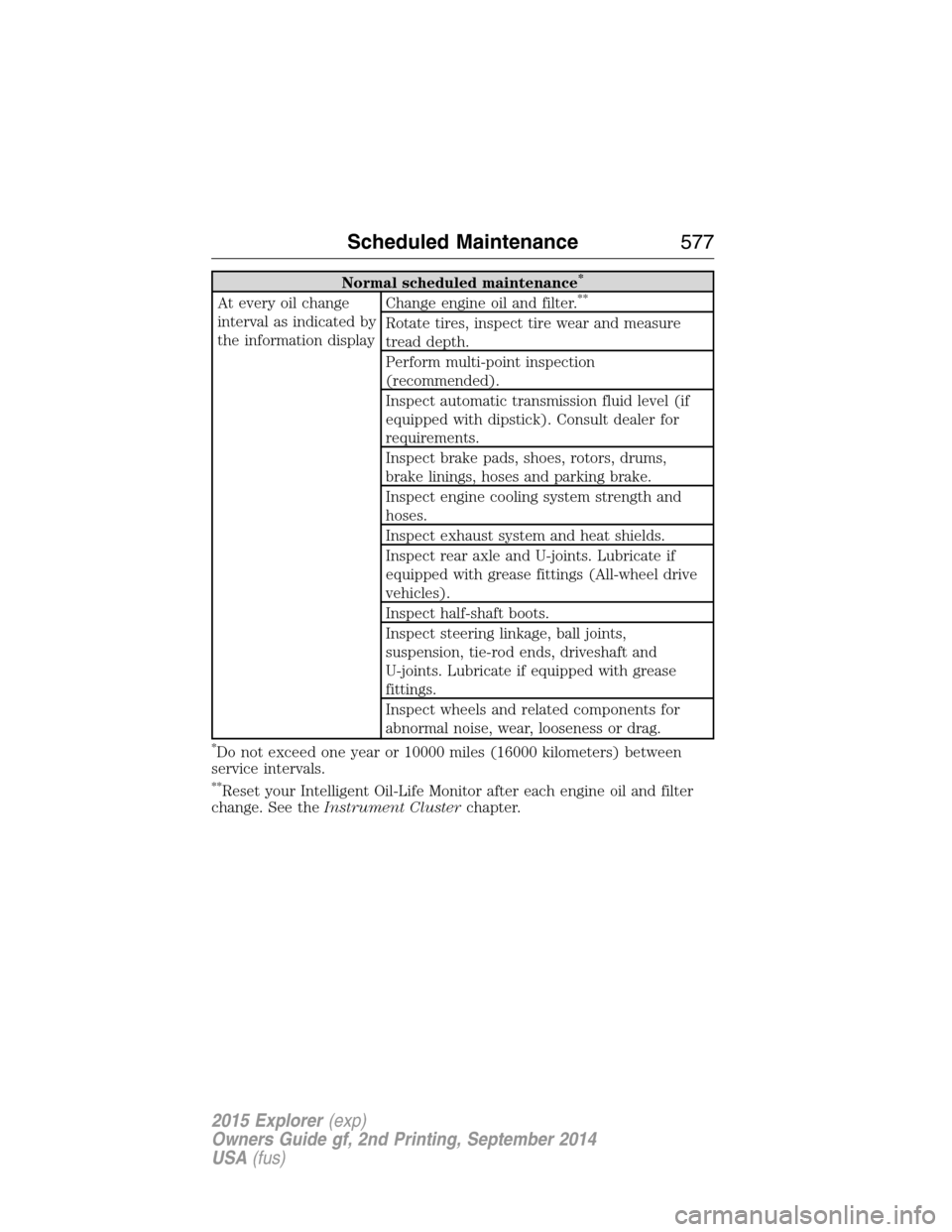
Normal scheduled maintenance*
At every oil change
interval as indicated by
the information displayChange engine oil and filter.**
Rotate tires, inspect tire wear and measure
tread depth.
Perform multi-point inspection
(recommended).
Inspect automatic transmission fluid level (if
equipped with dipstick). Consult dealer for
requirements.
Inspect brake pads, shoes, rotors, drums,
brake linings, hoses and parking brake.
Inspect engine cooling system strength and
hoses.
Inspect exhaust system and heat shields.
Inspect rear axle and U-joints. Lubricate if
equipped with grease fittings (All-wheel drive
vehicles).
Inspect half-shaft boots.
Inspect steering linkage, ball joints,
suspension, tie-rod ends, driveshaft and
U-joints. Lubricate if equipped with grease
fittings.
Inspect wheels and related components for
abnormal noise, wear, looseness or drag.
*Do not exceed one year or 10000 miles (16000 kilometers) between
service intervals.
**Reset your Intelligent Oil-Life Monitor after each engine oil and filter
change. See theInstrument Clusterchapter.
Scheduled Maintenance577
2015 Explorer(exp)
Owners Guide gf, 2nd Printing, September 2014
USA(fus)
Page 584 of 596
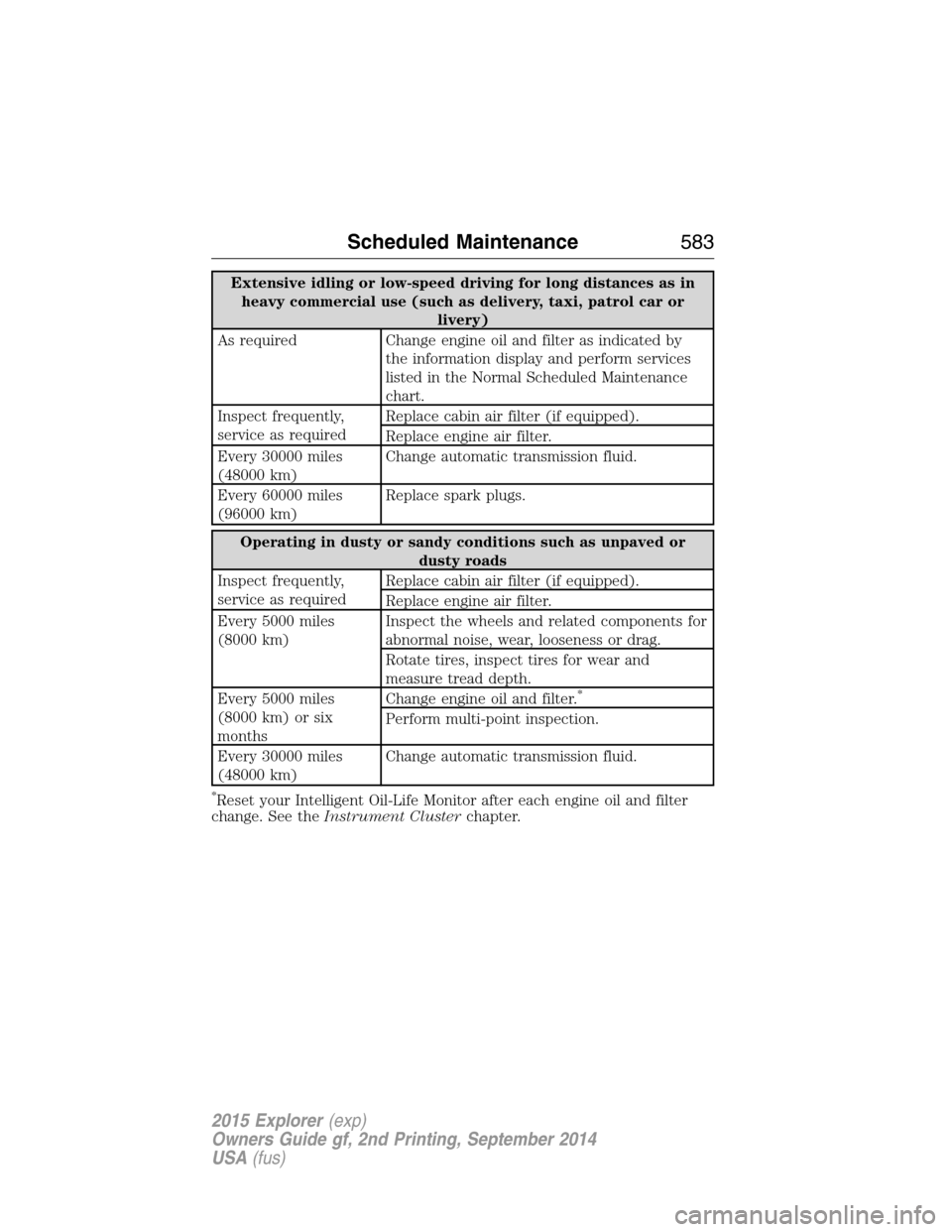
Extensive idling or low-speed driving for long distances as in
heavy commercial use (such as delivery, taxi, patrol car or
livery)
As required Change engine oil and filter as indicated by
the information display and perform services
listed in the Normal Scheduled Maintenance
chart.
Inspect frequently,
service as requiredReplace cabin air filter (if equipped).
Replace engine air filter.
Every 30000 miles
(48000 km)Change automatic transmission fluid.
Every 60000 miles
(96000 km)Replace spark plugs.
Operating in dusty or sandy conditions such as unpaved or
dusty roads
Inspect frequently,
service as requiredReplace cabin air filter (if equipped).
Replace engine air filter.
Every 5000 miles
(8000 km)Inspect the wheels and related components for
abnormal noise, wear, looseness or drag.
Rotate tires, inspect tires for wear and
measure tread depth.
Every 5000 miles
(8000 km) or six
monthsChange engine oil and filter.
*
Perform multi-point inspection.
Every 30000 miles
(48000 km)Change automatic transmission fluid.
*Reset your Intelligent Oil-Life Monitor after each engine oil and filter
change. See theInstrument Clusterchapter.
Scheduled Maintenance583
2015 Explorer(exp)
Owners Guide gf, 2nd Printing, September 2014
USA(fus)