radio FORD EXPLORER 2015 5.G Workshop Manual
[x] Cancel search | Manufacturer: FORD, Model Year: 2015, Model line: EXPLORER, Model: FORD EXPLORER 2015 5.GPages: 596, PDF Size: 6.32 MB
Page 490 of 596
“TUNE”
“SAT 3”
“SAT 3 preset <#>”
“Help”
Sirius Satellite Radio Information
Note:Sirius reserves the unrestricted right to change, rearrange, add or
delete programming including canceling, moving or adding particular
channels, and its prices, at any time, with or without notice to you. Ford
Motor Company shall not be responsible for any such programming
changes.
Note:This receiver includes the eCos real-time operating system. eCos
is published under the eCos License.
Sirius satellite radio is a
subscription-based satellite radio
service that broadcasts a variety of
music, sports, news, weather, traffic
and entertainment programming.
Your factory-installed Sirius satellite
radio system includes hardware and
a limited subscription term that begins on the date of sale or lease of
your vehicle. See your authorized dealer for availability.
For more information on extended subscription terms (a service fee is
required), the online media player and a list of Sirius satellite radio
channels, and other features, please visit www.siriusxm.com in the
United States, www.sirius.ca in Canada, or call Sirius at 1-888-539-7474.
Potential satellite radio reception issues
Antenna
obstructionsFor optimal reception performance, keep the
antenna clear of snow and ice build-up and
keep luggage and other materials as far away
from the antenna as possible.
TerrainHills, mountains, tall buildings, bridges,
tunnels, freeway overpasses, parking garages,
dense tree foliage and thunderstorms can
interfere with your reception.
MyFord Touch® (If Equipped)489
2015 Explorer(exp)
Owners Guide gf, 2nd Printing, September 2014
USA(fus)
Page 491 of 596
Potential satellite radio reception issues
Station overloadWhen you pass a ground-based
broadcast-repeating tower, a stronger signal
may overtake a weaker one and the audio
system may mute.
Satellite radio signal
interferenceYour display may show ACQUIRING...to
indicate the interference and the audio
system may mute.
Sirius troubleshooting tips
Radio display Condition Possible action
Acquiring... Radio requires more
than two seconds to
produce audio for the
selected channel.No action required.
This message should
disappear shortly.
Sat Fault/SIRIUS
system failure.There is an internal
module or system
failure present.If this message does
not clear shortly, or
with an ignition key
cycle, your receiver
may have a fault. See
your authorized dealer
for service.
Invalid Channel. The channel is no
longer available.Tune to another
channel or choose
another preset.
Unsubscribed Channel. Your subscription does
not include this
channel.Contact Sirius at
1–888–539–7474 to
subscribe to the
channel, or tune to
another channel.
No Signal. The signal is lost from
the Sirius satellite or
Sirius tower to your
vehicle antenna.The signal is blocked.
When you move into
an open area, the
signal should return.
490MyFord Touch® (If Equipped)
2015 Explorer(exp)
Owners Guide gf, 2nd Printing, September 2014
USA(fus)
Page 492 of 596
Sirius troubleshooting tips
Radio display Condition Possible action
Updating. Update of channel
programming in
progress.No action required.
The process may take
up to three minutes.
Call SIRIUS
1–888–539–7474.Your satellite service is
no longer available.Contact Sirius at
1-888-539-7474 to
resolve subscription
issues.
None Found. Check
Channel Guide.All the channels in the
selected channels are
either skipped or
locked.Use the channel guide
to turn off theLock
orSkipfunction on
that station.
Subscription Updated. Sirius has updated the
channels available for
your vehicle.No action required.
CD
Press the lower left corner of the touchscreen, and then select
theCDtab.
You can also advance and reverse the current track or current folder, if
applicable.
Repeat
Touch this button to repeat the currently playing track, all tracks on the
disc or turn the feature off if already on.
Shuffle
Touch this button to play the tracks or entire albums in random order, or
turn the feature off if already on.
Scan
Touch this button to hear a brief sampling of all available tracks.
More Info
Touch this button to see disc information.
MyFord Touch® (If Equipped)491
2015 Explorer(exp)
Owners Guide gf, 2nd Printing, September 2014
USA(fus)
Page 499 of 596
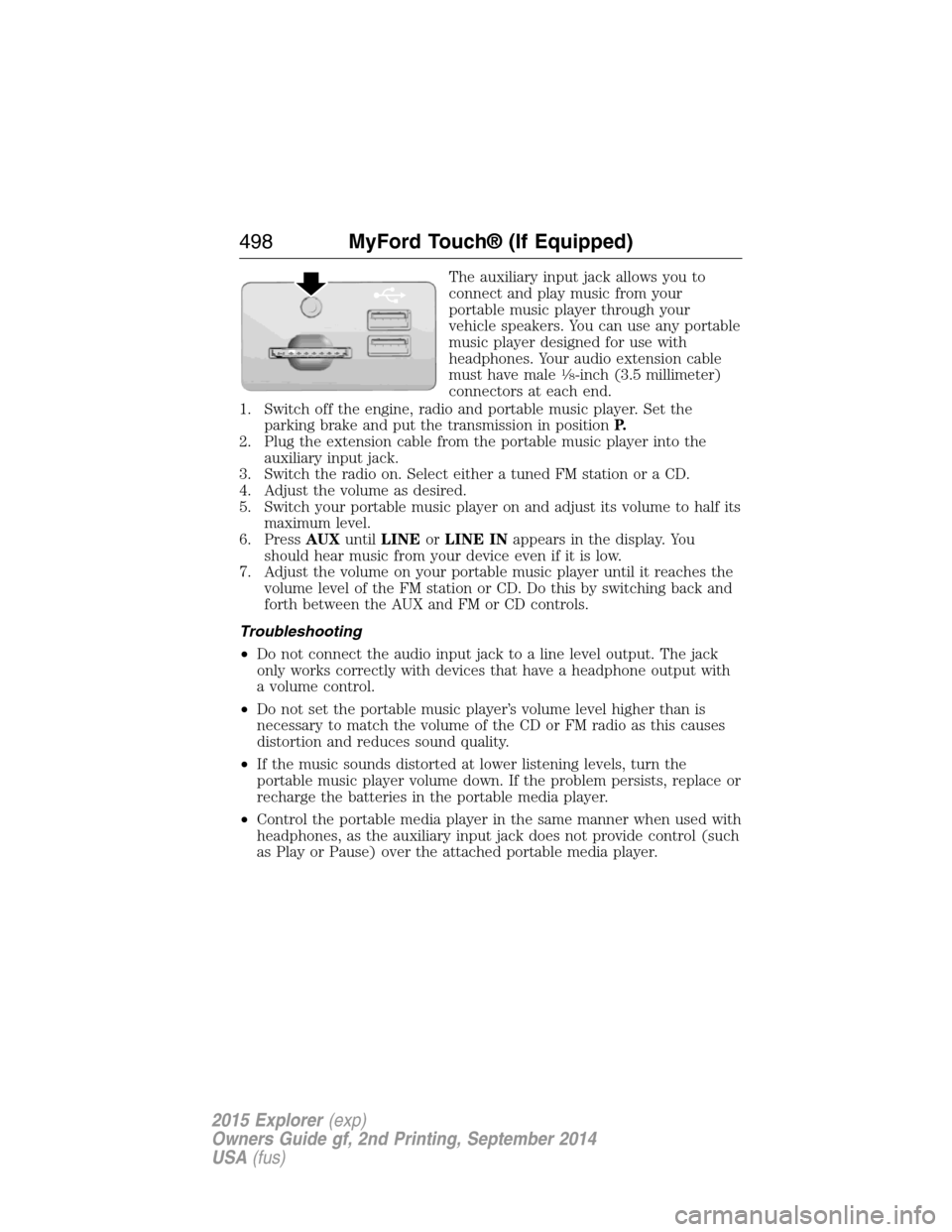
The auxiliary input jack allows you to
connect and play music from your
portable music player through your
vehicle speakers. You can use any portable
music player designed for use with
headphones. Your audio extension cable
must have male
18-inch (3.5 millimeter)
connectors at each end.
1. Switch off the engine, radio and portable music player. Set the
parking brake and put the transmission in positionP.
2. Plug the extension cable from the portable music player into the
auxiliary input jack.
3. Switch the radio on. Select either a tuned FM station or a CD.
4. Adjust the volume as desired.
5. Switch your portable music player on and adjust its volume to half its
maximum level.
6. PressAUXuntilLINEorLINE INappears in the display. You
should hear music from your device even if it is low.
7. Adjust the volume on your portable music player until it reaches the
volume level of the FM station or CD. Do this by switching back and
forth between the AUX and FM or CD controls.
Troubleshooting
•Do not connect the audio input jack to a line level output. The jack
only works correctly with devices that have a headphone output with
a volume control.
•Do not set the portable music player’s volume level higher than is
necessary to match the volume of the CD or FM radio as this causes
distortion and reduces sound quality.
•If the music sounds distorted at lower listening levels, turn the
portable music player volume down. If the problem persists, replace or
recharge the batteries in the portable media player.
•Control the portable media player in the same manner when used with
headphones, as the auxiliary input jack does not provide control (such
as Play or Pause) over the attached portable media player.
498MyFord Touch® (If Equipped)
2015 Explorer(exp)
Owners Guide gf, 2nd Printing, September 2014
USA(fus)
Page 501 of 596
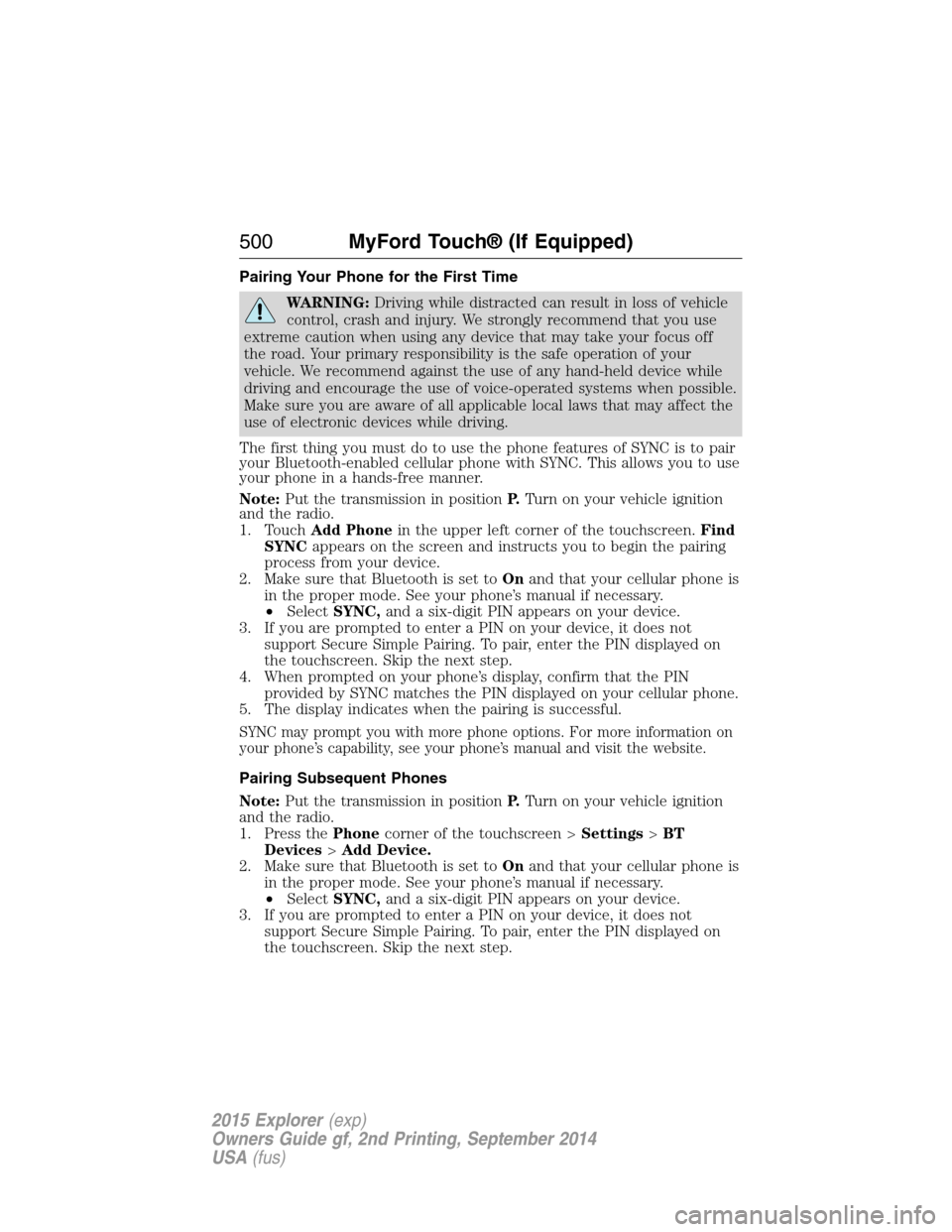
Pairing Your Phone for the First Time
WARNING:Driving while distracted can result in loss of vehicle
control, crash and injury. We strongly recommend that you use
extreme caution when using any device that may take your focus off
the road. Your primary responsibility is the safe operation of your
vehicle. We recommend against the use of any hand-held device while
driving and encourage the use of voice-operated systems when possible.
Make sure you are aware of all applicable local laws that may affect the
use of electronic devices while driving.
The first thing you must do to use the phone features of SYNC is to pair
your Bluetooth-enabled cellular phone with SYNC. This allows you to use
your phone in a hands-free manner.
Note:Put the transmission in positionP.Turn on your vehicle ignition
and the radio.
1. TouchAdd Phonein the upper left corner of the touchscreen.Find
SYNCappears on the screen and instructs you to begin the pairing
process from your device.
2. Make sure that Bluetooth is set toOnand that your cellular phone is
in the proper mode. See your phone’s manual if necessary.
•SelectSYNC,and a six-digit PIN appears on your device.
3. If you are prompted to enter a PIN on your device, it does not
support Secure Simple Pairing. To pair, enter the PIN displayed on
the touchscreen. Skip the next step.
4. When prompted on your phone’s display, confirm that the PIN
provided by SYNC matches the PIN displayed on your cellular phone.
5. The display indicates when the pairing is successful.
SYNC may prompt you with more phone options. For more information on
your phone’s capability, see your phone’s manual and visit the website.
Pairing Subsequent Phones
Note:Put the transmission in positionP.Turn on your vehicle ignition
and the radio.
1. Press thePhonecorner of the touchscreen >Settings>BT
Devices>Add Device.
2. Make sure that Bluetooth is set toOnand that your cellular phone is
in the proper mode. See your phone’s manual if necessary.
•SelectSYNC,and a six-digit PIN appears on your device.
3. If you are prompted to enter a PIN on your device, it does not
support Secure Simple Pairing. To pair, enter the PIN displayed on
the touchscreen. Skip the next step.
500MyFord Touch® (If Equipped)
2015 Explorer(exp)
Owners Guide gf, 2nd Printing, September 2014
USA(fus)
Page 526 of 596
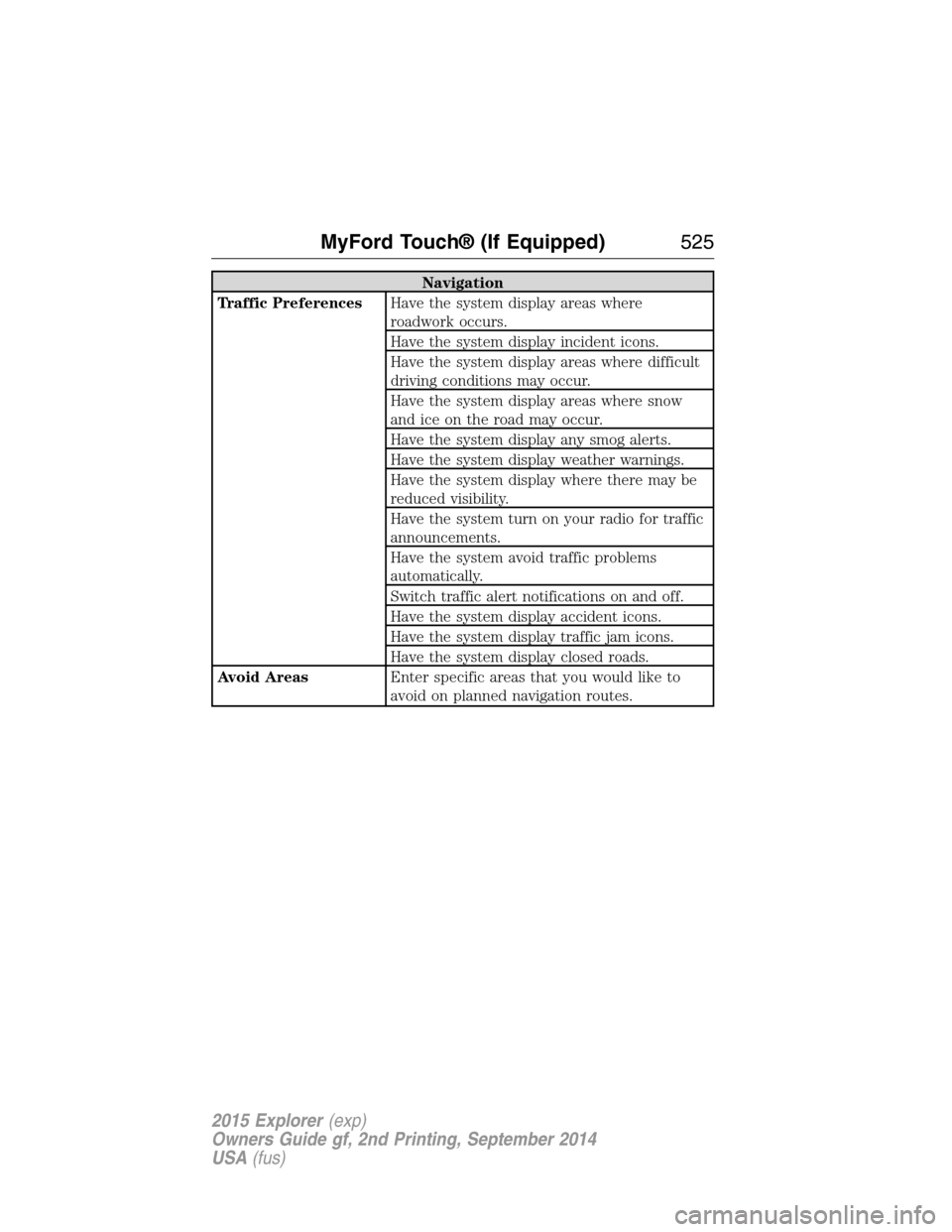
Navigation
Traffic PreferencesHave the system display areas where
roadwork occurs.
Have the system display incident icons.
Have the system display areas where difficult
driving conditions may occur.
Have the system display areas where snow
and ice on the road may occur.
Have the system display any smog alerts.
Have the system display weather warnings.
Have the system display where there may be
reduced visibility.
Have the system turn on your radio for traffic
announcements.
Have the system avoid traffic problems
automatically.
Switch traffic alert notifications on and off.
Have the system display accident icons.
Have the system display traffic jam icons.
Have the system display closed roads.
Avoid AreasEnter specific areas that you would like to
avoid on planned navigation routes.
MyFord Touch® (If Equipped)525
2015 Explorer(exp)
Owners Guide gf, 2nd Printing, September 2014
USA(fus)
Page 530 of 596
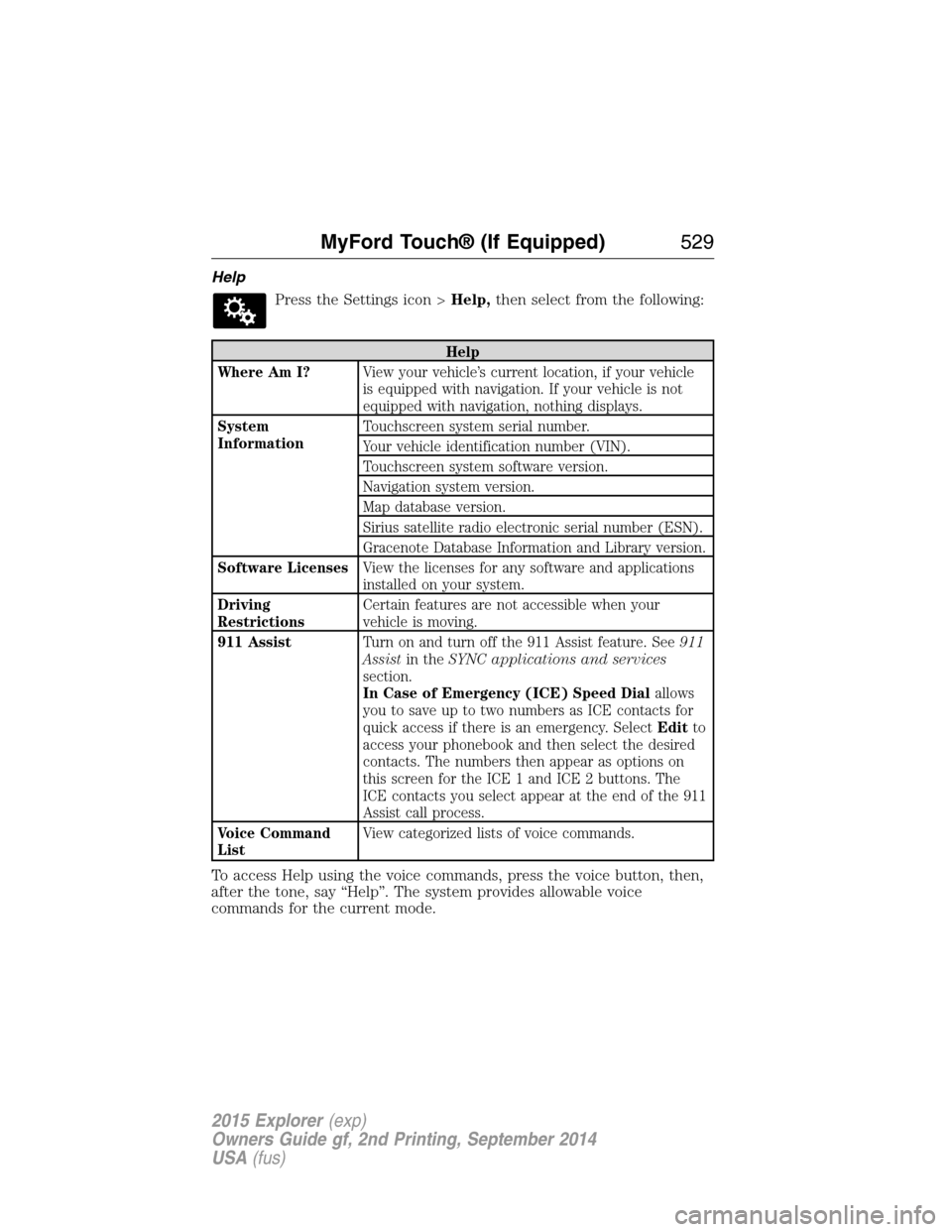
Help
Press the Settings icon >Help,then select from the following:
Help
Where Am I?View your vehicle’s current location, if your vehicle
is equipped with navigation. If your vehicle is not
equipped with navigation, nothing displays.
System
InformationTouchscreen system serial number.
Your vehicle identification number (VIN).
Touchscreen system software version.
Navigation system version.
Map database version.
Sirius satellite radio electronic serial number (ESN).
Gracenote Database Information and Library version.
Software LicensesView the licenses for any software and applications
installed on your system.
Driving
RestrictionsCertain features are not accessible when your
vehicle is moving.
911 AssistTurn on and turn off the 911 Assist feature. See911
Assistin theSYNC applications and services
section.
In Case of Emergency (ICE) Speed Dialallows
you to save up to two numbers as ICE contacts for
quick access if there is an emergency. SelectEditto
access your phonebook and then select the desired
contacts. The numbers then appear as options on
this screen for the ICE 1 and ICE 2 buttons. The
ICE contacts you select appear at the end of the 911
Assist call process.
Voice Command
ListView categorized lists of voice commands.
To access Help using the voice commands, press the voice button, then,
after the tone, say “Help”. The system provides allowable voice
commands for the current mode.
MyFord Touch® (If Equipped)529
2015 Explorer(exp)
Owners Guide gf, 2nd Printing, September 2014
USA(fus)
Page 552 of 596
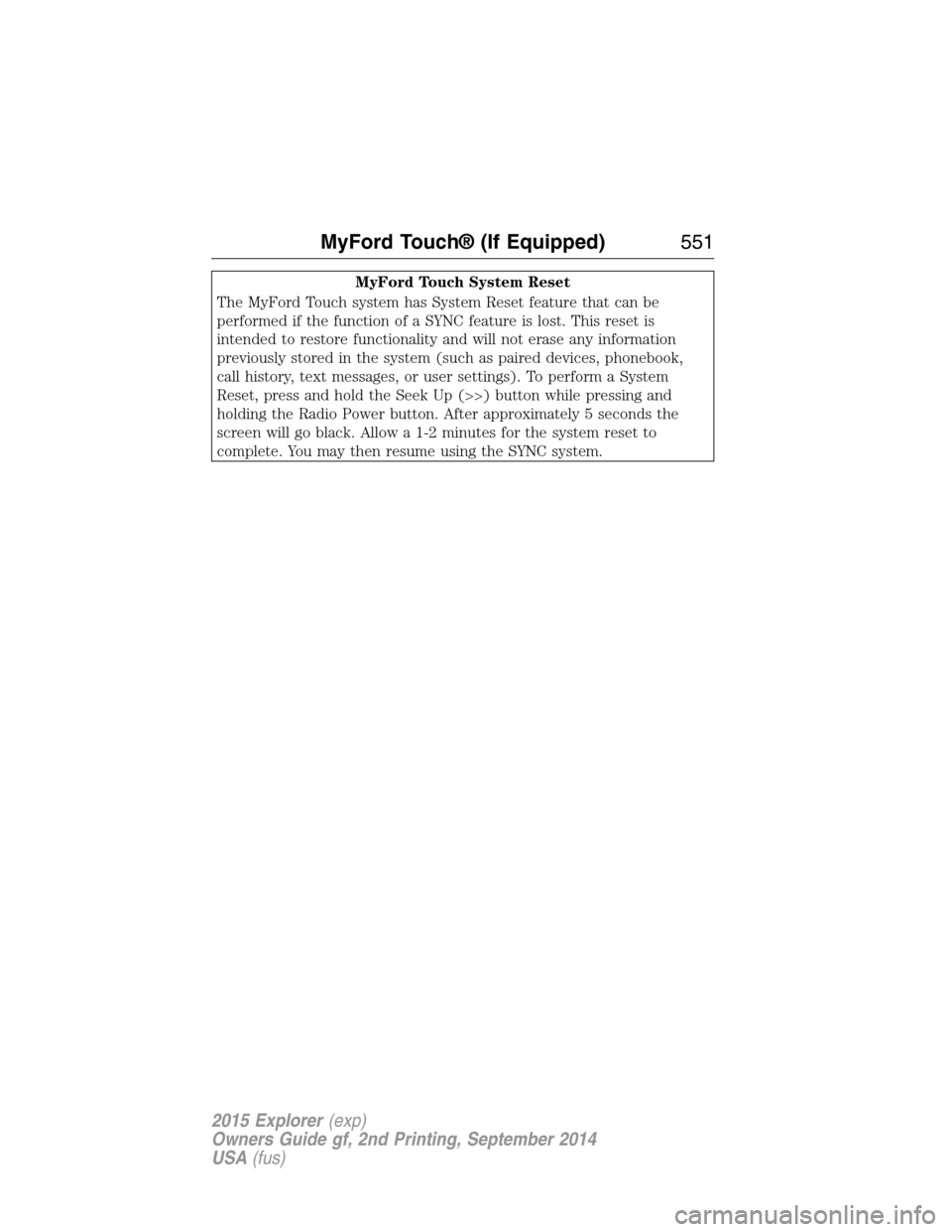
MyFord Touch System Reset
The MyFord Touch system has System Reset feature that can be
performed if the function of a SYNC feature is lost. This reset is
intended to restore functionality and will not erase any information
previously stored in the system (such as paired devices, phonebook,
call history, text messages, or user settings). To perform a System
Reset, press and hold the Seek Up (>>) button while pressing and
holding the Radio Power button. After approximately 5 seconds the
screen will go black. Allow a 1-2 minutes for the system reset to
complete. You may then resume using the SYNC system.
MyFord Touch® (If Equipped)551
2015 Explorer(exp)
Owners Guide gf, 2nd Printing, September 2014
USA(fus)
Page 571 of 596
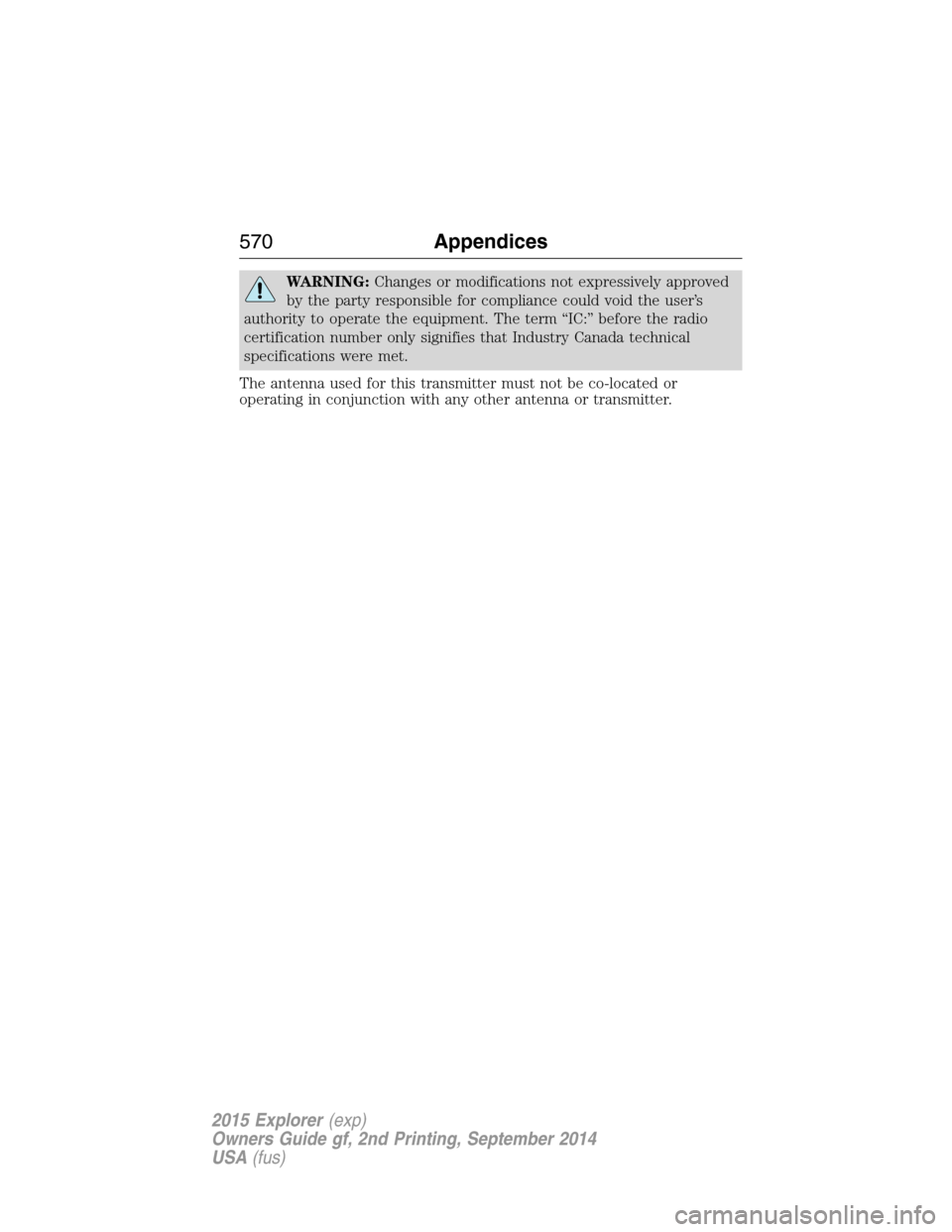
WARNING:Changes or modifications not expressively approved
by the party responsible for compliance could void the user’s
authority to operate the equipment. The term “IC:” before the radio
certification number only signifies that Industry Canada technical
specifications were met.
The antenna used for this transmitter must not be co-located or
operating in conjunction with any other antenna or transmitter.
570Appendices
2015 Explorer(exp)
Owners Guide gf, 2nd Printing, September 2014
USA(fus)
Page 589 of 596
911 Assist™ ......................436, 513
A
ABS (see Brakes) .....................220
Accessing and using your USB
port ............................................493
Accessing call history/phone
book during active call .............425
Accessing your calendar ..........513
Accessing your media menu
features ......................................448
Accessing your phone menu
features ......................................427
Accessory delay ........................108
Active call menu options .........425
Active Park Assist .....................230
Adaptive Cruise Control ...........240
Adding (pairing) a phone ........500
Advanced menu options ...434, 454
Advanced menu options
(prompts, languages, defaults,
master reset, installing
applications) ..............................434
Airbag supplemental restraint
system ..........................................52
and child safety seats ..............53
description ................................52
disposal ......................................61
driver airbag ..............................52
passenger airbag .......................52
side airbag ...........................52, 57
Air cleaner filter .......331–332, 391
Air conditioning ........................144
manual heating and air
conditioning system ...............144
Air filter .....................................332Air filter, cabin ..........................153
All Wheel Drive (AWD),
driving off road .........................212
Ambient mood/lighting .............520
Ambulance packages ..................16
AM/FM .......................................480
Antifreeze
(see Engine coolant) ................316
Anti-lock brake system
(see Brakes) ..............................220
Anti-theft system ..................85, 88
arming the system ..............85, 88
disarming a triggered system ..88
AppLink™ .................................444
Audio system
Single CD ................401, 406–407
Audio system
(see Radio) ................401, 406–407
Automatic transmission ............205
fluid, adding ............................322
fluid, checking ........................322
fluid, refill capacities ..............386
fluid, specification ..................386
Selectshift (SST) ....................208
Auxiliary Input Jack .................489
Auxiliary input jack (Line in) ..414
Auxiliary powerpoint ................182
A/V inputs ..........................416, 497
Axle
lubricant specifications ..........386
refill capacities ........................386
B
Battery .......................................327
acid, treating emergencies .....327
jumping a disabled battery ....289
588Index
2015 Explorer(exp)
Owners Guide gf, 2nd Printing, September 2014
USA(fus)